MDSLSA1 - Audio recorder SONY - Free user manual and instructions
Find the device manual for free MDSLSA1 SONY in PDF.
Download the instructions for your Audio recorder in PDF format for free! Find your manual MDSLSA1 - SONY and take your electronic device back in hand. On this page are published all the documents necessary for the use of your device. MDSLSA1 by SONY.
USER MANUAL MDSLSA1 SONY
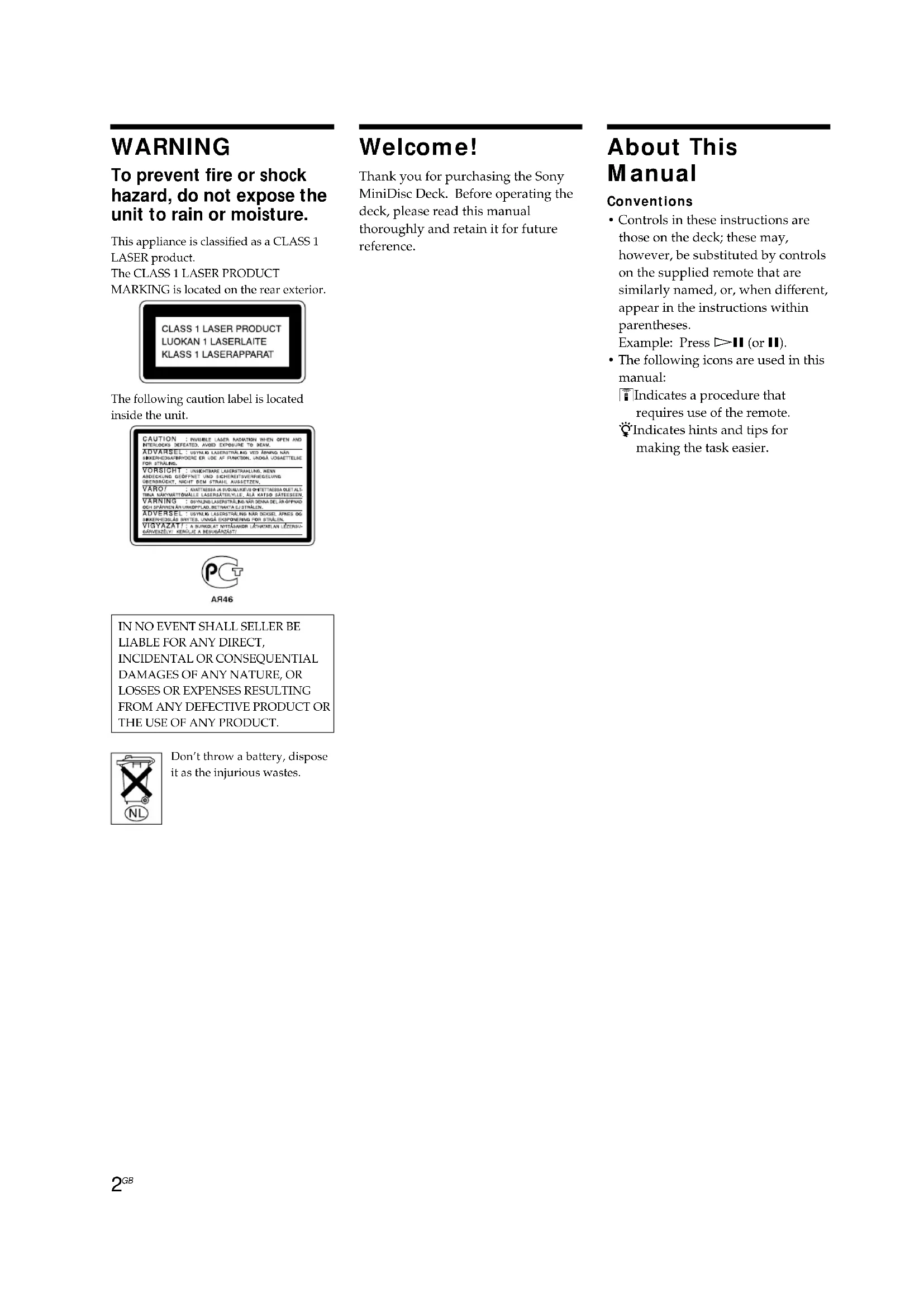
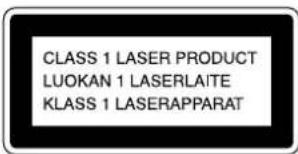
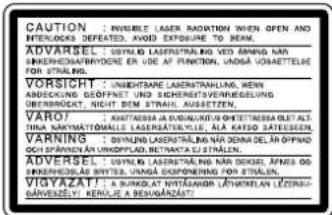
WARNING To prevent fire or shock hazard, do not expose the unit to rain or moisture. This appliance is classified as a CLASS 1 LASER product. The CLASS 1 LASER PRODUCT MARKING is located on the rear exterior. The following caution label is located inside the unit.
DAMAGES OF ANY NATURE, OR
LOSSES OR EXPENSES RESULTING
FROM ANY DEFECTIVE PRODUCT OR
THE USE OF ANY PRODUCT. Don’t throw a battery, dispose it as the injurious wastes. Welcome! Thank you for purchasing the Sony MiniDisc Deck. Before operating the deck, please read this manual thoroughly and retain it for future reference. About This Manual Conventions

- Controls in these instructions are those on the deck; these may, however, be substituted by controls on the supplied remote that are similarly named, or, when different, appear in the instructions within parentheses. Example: Press HX (or X).
- The following icons are used in this manual: ZIndicates a procedure that requires use of the remote. z Indicates hints and tips for making the task easier.3
Location and Function of Parts 4 Front Panel Parts Descriptions 4 Remote Parts Descriptions 6 Display Window Descriptions 8 Getting Started 10 Before You Start the Hookup 10 Hooking Up the i.LINK Components 11 Recording on MDs 12 Recording on an MD 12 Notes on Recording 14 Recording for Long Times 15 Adjusting the Recording Level 16 Recording Tips 16 Marking Track Numbers While Recording (Track Marking) 17 Starting Recording With 6 Seconds of Prestored Audio Data (Time Machine Recording) 18 Synchro-recording With the Audio Component of Your Choice (Music Synchro-recording) 19 Synchro-recording With a Sony CD Player (Normal/High-Speed CD Synchro- recording) 19 Playing MDs 21 Playing an MD 21 Playing a Specific Track 22 Locating a Particular Point in a Track 22 Playing Tracks Repeatedly 23 Playing Tracks in Random Order (Shuffle Play) 24 Creating Your Own Programme (Programme Play) 24 Tips for Recording From MDs to Tape 25 Editing Recorded MDs 27 Before You Start Editing 27 Erasing Tracks 28 Dividing Tracks 30 Combining Tracks 31 Moving Tracks 31 Naming Tracks or MDs 32 Undoing the Last Edit 34 Changing the Track Level After Recording (S.F Edit) 35 Other Functions 36 Fade In and Fade Out 36 Adjusting the Brightness of the Display 37 Other Settings Using the Setup Menu 37 About i.LINK 38 Additional Information 40 Precautions 40 Handling MDs 41 System Limitations 41 Troubleshooting 42 Specifications 42 Display Messages 43 Edit Menu Table 44 Setup Menu Table 45 Self-Diagnosis Function 46 Index 474
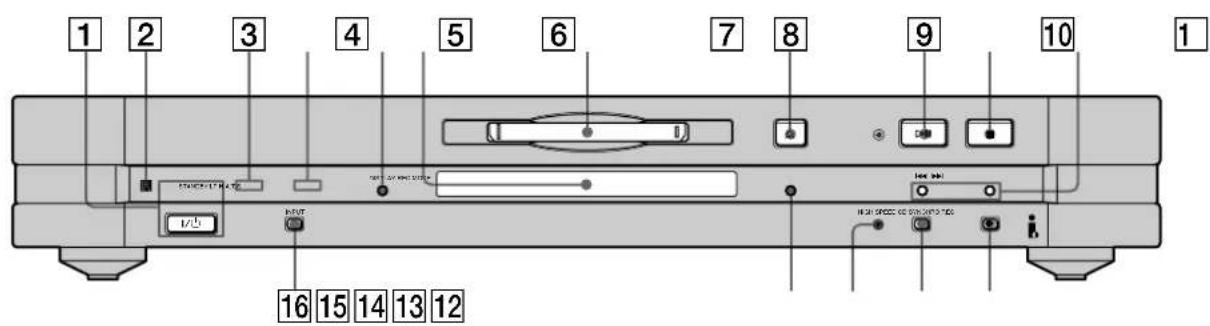
Location and Function of Parts This chapter tells you about the location and function of the various buttons and controls on the front panel and the supplied remote. Further details are provided on the pages indicated in the parentheses. It also tells you about the information that appears in the display window. Front Panel Parts Descriptions 1 ~/1 (power) switch (12, 21)Press to turn on the deck. When you turn on the deck,the STANDBY indicator turns off. When you press theswitch again, the deck turns off and the indicatorlights up.2 Remote sensorPoint the remote towards this sensor ( ) for remoteoperations.3 LP indicator (15)Lights up when LP2 or LP4 mode is selected, or whena track recorded in LP2 or LP4 mode is being played.4 H.A.T.S. indicatorLights up when the H.A.T.S. function is activated onthe receiver. What is the H.A.T.S. function?The H.A.T.S. (High-quality digital Audio TransmissionSystem) function on the receiver causes digital audio signalsoutput from an MD deck or the recording source (e.g., a CDplayer) to be momentarily stored in a buffer in the receiverprior to output. This reduces jitter that sometimes occursduring digital audio transmission.5 DISPLAY button (9, 13, 16, 20, 21)• Press when the deck is stopped to display discinformation.• Press during recording to display information on thetrack being recorded or recordable time on the MD.• Press during play to display information on thecurrent track.• Press during Programme Play to display the numberof the track currently being played in theprogramme.• Press during recording or recording pause to adjustthe recording level.5
Location and Function of Parts
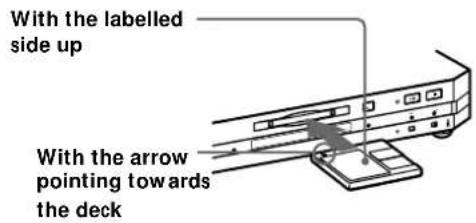
6 Display window (8, 16, 32, 35) Shows various information. For details, see “Display Window Descriptions” on page 8. 7 MD insertion slot (12, 21) Insert the MD as illustrated below.
- Press when the deck is stopped to start play.
- Press during playback to pause play.
- Press during recording to pause recording.
- Press during playback pause or recording pause to resume play or recording. q; x button (12, 20, 21) Press to stop play or recording, or cancel the selected operation. qa ./> buttons (12, 15, 16, 19, 21, 22) Press to locate tracks or select a menu item and a setting value. qs REC z button (12, 17) Press to record on the MD or mark track numbers. qd CD SYNCHRO button (19) Press to start CD Synchro-recording. With the labelled side up With the arrow pointing towards the deck qf HIGH SPEED indicator (20) Lights up when the deck is in High-speed CD Synchro-recording mode. qg REC MODE button (15) Press to select one of the following four recording modes: MONO mode (monaural recording), stereo mode (stereo recording), LP2 mode (2 times long recording), and LP4 mode (4 times long recording). qh INPUT button (12) Press once to display the selected programme source. If the programme source is either the STR-LSA1 or the CDP-LSA1, “N N n n” appears momentarily in the display window of the component. Press the button again to switch to another programme source.6
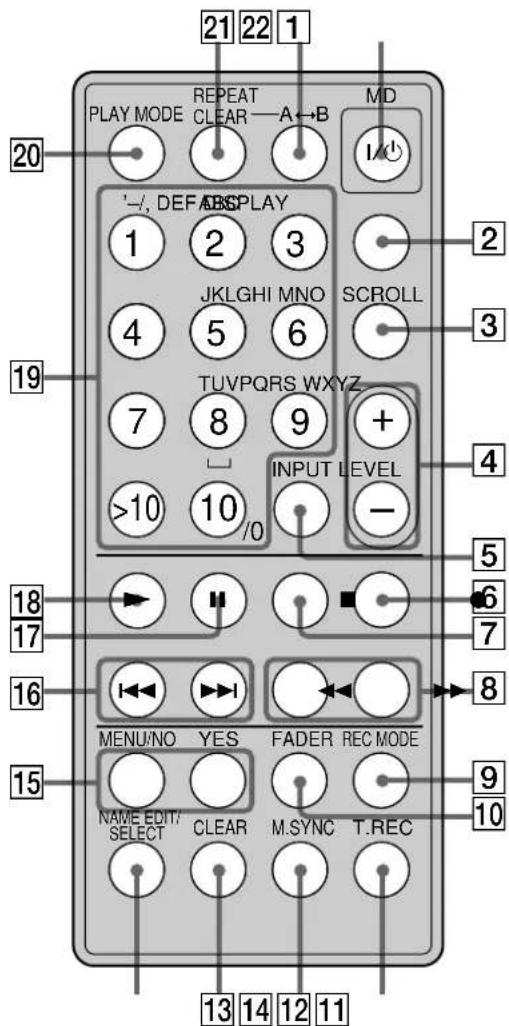
Location and Function of Parts Remote Parts Descriptions
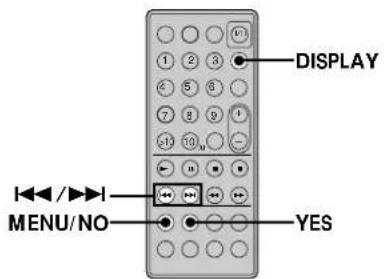
1 ~/1 (power) switch (12, 21)Press to turn on the deck. When you turn on the deck,the STANDBY indicator on the deck turns off. Whenyou press the switch again, the deck turns off and theindicator lights up.2 DISPLAY button (9, 13, 16, 20, 21, 24)Press to select the information to be displayed in thewindow.3 SCROLL button (21)Press to scroll the name of a track or MD.4 LEVEL +/– buttons (16)Press to adjust the recording level.5 INPUT button (12)Use to select the programme source to be recorded.6 z button (12, 17, 19)Press to record on the MD or mark track numbers.7 x button (12, 20, 21)Press to stop play or recording, or cancel the selectedoperation.8 m/M buttons (22, 23, 29, 30, 32)Press to locate a portion within a track, change thecontents of a programme, or shift the cursor to theright.9 REC MODE button (15)Press to select one kf the following four recordingmodes: MONO mode (monaural recording), stereomode (stereo recording), LP2 mode (2 times longrecording), and LP4 mode (4 times long recording).q; FADER button (36)Press to perform Fade-in Recording or Fade-outRecording.qa T.REC button (18)Press to start Time Machine Recording.qs MUSIC SYNC button (19)Press to start Music Synchro-recording.qd CLEAR button (24, 33)Press to erase a track in the programme or erase acharacter.qf NAME EDIT/SELECT button (32, 33)Press to add the name or change the name of a track oran MD, or to select the type of characters to be input.7
Location and Function of Parts qg MENU/NO button (15-19, 25, 26, 28-38) Press to display “Edit Menu” or “Setup Menu.” YES button (15-17, 19, 24-26, 28-38) Press to carry out the selected operation. qh ./> buttons (12, 15-19, 21, 22, 24-26, 28-38) Press to locate tracks, select a menu item and a setting value, or select the character to be input. qj X button (12, 20, 21) Press to pause play or recording. Press again to resume play or recording. qk N button (12, 19, 21, 22, 24) Press to start play. ql Letter/number buttons (22, 24, 32) Press to input letters or numbers. w; PLAY MODE button (24) Press to select Shuffle Play or Programme Play. wa REPEAT CLEAR button (23)
- Press to play tracks repeatedly.
- When Repeat All Play or Repeat 1 Play is selected, press to resume normal play. ws AyB button (23) Press to select Repeat A-B Play.8
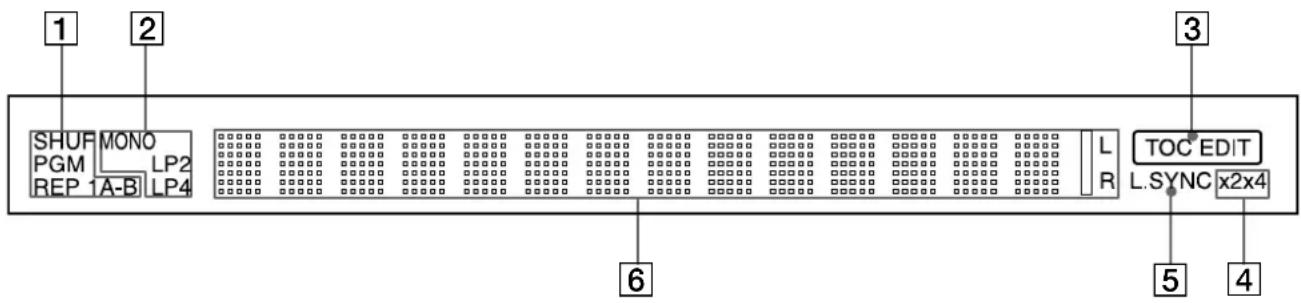
Location and Function of Parts Display Window Descriptions
1 Play mode indicators SHUF indicator (24) Lights up when Shuffle Play is selected. PGM indicator (24) Lights up when Programme Play is selected. REP indicators (23)
- “REP” lights up when Repeat All Play is selected.
- “REP 1” lights up when Repeat 1 Play is selected.
- “REP A-B” lights up when Repeat A-B Play is selected. 2 Recording mode indicators (15)
- No indicator lights up when stereo recording is selected.
- “MONO” lights up when monaural recording is selected.
- “LP2” lights up when 2 times long recording is selected.
- “LP4” lights up when 4 times long recording is selected. Whenever a track is played back, the corresponding recording mode indicator lights up in the display. 3 TOC EDIT indicator (14, 28, 38)
- “TOC” lights up to indicate the presence of TOC data that has not been written to the disc. “TOC” flashes when the data is being written to the disc.
- “TOC EDIT” lights up during an editing operation. 4 High-Speed CD Synchro-Recording indicators (20)
- “×2” lights up when 2× High-speed CD Synchro- recording (recording is done in LP2 or LP4 mode) is selected.
- “×4” lights up when 4× High-speed CD Synchro- recording (recording is done in stereo or MONO mode) is selected. 5 L.SYNC indicator (18) Lights up during recording when the deck is in automatic track marking mode. 6 Information and menu display area (8, 9, 16, 32, 35)
- Displays parameters during editing or menu operations.
- Displays the input level during recording or recording pause.
- Displays MD or track data (name and playing time, etc.), depending on the deck status (play, recording, etc.). Notes
- The display format that you’ve selected in each of the deckstatuses will appear whenever the deck enters that statusand you press DISPLAY until you change the format toanother (see below for details). If you disconnect the mainslead, however, all the displays will revert to their default(i.e., the factory set display) the next time you turn on thedeck.• Time information to be displayed may vary according tothe recording mode. When you insert an MD The following information appears automatically. Disc name
Total number of tracks and total recorded time9
Location and Function of Parts While the deck is stopped Press DISPLAY repeatedly to change the display. Each press of the button changes the display as follows: Total number of tracks and total recorded time (default display)
Remaining recordable time on the MD (recordable MDs only)*
Not shown for the premastered discs.
Disc name does not appear when the MD has not been named. While the deck is recording Press DISPLAY repeatedly to change the display. Each press of the button changes the display as follows: Track number and recorded time of the current track (default display)
Remaining recordable time on the MD
Level of the input signal
Track name does not appear when the track has not been named. While the deck is playing Press DISPLAY repeatedly to change the display. Each press of the button changes the display as follows: Track number and elapsed time of the current track (default display)
Track number and remaining playing time of the current track
Remaining playing time on the MD
Track name does not appear when the track has not been named.10
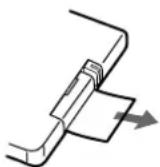
Before You Start the Hookup Checking the supplied accessoriesThis MD deck comes with the following items:• i.LINK connecting cable (1)• Remote commander (remote) (1)Before using the supplied remoteThe supplied remote already contains a battery. Beforeusing the remote, pull out the insulating sheet to allow thepower to flow from the battery.To avoid battery leakageIf you don’t use the remote for an extended period of time,remove the battery to avoid possible damage from batteryleakage and corrosion. When to replace the batteryUnder normal conditions, the battery should last for about sixmonths. When the remote no longer operates the deck, replacethe battery with new kne.Notes on lithium battery• Keep the lithium battery out of the reach of the children.Should the battery be swallowed, immediately consult a doctor.• Wipe the battery with a dry cloth to assure a good contact.• Be sure to observe the correct polarity when inserting thebattery.• Do not hold the battery with metallic tweezers, otherwise ashort-circuit may occur.WARNINGBattery may explode if mistreated.Do not recharge, disassemble, or dispose of in fire. Getting Started This chapter provides information on the supplied accessories, things you should keep in mind while hooking up the system, and how to connect i.LINK components to the MD deck. Be sure to read this chapter thoroughly before you actually connect anything to the deck.11
player,etc.* Required cords i.LINK connecting cables (2) (only one supplied) Things you should keep in mind while hooking up the system

- Turn off the power to all components before making any connections.
- Do not connect any mains lead until all the connections are completed.
- Be sure the connections are firm to prevent hum and noise. Jacks for connecting i.LINK components Connect an To the Receiver or CD player, etc. i.LINK S200 connector Note on i.LINK component hookups If a metal object should fall into the i.LINK S200 connector, short-circuiting may occur and damage the components. About optional i.LINK connecting cables Be sure to use the Sony i.LINK S200 connecting cables (4 pins-4 pins). About i.LINK components to be used in combination with the MD deck The following i.LINK components can be used with the MD deck:
For general information about i.LINK See “About i.LINK” on page 38. Connecting the mains lead Connect the mains lead of the deck to a wall outlet. Note If you use a timer, connect the mains lead to the outlet of thetimer. You can connect the i.LINK components to either i.LINK S200 connector.12
Recording on MDs This chapter explains the various ways to record on an MD, as well as how to mark track numbers and perform synchro-recording with other components. See also “System Limitations” on page 41 before recording. Recording on an MD The operations for normal recording are explained below. If the MD has recorded material on it, the deck will automatically start recording from the end of the recorded portion. ?/1 INPUT REC z ?/1 AHX
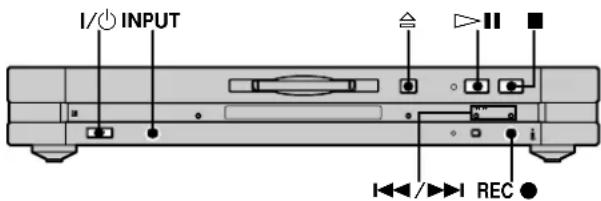
1 Press ~/1 to turn on the deck. The STANDBY indicator turns off. 2 If the receiver is not turned off, turn it on and turn on the programme source, and then select the source kn the receiver. 3 Insert a recordable MD. 4 Press INPUT repeatedly until the name of the programme source that you want to record from appears. If the programme source you want does not appear, see page 13. 5 If necessary, select the recording mode. For details, see “Recording for Long Times” on page
6 If necessary, locate the point on the MD to start recording from. If you want to record on a new MD or start recording from the end of the recorded portion, go to step 7. To record over from the beginning of an existing MD track Press ./> repeatedly until the number of the track to be recorded over appears. To record over from the middle of an MD track Press ./> repeatedly until the number of the track to be recorded over appears, then press HX (or N) to start playback. Press HX again (or press X) at the point you want to start recording from. 7 Press REC z. The deck changes to recording pause. 8 If necessary, adjust the recording level. For details, see “Adjusting the Recording Level” on page 16. 9 Press HX (or press N or X). Recording starts. 10Start playing the programme source.13
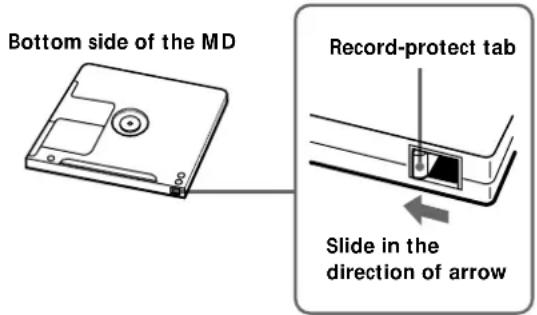
Recording on MDs Operations you may want to do during recording To Press Stop recording x Pause recording HX (or X) Resume recording after pausing HX (or press N or X) Change the display information DISPLAY (page 9) Eject the MD A after stopping recording When you pause recording The track number increases by one. For example, if you paused recording while recording track 4, the track number will be 5 when you resume recording. To prevent accidental erasure of the recorded material To make it impossible to record on an MD, slide the record-protect tab in the direction of the arrow (see illustration below) to open the slot. To enable recording, close the slot. If the programme source does not appear in step 4 An error may have occurred while the MD deck was reading information about the programme source. Or, the MD deck may be incapable of receiving information from certain components. The indications in the following table may appear at this time: Indication Meaning “Disc”, “Tuner”, etc. The MD deck has read in only general information about the component. “Unknown” The MD deck cannot receive any information about the component. The connection, however, remains operative. “No Device” No component is connected to the MD deck. “CANNOT LINC” You cannot record from the selecetd component.
To play the tracks you just recorded Press HX (or N) immediately after stopping recording. The deck starts to play from the first track of the material just recorded.
To play from the first track of the MD after recording 1 Press x again after stopping recording. 2 Press HX (or N). The deck starts to play from the first track of the MD. Note While recording, do not disconnect any mains leads or i.LINK connecting cables within the i.LINK configuration. If you do so, recording may not be done properly. Bottom side of the MD Record-protect tab Slide in the direction of arrow14
Recording on MDs Notes on Recording About indications which appear while recording When “Protected” and “C11” alternate in thedisplayThe record-protect slot is open and the MD is record-protected. To record on the MD, slide the tab to close theslot. For details, see “To prevent accidental erasure of therecorded material” on page 13.When “Cannot Select” and programme sourcename alternate in the displayThe selected programme source is not an audiocomponent. Select the audio component.When “Cannot Copy” and “C12” alternate in thedisplayThe MD deck uses the Serial Copy Management System.MDs recorded through the digital input connector can’t becopied on other MDs or DAT tapes through the digitaloutput connector. For details, see “Guide to the SerialCopy Management System” on this page.When “Impossible” appears in the displayYou tried to record over existing track(s) (see “Recordingon an MD” on page 12) while Shuffle Play (page 24) orProgramme Play (page 24) is selected. You can recordover existing material only when the normal play (page21) or Repeat Play (page 23) is selected.When “NO SIGNAL” appears in the displayNo signal is input to the MD deck and recording cannotbe done.When “Tr” flashes in the displayThe MD deck is recording over existing track(s). Theindication stops flashing when the deck reaches the end ofthe recorded portion. About indications which appear after recording When “TOC” lights up in the displayRecording has finished but the TOC (Table of Contents)on the MD has not been updated to reflect the recordingresults. The recording will be lost if you disconnect themains lead while the indication is on. The TOC will beupdated only when you eject the MD or turn off the MDdeck.When “TOC Writing” flashes in the displayThe deck is updating the TOC. Do not disconnect themains lead or move the deck while the indication flashes. Guide to the Serial Copy Management System Digital audio programme, such as CDs, MDs, and DATsmake it easy to produce high-quality copies of music byprocessing music as a digital signal.To protect copyrighted music sources, this deck uses theSerial Copy Management System which allows you tomake only a single copy of a digitally recorded sourcethrough digital-to-digital connections.You can make only a first-generation copy through a digital-to-digital connection.Examples are given as follows:• You can make a copy of a commercially available digitalsound programme (for example, a CD or MD), but youcan’t make a second copy from the first-generationcopy.• You can make a copy of a digital signal from a digitallyrecorded analog sound programme (for example, ananalog record or a music cassette tape) or from a digitalsatellite broadcast programme, but you can’t make asecond copy from the first-generation copy. A first-generation copy means the first recording of a digital audiosource through the deck’s digital input connector. For example, if yourecord from a CD player connected to the i.LINK S200 connector,that copy is a first-generation copy. Note The restrictions of the Serial Copy Management System don’tapply when you make a recording through the analog-to-analogconnections.15
Recording on MDs Recording for Long Times In addition to normal stereo recording, this deck has two recording modes: LP2 and LP4. When recording in LP2 mode, you can record 2 times the normal recordable time, and in LP4 mode, you can record 4 times the normal recordable time. In addition, the recordable time for monaural recording is approximately double the stereo recording time. Note MDs recorded in LP2 or LP4 mode can be played back only ondecks that support the MD LP format. Conventional MD deckscannot play MDs recorded in LP2 or LP4 mode. REC MODE 1 Do steps 1 to 4 of “Recording on an MD” on page
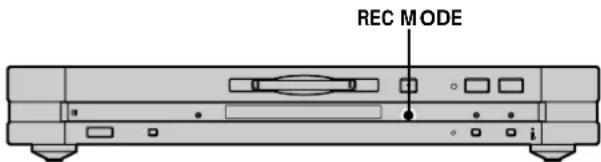
2 Press REC MODE repeatedly to select the recording mode. To record in Select to light up Monaural MONOStereo (factory setting) no indicatorLP2 stereo LP2LP4 stereo LP4 3 Do steps 6 to 10 of “Recording on an MD” on page
When you record on an MD in LP2 or LP4 modeThe LP indicator on the front panel lights up.Notes• Even if you press REC MODE during recording or recordingpause, you cannot change the recording mode.• You cannot perform S.F Edit for the tracks recorded in LP2 orLP4 mode. LP Stamp function works during recording in LP2 or LP4mode ZA track recorded in LP2 or LP4 mode is given an identificationcode which is displayed only when you attempt to play that trackon an MD deck which does not support LP modes. “LP:”appears in the display at this time. To turn off this function, dothe procedure below.1 While the deck is stopped or playing, press MENU/NO twice.“Setup Menu” appears in the display. 2 Press ./> repeatedly until “LP Stamp On” appears, then press YES. 3 Press ./> repeatedly to select “LP Stamp Off,” then press YES. 4 Press MENU/NO.To turn on the LP Stamp function again, select “LP Stamp On” instep 3 above.Notes• “LP:” does not appear when the track is played back on theMD deck that supports the MD LP format.• When the LP Stamp function is on, the maximum number ofcharacters which can be input in the MD decreases.• When you divide the track recorded with the LP Stampfunction activated, “LP:” code is copied to the newly createdtrack.16
Recording on MDs Adjusting the Recording Level Do the procedure below to adjust the recording level. ?/1 DISPLAY
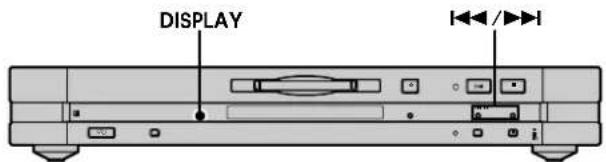
1 Do steps 1 to 7 of “Recording on an MD” on page
2 Play the portion of the programme source with the strongest output. 3 Press DISPLAY repeatedly until the level of the input signal appears. 4 While monitoring the sound, press ./> repeatedly (or press LEVEL +/– repeatedly) to raise the recording level to its highest level without turning kn the rightmost indicator on the peak level meters. Avoid turning on this indicator 5 Stop playing the programme source. 6 To start recording, continue from step 9 of “Recording on an MD” on page 12.

The Peak Hold function freezes the peak level meters at the highest level reached by the input signal Z 1 Press MENU/NO twice.“Setup Menu” appears in the display. 2 Press ./> repeatedly until “P.Hold Off” (factory setting) appears, then press YES. 3 Press ./> repeatedly to select “P.Hold On,” then press YES. 4 Press MENU/NO.To turn off the Peak Hold Function, select “P.Hold Off” in step 3above. Note The volume can only be increased up to +18.0 dB. Therefore, ifthe output level of the connected component is low, it may not bepossible to set the recording level to maximum. Recording Tips ?/1
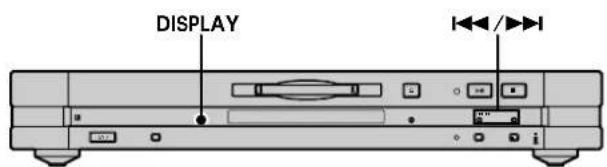
>10 DISPLAY Checking the remaining recordable time on the MD Press DISPLAY repeatedly. While the deck is The following information appears Stopped Total recorded time y Remainingrecordable time on the MDRecording Recorded time kf the current track yRemaining recordable time on the MD For details, see page 9. Note Time information to be displayed may vary depending on therecording mode. Erasing blank portions automatically (Smart Space/Auto Cut) Z The deck can be set to automatically erase any blanks that are produced when the signal is interrupted during recording. The function which activates (Smart Space or Auto Cut) depends on the length of the interruption, as described below. Smart Space If the signal is interrupted for less than 30 seconds, Smart Space replaces the blank portion with a blank space of about three seconds, then continues the recording. “Smart Space” appears in the display during this time.17
Recording on MDsAuto CutIf the signal is interrupted for about 30 seconds , Auto Cutreplaces the blank portion with a blank space of aboutthree seconds, then pauses the recording. “Auto Cut”appears in the display during this time.Do the procedure below to turn Smart Space and AutoCut on or off. 1 While the deck is stopped, press MENU/NO twice. “Setup Menu” appears in the display. 2 Press ./> repeatedly until “S.Space On” appears, then press YES. 3 Press ./> repeatedly to select the setting, then press YES.To SelectTurn on Smart Space and Auto Cut S.Space On (factorysetting)Turn off Smart Space and Auto Cut S.Space Off 4 Press MENU/NO. Notes• If you start recording with no signal input, Smart Space andAuto Cut will not operate regardless of the setting.• Smart Space does not affect the order of the track numbersbeing recorded, even if the blank space occurs in the middle ofa track.• Auto Cut is automatically turned on or off in tandem withSmart Space.• If you turn off the deck or disconnect the mains lead, the deckwill store the last setting (“S.Space On” or “S.Space Off”) andrecall it the next time you turn on the deck.• If the deck continues recording pause for about ten minutesafter the Auto Cut activated, recording stops automatically. Marking Track Numbers While Recording (Track Marking) You can mark track numbers either manually orautomatically while recording. By marking tracknumbers at specific points, you can quickly locate thepoints later or edit the MD easily. ?/1
>10 REC z Marking track numbers manually (Manual Track Marking) Press REC z at the point where you want to add atrack number while recording. Marking track numbers automatically (Automatic Track Marking) Z When recording from a CD player or MD deck connectedto the i.LINK S200 connector, the deck marks tracknumbers in the same sequence as the source. Whenrecording from other sources connected to the i.LINKS200 connector, do the procedure below to mark tracknumbers automatically. However, Automatic TrackMarking may not function properly if the recordingsource contains much noise. 1 While the deck is stopped, press MENU/NO twice. “Setup Menu” appears in the display. 2 Press ./> repeatedly until “T.Mark Lsync” appears, then press YES. 3 Press ./> repeatedly to select the setting, then press YES.To SelectTurn on Automatic Track Marking T.Mark Lsync (factorysetting)Turn off Automatic Track Marking T.Mark Off18
Recording on MDs 4 Press MENU/NO. When you have turned on Automatic Track Markingin step 3 above, “L.SYNC” lights up in the display.The deck marks a track number whenever the inputsignal level drops to –50 dB (the trigger level forAutomatic Track Marking) or below for at least 1.5seconds and rises above –50 dB again.To change the trigger level for Automatic TrackMarking ZDo the procedure below to change the signal level thattriggers Automatic Track Marking. 1 While the deck is stopped, press MENU/NO twice. “Setup Menu” appears in the display. 2 Press ./> repeatedly until “LS(T)” appears, then press YES. 3 Press ./> repeatedly to select the level, then press YES.You can set the level at any value between –72 dB and0 dB, in 2 dB steps. 4 Press MENU/NO.
Additional information on Automatic Track Marking• When recording from a CD player or MD deck connected to thei.LINK S200 connector, the entire material may be recorded as asingle track in the following cases:— When you consecutively record the same track two or moretimes using single-track repeat play.— When you consecutively record two or more tracks with thesame track number but from different CDs or MDs.— When you record tracks from certain CD or multi-discplayers.Also, if the source is an MD, a track number may not bemarked for tracks less than four seconds (in stereo mode,monaural mode, or LP2 mode) or eight second (in LP4 mode)long.• When recording from a DAT deck or DBS tuner connected tothe i.LINK S200 connector, the entire material may be recordedas a single track.• When recording from a DAT deck or DBS tuner connected tothe i.LINK S200 connector, the deck will mark a track numberwhenever the sampling frequency of the input signal changes,regardless of the track marking parameter setting (“T.MarkLsync” or “T.Mark Off”). You can mark track numbers even after recording hasfinishedSee “Dividing Tracks” on page 30. Note If you turn off the deck or disconnect the mains lead, the deckwill store the last settings (“T.Mark Lsync” or “T.Mark Off” andthe trigger level) and recall them the next time you turn on thedeck. Starting Recording With 6 Seconds of Prestored Audio Data (Time Machine Recording) Z Whenever the deck is in recording pause, the deck’sbuffer memory continuously stores the latest 6 secondsworth of audio data. When you press T.REC, therecording then starts with the data in the buffer memory.Time Machine Recording thus allows you to avoidmissing the beginning of material recorded live from anFM or satellite broadcast.
T.REC 1 Do steps 1 to 8 of “Recording on an MD” on page
The deck changes to recording pause. 2 Start playing the programme source. 3 Press T.REC at the point where you want to start recording.Recording starts with the 6 seconds of prestored datain the buffer memory, then continues recording via thebuffer memory thereafter.To stop Time Machine RecordingPress x. Note The storage of data in the buffer memory starts from the momentthe deck changes to recording pause. Thus, if you start recordingless than 6 seconds after changing to recording pause, less than 6seconds worth of data will be recorded from the buffer memory.The same is true if the programme source had been playing forless than 6 seconds at the time you start recording. Marking Track Numbers While Recording (Track Marking)19
Recording on MDs Synchro-recording With the Audio Component of Your Choice (Music Synchro-recording)
The Music Synchro-recording allows you to automatically synchronize recording kn the MD deck with the playing of the selected programme source. The Track Marking function, however, will differ according to the programme source. For details, see “Marking Track Numbers While Recording” on page 17.
M.SYNC 1 Do steps 1 to 6 of “Recording on an MD” on page
2 Press M.SYNC. The deck changes to recording pause. 3 Start playing the programme source. Recording starts automatically. To stop Music Synchro-recording Press x. Note During Music Synchro-recording, Smart Space and Auto Cut will operate regardless of their setting (“S.Space On” or “S.Space Off”). Synchro-recording With a Sony CD Player (Normal/ High-Speed CD Synchro-recording)
By connecting the MD deck to a Sony CD player, you can copy the contents of CDs to MDs through simple operations. You can select normal speed or high speed. When you select high speed, the deck automatically specifies 2× normal speed or 4× normal speed according to the current recording mode (monaural, stereo, LP2 stereo, or LP4 stereo). If you use the remote during this procedure, make sure the MD deck and the CD player are as close to each other as possible since the remote operates both the MD deck and the CD player. ?/1
>10 CD SYNCHRO 1 While the deck is stopped, press MENU/NO twice. “Setup Menu” appears in the display. 2 Press ./> repeatedly until “Synchro High” appears, then press YES. 3 Press ./> repeatedly to select the setting, then press YES. To record at Select Normal speed Synchro Normal High speed Synchro High* (factory setting)
- When monaural or stereo recording mode is selected, CD Synchro-recording is done in ×4 normal speed; when LP2 or LP4 is selected, recording is done in ×2 normal speed. 4 Press MENU/NO. 5 Turn on the receiver and the CD player, and select CD on the receiver. 6 Do steps 3 to 6 of “Recording on an MD” on page
7 Insert a CD into the CD player and select the playback mode (normal play or Programme Play only) on the CD player.20
Recording on MDs Synchro-recording With a Sony CD Player (Normal/High-Speed CD Synchro-recording) 8 Press CD SYNCHRO. The CD player changes to play standby and the MD deck changes to recording standby. The HIGH SPEED indicator on the MD deck and the ×2 or ×4 indicator in the MD deck display light up according to the recording speed. When “Select CD” appears in the display The CD player is not selected as the programme source. Press INPUT on the MD deck to select the CD player. When “Connect CD” appears in the display The CD player is not connected in an i.LINK configuration. Connect the CD player. 9 After “New Track” starts to flash in the display, press HX (or press N or X). The deck starts recording and the CD player starts to play. The track number and elapsed recording time of the track appear in the display. Recording stops automatically when the CD player finishes playback. Operations you may want to do during CD Synchro-recording To Press Stop recording xCheck the remaining recordabletime on the MDDISPLAY (page 16) When “Cannot Synchro” appears in the display A reading error has occurred. Record the track again. Reading errors may be caused by the following CD and recording conditions:
- With the following kinds of CDs, you may experience a reading failure or noise when recorded to an MD: — CDs with adhesive labels attached to them — Irregularly shaped CDs (for example, heart- or star- shaped CDs) — CDs with printed text concentrated on one side only — Old CDs — Scratched CDs — Dirty CDs — Warped CDs
- If the following occurs during CD playback or recording, a reading error may occur or noise may be produced in the recording results: — The CD tray or other part of the deck is bumped. — The deck is placed on an uneven or soft surface. — The deck is located near a speaker, door, or other source of vibration.
You can use the remote of the CD player to stop CD Synchro-recordingPress x. The deck stops recording and the CD player stopsplaying. During CD Synchro-recording, track numbers are marked inthe following way:When the CD player is connected to the i.LINK S200 connector,track numbers are automatically marked as they appear on the CD.
CD text information (CD text and disc memos) can be copiedto the MD during CD Synchro-recording (Disc Memo Copyfunction)If the MD deck is recording a CD track with CD text information,press NAME EDIT/SELECT to display the contents of theinformation in the MD deck’s display window. To record theinformation to the MD as a track name, press YES.Notes• You cannot record over existing material during High-SpeedCD Synchro-recording. The deck automatically starts recordingfrom the end of the existing material.• When the CD player is in Shuffle Play or Repeat Play mode, itautomatically changes to normal play at the point you pressCD SYNCHRO in step 8.• The following items are either inoperable or cannot be usedduring High-Speed CD Synchro-Recording:— The Auto Cut function— The recording level specified by the Setup Menu. (In thiscase, recording is done at 0.0 dB.)• Text information may not be copied for some CDs.• When no operation has been done for about one minute afteryou pressed CD SYNCHRO in step 8, CD Synchro-recording isautomatically cancelled.• Do not disconnect any mains leads or i.LINK connecting cableswithin the i.LINK configuration. If you do so, recording mayfail.• Make sure that the remaining recordable time on the MD islonger than the playing time of the CD, especially if you wantto record all the tracks on the CD.• If the MD becomes full in the middle of recording of a track, thetrack will not be recorded to the MD.21
Playing MDs Playing MDs This chapter explains the various ways to play MDs. Playing an MD The operations for normal play are explained below. ?/1 ?/1
1 Press ~/1 to turn on the deck. The STANDBY indicator turns off. 2 If the receiver is turned off, turn it on and select this deck on the receiver. 3 Insert an MD. 4 If necessary, press > repeatedly to locate the track you want to start playing from. If you want to play from the first track, go to step 5. 5 Press HX (or N). The deck starts to play. 6 Adjust the volume on the receiver. Operations you may want to do during play To Press Stop play x Pause play HX (or X) Resume play after pausing HX (or, N or X) Locate a succeeding track > repeatedly Locate the beginning of the current track or a preceding track . repeatedly Change the display information DISPLAY (page 9) Eject the MD A after stopping play
When i.LINK Control function is activated on the receiver Pressing HX (or N) on the MD deck turns on the receiver and the MD deck and playback starts automatically.
When you play an MD recorded in LP2 or LP4 mode The LP indicator in the deck lights up.
You can check the track name at any time while playing Z Press SCROLL. The track name appears and scrolls. While the track name is scrolling, press the button again to stop scrolling, and again to continue scrolling.Playing MDs
Playing a Specific Track While the deck is playing or stopped, use the procedure below to quickly play any track.
Locating a track with AMS* To go to Press The next or a succeeding track during play Locating a Particular Point in a Track Z You can locate a particular point in a track during play or play pause. m/M
Locating a point while monitoring the sound Press down m/M during play. You will hear intermittent playback as the disc goes forward or in reverse. When you reach the point, release the button. Notes
- If the disc reaches the end while you’re pressing M, the deck stops.
- Tracks that are only a few seconds long may be too short for monitoring. For such tracks, play the MD at normal speed. Locating a point by observing the time indication Press down m/M during play pause. The elapsed playing time of the track appears in the display. When you reach the point, release the button. No sound is output during this time.
When “- Over -” appears in the display The disc has reached the end while you’re pressing down M. Press m to go back. A preceding track during play . repeatedly. The beginning of the current track during play . once. A specific track while the deck is stopped ./> repeatedly until the track number you want to go to flashes in the display, then press HX (or N). > repeatedly.
To locate the last track of the MD quickly While the deck is stopped, press . once.
If you locate a track while the deck is stopped or paused The deck will still be stopped or paused at the beginning of the located track. Playing a track by entering the track number Z Press the number button(s) to enter the track number of the track you want to play. To enter a track number over 10 1 Press >10. 2 Enter the corresponding digits. To enter 0, press 10 instead. Examples:
- To play track number 30, press >10, then 3 and 10.
- To play track number 108, press >10 twice, then 1, 10, and
If you enter a track number while the deck is stopped or paused The deck will still be stopped or paused at the beginning of the track. Number buttonsPlaying MDs
Playing Tracks Repeatedly
You can play an entire MD repeatedly. This function can be used with Shuffle Play to repeat all the tracks in random order (page 24), or with Programme Play to repeat all the tracks in the programme (page 24). You can also repeat a specific track or portion within a track.
Note If you turn off the deck or disconnect the mains lead, the deck will store the last setting of the repeat play (“Repeat All” or “Repeat 1”) and recall it the next time you turn on the deck. However, settings of Repeat A-B Play are erased when you turn off the deck or disconnect the mains lead. Repeating all the tracks on the MD (Repeat All Play) Press REPEAT CLEAR repeatedly until “REP” lights up in the display. When you play an MD, the deck repeats the tracks as follows: When the play mode is The deck repeats Normal play (page 21) All the tracks in sequence Shuffle Play (page 24) All the tracks in random order Programme Play (page 24) All the tracks in the programme in sequence To stop Repeat All Play Press x. To resume normal play Press REPEAT CLEAR repeatedly until “REP” turns off. Repeating the current track (Repeat 1 Play) While the track you want to repeat is being played, press REPEAT CLEAR repeatedly until “REP 1” lights up in the display. Repeat 1 Play starts. To stop Repeat 1 Play Press x. To resume normal play Press REPEAT CLEAR repeatedly until “REP 1” turns off. Repeating a specific portion within a track (Repeat A-B Play) You can specify one portion within a track to be played repeatedly. Note that the portion that you specify must be within the boundaries of a single track. 1 While the deck is playing, press AyB at the starting point (point A) of the portion to be played repeatedly. “REP A-” lights up and “B” flashes in the display. 2 Continue playing the track or press M to locate the ending point (point B), then press AyB. “REP A-B” lights up and Repeat A-B Play starts. To stop Repeat A-B Play and resume normal play Press REPEAT CLEAR.
You can set a new starting point and ending point during Repeat A-B Play You can change the current ending point to a new starting point, then specify a new ending point to repeat a portion right after the current portion. 1 During Repeat A-B Play, press AyB. The current ending point changes to the new starting point (point A). “REP A-” lights up and “B” flashes in the display. 2 Locate the new ending point (point B) and press AyB. “REP A-B” lights up and the deck starts to repeat the newly specified portion.Playing MDs
Creating Your Own Programme (Programme Play) Z You can pick out the tracks that you like and specify the playback order in a programme containing up to 25 tracks. YES CLEARDISPLAY./>
1 While the deck is stopped, press PLAY MODE repeatedly until “PGM” lights up in the display. 2 Use the number button(s) to enter the track directly. Or, press ./> repeatedly until the track number you want to add to the programme appears, then press YES or PLAY MODE. “Step X (X: number of the entered tracks)” appears, followed by total playing time of the programme. To clear the last entered track Press CLEAR to erase the track number. To enter a track number over 10 Use >10. For details, see page 22. 3 Repeat step 2 to enter other tracks. 4 Press N. Programme Play starts. To check the number of the track currently being played in the programme Press DISPLAY. To check the contents of the programme during Programme Play Press ./> repeatedly. To add a track to the end of the programme Do steps 2 above while the deck is stopped. To erase all tracks in the programme Press CLEAR repeatedly until all the track numbers disappear. To stop Programme Play Press x. To resume normal play Press PLAY MODE repeatedly until “PGM” turns off. Playing Tracks in Random Order (Shuffle Play) Z When you select Shuffle Play, the deck plays all the tracks on the MD in random order. PLAY MODE
1 While the deck is stopped, press PLAY MODE repeatedly until “SHUF” lights up in the display. 2 Press N. Shuffle Play starts. ; appears while the deck is “shuffling” the tracks. To resume normal play While the deck is stopped, press PLAY MODE repeatedly until “SHUF” turns off.
You can locate tracks during Shuffle Play Press ./> repeatedly.
- To locate the next track or a later track to be played, press > repeatedly.
- To locate the beginning of the current track, press .. Note that you can’t locate and play the tracks that have already been played once. Number buttonsPlaying MDs
The programme remains even after Programme Play ends or is stopped Press N to play the programme again. Notes
- If you eject the MD, the programme will be lost.• The display shows “- - - m - - s” when the total playing time ofthe programme exceeds 1,000 minutes.• “Step Full” appears when you try to programme the 26th track. Tips for Recording From MDs to Tape
Inserting blanks between tracks during play (Auto Space) The MD deck can be set to automatically insert a three- second blank between tracks during play. This function is useful when you’re recording from an MD to an analog tape since the three-second blank enables you to use the Multi-AMS function later to locate the beginning of tracks on the tape. 1 While the deck is stopped, press MENU/NO twice. “Setup Menu” appears in the display. 2 Press ./> repeatedly until “Auto Off” appears, then press YES. 3 Press ./> repeatedly to select the setting, then press YES. To Select Turn on Auto Space Auto SpaceTurn off Auto Space Auto Off (factory setting) 4 Press MENU/NO. Notes
- If you select “Auto Space” and record a selection containingmultiple track numbers (for example, a medley or symphony),blank spaces will be created on the tape in between the varioussections.• If you turn off the deck or disconnect the mains lead, the deckwill store the last setting (“Auto Space” or “Auto Off”) andrecall it the next time you turn on the deck.Playing MDs
Pausing after each track (Auto Pause) You can set the MD deck so that it pauses after each track to give you time to locate the next track to be recorded. 1 While the deck is stopped, press MENU/NO twice. “Setup Menu” appears in the display. 2 Press ./> repeatedly until “Auto Off” appears, then press YES. 3 Press ./> repeatedly to select the setting, then press YES. To Select Turn on Auto Pause Auto PauseTurn off Auto Pause Auto Off (factory setting) 4 Press MENU/NO. To resume play after pausing Press N. Note If you turn off the deck or disconnect the mains lead, the deckwill store the last setting (“Auto Pause” or “Auto Off”) and recallit the next time you turn on the deck. Tips for Recording From MDs to Tape27
Editing Recorded MDs Editing Recorded MDs This chapter explains how to edit the tracks that have been recorded on an MD. Before You Start Editing Brief descriptions of buttons used to edit MDs YES m/M
The buttons described below are used to erase, divide,move, or combine tracks on the MD. Note The operations of these buttons are different when naming a track or MD. For details, see “Naming Tracks or MDs” on page
No editing is possible when the Shuffle or Programme Play is selected. Be sure to select normal play before editing the MD. MENU/NO button: While the deck is stopped, playing,or paused, press to edit tracks. While editing, press tocancel editing. Note No editing is possible when the Shuffle or Programme Play is selected. Be sure to select normal play before editing the MD. ./> buttons: Press to select an editing operation ortrack number. You can also use the buttons to specifypoints in a track for erasure or track division.YES button: Press this button to enter a selection. m/M buttons: Press to specify the unit (minute, second, or frame) by which the MD is advanced when the./> buttons are pressed. You can also use thesebuttons to locate the end point of the portion to be erased.For further details on the function of each button, see thesections on editing operations.Editing Recorded MDs
About indication which appears while editing When “Protected” appears in the displayThe record-protect slot is open. To edit the MD, slide thetab to close the slot. For details, see “To preventaccidental erasure of the recorded material” on page 13. About indications which appear after editing When “TOC” lights up in the displayEditing has finished but the TOC (Table of Contents) onthe MD has not been updated to reflect the editing results.The editing will be lost if you disconnect the mains leadwhile the indication is on. The TOC will be updated onlywhen you eject the MD or turn off the MD deck.When “TOC Writing” flashes in the displayThe deck is updating the TOC. Do not disconnect themains lead or move the deck while the indication flashes. Erasing Tracks Z You can erase a track or part of a track simply byspecifying the number of the track or the portion within atrack to be erased. You can also erase all the tracks on anMD at one time. Erasing a track Specify the number of the track you want to erase.Example: Erasing the second track (track name: BBB) AAA BBB CCC DDD1 2 3 4AAA CCC DDD1 2 3 When you erase a track, all the tracks after the kne erasedare automatically renumbered. For example, if you erasetrack number 2, the previous track number 3 becomestrack number 2 and the previous track number 4 becomestrack number 3, and so on. 1 While the deck is stopped, playing, or paused, press MENU/NO.“Edit Menu” appears in the display. 2 Press ./> repeatedly until “Tr Erase ?” appears, then press YES.The deck starts to play the track indicated by thenumber in the display. 3 Press ./> repeatedly until the track number you want to erase appears. 4 Press YES. “Complete!!” appears for a few seconds and the trackis erased. The track following the erased track startsto play. If the erased track is the last one on the MD,the track preceding the erased track starts to play.To cancel the operationPress MENU/NO or x. If “Erase ???” appears in step 4 aboveThe track has been record-protected on another MD deck. If youstill want to erase the track, press YES again while the indicationappears. To avoid confusion when erasing more than one trackStart erasing from the highest numbered track. This way you’llavoid renumbering the tracks that you plan to erase. You can undo the erasureFor details, see “Undoing the Last Edit” on page 34. Before You Start EditingEditing Recorded MDs
Erasing all the tracks on an MD Do the procedure below to erase all the tracks, tracknames, and disc name at once. 1 While the deck is stopped, playing, or paused, press MENU/NO.“Edit Menu” appears in the display. 2 Press ./> repeatedly until “All Erase ?” appears, then press YES.“All Erase ??” appears in the display. 3 Press YES. “Complete!!” appears for a few seconds and all thetracks, track names, and disc name are erased.To cancel the operationPress MENU/NO or x. You can undo the erasureFor details, see “Undoing the Last Edit” on page 34. Erasing a portion of a track You can easily erase a portion of a track by specifying thestarting and ending points of the erasure.This is useful for erasing the unnecessary portions of atrack recorded from a satellite or FM broadcast.Example: Erasing portion “B2” of the secondtrackAAA BBBB1 B3B2 CCC AAA B1 B3 CCC BBB 1 While the deck is stopped, playing, or paused, press MENU/NO.“Edit Menu” appears in the display. 2 Press ./> repeatedly until “A-B Erase ?” appears, then press YES. 3 Press ./> repeatedly until the number of the track containing the portion to be erased appears,then press YES.“-Rehearsal-” and “Point A ok?” alternate in thedisplay and several seconds of the track from the pointwhere you pressed YES play back repeatedly. 4 While monitoring the sound, press ./> repeatedly to locate the starting point of theportion to be erased (point A).You can shift the starting point by 1-frame* intervals(stereo mode) (frame = 1/86 second). The timeindication (“m (minute),” “s (second),” and “f (rame)”)of the current point is displayed and several secondsof the track from that point play back repeatedly. When recording in monaural or LP2 mode, you can shift thestarting point by 2-frame intervals. When recording in LP4mode, you can shift the point by 4-frame intervals.To find a point quicklySpecify a unit (minute, second, or frame) by which theMD is advanced when you press ./>repeatedly. To do this, press m/M in step 4 repeatedly to select “m,” s,” or “f.” The selected unit flashes in thedisplay. 5 Repeat step 4 until you’ve located point A. 6 Press YES to enter point A. “Point B set” appears and several seconds of the trackfrom point A play back repeatedly. 7 Continue playing the track or press M to locate the ending point of the portion to be erased (pointB), then press YES.“A-B Ers” and “Point B ok?” alternate in the displayand a few seconds of the track before point A and afterpoint B play back repeatedly. 8 Repeat step 4 until you’ve located point B. 9 Press YES to enter point B. “Complete!!” appears for a few seconds and theportion between point A and B is erased.To cancel the operationPress MENU/NO or x. You can undo the erasureFor details, see “Undoing the Last Edit” on page 34. Note In the following cases, “Impossible” appears and you can’t erasea portion of a track:• The point B you entered comes before point A.• After repeated editing kf a track, it may become impossible toerase a portion of the track any further. This is a technicallimitation of the MD system and is not a mechanical error.Editing Recorded MDs
Dividing Tracks Z You can divide a recorded track at any point simply byadding a track mark at that point. This is especially usefulwhen you want to divide recorded material whichcontains multiple tracks but only one track number (seepage 17), or when you want to locate a certain point in thetrack.Example: Dividing the second track AAA B1 B2 CCC AAA BBB BBB B1 B2 CCC 1 2 3 4When you divide a track, the total number of tracksincreases by one and all tracks following the divided trackare automatically renumbered. 1 While the deck is stopped, playing, or paused, press MENU/NO.“Edit Menu” appears in the display. 2 Press ./> repeatedly until “Divide ?” appears, then press YES. 3 Press ./> repeatedly until the number of the track you want to divide appears, then press YES.“-Rehearsal-” appears and several seconds of the trackfrom the point where you pressed YES play backrepeatedly. 4 While monitoring the sound, press ./> repeatedly to locate the dividing point.You can shift the starting point by 1-frame* intervals(stereo mode) (frame = 1/86 second). The timeindication (“m,” “s ,” and “f ”) of the current point isdisplayed and several seconds of the track from thatpoint play back repeatedly.
- When recording in monaural or LP2 mode, you can shift the starting point by 2-frame intervals. When recording in LP4mode, you can shift the point by 4-frame intervals.To find a point quicklySpecify a unit (minute, second, or frame) by which theMD is advanced when you press ./>repeatedly. To do this, press m/M in step 4 repeatedly to select “m,” “s ,” or “f .” The selected unit flashes in thedisplay. 5 Repeat step 4 until you’ve located the dividing point. 6 Press YES. “Complete!!” appears for a few seconds and the trackis divided. The deck starts to play the newly createdtrack. Note that new track has no name.To cancel the operationPress MENU/NO or x. You can undo the track divisionFor details, see “Undoing the Last Edit” on page 34. You can divide tracks while recordingFor details, see “Marking Track Numbers While Recording” onpage 17.Editing Recorded MDs
Combining Tracks Z This function allows you to combine any two tracks into a single track. The two tracks need not to be consecutive nor chronological. You can combine several tracks into a single medley, or several independently recorded portions into a single track. When you combine two tracks, the total number of tracks decreases by one and all tracks following the combined track are renumbered. Example: Combining the second track and the fourth track AAA BBB BBB DDD CCC
1 2 3AAA BBB DDDCCC1 2 43
If both of the combined tracks have a track name, the name of the second track is erased. 1 While the deck is stopped, playing, or paused, press MENU/NO. “Edit Menu” appears in the display. 2 Press ./> repeatedly until “Combine ?” appears, then press YES. 3 Press ./> repeatedly until the number of the first track of the two to be combined appears, then press YES. The display for selecting a second track appears and the deck plays the portion where joining will occur (the end of the first track and the beginning of the track following it) repeatedly. 4 Press ./> repeatedly until the number of the second track of the two to be combined appears, then press YES. “Complete!!” appears for a few seconds and the tracks are combined. The deck starts to play the combined track. To cancel the operation Press MENU/NO or x.
You can undo the combinationFor details, see “Undoing the Last Edit” on page 34.Notes• Tracks recorded in different recording modes (stereo, monaural,LP2, or LP4) can’t be combined.• If “Impossible” appears in the display, the tracks can’t becombined because repeated editing has been done to thetrack(s). This is a technical limitation of the MD system and isnot a mechanical error. Moving Tracks Z This function lets you change the order of any track. Example: Moving the second track after the third track AAA BBB CCC DDD1 2 3 4AAA BBBCCC DDD
After you move a track, the tracks are renumbered automatically. 1 While the deck is stopped, playing, or paused, press MENU/NO. “Edit Menu” appears in the display. 2 Press ./> repeatedly until “Move ?” appears, then press YES. 3 Press ./> repeatedly until the number of the track to be moved appears, then press YES. 4 Press ./> repeatedly until the new track position appears, then press YES. “Complete!!” appears for a few seconds and the track is moved. The deck starts to play the moved track. To cancel the operation Press MENU/NO or x.
You can undo the track moveFor details, see “Undoing the Last Edit” on page 34.Editing Recorded MDs
Naming Tracks or MDs Z You can enter a name for a recorded MD as well as for individual tracks. Names can consist of uppercase and lowercase letters, numbers, and symbols. A total number of 1,700 characters can be stored for all the names on the MD. m/M YES CLEAR
Note If you name a track while it is being recorded, be sure to finish the naming operation before the track ends. If the track ends before you finish, the entered character data will be discarded and the track will remain unnamed. Also, you can‘t name tracks while the deck is recording over existing material. Naming a track or MD 1 Press NAME EDIT/SELECT while the deck is in one of the operating statuses listed below, depending on what you want to name: To name Press while the deck is A track Playing, paused, recording, or stopped with the track number displayed The MD Stopped with no track number displayed A flashing cursor appears in the display. 2 Press NAME EDIT/SELECT repeatedly to select the character type. To select Press repeatedly until Uppercase letters and symbls* “Selected ABC” appears in the display Lowercase letters and symbls* “Selected abc” appears in the display Numbers “Selected 123” appears in the display
- The following symbols can be selected: ‘ _ / , . ( ) : ! ?
3 Enter a character. If you’ve selected uppercase or lowercase letters 1 Press the corresponding letter/number button repeatedly until the character to be entered flashes. Or, press the button once and press ./> repeatedly. To select symbols, press . repeatedly while “A” is flashing. 2 Press M. The flashing character is entered and lights continuously and the cursor shifts to the right. If you’ve selected numbers Press the corresponding number button. The number is entered and the cursor shifts to the right.
4 Repeat steps 2 and 3 to enter the rest of the name. To enter a space Press M while the cursor is flashing. Note that you can’t enter a space for the first character of the name. To change a character Press m/M repeatedly until the character to be changed flashes, press CLEAR to erase the character, then repeat steps 2 and 3. 5 Press YES. The whole name appears, followed by “Complete!!,” and the name is entered. To cancel the operation Press MENU/NO or x.
You can undo the naming of a track or MD For details, see “Undoing the Last Edit” on page 34.
You can name tracks or MDs using Edit Menu Z 1 Press MENU/NO while the deck is in one of the operating statuses listed below, depending on what you want to name: To name Press while the deck is A track or an MD Stopped, playing, or paused The track being recorded Recording the track 2 Press ./> repeatedly until “Name ?” appears, then press YES. 3 Press ./> repeatedly until “Nm In?” appears, then press YES. 4 Press ./> repeatedly until the track number (when naming a track) or “Disc” (when naming the MD) flashes, then press YES. 5 Do steps 2 to 5 on “ Naming a track or MD” above. Letter/ number buttonsEditing Recorded MDs
Copying a track or disc name You can copy an existing track or disc name and use it to name another track on the same disc or the disc itself. 1 While the deck is stopped, playing, or paused, press MENU/NO. “Edit Menu” appears in the display. 2 Press ./> repeatedly until “Name ?” appears, then press YES. 3 Press ./> repeatedly until “Nm Copy ?” appears, then press YES. 4 Press ./> repeatedly until the number of the track (when copying the track name) or “Disc” (when copying the disc name) flashes, then press YES to copy the selected name. When “No Name” appears in the display The selected track or disc has no name. 5 Press ./> repeatedly until the number of the track (when naming a track) or “Disc” (when naming a disc) flashes, then press YES to enter the copied name. “Complete!!” appears for a few seconds and the name is copied. To cancel the operation Press MENU/NO or x.
When “Overwrite ?” appears in step 5 aboveThe track or the disc selected in step 5 already has a name. If youwish to replace the name, press YES again while the indicationappears in the display.If the track has been recorded in MD LP mode with the “LPStamp On” setting (page 15), “Overwrite ?” also appears even if atrack name is not assigned. In this case if you copy the trackname, the “LP:” indication disappears from the track name. You can undo the copying of a track or disc nameFor details, see “Undoing the Last Edit” on page 34. Renaming a track or MD 1 Press NAME EDIT/SELECT while the deck is in one of the operating statuses listed below, depending on what you want to rename: To rename Press while the deck is A track Playing, paused, recording, or stoppedwith the track number displayedThe MD Stopped with no track number displayed A track or disc name appears in the display. 2 Press down CLEAR until the selected name is erased completely. 3 Do steps 2 to 4 of “Naming a track or MD” on page
4 Press YES. The whole name appears, followed by “Complete!!,” and the name is changed. Erasing a track or disc name Use this function to erase the name of a track or disc. 1 While the deck is stopped, playing, recording, or paused, press MENU/NO. “Edit Menu” appears in the display. 2 Press ./> repeatedly until “Name ?” appears, then press YES. 3 Press ./> repeatedly until “Nm Erase ?” appears, then press YES. 4 Press ./> repeatedly until the number of the track (when erasing the track name) or “Disc” (when erasing the disc name) flashes, then press YES. “Complete!!” appears for a few seconds and the name is erased. To cancel the operation Press MENU/NO or x.
You can undo the erasing of a track or disc nameFor details, see “Undoing the Last Edit” on page 34. Erasing all the names on the MD You can erase all the track names and the disc name on an MD in a single operation. 1 While the deck is stopped, playing, or paused, press MENU/NO. “Edit Menu” appears in the display. 2 Press ./> repeatedly until “Name ?” appears, then press YES. 3 Press ./> repeatedly until “Nm All Ers?” appears, then press YES. “Nm All Ers??” appears in the display. 4 Press YES. “Complete!!” appears for a few seconds and all the names on the MD are erased. To cancel the operation Press MENU/NO or x.
You can undo the erasing of all the names on the MDFor details, see “Undoing the Last Edit” on page 34. You can erase all the recorded tracks and names on the MDFor details, see “Erasing all the tracks on an MD” on page 29.Editing Recorded MDs
Undoing the Last Edit Z You can undo the last edit operation and restore the contents of the MD to the condition that existed before the operation. Note, however, that you can’t undo an edit operation if you perform any of the following operations after the edit:
- Press REC z or CD SYNCHRO on the deck.
- Disconnect the mains lead. YES
1 While the deck is stopped and no track number appears in the display, press MENU/NO. “Edit Menu” appears in the display. 2 Press ./> repeatedly until “Undo ?” appears. “Undo ?” doesn’t appear if no editing has been done. 3 Press YES. One kf the following messages appears depending on the last edit operation. Last edit operation Message Erasing a track Erasing all the tracks on an MD Erase Undo? Erasing a portion of a track Dividing a track Divide Undo? Combining tracks CombineUndo? Moving a track Move Undo? Naming a track or MD Copying a track or disc name Renaming a track or MD Name Undo? Erasing a track or disc name Erasing all the names on the MD 4 Press YES. “Complete!!” appears for a few seconds and the MD is restored to the condition that existed before the edit operation. To cancel the operation Press MENU/NO or x.Editing Recorded MDs
Changing the Track Level After Recording (S.F Edit)
You can change the volume of recorded tracks using S.F (Scale Factor) Edit. The original track is recorded over at the new recording level. When changing the recording level, you can change the overall level, gradually increase the signal level at the start of the track, or gradually decrease the level at the end of the track.
Changing the overall level of a track 1 While the deck is stopped, playing, or paused, press MENU/NO. “Edit Menu” appears in the display. 2 Press ./> repeatedly until “S.F Edit ?” appears, then press YES. 3 Press ./> repeatedly until “Tr Level ?” appears, then press YES. 4 Press ./> repeatedly until the track number whose level you want to change appears, then press YES. 5 While monitoring the sound, press ./> repeatedly to change the track level without turning on the rightmost indicator on the peak level meters. You can set the level at any value between –12 dB to +12 dB, in 2-dB steps. Avoid turning on this indicator 6 Press YES. “S.F Edit ok?” appears in the display. 7 Press YES. The deck starts recording over the kriginal track in the specified level. “S.F Edit: XX%” appears to show the recording progress while the track is being recorded over. The process takes approximately equal to or longer than the playback time of the track. When the process finishes, “Complete!!” appears in the display for a few seconds. Changing the level gradually at the beginning or the end of the track 1 While the deck is stopped, playing, or paused, press MENU/NO. “Edit Menu” appears in the display. 2 Press ./> repeatedly until “S.F Edit ?” appears, then press YES. 3 Press ./> repeatedly until “Fade In ?” (when increasing the level gradually at the beginning of the track) or “Fade Out ?” (when decreasing the level gradually at the end of the track) appears, then press YES. 4 Press ./> repeatedly until the track number whose level you want to change appears, then press YES. “Time 5.0s” appears in the display. 5 While monitoring the sound, press ./> repeatedly to change duration of the increase or decrease of the level. The deck plays the portion that will be recorded over. You can set the duration at any value between 1 second and 15 seconds, in 0.1-second steps. 6 Press YES. “S.F Edit ok?” appears in the display. 7 Press YES. The deck starts recording over the specified portion of the original track. “S.F Edit: XX%” appears to show the recording progress while the portion is being recorded over. When the process finishes, “Complete!!” appears in the display for a few seconds. To cancel the operation Press MENU/NO or x in steps 1 to 6 above. After you press YES in step 7, you can’t cancel the operation. Notes
- Do not disconnect the mains lead or move the deck while the recording is in progress. This may damage the recording data preventing recording from being performed properly.
- You can’t change the level of tracks recorded in LP2 or LP4 mode.
- Do not use an MD that is damaged or dirty. This may prevent the track from being recorded properly.
- Repeated changes of the track level using the S.F Edit function results in poor sound quality.
- Once the track level has been changed, the track level will not return to the exact original level, even if you attempt to return it by performing the S.F Edit function again. Note also that you cannot undo the S.F Edit function. Note also that you cannot undo the S.F Edit function.36
Other Functions This chapter explains other useful functions that are available on the MD deck. Fade In and Fade Out Z Fade-in Recording gradually increases the signal level at the start of recording. Fade-out Recording gradually decreases the signal level at the end of recording. FADER
Fade-in Recording During recording pause, press FADER. b flashes in the display and the deck performs Fade-in Recording for five seconds (factory setting) until the counter reaches “0.0s.” Fade-out Recording During recording, press FADER. B flashes in the display and the deck performs Fade-out Recording for five seconds (factory setting) until the counter reaches “0.0s, ” then pauses.
You can change the duration of Fade-in and Fade-out Recording 1 While the deck is stopped, press MENU/NO twice. “Setup Menu” appears in the display. 2 Press ./> repeatedly to select the setting, then press YES. To change the duration of Select Fade-in Recording F.in Fade-out Recording F.out 3 Press ./> repeatedly to select the duration, then press YES. Both the Fade-in and Fade-out durations can be set in 0.1- second steps. To set the duration in 1-second steps, use m/M instead. 4 Press MENU/NO.37
Other Functions Adjusting the Brightness of the Display Z You can select one of four brightness levels for the display window. The A, HX, or x buttons on the deck turn off when a low brightness level is selected. YES
1 While the deck is stopped, press MENU/NO twice. “Setup Menu” appears in the display. 2 Press ./> repeatedly until “Dimmer 1” appears, then press YES. 3 Press ./> repeatedly to select the setting, then press YES. When you select The display window becomes Dimmer 1 (factory setting) Fully lit and the A, HX, or x buttons are on. Dimmer 2 Dimmer and the A, HX, or x buttons are on. Dimmer 3 Dimmer and the A, HX, or x buttons are off. Dimmer 4 Turned off and the A, HX, or x buttons are off. 4 Press MENU/NO.
If any change occurs in the display information while the display window is turned off The display turns back on (dimly) for several seconds to show the new information, and then turns off again.
The brightness level of the display window on the MD deck can be linked to that of the receiver’s display window When the i.LINK Control function is activated on the receiver, the brightness level of the display window on the MD deck is forcibly linked to that of the receiver’s display window regardless of the setting on the MD deck. Other Settings Using the Setup Menu Z YES
Verifying the current programme source to be recorded (Ping function) You can verify which of the components is currently selected as a programme source to be recorded from by pressing the INPUT button. When this function is turned on, “N N n n” will appear momentarily on the display window of the selected programme source each time the INPUT button is pressed. Note that this function works on the STR-LSA1 Receiver and CDP-LSA1 CD Player only. 1 While the deck is stopped, press MENU/NO twice. “Setup Menu” appears in the display. 2 Press ./> repeatedly until “Ping On” appears, then press YES. 3 Press ./> repeatedly to select the setting, then press YES. To Select Turn on the Ping function Ping On (factory setting) Turn off the Ping function Ping Off 4 Press MENU/NO.Other Functions
Turning off the MD deck automatically (Power Save function) You can set so that the MD deck turns off when nooperation has been done for five minutes. 1 While the deck is stopped, press MENU/NO twice. “Setup Menu” appears in the display. 2 Press ./> repeatedly until “Powersave On” appears, then press YES. 3 Press ./> repeatedly to select the setting, then press YES.To SelectTurn on the Power Save function Powersave On(factory setting)Turn off the Power Save function Powersave Off 4 Press MENU/NO. Other Settings Using the Setup Menu About i.LINK This section explains the general specifications and majorfeatures of i.LINK. Read this section before doing anyi.LINK-related operation.Note that i.LINK connections and operations may vary,depending on the component. For details regarding theconnection of i.LINK components to this unit, see“Hooking Up the i.LINK Components” on page 11. i.LINK functions i.LINK is a serial digital interface that supports thebidirectional transmission of audio and video signals,commands, and even component status information. Allthat is needed to hook up i.LINK components are i.LINKconnecting cables. Audio and video componentsconnected within an i.LINK configuration can be used toperform a wide range of operations and data exchangesthat is sure to expand as the number and variety of i.LINKcomponents grows.Since i.LINK allows data to be transmitted from onecomponent to other components to which it is not directlyconnected, there is no need to pay attention to connectionorder. However, due to differences in characteristics orspecifications, operation of or data exchange with certaini.LINK components may not be possible, even when theyare connected. What is i.LINK?i.LINK is a trademark proposed by Sony Corporation andaccepted by companies throughout the world as an easy-to-remember name for the IEEE 1394 world standard of the Instituteof Electrical and Electronics Engineers.39
Other Functions i.LINK connections The use of i.LINK cables to connect i.LINK components as shown below is called a “daisy chain” configuration. i.LINK connecting cableData can be transmitted between any twocomponents even if they are indirectly connected. Branch connections
- Any i.LINK component with three or more i.LINK connectors can serve as a branch point.
- Up to 63 i.LINK components can be connected in a single configuration. However, the maximum number of components that can be daisy-chained in a single route is 17 (i.e., a maximum of 16 i.LINK connecting cables in a row). Each i.LINK cable used in a single route is called a “hop.” For example, there are 6 hops in the route between A and C in the illustration below, and 3 hops in the route between A and D.
Each route between A and B; A and C; A and D; B and C; B and D; and C and D in the illustration above can have 16 hops (i.e., 17 components). Loop-connection A signal output from one component is transmitted to all other components. A loop connection should thus be avoided to prevent the return of a signal to its source. Correct Incorrect (looped)Notes• Some i.LINK components (such as personal computers) do nottransfer signals when they are turned off. Refer to theoperation manual of each component to be connected beforeyou hook them up.• The maximum transmission rate of an i.LINK component isprinted near its i.LINK connector. The indications S100, S200,and S400 refer to maximum transmission rates of 100, 200, or400 Mbps*, respectively. The actual transmission rate may befaster or slower, depending on the differences in transmissionrates and specifications among the connected components. What is Mbps?“Mbps” is an abbreviation for megabits per second. It indicatesthe amount of data transmitted per second. For example, a rateof 200 Mbps means 200 megabits of data are transmitted in onesecond. LINC (Logical INterface Connection) Before an audio signal can be transmitted between i.LINK components, a “LINC” must first be established between the receiving component (of the audio signal) and the sending component. Establishing a “LINC” means establishing a logical path for the transmission of digital audio signals between the two components. Each logical path has an ID number. Since the component that sends an audio signal must output the signal to a path, and the component that receives the signal must input it from the same path, the path must be mutually known by both components. During the establishment of a LINC, the following communication occurs between the two i.LINK components. Example A component establishing a LINC with a CD player in order to receive an audio signal from the CD player 1 The component that will receive an audio signal from the CD player sends a request and path information to the CD player to establish a transmission path for the audio signal.
2 The CD player responds to the component, agreeing to the establishment of a LINC. The digital audio signal transmission becomes possible only after the communication described above has occurred and a LINC has been established. i.LINKcomponenti.LINKcomponenti.LINKcomponenti.LINKcomponenti.LINKcomponentThe componentthat receivesthe audio signalCD player(sendingcomponent)40
Precautions On safety Should any solid object or liquid fall into the cabinet, unplug the deck and have it checked by qualified personnel before operating it any further. On power sources
- Before kperating the deck, check that the operating voltage of the deck is identical with your local power supply. The operating voltage is indicated on the nameplate at the bottom of the deck.
- The unit is not disconnected from the AC power source (mains) as long as it is connected to the wall outlet, even if the unit itself has been turned off.
- If you are not going to use the deck for a long time, be sure to disconnect the deck from the wall outlet. To disconnect the AC power cord (mains lead), grasp the plug itself; never pull the cord.
- AC power cord (mains lead) must be changed only at the qualified service shop. On condensation in the deck If the deck is brought directly from a cold to a warm location, or is placed in a very damp room, moisture may condense on the lenses inside the deck. Should this occur, the deck may not operate properly. In this case, remove the MD and leave the deck turned on for several hours until the moisture evaporates. On the MiniDisc cartridge
- Do not open the shutter to expose the MD.
- Do not place the cartridge where it will be subject to extremes of sunlight, temperature, moisture or dust. On cleaning Clean the cabinet, panel and controls with a soft cloth slightly moistened with a mild detergent solution. Do not use any type of abrasive pad, scouring powder or solvent such as alcohol or benzine. Replacing the battery in the remote Slide out and remove the battery case, and insert a new lithium battery CR2025 with the + side facing up. And then, slide the battery case back in.
1 Keep pushing. 2 Pull out. Additional Information This chapter provides additional information that will help you understand and maintain your MD deck system. A lithium battery CR202541
Additional Information CAUTION Danger of explosion if battery is incorrectly replaced. Replace the battery only with the same or equivalent type recommended by the manufacturer. Discard used batteries according to the manufacturer’s instructions. If you have any questions or problems concerning your deck, please consult your nearest Sony dealer. Handling MDs The MD is enclosed in a cartridge to protect the disc from debris or fingerprints and to make it easy to handle. However, the presence of debris or a warped cartridge may inhibit the disc from operating properly. To assure that you can always listen to the highest quality music, follow the precautions below:
- Do not touch the internal disc directly. Forcing the shutter open may damage the internal disc.
- Be sure to stick the labels supplied with the MD to the appropriate positions. The shape of the labels may vary depending kn the MD brand. Where to keep the MDs Do not place the cartridge where it may be exposed to direct sunlight or extremely high heat and humidity. Regular maintenance Wipe dust and debris from the surface of the cartridge with a dry cloth. Note on High-Speed CD Synchro-Recording Certain CD conditions may cause sound dropout or noise in the recording results, or even create unwanted tracks on the MD. If this happens, clean the CD and record material to the MD using normal-speed CD Synchro- Recording only. System Limitations The recording system in your deck is radically different from those used in cassette and DAT decks and is characterized by the limitations described below. Note, however, that these limitations are due to the inherent nature of the MD recording system itself and not to mechanical causes. “Disc Full” appears in the display even before the MD has reached the maximum recording time When 255 tracks have been recorded on the MD, “Disc Full” appears regardless of the total recorded time. More than 255 tracks can’t be recorded on the MD. To continue recording, erase unnecessary tracks or use another recordable MD. “Disc Full” appears before the maximum number of tracks is reached Fluctuations in emphasis within tracks are sometimes interpreted as track intervals, incrementing the track count and causing “Disc Full” to appear. The remaining recording time does not increase even after erasing numerous short tracks Tracks under 12 seconds (when stereo mode is selected), 24 seconds (when monaural mode or LP2 mode is selected), or 48 seconds (when LP4 mode is selected) in length are not counted and so erasing them may not lead to an increase in the recording time. The total recorded time and the remaining recordable time on the MD may not total the maximum recording time Recording is done in minimum units of 2 seconds (when stereo mode is selected), 4 seconds (when monaural mode or LP2 mode is selected), or 8 seconds (when LP4 mode is selected) each no matter how short the material. The contents recorded may thus be shorter than the maximum recording capacity. Disc space may also be further reduced by scratches. Limitations when recording over an existing track
- The correct remaining recordable time may not be displayed.
- You may find it impossible to record over a track if that track has been recorded over several times already. If this happens, erase the track (see page 28).
- The remaining recordable time may be shortened out of proportion to the total recorded time.
- Recording over a track to eliminate noise is not recommended since this may shorten the duration of the track.
- You may find it impossible to name a track while recording over an existing track. Tracks created through editing may exhibit sound dropout as you’re searching for a point while monitoring the sound. Some tracks can’t be combined with others Tracks may not be combined if they have been edited. Proper location of the labels Shutter42
Additional Information Track numbers are not marked correctly Incorrect assignment or marking of track numbers may result when CD tracks are divided into several smaller tracks during digital recording. Also, when the Automatic Track Marking is activated during recording, track numbers may not be marked as in the original, depending on the programme source. “TOC Reading” appears for a long time If the inserted recordable MD is brand new, “TOC Reading” appears in the display longer than for MDs that have already been used. The correct recorded/playing time may not be displayed during playback of MDs recorded in monaural mode. Troubleshooting If you experience any of the following difficulties while using the deck, use this troubleshooting guide to help you remedy the problem. Should any problem persist, consult your nearest Sony dealer. The deck does not operate or operates poorly. , The MD may be dirty or damaged. Replace the MD. , The MD deck is being controlled by an external device such as a personal computer. “REMOTE” appears in the display and all the buttons on the deck and the remote become inoperable. The deck does not play. , Moisture has formed inside the deck. Take the MD out and leave the deck in a warm place for several hours until the moisture evaporates. , The deck is not on. Press ~/1 to turn on the deck. , The deck may not be connected to the receiver correctly. Check the connection. , The MD is inserted in the wrong direction. Slide the MD into the disc slot with the labelled side up and the arrow pointing towards the slot. , The MD may not be recorded. Replace the disc with one that has been recorded. The sound has a lot of static. , Strong magnetism from a television or a similar device is interfering with operations. Move the deck away from the source of strong magnetism. The deck does not record. , The MD is record-protected. Slide the record- protect tab and close the slot. , The deck is not connected properly to the programme source. Check the connection. , Select the correct programme source using INPUT. , The recording level is not adjusted properly. Adjust the recording level. , A premastered MD is inserted. Replace it with a recordable MD. , There is not enough time left on the MD. Replace it with another recordable MD with fewer recorded tracks, or erase unnecessary tracks. , There has been a power failure or the mains lead has been disconnected during recording. Data recorded to that point may be lost. Repeat the recording procedure. A message and a three- or five-digit alphanumeric code alternate in the display. , The Self-Diagnosis Function is on. See the table on page 46. Note If the deck does not operate properly even after you’ve attempted the prescribed remedies, turn off the deck, then re-insert the plug into the power outlet. Specifications System MiniDisc digital audio system Disc MiniDisc Laser Semiconductor laser (λ = 780 nm) Emission duration: continuous Laser output Less than 44.6 µW
∗ This output is the value measured at a distance of 200 mm from the objective lens surface on the Optical Pick-up Block with 7 mm aperture. Laser diode Material: GaAlAs Revolutions (CLV) 400 rpm to 900 rpm Error correction ACIRC (Advanced Cross Interleave Reed Solomon Code) Sampling frequency 44.1 kHz Coding ATRAC (Adaptive TRansform Acoustic Coding)/ATRAC3 Modulation system EFM (Eight-to-Fourteen Modulation) Number of channels 2 stereo channels Frequency response 5 to 20,000 Hz ±0.3 dB Signal-to-noise ratio Over 100 dB during playback Wow and flutter Below measurable limit43
Additional Information Inputs/outputs i.LINK S200 Jack type: 4-pins to 4-pins General Power requirements 230 V AC, 50/60 HzPower consumption 18 W Dimensions (approx.) 430 × 70 × 315 mm (w/h/d) incl. projecting parts and controlsMass (approx.) 4.4 kg Supplied accessories See page 10.US and foreign patents licensed from Dolby LaboratoriesLicensing Corporation.Design and specifications are subject to change without notice. Display Messages The following table explains the various messages that appear in the display. Messages are also displayed by the deck’s Self-Diagnosis function (see page 46). Message Meaning Auto Cut The Auto Cut function is on (page 16).Blank Disc A new (blank) or erased MD has beeninserted.CANNOT LINC You cannot record from the selectedcomponent. Select another component.This indication also appears whencommuniation erro has occurred betweenthe deck and the selected componentwhile recording. In this case, press x onthe deck to cancel recording, and thenstart recording over again.Cannot Copy An attempt was made to make a secondcopy from a digitally dubbed MD (page 14). Cannot Edit An attempt was made to edit apremastered MD, to edit the MD whileProgramme or Shuffle Play is selected, orto change the recording level of an MDrecorded in LP2 or LP4 mode.Cannot Synchro Communication between the MD deckand the CD player failed during CDSynchro-recording.Disc Full The MD is full (page 41).Impossible The deck cannot do the specifiedoperation (pages 14 and 31).Incomplete!! S.F Edit (changing the recording levelafter recording, Fade-in, or Fade-out)operation failed because the deck wasmoved while the recording was inprogress or the MD is damaged or dirty. Message Meaning Initialize (flashing) The Setup Menu settings have been lost.Or the contents recorded by timer havedisappeared over time and are not beavailable for saving to disc, orProgramme Play could not be activatedsince the programme has disappearedover time.(The message flashes for about fourseconds when you turn on the deck bypressing +/1.)Name Full The naming capacity of the MD hasreached its limit (about 1,700 characters).NEW CONNECT A new component is connected withinthe i.LINK configuration. This indicationalso appears when a mains lead or ani.LINK connecting cable of thecomponent within the configuration isconnected or disconnected.No Change You performed S.F. Edit withoutspecifying the recording level, resultingin no change of recording level.No Disc There is no MD in the deck.No Name The track or disc has no name.No Program!! You tried to start Programme Play whenno programme exists.Premastered An attempt was made to record on apremastered MD.ProgramFull The programme contains the maximumnumber of tracks. You cannot add anymore tracks.REMOTE The MD deck is being controlled by anexternal device connected to the deck.*While this indication appears, all thebuttons on the deck and the remotebecome inoperable.S.F Edit! You tried to do another operation whilethe S.F Edit is in progess. You cannotperform any other operations at thistime. S.F Edit NOW You pressed +/1 while in S.F Edit (changing the recording level afterrecording, Fade-in, or Fade-out) mode. Ifyou turn off the deck while in S.F Editmode, any changes that you have madewill not saved properly. Finish theediting and exit S.F Edit mode beforeturning off the deck. If you wish to turnoff the deck at this time, press +/1 againwhile this indication appears in thedisplay.Smart Space The Smart Space function is on (page 16).TOC Reading The deck is checking the TOC (Table OfContents) on the MD. If “REMOTE” appears under other circumstances, turn kff the deck,then turn it on again.44
Additional Information Edit Menu Table The following table provides a quick guide to the various editing functions that you can perform using the Edit Menu. To access the Edit Menu Press MENU/NO to display “Edit Menu.” Note The available menu items may vary according to the current status of the deck. Menu item Sub-item Function Reference page(s) Name ? Nm In ? Names a track or an MD. 32 Nm Copy ? Copies a name to a track or an MD. 33 Nm Erase ? Erases a name. 33 Nm All Ers? Erases all the names on an MD. 33 Tr Erase ? — Erases a track. 28 Move ? — Moves a track. 31 Combine ? — Combines tracks. 31 Divide ? — Divides a track. 30 A-B Erase ? — Erases a portion of a track. 29 All Erase ? — Erases all the tracks on an MD. 29 Undo ? — Undoes the last edit operation. 34 Setup ? — Enters Setup Menu (page 45) directly. — S.F Edit ? Tr Level ? Changes the overall track level after recording. 35 Fade In ? Changes the level at the beginning of a track after recording. 35 Fade Out ? Changes the level at the end of a track after recording. 3545
Additional Information Setup Menu Table The following table provides an overview of the various Setup Menu items, including their parameters, factory settings, and reference page(s) in the manual. To access the Setup Menu While the deck is stopped, press MENU/NO twice to display “Setup Menu.” Menu item Sub-item Function Parameters Factory setting Reference page(s) T.Mark — Turns Automatic Track Marking on or off. Lsync/Off Lsync 17 LS(T) — Changes the trigger level for Automatic Track Marking. –72 to 0dB* –50dB 18 Auto — Turns Auto Space and Auto Pause on or off. Off/Space/Pause Off 25, 26 S.Space — Turns Smart Space and Auto Cut on or off. On/Off On 17 P.Hold — Turns Peak Hold on or off. On/Off Off 16 F.in — Sets the duration of Fade-in Recording. 1.0 to 15.0s 5.0s 36 F.out — Sets the duration of Fade-out Recording. 1.0 to 15.0s 5.0s 36 Synchro — Selects the recording speed for CD-synchro recording. Normal/High High 19 Dimmer — Sets the brightness of the display. Dimmer 1/2/3/4 Dimmer 1 37 Ping — Turns Ping function on or off. On/Off On 37 Powersave — Turns Power Save function on or off. On/Off On 38 LP Stamp — Turns LP Stamp function on or off. On/Off On 15
Adjustable in 2 dB steps. To recall a factory setting Press CLEAR while selecting the parameter.46
Additional Information Self-Diagnosis Function The deck’s self-diagnosis function automatically checks the condition of the MD deck when an error occurs, then issues a code and an error message on the display. If the code and message alternate, find them in the following table and perform the indicated countermeasure. Should the problem persist, consult your nearest Sony dealer. Code/Message Cause/Remedy C11/Protected The inserted MD is record-protected. , Take out the MD and close the record-protect slot (page 13). C12/Cannot Copy An attempt was made to play a disc that is not compatible with this deck (MD data disc, etc.). , Replace the disc. C13/REC Error The recording was not made properly. , Set the deck in a stable surface, and repeat the recording procedure. The inserted MD is dirty (with smudges, fingerprints, etc.), scratched, or substandard in quality. , Replace the disc and repeat the recording procedure. C13/Read Error The deck could not read the TOC on the MD properly. , Take out the MD and insert it again. C14/Toc Error The deck could not read the TOC on the MD properly. , Insert another disc. , If possible, erase all the tracks on the MD (page 29). C41/Cannot Copy The digitally dubbed material cannot be recorded digitally (page 14). C71/Din Unlock The sporadic appearance of this message is caused by the digital signal being recorded. This will not affect the recording. While recording from a digital component connected through the i.LINK S200 connector, the digital connecting cable was unplugged or the digital component turned off. , Connect the cable or turn the digital component back on. C78:03/LOOP CONNECT The i.LINK connection is looped. , Check the connection (see page 39). C78:04/NO SIGNAL The selected component is turned on, but no signal is not output from the component. , Check the selected component.
C78:11/C78:12/CANNOT LINC
The deck cannot establish a LINC with a component because of an existing LINC between the deck and another component. , Cancel the LINC between the deck and the other component. C78:15/BUS FULL The signal bus within the i.LINK configuration is full and no more signals can be output from the deck. C78:21/NO SIGNAL The deck and the selected component are connected correctly, but no signal from the component is input to the deck. , Check the selected component. C78:22/NO SIGNAL The format of the input signal is not supported. C78:23/NO SIGNAL The selected component is not turned on. , Verify that the component is on. C78:31/NO SIGNAL The communication between the deck and the selected component is unstable. Or, the format of the input signal is not supported. , Check the condition and the signal format of the selected component. C78:32/NEW CONNECT While recording, a new component is connected within the i.LINK configuration, or a mains lead or an i.LINK connecting cable of the component within the configuration is connected or disconnected. , Do not connect or disconnect any mains leads or i.LINK connecting cables during recording. If you do, recording may not be done correctly. E0001/MEMORY NG There is an error in the internal data that the deck needs in order to operate. , Consult you nearest Sony dealer. E0101/LASER NG There is a problem with the optical pickup. , Consult you nearest Sony dealer.47
Additional Information Index
AMS 22 Auto Cut 17 Auto Pause 26 Auto Space 25 Automatic Track Marking additional information 18 how to 17 trigger level 18
Battery 10 Blank erasing during recording. See Smart Space and Auto Cut inserting during play. See Auto Space
CD Synchro-recording high-speed 19 normal-speed 19 Combining 31
Display brightness 37 Displaying disc name 8 remaining recordable time 9, 16 total number of tracks 8, 9 total recorded time 9 track name 9 Dividing 30
Erasing a name 33 a portion of a track 29 a track 28 all names 33 all tracks 29 F, G Fade-in Recording 36 Fade-out Recording 36
Locating particular point 22 tracks 22 LP Stamp function 15
Manual Track Marking 17 MD (MiniDisc) ejecting 13, 21 premastered 9 recordable 9, 12 record-protect tab 13 Moving 31 Music Synchro-recording 19 N, O Naming copying 33 how to 32 renaming 33 P, Q Pausing after each track. See Auto Pause play 21 recording 13 Peak Hold function 16 Peak level meters 16 Playing entering the number 22 from the first track 21 specific track. See Locating Power Save function 38 Programme Play checking the contents 24 programming 24
SCMS. See Serial Copy Management System Scrolling the name 21 Serial Copy Management System 14 S.F Edit changing overall track level 35 changing track level at the beginning 35 changing track level at the end 35 Shuffle Play 24 Smart Space 16 Supplied accessories 10
ManualGo.com