
HSTSE581 - Hi-Fi System SONY - Free user manual and instructions
Find the device manual for free HSTSE581 SONY in PDF.


| Product type | Hi-Fi system with integrated amplifier, tuner, cassette deck, and CD player |
| Brand and model | Sony HSTSE581 |
| Dimensions (W × H × D) | Approx. 430 × 330 × 355 mm |
| Weight | Approx. 10.5 kg |
| Power supply | 220–240 V AC, 50/60 Hz (voltage selector for 110–120 V or 220–240 V) |
| Power consumption | 220 W |
| Output power (front) | 110 W + 110 W RMS into 8 ohms (1 kHz, 10% THD) |
| Output power (rear/center/woofer) | Rear: 40 W, Center: 40 W, Woofer: 70 W |
| Tuner section | FM (87.5 – 108 MHz) and AM (531 – 1602 kHz), 30 presets (20 FM + 10 AM) |
| Cassette deck | Dual deck, 4-track, 2-channel stereo, auto tape type detection (Type I/II/IV), Dolby B NR |
| Audio inputs | CD (RCA), VIDEO1 (RCA), VIDEO2 (RCA), PHONO (RCA with ground terminal) |
| Audio outputs | VIDEO1 (RCA), PHONES (stereo jack), front/rear/center/super woofer speakers |
| Surround functions | Dolby Pro Logic Surround (Normal, Wide, 3CH, Phantom modes), preset sound fields (Rock, Pop, Classic, Movie, Game) |
| Supplied accessories | Remote control RM-U581, R6 (AA) batteries ×2, AM loop antenna, FM wire antenna |
| Maintenance and cleaning | Clean heads every 10 hours of use; demagnetize every 20 to 30 hours; use a soft cloth for the cabinet |
| Safety | Short-circuit protection (PROTECT display), do not expose to moisture |
| Repairability | Repairs by qualified technician; spare parts available from Sony after-sales service |
Frequently Asked Questions - HSTSE581 SONY
User questions about HSTSE581 SONY
0 question about this device. Answer the ones you know or ask your own.
Ask a new question about this device
Download the instructions for your Hi-Fi System in PDF format for free! Find your manual HSTSE581 - SONY and take your electronic device back in hand. On this page are published all the documents necessary for the use of your device. HSTSE581 by SONY.
USER MANUAL HSTSE581 SONY
Cassette Deck Receiver
Operating Instructions EN Mode d'emploi F Manual de Instrucciones ES
HST-SE581
WARNING
To prevent fire or shock hazard, do not expose the unit to rain or moisture.
To avoid electrical shock, do not open the cabinet. Refer servicing to qualified personnel only.
Do not install the appliance in a confined space, such as a bookcase or built-in cabinet.
Do not, under any circumstances, place the CD player or any other component on top of the cassette deck receiver HST-SE581.
- For CD player CDP-C661/CDP-CX571 -
The mains lead plug of CDP-C661/CDP-CX571 is a 2-pin type designed to be connected only to HST-SE581. Do not connect this plug to any other system or mains supply.
IMPORTANT: Never connect two mains leads into a single mains plug.
This system is equipped with Dolby Noise Reduction and Dolby Pro Logic Surround* decoder.
- Manufactured under license from Dolby Laboratories Licensing Corporation. DOLBY, the double-D symbol D and "PRO LOGIC" are trademarks of Dolby Laboratories Licensing Corporation.

Table of Contents
Getting Started
Step 1: Hooking up the system. 4 Step 2: Setting up the speakers 8 Connecting optional AV components 12 Connecting optional outdoor antennas 13
The Radio
Presetting radio stations 14
Listening to the radio. 16
The Tape Deck
Playing a tape. 17
Recording on a tape 18
Recording from the radio 19
Recording from a tape 20
Inserting a blank space during recording 21
Sound Adjustment
Adjusting the sound 22
Selecting the preset sound fields. 22
Selecting the surround mode 23
Emphasizing the bass sound 24
Additional Information
Precautions 25 Troubleshooting 27 Specifications 29 Remote button descriptions 30 Index 31
Getting Started
Step 1: Hooking up the system
Perform the following procedure 1 to 9 (skip 7 for models not supplied with a voltage selector) to hook up your system using the supplied cords and accessories. To complete the setup, do step 2 also.
* CDP-CX571 is used for illustration purpose. You can connect CDP-C661 in the same manner.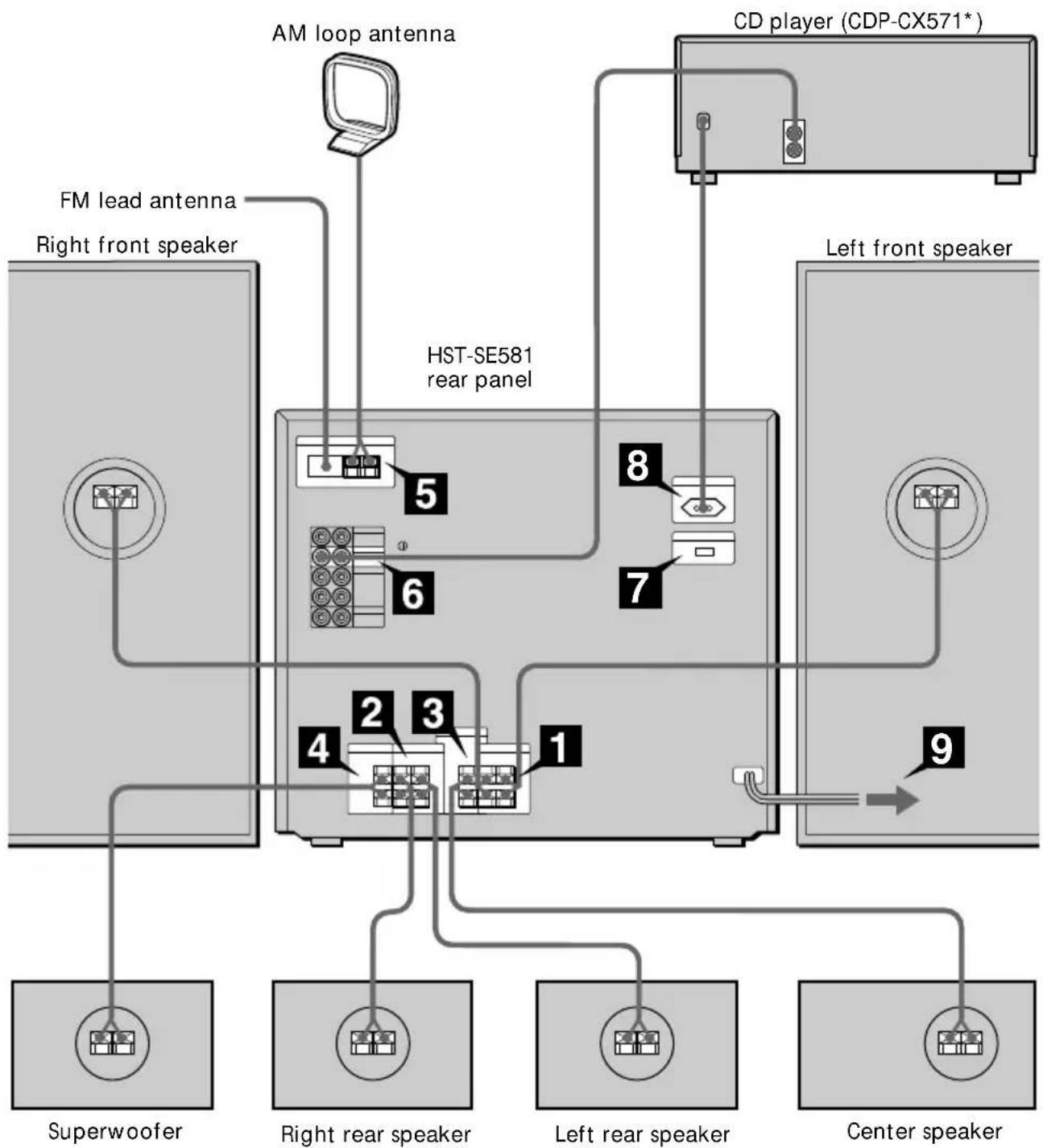
1 Connect the front speakers.
Connect the speaker cords to the FRONT SPEAKER terminals of the same color. Keep the speaker cords away from the antennas to prevent noise.
Pull the lever toward you after connecting the speaker cords.
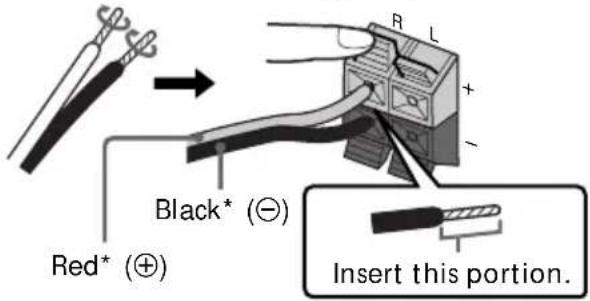
- The color of your speaker cords might be different. See the manual provided with your speaker system for details.
2 Connect the rear speakers.
Connect the speaker cords to the REAR SPEAKER terminals of the same color.
3 Connect the center speaker.
Connect the speaker cords to the CENTER SPEAKER terminals of the same color.
4 Connect the superwoofer.
Connect the speaker cords to the SUPER WOOFER terminals of the same color.
5 Connect the FM/AM antennas.
Set up the AM loop antenna, then connect it.
For European model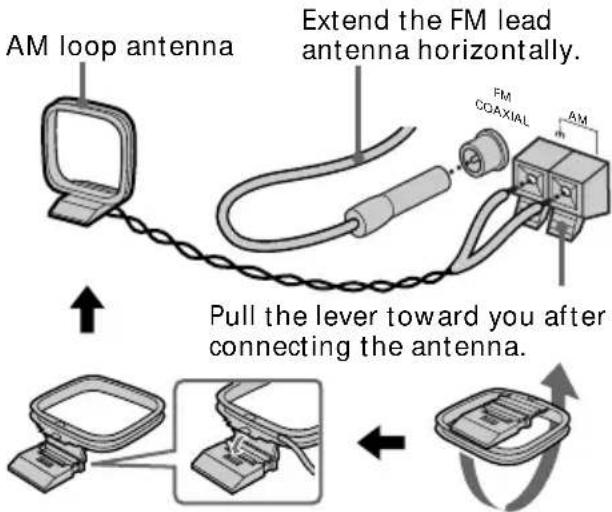
For other models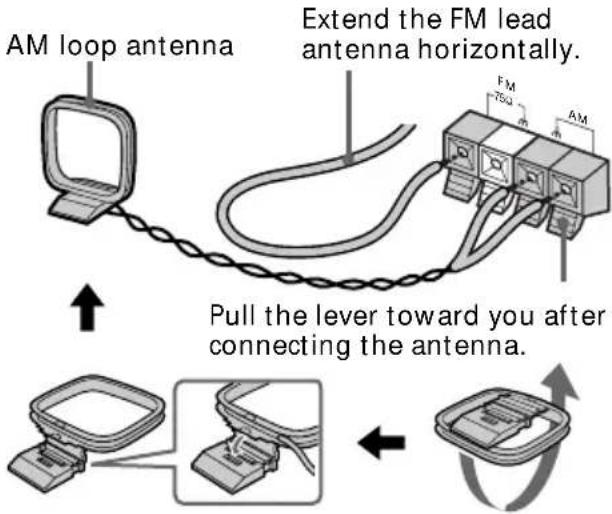
Step 1: Hooking up the system (continued)

Connect the CD player.
Use the audio cord, matching the color of the plugs and the jacks.
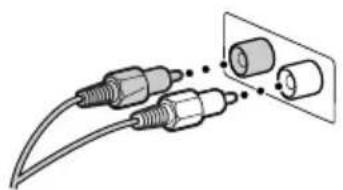
Insert the plugs firmly, pushing them in all the way.
OK N.G.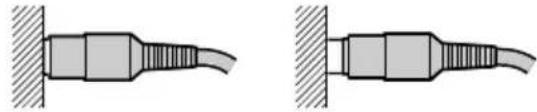

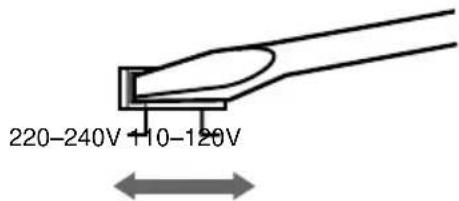
Set VOLTAGE SELECTOR to the position of your local power line voltage (only on models supplied with a voltage selector).

Connect the AC power cord from the CD player to the AC OUTLET on the system.
By connecting the AC power cord from the CD player to the AC OUTLET, you can turn on/off the CD player automatically when you turn on/off the system.
European, Australian, Singaporean and Malaysian models
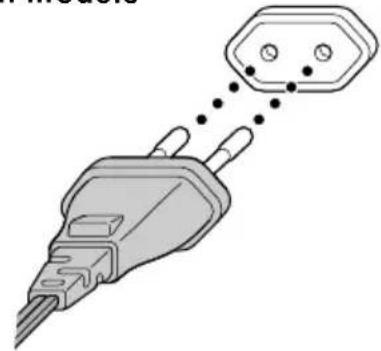
Other models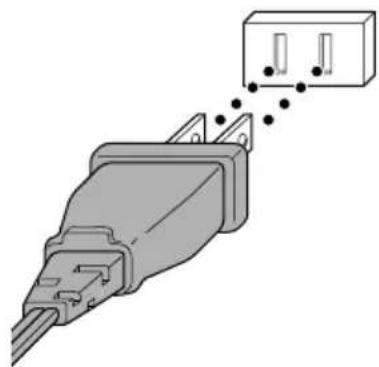

Connect the power cord from the system to a wall outlet.
Inserting two R6 (size AA) batteries into the remote
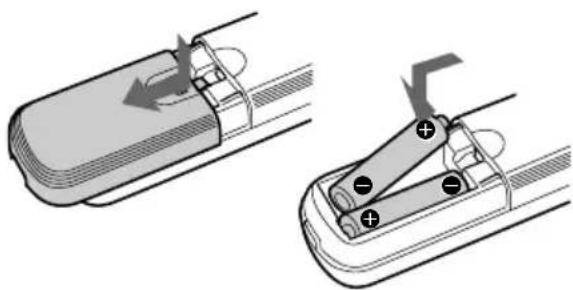
Tip
With normal use, the batteries should last for about six months. When the remote no longer operates the system, replace both batteries with new ones.
Note
If you do not use the remote for a long period of time, remove the batteries to avoid possible damage from battery leakage.
Before you begin
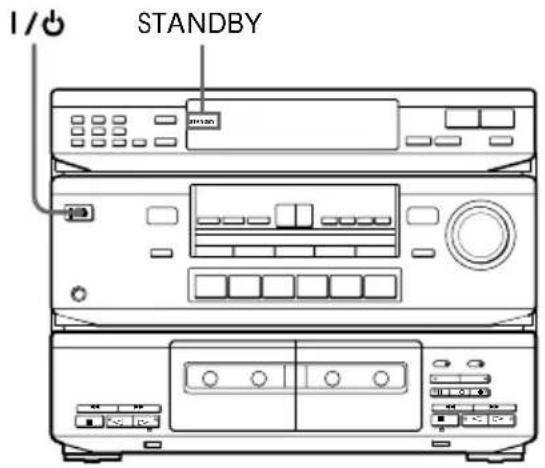
Press the I/O switch on the system to turn it on.
When the STANDBY lamp on the system is lit in red, you can turn on the system by pressing one of the SYSTEM CONTROL/FUNCTION buttons on the remote.
Turning the power off by pressing SYSTEM STANDBY on the remote sets the system to STANDBY mode (the STANDBY lamp is lit).
If you are not going to use the system for a long time, be sure to turn it off by pressing the I/O switch on the system.
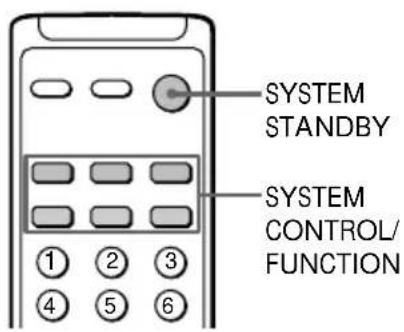
Using other components with the remote
You can operate Sony TVs, VCRs and CD players CDP-C661/CDP-CX571 using the supplied remote. Press one of the SYSTEM CONTROL/FUNCTION buttons to select the component you want to use. Refer to "Remote button descriptions" on page 30 for details.
Changing the factory setting of a function button
If the factory settings of the SYSTEM CONTROL/FUNCTION buttons don't match your system components, you can change them. For example, if you have two CD players and you don't have an MD deck, you can assign the TAPE button to your second CD player.
Note that the settings of the TUNER and PHONO buttons cannot be changed.
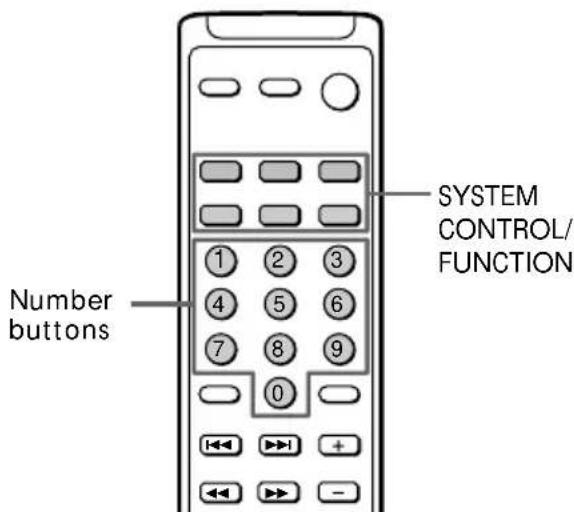
1 Hold down the SYSTEM CONTROL/FUNCTION button whose function you want to change (TAPE, for example).
2 Press the corresponding number button of the component you want to assign to the SYSTEM CONTROL/FUNCTION button (1 - CD player, for example). Now you can use the TAPE button to control a second CD player. To select other functions, refer to the table on the next page.
Step 1: Hooking up the system (continued)
The number buttons are assigned to select the functions as follows:
| Number button Operates | |
| 1 CD player | |
| 2 DAT deck | |
| 3 MD deck | |
| 4 Tape deck A | |
| 5 Tape deck B | |
| 6 LD player | |
| 7 | VCR (remote control mode VTR 1*) |
| 8 | VCR (remote control mode VTR 2*) |
| 9 | VCR (remote control mode VTR 3*) |
| 10 TV | |
| >10 DBS | |
- Sony VCRs are operated with a VTR 1, 2 or 3 setting. These correspond to Beta, 8mm and VHS respectively.
To reset the setting to the factory setting
Repeat the above procedure.
Step 2: Setting up the speakers
By connecting the speakers, you can enjoy Dolby Pro Logic Surround sound. Dolby Pro Logic Surround is a decoding system standardized in TV programs and movies. Dolby Pro Logic Surround improves sound imaging by using four separate channels. These channels manipulate the sound and enhance the action as it happens on the screen.
Selecting the Dolby Pro Logic Surround mode
To take advantage of Dolby Pro Logic Surround, you should connect at least one pair of rear speakers and/or one center speaker, plus a TV and a VCR. Also, to enjoy a full effect, you need to select the appropriate Dolby Pro Logic mode (NORMAL, WIDE, 3CH or PHANTOM modes) according to your speaker system.
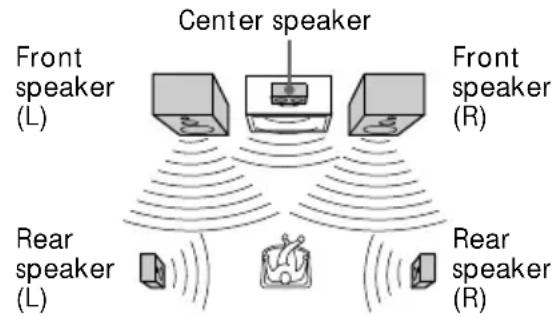
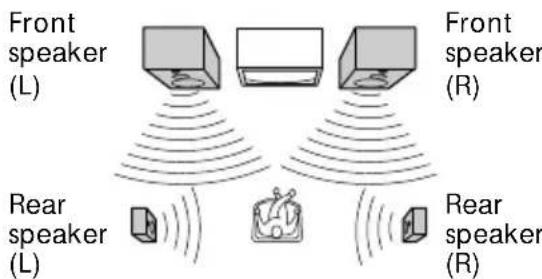
NORMAL mode
Select NORMAL mode if you have front and rear speakers and a small center speaker such as those provided with this system. Since a small speaker cannot produce enough bass, the bass sound of the center channel is output from the front speakers.
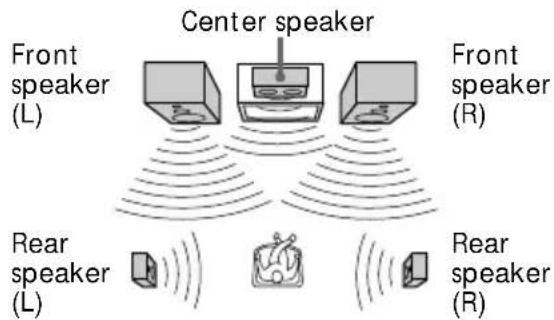
WIDE mode
Select WIDE mode if you have front and rear speakers and a large center speaker. With this mode, you can take full advantage of Dolby Surround sound.
3CH mode
Select 3CH (3 channel logic) mode if you have front and center speakers but no rear speakers. The sound of the rear channel is output from the front speakers to let you experience some of the surround sound without using rear speakers.
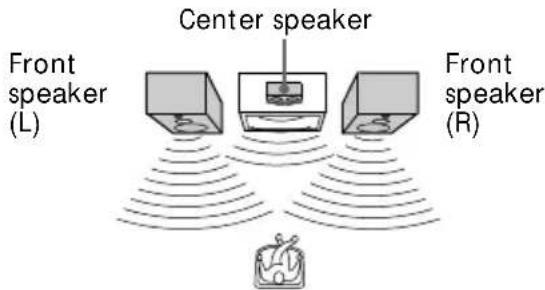
PHANTOM mode
Select PHANTOM mode if you have front and rear speakers but no center speaker. The sound of the center channel is output from the front speakers.
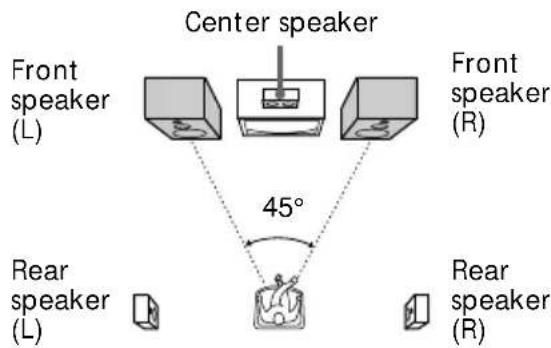
Positioning the speakers
Before you connect them, determine the best location for your speakers.
1 Place the front speakers at the angle of 45 degrees from your listening position.
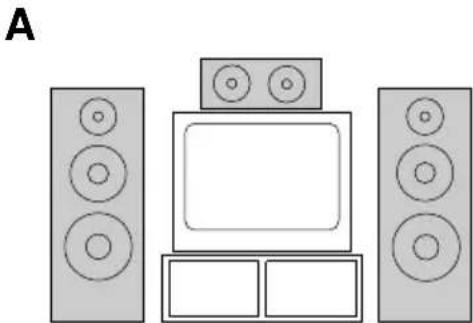
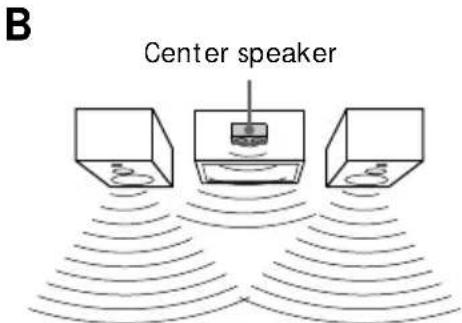
2 Place the center speaker so it is placed at about the same height as the front speakers (A). Align the center speaker with the front speakers or place it a little backward from the front speakers' position (B).
Step 2: Setting up the speakers (continued)
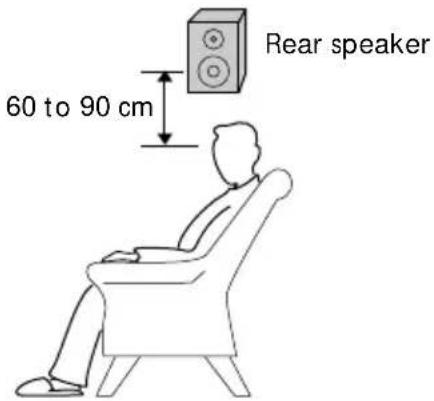
3 Place the rear speakers facing each other at about 60 to 90 cm above your listening position.
Adjusting the speaker volume
To enjoy Dolby Pro Logic Surround sound, select the appropriate Dolby Pro Logic mode, then adjust the volume of each speaker using the test tone that the system provides.
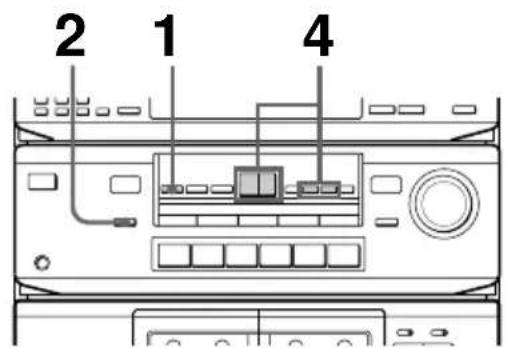
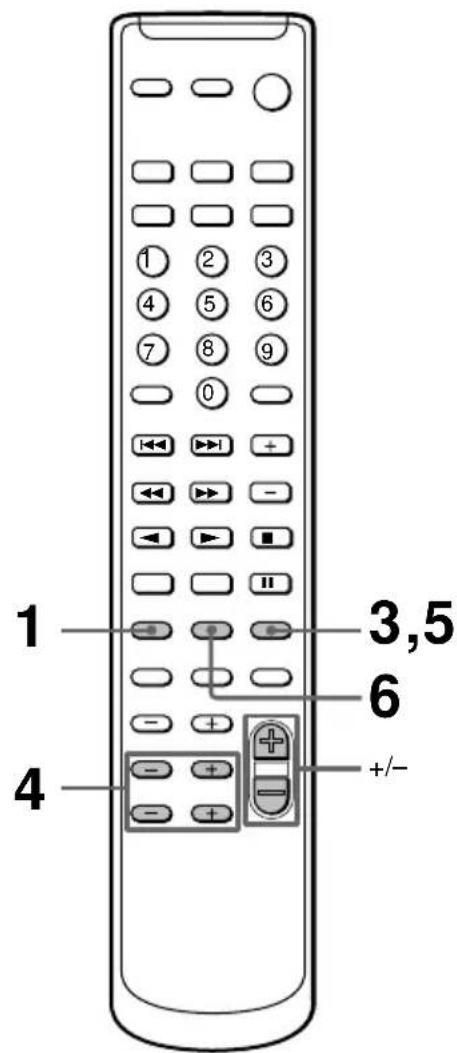
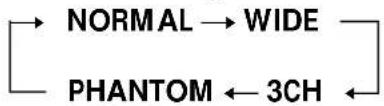
1 Press DOLBY (or SURROUND MODE on the remote repeatedly) to select DOLBY. 2 Press CENTER MODE repeatedly until the Dolby Pro Logic mode you want appears in the display. Select the Dolby Pro Logic mode according to your speaker setup (see page 8). Each time you press the button, the indication changes as follows:
3 Press SURROUND T.TONE on the remote.
You will hear the test tone from each speaker in the following order. Adjust the volume of the test tone.
NORMAL, WIDE: Front (left) → Center → Rear ← Front (right) 3CH: Front (left) → Center → Front (right) PHANTOM: Front → Rear
4 Adjust the volume level so that the test tone from each speaker is at the same level from your listening position.
To adjust the level of the center speaker, press CENTER, then - or + (or LEVEL CENTER - or + on the remote).
To adjust the level of the rear speakers, press REAR, then - or + (or LEVEL REAR - or + on the remote).
5 Press SURROUND T.TONE on the remote when you are done adjusting. The test tone is turned off.
6 Press SURROUND DELAY on the remote repeatedly to adjust the delay time.
For more effective surround sound, delay the output from the rear speakers. If you have placed the rear speakers in a large room or apart from your listening position, set the delay time shorter.
Each time you press the button, the indication changes as follows:

Notes
- You cannot set the delay time if you select the 3CH mode.
- The test tone feature works only for Dolby Pro Logic Surround mode.
Tip
If you turn MASTER VOLUME on the unit, all the speaker volumes change.
Connecting optional AV components
To enhance your system, you can connect optional components. Refer to the instructions of each component.
Connecting a TV game/LD player
Make sure to match the color of the plugs and the jacks.
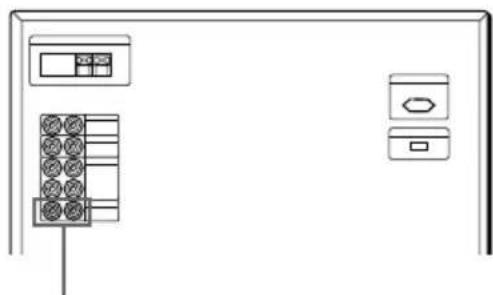
To the audio output of a TV game/LD player
To listen to the sound of a TV game/LD player
Press VIDEO2.
Connecting a VCR
Make sure to match the color of the plugs and the jacks.
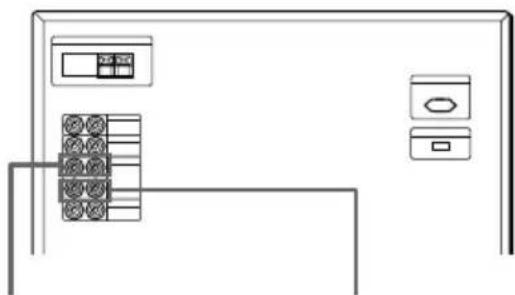
To the audio input of a VCR
To the audio output of a VCR
To listen to the sound of a VCR
Press VIDEO1.
Connecting a turntable
Make sure to match the color of the plugs and the jacks.
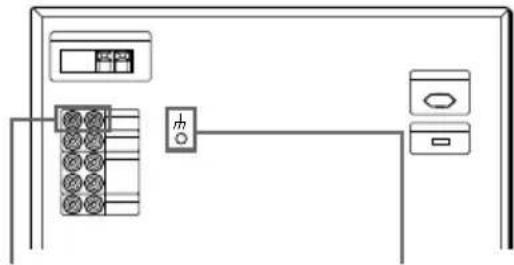
To the analog (line) output of a turntable
SIGNAL GND terminal
To listen to the sound of a turntable
Press PHONO.
Tip
To reduce the noise, connect the earth lead provided with your turntable to the SIGNAL GND terminal of the unit.
Connecting optional outdoor antennas
Connect the outdoor antenna to improve the reception.
FM antenna
Connect the optional FM outdoor antenna. You can also use the TV antenna instead.
For European model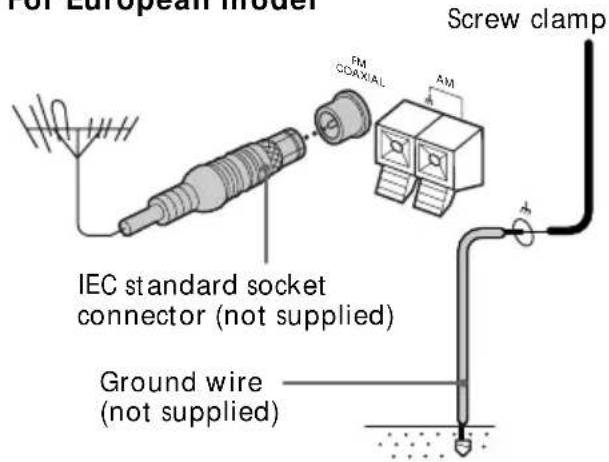
For other models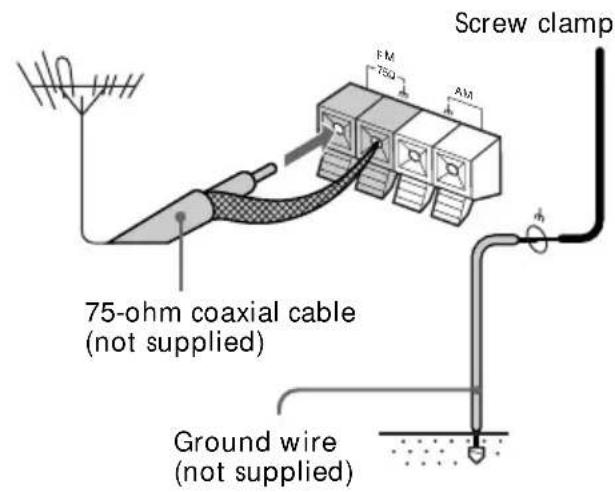
AM antenna
Connect a 6- to 15-meter insulated wire to the AM antenna terminal. Leave the supplied AM loop antenna connected.
For European model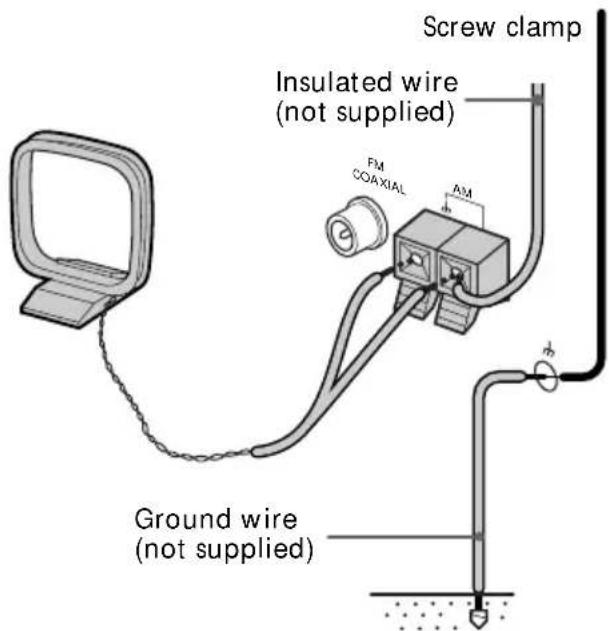
For other models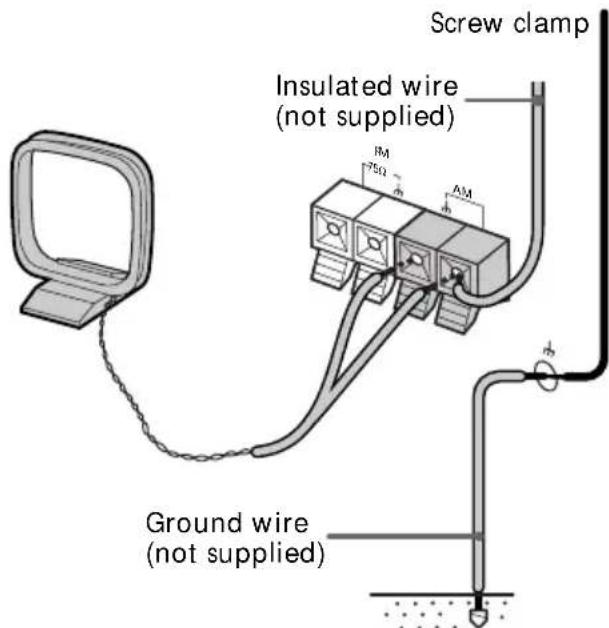
Important
If you connect an outdoor antenna, ground the SIGNAL GND terminal with the screw clamp against lightning. To prevent a gas explosion, do not connect the ground wire to a gas pipe.
The Radio
Presetting radio stations
You can preset up to 30 stations, 20 for FM and 10 for AM.
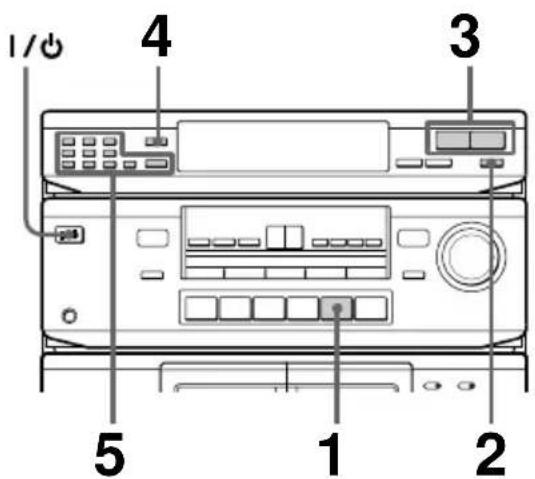
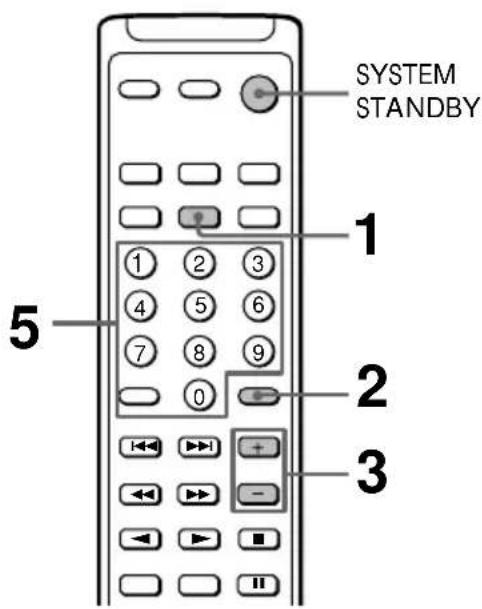
1. Turn on the system and press TUNER. 2. Press BAND repeatedly to select FM or AM.
3. Press TUNING + or - (or CH/PRESET + or - on the remote). Press + for a higher frequency. Press - for a lower frequency.
CH/PRESET + or - on the remote). Press + for a higher frequency. Press - for a lower frequency.
To tune in a station automatically (Automatic Tuning)
Hold down TUNING + or - for about one second and release it when the frequency changes.
When the system tunes in a station, it stops automatically and "TUNED" appears in the display.
To stop automatic tuning before a station is tuned in, press TUNING + or -.
To stop automatic tuning before a station is tuned in, press TUNING + or -.
To tune in a station with a weak signal (Manual Tuning)
Press TUNING + or - repeatedly to select the frequency you want.
"TUNED" appears when a station is tuned in.
4 Press MEMORY.
"MEMORY" appears and the last preset number flashes in the display.
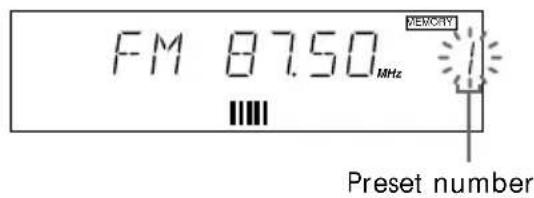
5 Use the number buttons (1 - 9, 0/10, or 0 on the remote) and >10 to select a preset number.
| To select | Press |
| 5 | 5 |
| 10 | 0/10 (or 0) |
| 15 | >10 → 1 → 5 |
| 20 | >10 → 2 → 0/10 (or 0) |
The system stores the station at the preset number you specified.
6 Repeat steps 2 to 5 to store other stations.
To change the preset number
Start over from step 2.
To change the AM tuning interval (except for European model)
The AM tuning interval is factory-preset to 9 kHz. To change the AM tuning interval, press BAND repeatedly to select AM, then turn off the power. While holding down MEMORY, turn the power back on. When you change the interval, all the preset stations will be erased. To reset the interval, repeat the same procedure.
Tips
- If "MEMORY" disappears before you select the preset number, press MEMORY again.
- The preset stations are retained for a few days even if you pull off the power cord or if a power interruption occurs.
Scanning the preset memory
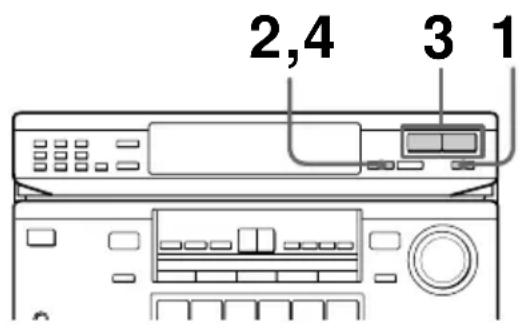
1 Press BAND repeatedly to select FM or AM. 2 Press MEMORY SCAN.
A preset number flashes in the display.
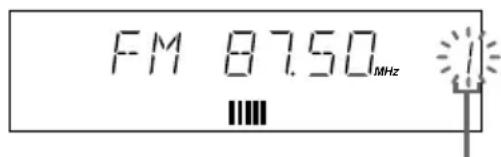
Preset number
3 Press TUNING + or -.
Press + to scan higher preset numbers.
Press - to scan lower preset numbers.
You will hear each preset station for about four seconds.
4 Press MEMORY SCAN again as soon as the station you desire is tuned in.
This stops the memory scan.
Tip
While scanning preset stations, a certain station with a weak signal may be skipped. Tune in the station manually.
Listening to the radio
— Preset Tuning
Preset radio stations in the tuner's memory first (see page 14).
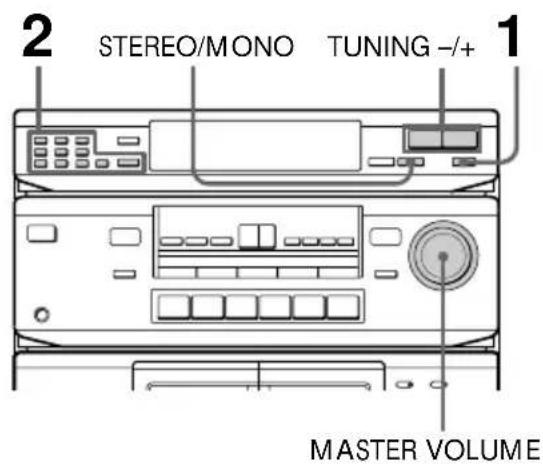
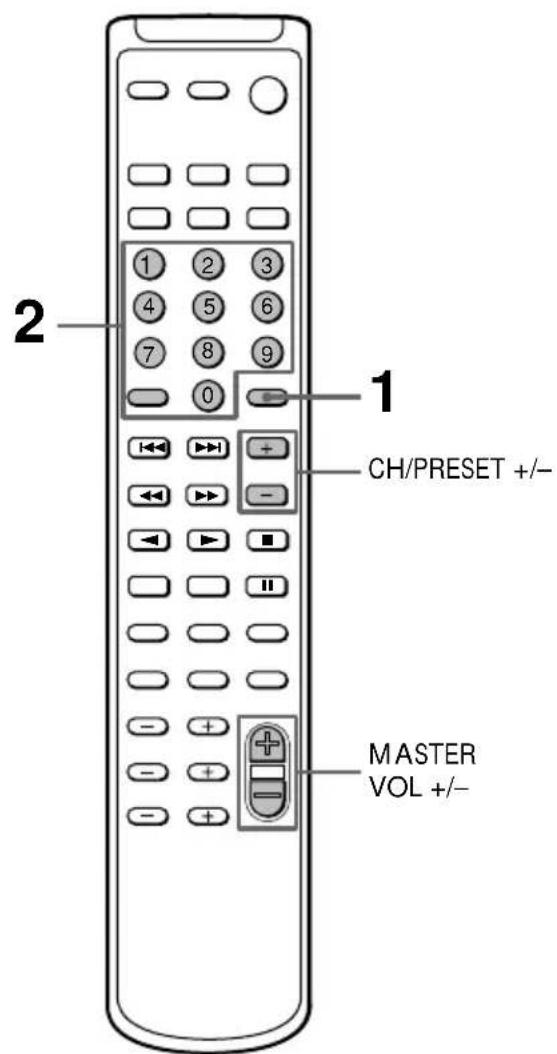
1 Press BAND repeatedly to select FM or AM.
2 Use the number buttons (1 - 9, 0/10 or 0 on the remote) and >10 to select a preset number.
| To select Press |
| 5 5 |
| 10 0/10 (or 0) |
| 15 >10 → 1 → 5 |
| 20 >10 → 2 → 0/10 (or 0) |
When using the remote
Press CH/PRESET + for higher preset numbers. Press CH/PRESET - for lower preset numbers.
3 Repeat steps 1 and 2 to listen to other preset stations.
To adjust the volume
Turn MASTER VOLUME (or press MASTER VOL + / - on the remote).
To listen to non-preset radio stations
After step 1, hold down TUNING + or - (or CH/PRESET + or - on the remote) for about one second and release it when the frequency indication changes. Scanning stops when the system tunes in a station (Automatic Tuning).
After step 1, press TUNING + or - (or CH/PRESET + or - on the remote) repeatedly to select the frequency you want. "TUNED" appears when a station is tuned in (Manual Tuning).
Tips
- When an FM stereo program is noisy, press STEREO/MONO so that "MONO" appears in the display. There will be no stereo effect, but the reception will improve. Press the button again to restore the stereo effect. To improve broadcast reception, reorient the supplied antennas.
The Tape Deck
Playing a tape
You can use any type of tape, TYPE-I (normal), TYPE-II (CrO2) or TYPE-IV (metal), since the deck automatically detects the tape type.
The supplied remote is factory set to operate DECK B. To operate DECK A, press number button 4 while pressing down TAPE.
To select DECK B again, press number button 5 while pressing down TAPE.
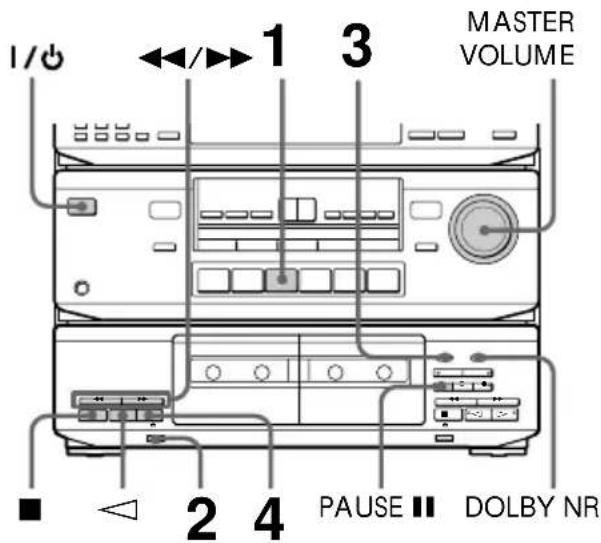
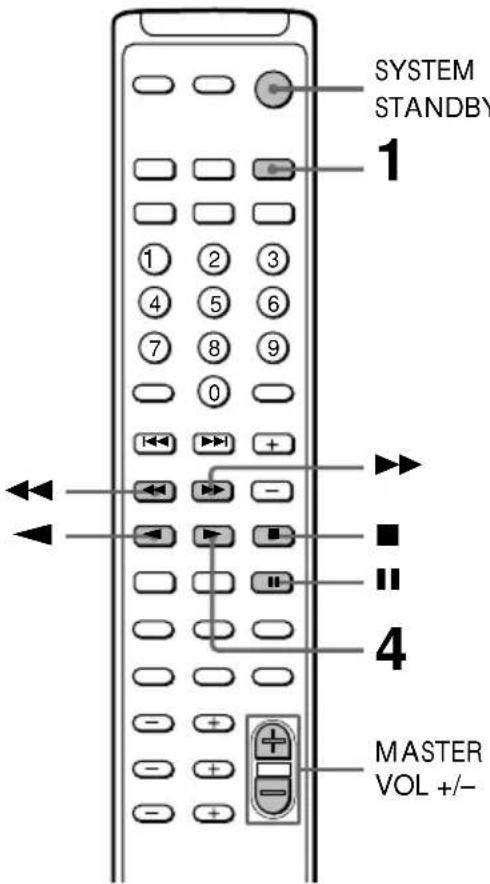
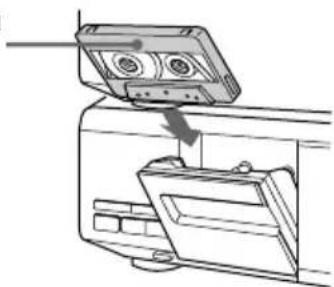
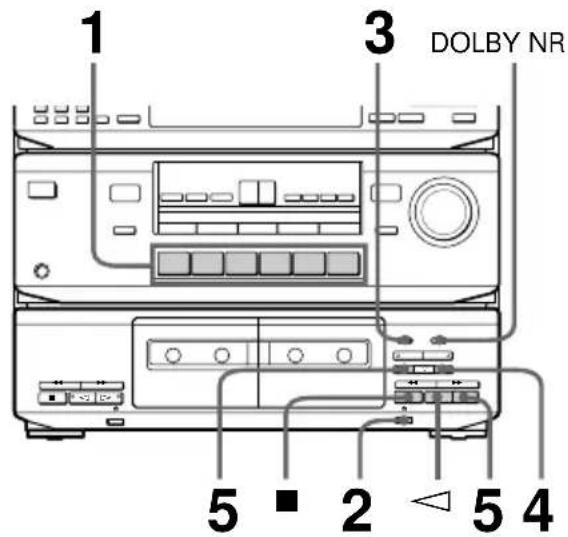
1 Turn on the system and press TAPE. 2 Press and insert a recorded tape. The illustration shows when you insert a recorded tape into deck A.
With the side you want to play facing you
3 Set DIRECTION to select the side(s) to play.
Set to ⇌ to play one side. Set to → to play both sides continuously. To play both decks in succession, set to RELAY.
4 Press
Press to play the reverse side. Playback starts.
- The deck automatically stops after playing back five times.
| To Do this | |
| Stop play | Press■. |
| Pause (deck B only) | Press PAUSE■(or■on the remote). Press again to resume play. |
| Fast-forward | Press▶ (for front side) or ← (for reverse side) when the deck is stopped. |
| Rewind | Press▶ (for front side) or ► (for reverse side) when the deck is stopped. |
| Take out the tape | Press ≢ when the deck is stopped. |
| Adjust the volume | Turn MASTER VOLUME (or press MASTER VOL +/- on the remote). |
Playing a tape (continued)
Tip
To play a tape recorded with the Dolby NR system, set DOLBY NR to B.
The Dolby NR (noise reduction) system eliminates tape hiss noise by boosting low-level signals in the high-frequency range during recording, then lowering them during playback.
Recording on a tape
You can record from CD, or just the songs you want to record from the middle of the tape.
See "Recording from a tape" (page 20) to make a copy of the tape.
You can use TYPE-I (normal) or TYPE-II (CrO2) tapes. The recording level is automatically adjusted.
1 Press one of the function buttons to select the sound source to be recorded.
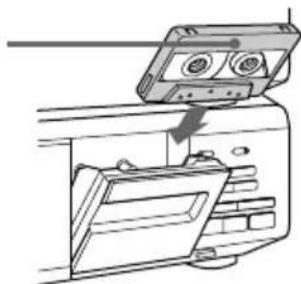
2 Press and insert a blank tape into deck B.
With the side you want to record on facing you
3 Set DIRECTION to select the side(s) to be recorded on.
Set to to record on one side. Set to to record on both sides*.
4 Press REC
The indicator lights up for recording on the side facing you. If it doesn't, press once.
The tape deck automatically adjusts the recording level.
5 Press PAUSE I or
Press twice to start recording from the reverse side.
Recording starts.
6 Start playing the sound source.
- Recording stops when the tape reaches the end of reverse side.
To Press
Stop recording.
Pause PAUSE. Press again to resume recording.
Take out the tape when the deck is stopped.
Tips
- To record with the Dolby NR system, set DOLBY NR to B before you start recording.
- To protect recordings against accidental erasure, break out the record-protect tab (see page 26).
Note
If you press buttons on deck A while deck B is recording, the recorded sound will be interrupted.
Recording from the radio
You can record a radio program on a tape by calling up the preset station.
You can use TYPE-I (normal) or TYPE-II (CrO2) tapes. The recording level is automatically adjusted.
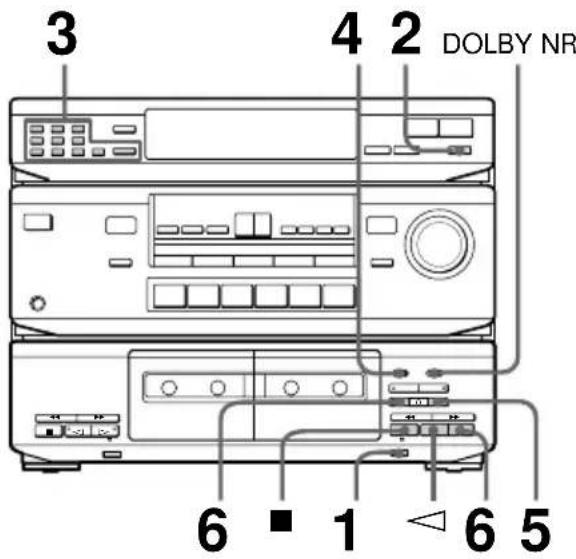
1 Press the play button and insert a blank tape into deck B. 2 Press BAND repeatedly to select FM or AM. 3 Use the number buttons (1-9, 0/10 or 0 on the remote) and >10 to select a preset number.
| To select Press | |
| 5 | 5 |
| 10 0/10 (or 0) | |
| 15 >10 → 1 → 5 | |
| 20 >10 → 2 → 0/10 (or 0) | |
When using the remote
Press CH/PRESET + for higher preset numbers.
Press CH/PRESET - for lower preset numbers.
Recording from the radio (continued)
4 Set DIRECTION.
Set to ⇄ to record on one side. Set to
to record on both sides*.
5 Press REC ●
The tape deck stands by for recording.
6 Press PAUSE I or △
Press ◁ twice to start recording from the reverse side.
Recording starts.
- Recording stops when the tape reaches the end of reverse side.
To stop recording
Press ■.
Tips
- To record non-preset stations, tune in the station you want using Manual Tuning or Automatic Tuning feature (see page 14).
- If noise is heard while recording an AM radio program, move the AM antenna to reduce the noise.
- To record with the Dolby NR system, set DOLBY NR to B before you start recording.
Recording from a tape
—Dubbing
You can copy a tape in deck A to a tape in deck B at normal or high speed.
You can use TYPE-I (normal) or TYPE-II (CrO2) tapes. The recording level is automatically adjusted.
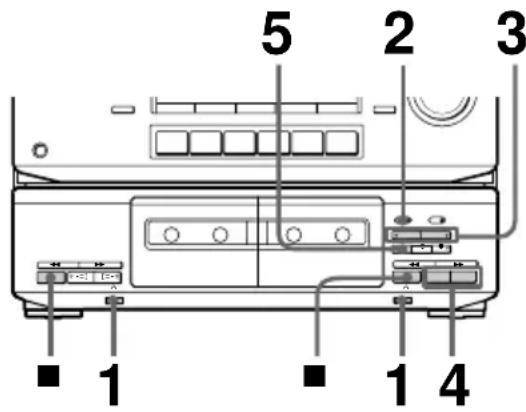
1 Press the eject button and insert a recorded tape into deck A and a blank tape into deck B. 2 Set DIRECTION to select the side(s) to be recorded on.
Set to one-way to record on one side. Set to two-way or RELAY** to record on both sides. Recording on the reverse side in deck B starts independently of playback in deck A. * Recording on the reverse side in deck B starts simultaneously with playback of the reverse side in deck A.
3 Select the dubbing speed.
Press NORMAL for normal-speed dubbing.
Press HIGH for high-speed dubbing.
The selected button's indicator lights up and the tape deck stands by for dubbing.
4 Select the side from which to start dubbing. Press the play button to record from the front side. Press the reverse button to record from the reverse side. 5 Press PAUSE to start dubbing.
To stop normal-speed dubbing
Press stop on deck B.
To stop high-speed dubbing
Press stop on both decks.
Tips
- During high-speed dubbing, only is operative.
- If the original tape was recorded with Dolby NR B, dubbing is automatically performed with Dolby NR B. If, however, you want to monitor the sound during normal-speed dubbing, set DOLBY NR to B.
Note
If a TV set is placed near the system, noise may occur during high-speed dubbing. In that case, turn the TV set off or move it away from the system.
Dubbing only specific portions
You can skip unwanted portions during normal-speed dubbing.
1 Press on deck A at the portion you want to skip. Deck B changes to recording pause. 2 Locate the point you want to resume recording on deck A, then stop the tape. 3 Press PAUSE to resume dubbing.
Inserting a blank space during recording
- Record Muting
You can insert a blank space of 4 seconds between each track or erase unwanted portions on a tape.
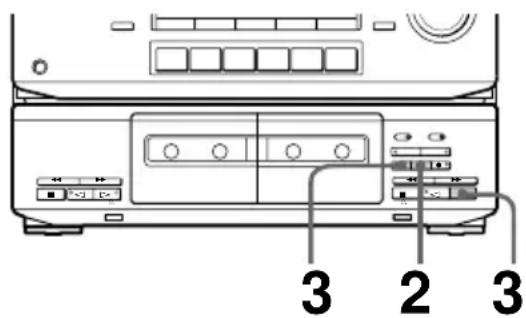
1 Start recording. 2 Press REC MUTING at the point you want to insert a blank space. "REC" flashes in the display and a blank space is recorded on the tape. After 4 seconds, lights up and the tape deck changes to recording pause. 3 Press PAUSE or to resume recording.
While dubbing at normal speed, press PAUSE to resume recording.
Tip
To insert a blank space longer than 4 seconds, hold down REC MUTING as long as you want. After 4 seconds, "REC" flashes faster.
When you release REC MUTING, the indicator lights up and the tape deck changes to recording pause.
Press PAUSE to resume recording.
Sound Adjustment
Adjusting the sound
You can adjust the bass and treble sound.
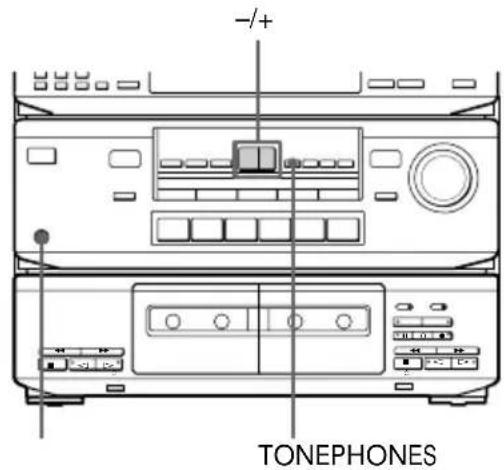
Press TONE, then + or - to adjust the tone quality.
- Each time you press TONE, the adjusting mode changes between bass and treble.
To listen through the headphones, connect the headphones to PHONES.
Selecting the preset sound fields
You can take advantage of sound fields simply by selecting one of the five preprogrammed effects according to the program you want to play.
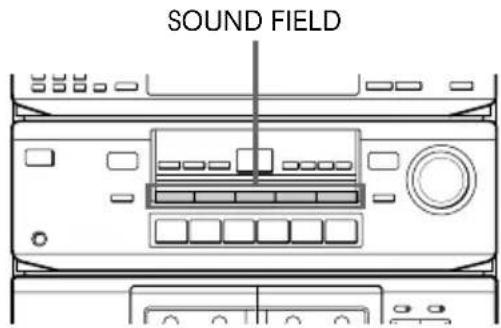
Press one of the SOUND FIELD buttons so that the sound field you want appears in the display.
Select the appropriate sound field as follows:
| Press | To reproduce |
| 1 ROCK | Powerful, clear sounds, emphasizing low and high audio. |
| 2 POPS | Light, bright sounds, emphasizing high and middle range audio. |
| 3 CLASSIC | Broad, open sounds with plenty of reverberation using a surround effect. |
| 4 MOVIE | A theater-like environment using a surround effect. |
| 5 GAME | Maximum audio impact from video game software using a surround effect. |
To turn off the sound fields
Press the SOUND FIELD button you have selected. "OFF" appears, and the sound field's effect is defeated.
To select with the remote
Press SOUND FIELD repeatedly until the sound field you want appears. Each time you press the button, the display changes as follows:

Tip
If you want to listen to CLASSIC, MOVIE, or GAME without a surround effect, press one of the SURROUND MODE buttons to turn off the respective indicator.
Selecting the surround mode
You can take advantage of surround sound simply by selecting one of the three preprogrammed surround modes according to the type of program you want to play.
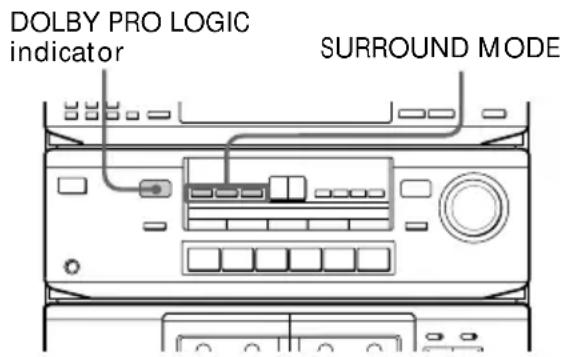
Press one of the SURROUND MODE buttons (DOLBY, HALL, or SIMULATED) to turn on the surround sound.
The selected mode's indicator lights up in the display.
The DOLBY PRO LOGIC indicator lights up when you select the DOLBY mode.
Select the appropriate surround mode as follows:
| Press | To |
| DOLBY | decode programs processed with Dolby Pro Logic Surround and create the atmosphere of a movie theater. |
| HALL | get the atmosphere of a large hall. |
| SIMULATED | reproduce a simulated stereo effect to monaural sound. |
Selecting the surround mode (continued)
To turn off surround sound
Press the SURROUND MODE button (DOLBY, HALL, or SIMULATED) that you have selected.
Selecting with the remote
The remote also lets you select the surround mode.
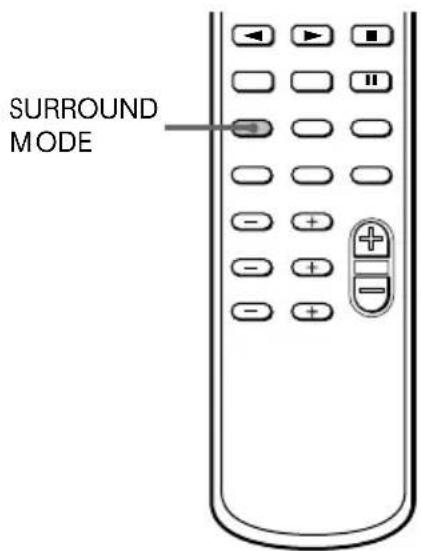
Press SURROUND MODE repeatedly until the surround mode you want appears.
Each time you press the button, the display changes as follows:

Tip
You can find Dolby Surround-encoded software by looking at the packaging.
However, some videos and laser discs may use Dolby Surround sound even if it's not indicated on the package.
Emphasizing the bass sound
You can reinforce the bass sound of your superwoofer and obtain a greater sense of atmosphere. Use the remote to adjust the superwoofer from your listening position.
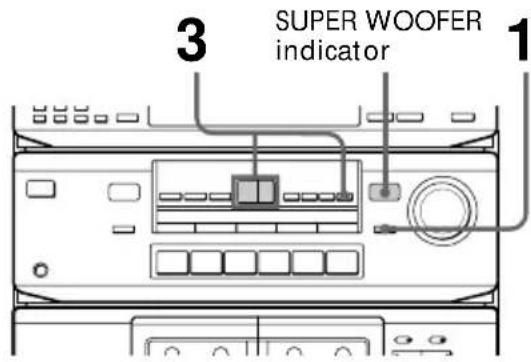
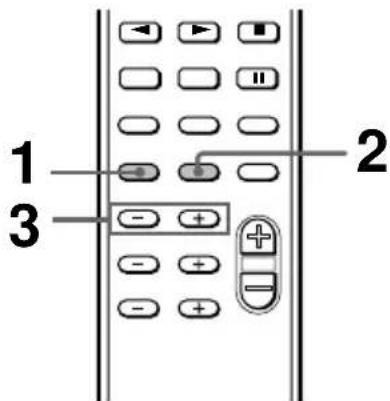
1 Press WOOFER ON/OFF (or S.WOOFER ON/OFF on the remote) to turn on the superwoofer. The SUPER WOOFER indicator lights up.
Additional Information
2 Press S.WOOFER PHASE on the remote to select the polarity that provides the best bass reproduction. 3 Press WOOFER, then - or + to adjust the superwoofer level (or LEVEL S.WOOFER + / - on the remote).
Notes
- You can only adjust the superwoofer level when the superwoofer is on (when the SUPER WOOFER indicator is lit).
- You cannot use the superwoofer when you select PHONO ("SELECT OTHER FUNCTION" appears).
Precautions
On operating voltage
Before operating the system, check that the operating voltage of your system is identical with the voltage of your local power supply.
On safety
- The unit is not disconnected from the AC power source (mains) as long as it is connected to the wall outlet, even if the unit itself has been turned off.
- Unplug the system from the wall outlet (mains) if it is not to be used for an extended period of time. To disconnect the cord (mains lead), pull it out by the plug. Never pull the cord itself.
- Should any solid object or liquid fall into the component, unplug the stereo system and have the component checked by qualified personnel before operating it any further.
- The AC power cord must be changed only at the qualified service shop.
On placement
- Place the stereo system in a location with adequate ventilation to prevent heat build-up in the stereo system.
- Do not place the system in an inclined position.
- Do not place the system in locations where it is; -Extremely hot or cold Dusty or dirty
- Very humid Vibrating
- Subject to direct sunlight.
Precautions (continued)
Before placing a cassette in the tape deck
Take up any slack in the tape. Otherwise the tape may get entangled in the parts of the tape deck and become damaged.
When using a tape longer than 90 minutes
The tape is very elastic. Do not change the tape operations such as play, stop, and fast-winding etc. frequently. The tape may get entangled in the tape deck.
To save a tape permanently
To prevent a tape from being accidentally recorded over, break off the cassette tab from side A or B as illustrated. If you later want to reuse the tape for recording, cover the broken tab with adhesive tape.
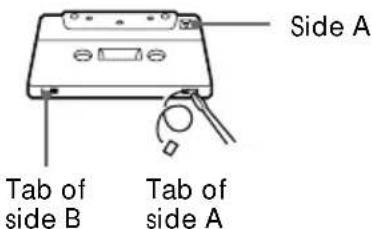
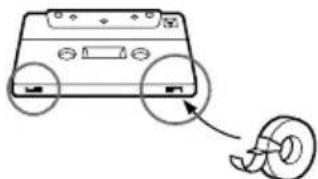
When you are using a TYPE-II (CrO2) or TYPE-IV (metal) cassette, be careful not to cover the detector slots which allow the tape deck to automatically detect the type of tape.
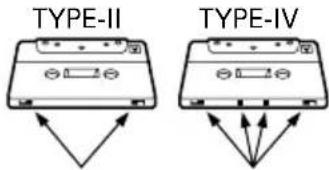
Detector slots (Do not cover with adhesive tape.)
Cleaning the tape heads
Clean the tape heads after every 10 hours of use. When the tape heads become dirty;
the sound is distorted - there is a decrease in sound level the sound drops out the tape does not erase completely the tape does not record.
Make sure to clean the heads before you start an important recording or after playing an old tape. Use a separately sold dry-type or wet-type cleaning cassette. For details, refer to the instructions of the cleaning cassette.
Demagnetizing the tape heads
Demagnetize the tape heads and the metal parts that have contact with the tape after every 20 to 30 hours of use with a separately sold demagnetizing cassette. For details, refer to the instructions of the demagnetizing cassette.
Cleaning the cabinet
Use a soft cloth slightly moistened with mild detergent solution.
Never use strong solvents, such as thinner or benzine, since they may damage the finish.
If you have any questions or problems concerning your stereo system, please consult your nearest Sony dealer.
Troubleshooting
If you run into any problem using this stereo system, use the following check list.
First, check that the power cord is connected firmly and the speakers are connected properly and firmly.
Should any problem persist, consult your nearest Sony dealer.
General
There is no sound.
- Turn MASTER VOLUME clockwise. The headphones are connected.
- Connect the antennas. Make sure the speaker connection is secure.
- The protective device on the cassette deck receiver has been activated because of a short circuit.
(“PROTECT” flashes.) Turn off the cassette deck receiver, eliminate the short-circuit problem and turn on the power again.
There is severe hum or noise.
A TV or VCR is placed too close to the stereo system. Move the system away from the TV or VCR. - Make sure you connect a ground wire to the SIGNAL GND terminal.
The remote does not function.
- There is an obstacle between the remote and the system. The remote is not pointing in the direction of the system's sensor E.
- The batteries have run down. Replace the batteries.
- Pressing TV CONTROL sets the remote to operate the TV only. In this case, press one of the SYSTEM CONTROL/FUNCTION buttons before operating the cassette deck receiver (etc.).
Speakers
Sound comes from one channel or unbalanced left and right volume.
- Check the speaker connection and speaker placement.
There is no sound from the speakers except the center speaker.
The source being played back is monaural. Turn off the Pro Logic mode.
There is no sound from the center speaker.
- The Pro Logic mode is set to PHANTOM mode. Select another mode.
- Adjust the CENTER level appropriately (see page 11).
There is no sound from the rear speakers.
- The Pro Logic mode is set to 3CH logic mode. Select another mode.
- Adjust the REAR level appropriately (see page 11).
- The software being played back has limited sound effects. Check the volume with the test tone.
Tape Deck
The tape operating buttons do not work.
- Wait until the I indication stops flashing. (Operation is not possible for the first three seconds after the power is turned on.)
- Insert the tape properly and close the cassette holder completely.
The tape does not record.
- No tape in the cassette holder. The tab has been removed from the tape (see "To save a tape permanently" on page 26). The tape has reeled to the end.
The tape does not record nor play or there is a decrease in sound level.
The heads are dirty. Clean them (see "Cleaning the tape heads" on page 26). The record/playback heads are magnetized. Demagnetize them (see "Demagnetizing the tape heads" on page 26).
Troubleshooting (continued)
The tape does not erase completely.
The record/playback heads are magnetized. Demagnetize them (see "Demagnetizing the tape heads" on page 26).
There is excessive wow or flutter, or the sound drops out.
- The capstans or pinch rollers are dirty. Clean them (see "Cleaning the tape heads" on page 26).
Noise increases or the high frequencies are erased.
The record/playback heads are magnetized. Demagnetize them (see "Demagnetizing the tape heads" on page 26).
The sound is unbalanced.
- Make sure the Dolby NR setting matches the setting used when the tape was recorded.
- Move the system away from the TV or VCR.
The tape stops before the tape has been fully rewound.
- There is slack in the tape. Take up the tape slack.
- The cassette shell is bent. Use another cassette.
There is excessively loud tape transport noise during fast-forwarding or rewinding.
- This noise is caused by the cassette and is not a mechanical problem.
The symbol does not work.
- There was a power failure or the power cord was disconnected during tape operation. Reconnect the power.
There is a short break in sound output during playback.
- You pressed , or on one deck while the other deck was playing. Or you pressed PAUSE , or on deck B while deck A was playing.
Tuner
You cannot tune in a frequency.
- Adjust the antennas.
- Connect the FM outdoor antenna.
- Preset the stations again if you've moved.
Severe hum or noise ("TUNED" or "STEREO" flashes in the display).
- Adjust the antenna. The signal strength is too weak. Connect the outdoor antenna.
- Tune to a correct frequency.
- Move the system away from the TV or VCR.
A stereo FM program cannot be received in stereo.
- Press STEREO/MONO so that "STEREO" appears.
If other troubles not described above occur, reset the system as follows:
1 Unplug the power cord. 2 Hold down DOLBY, then plug the power cord again into the wall outlet.
The system is reset to the factory settings. All the settings you made such as the preset stations are cleared. You should set them again.
Specifications
Tuner section
FM stereo, FM/AM superheterodyne tuner
FM tuner section
Tuning range 87.5 - 108.0 MHz
Antenna FM lead antenna
Antenna terminals 75 ohm unbalanced
Intermediate frequency 10.7 MHz
AM tuner section
Tuning range
European model: 531-1,602 kHz
Other models: 531 - 1,602 kHz (with the interval set at 9 kHz) 530 - 1,710 kHz (with the interval set at 10 kHz)
Antenna AM loop antenna, outdoor antenna terminals
Intermediate frequency 450 kHz
Amplifier section
European models:
(FRONT)
DIN power output 90 + 90 watts
(at rear/center/woofer off at 1 kHz, 8 ohms)
Continuous RMS power output
110 + 110 watts
(at rear/center/woofer off at
1 kHz, 10% THD, 8 ohms)
70 watts/ch
(at SURROUND ON at
1 kHz, 10% THD, 8 ohms)
(REAR) 40 watts
(at front/center/woofer off
at 1 kHz, 8 ohms)
(CENTER) 40 watts
(at front/rear/woofer off at 1 kHz, 8 ohms)
(WOOFER) 70 watts
(at front/rear/center off at 35 Hz, 4 ohms)
Other models:
Peak music power output
1,600 watts (total)
(FRONT)
Continuous RMS power output
90 + 90 watts
(at rear/center/woofer off at 1 kHz, 10% THD, 8 ohms)
(REAR) 40 watts
(at front/center/woofer off at 1 kHz, 8 ohms)
(CENTER) 40 watts
(at front/rear/woofer off at 1 kHz, 8 ohms)
(WOOFER) 70 watts
(at front/rear/center off at
40 Hz, 4 ohms)
Inputs
PHONO (phono jacks):
sensitivity 2.5 mV
impedance 50 kilohms
CD (phono jacks): sensitivity 400 mV
impedance 50 kilohms
VIDEO1, 2 (phono jacks):
sensitivity 250 mV
impedance 50 kilohms
Outputs
VIDEO1 (phono jacks):
voltage 250 mV
impedance 1 kilohm
PHONES (stereo phone jack):
accepts low and high
impedance headphones
Tape deck section
Track method 4-track, 2-channel stereo
Wow & flutter ±0.15% W.Peak (IEC)
0.1% W.RMS (NAB)
±0.2% W.Peak (DIN)
Frequency response
With DOLBY NR set to OFF
TYPE-I tape: 60 - 13,000 Hz, ±3 dB
TYPE-II tape: 60 - 14,000 Hz, ±3 dB
General
Power requirements
European, Singaporean and Malaysian models:
230 V AC, 50/60 Hz
Australian model: 230 V AC, 50 Hz
Other models: 110 - 120 V AC or
220-240 V AC, 50/60 Hz
(adjustable with the voltage selector)
Power consumption 220 watts
Dimensions (w/h/d) Approx. 430 x 330 x 355 mm
Mass Approx. 10.5 kg
Supplied accessories: Remote RM-U581 (1)
Batteries (2)
AM loop antenna (1)
FM lead antenna (1)
Design and specifications are subject to change without notice.
Remote button descriptions
For buttons not described on previous pages and buttons with names different from the buttons on the unit, refer to the table below.
Remote button Operates Function
| 0-9 Tuner Selects preset numbers. | ||
| CD player/MD deck Selects track numbers. 0 selects track 10. | ||
| TV/VCR/DBS Selects channel numbers. | ||
| >10 CD player/MD deck/TV Selects track numbers over 10. | ||
| CH/PRESET +/- Tuner Scans and selects preset stations. | ||
| TV/VCR/DBS Selects preset channels. | ||
| D.SKIP CD player Skips discs (CD player with multi-disc changer only). | ||
| DISC CD player Selects discs (Mega storage CD player only). | ||
| CD player Searches tracks (backward or forward). | ||
| Tape deck/MD deck/VCR Rewinds or fastforwards. | ||
| CD player/MD deck Skips tracks. | ||
| CD player/Tape deck/ Pauses. | ||
| MD deck/VCR | ||
| CD player/Tape deck/ Starts play. | ||
| CD player/Tape deck/ Stops play. | ||
| MD deck/VCR | ||
| Tape deck Starts play on the reverse side. | ||
| ENTER | TV/VCR/DBS Changes channels when used with 0-9. | |
| BAND | Tuner Selects FM or AM. | |
| TV/VIDEO | TV/VCR | Selects input signal: TV input or video input. |
| VISUAL I/O | TV/VCR/LD player/DBS | Turn on or off the power. |
| TV CONTROL | TV | Turn on the TV, switches the input to "TV", and sets the remote to operate the TV. |
| -/- - | TV | Selects the channel entry mode, either one or two digit (in Europe only). |
| POSITION | TV | Changes the position of the small picture.* |
| SWAP | TV | Swaps the small and the large picture.* |
| P IN P | TV | Activates the picture-in-picture function.* |
| ANT TV/VTR | TV/VCR | Selects output signal from the antenna terminal: TV signal or VCR program. |
- Only for Sony TVs with the picture-in-picture function.
Index
A
Adjusting the sound 22 the volume 10, 16 Automatic tuning 14
B
Batteries 6
C
Cleaning 26 Connecting. See Hooking up
D
Dolby Noise Reduction 2, 18 Dolby Pro Logic Surround 2, 8 Dubbing 20
E, F, G
Emphasizing the bass sound 24
H
Hooking up optional components 12 the antennas 5, 13 the CD player 6 the superwoofer 5 the system 4
I, J, K, L
Index 31 Inserting blank space 21
M, N, O
Manual tuning 14 Memory scan 15
P, Q
Playing a tape 17 Precautions 25 Preset memory 15 Preset sound fields 22 Preset tuning 16 Presetting radio stations 14 Protecting recordings 26
Radio stations presetting 14, tuning in 14, 16
Recording from a tape 20, from the radio 19, on a tape 18
Record muting 21
Remote button descriptions 30, changing the function 7, inserting batteries 6, operating other components 7
Sound adjustment 22, Sound field 22
Speakers positioning 9, setting up 8
Specifications 29, Superwoofer 24, Surround mode
T, U, V, W, X, Y, Z
Turning on the system 7, Troubleshooting 27
WARNING
Playback starts.
Bass emphasis
Installation location
FM stereo tuner, superheterodyne FM/AM
FM tuner section
Tuning range 87.5-108.0 MHz
Cassette deck section
Connections. See Installation
The tape does not erase completely.
- CASSETTE DECK RECEIVER
- WARNING
- TO PREVENT FIRE OR SHOCK HAZARD, DO NOT EXPOSE THE UNIT TO RAIN OR MOISTURE
- TABLE OF CONTENTS
- GETTING STARTED
- THE RADIO
- THE TAPE DECK
- SOUND ADJUSTMENT
- ADDITIONAL INFORMATION
- STEP 1: HOOKING UP THE SYSTEM
- CONNECT THE FRONT SPEAKERS
- CONNECT THE REAR SPEAKERS
- CONNECT THE CENTER SPEAKER
- CONNECT THE SUPERWOOFER
- CONNECT THE FM/AM ANTENNAS
- STEP 1: HOOKING UP THE SYSTEM (CONTINUED)
- INSERTING TWO R6 (SIZE AA) BATTERIES INTO THE REMOTE
- TIP
- NOTE
- BEFORE YOU BEGIN
- USING OTHER COMPONENTS WITH THE REMOTE
- CHANGING THE FACTORY SETTING OF A FUNCTION BUTTON
- TO RESET THE SETTING TO THE FACTORY SETTING
- STEP 2: SETTING UP THE SPEAKERS
- SELECTING THE DOLBY PRO LOGIC SURROUND MODE
- NORMAL MODE
- WIDE MODE
- CH MODE
- PHANTOM MODE
- POSITIONING THE SPEAKERS
- STEP 2: SETTING UP THE SPEAKERS (CONTINUED)
- ADJUSTING THE SPEAKER VOLUME
- NOTES
- CONNECTING OPTIONAL AV COMPONENTS
- CONNECTING A TV GAME/LD PLAYER
- TO LISTEN TO THE SOUND OF A TV GAME/LD PLAYER
- CONNECTING A VCR
- TO LISTEN TO THE SOUND OF A VCR
- CONNECTING A TURNTABLE
- TO LISTEN TO THE SOUND OF A TURNTABLE
- CONNECTING OPTIONAL OUTDOOR ANTENNAS
- FM ANTENNA
- AM ANTENNA
- IMPORTANT
- PRESETTING RADIO STATIONS
- TO TUNE IN A STATION AUTOMATICALLY (AUTOMATIC TUNING)
- TO STOP AUTOMATIC TUNING BEFORE A STATION IS TUNED IN, PRESS TUNING + OR
- TO TUNE IN A STATION WITH A WEAK SIGNAL (MANUAL TUNING)
- TO CHANGE THE PRESET NUMBER
- TO CHANGE THE AM TUNING INTERVAL (EXCEPT FOR EUROPEAN MODEL)
- TIPS
- SCANNING THE PRESET MEMORY
- LISTENING TO THE RADIO
- WHEN USING THE REMOTE
- TO ADJUST THE VOLUME
- TO LISTEN TO NON-PRESET RADIO STATIONS
- PLAYING A TAPE
- PLAYING A TAPE (CONTINUED)
- RECORDING ON A TAPE
- PRESS REC
- PRESS PAUSE I OR
- START PLAYING THE SOUND SOURCE
- TO PRESS
- RECORDING FROM THE RADIO
- RECORDING FROM THE RADIO (CONTINUED)
- TO STOP RECORDING
- RECORDING FROM A TAPE
- DUBBING
- TO STOP NORMAL-SPEED DUBBING
- TO STOP HIGH-SPEED DUBBING
- DUBBING ONLY SPECIFIC PORTIONS
- INSERTING A BLANK SPACE DURING RECORDING
- ADJUSTING THE SOUND
- SELECTING THE PRESET SOUND FIELDS
- TO TURN OFF THE SOUND FIELDS
- TO SELECT WITH THE REMOTE
- SELECTING THE SURROUND MODE
- SELECTING THE SURROUND MODE (CONTINUED)
- TO TURN OFF SURROUND SOUND
- SELECTING WITH THE REMOTE
- EMPHASIZING THE BASS SOUND
- PRECAUTIONS
- ON OPERATING VOLTAGE
- ON SAFETY
- ON PLACEMENT
- PRECAUTIONS (CONTINUED)
- BEFORE PLACING A CASSETTE IN THE TAPE DECK
- WHEN USING A TAPE LONGER THAN 90 MINUTES
- TO SAVE A TAPE PERMANENTLY
- CLEANING THE TAPE HEADS
- DEMAGNETIZING THE TAPE HEADS
- CLEANING THE CABINET
- TROUBLESHOOTING
- GENERAL
- THERE IS NO SOUND
- THERE IS SEVERE HUM OR NOISE
- THE REMOTE DOES NOT FUNCTION
- SPEAKERS
- TAPE DECK
- THE TAPE DOES NOT RECORD
- TROUBLESHOOTING (CONTINUED)
- THE TAPE DOES NOT ERASE COMPLETELY
- THERE IS EXCESSIVE WOW OR FLUTTER, OR THE SOUND DROPS OUT
- NOISE INCREASES OR THE HIGH FREQUENCIES ARE ERASED
- THE SOUND IS UNBALANCED
- THE TAPE STOPS BEFORE THE TAPE HAS BEEN FULLY REWOUND
- THERE IS EXCESSIVELY LOUD TAPE TRANSPORT NOISE DURING FAST-FORWARDING OR REWINDING
- THE SYMBOL DOES NOT WORK
- THERE IS A SHORT BREAK IN SOUND OUTPUT DURING PLAYBACK
- TUNER
- YOU CANNOT TUNE IN A FREQUENCY
- SEVERE HUM OR NOISE ("TUNED" OR "STEREO" FLASHES IN THE DISPLAY)
- A STEREO FM PROGRAM CANNOT BE RECEIVED IN STEREO
- IF OTHER TROUBLES NOT DESCRIBED ABOVE OCCUR, RESET THE SYSTEM AS FOLLOWS
- SPECIFICATIONS
- TUNER SECTION
- FM TUNER SECTION
- AM TUNER SECTION
- AMPLIFIER SECTION
- EUROPEAN MODELS
- OTHER MODELS
- TAPE DECK SECTION
- REMOTE BUTTON DESCRIPTIONS
- INDEX
- A
- B
- C
- D
- E, F, G
- H
- I, J, K, L
- M, N, O
- P, Q
- T, U, V, W, X, Y, Z
- BASS EMPHASIS
- INSTALLATION LOCATION
- CASSETTE DECK SECTION
Brand : SONY
Model : HSTSE581
Category : Hi-Fi System