SAN11 - Loudspeaker SONY - Free user manual and instructions
Find the device manual for free SAN11 SONY in PDF.



| Product Type | Active 2-way bass-reflex speaker |
| Brand | Sony |
| Model | SA-N11 (SAN11) |
| Power Supply | Mains 220-230 V AC, 50/60 Hz |
| Continuous RMS output power | 12 W + 12 W (4 ohms, 1 kHz, 5 % THD) |
| Music power | 19 W + 19 W (4 ohms, 1 kHz, 10 % THD) |
| Speakers | Woofer: 10 cm cone, Tweeter: 2 cm dome |
| Nominal impedance | 4 ohms |
| Magnetic shielding | Yes (for installation near a TV) |
| Dimensions (approx.) | 125 x 200 x 200 mm (W x H x D) |
| Main functions | Built-in amplification, compatibility with Sony stereo system, DBFB (Dynamic Bass Feedback) via system |
| Maintenance and cleaning | Clean with a soft cloth dampened with a small amount of neutral detergent |
| Safety | Do not expose to rain or moisture; do not open the cabinet; have servicing done by qualified personnel; install in a well-ventilated location |
| Repairability | Repair exclusively by a qualified technician |
| Supplied accessories | Audio cable, power cord (as part of the complete system) |
Frequently Asked Questions - SAN11 SONY
User questions about SAN11 SONY
0 question about this device. Answer the ones you know or ask your own.
Ask a new question about this device
Download the instructions for your Loudspeaker in PDF format for free! Find your manual SAN11 - SONY and take your electronic device back in hand. On this page are published all the documents necessary for the use of your device. SAN11 by SONY.
USER MANUAL SAN11 SONY
Compact Component System
Operating Instructions GB
Mode d'emploi F
Manual de instrucciones E
Manual de Instruções P

HCD-T1
TC-TX1
SA-N1
SA-N11
WARNING
To prevent fire or shock hazard, do not expose the unit to rain or moisture.
To avoid electrical shock, do not open the cabinet. Refer servicing to qualified personnel only.
Do not install the appliance in a confined space, such as a bookcase or built-in cabinet.
Laser component in this product is capable of emitting radiation exceeding the limit for Class 1.
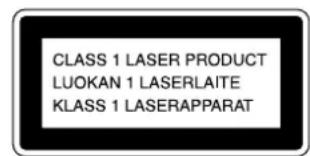
This appliance is classified as a CLASS 1 LASER product. The CLASS 1 LASER PRODUCT MARKING is located on the rear exterior.
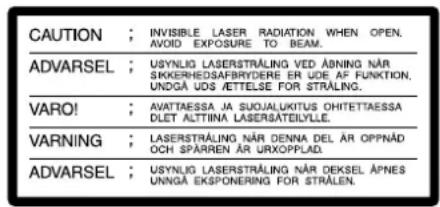
This caution label is located inside the unit.
NOTICE FOR THE CUSTOMERS IN THE UNITED KINGDOM
For the tuner CD player
A moulded plug complying with BS 1363 is fitted to this equipment for your safety and convenience.
Should the fuse in the plug supplied need to be replaced, a 5 AMP fuse approved by ASTA or BSI to BS 1362, (i.e. marked with 念 or mark) must be used.
If the plug supplied with this equipment has a detachable fuse cover, be sure to attach the fuse cover after you change the fuse. Never use the plug without the fuse cover. If you should lose the fuse cover, please contact your nearest Sony service station.
IMPORTANT
If the plug supplied is not suitable for the socket outlets in your home, it should be cut off and an appropriate plug fitted in accordance with the following instructions.
The wires in this mains lead are coloured in accordance with the following code:
Blue: Neutral
Brown:Live
As the colours of the wires in the mains lead of this apparatus may not correspond with the coloured markings identifying the terminals in your plug, proceed as follows:
The wire which is coloured blue must be connected to the terminal which is marked with the letter N or coloured black. The wire which is coloured brown must be connected to the terminal which is marked with the letter L or coloured red.
Do not connect either wire to the earth terminal in the plug which is marked by the letter E or by the safety earth symbol 1一 or coloured green or green-and-yellow.
WARNING
To prevent shock hazard, do not insert the plug cut off from the mains lead into a socket outlet. This plug cannot be used and should be destroyed.
For the active speaker system
The mains lead plug of SA-N1/N11 is a 2-pin type designed to be connected only to HCD-T1.
Do not connect this plug to any other system or mains supply.
IMPORTANT
Never connect two mains leads into a single mains plug.
Welcome!
Thank you for purchasing the Sony Compact Component System. This stereo system is packed with fun features. Here are just a few:
The CD jacket-size front panel of each component that lets you stack or place the components as you like
- DBFB (Dynamic Bass Feedback) system that boosts low frequency range audio to provide deep, powerful bass through the full range bass reflex speakers
- A preset feature that lets you store and recall up to 20 FM stations, 10 MW stations and 10 LW stations (For German, Italian and gold colour models, you can store and recall up to 20 FM stations and 10 AM stations.)
- A timer that lets you set the CD player, tape player or radio to turn on and off whenever you want
- A remote that lets you control the music from your seat
An optical output jack for digital recording
About this manual
This manual explains how to operate :
-Tuner CD player : HCD-T1
- Stereo cassette deck: TC-TX1
Active speaker system : SA-N1
Active speaker system: SA-N11
Make sure which components you are using.
Table of Contents
Chapter 1: Setting Up
Connecting the Stereo 4
Inserting the Batteries 6
Setting the Clock 6
Chapter 2: the CD Player
Playing a CD (normal play) 7
Playing Tracks in Random Order (shuffle play) 8
Playing Tracks in the Desired Order (programme play) 8
Playing Tracks Repeatedly (repeat play) 9
Chapter 3: the Radio
Listening to the Radio 10
Presetting Radio Stations 11
Listening to the Preset Radio Stations 11
Chapter 4: the Tape Player
Playing a Tape 12
Recording a CD Automatically 12
Recording a CD, etc., Manually 13
Recording a CD in the Specified Track Order (programme edit) 14
Chapter 5: Sound Adjustment
Adjusting the Balance of the Speakers 15
Reinforcing Bass (DBFB) 15
Listening with the Surround Feature 16
Chapter 6: Additional Features
Falling asleep to Music 17
Waking Up to Music 17
Timer-Recording Radio Programmes 18
Connecting Optional Equipment 19
For Your Information
Precautions 20
Troubleshooting Guide 20
Maintenance 21
Specifications 21
Index to Parts and Controls 22
Index 23
Connecting the Stereo
Inserting the batteries
Setting the Clock
Connecting the Stereo
Use the illustrations below to connect your stereo.
STEP 1 Connecting the Flat Cord
(For only the customers using the TC-TX1 stereo cassette deck)
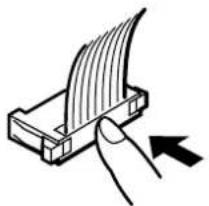
Connect the tuner CD player and the stereo cassette deck with the flat cord (supplied) pushing in the connector until it clicks.
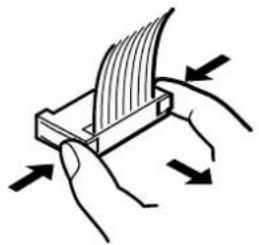
To disconnect the flat cord
Pull out the connector of the flat cord while pressing its sides. Do not pull the flat cord itself.
STEP2 Connecting the Right Speaker
Connect the right speaker to the tuner CD player with the audio cord (supplied) and the mains lead.
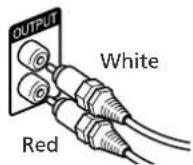
Connecting the audio cord
Connect firmly the white plug to the white (L) jack and the red plug to the red (R) jack.
Connecting the mains lead of the right speaker
Connect the mains lead of the right speaker to AC OUTLET on the rear panel of the tuner CD player.
Notes
The illustrations on page 5 shows the SA-N1 use active speaker system.
The rear view of the SA-N11 differs from the illustration.
STEP3 Connecting the Left Speaker
Connect the left speaker to the right speaker with the speaker cable (supplied). Be sure to keep the speaker cable away from the aerials.
Grey cord to (red)


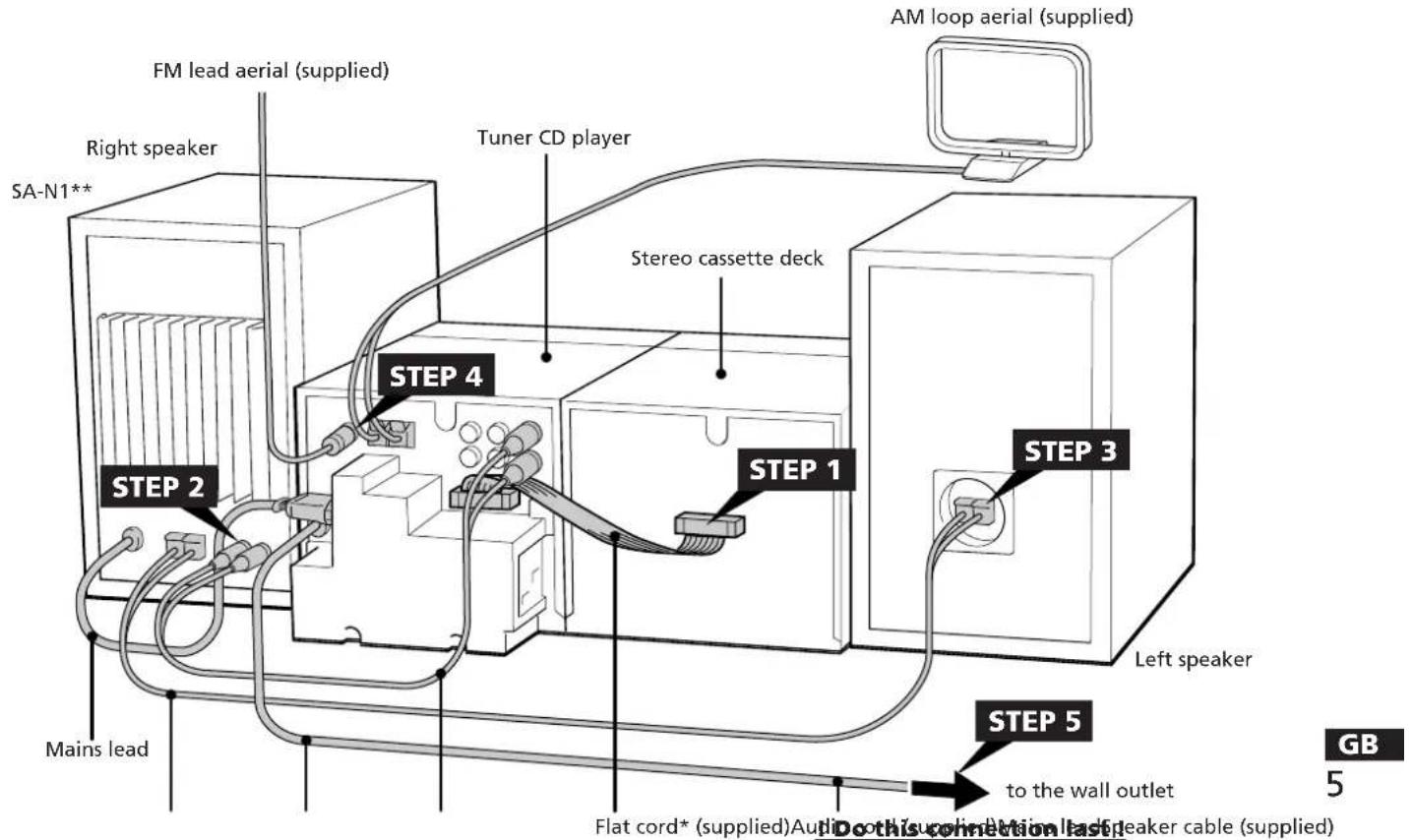
- For only the customers using the TC-TX1 stereo cassette deck
**The rear view of the SA-N11 differs from the illustration.
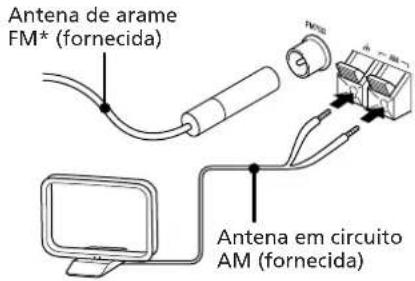
STEP4 Connecting the Aerials
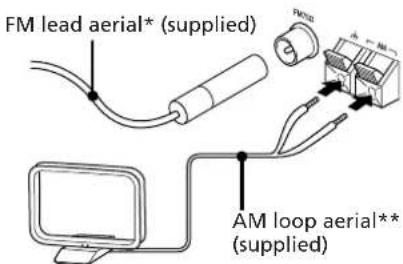
- Fix it to the place for optimum reception.
** Orient it toward the direction for optimum reception.
To improve the reception
Connect an external aerial (p.19).
To set up the AM loop aerial
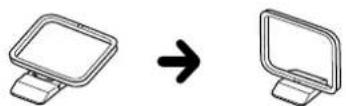
STEP5 Connecting the Power
Connect the mains lead of the tuner CD player to the wall outlet after you have made all the above connections.
Notes
- You can remove the front net from the speaker.
- The AU BUS (audio bus) connector on the rear panel of the tuner CD player is used to connect the optional Sony MDS-MX1 MiniDisc deck. See the instruction manual for MDS-MX1 in detail.
Inserting the batteries
Insert two R6 (size AA) batteries into the supplied remote.
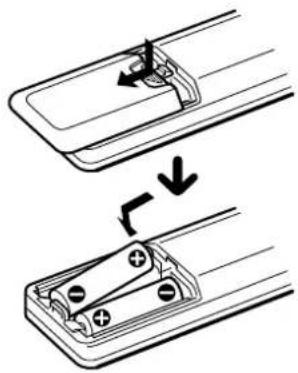
Battery life
You can expect the remote to operate for about six months using Sony SUM-3 (NS) batteries before the batteries run down. When the batteries no longer operate the remote, replace both batteries with new ones.
To avoid battery leakage
If you are not going to use the remote for a long time, remove the batteries to avoid damage caused by corrosion from battery leakage.
Setting the Clock
You need to set the clock before using the timer function. The clock shows the time in the 24-hour cycle.
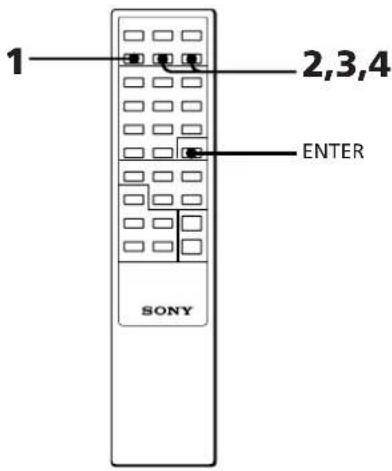
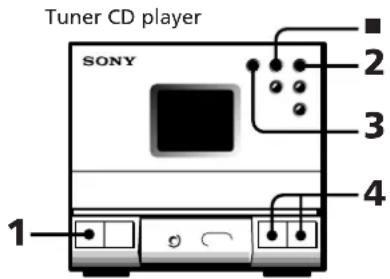
1 Press TIMER SET.
2 Press TIMER+ or - to display "CLOCK" and press ENTER. The hour indication begins flashing.
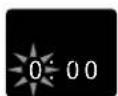
3 Set the current hour by pressing TIMER+ or - and press ENTER. The minute indication begins flashing.
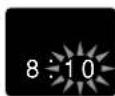
4 Set the current minute by pressing TIMER+ or - and press ENTER. The clock starts operating.
To correct the clock setting
Repeat steps 1 to 4.
About the time indication
The built-in clock shows the time in the display when you press POWER to turn off the power.
The upper dot of the : in the time display flashes for the 0 to 29 seconds of the minute and the lower dot flashes for the 30 to 59 seconds.
Chapter 2: the CD Player
Playing a CD (normal play)
Playing Tracks in Random Order (shuffle play)
Playing Tracks in the Desired Order (programme play)
Playing Tracks Repeatedly (repeat play)
Playing a CD (normal play)
You can play CDs in four modes: normal, shuffle, programme and repeat. The mode determines which tracks (songs) to play, in which order and whether or not they will repeat.
Also, you can play 12cm and 8cm CDs. When you play an 8-cm CD, place it without an adaptor on the inner circle of the disc tray.
Before you play the CD, decrease the sound level by pressing VOL. This will prevent damage to the speakers.
1 Press POWER.
2 Press (open/close) and place a CD on the CD tray.
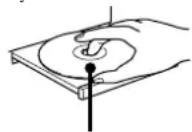
with the label side up
3 Press (play) (or on the remote). The disc tray closes and the first track starts playing.
4 Press VOL + or - to adjust the sound level.
| To | Press |
| Stop play | ■ |
| Pause | ▶II (or II*) To resume play, press here again. |
| Remove the CD | ▲ |
- Remote
One Touch Play feature
Press (or on the remote) when the power is off or you are listening to another source.
As long as a CD is in the player, you will be able to listen to the CD without pressing any other buttons.
To find the beginning of a track - Automatic Music Sensor (AMS)
You can locate the beginning of a track while the track is playing or while it is in pause mode.
To locate the beginning of the current or preceding track, press (or on the remote) until you find the desired track.
To locate the beginning of the succeeding track, press (or on the remote) until you find the desired track.
To find a point in a track
You can find a particular point in a track while playing or pausing a CD. Use the buttons on the player to operate this feature. This operation is not possible with the remote.
| To Search | Operation |
| Forward while listening | Hold down▶▶▶ and release it at the desired point. |
| Backwards while listening | Hold down▶▶▶ and release it at the desired point. |
| Quickly without listening while checking the playing time in the display | Hold down▶▶▶ or▶▶ during pause and release it at the desired point. |
Note
If the CD reaches the end while you are searching quickly without listening, "OVER" appears in the display. Press on the remote) to go back.
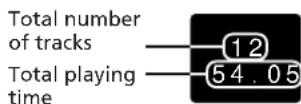
To check the total number of tracks and total playing time
Press DISPLAY on the remote while the player is in stop mode. The indications appear for a few seconds.
To check the remaining time
Press DISPLAY on the remote repeatedly while playing a CD.
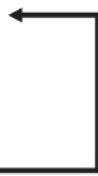
Each time you press DISPLAY, the display changes as follows.
Current track number and playing time
Current track number and remaining time on the track
Remaining time on the CD
Playing Tracks in Random Order (shuffle play)
You can play all the tracks on the CD in random order. Use the buttons on the remote to do this operation.
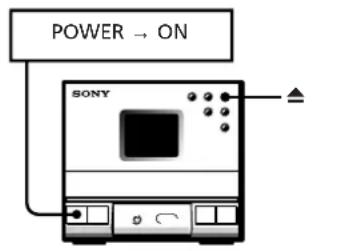
Tuner CD Player
1 Press (open/close) and place a CD on the CD tray.
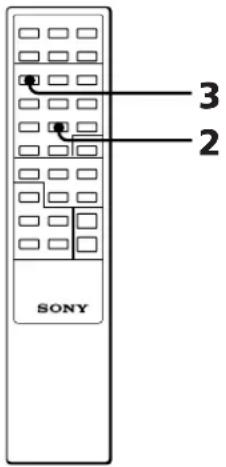
2 Press TUNING/PLAY MODE repeatedly until "SHUFFLE" appears in the display.
3 Press. "C" appears and then all the tracks play in random order.
To cancel shuffle play
Press TUNING/PLAY MODE. "SHUFFLE" disappears, and tracks continue playing in their original order.
If you press TUNING/PLAY MODE during normal play
You can play all the tracks on the CD in random order.
To skip an undesired track
Press 1. You cannot go back to the preceding track by pressing
Playing Tracks in the Desired Order (programme play)
You can programme up to 24 tracks to play in any order you choose. You can do this by designating the tracks in the order you want them to play.
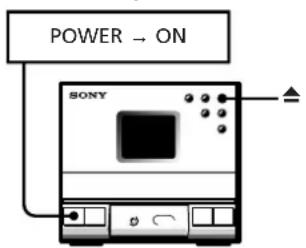
Tuner CD Player
1 Press (open/close) and place a CD on the CD tray.
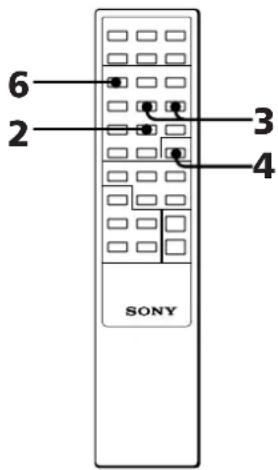
2 Press TUNING/PLAY MODE repeatedly until "PGM" appears in the display.
3 Press or until the desired track number is displayed. The total playing time including the chosen track flashes in the display. (The programme is not entered at this time.)
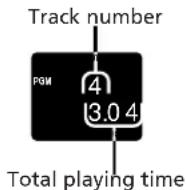
4 Press ENTER. The programme number appears for about a second, and the total playing time lights up.
5 Repeat steps 3 and 4 to programme the remaining tracks you want to play in the order you want them to play.
6 Press
All the tracks you chose play in the order you designated.
To cancel the programme play
Press TUNING/PLAY MODE until "PGM" disappears.
To change the programme
| To | Operation |
| Add a track at the end of the programme | During stop, do steps 3 – 5. |
| Erase the entire programme | During stop, press ■ on the player. |
After all the programmed tracks have been played
The programme order remains in the CD player's memory. You can listen to the same programme by just pressing.
Notes
- Once you open the CD tray, the programme is erased.
- If the total programme time has exceeded 100 minutes, the order of the programme is displayed instead of the total playing time.
- If you try to programme more than 24 tracks, "FULL" is displayed.
Playing Tracks Repeatedly (repeat play)
You can choose between two different repeat play modes. One repeats all the tracks in the current play mode; the other repeats a single track.
Use the buttons on the remote to do this operation.
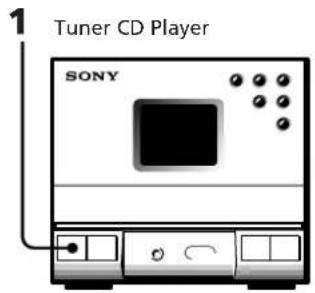
Tuner CD Player
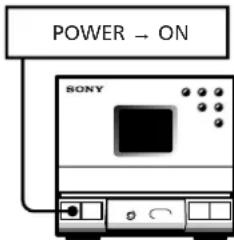
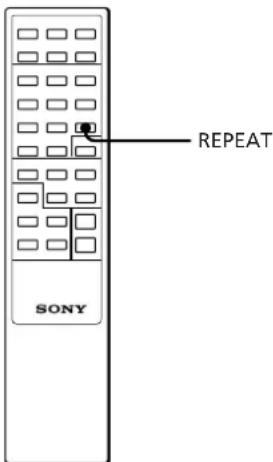
Repeating all the tracks (in any play mode)
Press REPEAT.
"REPEAT" appears in the display, and the tracks play repeatedly in the current play mode.
Repeating a single track (in normal play mode only)
While the desired track is being played, press REPEAT repeatedly until "REPEAT 1" appears in the display.
To cancel repeat play
Press REPEAT repeatedly until "REPEAT" or "REPEAT 1" disappears from the display.

Listening to the Radio
Presetting Radio Stations
Listening to the Preset Radio Stations
Listening to the Radio
You can have the tuner automatically scan and tune in the stations with clear signals. This feature saves you time in searching for stations with clear signals. However, you will have to manually tune in stations with weak signals that are skipped by automatic tuning.
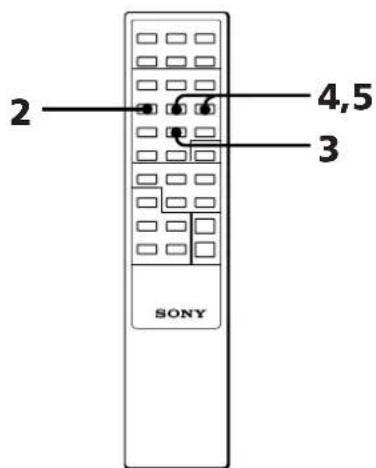
"TUNED" appears in the display. "STEREO" also appears if the FM station tuned in is broadcasting in stereo.
5 If you do not want to listen to the station selected, press TUNING + / - again to restart the scan.
When the desired station is not tuned in
Automatic tuning may skip a station with a weak signal. Tune in the station manually.
1 Press TUNING/PLAY MODE repeatedly until "MANUAL" appears in the display.
2 Keep pressing TUNING + / - until the desired station is tuned in.
To improve AM (MW and LW) broadcast reception
Reorient the supplied AM loop aerial for AM (MW and LW).
When an FM programme is not received clearly
Press STEREO/MONO until "MONO" appears in the display. There will be no stereo effect, but the reception will improve. Press STEREO/MONO again to restore the stereo effect.
One Touch Play feature
Press BAND when the power is off or you are listening to another source.
You will be able to listen to the last received station without pressing any other buttons.
1 Press POWER.
2 Press BAND repeatedly until the band you want appears in the display.
As you press BAND, the band changes as follows:
German, Italian and gold colour models: FM AM
Other models:

3 Press TUNING/PLAY MODE until "AUTO" appears in the display.
4 Press TUNING + / - to tune in the desired station. To tune in a higher frequency station, press TUNING + and to tune in a lower frequency station press TUNING-. The tuner starts scanning stations automatically, and stops when it finds a clear station.
Presetting Radio Stations
You can store radio frequencies in the
tuner's memory to tune in your favourite
stations quickly. You can preset up to 20 FM stations,10 MW stations and 10 LW stations in any order.For German and Italian models,you can preset up to 20 FM stations and 10 AM stations. Use the buttons on the remote to do this operation.
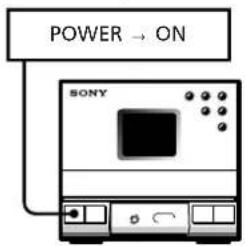
Tuner CD Player
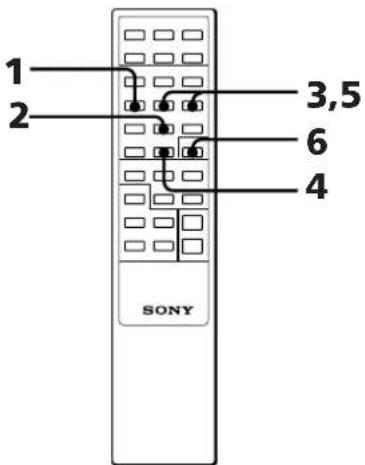
1 Press BAND repeatedly until the desired band appears in the display. German, Italian and gold colour models: FM AM Other models: FM MW LW
2 Press TUNING/PLAY MODE repeatedly until "MANUAL" or "AUTO" appears in the display.
3 Press TUNING + / - to tune in the station you want to store.
4 Press MEMORY. "MEMORY" and the preset channel number appear in the display.
5 Decide on a preset channel number for the radio station (1 to 20 for FM, 1 to 10 for AM, MW and LW). Press TUNING +/- to display the preset channel number you have decided on.
6 Press ENTER.
The station is stored at the preset channel number you have decided on.
7 Repeat steps 3 to 6 for each station you want to store.
To erase a stored station
Store a new station on the preset channel number of the station you want to erase. This will erase the old station and replace it with the new station.
Note
The preset stations will not be erased unless you store a new station to replace the old ones even if you disconnect the power source.
Littenig to the Preset Radio Stations
Once you have preset the stations, you can quickly tune in your favourite stations.
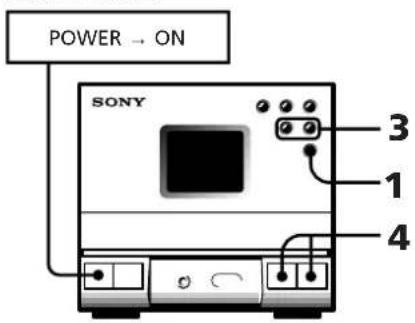
Tuner CD Player
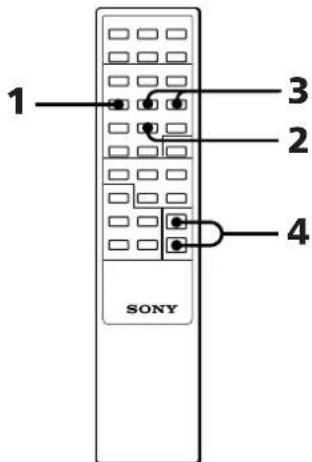
1 Press BAND repeatedly until the desired band appears in the display. For German, Italian and gold colour models: FM AM For other models: FM MW LW
2 Press TUNING/PLAY MODE repeatedly until "PRESET" appears in the display.
3 Press TUNING + / - to tune in a preset station. The preset channel number appears, then the station frequency appears and the broadcast can be heard.
4 Press VOL + / - to adjust volume.
To change the frequency display to the preset channel display
During listening to a preset radio station, press DISPLAY on the remote. Each time you press DISPLAY, the frequency or the preset channel number appears in the display.
Chapter 4:
the Tape Player
Playing a Tape
Recording a CD Automatically
Recording a CD, etc., Manually
Recording a CD in a Specified Track Order (programme edit)
Playing a Tape
You can use TYPE I (normal), TYPE II (CrO2) and TYPE IV (metal) tapes. When you insert a tape, the deck detects the tape type automatically.
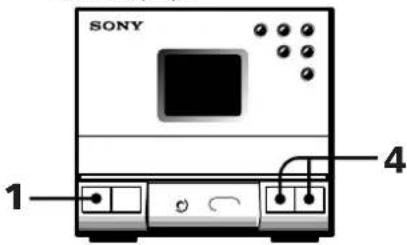
Tuner CD player
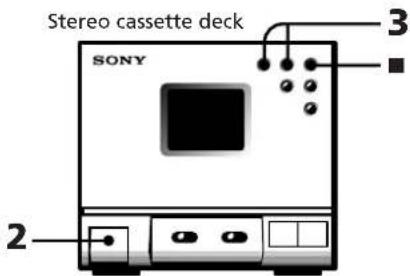
1 Press POWER.
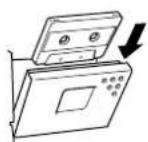
2 Press EJECT to open the tape compartment and insert a recorded tape.
3 Press to play the front side. To play the reverse side, press
4 Press VOL + / - to adjust the volume.
Press
To stop play
| To | Operation |
| Pause | Press on the deck. To resume play, press here again. |
| Find the beginning of the current or succeeding track | During play, press or on the deck. |
| Fast forward or rewind | During stop, press or on the deck. |
| Play one side of the tape | Slide DIRECTION to ←. |
| Play both sides repeatedly* | Slide DIRECTION to ←. |
- The deck stops automatically after repeating the sequence five times.
When listening to a tape recorded with the Dolby* B-type noise reduction system
Slide the DOLBY NR switch to ON.
Dolby noise reduction system reduces tape hiss noise in low-level high-frequency signals.
- Dolby noise reduction manufactured under license from Dolby Laboratories Licensing Corporation.
"DOLBY" and double-D symbol are trademarks of Dolby Laboratories Licensing Corporation.
One Touch Play feature
Press or when the power is off or you are listening to another source.
As long as a tape is in the deck, you will immediately be able to listen to the tape without pressing any other buttons. If a tape is not in the deck, only the power will be turned on.
Recording a CD Automatically
You can record a CD on a tape quickly by using the CD SYNC switch. Use the buttons on the CD player and the cassette deck. Before recording, make sure the tabs on the cassette have not been removed.
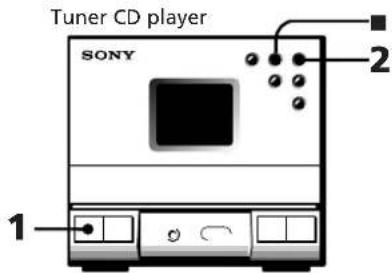
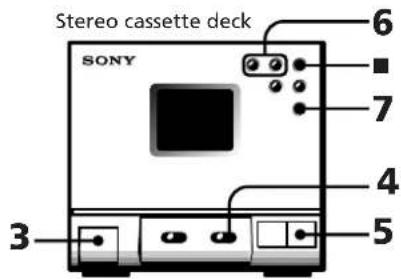
1 Press POWER.
2 Press and place a CD.
Press FJECT and insert a blank tape.
4 Slide DIRECTION to select dual or single-sided recording.
| To record on | Slide DIRECTION to |
| One side | |
| Both sides* |
- Recording always stops at the end of the reverse side. Be sure to start from the front side.
5 Press CD SYNC. The cassette deck stands by for recording, and the CD player stands by for playing.
6 Press or to select the tape side to start recording on. To start from the front side, press . To start from the reverse side, press . (Recording will be made only on the reverse side.)
7 Press. Recording starts. After about 10 seconds, the CD starts playing.
To stop recording
Press on the deck or the CD player.
To activate DOLBY NR
When you want to reduce the hiss noise in low-level high-frequency signals, slide the DOLBY NR switch to ON after step 4.
About CD SYNC (synchronized) recording
With this feature, the cassette deck records a CD synchronizing with the length of the tracks on the CD, so you do not have to worry about the tape direction or remaining time while recording. This stereo system uses the Fade Synchronized recording feature. With this feature, the deck slowly fades out a recording so that a track is not abruptly cut off at the end of the tape. If the tape reaches the end of its front side while recording a track, the deck re-records it automatically after rewinding the tape to the beginning of the track. This time, the track is recorded with a fadeout at the end of the tape. (Recording ends at this point if it is a single-sided recording.)
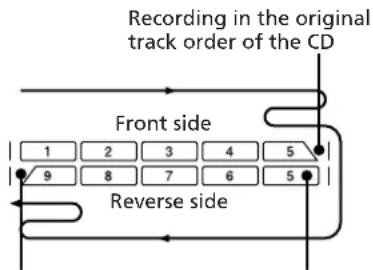
The track at the end of the reverse side is also faded out if it does not fit in the tape length.
Recording starts from the track that was faded out at the end of the front side.
When the track order has been programmed and the total length of the tracks to be recorded is shorter than the length of one side of the tape, the unit automatically operates as follows:
When the CD player is paused, the deck continues recording silence until it reaches the end of the front side; then it reverses the tape and starts recording.
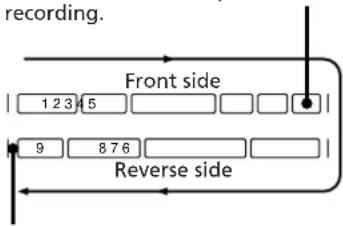
Once all of the selected tracks have been recorded, the deck records about four seconds of silence and then stops.
Recording a CD, etc., Manually
You can record a CD as you like, for instance, record just the songs you want, or you can record from any point on the tape.
Tuner CD player
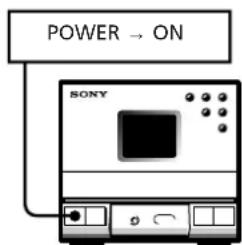
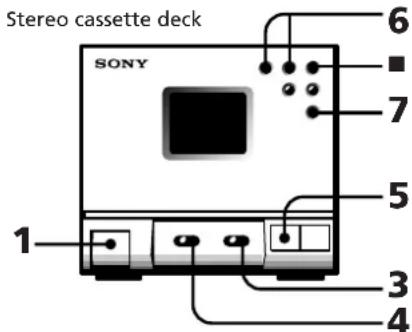

1 Press EJECT and insert a blank tape.
2 Press FUNCTION repeatedly until the source you want to record appears in the display.
| Source | Indication |
| CD | CD |
| Radio | TUNER |
| MD, etc. | MD |
3 Slide DIRECTION to select dual or single-sided recording. To record on one side, set to To record on both sides, set to
4 When you want to reduce the hiss noise in low-level high-frequency signals, slide DOLBY NR to ON.
5 Press REC on the deck. The deck stands by for recording, and the REC button lamp and the button lamp on the deck light up. Either the or button lamp lights up, and the other flashes and goes out. If the or button lamp does not light up or flash, the corresponding tab on the cassette has been removed. You cannot record on this side.
6 Press or to select the tape side you want to start recording on. To start recording on the front side, press. To start recording on the reverse side, press
7 Press on the deck. Recording starts. When you set the DIRECTION switch to, recording stops at the end of the reverse side.
8 Start playing the sound source.
To stop recording
Press on the deck.
Note
If you press FUNCTION while recording, the sound source will be switched to another.
Recording a CD in a Specified Track Order (programme edit)
You can adjust the total recording time to the tape length while making a programme.
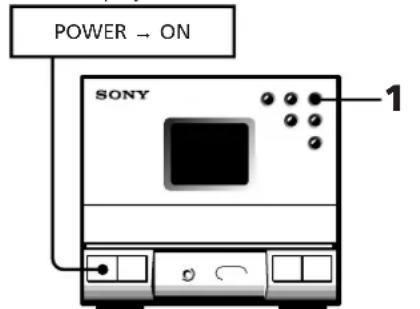
Tuner CD player
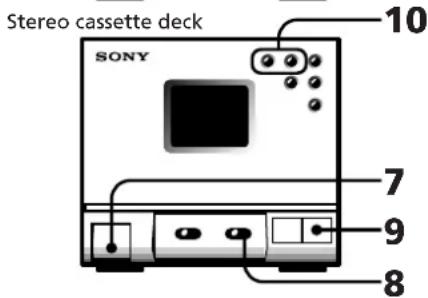
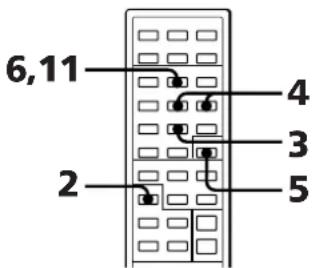
1 Press on the CD player and place a CD.
2 Press FUNCTION repeatedly until "CD" appears in the display.
3 Press TUNING/PLAY MODE repeatedly until "PGM" appears in the display.
4 Press or to choose a track.
5 Press ENTER. Repeat steps 4 and 5 to programme the remaining tracks you want to record on side A in the order you want them to be recorded.
6 Press on the remote to pause recording at the end of side A. The total recording time "0.00" is displayed. Repeat steps 4 and 5 to programme the remaining tracks you want to record on side B in the order you want them to be recorded.
Chapter 4: the Tape Player
7 Press EJECT on the deck and insert a blank tape.
8 Slide DIRECTION to select dual or single-sided recording.
To record on one side, set to To record on both sides*, set to
* Recording always stops at the end of the reverse side. Be sure to start from the front side.
9 Press CD SYNC. The deck stands by for recording, and the CD player stands by for playing.
10 Press or to select the tape side you want to start recording on.
To start recording on the front side, press
To start recording on the reverse side, press
11 Press to release recording pause. Recording starts. After about 10 seconds, the CD starts playing. When you programme to record on side B, the CD will pause after completing the recording on side A. The deck continues recording silence until it reaches the end of side A, then it reverses the tape and starts recording on side B. Once all of the selected tracks have been recorded, the deck records about 4 seconds of silence and then stops.
To cancel programme edit
Press TUNING/PLAY MODE until "PGM" disappears.
Notes
- If the last portion of the track is recorded on the leader at the end of the tape, recording may not be made completely.
- When programming for side B after pausing at the end of side A, make sure the tracks programmed for side A do not exceed the length of a single side. Otherwise recording cannot be made correctly.
To start recording partway through a tape
Play or record on the tape for more than a few seconds, then press CD SYNC. As soon as you start recording, CD starts playing.
When you press CD SYNC after pressing
EJECT to insert a tape, CD play will start 10 seconds after recording starts. This will happen when recording on any part of the tape because the stereo system is designed to prevent recording on the leader at the beginning of the tape.
Chapter 5:
Sound
Adjustment
Adjusting the Balance of the Speakers
Reinforcing Bass (DBFB)
Listening with Surround Feature
Adjusting the Balance of the Speakers
You can adjust the balance of the sound from the speakers to correct the stereo imaging when the speaker position is not symmetrical.
Use the buttons on the remote to do this operation.
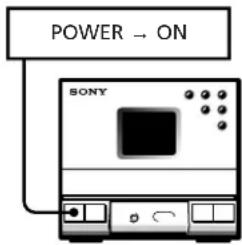
Tuner CD Player
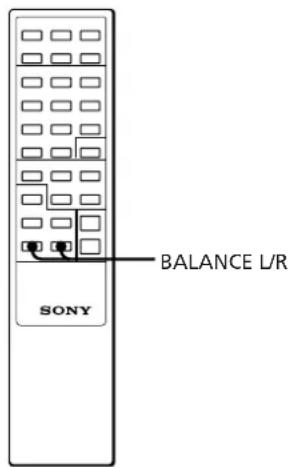
To increase the relative strength of the right speaker, press BALANCE R.
Each time you press BALANCE R, the display changes as follows:
-LEFT 10 LEFT 9 LEFT ....
1 LEFT CENTER 1 RIGHT
2 RIGHT 10 RIGHT RIGHT
To increase the relative strength of the left speaker, press BALANCE L.
Each time you press BALANCE L, the display changes in reverse order to the above.
To listen through the headphones
Connect the headphones to the PHONES jack. No sound will come from the speakers.
Reinforcing Bass (DBFB)
DBFB (Dynamic Bass Feedback) feature intensifies low frequency sound for richer bass reproduction.
You can select one of the two levels of DBFB: "DBFB1" or "DBFB2". "DBFB2" is more effective than "DBFB1".
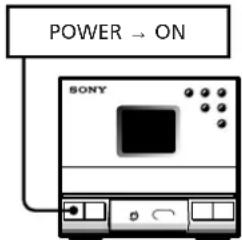
Tuner CD Player
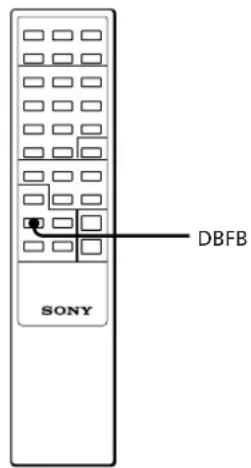
Press DBFB repeatedly until "DBFB1" or "DBFB2" appears in the display.
Each time you press DBFB, the display changes as follows:

Note
When you release the DBFB and Surround features, you can enjoy almost the same sound as the source (Source Direct feature).
Listening with the Surround Feature
With this feature, you can create the atmosphere of a movie theater or concert hall. Select one of the two levels of the Surround feature: "SURR1" and "SURR2". "SURR2" is more effective than "SURR1".
Tuner CD Player
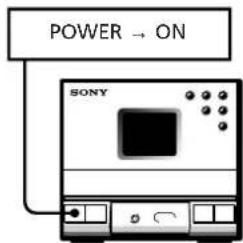
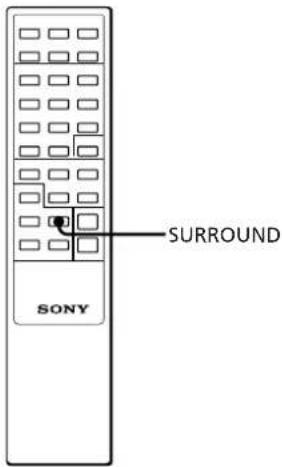
Press SURROUND repeatedly until "SURR1" or "SURR2" appears in the display.
Each time you press SURROUND, the display changes as follows:

Note
When the Surround and DBFB features are set to OFF, you can enjoy almost the same sound as the CD source (Source Direct feature).
Chapter 6:
Additional
Features
Falling Asleep to Music
Waking Up to Music
Timer-Recording Radio Programmes
Connecting Optional Equipment
Falling Asleep to Music
You can set the stereo system to turn off automatically so you can go to sleep to music.
Before setting sleep timer, make sure the clock has been set correctly.
Tuner CD Player
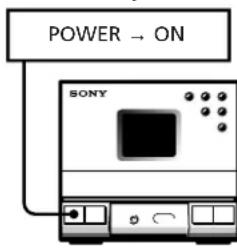

1 Play your favourite sound source (a tape, the tuner or CD).
2 Press SLEEP while the source is playing to choose how long you want the music to play.
"Sleep" and minutes indication appear in the display. Each time you press SLEEP, the indication decreases by 10 minutes from 90 to 10.
The power will turn off after the length of time you chose.

To cancel the sleep timer
Press SLEEP repeatedly until "SLEEP OFF" appears in the display.
To check the remaining time before the sleep timer turns off the system
Press SLEEP once.
The remaining time appears in the display for several seconds.
To change the preset time while the sleep timer is on
Press SLEEP several times until the desired length of time indication appears.
Note
While the sleep timer is activated, the daily and recording timer functions do not work.
Waking Up to Music
You can wake up to music at the preset time. You only need to set the timer once. Before setting the timer, make sure the clock has been set correctly. The preset timer activates at the same time every day. To wake up to the sound of the radio, be sure to preset the station you want to listen to beforehand. (See "Presetting Radio Stations".)
Tuner CD Player
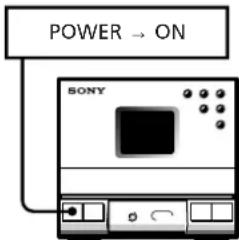

1 Prepare the sound source.
| Source | Preparation |
| CD | Insert a CD. If you want to play it from a desired track, do the necessary procedures for programmed CD play (p.8). |
| Radio | Tune in the desired preset station. |
| Tape | Insert a tape with the side you want to play facing towards you, and press▶to start playing from the front side. |
2 Press VOL + / - to adjust the volume.
3 Press TIMER SET.
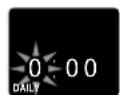
4 Press TIMER + / - to display "DAILY", and press ENTER.
The hour indication flashes in the display.
continue to next page
continued
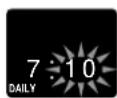
5 Set the time you want the music to come on.
Press TIMER + / - to set the hour, and press ENTER.
The minute indication flashes.
Set the minute in the same way and press ENTER.
The hour indication for the turn-off time appears.
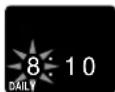
6 Set the time you want the music to go off.
Press TIMER + / - to set the hour, and press ENTER.
The minute indication flashes.
Set the minute in the same way and press ENTER.
The source indication flashes.

7 Press TIMER + / - to select the source, and press ENTER.
| Source | Indication |
| CD | CD |
| Radio | TUNER |
| Tape | TAPE |
| MD, etc. | MD |
The preset items appear in the display sequentially.
8 Press SYSTEM POWER to turn off the system.
At the preset time, the power will go on and the music will play. At the turn-off time, the power will go off again.
To cancel the timer
Press TIMER SELECT repeatedly until "OFF" appears in the display instead of "DAILY".
To set the timer with the same items
Press TIMER SELECT to display "DAILY", and press SYSTEM POWER to turn off the system.
Once you set the timer, you do not have to set the same items again.
To check the timer settings
Press TIMER SELECT until "DAILY" disappears and appears in the display again.
The preset items appear sequentially.
To change timer settings
Repeat steps 1 to 8.
Timer-Recording Radio Programmes
You can set the timer to record the radio. This timer works only once for each setting. Preset the station beforehand. (See
"Presetting Radio Stations".
Make sure the clock is set correctly.
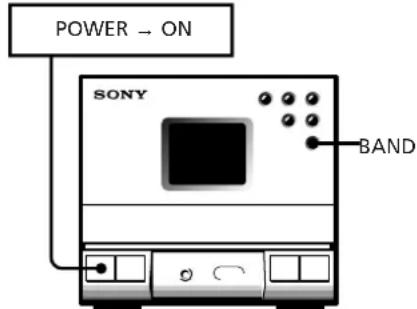
Tuner CD player
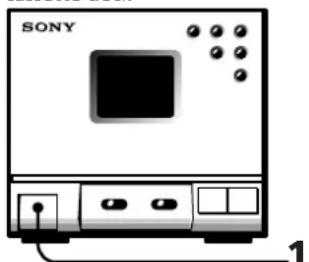
Stereo cassette deck
1 Insert a blank tape with the side you want to record facing towards you, and press to start recording from the front side.
2 Press BAND repeatedly until the band you want appears in the display.
3 Press TUNING/PLAY MODE until "PRESET" appears in the display.
4 Press TUNING + / - to tune in the preset station.
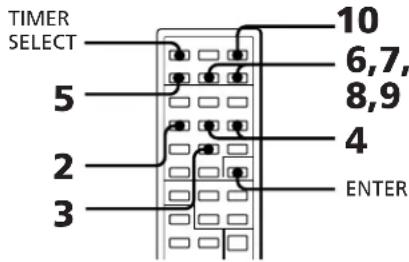
5 Press TIMER SET.
6 Press TIMER + / - to display "REC", and press ENTER.
The hour indication flashes.

7 Set the time you want to start recording. Press TIMER + / - to set the hour, and press ENTER.
The minute indication flashes.
Set the minute in the same way, and press ENTER.
The hour indication for the turn-off time flashes.
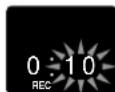
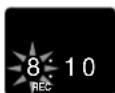
8 Set the time you want to stop recording. Press TIMER + / - to set the hour, and press ENTER.
The minute indication flashes.
Set the minute in the same way and
press ENTER.
"TO TAPE" or "TO MD" flashes.

9 Press TIMER + / - to select what you want to record on, and press ENTER.
To record on a tape, display "TO TAPE".
To record on an MD, etc., display "TO MD".
The preset items appear in the display sequentially.
10 Press SYSTEM POWER to turn off the system.
At the preset time, the power will go on and recording starts. At the turn-off time, the power will go off again.
At the preset time, the sound level is automatically set to the minimum and will be the same level after the turn off time.
To cancel the timer
Press TIMER SELECT repeatedly until "OFF" appears in the display instead of "REC".
To set the timer with the same items
Press TIMER SELECT to display "REC", and press POWER to turn off the system.
Once you set the timer, you do not have to set the same items again.
To check the timer settings
Press TIMER SELECT until "REC" disappears and appears in the display again.
The preset items appear sequentially.
To change timer settings
Repeat steps 1 to 10.
Connecting Optional Equipment
Connecting an MD, DAT deck, etc.
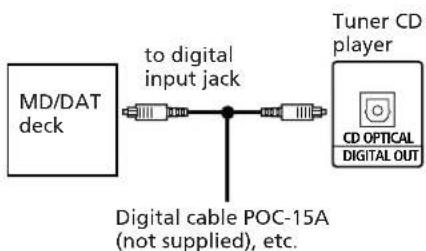
To make a digital recording with an MD, DAT deck, etc.
Connect the DIGITAL (OPTICAL) OUTPUT jack on the rear panel of the tuner CD player to a recorder, deck, etc. that has an optical connector.
To make an analog recording with an MD, DAT, VCR deck, etc.
Connect the MD IN/OUT jacks (phono jacks) on the rear panel of the stereo to an MD, DAT, VCR deck, etc. with the Sony RK-C315 connecting cord (not supplied).
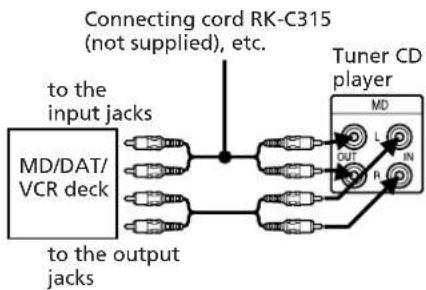
To hear the VCR sound through the connected speakers, connect the MD IN jacks on the rear panel of the stereo to the output jacks on the VCR. In this case, connect the plugs to jacks of the same colours.
For details, see the instruction manual for each equipment.
To listen to the sound of the connected equipment
Press FUNCTION repeatedly until "MD" appears in the display.
Connecting an External Aerial
To improve the FM reception
Connect an external aerial when the signal reception is too weak with the supplied FM lead aerial.
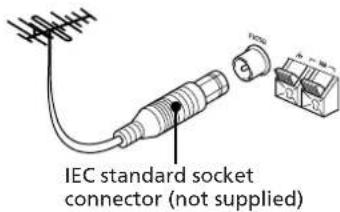
Connect an external FM aerial to the FM 75 terminal, using a 75-ohm coaxial cable and IEC standard socket connector.
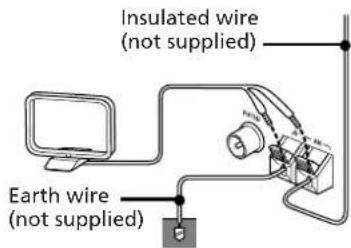
To improve the AM reception
Connect an external aerial if the signal reception is too weak after reorienting the supplied AM loop aerial. Do not disconnect the AM loop aerial.
Connect a 6- to 15-meter insulated wire (not supplied) to the AM terminal and extend the other end horizontally at a higher place. Connect the 12 terminal to the earth.
Important
Earth the external aerial against lightning. To avoid a gas explosion, do not connect the earth wire to a gas pipe.
For Your Information
Precautions
Troubleshooting Guide
Maintenance
Specifications
Index to Parts and Controls
Index
Precautions
If you have any questions or problems concerning your stereo system, please consult your nearest Sony dealer.
On safety
- The unit is not disconnected from the mains as long as it is connected to the wall outlet, even if the unit itself has been turned off.
- Unplug the system from the mains if it is not to be used for an extended period of time. To disconnect the mains lead, pull it out by the plug. Never pull the cord itself.
- Should any solid object or liquid fall into a component, unplug the stereo system and have the component checked by qualified personnel before operating it any further.
- The mains lead must be changed only at the qualified service shop.
On installation
Place the stereo system in a location with adequate ventilation to prevent heat buildup in the stereo system.
On condensation in the CD player component
If the system is brought directly from a cold to a warm location, or is placed in a very damp room, moisture may condense on the lens inside the CD player. Should this occur, the CD player will not operate. Remove the CD and leave the system turned on for about an hour until the moisture evaporates.
To save a tape permanently
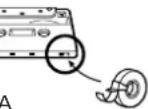
To prevent a tape from being accidentally recorded over, break off the cassette tab from side A or B as illustrated. If you later want to reuse the tape for recording, cover the broken tab with adhesive tape.
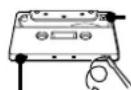
Tab of side B

Tab of side A

When you are using a TYPE II (CrO_2) or TYPE IV (METAL) cassette, be careful not to cover the detector slots which allow the tape player to automatically detect the type of tape.
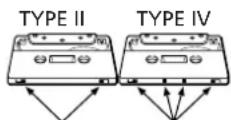
Detector slots
In case colour irregularity is observed on nearby TV screen
With this magnetically shielded type of speaker system, the speakers can be installed near a TV set. However, colour irregularity may still be observed on the TV screen depending on the type of your TV set.
If colour irregularity is observed...
Turn off the TV set once, then turn it on after 15 to 30 minutes.
If colour irregularity is observed again...
Place the speakers farther away from the TV set.
Troubleshooting Guide
If you run into any problem using the stereo, use the following check list after first checking the following two points:
The mains lead is connected firmly.
The speakers are connected correctly and firmly.
Should any problem persist after you have made the checks below, consult your nearest Sony dealer.
General
There is no sound.
Press POWER to turn on the stereo.
Adjust the volume.
The headphones are connected. Disconnect them.
The left and right sound are reversed.
Check the speaker connection and speaker placement.
There is severe hum or noise.
TV or VCR is too close to the stereo system. Move the stereo system away from the TV or VCR.
"0:00" flashes in the display.
Mains interruption occurred. Set the clock and timer settings again.
CD Player
The CD tray does not close.
The CD is not placed correctly.
The CD will not play.
The CD is dirty.
The CD is inserted label side down.
The player is in pause mode.
Moisture condensation has built-up. Leave the system turned on for about an hour until the moisture evaporates.
Play does not start from the first track.
The CD player is in programme or shuffle mode. Press TUNING/ PLAY MODE repeatedly until the play mode indication disappears.
Cassette deck
The tape does not record.
No tape in the tape compartment.
The tab has been removed from the cassette.
The tape has reeled to the end.
The tape does not record nor does it play back, or there is a decrease in sound level.
The heads are dirty. Clean them.
Magnetic deposits have built-up on the record/playback head*.
There is excessive wow or flutter, or the sound drops out.
The capstans or pinch rollers are contaminated*.
The tape does not erase completely.
Magnetic deposits have built-up on the record/playback head*.
Noise increases or the high frequencies are erased.
Magnetic deposits have built-up on the record/playback head*.
CD Synchronized recording does not start.
When you set the tape direction to recording does not start if the tab of either side is removed from the cassette.
*See "Maintenance".
Tuner
"TUNED" flashes in the display.
Adjust the aerial.
"STEREO" flashes in the display.
Adjust the aerial.
Severe hum or noise.
Adjust the aerial.
The signal strength is too weak. Connect the external aerial.
Connect the earth wire.
A stereo FM programme cannot be received in stereo.
When "MONO" appears in the display, press STEREO/MONO on the remote so that "MONO" disappears.
Adjust the aerial.
Timer
The timer does not function.
Set the clock correctly.
The mains has been cut off. While the timer functions, press the POWER switch to turn off the system.
Make sure "DAILY" or "REC" appears in the display.
Remote
The remote does not function.
The batteries have run down. Replace both batteries.
There is an obstacle between the remote and the system. Remove the obstacle.
Maintenance
To clean the tape heads and tape path
Contaminated tape heads cause poor recording or sound drop-out in playback. We recommend cleaning after every 10 hours of operation.
Open the tape compartment and wipe the heads, the pinch rollers and the capstans with a cleaning swab slightly moistened with cleaning fluid or alcohol. Wipe the parts shown below:
Cleaning swab Erase head
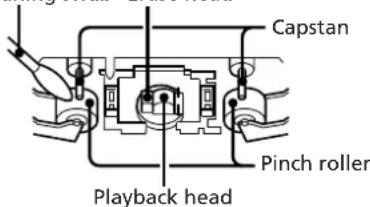
Insert a tape when the areas cleaned are completely dry.
To demagnetize the tape heads
After 20 to 30 hours of use, enough residual magnetism will have built up on the heads to begin to cause loss of high frequencies and hiss. At this time, demagnetize the heads and all metal parts in the tape path with a commercially available tape head demagnetizer. Refer to the instructions of the demagnetizer.
To clean the cabinet
Use a soft cloth slightly moistened with mild detergent solution.
To clean the CD
When a CD is dirty, clean it with a cleaning cloth. Wipe the CD from the centre out.
Notes on CD
- Do not use solvents such as benzene, thinner, commercially available cleaners, or anti-static spray intended for vinyl LPs.
- If there is a scratch, dirt or fingerprints on the CD, it may cause a tracking error.
Specifications
Tuner CD player (HCD-T1)
Tuner section
Tuning range FM:87.5-108 MHz AM: For German, Italian and g colour models AM: 531 - 1,602kHz For other models MW:531-1,602 kHz LW: 153 - 279kHz
Intermediate frequency
FM: 10.7 MHz
AM:450kHz
Aerial terminals FM:75 ohm unbalanced AM:External aerial terminal
Timer Quarts lock system
Timer setting One-minute step
Sleep timer 10-minute step, max.90 minutes
CD player section
System Compact disc digital audio system
Laser Semiconductor laser
Wavelength 780-790 nm
Frequency response 2 Hz - 20 kHz ±0.5 dB
Signal to noise ratio More than 90 dB
Harmonic distortion Less than 0.03%
Preamplifier section
Frequency response 15Hz - 50kHz + 03dB
Inputs MD IN: Stereo phone jack, sensitivity 450mV impedance 47 kilohms
continue to next page
continued
Outputs DIGITAL OUT (CD OPTICAL OUT) jack:
Digital connector, -18 dBm
wavelength 660 nm
OUTPUT jack:
Stereo phone jack, 1 V, 1 kohm
MD OUT jack:
Stereo phone jack, 250mV
1 kohm
PHONES (headphones) jack:
headphones of 8 ohms or more.
General
Power requirements
220-230VAC,50/60Hz
Power consumption
25W
Dimensions
Approx. 142 × 125 × 252 ~mm
(w / h / d) (5^5 / 8× 5× 10 inches)
incl. projecting parts and
controls
Mass Approx. 3kg (6 lb 10 oz)
Supplied accessories
AM loop aerial (1)
Sony RM-ST1 Remote (1)
Sony SUM-3 (NS) batteries (2)
FM lead aerial (1)
Speaker cable (1)
Audio cord (1)
Active speaker system (SA-N1)
Speaker system
Full range, bass reflex
Speaker units
10 cm dia., cone type
Rated impedance
4 ohms
Power requirements
220-230VAC,50/60Hz
Continuous RMS power output
12 + 12 watts
(4 ohms at 1 kHz, 5% THD)
10 + 10 watts
(4 ohms, DIN, 1kHz)
Music power output
19 + 19 watts
(4 ohms, at 1 kHz, 10% THD)
Power consumption
27 W
Dimensions
Right: Approx. 125 × 200 × 215
mm (w / h / d)(5× 7 / / 8× 81 / 2
inches) incl. projecting parts
and controls
Left: Approx. 125 × 200 × 200
mm(w / h / d)(5× 77 / s× 77 / s
inches) incl. projecting parts
and controls
Mass Right: Approx. 2.9kg
(6 lb 7 oz)
Left: Approx. 1.7kg (3 lb 12 oz)
Active speaker system (SA-N11)
Speaker system
2-way bass reflex (magnetically
shielded design)
Speaker units
10 cm dia., cone type
2 cm dia., balance drive type
Rated impedance
4 ohms
Power requirements
220-230VAC,50/60Hz
Continuous RMS power output
12 + 12 watts
(4ohmsat1kHz,5%THD)
10 + 10 watts
(4 ohms, DIN, 1kHz)
Music power output
19 + 19 watts
(4 ohms, at 1 kHz, 10% THD)
Power consumption
25W
Dimensions
Right: Approx. 125 × 205 × 212
mm (w / h / d) 5x81/8x83/8
inches) incl. projecting parts
and controls
Left: Approx. 125 × 205 × 198
mm (w / h / d) 5x81s77/8
inches) incl. projecting parts
and controls
Mass Right: Approx. 3.0kg
(6 lb 10 oz)
Left: Approx. 1.8kg (3 lb 15 oz)
Stereo cassette deck (TC-TX1)
Recording system
4-track 2-channel stereo
Frequency response
(DOLBY NR OFF)
50 - 15,000 Hz (±3 dB), using
Sony TYPE IV cassette
50 - 14,000Hz (± 3dB) using
Sony TYPE II cassette
50 - 13,000 Hz (±3 dB), using
Sony TYPE I cassette
Wow and flutter
±0.2% W.PEAK (DIN)
Dimensions
Approx. 142× 125× 205mm
(w / h / d)(5^5 / 8× 5× 8^3 / 8. inches)
incl. projecting parts and
controls
Mass Approx. 2kg (4 lb 7 oz)
Supplied accessory
Flat cord (1)
Optional accessories
MDS-MX1 MiniDisc deck
TC-TX1 Cassette deck
Design and specifications are subject to change without notice.
Index to Parts and Controls
Refer to the pages indicated in parentheses for how to use the controls.
Controls with an asterisk have indicators
on themselves.
Front Panel
Tuner CD player
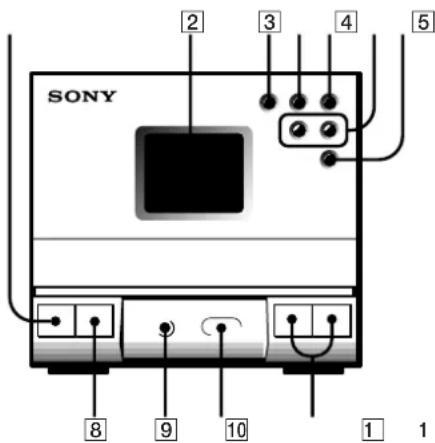
1 POWER switch (7)
2 Display window (6,7,17)
3 (play/pause) button* (7)
4 (stop) button (7, 13)
5 (open/close) button(7,12)
6 and (AMS / search)/
TUNING ^+ and -buttons (7, 10, 14)
7 BAND button (10, 18)
8 FUNCTION button (13, 19)
9 PHONES jack (15)
Remote sensor
VOL + and - buttons (7, 11, 12)
Stereo cassette deck
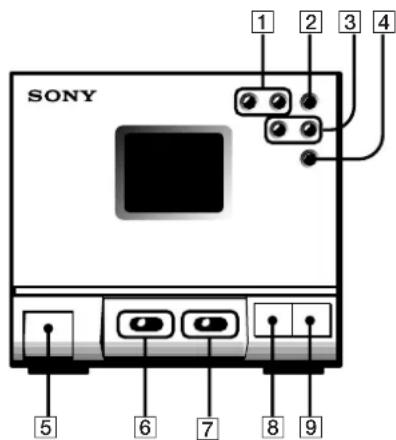
(1) (front side play) and (reverse side play) buttons (12, 17)
2 (stop) button (12)
AMS/(fast rightward)and (fast leftward)buttons(12)
4 II (pause) button (12)
5 EJECT button (12, 18)
6 DOLBY NR OFF / ON switch (12)
7 DIRECTION / switch (12)
8 REC button* (13)
9 CD SYNC button (12)
Rear Panel
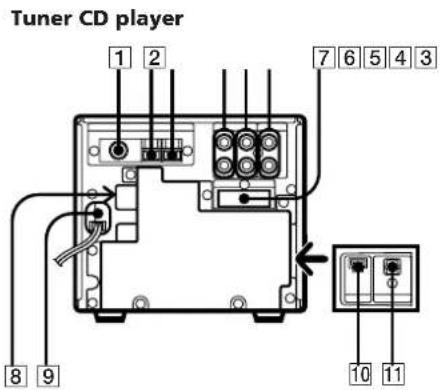
FM 75Ω COAXIAL connector (5,19)
2 m (earth) terminal (5, 19)
3 AM terminal (5, 19)
4 MD OUT jacks (19)
MD IN jacks (19)
6 OUTPUTjacks(4)
SYSTEM CONTROL connector (4)
AC OUTLET connector (4)
9 Mains lead (5)
AU BUS (audio bus) connector (5)
DIGITAL OUT (CD OPTICAL OUT) jack (19)
Display Window
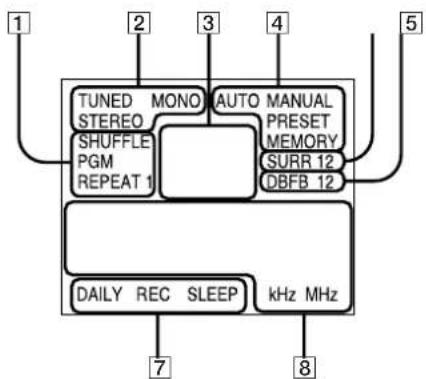
CD play mode indications (8,9)
2 Tuner indications (10)
3 Track number/band indication (7, 10)
4 AUTO/MANUAL/PRESET/MEMORY indications (10,11)
5 SURR (surround) indication (16)
DBFB indication (15)
DAILY/REC/SLEEP timer indications (17,18)
Time / frequency indication (6,7,10)
Remote (RM-ST1)
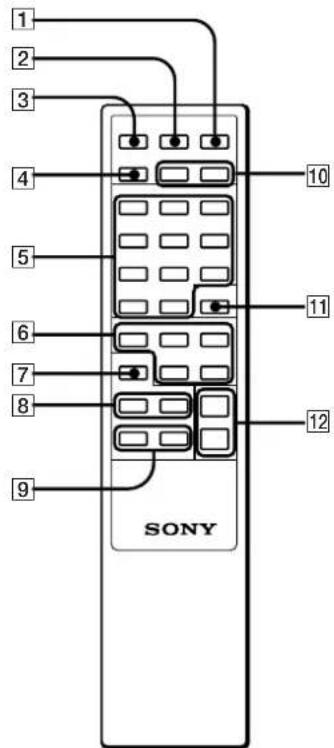
SYSTEM POWER switch (18)
2 SLEEP button (17)
3 TIMER SELECT button (17, 18)
4 TIMER SET button (17, 18)
CD and tuner operating buttons (play) button (7)
I(pause) button (7)
stop button7
BAND button (10, 18)
TUNING + and - /▲ ▲ and ▲ (AMS)
buttons (7, 10)
STEREO/MONO button (10)
TUNING/PLAY MODE button (8,10) REPEAT button (9)
DISPLAY button (7)
MEMORY button (11)
6 Tape operating buttons
(1 reverse side play) and (front side play) buttons (12)
stop) button (12)
(fastleftward)and (fast rightward)buttons(12)
7 FUNCTION button (13, 19)
Sound adjustment buttons DBFB button (15) SURROUND button (16)
9 BALANCE L and R buttons (15)
10 TIMER + and - buttons (6, 17, 18)
11 ENTER button (6, 18)
12 VOL + and - buttons (7, 11)
Index
Aerials 5,10,19
AMS 7,12
CD synchro-recording 12
Clock setting 6
Connecting
optional equipment 19
the system 4
DBFB 15
Inserting batteries 6
Playing
a CD (normal play) 7
a tape 12
tracks in random order (shuffle play)
8
track in the desired order
programme play) 8
tracks repeatedly (repeat play) 9
Radio stations
presetting 11
tuning in 10
Recording
a CD 12, 13, 14
a CD automatically 12
a CD manually 13
a radio programme 13, 18
Recording CDs
specifying track order 14
Sound adjusting 15
Timer
falling asleep to music 17
timer recording 18
waking up to music 17
Tuner 10
AVERTISSEMENT
Puisance absorbee 25 W
Dimensions
Approximativement 142·125·252 mm (n/h/p) (5^5 / 8· 5· 10 pouces) commandes et pieces saillantes incluses
Poids Approximativement 3kg (6 lb 10 oz)
Puisance musicale 19 + 19 watts (4 ohms, a 1 kHz, 10% THD)
Puisance absorbee 25W
Dimensions Droit:approximativement 125· 205· 212mm(1 / h / p) (5· 8^1 / 8· 8^3 / 8 pouces) commandes et pieces saillantes incluses Gauche:approximativement 125· 205· 198mm(1 / h / p) (5· 8^1 / 8· 7^7 / 8 pouces) commandes et pieces saillantes incluses
Poids
Droit: approximativement 3,0kg (6 lb 10 oz)
Droit: approximativement 1,8kg (3 lb 15 oz)
Touche (lecture) (7)
Touche (pause) (7)
Touche (arrêt) (7)
Touche BAND (10, 19)
(lecture repeteee) 9
extinction programme 18
(4 ohmios a 1 kHz, 5% THD)
10 + 10 watts
(4 ohmios, DIN, 1 kHz)
Potencia de sonido
19 + 19 watts
(4 ohmios, a 1 kHz, 10% THD)
Consumo de energia
27W
(4 ohmios a 1 kHz, 5% THD)
10 + 10 watts
(4 ohmios, DIN, 1 kHz)
Potencia de sonido
19 + 19 watts
(4 ohmios, a 1 kHz, 10% THD)
Consumo de energia
25W
TUNING/PLAY MODE (8,10) REPEAT (9)
DISPLAY (7)
MEMORY (11)
PONTO 4 Ligar as antennas
Para desmagnetizar as cabecas
Distortion harmonica
inferior a 0.03%
Pre-amplificador
(4 ohms at 1 kHz, 5% THD)
10 + 10 watts
(4 ohms, DIN, 1 kHz)
(4 ohms, a 1 kHz, 10% THD)
Consumo de energia
27W
Dimensoes
(4 ohms at 1 kHz, 5% THD)
10 + 10 watts
(4 ohms, DIN, 1 kHz)
(4 ohms, a 1 kHz, 10% THD)
Consumo de energia
25W
Dimensoes
- Compact Component System
- WARNING
- To prevent fire or shock hazard, do not expose the unit to rain or moisture.
- NOTICE FOR THE CUSTOMERS IN THE UNITED KINGDOM
- For the tuner CD player
- IMPORTANT
- For the active speaker system
- Welcome!
- About this manual
- Table of Contents
- Chapter 1: Setting Up
- Chapter 2: the CD Player
- Chapter 3: the Radio
- Chapter 4: the Tape Player
- Chapter 5: Sound Adjustment
- Chapter 6: Additional Features
- For Your Information
- Connecting the Stereo
- STEP 1 Connecting the Flat Cord
- To disconnect the flat cord
- STEP2 Connecting the Right Speaker
- Connecting the audio cord
- Connecting the mains lead of the right speaker
- Notes
- STEP3 Connecting the Left Speaker
- STEP4 Connecting the Aerials
- To improve the reception
- To set up the AM loop aerial
- STEP5 Connecting the Power
- Inserting the batteries
- Battery life
- To avoid battery leakage
- Setting the Clock
- To correct the clock setting
- About the time indication
- Playing a CD (normal play)
- One Touch Play feature
- To find the beginning of a track - Automatic Music Sensor (AMS)
- To find a point in a track
- Note
- To check the total number of tracks and total playing time
- To check the remaining time
- Playing Tracks in Random Order (shuffle play)
- To cancel shuffle play
- If you press TUNING/PLAY MODE during normal play
- To skip an undesired track
- Playing Tracks in the Desired Order (programme play)
- To cancel the programme play
- After all the programmed tracks have been played
- Playing Tracks Repeatedly (repeat play)
- Repeating all the tracks (in any play mode)
- Repeating a single track (in normal play mode only)
- To cancel repeat play
- Listening to the Radio
- Presetting Radio Stations
- Listening to the Preset Radio Stations
- When the desired station is not tuned in
- To improve AM (MW and LW) broadcast reception
- When an FM programme is not received clearly
- To erase a stored station
- Littenig to the Preset Radio Stations
- To change the frequency display to the preset channel display
- Chapter 4:
- the Tape Player
- Playing a Tape
- Recording a CD Automatically
- When listening to a tape recorded with the Dolby* B-type noise reduction system
- To stop recording
- To activate DOLBY NR
- About CD SYNC (synchronized) recording
- Recording a CD, etc., Manually
- Tuner CD player
- Recording a CD in a Specified Track Order (programme edit)
- To cancel programme edit
- To start recording partway through a tape
- Chapter 5:
- Sound
- Adjustment
- Adjusting the Balance of the Speakers
- To listen through the headphones
- Reinforcing Bass (DBFB)
- Listening with the Surround Feature
- Chapter 6:
- Additional
- Features
- Falling Asleep to Music
- To cancel the sleep timer
- To check the remaining time before the sleep timer turns off the system
- To change the preset time while the sleep timer is on
- Waking Up to Music
- → continued
- To cancel the timer
- To set the timer with the same items
- To check the timer settings
- To change timer settings
- Timer-Recording Radio Programmes
- Connecting Optional Equipment
- Connecting an MD, DAT deck, etc.
- To make a digital recording with an MD, DAT deck, etc.
- To make an analog recording with an MD, DAT, VCR deck, etc.
- To listen to the sound of the connected equipment
- Connecting an External Aerial
- To improve the FM reception
- To improve the AM reception
- Precautions
- Troubleshooting Guide
- Maintenance
- Specifications
- Index to Parts and Controls
- Index
- On safety
- On installation
- On condensation in the CD player component
- To save a tape permanently
- In case colour irregularity is observed on nearby TV screen
- If colour irregularity is observed...
- If colour irregularity is observed again...
- General
- There is no sound.
- The left and right sound are reversed.
- There is severe hum or noise.
- "0:00" flashes in the display.
- CD Player
- The CD tray does not close.
- The CD will not play.
- Play does not start from the first track.
- Cassette deck
- The tape does not record.
- The tape does not record nor does it play back, or there is a decrease in sound level.
- There is excessive wow or flutter, or the sound drops out.
- The tape does not erase completely.
- Noise increases or the high frequencies are erased.
- CD Synchronized recording does not start.
- Tuner
- "TUNED" flashes in the display.
- "STEREO" flashes in the display.
- Severe hum or noise.
- A stereo FM programme cannot be received in stereo.
- Timer
- The timer does not function.
- Remote
- The remote does not function.
- To clean the tape heads and tape path
- Cleaning swab Erase head
- To demagnetize the tape heads
- To clean the cabinet
- To clean the CD
- Notes on CD
- Tuner CD player (HCD-T1)
- Tuner section
- CD player section
- Preamplifier section
- continue to next page →
- Active speaker system (SA-N1)
- Active speaker system (SA-N11)
- Stereo cassette deck (TC-TX1)
- Optional accessories
- Front Panel
- Stereo cassette deck
- Rear Panel
- Display Window
- Remote (RM-ST1)
- AVERTISSEMENT
- PONTO 4 Ligar as antennas
- Para desmagnetizar as cabecas
- Pre-amplificador
Brand : SONY
Model : SAN11
Category : Loudspeaker