GR10BT - Radio CLARION - Free user manual and instructions
Find the device manual for free GR10BT CLARION in PDF.



| Product Type | Marine Autoradio |
| Brand | Clarion |
| Model | GR10BT |
| Installation Dimensions | 76.2 mm (3 inches) hole |
| Power Supply | 14.4 V DC (10.8 to 15.6 V allowable), negative ground |
| Maximum Output Power | 45 W x 4 |
| RMS Output Power | 18 W x 4 (4 Ω, 14.4 V, ≤1% THD+N) |
| Speaker Impedance | 4 to 8 Ω per channel |
| Radio Receiver | FM/AM/World Weather |
| FM Range | 87.5 - 108.0 MHz (region dependent) |
| AM Range | 530 - 1710 kHz (region dependent) |
| Bluetooth | Version 2.1, profiles A2DP, AVRCP 1.5, SSP |
| USB Port | USB 2.0 full speed, 1.1 A, 5 V |
| Playable Audio Formats | MP3, WMA (via USB) |
| Auxiliary Input | RCA (AUX) |
| Preamp Outputs | 4 channels / 2 V |
| Front Panel Waterproof Rating | IPX5 |
| UV and Salt Spray Resistance | Compliant with ASTM D4329 and ASTM B117 |
| Preset Equalizer | Flat, Pop, Classic, Rock, Techno, Vocal, Jazz |
| Sound Adjustments | Bass, midrange, treble, balance, fader, subwoofer |
| Maximum USB Tracks | 9999 (MP3/WMA) |
| USB File System | FAT/FAT32 |
| Case Care | Soft dry or slightly damp cloth (neutral detergent) |
| Supplied Accessories | Mounting bracket, studs, lock nuts, washers, nuts |
Frequently Asked Questions - GR10BT CLARION
User questions about GR10BT CLARION
0 question about this device. Answer the ones you know or ask your own.
Ask a new question about this device
Download the instructions for your Radio in PDF format for free! Find your manual GR10BT - CLARION and take your electronic device back in hand. On this page are published all the documents necessary for the use of your device. GR10BT by CLARION.
USER MANUAL GR10BT CLARION
WITH BUILT-IN BLUETOOTH®
RÉCEPTEUR MARINE USB/MP3/WMA
AVEC BLUETOOTH® INTÉGRÉ
RECEPTOR USB/MP3/WMA MARINE
CON BLUETOOTH® INTEGRADO
Contents
- FEATURES....3
- EXPANDING SYSTEM OPTIONS....3
- PRECAUTIONS 4
- CAUTIONS ON HANDLING .... 4
- CONTROLS .... 5
Operational Panel....5
Name of Buttons and their Functions 5
- OPERATIONS......6
Basic Operation....6
Radio Operation....7
Weather Band Operation....7
USB Mode Operation 8
AUX Mode Operation 8
Bluetooth Operation 9
- TROUBLESHOOTING....10
- SPECIFICATIONS ...... 11
- INSTALLATION....12
- WIRE CONNECTION....13
1. FEATURES
• Global AM/FM/Weather Band Tuner
• MP3/WMA/USB File Playback
- IPX5 Rated Water Resistant Front Panel
- Meet or Exceeds: ASTM D4329 (UV Exposure) and ASTM B117(Salt Fog Exposure).
• 3" Gauge Hole Cut-Out Mounting
• Built-In Bluetooth
• 45Wx4 Built-In Amplifier
• Smart Phone Charging via USB
- Auxiliary RCA Input
• 4-CH/2V Preamp Output

Bluetooth®
USB
MP3/WMA
2. EXPANDING SYSTEM OPTIONS
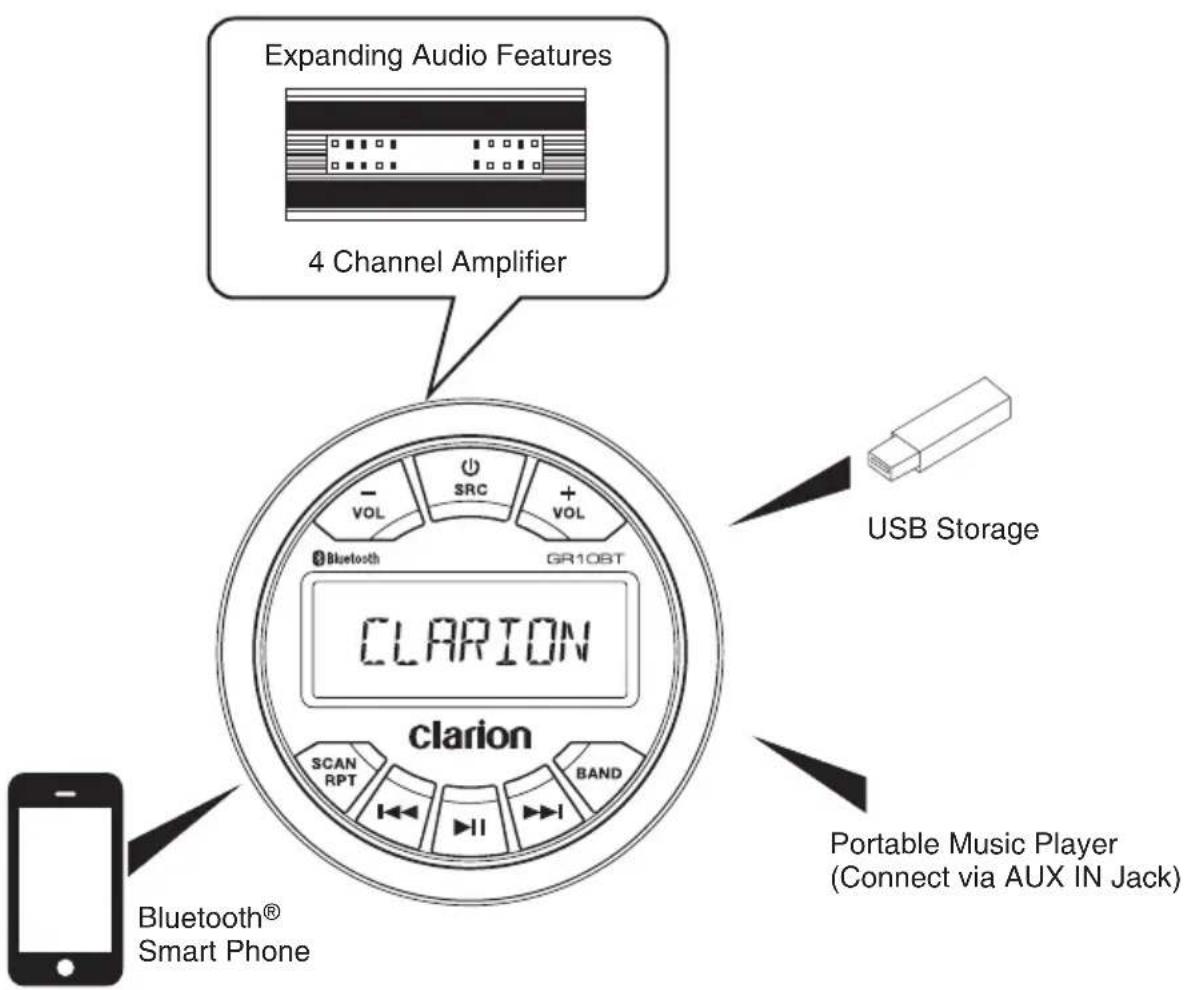
Note:
* The items listed only show connectivity options and are not included with the unit.
3. PRECAUTIONS
WARNING
For your safety, while boating, keep the volume to a level at which external sounds can be heard.
-
This unit uses precision parts and components for its operation. In the event of any operating issues, never open the case, disassemble the unit, or lubricate the rotating parts. Contact your Clarion dealer or service center.
-
FCC STATEMENT
2.1 This device complies with Part 15 of the FCC Rules. Operation is subject to the following two conditions:
(1) This device may not cause harmful interference.
(2) This device must accept any interference received, including interference that may cause undesired operation.
2.2 Changes or modifications not expressly approved by the party responsible for compliance could void the user's authority to operate the equipment.
NOTE:
This equipment has been tested and found to comply with the limits for a Class B digital device, pursuant to Part 15 of the FCC Rules. These limits are designed to provide reasonable protection against harmful interference in a residential installation. This equipment uses and can radiate radio frequencies and, if not installed and used in accordance with the instructions, may cause harmful interference to radio communications. However, there is no guarantee that interference will not occur in a particular installation. If this equipment does cause harmful interference to radio or television reception, which can be determined by turning the equipment off and on, the user is encouraged to try to correct the interference by one or more of the following measures:
- Reorient or relocate the receiving antenna.
- Increase the separation between the equipment and receiver.
- Connect the equipment into an outlet on a circuit different from that to which the receiver is connected.
- Consult the dealer or an experienced radio/TV technician for help.
FCC Radiation Exposure Statement
This equipment complies with FCC radiation exposure limits set forth for an uncontrolled environment. This equipment should be installed and operated with minimum distance 20cm between the unit & your body.
-
The Bluetooth word mark and logos are registered trademarks owned by the Bluetooth SIG, Inc. and any use of such marks by Clarion Co., Ltd is under license. Other trademarks and trade names are those of their respective owners.
-
IC warning
This device complies with Industry Canada's license-exempt RSSs.
Operation is subject to the following two conditions:
(1) This device may not cause interference
(2) This device must accept any interference, including interference that may cause undesired operation of the device.
Front Panel / General Information
For a longer service life, be sure to read the following cautions.
- Do not allow any liquids or fluids to enter the unit. Doing so may damage the internal circuitry.
- Do not disassemble or modify the unit in any way. Doing so may result in damage.
- Do not let any materials burn the display. Doing so may damage or deform the body.
- If a problem should occur, have the unit inspected at your store of purchase.
Cleaning the Body
- Use a soft, dry cloth and gently wipe off any dirt or dust.
- For tough dirt, apply some neutral detergent diluted in water to a soft cloth, wipe off the dirt gently, then wipe again with a dry cloth.
- Do not use benzene, thinner, boat cleaner, etc., as these substances may damage the body or cause the paint to peel. Also, leaving rubber or plastic products in contact with the body for long periods of time may cause stains.
USB Port
- The USB memory sticks must be recognized as "USB" to work properly. Some models may not operate correctly.
In the event data is lost or damaged under any condition, Clarion shall not be liable for any damage.
When using the USB memory stick, we recommend that you backup your data (music) to a personal computer before using.
- Data (music) files may be damaged when using USB memory sticks in the following situations:
- Removing the USB memory stick or turning the power off while reading data. Static electricity and/or an electrical surge can damage the contents on the USB memory device.
- Connect/disconnect the USB memory stick when it is not accessed.
- Disconnect the USB memory device when not in use.
4. CAUTIONS ON HANDLING
Protect from high Temperatures. Exposure to direct sunlight for an extended period of time can produce very high temperature in your vessel. Cool down the interior before starting playback.
5. CONTROLS
Operational Panel
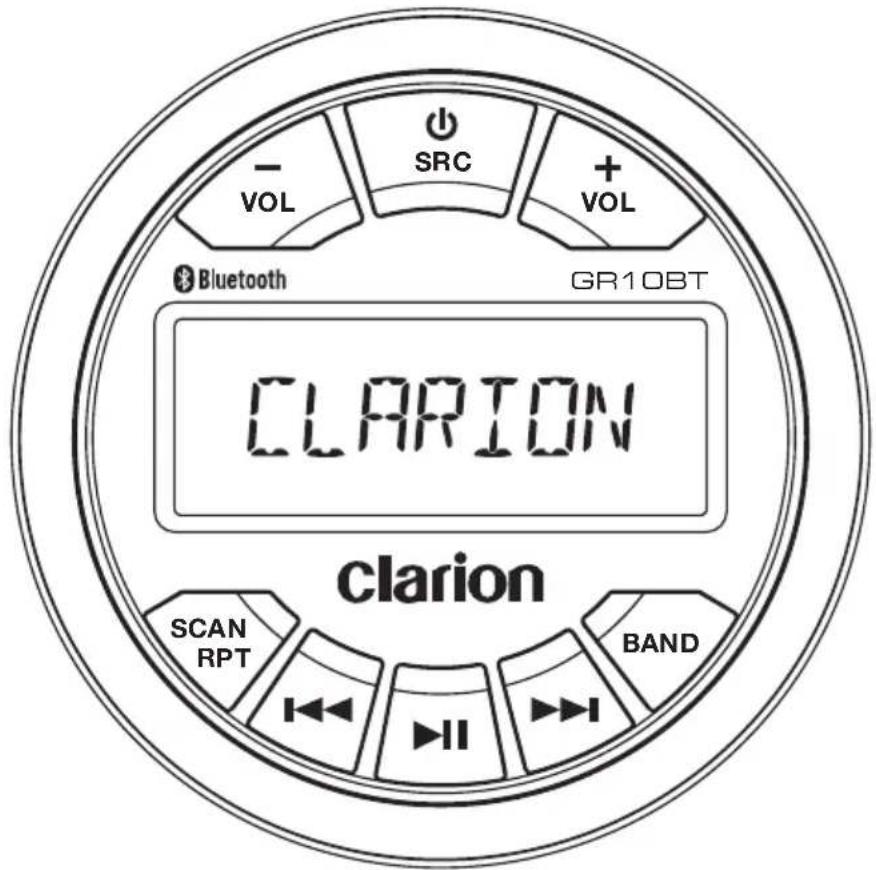
Name of Buttons and their Functions
1. ⏻SRC button
- Toggle the audio source.
- Power On / Power Off (Press and Hold).
2.VOL +/- button
- Adjust volume level.
3. SCAN/RPT button
- Tuner mode - Preset scan.
- Tuner mode - Auto memory store (Press and Hold).
- USB mode - Repeat Folder, Repeat Track, Repeat all.
- USB mode - Enter Track Search.
4. / ▶Button
- Tuner mode - Manual tune.
- Tuner mode - Auto tune (Press and Hold).
- USB/BT Music mode - Previous / Next track.
- USB mode - Fast Forward / Backward (Press and Hold).
5. ▶|| Button
- Tuner mode - Mute or Unmute audio output.
- USB/BT Music mode - Pause or Play playback.
6. BAND button
- Tuner mode - Select tuner band.
- Sound effect setting (Press and Hold).
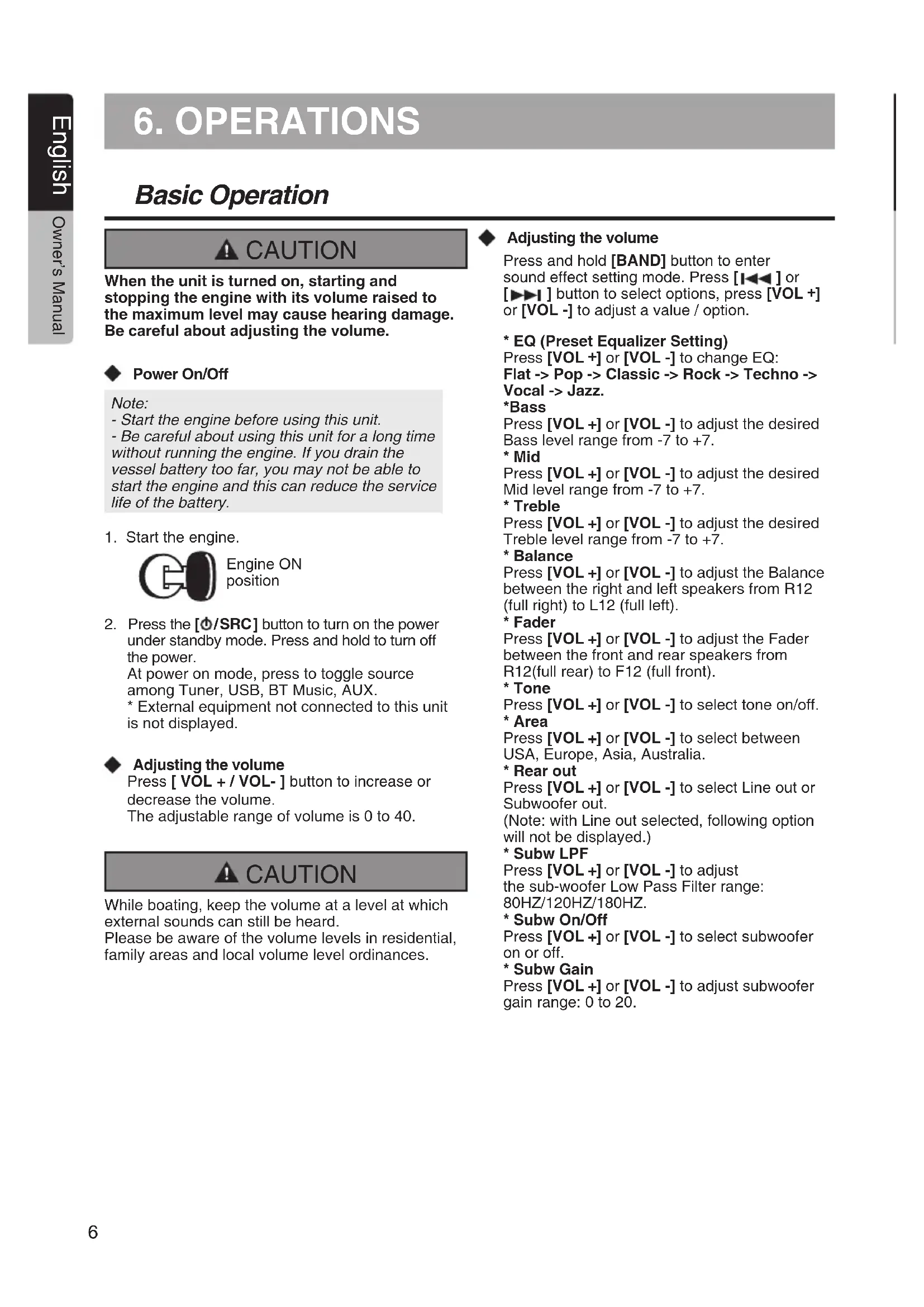
6. OPERATIONS
Basic Operation
CAUTION
When the unit is turned on, starting and stopping the engine with its volume raised to the maximum level may cause hearing damage. Be careful about adjusting the volume.
Power On/Off
Note:
- Start the engine before using this unit.
-
Be careful about using this unit for a long time without running the engine. If you drain the vessel battery too far, you may not be able to start the engine and this can reduce the service life of the battery.
-
Start the engine.

Engine ON position
- Press the [∅/SRC] button to turn on the power under standby mode. Press and hold to turn off the power.
At power on mode, press to toggle source among Tuner, USB, BT Music, AUX. * External equipment not connected to this unit is not displayed.
Adjusting the volume
Press [ VOL + / VOL- ] button to increase or decrease the volume.
The adjustable range of volume is 0 to 40.
CAUTION
While boating, keep the volume at a level at which external sounds can still be heard.
Please be aware of the volume levels in residential, family areas and local volume level ordinances.
Adjusting the volume
Press and hold [BAND] button to enter sound effect setting mode. Press [I◀◀] or [▶▶▶] button to select options, press [VOL+] or [VOL-] to adjust a value / option.
* EQ (Preset Equalizer Setting)
Press [VOL+] or [VOL-] to change EQ: Flat -> Pop -> Classic -> Rock -> Techno -> Vocal -> Jazz.
*Bass
Press [VOL+] or [VOL-] to adjust the desired Bass level range from -7 to +7.
* Mid
Press [VOL+] or [VOL-] to adjust the desired Mid level range from -7 to +7.
* Treble
Press [VOL+] or [VOL-] to adjust the desired Treble level range from -7 to +7.
* Balance
Press [VOL+] or [VOL-] to adjust the Balance between the right and left speakers from R12 (full right) to L12 (full left).
* Fader
Press [VOL+] or [VOL-] to adjust the Fader between the front and rear speakers from R12(full rear) to F12 (full front).
* Tone
Press [VOL+] or [VOL-] to select tone on/off.
* Area
Press [VOL+] or [VOL-] to select between USA, Europe, Asia, Australia.
* Rear out
Press [VOL +] or [VOL -] to select Line out or Subwoofer out. (Note: with Line out selected, following option will not be displayed.)
* Subw LPF
Press [VOL+] or [VOL-] to adjust the sub-woofer Low Pass Filter range: 80HZ/120HZ/180HZ.
* Subw On/Off
Press [VOL +] or [VOL -] to select subwoofer on or off.
* Subw Gain
Press [VOL+] or [VOL-] to adjust subwoofer gain range: 0 to 20.
◆ Select Tuner as Playing Source
Press [☐/SRC] button to select the Tuner mode.
Global Tuner
This unit is initially set to USA frequency intervals of 10KHz for AM and 200KHz for FM. When using it outside the USA, the frequency reception range can be switched to the intervals below.
| U.S. A standard | Europe standard | Asia standard | Australia standard | ||
| AM | Frequency spacing | 10KHz 9KHz | 9KHz 9KHz | Hz | |
| Frequency range | 530-1710 KHz | 531-1602 KHz | 531-1620 KHz | 531-1620 KHz | |
| FM | Frequency spacing | 200KHz 50KHz | 50KHz | 100KHz | |
| Frequency range | 87.9-107.9 MHz | 87.5-108 MHz | 87.5-108 MHz | 87.5-108 MHz | |
Select the Radio Band
Press [BAND] button to select one radio band from FM1, FM2, FM3, AM, WB.
◆ [◀◀] Tuning Up / [▶▶] Tuning Down
- Press the [◀◀] / [▶▶] button change intervals step by step.
- Press and hold the [◀◀] / [▶▶] button to seek the next strongest station.
Weather Band Operation
◆ [◀] Tuning Up / [ ] Tuning Down
- Press the [◀◀] / [▶▶] button change intervals step by step.
- Press and hold the [1◄◄] / [►►I] button to seek the next strongest station.
◆ Preset Scan
Preset scan receives the stations stored in the preset memory in order. This function is useful when searching for a desired station in the memory.
- Press the [SCAN] button.
- When a desired station is tuned in, press the [SCAN] button again to continue receiving that station.
◆ Preset Scan
Preset scan receives the stations stored in the preset memory in order. This function is useful when searching for a desired station in the memory.
- Press the [SCAN] button.
- When a desired station is tuned in, press the [SCAN] button again to continue receiving that station.
Auto Store
Only stations with sufficient signal strength will be detected and stored in the memory. Press and hold the [SCAN] button to automatically select six strong stations and store them into presets. The new stations replace any stations already stored in the band.
MUTE
Press the [▶▶] button to mute sound output; press again to resume sound output.
MUTE
Press the [▶II] button to mute sound output; press again to resume sound output.
Connect
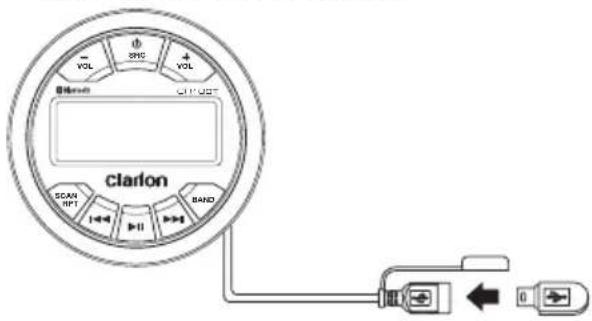
- Insert a USB device into the USB pigtail.
- To remove the USB device, you should select another source or turn off the power, in order to avoid damaging the USB device. Then take off the USB device.
Select a Track
- Press the [▶▶] button to advance to the next track/song. Press the [◀◀] button to go to the previous track/song.
- Press and hold the [▶▶] button to fast forward through the track/song. Press and hold the [◀◀] button to fast backward through the track/song.
◆ Play / Pause
Press the [▶II] button to pause the track/song that is currently playing. Press the [▶II] button to resume playing the track/song that has been paused.
Repeat Feature
This function allows you to Repeat All tracks/songs in current folder, Repeat the currently playing track/song, or to turn the Repeat feature OFF.
- Press [RPT] button once, it will display REPEAT FOLDER on top of display panel.
- Press [RPT] button twice, it will display REPEAT TRACK on the top of display panel.
- Press [RPT] button for the 3rd time will turn Repeat feature OFF.
◆ Search Function
Press and hold [SCAN] button to access MP3 / MWA track search mode. Press [VOL+] or [VOL-] button to select the desired track.
AUX Mode Operation
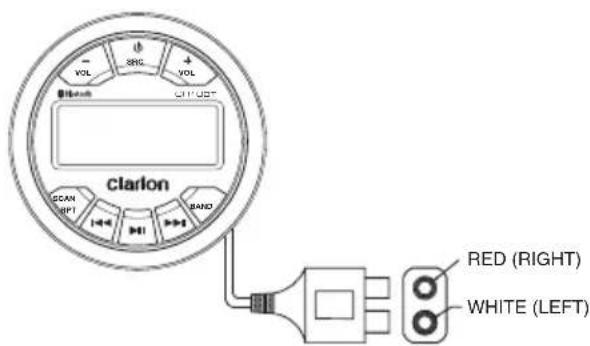
The AUX RCA inputs in this system are provided to allow playback of sounds and music from external devices connected to this unit. Press the [SRC] button to select "AUX IN"
◆ Pair the Bluetooth Device
- Press and hold [SCAN] button on the front panel to start Pairing.
- From your Bluetooth enabled device, turn Bluetooth ON and search for Bluetooth device.
- When a list of available Bluetooth devices appears on your Bluetooth device, select "GR10BT"
- "BT CONNECTED" will appear on the display.
- The unit will automatically enter the BT Music source and you can now start streaming audio from your Bluetooth enabled device.
Note: If the Bluetooth device doesn't support the SSP (Simple Secure Pairing) Profile, please enter the passcode "000"
DISCONNECT / CONNECT
- With a Bluetooth device connected, press and hold [SCAN] button to disconnect it.
- With a Bluetooth device paired but disconnected, press [SCAN] button to establish the Bluetooth connection.
◆ Audio Streaming Operations What is Audio Streaming?
Audio streaming is a technique for transferring audio data so that it can be processed as a steady and continuous stream. Users can stream music from their audio system wirelessly and listen to the tracks through the boat' speakers. Please consult your nearest Clarion dealer for more information on available wireless audio streaming transmitter products.

CAUTION
Please avoid operating your connected mobile phone while audio streaming as this may cause noise or stuttering on the song playback.
Audio streaming may or may not resume after telephone interruption as this is dependent on the mobile phone.
◆ Play / Pause
Press the [▶] button to pause the track/song that is currently playing.
Press the [▶II] button to resume playing the track/song that has been paused.
Select a Track
- Press the [▶▶] button to advance to the next track/song.
- Press the [◀◀◀] button to go to the previous track/song.
Note:
Playing order will depend on Bluetooth audio player. When the [◀◀◀] button is pressed, some A2DP devices will restart the current track depending on the duration of the playback.
Some Bluetooth audio players may not allow play / pause synchronization with this unit. Please make sure both the device and the main unit are in the same play / pause status in BT Music mode.
7. TROUBLESHOOTING
GENERAL
| Problem Cause | Remedy | |
| Unit cannot power on. U | Unit fuse blown. Replace with new fuse of correct rating. | |
| Vessel battery fuse blown. Replace with new fuse of correct rating. | ||
| No/low audio output. Inc | correct audio output connection. Check wiring and correct. | |
| Volume set too low. Increase volume level. | ||
| Speakers damaged. Replace speakers. | ||
| Heavily biased volume balance. Adjust the channel balance to center position. | ||
| Speaker wiring is in contact with metal part of vessel. | Insulate all speaker wiring connections. | |
| Poor sound quality or distortion. | Speaker power rating does not match unit. | Replace speakers. |
| Wrong connections. Check wiring and correct. | ||
| Speaker is shorted. Check wiring and correct. | ||
| Unit resets itself when engine is off. | Incorrect connection between ACC and Battery. | Check wiring and correct. |
| Auto seek function can not find any stations. | The antenna cable is not connected. | Insert the antenna cable securely. |
| The signals are too weak. Select a station manually. | ||
USB
| Problem Cause | Remedy | |
| USB device cannot be inserted. | The USB device has been inserted incorrectly. | Reverse the connection direction of the USB device and try again. |
| The USB connector is broken. Replace with a new USB device. | ||
| USB device is not recognized. | The USB device is damaged. Disconnect the USB device and reconnect. If the device is still not recognized, try replacing it with a different USB device. | |
| Connectors are loose. | ||
| No sound heard with the display “No File” shown. | No MP3/WMA file is stored in the USB device. | Store these files properly in the USB device. |
| Sound skips or is noisy. | MP3/WMA files are not encoded properly. | Use properly encoded MP3/WMA files. |
Bluetooth
| Problem | Cause Remedy | |
| Cannot pair the Bluetooth enabled device with the audio system. | The device does not support the profiles required for the system. | Reverse the connection direction of the USB device and try again. |
| The Bluetooth function of the device is not enabled. | Refer to the user manual of the device for how to enable the function. | |
| Audio quality is poor after connection with a Bluetooth enabled device. | The Bluetooth reception is poor. | Move the device closer to the audio system or remove any obstacle between the device and the system. |
8. SPECIFICATIONS
FM Tuner
Frequency Range: USA 87.9 - 107.9MHz
Europe 87.5 - 108.0MHz
Asia 87.5 - 108.0MHz
Australia 87.5 - 108.0MHz
Usable Sensitivity: 2V (S/N=30dB)
Image Rejection: >45dB
Stereo Separation: >25dB
AM Tuner
Frequency Range: USA 530 - 1710KHz
Europe 531 - 1602KHz
Asia 531 - 1629KHz
Australia 531 - 1629KHz
Usable Sensitivity: 40dB (S/N=20dB)
Weather Band Selection
CH.1 162.400MHz CH.2 162.425MHz
CH.3 162.450MHz CH.4 162.475MHz
CH.5 162.500MHz CH.6 162.525MHz
CH.7 162.550MHz
Audio
Maximum Power Output: 45W x 4
Bass Control (60Hz): ±12dB
Treble Control (10kHz): ±12dB
Middle Control: (1kHz): ±12dB
USB
USB: 2.0 Full Speed
USB Port: 1.1A
USB Voltage: 5.0V
Maximum MP3/WMA Songs: 9999
USB Flash Drive and Hard
Drive Compatible Format: FAT/FAT32
Bluetooth
Specification: Bluetooth Version. 2.1
Supported Profiles: A2DP (Advanced Audio
Distribution Profile)
AVRCP1.5 (Audio/Video
Remote Control Profile)
SSP (Simple Secure Pairing)
General
Power Supply Voltage: 14.4V DC (10.8 to
15.6V allowable)
Grounding System: Negative Ground
Speaker Impedance: 4-8 ohms per channel
Note: Specifications and design are subject to change without notice for further improvement.
Power Output:
16W x 4 RMS (4 ohm @14.4V
<=1% THD+N)

9. INSTALLATION
1. Before Starting
- This set is exclusively for use in vessels with a negative ground 12 V power supply.
- Read these instructions carefully.
- Be sure to disconnect the battery “—” terminal before starting. This is to prevent short circuits during installation. (Figure 1)
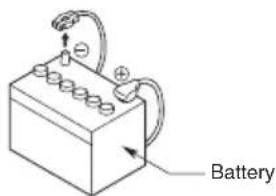
Figure 1
2. Installation Cautions
- In order to avoid any interference, do not install the tuner module or control unit in the proximity of the engine compartment.
- The use of unauthorized parts can cause permanent damage to the unit.
- Always check your wire connections to ensure proper installation before turning on the unit.
- Consult with your nearest dealer for proper installation or if common parts need to be used. Seek assistance if modifications or drilling holes to your vessel is needed.
- Do not install the unit where it will be subjected to excessive moisture, dust, dirt, foreign particles or vibration. Areas of high temperature from the engine, direct sunlight, heater or hot air should also be avoided.
- Do not install the unit in a location where it will interfere with the vessel operation, or it will injure the passengers if there is a sudden or emergency stop.
3. Head Unit Installation
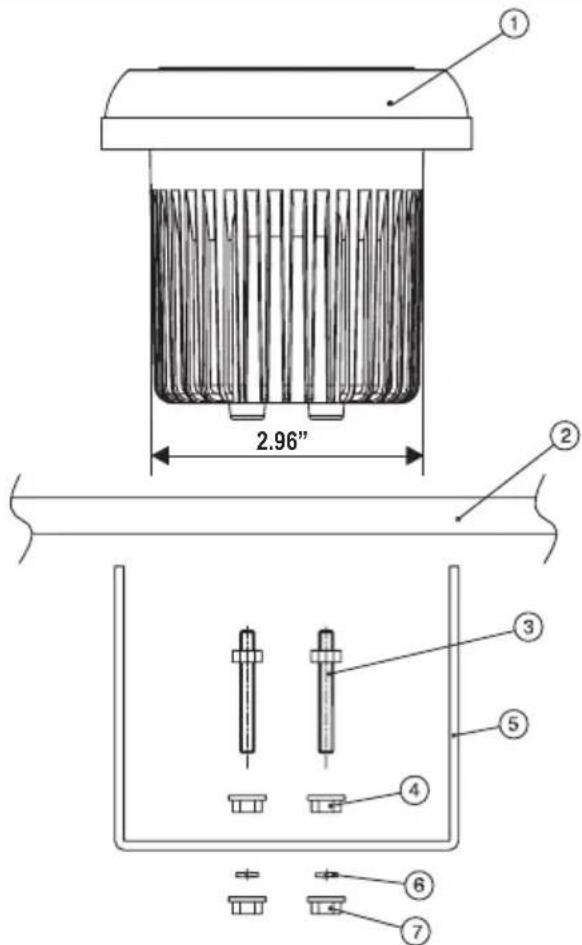
| NO. | PART DESCRIPTION |
| 1 | MAIN DEVICE |
| 2 | MOUNTING SURFACE |
| 3 | MOUNTING STUDS |
| 4 | JAM NUTS |
| 5 | MOUNTING BRACKET |
| 6 | SPRING WASHER |
| 7 | OUTER NUTS |
Instructions:
- Install jamb nuts (4) loosely on mounting studs (3), so they will not touch mounting brackets (5) when installed.
- Slip mounting bracket (5) on and make flush with mounting surface (2).
- DO NOT TIGHTEN
- Snug spring washer (6) and outer nuts (7) against mounting plate (2).
- DO NOT TIGHTEN
- Position jamb nuts approximately 1/16" from mounting bracket.
- Tighten outer nuts completely.
10. WIRE CONNECTION
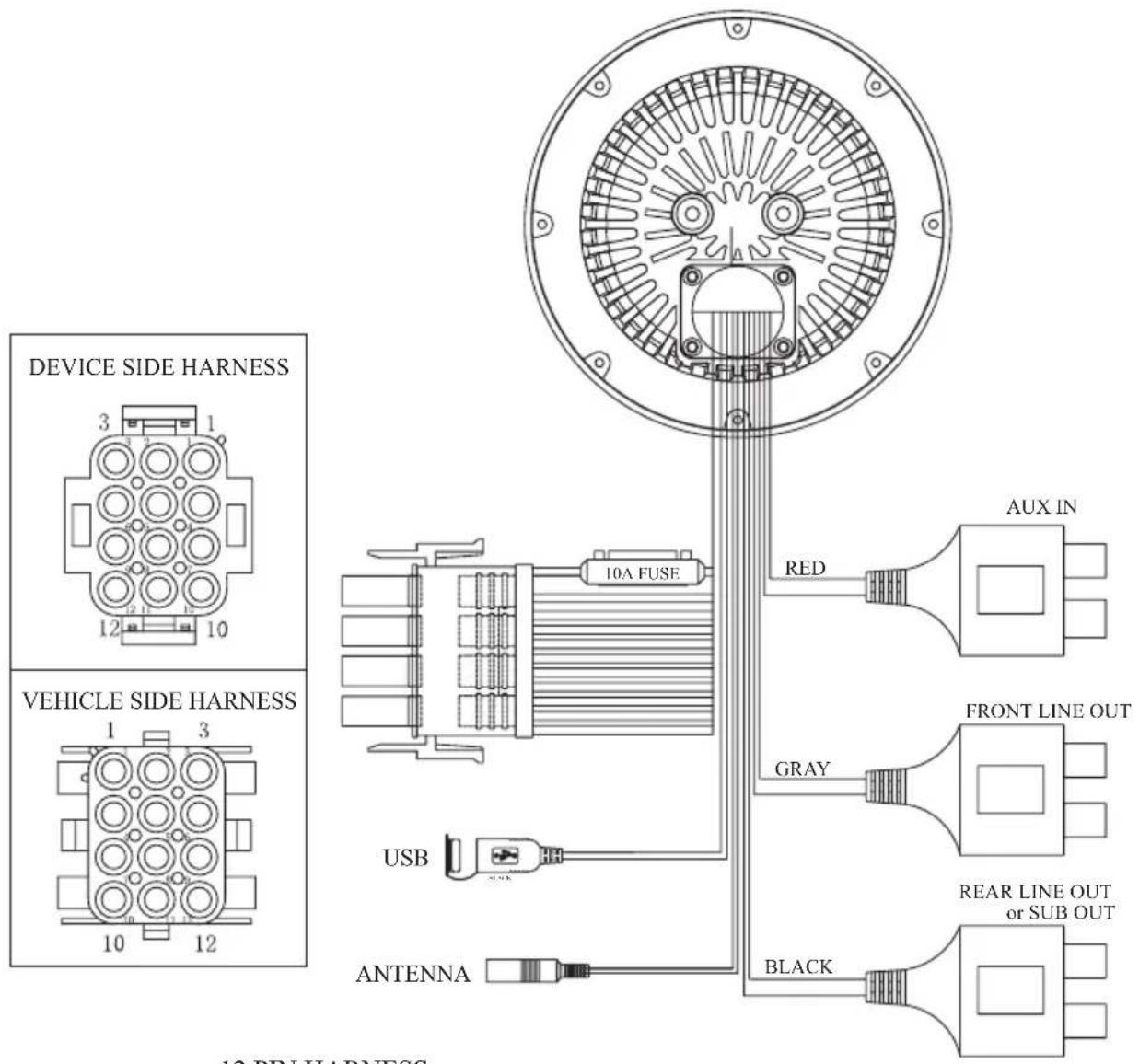
12 PIN HARNESS
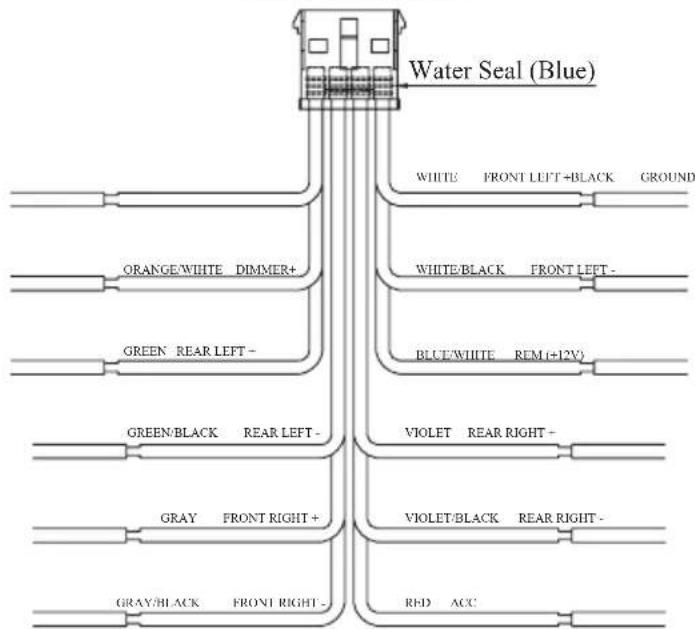
flowchart
graph TD
    A["Water Seal (Blue)"] --> B["WHITE FRONT LEFT+BLACK GROUND"]
    A --> C["WHITE/BLACK FRONT LEFT-"]
    A --> D["BLUE/WHITE REM(+12V)"]
    A --> E["GREEN/BLACK REAR LEFT-"]
    A --> F["VIOLET REAR RIGHT-"]
    A --> G["GRAY FRONT RIGHT+"]
    A --> H["VIOLET/BLACK REAR RIGHT-"]
    A --> I["GRAY/BLACK FRONT RIGHT-"]
    A --> J["RED ACC"]
| PIN# | 12 PIN HARNESS PIN OUT | AWG | |
| COLOR FUNCTION | |||
| 1 BLACK GROUND 16 | |||
| 2 ORANGE/WHITE DIMMER (+12V) 20 | |||
| 3 GREEN REAR LEFT + 20 | |||
| 4 GREEN/BLACK REAR LEFT - 20 | |||
| 5 GRAY FRONT RIGHT + 20 | |||
| 6 GRAY/BLACK FRONT RIGHT - 20 | |||
| 7 VIOLET REAR RIGHT + 20 | |||
| 8 VIOLET/BLACK REAR RIGHT - | 20 | ||
| 9 RED | ACCESSORY/IGNITION SWITCHED (+12V) | 16 | |
| 10 | WHITE FRONT LEFT + 20 | ||
| 11 | WHITE/BLACK | FRONT LEFT - | 20 |
| 12 | BLUE/WHITE | AMPLIFIER REMOTE TURN ON (+12V) | 20 |
- CARACTÉRISTIQUES....15
- OPTIONS D'ÉVOLUTION DU SYSTÈME ....15
- PRÉCAUTIONS 16
- PRÉCAUTIONS DE MANIPULATION....16
- COMMANDES....17
CH.1 162,400 MHz CH.2 162,425 MHz
CH.3 162,450 MHz CH.4 162,475 MHz
CH.5 162,500 MHz CH.6 162,525 MHz
CH.7 162,550 MHz
Audio
Australia 87,5 - 108,0 MHz
Canal 3 162,450 MHz Canal 4 162,475 MHz
Canal 5 162,500 MHz Canal 6 162,525 MHz
Canal 7 162,550 MHz
Audio

- Contents
- FEATURES
- EXPANDING SYSTEM OPTIONS
- Note:
- PRECAUTIONS
- WARNING
- Front Panel / General Information
- Cleaning the Body
- USB Port
- In the event data is lost or damaged under any condition, Clarion shall not be liable for any damage.
- CAUTIONS ON HANDLING
- CONTROLS
- Operational Panel
- Name of Buttons and their Functions
- ⏻SRC button
- 2.VOL +/- button
- SCAN/RPT button
- / ▶Button
- ▶|| Button
- BAND button
- OPERATIONS
- Basic Operation
- CAUTION
- Power On/Off
- Adjusting the volume
- ◆ Select Tuner as Playing Source
- Global Tuner
- Select the Radio Band
- ◆ [◀◀] Tuning Up / [▶▶] Tuning Down
- Weather Band Operation
- ◆ [◀] Tuning Up / [ ] Tuning Down
- ◆ Preset Scan
- Auto Store
- MUTE
- Connect
- Select a Track
- ◆ Play / Pause
- Repeat Feature
- ◆ Search Function
- AUX Mode Operation
- ◆ Pair the Bluetooth Device
- DISCONNECT / CONNECT
- ◆ Audio Streaming Operations What is Audio Streaming?
- TROUBLESHOOTING
- SPECIFICATIONS
- FM Tuner
- AM Tuner
- Weather Band Selection
- Audio
- USB
- Bluetooth
- General
- INSTALLATION
- Before Starting
- Installation Cautions
- Head Unit Installation
- Instructions:
- WIRE CONNECTION
Brand : CLARION
Model : GR10BT
Category : Radio