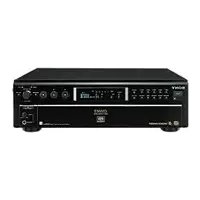
SCDC555ES - Cd player/recorder SONY - Free user manual and instructions
Find the device manual for free SCDC555ES SONY in PDF.


| Product Type | Super Audio CD (SACD) and CD Player/Recorder |
| Dimensions (W x H x D) | 430 x 138 x 409 mm (protruding parts included) |
| Weight | 11.0 kg |
| Power Supply | 120 V AC, 60 Hz |
| Power Consumption | 38 W |
| Compatible Disc Formats | Super Audio CD (2-channel and multi-channel), standard CDs, CD-R/CD-RW (finalized) |
| Playback Functions | Continuous playback (all discs or 1 disc), random playback, repeat playback (all tracks or one track), programmed playback (up to 32 tracks) |
| Multi-channel Management | Playback mode setting (2-channel or multi-channel) and output level balance for each speaker |
| Disc Name | Name storage up to 14 characters for 255 discs |
| Audio Outputs | ANALOG OUT 2CH (phono), ANALOG OUT 5.1CH (phono), DIGITAL (CD) OUT optical and coaxial, headphone jack |
| Control System | CONTROL A1II compatibility for automatic selection and synchronized recording |
| Display | Display window with disc, track, time, and TEXT data information |
| Care and Cleaning | Clean the cabinet with a soft cloth slightly moistened with a mild detergent. Clean discs from the center outward with a soft cloth. |
| Safety | Do not expose to rain or moisture. If condensation occurs, leave the player on for about one hour. Use only round discs. |
| Spare Parts and Repairability | Replacement parts available from Sony authorized after-sales service. For repairs, consult qualified personnel. |
| General Information | Semiconductor laser (λ=780 nm), SACD frequency response 2 Hz-50 kHz (-3 dB), dynamic range ≥105 dB |
Frequently Asked Questions - SCDC555ES SONY
User questions about SCDC555ES SONY
0 question about this device. Answer the ones you know or ask your own.
Ask a new question about this device
Download the instructions for your Cd player/recorder in PDF format for free! Find your manual SCDC555ES - SONY and take your electronic device back in hand. On this page are published all the documents necessary for the use of your device. SCDC555ES by SONY.
USER MANUAL SCDC555ES SONY
Super Audio CD Player
Operating Instructions US
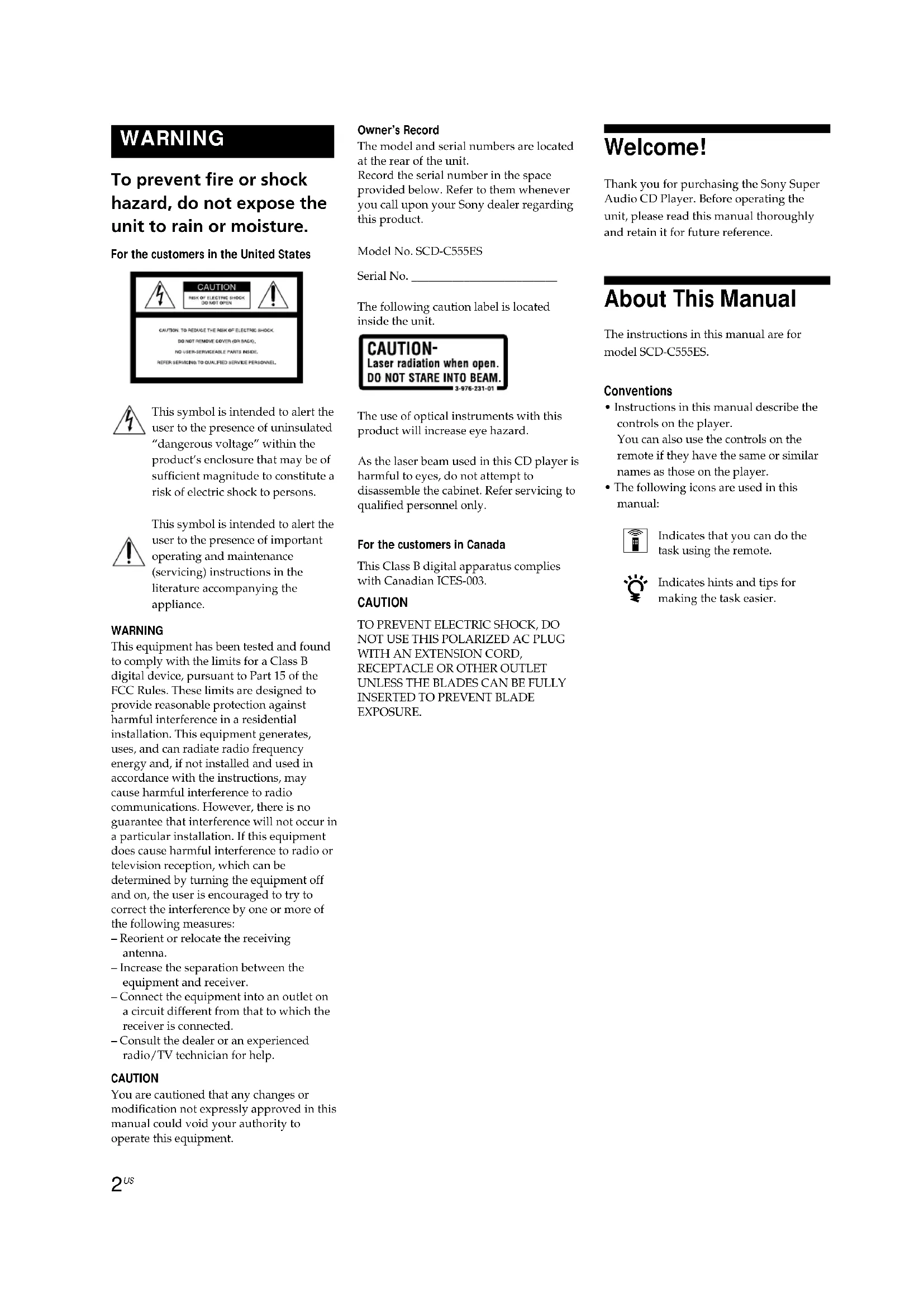
For the customers in the United States
text_image
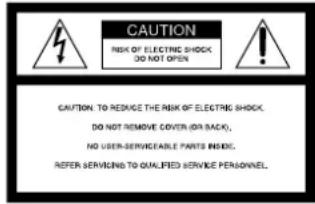
CAUTION RISK OF ELECTRIC SHOCK DO NOT OPEN CAUTION. TO REMOVE THE RISK OF ELECTRIC SHOCK. DO NOT REMOVE COVER (FOR BACK), NO USER-SERVICEABLE PARTS INFO. REFER SERVICING TO QUALIFIED SERVICE PERSONNEL.
This symbol is intended to alert the user to the presence of uninsulated "dangerous voltage" within the product's enclosure that may be of sufficient magnitude to constitute a risk of electric shock to persons.

This symbol is intended to alert the user to the presence of important operating and maintenance (servicing) instructions in the literature accompanying the appliance.
WARNING
This equipment has been tested and found to comply with the limits for a Class B digital device, pursuant to Part 15 of the FCC Rules. These limits are designed to provide reasonable protection against harmful interference in a residential installation. This equipment generates, uses, and can radiate radio frequency energy and, if not installed and used in accordance with the instructions, may cause harmful interference to radio communications. However, there is no guarantee that interference will not occur in a particular installation. If this equipment does cause harmful interference to radio or television reception, which can be determined by turning the equipment off and on, the user is encouraged to try to correct the interference by one or more of the following measures:
– Reorient or relocate the receiving antenna.
– Increase the separation between the equipment and receiver.
- Connect the equipment into an outlet on a circuit different from that to which the receiver is connected.
- Consult the dealer or an experienced radio/TV technician for help.
CAUTION
You are cautioned that any changes or modification not expressly approved in this manual could void your authority to operate this equipment.
Owner's Record
The model and serial numbers are located at the rear of the unit. Record the serial number in the space provided below. Refer to them whenever you call upon your Sony dealer regarding this product.
Model No. SCD-C555ES
Serial No.
The following caution label is located inside the unit.
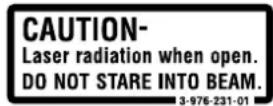
The use of optical instruments with this product will increase eye hazard.
As the laser beam used in this CD player is harmful to eyes, do not attempt to disassemble the cabinet. Refer servicing to qualified personnel only.
For the customers in Canada
This Class B digital apparatus complies with Canadian ICES-003.
CAUTION
TO PREVENT ELECTRIC SHOCK, DO NOT USE THIS POLARIZED AC PLUG WITH AN EXTENSION CORD, RECEPTACLE OR OTHER OUTLET UNLESS THE BLADES CAN BE FULLY INSERTED TO PREVENT BLADE EXPOSURE.
Welcome!
Thank you for purchasing the Sony Super Audio CD Player. Before operating the unit, please read this manual thoroughly and retain it for future reference.
About This Manual
The instructions in this manual are for model SCD-C555ES.
Conventions
- Instructions in this manual describe the controls on the player.
You can also use the controls on the remote if they have the same or similar names as those on the player. - The following icons are used in this manual:

Indicates that you can do the task using the remote.

Indicates hints and tips for making the task easier.
Features
About the Super Audio CD
- Super Audio CD is a new high-quality audio disc standard where music is recorded in the DSD (Direct Stream Digital) format (conventional CDs are recorded in the PCM format). The DSD format, using a sampling frequency 64 times higher than that of a conventional CD, and with 1-bit quantization, achieves both a wide frequency range and a wide dynamic range across the audible frequency range, and so provides music reproduction extremely faithful to the original sound.
- The Super Audio CD has two types; a 2 channel stereo disc and a Multi-channel disc which holds up to 6 independent channels. The multi-channel characteristic of the Super Audio CD features a speaker allocation system basically similar to the 5.1 channel output of current AV systems.
Features of the player
This player is designed to play back 2-channel and multi-channel Super Audio CDs, and conventional CDs, and provides the following features:
- Mounted with a Discrete Dual Laser Optical Pickup, capable of reading a Super Audio CD or conventional CD depending on the exclusive wavelength.
- Quicker track access performance enabled by an advanced servo mechanism.
- A Multi-Channel Management function that allows you to adjust the multi-channel playback environment according to the allocation and size of your speakers.
- A Super Audio D/A Converter and Direct Digital Sync System, which allows higher-quality sound reproduction.
- Editing of Disc and Track Titles, etc., on a TEXT display for Super Audio CDs and conventional CDs.
Others
- A Super Audio CD can mark up to 255 track numbers. This feature applies to SCD-C555ES.
- The supplied remote is capable of controlling both the SCD-C555ES and a conventional Sony CD player.
TABLE OF CONTENTS
Getting Started 4
Before You Start the Hookup 4 Hooking Up the Audio Components 5
Location and Functions of Parts 8
Front Panel Parts Descriptions 8 Rear Panel Parts Descriptions 10 Remote Parts Descriptions 11
Playing Discs 12
Compatible Disc Types 12
Playing a Disc 14
Using the Display 15
Replacing Discs While Playing a Disc 18
Locating a Specific Disc 19
Locating a Specific Track 19
Locating a Particular Point in a Track 20
Playing Tracks Repeatedly 21
Playing Tracks in Random Order (Shuffle Play) 22
Creating Your Own Program (Program Play) 23
Listening to a Multi-channel Super Audio CD (Multi-channel management function) 24
Storing Information About CDs 28
What You Can Do With the Disc Name 28
Labeling Discs (Disc Name) 29
Additional Information 31
Using the CONTROL A1II control system 31
Precautions 33
Notes on Discs 34
Troubleshooting 34
Specifications 35
Index 35
Getting Started
This chapter provides information on the supplied accessories and how to connect various audio components to the Super Audio CD player. Be sure to read this chapter thoroughly before you actually connect anything to the player.
Before You Start the Hookup
Checking the supplied accessories
This player comes with the following items:
• Audio connecting cord
phono jack · 2 (Red and White) ↔ phono jack · 2 (Red and White) (2)
phono jack · 1 (Black) ↔ phono jack · 1 (Black) (2)
- Monaural (2P) mini-plug cord (1) (Connecting cord for CONTROL A1 II) (supplied for Canadian models only)
- Remote commander (remote) RM-SC500 (1)
• R06 (size-AA) batteries (2)
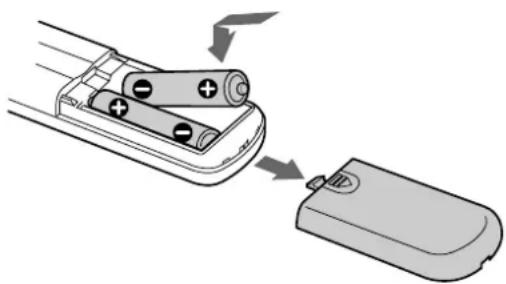
Inserting batteries into the remote
Insert two R06 (size-AA) batteries into the battery compartment with the + and - correctly oriented to the markings. When using the remote, point it at the remote sensor R on the player.
natural_image
Diagram showing a battery being inserted into a remote control case, with arrows indicating the process (no text or symbols present)
When to replace the batteries
Under normal conditions, the batteries should last for about six months. When the remote no longer operates the player, replace both batteries with new ones.
Notes
- Do not leave the remote in an extremely hot or a humid place.
- Do not drop any foreign object into the remote casing, particularly when replacing the batteries.
- Do not use a new battery with an old one.
- Do not expose the remote sensor to direct sunlight or lighting apparatus. Doing so may cause a malfunction.
- If you do not intend to use the remote for an extended period of time, remove the batteries to avoid possible damage from battery leakage and corrosion.
Hooking Up the Audio Components
Connect the Super Audio CD player to an audio component. Be sure to turn off the power of all components before making connections and connect securely to prevent noise.
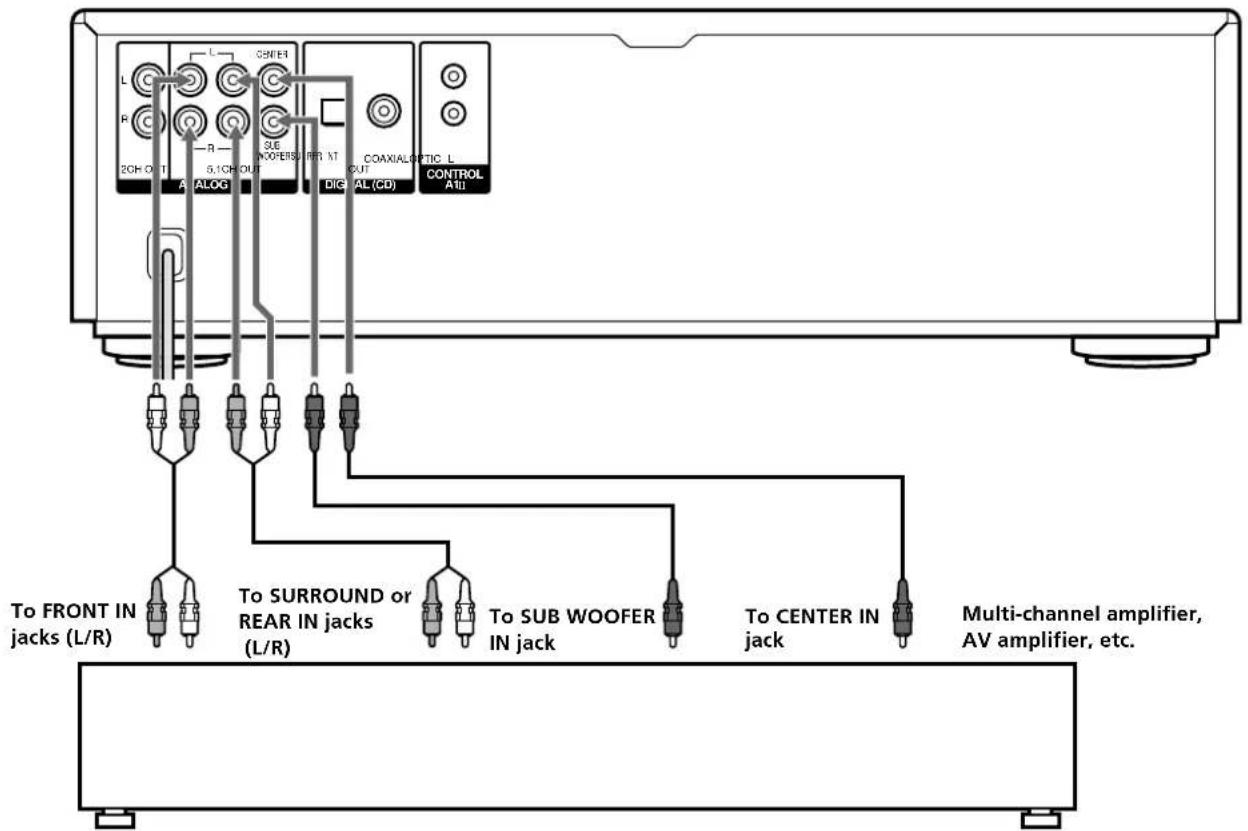
When you have an amplifier equipped with the 5.1CH input jacks (multi-channel amplifier, AV amplifier, etc.) and connect the player and the amplifier via ANALOG 5.1CH OUT jacks, you can play a multi-channel Super Audio CD and enjoy the multi-channel playback. For normal playback, connect the player and an amplifier via ANALOG 2CH OUT jacks.
Connecting via ANALOG 5.1CH OUT jacks
Use audio connecting cords for this connection. Connect the ANALOG 5.1CH OUT jacks (FRONT L/R, SURR L/R, CENTER, SUBWOOFER) to the corresponding jacks of your amplifier. For FRONT or SURR connection, use the connecting cords (Red and White jacks) and be sure to match the colour-coded pin to the appropriate jacks: white (left) to white and red (right) to red. For CENTER and SUB WOOFER connection, use the connecting cords (Black).
FRONT or SURR connection
Audio connecting cords (Red and White) (supplied)

flowchart
graph LR
    A["White (L)"] --> C
    B["Red (R)"] --> C
    C --> D["White (L)"]
    C --> E["Red (R)"]
CENTER or SUB WOOFER connection
Audio connecting cords (Black) (supplied)

Notes
- When you make the Multi-channel connection, connect the ANALOG 2CH OUT jacks also using another audio connecting cord (not supplied) so that you can play a CD (or SACD) when you set the input selector of your amplifier to CD (or SACD) input.
- During playback of a conventional CD or a 2CH Super Audio CD, the same signal that is output from the ANALOG 2CH OUT jacks is also output from the ANALOG 5.1CH FRONT L/R jacks.
- During playback of a Multi-channel Super Audio CD, the same signal that is output from the ANALOG 5.1CH FRONT L/R jacks is also output from the ANALOG 2CH OUT jacks. (The down mixed signal of the Multi-channel signal is not played back.)
- There are 5CH, 4CH, and 3CH Super Audio CD. When you play these disc, the signal does not output from all the jacks of the ANALOG 5.1CH OUT. For details of the playback, see the cover or instructions of the Super Audio CD.
text_image
L R 2CH O T A ALOG L CONVER 5.1CH OUT NOOPERS/INT DIG COAXIAL AL (CD) TIC L CONTROL AII To FRONT IN jacks (L/R) To SURROUND or REAR IN jacks (L/R) To SUB WOOFER IN jack To CENTER IN jack Multi-channel amplifier, AV amplifier, etc.Hooking Up the Audio Components
Connecting via ANALOG 2CH OUT jacks
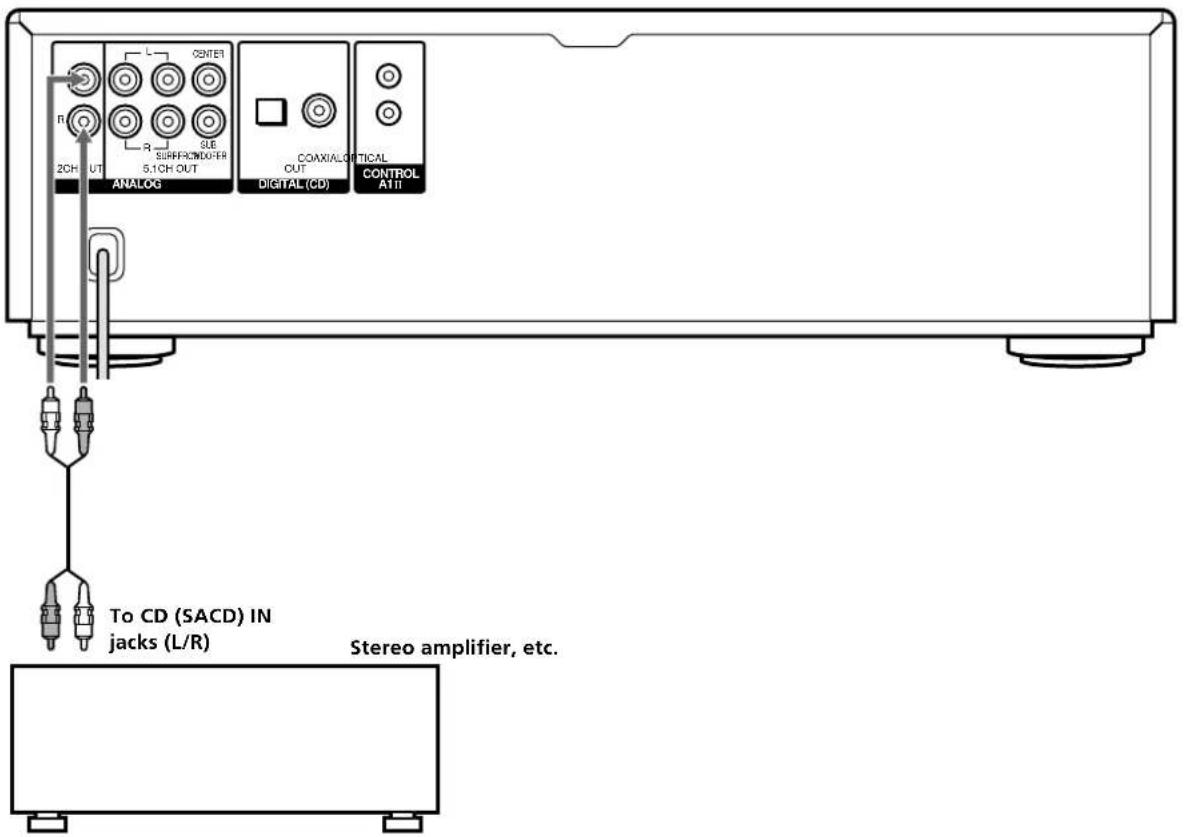
Use an audio connecting cords for this connection. Connect the ANALOG 2CH OUT L/R jacks to the CD (SACD) input jacks of your amplifier. Be sure to match the color-coded pin to the appropriate jacks: white (left) to white and red (right) to red.
Audio connecting cords (Red and White) (not supplied*)

flowchart
graph LR
    A["White (L)"] --> C
    B["Red (R)"] --> C
    C --> D["White (L)"]
    C --> E["Red (R)"]
* If you do not make the ANALOG 5.1 CH connection (page 5), you can use the supplied audio connecting cable for the ANALOG 2CH connection.
text_image
2CH UT ANALOG CENTER R SLE SURFACE/DO/ER 5.1CH OUT COAXIALC OUT DIGITAL (CD) TICAL CONTROL ATTI To CD (SACD) IN jacks (L/R) Stereo amplifier, etc.Connecting via DIGITAL (CD) OUT OPTICAL connector
Use an optical digital cable for this connection. When connecting the optical digital cable to the DIGITAL (CD) OUT OPTICAL connector, take the cap off the connectors and push the cable plugs in until they click into place.
Be careful not to bend or twist the optical cable.
Optical digital cable (not supplied)

Note
Only the audio signals of conventional CDs can be output from the DIGITAL (CD) OUT connectors. Those of the Super Audio CD cannot be output through DIGITAL (CD) OUT.
Connecting via DIGITAL (CD) OUT COAXIAL connector
Use a coaxial digital cable to connect the audio components equipped with coaxial digital input connectors.
Coaxial digital cable (not supplied)

Note
Only the audio signals of conventional CDs can be output from the DIGITAL (CD) OUT connectors. Those of the Super Audio CD cannot be output through DIGITAL (CD) OUT.
Connecting the AC power cord
Connect the AC power cord to a wall outlet.
About the CONTROL A1 IIjack
If you have a Sony component with the CONTROL A1Ⅱ (or CONTROL A1) jack
Connect the component via the CONTROL A1II(or CONTROL A1) jack with a monaural (2P) mini-plug cord. You can simplify the operation of audio systems composed of separate Sony components. For details, see "Using the CONTROL A1IIControl System" on page 31.
When using another Sony CD player in conjunction with this player
You can set the supplied remote to be effective on this player only by changing the command mode of the remote.
If you connect this player to another Sony CD player, you have to set the command mode of each player.
To set the command mode of the remote
- If the other player's command mode can be set: Set the CD1/2 switch of this player's remote to CD1 (factory setting), and set the other player's remote to CD2.
- If the other player's command mode cannot be set: Set the CD1/2 switch of this player's remote to CD2.
To set the command mode of this player
1 Press MENU.
2 Turn ◀◀ AMS ▶▶▶ to select "COMMAND MODE."
3 Push I<< AMS >>.
The current command mode appears.
4 Turn AMS to select CD1 or CD2, then push AMS again.
Transporting the player
Before transporting the player, follow the procedure below to return the internal mechanisms back to their original position.
1 Remove all the discs from the disc tray.
2 Press ≅ OPEN/CLOSE to close the disc tray.
"No Disc" appears in the display.
3 Wait for 10 seconds, then press POWER to turn off the player.
Location and Functions of Parts
This chapter tells you about the location and functions of the various buttons and controls on the front and rear panels and the supplied remote. Further details are provided on the pages indicated in parentheses. It also tells you about the information that appears in the display window.
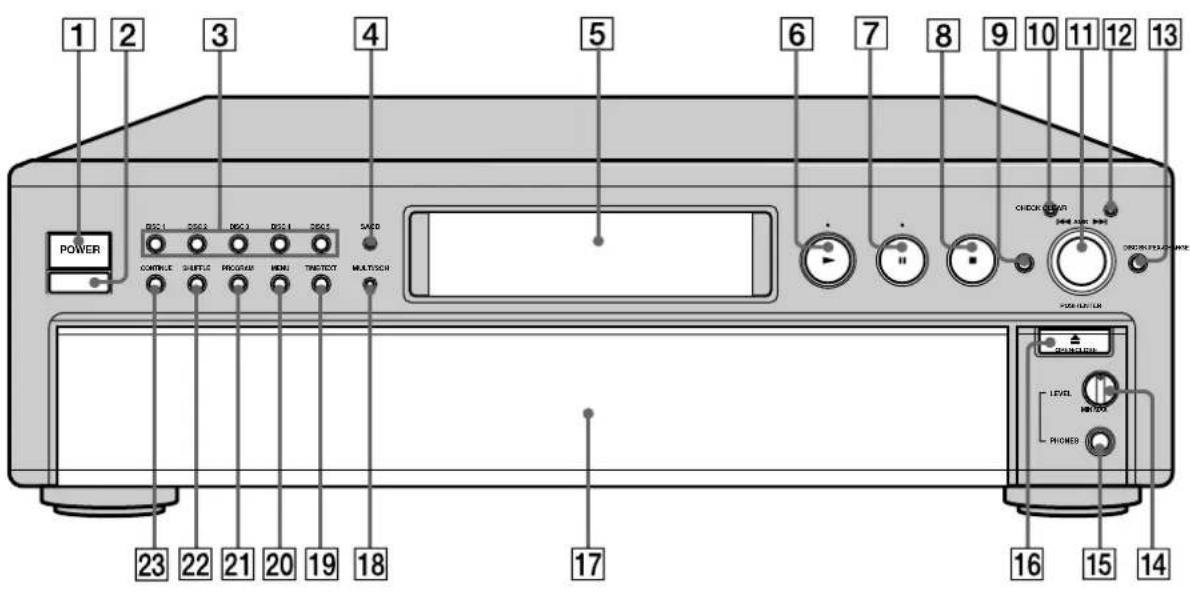
Front Panel Parts Descriptions
1 POWER switch (14)
Press to turn on/off the player.
2 Remote sensor R (4)
③DISC 1-5 button (14)
Press to select the disc.
4 SACD/CD button (with an LED) (14)
Each time you press the button while the Hybrid disc (page 13) is loaded, the layer changes between an HD (SACD) layer (the LED turns on) and CD layer (the LED turns off).
5 Display window (15)
Shows various information.
6▶ button (14)
Press to start play.
▶ indicator
Lights up during playback.
7 II button (14)
Press to pause play.
II indicator
Lights up during pause.
8■ button (14)
Press to stop play.
text_image
1 2 3 4 5 6 7 8 9 10 11 12 13 POWER DISCL DISC1 DISC2 DISC3 DISC4 SADD CONTROL SHIFTING PROCESS HIGH TRADYECT MULTISCH CHECK CLEAR OFF-AMOUNT RED ORANGE/THICK/WHOLE POWER SWITCH 23 22 21 20 19 18 17 LEVEL MINTO PHONES 16 15 149 EX-CHANGE button (18)
Press to replace discs while playing a disc.
10 CHECK button (23)
Press to check the programmed order.
11 ◀◀◀AMS▶▶▶ dial (AMS: Automatic Music Sensor) (7, 14)
When you turn the K MLS dial counterclockwise by one click, you go back to the preceding track; when you turn the K MLS dial clockwise by one click, you go to the succeeding track.
12 CLEAR button (23)
Press to delete a programmed track number.
13 DISC SKIP button (14)
Press to select the disc.
14 PHONES LEVEL control
Adjust the headphones volume.
15 PHONES jack
Connect the headphones.
During playback of a Multi-channel Super Audio CD, the same signal that is output from the ANALOG 5.1CH FRONT L/R jacks is output from the PHONES jack.
16 ≅ OPEN/CLOSE button (14)
Press to open/close the disc tray.
17Disc tray (14)
Press ≅ OPEN/CLOSE to open/close the disc tray.
18 MULTI/2CH button (with an LED) (14)
Press to select the playback area when the 2 channel + Multi-channel Super Audio CD is loaded. When you select the Multi-channel playback area (page 13), the LED turns on.
19TIME/TEXT button (16)
Each time you press the button, the playing time of the track, the total remaining time on the disc, or TEXT information appears in the display.
20 MENU button (7)
Press to enter the menu.
21PROGRAM button (23)
Press to select Program Play.
22SHUFFLE button (22)
Press to select Shuffle Play.
23 CONTINUE button (14)
Press to resume normal play from Shuffle Play or Program Play.
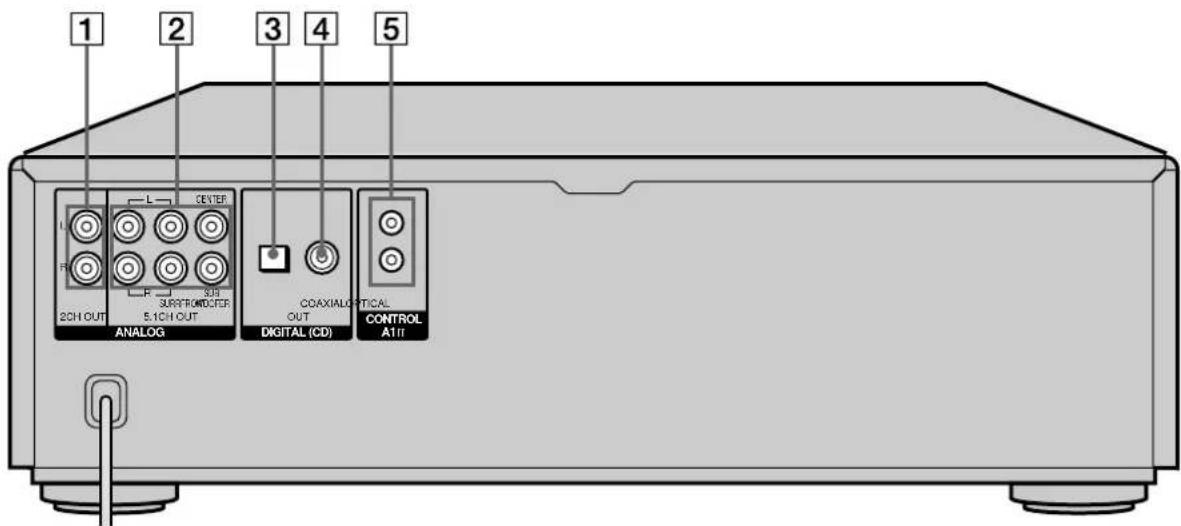
Rear Panel Parts Descriptions
text_image
1 2 3 4 5 L CENTER U R 2CH OUT SURTRONDER 5.1CH OUT COAXIALO OUT DIGITAL (CD) TICAL CONTROL ATTI ANALOG1ANALOG 2CH OUT L/R jacks (6)
Connect to an audio component (stereo/2 channel) using the audio connecting cord.
②ANALOG 5.1CH OUT jacks (5)
Connect to an amplifier equipped with the 5.1CH input jacks (Multi-channel amplifier, AV amplifier, etc.) using the audio connecting cords.
③ DIGITAL (CD) OUT OPTICAL connector (7)
Connect to an audio component using an optical digital cable.
4 DIGITAL (CD) OUT COAXIAL connector (7)
Connect to an audio component using the coaxial digital cable.
5CONTROL A1 jacks (7, 31)
Connect to a Sony audio component using the monaural (2P) mini-plug cord.
Note
Only the audio signals of the CD can be output from the DIGITAL (CD) OUT connectors shown in 3 and 4. Those of the Super Audio CD cannot be output through DIGITAL (CD) OUT.
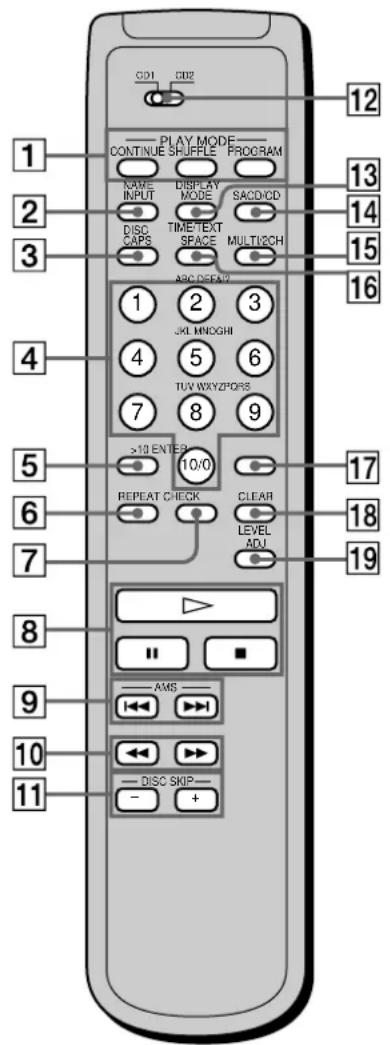
Remote Parts Descriptions
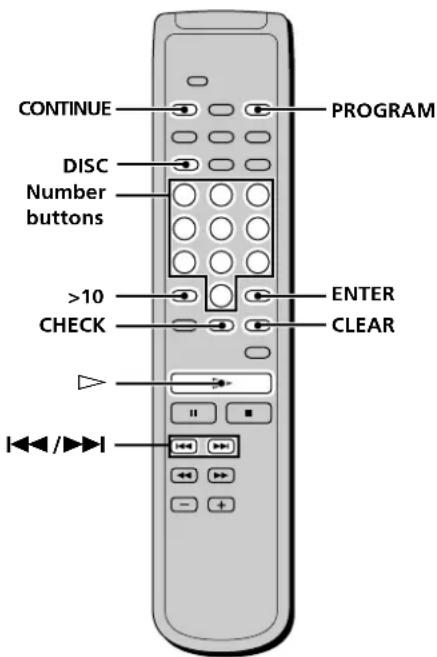
1 CONTINUE button (14)
Press to resume normal play from Shuffle Play or Program Play.
SHUFFLE button (22)
Press to select Shuffle Play.
PROGRAM button (23)
Press to select Program Play.
2 NAME INPUT button (29)
Press to enter the name input mode.
③DISC/CAPS button (19, 29)
Press to select the disc.
Press to select the capital letter in name input mode.
4 Number buttons (19)
Press to enter the track numbers.
5 >10 button (19)
Press to locate a track numbered over 10.
6 REPEAT button (21)
Press repeatedly to play all tracks or only one track on the disc.
7 CHECK button (23)
Press to check the programmed order.
8▷ button (14)
Press to start play.
II button (14)
Press to pause play.
■ button (14)
Press to stop play.
9 AMS I◄◄/►►I (AMS: Automatic Music Sensor) buttons (19)
Press to locate a specific track.
10◀◀/▶▶ buttons (20)
Press to locate a portion you want to play within a track.
11 DISC SKIP +/- buttons (14)
Press to select the disc.
12CD1/2 (COMMAND MODE) switch (7)
Select the command mode.
13 DISPLAY MODE button (16)
Press to turn off the information.
14 SACD/CD button (14)
Each time you press the button while the Hybrid disc (page 13) is loaded, the layer changes between an HD layer (the SACD/CD LED turns on) and CD layer (the SACD/CD LED turns off).
15 MULTI/2CH button (14)
Press to select the playback area when the 2 channel + Multi-channel Super Audio CD is loaded. When you select the Multi-channel playback area (page 13), the MULTI/2CH LED turns on.
16TIME/TEXT/SPACE button (16, 30)
Each time you press the button, the playing time of the track, the total remaining time on the disc, or TEXT information appears in the display. Press to insert a space in name input mode.
17 ENTER button (29)
Press to decide the selection.
18 CLEAR button (23)
Press to delete a programmed track number.
19 LEVEL ADJ button (26)
Press to adjust the output level balance for the Multi-channel management function (page 24).
text_image
CD1 CD2 1 PLAY MODE CONTINUE SHUFFLE PROGRAM NAME INPUT DISPLAY MODE SAC/CD DISC CAPS TIMETEXT SPACE MULTIZCH ABC DREAM2 1 2 3 JKL MNOGHI 4 5 6 TUV WXYZPOPS 7 8 9 >10 ENTER 10/0 REPEAT CHECK CLEAR LEVEL ADJ 17 18 19 8 9 10 11 — AMS — — DISC SKIP — — +Playing Discs
This chapter explains the various ways to play discs.
Compatible Disc Types
You can play the following discs with this player. Depending on the type of disc to be played, select the appropriate indicator by pressing SACD/CD or MULTI/2CH (pages 14).
Classification by the layer configuration
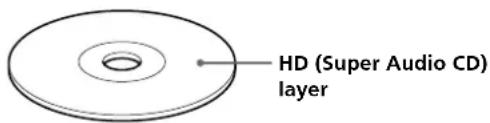
Super Audio CD (single layer disc)
This disc consists of a single HD (high density) layer. When you play this disc, the player is set to the Super Audio CD playback mode automatically.
text_image
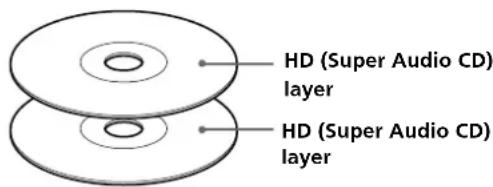
HD (Super Audio CD) layerSuper Audio CD (dual layer disc)
This disc consists of dual HD layers and is capable of extended play over long periods. When you play this disc, the player is set to the Super Audio CD playback mode automatically. Also, as the dual layer disc consists of dual HD layers on one side only, it is not necessary to turn the disc over.
text_image
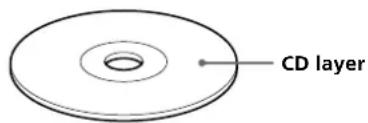
HD (Super Audio CD) layer HD (Super Audio CD) layerConventional CD
This disc is the standard format. When you play this disc, the player is set to the Conventional CD playback mode automatically.
text_image
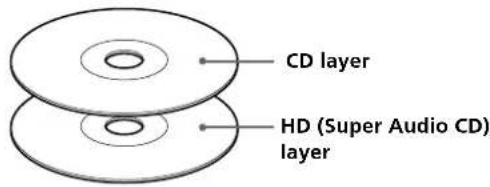
CD layerSuper Audio CD + CD (Hybrid disc)
This disc consists of an HD layer and a CD layer. Press SACD/CD to select the layer you want to listen to. Also, as the dual layers are on one side, it is not necessary to turn the disc over. You can play the CD layer using a conventional CD player.
text_image
CD layer HD (Super Audio CD) layerYou can select the default playback layer (HD or CD).
1 During stop mode, press MENU.
2 Turn ◀◆ AMS ▶◆ to until "LAYER SELECT" appears in the display.
3 Press I < AMS I. The current default layer appears.
4 Turn ◀◀AMS▶▶ to select CD or SACD, then push ◀◀AMS▶▶ again.
The default layer setting is SACD.
Classification by the channel configuration of the Super Audio CD
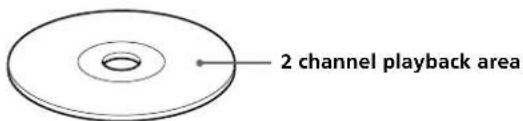
2 channel Super Audio CD
This disc consists of the 2 channel playback area. When you play this disc, the player is set to the 2 channel playback mode automatically.
text_image
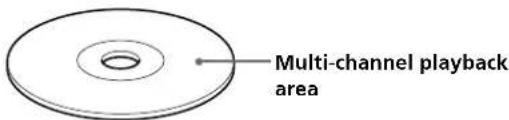
2 channel playback areaMulti-channel Super Audio CD
This disc consists of the multi-channel playback area. When you play this disc, the player is set to the multi-channel playback mode automatically.
text_image
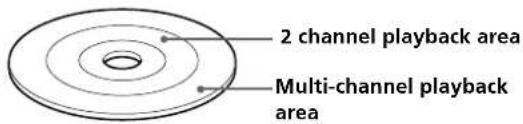
Multi-channel playback area2 channel + Multi-channel Super Audio CD
This disc consists of the 2 channel playback area and the multi-channel playback area.
Press MULTI/2CH to select the playback area you want to listen to.
text_image
2 channel playback area Multi-channel playback areaYou can select the default playback area (2 channel playback or multi-channel playback area).
1 During stop mode, press MENU.
2 Turn AMS to until "M/2CH SELECT" appears in the display.
3 Press ◀◀◀ AMS ▷▶▶.
The current playback area appears.
4 Turn ◀◀ AMS ▶▶▶ to select desired playback area, then press ◀◀ AMS ▶▶▶.
Incompatible Discs
This player cannot play the following discs. If you try to play them, the error message "TOC Error" or "No Disc" will appear or there will be no sound.
- CD-ROM
• DVD, etc.
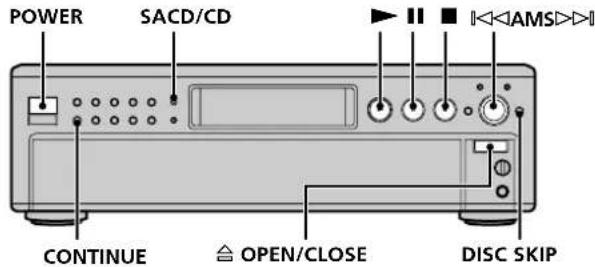
Playing a Disc
The operations for normal play and the basic operations during play are explained below.
text_image
POWER SACD/CD CONTINUE △ OPEN/CLOSE DISC SKIP1 Turn on the amplifier. Turn down the volume level to the lowest.
2 Select the player position using the input selector on the amplifier.
3 Press POWER to turn on the player.
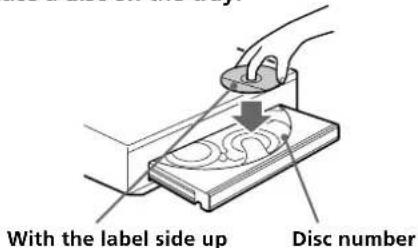
4 Press ≅ OPEN/CLOSE to open the disc tray, and place a disc on the tray.
text_image
With the label side up Disc number5 To place other discs, press DISC SKIP and place the discs in the order you want to play.
Each time you press the button, the disc tray turns and you can place the discs in the empty disc compartments. The player plays the disc in front of you first.
6 Press CONTINUE to select ALL DISCS or 1 DISC Continuous Play mode.
Each time you press the CONTINUE button, "ALL DISCS" or "1 DISC" appears in the display.
| When you select | The player plays |
| ALL DISCS | All discs in the player consecutively in the order of disc number |
| 1 DISC | Only the disc you've selected |
7 Press ▶.
Playback starts from the first track. If you want to start playing from a specific track, turn ◀◆AMS▶▶ to select the track number before pressing ▶.
8 Adjust the volume on the amplifier.
Basic operations during play
| To Press | |
| Stop play ■ | |
| Pause play || | |
| Resume play after pausing || or ▶ | |
| Locate a succeeding track Turn ◀◆AMS▶◆ clockwise | |
| Locate the beginning of the Turn ◀◆AMS▶◆ current track or a preceding counterclockwise track | |
| Go to the next disc DISC SKIP | |
| Select a disc directly DISC 1-5 | |
| Eject the disc ≈ OPEN/CLOSE |
You can select the disc you want to start playing first Press one of the DISC 1-5 buttons.
To select a layer you want to listen to when playing a hybrid disc (page 13) After you stop play using ■, press SACD/CD repeatedly to light either "SACD" or "CD".
To select a playback area you want to listen to when playing a 2 channel + Multi-channel Super Audio CD (page 13) After you stop play using ■, press MULTI/2CH repeatedly to light either "MULTI CH" or "2 CH."
Note During playback, increase the volume level gradually starting from the lowest level. The output from this unit may contain band width that are out of the normal listening range. This may cause damage to the speakers or ears.
Using the Display
The display window shows various information about the disc or track being played. This section describes the current disc information and information that appears for each play status.
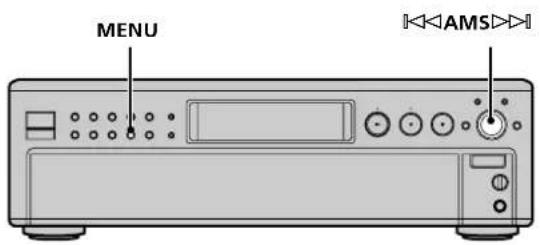
text_image
MENU AMS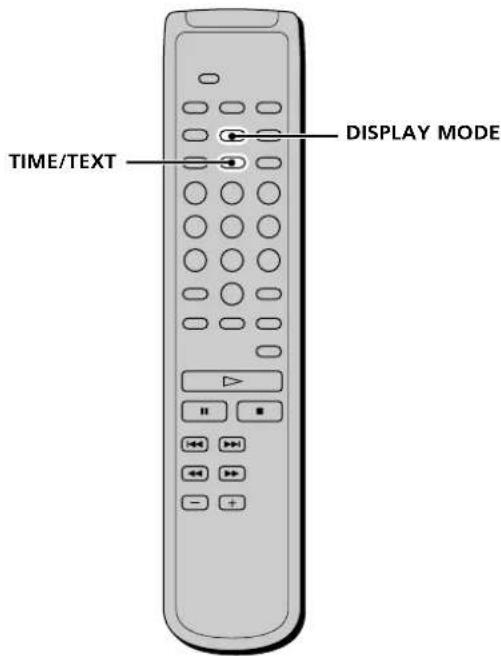
text_image
TIME/TEXT DISPLAY MODEDisc information when a disc is loaded
Depending on the disc that is currently loaded, the display shows as follows:
2 channel Super Audio CD
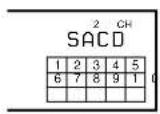
Multi-channel Super Audio CD
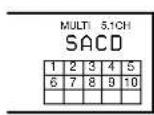
During playback a 5.1 channel Super Audio CD
or
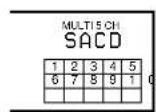
During playback a 5 channel Super Audio CD
or
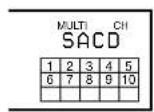
During playback other Super Audio CDs or during stop mode
Conventional CD
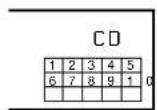
Using the Display
Displaying information while the player is stopped
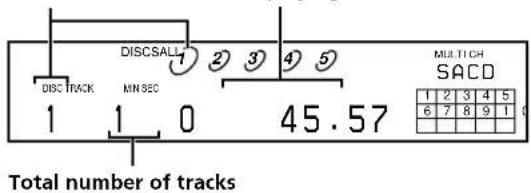
Press TIME/TEXT.
The display shows the current disc number, total number of tracks, and total playing time.
Current disc number Total playing time
text_image
DISC TRACK MIN SEC 1 1 0 45.57 DISCSALL ① ② ③ ④ ⑤ MULTICH SACD 1 2 3 4 5 6 7 8 9 1 Total number of tracksThe information also appears when you press the OPEN/CLOSE button to close the disc tray.
The tracks numbered over 16 cannot be displayed in the music calendar.
Notes on the disc number indications
- The red circle around a disc number indicates the disc is ready to be played.
- When all the tracks on a disc have been played, the semi-circle around the disc number disappears.
- When a disc compartment is recognized as empty, the semi-circled disc number disappears.
Displaying information while the player is playing
Press TIME/TEXT.
Each time you press the button, the current track number and its elapsed time or remaining time appears, or the total remaining time for the disc appears in the display. When the player detects a Multi-channel Super Audio CD, the channel information appears before the default display appears.
Playing track number and elapsed playing time of the current track (default display)
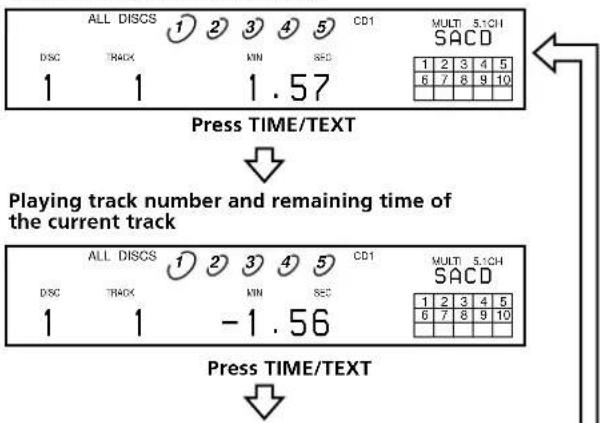
text_image
ALL DISCS ① ② ③ ④ ⑤ CD1 MULTI 5.1CH DISC TRACK MIN SEC 1 1 1.57 SACD Press TIME/TEXT Playing track number and remaining time of the current track ALL DISCS ① ② ③ ④ ⑤ CD1 MULTI 5.1CH DISC TRACK MIN SEC 1 1 -1.56 SACD Press TIME/TEXTTotal remaining time on the disc
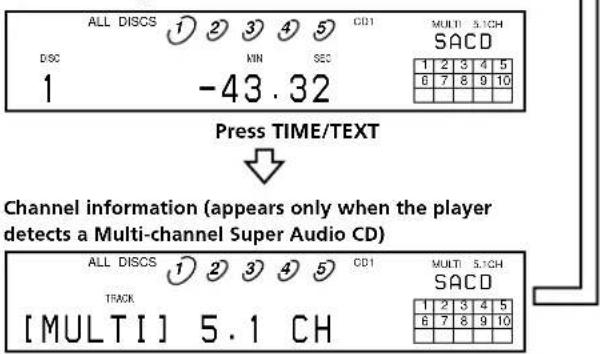
text_image
ALL DISCS ① ② ③ ④ ⑤ CD1 MULTI 5.1CH DSC MIN SEC 1 -43.32 Multi 5.1CH SACD 1 2 3 4 5 6 7 8 9 10 Press TIME/TEXT Channel information (appears only when the player detects a Multi-channel Super Audio CD) ALL DISCS ① ② ③ ④ ⑤ CD1 MULTI 5.1CH SACD TRACK [MULTI] 5.1 CH 1 2 3 4 5 6 7 8 9 10Turning off the information in the display
Each time you press DISPLAY MODE on the remote while playing a disc, the display turns off and on alternately.
Even when the display is turned off, the display turns on if you pause or stop play. When you resume play, the display turns off again.
Before you start playing, when you press DISPLAY MODE to turn off the display, "Display Off" appears, and when you press the button to turn on the display, "Display On" appears.
Displaying the information of a TEXT disc

TEXT discs contain information, such as the disc name or artist name, as well as the audio signals. This player can display the disc name, artist name, and current track name as TEXT information.
When the player detects a TEXT disc, "TEXT" appears in the display.
Displaying the information of a TEXT disc in stop mode
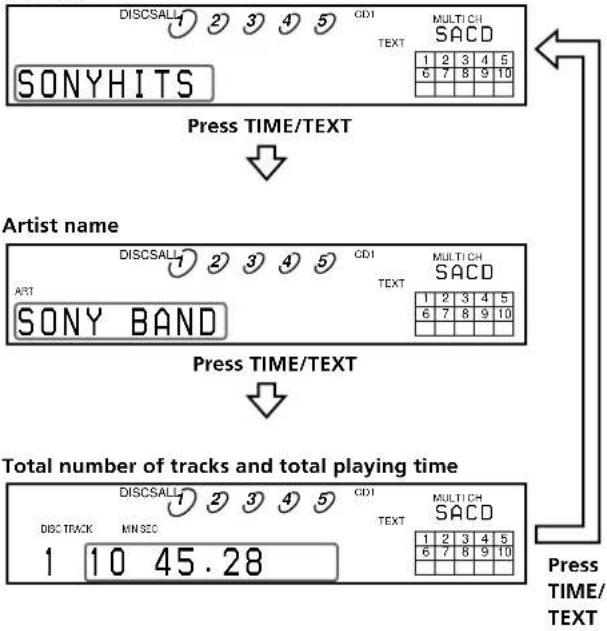
Press TIME/TEXT.
Each time you press the button, the disc name or artist name appears in the display. When you select the artist name, "ART" appears in the display.
• Before you start playing
Disc title
text_image
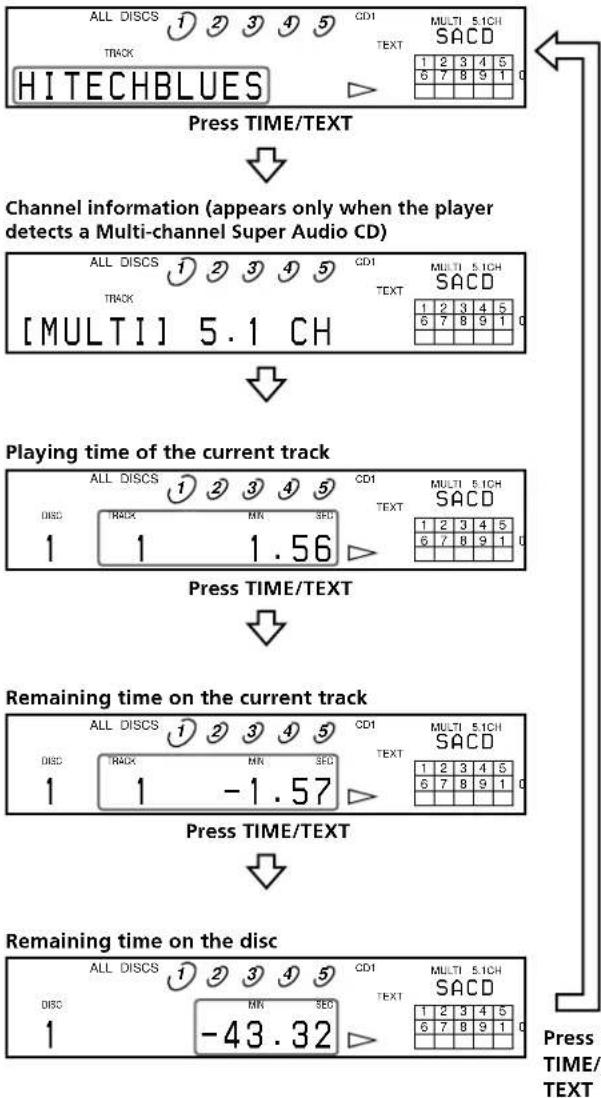
DISCSALL 1 2 3 4 5 CDI MULTICH SONYHITS TEXT SACD 1 2 3 4 5 6 7 8 9 10 Press TIME/TEXT Artist name DISCSALL 1 2 3 4 5 CDI MULTICH ART TEXT SACD SONY BAND 1 2 3 4 5 6 7 8 9 10 Press TIME/TEXT Total number of tracks and total playing time DISCSALL 1 2 3 4 5 CDI MULTICH DISC TRACK MIN SEC TEXT SACD 1 10 45.28 1 2 3 4 5 6 7 8 9 10 Press TIME/ TEXTDisplay information of a TEXT disc while playing a disc
The current track name appears. If the disc name has more than 15 characters, the first 14 characters will remain after the name scrolls by in the display.
When the player detects a Multi-channel Super Audio CD, the channel information appears before the playing time of the current track appears.
- While playing a disc
Track title
text_image
ALL DISCS 1 2 3 4 5 CDI MULTI 5.1CH TRACK TEXT SCD HITECHBLUES ▷ Press TIME/TEXT Channel information (appears only when the player detects a Multi-channel Super Audio CD) ALL DISCS 1 2 3 4 5 CDI MULTI 5.1CH TRACK TEXT SCD [MULTI] 5.1 CH Playing time of the current track ALL DISCS 1 2 3 4 5 CDI MULTI 5.1CH DISC TRACK MX SEC TEXT SCD 1 1 1.56 Press TIME/TEXT Remaining time on the current track ALL DISCS 1 2 3 4 5 CDI MULTI 5.1CH DISC TRACK MX SEC TEXT SCD 1 1 -1.57 Press TIME/TEXT Remaining time on the disc ALL DISCS 1 2 3 4 5 CDI MULTI 5.1CH DISC MTN SEC TEXT SCD 1 -43.32 Press TIME/ TEXTNotes
- The display may not show all the characters, depending on the disc.
- This player can display only the disc name, artist name, and track names from TEXT discs. Other information cannot be displayed.
Using the Display
Displaying the information of a TEXT disc in other languages
You can change the displayed language if the TEXT disc has multi language capacity. When the player detects such a TEXT disc, "TEXT" and "MULTI" appear in the display. Change the language according to the procedures below.
1 Press MENU in stop mode.
2 Turn ◀◀ AMS ▷▶ until "LANGUAGE" appears in the display.
3 Press ◀◀◀ AMS ▷▶.
The current selected language (English, French, German, etc.) flashes.
If the player cannot display the language used in a TEXT disc, "Other Lang" appears in the display.
4 Turn ◀◀ AMS ▷▶ until the desired language appears in the display.
5 Press ◀◀ AMS ▷▶.
After a few seconds, the information appears in the selected language.
Replacing Discs While Playing a Disc
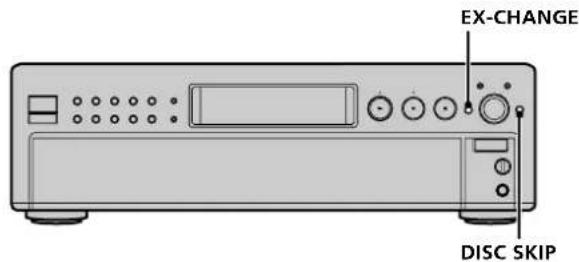
You can open the disc tray while playing a disc so that you can check what discs are to be played next and replace discs without interrupting play of the current disc.
text_image
EX-CHANGE DISC SKIP1 Press EX-CHANGE.
The disc tray opens and two disc compartments appear. Even if the player is playing a disc, it doesn't stop playing.
2 Replace discs in the compartments with new ones.
The player plays the disc on the left side compartment after the current disc, and then the one on the right side compartment.
3 Press DISC SKIP.
The disc tray turns and other two disc compartments appear.
4 Replace discs in the compartments with new ones.
5 Press EX-CHANGE.
The disc tray closes.
Note
Do not push the disc tray to close it in Step 5, as you may damage the player.
While the disc tray is open by pressing the EX-CHANGE button
- If the play of the current disc ends, the player stops playing. If the disc is played in 1 DISC Repeat Play mode (see page 21), the current disc starts playing again.
- In ALL DISCS Shuffle Play mode (see page 22), tracks are reshuffled on the current disc.
- In Program Play mode (see page 23), only the tracks on the current disc are played.
Locating a Specific Disc
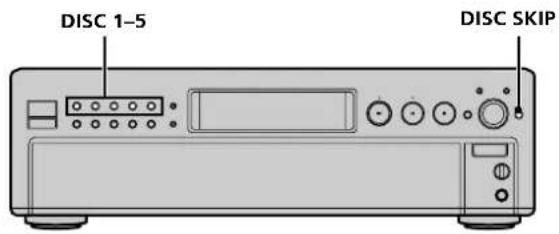
You can locate any disc before or while playing a disc.
text_image
DISC 1-5 DISC SKIP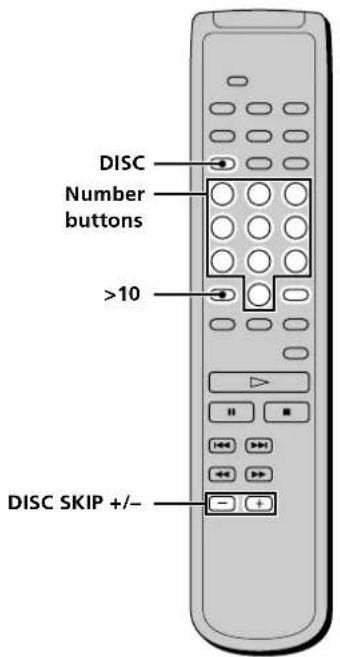
text_image
DISC Number buttons >10 DISC SKIP +/-| To locate | Press |
| The next disc | DISC SKIP while playing a disc |
| The next or succeeding discs | DISC SKIP + repeatedly until you find the disc |
| The current or preceding discs | DISC SKIP – repeatedly until you find the disc |
| A specific disc directly | DISC 1–5.When using the remote, follow the procedure below. |
| 1 Press DISC.2 Press the number button of the disc.3 Press ENTER. |
Locating a Specific Track
During stop or play mode, you can locate any track to be played.
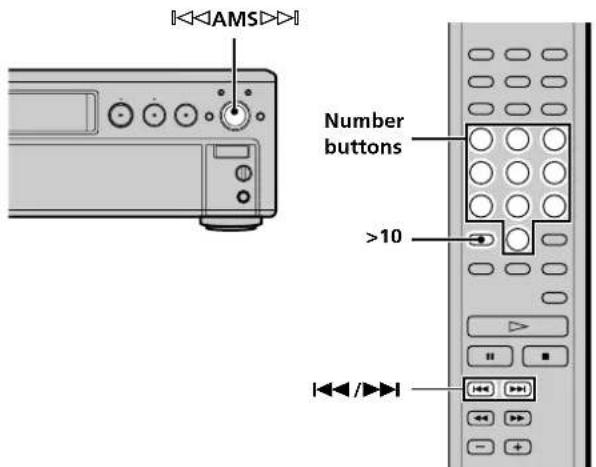
text_image
<| To locate | You need to |
| The next or succeeding tracks | Turn AMS clockwise until you find the track. When using the remote, press repeatedly until you find the track. |
| The current or preceding tracks | Turn AMS counterclockwise until you find the track. When using the remote, press repeatedly until you find the track. |
| A specific track directly | Turn AMS until you find the track number you want. When using the remote, press or repeatedly until you find the track. |
Locating a track directly by entering the track number
Press the number button(s) to enter the track number.

To enter a track number over 11
1 Press >10.
2 Enter the corresponding digits.
To enter 0, press 10/0 instead.
Examples:
• To play track number 30, press >10, then 3 and 10/0.
- To play track number 100, press >10 twice, then 1, and 10/0 twice.
Locating a Particular Point in a Track
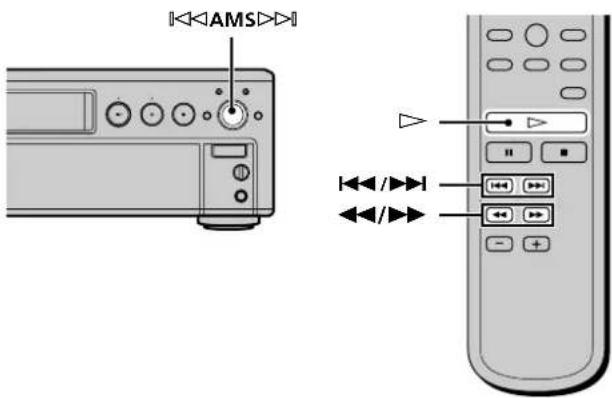
You can locate a particular point in a track during play or play pause.
text_image
Diagram showing remote control panel with labeled buttons and playback controls, including directional arrows and play buttons.Locating a point while monitoring the sound (Search)
Press and hold ◀◀/▶▶ during play.
You will hear intermittent playback as the disc goes forward or reverses.
When you reach the desired point, release the button.
Locating a point by observing the time indication (High-Speed Search)
Press and hold ◀◀/▶▶ during play pause.
You will not hear the playback sound.

When "Over!!" appears in the display
The disc has reached its end. Press ◀◀◀ or ◀◀◀ to go back.
Note
Tracks that are only a few seconds long may be too short for monitoring. In this case, the player may not search correctly.
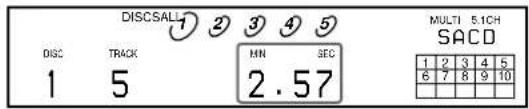
Locating a point by setting the start time (Time Search)
1 Turn ◀◀ AMS ▶▶ or press ◀◀◀/▶▶▶ to select the desired track in stop mode.
2 Press and hold ◀◀/▶▶ to set the time to start play while looking at the display.
You can set the time from the beginning of the desired a track when you press ▶▶ at first, and set the time from the end of the desired track backward's when you press ◀◀ at first.
text_image
DISCSALL ① ② ③ ④ ⑤ DISC TRACK MIN SEC 1 5 2.57 MULTI 5.1CH SACD 1 2 3 4 5 6 7 8 9 103 Press ▷.
Play will start at the time search.
Playing Tracks Repeatedly

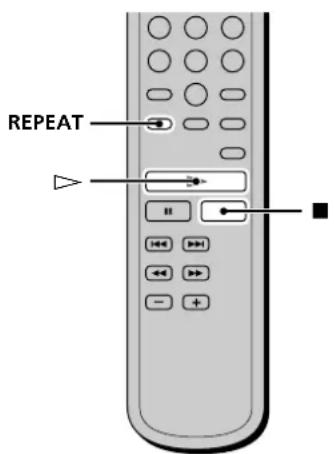
You can play an entire disc or portions thereof repeatedly. This function can be used with Shuffle Play to repeat all the tracks in random order (page 22), or with Program Play to repeat all the tracks in a program (page 23).
text_image
REPEATNote
If you turn off the player or disconnect the power cord, the player will store the last setting of repeat play ("REPEAT" or "REPEAT 1") and recall it the next time you turn on the player.
Repeating all the tracks on the disc (Repeat All Play)
Press REPEAT once, then press ▷.
"REPEAT" appears in the display and Repeat All Play starts.
The repeat play changes depending on the play mode you select.
| When the play mode is The player repeats | |
| ALL DISCS Continuous Play (page 14) | All the tracks on all discs |
| 1 DISC Continuous Play (page 14) | All the tracks on the current disc |
| ALL DISCS Shuffle Play (page 22) | All the tracks on all discs in random orders |
| 1 DISC Shuffle Play (page 22) | All the tracks on the current disc in random orders |
| Program Play (page 23) | All the tracks in the program in sequence |
To stop Repeat All Play
Press ■.
To resume normal play
Press REPEAT repeatedly until "REPEAT" goes off.
Repeating the current track (Repeat 1 Play)
While the track you want to repeat is being played, press REPEAT repeatedly until "REPEAT 1" appears in the display.
Repeat 1 Play starts.
To stop Repeat 1 Play
Press ■.
To resume normal play
Press REPEAT repeatedly until "REPEAT 1" goes off.
Playing Tracks in Random Order (Shuffle Play)
You can have the player "shuffle" tracks and play in a random order. The player shuffles all the tracks on all discs or one disc you've specified.
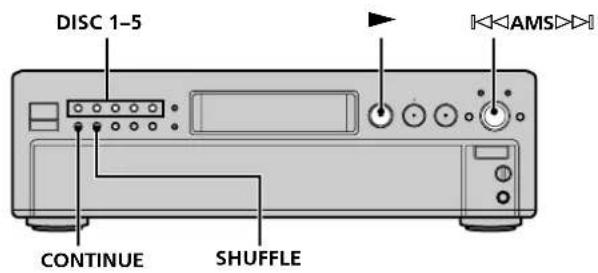
text_image
DISC 1-5 CONTINUE SHUFFLE AMS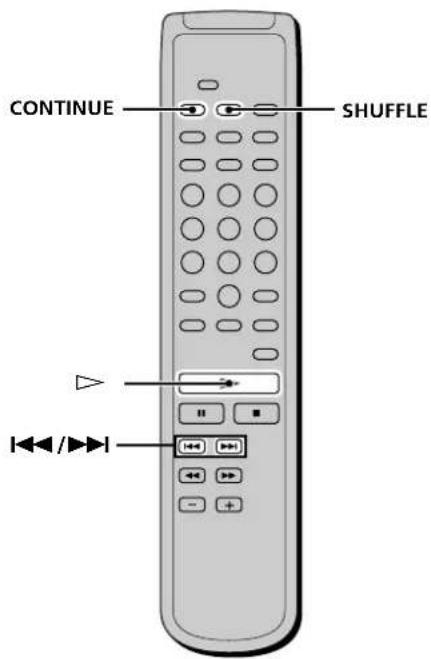
text_image
CONTINUE SHUFFLE ◄◄◄/►►►Shuffle Play on all discs
You can play all tracks on all discs in a random order.
1 Press SHUFFLE repeatedly until "ALL DISCS" appears in the display.
2 Press ▷ to start ALL DISCS Shuffle Play.
"[]" appears while the player is "shuffling" the tracks.
The player will stop after playing all the tracks once.
Shuffle Play on one disc
You can play all tracks on the specific disc in a random order.
1 Press SHUFFLE repeatedly until "1 DISC" appears in the display.
2 Press DISC 1–5 to start 1 DISC Shuffle Play on the selected disc.
“” appears while the player is “shuffling” the tracks. The player will stop after playing all the tracks once.
To resume normal play
Press CONTINUE.
You can locate tracks during Shuffle Play
Turn ◀◀AMS▶▶ or press ◀◀/▶▶I.
The player does not go back to tracks which have already been played.
You can start Shuffle Play while playing
Press SHUFFLE, and Shuffle Play starts from the current track.
Creating Your Own Program (Program Play)
You can pick out the tracks that you like and specify the playback order in a program containing up to 32 tracks.