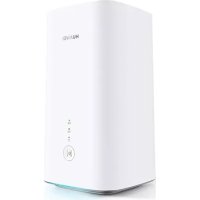
USER MANUAL 5G CPE Pro 2 H122373 HUAWEI
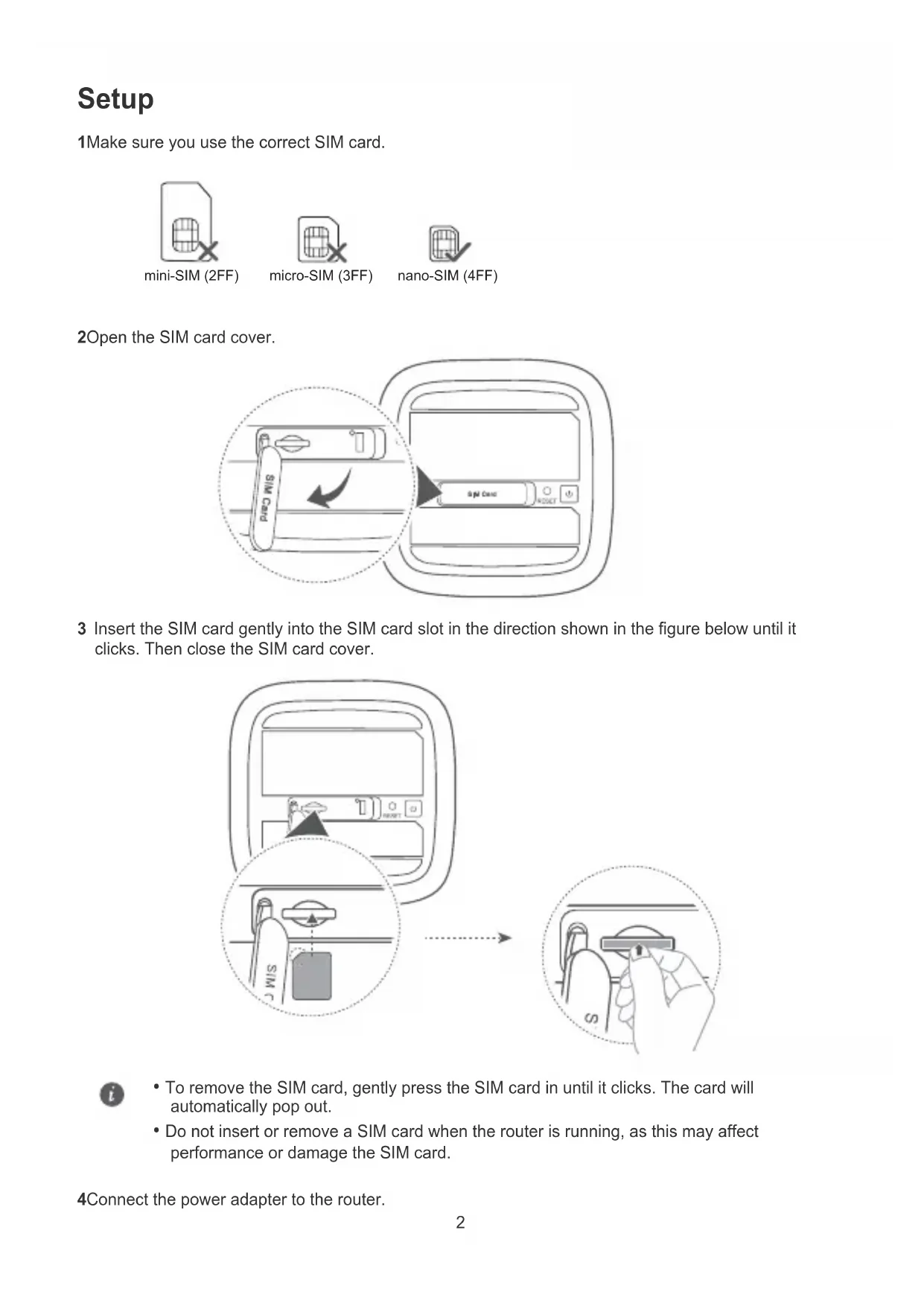
1Make sure you use the correct SIM card.
mini-SIM (2FF)

micro-SIM (3FF)

nano-SIM (4FF)
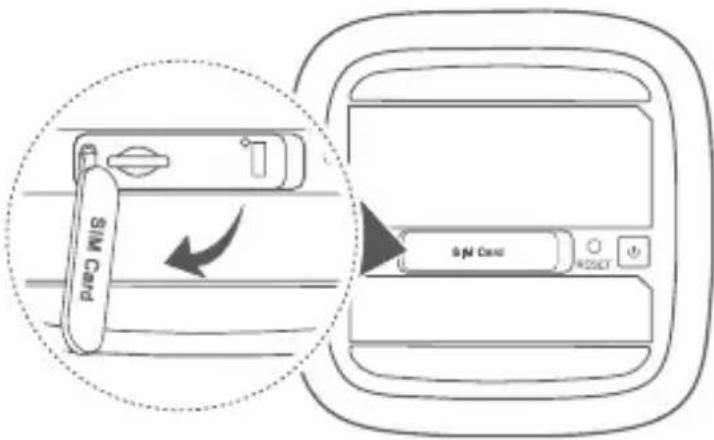
2Open the SIM card cover.
3 Insert the SIM card gently into the SIM card slot in the direction shown in the figure below until it clicks. Then close the SIM card cover.
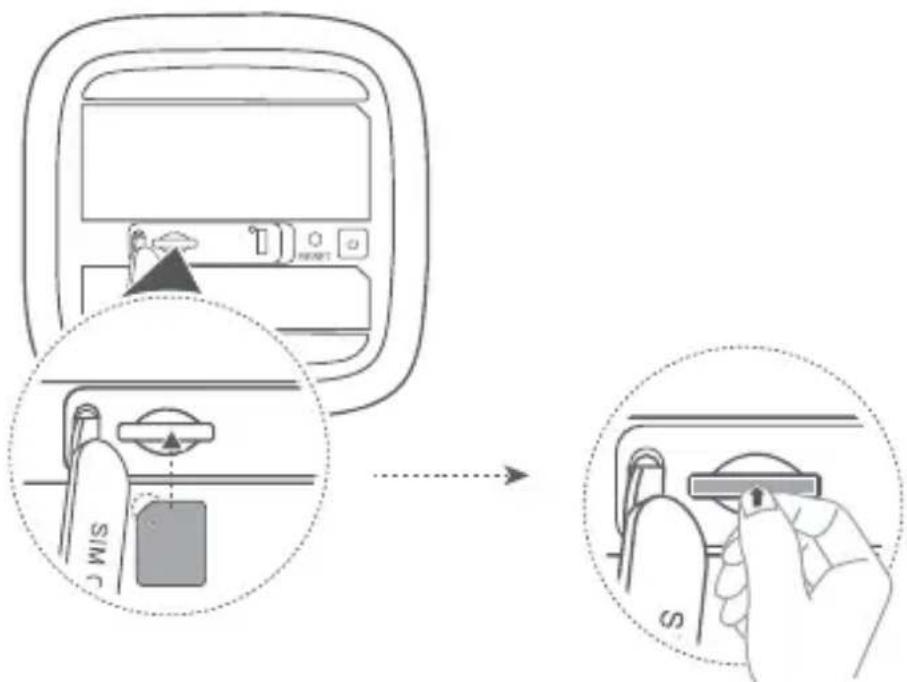

- To remove the SIM card, gently press the SIM card in until it clicks. The card will automatically pop out.
- Do not insert or remove a SIM card when the router is running, as this may affect performance or damage the SIM card.
4Connect the power adapter to the router.
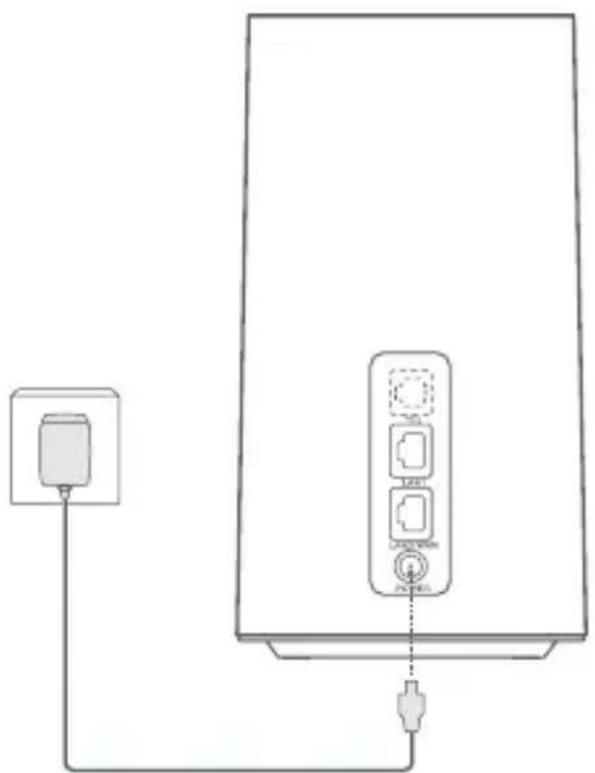
The indicators will turn on when the router has successfully connected to a network.
| 5G signal indicator | Green: Strong. |
| Yellow: Moderate. |
| Red: Weak. |
| 4G signal indicator | Green: Strong. |
| Yellow: Moderate. |
| Red: Weak. |

If both the 5G signal indicator and 4G signal indicator are off, it indicates there is no network connection. Please refer to the FAQs in this guide.
Connecting to your router's Wi-Fi network
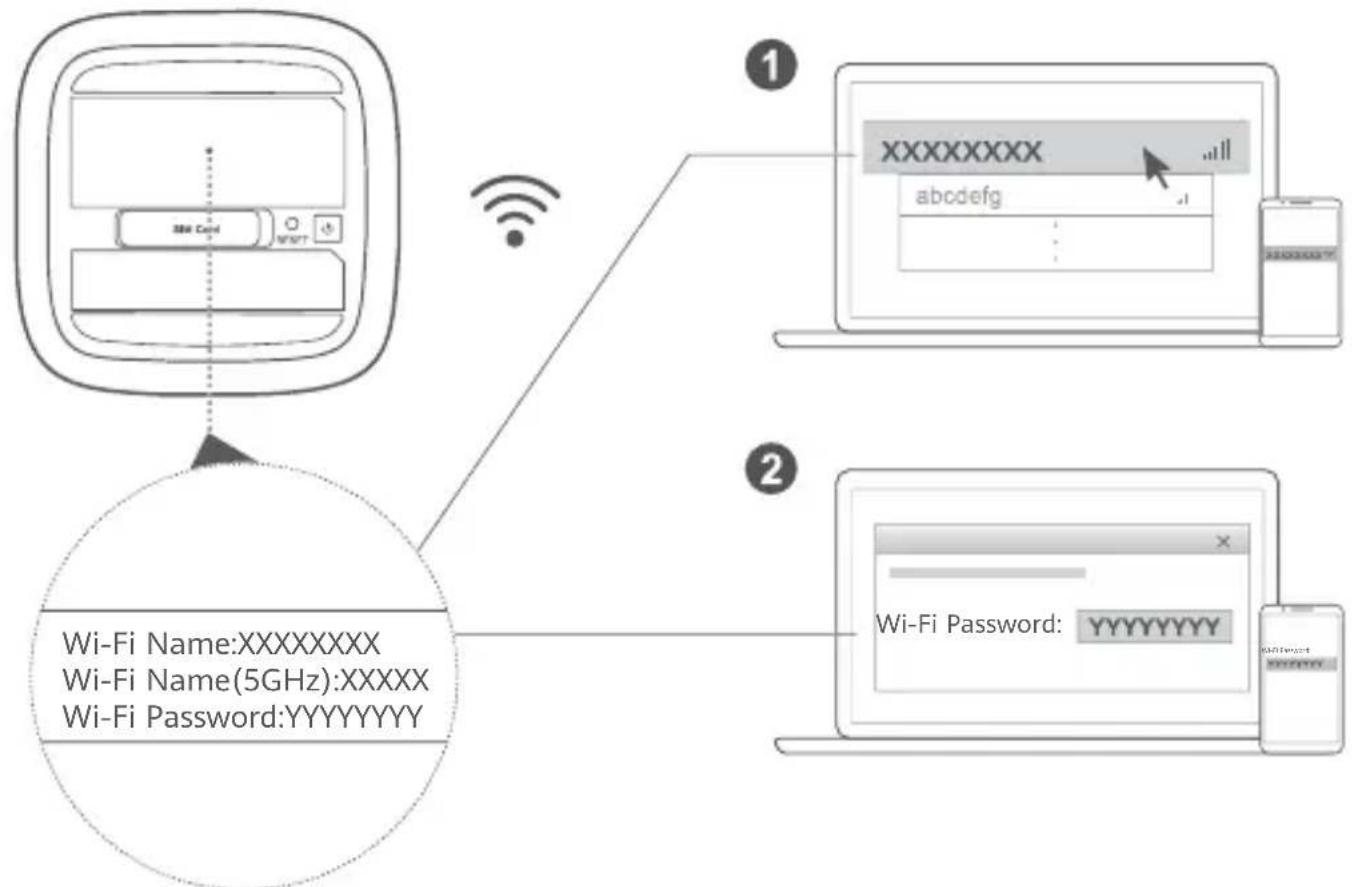
Once the router has connected to a mobile data network, you can connect your computer or mobile phone to the router's Wi-Fi network to access the Internet. Please refer to the label on the bottom of the router for the default Wi-Fi network name (Wi-Fi Name) and password (Wi-Fi Password).

- When the Wi-Fi indicator is steady on, Wi-Fi is enabled. To enable or disable Wi-Fi, refer to the router's web-based management page.
- Ensure that you promptly change the Wi-Fi network name and password on the web-based management page to prevent unauthorized access to your Wi-Fi network. Once you have changed the password, you will need to reconnect to the router's Wi-Fi network.
- If you accidentally pressed the H button and the Wi-Fi indicator starts to flash, wait for it to stop flashing. This may take about two minutes.
Managing your router
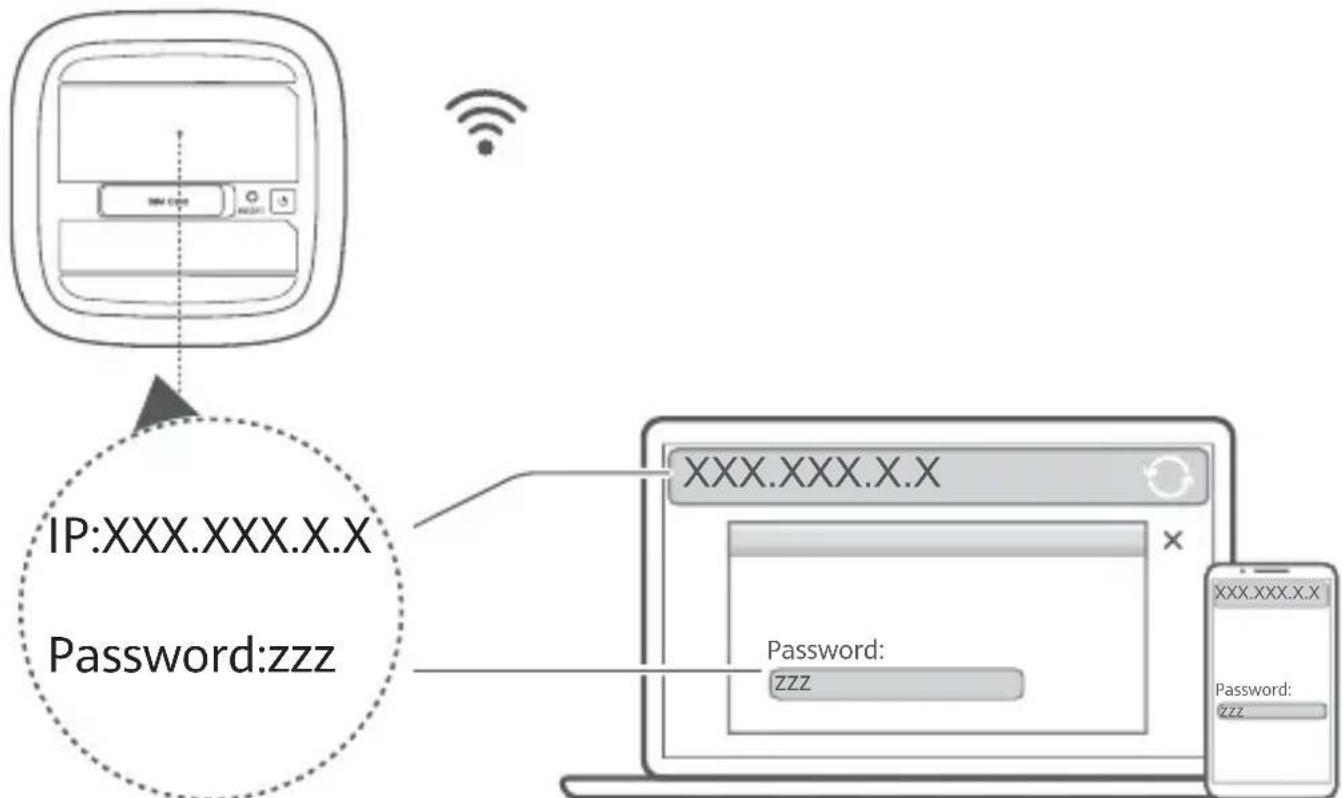
You can manage the router using the web-based management page. Please refer to the label on the bottom of the router for the default IP address, password and so on. More information can be found in the web-based management page.

- Ensure that you promptly change the default login password for the web-based management page to prevent unauthorized users from changing the router's settings.
- You can also manage your router using the HUAWEI AI Life app. Scan the QR code below to download.

Optional configurations
The features described in this section are for reference purposes only. Your router may not support all of these features.
Connecting computer
You can connect a computer to the router to access the Internet.
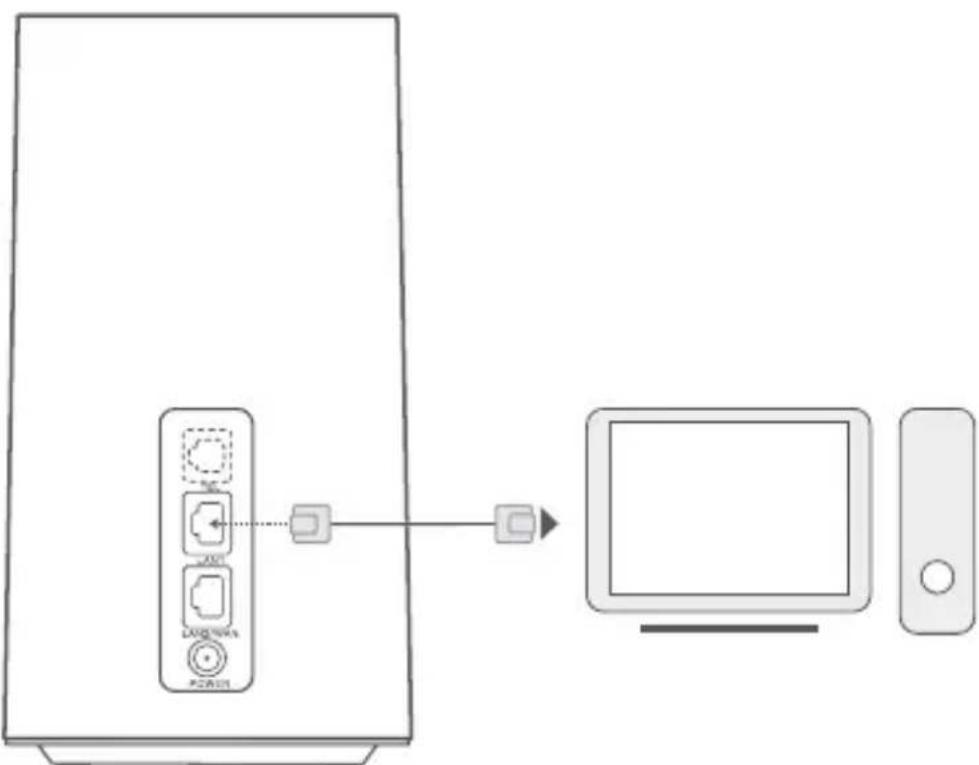
Accessing the Internet through an Ethernet port
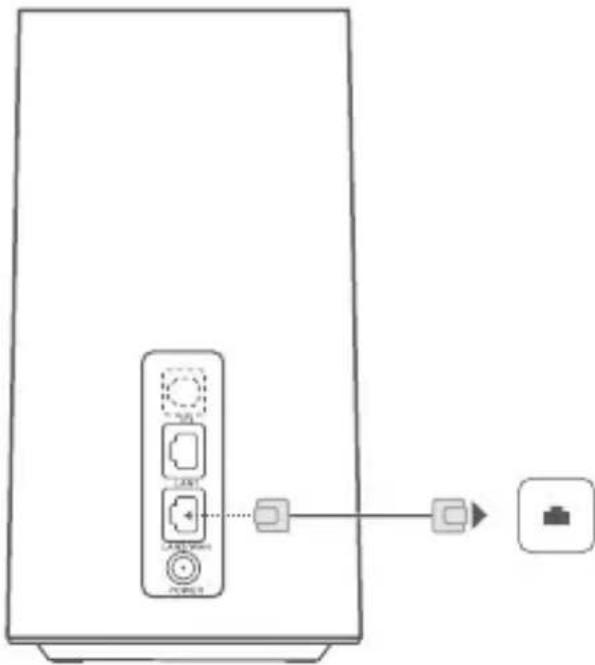
You can connect the router to a wall-mounted Ethernet port using an Ethernet cable to connect to the Internet.
Configure the relevant settings on the web-based management page before connecting to the Internet through an Ethernet port. For details, please contact your carrier.
FAQs
How do I restore factory settings?
When the router is turned on, press the Reset button for approximately 3 seconds using a pointed object until the ambient light strip starts to blink. Restoring factory settings will restore the settings to the default. You can reconfigure them after the router is restored.
What should I do if I forgot the Wi-Fi password or the login password for the web-based management page?
Restore the router to its factory settings and then use the default Wi-Fi password and login password to try again.
What should I do if the 5G signal indicator and 4G signal indicator are off or an Internet connection cannot be established?
1 Check if the SIM card is inserted. Refer to the Setup section for the right size of SIM card and the right way to insert it into the slot.
2 If the issue persists, restore the router to factory settings and try again.
3 Contact your carrier to check if your SIM card is out of service. If it's a new card, check if it has been activated.
What should I do if the Internet speed is slow?
1 Check the 5G signal indicator and 4G signal indicator on the router. If both of them are red, adjust the router's direction or move it close to a window to improve signal reception.
2 If your device is connected to the router over Wi-Fi, adjust your device's position to receive better signal.
3 Switch to Wi-Fi 5 GHz if it is supported by your device.
4 Restart the router and your device, and try again.
5 Check if you have reached your data traffic limit for the month. If so, your carrier may limit your Internet speed.
How can I connect to the router using WPS (Wi-Fi Protected Setup)?
To connect a WPS-enabled device to your router using the H button:
1 Press the H button on the router, and the Wi-Fi indicator will start to flash.
2 Enable WPS on your device within 2 minutes to connect to the router's Wi-Fi network.
When your router detects a HUAWEI HiLink device that can be paired, the Wi-Fi indicator on the router will automatically start flashing. After pressing the H button on the router, the Wi-Fi indicator will begin to flash faster, and the device will connect to the router's Wi-Fi network. After the pairing is successful, the Wi-Fi indicator on the router will stop flashing (this feature is only supported on HUAWEI HiLink devices).
Why can't I access the router's web-based management page?
1 Ensure that your computer is connected to the router through an Ethernet cable or Wi-Fi.
2 Ensure that your computer is set to obtain an IP address and DNS server address automatically.
3 Restart your browser, or try using another browser.
4 If the problem persists, restore the router to its factory settings.
Why is the content displayed on the web-based management page not up to date?
Depending on your browser's cache, the content for your device on the web-based management page may not be up to date. Manually clear your browser's cache (for example, open your browser and
choose Internet Options > General > Browsing history > Delete.) and re-launch the web-based management page.
If you are experiencing any other issues with the router:
1 Restart the router.
2 Restore the router to its factory settings.
3 Contact your carrier.
Copyright © Huawei 2020. All rights reserved.
THIS DOCUMENT IS FOR INFORMATION PURPOSE ONLY, AND DOES NOT CONSTITUTE ANY KIND OF WARRANTY.
LTE is a trademark of ETSI.
Wi-Fi® the Wi-Fi CERTIFIED logo, and the Wi-Fi logo are trademarks of Wi-Fi Alliance.
Privacy Policy
To better understand how we use and protect your personal information, please read the Privacy Policy at http://consumer.huawei.com/privacy-policy.
To understand how we use and protect your personal information on this device, open the web-based management page or HUAWEI AI Life app, access Statement about Huawei Mobile Broadband Devices and Privacy, and read our privacy policy.
Software Update
By continuing to use this device, you indicate that you have read and agree to the following content: In order to provide better service, this device will automatically obtain software update information from Huawei or your carrier after connecting to the Internet. This process will use mobile data, and requires access to your device's unique identifier (IMEI/SN) and the service provider network ID (PLMN) to check whether your device needs to be updated.
This device supports the automatic update feature. Once enabled, the device will automatically download and install critical updates from Huawei or your carrier. The function is enabled by default, and can be disabled from the settings menu on the web-based management page.
- Some wireless devices may affect the performance of hearing aids or pacemakers. Consult your service provider for more information.
- Pacemaker manufacturers recommend that a minimum distance of 20~cm be maintained between a device and a pacemaker to prevent potential interference with the pacemaker. If using a pacemaker, hold the device on the side opposite the pacemaker and do not carry the device in your front pocket.
- Ideal operating temperatures are 0^ to 40^ . Ideal storage temperatures are -20^ to +70^ . Extreme heat or cold may damage your device or accessories.
- Keep the device and accessories in a well-ventilated and cool area away from direct sunlight. Do not enclose or cover your device with towels or other objects. Do not place the device in a container with poor heat dissipation, such as a box or bag.
- Keep the device away from sources of heat and fire, such as a heater, microwave oven, stove, water heater, radiator, or candle.
- The device should be installed and operated with a minimum distance of 20cm between the radiator and your body.
- Using an unapproved or incompatible power adapter, charger or battery may cause fire, explosion or other hazards.
- Choose only accessories approved for use with this model by the device manufacturer. The use of any other types of accessories may void the warranty, may violate local regulations and laws, and may be dangerous. Please contact your retailer for information about the availability of approved accessories in your area.
- The power plug is intended to serve as a disconnect device.
- For pluggable devices, the socket-outlet shall be installed near the devices and shall be easily accessible.
- Ensure that the power adapter meets the requirements of Clause 2.5 in IEC60950-1/EN60950-1/UL60950-1 and has been tested and approved according to national or local standards.
- Areas with flammables and explosives: Do not use the device where flammables or explosives are stored (in a gas station, oil depot, or chemical plant, for example). Using your device in these
environments increases the risk of explosion or fire. In addition, follow the instructions indicated in text or symbols. Do not store or transport the device in containers with flammable liquids, gases, or explosives.
- Blasting Caps and Areas: Turn off your device or wireless device when in a blasting area or in areas posted turn off "two-way radios" or "electronic devices" to avoid interfering with blasting operations.
Medical devices: Please consult your doctor and the device manufacturer to determine if operation of your device may interfere with the operation of your medical device.
- Hospitals: Switch off your wireless device when requested to do so in hospitals, clinics or health care facilities. These requests are designed to prevent possible interference with sensitive medical equipment.
- Aircraft: Switch off your wireless device whenever you are instructed to do so by airport or airline staff. Consult the airline staff about the use of wireless devices on board the aircraft, if your device offers a 'flight mode' this must be enabled prior to boarding an aircraft.

The crossed-out wheeled-bin symbol on your product, battery, literature or packaging reminds you that all electronic products and batteries must be taken to separate waste collection points at the end of their working lives; they must not be disposed of in the normal waste stream with household garbage. It is the responsibility of the user to dispose of the equipment using a designated collection point or service for separate recycling of waste electrical and electronic equipment (WEEE) and batteries according to local laws.
Proper collection and recycling of your equipment helps ensure electrical and electronic equipment (EEE) waste is recycled in a manner that conserves valuable materials and protects human health and the environment, improper handling, accidental breakage, damage, and/or improper recycling at the end of its life may be harmful for health and environment. For more information about where and how to drop off your EEE waste, please contact your local authorities, retailer or household waste disposal service or visit the website http://consumer.huawei.com/en/.
Reduction of hazardous substances
This device and its electrical accessories are compliant with local applicable rules on the restriction of the use of certain hazardous substances in electrical and electronic equipment, such as EU REACH, RoHS and Batteries (where included) regulations. For declarations of conformity about REACH and RoHS, please visit our web site http://consumer.huawei.com/certification.
Statement
Hereby, Huawei Technologies Co., Ltd. declares that this device H122-373 is in compliance with the essential requirements and other relevant provisions of Directive 2014/53/EU.
The most recent and valid version of the DoC (Declaration of Conformity) can be viewed at http://consumer.huawei.com/certification.
This device may be operated in all member states of the EU.
Observe national and local regulations where the device is used.
This device may be restricted for use, depending on the local network.
Restrictions in the 2.4 GHz band:
Norway: This subsection does not apply for the geographical area within a radius of 20km from the centre of Ny-Alesund.
Restrictions in the 5 GHz band:
According to Article 10 (10) of Directive 2014/53/EU, the packaging shows that this radio equipment will be subject to some restrictions when placed on the market in Belgium (BE), Bulgaria (BG), the Czech
Republic (CZ), Denmark (DK), Germany (DE), Estonia (EE), Ireland (IE), Greece (EL), Spain (ES), France (FR), Croatia (HR), Italy (IT), Cyprus (CY), Latvia (LV), Lithuania (LT), Luxembourg (LU), Hungary (HU), Malta (MT), Netherlands (NL), Austria (AT), Poland (PL), Portugal (PT), Romania (RO), Slovenia (SI), Slovakia (SK), Finland (FI), Sweden (SE), the United Kingdom (UK), Turkey (TR), Norway (NO), Switzerland (CH), Iceland (IS), and Liechtenstein (LI). The WLAN function for this device is restricted to indoor use only when operating in the 5150 to 5350 MHz frequency range.
Huawei Technologies Co., Ltd. hereby declares that its products conform to the Energy-related Products Directive (ErP) 2009/125/EC. For detailed ErP information and the user manuals required by Commission Regulation, please visit: http://consumer.huawei.com/en/certification.
Frequency Bands and Power
(a) Frequency bands in which the radio equipment operates: Some bands may not be available in all countries or all areas. Please contact the local carrier for more details.
(b) Maximum radio-frequency power transmitted in the frequency bands in which the radio equipment operates: The maximum power for all bands is less than the highest limit value specified in the related Harmonized Standard.
The frequency bands and transmitting power (radiated and/or conducted) nominal limits applicable to this radio equipment are as follows: LTE Band 1/3/7/8/20/28/34/38/40: 25.7 dBm, LTE Band 42/43: 26 dBm, 5G NR n1/n3/n7/n28/n38/n40/n41/n77/n78/n80/n84: 29 dBm, Wi-Fi 2.4G: 20 dBm, Wi-Fi 5G: 5150-5350 MHz: 23 dBm, 5470-5725 MHz: 30 dBm.
Some accessories are optional in certain countries or regions. Optional accessories can be purchased from a licensed vendor as required. The following accessories are recommended:
Adapters: HW-120200X01 (X represents the different plug types used, which can be either C, U, J, E, B, A, I, R, Z or K, depending on your region)
The product software version is 10.0.5.7(H612SP3C00). Software updates will be released by the manufacturer to fix bugs or enhance functions after the product has been released. All software versions released by the manufacturer have been verified and are still compliant with the related rules.
All RF parameters (for example, frequency range and output power) are not accessible to the user, and cannot be changed by the user.
For the most recent information about accessories and software, please see the DoC (Declaration of Conformity) at http://consumer.huawei.com/certification.
Please visit http://consumer.huawei.com/en/support/hotline for recently updated hotline and email address in your country or region.
Français