ManualGo.com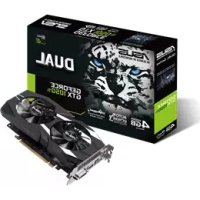
DUALGTX1050TI4GV2 - Graphic card ASUS - Free user manual and instructions
Find the device manual for free DUALGTX1050TI4GV2 ASUS in PDF.



Download the instructions for your Graphic card in PDF format for free! Find your manual DUALGTX1050TI4GV2 - ASUS and take your electronic device back in hand. On this page are published all the documents necessary for the use of your device. DUALGTX1050TI4GV2 by ASUS.
USER MANUAL DUALGTX1050TI4GV2 ASUS
ASUS GPU Tweak II User Manual
Q10790
First Edition
August 2015
Contents
English. 3
繁體中文 14
简体中文 25
Francais 36
日本語 47
Italiano 58
Pycckn 69
Čestina. 80
Nederlands 91
Elambdaeta 102
Portugues. 113
Polski 124
Espanol 135
YKpaHcbKa 146
Deutsch 157
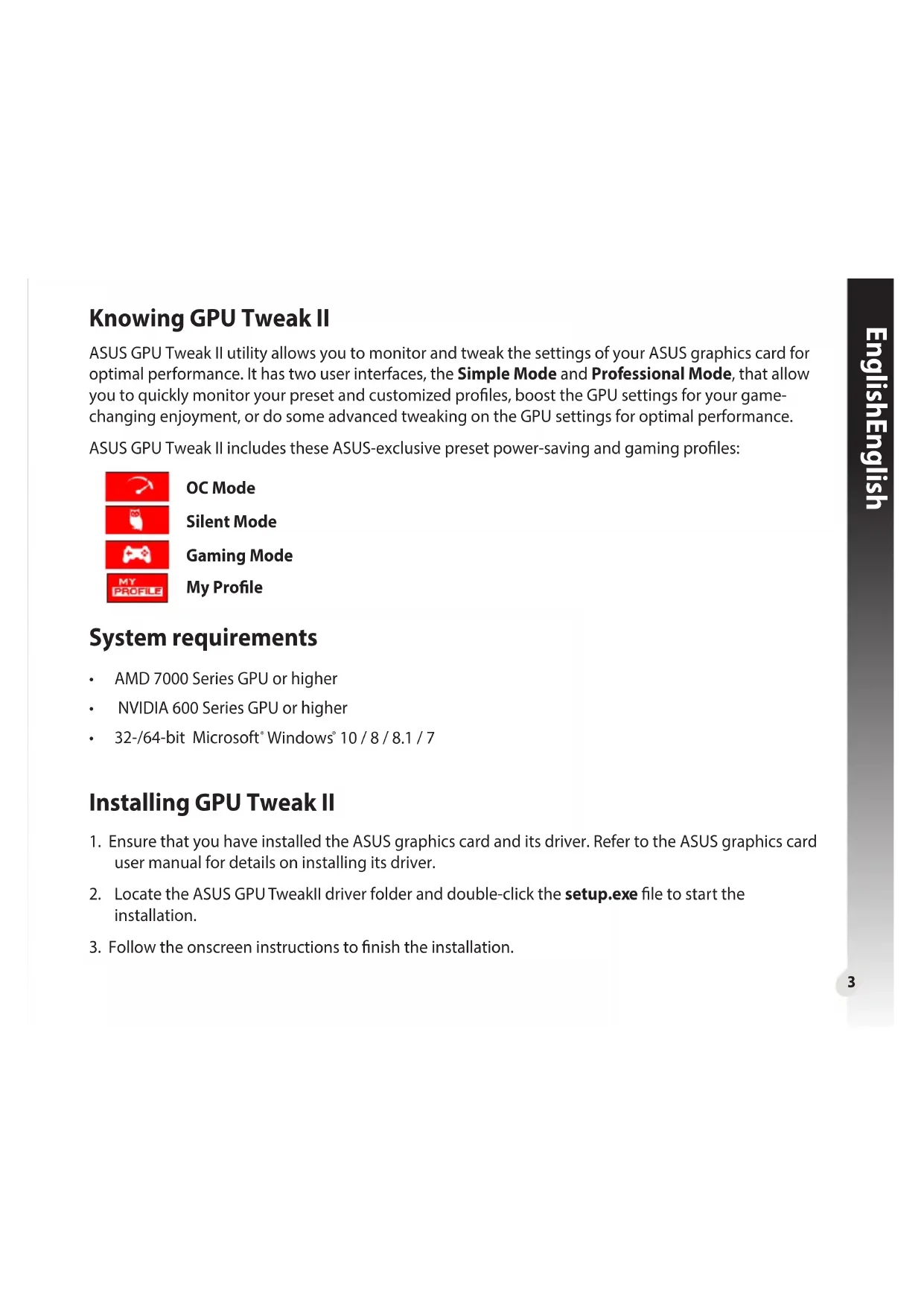
Knowing GPU Tweak II
ASUS GPU Tweak II utility allows you to monitor and tweak the settings of your ASUS graphics card for optimal performance. It has two user interfaces, the Simple Mode and Professional Mode, that allow you to quickly monitor your preset and customized profiles, boost the GPU settings for your game-changing enjoyment, or do some advanced tweaking on the GPU settings for optimal performance.
ASUS GPU Tweak II includes these ASUS-exclusive preset power-saving and gaming profiles:

OC Mode
Silent Mode
Gaming Mode
My Profile
System requirements
AMD 7000 Series GPU or higher
NVIDIA 600 Series GPU or higher
32-/64-bit Microsoft'Windows 10/8/8.1/7
Installing GPU Tweak II
- Ensure that you have installed the ASUS graphics card and its driver. Refer to the ASUS graphics card user manual for details on installing its driver.
- Locate the ASUS GPU TweakII driver folder and double-click the setup.exe file to start the installation.
- Follow the onscreen instructions to finish the installation.
Launching GPU Tweak II
Double-click the GPU Tweak icon h the desktop.
- Click Start > All Programs > ASUS > GPU Tweak II to launch the program.
Simple Mode
Simple Mode provides you with a quick way to monitor your GPU settings in real-time, and tweak some system settings via Gaming Booster for your game-changing enjoyment.
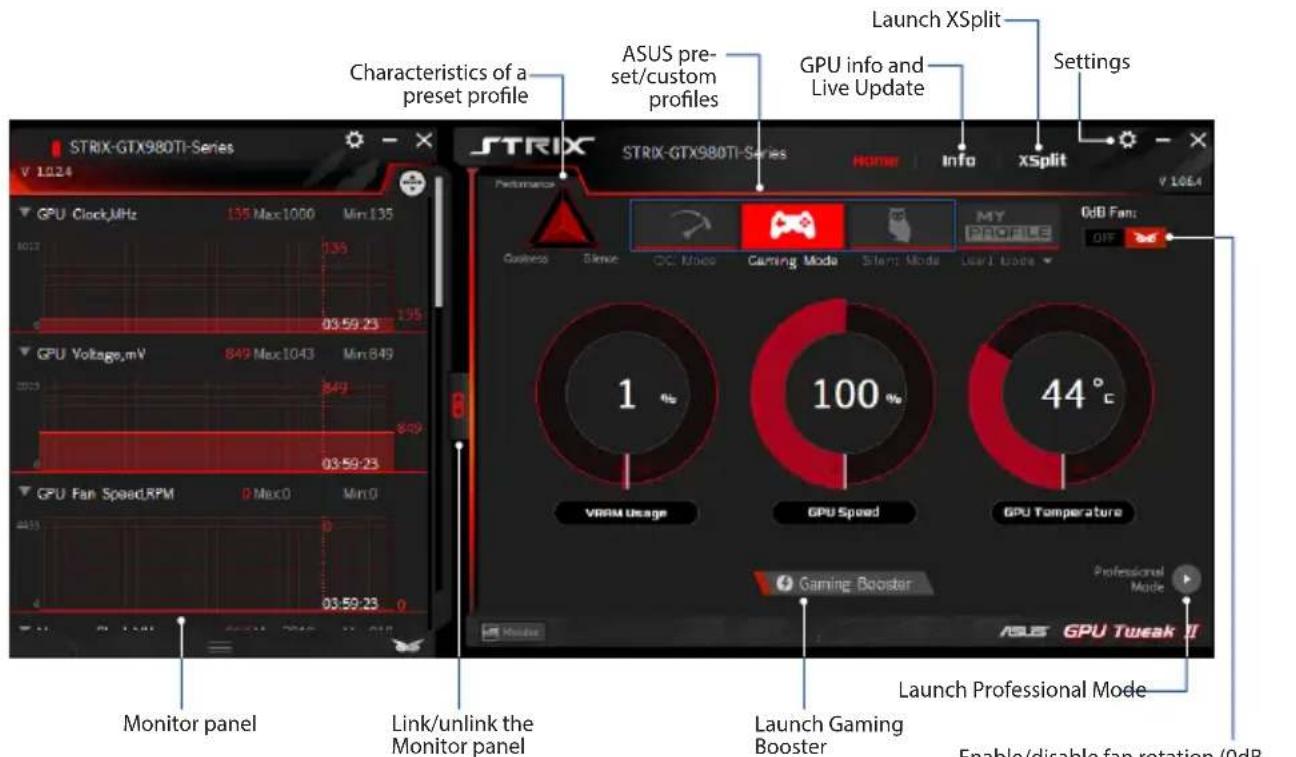
Enable/disable fan rotation (0dB Fan)* * Appears only on an ASUS Graphics card with 0dB Fan function.
Gaming Booster
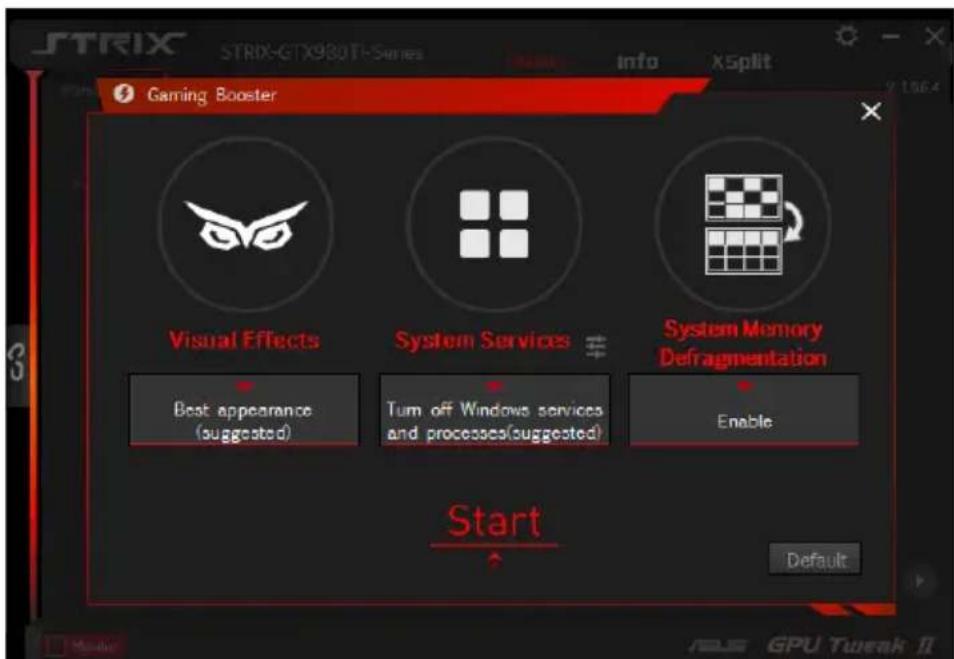
Get that game-changing performance edge with Gaming Booster, which helps optimize your system for a seamless and faster game play in your computer games.
Gaming Booster offers you these three (3) functions:
Visual Effects: Lets you turn off the Windows® visual effects to intensify the processor performance.
System Services: Lets you to automatically or manually turn off Windows® services or processes.
-
System Services setting: Lets you to manually choose the services or processes that you want to stop.
-
System Memory defragmentation: Lets you rearrange and clean your system memory without closing any processes.
Professional Mode
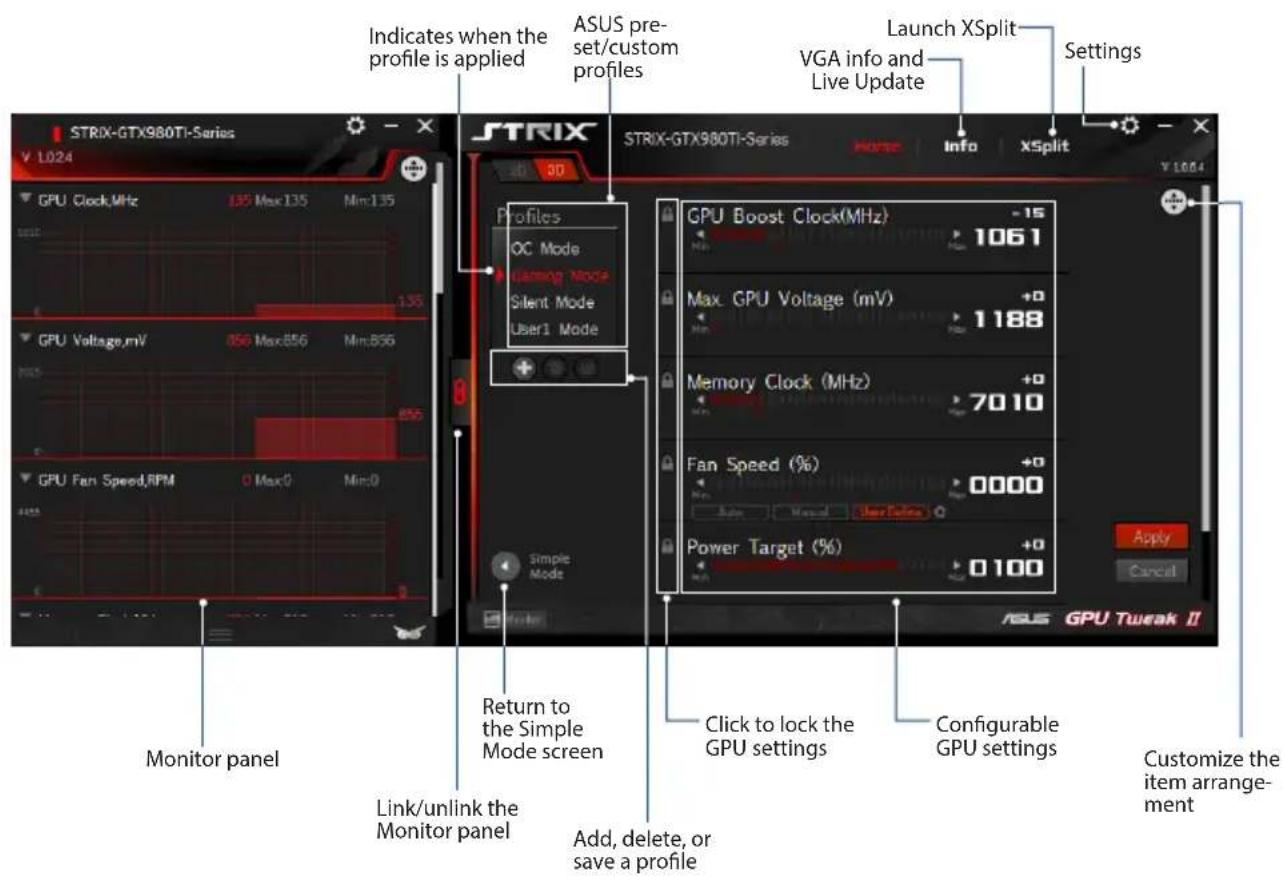
Configure the GPU settings like a pro, and get the optimal performance from your ASUS Graphics card.
Configuring a profile
- Select the profile that you want to configure.
- Select the GPU setting, then key in your preferred value.
- When done, click Apply
Adding a profile
- Click + then assign the profile name.
- Set your preferred values.
- When done, click save the profile.
Applying a profile
- Select the profile, then click Apply to apply the profile.
Deleting a profile
- Select the profile, then click to delete the profile.
Getting the VGA info and Live Update
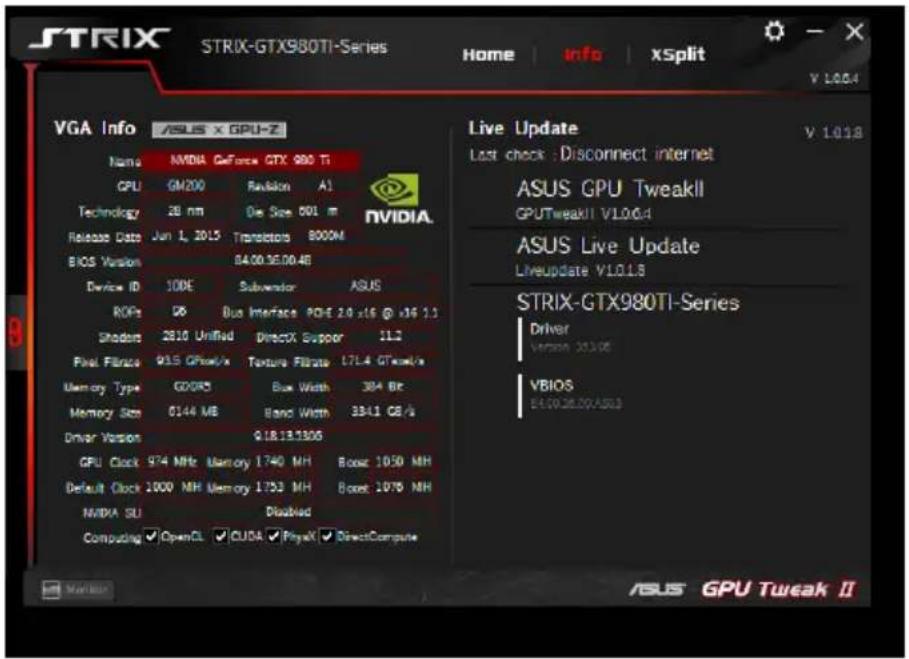
The Info screen provides you with information and live updates about your ASUS VGA card.
NOTE: Ensure that your computer is connected to the Internet to get the Live Update.
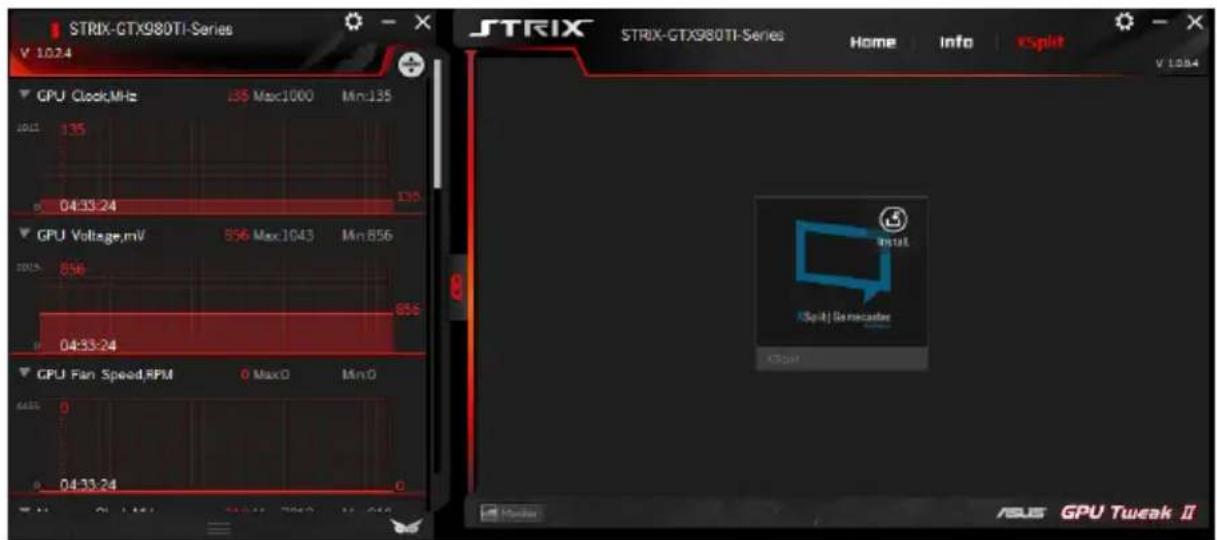
Launching XSplit
Install and launch XSplit Gamecaster from GPU Tweak II.
Using the Settings screen
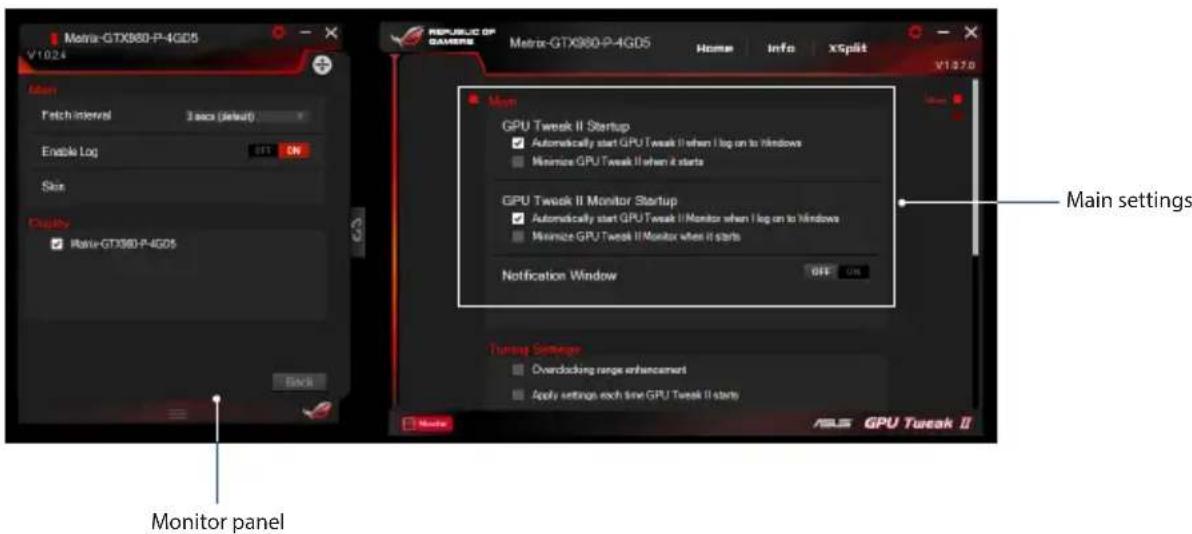
The Settings screen allows you to configure the GPU Tweak II settings such as Main, Tuning Settings, Live Update, and Keyboard Shortcuts.
Main
From the Main settings, you can select any of these options on launching GPU Tweak II:
- Automatically launch GPU Tweak II or its Monitor panel on Windows® startup.
- Minimize GPU Tweak II or its Monitor panel once launched.
- Turn the notification window on/off.
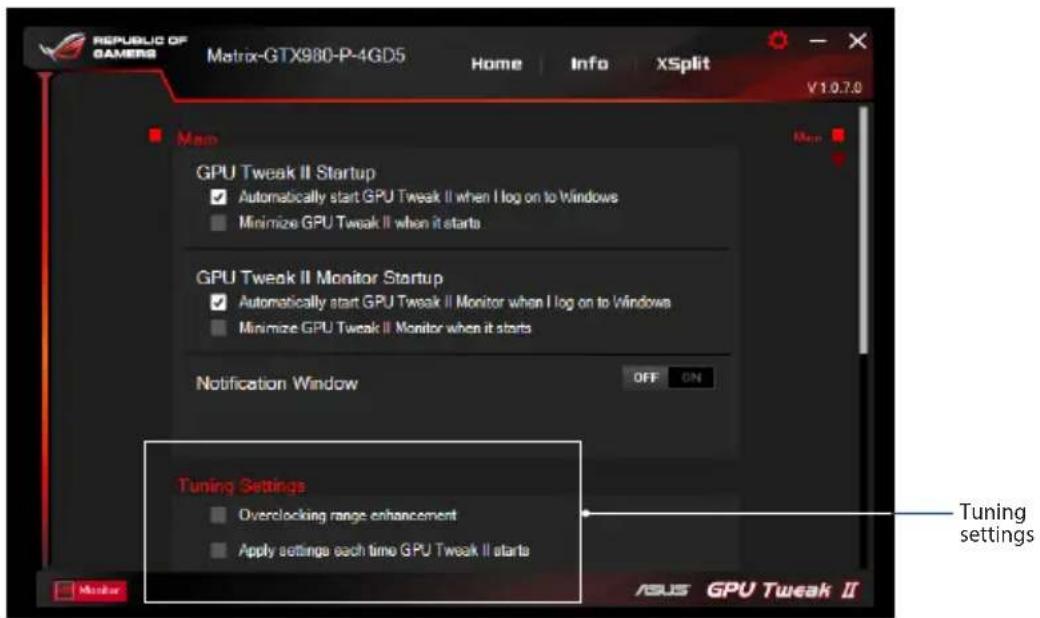
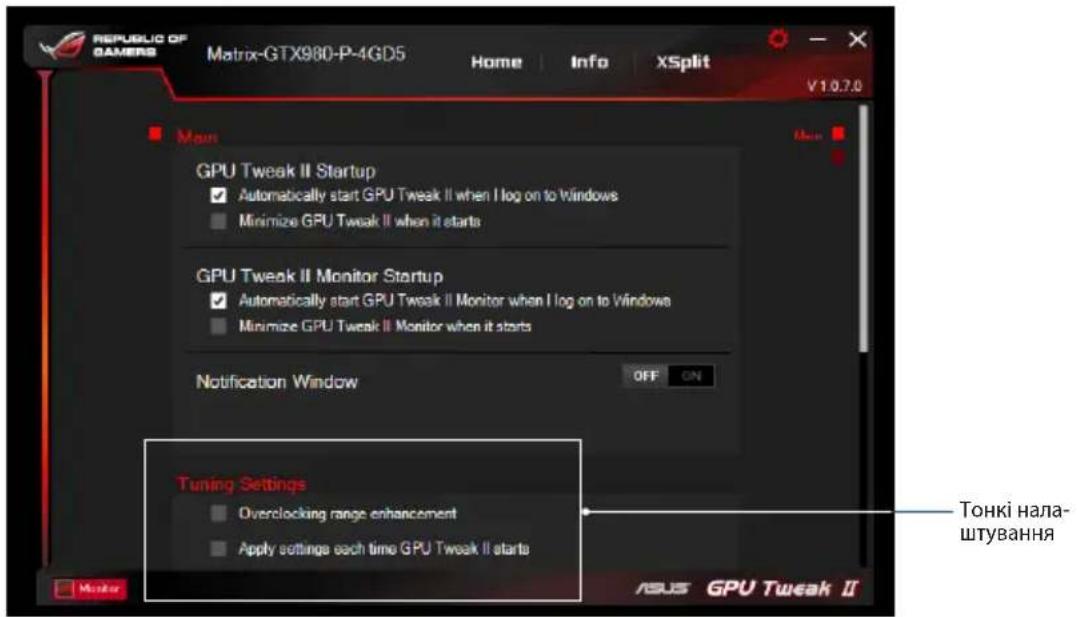
Tuning Settings
From the Tuning Settings, you can select any of these options on applying the GPU Tweak II settings:
- Enhance the overclocking range.
- Apply the settings on GPU Tweak startup.
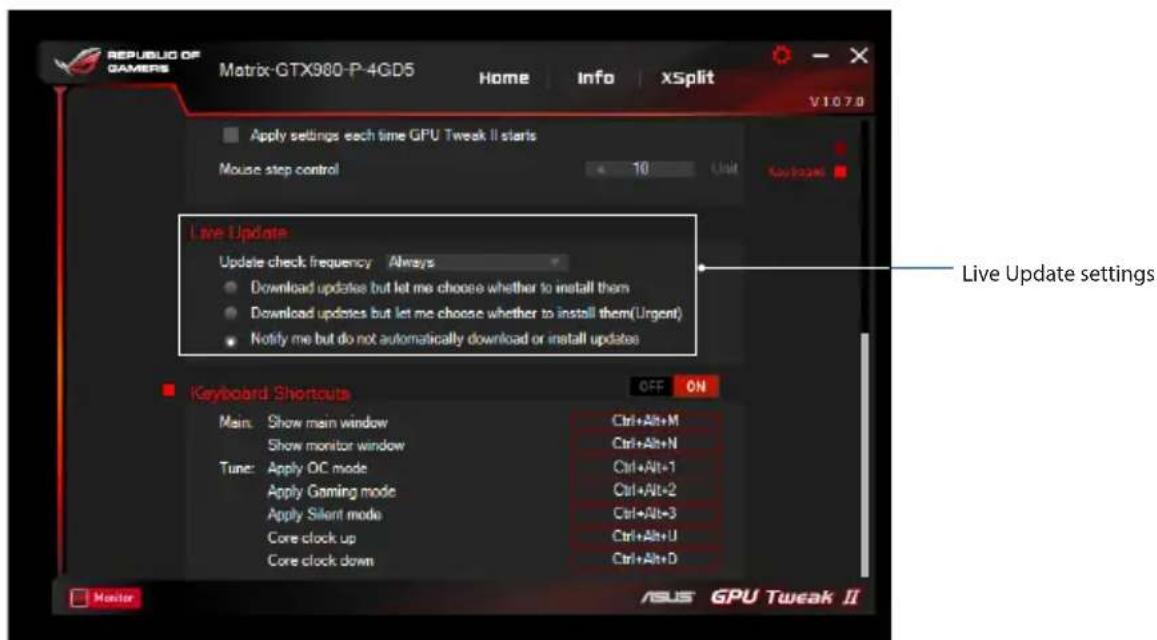
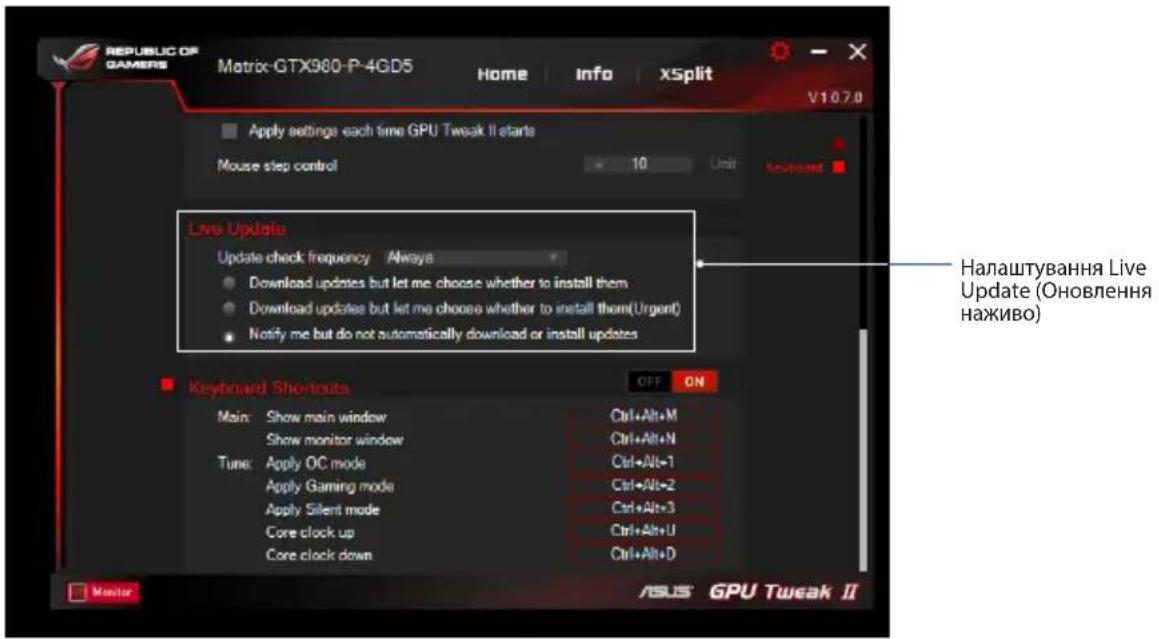
Live Update
Receive notifications on the latest VBIOS and driver updates from Live Update. Configure and select the following Live Update options:
- Set the Update check frequency as to when you want to receive the Live Update.
-
Select any of the Live Update options:
-
Download updates but let me choose whether to install them: Select this option to automatically download updates, and decide whether to manually install them.
- Download important updates but let me choose whether to install them: Select this option to automatically download critical updates, and decide whether to manually install them.
- Notify me but do not automatically download or install updates: Select this option to receive notifications only, and decide whether to manually download and install the updates.
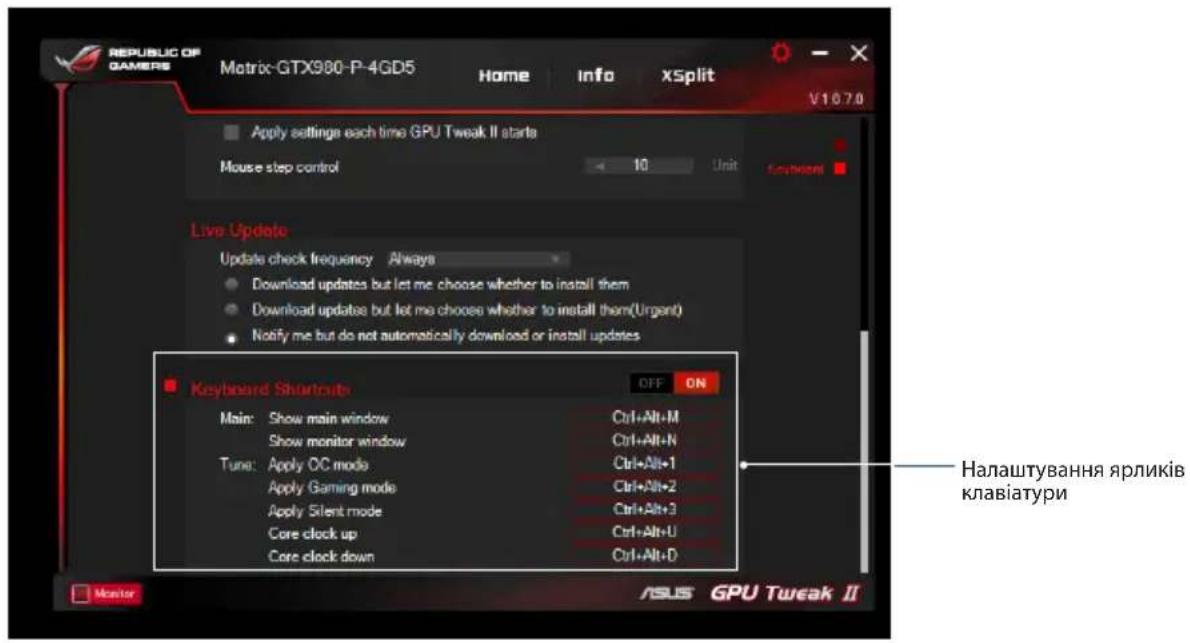
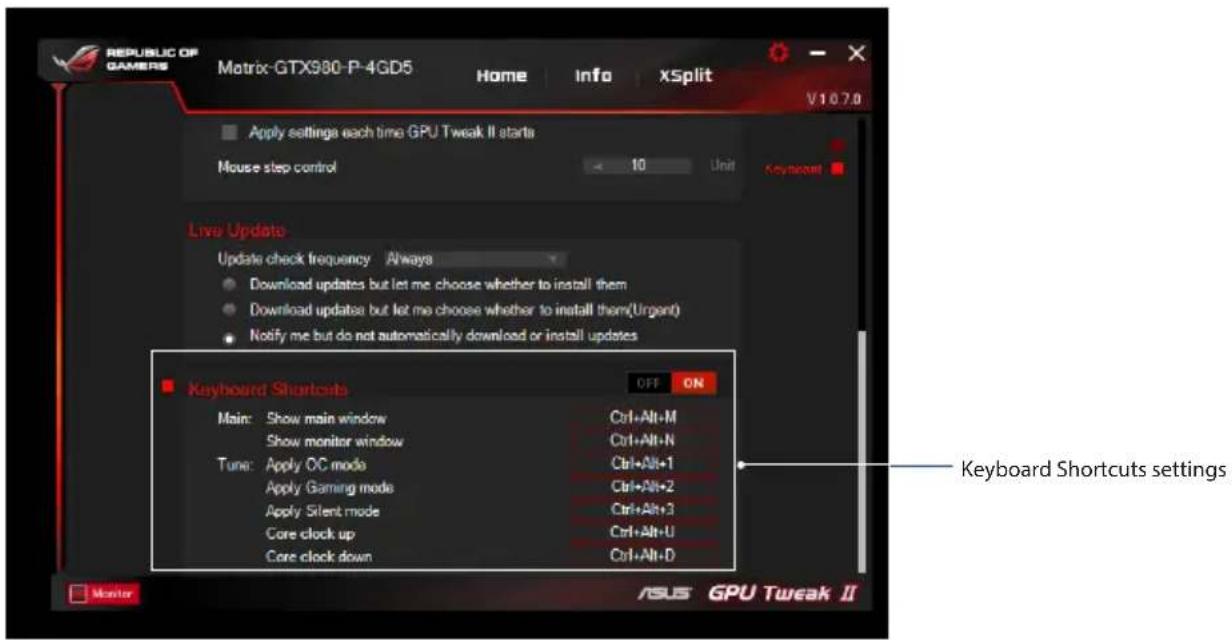
Keyboard Shortcuts
Turn on/off the Keyboard Shortcuts to quickly show the main screen or apply some quick adjustments.
了解GPU Tweak II
Gaming Mode (Tryb Gier)
My Profile (Moj profil)
Wymagania systemowe
Y Tuning Settings (ToHki HanaStyBaHHa) MoXHa Bn6paTn 6yIb-3x Oni3acTocyBaHHa GPU Tweak II:
36inbwnTn diaanaoh npnckopeHHraOHHHka.
3actocyBaTN HalauByaHHn iD vac 3anycky GPU Tweak.
OHOBHeHHHaXnBO
OtpmyBaTn cnoiueHn npo haihoi VBIOS i OHOBneHn IpaBepa Bi Live Update (OHOBneHn HaxnBO).KohphiIpyBaTn IB6paTn HactynHi onui Live Update (OHOBneHn HaxnBO);
BCTaHObUTn Update check frequency (Yactota nepeBipKn OHOBneHb) Ha YactOTy, 3 RaKOIO Bn 6aXaTe OTPmByatn Live Update (OHOBHeHHaXnBO).
Bn6epitb 6ydb-ky3 onui Live Update (OHOBneHna HaxnBO), 0o6:
3aBAHTaxNTn OHOBneHn, ane Do3BOUNt MeHi Bn6bnpaTn, nn HCTanIOBaTn ix: NocTaBte zu onuio Ha aBTOMaTnue He 3aBAHTaxKeHHn OHOBneHn i npabo BnpiSyBaTn, nn IHCTanIOBaTn ix BpyHy.
3aBaHTaXNTu BaxnBi OHOBHeH,ane Do3BOUNTu MeHi Bu6npaTu, uHCTaIIOBAtuix:IOCTaTe IIO ONiIO Ha aBTOMaTnUHe 3aBaHTaXeHHKpTNuHo BaxnBuX OHOBHeb i Do3BIn BuPiSyBaTu, uHCTaJIIOBAtu ix BpyHy.
CnoBiaatm Mei, ane He 3aBaHTaxyBaTu H e IHCTaIIOBAtn OHOBHeHH aBTOMaTHo: IocTaBte CuO onciHO Ha OTpMaHn JIWe CnoBiueH b I Do3BIn BnpiuYBaTu, YN 3aBaHTaxyBaTu Ta IHCTaIIOBAtn OHOBHeHH BpyHy.
Ярпкkn knabiatypn
YbIMKHyTN/BmMKHyTN RaPnKn KnaBiaTypn, 06 WbNko Noka3yBtAn rOJOBHn eKpaH i WbNko BHOCTN neBHi KopeKTnBn.