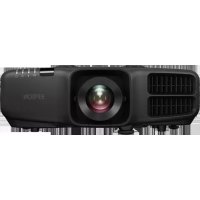
PowerLite Pro G6900WU - Projector EPSON - Free user manual and instructions
Find the device manual for free PowerLite Pro G6900WU EPSON in PDF.


| Product Type | HDBaseT Transmitter |
| Model | ELPHD01 (projector accessory) |
| Compatible Brand | Epson PowerLite Pro G6900WU |
| Dimensions (W x H x D) | 102 x 25 x 102 mm |
| Weight | Approx. 280 g |
| Power Supply | AC adapter 100-240 V AC, 50/60 Hz, output 11 V DC |
| Power Consumption (Operating) | 6 W |
| Power Consumption (Standby) | 0.48 W |
| Video Input | 1 x HDMI (HDCP supported) |
| Video Output | 1 x HDBaseT (RJ45) up to 100 m |
| Control Ports | LAN (RJ45), RS-232C (mini D-sub 9-pin), Wired-IR (3.5 mm mini-jack) |
| Required Network Cable | Category 5e or 6, shielded, twisted pair, straight |
| Maximum Network Cable Length | 100 m |
| Operating Temperature | +5 to +35 °C |
| Storage Temperature | -10 to +60 °C |
| Operating Humidity | 20 to 80% (non-condensing) |
| Main Functions | Long-distance transmission of HDMI and RS-232 signals via HDBaseT, auto sleep mode, direct power, grounding |
| Safety | Use only the supplied adapter, do not expose to moisture, grounding mandatory |
| Maintenance and Cleaning | Turn off and disconnect before cleaning, do not use solvents |
| Box Contents | Transmitter, AC adapter, power cable, ground conductor |
| Warranty | Refer to the projector user guide |
Frequently Asked Questions - PowerLite Pro G6900WU EPSON
User questions about PowerLite Pro G6900WU EPSON
0 question about this device. Answer the ones you know or ask your own.
Ask a new question about this device
Download the instructions for your Projector in PDF format for free! Find your manual PowerLite Pro G6900WU - EPSON and take your electronic device back in hand. On this page are published all the documents necessary for the use of your device. PowerLite Pro G6900WU by EPSON.
USER MANUAL PowerLite Pro G6900WU EPSON
HDBaseT™ and the HDBaseT Alliance logo are trademarks of the HDBaseT Alliance.
©SEIKO EPSON CORPORATION 2013. All rights reserved.
使用·保管上の注意
Thank you very much for purchasing this product.
Make sure you read this guide before using the product to ensure you use it safely and correctly. Keep this guide in a safe place so that you can access it easily if you have any questions in the future.
- See the projector's "User's Guide" for additional information not covered in this guide.
Safety Instructions
The documentation uses graphical symbols to show how to use the product safely and avoid injury to others or damage to property. The symbols and their meanings are shown below. Make sure you understand these symbols before reading this guide.
| Warning | This symbol indicates information that, if ignored, could possibly result in personal injury or even death due to incorrect handling. |
| Caution | This symbol indicates information that, if ignored, could possibly result in personal injury or physical damage due to incorrect handling. |
| Warning |
| • Only use the device at the specified voltage. |
| • Check the specifications for the power cable. If you do not use the correct power cable, a fire or electric shock could occur. |
| • Do not leave this device unattended in locations subject to unusually high temperatures such as in a car with the windows closed, in direct sunlight, next to the exhaust vent of an air-conditioner or heater, and so on. The device may be deformed by the high temperatures, the internal workings may be damaged, or a fire could occur. |
| Take care when handling the power plug. If it is not handled correctly, a fire or electric shock could occur. Note the following points when handling the plug. ·Do not overload wall outlets, extension cables, or power strips. ·Do not plug it in if there are any foreign substances, such as dust, attached to the plug. ·Make sure the plug is fully plugged in. ·Do not plug in or unplug if your hands are wet. ·Do not unplug by pulling on the power cable. ·Do not use a different power supply (AC adapter). Only use the one supplied. |
| Do not use a damaged power cable. Otherwise, a fire or electric shock could occur. ·Do not modify the power cable. ·Do not place heavy objects on the power cable. ·Do not apply excess force, bend, or twist the power cable. ·Do not perform wiring near an electric heater. |
| Do not install or use this device in locations subject to humidity or water such as outdoors, near a bath or shower, and so on. Otherwise, a fire or electric shock could occur. |
| Make sure this device is grounded (earthed). Connect the FG port on the device to an earth wire. |
| Do not touch the plug during a thunderstorm. Otherwise, an electric shock could occur. |
| Except as indicated in the "User's Guide", the case for this device should only be opened by qualified service personnel. Do not disassemble or remodel this device or its consumables. Many sections inside the device carry a high electrical charge which could cause a fire or electric shock to occur. |
| Do not place vases, containers containing water, or medical containers on this device. If any liquid spills from the container, a fire or electric shock could occur. |
| If you notice any of the following abnormalities, turn off the device immediately, unplug the power cable from the electrical outlet, and contact your local dealer or Epson service call center. ·If you see smoke coming from the device, or notice abnormal odors or sounds. ·If any water or foreign substances enter the device. ·If the device was dropped and the case was damaged. If you continue using the device in any of these states, a fire or electric shock could occur. Do not perform repairs yourself. |
| Caution |
| When moving the device, make sure you turn off the power, unplug the power cable from the electrical outlet, and disconnect any wiring before moving. Otherwise, a fire or electric shock could occur. |
| Do not install the device in a location subject to humidity or dust such as a kitchen counter or near a humidifier, or in a location subject to smoke or steam. Otherwise, a fire or electric shock could occur. |
| Do not install the device in the following locations. • On a carpet, a bed, a blanket, and so on. • Do not cover it with a blanket, curtain, tablecloth, and so on. |
| Do not place it on a surface that is slanted or unstable. Otherwise, it could fall and cause an injury. |
| When maintaining the device, do not use a wet cloth or solvents such as alcohol, benzene, or thinner. Otherwise, an electric shock or malfunction could occur. |
| Do not sit on this device, or place heavy objects on this device. Otherwise, an injury could occur. |
| When maintaining the device, make sure you unplug the power, unplug the power cable from the electrical outlet, and disconnect any wiring before performing maintenance. Otherwise, an electric shock could occur. |
| For safety reasons, when not using this device, make sure you unplug the power cable from the electrical outlet. If the insulation has degraded, a fire could occur. |
Trademarks and Copyrights
HDMI and High-Definition Multimedia Interface are the trademarks or registered trademarks of HDMI Licensing LLC.
HDBaseT™ and the HDBaseT Alliance logo are trademarks of the HDBaseT Alliance.
Other product names used herein are also for identification purposes only and may be trademarks of their respective owners. Epson disclaims any and all rights in those marks.
©SEIKO EPSON CORPORATION 2013. All rights reserved.
Notes on Usage and Storage
- Do not drop the device or subject it to shocks.
- Use and store the device under the following conditions. Power (AC adapter): 100 to 240V AC ± 10% 50/60 Hz Operating temperature: +5 to +35^ (41 to 95^ ); no condensation Storage temperature: -10 to +60^ (14 to 140^ ); no condensation
- Do not install it in a location subject to vibrations or shocks.
- Do not use or store the device in locations subject to high or low temperatures. Avoid sudden changes in temperature. Otherwise, the device may not operate correctly.
- Make sure there is a gap of at least 20 ~mm (0.8 inch) between the device and the walls on the left and right to prevent the air vents on the side from being blocked, and a gap of at least 25 ~mm (1 inch) above the device.
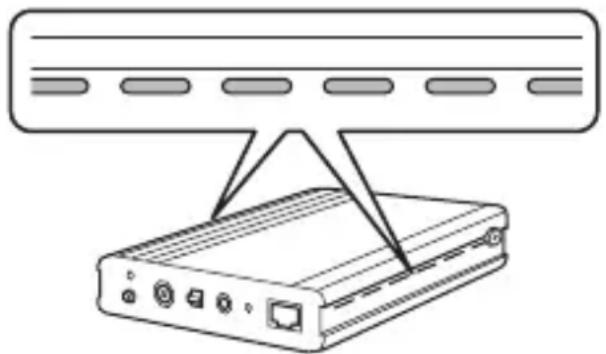
- Do not install the device near high-voltage lines or magnetic equipment. Otherwise, the device may not operate correctly.
- Because it can be easily influenced by internal noise, make sure the LAN cable is completely unwound and stretched out when installing.
- Do not twist or bend the LAN cable.
- Do not tie the LAN cable together with other cables. In particular, make sure that it is separated from the power cable.
- Do not loosen any screws except for the FG port screw.
- Make sure the earth wire is grounded before use.
- Connect all necessary cables before turning on the device.
-
During communication, do not turn on/off this device or the projector, and do not connect or disconnect any cables.
-
If you notice any operational abnormalities or damage, stop using the device immediately and contact your local dealer or the nearest Epson repair center mentioned in the projector's "User's Guide".
- This is an optional device made exclusively for Epson projectors. See the projector's "User's Guide" for more information on handling this device.
Function Overview
This transmitter allows long-distance transmission of an HDMI and control (RS-232C) signal using a LAN cable (category 5e or 6). This device is based on the HDBaseT standard.
This device is useful when you want to control the projector from a remote location, such as in a hall or event site, since you can use a LAN cable up to 100 m (328 feet) in length.
Connecting
Connect the projector to the HDBaseT port on this device using a LAN cable. Then connect this device to your HDMI compatible video equipment or a computer to control the projector with.
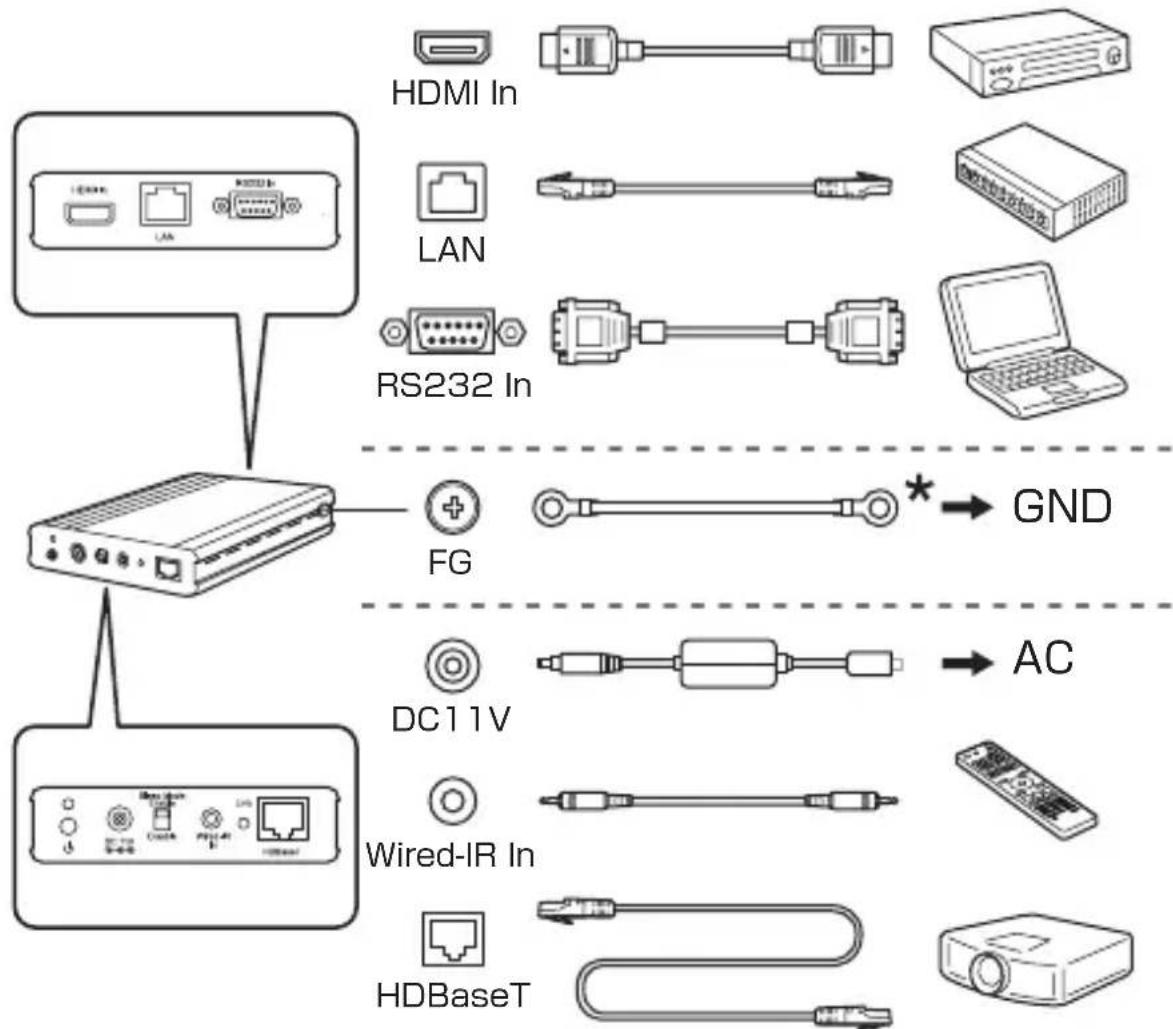
* Fix this with an M4 screw.
Interface
Front
Z
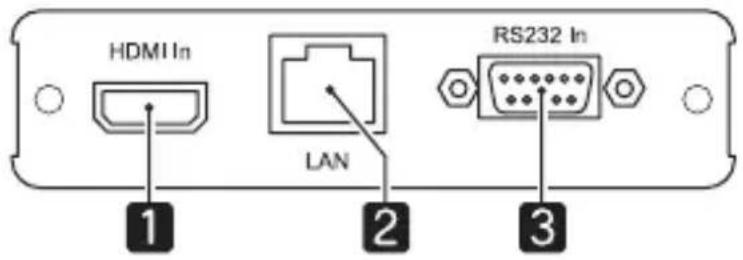
Rear
| Name Function | ||
| 1 | HDMI In port Inputs | video and audio signals from HDMI compatible video equipment and computers. |
| 2 | LAN port (for control) | Allows the device to connect to a network using a LAN cable. Connect when controlling the projector from a computer over a network. |
| 3 | RS-232 In port (for control) | Allows the device to connect to a computer using a RS-232C cable. Connect when controlling the projector from a computer. |
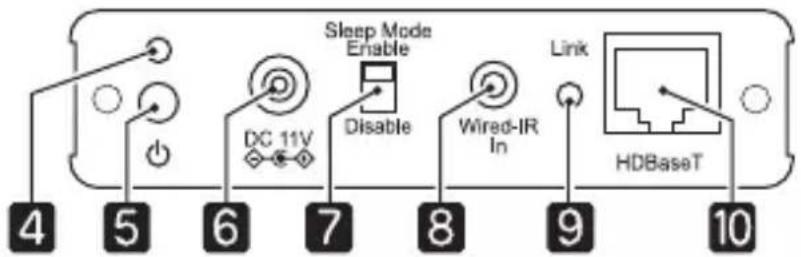
| 4 | Power indicator Ind | cates the operating status of the device. On green: Device is operating. On orange: Device is standing by. |
| 5 | Power button Turns | the device on/off. This device supports Direct Power On. This feature allows the projector to turn on automatically when power is supplied to it. |
| 6 | Power inlet Connects | Is the AC adapter's power plug. Do not use a different power supply (AC adapter/ power cable). Only use the one supplied. Note that when the power cable is plugged in, this device turns on automatically (Direct Power On) when power is restored after a power outage. |
| 7 | [Sleep Mode] switch | When set to [Enable], the device automatically enters sleep mode and turns off after 30 minutes if no signals are input. Press the power button to turn the device back on. When set to [Disable], the device does not turn off automatically. When monitoring and controlling using HDBaseT, set this to [Disable] so that the device does not enter sleep mode. If the device is connected to an access point over a LAN connection, it will not turn off even when sleep mode is enabled. |
| 8 | Wired-IR In port Connects | Connects the projector's optional remote control cable set (ELPKC28) and inputs signals from the remote control. |
| 9 | Link indicator Turns | green when communicating with the projector. |
| 10 | HDBaseT port Allows | the device to connect to a projector using a LAN cable. |
| 11 | FG connector (earth) | Grounds the earth wire. |
Supported LAN Cables
Use a category 5e or category 6 straight STP cable. When using a cable, use a tester to check that the cable's properties are at least category 5e before connecting. When using a relay connector, make sure the connecting cables meet the specifications mentioned above.
Troubleshooting
| Problem Solution | |
| No images appear Is the power on?Check that the Power indicator is green. | Is the power on?Check that the Power indicator is green. |
| Is the HDMI cable connected correctly?Check that the HDMI cable is securely connected to the connectors on the video equipment and this device. | |
| Is the LAN cable connected correctly?Check that the Link indicator is green. Also, make sure you are using a category 5e or category 6 straight STP cable. | |
| Is the HDMI device turned on?Check that the HDMI device is turned on and that an image is being played back. | |
| Was a cable connected during operation?Connect all necessary cables before turning on this device. | |
| If an image is still not displayed even after checking the points above, try turning the power off and then back on for all connected devices. | |
| The image is blurred | Is the LAN cable connected correctly?Check that the Link indicator is green. Also, make sure you are using a category 5e or category 6 straight STP cable. Do not use a UTP cable. |
| Is the earth wire grounded?To perform stable communication with the projector, make sure the device is grounded. | |
| Is the LAN cable tied to other cables?If the LAN cable is tied to any other cables, noise may occur. | |
| No HDMI audio is output | Is an HDMI cable being used to connect the devices?If no audio is output when connecting via an HDMI cable, set the connected equipment to PCM output. |
| The remote control does not work | Is the remote control cable connected correctly? Check that the remote control cable is securely connected to the connectors on the remote control and this device. |
| Do the remote control ID and the projector ID match? Make sure the ID for the projector you want to operate and the ID for the remote control match. | |
| Is a remote control from another company connected? Remote controls from other companies are not supported. | |
| Is the device ready to communicate? See the following entry "Cannot communicate". | |
| Cannot communicate (Cannot control from the LAN, RS-232 In, or Wired-IR In ports) | Is the HDBaseT function enabled for the connected projector? Check the projector's settings. |
| Has the device entered sleep mode? In sleep mode, the device cannot be controlled from the RS-232 In or Wired-IR In ports. Set the [Sleep Mode] switch to [Disable]. | |
| Was the power turned on/off or a cable connected or disconnected during communication? A communication error occurs if the power or the signal is disrupted during communication. |
Specifications
| HDBaseT port RJ45 | Cable length 100 m (328 feet) maximum |
| Supported output signals (HDBaseT) | HDMI (Video, Audio)/RS-232 (for control)/Wired IR (Remote Control)/LAN (for control) |
| HDMI In port HDMI | HDCP supported (only PCM supported for audio)/Cable length 3 m (9.8 feet) maximum |
| HDMI input signals | VGA/SVGA/XGA/WXGA/WXGA+/WXGA++/WSXGA+/ SXGA/SXGA+/UXGA/WUXGA/SDTV(480i/480p)/SDTV(576i/576p)/HDTV(720p)/HDTV(1080i)/HDTV(1080p)* Varies depending on the connected projector. For more details, see the projector's "User's Guide". |
| LAN port RJ45 (100 | Base-TX only) |
| RS-232 In port Mini | D-Sub 9 pin (male)/Cable length 5 m (16.5 feet) maximum (cross cable) |
| Wired-IR In port | Stereo mini jack (3.5 Φ)/Cable length 20 m (65.6 feet) maximum |
| Power supply (AC adapter) | 100 to 240 V AC ±10% 50/60 Hz |
| Power (ELPHD01) | 11 VDC |
| Power consumption | Operating: 6 W Standing by: 0.48 W |
| Operating environment | Temperature: +5 to +35°C (41 to 95°F) Humidity: 20 to 80% (no condensation) |
| Storage environment | Temperature: -10 to +60°C (14 to 140°F) Humidity: 10 to 90% (no condensation) |
| Dimensions (W x H x D) | 102 x 25 x 102 mm (4 x 1 x 4 inches); not including projecting parts |
| Mass Approx. 280 g | |
| Items Included HDB | aseT Transmitter, AC adapter, power cable, earth wire |
Wiring for the RS-232 In Port
Use an RS-232C cross cable.
- Signal name
| Connector Pin Signal | Name Function | |
| ○①②③④⑤⑥⑦⑧⑨○ | 2 RD Receive data | |
| 3 TD | Transmit data | |
| 5 GND | Signal wire ground |
Communications protocol
Default baud rate setting: 9,600 bps, Data length: 8 bit, Parity: None, Stopbit: 1 bit, Flow control: None
Introduction
HDBaseT™ and the HDBaseT Alliance logo are trademarks of the HDBaseT Alliance.
©SEIKO EPSON CORPORATION 2013. All rights reserved.
HDBaseT™ and the HDBaseT Alliance logo are trademarks of the HDBaseT Alliance.
© SEIKO EPSON CORPORATION 2013. All rights reserved.
HDBaseT™ and the HDBaseT Alliance logo are trademarks of the HDBaseT Alliance.
©SEIKO EPSON CORPORATION 2013. All rights reserved.

HDBaseT™ and the HDBaseT Alliance logo are trademarks of the HDBaseT Alliance.
©SEIKO EPSON CORPORATION 2013. All rights reserved.
HDBaseT™ and the HDBaseT Alliance logo are trademarks of the HDBaseT Alliance.
©SEIKO EPSON CORPORATION 2013. All rights reserved.
©SEIKO EPSON CORPORATION 2013. All rights reserved.
本产品中有毒有害物质或元素的名称及含量
HDBaseT™ and the HDBaseT Alliance logo are trademarks of the HDBaseT Alliance.
©SEIKO EPSON CORPORATION 2013. All rights reserved.
使用及存放注意事項
FCC Compliance Statement For United States Users
This equipment has been tested and found to comply with the limits for a Class B digital device, pursuant to part 15 of the FCC Rules. These limits are designed to provide reasonable protection against harmful interference in a residential installation. This equipment generates, uses and can radiate radio frequency energy and, if not installed and used in accordance with the instructions, may cause harmful interference to radio communications. However, there is no guarantee that interference will not occur in a particular installation. If this equipment does cause harmful interference to radio or television reception, which can be determined by turning the equipment off and on, the user is encouraged to try to correct the interference by one or more of the following measures:
- Reorient or relocate the receiving antenna.
- Increase the separation between the equipment and receiver.
- Connect the equipment into an outlet on a circuit different from that to which the receiver is connected.
- Consult the dealer or an experienced radio/TV technician for help.
For United States Users
In North America, wiring needs to be fireproofed as defined in NFPA70. Make sure you use a suitable LAN cable when performing wiring.
For Canadian Users
This Class B digital apparatus complies with Canadian ICES-003.
For users in Turkey: In Conformity with the Turkish EEE Regulation.
WARNING: The cords included with this product contain chemicals, including lead, known to the State of California to cause birth defects or other reproductive harm. Wash hands after handling. (This notice is provided in accordance with Proposition 65 in Cal. Health & Safety Code § 25249.5 and following.)
For users outside the Province of Buenos Aires, Argentina:
This information only applies to customers in the Province of Buenos Aires, Argentina, according to Law No. 14321 in the Province of Buenos Aires (excluding the City of Buenos Aires) on waste electrical and electronic equipment (WEEE).
For other countries and other locations, please contact your local government to investigate the possibility of recycling your product.


- 使用·保管上の注意
- Safety Instructions
- Trademarks and Copyrights
- Notes on Usage and Storage
- Function Overview
- Connecting
- Interface
- Front
- Rear
- Supported LAN Cables
- Troubleshooting
- Wiring for the RS-232 In Port
- Introduction
- 本产品中有毒有害物质或元素的名称及含量
- 使用及存放注意事項
- FCC Compliance Statement For United States Users
- For United States Users
- For Canadian Users
- For users outside the Province of Buenos Aires, Argentina:
Brand : EPSON
Model : PowerLite Pro G6900WU
Category : Projector