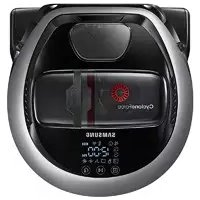
Powerbot R7065 - Robot vacuum SAMSUNG - Free user manual and instructions
Find the device manual for free Powerbot R7065 SAMSUNG in PDF.



| Product Type | Robot Vacuum |
| Brand | Samsung |
| Model | Powerbot R7065 |
| Dimensions (L x W x H) | 340 x 348 x 97 mm |
| Weight | 4 kg (varies by model) |
| Power Supply | 100-240 V, 50/60 Hz |
| Power Consumption | 80 W |
| Battery Type | Lithium-ion 21.6 V |
| Battery Capacity | 38.8 Wh |
| Runtime (hard floor, Normal mode) | 60 min |
| Charging Time | 240 min (approx) |
| Cleaning Modes | Auto, Spot, Repeat, Manual |
| Special Features | Intelligent Power Control, Corner Clean Brush, Silent Mode |
| Connectivity | Wi-Fi 802.11 b/g/n (2.4 GHz) |
| Mobile App | Samsung Connect (Android/iOS) |
| Included Accessories | Base, remote control, docking stations, replacement filter |
| Sensors | Obstacles, drop-off, camera (Visionary Mapping Plus) |
| Maintenance | Washable dustbin and filter |
| Safety | Emergency switch, anti-collision sensor |
| Spare Parts | Brush, filter, battery (replacement at authorized center) |
| Repairability | Repair by authorized Samsung service center |
Frequently Asked Questions - Powerbot R7065 SAMSUNG
User questions about Powerbot R7065 SAMSUNG
0 question about this device. Answer the ones you know or ask your own.
Ask a new question about this device
Download the instructions for your Robot vacuum in PDF format for free! Find your manual Powerbot R7065 - SAMSUNG and take your electronic device back in hand. On this page are published all the documents necessary for the use of your device. Powerbot R7065 by SAMSUNG.
USER MANUAL Powerbot R7065 SAMSUNG
SR1AM70****, SR2AM70**** Series
Before operating this unit, please read the instructions carefully.
- For indoor use only.
Contents
03 Safety information
10 Installation Accessories / Installation note
12 Charging Automatic charging / Recharging / Low battery (Lo)
14 Using POWERbot Turning the power on/off / Selecting cleaning modes / Using special cleaning functions / About the boundary markers / Using Energy-saving mode
18 Using the remote control
21 Name of each part Top/Bottom/Display panel
23 Setting time/schedule Setting the time / Setting the schedule
26 Cleaning and maintaining Cleaning the dustbin / Cleaning the sensors and the camera / Cleaning the brush and Auto shutter tool / Cleaning the Driving wheel
28 Samsung Connect App
32 Notes and cautions Charging / Using / Cleaning and maintenance / About the battery / About the IrDA sensor
34 Information codes
36 Troubleshooting
40 Open Source Announcement
41 Specifications
Safety information
SAFETY INFORMATION

- Before operating the appliance, please read this manual thoroughly and retain it for your reference.

- Because the following operating instructions cover various models, the characteristics of your vacuum cleaner may differ slightly from those described in this manual.
CAUTION/WARNING SYMBOLS USED
| WARNING | Indicates that a danger of death or serious injury exists. |
| CAUTION | Indicates that a risk of personal injury or material damage exists. |
OTHER SYMBOLS USED
| NOTE | Indicates that the following text contains additional important information. |
State of California Proposition 65 Warning (US only)

This product contains chemicals known to the State of California to cause cancer and birth defects or other reproductive harm.
For battery recycling go to call2recycle.org
or call 1-800-822-8837
ENGLISH-03
Safety information
IMPORTANT SAFETY INSTRUCTIONS
When using an electrical appliance, basic precautions should be observed, including the following:
READ ALL INSTRUCTIONS BEFORE USING YOUR POWERbot.
Unplug from outlet when not in use and before conducting maintenance.
WARNING: To reduce the risk of fire, electric shock, or injury:
GENERAL
- Use only as described in this manual.
- Do not operate POWERbot or the battery charger / docking station if it has been damaged in any way.
- If the vacuum cleaner is not working as it should, has been dropped, damaged, left outdoors, or dropped in water, contact an authorized Samsung service center.
- Do not handle the battery charger / docking station or POWERbot with wet hands.
- Use only on dry, indoor surfaces.
- This appliance is not intended for use by persons (including children) with reduced physical, sensory or mental capabilities, or lack of experience and knowledge, unless they have been given supervision or instruction concerning use of the appliance by a person responsible for their safety. Do not let children clean or perform user maintenance on the POWERbot without adult supervision.
- Place the cords from other appliances out of the area to be cleaned.
- Do not operate the vacuum in a room where an infant or child is sleeping.
- Do not operate the vacuum in an area where there are lit candles or fragile objects on the floor.
- Do not operate the vacuum in a room that has lit candles on furniture that the vacuum may accidentally hit or bump into.
- Do not allow children to sit on the vacuum.
- Do not use the vacuum on a wet surface.
Battery charger / Docking station
- Do not modify the polarized plug to fit a non-polarized outlet or extension cord.
- Do not use outdoors or on wet surfaces.
- Unplug the battery charger / docking station from the outlet when not in use and before servicing.
- Use only the battery charger / docking station supplied by the manufacturer to recharge the POWERbot.
- Do not use with a damaged cord or plug or a loose power outlet.
- Do not pull or carry by the cord, use the cord as a handle, close the door on the cord, or pull the cord around sharp edges or corners. Keep the cord away from heated surfaces.
ENGLISH-04
- Do not use extension cords or outlets with inadequate current carrying capacity.
- Do not unplug by pulling on the cord. To unplug, grasp the plug, not the cord.
- Do not mutilate or incinerate batteries as they will explode at high temperatures.
- Do not attempt to open the battery charger / docking station. Repairs should only be carried out by a qualified Samsung service center.
- Do not expose the battery charger / docking station to high temperatures or allow moisture or humidity of any kind to come into contact with the battery charger / docking station.
POWERbot
- Do not use to pick up hard or sharp objects such as glass, nails, screws, coins, and etc.
- Do not use without a filter in place. When servicing the unit, never put fingers or other objects into the fan chamber in case the unit accidentally turns on.
- Do not put any objects into openings. Do not use with any openings blocked; keep openings free of dust, lint, hair, and anything that may reduce air flow.
- Do not use to pick up toxic materials (chlorine bleach, ammonia, drain cleaner, etc.).
- Do not use to pick up anything that is burning or smoking, such as cigarettes, matches, or hot ashes.
-
Do not use to pick up flammable or combustible liquids such as gasoline or use in areas where they may be present. Also do not use in:
-
Locations with candles or desk lamps on the floor.
- Locations with unattended fires (fire or embers).
-
Locations with distilled alcohol, thinner, ashtravs with burning cigarettes, etc.
-
Do not use POWERbot in an enclosed space filled with vapors given off by oil based paint, paint thinner, moth proofing substances, flammable dust, or other explosive or toxic vapors.
-
Leaks from battery cells can occur under extreme usage or temperature conditions. If the liquid gets on skin, wash quickly with water. If the liquid gets into eyes, flush them immediately with clean water for a minimum of 10 minutes. Seek medical attention.
SAVE THESE INSTRUCTIONS
POLARIZED PLUG INSTRUCTIONS
- To reduce the risk of electric shock, this appliance has a polarized plug (one blade is wider than the other). This plug will fit in a polarized outlet only one way. If the plug does not fit fully in the outlet, reverse the plug. If it still does not fit, contact a qualified electrician to install a proper outlet. Do not modify the plug in any way.
ENGLISH-05
Safety information
REGULATORY NOTICE
1. FCC Notice

FCC CAUTION:
- Any changes or modifications not expressly approved by the party responsible for compliance could void the user's authority to operate the equipment.
-
This device complies with Part 15 of FCC Rules. Operation is Subject to following two conditions:
-
This device may not cause harmful interference, and
- This device must accept any interference received including interference that cause undesired operation.
- For products available in the US and Canadian markets, only channels 1~11 are available. You cannot select other channels.
FCC STATEMENT:
- This equipment has been tested and found to comply within the limits for a Class B digital device, pursuant to part 15 of the FCC Rules. These limits are designed to provide reasonable protection against harmful interference in a residential installation.
-
This equipment generates, uses, and can radiate radio frequency energy and, if not installed and used in accordance with the instructions, may cause harmful interference to radio communications. However, there is no guarantee that interference will not occur in a particular installation. If this equipment does cause harmful interference to radio or television reception, which can be determined by turning the equipment off and on, the user is encouraged to try to correct the interference by one or more of the following measures:
-
Reorienting or relocating the receiving antenna
- Increasing the separation between the equipment and receiver
- Connecting the equipment to an outlet that is on a different circuit from the radio or TV.
- Consulting the dealer or an experienced radio/TV technician for help.
FCC RADIATION EXPOSURE STATEMENT:
- This equipment complies with FCC radiation exposure limits set forth for an uncontrolled environment. This equipment should be installed and operated so there are at least 8 inches (20 cm) between the radiator and your body. This device and its antenna(s) must not be co-located or operated in conjunction with any other antenna or transmitter.
2.IC Notice
- The term "IC" before the radio certification number only signifies that Industry Canada technical specifications were met. Operation is subject to the following two conditions: (1) this device may not cause interference, and (2) this device must accept any interference, including interference that may cause undesired operation of the device.
- This Class B digital apparatus complies with Canadian ICES-003.
- Cet apparéil numérique de la classe B est conforme à la norme NMB-003 du Canada.
- For products available in the US and Canadian markets, only channels 1~11 are available. You cannot select other channels.
IC RADIATION EXPOSURE STATEMENT:
- This equipment complies with IC RSS-102 radiation exposure limits set forth for an uncontrolled environment. This equipment should be installed and operated so there are at least 8 inches (20 cm) between the radiator and your body. This device and its antenna(s) must not be co-located or operated in conjunction with any other antenna or transmitter.
Open Source License Notice
- This device uses open source software. Open Source Licenses are available on the product menu.
- Tap "Settings > Network > Software Update > Legal Information" on the device for more details.
Safety information

WARNING
Power related
To prevent the risk of electric shock or fire:
- Do not damage the power cord.
- Do not pull the power cord too hard or touch the power plug with wet hands.
- Use only power sources that provide between 100 and 240 volts. Do not plug the POWERbot into a multi-outlet power strip. Do not place the power cord where it can be stepped on, tripped over, or where the POWERbot can run over it.
- Do not use a damaged power plug, power cord, or loose power outlet.
Clean dust or any foreign matter off the prongs of the power plug.
- There is a risk of electric shock or malfunction.

WARNING
Before use
Do not use the POWERbot near combustible materials.
- Do not place or use near candles, desktop lamps, or fireplaces or near combustible materials such as gasoline, alcohol, thinners etc.
The POWERbot is intended for specific household use. Do not use it in an attic, basement, storage area, industrial building, outside, in places with moisture (such as a bathroom or laundry room), on a table or on shelves.
- The POWERbot can be damaged or malfunction.
- Be sure the POWERbot does not pass through or touch any kind of liquid.
- The POWERbot can be severely damaged and it may contaminate other areas if the wheels pass through liquid.
- Attach the boundary markers to places where the POWERbot may fall such as the top of a staircase or a bannister to prevent product damage and injury.
- Please keep the cliff sensor clean at all times for safety.
Do not spill any liquid on the docking station.
- There is a risk of fire or electric shock.
Do not use the docking station for anything other than its intended purpose.
- There is a risk of fire or severe damage to the docking station.
Always keep the cliff sensor clean for your safety.

WARNING
In use
If any abnormal sounds, smells, or smoke come from POWERbot, immediately shut off the POWERBOT using the emergency switch on the bottom of POWERbot, and then contact a Samsung service center.

WARNING
Cleaning and maintenance
If the power cord is damaged, contact a Samsung service center to get it replaced by a certified repairman.
- There is a risk of fire or electric shock.
Contact a Samsung Electronics service center if you need to replace the batteries.
- Using batteries from other products can cause the POWERbot to malfunction.

CAUTION
Before use
If a brush or brush cover is not assembled correctly, scratches may occur on the floor, or product malfunction may occur.
Before operating the POWERbot, remove the objects which could break such as a frame, mirror, and porcelain items so that the POWERbot works without interruption.
Insert the dustbin before using the POWERbot.
For proper automatic recharging, do the following:
- Always turn on the power of the docking station.
- Install the docking station where the POWERbot can find it easily.
- Do not leave any object in front of the docking station.
- When installing the docking station, do not leave the cord on the floor where the POWERbot can run over it.
- Do not use POWERbot on black colored floors.
- The POWERbot may not be able to operate normally.
Do not place any objects within 1.6 ft (0.5 m) of either side of the docking station or within 3.3 ft (1 m) of the front of the docking station.
Make sure the docking station's charging contact is not damaged and is free of foreign matter.
- Do not install the docking station in an area with a dark floor.
- If the floor around the docking station is dark, recharging is hindered.
- Move any obstacles that may disturb POWERbot's movement (such as a children's indoor swing or slide) before cleaning.
Do not use the POWERbot in a place which is narrower than its turning radius (1.6 ft/0.5 m or less).
To clean all areas of your house, open all rooms and attach the boundary markers to places where the POWERbot could get damaged such as a front door, veranda, bathroom, or stairs.
For areas with low clearance where the POWERbot may get stuck, attach the boundary markers to prevent the POWERbot from getting in.

CAUTION
In use
Using the POWERbot on thick carpet may damage both the POWERbot and the carpet.
- The POWERbot cannot pass over carpet that is thicker than 0.4 in (1 cm).
- Do not use the POWERbot on tables or other high surfaces.
- There is a risk of damage if it falls.
The POWERbot may bump into chair or desk legs. Move them out of the away for faster, more efficient cleaning. - When the POWERbot is operating, do not lift it up or carry it to another area.
- Do not hold the POWERbot by its driving wheels when carrying it to another area.
- Do not put any objects on top of the POWERbot and camera since this may cause the POWERbot to malfunction.
- Remove any large pieces of paper or plastic bags from the area to be cleaned before using the POWERbot since they may block the POWERbot's intake.
Do not aim the red pointer directly at people or animals. -
Do not lie down near the POWERBOT when it is running.
-
Your hair may be caught in the brush, resulting in physical injury.

CAUTION
Cleaning and maintenance
To prevent any damage to the POWERbot:
- Do not clean the POWERbot by spraying water directly onto it or using benzene, thinner, acetone or alcohol to clean it.
Do not disassemble or try to repair the POWERbot yourself. Repairs should only be done by a certified repairman.
Always keep the obstacle sensor, cliff sensor, and camera clean.
- If foreign matter accumulates, the sensors may malfunction.
Installation
The docking station must be plugged in and turned on at all times.
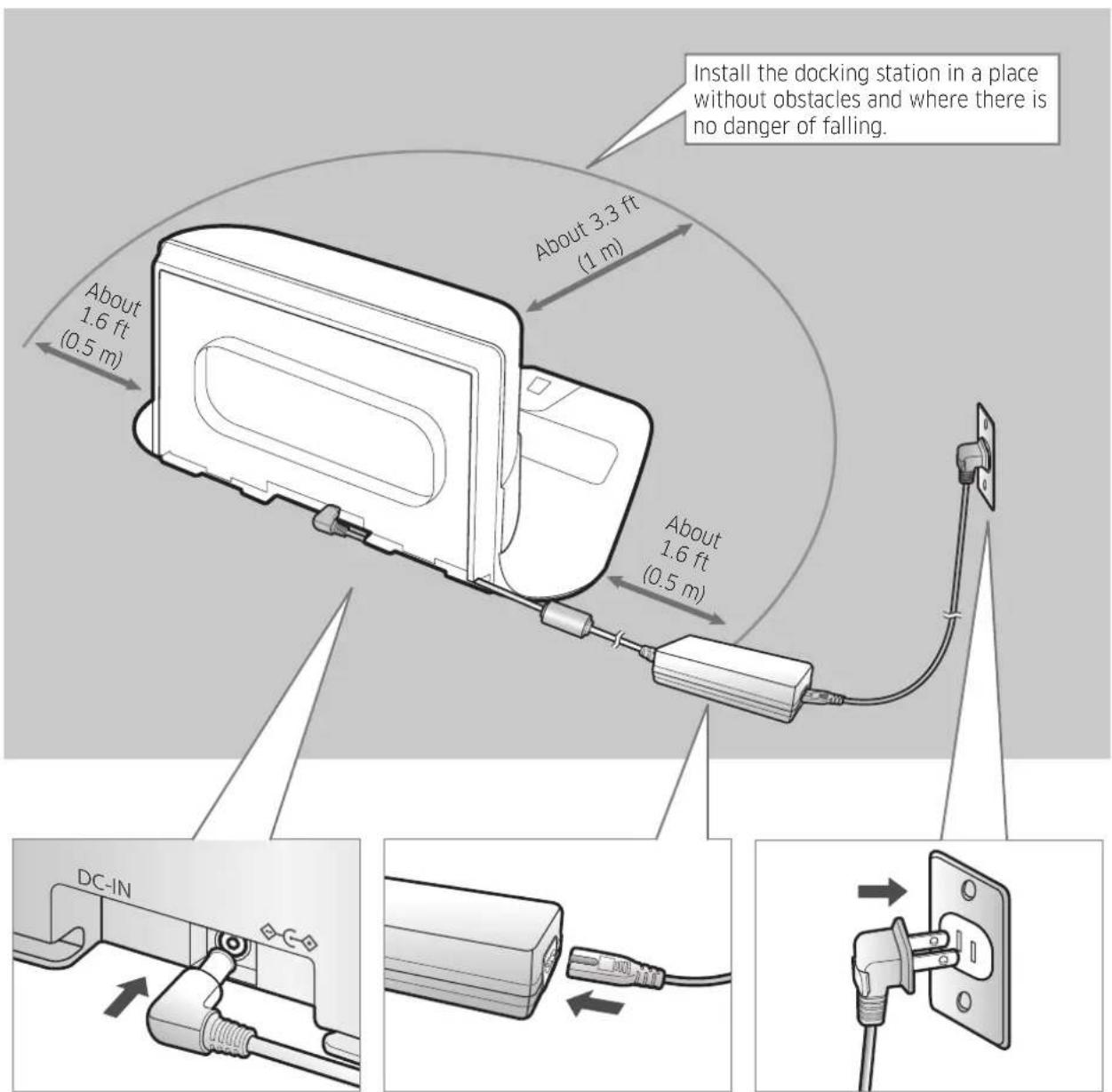
1 Connect the battery charger jack to the docking station
2 Connect the power cord to the battery charger
The side with the sticker attached must face down.
3 Connect the power plug to the outlet
ENGLISH-10
Accessories
| Remote control (Optional) | Batteries (AAA type) (Optional) | User manual Spare | filter (Optional) |
| Docking station Power cord Battery charger Boundary markers | (Optional) | ||
念 Accessories may differ depending on the models.
※ Refer to page 17 for the installation of boundary markers.
Installation note

Note
Install the docking station in a place where the floor is level and the wall is straight.
It is best to install the docking station along the grain of wooden floors.
- If the emergency switch is off, the POWERbot will not charge even if it is docked in the docking station.
Always turn on the power of the docking station.
- If power is not supplied to the docking station, the POWERbot cannot find it and cannot automatically recharge.
-
If the POWERbot is left detached from the docking station, the battery will drain.
-
If the POWERbot is in sleep mode, power will not come on even if the emergency switch is turned off and then on. Press and hold the [Start/Stop] button on the POWERbot to turn the sleep mode off.
Charging
After completely charging the POWERbot for the first time (after purchase), it can be used for 60 min. in Normal mode. (Refer to the page 41 for the charging time.)
Smart Charging
If the POWERbot's charge runs low while it is in Auto clean mode, it will automatically return to the docking station to recharge, and then will return to the cleaning area after its battery is 2/3rds charged. (Maximum: 2 times.)
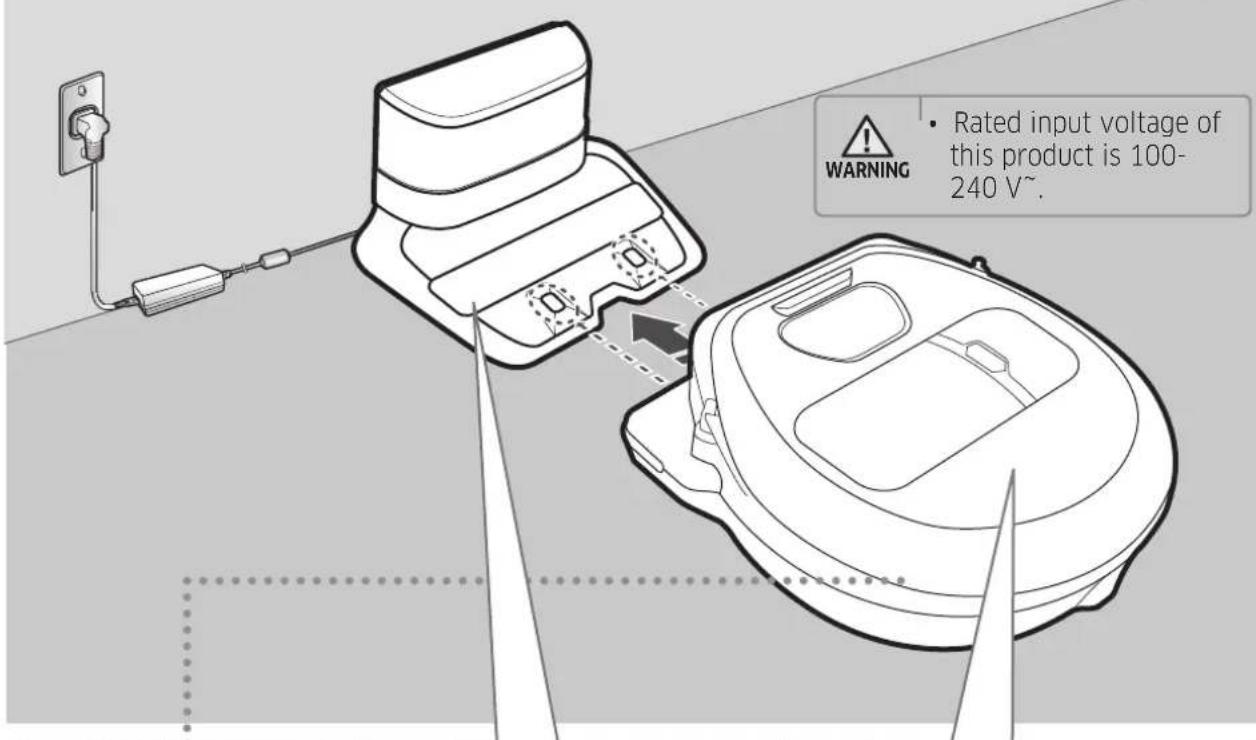
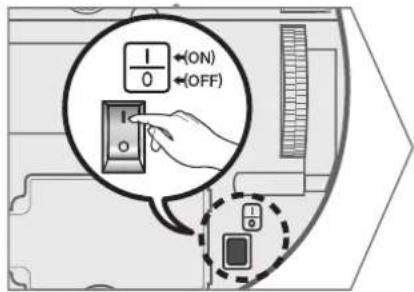
1 Turn on the emergency switch on the bottom
You must turn on the emergency switch to turn on the POWERbot.
Press and release the button.
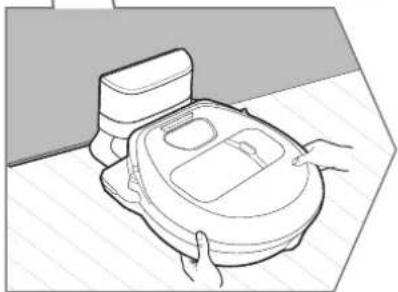
2 Manually charge the POWERbot by placing it in the docking station
Make sure the charging pins on the POWERbot and the docking station are aligned.
3 Check the charging status
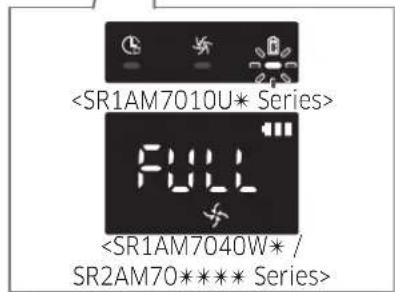
For the SR1AM7010U* Series, the battery indicator blinks at 1 second intervals during charging. The indicator will remain on when the battery is fully charged.
For SR1AM7040W / SR2AM70*** Series, each section of the "will turn on successively to indicate charging progress and "FULL" will appear when charging is complete.
ENGLISH-12
Automatic charging
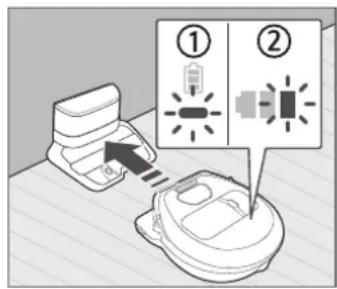
1. SR1AM7010U* Series
If the battery indicator blinks at 0.4 sec. intervals, the POWERbot will automatically return to the docking station to recharge.
2. SR1AM7040W* / SR2AM70**** Series
When the battery indicator blinks during cleaning, the POWERbot will return to the docking station to charge itself automatically.
Recharging
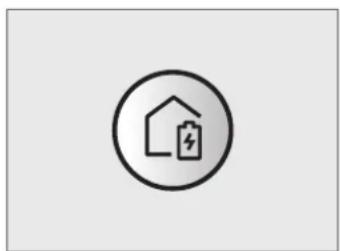
You can command the POWERbot to recharge at the docking station while it is cleaning.
Low battery (Lo)
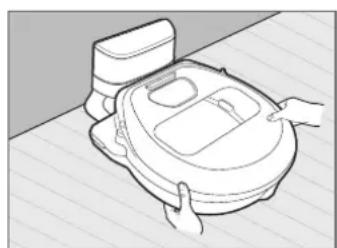
You can manually charge the POWERbot by placing it in the docking station.
Steps to take if automatic recharging is not occurring:
Reconsider the location of the docking station when:
the docking station is located in a place where the POWERbot cannot easily access it.
the distance between the docking station and POWERbot is over 16.4 ft (5 m).
- It may take a long time for the POWERbot to return to the docking station for recharging
Manually charge the POWERbot when:
the docking station is located in a corner
the battery is fully exhausted
the POWERbot is immobilized by an obstacle (furniture, etc.)
the POWERbot can't climb a threshold near the docking station (The maximum height of a threshold the POWERbot can climb is about 0.6 in (1.5cm)
the battery indicator blinks and "Lo" is displayed
the battery indicator blinks (Applicable to SR1AM7010U* Series)
- the POWERbot is set to the Spot clean or Manual clean mode
Using POWERbot
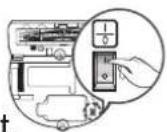
You must turn on the emergency switch on the bottom of the unit before using POWERbot.
Turning the power on/off
Press the button for more than 3 seconds

- When POWERbot is not used for 30 min.;
SR1AM70U* / SR2AM70U* series: Enters energy-saving mode.
SR1AM70W* / SR2AM70W* series: Automatically returns to the docking station to be charged.
Starting Auto clean mode
Press and release this button. The POWERbot moves and automatically cleans the set areas only once.

- Stop cleaning: Press and release the button
Using Spot clean mode
The POWERbot cleans a localized area intensely.

Recharging/Energy-saving mode
Recharging
You can command POWERbot to recharge at the docking station automatically while it is cleaning by pressing this button.
Energy-saving mode
Refer to page 17.
ENGLISH-14
Selecting cleaning modes
| Cleaning mode How to select | Displayed icons | ||
| SR1AM7040W*SR2AM70**** | SR1AM7010U* | ||
| Auto clean | |||
| Spot clean | |||
| Repeat clean | Repeat* Press the [A,B type], [C type] the remote controller first, and then press the [Start/Stop] | - | |
| Manual clean | *You can select manual clean mode using the direction control buttons on the remote control. | - | |
- If POWERbot fails to return to the docking station, it will enter energy-saving mode and the display panel will be turned off.
To exit the energy-saving mode, press the [Start/Stop] or [Power button on the main body or the remote control. - If cleaning in Auto clean mode is completed within 15 minutes, POWERbot cleans 1 more time.
Using POWERbot
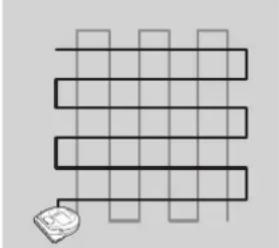
Cleaning method for each mode
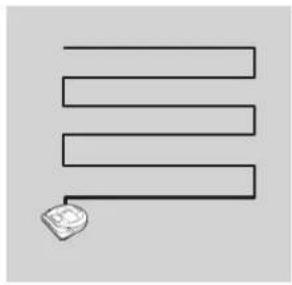
Auto clean
Automatically cleans the set areas only once.
* SR1AM7010Useries : Cleans repeatedly until the battery is depleted.
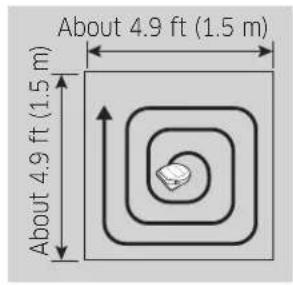
Spot clean
Cleans a localized area intensely. It can be used to clean bread or cookie crumbs.
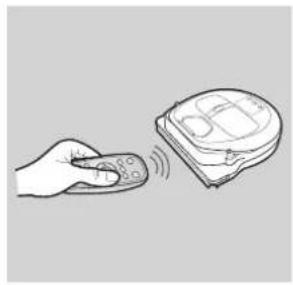
Manual clean
You can move POWERbot with the remote control to clean the desired spot. *This function is not available on the SR1AM7010U* series.
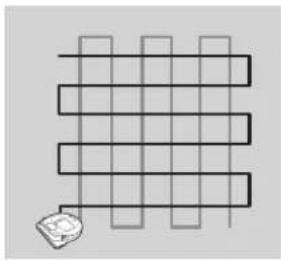
Repeat clean
Cleans repeatedly until the battery is depleted. * This function is not available on the SR1AM7010U* series.

Note
If you select Auto clean or Repeat clean, the POWERbot cleans the area near the docking station first.
Using special cleaning functions
| Cleaning function | Operation | Displayed icons | |
| SR1AM7040W*SR2AM70**** | SR1AM7010U* | ||
| Intelligent power control | * When the POWERbot detects a carpet in normal mode, it will automatically operate with stronger suction power. | ||
| Edge clean master | * When the POWERbot detects an edge or corner in Auto clean or Spot clean, the auto shutter tool operates and approaches the edge or corner section to clean. • Straight edge (One time cleaning) • Corner (Cleans twice) | ||
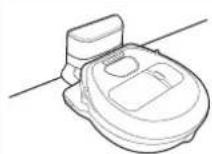
About the boundary markers
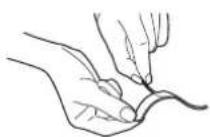
To prevent the POWERbot from entering the following areas, place the boundary markers on the floor in an shape at intervals of about 5.9 in (15 cm).
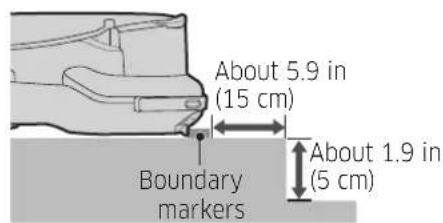
Where a raised spot exceeds 1.9 in (5 cm) Where
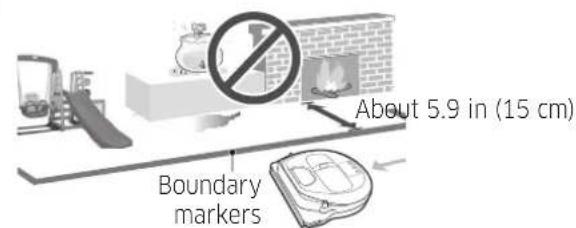
There is a slide, swing, fireplace, or any flammable substance or moisture.
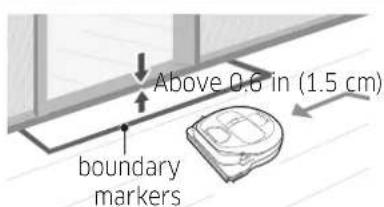
Where a threshold is higher than 0.6 in (1.5 cm) V
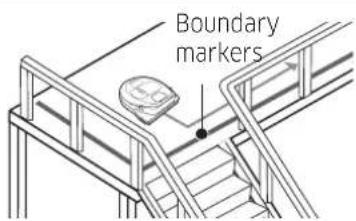
where there is risk of falling such as near the stairs, porches, or guardrails.
Using Energy-saving mode
You can select the Energy-saving mode to save energy during battery charging. Energy-saving mode turns off all functions except battery charging. Use it to reduce power consumption while you are away from home for an extended period of time.
How to select or cancel Displayed icon
Press for 5 sec.
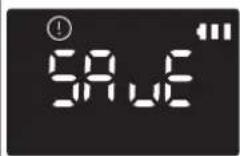
*About 3 seconds later, the previous indicator will appear.
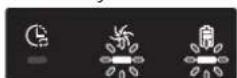
Blinking Blinking
Note
- If you select the Auto/Max/Manual clean mode or press the Point cleaning button, the Energy-saving mode will be cancelled.
- When Energy-saving mode is on, setting the schedule will cancel Energy-saving mode.
- If you select the Energy-saving mode after setting the schedule, the schedule will not be cancelled.
If the docking station is off, Energy-saving mode will be cancelled. - If the battery is completely flat, place the POWERbot on the docking station, and then press the [Start/Stop] button on the main body.
ENGLISH-17
Using the remote control
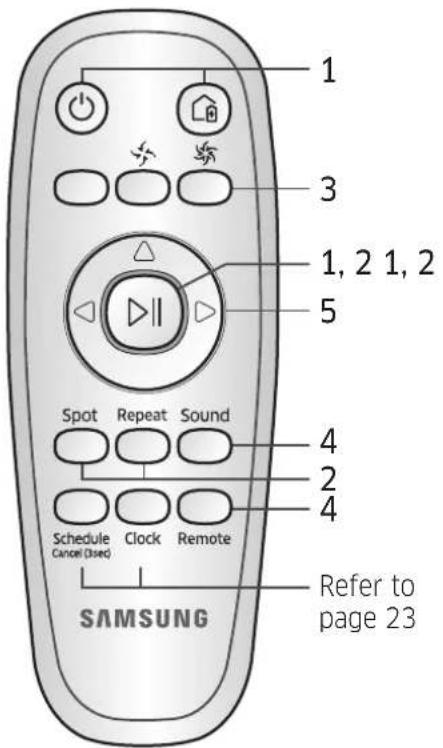
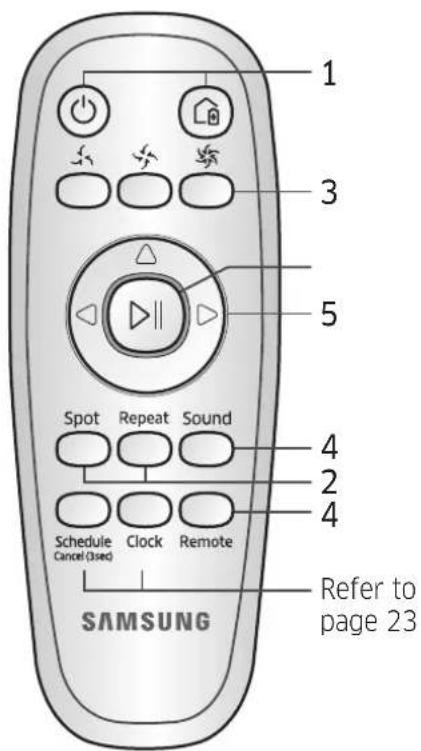
[A Type] [B Type]
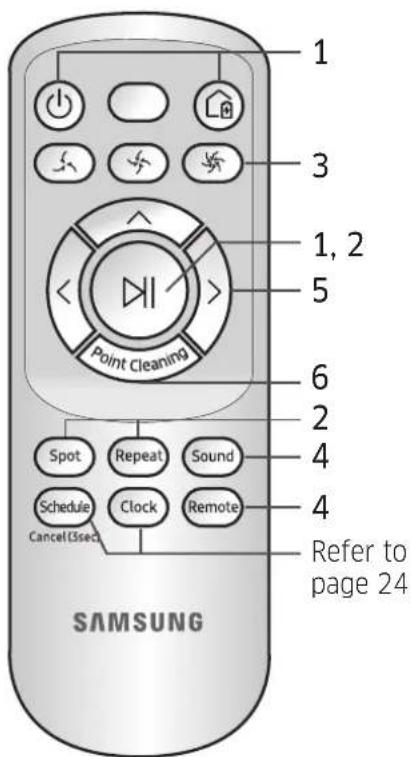
[C Type]
ENGLISH-18
[A Type] / [B Type]/ [C Type]
1 Power / Recharging / Start/Stop
| Power | Turn POWERbot's power on/off | |||
| Recharging | Select to recharge POWERbot at the docking station automatically | |||
| Start/Stop | Select to start or stop the cleaning process |
2 Cleaning modes
| Auto clean | DII | DII | DII | Select to clean all set areas only once and then have the POWERbot automatically return to the docking station. |
| Spot clean | Spot | Spot | Spot | Select to clean a localized area intensely |
| Repeat clean | Repeat | Repeat | Repeat | Select to clean repeatedly until the battery becomes very low and the battery level indicator blinks |
3 Suction power
| Turbo mode | Select to clean with the strongest suction power | |||
| Normal mode | Select to clean with moderate suction power | |||
| Quiet mode | Select to clean with lower operational noise |
4 Additional function
| Sound | Sound | Sound | Sound | Each time you press this button, Sound Effects → Mute is selected in sequence <SR1AM7040W9 series only> Star wars → Sound Effects → Mute |
| Remote control | Remote | Remote | Remote | Select to turn the Wi-Fi function on or off |
※ SR1AM7010U5 series only: Star wars (Mute function is not available.)
* Turning the emergency switch off and then on will not cancel or change the settings.
ENGLISH-19
Using the remote control
5 Manual clean mode & Direction control
| Move forward | Select to move forward | |||
| Turn left | Select to turn left | |||
| Turn right | Select to turn right |
- Moving backward is not available.
6 Point cleaning
Available only with C type remote controllers.
You can use the remote control to direct the POWERbot to clean a desired spot while the POWERbot is cleaning.
Point the red light on the floor within 1.6 ft (0.5 m) of the POWERbot's location.
Press and hold the Point cleaning button to move the red light to the desired spot. The POWERbot will follow the light while cleaning.
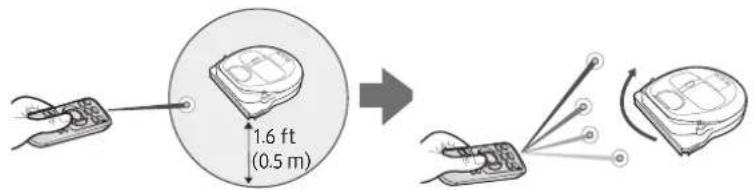
Operating distance of the remote control
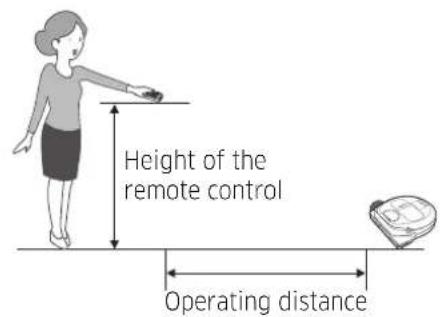
| Height of the remote control | 1.6 ft (0.5 m) | 3.3 ft (1 m) 4.9 ft (1.5 m) | |
| Operating distance | About 4.9 ft (1.5 m) | About 6.6 ft (2 m) | About 9.8 ft (3 m) |
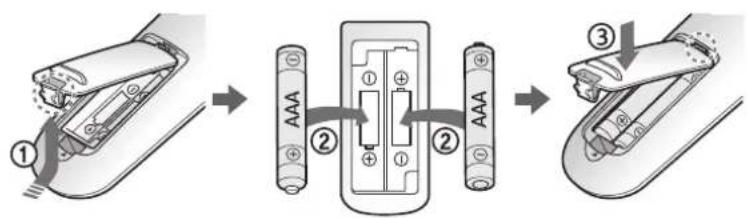
Inserting batteries
Open the battery cover by lifting it up while pressing the locking tab. Insert the batteries as shown in the illustration, and then close the cover until it clicks into place.
Name of each part
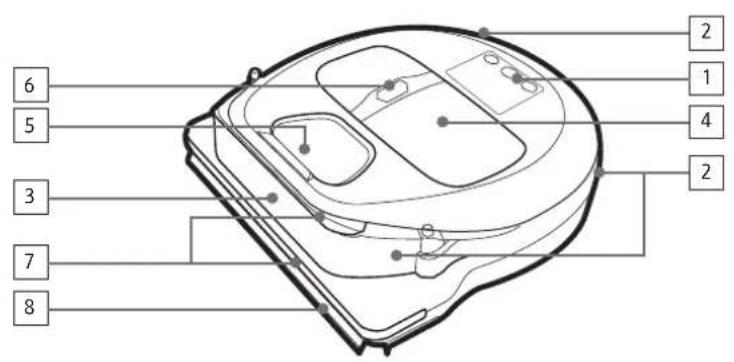
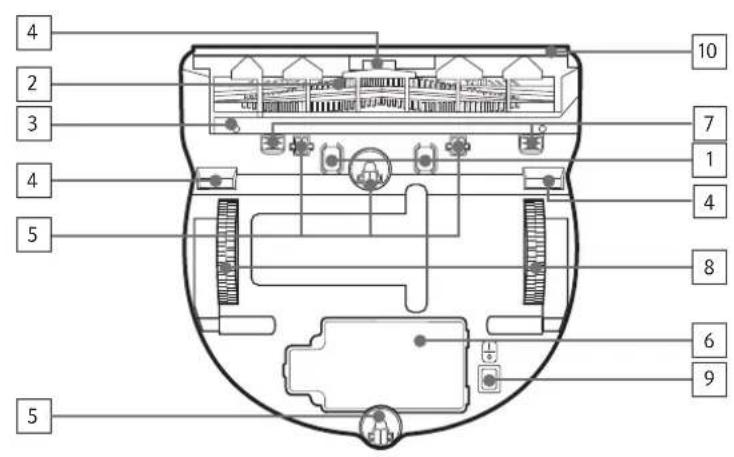
Top
- Display panel
- Remote control signal receiver
- Obstacle sensor
- Dustbin
- Camera
- Dustbin button
- Bumper sensor
- Auto shutter tool
Bottom
- Charging pins
- Brush
- Brush cover
- Cliff sensor
- Roller
- Battery cover
- Brush cover button
- Driving wheel
- Emergency switch
- Auto shutter tool
Name of each part
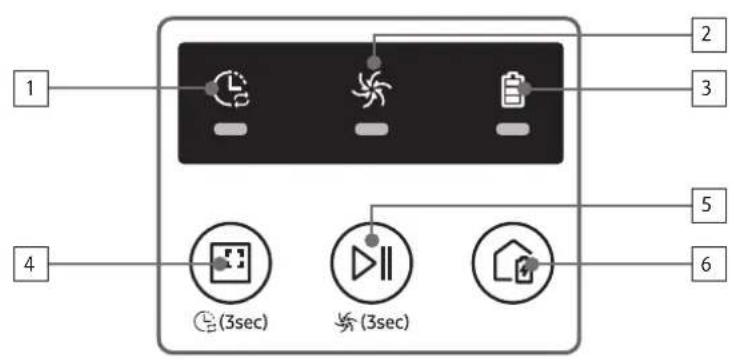
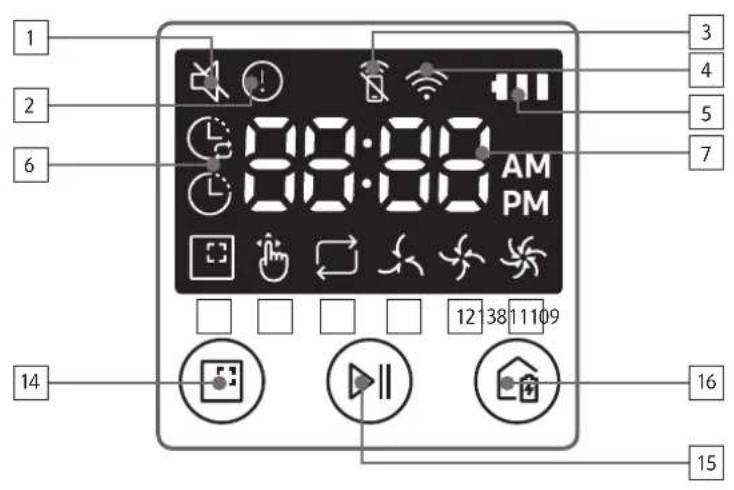
Display panel
- Daily schedule
- Normal/Turbo mode
- Battery indicator
- Spot cleaning button, daily schedule (3sec)
- Start/Stop button, Turbo mode (3sec)
- Recharging button
- Mute
- Information Indicator
- *Smart Control Off/On indicator
- *Wi-Fi
- Battery indicator
- One-time/Daily schedule
- Number display
- Spot clean mode
- Manual clean mode
- Repeat clean mode
- Quiet mode
- Normal mode
- Turbo mode
- Spot cleaning button
15.Start/Stop button -
Recharging button
-
SR1AM70W* / SR2AM70W*: Wi-Fi supported model
Setting time/schedule
[A Type, B Type] Only Auto clean mode can be scheduled.
Setting the time
You must set the current time before using the One-time/daily schedule function.
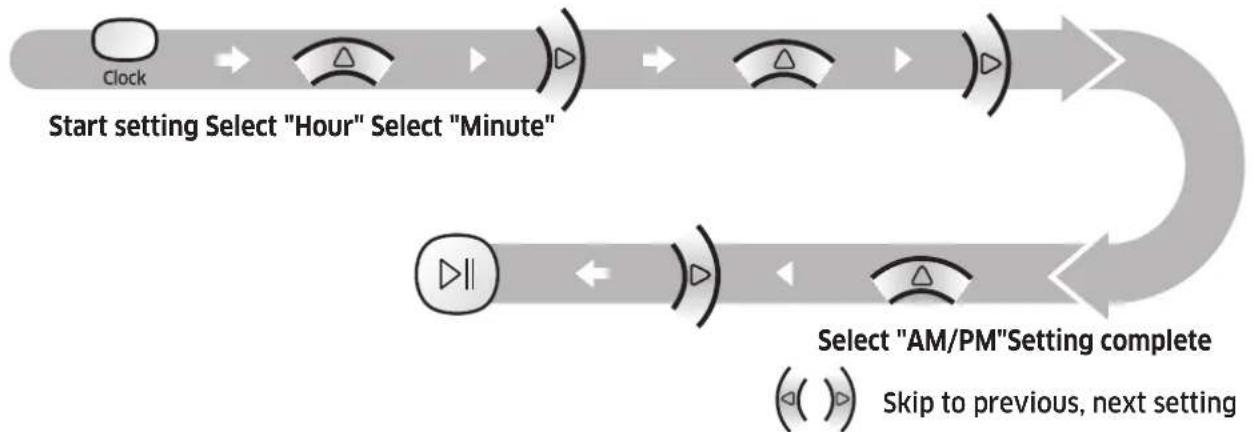
Setting the schedule
You can set/cancel the schedule only when the POWERbot is docked in the docking station.
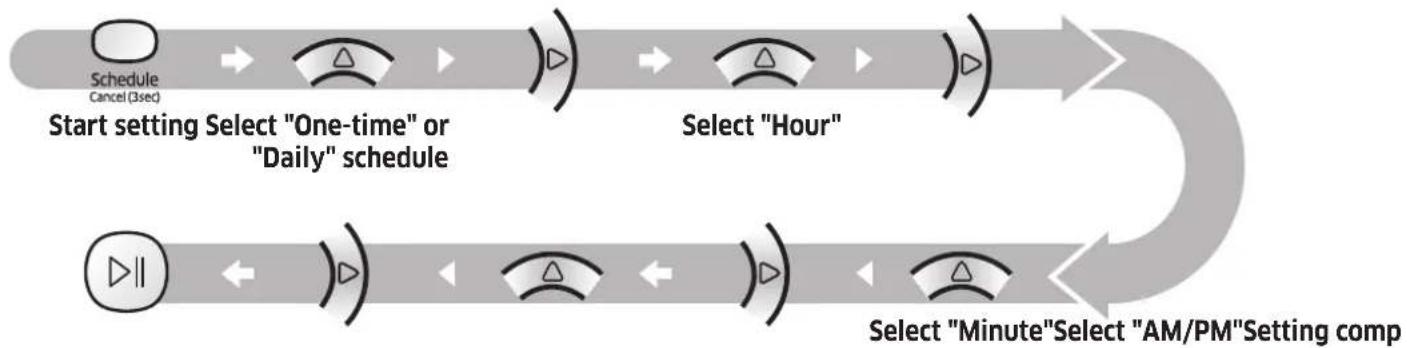

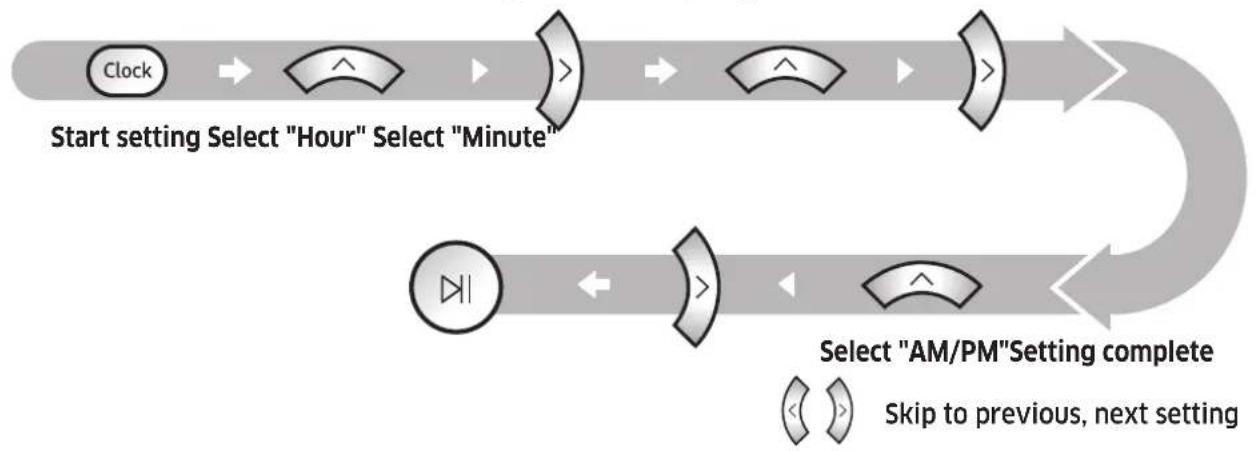
Skip to previous, next setting
Cancelling during setup

The setting will be canceled automatically if there's no input for 7 seconds.
Cancelling One-time/Daily schedule
| When both One-time/Daily schedule is set | Schedule Cancel (3sec) → or Schedule Cancel (3sec) → or Schede Cancel (3sec) |
| Press for 3 sec. Select the schedule Cancel complete | |
| When either one of One-time or Daily schedule is set | Schedule Cancel (3sec) Press for 3 sec. |
Setting time/schedule
[C Type] Only Auto clean mode can be scheduled.
Setting the time
You must set the current time before using the One-time/daily schedule function.
Setting the schedule
You can set/cancel the schedule only when the POWERbot is docked in the docking station.
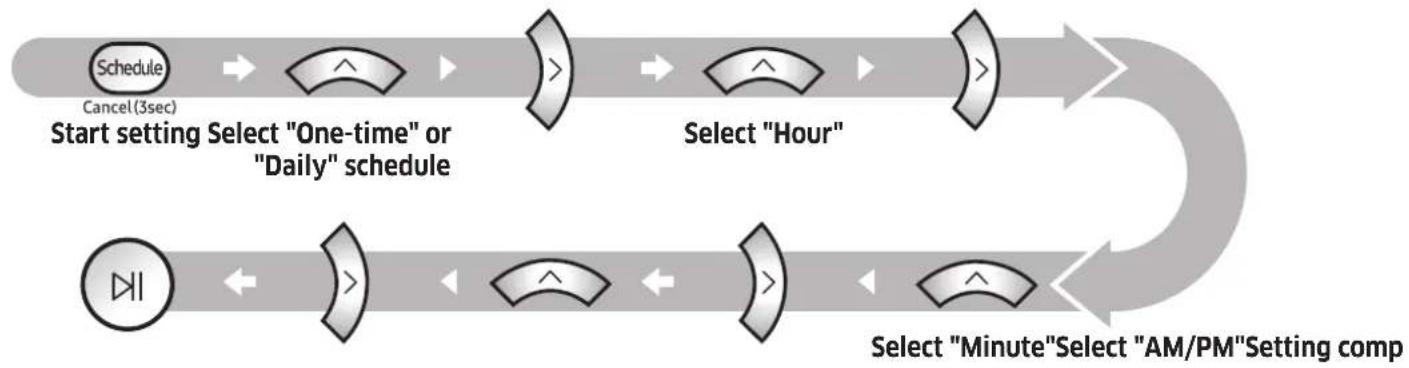

Skip to previous, next setting
Cancelling during setup

The setting will be canceled automatically if there's no input for 7 seconds.
Cancelling One-time/Daily schedule
| When both One-time/ Daily schedule is set | Schedule Cancel(3sec) → or Schedule Cancel(3sec) → Press for 3 sec. Select the schedule Cancel complete |
| When either one of One-time or Daily schedule is set | Schedule Cancel(3sec) Press for 3 sec. |
[SR1AM7010U* series] For the models which do not include a remote control, you can set a daily schedule as described below.
Setting the schedule
You can set/cancel the schedule only when the POWERbot is docked in the docking station.

Press for 3 seconds.


When the schedule LED is turned
on, the daily schedule is set.
*The time you pressed the button will be set as the time that the POWERbot is scheduled to begin cleaning. The POWERbot will automatically begin cleaning every day at that scheduled time.
Cancelling daily schedule
When a daily schedule is set

Press for 3 seconds.
Cleaning and maintaining
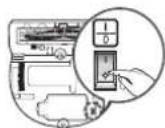
You must turn off the emergency switch before cleaning the POWERbot.
Cleaning the dustbin
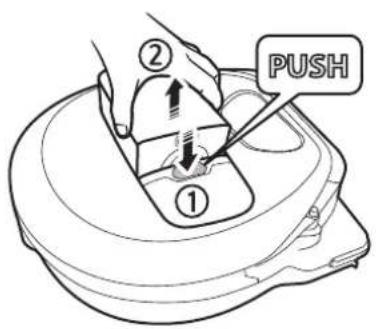
1 Press the button to remove the dustbin
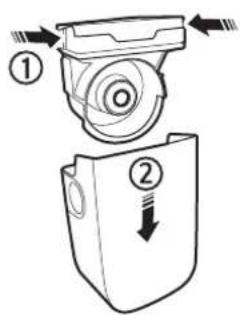
2 Remove the dustbin cover
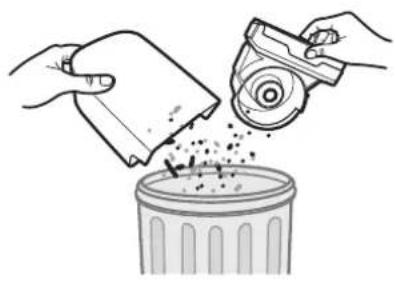
3 Remove dust in the dustbin and cyclone unit
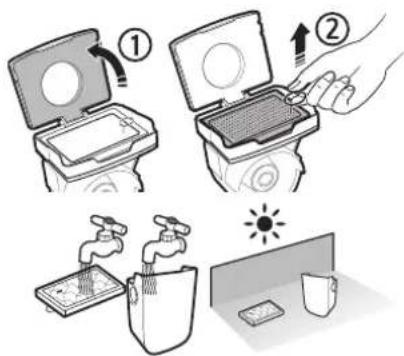
4 Detach the cyclone unit from the dustbin cover, and then wash the dustbin and the filter
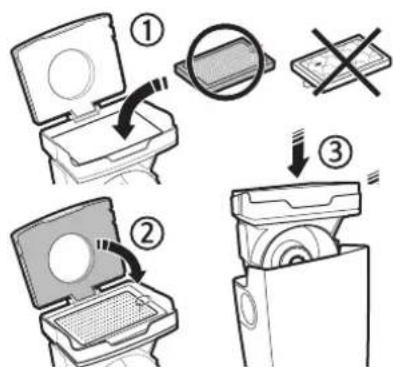
5 Reassemble the dustbin
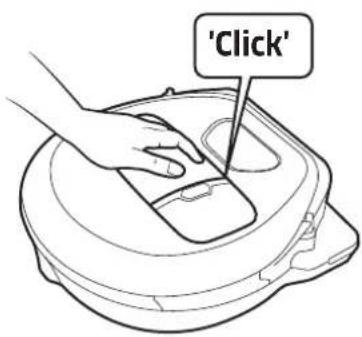
6 Reinsert the dustbin into the main body until it clicks
Cleaning the sensors and the camera
Lightly wipe with a soft cloth. Do not use water or cleaning solutions.

Cleaning the brush and Auto shutter tool
Brush design may differ depending on the model.
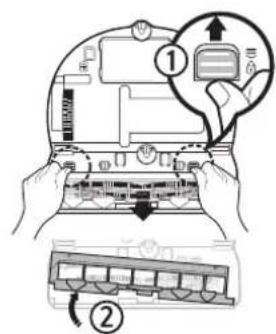
1 Remove the brush cover
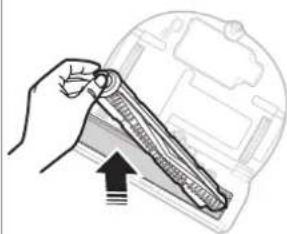
2 Remove the brush
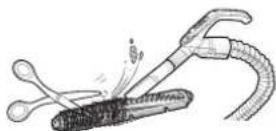
3 Clean the brush
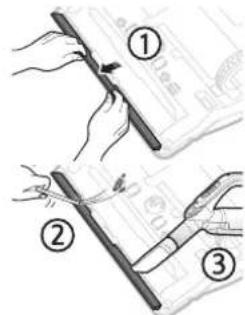
4 Clean the auto shutter tool
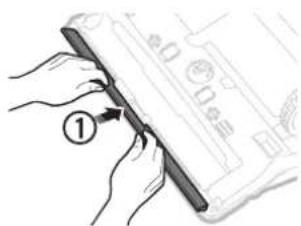
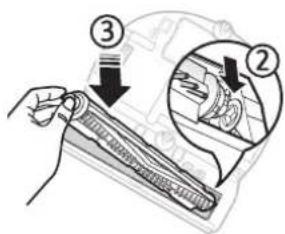
5 Reassemble the brush
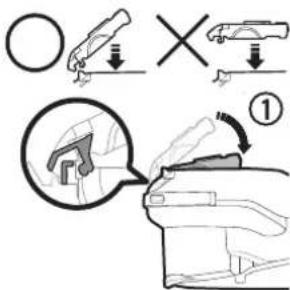
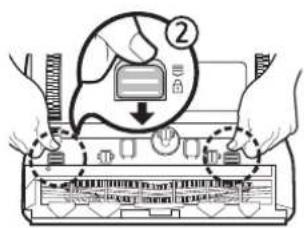
6 Reassemble the brush cover
Cleaning the Driving wheel
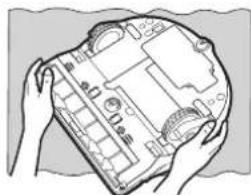
1 Put a soft cloth on the floor and place POWERbot upside-down on the cloth.
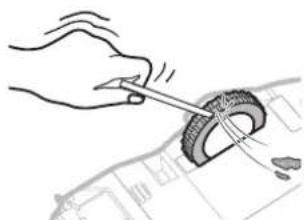
2 Use a blunt rod or tweezers to remove foreign matter.
Samsung Connect App
The Samsung Connect App is only compatible with models that have a Wi-Fi function.
Setting up the wireless router
Please refer to the user manual of your wireless router if you have access problems.
Samsung POWERbot supports only Wi-Fi 2.4 Ghz.
Samsung POWERbot supports IEEE 802.11b/g/n and Soft-AP.
- IEEE 802.11n is recommended.
Samsung POWERbot supports only DHCP (Dynamic Host Configuration Protocol). Please make sure that the DHCP server option is activated on your wireless router.
- POWERbot supports the WEP-OPEN, WPA-PSK/TKIP, and WPA2-PSK/AES for the authentication and encryption protocols.
- WPA2-PSK/AES is recommended.
- Confirm that your router has a unique SSID and password.
The quality of your wireless network connection may be influenced by the surrounding wireless environment.
If your Internet service provider has permanently registered the MAC address (a unique identification number) of your PC or modem, your POWERbot may not be able to connect to the Internet. Ask your Internet service provider about the procedure to connect an apparatus other than a PC to the Internet.
If your internet service provider requires your ID or password to connect to the internet, your POWERbot may not be able to connect. If this is the case, you must enter your ID or password when connecting to the Internet.
- The POWERbot may not be able to connect to the Internet because of firewall issues. Contact your Internet service provider to resolve these issues.
- Some wireless routers may transmit an abnormal Domain Name Server (DNS) address even if the Internet is not connected. If this occurs, contact the manufacturer of your wireless router and your Internet service provider.
If you still cannot connect to the Internet even after trying the procedure provided by your Internet service provider, please contact an authorized Samsung service center.
If your router is not a Wi-Fi certified product, The POWERbot may not be able to connect to the Internet.
Downloading the Samsung Connect App
- Download and install the Samsung Connect app from the markets (Google Play Store, Apple App Store, or Samsung Galaxy Apps). To find the app, use the keyword "Samsung Connect".

Note
Samsung Connect is incompatible with tablets and some mobile devices. - Android 6.0 or later (at least 2GB of RAM) is recommended.
- iPad and some mobile devices may not be supported.
- iOS 10.0 or later / iPhone 6 or later is supported.
- Visit Play Store or App Store to see if your mobile device is compatible with Samsung Connect.
The supported features are subject to change without any prior notice.
Setting up a Samsung account
You must sign in to a Samsung account before using the Samsung connect app.
- To set up a Samsung account, you can follow the directions provided by the Samsung Connect app.
- Or, if you have a Samsung smartphone, you can add your Samsung account in the setting app of your smartphone. Then, it will automatically sign in to your Samsung account.
Samsung Connect App
Adding a device to the Samsung Connect APP
- Connect your smartphone to your wireless router.
- Launch the Samsung Connect app on your smartphone.
-
If a pop-up saying that a new device has been found appears, tap ADD NOW.
-
If the pop-up doesn't appear, tap the + button and select the device which you want to connect from the list of AVAILABLE DEVICES.
-
If your device doesn't appear in the list, add the device manually by selecting the device type and selecting the specific device model.
-
[Android] The connection to your device will be progressed automatically.
-
[iOS] Open the setting app, and select [robot vacuum] Samsung in the Wi-Fi list.
-
Provide the authentication when you are directed to do so.
- [Android] The connection to your wireless router will be progressed automatically.
- [iOS] Open the setting app, and select the wireless router in the Wi-Fi list.
- The remaining setup will be automatically done. Then, a new Device Card will be added.

Note
If you cannot complete the product registration, please take the following steps.
- Try the registration procedure again as you have directed by the pop-up messages.
- Confirm that the UPnP option of your wireless router is active, and then try the registration procedure again.
- Confirm that your wireless router is operating in wireless mode, and then try the registration procedure again.
- If you have two or more POWERbots, turn off the other POWERbots, and then try to register your POWERbot again.
- If there is any other wireless router that has the same SSID as your wireless router, the registration might be failed.
Smart control and Wi-Fi indicator
| On | Smart control is blocked. (The remote controller can still be allowed.) |
| Off | Smart control is allowed. |
| On | The POWERbot is connected to the wireless router. |
| Off | The POWERbot is trying to connect the wireless router. |
- When the Smart control is blocked, you cannot control the POWERbot on your smartphone.
- The POWERbot and your smartphone are not connected to the same wireless router, a response delay may occur depending on your network environment.
Software Update
- When the POWERbot is charging on the docking station, the POWERbot connects to the server and then checks if a software is available. If a new software is found, POWERbot will automatically download and update it.
- If "UP" is displayed on the display panel while the POWERbot is charging, it means that an update is in progress. Please wait for completing the update before using the POWERbot.
Using the Samsung Connect APP
- When you tap the device card on the Samsung Connect app, the plug-in for your device will be launched.
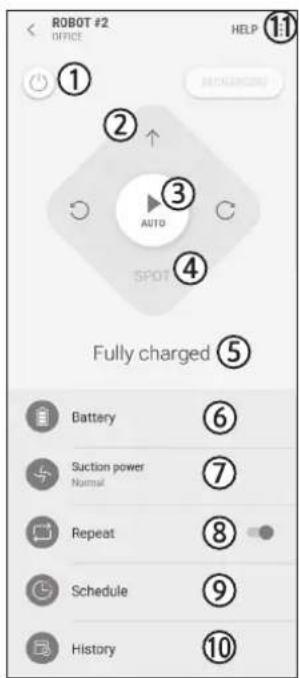
- Power (on / off)
- Directional controls with Manual clean mode (Forward, Left turn, Right turn)
- Auto clean mode (start /stop)
- Spot clean mode
- Current status
- Battery status
- Suction power
- Repeat option (on / off)
-
Schedule (Once / Daily)
-
The current time of the device will be synchronized when entering the schedule setting.
-
A scheduled cleaning will only be started when the device is charging on the docking station.
-
Cleaning history
- Settings > Voice Guide
Notes and cautions
Charging

Notes
If the battery overheats during charging, it may take longer to charge.
If automatic charging is not working, do the following:
- Turn the emergency switch (on the bottom of POWERbot) off and on again.
- Unplug the docking station's power plug and then plug it back on.
- Unplug the docking station, and then check whether there is any foreign matter on the charging pins. If there is, clean the POWERbot and the charging pins of the docking station with a dry cloth or rag.
- Check for any obstacles such as reflective objects, chairs, etc. near the docking station.
If the POWERbot is left detached from the docking station, the battery will drain.
- Try to keep the POWERbot in the docking station so it can charge continuously when not in use. However, you should turn off the emergency switch and leave the docking station unplugged if you plan to be out of your house for long periods of time such as when you go on vacation, etc.
Using

Notes
The POWERbot may get caught on thresholds, etc. during cleaning.
- To restart operation, shut off the emergency switch, move the POWERbot to an area where it can move easily, and then turn on the power again.
The POWERbot cannot completely clean areas it cannot enter, such as corners, between the wall and sofa, etc.
- Please use another cleaning tool to clean them regularly.
The POWERbot cannot vacuum clumps of dirt, so some may remain on the floor after cleaning.
- Please use another cleaning tool to clean them regularly.
If POWERbot is turned off, you cannot turn it on by pressing the Power button on the remote control. Press and hold the [Start/Stop] button on POWERbot.
- You cannot select and have the POWERbot execute Spot clean mode while it is charging.
If you press the Manual clean / Point cleaning button while the POWERbot is charging, the POWERbot will detach itself from the docking station and then go into standby mode.
Cleaning and maintenance

Notes
If you washed the dustbin and filter with water
- Dustbin: Completely wipe out the water.
- Filter: Completely dry it in the shade before using.
- When cleaning the auto shutter tool, do not pull the auto shutter tool out too hard.

Caution
Watch your fingers when attaching or detaching the filter, since they may get stuck in the dustbin's intake.
To avoid blockages by foreign matter, do not let the POWERbot vacuum up toothpicks, cotton swabs etc.
If it is difficult to remove foreign matter from the brush, contact an authorized Samsung service center.
- Since the brush removes dirt from the floor during cleaning, foreign matter such as thread, long hair, etc. may get caught in it. For the best cleaning results, check and clean it regularly.
If a brush or brush cover is not assembled correctly after the maintenance work, scratches may occur on the floor, or product malfunction may occur. Therefore, assemble them correctly by checking the maintenance method.
About the battery

Notes
Purchase batteries at authorized Samsung centers and check for the Samsung symbol (the battery. Confirm that you have the correct model battery before purchasing.
This battery is exclusively for the Samsung Electronics POWERbot. Do not use it for any other product.
Do not disassemble or modify the battery.
Do not throw the battery out in a fire or heat it.
- Do not connect any metallic object to the charging contacts (+, -).
Store the battery indoors (at 0^ 40^ ).
If the battery malfunctions, do not disassemble it yourself. Contact your nearest Samsung service center.
- Battery charging time and usage time may decrease the more the battery is used. If the battery's lifespan has been exceeded and it no longer recharges or functions properly, have it replaced at a Samsung service center.
The battery warranty period is 6 months from the date of purchase.
About the IrDA sensor

Caution
Infrared signal transmission may not be smooth in locations exposed to halogen lamps or in outdoor locations.
The POWERbot uses 3 types of infrared devices. Each of the devices has a different priority level. A device may not work if its signal is superseded by a device with a higher priority.
-
Infrared signal Priority: Smart control > Docking station
-
Different infrared signals may interfere with one another and cause the devices to malfunction if they are used together in a small space or in close proximity.
If more than one POWERbot is used simultaneously, they may malfunction due to interference between infrared signals.
Information codes
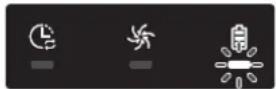
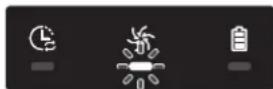
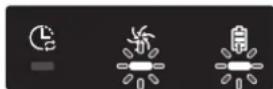
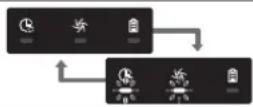
1 The three indicators below blink and an information codes alarm sounds.
2 Turn off the emergency switch, check the instructions below, and then take appropriate action.
3 The information code will disappear when you turn on the emergency switch
Information codes animation

Information codes Checklist
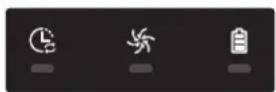
The POWERbot is caught, stuck or trapped while moving.
- Turn off the emergency switch, and then move the POWERbot to another area.
Foreign matter is caught in the brush.
- Turn off the emergency switch, and then remove the foreign matter from the brush.
Foreign matter is caught in the left Driving wheel.
- Turn off the emergency switch, and then remove the foreign matter from the Driving wheel.
Foreign matter is caught in the right Driving wheel.
- Turn off the emergency switch, and then remove the foreign matter from the Driving wheel.
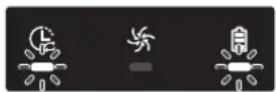
The bumper sensor needs to be checked.
Turn off the emergency switch, and then turn it back on.
If the information code does not disappear, check if there's any foreign matter between the bumper and the main body. If there is, pull the bumper slightly, and then remove the foreign matter.
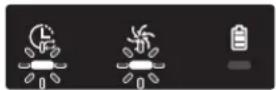
Foreign matter has accumulated on the obstacle sensor.
- Turn off the emergency switch, and then clean the front and rear sensor with a soft cloth.
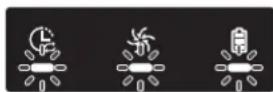
Foreign matter has accumulated on the cliff sensor.
- Turn off the emergency switch, and then clean the cliff sensor with a soft cloth.
Main PCB needs to be checked.
Turn off and restart the product. If the same problem occurs repeatedly, a service check is required.
1 The information code below appears and an information codes alarm sounds.
2 Turn off the emergency switch, check the instructions below, and then take appropriate action.
3 The information code will disappear when you turn on the emergency switch
Information codes Checklist
| 1 | The POWERbot is caught, stuck or trapped while moving. Turn off the emergency switch, and then move the POWERbot to another area. |
| 01 | Foreign matter is caught in the brush. Turn off the emergency switch, and then remove the foreign matter from the brush. |
| 02 | Foreign matter is caught in the left Driving wheel. Turn off the emergency switch, and then remove the foreign matter from the Driving wheel. |
| 03 | Foreign matter is caught in the right Driving wheel. Turn off the emergency switch, and then remove the foreign matter from the Driving wheel. |
| 05 | The bumper sensor needs to be checked. Turn off the emergency switch, and then turn it back on. If the information code does not disappear, check if there's any foreign matter between the bumper and the main body. If there is, pull the bumper slightly, and then remove the foreign matter. |
| 06 | Foreign matter has accumulated on the obstacle sensor. Turn off the emergency switch, and then clean the front and rear sensor with a soft cloth. |
| 07 | Foreign matter has accumulated on the cliff sensor. Turn off the emergency switch, and then clean the cliff sensor with a soft cloth. |
| 11 | Main PCB needs to be checked. Turn off and restart the product. If the same problem occurs repeatedly, a service check is required. |
Troubleshooting
| Symptom Checklist | |
| The POWERbot is not working at all. | Check if the emergency switch is on. Check if all the icons are displayed on the display panel. Check if the POWERbot's battery is depleted. - If "Lo" is displayed, place the POWERbot in the docking station to charge it. - If the battery indicator is blinking, manually place the POWERbot in the docking station to charge. (SR1AM7010U* series only) Replace the batteries (AAA type) if the remote control is not working. |
| The POWERbot has stopped during cleaning. | If "Lo" is displayed on the display panel, place the POWERbot in the docking station to charge it. If the battery indicator is blinking, manually place the POWERbot in the docking station to charge. (SR1AM7010U* series only) If the POWERbot is immobilized by an obstacle such as a cord, threshold etc, pick it up and move it away from the obstacle. - If any fabric or string is caught in a drive wheel, turn off the emergency switch and remove the fabric or string. |
| Suction power is weak. | When there's too much dust in the dustbin, suction power may be weakened. Turn off the emergency switch, and then empty the dustbin. If the intake (on the bottom of the POWERbot) is blocked by foreign matter, turn off the emergency switch, and then remove the foreign matter from the intake. When noise suddenly increases, turn off the emergency switch, and then empty the dustbin. |
| The POWERbot cannot find the docking station. | Check if there's a power failure or whether the power plug is unplugged. Remove any obstacles around the docking station that may prevent the POWERbot from returning to the docking station. If there's foreign matter on the charging pins, charging can be affected. Clean the foreign matter off the pins. |
| The POWERbot suddenly cleans diagonally. | Check if the docking station is installed along the grain of a wooden or tile floor. The POWERbot may clean in a diagonal direction if it is moving to another area using the shortest route. It may also move at a diagonal if it made contact with an obstacles at that angle, if it was charged at the docking station at an angle, or if the grain of the wooden/tile floor is skewed in that direction. |
| Point cleaning is not working. | If you point the red light directly at the POWERbot, it may not move in desired direction. - Point the red light on the floor within 1.6 ft (0.5 m) of the POWERbot. Do not use point cleaning in direct sunlight, under bright light, or on dark floors. |
Symptom Checklist
| I have installed the Samsung Connect app, but, the POWERbot fails to connect. | You can use the Samsung Connect app with the POWERbot only after connecting the wireless router and the POWERbot through the Easy-Setup procedure. See pages 28 through 31. |
| I cannot log into my Samsung account. | Check your ID and password on the screen of the Samsung account. |
| A message appears saying there is a failure during Easy-Setup. | You may have failed temporarily due to the distance from the wireless router or other obstacles. Please try again after a while. |
| The Samsung Connect app does not work even though your smart phone is normally connected to the POWERbot. | Turn off the Samsung Connect app and then run it again, or disconnect the smart phone from the wireless router and then connect it again. Or turn off the power supply of the POWERbot, turn it on, wait for a minute or longer, and then run the Samsung Connect app again. |
| The functions of the Samsung Connect App do not work. | Check if the POWERbot's Smart control blocking function is On. (When Smart control is blocked, the Wi-Fi indicator is turned off. You can only use the remote control to control the POWERbot remotely.) |
| The Samsung Connect Robot Vacuum App fails to start. | Check if the POWERbot is connected to the wireless router. |
| The POWERbot is not connected to Wi-Fi. | Check the setting status of the wireless router. |
| The Intelligent Power Control function works on a normal floor. (It should only work on carpets.) | Check whether the floor is uneven and whether the POWERbot works with its body a bit lifted up. Check whether there is any foreign matter on the cliff sensor which is on the bottom of the POWERbot. Check whether the floor color is dark. |
| The Intelligent Power Control function does not work. | When the POWERbot cleans a carpet with short fibers and bright color, it may recognize the carpet as a floor and then the Intelligent Power Control function may not work. |
| The Edge Clean Master function does not work. | If the POWERbot cannot recognize a wall, the Edge clean master may not work: - When an obstacle made of reflective material is in front of the wall - When the wall itself is made of reflective material - When the wall is a dark color |
| The Edge Clean Master function works though there is no wall or corner. | Check whether small obstacles are arranged in a narrow space. If the POWERbot recognizes the front obstacle as a wall, the Edge clean master function may work. |
| The Edge Clean Master function works though the POWERbot has not approached a wall or corner. | If the degree of the angle of a corner which the POWERbot detects is large, the Edge clean master function may work even though the POWERbot has not approached the wall or corner. |
Troubleshooting
| Symptom Checklist | |
| Samsung Connect App cannot be installed. | Samsung Connect App operates on Andorid OS 6.0 or higher, iOS 10 or higher. The supporting OS version for Samsung Connect App may change later. For rooted smart devices, standard installation and use will not be guaranteed. |
| A message of product registration failure appears. | Try the product registration procedure again by referring to the pop-up messages. Please refer to the "Setting up the wireless router" in the user manual. Please refer to the steps for completing the product registration in the user manual section "Adding a device to the Samsung Connect APP". When the product registration fails repeatedly, reset the POWERbot and Smartphone, run the Samsung Connect App again and try the product registration. The same Samsung account should be used for the login of App and product registration. All users should use the Samsung account issued by the same country. |
| During product registration, recharging button is pressed and held as instructed but the next step does not appear. | Press the recharging button until you hear it beep. If the next step does not appear within several seconds, press the recharging button one more time. |
| During product registration, the wireless router I want to connect cannot be searched. | Cancel the product registration, run the Samsung Connect App again, and try the product registration again. |
| During product registration, the AP password 1111122222 is not input correctly. | Press and hold the "[robot vacuum] Samsung" on the network list and delete the network to initialize the password. |
| During product registration, the password of the connecting wireless router is not input correctly. | Cancel the product registration, run the Samsung Connect App again, and try the product registration again. Press and hold the wireless router you want to connect on the network list, and delete the network to initialize the password. |
| A connection cut between the Samsung Connect App and the POWERbot occurs though the product registration is completed. | Refresh the screen and wait. Run the Samsung Connect App again. Check whether there is an internet connection problem. Especially, a firewall may interrupt standard operation. |
| A connection cut between the Samsung Connect App and the POWERbot suddenly occurs during normal operation of the app. | ►If the POWERbot is distant from a wireless router, connection cut may occur. ►Reset the POWERbot and the smart phone, and check the connection again. ►If the connection cut occurs repeatedly, try the product registration again. ►When the SSID/password of a wireless router is changed, try the product registration again. |
| Controlling with Samsung Connect App does not work since the remote control function is disabled. | ►Remote control function is disabled status. Make the remote control function enabled status with a remote controller. |
Open Source Announcement
The software included in this product contains open source software. You may obtain the complete corresponding source code for a period of three years after the last shipment of this product by sending an email to mailto:oss.request@samsung.com.
It is also possible to obtain the complete corresponding source code in a physical medium such as a CD-ROM; a minimal charge will be required.
The following URL http://opensource.samsung.com/opensource/VR7000_A20_TZ/seq/0 leads to the download page of the source code made available and open source license information as related to this product. This offer is valid to anyone in receipt of this information.
Specifications
| Classification Item | Detail information | |||
| SR1AM7010U* SR1AM7040W* | ||||
| Mechanical specifications (POWERbot) | Size (D x H x L) | 13.4 in x 3.8 in x 13.7 in (340 mm x 97 mm x 348 mm) | ||
| Weight 8.82 lb (4 kg) | ||||
| Sensor | Ceiling shape recognition (Visionary mapping plus TM) | |||
| Button type of POWERbot Touch type | ||||
| Power specifications | Power voltage 100-240 V~, 50 Hz/60 Hz | |||
| Power consumption 80 W | ||||
| Battery specifications 21.6 V / 38.8 Wh | ||||
| Cleaning | Charging type Automatic charging/Manual charging | |||
| Cleaning mode | Auto, Spot, Daily schedule | Auto, Spot, Repeat, Manual, One-time schedule, Daily schedule | ||
| Charging time Approximately 240 minutes | ||||
| Cleaning time (On the basis of hard floor) | Turbo mode | Approximately 30 minutes | ||
| Normal mode | Approximately 60 minutes | |||
| Classification Item Detail information | |||
| Mechanical specifications (POWERbot) | Size (D x H x L) | 13.4 in x 3.8 in x 13.7 in (340 mm x 97 mm x 348 mm) | |
| Weight 9.5 lb (4.3) | kg | ||
| Sensor | Ceiling shape recognition (Visionary mapping plus TM) | ||
| Button type of POWERbot Touch type | |||
| Power specifications | Power voltage 100-240 V~, 50 Hz/60 Hz | ||
| Power consumption 130 W | |||
| Battery specifications 21.6 V / 77.8 Wh | |||
| Cleaning | Charging type Automatic charging/Manual charging | ||
| Cleaning mode | Auto, Spot, Repeat, Manual, One-time schedule, Daily schedule | ||
| Charging time Approximately 160 minutes | |||
| Cleaning time (On the basis of hard floor) | Turbo mode | Approximately 30 minutes | |
| Normal mode | Approximately 60 minutes | ||
| Quiet mode | Approximately 90 minutes | ||
- For product improvement purposes, design and specifications of the product are subject to change without prior notice.
- Charging and cleaning times may differ depending on conditions of use.
If you have any questions or comments relating to Samsung products, please contact the SAMSUNG customer care center.
| Country Customer Care Center Web Site | ||
| CANADA | 1-800-SAMSUNG (726-7864) | www.samsung.com/ca/support (English) |
| 1-844-SAM-PAYS (726-7297) | www.samsung.com/ca_fr/support (French) | |
| U.S.A | 1-800-SAMSUNG (726-7864) | www.samsung.com/us/support |
| 1-844-SAM-PAYS (726-7297) | ||

POWERbot
Guide d'utilisation
Sériés SR1AM70****, SR2AM70****
INSTRUCTIONS DES PRISES POLARISÉES
2. Séries SR1AM7040W* / SR2AM70***
□ [Type A] / □[Type B]/ [Type C]
1. Aviso de la FCC (Federal Communications Commission)

PRECAUCION de la FCC:
El PCB principal necessities revision.