 EasyManual
 32SULP02W - TV Sulpice - Free user manual and instructions
Find the device manual for free 32SULP02W Sulpice in PDF.


Download the instructions for your TV in PDF format for free! Find your manual 32SULP02W - Sulpice and take your electronic device back in hand. On this page are published all the documents necessary for the use of your device. 32SULP02W by Sulpice.
USER MANUAL 32SULP02W Sulpice
CLASS 1LASER PRODUCT
1280x960 þ þ 1280x1024 þ þ 1400x1050 þ þ 1440x900 þ þ 1600x1200
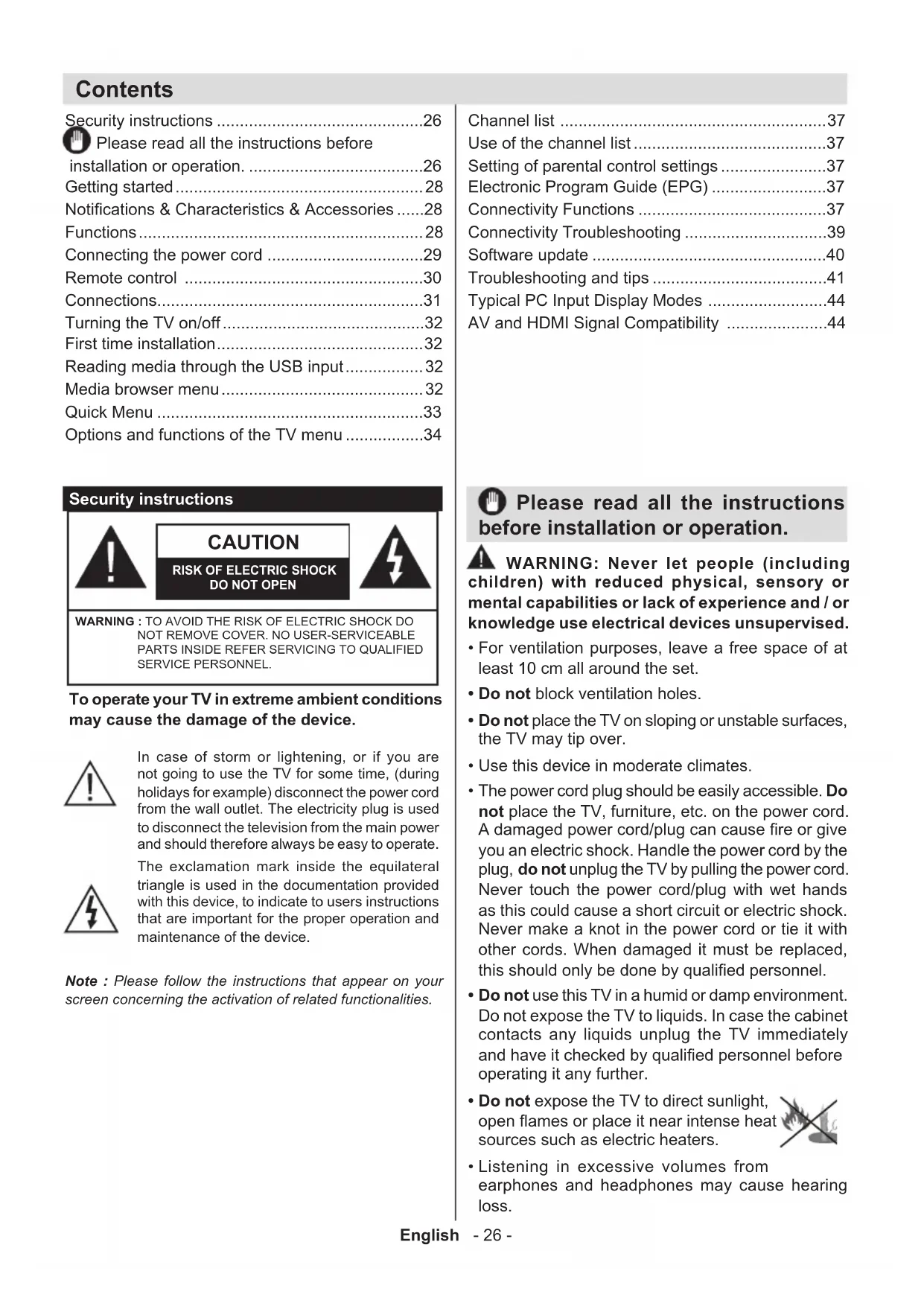
WARNING: Never let people (including
children) with reduced physical, sensory or mental capabilities or lack of experience and / or knowledge use electrical devices unsupervised.
- For ventilation purposes, leave a free space of at least 10 cm all around the set.
- Do not block ventilation holes.
- Do not place the TV on sloping or unstable surfaces, the TV may tip over.
- Use this device in moderate climates.
- The power cord plug should be easily accessible. Do not place the TV, furniture, etc. on the power cord. A damaged power cord/plug can cause re or give you an electric shock. Handle the power cord by the plug, do not unplug the TV by pulling the power cord. Never touch the power cord/plug with wet hands as this could cause a short circuit or electric shock. Never make a knot in the power cord or tie it with other cords. When damaged it must be replaced, this should only be done by qualied personnel.
- Do not use this TV in a humid or damp environment. Do not expose the TV to liquids. In case the cabinet contacts any liquids unplug the TV immediately and have it checked by qualied personnel before operating it any further.
- Do not expose the TV to direct sunlight, open ames or place it near intense heat sources such as electric heaters.
- Listening in excessive volumes from earphones and headphones may cause hearing loss.English - 27 -
- Ensure that no open ame sources, such as lit candles, are placed on top of the TV.
- To prevent injuries, this TV must be securely attached to a wall by carefully following the instructions (if the option is available).
- Occasionally, a few non-active pixels may appear on the screen as a xed blue, green or red point. Please note that this does not affect the performance of your product. Take care not to scratch the screen with ngernails or other hard objects.
- Before cleaning, unplug the TV from the wall socket. Only use a soft, dry cloth while cleaning. Warning Serious injury or death risk Risk of electric shock Dangerous voltage risk Caution Injury or property damage risk Important Operating the system correctly Notice Additional notes marked Markings on the Product The following symbols are used on the product as a marker for restrictions and precautions and safety instructions. Each explanation shall be considered where the product bears related marking only. Note such information for security reasons. Class II Equipment: This appliance is designed in such a way that it does not require a safety connection to electrical earth. Class II Equipment With Functional Earthing: This appliance is designed in such a way that it does not require a safety connection to electrical earth, the earth connection is used for functional purposes. Protective Earth Connection: The marked terminal is intended for connection of the protective earthing conductor associated with the supply wiring. Hazardous Live Terminal: The marked terminal(s) is/are hazardous live under normal operating conditions. Caution, See Operating Instructions: The marked area(s) contain(s) user replaceable coin or button cell batteries. Class 1 Laser Product: This product contains Class 1 laser source that is safe under reasonably foreseeable conditions of operation.
CLASS 1LASER PRODUCT
WARNING Do not ingest the battery, Chemical Burn Hazard (The accessories supplied with or) This pro- duct may contain a coin/button cell battery. If the coin/button cell battery is swallowed, it can cause severe internal burns in just 2 hours and can lead to death. Keep new and used batteries away from children. If the battery compartment does not close securely, stop using the product and keep it away from children. If you think batteries might have been swal- lowed or placed inside any part of the body, seek immediate medical attention. WARNING Never place a television set in an unstable location. A television set may fall, causing serious personal injury or death. Many inju- ries, particularly to children, can be avoided by taking simple precautions such as;
- Using cabinets or stands recommended by the manufacturer of the television set.
- Only using furniture that can safely support the television set.
- Ensuring the television set is not overhanging the edge of the supporting furniture.
- Not placing the television set on all furniture (for example, cupboards or bookcases) without acnhoring both the furniture and the television set to a suitable support.
- Educating children about the dangers of climbing on furniture to reach the television set or its controls. If your existing television set is being retained and relocated, the same considerations as above should be applied.Getting started English - 28 - Notications&Characteristics&Accessories Information relating to the environment This television is designed to consume less power in a bid to protect the environment. In order to effectively reduce your electric energy consumption, you have to follow the steps below: You can use the Power Save Mode setting, located in the Picture menu. If you set the Power Save Mode as Eco, the TV will switch to energy-saving mode and the luminance level of TV set will be decreased to the optimum level. Note that some picture settings will be unavailable to be changed when the TV is in Power Save Mode. If pressed Right button, “Screen will be off in 15 seconds.” message will be displayed on the screen. Select PEED and press OK to turn the screen off immediately. If you don’t press any button, the screen will be off in 15 seconds. Press any button on the remote or on the TV to turn the screen on again. If you disable Power Save Mode, picture mode will be automatically set to Dynamic. Turn the television of and disconnect it when not in use. This good practice will also help you to economise energy. Standbynotications
1. If the television does not receive any incoming
signal (an antenna or an HDMI source for example) for 5 minutes, it will go on standby. The next time it is turned on, the following message will appear : “TV switched to stand-by mode automatically because there was no signal for a long time". Press OK to continue.
2. If the television stays inactive for 4 hours, it will
enter standby mode. The next time it is turned on, the following message will appear: "TV switched to stand-by mode automatically because no operation was made for a long time". Press OK to continue. Functions
- Colour television with remote control.
- Digital tuner cable and High denition TNT (DVB- T/C)
- Fully integrated digital terrestrial-cable TV(DVB-T-C)
- The HDMI ports are meant for devices with HDMI plugs.
- USB ports.(with digital video tape-recorder function)
- Jack socket for external devices (video camera, video game, audio player, etc.)
- Automatic shutdown which can be set between 2 to 6 hours maximum without using the remote control.
- Programmable shutdown.
- Parental control lock
- Automatic sound-off when there’s no transmission.
- AVL (Automatic Volume Limitation)
- PLL Tuner (Frequency scanning).
- PC port with Plug & Play function.
- Ethernet (LAN) for Internet connectivity and service
- 802.11n WIFI Support (Optional)
- DLNA Accessories included
- Batteries not included
Putting batteries in the remote control Lift the cover at the back of the remote control. Insert two AAAsize batteries. Make sure that the + and – ends of the batteries match the in the battery Getting startedEnglish - 29 - compartment (respect the right polarity). Put the cover back in place. Connecting the power cord IMPORTANT: This television is designed to operate solely with a 220-240V ~ 50 Hz. power supply. After taking the television out of its package, wait a bit for the TV to reach ambient temperature before connecting it to the electricity plug. Connect the power cord to the main plug. Connecting the antenna/Cable Connect the aerial or cable TV plug to AERIAL INPUT (ANT-TV) socket located on the rear bottom side of the TV. Aerial or Cable SPDIF VGA HDMI2 Notication Manufactured under licence from Dolby Laboratories
MANUFACTURED UNDER LICENCE
"Dolby" and the double D symbol are trademarks of Dolby Laboratories. HDMI, the HDMI logo and the high definition multimedia interface are marks or registered trademarks of HDMI Licensing LLC. “DLNA®, the DLNA Logo and DLNA CERTIFIED® are trademarks, service marks, or certication marks of the Digital Living Network Alliance.” Information applicable to users in relation to disposal of old devices and batteries [European Union only] This symbol indicates that the equipment should not be disposed of as household waste. If you have to discard the TV set or the batteries, consider using collection systems or infrastructure for appropriate recycling. Note: The Pb sign inscribed on the batteries indicates that the battery contains lead. Products Battery Technical details TV Frequency (tuner)
Number of memorable channels
Audio standard German +Nicam Stereo On screen display On Screen Display RF Input Socket 75 Ohms (unbalanced) Operating voltage: 220-240V ~, 50HZ AUDIO OUTPUT POWER (WRMS.) (10% THD) 2 x 6 WRMS Power consumption 65W (max) st-by power consumption 0,5 W (max) TV Dimensions DxLxH (with foot) 185 x 728 x 486 mm TV Dimensions DxLxH (without foot) 34/63 x 728 x 428 mm Display 32” Operating temperature and humidity 0ºC up to 40ºC, 85% humidity maxGetting started English - 30 - Remote control
English - 31 - You may use a VGA- compatible YPbPr cable (not provided) to enable the YPbPr signal via the VGA port. |You will no longer be able to use the VGA and YPbPr simultaneously. | For the YPBR or PC port, you have to connect the audio output of your device to the television’s audio AV input. |When an external device is connected to the jack socket of your TV, the TV will enter AV mode automatically when you turn on the external device .|When you are in digital mode (tuner, usb, hdmi) you will not have audio-video signal output through the jack socket. |If you use a wall-mounted kit,un , it is advisable to connect all your cables before fixing your TV to the kit. |Insert or delete the CI module CI only when the television is off. Consult the module’s instruction manual for more information on its settings. | Each USB input of your TV supports devices up to 500mA. Connecting devices that have current value above 500mA may damage your TV. By connecting an HDMI cable to your Sharp LCD TV, you have to use only a shielded HDMI cable to guarantee a sufficient immunity against parasitic frequency radiation. Connections If you want to connect a device to the TV, make sure that both the TV and the device are turned off before making any connection. After the connection is done, you can turn on the units and use them. Connector Type Cables Device Scart Connection (back) VGA Connection (back) SIDE AV PC/YPbPr Audio Connection (side) Side Audio/Video Connection Cable (Supplied) PC Audio Cable (Not supplied) HDMI Connection (back) SPDIFF (Coaxial Out) Connection (back) SIDE AV Side AV (Audio/Video) Connection (side) AV Connection Cable (supplied) HEADPHONE Headphone Connection (side) PC to YPbPr YPbPr Video Connection (side) YPbPr Connection Cable(not supplied) USB Connection (side)
Connection (side) CAM module LAN Connection Ethernet (back) Câble LAN / EthernetGetting started English - 32 - Turning the TV on/off To Switch the TV On Connect the power cord to the 220-240V AC, 50 Hz. To switch on the TV from standby mode either: To switch on the TV from standby mode either:
- Press the “ ” button, P/CH +/- or a numeric button on the remote control.
- Press the “ ” or P/CH+/- button on the TV. The TV will then switch on. Note: If you switch on your TV via P+ / P- buttons on the remote control or P/CH+/- on the TV set, the programme that you were watching last will be reselected. To Switch the TV Off Press the “ “ button on the remote control or press the side function switch until the TV switches into standby mode. To power down the TV completely, unplug the power cord from the mains socket. Note: When the TV is switched to standby mode, the standby LED can blink to indicate that features such as Standby Search, Over Air Download or Timer is active. The LED can also blink when you switch on the TV from standby mode. First time installation When you turn on the television for the rst time, the language selection menu appears. Select the language you want and press OK. The First time installation (FTI) screen appears during rst installation. Set your preferences using the browsing buttons. When you are through, press OK to continue. IMPORTANT : If you chose France or Italy as an alternative, the PIN code menu will appear and you will have to enter 4-digit code. You will not be able to use 0000 as code (you are advised to write down this code on your instruction manual so that you can remember it when you need to use it). Enter a PIN code and conrm by entering it again. Press the OK button to continue.
WARNING : When prompted to enter a PIN code to
access a menu item, you have to use the code you set during rst installation. If you forget the said code, use the main code 4725. Demo Mode If you want to use your television inside a home, you are advised to select the home mode. If you choose the shop mode, you will have to conrm your choice. Choosing TV receiver mode You will have to choose your reception mode, antenna or cable. If you choose the ANTENNA option from the Type of search screen, the digital television will search for digital terrestrial broadcasts. NOTE: You can press the MENU button to cancel. Once all the available channels have been saved, the list of the channels will appear on the screen. If you nd the said channels interesting, depending on the LCN(*), select Yes, then press OK. Press the MENU button to exit the list of channels and watch the television. (*) LCN Channel number system which displays channels in the order established by government agencies . Installing the cable If you choose the CABLE option and press the OK button on the remote control. You can set the frequencies manually or press OK to start an automatic search. Note: The duration of the search will depend on the search zone selected. Reading media through the USB input You can connect external hard drives (hard drives with or without external power cables, depending on their voltage) or a USB port to your TV through your TV's USB ports. IMPORTANT! Backup your les before making any connection to the TV. Note that the manufacturer shall not be held accountable if les are damaged or data lost. Some types of USB devices (MP3 players for example) or USB ‘‘hard drives / memory cards’’ ‘‘may be incompatible with this television. This television supports FAT32 and NTFS disk formatting. If your hard drive's capacity is above 1TO, you may experience some issues with formatting. Avoid disconnecting your reader quickly after inserting it in the television's USB port. This can physically damage the USB reader and the USB device itself. Never remove the USB while a le is being read. Media browser menu You can view picture, music and video les stored in a USB device by connecting this device to your TV set. Connect a USB stick to one of the USB ports located on the side of the TV set. For video, photo and music les, you can access a settings sub menu (image, sound and others) by pressing the MENU button. By pressing the MENU button again the display disappears. You can set the preferences of your media browser through your settings menu. First time installation - USB connectionsEnglish - 33 - Functioning of the Random / Repeat mode Launch playback with and enable The TV set reads the next le and closes the list. Launch playback with and enable The same folder will be read repeatedly. Launch playback with OK/ and enable The folders concerned will be read randomly. Custom Boot Up Logo You can personalize your TV and see your favorite image or photo on screen each time your TV boots up. To do this, place your favorite image les in a USB stick and open them from the media browser menu. When you have chosen the desired image, highlight it and press OK to view it in full screen. Press OK again to choose the image as custom logo. A conrmation message will be displayed. Select Yes and press OK again. If the image is suitable(*) you will see it on the screen during the TV’s next boot up. Note: If you perform an FTI (rst time installation) the TV will return to using the default logo. (*) Images must have an aspect ratio between 4:3 to 16:9 and they must be in .jpeg, .jpg or .jpe le formats. The image cannot be set as boot logo, which’s resolution doesn’t appear on the info banner. Quick Menu The Quick Settings menu allows you to access some options quickly. This menu includes Power Save Mode, Picture Mode, Favourites, Sleep Timer, FollowMe TV (optional) and Information booklet options. Press Q.MENU button on the remote control to view the quick menu. See the following chapters for details of the listed features. FollowMe TV (optional) With your tablet you can stream the current broadcast from your smart TV using the FollowMe TV feature. Install the appropriate application to your tablet PC. Start the application. For further information on using this feature refer to the instructions of the application you use. FollowMe TV to DMR (optional) This feature allows video streaming from your TV to another TV or mobile devices, using proper applications (e.g. UPnP - Universal Plug and Play - applications like BubbleUPnP). Activate FollowMe TV to DMR and timeshifting starts. Press the red button and device selection menu will be displayed. Choose your device and press OK. Note: This feature works correlated with the PVR feature and requires a connected USB storage device with FAT32 format and enough space in it. HD channels are not supported and both of the devices must be connected to the same network. E-Manual You can nd instructions for your TV’s features in the E-Manual. To use E-Manual, press to the Info button while main menu is displayed on the screen. By using the navigation buttons select a desired category. Every category includes a different topics. Select a topic and press OK to read instructions. To close the E-Manual screen press the Exit button. Note: The contents of the E-Manual may vary according to model. CEC and CEC RC Passthrough This function allows to control the CEC-enabled devices, that are connected through HDMI ports by using the remote control of the TV. The CEC option in the Other Settings menu under Settings menu should be set as Enabled at rst. Press the Source button and select the HDMI input of the connected CEC device from the Source List menu. When new CEC source device is connected, it will be listed in source menu with its own name instead of the connected HDMI ports name(DVD Player, Recorder 1 etc.). The TV remote is automatically able to perform the main functions after the connected HDMI source has been selected. To terminate this operation and control the TV via the remote again, press and hold the “0-Zero” button on the remote control for 3 seconds. Or press Q.Menu button on the remote, highlight the CEC RC Passthrough and set as Off by pressing Left or Right button. This feature can also be enabled or disabled under the Settings/Other Settings menu. The TV supports also ARC(Audio Return Channel) feature. This feature is an audio link meant to replace other cables between the TV and the audio system (A/V receiver or speaker system). When ARC is active, TV does not mute its other audio outputs automatically. So you need to decrease TV volume to zero manually, if you want to hear audio from connected audio device only (same as other optical or co-axial digital audio outputs). If you want to change connected device’s volume level, you should select that device from the source list. In that case volume control keys are directed to connected audio device.English - 34 - Options and functions of the TV menu Content of the image menu Mode You can edit the image mode according to your preferences and demands. The Image mode can be set on one of these options : Cinema , Game, Sport, Dynamic and Natural. Contrast Adjusts the brightness and darkness of the screen. Brightness Adjusts the brightness of the screen. Sharpness Denes the sharpness of objects displayed on the screen. Colour Adjusts the colour value, adjusts colours. Power Saving Mode If you choose the Power saving mode set to Eco, you can enable or disable the screen . (When the mode is Dynamic, the Power saving mode set to Eco is automatically disabled.) Back-lighting (optional) This parameter controls the back-light level. The back-light function will be inactive if the Power saving mode is set to Eco. The Back-light mode cannot be enabled in VGA mode Multimedia navigator or when Image mode is dened on the Game. Noise reduction If the broadcasting signal is weak and the image noisy, use the noise reduction functionality to reduce the intensity of the noise. Advanced settings Dynamic contrast You can adjust the dynamic contrast ratio at your convenience. Colour temperature Adjusts the desired colour tone. Image zoom Adjusts the size of images in the images zoom menu. Note: Auto (Available only in Scart mode with SCART PIN8 high/low voltage switch) HDMI True Black (optional) When you watch the television from the HDMI source, this option is visible in the Image setting menu. You can use this option to increase image darkness. Film Mode Films are recorded at a number of frames per second different from normal television programs. Enable this function when you are watching lms so as to better visualize the accelerated images. Skin tone The skin tone function can be edited between -5 and 5. Colour editing Adjusts the desired colour tone. RGB gain You can congure the colour temperature values using the RGB Gain functionality. Reset Resets the image settings to the default values (except Game mode). Auto-position (in PC mode) Automatically optimises display. Press OK to optimise. Position H (in PC mode) This section changes the image horizontally towards the right or left side of the screen. Position V (in PC mode) This element moves the image vertically towards the upper or lower part of the screen. Frequency guide (in PC mode) The pilot frequency settings correct interferences which appear as vertical lines in the image for displays such as worksheets, paragraphs or texts in smaller font sizes. Phase (in PC mode) Depending on the resolution and the scanning frequency you enter for the television, you can see a fogged or sound image on the screen. In such a case you can use this element to get a clear image through trial and error. In VGA mode (PC), certain elements of the image menu will be unavailable. On the contrary, the parameters of the VGA mode will be added to the Image parameters in PC mode.English - 35 - Options and functions of the TV menu Content of Sound menu Volume Adjusts the volume level. Equaliser You can choose from 4 pre-set modes or make your own settings by selecting the user mode. Balance This parameter is used to highlight the balance of the left or right loudspeakers. Headphone Adjusts the volume of the headphone. Sound mode You can choose stereo or select language in dual -I or dual -II mode if the transmission includes this option... AVL (Automatic Volume Limitation) This function is used to limit the volume differences between programmes. Headphone/Lineout When you connect an external amplier to your TV using the headphone jack, you can select this option as Lineout. If you have connected headphones to the TV, set this option as Headphone. Dynamic Bass Enables or disables the Dynamic Bass. Surround Sound (optional) Surround sound mode can be changed as On or Off. Digital output To be adjusted depending on the type of appliance attached to this plug. Content of the Settings menu Conditional access Controls the conditional access modules when they are available. Language Congures language parameters (can vary depending on the country chosen). The favourite parameters and current ones will be available. The current settings can only be edited if the broadcaster takes charge of them. Parental control Enter the correct password to edit parental control settings. You can easily adjust menu lock and parental control from this menu. You can also enter a new pin code (See the chapter on setting of parental parameters on page 12). Date/Time Selects the date and time. Sources Enables or disables selected Source options. Network Settings Displays network settings. Other settings: Displays other television setting options: OSD display time Denes the menu display time. Encoded channels search When this parameter is enabled, the search process locates scrambled channels as well. HBB TV This feature is activated/deactivated by selecting ON/OFF. Blue Screen In Active mode, it displays a blue screen when there is no signal. Software update Updates the software package of your television. Application version: Displays the software version of your television. Hearing-impaired Enables specic functions for the hearing-impaired broadcast by the channels.English - 36 - Options and functions of the TV menu Audio description Audio description refers to an extra narration path reserved for the visually and hearing impaired. You can only use this option if the broadcaster takes it in charge. TV Automatic shutdown When this function is enabled, it denes the time at which your television automatically stops (between one and six hours). Standby search mode (optional) If the Standby search mode is enabled, available channels will be searched when the television is on standby. If the television nds missing or new channels, a menu screen is displayed, asking if you wish to apply these changes or not. The channels list is updated and edited after this process. Storage Mode (optional) Enables or disables the Demo mode.. DLNA Renderer DLNA renderer feature allows you to share les stored on your smartphone. If you have a DLNA renderer compatible smartphone and software installed, you can share/play photos with your TV. See instructions of your sharing software for more information. DLNA renderer mode will not be available with internet portal feature. Power Up Mode This setting confrigures the power up mode preference. Virtual Remote (optional) Enables or disables the virtual remote feature. CEC With this setting you can enable and disable CEC functionality completely. Press Left or Right button to enable or disable the feature. Netix: You can view your ESN(*) number and deactivate Netix.(*) ESN number is an unique ID number for Netix, created especially to identify your TV. Turn on mode This parameter congures preferences of the power on mode. Always enabled : the television comes on when the main power on/off button is pressed. Standby: the television always comes on in standby mode. / Last view : the television comes on on the last channel/source selected. Installation Automatic channel search If you wish to install or update new channels, you can use this menu. It displays automatic setting options. Digital antenna : Searches and stores DVB channels. Digital cable :Searches and stores DVB cable television channels Analogue : Searches and stores analogue stations. Analogue and digital antenna : Search and store DVB and analogue channels. Analogue and digital cable : Search and store analogue and DVB stations.. Manual channel search Used to search or directly store a channel if the frequency is known. Network channel search Searches channels related to the transmission system. Fine tune (analogue) You can use this option to ne-tune analogue channels. It is only available if analogue channels are stored. Initial Installation Deletes all television settings and takes you back to the rst installation.English - 37 - Channel list Use of the channel list You can congure the channel list by moving, deleting, renaming and locking them to your liking. Setting of parental control settings To prevent certain programs from being watched, channels and menus can be locked through the parental control system. To display lock menu option, enter the PIN code. By default, the set factory code is 0000. After entering the appropriate PIN code, the Parental control settings menu will be displayed : Menu lock : The Menu lock option enables or disables access to the menu. Maturity lock: After installation, this option searches information related to parental programs and if this parental level has been disabled, access to broadcast is not enabled. Parental control lock: When the Parental lock option is selected, the television can only be controlled with a remote control. In this case, the control panel buttons will not be active. PIN code setting: Denes a new PIN code. The default PIN code can change depending on the country selected. If a PIN code is required to display a menu option, enter one of the following codes: 0000 or 1234. Electronic Program Guide (EPG) Some channels, not all, display information concerning the on-going program and the next one. Press the button to get access to the EPG menu. Up/Down/Left/Right: Navigate EPG. OK: Displays programme options. INFO: Displays, in detailed, information on the programme selected. GREEN: Switches to List Schedule EPG. YELLOW: Switches to Timeline Schedule EPG. BLUE: Displays ltering options. Programme Options In EPG menu, press the OK button to enter the Event Options menu. Select Channel In EPG menu, using this option, you can switch to the selected channel. Set Timer / Delete Timer After you have selected a programme in the EPG menu, press the OK button. Select the Set Timer on Event option and press the OK button. You can set a timer for future programmes. To cancel an already set timer, highlight that programme and press the OK button. Then select “Delete Timer” option. The timer will be cancelled. Connectivity Functions Connecting to a Wired Network
- Connect broadband ISP connection ethernet cable to the ETHERNET INPUT of your modem.
- Ensure that Nero Media Home software is installed to your PC.(for DLNA function). See Appendix A.
- Connect your PC to the one of your modem’s LAN connectors (e.g. LAN 1) by using a proper LAN cable.
- Use another LAN output of your modem (e.g. LAN
2) to enable the connection to your TV.
Lan(Ethernet cable) Broadband ISP Connection Rear of TV
- To access and play shared les, you must Select Media Browser. Press Menu button and select Media Browser. Press OK to continue. Select the desired le type and press OK. You must always use the Media Browser screen to access and play shared network les.
- PC/HDD/Media Player or any other devices that are DLNA 1.5 compatible should be used with wired connection for higher playback quality. TocongurewiredsettingspleasereferNetwork Settings section in Settings menu.
- You might be able to connect your TV to your LAN network depending on your network’s conguration. In such a case, use an ethernet cable to connect your TV directly to the network wall outlet.English - 38 - Connecting to a Wireless Network IMPORTANT: “Veezy 200” USB dongle is required to use wireless network feature.
- To make your modem’s SSID visible, you should change your SSID settings via modem’s software. The TV cannot connect to the networks with hidden SSID. For connecting to a wireless LAN network, you should perform the following steps:
1. Connect broadband ISP connection ethernet
cable to the ETHERNET INPUT of your modem.
2. Ensure that Nero Media Home software is
installed to your PC (for DLNA function).
3. Afterwards, you should connect wireless adaptor
to one of the USB inputs of the TV.
4. To congure wireless settings please refer Network
Settings section in the following sections. Wireless Lan Adaptor USB Inputs (Side of the TV) Broadband ISP Connection
- A Wireless-N router (IEEE 802.11a/b/g/n) with simultaneous 2.4 and 5 GHz bands designed to increase bandwidth. Optimized for smoother and faster HD video streaming, file transfers, and wireless gaming.
- Use LAN connection for quicker le sharing between other devices like computers.
- The frequency and channel differ depending on the area.
- The transmission speed differs depending on the distance and number of obstructions between the transmission products, the conguration of these products, the radio wave conditions, the line trafc, and the products that you use. The transmission may also be cut off or get disconnected depending on the radio wave conditions DECT phones, or any other WiFi 11b appliances. The standard values of the transmission speed are the theoretical maximum values for the wireless standards. They are not the actual speeds of data transmission.
- The location where the transmission is most effective differs depending on the usage environment.
- Wireless LAN adaptor should be connected directly to the TV’s USB port. USB hubs are not supported.
- Wireless LAN adaptor supports 802.11 a,b,g & n type modems. It is highly recommended that you should use IEEE 802.11n communication protocol in order to avoid any possible problems while watching videos.
- Use the other usb input, if you experience problems with audio/video performance.
- You must change your modem’s SSID when there are any other modems around with the same SSID. ConguringNetworkSettings Your TV’s Network Settings include Wired and Wireless Connection options. However, if your TV does not have USB Wi-Fi dongle, you should use Wired Connection type. If you try to connect via Wireless Connection when your TV does not have a USB Wi-Fi dongle, a warning screen will appear and the TV will not get an IP address. Try connecting the LAN cable after this and then the TV will be able to get an IP address. ConguringWiredDeviceSettings If you are connecting the TV via ETHERNET INPUT, select Network Type as Wired Device to congure. Network Type Network type can be selected as Wired or Wireless device, in accordance with the active connection to the TV set. Select this as Wired if you have connected to the TV a LAN cable. Select as Wireless if you connect via the wireless USB dongle. CongurationStatus This section displays the status of the connection. IP Address If an active connection is available, the IP address will be displayed on this section. If you want to congure IP address preferences, press GREEN button and switch to the advanced mode. ConguringWiredNetworkSettingsin Advanced Mode While in Advanced Mode, press RED button to edit settings. When finished, press OK to save, Press BACK to cancel. IMPORTANT: “Veezy 200” USB dongle is required to use wireless network feature. Wi-Fi feature can be used for a wireless network connection. If you have the Veezy 200 Wi Dongle, select Network Type as Wireless Device to start connection process. To enable Wi-Fi feature, proles should be congured properly. Please plug in the Wi-Fi dongle to one of the USB ports. Press YELLOW button to scan wireless network. Afterwards, available network list will be displayed. Please select your desired network from the list.English - 39 - If the selected network is protected with a password, please enter the correct key by using the virtual keyboard. You can use this keyboard via navigation buttons and OK button on the remote control. Wait until the IP the address is shown on the screen. This means that the connection is now established. To disconnect from a wireless network, you should highlight CongurationStatus and press OK. You can navigate between menu tabs by pressing left/ right buttons. The help bar on the bottom of the dialog shows features that you may use. Press BLUE button to check your internet connection speed. You can check the signal strenght by using the network settings menu for the wireless device mode. Information Configuration Status: Displays wi-fi status as connected or not connected. IP Address: Displays the current IP address. Network Name: Connected networks’ name will be displayed. Press GREEN button to switch to advanced mode and then press OK button to edit settings. DeleteSavedWiProles Saved proles will be deleted if you press red button while wireless device selection osd is on the screen. Connecting to your Cell Phone via WiFi (Optional)
- If your cell phone has WiFi feature, you can connect your cell phone to your TV by using WiFi connection via a router, in order to play content from your phone. For this, your cell phone must have an appropriate sharing software.
- Connect to your router following the steps stated above in the Wireless Connection section.
- Afterwards, engage your cell phone with the router and then activate sharing software on your cell phone. Then, select les that you would like to share with your TV.
- If the connection is established correctly, you should now access the shared les of your cell phone via the Media Browser of your TV.
- Enter Media Browser menu and playback device selection OSD will be displayed. Select your cell phone’s ident and press OK to continue. Note: This feature may not be supported by some cell phones. WIRELESS DISPLAY Wireless Display is a standard for streaming video and sound content by Wi-Fi Alliance. This feature provides the ability to use your TV as wireless display device. Using with mobile devices There are different standards which enable sharing of screens including graphical, video and audio content between your mobile device and TV. Plug the wireless USB dongle to TV rst, if the TV doesn’t have internal WiFi feature. Then press the Source button on the remote and switch to Wireless Display source. A screen appears stating that the TV is ready for connection. Open the sharing application on your mobile device. These applications are named differently for each brand, please refer to the instruction manual of your mobile device for detailed information. Scan for devices. After you select your TV and connect, the screen of your device will be displayed on your TV. Note: This feature can be used only if the mobile device supports this feature. Scanning and connecting processes differ according to the programme you use. Android based mobile devices should have the software version V4.2 and above. Connectivity Troubleshooting Wireless Network Not Available Ensure that the rewalls of your network allows the TV wireless connection. “Veezy 200” usb wi dongle should be plugged properly (if available). If the wireless network does not function properly, try using the wired network in your home. Refer to the Wired Connection section for more information on the process. Check the modem (router) rst. If the router does not have a problem, check the internet connection of your modem.Try searching for wireless networks again, using the Network Settings menu screen. Connection is Slow See the instruction book of your wireless modem to get information on the internal service area, connection speed, signal quality and other settings. You need to have a high speed connection for your modem. Distruption during playback or slow reactions You could try the following in such a case: Keep at least three meters distance from microwave ovens, mobile telephones, bluetooth devices or any other Wi-Fi compatible devices. Try changing the active channel on the WLAN router. Using DLNA Network Service DLNA (Digital Living Network Alliance) is a standard that eases viewing process of digital electronics and makes them more convenient to use on a home network. For further information, visit www.dlna.org. DLNA standard allows you to view and play photos, music and videos stored in the DLNA media server connected to your home network.English - 40 - Step 1: Nero Media Home DLNA function cannot be used if the server program is not install to your PC. Please prepare your PC with Nero Media Home programme. For more information about the installation, please refer to Nero Media Home Installation section Step 2: Connect to a Wired or Wireless Network See the chapter Network Settings for detailed conguration information. Step 3: Play Shared Files via Media Browser Select Media Browser by using Left or Right button from the main menu and press OK button. Media browser will be then displayed. DLNA support is available only with Media Browser folder mode. To enable folder mode, go to Settings tab in the main media browser screen and press OK. In the settings options, highlight View Style and change to Folder using Left or Right button. Please select desired media type and press OK. If sharing congurations are set properly, an OSD message will be displayed after selecting the desired media type. Select OK to display the selected network or USB memory content. If you want to refresh the device list, press GREEN button. You can press MENU to exit. If available networks are found, they will be listed on this screen. Select media server or network that you want to connect by using “ ” or “ ” buttons and press OK button. If you select media type as Video and choose a device from the selection menu, a new menu screen will appear on the screen. Select Videos from this screen to list all the available video les from the selected network. To play other media types from this screen, you must go back to main Media Browser screen and select media type as desired and then perform the network selection again. Refer to Media Browser USB Playback section for further information on le playback. Subtitle les do not work if you watch video from network through DLNA. You can connect only one television with DLNA to same network. If a problem occurs with DLNA network, please switch on/off your television. Trick mode and jump are not supported with DLNA function. CAUTION: There may be some PC’s which may not be able to utilize the DLNA function due to administrator and security settings. (such as business PC’s). For best home network streaming with this set, the Nero software should be installed. Internet Portal You can access PORTAL mode using your TV. To do this, an active internet connection is required. Follow the steps on Connecting to a Wired/ Wireless(optional) Network section to connect your TV to internet. After the connection is established, you can select or view portal options. Note: Broadband internet connection is required for high quality viewing. Ensure that the internet connection is made properly. You must set the Country and Language data correctly in the First Time Installation for the proper operation of internet portal. Press “ ” button on your remote control and portal application options will be displayed. Application options will be displayed as the template below. Available applications’ contents may change depending on the application content provider. Note on PIP Window If you switch to portal mode while watching TV channels, current programme will be displayed on the PIP window. You can change channels using P+/P- buttons. Current HDMI content will be displayed on the PIP window, if you switch to portal mode while watching HDMI source. Use the “ ” or “ ”, “ ” or “ ” to navigate between the items on Portal screen. Press the OK button to conrm your selection. Press the BACK button to go to the previous screen. Press the EXIT button to quit the Internet portal mode. Software update Your television can, through the antenna or cable, search and provide updates. Software update search via the user interface Simply go through the main menu. Choose Settings and select other settings menu. In the Other settingsmenu, select Software update and press the OK button to open the Update options menu.English - 41 - 3 Search and update mode When the TV set receives signal from the antenna. If the Automatic search option in the Update options menu is active, the television automatically turns on at 3:00 a.m. and launches the search for broadcasting channels in order to update the new software. If new software is found and downloaded successfully, the television begins to work with the new software version when next it is turned on. Note: If the television does not come on after the update, disconnect it for two minutes, then connect it again. Troubleshooting and tips The TV is not coming on Check to ensure that the electricity plug is safely connected to the wall socket or that the batteries of the remote control are functional. Poor picture quality
- Check if your antenna is properly connected. A poor signal level can negatively affect image quality.
- If you carried out manual settings, verify that you entered the right channel frequency.
- Image quality may be affected negatively when two devices are connected to the television set at the same time. If such is the case, disconnect one of the devices. No image
- No image indicates that your TV is not receiving a signal. Have you selected the correct buttons on the remote control? Try once more. Also make sure that you have selected the right input source.
- Is the antenna connected properly?
- Is the antenna cable damaged?
- Are suitable plugs used to connect the antenna?
- If you are not sure , please consult your supplier. No sound
- Has the mute button been pressed? If that is the case, press the " " button, or increase the volume.
- Only one speaker is producing sound. Is the balance well placed in the middle? Consult the Sound menu. The remote control is not working
- The batteries may be down. Replace the batteries. Input sources cannot be selected.
- If you cannot select an input source, it is possible that no device is connected.
- Check the AV cables and connections if you have tried to connect a device. Appendix A: Nero MediaHome Installation To install Nero MediaHome, please proceed as follows: Note: To use DLNA function, this software should be installed to your PC.
1. Enter the link below completely in the adress-bar
The installation le will be downloaded onto your PC.
3. After the download is completed, double click on
the installation le to start the installation. The installation wizard will guide you through the installation process.
4. The prerequisites screen will be displayed rst.
The installation wizard checks the availability of required third-party software on your PC. If applications are missing they are listed and must be installed before continuing installation.
5. Click the Install button. The integrated serial will
be displayed. Please do not change the displayed serial.
6. Click the Next button. The License Conditions
(EULA) screen will be displayed. Please read the license agreement carefully and select the appropriate check box if you agree to the terms of the agreement. Installation is not possible without this agreement.
7. Click the Next button. On the next screen you can
set your installation preferences.
8. Click the Install button. The installation begins
and nishes automatically. A progress bar will indicate the state of the installation process.
9. Click the Finish button. The installation is
completed. You will be directed to the web site of the nero software.
10. A shortcut is now placed on your desktop.
Congratulations! You successfully installed Nero MediaHome on your PC. Run Nero MediaHome by double clicking on the shortcut icon. Appendix B: HBBTV System HbbTV (Hybrid Broadcast Broadband TV) is a new industry standard that seamlessly combines TV services delivered via broadcast with services delivered via broadband and also enables access to Internet only services for consumers using connected TVs and set-top boxes. Services delivered through HbbTV include traditional broadcast TV channels, catch-up services, video-on-demand, EPG, interactive advertising,English - 42 - personalisation, voting, games, social networking and other multimedia applications. HbbTV applications are available on channels where they are signalled by the broadcaster (currently various channels on Astra broadcast HbbTV applications). The broadcaster marks one application as “autostart” and this one is started by the platform automatically. The autostart applications are generally launched with a small red button icon to notify the user that there is an HbbTV application on that channel Press the red button to open the application page. After the page is displayed you can go back to the initial red button icon state by pressing the red button again. You can toggle between the red button icon mode and full UI mode of the application via pressing red button. It should be noted that the red button switching capability is provided by the application and some application may behave differently. If you switch to another channel while an HbbTV application is active (either in red button icon mode or full UI mode), the following scenarios can occur.
- The application can continue running.
- The application can be terminated.
- The application can be terminated and another autostart red button application can be launched. HbbTV allows the applications to be retrieved both from broadband or broadcast. The broadcaster may enable both ways or one of them. If the platfrom does not have an operational broadband connection, the platform can still launch applications transmitted on broadcast. The autostart red button applications generally provide links to other applications. An example of this is shown below. The user then can switch to other applications by using the links provided. The applications should provide a way to terminate themselves, usually button 0 is used for this. ARD EPG application, broadcast video is shown on the left bottom, can be terminated by pressing 0. HbbTV applications use keys on the remote control to interact with the user. When an HbbTV applications is launched, the control of some keys are owned by the application. For example, numeric channel selection may not work on a teletect application where the numbers indicate teletext pages. HbbTV requires AV streaming capability for the platform. There are numerous applications providing VOD (video on demand) and catch-up TV services. The user can use play, pause, stop, forward, and rewind keys on the remote control to interact with the AV content. Teletext Press the TXT button to enter teletext mode. Press again to enable the Mix mode. Press one more time to exit. Follow the instructions displayed on the digital teletext screen. Digital teletext (United Kingdom only) Press on the TXT button to display information related to the digital teletext. Use the coloured buttons, the cursor buttons and the OK button to adjust. The operating method may differ, depending on the content of the digital teletext. Follow the instructions displayed on the digital teletext screen. When the TXT button is pressed, TV switches back to television broadcast.English - 43 - Internet Browser Refresh Previous Next Quick Access Home Page Address Bar Add History Bookmarks Zoom Settings Remote control shortcuts (Zoom in-out/Back/Home)
- To navigate the web browser, use the arrow buttons on the remote control. Press OK to continue.
- After First time installation, predened web sites and logos will be displayed on the browser’s access page (see image above). To add a desired web page to the quick access page, whilst on the website you wish to add, select the “Add” menu and select “Quick Access” button.
- If you want to add bookmarks, select this item while the desired web page is on the screen. Quick Access Add Bookmarks
- You can navigate the web browser in three ways. First, enter any URL in the address bar.
- You can search keywords by clicking the search button in the address dialog box or another way to navigate to pages is by clicking on links on web pages and these will take you to the appropriate pages.
- When you scroll the pointer down to the middle of the screen, the remote control’s shortcuts will be shown.
- Use the zoom shortcut buttons or the zoom menu to zoom in or zoom out.
- You can clear cookies or clear all browser data from the settings menu.
- Your TV is compatible with USB mice. Plug your mouse or wireless mouse adaptor to the USB input of your TV.
- To view your browsing history, click the history button. You can also clear your browsing history from here.
- The browser does not support multiple tabs.
- Some internet pages include ash content. These are not supported by the browser.
(X: Not Available, O: Available) In some cases a signal on the LCD TV may not be displayed properly. The problem may be an inconsistency with standards from the source equipment (DVD, Set-top box, etc. ). If you do experience such a problem please contact your dealer and also the manufacturer of the source equipment.English - 45 - Supported File Formats for USB Mode Media Extension Format Notes Video .dat, .mpg, .mpeg Mpeg1-2 1080P@30fps, 50Mbit/sec .ts, .trp, .tp, .m2ts MPEG2 , H.264,