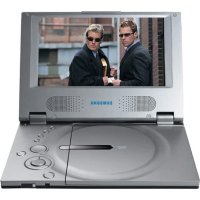
DVDL70A - DVD player SAMSUNG - Free user manual and instructions
Find the device manual for free DVDL70A SAMSUNG in PDF.



| Product Type | Portable DVD Player |
| Brand | Samsung |
| Model | DVD-L70A (also DVD-L75A) |
| Dimensions (W x H x D) | 200 mm x 27.9 mm x 140 mm |
| Weight (without battery) | 0.6 kg |
| Power Supply | 100-240 V AC, 50/60 Hz |
| AC Adapter | 13.5 V DC / 1.2 A |
| Power Consumption | 15 W |
| Display | 7-inch LCD, 336,000 pixels resolution |
| Speakers | Built-in stereo |
| Supported Disc Formats | DVD, VCD, Audio CD, CD-R/RW, MP3, WMA, JPEG, MPEG4 (DivX, XviD) |
| Main Functions | Play, pause, stop, search forward/backward, chapter/track skip, repeat, zoom, angle, subtitles, audio languages, parental control, EZ View, bookmark, slow play, slideshow |
| Supplied Accessories | Remote control, rechargeable battery, AC/DC adapter, car charger, AV cable, earphones, user manual |
| Operating Temperature | +10 °C to +30 °C |
| Operating Humidity | 30 % to 80 % |
| Rechargeable Battery | Charging time: approx. 6.5 h; battery life: approx. 2 h 30 |
| Outputs | Composite video (1 channel), stereo audio (2 channels), headphone jacks (2 x 3.5 mm) |
| Warranty | 1 year parts and labor (mainland France) |
| Cleaning and Maintenance | Clean with a soft, dry cloth; do not use chemicals. For the screen, wipe gently. |
Frequently Asked Questions - DVDL70A SAMSUNG
User questions about DVDL70A SAMSUNG
0 question about this device. Answer the ones you know or ask your own.
Ask a new question about this device
Download the instructions for your DVD player in PDF format for free! Find your manual DVDL70A - SAMSUNG and take your electronic device back in hand. On this page are published all the documents necessary for the use of your device. DVDL70A by SAMSUNG.
USER MANUAL DVDL70A SAMSUNG
I RechargeMENT du bloc-piles
I Recalling a Marked Scene
| Western | English, Breton, Catalan, Danish, Dutch, Faroese, Finnish, French, Gaelic, German, Icelandic, Irish, Italian, Norwegian, Portuguese, Spanish et Swedish |
| Central | English, Albanian, Croatian, Czech, Hungarian, Polish, Romanian, Slovak, Slovene et Serbian(Latin) |
| Greek | English et modern Greek |
| Cyrillic | English, Russian, Bulgarian, Belorussian, Macedonian, Moldavian, Serbian(Cyrillic), Ukrainian |
CONDITIONS DE GARANTIE
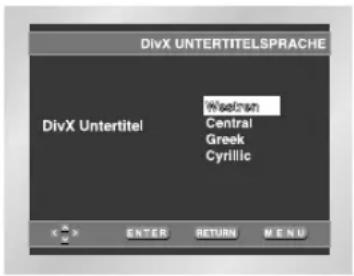
| Western | English, Breton, Catalan, Danish, Dutch, Faroese, Finnish, French, Gaelic, German, Icelandic, Irish, Italian, Norwegian, Portuguese, Spanish und Swedish |
| Central | English, Albanian, Croatian, Czech, Hungarian, Polish, Romanian, Slovak, Slovene und Serbian(Latin) |
| Greek | English und modern Greek |
| Cyrillic | English, Russian, Bulgarian, Belorussian, Macedonian, Moldavian, Serbian(Cyrillic), Ukrainian |
Notices and Safety Instructions
I Safety Instructions
Be sure to read the safety and operating instructions before using this product.
Keep this manual in a safe place for future reference.
Be sure to adhere to all warnings on the product.
- Unplug the power cord from the AC outlet before cleaning the unit.
Do not use liquid cleaner or aerosol cleaner.
Wipe with a damp cloth.
- Do not use accessories or attachments not recommended by the manufacturer. They may cause hazards.
- Do not place this unit near water - for example, near a bathtub, kitchen sink or laundry tub, in a wet basement or near a swimming pool.
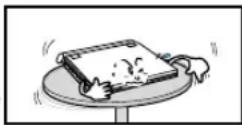
- Do not place the unit on an unstable stand, rack or table.
The unit may fall, causing serious personal injury or damage to the unit. Use only a table recommended by the manufacturer, or sold with the unit.
Be sure to install according to the instructions, using the recommended installation accessories.
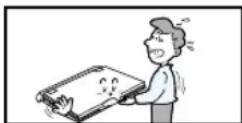
- The unit should be moved with care.
Quick stops, excessive force, and uneven surfaces may cause the unit and cart combination to overturn.
- Operate the unit using only the type of power source indicated
on the marking label. If you are not certain of your voltage requirement, please contact the authorised dealer from whom you purchased the product.
If you want to operate the unit with batteries or other type of power source, please refer to the manual.
- Route the power cord so that it is not likely to be walked on or
pinched by objects placed upon or against it. Pay particular attention to the cord at
the plug and the point where it exits from the unit.
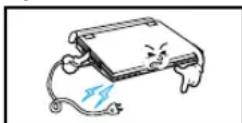
- During an electrical storm, or when the unit is unused for a
long period of time, unplug the power cord from the AC outlet and disconnect the lines between the unit and the antenna.
This is to prevent damage caused
by lightning and serious injury from electric shock.
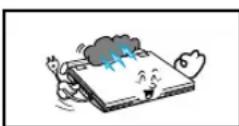
- Do not overload wall outlets or extension cords.
This may cause fire or electrical shock.
- Do not let foreign objects fall into the unit. If a foreign object touches internal parts or some areas inside the unit which are subject to high voltage, this can result in a risk of f electrical shock.
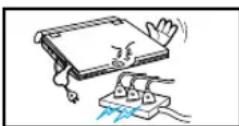
Do not spill any liquid into the unit.
- Do not attempt to service the unit yourself by opening or removing the covers.
You may be exposed to high voltage and other hazards.
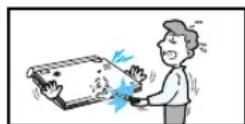
Refer all servicing to qualified service personnel.
-
When replacement of the AC adapter is necessary, purchase and use the same type of adapter.
-
Make sure the service technician uses replacement parts specified by the manufacturer or parts that have the same characteristics as the original. Unauthorized substitutions may result in fire, electrical shock, or other hazards.
-
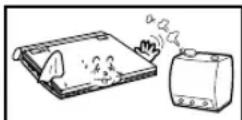
Do not place this unit near a radiator, heater, stove, or any other heat-emitting equipment (including amplifiers).
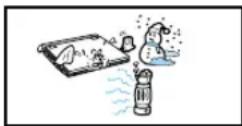
- Do not view the video on the LCD screen while moving. Do not play the DVD player or do not view the video while driving or walking.
Doing so may result in a risk of personal injury.
- Do not apply voltage exceeding the upper limit of the rated voltage
for this DVD player.
- Do not apply voltage outside the voltage range indicated on this DVD player.
- Using this unit with incorrect voltage can cause fire and/or electric shock.
-
Do not apply excessive force on the display.
-
The outer surface of the screen is made of glass.
The glass may break if a strong force is applied.
-
Do not use the DVD player on your lap for a long period of time.
-
You may get a minor burn due to the heat produced by the DVD player.
CAUTION: USE OF ANY CONTROLS, ADJUSTMENTS, OR PROCEDURES OTHER THAN SPECIFIED HEREIN MAY RESULT IN HAZARDOUS RADIATION EXPOSURE.
Notices and Safety Instructions
I Copy Protection
- Many DVD discs are encoded with copy protection. Because of this, you should only connect your DVD player directly to your TV, not to a VCR. Connecting to a VCR results in a distorted picture from copy-protected DVD discs.
This product incorporates copyright protection technology that is protected by methods claims of certain U.S. patents and other intellectual property rights owned by Macrovision Corporation and other rights owners. Use of this copyright protection technology must be authorized by Macrovision Corporation, and is intended for home and other limited viewing uses only unless otherwise authorized by Macrovision Corporation. Reverse engineering or disassembly is prohibited.
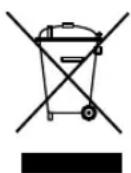
Correct Disposal of This Product
(Waste Electrical & Electronic Equipment)
(Applicable in the European Union and other European countries with separate collection systems)
This marking shown on the product or its literature, indicates that it should not be disposed with other household wastes at the end of its working life.
To prevent possible harm to the environment or human health from uncontrolled waste disposal, please separate this from other types of wastes and recycle it responsibly to promote the sustainable reuse of material resources.
Household users should contact either the retailer where they purchased this product, or their local government office, for details of where and how they can take this item for environmentally safe recycling.
Business users should contact their supplier and check the terms and conditions of the purchase contract. This product should not be mixed with other commercial wastes for disposal.
Safety Information
I Assuring the Finest Performance
This product is designed with the latest technology to provide trouble-free operation.
If the pick-up lens or disk drive gets dirty, the video quality will decrease.
I Moisture Condensation
Condensation may form inside this player under following conditions:
-
If warm air comes in contact with any cold parts inside the player
-
If the player is located in a room with high humidity
-
If the player is exposed to sudden temperature changes from cold to hot.
When condensation forms inside the player, the player may not operate correctly.
If this occurs, leave the player at room temperature until the inside of the player becomes dry and operational.
I Laser Safety
Caution
This product utilizes a laser. Use of controls or adjustments or performance of procedures other than those specified herein may result in hazardous radiation exposure. Do not open covers and do not look inside the product if interlock mechanism is damaged.
Warning
Be careful not to damage the interlock mechanism.
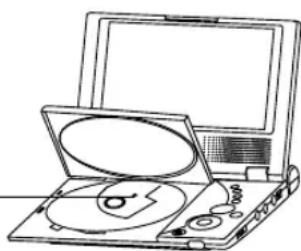
Table of Contents
I Setup
Features 5
Accessories 5
Disc Type and Characteristics 6
Description-Front Panel 7
Tour of the Remote Control 8
Using the Remote Control Unit 9
I Connections
Connecting Headphones to the DVD 9
Connecting to a TV 10
I Adapter directions
Using the AC adapter 10
Using the battery pack 11
I Basic Functions
Playing a Disc. 12
Using the Search & Skip Functions 13
Using the Display Function 13
Using the Disc and Title Menu. 14
Using the Function Menu 14
Repeat Play 15
I Advanced Functions
Slow Repeat Play 15
Adjusting the Aspect Ratio (EZ View) 16
Selecting the Audio Language. 17
Selecting the Subtitle Language 17
Using theBookmark Function 18
Changing the Camera Angle 18
Using the Zoom & 3D Sound Functions 19
Clips Menu for MP3/WMA/JPEG/MPEG4 19
Folder Selection 20
MP3/WMAPlayback 20
MPEG4Playback 21
Picture CD Playback 22
I Changing Setup menu
Using the Setup Menu 23
Setting Up the Language Features 24
Setting Up the Display Options 26
Setting Up the Parental Control. 26
I Reference
Cautionary Notes 27
Troubleshooting 29
Specifications 31
Car Power Adapter 31
Features
Plays DVD discs and audio CDs
- CD-R/RW discs containing MP3/WMA files can be played.
7 inch LCD display and built-in stereo speakers
- With the built-in 7 inch LCD display and stereo speakers, you can enjoy a DVD movie without requiring a separate TV.
Convenient 2-Way power supply
- You can use your DVD player virtually anywhere by using the supplied AC adapter indoors and the battery pack outdoors.
Compact size/lightweight design
- Compact and lightweight design makes the player easy to carry.
High-resolution image
- High-resolution LCD screen with 336,000 pixels provides clear pictures.
MPEG4
- This unit can play MPEG4 formats within an avi file.
DivX Certification
DivX, DivX Certified, and associated logos are trademarks of DivXNetworks, Inc and are used under license.
Accessories
| Remote Control | Rechargeable Battery | Instruction Book | |||
| Cigarette Lighter Adapter Input: 12 V / 24 V Output: 12 V | AV Adapter Cable | AC To DC Adapter 13.5 V / 1.2 A | Earphone | ||
| If disc features differ from the explanation in the manual |
| • Some functions or operations are disc-dependent and may not work in all cases. Follow the instructions shown on the screen. This manual only covers basic disc operations. • May appear during some operations. This mark indicates that the disc in use does not currently support operations explained in this manual. |
Disc Type and Characteristics
This DVD player is capable of playing the following types of discs with corresponding logos:
| Disc Types (Logos) | Recording Types | Disc Size | Max. Playing Time | Characteristics |
| DVD DVD VIDEO | Audio + Video | 12cm | Single-sided 240 min. Double-sided 480 min. | DVD contains excellent sound and video due to Dolby Digital and MPEG-2 system. Various screen and audio functions can be easily selected through the on-screen menu. |
| 8cm | Single-sided 80 min. Double-sided 160 min. | |||
| VIDEO-CD COMPACT DISC (DIGITAL VIDEO) | Audio + Video | 12cm | 74 min. | Video with CD sound, VHS quality & MPEG-1 compression technology. |
| 8cm | 20 min. | |||
| AUDIO-CD COMPACT DISC (DIGITAL VIDEO) | Audio | 12cm | 74 min. | CD is recorded as a Digital Signal with better audio quality, less distortion and less deterioration of audio quality over time. |
| 8cm | 20 min. |
I Play Region Number
Both the DVD player and the discs are coded by region. These regional codes must match in order for the disc to play. If the codes do not match, the disc will not play.
The Region Number for this player is described on the bottom housing of the player.
\*Caution 1

- Play Region Number

PAL broadcast system in U.K, France, Germany, etc.
STEREO
- Stereo disc

Digital Audio disc

- MP3 disc
NOTE:
- Discs which cannot be played with this player:
DVD-ROM DVD-RAM CD-ROM CDV - CDGs play audio only, not graphics.
- Ability to play back may depend on recording conditions:
DVD-R·CD-RW·DVD+RW,-RW·Picture CD - It may not play CD-R, CD-RW and DVD-R in some cases due to the type of disc or condition of the recording.
- It plays a VCD 2.0 disc like VCD 1.1 mode(MENU Off Mode)
* Caution 2
- Some playback functions of a DVD vary by manufacturer.
This DVD player reproduces the disc data according to guidelines provided by the disc manufacturer.
If appears during disc operations, the disc manufacturer has placed a limit on that function.
Discs that cannot be played
- Illegally manufactured discs
- Discs with scratches
-
Discs with fingerprints, dirt, and debris.
-
If the disc surface has dirt or scratches, No Disc will be displayed and the disc will not be played correctly.
- If the player encounters dirt or scratches while playing, video playback may be interrupted.(To clean a disc use a soft cloth without any cleaning agent, liquid or solvent. Only wipe from the center hole towards the outer edge, never in circular movement.)
- Some block-like patterns appear. When this occurs, your player will restore the image in 2~3 seconds.
About Copyrights
Any kind of unauthorized and commercial duplication, public performance, broadcasting, renting, copying and making transmitable of the content of discs is strictly prohibited by law.
This product is equipped with anti-copy protection device and connecting to a VCR for recording purposes results in a distorted picture.
This product incorporates copyright protection technology that is protected by method claims of certain U.S. patents and other intellectual property rights owned by Macrovision Corporation and other rights owners. Use of this copyright protection technology must be authorized by Macrovision Corporation, and is intended for home and other limited viewing uses only unless otherwise authorized by Macrovision Corporation. Reverse engineering or disassembly is prohibited.
Description-Front Panel
I Front View
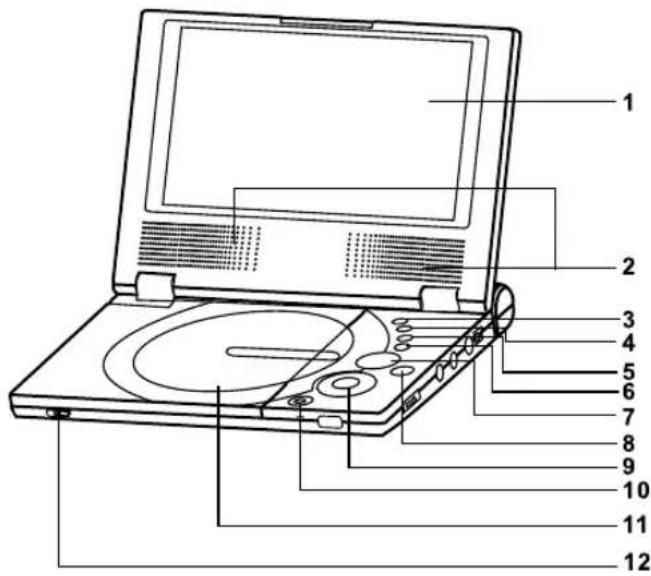
- LCD
- SPEAKER
- INFO
- MENU
- RETURN
- CLEAR
- NAVIGATION (▲,▼,▲,▶)
- ENTER(
- PLAY/PAUSE, REV-SKIP, FWD-SKIP, STOP
- POWER
11.DVDDOOR - OPEN SWITCH
I Right View
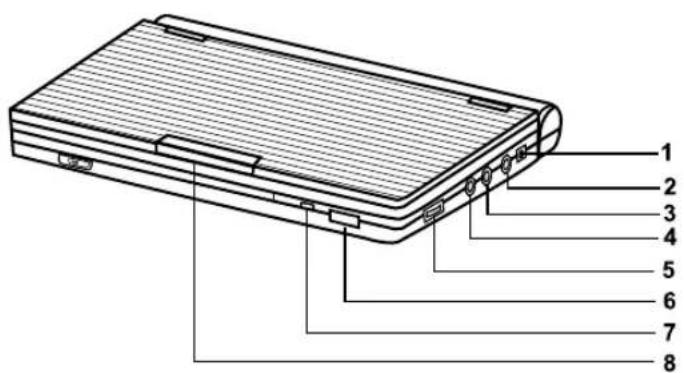
1.DC IN
2. A/V OUTPUT
3. HEADPHONE B
4. HEADPHONE A
5.VOLUME
6. IR REMOTE SENSOR
7. POWER/CHARGE INDICATED LED (RED/GREEN)
8. LCD OPEN
Description-Front Panel
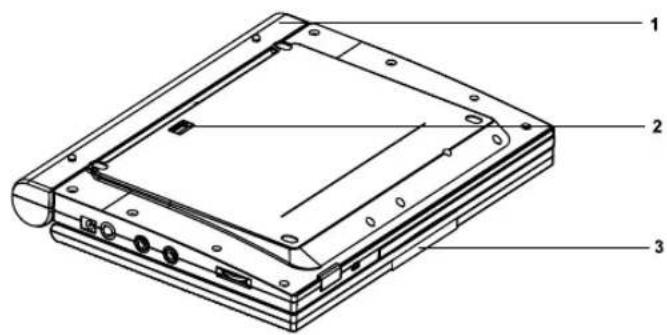
I Bottom View
- BATTERY PACK
- RELEASE (Battery pack separation switch)
- OPEN
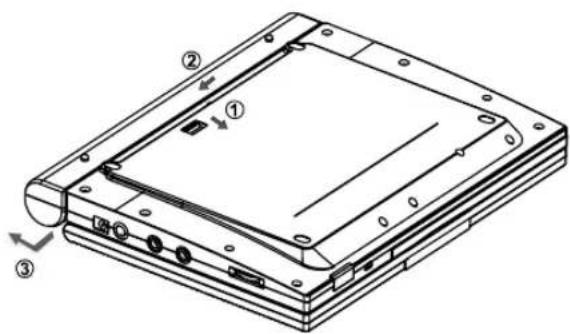
I Battery pack separation method
- Press in the direction of the arrow.
- Slide battery pack to the left, then out.
Tour of the Remote Control
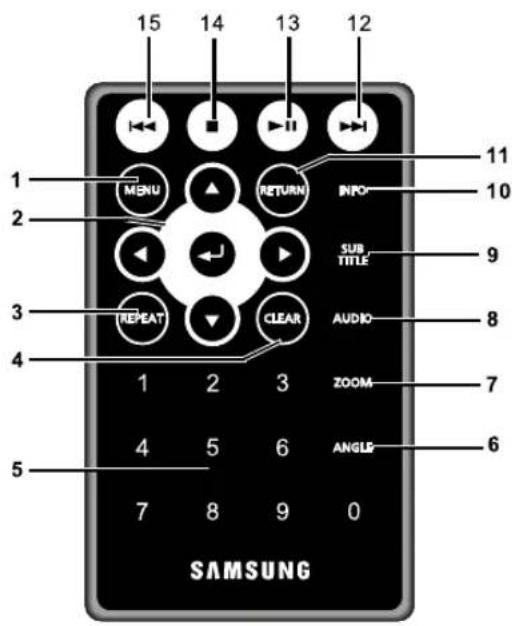
- MENU Button
- Brings up the DVD player's setup menu.
- ENTER/DIRECTION Buttons
(UP/DOWN & LEFT/RIGHT buttons) - REPEAT Button
- Allows you to repeat play a title, chapter, track, or disc.
4.CLEARButton - Use to remove menus or status displays from the screen.
5.NumberButton - Use to input the desired chapter number.
- ANGLE Button
- Use to access various camera angles on a DVD.
- ZOOM Button
- Use to enlarge the picture.
- AUDIO Button
- Use this button to access various audio functions on a disc.
- SUBTITLE Button
- INFO Button
- Displays the current disc mode.
- RETURN Button
- Returns to the previous menu.
- Forward Skip Button
- Go to the next chapter or fast forward.
- PLAY/PAUSE Button
- Starts or pauses disc play.
- STOP Button
- Stops disc play
- Reverse Skip Button
- Returns to the previous chapter or reverse searches.
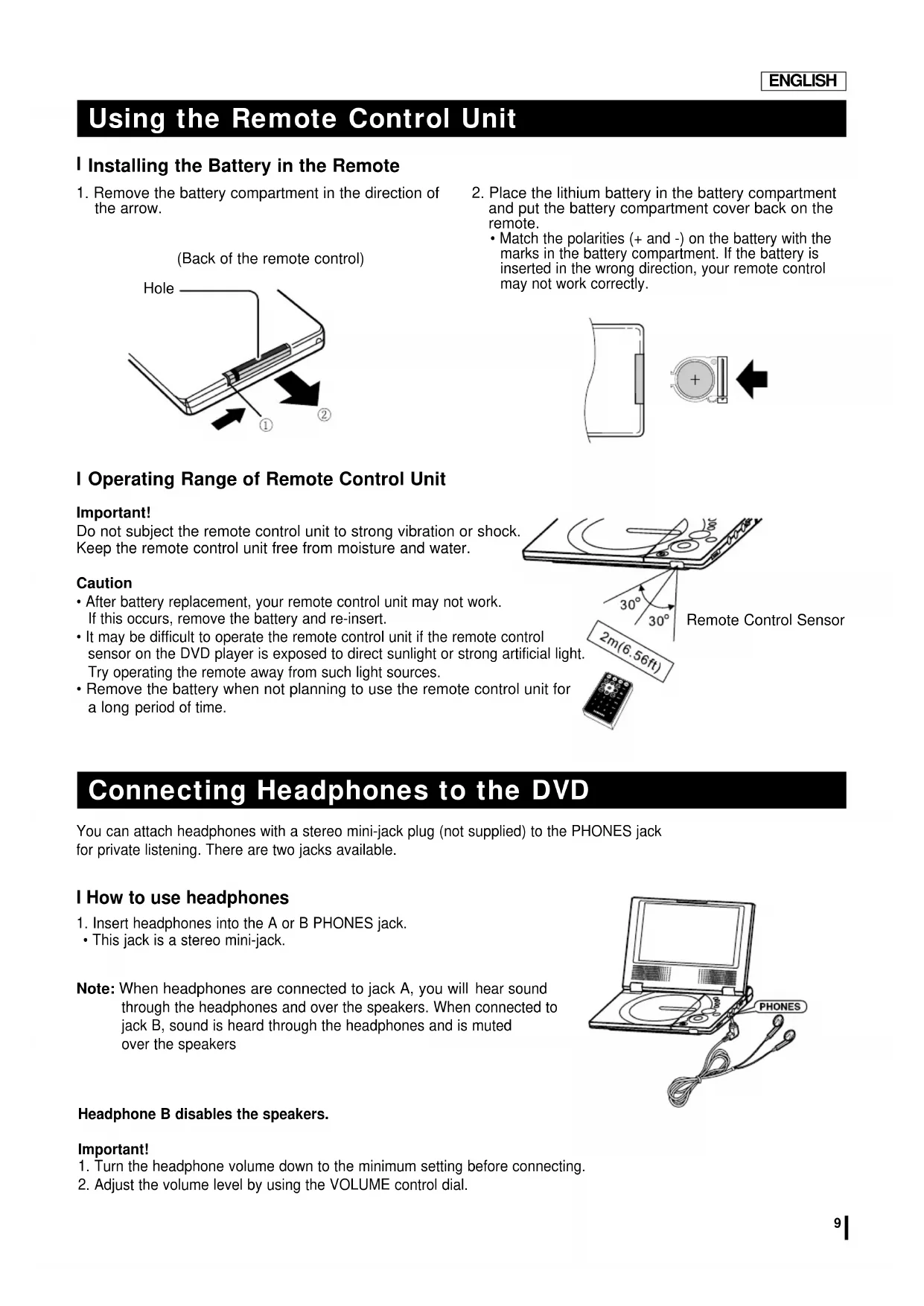
Using the Remote Control Unit
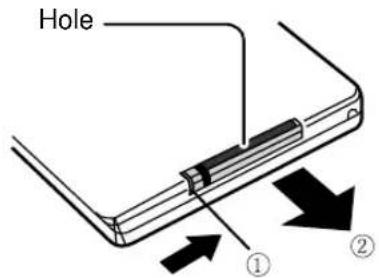
I Installing the Battery in the Remote
- Remove the battery compartment in the direction of the arrow.
(Back of the remote control)
-
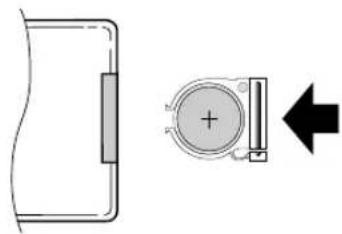
Place the lithium battery in the battery compartment and put the battery compartment cover back on the remote.
-
Match the polarities (+ and -) on the battery with the marks in the battery compartment. If the battery is inserted in the wrong direction, your remote control may not work correctly.
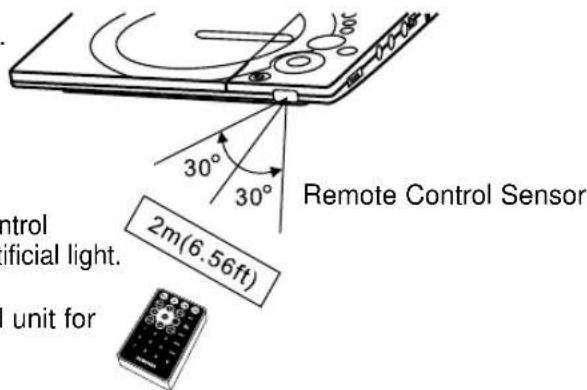
I Operating Range of Remote Control Unit
Important!
Do not subject the remote control unit to strong vibration or shock. Keep the remote control unit free from moisture and water.
Caution
- After battery replacement, your remote control unit may not work. If this occurs, remove the battery and re-insert.
- It may be difficult to operate the remote control unit if the remote control sensor on the DVD player is exposed to direct sunlight or strong artificial light. Try operating the remote away from such light sources.
- Remove the battery when not planning to use the remote control unit for a long period of time.
Connecting Headphones to the DVD
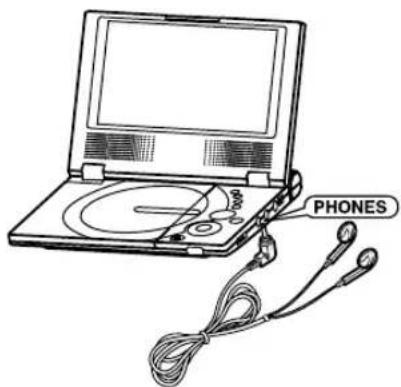
You can attach headphones with a stereo mini-jack plug (not supplied) to the PHONES jack for private listening. There are two jacks available.
I How to use headphones
-
Insert headphones into the A or B PHONES jack.
-
This jack is a stereo mini-jack.
Note: When headphones are connected to jack A, you will hear sound through the headphones and over the speakers. When connected to jack B, sound is heard through the headphones and is muted over the speakers
Headphone B disables the speakers.
Important!
- Turn the headphone volume down to the minimum setting before connecting.
- Adjust the volume level by using the VOLUME control dial.
Connecting to a TV
- Always turn off the DVD Player and TV before you connect any cables.
I To view video with a TV
- Connect the DVD player to a TV with the supplied AV cable.
- Turn on the TV.
- Press the TV/VIDEO button on your TV to select the input from the DVD player.
- Turn on the DVD player, and start playback.
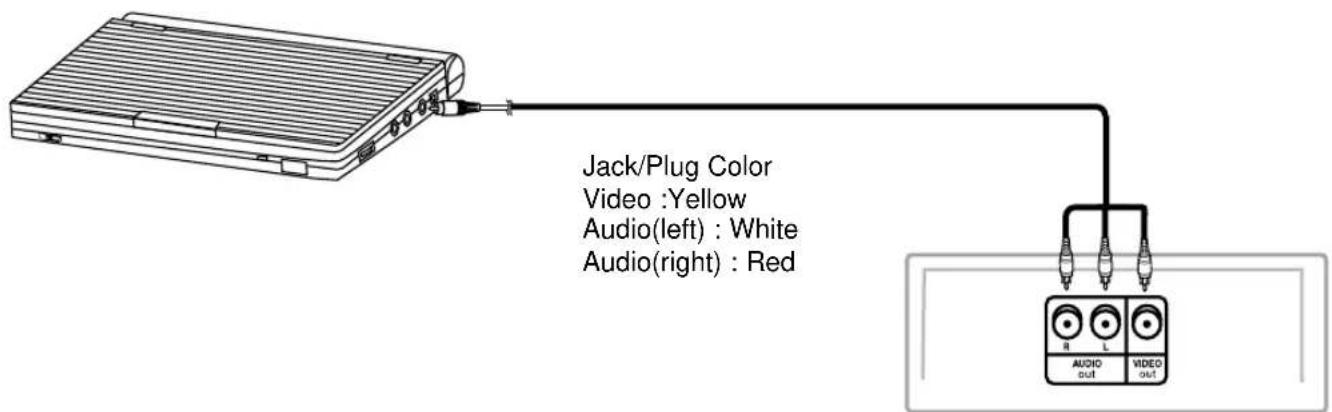
Caution
- If you wish to view video on your TV only, close the display panel of your DVD player.
Playback will continue, but you still will be able to use the remote to control the DVD player.
Using the AC adapter
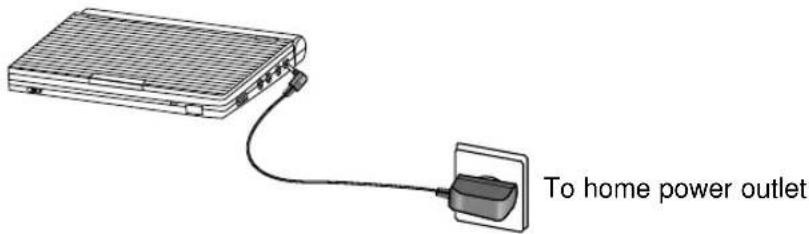
Important!
- Always turn off the DVD player before connecting or disconnecting the AC cord.
- Be sure to use the supplied AC adapter. Using a different type of adapter may cause malfunction or damage to the product.
- When the AC adapter is used for prolonged periods of time, the adapter may heat up. This is normal and is not a cause for concern.
- When not using the adapter, unplug it from the wall outlet.
- Keep the AC adapter free from moisture, cold, and dust. Otherwise, this can result in a risk of fire or electric shock.
Warning
- Only use the AC adapter supplied with this player.
- Be sure to unwind the AC adapter cable (DC output cable) before using, as electromagnetic interference may cause problems with other devices.
Refer to pages 31 and 32 for details on car adapter connection.
Using the AC adapter
Important!
- Always turn off the DVD player when inserting or removing the AC adapter.
- Before storing the battery pack, make sure it is completely drained.
- Be sure to recharge the battery at least once every six months to ensure proper battery life.
Caution
- When charging or using the battery pack, it heats up. This is normal and is not a cause for concern.
Battery pack Charge/Recharge time
| Model DVD-L | L70A DVD-L75A | |
| Charge Time Approx. 6.5 hours Approx. 8 hours | ||
| Discharge Time Approx. 2.5 hours Approx. 4.2 hours | ||
NOTE:
Connecting the battery pack to the AC Adapter:
- You can recharge the battery pack in the DVD player by turning off the player and connecting the AC adapter to the player.
- Charge time may be longer when using the battery pack in a cold environment.
DVD continuous playing time is a reference indicating the maximum playing time at average speaker volume. - The playback time may be shortened depending on the disc, surrounding temperature, battery pack conditions, and speaker volume.
Using the battery pack
Important!
- When inserting the battery pack, make sure that it is inserted correctly. Otherwise, your DVD player may malfunction.
I Charging the battery pack
Use the AC adapter (included) to charge the battery pack.
- Before charging, make sure that the battery pack is correctly seated.
Power charge Lamp
-Green light(on the front of the unit) will be on when charging. When the battery pack is fully charged, the light will turn off.
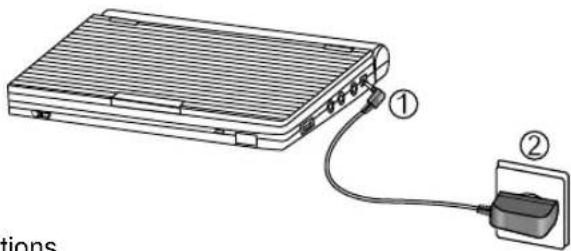
The playing time is affected by environmental temperature and conditions.
The playing time becomes very short in a cold environment. The continuous playing times in the operating instructions are measured using a fully charged battery pack at 77^(25^) .
As the environmental temperature and conditions may differ when you actually use the DVD, the remaining battery time may not be the same as the approximate continuous playing time given in these instructions.
NOTE:
- When the operation time is noticeably shorter than normal, it is time to buy a new battery.
- As the battery is completely used, the screen may be noisy intermittently.
Playing a Disc
I Before Play
After plugging in the player, the first time you press the POWER button, this screen comes up: Press the UP/DOWN buttons to select the language, and then press the ENTER button. (This screen will only appear when you plug in the player for the first time.) If the language for the startup screen is not set, the settings may change whenever you turn the power on or off. Therefore, make sure that you select the language you want to use.
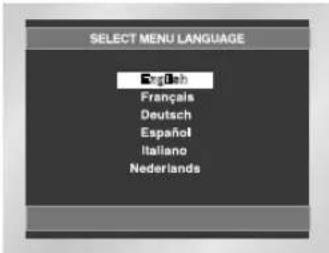
I Play
- Move the OPEN switch to open the disc cover.
The disc cover opens up to around a 60-degree angle.
Do not attempt to open the cover to an angle beyond this range. The cover may become damaged.
-
Place a disc gently into the tray.
-
You should hear and feel the disc snap firmly into place
-
Place a disc into the tray with the disc's label facing up.
-
Close the disc cover and then press the part marked "PUSH" until it clicks shut.

-
Stopping Play
-
Press the STOP (■) button during play.
-
Pausing Play
Press the PAUSE (▶II) button on the remote during play.
- Screen stops, no sound.
-
To resume, press PLAY (▶II) button once again.
-
Slow Motion Play (DVD only)
Press and hold the button to choose the play speed between 1/8, 1/4 and 1/2 of normal during PAUSE mode.
-
No sound is heard during slow mode.
-
Press PLAY (▶II) to resume normal play.
NOTE: Reverse slow motion play will not work.
When you stop disc play, the player remembers where you stopped, so when you press PLAY (▶/I) again, it will pick up where you left off.
(unless the disc is removed or the player is unplugged, or if you pressed the STOP (■) button twice.)
Important!
- Make sure that the disc is correctly placed. Otherwise, the disc and/or the DVD player may be damaged.
If the disc is placed upside down in the disc tray or the region number of the DVD is not supported, No Disc will appear on the screen.
NOTE:
- If the player is left in the stop mode for more than one minute without any user interaction, a screen saver will be activated. Press the PLAY (▶) button to resume normal play.
- This icon indicates an invalid button press.
- Do not remove the disc until it has completely stopped.
Using the Search & Skip Functions
During play, you can search quickly through a chapter or track or use the skip function to jump to the next selection.
I Searching through a Chapter or Track
During play, press the SKIP (or ) button on the remote.
- Press the SKIP (▶ or▶) button on the remote for more than 2 seconds and press again or press continuously to search at a faster speed on a DVD, VCD or CD.
- Press the SKIP (or ) button for less than 2 seconds to use the SEARCH feature. (To previous/next chapter or track)
| DVD 2X, 8X, 32X, 128X |
| VCD 4X, 8X |
| CD 2X, 4X, 8X |
I Skipping Tracks
During play, press the NEXT SKIP (▶) or BACK SKIP (▶) button less than 2 seconds.
- When playing a DVD, if you press the NEXT SKIP button, it moves to the next chapter. If you press the BACK SKIP button, it moves to the beginning of the chapter. One more press makes it move to the beginning of the previous chapter.
- When playing VCD or a CD, if you press the NEXT SKIP button, it moves to the next track. If you press the BACK SKIP button, it moves to the beginning of the track. One more press makes it move to the beginning of the previous track.
- If a track exceeds 15 minutes when playing a VCD and you press the NEXT SKIP button, it moves forward 5 minutes.
If you press the BACK SKIP button, it moves backward 5 minutes.
Using the Display Function
I When Playing a DVD/VCD/CD/MPEG4
- Press the INFO button during playback.
- Use the UP/DOWN buttons to select the desired item.
- Use the LEFT/RIGHT buttons to make the desired setup, then press ENTER.
- To make the screen disappear, press the INFO button again.

To access the desired title when there is more than one in the disc. For example, if there is more than one movie on a DVD, each movie will be identified

Most of DVD discs are recorded in chapters so that you can quickly find a specific passage. (similar to tracks on an audio CD).

Allows playback of the film from a desired time.
Input the desired time by pressing the number on Remote directly, and you can use direction
buttons to set the time after pressing ENTER button.
Note: The numeric buttons can't work after pressing ENTER button.

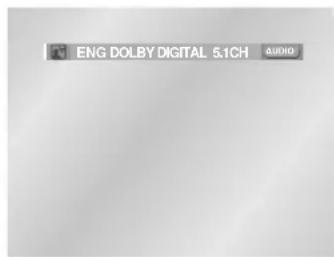
Refers to the language of the film soundtrack. In the example, the soundtrack is played in English 5.1CH. A DVD disc can have up to eight different soundtracks. The MP3, AC3 and WMA are supported.(DivX) Note: Even when 5.1 channel is set, you will only hear 2 channel audio from the player.

Refers to the subtitle languages available in the disc. You will be able to choose the subtitle languages or, if you prefer, turn them off from the screen. A DVD disc can have up to 32 different subtitles.

A Surround effect is generated using two front speakers and headphones.

(DivX)
File Size has a relationship with resolution of a title.
The larger file size is, the higher resolution is displayed.
If the file resolution is small, it scales up automatically. So you can see the larger screen.
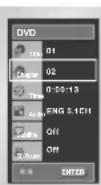
DVD
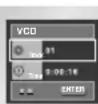
VCD
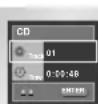
CD
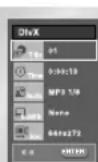
MPEG4
Using the Disc and Title Menu
I Using the Disc Menu
- Press the MENU button during playback.
- Select Disc Menu using the UP/DOWN buttons, then press the RIGHT or ENTER button.
I Using the Title Menu
- Press the MENU button during playback.
- Select Title Menu using the UP/DOWN buttons, then press the RIGHT or ENTER button.
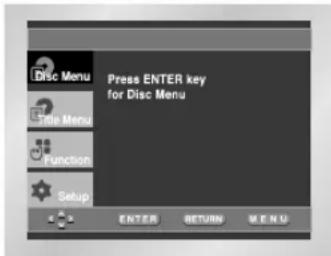
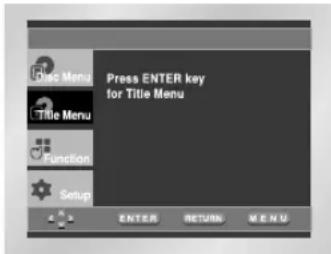
NOTE:
- Depending on the disc, the Title and Disc Menus may be different.
- Title Menu will only be displayed if there are at least two titles in the disc.
Using the Function Menu
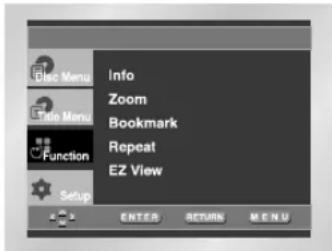
I Using the Function Menu
- Press the MENU button during playback.
- Use the UP/DOWN buttons to highlight Function, then press the RIGHT or ENTER button.
-
Function selection screen appears, Info, Zoom, Bookmark, Repeat and EZ View.
-
Info (refer to page 13)
- Zoom (refer to page 19)
-Bookmark (refer to page 18) -
Repeat (refer to page 15)
-EZ View (refer to page 16) -
Use the UP/DOWN button to highlight one of the 5 functions.
Then press the RIGHT or ENTER button to access the function.
NOTE:
- You can use also directly select Info, Zoom, Repeat using their respective buttons on the remote.
Repeat Play
Repeat the current track, chapter, title, a chosen section (A-B), or all of the disc.
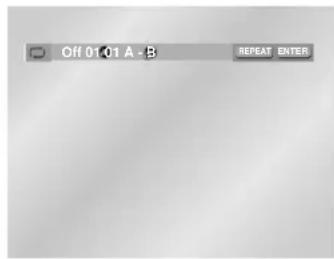
I When playing a DVD/VCD/CD
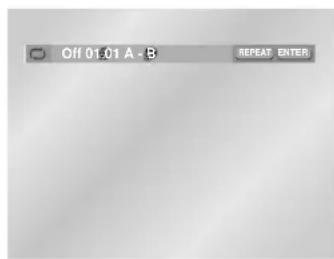
- Press the REPEAT button on the remote. Repeat screen appears.
- Select Chapter, Title or A-B using the LEFT/RIGHT buttons.
Chapter (O) : repeats the chapter that is playing. -
Title (1): repeats the title that is playing.
A-B: repeats a segment of the disc that you select. -
Press ENTER.
- To return to normal play, press REPEAT again, then press the LEFT/RIGHT buttons to select Off and press ENTER.
Repeat A-B:
- Select "A" using the LEFT/RIGHT buttons in REPEAT On-Screen Display to select the point where the function starts(A).
- Press ENTER.
- Press ENTER again to select the point where the function ends(B).
- A-B REPEAT does not allow you to set point (B) until at least 6 seconds has elapsed after point (A) has been set.
DVD
VCD/CD
NOTE:
DVD repeats play by chapter or title, CD and VCD repeat play by disc or track.
- Depending on the disc, the Repeat function may not work.
- There're "track, folder, random, off" repeat but no A-B repeat function when playing WMA/MP3. (Refer to page 19)
Slow Repeat play
This feature allows you slowly to repeat scenes containing sports, dancing, musical instruments being played etc. so you can study them more closely.
I When playing a DVD/VCD
- During play, press the PAUSE (▶) button on the remote.
- By pressing the button, you can select slow motion play for 1/8, 1/4 or 1/2 of normal speed.
- Select "A" using the LEFT/RIGHT buttons in the REPEAT OSD to select the point where the function starts(A).
- Press ENTER.
- Press ENTER again to select the point where the function ends(B).
NOTE:
- The disc will play from A to B repeatedly at the speed you chose.
- To terminate the function, press the 'CLEAR' button and then press 'PLAY'.
- A-B REPEAT does not allow you to set point (B) until at least 6 seconds at normal speed has elapsed after point (A) has been set.
Adjusting the Aspect Ratio(EZ View)
I To play back using aspect ratio(DVD)
- Press the MENU button during playback.
- Use the UP/DOWN buttons to highlight Function, then press the RIGHT or ENTER button.
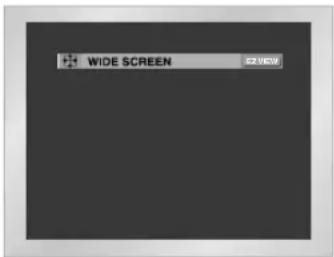
- Select EZ View using UP/DOWN and press enter to show the present Aspect Ratio.
- Press ENTER consecutively to change the aspect ratio.
If you are using a 16:9 TV
-
For 16:9 aspect ratio discs
-
Wide Screen
Displays the content of the DVD title in 16:9 aspect ratio.
- Screen Fit
The top and bottom of the screen are cut off. When playing a 2.35:1 aspect ratio disc, the black bars at the top and bottom of the screen will disappear. The picture will look vertically stretched. (Depending on the type of disc, the black bars may not disappear completely.)
- Zoom Fit
The top, bottom, left and right of the screen are cut off and the central portion of the screen is enlarged.
- For 4:3 aspect ratio discs
Normal Wide
Displays the content of the DVD title in 16:9 aspect ratio. The picture will look horizontally stretched.
- Screen Fit
The top and bottom of the screen are cut off and the full screen appears. The picture will look vertically stretched.
- Zoom Fit
The top, bottom, left and right of the screen are cut off and the central portion of the screen is enlarged.
Vertical Fit
When a 4:3 DVD is viewed on a 16:9 TV, black bars will appear at the left and right of the screen in order to prevent the picture from looking horizontally stretched.
If you are using a 4:3 TV
- For 16:9 aspect ratio discs
4:3 Letter Box
Displays the content of the DVD title in 16:9 aspect ratio. The black bars will appear at the top and bottom of the screen.
4:3 Pan Scan
The left and right portions of the screen are cut off and the central portion of the 16:9 screen is displayed.
- Screen Fit
The top and bottom portions of the screen are cut off and the full screen appears. The picture will look vertically stretched.
- Zoom Fit
The top, bottom, left and right portions of the screen are cut off and the central portion of the screen is enlarged.
- For 4:3 aspect ratio discs
Normal Screen
Displays the content of the DVD title in 4:3 aspect ratio.
- Screen Fit
The top and bottom portions of the screen are cut off and the full screen appears. The picture looks vertically stretched.
- Zoom Fit
The top, bottom, left and right portions of the screen are cut off and the central portion of the screen is enlarged.
NOTE:
- This function may behave differently depending on the type of disc.
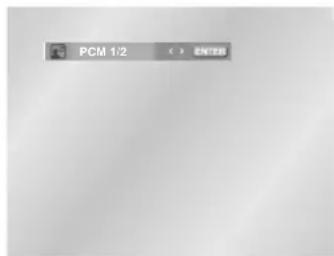
Selecting the Audio Language
You can select a desired language quickly and easily with the AUDIO button.
I Using the AUDIO button (DVD/VCD/CD/MPEG4)
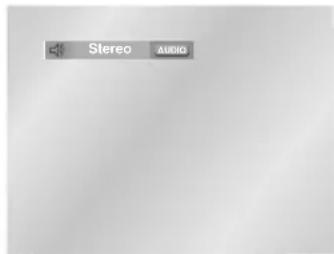
- Press the AUDIO button on the remote.
- The Audio changes when the button is pressed repeatedly. The audio languages are represented by abbreviations.
- Press the AUDIO button to select Stereo, Left or Right. (On VCD/CD)
DVD
VCD/CD
NOTE:
- This function depends on what languages are encoded on the disc and may be available with all DVDs.
- A DVD disc can contain up to 8 audio languages.
- How to have the same audio language come up whenever you play a DVD; Refer to "Setting Up the Language Features" on page 24 and 25.
MPEG4
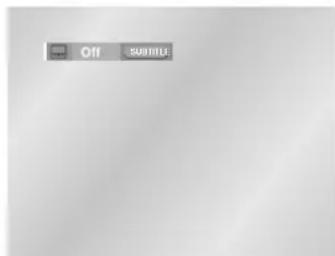
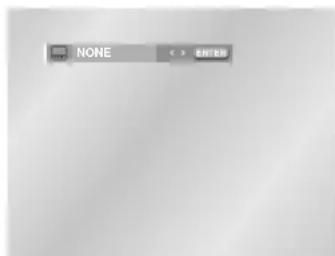
Selecting the Subtitle Language
You can select a desired subtitle quickly and easily with the SUBTITLE button.
I Using the SUBTITLE button (DVD/MPEG4)
- Press the SUBTITLE button on the remote.
- The subtitle changes when the button is pressed repeatedly.
- To turn off the display, press the CLEAR or RETURN button.
- The subtitle languages are represented by abbreviations.
DVD
NOTE:
- This function depends on what languages are encoded on the disc and may be available with all DVDs.
- A DVD disc can contain up to 32 subtitle languages.
- How to have the same subtitle language come up whenever you play a DVD; Refer to "Setting Up the Language Features" on page 24 and 25.
MPEG4
Using theBookmark Function
The Bookmark function lets you select parts of a DVD or VCD so that you can quickly find the section at a later time.
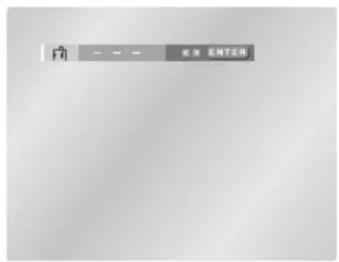
I Using theBookmark Function (DVD/VCD)
- During play, press the MENU button on the remote.
- Use the UP/DOWN buttons to highlight Function, then press the RIGHT or ENTER button.
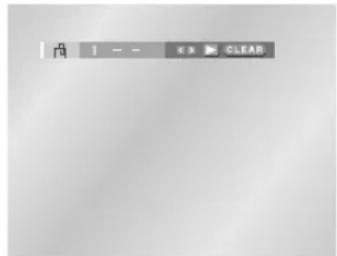
- Select Bookmark using the UP/DOWN button and then press ENTER. The Bookmark icons will be displayed.
- Highlight “_” and press ENTER to mark the point you want and the mark will change to a number. Press CLEAR to delete the bookmark.
I Recalling a Marked Scene
- During play, press the MENU button on the remote.
- Use the UP/DOWN buttons to highlight Function, then press the RIGHT or ENTER button.
- Select Bookmark using the UP/DOWN button and then press ENTER. The Bookmark icons will be displayed.
- Use the LEFT/RIGHT buttons to select a marked scene.
- Press the PLAY (▶) button to skip to the marked scene.
- Press CLEAR to delete this setting
NOTE:
- Up to three scenes may be marked at a time.
- Depending on the disc, theBookmark function may not work.
Changing the Camera Angle
When a DVD contains multiple angles of a particular scene, you can select the Angle function.
I Using the ANGLE button
Press the ANGLE button to see if an ANGLE ( ) mark is present at the upper left hand corner of the screen.
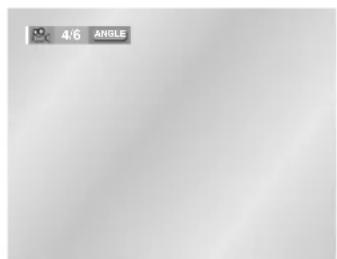
- When an ANGLE mark is shown, press the ANGLE button, then an ANGLE select icon will appear at the upper hand corner of the screen.
- Press the ANGLE button to select the desired screen angle.
- To turn off the display, press the CLEAR button.
NOTE:
- If the disc has only one angle, this feature won't work. Currently, very few discs have this feature.
Using the Zoom & 3D Sound Functions
Using the Zoom Function (DVD/VCD)
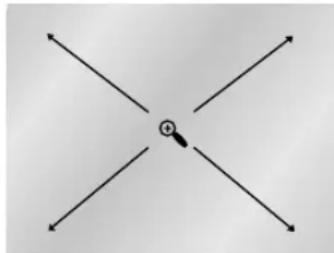
- During play or pause mode, press the ZOOM button on the remote. A Zoom mark will be displayed on screen.
- Use the UP/DOWN or LEFT/RIGHT button to select the part of the screen you want to zoom in on.
-
Press the ENTER button.
-
Press ENTER to zoom in 2X/4X/2X/Normal in order. (DVD)
- Press ENTER to zoom in 2X/Normal in order.(VCD)
I Using the 3D Sound Function (DVD)
The simulated surround effect depends on the disc contents. If you connect the unit to your stereo system, you can enhance sound quality and produce a greater surround effect. This feature is useful when you are using the DVD player with a two channel stereo through the analog outputs. (Discs which are recorded with LPCM, MPEG or DTS will not work.)
- During play, press INFO button. Use the UP/DOWN buttons to select "3D Sound" item.
- Press the LEFT/RIGHT buttons to turn the 3D Sound feature on or off.
NOTE:
- Depending on the disc, the Zoom and 3D Sound function may not work.
Clips Menu for MP3/WMA/JPEG/MPEG4
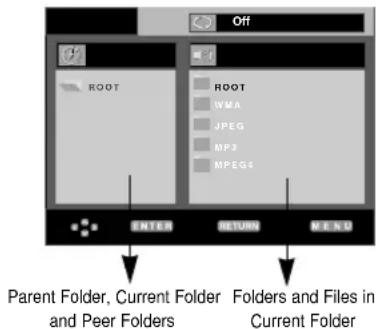
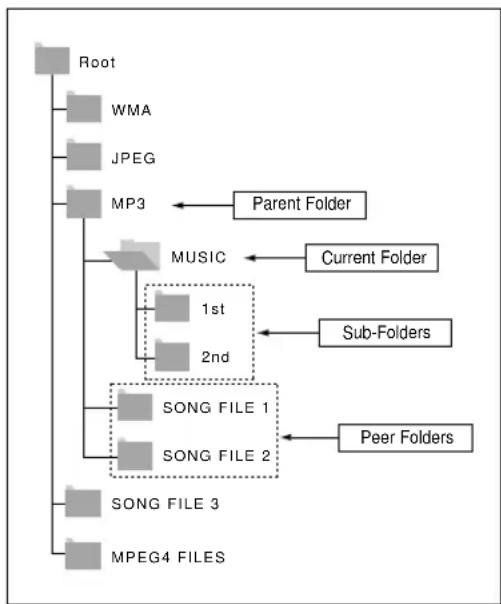
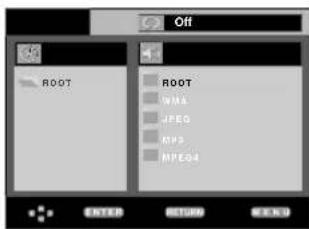
Discs with MP3/WMA/JPEG/MPEG4 contain individual songs or pictures that can be organized into folders as shown below. They are similar to how you use your computer to put files into different folders.
- Open the disc cover.
-
Place the disc in the player.
-
Place the disc with the labeled side up.
-
Close the cover.
-
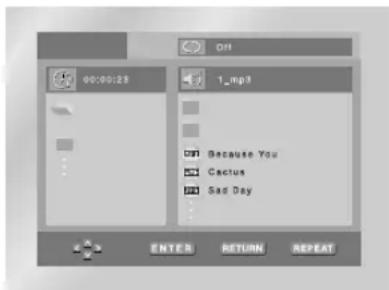
The cover is closed and you should get a screen that looks like the one to the right.

: Name of currently playing file.

:CurrentPlaybackTime.

:CurrentPlaybackMode :Thereare4modes.
They can be selected in order by pressing the REPEAT button.
-
Off : Normal Playback
-
Track: Repeats the current track.
- Folder : Repeats the current folder.
- Random : Files in the disc will be played in random order.

: MP3 file icon.

:JPEG file icon.

:WMA file icon.

:AVI file icon.

:Folder icon.

: Current Folder icon.
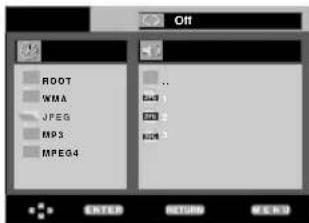
Folder Selection
The folder can only be selected in the Stop mode.
- To select the Parent Folder
- Press the RETURN button to go to Parent folder, or use the UP/DOWN buttons to select "... and press ENTER to go to the parent folder.
- To select the Peer Folder Use the LEFT/RIGHT buttons to highlight left window. Use the UP/DOWN buttons to select the desired folder, then press ENTER.
- To select the Sub-Folder Use the LEFT/RIGHT buttons to highlight right window. Use the UP/DOWN buttons to select the desired folder, then press ENTER.
MP3/WMA Playback
- Open the disc cover.
-
Place the disc in the player.
-
Place the disc with the labeled side up.
-
Close the cover.
- The cover is closed and you should get a screen that looks like the one below.
IMP3/WMA Play Function
- Select the desired folder.
- Use the UP/DOWN or LEFT/RIGHT buttons to select a song file.
- Press ENTER to begin playback of the song file.
I Repeat/Random playback
Press the REPEAT button to change playback mode.
There are 4 modes: Off, Track, Folder and Random.
- Off : Normal Playback
- Track: Repeats the current song file.
- Folder : Repeats the song files which have the same extension in the current folder.
- Random : Song files which have the same extension will be played in random order.
- To resume normal play,press the CLEAR button.
MP3/WMA Playback
ICD-R MP3/WMA discs
When you record MP3/WMA files on CD-R, please refer to the following.
- Your MP3 or WMA files should be ISO 9660 or JOLIET format.
ISO 9660 format and Joliet MP3 or WMA files are compatible with Microsoft's DOS and Windows, and with Apple's Mac. This format is the most widely used.
- When naming your MP3 or WMA files, do not exceed 8 characters, and enter“.mp3, .wma” as the file extension.
General name format of: Title.mp3. or Title.wma. When composing your title, make sure that you use 8 characters or less, have no spaces in the name, and avoid the use of special characters including: (.,/,, +) .
- Use a decompression transfer rate of at least 128 Kbps when recording MP3 files.
Sound quality with MP3 files basically depends on the rate of compression/decompression you choose. Getting audio CD quality sound requires an analog/digital sampling rate, that is conversion to MP3 format, of at least 128 Kbps and up to 160 Kbps. However, choosing higher rates, like 192 Kbps or more, only rarely give better sound quality. Conversely, files with decompression rates below 128 Kbps will not be played properly.
- Use a decompression transfer rate of at least 64Kbps when recording WMA files.
Sound quality with WMA files basically depends on the rate of compression/decompression you choose. Getting audio CD quality sound requires an analog/digital sampling rate, that is conversion to WMA format, of at least 64Kbps and up to 192Kbps. Conversely, files with decompression rates below 64Kbps or over 192Kbps will not be played properly.
- Do not try recording copyright protected MP3 files.
Certain "secured" files are encrypted and code protected to prevent illegal copying. These files are of the following types: Windows Media™ (registered trade mark of Microsoft Inc) and SDMI™ (registered trade mark of The SDMI Foundation). You cannot copy such files.
- Important: The above recommendations cannot be taken as a guarantee that the DVD player will play MP3 recordings, or as an assurance of sound quality. You should note that certain technologies and methods for MP3 file recording on CD-Rs prevent optimal playback of these files on your DVD player (degraded sound quality and in some cases, inability of the player to read the files).
- This unit can play a maximum of 3000 files and 300 folders per disc.
MPEG4Playback
IMPEG4 Play Function
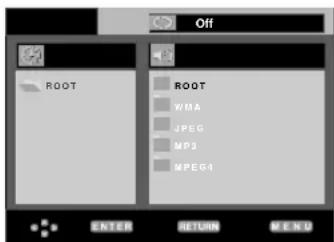
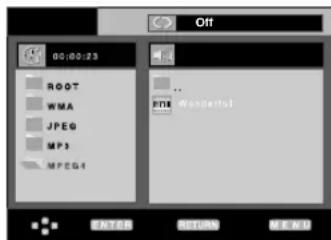
AVI files are used to contain the audio and video data. Only AVI format files with the ".avi" extensions can be played.
- Open the disc tray. Place the disc on the tray. Close the tray.
- Press the UP/DOWN or LEFT/RIGHT buttons to select an avi file (DivX/XviD), then press the ENTER button.
I Repeat Playback
Press the REPEAT button to change playback mode. There are 4 modes, such as Off, Folder, Title and A-B (a distance between two points appointed by user).
- Folder : Repeats the AVI files which have the same extension in the current folder.
- Title : repeats the title that is playing.
- A-B: repeats a segment of the file that you select.
MPEG4Playback
I MPEG4 Function Description
| Function Description Reference page | |
| Skip( or ) | During play, press the or button, it moves forward or backward 5 minutes. |
| Search( or ) | During play, press the SERACH ( or ) button and press again to search at a faster speed. Allows you to search at a faster speed in an AVI file. (2X, 4X, 8X) |
| Slow Motion Play | Allows you to search at a slower speed in an AVI file. (1/8X, 1/4X, 1/2X) |
| ZOOM | 2X/4X/2X/Normal in order |
- These functions may not work depending on MPEG4 file.
NOTE:
- Some MPEG4 files created on a personal computer may not be play back.
That is why Codec Type, Version and Higher resolution over specification is not supported.
This unit supports CD-R/RW written in MPEG4 in accordance with the ISO9660 format.
I CD-R AVI file
This unit can play the following video compression formats within the AVI file format:
- DivX 3.11 contents
- DivX 4 contents (Based on MPEG4 Simple Profile)
- DivX 5 contents (MPEG4 simple profile plus additional features such as bi-directional frames. Qpel and GMC are also supported.)
-XviD MPEG4 compliant Contents.
This unit supports all resolutions up to maximum below.
| DivX3.11 & DivX4 & XviD | DivX5 |
| Bitrate may fluctuate:Device may skip decoding the high bitrate portions and begin decoding again when Bitrate returns to normal. | 720 x 480 @30fps720 x 576 @25fps: Maximum bitrate : 4Mbps |
Picture CD Playback
- Select the desired folder.
-
Use the UP/DOWN buttons to select a Picture file in the clips menu and then press ENTER.
-
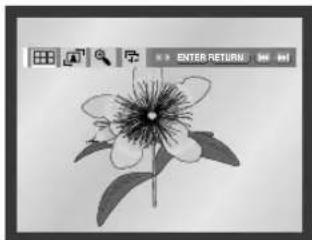
Select the Album icon in the menu and press ENTER to view a Photo CD.
- Use the UP/DOWN or LEFT/RIGHT buttons on the remote control to select the picture you want to view and then press the ENTER button. (Press the PLAY ( ) button if you want to play it in the Slide Show mode.)
- Press the UP/DOWN or LEFT/RIGHT buttons on the remote control to display the menu again.
Return to the Album Screen.
To see the next 6 pictures, press the button.
To see the previous 6 pictures, press the button.
Each time the ENTER button is pressed, the picture rotates 90 degrees clockwise.
Each time the ENTER button is pressed, the picture is enlarged up to 4X. (Normal 2X 4X 2X Normal)
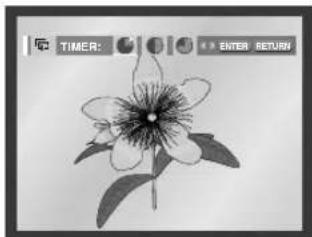
- : The unit enters slide show mode.
*Before beginning the Slide Show, the picture interval must be set.
- : When this icon is selected and ENTER is pressed, the pictures change automatically with about a 6 second interval.
The pictures change automatically with about a 12 second interval.
The pictures change automatically with about a 18 second interval.
*Depending on the file size, each interval between images may take longer or shorter than the manual suggests.
NOTE:
- If no buttons on the remote control are pressed for 10 seconds, the menu will disappear and the selected item will be played. Press the UP/DOWN or LEFT/RIGHT buttons on the remote control to display the menu again.
- Press the STOP button to return to the Clips menu.
- When playing a Kodak Picture CD, the unit displays the Photo directly, not the clip menu.
Picture CD Playback
ICD-R JPEG Discs
- Only files with the ".jpg" and ".JPG" extensions can be played.
- If the disc is not closed, it will take longer to start playing and not all of the recorded files may be played.
- Only CD-R discs with JPEG files in ISO 9660 or Joliet format can be played.
- The name of the JPEG file may not be longer than 8 characters and should contain no blank spaces or special characters (. / = +) .
- Only a consecutively written multisession disc can be played. If there is a blank segment in the multisession disc, the disc can be played only up to the blank segment.
- A maximum of 3000 images can be stored on a single CD.
- Kodak Picture CDs are recommended.
- When playing a Kodak Picture CD, only the JPEG files in the pictures folder can be played.
- Kodak Picture CD : The JPEG files in the pictures folder can be played automatically.
- Konica Picture CD : If you want to see the Picture, select the JPEG files in the clips menu.
- Fuji Picture CD : If you want to see the Picture, select the JPEG files in the clips menu.
- QSS Picture CD : The unit cannot play QSS Picture CD.
- If the number of files in 1 Disc is over 3000, only 3000 JPEG files can be played.
- If the number of folders in 1 Disc is over 300, only JPEG files in 300 folders can be played.
Using the Setup Menu
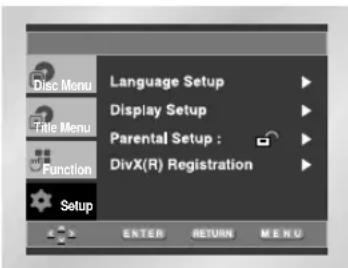
The Setup menu lets you customize your DVD player by allowing you to select various language preferences, set up a parental level, even adjust the player to the type of television screen you have.
- With the unit in Stop mode, press the MENU button.
Select Setup using UP/DOWN buttons, then press the RIGHT or ENTER button.
Language Setup: Setup of the Language.
Display Setup : Setup of the Display Options.
Use to select which type of screen you want to watch and several display options.
Parental Setup : Setup of the Parental Level.
Allows users to set the level necessary to prevent children from viewing unsuitable movies such as those with violence, adult subject matter, etc.
DivX(R) Registration : Please use the Registration code to register this player with the DivX(R)
Video On Demand format. To learn more go to www.divx.com/vod.
- Use the UP/DOWN buttons on the remote to access the different features.
- Press the ENTER button to access the sub features.
To make the setup screen disappear after setting up, press the MENU button again.
NOTE:
- How to make the Setup menu disappear or return to menu screen during set up; Press RETURN or LEFT button.
- Depending on the disc, some Setup Menu selections may not be available.
Setting Up the Language Features
If you set the player menu, disc menu, audio and subtitle language in advance, they will come up automatically every time you watch a movie.
I Using the Player Menu Language
- With the unit in Stop mode, press the MENU button.
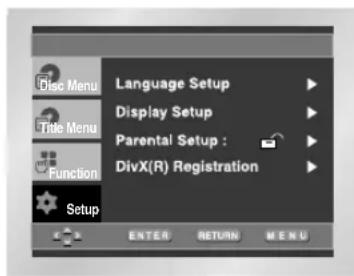
- Select Setup using UP/DOWN buttons, then press the RIGHT or ENTER button.
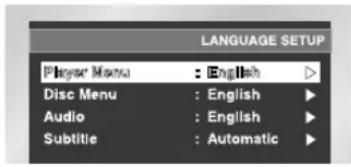
- Select Language Setup using UP/DOWN buttons, then press the RIGHT or ENTER button.
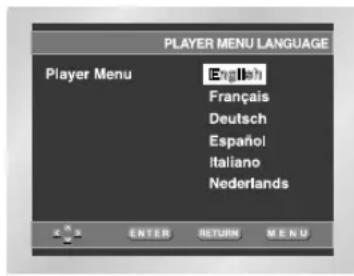
- Select Player Menu using UP/DOWN buttons, then press the RIGHT or ENTER button.
- Use the UP/DOWN buttons to select the desired language.
-
Press the ENTER button.
-
The language is selected and the screen returns to Setup menu.
- To make the Setup menu disappear, press the RETURN or LEFT button.
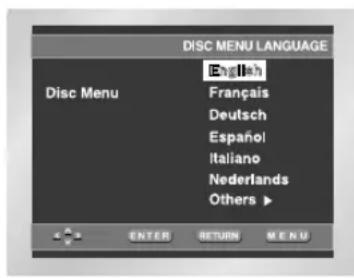
I Using the Disc Menu Language
This function changes the text language only on the disc menu screens.
- With the unit in Stop mode, press the MENU button.
- Select Setup using UP/DOWN buttons, then press the RIGHT or ENTER button.
- Select Language Setup using UP/DOWN buttons, then press the RIGHT or ENTER button.
- Select Disc Menu using UP/DOWN buttons, then press the RIGHT or ENTER button.
-
Use the UP/DOWN buttons to select the desired language.
-
Select "Others" if the language you want is not listed.
-
Press the ENTER button.
-
The language is selected and the screen returns to Setup menu.
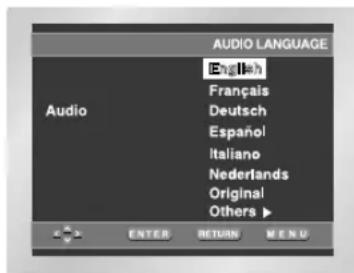
IUsing the Audio Language
- With the unit in Stop mode, press the MENU button.
- Select Setup using UP/DOWN buttons, then press the RIGHT or ENTER button.
- Select Language Setup using UP/DOWN buttons, then press the RIGHT or ENTER button.
- Select Audio using UP/DOWN buttons, then press the RIGHT or ENTER button.
-
Press the UP/DOWN buttons to select the desired language.
-
Select "Original" if you want the default soundtrack language of the disc to be used.
- Select "Others" if the language you want is not listed.
- Press the ENTER button.
- The language is selected and the screen returns to Setup menu.
Setting Up the Language Features
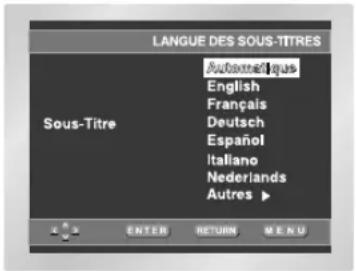
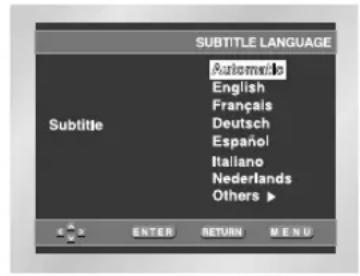
I Using the Subtitle Language
- With the unit in Stop mode, press the MENU button.
- Select Setup using UP/DOWN buttons, then press the RIGHT or ENTER button.
- Select Language Setup using UP/DOWN buttons, then press the RIGHT or ENTER button.
- Select Subtitle using UP/DOWN buttons, then press the RIGHT or ENTER button.
-
Use the UP/DOWN buttons to select the desired language.
-
Select "Automatic" if you want the subtitle language to be the same as the language selected as the audio preference.
-
Select "Others" if the language you want is not listed. Some discs may not contain the language you select as your initial language; in that case the disc will use its original language setting.
-
Press the ENTER button.
-
The language is selected and the screen returns to Setup menu.
NOTE:
- If the selected language is not recorded on the disc, the original pre-recorded language is selected.
- How to make the Setup menu disappear or return to menu screen during set up; Press RETURN or LEFT button.
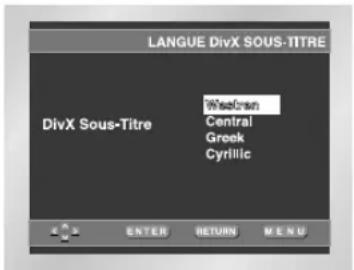
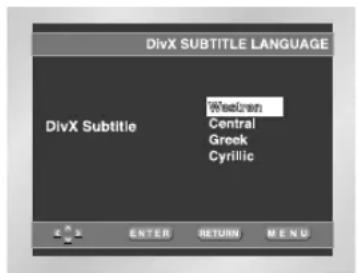
I Using the DivX Subtitle Language
- With the unit in Stop mode, press the MENU button.
- Press the UP/DOWN buttons to select Setup, then press the RIGHT or ENTER button.
- Press the UP/DOWN buttons to select Language Setup, then press the RIGHT or ENTER button.
- Press the UP/DOWN buttons to select DivX Subtitle, then press the RIGHT or ENTER button.
-
Press the UP/DOWN buttons to select the desired language, then press the RIGHT or ENTER button.
-
The language is selected and the screen returns to setup menu.
-
To make the setup menu disappear, press the MENU button.
| Western | English, Breton, Catalan, Danish, Dutch, Faroese, Finnish, French, Gaelic, German, Icelandic, Irish, Italian, Norwegian, Portuguese, Spanish and Swedish |
| Central | English, Albanian, Croatian, Czech, Hungarian, Polish, Romanian, Slovak, Slovenia and Serbian(Latin) |
| Greek | English and modern GreekEnglish and modem Μ |
| Cyrillic | English, Russian, Bulgarian, Belorussian, Macedonian, Moldavian, Serbian(Cyrillic), Ukrainian |
Setting Up the Display Options
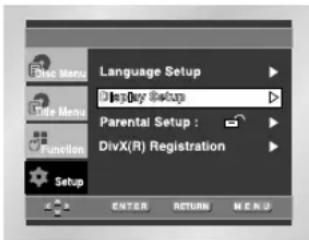
- With the unit in Stop mode, press the MENU button.
- Select Setup using UP/DOWN buttons, then press the RIGHT or ENTER button.
- Select Display Setup using UP/DOWN buttons, then press the RIGHT or ENTER button.
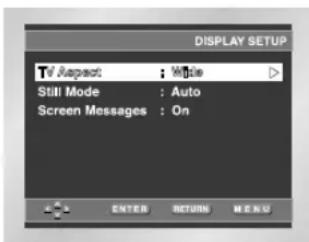
- Use the UP/DOWN buttons to select the desired item. Then press the RIGHT or ENTER button.
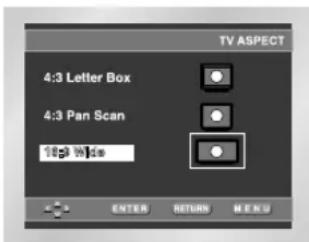
TV Aspect
Depending on the type of television you have, you may want to adjust the screen setting (aspect ratio).
- 4:3 Letter Box
- Select when you want to see the total 16:9 ratio screen DVD supplies, even though you have a TV with a 4:3 ratio screen. Black bars will appear at the top and bottom of the screen.
2.4:3 Pan Scan :
Select this for conventional size TVs when you want to see the central portion of the 16:9 screen. (Extreme left and right side of movie picture will be cut off.)
3.16:9 Wide :
You can view the full 16:9 picture on your widescreen TV.
Still Mode
These options will help prevent picture shake in still mode and display small text clearer.
- Auto: When selecting Auto, Field/Frame mode will be automatically converted.
- Field : Select this feature when the screen shakes in the Auto mode
- Frame : Select this feature when you want to see small letters more clearly in the Auto mode.
Screen Messages
Use to turn on-screen messages On or Off.
Setting Up the Parental Control
The Parental Control function works in conjunction with DVDs that have been assigned a rating level which helps you control the types of DVDs that your family watches. There are up to 8 rating levels on a disc.
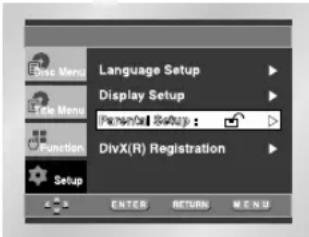
- With the unit in Stop mode, press MENU button. The Setup Menu screen appears.
- Select Setup using UP/DOWN buttons, then press the RIGHT or ENTER button.
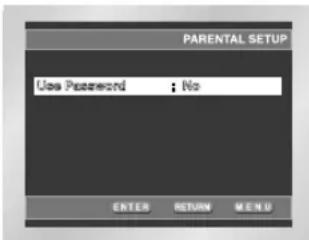
- Select Parental Setup using UP/DOWN buttons, then press the RIGHT or ENTER button.
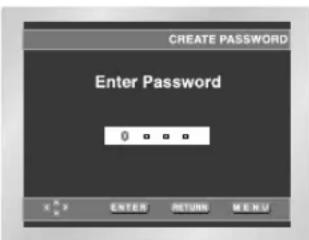
- Use RIGHT or ENTER to select Yes if you want to use a password. The Enter Password screen appears.
- Set your password with the numeric key /LEFT/RIGHT buttons and press the ENTER button. The Re-enter Password screen appears to confirm the password. Select your password again. The Parental Control screen appears ( 品 ).
About the Rating Level ;
The Rating Level will work only when Use Password is set to Yes. To unlock the player, (use RIGHT or ENTER to select No.) Use numeric key to select Rating Level. Press ENTER.
- Use UP/DOWN button to select the level(e.g. Level 6) and press ENTER.
Discs that contain Level 7 or higher will now not play. - To cancel the rating level and unlock the player, use RIGHT or ENTER to select No in Use Password.
About the Change Password ;
- Use numeric key to select Change Password.
Press ENTER. The Change Password screen appears. - Select your new password. Select the new password again.
NOTE:
- How to make the Setup menu disappear or return to menu screen during set up; Press RETURN or LEFT button.
- If you have forgotten your password, see Forgot Password in the Troubleshooting Guide.
Cautionary Notes
I Cautions on Using the Player
- Avoid magnetic environments.
Using the player under strong fluorescent lighting, in a car, near a TV or magnetic object may affect video quality. - Be sure to remove the disc, turn off the player, and remove the battery pack after use.
- If used near a broadcast station or power transmission tower, the video may become distorted due to interference.
- Do not drop the player or subject it to strong vibration or shock.
- Do not place the player near a lamp.
Heat from the incandescent light bulbs may cause deformation or malfunction.
- Always observe the rules regulating the use of electrical devices on airplanes.
- Do not expose this product to high temperature and humidity.
This product can be operated within a temperature range of 10^ 30^ and humidity range of 30% 80% .
Do not expose this product to direct sunlight or in a car with its windows closed.
Doing so may result in deformation of casing and circuitry as well as cause fire or bodily injury.
- Do not let water, sand, dust, or other foreign objects in the player. Avoid using or storing the player in a place where there is smoke, steam, or moisture.
Doing so may cause malfunction or mold on the pick-up lens. Keep the player in a well-ventilated area.
- When using the player in cold environments, the color LCD screen may not be visible immediately after the power is turned on.
This is not a malfunction. Do not operate the player in temperatures below 10^ .
- Be especially careful not to scratch the pick-up lens during loading/unloading of the disc, or cleaning.
Doing so may result in malfunction.
I When Moving the Player
- Be sure to remove the disc from the player before packing for moving.
It is recommended that you also remove the disc from the player and turn off the power when not using the player.
Saving Power
- It is recommended that you turn off the power to the DVD player when not in use.
If you are not going to use it for prolonged period of time, unplug the power cord from the wall outlet.
Maintenance of LCD Screen
- To keep the screen clean, turn off the power and then wipe with a soft, dry cloth.
About LCD Screen
- This LCD panel is designed with the latest technology, ensuring 99.99% of active pixels.
- Do not press on the LCD screen
Cautionary Notes
I Cautions on Using Battery pack
Danger!
Always follow the safety information below when using the battery pack. Otherwise, a short circuit, overheating, smoke, fire, or damage to the product may result.
- Never disassemble or modify the battery pack in any way. Do not touch the terminal of the battery pack with a metal object.
- Do not let any metal object inside the battery pack.
- Do not place the battery pack in direct sunlight, dashboard of a vehicle, or high temperature.
- Do not expose the battery pack to water, fire, or heat.
- Always use the included AC adapter when charging the battery pack.
- This battery pack is designed exclusively for your portable DVD player. Do not use it with other devices.
Warning!
- Do not drop or subject to strong vibration.
- Keep out of reach of children.
- The battery pack may leak fluid that is harmful to your eyes.
If this fluid gets in your eyes, wash eyes immediately with large amounts of running water and get medical attention immediately.
If the fluid gets on your skin or clothing, wash immediately with water.
Caution!
- When not using the battery pack, remove it and store in a cool place.
- Do not use the AC adapter or battery pack for a prolonged period of time during recharging. You might get a low temperature burn.
-
Keep the battery pack free from smoke, steam, moisture, and dust.
-
Do not place the battery pack near a kitchen, heater, or any other place where there is smoke or steam.
Doing so may result in fire or electric shock. -
Avoid direct sunlight, heater, or high temperature place. etc, inside of a car. It can cause explosion or fire.
Doing so may cause a short circuit, overheating, smoke, fire, or damage to the product. -
Using the battery pack under 10^ or over 30^ can cause reduced battery life.
After a Recharge, store the Battery pack separately.
- This battery pack is a lithium ion battery. Even when not in use, power will drain slowly. So use a fully charged battery pack.
- Recharge until the charge lamp stays on green. A partial charging of the battery pack decreases the overall lifetime of the battery.
Cautions on Charging Battery pack
- Charge within the surrounding temperature range of 10^ 30^ . Charging at a low surrounding temperature slows down the charging time and decreases the battery pack. You cannot fully charge the battery pack at high temperature.
- If the DVD player is overheated and the battery pack's internal temperature goes up to a certain level, you will not be able to charge the battery pack. (The lamp flashes quickly and the light does not come on.) In this case, remove the battery pack. After the internal temperature reaches a safe level, charging will begin automatically.
- The battery pack becomes warm during recharge or use. This is normal and is not a cause for concern.
A hot battery pack may take longer to charge or may not be charged at all. Wait until the battery pack cools down before charging.
Battery pack Life and Use (Low Temperature)
- The lifetime of the battery pack is limited.
Power is slowly drained even when not using. Though it varies for differing storage conditions, the battery pack stored unused for a year has a much shorter lifetime.
If the battery pack does not last long even after a full charge, you might have to replace it with a new one. - Total operating time of the battery pack becomes much shorter when used at temperatures below 10^ .
Electrical energy is discharged due to internal chemical action of the battery pack.
A very low temperature may impede this chemical action and shortens the total operating time.
Caution
- Be sure to use only the battery pack exclusively designed for your DVD player.
NOTE:
- When not using the DVD player, always turn off the power to conserve the battery pack. If the AC adapter is connected to the player, charge the battery pack with the power to the player turned off.
Cautionary Notes
Cautions on Storing Battery pack
Even when not in use, power is consumed continuously. To reduce the power consumption, follow the procedure below.
1. Remove the battery pack from the DVD player after every use.
2. When not using the DVD player, turn off the power. If the player is left in the standby mode, power will be slowly drained from the battery pack and the charging capacity will decrease.
3. Before storing the battery pack, completely drain the power by operating the player and store in a cool, dry place. If stored in a hot place, the capacity of the battery pack will decrease.
4. The battery pack must be recharged and then used on the DVD player at least once every 6 months. This helps to prevent the loss of capacity.
AC Adapter
The supplied AC adapter is compatible with 50 / 60Hz electrical system (110V~240V range).
Use of the AC adapter depends on the specific voltage requirements and electrical outlet design.
- Using the AC adapter near a radio may cause poor reception.
- Do not let any type of flammable, liquid, or metal objects in the adapter.
- The adapter is covered with an outer plastic sheath. Do not peel open the sheath.
- Do not drop, jar, or shake the adapter.
- Do not place in direct sunlight.
- Do not use in high temperature or cold and humid environments.
Cleaning and Maintenance
- Many plastic parts are used in this DVD player casing. Do not use volatile chemicals such as benzene or thinner. This might damage the finish.
- Wipe the casing with a soft, dry cloth. For excessive dirt, use a cloth dampened in a diluted neutral detergent and wipe again with a soft, dry cloth.
- Wipe off fingerprints or dirt on the LCD screen using a soft, dry cloth.
Troubleshooting
If your DVD player does not seem to be functioning properly, check the items below before you contact a Samsung authorized service center.
| Symptom | Check |
| Power does not turn on or suddenly turns off. | ·Make sure the AC power cord is securely plugged into an AC outlet. |
| ·Turn the power off and then back on. | |
| Battery pack is in place but the power does not turn on or suddenly turns off | ·Check that the battery pack is charged. If not, recharge it. |
| Remote control won't work | ·Check that the battery is inserted in the "+" and "-" direction properly. |
| ·The battery may be dead. Replace it with a new battery. | |
| ·Check that the signal transmission is directed at the remote control sensor on the DVD player. | |
| ·Remove the obstacle between the remote control unit and remote control sensor. | |
| No picture or sound | ·Check that the video and audio cables are securely connected. |
| ·Check that the disc is a DVD (region number 1 or all), DVD-RW, AUDIO CD. | |
| ·Do not use a disc that has scratches or dirt. | |
| ·Check that the label-side of the disc is facing up. | |
| ·The pick-up lens of the DVD player may be dirty. Contact the service center for lens cleaning. | |
| ·Check that the TV channel is set to VIDEO or AV if viewing with a TV. | |
| Forgot password | ·Press power on from a cold start with no disc in the unit. Press the STOP and PLAY buttons simultaneously on the unit for three seconds. The Select Menu Language display will appear. Select the desired language by using UP or DOWN button. Press the MENU button on the remote control to select the Parental Mode. The Parental Mode is now unlocked as indicated on the display. Press the DOWN button to select Parental. Press ENTER and the Create Password display will appear. You can now set your rating level and change your password to a new number. |
The DVD player can be influenced by external electrical noise.
If you believe this may be the cause of the problem, turn off the DVD player and then back on.
Troubleshooting
| Symptom Check | ||
| No picture No sound | ·Check that the LCD display is turned on. ·Check the volume setting. If set to zero, turn up volume level. ·Check that the headphones are plugged into the "B" jack. Speakers cannot be used if headphones are plugged into "B". | |
| Distorted video or sound | ·Use a disc without scratches or dents. | |
| While zin the input mode, no picture is output from the external component to the DVD player | ·Check that the video or audio cable is securely connected. | |
| DVD | Video does not appear with an external component connected to the DVD player | ·Check the TV's input setting. |
| ·Check that the video or audio cable is securely connected. | ||
| Battery Pack operation | Battery pack won't charge | ·Check that the DVD player is turned off. You cannot charge the battery pack with the player turned on. ·A hot battery pack may take longer to charge. Wait until the battery pack is sufficiently cooled down. ·Replace with a fully charged battery pack or use the AC adapter. |
| Power does not turn on | ·Replace with a fully charged battery pack or use the AC adapter. | |
| Power charge lamp does not light (Battery pack won't charge) | ·If the DVD player is overheated and the battery pack's internal temperature goes up to a certain level, you will not be able to charge the battery pack. If this occurs, remove the battery pack. After the battery pack has sufficiently cooled down, charging will begin automatically. | |
| ·Check that the temperature is within the range of 10°C~30°C. | ||
| ·Check that the DC cord of the AC adapter is plugged in correctly. | ||
| Power charge lamp quickly | ·Remove the DC cord from the battery pack and then re-plug. If the battery pack is installed, remove the DC cord from the battery pack before performing above procedure. | |
Specifications
| General | Power Requirements | AC 100-240V, 50/60 Hz |
| Power Consumption | 15 W | |
| Weight | 0.6 Kg (without battery pack) | |
| Dimensions | 200mm (W) x 27.9 mm (H) x 140mm (D) | |
| Operating Temperature Range | +10°C to +30°C | |
| Operating Humidity Range | 30 % to 80 % | |
| Disc | DVD (DIGITAL VERSATILE DISC) | Reading Speed: 3.49 ~ 4.06 m/sec. Approx. Play Time (Single Sided, Single Layer Disc): 135 min. |
| CD: 12Cm (COMPACT DISC) | Reading Speed: 4.8 to 5.6m/sec. Maximum Play Time: 74 min. | |
| CD: 8Cm (COMPACT DISC) | Reading Speed: 4.8 to 5.6m/sec. Maximum Play Time: 20 min. | |
| VCD: 12Cm | Reading Speed: 4.8 to 5.6m/sec. Maximum Play Time: 74 min. (Video + Audio) | |
| Video Output | Composite Video | 1 channel: 1.0 Vp-p (75Ω load), Q-PAL |
| Audio Output | 2 CHANNEL | L(1/L), R(2/R) |
| *Frequency Response | 48 kHz Sampling: 4 Hz to 22 kHz 96 kHz Sampling: 4 Hz to 44 kHz |
Car Power Adapter
I How to use the adapter
-
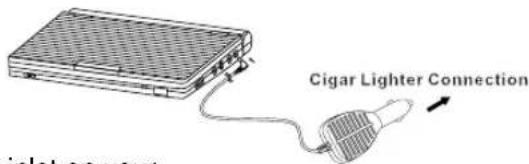
Use it as a power supply for your DVD player (See the illustration to the right.)
-
Plug the power plug of the power adapter into your vehicle's cigarette lighter.
(Be sure to use it with the vehicle's engine turned on.)
- Connect the connector of the power adapter cable to the power inlet on your DVD player.
- Use it only after your DVD player is turned on.
Note : Please don't use Car Power Adapter to charge the battery.
I How to replace the fuse?
- This product contains a built-in fuse to protect the power adapter from short-circuiting.
-
If the power adapter does not work, check whether the fuse has blown, and then replace the fuse as needed.
-
Be sure to use a 250V/1.5A fuse only.
-
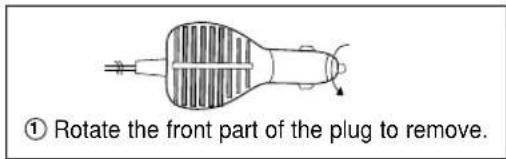
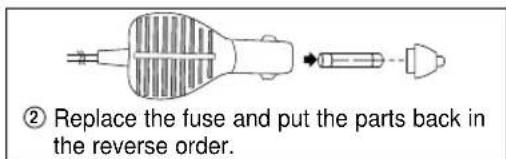
Rotate the front part of the plug to remove it from thr power adapter as shown in the illustration to the right.
- Replace the fuse with a new fuse of the proper ratings and put the parts together in the order they were removed.
Car Power Adapter
I Be sure to observe the following warnings and cautions
- This product is intended for use on negative grounded vehicles only. Using it on a positive grounded vehicle may result in fire or malfunction.
- When plugging this product into your vehicle's cigarette lighter, do so with your vehicle's engine turned on. (Using the power adapter with your vehicle's engine turned off may drain the vehicle's battery of all power and the engine may fail to start.)
- Be sure to remove the power adapter from the cigarette lighter when turning the vehicle's engine on or off.
- Depending on your vehicle's make and model, you may not be able to use this product because of the difference in shape of the cigar lighter.
- Your power adapter may not work due to a loose electrical contact if there are cigarette ashes inside the cigarette lighter. Clean any ashes or debris from the socket before using.
- When using this product to supply power to your DVD player, picture interference may occur if they are in close proximity of each other.
In this case, place them about 4 inches (10m) apart.
- If static or noise occurs on the car radio during use of this product, place the power adapter sufficiently away from the car radio.
- Do not disassemble or modify this product in any way.
- Do not drop or apply strong shock to this product.
- Do not store or use this product in direct sunlight or high temperature.
(This may cause deformation, discoloration, or malfunction.)
- Do not leave this product in a vehicle with closed windows.
- Do not use this product to charge batteries other than the supplied battery.
- Be sure to use a 250V/1.5A fuse only. Never replace the fuse with a wire or the like as this may cause a fire.
Please refer to the reverse side of this guide for replacing the fuse.
I Product Specifications
| Input Voltage DC12V~DC24V | |
| Output DC12V 1.2A | |
| Corresponding Vehicle | A negative grounded vehicle with a DC 12V/24V car and a cigarette lighter |
| Operating temperature | 0°C ~ 40°C (32°F~104°F) |
| Fuse 250V 1.5A | |
| Weight 70g (0.15lbs) | |
| * Design and specifications are subject to change for product improvement without notice. | |
SAMSUNG
ELECTRONICS