Watch Urbane 2 - Smartwatch LG - Free user manual and instructions
Find the device manual for free Watch Urbane 2 LG in PDF.



| Brand | LG |
| Model | Watch Urbane 2 |
| Category | Smartwatch |
| Product type | Smartwatch with touchscreen, Bluetooth, Wi-Fi, GPS, heart rate monitor and pedometer |
| Dimensions (approx.) | 44.5 x 44.5 x 12.9 mm |
| Weight (approx.) | 60 g |
| Power | Built-in lithium-ion battery, magnetic cable charging |
| Main functions | Calls and notifications, voice command, step and heart rate display, Google Fit, LG Health, messaging, alarms, timer, stopwatch, navigation, schedule, email |
| Screen | 1.38 inches, touchscreen, adjustable brightness |
| Connectivity | Bluetooth, Wi-Fi, GSM (via nano-SIM card) |
| Water resistance | IP67 (resistance to immersion up to 1 meter for 30 minutes) |
| Sensors | Heart rate, barometer, accelerometer |
| Operating system | Android Wear (compatible with Android 4.3+) |
| Care and cleaning | Clean with a soft dry cloth. Do not use chemicals. Wipe after contact with water. |
| Safety | Do not expose to extreme temperatures (<0°C or >35°C). Avoid shocks. Keep more than 15 cm away from pacemakers. |
| Spare parts and repairability | Non-user-replaceable built-in battery. Have any replacement done at an authorized LG center. |
| Included accessories | Travel charger, magnetic charging cable, quick start guide, SIM card opening tool |
| General information | LG Watch Urbane 2 smartwatch. Manual available in French at notice-facile.com. |
Frequently Asked Questions - Watch Urbane 2 LG
User questions about Watch Urbane 2 LG
0 question about this device. Answer the ones you know or ask your own.
Ask a new question about this device
Download the instructions for your Smartwatch in PDF format for free! Find your manual Watch Urbane 2 - LG and take your electronic device back in hand. On this page are published all the documents necessary for the use of your device. Watch Urbane 2 by LG.
USER MANUAL Watch Urbane 2 LG
Touchscreen-Tipps. 27
Tragen der Uhr. 28
Appuyer ou effleurer
1 Nel menu Impostazioni, toccare Spegni.
2.2.2.2.2.2.2.2.2.2.2.2.2.2.2.2.2.2.2.2.2.2.2.2.2.2.2.2.2.2.2.2.2.2.2.2.2.2.2.2.2.2.2.2.2.2.2.2.2.2.2 2
Informazioni
Thank you for choosing LG. Please carefully read this user guide before using the device for the first time to ensure safe and proper use. Visit the LG website at www/lg.com to obtain the latest version of this manual.
-
Always use genuine LG accessories. The supplied items are designed only for this device and may not be compatible with other devices.
-
This device is not suitable for people who have a visual impairment due to the touchscreen.
-
Descriptions are based on the device default settings.
-
Default apps on the device are subject to updates and support for these apps may be withdrawn without prior notice. If you have any questions about an app provided with the device, please contact a LG Service Center. For user-installed apps, please contact the relevant service provider.
-
Modifying the device's operating system or installing software from unofficial sources may damage the device and lead to data corruption or data loss. Such actions will violate your LG licence agreement and void your warranty.
-
Some contents and illustrations may differ from your device depending on the region, service provider, software version, or OS version, and are subject to change without prior notice.
-
The applications on your product, and their functions, may vary according to country, region or hardware specifications. LG will not be responsible for any performance issues which arise from using applications developed by providers other than LG.
-
LG will not be responsible for performance or incompatibility issues which arise from edited registry settings or modified operating system software.
-
Any attempt to customize your operating system may lead to the device or its applications not working correctly.
-
Software, audio, wallpaper, images, and other media supplied with your device are licensed for limited use. If you extract and use these materials for commercial or other purposes, you may be infringing copyright laws. As a user, you are fully are entirely responsible for the illegal use of media.
-
Additional charges may apply for data services, such as messaging, uploading, downloading, auto-syncing and location services. To avoid additional charges, select a data plan suitable to your needs. Contact your service provider to obtain additional details.
Instructional notices
| WARNING | Situations that could cause injury to yourself and others, or damage to the device or other property. |
| NOTE | Notices or additional information. |
Table of contents
Safety Information. 5
Basic. 14
Accessories 15
Watch Layout. 16
Charging the Watch 18
If the Screen Freezes 20
Installing the SIM Card 21
Turning the Watch On and Off. 24
Connecting to Another Mobile Device....25
Touch Screen Tips. 25
Wearing the Watch. 26
Heart Rate Sensor 27
Connecting the Watch to a Mobile Device 29
Before Pairing 30
How to Pair Your Watch 31
After Pairing. 31
How to Use Your Watch 32
Start on Your Watch Face (Where You See the Time) 33
Quickly Dim the Screen. 33
Changing the Watch Face 33
Notification Cards. 34
Block Notifications 35
Call Notifications 36
Change When Notifications Arrive.....36
See Remaining Battery or Date 37
Access the Sound Setting. 37
Turn Your Screen Off Temporarily with Theater Mode. 38
Boost Screen Brightness Temporarily ....38
Access the Settings Menu 38
Manage Storage 39
Tasks Using Voice Command .... 40
Change the Apps You Use for Voice Actions 42
Take or View a Note 43
Set a Reminder 44
Show Me My Steps 44
Show Me My Heart Rate 45
Send a Text 46
Email 47
Agenda 48
Navigate 48
Set a Timer 49
Use the Stopwatch 49
Set an Alarm. 50
Show Alarms 50
Using Apps 51
Settings. 58
Downloading Other Apps. 52
Phone. 52
Call Forwarding 54
Messenger 55
LG Health 56
Use the Google Fit App. 57
Launching the Settings Menu 59
Adjusting Display Brightness 59
Change Your Watch Face. 59
Change the Font Size. 59
Gestures 60
Screen On/Off Settings 60
Sound. 60
Wi-Fi 60
Bluetooth Devices 61
Cellular 61
Location 61
Aeroplane mode 62
Accessibility 62
Date & Time 62
Screen Lock. 62
Permissions 62
Unpair with Phone. 63
Power Off. 63
About. 63
More Information. 64
Open Source Software Notice
Information 65
Trademarks 65
DECLARATION OF CONFORMITY 66
Contact office for compliance of this
product: 66
Regulatory information. 66
How to update your device 66
Safety Information
Before turning on your product, review the basic safety information provided here.
General safety & handling
While using your product, be aware of the following common-sense guidelines.
Your environment
-
Safe operating temperatures. Use and store your product in temperatures between 0^ / 32^ and 35^ / 95^ . Exposing your product to extremely low or high temperatures may result in damage, malfunction, or even explosion.
-
While driving. When driving a car, driving is your first responsibility. Using a mobile device or accessory for a call or other application while driving may cause distraction. Keep your eyes on the road.
-
Around explosives. Do not use in areas where sparks from the product might cause a fire or explosion.
-
On airplanes. Observe all rules and instructions for use of electronic devices. Most airlines allow electronic use only between and not during takeoffs and landings. There are three main types of airport security devices: X-ray machines (used on items placed on conveyor belts), magnetic detectors (used on people walking through security checks), and magnetic wands (hand-held devices used on people or individual items). You can pass your product through airport X-ray machines. But do not send it through airport magnetic detectors or expose it to magnetic wands.
-
Always follow any special regulations in a given area. Turn your device off in areas where use is forbidden or when it may cause interference or danger.
-
Changing the wrist straps to metal straps might cause Bluetooth®/ Wi-Fi connectivity problem.
Safety tips

WARNING
- The charging cradle contains strong magnets that may interfere with pacemakers, credit cards, watches, and other magnet-sensitive objects.
To avoid damaging your product and reduce the risk of fire or electric shock, explosion, or other hazards, observe these common-sense precautions:
- Always use with cables, chargers, and other accessories approved by LG. The use of any other types may void any approval or warranty applying to the device and may be dangerous.
- Available accessories may vary depending on your region, country or service provider.
- Some contents and illustrations may differ from your device depending on the region, service provider, software version, or OS version, and are subject to change without prior notice.
- Do not drop, strike, or shake your product.
- Do not damage the power cord by bending, twisting, pulling, heating, or placing heavy items on it.
- This product is equipped with a USB cable for connecting to a desktop or notebook computer or to the charger. Be sure your computer is properly grounded before connecting your product to the computer. The power supply cord of a desktop or notebook computer has an equipment-grounding conductor and a grounding plug. The plug must be plugged into an appropriate outlet that is properly installed and grounded in accordance with all local codes and ordinances.
- Do not attempt to repair or modify or remanufacture the product. It is equipped with an internal rechargeable battery, which should be replaced only by LG or an authorized LG repair center.
- Do not open, disassemble, crush, bend or deform, puncture, or shred the product.
- Do not insert foreign objects into the product.
- Do not place the product in a microwave oven.
-
Do not expose the product to fire, explosion, or other hazards.
-
Clean with a soft, damp cloth. Don't use harsh chemicals (such as alcohol, benzene, or thinners) or detergents to clean your product.
-
Dispose of your product and battery separately from household waste and in accordance with local regulations.
-
Like many electronic devices, your product generates heat during normal operation. Extremely prolonged, direct skin contact in the absence of adequate ventilation may result in discomfort or minor burns. Therefore, use care when handling your product during or immediately after operation.
-
If you have a problem with using the product, please stop using it and consult with the authorised LG Electronics customer service center.
-
Do not immerse or expose the product to water or other liquids.
Heart rate information
-
Pedometer, Sleep, Exercise, and Heart rate are not intended to treat or diagnose any medical condition, and should be used for leisure, well-being and fitness purposes only.
-
Heart rate readings can be affected by measurement conditions and your surroundings. Make sure you are seated and relaxed before reading your heart rate.
-
This product is water and dust-resistant according to the IP67 Rating, which tests submersion in water at up to one metre for up to 30 minutes. Not shockproof. The case must be completely closed.
-
Heart rate readings may be affected by skin condition, measurement conditions and your surroundings.
-
Never look directly at the light of the heart rate sensor as this may damage your eyesight.
-
If your device becomes hot, remove it until it cools down. Exposing skin to the hot surface for a long period of time may cause skin burn.
-
The Heart rate feature is only intended for measuring your heart rate and must not be used for any other purposes.
Battery warnings
- Do not disassemble or open crush, bend or deform, puncture or shred.
- Do not modify or remanufacture, attempt to insert foreign objects into the battery, immerse or expose to water or other liquids, expose to fire, explosion or other hazard.
- Make sure that no sharp-edged items, such as animal's teeth or nails, come into contact with the battery. This could cause a fire.
- Only use the battery for the system for which it is specified.
- Use of an unqualified battery or charger may present a risk of fire, explosion, leakage, or other hazard.
- Do not short circuit a battery or allow metallic conductive objects to contact battery terminals.
- Use of an unqualified battery may present a risk of fire, explosion, leakage or other hazard. Only authorized service providers shall replace battery (If the battery is non-user replaceable)
- Battery usage by children should be supervised.
- Avoid dropping the product or battery. If the product or battery is dropped, especially on a hard surface, and the user suspects damage, take it to a service center for inspection.
- Improper battery use may result in a fire, explosion or other hazard.
- Always unplug the charger from the wall socket after the product is fully charged to save unnecessary power consumption of the charger.
- Risk of explosion if battery is replaced by an incorrect type. Dispose of used batteries according to the instructions.
Embedded battery

WARNING: Notice for Battery replacement
-
Li-lon Battery is a hazardous component which can cause injury.
-
Battery replacement by non-qualified professional can cause damage to your device.
-
Do not replace the battery by yourself. The battery can be damaged, which can cause overheat and injury. The battery must be replaced by the authorized service provider. The battery should be recycled or disposed separately from household waste.
-
In case this product contains a battery incorporated within the product which cannot be readily removed by end-users, LG recommends that only qualified professionals remove the battery, either for replacement or for recycling at the end of this product's working life. To prevent damage to the product, and for their own safety, users should not attempt to remove the battery and should contact LG Service Helpline, or other independent service providers for advice.
-
Removal of the battery will involve dismantling of the product case, disconnection of the electrical cables/contacts, and careful extraction of the battery cell using specialized tools. If you need the instructions for qualified professionals on how to remove the battery safely, please visit http://www.lge.com/global/sustainability/environment/take-back-recycling.
Notes on water resistant properties
This product is water and dust resistant in compliance with the Ingress Protection rating IP67*.
- The IP67 rating means that the product will maintain its operability even if it is gently submerged in a tank of still tap water at room temperature for about 30 minutes, up to a depth of 1 meter.
Avoid exposing the product to environments with excessive dusts or moisture. Do not use the product in the following environments.

Do not immerse the product in any liquid chemicals (soap, etc.) other than water.

Do not immerse the product in salt water, such as sea water.

Do not immerse the product in hot spring.

Do not swim wearing this product.

Do not use the product underwater.

Do not place the product directly on sand (such as at a beach) or mud.
-
Once the product gets wet, water may remain in gaps of the main unit. Shake the product well to drain water.
-
Even after water is drained, the inner parts might be still wet. Although you can use the product, do not place it near things that must not get wet. Take care not to wet your clothes, bag or contents of the bag.
-
Drain water if the voice activation does not work properly due to water remaining in the microphone.
-
Do not use the product in places where it may be sprayed with high-pressure water (e.g. near a faucet or shower head) or submerge it in water for extended periods of time, as the product is not designed to withstand high water pressure.
-
This product is not resistant to shock. Do not drop the product or subject it to shock. Doing so might damage or deform the main unit causing water leak.
Pacemakers and other medical devices
Persons with pacemakers should:
- ALWAYS keep the product more than six (6) inches from their pacemaker when the product is turned ON.
- Not carry the product in a breast pocket.
- Use the wrist opposite the pacemaker to minimize the potential for RF interference.
- Turn the product OFF immediately if there is any indication that interference is taking place.
If you use any other personal medical device, consult your physician or the manufacturer of your device to determine if it is adequately shielded from external RF energy.
Tips for using Bluetooth and Wi-Fi on your watch
-
When connecting your product to other mobile devices, the devices must be positioned close to each other. If not, it may cause abnormal operation or noise, depending on the use environment.
-
In an open space, the Bluetooth communication range usually spans approximately 10m. This range may vary depending on the use environment.
-
Do not place obstacles between your product and connected devices. Outgoing/incoming signal can weaken due to user's body, walls, corners or obstacles. Use where there is no obstacle.
-
When using a Wi-Fi connection, your watch can get notifications from your phone or tablet even if Bluetooth is unavailable.
-
Your watch will search and connect to the nearest Wi-Fi network based on the Wi-Fi list registered on your phone.
Tips for the display screen
-
Do not display non-moving images for an extended period. This may cause image burn-in or stains on the screen.
-
Applications that display the same screen for more than 10 minutes are not recommended because the potential screen damage is not covered by the warranty.
Exposure to radio frequency energy
Radio wave exposure and Specific Absorption Rate (SAR) information. This product has been designed to comply with applicable safety requirements for exposure to radio waves. These requirements are based on scientific guidelines that include safety margins designed to assure the safety of all persons, regardless of age and health.
-
The radio wave exposure guidelines employ a unit of measurement known as the Specific Absorption Rate, or SAR. Tests for SAR are conducted using standardised methods with the product transmitting at its highest certified power level in all used frequency bands.
-
While there may be differences between the SAR levels of various LG
product models, they are all designed to meet the relevant guidelines for exposure to radio waves.
- The SAR limit recommended by the International Commission on NonIonizing Radiation Protection (ICNIRP) is 2W/kg averaged over 10g of tissue for the Mouth SAR or 4.0W/kg averaged over 10g of tissue for the Limb-worn SAR.
- The highest SAR value for this model product when tested for use at Next-to-Mouth(Face) is 0.572W/kg (10g) and for Limb-worn(Wrist) is 2.860 W/kg (10g).
- This device was tested for typical Limb-worn(Wrist) operations kept 0 cm between the user's body(Wrist) and the back of the device. Additionally this device was tested for typical Next-to-Mouth(Face) operations with the front of the device kept 1 cm between the user's mouth(Face) and the front of the device. To ensure compliance with R&TTE SAR requirements, please ensure a minimum separation distance of 1 cm is maintained for next-to-mouth (face) operations.
Basic
Accessories
These accessories are available for use with your device.
- Travel adaptor
Quick Start Guide
Magnetic charging cable - SIM Cap opener

NOTE
- Always use genuine LG accessories. The supplied items are designed only for this device and may not be compatible with other devices.
- The items supplied with the device and any available accessories may vary depending on the region or service provider.
Watch Layout
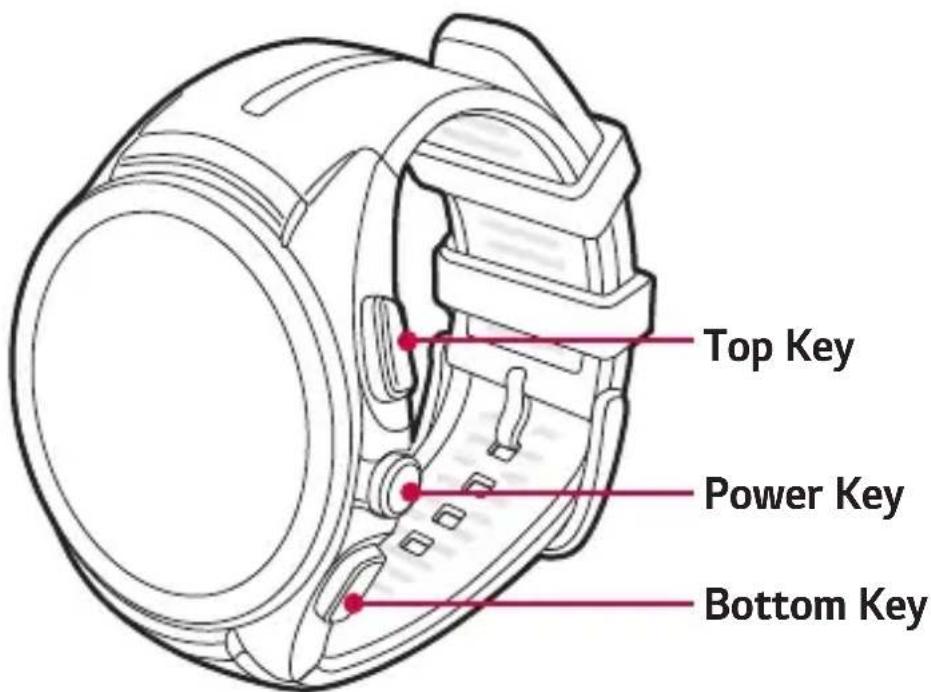

NOTE
- The touch screen must not come into contact with any other electrical devices. Electrostatic discharge can result in the touch screen malfunctioning.
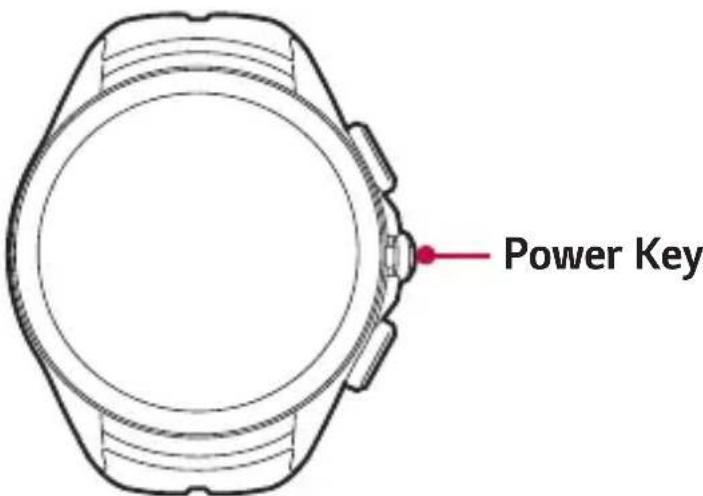
Power Key
To turn the watch on:
- Press and hold for one second to turn the screen on. If it doesn't turn on, press and hold for a few seconds until the LG logo appears.
If the screen freezes:
- Press and hold for over 10 seconds until the LG logo appears to restart the watch.
When the device is idle:
- Press once quickly to wake the screen.
- Press twice to turn the Theater mode on.
- Press three times to turn the Brightness boost mode on.
- Press and hold for a few seconds to access the app list.
| Top / Bottom Key | When the device is idle: ·Press the Top Key to launch Contacts. ·Press the Bottom Key to launch LG Health. During a call: ·Control the volume. |
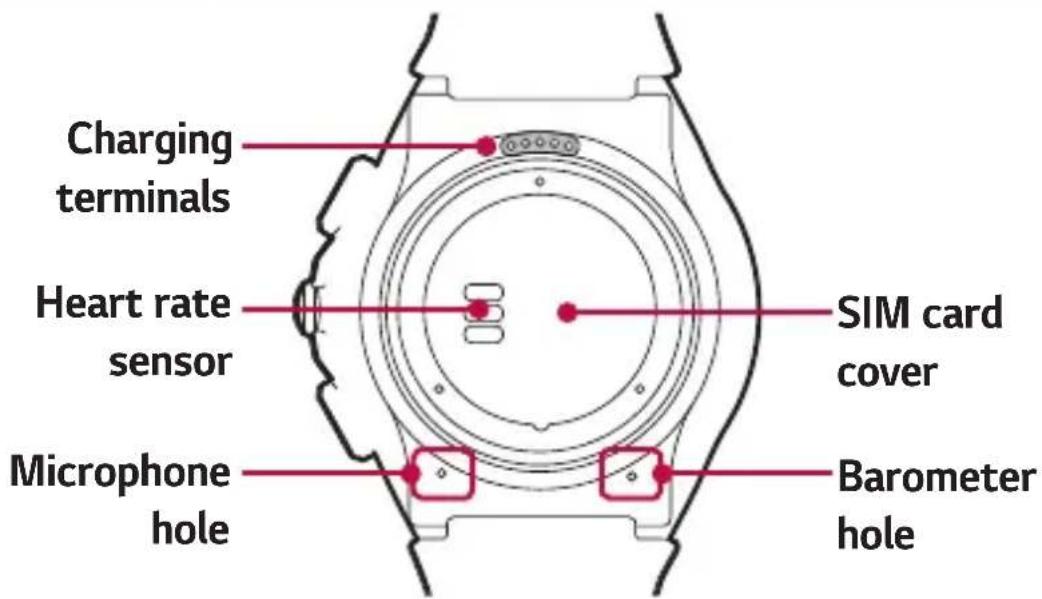

WARNING
- Do not close or push the hole located at the bottom of the device with a sharp object. Doing so may cause your device to work improperly.
- Any damage to the barometer or microphone resulting from accidents, unreasonable use, tampering or other causes not arising from defects in material or workmanship may void the Limited Warranty.

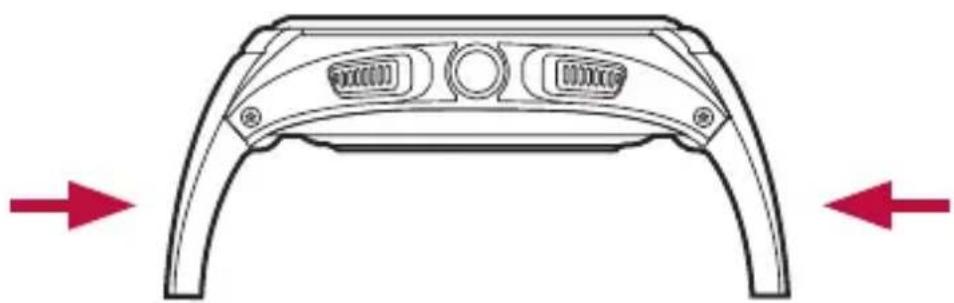
WARNING: Before wearing the strap
- Excess force on the watch band may lead to breakage.
Charging the Watch
Before using your watch for the first time, you should charge the battery. Use the charging cable included with the watch to charge the device's battery.
You can also charge the device's battery using a computer. Simply connect the computer to the charging cable using the USB cable included with the watch.

NOTE
- When battery power is low, the battery icon is displayed as empty. If the battery charge is completely empty, the watch cannot be turned on immediately after connecting the charger. Leave an empty battery to charge for a few minutes before turning the device on. Some features are not available while the battery is charging.

WARNING: Corrosion of charging terminals
-
Exposure to sweat or other foreign material during the use of the product may cause the charging terminals to corrode while charging. To prevent this, wipe the product with a cloth before charging.
-
Locate the charging terminals on both the watch and the charging cable.
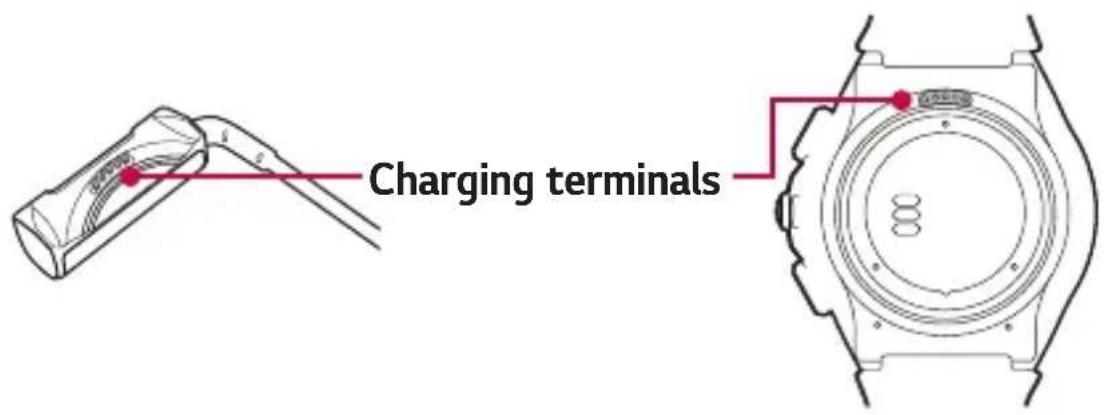

NOTE
- The charging cable is designed to only be used with the watch and is not compatible with other devices.
2 Place the watch on the charging cable and make sure that the charging terminals are aligned with each other.
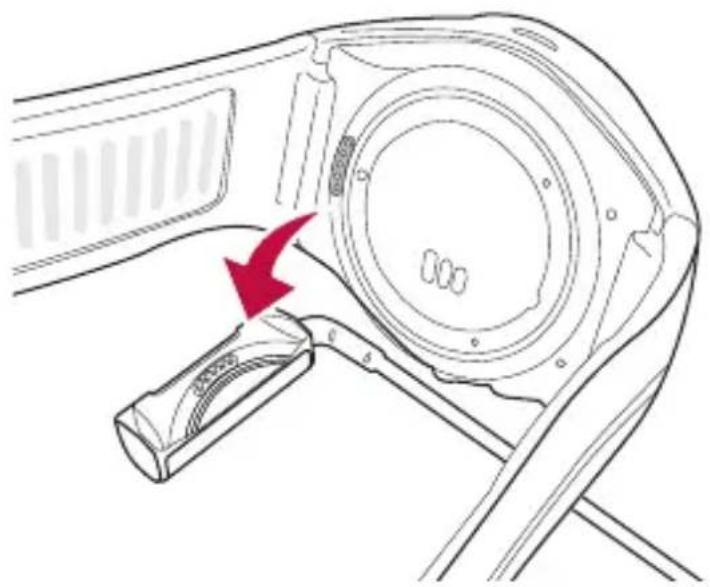
3 Connect the charging cable to a power outlet and place the watch on it. If your watch is turned off, it will turn on automatically.

NOTE
- Make sure the watch is firmly connected to the charging cable before connecting the cable to a travel adapter or PC.
4 After the charging cable is connected to a power outlet, you will see a charging screen, shown as below, while charging. You can check the percent of remaining battery and the time. Swipe right to return to the watch face.
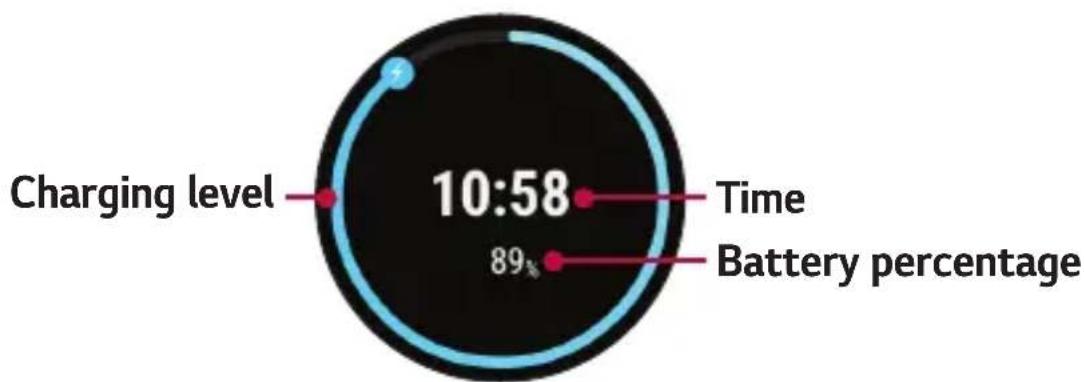
5 Once the watch battery is fully charged, disconnect the device from the charging cable.
6 The charging cable is equipped with a magnet inside. Do not leave metal objects nearby when separated from the watch. Contact with metal may lead to damage to the travel adapter or PC.

NOTE
-
The touch screen may not function if power to the watch is unstable while charging.
-
The watch may become warm while charging. This is normal. If the battery becomes hotter than usual, disconnect the charger.
If the Screen Freezes
If the device freezes up and stops working, press and hold the Power Key for over 10 seconds until the device reboots and the LG logo is displayed.
Installing the SIM Card

NOTE
-
Please power off the device before you insert or remove a SIM card.
-
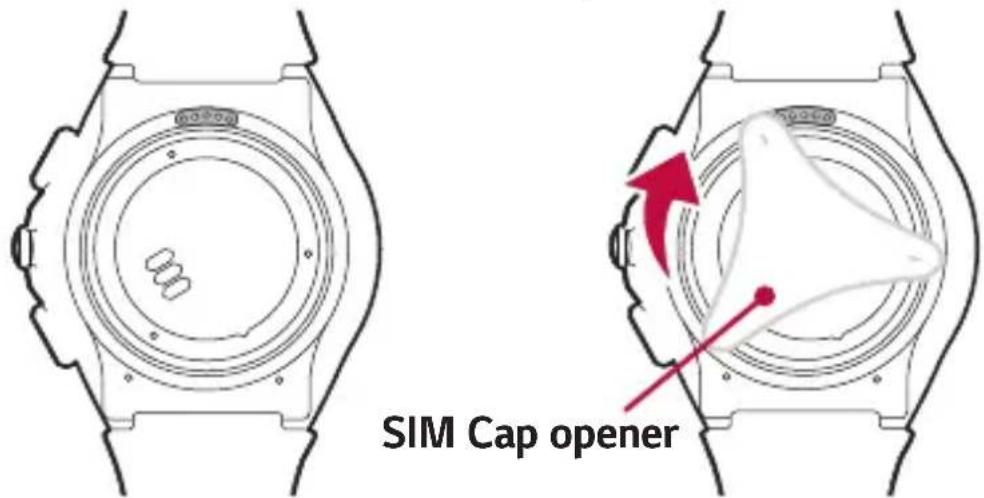
Don't use excessive force when you turn the SIM cap cover using the SIM cap opener.
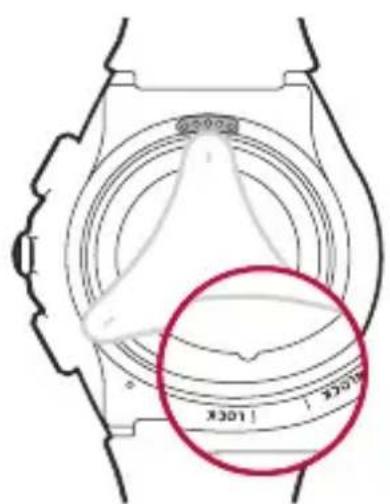
1 Open the SIM card cover using SIM cap opener as shown in the figure below. Align the SIM cap opener to the hole located at the bottom of the device and then turn counter-clockwise until the SIM card cover direction indicator reaches the "UNLOCK" position.
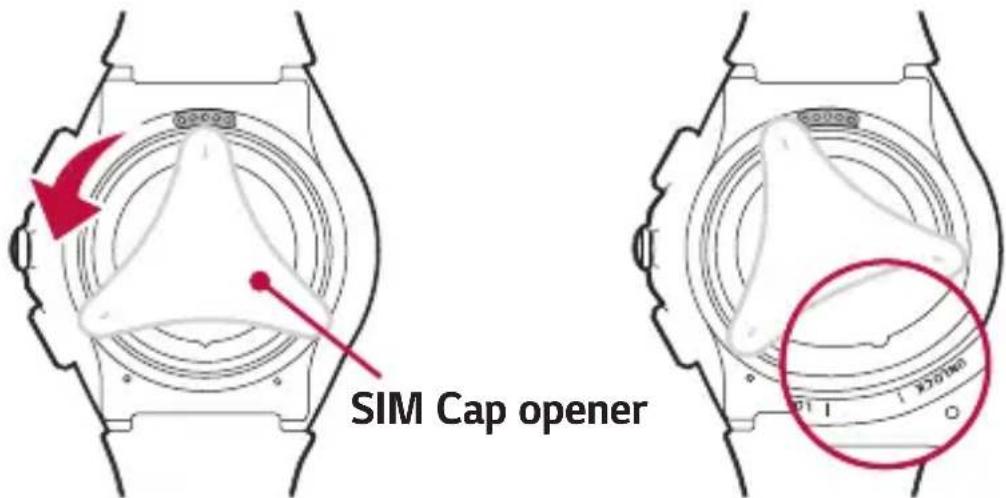
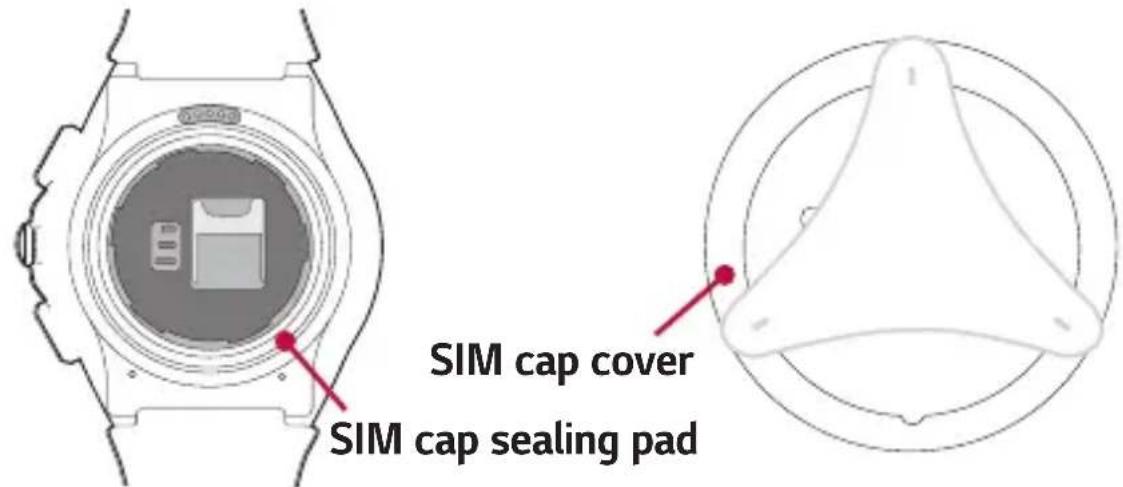
2 To remove SIM card cover, hold the watch firmly in one hand. Press the outer corner of the SIM cap cover after removing the SIM cap opener, the other side will lift. Then, lift off the SIM card cover with your other hand as shown in the figure below.
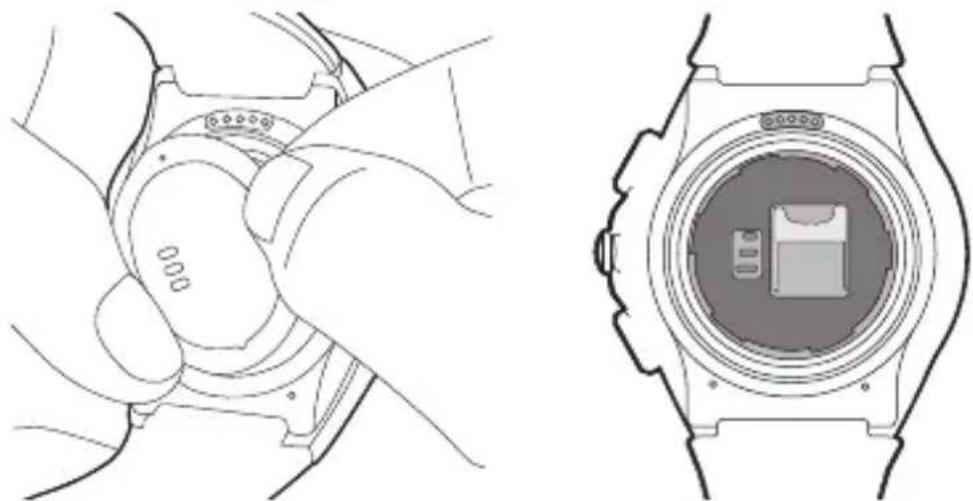
3 Slide the Nano SIM card into the SIM card slot as shown in the figure. Make sure the gold contact area on the card is facing downward.
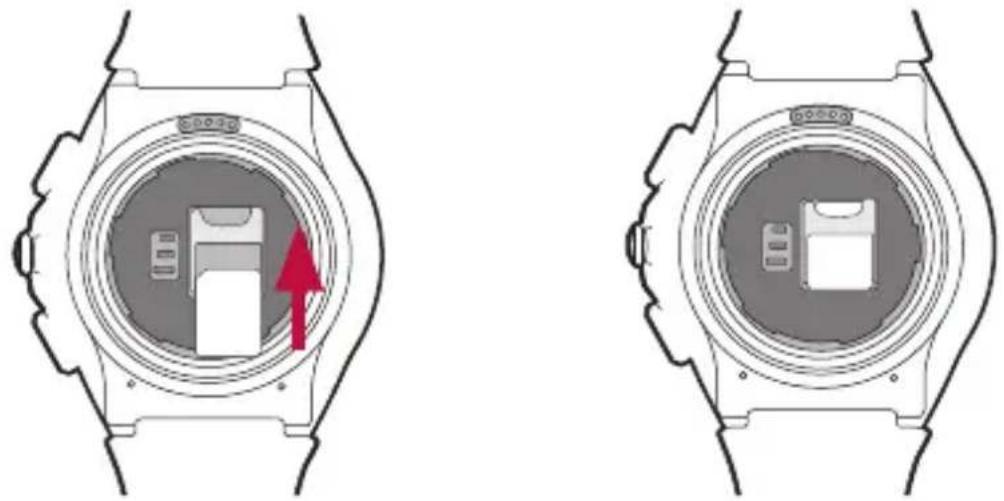
4 Close the SIM card cover using the SIM cap opener as shown in the figure below. Align the SIM cap opener to the hole located at the bottom of the device and then turn clockwise until the SIM card cover direction indicator reaches the "LOCK" position.

NOTE
- Foreign materials on the SIM cap sealing pad or SIM cap cover may compromise the water resistant function. Make sure to clean or remove any foreign material.
Unlock the SIM Card
If you insert the SIM card with a PIN lock, you have to enter the unlock code. If the SIM card PIN is disabled, ignore this section.
1 After turning the watch on, swipe up from the bottom of your watch screen until the SIM Locked screen appears.
2 Tap the SIM Locked screen to enter the unlock code.
3 Enter the unlock code.
Turning the Watch On and Off
Turning on the Watch
Turn the watch on by pressing and holding the Power Key (on the right-hand side of the device) for a few seconds. The screen lights up and the LG logo is displayed.
Turning off the Watch
1 Press and hold the Power Key until the app list appears.
2 Tap Settings > Power off.
3 When prompted with the message Power off: Are you sure?, tap
Connecting to Another Mobile Device
If you want to connect your watch to another device, you must reset your device.
Reset Your Watch
This setting unpairs the watch from your phone, resets your watch's settings to their factory default values, and deletes all of your data.
1 Press and hold the Power Key until the app list appears.
2 Tap Settings > Unpair with phone. You are prompted to confirm.
3 Tap
- Your watch connects to one mobile device at a time.
- Unpairing with your phone erases all data from your watch's memory. After completion, it is ready to connect to another mobile device.
Touch Screen Tips
Here are some tips on how to navigate on your watch.
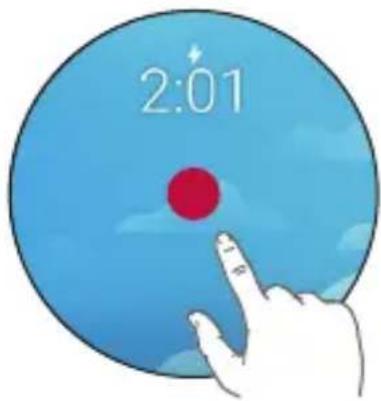
- Tap or touch - A single finger tap selects items, links, shortcuts and letters on the on-screen keyboard.
- Touch and hold - Touch and hold an item on the screen by tapping it and not lifting your finger until an action occurs.
- Swipe or slide - To swipe or slide, quickly move your finger across the surface of the screen, without pausing when you first tap it.
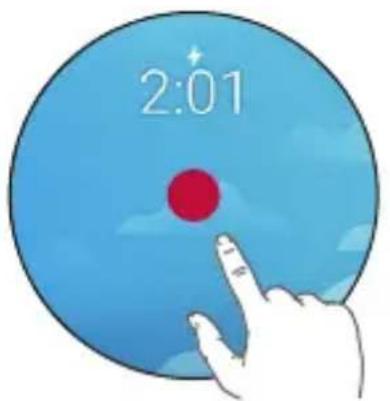
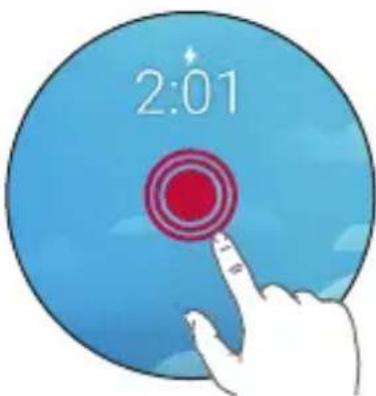
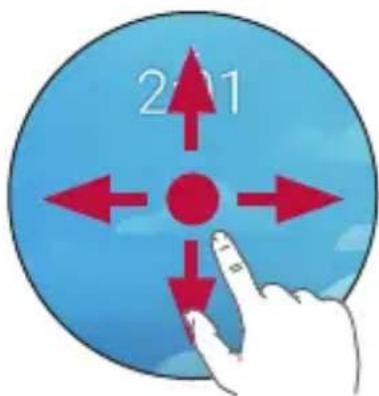
Tap or touch Touch and hold Swipe or slide
Wearing the Watch
Cautions for Water-Resistance
Your watch has undergone testing in a controlled environment and is proven to be water and dust-resistant in certain circumstances (meets the requirements of classification IP67 as described by the international standard IEC 60529 - Degrees of Protection provided by Enclosures [IP Code]; test conditions: 15^ / 59^ 35^ / 95^, 86 - 106kPa, 1 meter (approximately 3 feet), for 30 minutes). Despite this classification, your device is not fully resistant to water damage.
-
The watch must not be immersed in water deeper than 3 feet (approximately 1 meter) and kept submerged for longer than 30 minutes.
-
The device must not be exposed to water at high pressure, such as ocean waves or a waterfall.
-
Should your watch or your hands become wet, dry them thoroughly before handling the device.
-
The device must not be exposed to salt water, ionized water or soapy water.
-
The watch's water and dust-resistant features may be damaged by dropping or receiving an impact.
-
If the watch gets wet, use a clean, soft cloth to dry it thoroughly.
-
The touch screen and other features may not work properly if the device is used in water or any other liquid.
-
If the watch has been immersed in water or if the microphone or speaker has gotten wet, in-call sound quality may be affected. Wipe the microphone or speaker with a dry cloth to ensure it is clean and dry.
Caution on Product Overheating
Overheating the product to certain temperature will trigger a warning in order to prevent product breakage, skin irritation or damage, battery leakage, etc. Further rise in product temperature will turn off the power. Stop using the device if you feel discomfort due to overheating during use.
Heart Rate Sensor
Make sure your watch is positioned on your wrist correctly before measuring your heart rate.
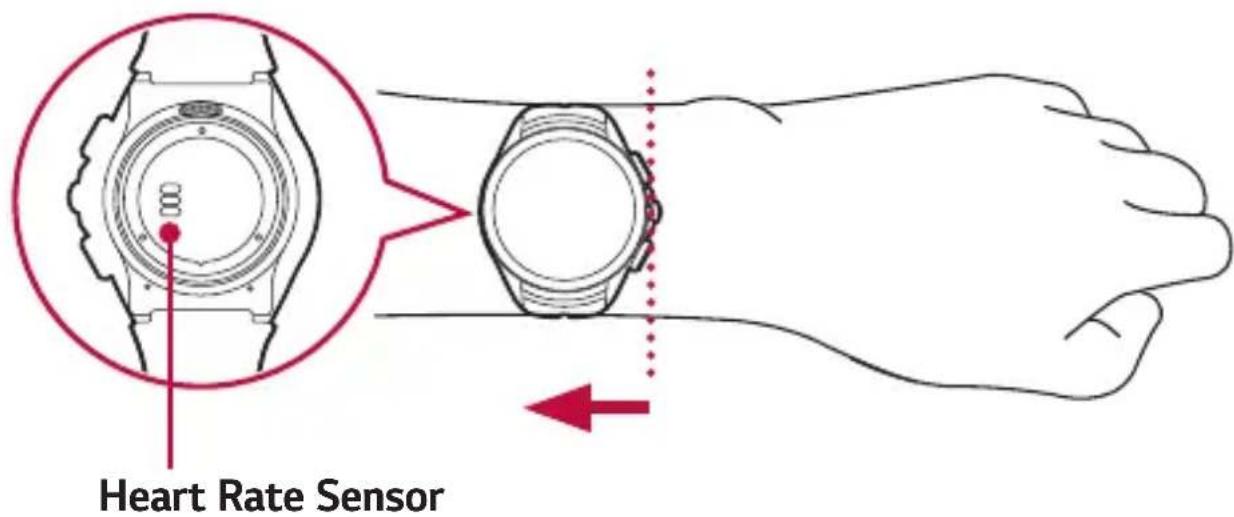

NOTE
- Loose fitting or too much movement may cause inaccurate measurements.
- Never look directly at the heart rate sensor light as this may damage your eyesight.
- Escaping light may lead to inaccurate measurements. Wear the device so it doesn't touch your wrist bone when taking measurements.
Ensuring Accurate Measurements
Heart rate readings may be inaccurate depending on conditions and surroundings. Follow these steps for more accurate heart rate readings:
-
Never measure your heart rate after smoking or drinking alcohol. Smoking and/or alcohol can affect your heart rate.
-
Never take heart rate measurements at low temperatures. Keep yourself warm when you measure your heart rate.
-
Users with thin wrists may find their heart rate measurements are inaccurate.
-
When measuring your pulse for workout purposes, take the measurement while seated and relaxed before exercise, then proceed with your workout.
-
If the measurement significantly differs from predicted values, relax and measure again in 30 minutes.
-
Confirm your pulse by taking the average of around 5 repeated measurements.
-
If you speak, yawn or breathe deeply during the measurement, you may see inaccurate values.
-
Light reflection may be uneven depending on your circulation, blood pressure or skin condition, and may lead to inaccurate measurements.
-
If light reflection is blocked by body hair or other items, you may obtain inaccurate measurements.
-
If the heart rate sensor is dirty, wipe the sensor and try again for a more accurate measurement.
Connecting the Watch to a Mobile Device
Before Pairing
Before pairing, please do the following on the phone.
1 Make sure that the Android operation system on your phone is version 4.3 or higher and supports Bluetooth.
To find out whether your phone supports Android Wear, visit http://g.co/WearCheck from your phone.
- If your phone is not Android 4.3 or later, please check with your manufacturer for a possible software update.
2 Make sure your phone is next to your watch.
3 On your phone, download the Android Wear l app from the Play Store and install it. Check that the Android Wear l app is installed and updated to the latest version on your phone.
4 Make sure your phone is connected to mobile data or Wi-Fi. You will need a data connection to set up your watch for the first time.
5 Keep the watch connected to power during setup.

NOTE
- Your watch will turn on automatically while charging. Depending on the software installed, your watch may automatically download and install an update.
Depending on the network connection, the setup process might take over 20 minutes.
How to Pair Your Watch
1 Turn on the watch and swipe the welcome screen left to begin.
2 Tap a language.
3 Connect your watch to a power source and swipe left to continue.

NOTE
- If the battery is at less than 20% , charge your watch first before proceeding the next step.
4 Swipe left following the on-screen instructions until the watch name is displayed.
5 Open the Android Wear app on your phone. Turn Bluetooth on during setup, if it isn't already on.
6 On your phone, you'll see a list of nearby devices. Tap your watch's name.
7 You'll see a pairing code on your watch and phone. Check that the codes match.
8 Tap Pair on your phone to start pairing.
9 You'll see a confirmation message on your watch once it is paired. This may take a few minutes.
10 Follow the onscreen instructions to complete the initial setup.
After Pairing
To have the best Android Wear experience, we recommend turning on Google Now and Location Services. Go to Google settings or Settings on your phone if they aren't already on.
How to Use Your Watch
Start on Your Watch Face (Where You See the Time)
Start by waking up your watch. If your watch's screen is dimmed, you can wake up the watch by doing any of the following:
- Touch the screen.
- Turn your wrist so your watch face is upright.
- Press the Power Key on the watch.
Quickly Dim the Screen
- Press the Power Key on the watch.
OR
- Press your palm onto the screen until it vibrates. This will dim the watch face.
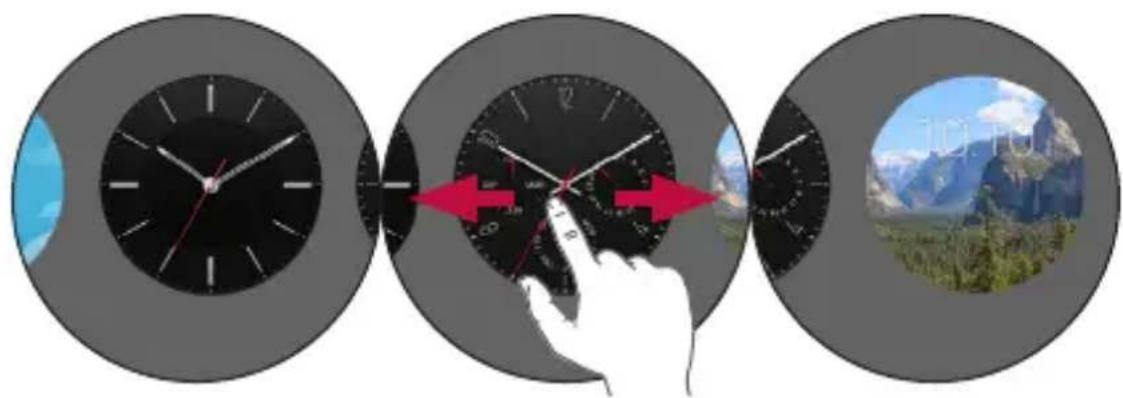
Changing the Watch Face
1 Touch and hold anywhere on the watch face for a few seconds.
2 Swipe the screen right or left to browse designs, then tap to choose one.

NOTE
- You can also change and download watch faces through the Android Wear app.
Notification Cards
Most notifications you see on your phone will also show up on your watch. These include notifications for missed calls, texts, event reminders, and more.
Notifications are displayed in the form of cards at the bottom of the watch face.

Card previews
Swipe down on the card to hide it.
Swipe left for more details and options.
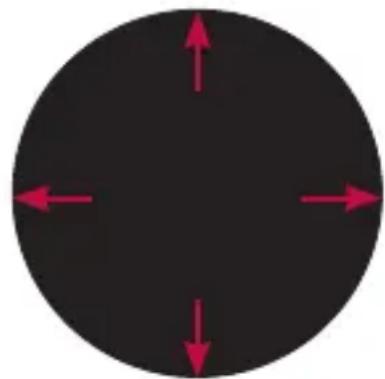
Swipe up to see more cards.
Swipe right to dismiss the card.
Swipe down to return to the home screen.
To View Cards
To view cards, swipe up from the bottom of your screen.
Tap a card to see more info. To see more cards, keep swiping up from the bottom of the screen.
To Remove a Card
To remove a card, swipe from left to right.
Once you're done looking at a card, you can get rid of it. If you remove a card on your watch, the same card or notification will be dismissed on your phone.
To See More Details
To see more details, swipe the card from right to left.
Some cards provide more details or have actions you can take.
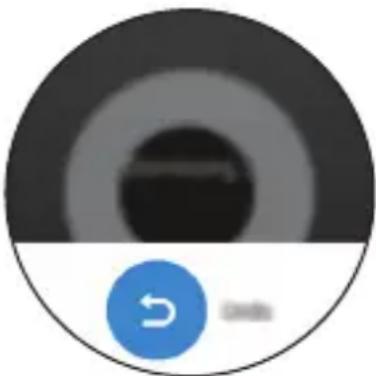
To Bring a Card Back
After the card has been dismissed, swipe down from the top of your watch's screen and tap the Undo
button You'll have a few seconds to get the
card back. If you've swiped away the last card in your stream, you'll need to swipe up from the bottom of the screen to see the Undo button.
Block Notifications
If you get notifications on your phone that you don't want to see on your watch, you can stop specific apps from showing up on your watch.
Block Apps from Your Watch
1 On your watch, go to a card.
2 Swipe from right to left until you see
3 Tap to confirm.
Block Apps Using the Android Wear App
1 On your phone, open the Android Wear app.
2 Tap > Block app notifications >
3 Select the app you want to block.
Call Notifications
You can get an instant alert when your phone receives an incoming call. The notification displays the caller's number or contact on your phone and lets you accept or decline the call.

NOTE
- if you had set the connected watch to the Call audio mode in your phone's Bluetooth settings screen, you can receive the call.
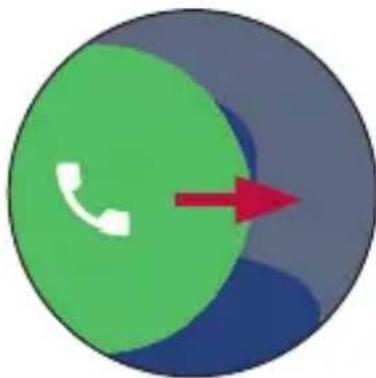
Swipe right to answer a call
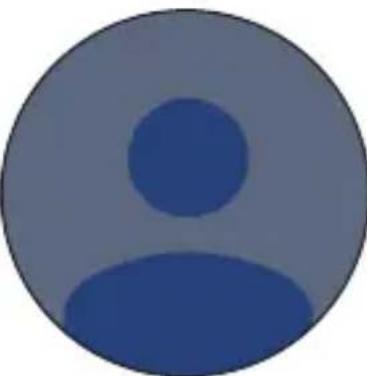
Incoming call notification
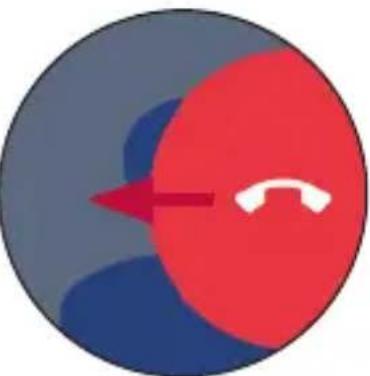
Swipe left to reject a call
Change When Notifications Arrive
You can change what notifications show up on your watch and when. To change the interruption settings, swipe down from the top of your watch's screen. You'll see a set of interruption options.

Do not disturb: Tap to select Off or Alarms only.

NOTE
- Some content may differ from your device depending on the OS version.
See Remaining Battery or Date
Swipe down from the top of the screen.
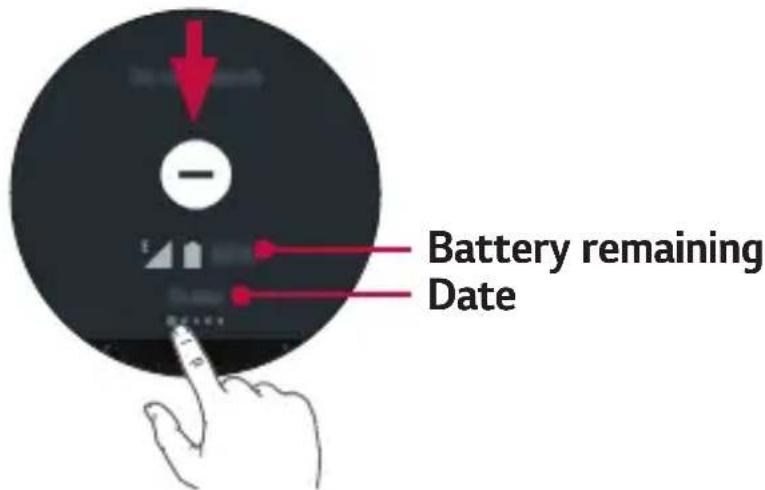

NOTE
- Some content may differ from your device depending on the OS version.
Access the Sound Setting
Allows you to set the sound for notifications, you can also change to silent.
1 Swipe from right to left until you see Sound.
2 Press the sound icon
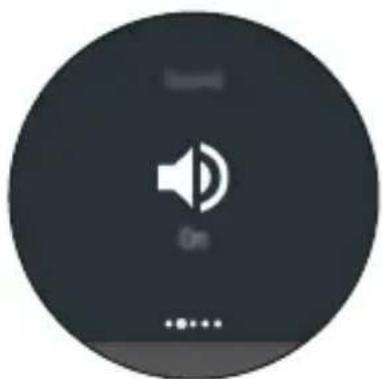
Turn Your Screen Off Temporarily with Theater Mode
You can turn off your watch's screen so the display doesn't light up and notifications don't appear.
- Press the Power Key twice quickly.
OR
1 If your screen is dimmed, touch the screen to wake up the watch.
2 Swipe down from the top of the screen. Swipe from right to left until you see Cinema mode Tap the icon to turn it on.
Boost Screen Brightness Temporarily
You can turn up the brightness temporarily if you're outdoors in a sunny spot. The extra brightness will last for a few seconds and turn off automatically.
- Press the Power Key three times quickly.
OR
1 If your screen is dim, touch the screen to wake up the watch.
2 Swipe down from the top of the screen. Swipe from right to left until you see Brightness boost cap the icon to turn it on.
Access the Settings Menu
- Press and hold the Power Key until the app list appears, then touch Settings
OR
- Swipe left until the app list appears, then tap Settings

Manage Storage
Through the Android Wear app on your phone, you can see:
- How much storage space is available
Total storage space on your watch - Apps or services that are using your watch's storage
To See the Storage Details:
1 Make sure your watch is connected to your phone.
2 On your phone, open the Android Wear app.
3 Tap > Tap your watch's name if you have multiple devices > Watch storage.
Tasks Using Voice Command
You can see a menu of simple tasks on your watch, and anything in this list can also be said aloud. Just say "OK Google" or swipe the home screen to the left until you see the Speak now option, then say your command or question.
For example, once you're on the Speak now menu, you can touch "Start stopwatch". To do the same thing with your voice, just say "OK Google, start stopwatch" from most screens.

NOTE
- Some voice actions are not available in all languages and countries.
Follow These Steps to Start Using Your Voice on Your Watch:
1 If your screen is dimmed, tap the screen to wake up the watch.
2 From the watch face, say "OK Google". You will see the Speak now prompt.
3 Say your command or ask your question.
Opening a Feature Using the Power Key
1 If your screen is dimmed, tap the screen to wake up the watch.
2 Press and hold the Power Key until the app list appears.
3 Swipe left until you see the Speak now prompt.
4 Swipe down to choose the task you want.

NOTE
- You'll see recently used apps at the top of the list of things you can do.
Change the Apps You Use for Voice Actions
You can set which apps to use for different voice actions. For example, you can change the app you use for setting alarms or sending messages.
1 On your phone, open the Android Wear app.
2 On the bottom half of the screen, a list of actions will be displayed.
3 Scroll and tap an action. You can choose from the available apps.

NOTE
- You can also download apps that work with Android Wear from the Play Store
Take or View a Note
You can speak to your watch to create a note or view existing notes using QuickMemo+ or Android apps like Google Keep.
1 If your screen is dimmed, tap the screen to wake up the watch.
2 From the watch face, say "OK Google" or press and hold the Power Key until the app list appears, then swipe left. You will see the Speak now prompt.
3 Say "Take a note".
4 Speak your note when prompted. (e.g. "Try the new restaurant on Main Street"). Your note will automatically be saved after a few seconds. Touch the X if you want to cancel.
5 When you try this feature for the first time, related apps on your phone will appear on the watch (Ex. Google Keep, QuickMemo+). If you install two or more related apps on your phone, select the app you want to use, and it'll be shown starting next time by default.

NOTE: If you installed QuickMemo+ or Google Keep on your phone:
- The app turns the words you speak into text. When you have finished speaking, your text note is saved to QuickMemo+ or Google Keep on your mobile device.
View and edit your notes by opening the app on your mobile device.
Set a Reminder
You can speak to your watch to set a reminder. Once you set a reminder, you'll see a card when your reminder goes off.
1 If your screen is dimmed, tap the screen to wake up the watch.
2 From the watch face, say "OK Google" or press and hold the Power Key until the app list appears, then swipe left. You will see the Speak now prompt.
3 Say "Remind me".
4 Complete your reminder when prompted. Your reminder will automatically save after a few seconds. Touch the X if you want to cancel.
Show Me My Steps
With this feature you can view a count of the steps you have taken today and review a log of steps taken over the last week, as measured by the Fit app.
1 If your screen is dimmed, tap the screen to wake up the watch.
2 From the watch face, say "OK Google" or press and hold the Power Key until the app list appears, then swipe left. You will see the Speak now prompt.
3 Say "Show me my steps". You will see your step count, progress to your fitness goal and a bar chart of your daily step counts.
4 View a list of your daily step totals by swiping up across the screen.
Show Me My Heart Rate
You can use the Heart Rate app to measure and record your current heart rate.

NOTE
- The device's heart rate measurement feature is not meant for clinical or medical diagnosis. Follow the guidelines in Wearing the watch and Ensuring accurate measurements to make sure your heart rate measurements are accurate.
Measuring Heart Rate
1 If your screen is dimmed, tap the screen to wake up the watch.
2 From the watch face, say "OK Google" or press and hold the Power Key until the app list appears, then swipe left. You will see the Speak now prompt.
3 Say "Show me my heart rate".
4 When you use this feature for the first time, you'll have to select Google Fit. Select the app you want to use, and it'll be shown starting next time by default.
5 Your watch will start measuring your heart rate. After a short period of time, you will see your heart rate on the screen along with your heart rate measurement history.
6 Take another measurement by tapping Check again.
Send a Text
This feature enables you to dictate text messages on your watch to contacts stored on your mobile device. You can also reply to any received text messages that appear in cards.
Sending a Message
1 If your screen is dimmed, tap the screen to wake up the watch.
2 From the watch face, say "OK Google" or press and hold the Power Key until the app list appears, then swipe left. You will see the Speak now prompt.
3 Say "Send a text".
4 The To whom? screen will be displayed. You will see the Speak now prompt. Say the name of the contact you want to send a text message to. When the list appears, select the contact you want.
5 You will be prompted to say the message you want to send. Say your message or insert emoticons.
6 Your message will be sent automatically.
Replying to a Message
You will see cards if you get message notifications on your phone. Swipe from right to left until Reply appears. Tap Reply, then say your message.
Your watch can be used to write and read emails from your mobile device.
1 If your screen is dimmed, tap the screen to wake up the watch.
2 From the watch face, say "OK Google" or press and hold the Power Key until the app list appears, then swipe left. You will see the Speak now prompt.
3 Say "Email".
4 The To whom? screen will be displayed. You will see the Speak now prompt.
5 Say the name of the contact you want to send an email to. When the list appears, select the contact you want.
6 You will be prompted to say the message you want to send.
7 Your message will be sent automatically.
Checking Emails on Your Phone
When reading emails on your watch, swipe the message card from right to left and tap Open on phone.
Replying to an Email
Swiping from right to left lets you take assorted actions, such as archive or reply. Tap Reply and say your message. Your message will be sent automatically.
Deleting Email Messages
Swipe the message card from right to left and tap Delete.
Agenda
You can view events scheduled on your mobile device's calendar using your watch.
1 If your screen is dimmed, tap the screen to wake up the watch.
2 From the watch face, say "OK Google" or press and hold the Power Key until the app list appears, then swipe left. You will see the Speak now prompt.
3 Say "Agenda". You will see a list of scheduled events.
4 Tap an event to view the event's details.
Navigate
You can find your way to a selected destination using the watch.
1 If your screen is dimmed, tap the screen to wake up the watch.
2 From the watch face, say "OK Google" or press and hold the Power Key until the app list appears, then swipe left. You will see the Speak now prompt.
3 Say "Navigate", followed by the location.
Set a Timer
The watch can be used as a countdown timer. Once you set a timer, you'll have a new card with the countdown.
1 If your screen is dim, tap the screen to wake up the watch.
2 From the watch face, say "Ok Google" or press and hold the Power Key until the apps list appears, then swipe left. You will see the Speak now prompt.
3 Say "Set a timer".
4 Swipe through the available durations and start the timer by tapping the desired duration.
- Start or resume the countdown by tapping
- Pause the timer by tapping II
Dismissing the Timer
When your timer goes off, dismiss it by swiping from left to right on your screen.
Use the Stopwatch
Measure how much time has passed with the Stopwatch app.
1 If your screen is dimmed, tap the screen to wake up the watch.
2 From the watch face, say "OK Google" or press and hold the Power Key until the app list appears, then swipe left. You will see the Speak now prompt.
3 Say "Start stopwatch".
4 Tap to start.
Set an Alarm
Multiple alarms can be set on your watch. Your watch and phone alarms are separate.
1 If your screen is dimmed, tap the screen to wake up the watch.
2 From the watch face, say "OK Google" or press and hold the Power Key until the app list appears, then swipe left. You will see the Speak now prompt.
3 Say "Set an alarm".
4 Find the desired alarm time by swiping up or down.
When an alarm goes off, your watch will vibrate and display a card.
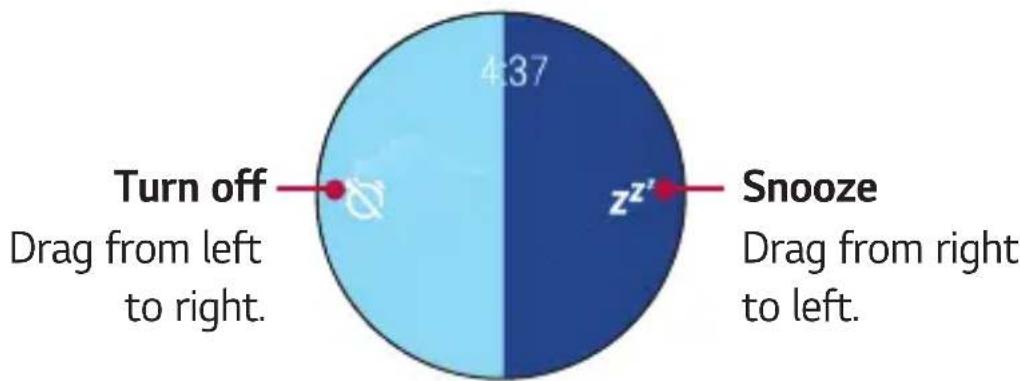
Show Alarms
You can show and delete the alarms that you set.
1 If your screen is dimmed, tap the screen to wake up the watch.
2 From the watch face, say "OK Google" or press and hold the Power Key until the app list appears, then swipe left. You will see the Speak now prompt.
3 Say "Show alarms".
Using Apps
The app list provides a list of the applications included on the watch.
To Reach the Apps Installed on Your Watch
1 If your screen is dimmed, tap the screen to wake up the watch.
2 Swipe left on the screen to open the apps list.
Downloading Other Apps
You can see a list of recommended apps in the Play Store Open the Android Wear app to download more apps on your phone.
Phone
Making a Call
You can make and receive calls directly from your watch. Your watch can display the dialpad so you can dial a number.
1 Press and hold the Power Key until the apps list appears, then touch Phone
2 Swipe left until the dialer appears.
3 Enter the number using the dialer. If you want to check the phone number that you entered, swipe down. Touch the if you want to cancel and Touch the to delete a digit.
4 After entering the desired number, tap to place the call.
5 If you want to hang up the phone, then press the red button

NOTE
- You can also make a call from the Recent list and Contacts list.
Answering and Rejecting a Call
During an incoming call, you can answer or reject the call.
- Swipe to the right to answer the call.
- Swipe to the left to reject the call.
To View the Contact List
You can see the contact list from your watch as easily as on your phone.
1 Press and hold the Power Key until the apps list appears.
2 Swipe left until the contact list appears.
Call Forwarding
This feature allows you to forward calls to your watch using Call forwarding when incoming calls are not answered on your mobile phone.
How to activate call forwarding when paired to a GSM device
1 Press and hold the Power Key until the apps list appears, then touch Settings
2 From the Settings menu, tap Mobile > Call forwarding > Turn on > Request activation.

NOTE
- You can also use the LG Call forwarding app to activate the feature while paired with a GSM device.

NOTE
- Descriptions, screen images and supported languages in this guide may differ due to app updates.
- The call forwarding feature for your watch is not supported by all carriers. Please contact your service provider for supported features.

WARNING
- Depending on your service provider, you may have to register for call forwarding service in advance.
- This feature may not work depending on network conditions. Please check with your service provider if you have any issues.
- For call forwarding service information, please check with your service provider.
Messenger
You can send and respond to messages directly for your watch.
Sending a Message
1 Press and hold the Power Key until the apps list appears, then touch Messenger
2 Tap New message and then select the contact you want to send the message.
3 You will be prompted to say the messages you want to send or select the message you want to send.
4 Your message will send automatically.
Replying to a Message
You get message notifications on your phone or watch. To see your phone SMS, install Messenger. With Messenger on your phone, you can reply to all your phone's conversations from your watch.
1 Press and hold the Power Key until the apps list appears, then touch Messenger
2 Select the contact you want when the contact list appears if there are some messages you receive.
3 Tap > Reply.
4 Speak a reply, draw emojis, or send a preset message.
LG Health
The LG Health app helps you manage your health and maintain good exercise habits by tracking logs and letting you complete with others.
1 Press and hold the Power Key until the app list appears, then tap LG Health
2 To start using this app, enter your profile and tap
3 Select the desired item. Use the options below to begin tracking your activity.
- Tracker: Select an exercise type and intensity and record your exercise or receive coaching.
- Stress: Receive messages about your stress index (step 4) and stepby-step guides. Fasten the watch to your wrist before use. (Keep it away from your wrist bone.)
- Settings: Access LG Health options such as Profile, Goal unit, Daily goal, Units, Exercise notification, Tracker layout, and Delete data. View or edit the profile that you set on your first use. Delete data recorded in LG Health, such as Tracker logs and Stress logs.

NOTE
This feature is provided for user convenience. Please use for reference only.
Use the Google Fit App
The Fit app lets you count steps and view how far you have walked. You can also see your heart rate measurements.
Installing the Google Fit app on the phone that your Android Wear watch is paired with lets you sync data between the two devices and enjoy all of Fit's features.
Press and hold the Power Key until the app list appears, then tap Fit 心 Swipe left to see details.
See Today's Step Estimate
Speak or use the menu to see an estimate of how many steps you've taken.
Say "OK Google". When you see the Speak now prompt, say "Show my steps" (See Show me my steps section for more information).
OR
Open the Fit app.
Check Your Heart Rate
Speak or use the menu to check your heart rate.
Say "OK Google". When you see the Speak now prompt, say "Show me my heart rate" (See Show me my heart rate section for more information).
OR
1 Open the Fit app and swipe left until the Heart rate appears.
2 Swipe up to see your measurement history or tap to measure your heart rate.
Settings
Launching the Settings Menu
- Press and hold the Power Key until the apps list appears, then touch Settings
OR - Swipe left until the apps list appears, then tap Settings
Adjusting Display Brightness
The brightness of the watch display can be altered on the device itself.
1 From the Settings menu, tap Adjust brightness.
2 Choose a brightness level by touching an option.
Change Your Watch Face
You can change the design of your watch face in a few ways: by touching and holding the background of your watch's screen, through the Android Wear app on your phone, or through the Settings menu on your watch.
1 From the Settings menu, tap Change watch face.
2 Swipe right and left to browse designs. If you scroll all the way to the left, you'll see your recent watch faces.
3 Tap to choose a new design.
Change the Font Size
You can set the size of the font displayed in the watch.
1 From the Settings menu, tap Font size.
2 Choose a size level by touching an option.
Gestures
You can use motion gestures to navigate notification cards, lists, and more.
From the Settings menu, tap Gestures to turn on or off.
-Flick your wrist out to scroll down a page.
-Flick your wrist in to scroll up a page.
-Push your arm down to select a card and open a new screen.
-Pivot your arm up to go back.
- Shake your wrist to exit to the watch face from any screen.
Screen On/Off Settings
You can set the screen to show the time or turn off completely when you're not using the watch. If turned off, the screen will turn on when you tilt it or cover the screen.
From the Settings menu, tap Always-on screen to turn on or off.
- ON: A dimmed watch face is shown when your watch is idle.
- OFF: The watch screen darkens when idle.
Sound
This menu allows you to set various sound settings.
From the Settings menu, tap Sound.
Wi-Fi
If Wi-Fi is set to Automatic mode, you can sync your watch and phone even when Bluetooth is not available. Wi-Fi is turned on automatically when Bluetooth is disconnected. When using a Wi-Fi connection, your watch can get notifications from your phone even if Bluetooth is unavailable. Your watch will search for and connect to the nearest Wi-Fi network based on the Wi-Fi list registered on your phone.
- From the Settings menu, tap Wi-Fi and set it to Automatic or Off.
Bluetooth Devices
Your watch automatically searches for Bluetooth devices within range. You can pair your watch with a headset in the Bluetooth devices menu within Settings. You can also unpair and disconnect headsets.
From the Settings menu tap Bluetooth.

NOTE
- Only Bluetooth devices that support the A2DP and HFP profile are supported.
- Call audio for phone is disabled when your watch and Bluetooth headset are connected.
- You can only disconnect your watch from your phone via the Android Wear application on your phone.
Cellular
This menu allows you to configure various mobile network settings.
From the Settings menu, tap Mobile.
Location
Manage location services to determine your approximate location.
From the Settings menu, tap Location to turn it on or off.

NOTE
- When paired with a phone, the watch will use the location of the phone. To improve location accuracy when paired with a phone, enable High accurate in your phone's location settings.
- Turn on the location setting on your watch if you want use the location service when your watch is not paired with a phone.
Aeroplane mode
When Airplane mode is on, you can use still many of the features on your watch (such as Heart Rate) when you are on an airplane or anywhere else where sending or receiving data is prohibited.

NOTE
- When in Airplane Mode, your watch cannot access information stored on your mobile device. You should also enable Airplane mode on your mobile device.
From the Settings menu, tap Aeroplane mode to enable or disable.
Accessibility
Allows you to set accessibility settings.
- From the Settings menu, tap Accessibility to adjust the available options.
Date & Time
Allows you to set your preferences for how the date and time is displayed.
From the Settings menu, tap Date & time.
Screen Lock
Set a pattern to draw with your finger that unlocks the screen.
From the Settings menu, tap Screen lock.
Permissions
Allows you to control permissions for individual applications.
From the Settings menu, tap Permissions.
Unpair with Phone
This setting unpairs the watch from your phone, resets your watch's settings to their factory default values, and deletes all of your data.
1 From the Settings menu, tap Unpair with phone. You are prompted to confirm.
2 Tap
- Your watch connects to one mobile device at a time.
- Unpairing with your phone erases all data from your watch's memory. After completion, it is ready to connect to another mobile device.
Power Off
1 From the Settings menu, tap Power off.
2 When prompted with the message Are you sure?, tap
About
Information about your watch is displayed here. You can view the Model, Device name, Software version, Serial number, Build number, Connection and Battery information. The following options are also available.
From the Settings menu, tap About.
- System updates: Check to see if the latest software is loaded on your watch.
- Regulatory information: Displays regulatory information.
- Legal notices: Instructs you to see your mobile device for legal notices.
More Information
Open Source Software Notice Information
To obtain the source code under GPL, LGPL, MPL, and other open source licenses, that is contained in this product, please visit http://opensource.lge.com.
In addition to the source code, all referred license terms, warranty disclaimers and copyright notices are available for download.
LG Electronics will also provide open source code to you on CD-ROM for a charge covering the cost of performing such distribution (such as the cost of media, shipping, and handling) upon email request to opensource@lge.com. This offer is valid for three (3) years from the date on which you purchased the product.
Trademarks
Copyright 2016 LG Electronics, Inc. All rights reserved. LG and the LG logo are registered trademarks of LG Group and its related entities.
- Google™, Google Maps™, Gmail™, YouTube™, Hangouts™ and Play Store™ are trademarks of Google, Inc.
- Bluetooth® is a registered trademark of Bluetooth S1G, Inc. worldwide.
- Wi-Fi® and the Wi-Fi logo are registered trademarks of the Wi-Fi Alliance.
- All other trademarks and copyrights are the property of their respective owners.
DECLARATION OF CONFORMITY
Hereby, LG Electronics declares that this LG-W200E product is in compliance with the essential requirements and other relevant provisions of Directive 1999/5/EC. A copy of the Declaration of Conformity can be found at http://www/lg.com/global/declaration.
Contact office for compliance of this product :
LG Electronics European Shared Service Center B.V. Krijgsman 1, 1186 DM Amstelveen, The Netherlands
Regulatory information
1 Press and hold the Power Key until the apps list appears.
2 Tap Settings > About > Regulatory information to get regulatory information.
How to update your device
Access to latest firmware releases, new software functions and improvements.
1 Press and hold the Power Key until the apps list appears.
2 Tap Settings > About > System updates on your device.
Disposal of your old appliance
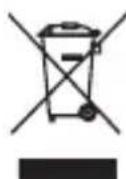
1 This crossed-out wheeled bin symbol indicates that waste electrical and electronic products (WEEE) should be disposed of separately from the municipal waste stream.
2 Old electrical products can contain hazardous substances so correct disposal of your old appliance will help prevent potential negative consequences for the environment and human health. Your old appliance may contain reusable parts that could be used to repair other products, and other valuable materials that can be recycled to conserve limited resources.
3 You can take your appliance either to the shop where you purchased the product, or contact your local government waste office for details of your nearest authorised WEEE collection point. For the most up to date information for your country please see www/lg.com/global/recycling
Disposal of waste batteries/accumulators
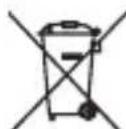
1 This symbol may be combined with chemical symbols for mercury (Hg), cadmium (Cd) or lead (Pb) if the battery contains more than 0.0005% of mercury, 0.002% of cadmium or 0.004% of lead.
2 All batteries/accumulators should be disposed separately from the municipal waste stream via designated collection facilities appointed by the government or the local authorities.
3 The correct disposal of your old batteries/accumulators will help to prevent potential negative consequences for the environment, animal and human health.
4 For more detailed information about disposal of your old batteries/ accumulators, please contact your city office, waste disposal service or the shop where you purchased the product.

Allgemeine Anfragen
- Make sure the number is correct before making a call.


- Informazioni
- Instructional notices
- Table of contents
- Safety Information. 5
- Basic. 14
- Connecting the Watch to a Mobile Device 29
- How to Use Your Watch 32
- Tasks Using Voice Command .... 40
- Using Apps 51
- Settings. 58
- More Information. 64
- Open Source Software Notice
- Trademarks 65
- Safety Information
- General safety & handling
- Your environment
- Safety tips
- WARNING
- Heart rate information
- Battery warnings
- Embedded battery
- WARNING: Notice for Battery replacement
- Notes on water resistant properties
- Pacemakers and other medical devices
- Tips for using Bluetooth and Wi-Fi on your watch
- Tips for the display screen
- Exposure to radio frequency energy
- Basic
- Accessories
- NOTE
- Watch Layout
- Power Key
- To turn the watch on:
- If the screen freezes:
- When the device is idle:
- WARNING: Before wearing the strap
- Charging the Watch
- WARNING: Corrosion of charging terminals
- If the Screen Freezes
- Installing the SIM Card
- Unlock the SIM Card
- Turning the Watch On and Off
- Turning on the Watch
- Turning off the Watch
- Connecting to Another Mobile Device
- Reset Your Watch
- Touch Screen Tips
- Wearing the Watch
- Cautions for Water-Resistance
- Caution on Product Overheating
- Heart Rate Sensor
- Ensuring Accurate Measurements
- Connecting the Watch to a Mobile Device
- Before Pairing
- How to Pair Your Watch
- After Pairing
- How to Use Your Watch
- Start on Your Watch Face (Where You See the Time)
- Quickly Dim the Screen
- OR
- Changing the Watch Face
- Notification Cards
- To View Cards
- To Remove a Card
- To See More Details
- To Bring a Card Back
- Block Notifications
- Block Apps from Your Watch
- Block Apps Using the Android Wear App
- Call Notifications
- Change When Notifications Arrive
- See Remaining Battery or Date
- Access the Sound Setting
- Turn Your Screen Off Temporarily with Theater Mode
- Boost Screen Brightness Temporarily
- Access the Settings Menu
- Manage Storage
- To See the Storage Details:
- Tasks Using Voice Command
- Follow These Steps to Start Using Your Voice on Your Watch:
- Opening a Feature Using the Power Key
- Change the Apps You Use for Voice Actions
- Take or View a Note
- NOTE: If you installed QuickMemo+ or Google Keep on your phone:
- Set a Reminder
- Show Me My Steps
- Show Me My Heart Rate
- Measuring Heart Rate
- Send a Text
- Sending a Message
- Replying to a Message
- Checking Emails on Your Phone
- Replying to an Email
- Deleting Email Messages
- Agenda
- Navigate
- Set a Timer
- Dismissing the Timer
- Use the Stopwatch
- Set an Alarm
- Show Alarms
- Using Apps
- To Reach the Apps Installed on Your Watch
- Downloading Other Apps
- Phone
- Making a Call
- Answering and Rejecting a Call
- To View the Contact List
- Call Forwarding
- How to activate call forwarding when paired to a GSM device
- Messenger
- LG Health
- Use the Google Fit App
- See Today's Step Estimate
- Check Your Heart Rate
- Settings
- Launching the Settings Menu
- Adjusting Display Brightness
- Change Your Watch Face
- Change the Font Size
- Gestures
- Screen On/Off Settings
- Sound
- Wi-Fi
- Bluetooth Devices
- Cellular
- Location
- Aeroplane mode
- Accessibility
- Date & Time
- Screen Lock
- Permissions
- Unpair with Phone
- Power Off
- About
- More Information
- Open Source Software Notice Information
- Trademarks
- DECLARATION OF CONFORMITY
- Contact office for compliance of this product :
- Regulatory information
- How to update your device
- Disposal of your old appliance
- Disposal of waste batteries/accumulators
- Allgemeine Anfragen
Brand : LG
Model : Watch Urbane 2
Category : Smartwatch