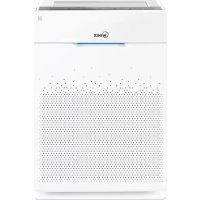
Zero Pro - Air purifier Winix - Free user manual and instructions
Find the device manual for free Zero Pro Winix in PDF.



| Product type | Air purifier |
| Brand | Winix |
| Model | Zero Pro (ZERO+ WiFi AZPU373-HWE) |
| Dimensions (W x D x H) | 415 mm x 245 mm x 600 mm |
| Weight | 8.5 kg |
| Power supply | AC 220 V - 240 V, 50/60 Hz |
| Maximum power consumption | 90 W |
| Maximum coverage area | 120 m² |
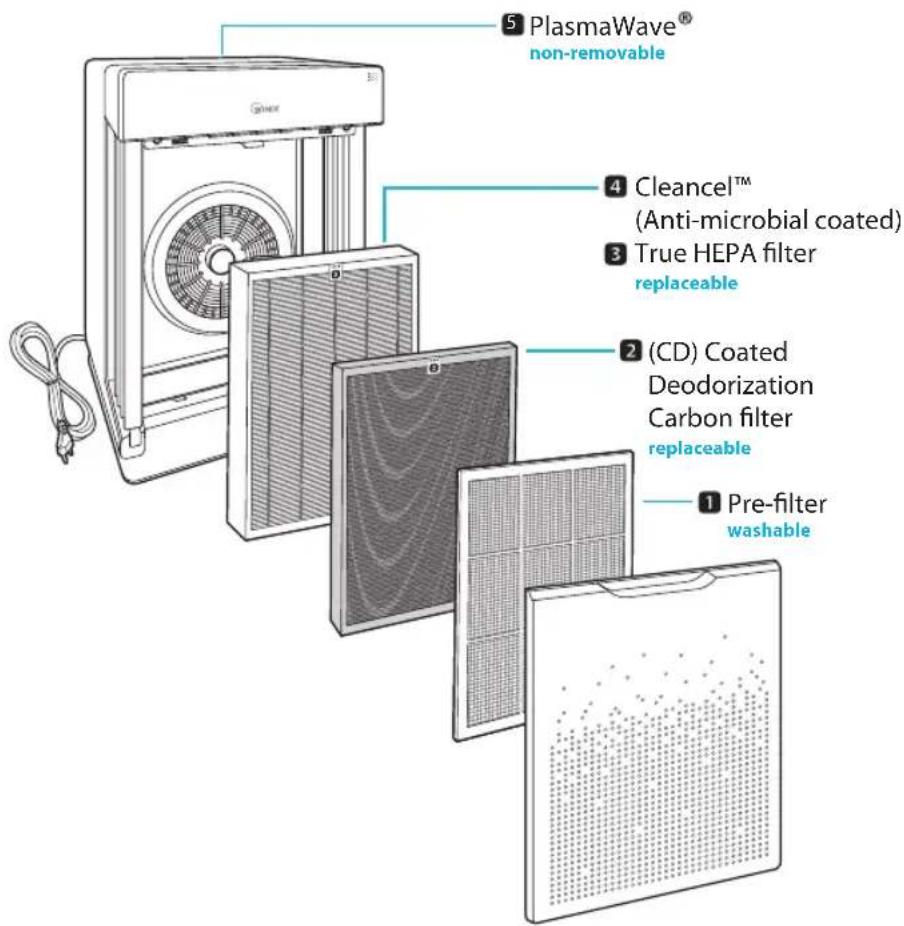
| Filters | Washable pre-filter, CD activated carbon filter, True HEPA filter with Cleancel™ |
| Operating modes | Auto, Sleep, Manual (Low, Medium, High, Turbo) |
| Timer | 1 h, 4 h, 8 h (auto shut-off) |
| PlasmaWave® | Activatable/deactivatable, neutralizes contaminants |
| Child lock | Yes, press and hold dedicated button for 3 seconds |
| Air quality indicator | LED: Blue (good), Green (moderate), Orange (moderate), Red (poor) |
| Connectivity | Wi-Fi 802.11 b/g/n 2.4 GHz, Winix Smart app (Android/iOS) |
| Pre-filter cleaning | Every 14 days, washable with water (max 40°C) |
| Carbon filter replacement | Every 6 to 12 months (Check Filter indicator triggers) |
| HEPA filter replacement | Varies by usage, use genuine Winix filters |
| Particle sensor cleaning | Every 2 months (damp cotton swab) |
| Safety | Do not use on inclined surfaces, near heat sources, or in vehicles |
| Spare parts | HEPA filter ref. 117130, Pre-filter ref. 4521-0012-01 |
| Warranty | 2 years (valid in Europe) |
Frequently Asked Questions - Zero Pro Winix
User questions about Zero Pro Winix
0 question about this device. Answer the ones you know or ask your own.
Ask a new question about this device
Download the instructions for your Air purifier in PDF format for free! Find your manual Zero Pro - Winix and take your electronic device back in hand. On this page are published all the documents necessary for the use of your device. Zero Pro by Winix.
USER MANUAL Zero Pro Winix
- Please read and follow all safety rules and instructions in this manual before operating.
The product warranty is printed on the back of this guide, so please keep it in a safe place for future use.
CONTENTS
5-STAGE AIR PURIFICATION 3
CONTROLS 4
WHERE TO USE 5
INSTALLING THE FILTERS 6
SAFETY AND CAUTIONS 8
INITIAL OPERATION 9
AUTO AND SLEEP 10
MANUAL MODE, TIMER AND PLASMAWAVE
CHILD LOCK, AIR QUALITY LED 12
WINIX SMART 13
FILTER CARE 15
PARTICLE SENSOR CARE 19
CLEANING CARE 20
FREQUENTLY ASKED QUESTIONS 21
UNIT SPECIFICATIONS 23
PRODUCT WARRANTY 24
French 26
Spanish 51
German 76
Italian 101
Dutch 126
Polish 151
This product is suitable for 220 240V only.
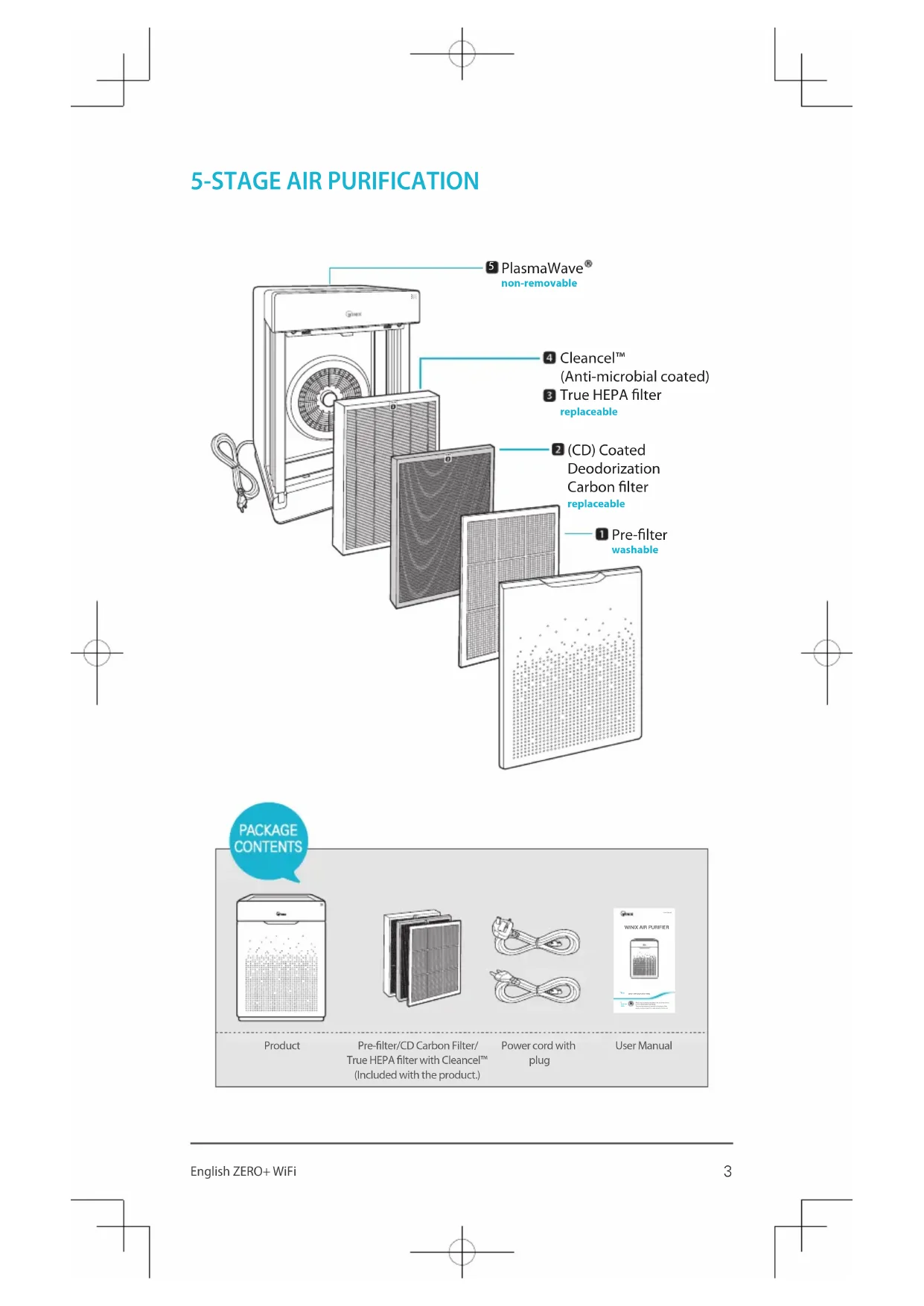
5-STAGE AIR PURIFICATION
PACKAGE CONTENTS
Product
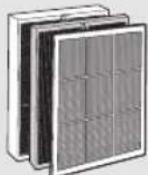
Pre-filter/CD Carbon Filter/ True HEPA filter with CleancelTM (Included with the product.)
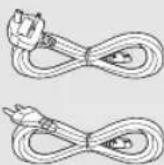
Power cord with plug
User Manual
CONTROLS
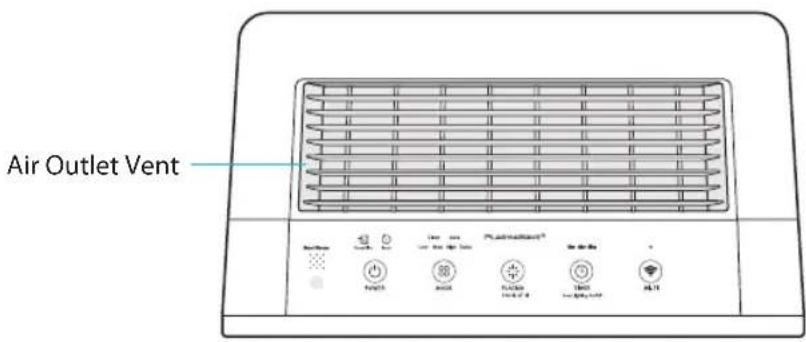
Light Sensor
Detects the amount of ambient light within the environment, to adjust the brightness of the LED indicators.
Reset Button
After replacing a filter, press the RESET button for at least 5 seconds.
Timer Indicator
If timer has been set, the LED light indicates the set time of operation.
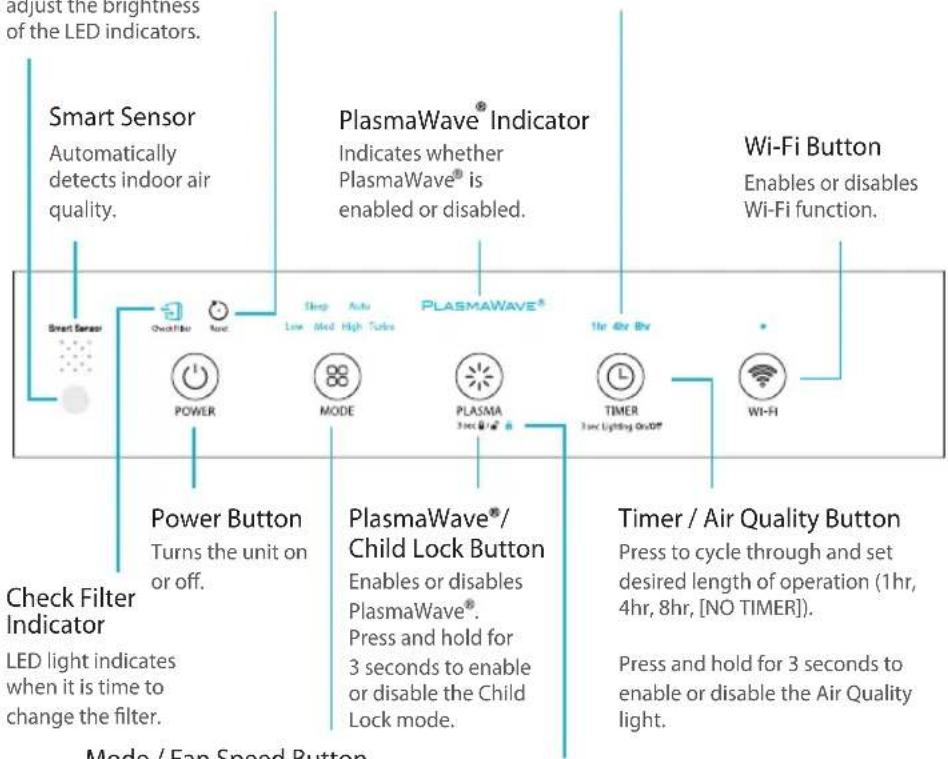
Mode / Fan Speed Button
Every time the Mode button is pressed, the Mode LED light will cycle through the settings. (Auto, Sleep, Low, Medium, High, Turbo)
Child Lock Indicator
LED light indicates whether Child Lock mode is enabled or disabled.
WHERE TO USE
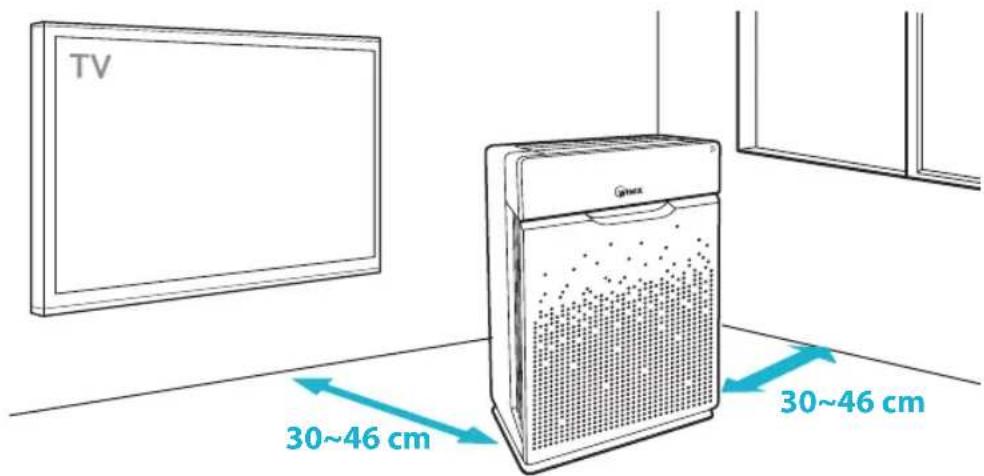
Allow 30 46 cm. of space between TVs, radios, and other electronic products electromagnetic interference from certain electronics may cause product malfunction.
Place indoors away from direct sun light direct exposure may cause product malfunction or failure.
Only place on hard, flat surfaces flimsy or slanted surfaces may result in abnormal noise and vibrations.

WARNING
Follow these instructions to reduce the risk of serious injury or death and to reduce risk of damaging the unit.

Do not use around mist or fumes from industrial oil or around large quantities of metallic dust.

Do not place around heating elements.

Do not install in any sort of motor or transport vehicle (trucks, boats, ships, etc.).

Do not place in an area with excessive amounts of noxious gases.

Do not place near any flammable materials (aerosols, fuel, gases etc.).

Do not have unit facing into wind or draft.

Do not place below any electrical outlet.

Do not place in excessively humid areas where unit may become wet.
※ This unit is not intended to be used to preserve documents or in art conservation.
INSTALLING THE FILTERS
This product comes with all of the required filters. The protective plastic wrap must be removed from the filters before use.
※ Operating the unit without removing the plastic wrap may result in product failure.
※ Unplug and make sure the unit is turned off before installing filters.
※ The unit will automatically power off when front panel is opened.
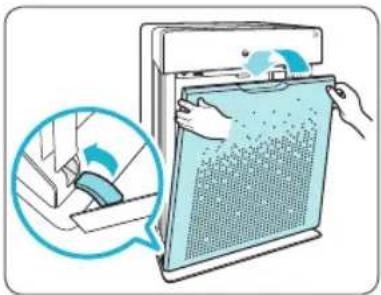
① Remove the front panel by grasping its upper edge and gently pulling towards yourself.
- To remove the front panel, the latch at the lower edge of the panel must be released from its position.

② Remove the filters from the unit, they are protected inside a plastic wrap.
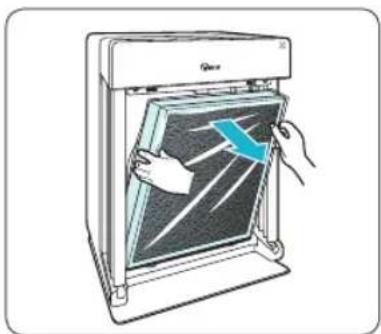
③ Remove filters from protective plastic wrap.
- Operating the unit without removing filters from plastic may cause abnormal noise, deformation, or fire as a result of overheating.

Note
Refer to pages 15-18 for detailed information on filter care and how to replace them.
INSTALLING THE FILTERS
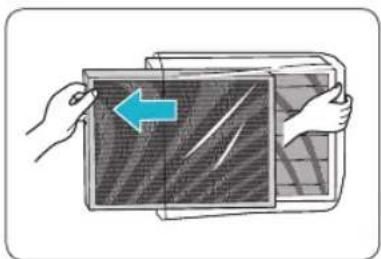
④ Install the filters until they fit securely in place.
Filters must be installed in this order:
3 True HEPA filter with Cleancel™ (rear)
2 CD Carbon filter (middle)
1 Pre-filter(front)
- To install the pre-filter, insert bottom tabs into the slots on either side of the lower part of the unit, then rotate upward to insert the upper tabs into the slots at the top part of the unit until both sides audibly click into place.
Replace the front panel by first inserting the latch at the bottom edge into the base of the unit, then rotate the panel upward toward the top of the unit until it magnetically snaps closed.
6 When to service and replace filters:
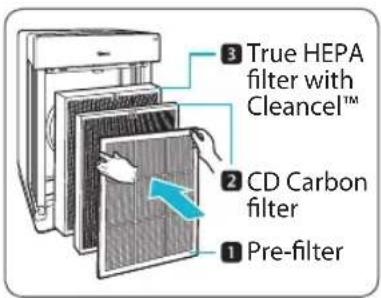
| Filter Indicator Light | When to service | When to replace | |
| 1 Pre-filter none | Clean once every 14 days | Permanent | |
| 2 CD Carbon filter | Check Filter | Can NOT be WASHED | Lasts up to 6 ~12 months |
| 3 True HEPA filter with Cleancel™ | |||
※ Intervals between filter replacement may vary depending on environment.
For optimal use, Pre-filter can be cleaned every 14 days which can extend the life of other filters.
SAFETY AND CAUTIONS
Before operating this equipment, carefully read and follow these safety cautions and instructions to avoid damage and ensure safe use.
Ensure filters are inserted before running unit
running unit without filters can shorten the units life and cause electric shock or injury.
Be sure foreign objects are NOT inserted into the vents on the unit
objects can include pins, rods, and coins.
Do not touch any part of the interior of the unit with wet hands
the high voltage may cause electric shock.
Ensure unit intake and outlet vents do not become blocked
blockage may lead to increased internal temperatures causing product failure and deformation.
Do not use the unit as a step stool or place heavy objects on it
personal injury may occur or product failure and deformation.

WARNING
Follow these instructions to reduce the risk of serious injury or death and to reduce risk of damaging the unit.

Do not pull on the power cord when unplugging the unit.

Do not tie or knot power cord when unit is in operation.

If the unit becomes submerged in water, unplug it and contact customer service.

Do not unplug or move the unit while in operation.

Do not plug additional appliances into the same outlet or power supply.

Do not touch the plug with wet hands.

Unplug unit when not in operation for extended periods of time.

Cord can become damaged by forcefully bending, pulling, twisting, bundling, pinching or placing heavy objects on it.
If the supply cord is damaged, it must be replaced by a special cord or assembly available from the manufacturer or its service agent.
This appliance is not intended for use by a person (including children) with reduced physical sensory or mental capabilities, or lack of experience and knowledge, unless they have been given supervision or instruction concerning use of the appliance by a person responsible for their safety.
Children should be supervised to ensure that they do not play with the appliance.
INITIAL OPERATION
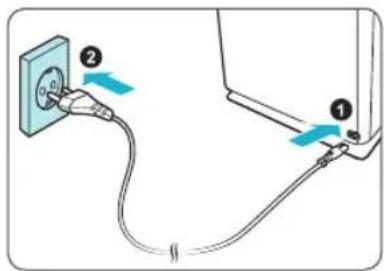
① Insert the unit plug into an electrical outlet.
The Control Panel lights will turn on and off.
② Press the 'Power' button.

POWER

Note
- During the first 4 minutes of power up, the Air Quality light will flash as the Smart Sensors measure the air quality in the environment, after which normal operation will begin.
③ By default, when the unit first powers on, the mode will be set to Auto with PlasmaWave® enabled.
- When in Auto Mode the fan speed will be automatically adjusted according to the environments air quality.
- PlasmaWave® works to remove harmful airborne contaminants.
Sleep Auto PLASMAWAVE Low Med High Turbo

Note
- In Auto mode, as the indoor air quality improves, the fan speed will automatically be reduced to Low.
- When the unit is running, you may hear a chirping or buzzing sound. The sound is from large particles passing through PlasmaWave®, it is normal and does not signify product failure. To disable PlasmaWave®, see page 11.
AUTO AND SLEEP
Every time the Mode button is pressed, the Mode LED light will cycle through the settings. (Auto, Sleep, Low, Medium, High, Turbo)
1.Auto Mode
Enables Auto operation based on the unit's air quality Smart Sensors.
① Press the Mode button to select Auto mode.
- The mode LED light will indicate when 'Auto' mode has been selected, and operation will begin.
Each time the Mode button is pressed, the modes will be cycled. (Auto, Sleep, Low, Medium, High, Turbo).
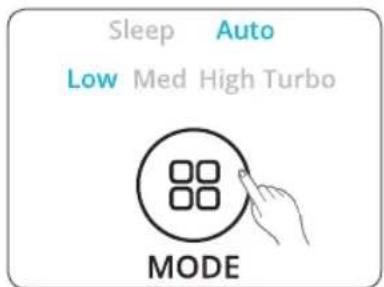
Note
- When in Auto Mode the fan speed is automatically adjusted according to the indoor air quality. As the indoor air quality improves, the fan speed will automatically be reduced. If the indoor air quality decreases the fan speed will automatically be increased.
- When unit is first started, Auto Mode is enabled and set to Low fan speed.
2. Sleep Mode
① Press the Mode button to select Sleep mode.
- The mode LED light will indicate when 'Sleep' mode has been selected, and operation in that mode will begin.
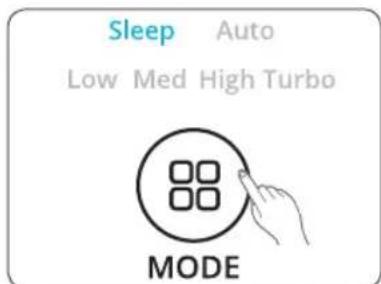
Note
- When Sleep mode is selected, the fan speed is automatically set to Low. Fan speed can be changed by pressing the Fan Speed (Mode) Button.
- When Sleep Mode is enabled, the Air Quality light is disabled.
MANUAL MODE, TIMER AND PLASMAWAVE
Every time the Mode button is pressed, the Mode LED light will cycle through the settings. (Auto, Sleep, Low, Medium, High, Turbo)
3. Manual Mode (setting fan speed)
Users can opt to manually set the fan speed to Low, Medium, High or Turbo.
① Press the Mode button to select the desired fan speed.
- The mode LED light will indicate the selected fan speed, and operation will begin.
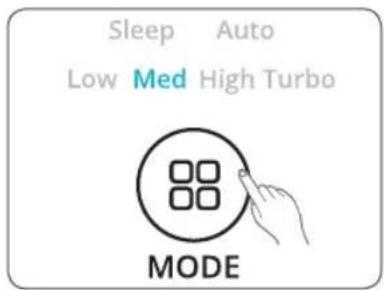

Note
- When Manual Mode is in use, Auto and Sleep modes are automatically disabled.
4. Timer
The timer can be set for when you want the unit to run for a specified period of time.
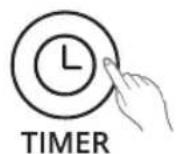
① Select the desired period by pressing the Timer button.
- The Timer LED light will indicate the selected length of operation.
- Every time the Timer button is pressed the Timer LED light will cycle through the settings. (1hr, 4hr, 8hr, [NO TIMER]).
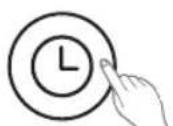
1hr 4hr 8hr
TIMER
3 sec Lighting On/Off

Note
- The WINIX SMART app will display how much time is remaining on the timer.
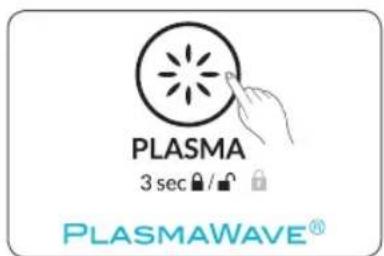
5. PlasmaWave
By default, PlasmaWave® is enabled whenever the unit is powered on.
① Press the Plasma button when the power is on to enable or disable this feature.
CHILD LOCK, AIR QUALITY LED
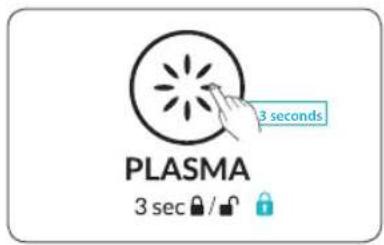
6. Child Lock
This feature prevents children from tampering with the control panel.
① Press and hold the Plasma/Child Lock button for 3 seconds to enable or disable the feature.
- When the Child Lock indicator is lit, the feature is enabled.
- When Child Lock is enabled, the control panel is locked and the settings cannot be changed.
- To disable, press and hold the Child Lock button again for 3 seconds.
7. Air Quality LED Light
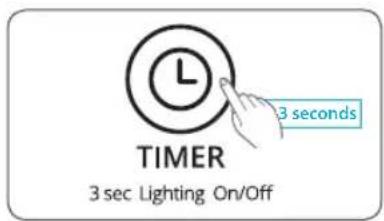
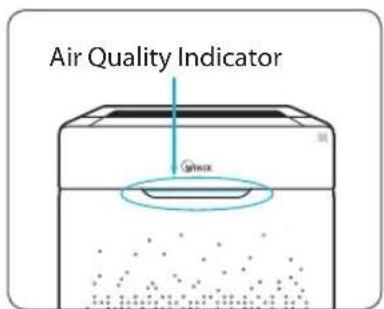
The Air Quality LED light may be turned on or off.
① To turn the Air Quality LED light on or off, press and hold the Timer button for 3 seconds.
- When on, the LED light will indicate the current indoor air quality according to four levels BLUE (good), GREEN (average), AMBER (fair), RED (poor).

Note
- When Auto Mode is enabled the Air Quality LED light may or may not be on, depending on the amount of ambient light in the room.
- When Sleep Mode is activated, the Air Quality Indicator light is turned off.
WINIX SMART
8. Connecting to WINIX SMART
WINIX SMART allows you to conveniently control your air purifier from any location. WINIX SMART is optimized for the following specifications. Depending on your smart phone capabilities and service parameters, some functions may not be supported.

Note

ANDROID (ICS 4.12 Jellybean or later recommended) iOS (6.0 or later recommended - iPhone 4S or later)
※ Before connecting to Smart Home
- A Wi-Fi wireless router must be installed within range of the air purifier to use WINIX SMART.
- Ensure Wi-Fi router matches the following specifications; 802.11b/g/n 2.4GHz or for a dual-band wireless router (2.4GHz/5GHz), be sure to select 2.4GHz.
- Be sure to have the Wi-Fi password handy.
- During registration, please keep the air purifier, wireless router, and smart device within a 32 ft. radius.
- Obstacles between the air purifier, wireless router, and smart device may cause weak reception.
- Before connecting, users with a "Smart Network Switch" on their device should temporarily disable it.
- Once WINIX SMART has been connected, the "Smart Network Switch" on your device can be enabled.
WINIX SMART
Setup
① Download the WINIX SMART app on your device.
- available via Google Play store or iTunes App store.
② Run the app and follow the setup guide to connect your device to the unit.
- Select "New Unit" and choose ZERO+WiFi to connect to this model.
- Read the notice and select "OK".
- Enter the password to your Wi-Fi network.
- Press and hold the Wi-Fi button on the unit's control panel until it beeps. The Wi-Fi strength indicator will begin to blink
- Connect to the WINIX SMART network via your device's network menu.
- Selecting "Next" will connect your unit to your device.
- Define the unit settings (Name and Location).
- When set up is complete, the WINIX SMART Indicator will light up.

FILTER CARE
1. Changing Filters
When the Check Filter indicator LED is on, it is time to replace both the True HEPA filter with Cleancel™ and CD Carbon filters.
| Filter Indicator Light | When to service | When to replace | |
| 1 Pre-filter none | Clean once every 14 days | Permanent | |
| 2 CD Carbon filter | Check Filter | Can NOT be WASHED | Lasts up to 6 ~12 months |
| 3 True HEPA filter with Cleancel™ | |||
※ Intervals between filter replacement may vary depending on environment.
For optimal use, Pre-filter can be cleaned every 14 days which can extend the life of other filters.
FILTER CARE
2. Removing Filters
Ensure the unit is turned off and unplugged before removing filters.
※ The unit will automatically power off when front panel is opened.
1 Remove the front panel by grasping its upper edge and gently pulling towards yourself.
- To remove the front panel, the latch at the lower edge of the panel must be released from its position.
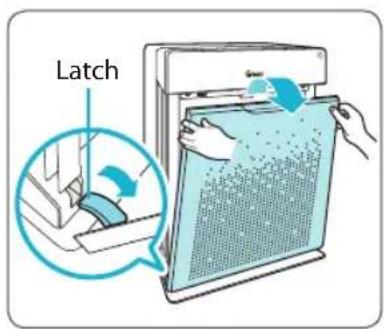
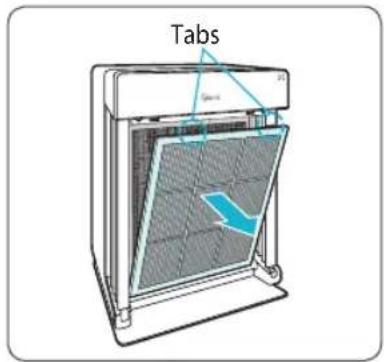
② Press the tabs on the top edge to remove the 1 Pre-filter.
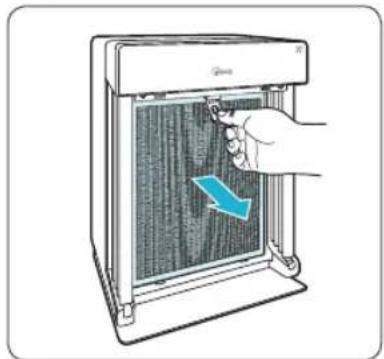
③ First remove the CD Carbon filter and then the True HEPA filter with Cleancel by pulling on the numbered tags at the top of each filter.

NOTICE
- For optimal performance, only genuine Winix filters should be used with this unit.
FILTER CARE
3.Filter Assembly and Replacement
Filters should be re-installed in the reverse order of their removal.
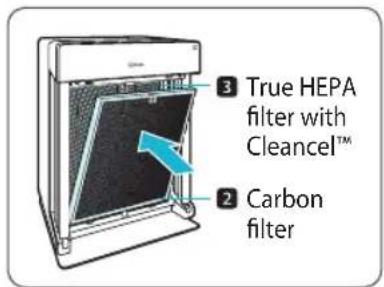
① Insert the replacement
3 True HEPA filter with Cleancel™ (rear)
CD Carbon filter (middle)
- Remove the protective plastic wrap from new filters. Operating the unit without removing the protective plastic wrap may cause abnormal noise, deformation, or fire as a result of overheating.
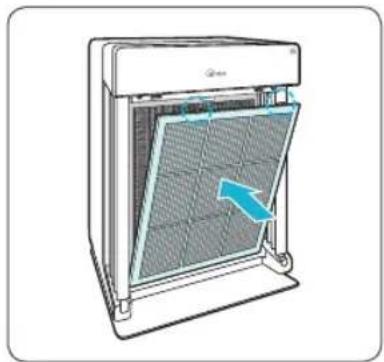
② Insert the 1 Pre-filter(front)
- To install the pre-filter, insert bottom tabs into the slots on either side of the lower part of the unit, then rotate upward to insert the upper tabs into the slots at the top part of the unit until both sides audibly click into place.
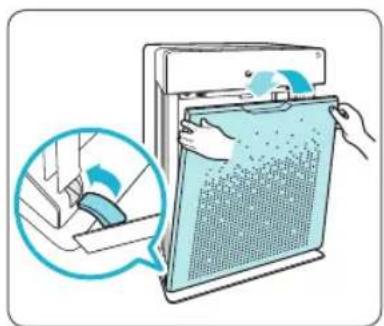
Replace the front panel by first inserting the latch at the bottom edge into the base of the unit, then rotate the panel upward toward the top of the unit until it magnetically snaps closed.
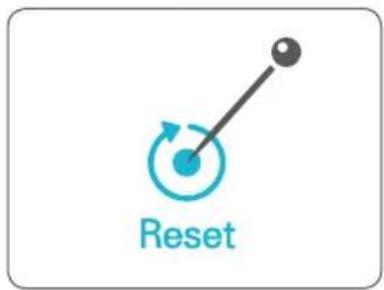
④ After replacing the filters, turn the power back on and then use a thin object, such as a paper clip, to press the RESET switch for 5 seconds.
FILTER CARE
4. Cleaning the Pre-filter
Intervals between filter cleanings may vary depending on the air quality.
① Use a vacuum cleaner or soft brush to clean the Pre-filter. If it is excessively dirty, wash with room temperature water.
- Use only water, do not use volatile substances such as alcohol or acetone.
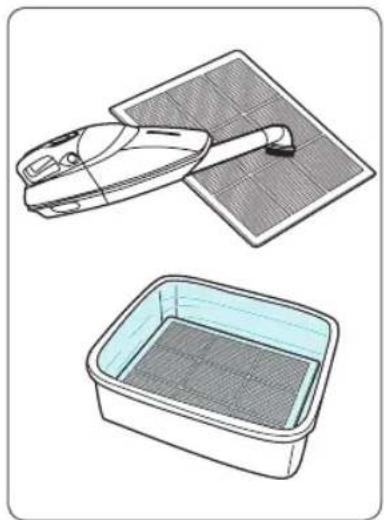
If the pre-filter becomes damaged or in any way needs replacement: Please contact your local dealer

NOTICE
- Do not use benzene, alcohol, or other volatile fluids, which may cause damage or discoloration.
The Pre-filter is reusable after cleaning. - Do not use hot water over 104^ or volatile fluids such as paint thinner.
After washing the pre-filter, allow it to dry completely in a wellventilated area. Otherwise, it may develop a bad odor.
PARTICLE SENSOR CARE
Particle Sensors Care
For optimal performance of the Particle Sensor, which detects airborne dust and ultrafine particles, clean it every two months. Clean it more frequently when the unit is running in a place with high dust levels.
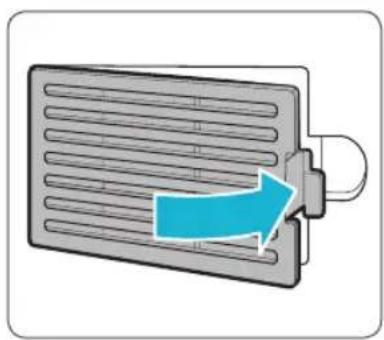
① Open the Particle Sensor cover.
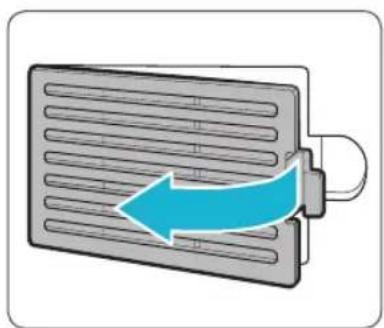
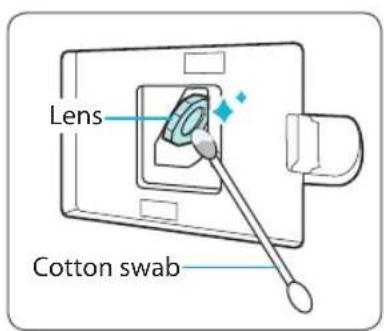
② Use a damp cotton swab to wipe the lens and intake area of the Particle Sensor.
To clean the sensor area, use only water. Do not use volatile substances such as alcohol or acetone.
③ Wipe away any remaining moisture with a dry cotton swab.
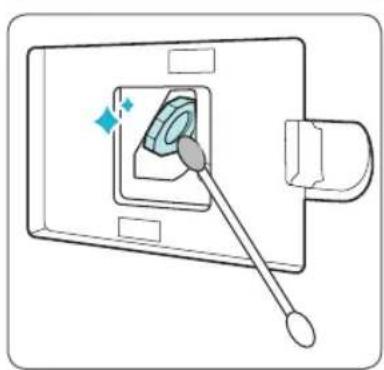
④ Close the Particle Sensor cover.
- The Particle Sensor cover may be cleaned using a vacuum cleaner.
CLEANING CARE
Cleaning the exterior and interior
Cleaning the exterior
Wipe with a soft damp cloth using room temperature water. Afterwards, wipe it down with a clean dry cloth.
For optimal performance, clean the front panel 1-2 times a month.
Cleaning the interior
Open the front panel and clean the interior with a vacuum cleaner.
For optimal performance, clean the interior 1-2 times a month.
NOTICE
- When cleaning the unit, always unplug the power cord first and then wait until the unit has cooled off.
- Never disassemble, repair or modify this unit yourself.
- Do not use flammable sprays or liquid detergents.
- Do not allow children to clean or maintain the unit
- Before cleaning or maintaining, ensure unit is off and unplugged.
FREQUENTLY ASKED QUESTIONS
| Problem Check / Actions to take | |
| It does not turn on at all. | ·Is there a power outage? -Check to see if other lights and electrical equipment are working and try again. |
| It doesn't work in Auto mode. | ·Has Auto mode been selected? -Press the Mode button until Auto mode is selected. ·Is the sensor blocked or clogged? -Clear the sensor using a vacuum cleaner. view page 19. |
| It vibrates and makes a lot of noise. | ·Is it running on a slanted surface? -Move the unit to a hard, flat area of the floor. |
FREQUENTLY ASKED QUESTIONS
| Problem Check / Actions to take | |
| The power plug and outlet feel hot. | ·Is the plug securely plugged in? - Make sure the plug is properly plugged into the outlet. |
| There is a strange smell. | ·Is it being used in a place with a lot of smoke, dust, or odors? - Clean the air intakes on the front sides of the unit and clean the pre-filter. - Contact customer service to confirm the exact cause. - Replace the CD Carbon filter and True HEPA filter with Cleancel™. |
| The product is not purifying the air enough. | ·Is the Check Filter indicator light on? - Replace the filters as required. |
UNIT SPECIFICATIONS
| Model Name ZERO+ WiFi (AZPU373-HWE) | |
| Power Voltage AC220 - 240V, 50 / 60Hz | |
| Power Rate 90 W | |
| Max Room Capacity 120 m | 2 |
| Dimensions 415 mm(W) x 245 mm(D) x 600 mm(H) | |
| Weight 8.5 kg | |
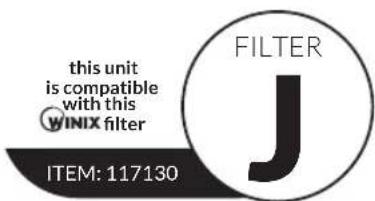
| Replacement Filter | Filter J / item : 117130 |
| Pre-Filter | Part : 4521-0010-01 |
The exterior, design, and product specifications may be changed to improve product performance without prior notice.
PRODUCT WARRANTY
The terms of the warranty are as follows.
1 This product is manufactured under stringent quality control and inspections.
2 Warranty void if product failure is a result of negligence or misuse by the consumer, shipping and service fees may be incurred even during the warranty period.
3 The warranty must be presented upon bringing the product for service.
4 Store the warranty in a safe place, as it cannot be reissued.
5 This warranty is valid only in the Europe.
| Product Name | Air Purifier | |
| Model Name | ZERO+WiFi | |
| Purchase Date | ||
| Warranty period | Two (2) years | |
| Customer | Address | |
| Name | ||
| Tel. | ||
※ After purchase, be sure to complete all of the above information.




2610-0169-00 Rev.00
PURIFICATEUR D'AIR WINIX

Modello
GARANTIE DU PRODUIT 49
Francais 26
Espanol 51
Allemand 76
Italian 101
Néerlandais 126
Polonais 151
1hr 4hr 8hr
3 sec Lighting On/Off

NOTE
8. Connessiona WINIX SMART
HET APPARAAT PLAATSEN 130
DE FILTERS INSTALLEREN 131
VEILIGHEIDSVOORSCHRIFTEN EN WAARSCHUWINGEN 133
EERSTE GEBRUK 134
HET APPARAAT PLAATSEN
VEILIGHEIDSVOORSCHRIFTEN EN WAARSCHUWINGEN
GWARANCJA NA PRODUKT 174
Francuski 26
Hiszpański 51
Niemiecki 76
Wloski 101
Holenderski 126
Polski 151
GWARANCJA NA PRODUKT

- CONTENTS
- 5-STAGE AIR PURIFICATION
- CONTROLS
- Light Sensor
- Reset Button
- Timer Indicator
- Mode / Fan Speed Button
- Child Lock Indicator
- WHERE TO USE
- WARNING
- INSTALLING THE FILTERS
- Note
- SAFETY AND CAUTIONS
- INITIAL OPERATION
- AUTO AND SLEEP
- 1.Auto Mode
- Sleep Mode
- MANUAL MODE, TIMER AND PLASMAWAVE
- Manual Mode (setting fan speed)
- Timer
- PlasmaWave
- CHILD LOCK, AIR QUALITY LED
- Child Lock
- Air Quality LED Light
- WINIX SMART
- Connecting to WINIX SMART
- Setup
- FILTER CARE
- Changing Filters
- Removing Filters
- NOTICE
- 3.Filter Assembly and Replacement
- Cleaning the Pre-filter
- PARTICLE SENSOR CARE
- Particle Sensors Care
- CLEANING CARE
- Cleaning the exterior and interior
- Cleaning the exterior
- Cleaning the interior
- FREQUENTLY ASKED QUESTIONS
- UNIT SPECIFICATIONS
- PRODUCT WARRANTY
- The terms of the warranty are as follows.
- PURIFICATEUR D'AIR WINIX
- Connessiona WINIX SMART
- HET APPARAAT PLAATSEN
- VEILIGHEIDSVOORSCHRIFTEN EN WAARSCHUWINGEN
- GWARANCJA NA PRODUKT
Brand : Winix
Model : Zero Pro
Category : Air purifier