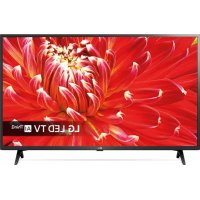
USER MANUAL 32LM6300PLA LG
USER MANUAL
Safety and ↔
LED TV*
- Image shown may differ from your TV.
- Image shown on a PC or mobile phone may vary depending on the OS (Operating System).
- App icon positions may vary on the platform, depending on the software version.
Network Settings
1 Press the Settings button on the remote to access the settings menu. Point to the [Settings] icon and select by pressing the Wheel (OK) button on the remote.


2 Select [Connection] → [Wired Connection (Ethernet)] or [Wi-Fi Connection].

3 The device automatically tries to connect to the available network (wired network first). When you select [Wi-Fi Connection], the list of available networks is displayed. Choose the network you wish to use.

4 If the connection is successful, "[Connected to Internet]" is displayed.
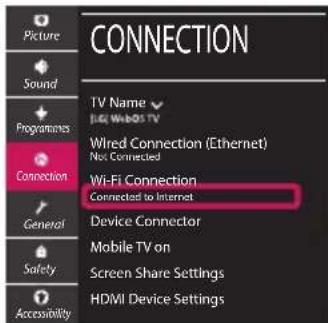
You can check the connection status in [Advanced Wi-Fi settings].


For wireless AP (Router) that have the symbol, you need to enter the security key.
Troubleshooting Network Problems
1 Press the Settings button on the remote to access the settings menu. Point to the [Settings] icon and select by pressing the Wheel (OK) button on the remote.
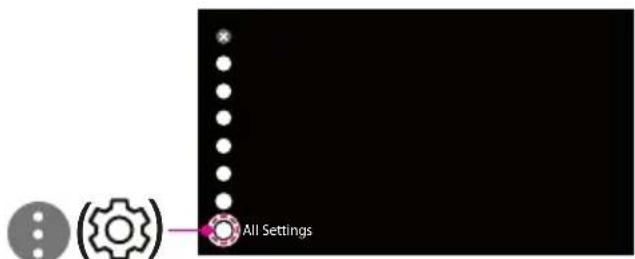
2 Select [Connection] → [Wired Connection (Ethernet)] or [Wi-Fi Connection] → [Advanced Wi-Fi Settings].

→

Follow the instructions below that correspond to your network status.
Check the TV or the AP (Router).

When X appears next to TV:
1 Check the connection status of the TV and AP (Router). Power off and power on the TV and AP (Router). If you are using a static IP, enter the IP directly. Contact your internet service provider or AP (Router) company.
Check the AP (Router) or consult your Internet service provider.

When X appears next to Gateway:
Unplug the power cord of the AP (Router) and try to connect after 5 seconds. 2 Initialize (Reset) the AP (Router). Contact your internet service provider or AP (Router) company.

When X appears next to DNS:
Unplug the power cord of the AP (Router) and try to connect after 5 seconds. Initialize (Reset) the AP (Router). 3 Check that the MAC address of the TV/AP (Router) is registered with your Internet service provider. (The MAC address displayed on the right pane of the network status window should be registered with your Internet service provider.) 4 Check the AP (Router) manufacturer's website to make sure your router has the latest firmware version installed.
SmartShare Connection to Smartphone
1 Check that Wi-Fi is enabled on your smartphone. To use SmartShare, both devices must be on the same local network. 2 Install/run the app for sharing content on your smartphone (it's called LG TV Plus on LG phones). 3 Enable your smartphone to share content files with other devices. 4 Select the file type you want to play (movie, audio, or photo). 5 Select a movie, music, or photo file to play on the TV. 6 Play the media file to view and enjoy it on your TV.
Updating the TV Firmware
- If the TV is turned on for the first time after it was shipped from the factory, initialization of the TV may take a few minutes.
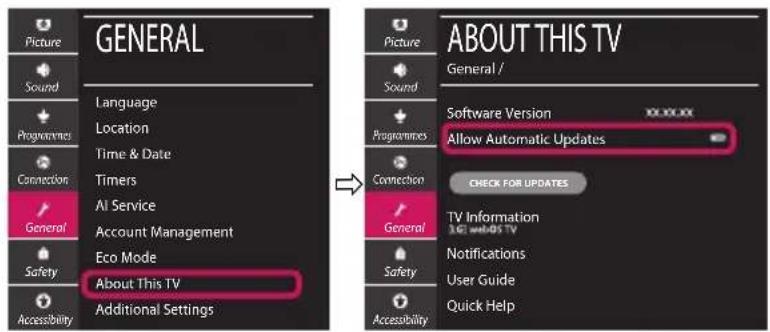
1 (Settings) \(\rightarrow\) [All Settings] \(\rightarrow\) [General] \(\rightarrow\) [About This TV] \(\rightarrow\) [CHECK FOR UPDATES] 2 After checking the version of the software, update it. If you check the "[Allow Automatic Updates]", you can update the software automatically.
When X appears next to Gateway:
When X appears next to DNS: