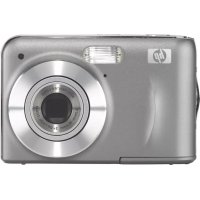
PhotoSmart M737 - Camera HP - Free user manual and instructions
Find the device manual for free PhotoSmart M737 HP in PDF.


| Product type | Compact digital camera |
| Brand | HP |
| Model | PhotoSmart M737 |
| Maximum resolution | 7.2 megapixels |
| Optical zoom | 3x |
| Digital zoom | Up to 8x |
| Display | LCD 2.5 inches |
| Power source | 2 AA batteries (alkaline or rechargeable NiMH) |
| Memory type | Internal memory + SD/SDHC card up to 8 GB |
| Image formats | JPEG |
| Video formats | AVI (Motion JPEG) |
| Maximum video resolution | 640 x 480 pixels |
| Built-in flash | Yes (Auto, Red-eye reduction, Forced, Off) |
| Self-timer | Yes, adjustable |
| White balance | Auto, preset modes |
| PC connection | USB 2.0 |
| Video output | NTSC/PAL |
| Dimensions (approx.) | 95 x 60 x 30 mm |
| Weight (without batteries) | Approximately 130 g |
| Included software | HP Photosmart |
| Care and cleaning | Clean with a soft, dry cloth; avoid solvents |
| Safety instructions | Do not disassemble, do not expose to moisture, use recommended batteries |
| Spare parts and repairability | Memory cards, batteries, USB cable, optional docking station |
Frequently Asked Questions - PhotoSmart M737 HP
User questions about PhotoSmart M737 HP
0 question about this device. Answer the ones you know or ask your own.
Ask a new question about this device
Download the instructions for your Camera in PDF format for free! Find your manual PhotoSmart M737 - HP and take your electronic device back in hand. On this page are published all the documents necessary for the use of your device. PhotoSmart M737 by HP.
USER MANUAL PhotoSmart M737 HP
HP Photosmart M730 series Digital Camera
Legal and notice information
Copyright 2007 Hewlett-Packard Development Company, L.P.
The information contained herein is subject to change without notice. The only warranties for HP products and services are set forth in the express warranty statements accompanying such products and services. Nothing herein should be construed as constituting an additional warranty. HP shall not be liable for technical or editorial errors or omissions contained herein. Windows® is a U.S. registered trademark of Microsoft Corporation.

SD Logo is a trademark of its proprietor.
Disposal of waste equipment by users in private households in the European Union
Instead, it is your responsibility to dispose of your waste equipment by handing it over to a designated collection point for the recycling of waste electrical and electronic equipment. The separate collection and recycling of your waste equipment at the time of disposal will help to conserve natural resources and ensure that it is recycled in a manner that protects human health and the environment. For more information about where you can drop off your waste equipment for recycling, please contact your local city office, your household waste disposal service or the shop where you purchased the product.
For future reference, enter the following information:
Model number:
Serial number:
Purchase date:
Contents
1 Getting started
Viewing the electronic User Guide. 4
Camera top and back 6
Camera front, side, and bottom. 7
2 Setting up your camera
Install the batteries. 8
Turn on the camera. 9
Choose the language. 9
Set the region 9
Set the date and time. 9
Install and format an optional memory card.....10
Install the software. 11
Windows 11
Macintosh. 12
3 Taking pictures and recording video clips
Take a picture. 13
Record a video clip. 13
4 Reviewing and deleting images and video clips
Review images and video clips. 15
Delete an image. 15
5 Transferring and printing images
Transfer images. 16
Print images from the camera 16
6 Camera quick reference 18
1 Getting started
This printed Quick Start Guide provides the information you need to get started using the essential features of your camera. For detailed information about camera features, see the electronic User Guide (see Viewing the electronic User Guide on page 4).
| Quick Start Guide | Electronic User Guide |
| This printed guide will help you to: • Start using your camera quickly • Install the HP Photosmart Software • Become familiar with your camera's basic features | The electronic User Guide includes: • Descriptions of all the camera features • Battery information, including: • Extending battery life • Supported battery types • A description of the power indicator icons • Getting assistance from HP • Troubleshooting • Camera specifications |
Viewing the electronic User Guide

The electronic User Guide is on the HP Photosmart Software CD.
4 HP Photosmart M730 series Digital Camera
To view the User Guide:
- Insert the HP Photosmart Software CD into the CD drive of your computer.
- Click View User Guide on the main page of the installation screen.
The electronic User Guide is also copied to your computer when you install the HP Photosmart Software. To view the User Guide after it has been installed on your computer:
- On Windows: Open the HP Solution Center and click on Help and Support.
- On Macintosh: Open the HP Device Manager and select Camera User Guide from the Information and Settings pop-up menu.
Getting assistance
- For tips and tools to help you use your camera more effectively, visit www.hp.com. From here, click on Learn About: Digital Photography (English only).
- For product support, including firmware, software, and driver updates, visit www.hp.com/support.
- For help with the HP Photosmart Software, see the software's online help.
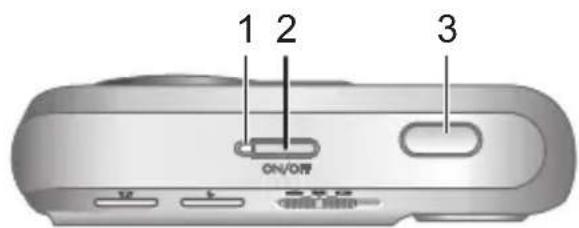
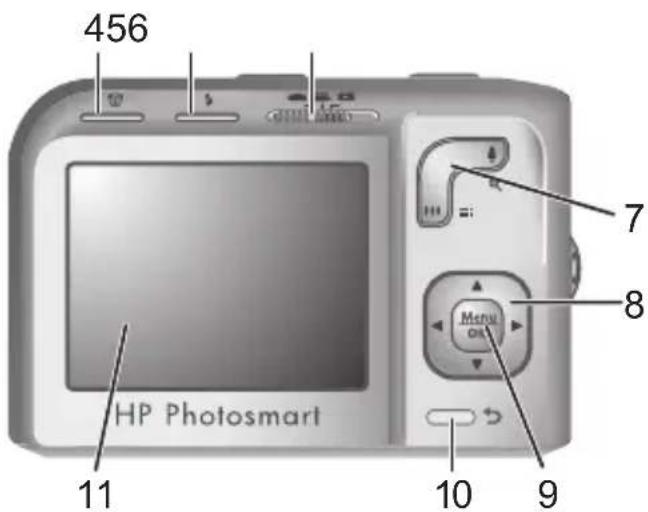
Camera top and back
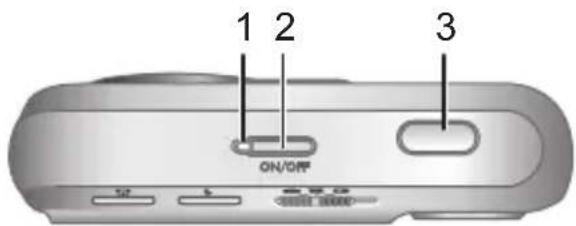
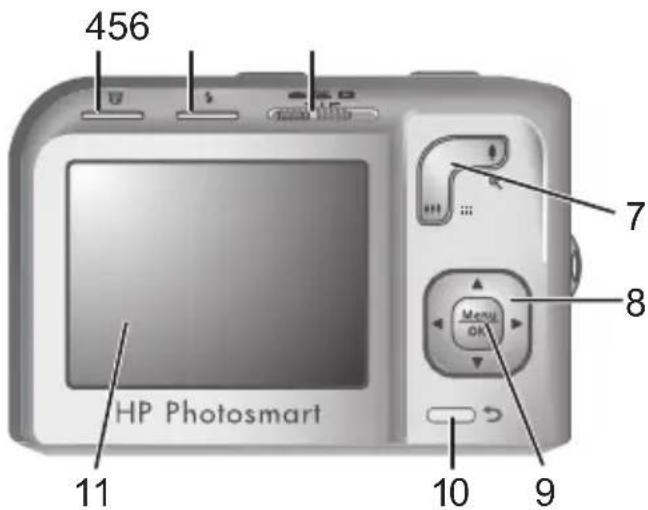
| 1 Power light. | |
| 2 buttonOFF | |
| 3 Shutter button. | |
| 4 | Delete button—Accesses the Delete function while in Playback. |
| 5 Flash button—Accesses the flash settings while in Picture Capture. Settings are Auto, Red-Eye, Flash On, Flash Off. | |
| 6 | selector—Switches between Picture Capture, Video Record, and Playback (see Picture Capture, Video Record, and Playback on page 18). |
6 HP Photosmart M730 series Digital Camera
| 7 ZOOM lever (Digital and Optical)-Accesses / !Zoom while in Picture Capture or Video Record; accesses : : Thumbs and Magnify while in Playback. | |
| 8 | ▲▼ and buttons-Scroll through menus and images. |
| 9 | Menu OK button-Displays camera menus, selects options, and confirms actions. |
| 10 | Back button-Returns you to a previous menu or view. |
| 11 | mage Display. |
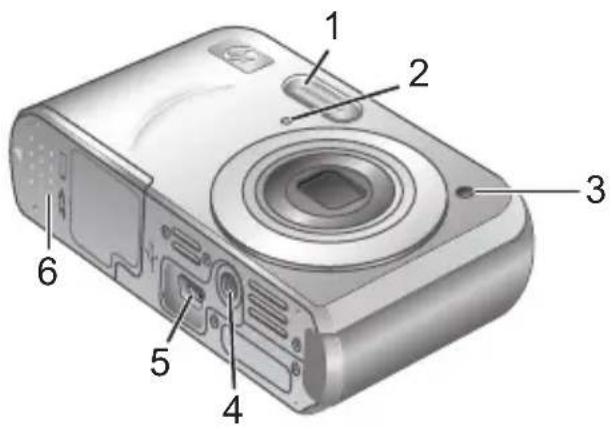
Camera front, side, and bottom
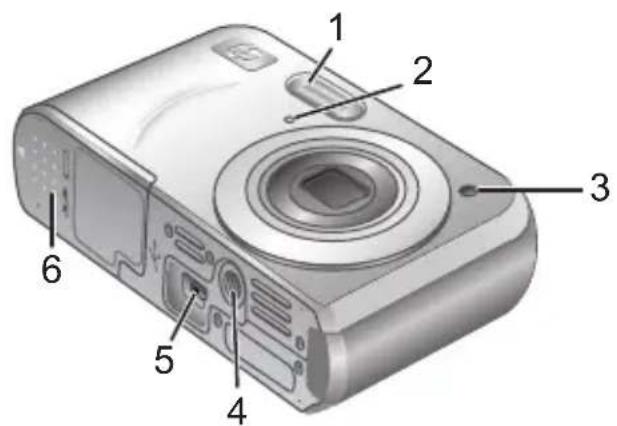
| 1 Flash. |
| 2 Microphone. |
| 3 Self-Timer light. |
| 4 Tripod mount. |
| 5 Dock/USB connector. |
| 6 Battery/Memory Card door. |
Getting started 7
2 Setting up your camera Install the batteries
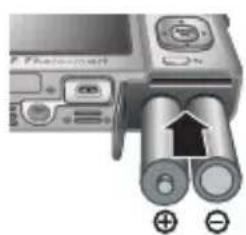
- Open the Battery/Memory Card door by sliding the door latch as indicated on the Battery/Memory Card door.
- Insert the two AA batteries.
- Close the Battery/Memory Card door.
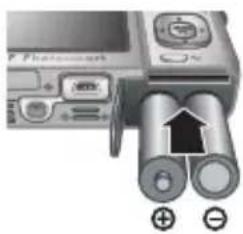

NOTE: If using rechargeable NiMH batteries, fully charge the batteries before using them the first time. Turn off the camera before removing the batteries.
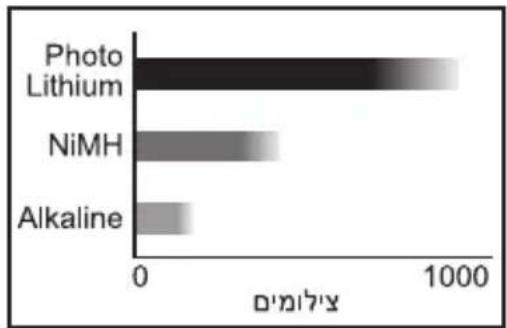
The batteries shipped with your camera are AA alkaline. These have a short life and are intended to let you begin using your camera immediately. When the camera warns that the battery charge is low, HP recommends replacing them with Photo Lithium or rechargeable NiMH batteries for longer battery life.
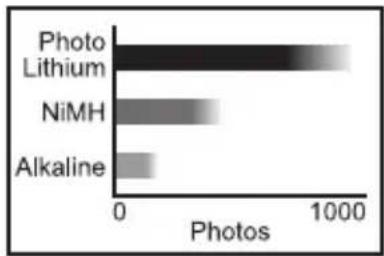
This graph shows the approximate average number of photos you can take using Photo Lithium, NiMH, and Alkaline batteries. Actual performance may vary based on usage, battery type, and battery manufacturer. Many additional factors affect the actual number of photos you can take (see Extending battery life on page 21).
8 HP Photosmart M730 series Digital Camera
Turn on the camera
To turn on the camera, press the button.
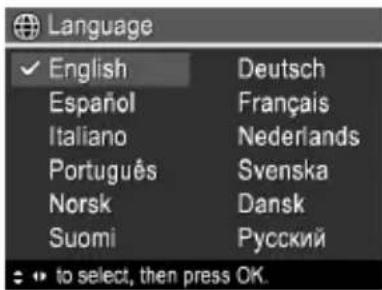
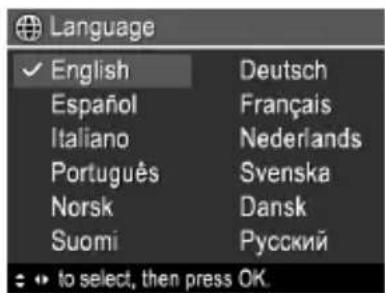
Choose the language
Use to choose the language you want, then press Menu OK.
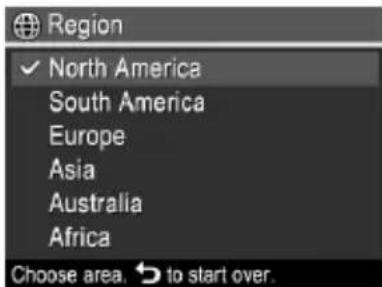
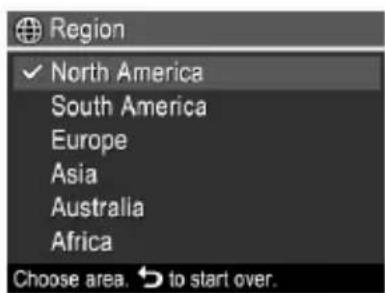
Set the region
Along with the language setting, the region setting determines the default date format.
Use to choose the region you want, then press Menu OK.
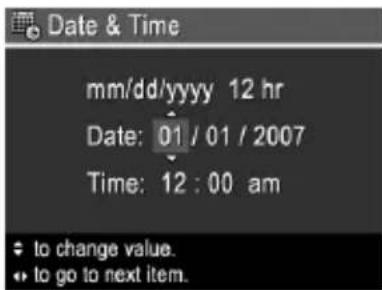
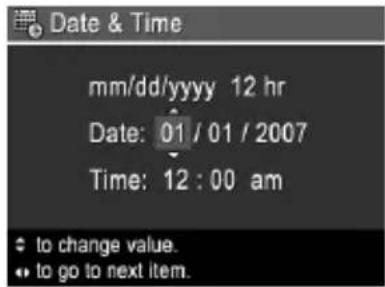
Set the date and time
Accurately setting the date and time will help you locate images once you have transferred them to your computer, and will ensure that images are accurately marked if you use the date and time imprint feature.
-
Use to adjust the highlighted value.
-
Use to move to the other selections and repeat Step 1 until the date and time are set correctly.
-
Press Menu when the date, OK
Setting up your camera 9
time, and format settings are correct, then press Menu OK again to confirm.
Install and format an optional memory card
This camera supports standard, high speed, and high capacity Secure Digital (SD and SDHC) memory cards, 32MB to 8GB.
- Turn off the camera and open the Battery/Memory Card door.
- Insert the optional memory card in the smaller slot as shown. Make sure the memory card snaps into place.
- Close the Battery/Memory Card door and turn on the camera.
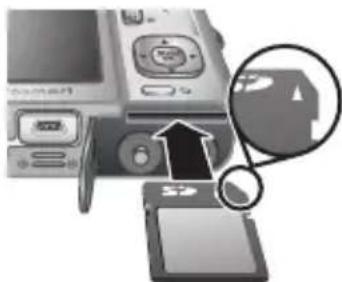

NOTE: When you turn on your camera with a memory card installed, the camera indicates the number of images you can store on the memory card at the current Image Quality setting. This camera supports storing a maximum of 2000 images on a memory card.
Always format new memory cards before first use. Formatting removes all images from the memory card, so make sure to transfer existing images before formatting.
- With the camera turned on, slide to
- Press
- Use to select Format Card from the Delete menu, then press .
- Use to select Yes, then press to format the card.
10 HP Photosmart M730 series Digital Camera
Once you install a memory card, all new images and video clips are stored on the card, rather than in internal memory.
To use internal memory and view images stored there, turn off the camera then remove the memory card.
Install the software
The HP Photosmart Software provides features for transferring images and video clips to your computer, as well as features for modifying stored images (remove red eyes, rotate, crop, resize, and more).
To install the HP Photosmart Software, your computer must meet the system requirements as stated on the camera packaging. To learn about Windows Vista support for your camera, see www.hp.com/go/windowsvista (English only).
If you have trouble installing or using the HP Photosmart Software, see the Hewlett-Packard Technical Support website for more information: www.hp.com/support.
Windows
- Close all programs and temporarily disable any virus protection software.
- Insert the HP Photosmart Software CD into the CD drive and follow the on-screen instructions. If the installation window does not appear, click Start, click Run, type D:\Setup.exe, where D is the letter of your CD drive, then click OK.
- When the software has finished installing, re-enable virus protection software.
Macintosh
- Insert the HP Photosmart Software CD into the CD drive.
- Double-click the CD icon on the computer desktop.
- Double-click the installer icon, then follow the on-screen instructions.
Once installation is complete and you have restarted your computer, System Preferences automatically opens to the HP Photosmart Camera settings. You may change settings so the HP Photosmart Software starts automatically when you connect your camera to your Macintosh (for more information, click the help button on the HP Photosmart Camera settings dialog).
12 HP Photosmart M730 series Digital Camera
3 Taking pictures and recording video clips
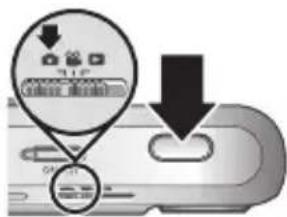
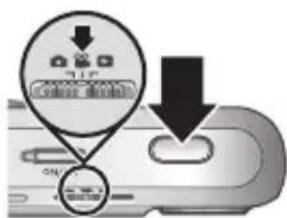
Slide to either to take pictures or to record video clips.
Take a picture
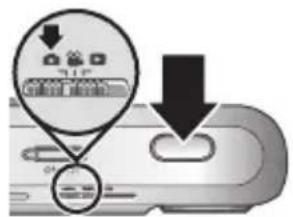
You can take a picture when you are in Picture Capture.
- Slide to
- Frame the subject in the Image Display.
- Press the Shutter button halfway down to measure and lock the focus and exposure. The focus brackets in the Image Display turn solid green when focus is locked.
- Press the Shutter button all the way down to take the picture.
After you have taken a picture, the camera displays it briefly in the Image Display.
Record a video clip
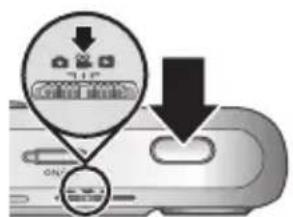
You can record a video when you are in Video Record.
- Slide to
- Frame the subject in the Image Display.
- Press the Shutter button halfway down to measure and lock the focus. The focus brackets in the Image Display turn solid green when focus is locked.
Taking pictures and recording video clips 13
- Press the Shutter button all the way down to start recording.
- To stop recording video, press and release the Shutter button again.
After you have recorded a video clip, the camera displays it briefly in the Image Display.
14 HP Photosmart M730 series Digital Camera
4 Reviewing and deleting images and video clips
Review images and video clips
You can review images and video clips in playback.
- Slide to
- Use to scroll through your images and video clips. To play a video clip, press once the first screen of the clip appears on the Image Display. To hear audio associated with the video clip, transfer the video clip to your computer (see Transferring and printing images on page 16).
Delete an image
You can delete individual images during Playback:
- Slide to
- Use to select an image or video clip.
- Press
- Use to select This Image from the Delete menu, then press OK.
5 Transferring and printing images
Transfer images
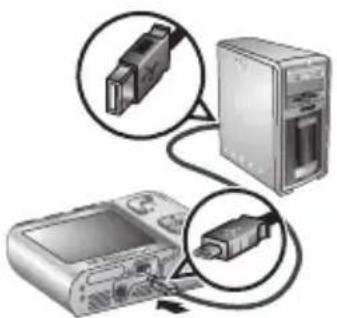
Use this procedure to transfer images and video clips to your computer.

NOTE: Transferring a large number of high-resolution images from a memory card to your computer may take up to two hours. When transferring a large number of images, be sure your camera batteries are fully charged or use an optional HP Photosmart dock or memory card reader.
- Turn off the camera.
- Connect the camera and computer using the USB cable that came with your camera.
- Turn on the camera. When the Image Display indicates that the camera is connected to the computer, follow the instructions on the computer screen to
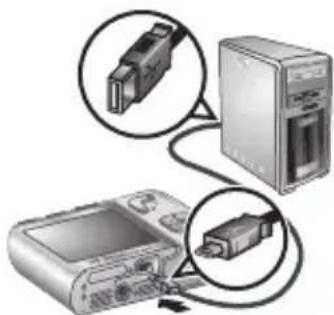
transfer the images. If you have installed the HP Photosmart Software and need more information, see the Help feature in the HP Photosmart Software.
Print images from the camera
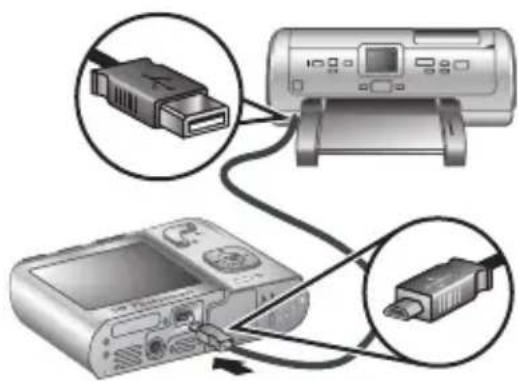
You can connect the camera to any PictBridge-certified printer to print images.
- Check that the printer is turned on, there is paper in the printer, and there are no printer error messages.

PictBridge
16 HP Photosmart M730 series Digital Camera
-
Turn off the camera, connect the camera and printer using the USB cable that came with your camera, then turn on the camera.
-
When the camera is connected to the printer, the Image
Display shows an image. Use to select the image you want to print.
-
Press Menu OK
-
In the Print Options menu, select Print This Image Now and press to begin printing.
-
displays on the selected image in the Image Display to indicate that the image is being printed.
-
After the printer has printed the image, disconnect the camera from the printer.
To learn about other printing options, see either the electronic User Guide or Camera Help located in any menu.
6 Camera quick reference
Use this chapter as a quick reference to camera features. To learn more about these camera features, refer to the electronic User Guide or on-camera Help.
Picture Capture, Video Record, and Playback
Picture Capture allows you to frame pictures in the Image Display and take pictures. To activate Picture Capture, slide to
Video Record allows you to frame videos in the Image Display and record videos. To activate Video Record, slide
- Playback allows you review and delete images and video clips. To activate Playback, slide to
Camera Menus
Menu allow you to adjust camera settings, work with images, and access camera Help.
- Within a menu, use to move to specific selections.
To exit the menu, press at any time.
Picture Capture Menu—Allows you to adjust camera settings that affect the characteristics of future images you capture with your camera. To access this menu, slide to then press . You can select from the following options:
- Shooting Mode (Auto, Close-up, Steady Photo, Theatre, Panorama Right, Panorama Left, Landscape, Portrait, Action, Night Portrait, Beach, Snow, Sunset)
18 HP Photosmart M730 series Digital Camera
- S e l f - T i m e r
Adaptive Lighting - Image Quality
Burs - Date & Time Imprint
- White Balance
- AE Metering
- Camera Setup
- Camera Help
Video Record Menu—Allows you to adjust camera settings that affect the characteristics of future video clips you record with your camera. To access this menu, slide to then press . You can select from the following options:
- S e l f - T i m e r
White Balance
- AE Metering
- Camera Setup
- Camera Help
Playback Menu—Allows you to work with images. To access this menu, slide to then press . OK You can select from the following options:
- Remove Red Eyes
- Design Gallery (Apply Artistic Effects, Modify Color, Add Borders, Rotate, Crop)
Photosmart Express (Print, Share, Buy Prints Online) - Favorites
View Slideshow
Preview Panorama
Camera quick reference 19
- Move Images to Card
- Camera Setup
- Camera Help
Camera Setup Menu—Allows you to change the camera's behavior. To access this menu, press from , , or , then select Camera Setup. You can select from the following options:
- Display Brightness
- Camera Sounds
- Display Timeout
- Date & Time
- USB Configuration
Language
? Camera Help Menu—Provides descriptions of camera features and picture-taking tips. To access this menu, press from , , or , then select ? Camera Help. You can select from the following options:
Top Ten Tips
- Camera Accessories
- Camera Buttons
Using Shooting Modes
Using Design Gallery
Using Photosmart Express
- Printing Images
- Recording Video Clips
- Reviewing Pictures and Videos
- Tagging Favorites
- Deleting Images
20 HP Photosmart M730 series Digital Camera
- Transferring Images
- Managing Batteries
Getting Assistance - Tour Camera Features
- Camera Shortcuts
- About
Extending battery life
To conserve battery power, the Image Display turns off after a period of inactivity. Pressing any button wakes up the camera. After five minutes of inactivity, the camera turns off.
To further extend battery life:
- S Display Brightness to Low (see the electronic User Guide for details).
- Set your camera to Auto Flash (see the electronic User Guide for details).
- Use optical zoom, video recording, and Image Display sparingly.
- If you are turning on the camera only to view images, slide to then turn on the camera to start in Playback without extending the lens.
- When transferring or printing images, place your camera in an optional HP Photosmart dock connected to AC power.
For more information about batteries, go to www.hp.com/support and search on the code AA-400 or see Appendix A in the electronic User Guide.
Copyright 2007 Hewlett-Packard Development Company, L.P.
Copyright 2007 Hewlett-Packard Development Company, L.P.
Copyright 2007 Hewlett-Packard Development Company, L.P.
Copyright 2007 Hewlett-Packard Development Company, L.P.
Copyright 2007 Hewlett-Packard Development Company, L.P.
Copyright 2007 Hewlett-Packard Development Company, L.P.
Instalar as bacterias. 9
Ligar aamera. 10
Instalar as bacterias
(Using Design Gallery
Photosmart-ü wɪn wɪn) Using Photosmart Express (Express
(nnn noTn) Printing Images
(INGIyN) Recording Video Clips
yui nnnn no) Reviewing Images and Videos (NTI
(D'NTYIN Jn'o) Tagging Favorites
(nnnn)Deletimges
(Transferring Images
(Managing Batteries
(γο) Getting Assistance
(nnnnnnnn) Tour Camera Features
(nnnn nn nnnn) Camera Shortcuts
(NITIN) About
nnon
779 777 nnnn nn, n7ion nnxiv nx 77
nx nniyn n7y nx7. n7y-0in y aioi np
. n7yinn n7y-noin y npi Tnn nx7. n7yinn
nion n nn nn nn
) Display Brightness (nwnnnn nn n y) (nni) Low-7 (ninn .
nynnnnnnn 22
n7 nwnx.(wn/)Menu 0k yynpnnn
:INXn NnVxN nn
(ninirn nn) Remove Red Eyes
Apply Artistic Effects) Design Gallery
Add,(yax) Modify Color, (ninn nn nnn)
((n) Crop ,(n'o) Rotate ,(n'λ n'0in) Borders
, (nun) Share , (no9tn) Print) Photosmart Express
((nnn nn n) Buy Prints Online
(NTyIn)Favorites
View Slideshow
(wnnn nn nnnn) Preview Panorama
(0'v'niin nn) Move Images to Card
(nnnn) Camera Setup
(nnnn nn) Camera Help
n nn nnnnnnnnnnnnnnnnnnnnnnnnnnnnnnnnnnnnnnnnnnnnnnnnnnnnnnnnnnnnnnnnnnnnnnnnnnnnnnnnnnnnnnnnnnnnnnnnnnnnnnn
pn nN,IN ,nn (nV/07n) Menu OK yn7y
nnuu (nnnn nnn) Camera Setup -n
:JINAN JINWEN JINN
(wn)DisplayBrightness
(nnnn) Camera Sounds
n nn n nn Display Timeout
(nywn) Date & Time
(USB nixn) USB Configuration
(nov) Language
79on—(nnnn nn nn) Camera Help Menu ?
n7n7 n7 7n7 n7nn 7n7
pn nN71,IN ,inn (IW/0n) Menu OK yn7
.()/n)Menu 7y yn7 pn nnx1,0-7 00 nX OON
Close-up, (univ) Auto) (univ) Shooting Mode
,(univ) Theatre, (univ) Steady Photo, (univ) Panorama Left, (univ) Panorama Right Action, (univ) Portrait, (univ) Landscape, (univ) Beach, (univ) Night Portrait, (univ) Sunset, (univ) Snow (univ) Self-Timer
(univ) Adaptive Lighting
(univ) Image Quality
(univ) Burst
(univ) Date & Time Imprint
(univ) White Balance
(univ) AE Metering
(univ) Camera Setup
(univ) Camera Help
7 wnnn--(INI INI INI) Video Record Menu
Wy 7 W y Nnn n nn n nn n nn n nn
, n nn n nn n nn n nn n nn n nn n nn
. (w/wn)Menu yyn pn nx7, -7 00n nn n nn n nn n nn
OK (nx ynr-ox) Self-Timer .
(17) White Balance .
(nunix nx npn n) AE Metering .
(nx) Camera Setup .
(nx) Camera Help .
7 wnnn--(nirin nnnn) Playback Menu
20
nynnnny 6
n77. n77nn 77 n77 n77 n77 n77 n77 n77 n77 n77 n77 n77 n77 n77 n77 n77 n77 n77 n77 n77 n77 n77 n77
nntin nni nni nnn n
7 wwn (nnn n) Picture Capture 2y7 .nnnn nn nn nn nn nn
nxvon,(nnn n) Picture Capture
.
Dinn7 woxn (iT1 n) Video Record 2n
-7 0 0 1nn von ,(iXTH nu?n) Video Record
707 7 w9n (nTIN nTn) Playback Playback
-7 000n,(nnnn)
Dy Tiy7,nnnnn nn nX p107 7 D'wnn D'inn
.990 077 7 17 △-nwn, n
yny yyn7,ynnn nn 7
wON - (nnn n) Picture Capture Menu
y nn y nnnn nn nnnn nn nnnn nn nnnn
n ,nn nn n .2 nix no9n7
USB-nnynnnn nn nnnn nn nn nn nn nn nn
n nn n, no97 nnnn nn
nannnu
ynnn 097
.(N/0n)Menu 4 OK
n, (no9tn nwn) Print Options nnn (nni nn no9tn) Print This Image Now nnnn7 T (w/09n) Menu OK yyn7 np nn n9tn.
nnonnnnnnnnnnnnnnnnnnnnnnnnnnnnnnnnnnnnnnnnnnnnnnnnnnnnnnnnnnnnnnnnnnnnnnnnnnnnnnnnnnnnnnnnnnnnnnnnnnnnnnnnnnnnnnnnnnn
.6
y, n90n no9n nnyn x n1x ny (nnnn y) Camera Help-ix wannn nn.
nnn nn no nnn 18
ninn no9nnayn 5
nynnn
wnnn nn nnnn nn nnnn nn nn
y n nn nnnn nn nnnn nn nnnn nn nnnn nn nnnn nn nnnn nn nnnn nn nnnn nn nnnn nn nnnn nn nnnn nn nnnn nn nnnn nn nnnn nn nnnn nn nnnn nn nnnn nn nnnn nn nnnn nn nnnn nn nnnn nn nnnn nn nnnn nn nnnn nn nnnn nn nnnnn nn nnnn nn nnnn nn nnnn nn nnnn nn nnnn nn nnnn nn nnnn nn nnnn nn nnnn nn nnnn nn nnnn nn nnnn nn nnnn nn nnnn nn nnnn nn nnnn nn nnnn nn nnnn nn nnnn nn nnnn nn nnnn nn

.1
unnnn nn nnnn nn nnnn nnnn USB-n nn nn nn nn nn.
.2
yynnnn nn yynnnn nnnnnn nn nnnnnn nn nnnnnn nn nnnnnn nn nnnnnn nn nnnnnn nn nnnnnn nn nnnnnn nn nnnnnn nn nnnnnn nn nnnnnn nn nnnnnn nn nnnnnn nn nnnnnn nn nnnnnn nn nnnnnn nn nnnnnn nn nnnnnn nn nnnnnn nn nnnnnn nn nnnnnn
.3
y,non y n HP Photosmart Software .HP Photosmart Software (ny) Help
nynnn ninn no9tn
P

PictBridge
noTn noTn PictBridge-nwn
x7u n u,nyin noTnuy xTI .1. noTn nyTn nyin
17
HP Photosmart M730nnon nnnn
ninn nn nnnn 4 yO7I XTTI
INTI YOJI JINJN J70
Playback l INITI y07 nnnn nn 1707 nn nn nn . (nnnn nn)
-7 0 nx von .1
.2
ywnn nn nnnn 7 yyn7,nty yyn7
nynnn yyn yyn7 Tninnn nnynn
nynnn 7x ntin yyn,nty yyn
.(17 tynn nn noonnn nnyn" yoy)
ninnnn
Playback nnnn nn nnnn nn nn nn nn nn nn nn nn nn nn nn nn nn nn nn nn nn nn nn nn nn nn nn nn nn nn nn nn nn nn nn nn nn nn nn nn nn nn nn nn nn nn nn nn nn nn nn nn nn nn nn nn nn nn nn nn nn nn nn nn nn nn nn nn nn nn nn nn nn nn nn nn nn nn nn nn nn nn nn nn nn nn nn nn nn nn nn nn nn nn nn nn nn nn nn nn
-7 0 nx uon .1
.2
.3
(1nn) This Image nwnn 4 yynpn nn (nn)Delete uinn nn .(N/0)Menu OK
16
Onn nn7 y n7,INn no7n nx ny7 T 5
779 yopn nn nnnn nn,nty yop no7yn 7
ATCLU
15
HP Photosmart M730nnon nnnn
yop noynnnn 3
INT1
777 7-7 1n nn nnn 77 0-7 00on
INT1'U07
ninn
xnnn nn nnnn nn
.(nnn) Picture Capture
2
.
nx ynnn nn nynn .3
nnnnn nn nnnnnnnnnnnnn
y
n nn nn nn nn nn nn nn nn .4
.
77 77777777777777777
.
INTYOPN07
Xn nn nnnn nnnn nnnn
.(INTHN) Video Record
-000nXvon .1
2
.
Tn nn Tnn 7 nn n nn nn .3
yixin ninn nn nnnn ninn ninn.
ynnn nn
nna nn nnnn 0nnn nn nnnn nn .4
14
Nn nn nnn nn nn nn nn nn nn nn nn nn nn nn nn nn nn nn nn nn nn nn nn nn nn nn nn nn nn nn nn nn nn nn nn nn nn nn nn nn nn nn nn nn nn nn nn nn nn nn nn nn nn nn nn nn nn nn nn nn nn nn nn nn nn nn nn nn nn nn nn nn nn nn nn nn nn nn nn nn nn nn nn nn nn nn nn nn nn nn nn nn nn nn nn nn nn nn nn nn nn nn nn.
Windows
n nn nnnnnnnnnnnnnnnnnnnnnnnnnnnnnnnnnnnnnnnnnnnnnnnnnnnnnnnnnnnnnnnnnnnnnnnnnnnnnnnnnnnnnnnnnnnnnnnnnnnnnnnnnnnnnnnnnnnnnnnnnnnnnnnnn
HP Photosmart Software CD nnnn nn .2
nnnn nnnn nnnn nnnn nn nnnn nn nnnn nn nnnn nnnn nn nnnn nn nnnn nn nnnn nn nnnn nn nnnn nn nnnn nn nnnn nn nnnn nn nnnn nn nnnn nn nnnn nn nnnn nn nnnn nn nnnn nn nnnn nn nnnn nn nnnn nn nnnn nn nnnn nn nnnn nn nnnn nn nnnn nn nnnn nn nnnn nn nnnn nnnn nn nnnn nn nnnn nn nnnn nn nnnn nn nnnn nn nnnn nn nnnn nn nnnn nn nnnn nn nnnn nn nnnn nn nnnn nn nnnn nn nnnn nn nnnn nn nnnn nn nnnn nn nnnn nn nnnn nn nnnn nn.3
OK yynyynnyynnyynnyynnyynnyynnyynnyynnyynnyynnyynny
Macintosh
HP Photosmart Software CD 1
.2
y 3
.3
System,wnnnn nn nnnn nn nnnn D O y nnnn7 nn nnnn (nynnnn) PReferences
nxnnn HP Photosmart Camera nn nynn n
ipn n HP Photosmart Software ninn n nnnn n
n) nnnn Macintosh- nn nn nn nn nn nnnn nn nnnn nn nn nn nn nn nn nn nn nn. (HP Photosmart Camera nn
IIOIOOIOIOIOIOIOIOIOIOIOIOIOIOIOIOIOIOIOIOIOIOIOIOIOIOIOIOIOIOIOIOIOIOIOIOIOIOIOIOIOIOIOIOIOIOIOIOIOIOIOIOIOIOIOIOIOIOIOIOIOIOIOIOIOIOIOIOIOIOIOIOIOIOIOIOIOIOIOIOIOIOIOIOIOIO

11n nn n 197nnn nn nn nn nn nn nn nn nn nn nn nn nn nn nn nn nn nn nn nn nn nn nn nn nn nn nn nn nn nn nn nn nn nn nn nn nn nn nn nn nn nn nn nn nn nn nn nn nn nn nn nn nn nn nn nn nn nn nn nn nn nn nn nn nn nn nn nn nn nn nn nn nn nn nn nn nn nn nn nn nn nn nn nn nn nn nn nn nn nn nn nn nn nn nn nn nn nn nn nn nn
.1
.2
yinnx) Format Card nwnn7 ▲-wnnn .3 ynpn nn (nn)Delete u nn (Ou .(w/0)Menu OK
pn nn (p) Yes nwnnna 4 .0nnn (n/0n) OK yyn
yTNN INTIN yUJ Nnnn nn n, nO O'ONNN.
n nn nnnnnnnnnnnnnnnnnnnnnnnnnnnnnnnnnnnnnnnnnnnnnnnnnnnnnnnnnnnnnnnnnnnnnnnnnnnnnnnnnnnnnnnnnnnnnnnnnnn
ninnnn
nynn nnnn HP Photosmart Software ninn nnnn nn nnnn nn nnnn nn nnnn (niin nn, ninn, ninn, ninn) nnonnn
wnn ,HP Photosmart Software nnn nn nnn nn nn nn nn nn nn nn nn nn nn nn nn nn nn nn nn nn nn nn nn nn nn nn nn nn nn nn nn nn nn nn nn nn nn nn nn nn nn nn nn nn nn nn nn nn nn nn nn nn nn nn nn nn nn nn nn nn nn nn nn nn nn nn nn nn nn nn nn nn nn nn nn nn nn nn nn nn nn nn nn nn nn nn nn nn nn nn nn nn nn nn nn nn nn nn nn nn nn nn nn.
nynnnnn 12
nyuni nn
n7 nnn nn 7 yon nyuyny npny nny uynnnn 7 ytnn n no nnuynn nyu .nyu nn nuon
Nx p117 T D-wnnn .1
.1nionnn
y7T 1-wnwn .2
yniinianxnnnynx
nnn nann 1
nynnyni
(1uX/u)Menu yyn7 .3 OK
Pn nn7, nni nnni nyun, nnnn nntan
.()/07n)Menu OK
IINIOO OYNTANI N
711yDIN
(SDHC-1 SD) Secure Digital nnnn nn nn nn 32MB nnnn nn nn nn nn nn nn nn nn nn nn nn nn nn nn nn nn nn nn nn nn nn nn nn nn nn nn nn nn nn nn nn nn nn nn nn nn nn nn nn nn nn nn nn nn nn nn nn nn nn nn nn nn nn nn nn nn nn nn nn nn nn nn nn nn nn nn nn nn nn nn nn nn nn nn nn nn nn nn nn nn nn nn nn nn nn nn nn nn nn nn nn nn nn nn nn nn nn nn nn nn

n7Tnxnnnnaaynxnn .1
iOnn oOnn/niHion
12
XTI.1X2X3X4X5X6X7
inni 01n
.
0/17n 3
n nn nn nn nn nn nn nn nn nn nn nn nn nn nn nn nn nn nn nn nn nn nn nn nn nn nn nn nn nn nn nn nn nn nn nn nn nn nn nn nn nn nn nn nn nn nn nn nn nn nn nn nn nn nn nn nn nn nn nn nn nn nn nn nn nn nn nn nn nn nn nn nn nn nn nn nn nn nn nn nn nn nn nn nn nn nn nn nn nn nn nn nn nn nn nn nn nn nn nn nn
11
HP Photosmart M730nnon nnnn


"nnn n nn n" y) 22(
nhyan
(1/7y) ON/OFF yn7 yyn7,ynnn nn yyn7
nwn nna
n7 1 △-wnn yyn7 np nn nyn .(N/0)OK
TNTNNTNNTN
Tn, nnn nn nn nn nn nn nn nn nn nn nn nn nn nn nn nn nn nn nn nn nn nn nn nn nn nn nn nn nn nn nn nn nn nn nn nn nn nn nn nn nn nn nn nn nn nn nn nn nn nn nn nn nn nn nn nn nn nn nn nn nn nn nn nn nn nn nn nn nn nn nn nn nn nn nn nn nn nn nn nn nn nn nn nn nn nn nn nn nn nn nn nn nn nn nn nn nn nn nn nn nn
/nnn nn n 1-wnnnn yynpnnnn nn n nn .(N/0) N
nnnnnn 10
2n nn
nppnn nihion
-ynn nnnn nn nnn .1 1nnn nn nnnn
AA-nnio nnu nx oon .2
.1n nn/niion nT nx 3
yN7 y,niH NIMH nHnWnWnX nn 1nnn nn nn nn nn nn nn nn nn nn nn nn nn nn nn nn nn nn nn nn nn nn nn nn nn nn nn nn nn nn nn nn nn nn nn nn nn nn nn nn nn nn nn nn nn nn nn nn nn nn nn nn nn nn nn nn nn nn nn nn nn nn nn nn nn nn nn nn nn nn nn nn nn nn nn nn nn nn nn nn nn nn nn nn nn nn nn nn nn
AA ion in n iin nn nnnn nn nnnn nn nnnn nn nnnn nn nnnn nn nnnn nn nnnn nn nnnn nn nnnn nn nnnn nn nnnn nn nnnn nn nnnn nn nnnn nn nnnn nn nnnn nn nnnn nn nnnn nn nnnn nn nnnn nn nnnn nn nnnn nn nnnn nn nnnn nn nnnn nn nnnnn nn nnnn nn nnnn nn nnnn nn nnnn nn nnnn nn nnnn nn nnnn nn nnnn nn nnnn nn nnnn nn nnnn nn nnnn nn nnnn nn nnnn nn nnnn nn nnnn nn nnnn nn nnnn nn nnnn nn nnnn nn nnnn nn nnnn nn nnnn nn nnnn nn nnn
JN NNNNNNNNNNNNNNNNNNNNNNNNNNNNNNNNNNNNNNNNNNNNNNNNNNNNNNNNNNNNNNNNNNNNNNNNNNNNNNNNNNNNNNNNNNNNNNNNNNNNNNNNNNNNNNNNNNNNNNNNNNNNNNNNNNNNNNNNNNNNNNNNNNNNNNNNN
9
HP Photosmart M730nton nnnn

| . . . . . . . . . . . . . . . . . . . . . . . . . . . . . . . . . . . . . . . . . . . . . . . . . . . . . . . . . . . . . . . . . . . . . . . . . . . . . . . . . . . . . . . . . . . . . . . . . . . . .. . . . . . . . . . . . . . . . . . . . . . . . . . . . . . . . . . . . . . . . . . . . . . . . . . . . . . . . . . . . . . . . . . . . . . . . . . . . . . . . . . . . . . . . . . . . . . . . . . . . . . . . . . . . . . . . . . . . . . . . . . . . . . . . . . . . . . . . . . . . . . . . . . . . . . . . . . . . . . . . . . . . . . . . . . . . . . . . . . . . . . . . . . . . . . . . . . . . . . . .. USB/USB/USB/USB/USB/USB/USB/USB/USB/USB/USB/USB/USB/USB/USB/USB/USB/USB/USB/USB/USB/USB/USB/USB/USB/USB/USB/USB/USB/USB/USB/USB/USB/USB/USB/USB/USB/USB/USB/USB/USB/USB/USB/USB/USB/USB/USB/USB/USB/USB/USB . . . . . . . . . . . . . . . . . . . . . . . . . . . . . . . . . . . . . . . . . . . . . . . . . . . . . . . . . . . . . . . . . . . . . . . . . . . . . . . . . . . . . . . . . . . . . . . . . . . . . . . . . . . . . . . . . . . . . . . . . . . . . . . . . . . . . . . . . . . . . . . . . . . . . . . . . . . . . . . . . . . . . . . . . . . . . . . . . . . . . . . . . . . . . . . . . . . . . . . . . . . . . . . . . . . . . . . . . . . . . . . . . . . . . . . . . . . . . . . . . . . . . . . . . . . . . . . . . . . . . . . . . . . . . . . . . . . . . . . . . . . . . . . . . . . . . . . . . . . . . . . . . . . . . . . . . . . . . . . . . . . . . . . . . . . . . . . . . . . . . . . . . . . . . . . . . . . . . . . . . . . . . . . . . . . . . . . . . . . . . . . . . . . . . . . . . . . . . . . . . . . . . . . . . . . . . . . . . . . . . . . . . . . . . . . . . . . . . . . . . . . . . . . . . . . . . . . . . . . . . . . . . . . . . . . . . . . . . . . . . . . . . . . . . . . . . . . . . . . . . . . . . . . . . . . . . . . . . . . . . . ; . . . . . . . . . . . . . . . . . . . . . . . . . . . . . . . . . . . . . . . . . . . . . . . . . . . . . . . . . . . . . . . . . . . . . . . . . . . . . . . . . . . . . . . . . . . . . . . . . . . ? . . . . . . . . . . . . . . . . . . . . . . . . . . . . . . . . . . . . . . . . . . . . . . . . . . . . . . . . . . . . . . . . . . . . . . . . . . . . . . . . . . . . . . . . . . . . . . . . . . . ; . . ; . . . . . . . . . . . . . . . . . . . . . . . . . . . . . . . . . . . . . . . . . . . . . . . . . . . . . . . . . . . . . . . . . . . . . . . . . . . . . . . . . . . . . . . . . . . . . . . . ; . . - . . . . . . . . . . . . . . . . . . . . . . . . . . . . . . . . . . . . . . . . . . . . . . . . . . . . . . . . . . . . . . . . . . . . . . . . . . . . . . . . . . . . . . . . . . . . . . . . . . . - 3 4 5 6 7 8 9 10 11 12 13 14 15 16 17 18 19 20 21 22 23 24 25 26 27 28 29 30 31 32 33 34 35 36 37 38 39 40 41 42 43 44 45 46 47 48 49 50 51 52 53 54 55 56 57 58 59 60 61 62 63 64 65 66 67 68 69 70 71 72 73 74 75 76 77 78 79 80 81 82 83 84 85 86 87 88 89 90 91 92 93 94 95 96 97 98 99 100 101 102 103 104 105 106 107 108 109 110 111 112 113 114 115 116 117 118 119 120 121 122 123 124 125 126 127 128 129 130 131 132 133 134 135 136 137 138 139 140 141 142 143 144 145 146 147 148 149 150 151 152 153 154 155 156 157 158 159 160 161 162 163 164 165 166 167 168 169 170 171 172 173 174 175 176 177 178 179 180 181 182 183 184 185 186 187 188 189 190 191 192 193 194 195 196 197 198 199 200 201 202 203 204 205 206 207 208 209 210 211 212 213 214 215 216 217 218 219 220 221 222 223 224 225 226 227 228 229 230 231 232 233 234 235 236 237 238 239 240 241 242 243 244 245 246 247 248 249 250 251 252 253 254 255 256 257 258 259 260 261 262 263 264 265 266 267 268 269 270 271 272 273 274 275 276 277 278 279 280 281 282 283 284 285 286 287 288 289 290 291 292 293 294 295 296 297 298 299 300 301 302 303 304 305 306 307 308 309 310 311 312 313 314 315 316 317 318 319 320 321 322 323 324 325 326 327 328 329 330 331 332 333 334 335 336 337 338 339 340 341 342 343 344 345 346 347 348 349 350 351 352 353 354 355 356 357 358 359 360 361 362 363 364 365 366 367 368 369 370 371 372 373 374 375 376 377 378 379 380 381 382 383 384 385 386 387 388 389 390 391 392 393 394 395 396 397 398 399 400 401 402 403 404 405 406 407 408 409 410 411 412 413 414 415 416 417 418 419 420 421 422 423 424 425 426 427 428 429 430 431 432 433 434 435 436 437 438 439 440 441 442 443 444 445 446 447 448 449 450 451 452 453 454 455 456 457 458 459 460 461 462 463 464 465 466 467 468 469 470 471 472 473 474 475 476 477 478 479 480 481 482 483 484 485 486 487 488 489 490 491 492 493 494 495 496 497 498 499 500 501 502 503 504 505 506 507 508 509 510 511 512 513 514 515 516 517 518 519 520 521 522 523 524 525 526 527 528 529 530 531 532 533 534 535 536 537 538 539 540 541 542 543 544 545 546 547 548 549 550 551 552 553 554 555 556 557 558 559 560 561 562 563 564 565 566 567 568 569 570 571 572 573 574 575 576 577 578 579 580 581 582 583 584 585 586 587 588 589 590 591 592 593 594 595 596 597 598 599 600 601 602 603 604 605 606 607 608 609 610 611 612 613 614 615 616 617 618 619 620 621 622 623 624 625 626 627 628 629 630 631 632 633 634 635 636 637 638 639 640 641 642 643 644 645 646 647 648 649 650 651 652 653 654 655 656 657 658 659 660 661 662 663 664 665 666 667 668 669 670 671 672 673 674 675 676 677 678 679 680 681 682 683 684 685 686 687 688 689 690 691 692 693 694 695 696 697 698 699 600 601 602 603 604 605 606 607 608 609 610 611 612 613 614 615 616 617 618 619 620 621 622 623 G |
nynnn
8
= ( x1,y1) , = ( x2,y2)
| ,הכלה"הכלה"(הכלהה) Playback .(19 כרל"הכלהה)(הכלהה) | |
| /„הכלהה-"(הכלהה)(הכ怆) Zoom ann הכלה) Picture Capture Ⓞ(הכ怆)(הכ怆) Zoom הכלה; (הכ怆)(הכ怆) Video Record ☑(הכ怆) -1 (הכ怆)(הכ怆) Thumbsails ☐(הכ怆) (הכ怆) Playback ☐(הכ怆) Magnify ☐ (הכ怆) | |
| .הכלהה-"-☐ ☐ ☐ ☐ ☐ ☐ ☐ ☐ ☐ ☐ ☐ ☐ ☐ ☐ ☐ ☐ ☐ ☐ ☐ ☐ ☐ ☐ ☐ ☐ ☐ ☐ ☐ ☐ ☐ ☐ ☐ ☐ ☐ ☐ ☐ ☐ ☐ ☐ ☐ ☐ ☐ ☐ ☐ ☐ ☐ ☐ ☐ ☐ ☐ ☐ ☐ ☌ ☐ ☐ ☐ ☐ ☐ ☐ ☐ ☐ ☐ ☐ ☐ ☐ ☐ ☐ ☐ ☐ ☐ ☐ ☐ ☐ ☐ ☐ ☐ ☐ ☐ ☐ ☐ ☐ ☐ ☐ ☐ ☐ ☐ ☐ ☐ ☐ ☐ ☐ ☐ ☐ ☐ ☐ ☐ ☐ ☐ ☐ ☐ ☐ ☐ ☻ ☐ ☐ ☐ ☐ ☐ ☐ ☐ ☐ ☐ ☐ ☐ ☐ ☐ ☐ ☐ ☐ ☐ ☐ ☐ ☐ ☐ ☐ ☐ ☐ ☐ ☐ ☐ ☐ ☐ ☐ ☐ ☐ ☐ ☐ ☐ ☐ ☐ ☐ ☐ ☐ ☐ ☐ ☐ ☐ ☐ ☐ ☐ ☐ ☐ ☔ ☐ ☐ ☐ ☐ ☐ ☐ ☐ ☐ ☐ ☐ ☐ ☐ ☐ ☐ ☐ ☐ ☐ ☐ ☐ ☐ ☐ ☐ ☐ ☐ ☐ ☐ ☐ ☐ ☐ ☐ ☐ ☐ ☐ ☐ ☐ ☐ ☐ ☐ ☐ ☐ ☐ ☐ ☐ ☐ ☐ ☐ ☐ ☐ ☐ ☕ ☐ ☐ ☐ ☐ ☐ ☐ ☐ ☐ ☐ ☐ ☐ ☐ ☐ ☐ ☐ ☐ ☐ ☐ ☐ ☐ ☐ ☐ ☐ ☐ ☐ ☐ ☐ ☐ ☐ ☐ ☐ ☐ ☐ ☐ ☐ ☐ ☐ ☐ ☐ ☐ ☐ ☐ ☐ ☐ ☐ ☐ ☐ ☐ ☐ ☽ ☐ ☐ ☐ ☐ ☐ ☐ ☐ ☐ ☐ ☐ ☐ ☐ ☐ ☐ ☐ ☐ ☐ ☐ ☐ ☐ ☐ ☐ ☐ ☐ ☐ ☐ ☐ ☐ ☐ ☐ ☐ ☐ ☐ ☐ ☐ ☐ ☐ ☐ ☐ ☐ ☐ ☐ ☐ ☐ ☐ ☐ ☐ ☐ ☐ ☓ ☐ ☐ ☐ ☐ ☐ ☐ ☐ ☐ ☐ ☐ ☐ ☐ ☐ ☐ ☐ ☐ ☐ ☐ ☐ ☐ ☐ ☐ ☐ ☐ ☐ ☐ ☐ ☐ ☐ ☐ ☐ ☐ ☐ ☐ ☐ ☐ ☐ ☐ ☐ ☐ ☐ ☐ ☐ ☐ ☐ ☐ ☐ ☐ ☐ ☘ ☐ ☐ ☐ ☐ ☐ ☐ ☐ ☐ ☐ ☐ ☐ ☐ ☐ ☐ ☐ ☐ ☐ ☐ ☐ ☐ ☐ ☐ ☐ ☐ ☐ ☐ ☐ ☐ ☐ ☐ ☐ ☐ ☐ ☐ ☐ ☐ ☐ ☐ ☐ ☐ ☐ ☐ ☐ ☐ ☐ ☐ ☐ ☐ ☐ ☊ ☐ ☐ ☐ ☐ ☐ ☐ ☐ ☐ ☐ ☐ ☐ ☐ ☐ ☐ ☐ ☐ ☐ ☐ ☐ ☐ ☐ ☐ ☐ ☐ ☐ ☐ ☐ ☐ ☐ ☐ ☐ ☐ ☐ ☐ ☐ ☐ ☐ ☐ ☐ ☐ ☐ ☐ ☐ ☐ ☐ ☐ ☐ ☐ ☐ ☑ ☐ ☐ ☐ ☐ ☐ ☐ ☐ ☐ ☐ ☐ ☐ ☐ ☐ ☐ ☐ ☐ ☐ ☐ ☐ ☐ ☐ ☐ ☐ ☐ ☐ ☐ ☐ ☐ ☐ ☐ ☐ ☐ ☐ ☐ ☐ ☐ ☐ ☐ ☐ ☐ ☐ ☐ ☐ ☐ ☐ ☐ ☐ ☐ ☐ ☦ ☐ ☐ ☐ ☐ ☐ ☐ ☐ ☐ ☐ ☐ ☐ ☐ ☐ ☐ ☐ ☐ ☐ ☐ ☐ ☐ ☐ ☐ ☐ ☐ ☐ ☐ ☐ ☐ ☐ ☐ ☐ ☐ ☐ ☐ ☐ ☐ ☐ ☐ ☐ ☐ ☐ ☐ ☐ ☐ ☐ ☐ ☐ ☐ ☐ ☗ ☐ ☐ ☐ ☐ ☐ ☐ ☐ ☐ ☐ ☐ ☐ ☐ ☐ ☐ ☐ ☐ ☐ ☐ ☐ ☐ ☐ ☐ ☐ ☐ ☐ ☐ ☐ ☐ ☐ ☐ ☐ ☐ ☐ ☐ ☐ ☐ ☐ ☐ ☐ ☐ ☐ ☐ ☐ ☐ ☐ ☐ ☐ ☐ ☐ ☎ ☐ ☐ ☐ ☐ ☐ ☐ ☐ ☐ ☐ ☐ ☐ ☐ ☐ ☐ ☐ ☐ ☐ ☐ ☐ ☐ ☐ ☐ ☐ ☐ ☐ ☐ ☐ ☐ ☐ ☐ ☐ ☐ ☐ ☐ ☐ ☐ ☐ ☐ ☐ ☐ ☐ ☐ ☐ ☐ ☐ ☐ ☐ ☐ ☐ ☺ ☐ ☐ ☐ ☐ ☐ ☐ ☐ ☐ ☐ ☐ ☐ ☐ ☐ ☐ ☐ ☐ ☐ ☐ ☐ ☐ ☐ ☐ ☐ ☐ ☐ ☐ ☐ ☐ ☐ ☐ ☐ ☐ ☐ ☐ ☐ ☐ ☐ ☐ ☐ ☐ ☐ ☐ ☐ ☐ ☐ ☐ ☐ ☐ ☐ ☼ ☐ ☐ ☐ ☐ ☐ ☐ ☐ ☐ ☐ ☐ ☐ ☐ ☐ ☐ ☐ ☐ ☐ ☐ ☐ ☐ ☐ ☐ ☐ ☐ ☐ ☐ ☐ ☐ ☐ ☐ ☐ ☐ ☐ ☐ ☐ ☐ ☐ ☐ ☐ ☐ ☐ ☐ ☐ ☐ ☐ ☐ ☐ ☐ ☐ ☫ ☐ ☐ ☐ ☐ ☐ ☐ ☐ ☐ ☐ ☐ ☐ ☐ ☐ ☐ ☐ ☐ ☐ ☐ ☐ ☐ ☐ ☐ ☐ ☐ ☐ ☐ ☐ ☐ ☐ ☐ ☐ ☐ ☐ ☐ ☐ ☐ ☐ ☐ ☐ ☐ ☐ ☐ ☐ ☐ ☐ ☐ ☐ ☐ ☐ ☮ ☐ ☐ ☐ ☐ ☐ ☐ ☐ ☐ ☐ ☐ ☐ ☐ ☐ ☐ ☐ ☐ ☐ ☐ ☐ ☐ ☐ ☐ ☐ ☐ ☐ ☐ ☐ ☐ ☐ ☐ ☐ ☐ ☐ ☐ ☐ ☐ ☐ ☐ ☐ ☐ ☐ ☐ ☐ ☐ ☐ ☐ ☐ ☐ ☐ ☃ ☐ ☐ ☐ ☐ ☐ ☐ ☐ ☐ ☐ ☐ ☐ ☐ ☐ ☐ ☐ ☐ ☐ ☐ ☐ ☐ ☐ ☐ ☐ ☐ ☐ ☐ ☐ ☐ ☐ ☐ ☐ ☐ ☐ ☐ ☐ ☐ ☐ ☐ ☐ ☐ ☐ ☐ ☐ ☐ ☐ ☐ ☐ ☐ ☐ ☿ ☐ ☐ ☐ ☐ ☐ ☐ ☐ ☐ ☐ ☐ ☐ ☐ ☐ ☐ ☐ ☐ ☐ ☐ ☐ ☐ ☐ ☐ ☐ ☐ ☐ ☐ ☐ ☐ ☐ ☐ ☐ ☐ ☐ ☐ ☐ ☐ ☐ ☐ ☐ ☐ ☐ ☐ ☐ ☐ ☐ ☐ ☐ ☐ ☐ ☤ ☦ ☦ ☦ ☦ ☦ ☦ ☦ ☦ ☦ ☦ ☦ ☦ ☦ ☦ ☦ ☦ ☦ ☦ ☦ ☦ ☦ ☦ ☦ ☦ ☦ ☦ ☦ ☦ ☦ ☦ ☦ ☦ ☦ ☦ ☦ ☦ ☦ ☦ ☦ ☦ ☦ ☦ ☦ ☦ ☦ ☦ ☦ ☦ ☦ ☦ ☻ ☻ ☻ ☻ ☻ ☻ ☻ ☻ ☻ ☻ ☻ ☻ ☻ ☻ ☻ ☻ ☻ ☻ ☻ ☻ ☻ ☻ ☻ ☻ ☻ ☻ ☻ ☻ ☻ ☻ ☻ ☻ ☻ ☻ ☻ ☻ ☻ ☻ ☻ ☻ ☻ ☻ ☻ ☻ ☻ ☻ ☻ ☻ ☻ ☻ ☪ ☐ ☐ ☐ ☐ ☐ ☐ ☐ ☐ ☐ ☐ ☐ ☐ ☐ ☐ ☐ ☐ ☐ ☐ ☐ ☐ ☐ ☐ ☐ ☐ ☐ ☐ ☐ ☐ ☐ ☐ ☐ ☐ ☐ ☐ ☐ ☐ ☐ ☐ ☐ ☐ ☐ ☐ ☐ ☐ ☐ ☐ ☐ ☐ ☐ ☜ 2023.07.06 17:54:58 UTC | |
winnnnnTTx,ntn npyn nnyn
| .Şın | 1 |
| .Şının | 2 |
7
HP Photosmart M730nnon nnnn
TINXNIYynn nn nynnn
| . . . . . . . . . . . . . . . . . . . . . . . . . . . . . . . . . . . . . . . . . . . . . . . . . . . . . . . . . . . . . . . . . . . . . . . . . . . . . . . . . . . . . . . . . . . . . . . . . . . . . . . . . . . . . . . . . . . . . . . . . . . . . . . . . . . . . . . . . . . . . . . . . . . . . . . . . . . . . . . . . . . . . . . . . . . . . . . . . . . . . . . . . . . . . . . . . . . . . . . . . . . Delete . . . . . . . . . . . . . . . . . . . . . . . . . . . . . . . . . . . . . . . . . . . . . . . . . . . . . . . . . . . . . . . . . . . . . . . . . . . . . . . . . . . . . . . . . . . . . . . . . . .. . (nun nun) Playback □ nunn (nunn) |
| Picture . (wniin) Auto in ninn. (ninn ninn) Capture . (ybn n) Flash On , (nini nni) Red-Eye . (nirn) Flash Off |
| Picture Capture □ ninn □ ninn □ ninn □ ninn □ ninn □ ninn □ ninn □ ninn □ ninn □ ninn □ ninn □ ninn □ ninn □ ninn □ ninn □ ninn □ ninn □ ninn □ ninn □ ninn □ ninn □ ninn □ ninn □ ninn □ ninn □ nnn □ ninn □ ninn □ ninn □ ninn □ ninn □ ninn □ ninn □ ninn □ ninn □ ninn □ ninn □ ninn □ ninn □ ninn □ ninn □ ninn □ ninn □ ninn □ ninn □ ninn □ ninn □ ninn □ ninn □ ninn □ nenn □ ninn □ ninn □ ninn □ ninn □ ninn □ ninn □ ninn □ ninn □ ninn □ ninn □ ninn □ ninn □ ninn □ ninn □ ninn □ ninn □ ninn □ ninn □ ninn □ ninn □ ninn □ ninn □ ninn □ ninn □ nann □ ninn □ ninn □ ninn □ ninn □ ninn □ ninn □ ninn □ ninn □ ninn □ ninn □ ninn □ ninn □ ninn □ ninn □ ninn □ ninn □ ninn □ ninn □ ninn □ ninn □ ninn □ ninn □ ninn □ ninn □ niss . (nirn nir) Video Record □ (nirn nir) |
nynnn
6
(wnnnn nn nn) View User Guide yyn7 .2
.
Jnnn nn nnnn nnnn nnnnnn nnnn nnnn nnnn nnnn nnnn nnnn nnnn nnnn nnnn nnnn nnnn nnnn nnnn nnnn nnnn nnnn nnnn nnnn nnnn nnnn nnnn nnnn nnnn nnnn nnnn nnnn nnnn nnnn nnnn nnnn nnnn nnnn nnnn nannn nnnn nnnn nnnn nnnn nnnn nnnn nnnn nnnn nnnn nnnn nnnn nnnn nnnn nnnn nnnn nnnn nnnn nnnn nnnn nnnn nnnn nnnn nnnn nnnn nnnn nnnn nnnn nnnn nnnn nnnn nnnn nnnn nnn
HP Solution Center :Windows 🌿 🌿 🌿 🌿
Help and Support yyn (HP nnnnn n)
(nnnnny)
HP Device Manager:Macintosh
Camera User Guide
.Information and Settings
yio n
Learn by yn7,nt qta. www.hp.com nnnn nn
(About: Digital Photography
n nn nnnn nn nnnn nn nnnn nn
. www.hp.com/support nnnn
HP Photosmart Software
ninn nn nnn nny
1ninn
7 7 7 7 7 7 7 7 7 7 7 7 7 7 7 7 7 7 7 7 7 7 7 7 7 7 7 7 7 7 7 7 7 7 7 7 7 7 7 7 7 7 7
HP Photosmart Software CD wnn nn oon .1
n
4
in
1nnnay
- .wnwnn nn nnnn
- 7.
nnnnn
- 12
13.......Windows - Macintosh
INTYoNnniinn
- INTYU7N77
INTI yOJI nnnn nnnnn
- 16.
nnn nn noonn nn
17
17.
19.
NiyTNI Usyn YTN
Copyright 2007 Hewlett-Packard Development Company, L.P.
Microsoft Corporation non Windows
nonn xin SD non

197xTINXO79n7JUNAunnnn T-ty TjNHO9 nown
yNn yNn, nNn nn nn nn nn nn nn nn nn nn nn nn nn nn nn nn nn nn nn nn nn nn nn nn nn nn nn nn nn nn nn nn nn nn nn nn nn nn nn nn nn nn nn nn nn nn nn nn nn nn nn nn nn nn nn nn nn nn nn nn nn nn nn nn nn nn nn nn nn nn nn nn nn nn nn nn nn nn nn nn nn nn nn nn nn nn nn nn nn nn nn nn nn nn
Tn nnnnnnnnnnnnnnnnnnnnnnnnnnnnnnnnnnnnnnnnnnnnnnnnnnnnnnnnnnnnnnnnnnnnnnnnnnnnnnnnnnnnnnnnnnnnnnnnnnnnnnnnnnnnnnnnnnnnnnnnnnnnnnnnnnnnnnnnnnn
:OAN O7N N Xn ,nTny nnn
- HP Photosmart M730 series Digital Camera
- Legal and notice information
- Disposal of waste equipment by users in private households in the European Union
- Contents
- Getting started
- Setting up your camera
- Taking pictures and recording video clips
- Reviewing and deleting images and video clips
- Transferring and printing images
- Viewing the electronic User Guide
- Getting assistance
- Camera top and back
- Camera front, side, and bottom
- Setting up your camera Install the batteries
- Turn on the camera
- Choose the language
- Set the region
- Set the date and time
- Install and format an optional memory card
- Install the software
- Windows
- Macintosh
- Take a picture
- Record a video clip
- Review images and video clips
- Delete an image
- Transfer images
- Print images from the camera
- Camera quick reference
- Picture Capture, Video Record, and Playback
- Camera Menus
- Extending battery life
- Instalar as bacterias
- nynnnny 6
- ninn no9nnayn 5
- nynnn
- nynnn ninn no9tn
- ninn nn nnnn 4 yO7I XTTI
- INTI YOJI JINJN J70
- ninnnn
- yop noynnnn 3
- INT1
- ninn
- INTYOPN07
- nyuni nn
- IINIOO OYNTANI N
- 711yDIN
- nhyan
- nwn nna
- TNTNNTNNTN
- 2n nn
- nppnn nihion
- TINXNIYynn nn nynnn
- 1ninn
- in
- nnnnn
- INTYoNnniinn
- INTI yOJI nnnn nnnnn
- nnn nn noonn nn
- NiyTNI Usyn YTN
- 197xTINXO79n7JUNAunnnn T-ty TjNHO9 nown
- :OAN O7N N Xn ,nTny nnn
Brand : HP
Model : PhotoSmart M737
Category : Camera