PVD4743SK - DVD player PANASONIC - Free user manual and instructions
Find the device manual for free PVD4743SK PANASONIC in PDF.


User questions about PVD4743SK PANASONIC
0 question about this device. Answer the ones you know or ask your own.
Ask a new question about this device
Download the instructions for your DVD player in PDF format for free! Find your manual PVD4743SK - PANASONIC and take your electronic device back in hand. On this page are published all the documents necessary for the use of your device. PVD4743SK by PANASONIC.
USER MANUAL PVD4743SK PANASONIC
DVD/VCR DECK Operating Instructions Model No. PV-D4743S-K
Connections and Initial Setup Procedures are on pages 12 to 17.



As an ENERGY STAR® Participant, Panasonic has determined that this product or product model meets the ENERGY STAR® guidelines for energy efficiency.
Please read these instructions carefully before attempting to connect, operate or adjust this product. Please save this manual.
LSQT0677A
For assistance, please call : 1-800-561-5505 or visit us at www.panasonic.ca
Important Safeguards and Precautions
FOR YOUR SAFETY, READ AND RETAIN ALL SAFETY AND OPERATING INSTRUCTIONS. HEED ALL WARNINGS IN THE MANUAL AND ON THE UNIT
INSTALLATION
1 POWER SOURCE CAUTION
Operate only from a power source indicated on the unit or in this manual. If necessary, have your Electric Utility Service Company or Video Products Dealer verify the power source in your home.
2 POLARIZED OR GROUNDING PLUG
As a safety feature, this product comes with either a polarized power cord plug (one blade is wider than the other), or a three-wire grounding type plug POLARIZED PLUG CAUTION:
This plug will only fit into an outlet one way. If you cannot fully insert the plug, try reversing it. If it still will not fit, have an electrician install the proper wall outlet. Do not defeat the safety feature by tampering with the plug. GROUNDING PLUG CAUTION:
This plug will only fit into a three-hole grounding outlet. If necessary, have an electrician install the proper outlet. Do not defeat the safety feature by tampering with the plug.
3 POWER CORD
Make sure power cords are routed so that they are not likely to have anything rest on them, roll over them, or be in the way of walking traffic. If an extension cord is used, make sure it also has either a polarized or grounded plug and that the cords can be securely connected. Frayed cords, damaged plugs, and damaged or cracked wire insulation are hazardous and should be replaced by a qualified service technician. Overloaded outlets and extension cords are fire hazards and should be avoided.
4 DO NOT BLOCK VENTILATION HOLES
Ventilation openings in the cabinet release heat generated during operation. If they are blocked, heat build-up inside the unit can cause failures that may result in a fire hazard or heat damage to cassettes or discs.
For protection, follow these rules:
a. Never cover ventilation slots or the unit while in use, or operate the unit when placed on a bed, sofa, rug, or other soft surface.
b. Avoid built-in installation, such as a book case or rack, unless proper ventilation is provided.
5 PLACEMENT:AVOID EXTREMELY HOT LOCATIONS OR SUDDEN TEMPERATURE CHANGES
Do not place the unit over or near heater or radiator, in direct sunlight, inside closed vehicles, in high temperature [over 104^ (40^) ], or in over 75% humidity. If the unit is suddenly moved from a cold place to a warm one, moisture may condense in the unit and on the tape causing damage. Never subject the unit to vibration, impact, or place it so that the surface is tilted as internal parts may be seriously damaged.
6 TO AVOID PERSONAL INJURY
-
Do not place unsecured equipment on a sloping surface.
-
Do not place this unit on any support that is not firm, level, and adequately strong.
The unit could fall causing serious injury to a child or adult and damage to the unit.
An appliance and cart combination should be moved with care. Quick stops, excessive force, and uneven surfaces may cause the appli combination to overturn.
- Carefully follow all operating instructions and use the manufacturer's recommended accessories when operating this unit or connecting it to any other equipment.
2
OUTDOOR ANTENNA INSTALLATION
1 SAFE ANTENNA AND CABLE CONNECTION
If an outside antenna or cable system is connected to the equipment, be sure the antenna or cable system is grounded so as to provide some protection against built up static charges and
voltage surges. Part 1 of the Canadian Electrical Code, in USA Section 810 of the National Electrical Code, ANSI/NFPA 70, provides information with respect to proper grounding of the mast and supporting structure, grounding of the lead-in wire to an antenna discharge unit, size of grounding
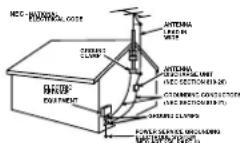
conductors, location of antenna discharge unit, connection to grounding electrodes and requirements for the grounding electrode.
2 KEEPANTENNA CLEAROFHIGHVOLTAGEPOWERLINESORCIRCUITS
An outside antenna system should be located well away from power lines, electric light or power circuits and where it will never come into contact with these power sources if it should happen to fall. When installing an outside antenna, extreme care should be taken to avoid touching power lines, circuits or other power sources as this could be fatal. Because of the hazards involved, antenna installation should be left to a professional.
USING THE UNIT
If the unit has been in storage or moved to a new location, refer first to the INSTALLATION section of these safeguards.
1 KEEP THE UNIT AWAY FROM WATER OR MOISTURE OF ANY KIND. 2 IF EQUIPMENT IS EXPOSED TO RAIN, MOISTURE, OR
STRONG IMPACT, unplug the unit and have it inspected by a qualified service technician before use.
3 DURING AN ELECTRICAL STORM
During a lightning storm, whether indoors or outdoors, or before leaving the unit unused for extended periods of time, disconnect all equipment from the power source as well as the antenna and cable system.
4 WHEN THE UNIT IS PLUGGED IN
-
Never expose the unit to rain or water. DO NOT OPERATE if liquid has been spilled into the unit. Immediately unplug the unit, and have it inspected by a service technician. Fire and shock hazards can result from electrical shorts caused by liquid contact inside.
-
Never drop or push any object through openings in the unit. Some internal parts carry hazardous voltages and contact can cause electric shock or fire hazard.
Do not put any foreign object on the disc tray.
- Avoid placing the unit directly above or below your TV set as this may cause electrical interference. Keep all magnets away from electronic equipment.
USING ACCESSORIES
Use only accessories recommended by the manufacturer to avoid risk of fire, shock, or other hazards.
6 CLEANING THE UNIT
Unplug the unit. Then, use a clean, dry, chemically untreated cloth to gently remove dust or debris. DO NOT USE cleaning fluids, aerosols, or forced air that could over-spray, or seep into the unit and cause electrical shock. Any substance such as wax, adhesive tape, etc. may mar the cabinet surface. Exposure to greasy, humid, or dusty areas may adversely affect internal parts.
SERVICE
DO NOT SERVICE THIS PRODUCT YOURSELF
If, after carefully following the detailed operating instructions, this product does not operate properly, do not attempt to open or remove covers, or make any adjustments not described in the manual. Unplug the unit and contact a qualified service technician.
2 IF REPLACEMENT PARTS ARE REQUIRED
Make sure the service technician uses only parts specified by the manufacturer, or those having the same safety characteristics as the original parts. The use of unauthorized substitutes may result in fire, electric shock, or other hazards.
3 HAVE THE SERVICE TECHNICIAN PERFORM A SAFETY CHECK After any service or repairs to the unit, request the service technician to conduct a thorough safety check as described in the manufacturer's service literature to ensure that the unit is in safe operating condition.
Safety Precautions
WARNING: To prevent fire or shock hazard, do not expose this equipment to rain or moisture.
CAUTION: To prevent electric shock, match wide blade of plug to wide slot, fully insert.
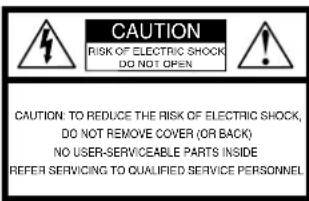

This symbol warns the user that uninsulated voltage within the unit may have sufficient magnitude to cause electric shock. Therefore, it is dangerous to make any kind of contact with any inside part of this unit.

This symbol alerts the user that important literature concerning the operation and maintenance of this unit has been included. Therefore, it should be read carefully in order to avoid any problems.
CAUTION:
UNIT IS A CLASS I LASER PRODUCT.
HOWEVER THIS UNIT USES A VISIBLE LASER BEAM WHICH COULD
CAUSE HAZARDOUS RADIATION EXPOSURE IF DIRECTED.
BE SURE TO OPERATE THE UNIT CORRECTLY AS INSTRUCTED.
WHEN THIS UNIT IS PLUGGED TO THE WALL OUTLET, DO NOT PLACE
YOUR EYES CLOSE TO THE OPENING OF THE DISC TRAY AND OTHER
OPENINGS TO LOOK INTO THE INSIDE OF THIS UNIT.
USE OF CONTROLS OR ADJUSTMENTS OR PERFORMANCE OF PROCEDURES OTHER THAN THOSE SPECIFIED HEREIN MAY RESULT IN HAZARDOUS RADIATION EXPOSURE.
DO NOT OPEN COVERS AND DO NOT ATTEMPT TO REPAIR YOURSELF. REFER SERVICING TO QUALIFIED PERSONNEL.
CAUTION:
LASER RADIATION WHEN OPEN DO NOT STARE INTO BEAM.
(Inside of product)
FCC NOTE:
This equipment has been tested and found to comply with part 15 of the FCC Rules. These limits are designed to provide reasonable protection against harmful interference when operated in a residential environment. If this equipment does cause interference to radio or television reception, which can be determined by turning the equipment off and on, use the equipment in another location and/or utilize an electrical outlet different from that used by the receiver. If necessary, consult the dealer or an experienced radio/TV technician for help. The user may find the booklet, "Something About Interference" available from FCC local regional offices helpful.
FCC Caution:
To assure continued compliance, (example- use only shielded interface cables when connecting to other devices.) Any changes or modifications not expressly approved by the party responsible for compliance could void the user's authority to operate this equipment.
FCC Warning: Any unauthorized changes or modifications to this equipment would void the user's authority to operate.
Region Management Information:
This DECK is designed and manufactured to respond to the Region Management Information that is recorded on a DVD disc. If the Region number described on the DVD disc does not correspond to the Region number of this DECK, this DECK cannot play this disc.
The Region number for this DECK is "1".
The Player will play DVD-Video marked with labels containing "1" or "ALL".
Example:


Before Using
Congratulations
on your purchase of one of the most sophisticated and reliable products on the market today. Used properly, it will bring you years of enjoyment. Please fill in the information below. The serial number is on the tag located on the back of your DECK.
Date of Purchase
Dealer Purchased From
Dealer Address
Dealer Phone No.
Model No. PV-D
Serial No.
Accessories
Remote Control LSSQ0375
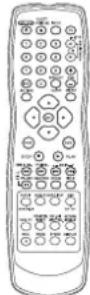
Batteries 2 "AA"

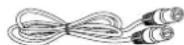
RF Coaxial Cable LSJA0372
Loading the Batteries
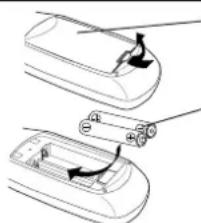
1) Open cover.
2) Insert batteries as marked.
3) Close cover.
□ Battery replacement caution
- Do not mix old and new batteries
- Do not mix alkaline with manganese batteries.
Record/Playback Time
Only use tapes with the Wark in this DECK.
| Tape Speed Setting | Type of Video Cassette | ||
| T160T12 | |||
| SP(Standard Play) | 1 Hour 2 | Hours | 2 Hours40 Minutes |
| LP(Long Play) | 2 Hours | 4 Hours | 5 Hours20 Minutes |
| SLP(Super Long Play) | 3 Hours | 6 Hours | 8 Hours |
Head Cleaning
Playing older or damaged tapes may eventually cause video heads to become clogged.
Video Head Clog Sensor
During playback, this screen appears if clogging is detected. To remove screen, press PLAY on the remote or DECK.
VIDEO HEADS MAY
NEED CLEANING
PLEASE INSERT HEAD
CLEANING CASSETTE
OR REFERR TO MANUAL
END :P LAY
-
Use "dry" type head cleaning cassette only. (Part No. NV-TCL30PT is recommended.)
-
Follow cleaning tape instructions careful
Excessive use of tape can shorten head life. - If head clog symptoms persist, contact your nearest Factory Servicentre or authorized Servicentre (see p. 59).
Built-in Head Cleaner
A clean video head helps produce a clear picture. So, we have equipped your DECK with a built-in, non-chemical head cleaning system that helps prevent clogging of the video heads.
Cleaning is performed each time you load or unload a video cassette.
- This feature is preventative only, If your video heads are seriously clogged, consider the use of a chemical non-abrasive head cleaning kit or take your DECK to a Servicenter.
Features for a Quality Picture (VCR)
Digital Auto Picture
Automatically controls the video output signal for less noise depending on the tape condition.
Digital Auto Tracking
Continuously analyzes the signal and adjusts for optimum picture quality.
Manual Tracking Control
(to reduce picture noise)
Use during Playback and Slow Motion mode to reduce picture noise.
Press CH (TRACKING) / on the remote control or on DECK until the picture clears up.
To return to Auto Tracking, press POWER off, then on again a few seconds later.


V-Lock Control (to reduce picture jitter) In Still mode, CH (TRACKING) ▲▼ operate as a V-Lock control.
4
Table of Contents
DVD / VCR
Important Safeguards and Precautions 2,3
Before Using 4
DECK / Disc / Cassette Information 6,7
Location of Controls 8~10
Displays (On Screen Displays and Multi Function Display) 11
Connections 12~15
Initial Setup for Basic Connections (Ready to Play) 16, 17
VCR
Reset Language, Channels, Clock, VCR's Output Channel ... 18, 19
Playback/ Record on a Tape 20, 21
DVD
Basic DVD Operation 22, 23
Timer Recording 24, 25
MTS Broadcast/VHS Hi-Fi Stereo System 26,27
Multi-Brand Control Feature 28, 29
Tape Operation (Search System) 30~32
Special VCR Features 33, 34
Copying Your Tapes (Dubbing) 35
Disc Operation 36~41
DVD-RAM Operation (DVD-RAM only) 42, 43
DVD Operation using On-Screen Displays 44~46
MP3/WMA/JPEGPlaybackOperation 47\~49
DVD Lock Feature 50
Settings for DVD Operation 51~53
Language Code List 54
DVD / VCR
Warning and Instruction Displays 55
Before Requesting Service 56, 57
Limited Warranty 58
Servicentre List 59
Index BC
(ounnee)
dnt
ouen
s8
onone
H0A
uonone
Aa
unnew
Jno人 Jor
DECK / Disc / Cassette Information
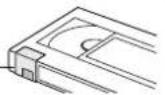
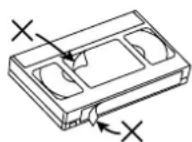
Prevent Accidental Tape Erasure
Break off the tab to prevent recording.
Record Tab Screw driver
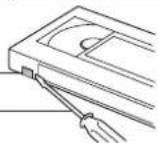
To record again
Cover the hole with cellophane tape.
Cleaning DECK
Use a soft cloth or dusting attachment of a vacuum cleaner to remove dust from the ventilation holes on the back sides and bottom of the cabinet. Plastic surfaces are easily scratched and can be marred by alcohol and various solvents. Avoid excessive use of oil-based furniture polishes since the materials used in the cabinet will accumulate more dust. We recommend using a non-abrasive, antistatic cleaner and polisher.
Disc formats supported by this DECK
DECK can play back discs bearing any of the following marks:
| Logo Disc type | |
| DVD RAM RAM4.7 | DVD-RAM (Version 1.1 of the Video Recording Format a unified video recording standard) |
| DVD VIDEO VIDEO | DVD (DVD-Video) |
| DVD K4.7 | DVD-R (DVD-Video formatted discs [finalized]) |
| VIDEO VIDEO | Video CD |
| VIDEO VIDEO VIDEO AUDIO | CD (CD-DA) CD-R/CD-RW (CD-DA, Video CD formatted discs [finalized]) WMA, MP3, JPEG |
[Discs Played 8cm (3") or 12cm (5")]
Discs which cannot be played
DVD with Region No. other than "1" or "ALL
DVD of PAL system, DVD-Audio, DVD-ROM, DVD-RW, DVD+RW, CD-ROM, CDV, CD-G, CVD, SVCD, SACD, Divx Video Disc and Photo-CD
Notes
- Do not use irregularly shaped discs (e.g. heart-shaped), as these can damage the unit.
It may not be possible to play CD-R, CD-RW, DVD-R and DVD-RAM in all cases due to the type of disc or condition of the recording.
6
DVD-RAM discs
DVD-RAM discs must meet the following conditions for this unit to be able to play them.
| Type | ·Non-cartridge discs ·Discs that can be removed from their cartridges (TYPE 2 and 4) |
| Capacity | ·12 cm (5") 9.4 GB (double-sided) and 4.7 GB (single-sided) ·8 cm (3") 2.8 GB (double-sided) |
- Remove TYPE 2 and 4 discs from their cartridges before use, then return them when you are finished. Read the instructions for the disc carefully.
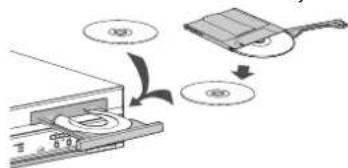
Some parts of the disc, for example where one program ends and another begins, may not play smoothly.
Disc Handling
Handling precautions
- Sticking a label on the disc may impair DVD-R playback.
- Do not attach sticker to discs. (Do not use discs with exposed adhesive from tape or left over peeled-off stickers.)
Only hold disc by edges as shown below. Fingerprints, dirt and scratches can cause skipping and distortion. Do not write on label side of disc. - Never use record cleaning sprays, benzine, thinner, static electricity prevention liquids, or any other solvent.
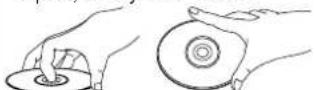
- Do not try to close disc tray when disc is not properly placed.
To clean disc surface
With a soft, damp (water only) cloth, gently wipe from the center hole to the outer edge as shown below. (Wiping in a circular pattern will scratch the surface.)
DVD-RAM, DVD-R: Clean only with the DVD-RAM disc cleaner available. Never use cloths or cleaners for CDs etc.
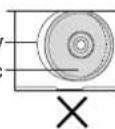
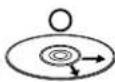
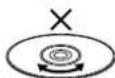
If disc is brought from a cold to a warm environment, moisture may form on the disc
Wipe away moisture with a soft, dry, lint-free cloth before using disc. (See above.)
Improper disc storage
Discs could be damaged if stored or left in areas:
exposed to direct sunlight.
- that are humid or dusty.
- near heat (i.e. heater, radiator, etc.).
Specifications
Power Source: 120VAC,60Hz
Power Consumption: Power On: Approx. 32 watts, Power Off: Approx. 4 watts
Video Signal: EIA Standard NTSC colour
Video Recording System: 4 rotary heads helical scanning system
Audio Track: 1 track (Normal), 2 channel (Hi-Fi Audio Sound)
Tuner:
Broadcast Channels: VHF 2 ~ 13, UHF 14 ~ 69
CABLE Channels: Midband A through I (14 ~ 22), Superband J through W (23 ~ 36)
Hyperband AA EEE (37\~64), Lowband A-5 A-1 (95\~99)
Special CABLE channel 5A (01), Ultraband 65 94 100-125
Input/Output Terminal: Audio/Video Line Input/Output, RF Input/Output
Input Terminal: Audio/Video Line Input (Front)
Output Terminal: S-Video Output (DVD only), Component Video Output (DVD only)
Audio Output 2 (L), (R)
Operating Temperature: 5^ 40^ (41°F~104°F)
Operating Humidity: 10% 75%
Weight: 4.9 kg (10.8 lbs).
Dimensions: 430 (W) x 95.5 (H) x 344 (D) mm
16-15/16" (W) x 3-12/16" (H) x 13-9/16" (D) inch
Discs Played
(1) DVD-Video Disc
5" (12 cm) single-sided single-layer
5" (12 cm) single-sided double-layer
5" (12 cm) double-sided double-layer (one layer per side)
3^ (8 cm) single-sided single-layer
3" (8 cm) single-sided double-layer
3^ (8 cm) double-sided double-layer (one layer per side)
5" (12 cm) 9.4 GB (double-sided) and 4.7 GB (single-sided)
3^ (8 cm) 2.8 GB (double-sided)
DVD-RAM Disc
(2) Compact Disc
(CD-DA, Video CD)
(CD-R/CD-RW, MP3, WMA, JPEG)
Digital Audio Output:
Digital Optical Connector
Pickup:
Wavelength: 655 nm (DVD), 790 nm (Video CD/CD)
Laser power:CLASS II
Note: - Designs and specifications are subject to change without notice.
Definition of Terms (DVD)
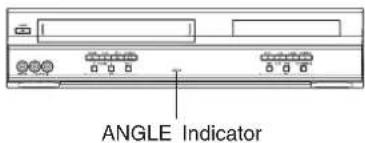
Angle: Some DVD discs feature scenes simultaneously shot from different angles. The ANGLE button can be used to view the scene from different angles. (ANGLE Indicator lights on DECK when a scene recorded at different angles is detected.)
Chapter Number: Titles are subdivided into numbered sections. You can quickly search for a favorite scene using these numbers.
DVD: A high-density optical disc on which high-quality pictures and sound have been digitally recorded. DVD incorporates new video compression technology (MPEG II) and high-density recording technology which allow entire movies to be recorded with incredible playback quality.
Playback Control: With Video CD (version 2.0), scenes or information may be selected for viewing
or listening from an interactive menu that appears on the TV screen.
Subtitles: Written dialogue which appears at the bottom of the screen.
Time Number: The elapsed play time from the start of a disc or title. Use to quickly find scenes. (May not work with some discs.)
Title Number: For DVD discs with two or more titles, the title is numbered as title 1, title 2, etc.
Track Number: Numbers assigned to tracks on Video CDs and CDs to allow specific tracks to
be quickly located
Video CD: CD containing picture and sound with same quality level as video tape.
This DECK also supports Video CDs with playback control (version 2.0).
Apparatus Claims of U.S. Patent Nos. 4,631,603, 4,577,216, 4,819,098 and 4,907,093, licensed for limited viewing uses only.
This product incorporates copyright protection technology that is protected by method claims of certain U.S. Patents and other intellectual property rights owned by Macrovision Corporation and other rights owners. Use of this copyright protection technology must be authorized by Macrovision Corporation, and is intended for home and other limited viewing uses only unless otherwise authorized by Macrovision Corporation. Reverse engineering or disassembly is prohibited.
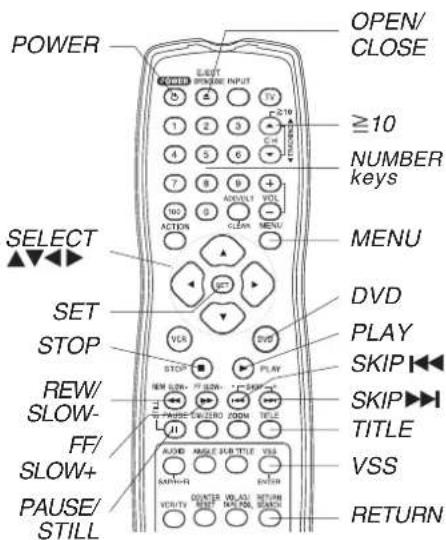
Location of Controls

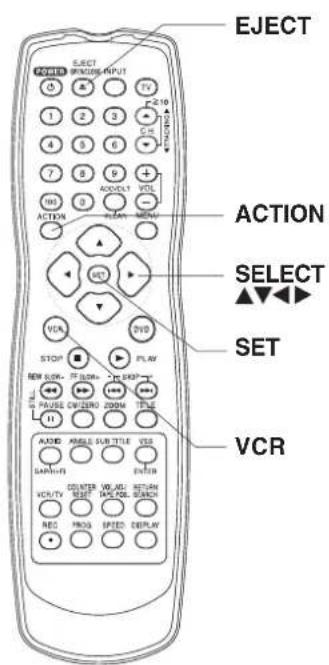
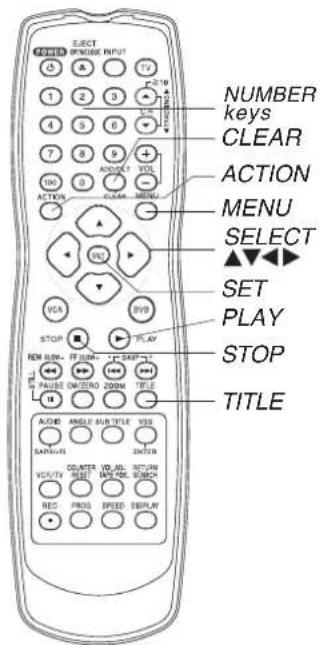
Remote Control

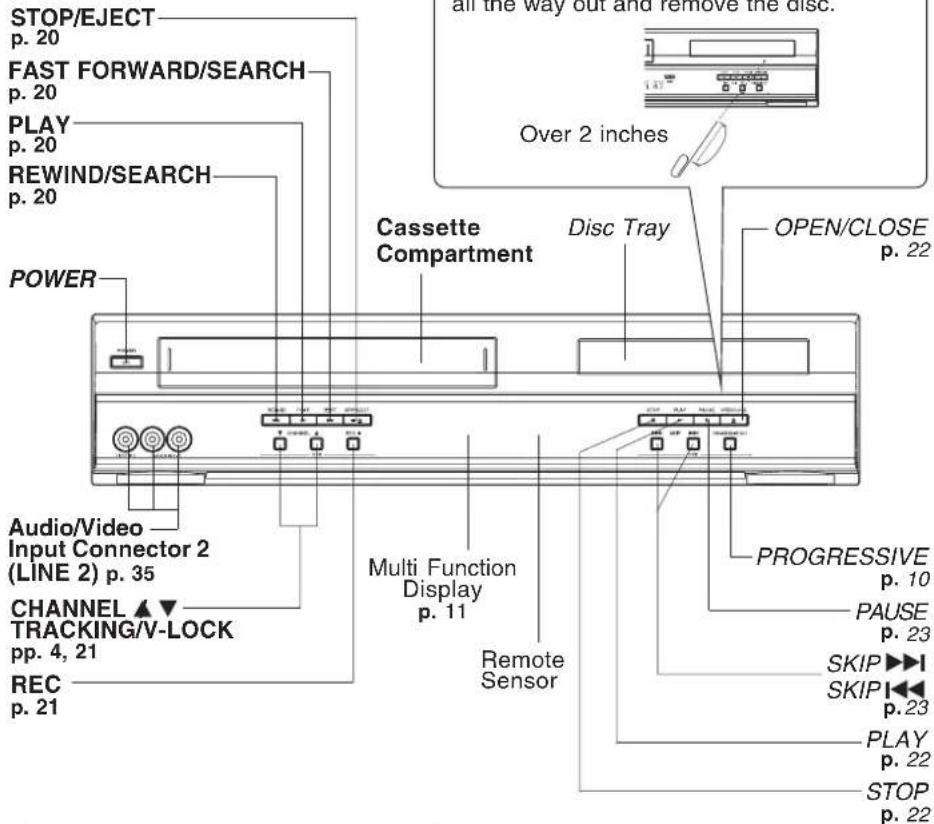
Front View of DECK
Bold: VCR Function
Italian: DVD Function
Bold Italic: VCR and DVD Functions
Normal: Others
If the disc cannot be removed...
First, unplug DECK. Then, prepare a rigid wire (e.g. an extended paper clip) and, applying moderate force, insert it straight into the hole at the base of the tray.
The tray will eject a little. Now, pull the tray all the way out and remove the disc.
(ounon)
dnEs
Reset All Memory Functions
Use when moving DECK to new location, or if a mistake was made in the Initial
Setup section (return to Factory Setting).
- Make sure a tape is not inserted in the DECK.
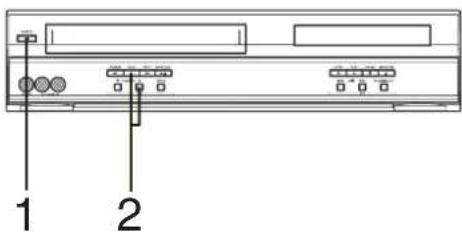
1 Turn DECK Power on.
2 Press and hold both VCR PLAY and CHANNEL on the DECK for more than 5 seconds.
The power shuts off.
3 Do "Initial Setup (Ready to Play)" on page 16.
Location of Controls (continued)
Rear View of DECK
Bold: VCR Function
Italic: DVD Function
Bold Italic: VCR and DVD Functions
AC Power Plug
- While plugged into an AC outlet, this DECK consumes 4 W of electrical power in off mode.
VHF/UHF Antenna Output Terminal
p. 12
VHF/UHF Antenna Input Terminal p.12
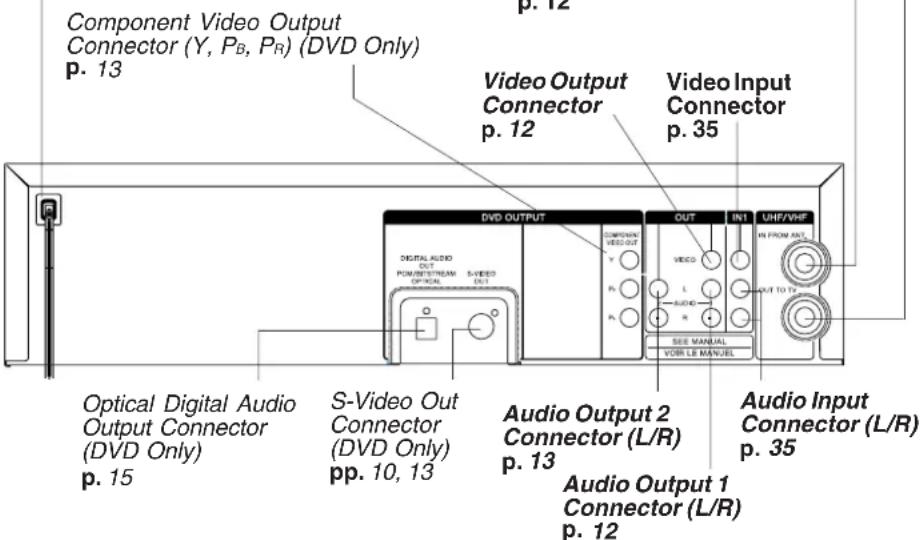
The following table shows the status of the output jacks when in VCR or DVD mode.
| Video Output Audio Out 1 Audio Out 2 | Component Video Output | S-VIDEO OUT | |
| VCR | YES | N/A | N/A |
| DVD | YES | YES | |
Note
PROG functions on the remote are not available when using Component Video Output and S-VIDEO OUT. Please set TV to either RF INPUT or VIDEO INPUT, and then press PROG.
To enjoy PROGRESSIVE SCAN video
(1). Connect Component Video Output to the component video input terminals of a television. (See p. 13.)
(2). When the PROGRESSIVE button is pressed, the ON lamp lights up (see p. 9) and the PROGRESSIVE SCAN signal is output from the Component Video Output Connector.
Notes
- The PROGRESSIVE button can be operated when the DECK is in DVD function mode.
- The screen may shift off-center when using progressive output. Please adjust the screen position if this occurs. (Refer to your TV manual.)
- The DECK outputs video signals (not PROGRESSIVE SCAN) from the "VIDEO OUT" and "S-VIDEO OUT" terminals when the ON lamp is lit.
10
Displays (On Screen & Multi Function)
On Screen Displays (VCR)
Function & Channel Displays
CH08
When a function button is pressed, e.g. PLAY, or you change channels, a 5-second display appears.
Blank Tape/ No Video Signal Indications
Whenever a blank section of a tape comes up in Play mode, or when the selected channel has no broadcast signal with Weak Signal Display Feature (p. 33) set to OFF, the TV screen will turn solid blue.
(ounonone)
dn
VCR Status & Clock Displays
To display or remove overlay at right,
press DISPLAY.
Function Status
Rec Time Remaining (OTR mode only, see p. 21.)
Broadcast Audio Being Received (See p. 26.)
Current Time
REC 12:00AM CH 02
0:25 -0.1:24 34
TER EO SP
IRAP
RONCO
Counter
Tape Speed (See p. 4.)
Multi Function Display
VCR mode Indicator
Lights up when DECK is VCR mode.
Tape Indicator
Lights up when a tape is inserted.
Hi-Fi Indicator
Lights up when Hi-Fi audio is monitored in Play mode.
ANGLE Indicator
Lights up when a scene recorded at different angles is detected. (See p. 37.) (DVD only).
Clock/ Status/ Channel/ Speed Display
Displays the current time. Briefly displays DECK status when a function button is pressed. Briefly displays the channel number, or "L1" or "L2" when a channel or line input is selected. Briefly displays the recording speed when SPEED is pressed.
DVD mode Indicator
Lights up when DECK is DVD mode.
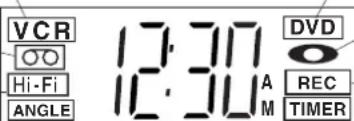
DISC Indicator
Lights up when a disc is inserted.
VCR REC Indicator
Lights up during recording.
AM/PM Indicate
Timer Indicator
Lights up when DECK is set for Timer Recording, or when One Touch Recording (OTR) is used. Flashes when Timer Recording is set, but a tape has not been inserted into DECK and when a power interruption occurs during Timer Programming.
Connections
Basic Connections
- If your TV has AUDIO and VIDEO IN terminals, connect them to DECK for higher quality picture and sound.
- You can enjoy stereo sound even if your TV is not stereo by connecting a stereo amplifier to DECK.
- Connect DECK and TV with an RF Coaxial Cable (a) (supplied) or an AV Cable (b) (not supplied) as shown in the figure below.
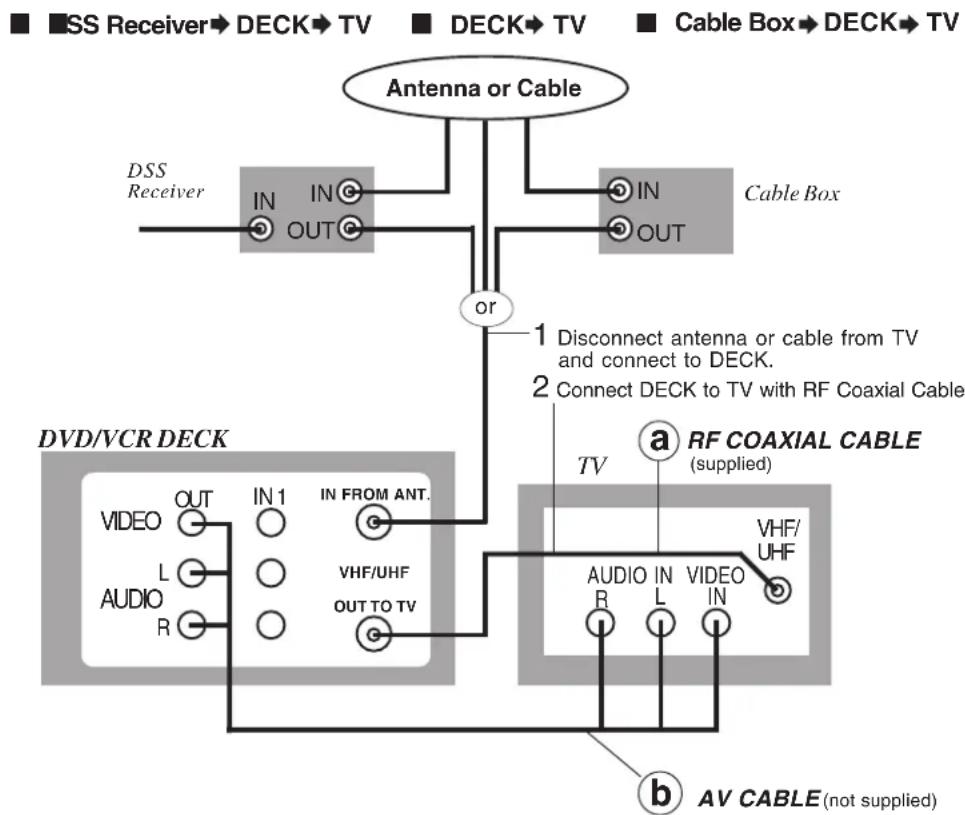
-WARNING
When using "Nut type" RF coaxial cables, tighten with fingers only. Overtightening may damage terminals.
Note to CABLE system installer
This reminder is provided to call the CABLE system installer's attention to Article 820-40 of the NEC in USA (and to the Canadian Electrical Code in Canada) that provides guidelines for proper grounding and, in particular, specifies that the cable ground shall be connected to the grounding system of the building, as close to the point of cable entry as practical.
Other Connections
With a Cable Box (DECK Cable Box TV)
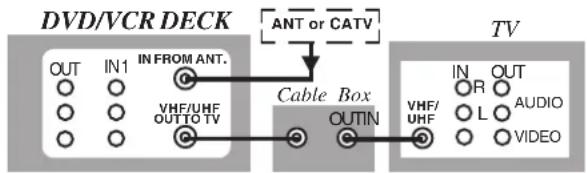
Connect With Two Cable Boxes
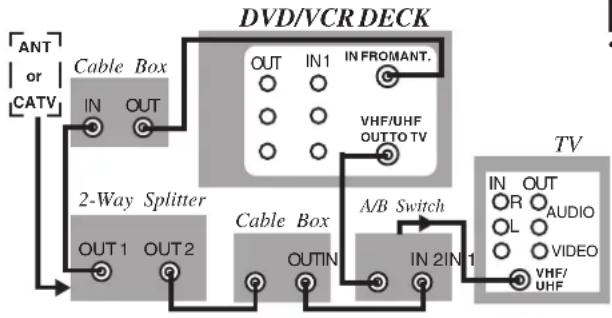
view any (including scrambled) channel.
- use Remote Control to select channels without using Multi-brand control feature.
- record and view both scrambled and unscrambled channels if additional equipment is added. This connection requires: two converter boxes, an A/B switch, and a 2-way splitter.
You Cannot
- record scrambled channels.
You Cannot
view a channel other than the one selected for any type of recording.
- do a Timer recording of a channel unless you select it on the Cable Box.
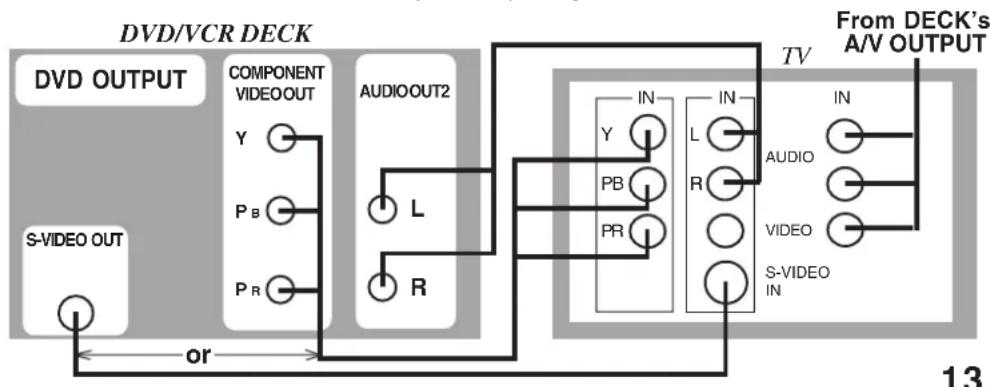
Connections For DVD Only (enjoying higher picture quality)
① Connect AUDIO OUT2 (L, R) to the AUDIO IN (L, R) of the TV. (audio input for COMPONENT or S-VIDEO mode).
If your TV has COMPONENT VIDEO INPUT, connect to COMPONENT VIDEO OUT. If your TV does not have COMPONENTVIDEO INPUT but has S-VIDEO INPUT, connect to S-VIDEO OUT.
③ When in DVD mode, set your TV to either COMPONENT VIDEO IN or S-VIDEO IN.
Notes
-
You can watch DVDs through the S-VIDEO or COMPONENT VIDEO, VHF/UHF OUT TO TV, and VIDEO OUT connections to your TV. The VCR and TUNER pictures are available only from the VIDEO OUT and VHF/UHF OUT TO TV connections to your TV.
-
PROG functions on the remote are not available when using S-VIDEO OUT and COMPONENT Video Output. Please set TV to either RF INPUT or VIDEO INPUT, and then press PROG.
- TV must have capability to accept and display a progressive scan signal to use PROGRESSIVE mode. Consult your TV operating instructions.
Connections (continued)
Audio Connections

Ready Checklist
Turn down the volume, then turn DECK, as well as other equipment to be connected, off before proceeding with connection.
Do not block ventilation holes of any of the equipment and arrange them so that air can circulate freely.
Read through the instructions before connecting other equipment.
Ensure that you observe the colour coding when connecting audio and video cables.
- Connecting Amplifier (2ch stereo system) [Analog connection]
![PANASONIC PVD4743SK - - Connecting Amplifier (2ch stereo system) [Analog connection] - 1](/content/2026/03/454527/images/ac2ca38e7f5c9efae643fa975cc6915e89aa7520571a855fa3506f44a9745069.jpg)
Enjoying digital audio output from the digital audio output connector Notes on audio output from the optical digital audio output connector
| Disc | Sound recording format | Optical digital audio output from connector |
| DVD | Dolby Digital | Dolby Digital bitstream (1-5.1 ch) or PCM (48 kHz sampling/16 bit only)*1 |
| Linear PCM (48/96 kHz 16/20/24bit) | Linear PCM (2 ch) (48 kHz sampling/16 bit only)*2 | |
| DTS | Bitstream or PCM (48 kHz sampling/16 bit only)*1 | |
| Video CD | MPEG 1 | PCM (44.1 kHz sampling) |
| CD | Linear PCM | Linear PCM (44.1 kHz sampling) |
| MP3 | MP3 | Linear PCM (It depends on the MP3 file) |
| WMA | WMA | Linear PCM (It depends on the WMA file) |
1 The type of audio output from the connector can be selected by the Settings for DVD Operation. (See p. 52.)
2 Sound having 96 kHz sampling is converted into 48 kHz sampling when it is output from the DECK's optical digital audio output connector.
For your reference:
- Dolby Digital is a digital sound compression technique developed by the Dolby Laboratories Licensing Corporation. Supporting 5.1-channel surround sound, as well as stereo (2-channel) sound, this technique enables a large quantity of sound data to be efficiently recorded on a disc.
- Linear PCM is a signal recording format used in CDs. While CDs are recorded in 44.1 kHz/16 bit, DVDs are recorded in 48 kHz/16 bit up to 96 kHz/24 bit.
- If you have a Dolby Pro Logic Surround decoder, you will obtain the full benefit of Pro Logic from the same DVD movies that provide full 5.1 channel Dolby Digital soundtracks, as well as from titles with the Dolby Surround mark. For information on Panasonic or Technics Dolby Pro Logic Surround Sound Decoders please contact your local dealer.
Manufactured under license from Digital Theater Systems, Inc. US Pat. No. 5,451,942, 5,956,674, 5,974,380, 5,978,762 and other world-wide patents issued and pending. "DTS" is a registered trademark of Digital Theater Systems, Inc. Copyright 1996, 2000 Digital Theater Systems, Inc. All rights reserved.
Manufactured under license from Dolby Laboratories. "Dolby" and the double-D symbol are trademarks of Dolby Laboratories.
14
- Connecting Amplifier (5.1 ch Surround system) [Digital connection] - DECK Dolby Digital Receiver Amplifier Speaker
or DECK DTS (Digital Theater Systems) Receiver Amplifier Speaker
When DVDs recorded in Dolby Digital or DTS are played, Dolby Digital bitstream or DTS bitstream is output from the DECK OPTICAL digital audio output connector. When DECK is connected to a Dolby Digital or DTS receiver, you can enjoy theater-quality audio in your home. [An optical digital audio cable (optional) is required when an optional Dolby Digital or DTS receiver is used.]
(ounon)
dnn
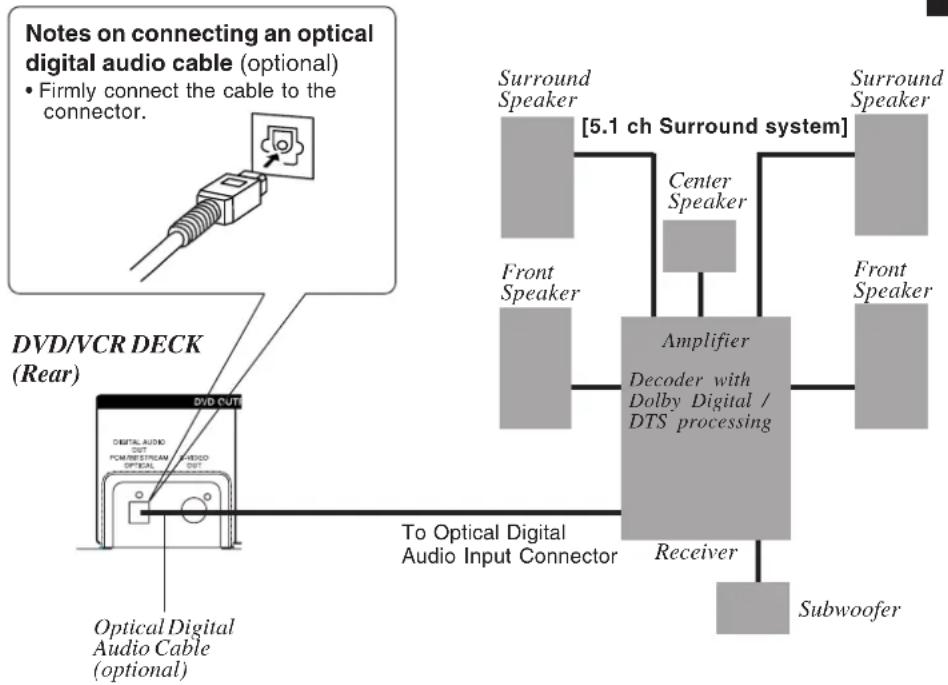
Caution for optical digital audio output connector:
- When connecting an amplifier (with an Optical Digital Input Connector) which does not contain the Dolby Digital or DTS receiver, be sure to select "PCM" at "Dolby Digital" and "PCM" at "dts" of the Settings for DVD Operation "Audio Output" (see p. 52). Otherwise, any attempt to play DVDs may cause such a high level of noise that it may be harmful to your ears and damage your speakers.
- When a Dolby Digital/DTS receiver is connected, please select "Bitstream" at "dts" or "Dolby Digital" of the Settings for DVD Operation "Audio Output". If "PCM" is selected, there will be stereo sound. (See p. 52.)
Video CDs and CDs can be played as usual.
Note: - Some DTS receivers which do not support DVD-DTS interface may not work properly with DECK.
Initial Setup for Basic Connections (Ready to Play)
Before doing Initial Setup
1 Turn TV on.
See connections a RF Coaxial Cable Connection and b AV Cable Connection on page 12.
3 [DECK TV]
- Go to "Initial Setup (Ready to Play)." (See below.)
[Cable Box DECK TV], [DSS DECK TV] - Turn on Cable Box and set it to your Public Broadcasting Station (PBS) channel in your time zone.
If you use a DSS Receiver, it must be turned off.
Initial Setup (Ready to Play)
Press VCR on remote for VCR mode.
2 Plug DECK Power Cord into AC wall outlet. DECKcomes on and SELECT LANGUAGE screen appears. When one of "1", "2", "3" keys is pressed, auto channel and clock set starts.
- If screen below does not appear, check DECK - TV connection and, if TV is tuned to channel 3, try switching it to channel 4.
To change VCR's output channel, please refer to "VCR's Output Channel" on page 19.
If wrong language is set, do "Reset All Memory Functions" (p. 9).
Plugging the AC Power Plug into an AC outlet
SELECT LANGUAGE
ENGU SH;PRESS 1
FRANGAS;APPUYER 2
ESPANOPL;OPR MIR 3
Select language
Press 1: English
Press 2: French
Press 3:Spanish

CH AUTO SET PROCEEDING CANCEL:STOP
AUTO CLOCK SET
PROCEEDING
CANCEL:STOP
Notes
- Function buttons are inoperative during Initial Setup.
- To remove a cassette during Auto Set, press EJECT on the remote or STOP/EJECT twice on the DECK. In this case, settings must be made manually. (See p. 18.)
- Depending on conditions, Auto Clock Set may take longer than 30 minutes. If so, press STOP to stop setup and perform settings manually. (See p. 18.)
16
3 Settings are made automatically. When setup is done, this screen appears.
6/8/2003 SUN 2:20PM DST ON SETTING : CH 10
AUTO CLOCK SET COMPLETED
If "AUTO CLOCK SET IS INCOMPLETE" appears, manually set clock. See below.
AUTO CLOCK SET IS INCOMPLETE
PLEASE SET CLOCK BY PRESSING ACTION KEY
Manual Clock Set
If Auto Clock Set was incomplete.
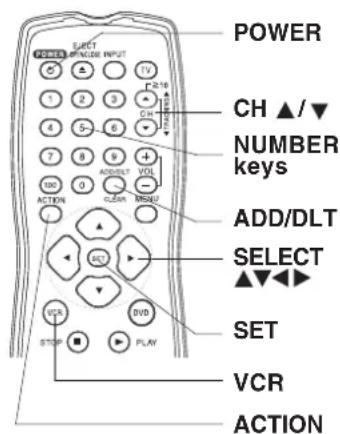
1 Press ACTION* on remote to display CLOCK screen.
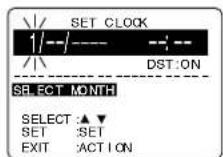
2 Press to select the month and SET to set. In the same manner, select and set the date, year, time, and DST (Daylight Saving Time).
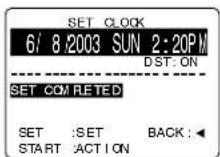
3 Press ACTION to start clock and exit.
Reset Language, Channels, Clock,
VCR's
1
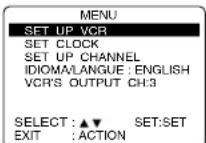
Press ACTION* to display MENU.
- PROGRAM functions are not available when using COMPONENT Video Output and S-VIDEO OUT. Please set TV to either RF INPUT or VIDEO INPUT, and then press PROGRAM.
2
Language
1) Press select language item.
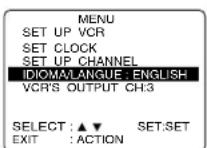
2) Press SET repeatedly to change language item as shown below.
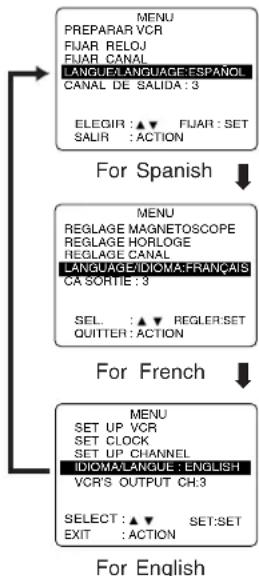
3) Press ACTION to exit.
Channels
1) Press select "SET UP CHANNEL" and press SET.
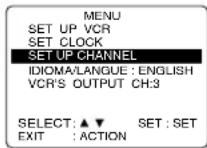
2) Press select "ANTENNA," then press SET to set your antenna system ("TV" or "CABLE.")
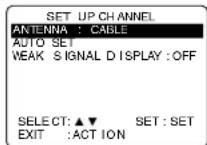
3) Press to select "AUTO SET," then press SET.
- If you use a Cable Box, set it to the PBS channel in your time zone.
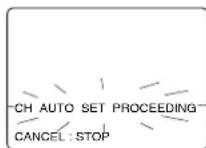
After Channel Auto Set is finished, Auto Clock Set will be performed.
Clock
1) Press select "SET CLOCK," and press SET.
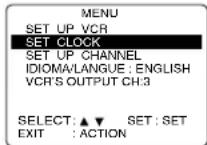
2) Press to select "MANUAL," and press SET. (For Auto Clock Set, select "AUTO CLOCK SET.")
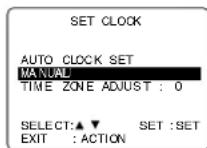
(TIME ZONE ADJUST" appears only when auto clock is set.)
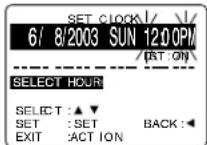
3) Press and to select, then set the date, time, and DST (Daylight Saving Time).
4) Press ACTION to start Clock and exit this mode.
18
VCR's Output Channel
*Important: If a remote control button does not work when pressed, press the VCR button on the remote and try the button again.
Time Zone Adjust (Oberthur Auto Clock is set)
1) Press select "SET CLOCK," and press SET.
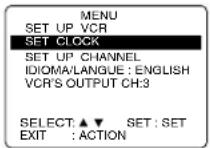
VCR's Output Channel
1) Press select "VCR'S OUTPUT CH," and press SET.
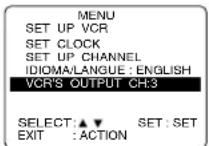
ouenrreoe
IsB
2) Press select "TIME ZONE ADJUST,"
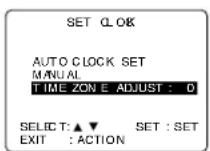
2) Press SET.
IF YOU PRESS ACTION KEY, VCR'S OUTPUT CH SWITCHES TO CH 4
3) Press ACTION.
PLEAES TUNE YOUR TV TO CH4.
After 3 seconds
Add or Delete a Channel
To add channel: Select channel with NUMBER keys and press ADD/DLT.
CHANNEL 08 ADDED
To delete channel:
Select channel with CH ▲
NUMBER keys and press ADD/DLT.
CHANNEL 08 DELETE
DST (Daylight Saving Time)
DECK auto adjusts clock for DST. (p. 17.)
Spring (First Sunday in April)
DST:ON Sets clock ahead one hour.
Autumn (Last Sunday in October)
DST:ON Tums clock back one hour.
- If your area does not observe Daylight Saving Time, select DST:OFF.
- Keep these time changes in mind when programming DECK for timer recordings.
Playback/ Record on a Tape

Ready Checklist
All connections are made. (pp. 12 - 15)
TV and DECK are plugged in.
TV is on and tuned to CH 3, 4, or VIDEO.
Remote is in VCR mode. (Press VCR.)
Playback a Tape
1 Insert a tape.
- DECK power comes on. If Auto VCR/TV (see p. 32) is set to "OFF," press VCR/TV on the remote to be VCR mode.
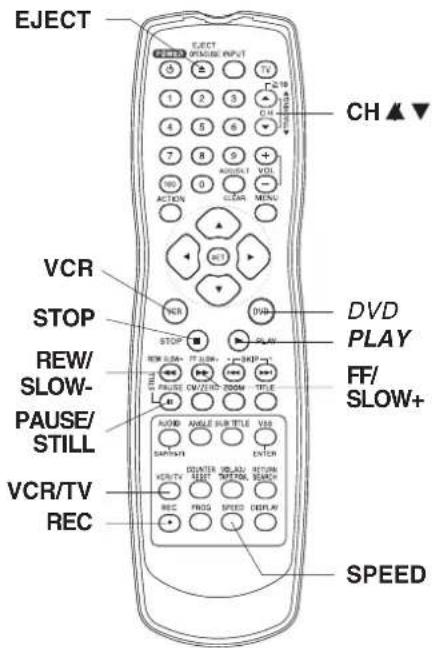
Press PLAY* to play a tape.
- If tape has no rec. tab (p. 6), auto play begins.
Special Features During Play
Forward/Reverse Scene Search
Press FF/SLOW+ or REW/SLOW-.
Press PLAY to release.
After search has begun, each additional press of
FF or REW changes speed as shown below.
[SLP]: Approx. 21X Approx. 9X
[LP]: Approx. 9X Approx. 7X
[SP]:Approx.7X Approx.3X
If at 21X, 9X, or 7X speed the picture is
interrupted, change speed to 9X, 7X, or 3X.
Notes
- Picture interruption may occur with some TVs.
FF and REW search speed may vary depending on current tape position.
Still (Freeze) Picture
Press PAUSE/STILL.
Press PLAY to release.
Frame by Frame Picture
Press PAUSE/STILL in Still mode.
Press PLAY to release.
Slow Motion Picture
Press FF/SLOW+ (increase speed) or REW/SLOW- (decrease speed) in Still mode.
Press PLAY to release.
3 Press STOP to stop a tape.
Press REW/SLOW- or FF/SLOW+ in Stop mode to rewind or fast forward a tape.
Press EJECT on remote, or STOP/EJECT on DECK to eject a tape.
Notes
These features work best in SP or SLP mode.
The sound will be muted.
To reduce picture noise, see "Manual Tracking Control" on page 4.
- After DECK is in Still or Slow mode for 3 minutes, it will switch to Stop mode automatically to protect the tape and the video head.
Playback using DECK buttons
2 Press PLAY. 1 Insert a tape.
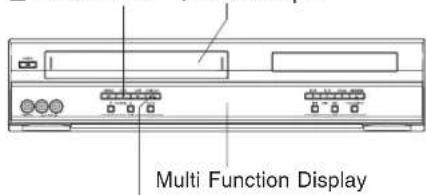
Press STOP/EJECT to stop and/or eject a tape.
20
Record on a Tape
Insert a tape with a record tab (p. 6).
- DECK power comes on. If Auto VCR/TV (see p. 32) is set to "OFF," press VCR/TV on the remote to be VCR mode.
Press CH NUMBER keys
to select the channel.
- For "LINE" input, see page 35.
If channel is over 100, press 100 key then press the remaining 2 digits.
Press SPEED
to select the record speed (p. 4).
SP = Standard Play LP = Long Play
SLP = Super Long Play
- Speed appears on-screen and on Multi Function Display.
Press REC
to start recording. (The VCR REC indicator lights up on Multi Function Display),
To edit out unwanted scenes, press PAUSE/STILL to pause, and again to resume recording.
- You cannot view another channel during recording.
5 Press STOP to stop record
One Touch Recording (recording in progress), press REC repeatedly to set the recording length
(30 min. 4 hours).
- DECK shuts off after the preset record length.
Record one station, watch another.
press VCR/TV on the remote (change to TV mode),
select channels at TV (recording continues).
Select Channels at DECK (In STOP or REC. PAUSE mode),
press VCR/TV on the remote (change to TV mode),
select channels at DECK.
Play a disc while recording a tape.
insert a disc during recording,
press DVD, and then press PLAY.
Notes
It is not possible to record from DVD/ Video CD/CD to VHS tape using DECK.
- Watching one channel and recording another is not possible when using Cable Box or DSS Receiver.
After 5 minutes in Pause mode, DECK stops to protect a tape and video heads.
This video recorder, equipped with HQ (High Quality) system, is compatible with existing VHS equipment. Only use tapes with the Wark. Only tapes tested and inspected for use in 2, 4, 6, and 8 hour machines are recommended.
Note
Remove loose or peeling labels from tapes to prevent tape jam.
ouonone
BASIC

Record using DECK buttons
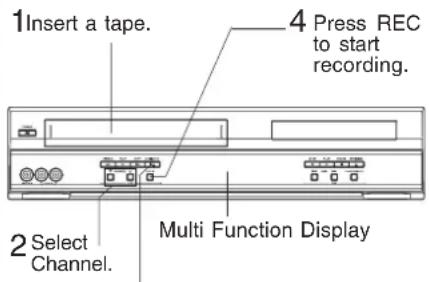
Press STOP/EJECT to stop.
Basic DVD Operation

Ready Checklist
All connections are made. (pp. 12 ~ 15)
DECK is plugged in.
If DECK is connected to an audio amplifier, turn the stereo system's power on.
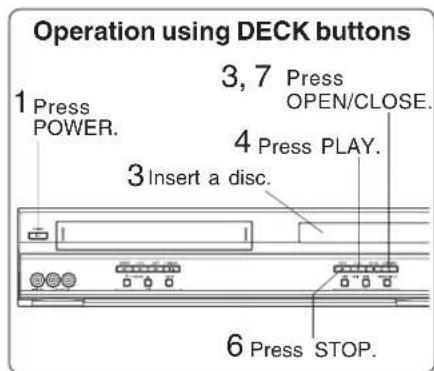
*1 Interactive DVD... May include multiple camera angles, stories, etc.
Video CD with playback control... Particular scenes or information can be interactively selected from a menu that appears on the screen.
22

Press POWER on the remote or DECK.

Press DVD to select DVD mode. If a disc is already inserted, go to step 4. (Depending on the disc, playback may start automatically.)

Press OPEN/CLOSE, and then place a disc into the disc tray.
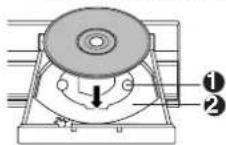
Hold disc by its edges only (p.6) with printed side up and use guides to place into tray. Use 13^ 8 cm) or 25^ 12 cm disc.
DVD-RAM see p.42

Press PLAY to start playing. Disc tray closes automatically.
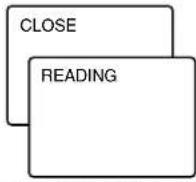
- You may also close tray by pressing OPEN/CLOSE
Data reading time differs with each disc.
| TITLE MENU | |
| Dogs | Castles |
| Lovers | Birds |
If an interactive DVD or a Video CD with playback control is used and TITLE MENU appears, go to step 5.
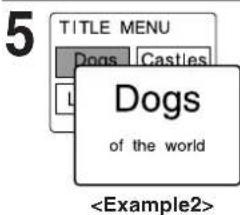
Press
NUMBER keys (see below) to select title, and press SET or
PLAY to start playing.
- "PressingSET or PLAY" is not necessary when using NUMBER keys.
Using NUMBER keys starts playing automatically.
The number of available titles varies with each disc.
<Input 1 digit number 1...1
Example> 2 digit number 12 ... 10 1 2 3 digit number 123 ... 100 1 2 3
Press SKIP | to go to next or previous menu screen.
- SKIP function not available with all discs.
Please refer to disc jacket for operation information.
To return to menu (play stops)
Press TITLE, MENU, or RETURN. (DVD)
Press RETURN. (Video CD)

Press STOP to stop playing.

Press OPEN/CLOSE to eject the disc.
*Important: If a remote control button does not work when pressed, press the DVD button on the remote and try the button again.
Forward/Reverse Scene Search
Press FF/SLOW+ or REW/SLOW during play.
Press PLAY to release.
- Starting forward/reverse search during play started from menu on Video CDs may recall menu.
- Search speed, slow at first, increases with each additional press of the button up to 5 levels.
■Forward/Reverse Chapter/Track Skip
Press SKIP I or I SKIP during play. Each press skips a chapter (DVD) or track (Video CD/CD).
- Pressing SKIP once midway through a chapter/track returns to the start of that chapter/track. Each additional press skips back one chapter/track.
- Pressing SKIP | during play started from menu on Video CDs may recall menu. Current playback position

■Still Picture or Pause
Press PAUSE/STILL during play.
Press PLAY to release.
DVD/Video CD: DECK will enter still picture mode.
- CD: DECK will enter pause mode.
Frame by Frame Picture
(DVD/Video CD)
Press PAUSE/STILL in still mode.
Press PLAY to release.
Each press advances picture one frame.
- Hold button down for consecutive frame advance.
- Whether pictures are advanced by "FRAME" or "FIELD" is selected automatically. (See p. 53.)
Slow Motion Picture (DVD/Video CD)
Press FF/SLOW+or REW/SLOW-
in still mode.
Press PLAY to release.
- Slow motion speed, slow at first, is increased with each additional press of the button up to 5 levels.
- Reverse slow motion is not available for Video CDs.
Auto-Power Off Function
Power turns off after DECK has been in Stop mode (DVD) for about 5 minutes.
- When appears on the screen while a button is being operated, it means that the corresponding operation is prohibited by DECK or the disc.
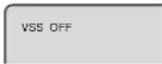
V.S.S. (Virtual Surround Sound)
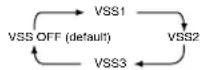
Enjoy a surround-like effect if you are using two front speakers only. The effect is broadened and sound seems to come from virtual speakers on either side if the disc has surround signals recorded on it.
Press VSS in DVD mode.
- The Surround sound effects can be changed by pressing VSS repeatedly as shown by the figure below.
Note
- Surround sound effects is available in DVD mode only.
- Turn off the surround effects on the other equipment.
V.S.S. will not work, or will have less effect, with some discs. - Turn V.S.S. off if it causes distortion.
- Sound will only come from the two front speakers if V.S.S. is on.
Resume Function
DECK memorizes the point where STOP is pressed (STOP is displayed on screen). Press PLAY to resume play from this point. Pressing STOP again or opening the tray cancels RESUME, however, RESUME is not canceled when power is turned off and on.
- RESUME works only with discs for which elapsed play time is displayed during play.
Enjoy Video CDs featuring playback control without using menus (Video CDs only)
1.Do steps 1-4 (previous page).
When menu appears, press STOP.
- Press NUMBER keys to select desired track (play begins).
- Check disc for track numbers.
Press "1" to start at beginning of disc.
To Resume Menu use,
Press STOP and press PLAY, then the menu will be displayed.
Now, go to step 5 (previous page).
Notes
- Please read the disc jacket for operation information.
- If a single sided disc is placed in upside down, "THIS TYPE OF DISC CANNOT BE PLAYED. PLEASE INSERT A DIFFERENT DISC" is displayed.
- Remove disc and press DECK POWER off when not in use.
- Disc continues to rotate with menu displayed even after play is done.
Press STOP to clear menu display when finished with menu.
ouenrreoe
e
Timer Recording

Ready Checklist
All connections are made. (pp. 12 ~ 15)
TV and DECK are plugged in.
Clock set correctly. (p. 18)
Tape has rec.tab. (p. 6)
Remote is in VCR mode. (Press VCR.)
Sufficient tape remaining for recording time.

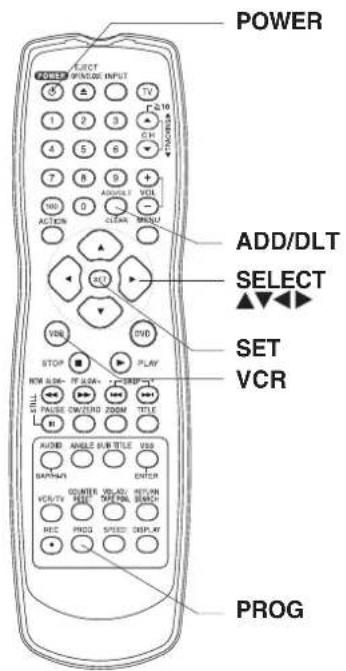
Press PROG* to display Program.

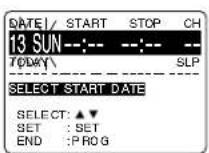
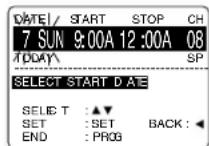
Example Today
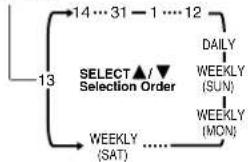
1) To set record DATE, press to select: 1 31 = one time, or DAILY=MON~FRI, or WEEKLY= same time each week and press SET.
See selection order left.
2) To set remaining items, press to select and press SET to set START/STOP times, CH (channel) or LINE input (p. 35), and tape speed (SP, LP, SLP).
Press PROG
to end programming.

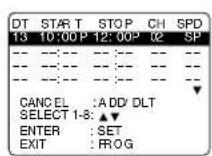
To Enter More Programs, press
to select and press SET to set an unused program number, and then repeat step 2.
Or Press PROG to exit.
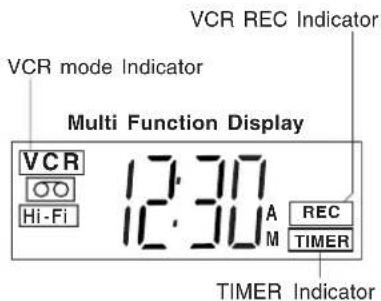
The "Timer" Indicator lights up on DECK.
- You can do Timer Recording with the power on or off.
- "TIMER REC WILL START SOON" appears on-screen for 2 minutes before Timer Recording starts. If DECK is in DVD mode, no message appears, but the VCR REC Indicator, the VCR mode indicator and "REC" will flash on Multi function Display.
24
Review, Replace or Clear Program Contents:
(Recording is not in progress)
1 Press PROG to display Program List.
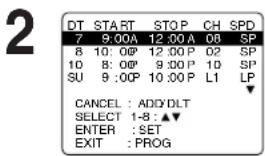
Press to select number and press SET to display.
To cancel a Timer Recording in progress...
Hold down STOP in VCR mode for a few seconds to cancel the Timer Recording.
(The "TIMER" Indicator goes out on Multi Function Display.)
- Any future daily or weekly recording will be performed as programmed.
3 To Replace program...
Repeat Step 2 (p. 24) to set new programs.
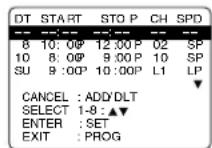
or To Clear program...
Press ADD/DLT.
4 Press PROG to end the programming.
Notes
- If you are using a Cable Box, the VCR's channel for Timer Recording must be set to the Cable Box input channel and Cable Box must be manually set to the desired channel. Cable Box power must be left on.
- 2 minutes before Timer Recording is performed, "PLEASE PREPARE FOR TIMER REC" appears and Timer Indicator flashes. Be sure a cassette with record tab is loaded and DECK is in Stop mode.
- If a power interruption occurs while programming the timer, the timer program(s) may be cancelled. If "TIMER PROGRAMS WERE LOST DUE TO POWER INTERRUPTION" appears on-screen, please re-enter the timer programs.
- If the start time for Timer Recording comes up during recording and playing back, Timer Recording will not be performed.
Important notes when using DSS Receiver
- When recording programs via DSS Receiver, DSS Receiver must be left on.
- When recording programs via an antenna or cable, DSS Receiver must be turned off.
MTS Broadcast/ VHS Hi-Fi Stereo System
Connection
Make the Audio/Video Connection as shown on pp. 12 ~ 15.
- You can use TV connected to a Stereo amplifier and speakers instead of Stereo TV.
Receivable Broadcast Types
The following are possible audio broadcast types and on-screen displays.
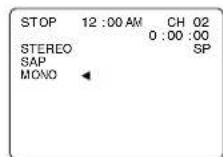
The signal being received is indicated with an " " mark while the selected audio mode is indicated with an arrow.
To display the broadcast signal being received,
press DISPLAY*.
MTS Stereo and SAP broadcast
Multi-channel Television Sound Stereo (main language) and Secondary Audio Program (sub language) broadcasts are being received simultaneously. Select STEREO or SAP audio mode.
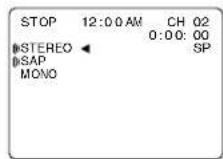
MTS Stereo broadcast
Multi-channel Television Sound Stereo broadcast. Select STEREO audio mode.
If stereo broadcast is weak and display flickers, select MONO audio mode for possible better results.
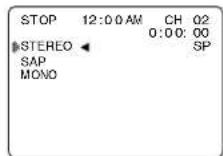
SAP broadcast
Secondary Audio Program (sub language) broadcast. Select SAP audio mode for the sub language.
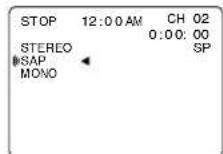
MONO broadcast
Normal monaural sound broadcast.
Equipped with dbx-TV Noise Reduction for true MTS reproduction. dbx-TV Noise Reduction is required for good stereo separation and audio fidelity. dbx is a registered trademark, and is licensed by dbx Technology Licensing.
Audio Mode for Recording
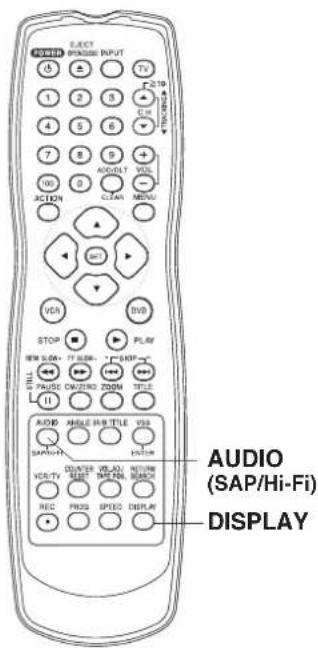
1 Press AUDIO (SAP/Hi-Fi) to display audio mode.
(Display disappears after 5 seconds.)
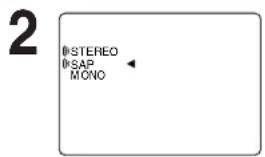
Press AUDIO (SAP/Hi-Fi) repeatedly to select desired mode.
Refer to "Receivable Broadcast Types" on page 26.
- Arrow indicates selection.
3 Make a recording. See page 21.
Audio Mode for Playback
1 Start playback. See page 20.
2 Press AUDIO (SAP/Hi-Fi) to display audio mode.
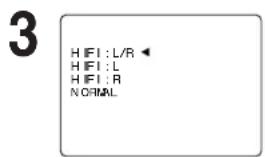
- Arrow indicates selection.
Press AUDIO (SAP/Hi-Fi) repeatedly to select desired mode.
- Select "HIFI (L/R)" or "HIFI (L)" or "HIFI (R)" to listen to stereo recordings in stereo sound.
Select "NORMAL" for monaural sound. - Display disappears after 5 seconds.
Notes
- Only tapes recorded in Hi-Fi stereo will playback with true stereo sound. Standard stereo tapes will playback in monaural sound.
- To listen to Hi-Fi stereo playback, the DECK AUDIO (L/R) jacks must be connected to a stereo TV or an external stereo amplifier and speakers. (See pp. 12, 14.)
- If tracking is adjusted during playback, Hi-Fi audio may revert to normal audio.
- Hi-Fi and normal audio playback volume level may differ.
Onen
HA
Multi-Brand Control Feature
Multi-Brand Control Setup
The Remote Control can be set to control some TV functions.
1 Find your TV Brand Code Number on the following page.
2 Set up for TV control, hold down TV button
enter code with NUMBER keys.
If code number is 100 or greater,
→e.g., press 1 - 0 - 2 for 102.
2 Confirm code entry,
press POWER to turn selected unit on or off.
See table below for controllable functions in each mode.
Notes
- Repeat setup after remote battery replacement.
Remote will not control every TV made by the manufacturer listed. If you get no response, your particular unit cannot be controlled. There are NO additional codes for the products listed. If your product is not listed, then the remote is not compatible with that product.
Using Multi-Brand Control
After remote is set up, you can select VCR, DVD, or TV for the desired function.
Press VCR, DVD, or TV on the remote.
(Table below shows available remote buttons for each mode.)
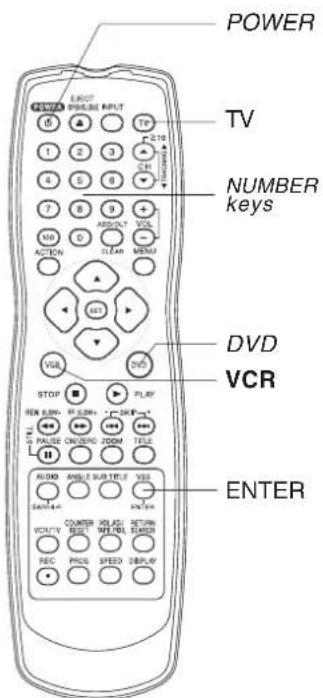
| Unit Mode | DVD/VCR | TV |
| DVD/VCR | All | VOL +/- |
| TV | EJECT/OPEN/CLOSE*, DISPLAY, PLAY, STOP, FF/SLOW+, REW/SLOW-, VCR/TV, PAUSE / STILL, SKIP, AUDIO, CM/ZERO, TAPE POSITION, COUNTER RESET, SPEED, REC | POWER, INPUT, NUMBER keys, ENTER, CH▲,WOL +/- |
- Bold: VCR Function
Italic: DVD Function
Bold Italic: VCR and DVD Functions Normal: TV
Notes
Not all functions listed may be controllable.
- In TV mode, it may be necessary to press ENTER after pressing NUMBER keys for channel selection.
28

TV Brand Code Numbers
Panasonic 01,02
Quasar 01, 02
BCA 03
GE 03
Zenith 04
Magnavox 05
Sylvania 05
Sharp 06, 07
Sony 08
Toshiba 09
Fisher 10
JVC 11
Hitachi 12
Mitsubishi 07,13
Samsung 14
Gold Star 15, 16, 17
Important Notes
- Some manufacturers use several codes for one brand. If the first code entered fails, try the next one listed.
Some TV brands require you to turn on the power manually.
Onen
Tape Operation
Search System
For each recording, an invisible index mark is placed on the tape. A program index and information are also included for timer recordings. These marks are used to access or scan recordings.
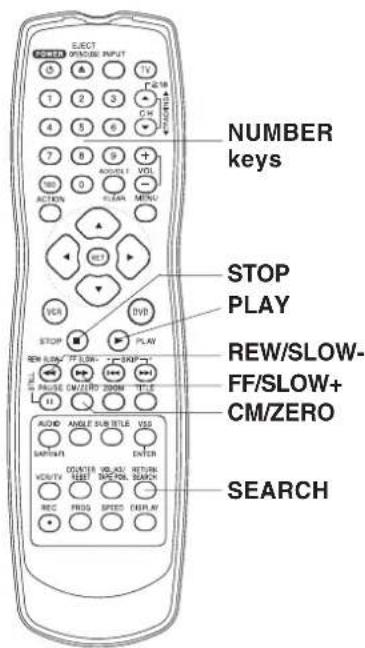
Index Search

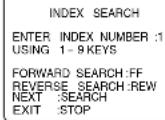
Press SEARCH* to display SEARCH in Stop or Play mode, and then press NUMBER keys
to select recording number.
To calculate number, see below.
Press FF/SLOW+ or REW/SLOW- on the remote to start search.

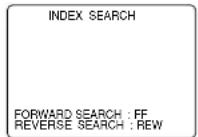
Play begins at search end. To search forward or back 1 index, press FF/SLOW+ o REW/SLOW- on the remote while screen left is displayed (10 sec.).
To cancel, press PLAY or STOP.
To Calculate Index Number
Example 1:
To go to rec. 2 from rec. 4, enter 3 and press REW.

Example 2:
To go to rec. 6 from rec. 2, enter 4 and press FF.

NOTE: indicates start points of each recording.
Note
- If Index Search is started very close to an index mark, that index mark may not be counted in the search.
30
Program End Search
Locates end point of recording for continuity.

Press SEARCH twice to display SEARCH in Stop or Play mode.

PROGRAM END SEARCH
SEARCH START:FF
EXIT :SEARCH
Press FF/SLOW+
on the remote to start PROGRAM END SEARCH.
To cancel, press PLAY or STOP.
Examples of Program End Search.
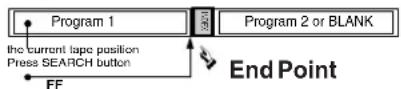
Fig.1

Fig.2
Fig.3
I
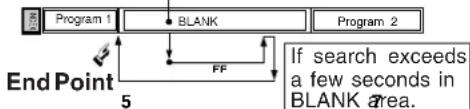
Upon locating end point,
search continues 7 sec. past end point,
tape rewrites to 10 sec. before end point,
tape plays to end point and stops. 4
Note
If Program End Search is started very close to an index mark, that mark may be skipped over.
*Important: If a remote control button does not work when pressed, press the VCR button on the remote and try the button again.
Auto Operation Functions
Auto Play
Insert a tape Power comes on,
Play starts if there is no record tab (see p. 6).
Auto Rewind
Play Fast Forward Tape end Rewind
Play Auto Eject
(Repeat Play must be off)
Play Tape end Rewind
Tape ejects if there is no record tab.
Commercial Skip
VCR fast forwards (skips) over 1-3 minutes of recorded tape.
1 Press CM/ZERO in Play mode.
The skip time can be changed by pressing CM/ZERO repeatedly as shown by the figure below.
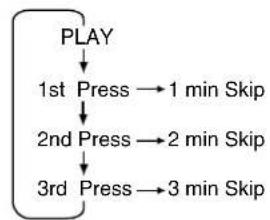
- No indication appears on-screen.
Onen
HA
Tape Operation (continued)
Repeat Play
Set to playback a recording over and over.
1 Press ACTION* to display MENU.

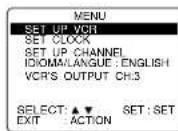
Press ▲
to select "SET UP VCR," and press SET.

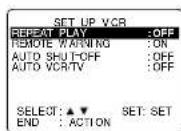
Press ▲
to select "REPEAT PLAY," and press SET to set "ON" or "OFF."
- Play repeats at tape end or if unrecorded portion over 30 sec. is detected.

Press ACTION twice to return to normal screen.
Note
- For repeat play in DVD mode, see page 46.
Zero Search
To quickly return to a specified tape location.
Press DISPLAY during play to display Counter.
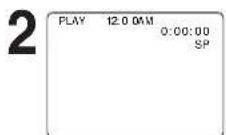
Press COUNTER RESET at desired position to reset to "0:00:00".

Continue to record, playback etc.

Press STOP.

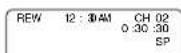
Press CM/ZERO in Stop mode to start Zero Search.
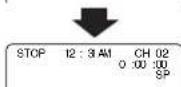
- DECK will go into FF or REW mode and stop at the last point the Counter was set to 0:00:00.
32
VCR/TV Selector Feature
The VCR/TV selection can be set to auto or manual.

Press ACTION to display MENU.

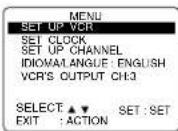
Press ▲
to select "SET UP VCR," and press SET.

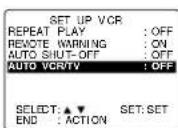
Press
to select "AUTO VCR/ TV," and press SET to set "ON" or "OFF."
- OFF(Manual): You select "VCR" or "TV" mode using the VCR/TV button on the remote.
- ON(Auto): "VCR" mode is automatically set when VCR is turned on, or in Play mode.

Press ACTION
to return to normal screen.
Note
- For more on VCR/TV selection, see "Record one station, watch another" and "Select channels at DECK" sections (see p. 21).
Special VCR Features
*Important: If a remote control button does not work when pressed, press the VCR button on the remote and try the button again.
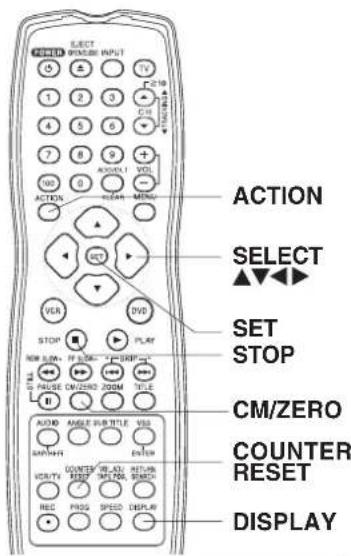
VCR Lock Feature
When set to ON, all operations except for timer record and tape eject are prohibited. Useful for households with small children.
To turn on, hold down REC on DECK in Stop mode with no tape inserted for 7 seconds. (Please ignore "NO CASSETTRE" warning.)
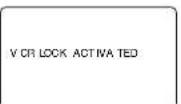
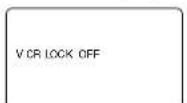
To turn off, repeat above.
- VCR Lock cancels in 24 hours if clock is set.
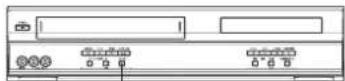
REC
Weak Signal Display Feature
When "ON," picture is displayed regardless of signal strength.
1 Press ACTION to display MENU.
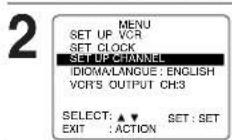
Press to select "SET UP CHANNEL," and press SET.
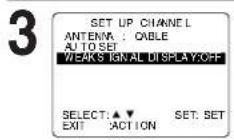
Press to select "WEAK SIGNAL DISPLAY," and press SET to set "ON" or "OFF."
ON: Picture is displayed regardless of signal condition, and may not always be clearly visible. OFF: Screen turns solid blue when signal is weak or non-existent.
- Selecting ON has no effect on connected equipment with blue back feature.
4 Press ACTION twice to return to normal screen.
Auto Shut-Off Feature
The power shuts off at a preset time.
1 Press ACTION to display MENU.
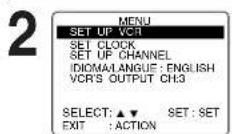
Press to select "SET UP VCR," and press SET.
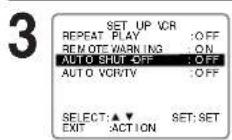
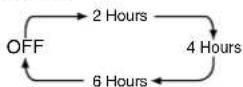
4 Press ACTION twice to return to normal screen.
Note
The shut-off countdown will not function during Play or Record.
Onen
HA
Special VCR Features (continued)
Remote Warning Feature
If Multi-brand feature is used (p. 28), and this feature is set to on, a warning appears whenever an invalid key is pressed in TV mode.
1 Press ACTION* to display MENU.
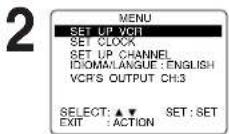
Press to select "SET UP VCR," and press SET.
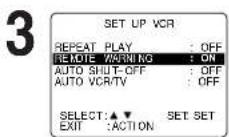
Press to select "REMOTE WARNING," and press SET to set "ON" or "OFF."
- If "OFF," remote warning will not appear when invalid key is pressed.
4 Press ACTION twice to return to normal screen.
*Important: If a remote control button does not work when pressed, press the VCR button on the remote and try the button again.
Tape Position and Tape Status Feature
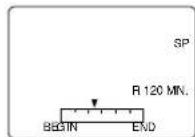
To find out the present tape position and amount of tape remaining. Tape position is displayed for VHS-C type Cassettes, tapes under 30 minute long, and some other tapes, but the position is not correct.
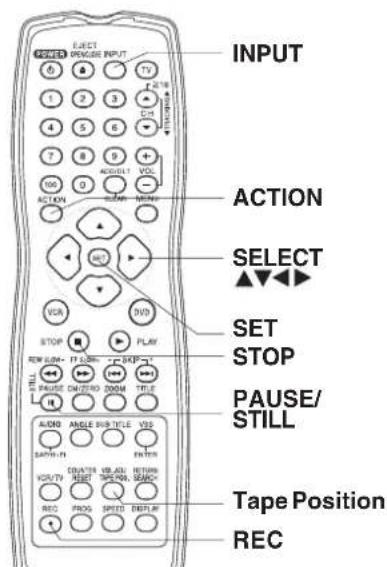
1 Press TAPE POS. to detect current tape position.

- "DETECTING TAPE POSITION" is displayed only when a cassette is first inserted, and it takes several seconds for correct tape position to appear.
-
The present tape position indication and amount of tape remaining (according to tape speed) is displayed.
-
Tape remaining time display may not be precise.
2 Press TAPE POS. to return to normal screen.
Note
This function cannot display exact amount of tape remaining for tapes 30 minutes or less, or for tapes over 120 minutes in length.
34
Copying Your Tapes (Dubbing)
Connection
VCR/Camcorder (Hi-Fi)

① Connect VIDEO OUT terminal on Playing VCR to VIDEO IN terminal on DECK. To monitor the dubbing, also connect TV as shown.
② Connect "L" and "R" AUDIO OUT terminals on Playing VCR to "L" and "R" AUDIO IN terminals on DECK. In place of Playing VCR, you can use other equipment, such as a Camcorder. Simply connect the unit's Audio/Video outputs to DECK.
Playing (Source) VCR Re- rding (Editing) DECK
1 Insert a pre-recorded tape.
Insert a blank tape with record tab.
2
Press INPUT to set DECK Input mode to LINE for Video Input. (See "Selecting the Input Mode" below.)
3 Press PLAY, then PAUSE/STILL immediately to enter PLAY/PAUSE mode.
Press REC, then PAUSE/STILL immediately to enter REC/PAUSE mode.
The operation of steps 4 and 5 must be done on the playing and recording VCRs at the same time.
4 Press PLAY to start dubbing. Playing VCR starts playback.
Press PAUSE/STILL to start dubbing.
DECK starts recording.
5 Press STOP to stop dubbing.
Press STOP to stop dubbing.
To Monitor Dubbing on TV
1 Turn TV on and tune to the Recording VCR channel (CH 3 or CH 4).
2 If Auto VCR/TV (see p. 32) is set to "OFF," press VCR/TV on the remote to be VCR mode.
Note -Dubbing tapes protected with Copy Guard will result in poor quality recordings.
Selecting the Input Mode
Method 1: Press INPUT repeatedly. Channel Number LINE1 LINE2 Method 2: Press CH Display will change as below

- "L1" or "L2" lights up on Multi Function Display (about 4 seconds) when LINE1 or LINE2 is selected.
- LINE1: For rear audio/video connection.
LINE2: For front audio/video connection
Caution: Unauthorized exchanging and/or copying of copyrighted recordings may be copyright infringement.
- Please note that some tapes cannot be dubbed on DECK. Also, it is not possible to dub DVD/ Video CD/ CD to VHS tapes using DECK.
D
Disc Operation
Subtitle Language (DVD only)
You can select a different subtitle language (if offered) than the one set at the Settings for DVD Operation. (See p. 51.)

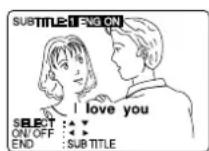
Press SUB TITLE
in Play mode to display the subtitle selection on-screen.
- Display disappears after 5 seconds.
- When no subtitles are offered, "-" will be displayed instead of the language number.

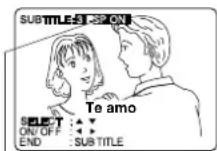
Press ▲
to select a language.
Press to select "ON" or "OFF."
Subtitle language being played back (see chart, right).
Notes
- If after several presses of the button the language does not change, language selection is not offered on the disc.
- When disc is removed, subtitles revert to initial setting language. If the initial language is not recorded on the disc's priority language will appear.
- With DVD-RAM, the subtitle can only be set to ON/OFF. The subtitle language cannot be selected.
Audio Soundtrack Language (DVD only)
You can change the audio soundtrack language, selected at the Settings for DVD Operation, to a different language if available. (See p. 51.)
(This operation works only with discs on which multiple audio soundtrack languages are recorded.)

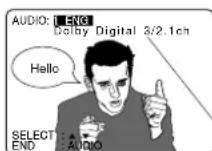
Press AUDIO
in Play mode to display the audio selection on-screen.
- Display disappears after 5 seconds.
Audio attribute 1 type, sampling frequency, bit No. of the disc or number of speaker channel.

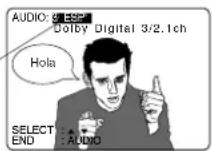
Press
to select desired language.
Audio soundtrack language being played back (see chart, above right).
36

Ready Checklist
Please read "Basic DVD Operation" on page 22.
[Subtitle language]
[Audio sound track language]
| ENG | English |
| FRA | French |
| DEU | German |
| ITA | Italian |
| ESP | Spanish |
| NLD | Dutch |
| SVE | Swedish |
| NOR | Norwegian |
| DAN | Danish |
| POR | Portuguese |
| RUS | Russian |
| JPN | Japanese |
| CHI | Chinese |
| KOR | Korean |
| MAL | Malay |
| VIE | Vietnamese |
| THA | Thai |
| * | Other |
- Change the No. by pressing , and press SET.
[Audio attribute 1 type, sampling
frequency, bit No. of the disc (see p. 52.)
| LPCM | 96 kHz or 48 kHz | 16 bit | Linear PCM disc |
| 20 bit | |||
| 24 bit | |||
| Dolby Digital | 1c h - 5.1 ch | Dolby Digital disc | |
| DTS | 1 ch - 5.1 ch | DTS disc | |
Notes
If, after several presses of the AUDIO button the language does not change, language selection is not offered on the disc.
- When disc is removed, language reverts to initial setting. If this language is not recorded on the disc, the language recorded will be heard.
- With DVD-RAM, Audio Soundtrack Language cannot be set. Audio stream and Audio mode (LR/L/R) setting can be made. Audio stream operation method is the same as Audio Soundtrack Language. Press to move the cursor to Audio mode, then press select LR/L/R.

When appears on the screen while a button is being operated, it means that the corresponding operation is prohibited by DECK or the disc.
Multiple Angle Viewing (DVD only)
DVDs may contain scenes shot from multiple camera angles allowing the same scene to be viewed at different angles. You can view these angles, if available, using the ANGLE button.
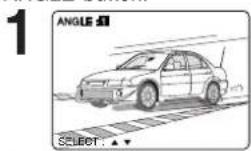
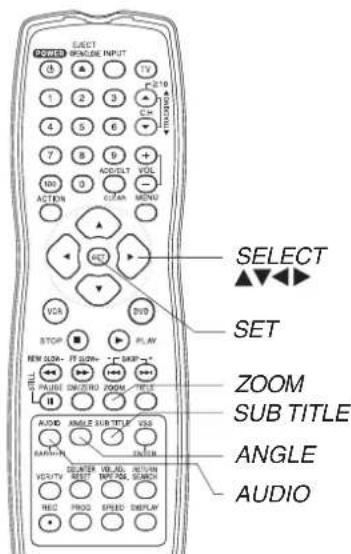
Press ANGLE
in Play mode to display the angle selection on-screen.
- Display disappears after 5 seconds.
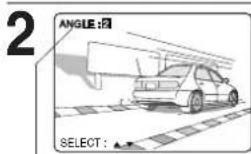
Press ▲
to select the desired angle.
Number of angle being played back.
Notes
The ANGLE Indicator lights up on DECK when a scene recorded at different angles is detected.
The angle number can be set beforehand so that the angle is switched whenever the ANGLE Indicator lights up.
Note This function not available with DVD-RAM.
Vocal Selection for Karaoke Discs (DVD/Video CD)
1 Press AUDIO in Play mode to display the audio screen.
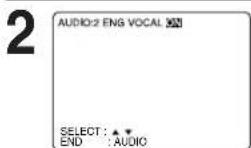
Press ) to select as shown below, and press (or to set. (DVD only)
DVD Karaoke (1 vocal) VOCAL ON- VOCAL OFF
DVD Karaoke (2 vocals) VOCAL V1- VOCAL V2- VOCAL V1+V2- VOCAL OFI
Video CD LR-L-R
Picture Zoom (DVD only)
You can enlarge specific portions of a picture and select the zoom ratio using the ZOOM button during DVD playback.
Press ZOOM repeatedly to change display as follows.
- You can enlarge the center portion of the image to one of 2 magnifications.
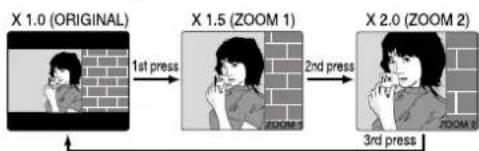
O
C
Use the , , and buttons to move the position up, down, left and right.
Notes
The subtitle cannot be enlarged nor can it's position be changed.
The picture zoom feature does not work with a Video CD.
During picture zoom, "ZOOM1" or "ZOOM2" appears on-screen for 5 seconds.
- Zooming, on some discs, may result in poor picture quality, or may not operate at all.
Disc Operation (continued)
Title Menu (DVD only)
Some DVDs have more than one title, e.g. movies. If the disc offers a title menu, you can select the desired title number. (Operation may vary according to the disc.)

TITLE MENU
Dogs
Castles
Lovers
Birds
Press TITLE*
in Play mode
to display the title screen.

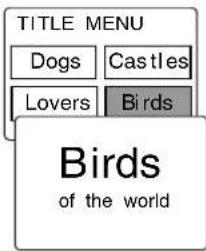
Press
NUMBER keys
to select a title, and press SET or PLAY
to start playing.
- "PressingSET or PLAY" is not necessary when using NUMBER keys.
DVD Menu (DVD only)
DVDs may offer a special menu. This menu may include guides to unique contents, audio/subtitle languages, etc. Although contents and operation may vary, the following steps show basic steps for using the menu.

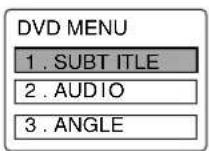
Press MENU
in Play mode to display DVD MENU.

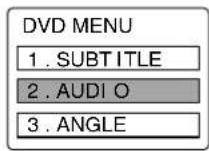
Press
NUMBER keys
to select an item, and
press SETor PLAY
to perform.
- "PressingSET or PLAY" is not necessary when using NUMBER keys.
Repeat step 2 if there is more than one menu.
38
Program Play (Video CD/CD only)
You can program specific tracks and order of play.
1 Press ACTION to display DVD MAIN MENU.
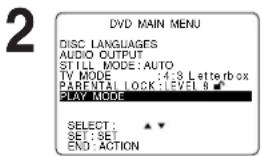
Press to select "PLAY MODE," and press SET to display.
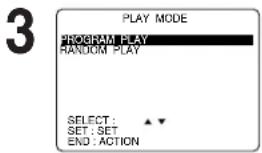
Press to select "PROGRAM PLAY," and press SETto display.
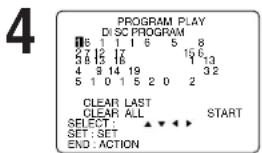
Press ▲▼▲
to select a track
number (Track
numbers on disc are
displayed.), and
press SET.
-
Repeat step 4 to select another track.
-
The selected track is added on the right side.
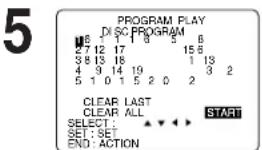
Press to select "START," and press SETto start play of programs in the sequence selected.
- To cancel, press STOP during play, then press CLEAR.
Notes
- Up to 15 tracks can be programmed.
- “ ” or “ ” (depending on disc) indicates additional PROGRAM PLAY screen. Press for next or previous screen.
To clear the last program one by one Press to move to "CLEAR LAST" and press SET. (Pressing CLEAR on remote control also clears last program.)
To clear all programs Press to move to "CLEAR ALL" and press SET. (Programs are also cleared when the power is turned off or the disc is removed.)
Ready Checklist
DECK is in DVD mode, press DVD.
Video CD or CD is inserted
Program Repeat Play (Video CD/CD only)
1 Do operation steps 1 through 5 at left on this page.
2 Press DISPLAY to display Disc Information screen. (Disc Information Screen)
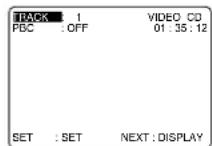
3 Press DISPLAY to display DECK Information screen.
4 Press SET to enter Select mode. Cursor move to "OFF." (DECK Information Screen)
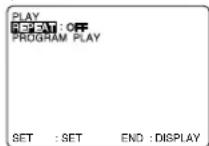
5 Press ▲▼ to select "DISC." (DECK Information Screen)
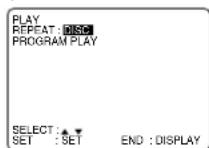
6 Press SET to set mode. Cursor move to "REPEAT." To cancel, select "REPEAT: OFF" in step 5, then press SET.
opoeon
DVD
Disc Operation (continued)
Random Play (Video CD/CD only)
Tracks are played in a random order.
1 Press ACTION to display DVD MAIN MENU.
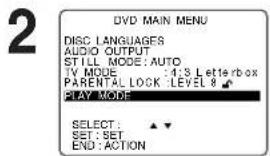
Press to select "PLAY MODE," and press SET to display.
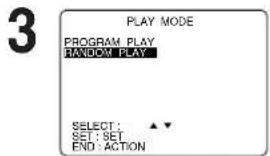
Press to select "RANDOM PLAY," and press SET to begin random play. To cancel, press STOP during play, then press CLEAR.
Ready Checklist DECK is in DVD mode, press DVD.
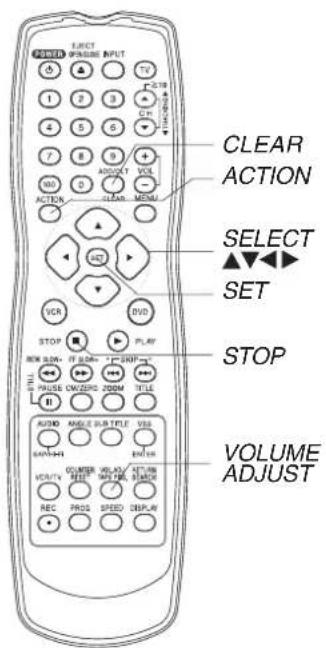
Setting the VOLUME ADJUST
Some DVDs are recorded in lower than average volume levels.
For these DVDs, this DECK can be set so that the average volume
is increased.
Press VOL.ADJ repeatedly to change "ON" "OFF."
- "ON" or "OFF" lights up on Multi Function Display (about 3 seconds) when press VOL.ADJ.
| VOLUME ADJUST “OFF” | VOLUME ADJUST “ON” | |
| Some DVD [Volume level is low] | Volume is the original level. | Volume level is increased when played back. |
- "ON" is set .... When a DVD is played back, the average volume is increased.
- "OFF" is set .... The volume level recorded on the disc is played back just as it is.
Notes
- This feature is available only for Dolby Digital sound tracks.
- When audio equipment is connected, setting the Sound Output level to "OFF" is recommended.
- If the sound becomes abnormal while playing a disc, set the Sound Output level to "OFF."
A
DVD-RAM Operation (DVD-RAM only)
You can enjoy playing your personally recorded/edited DVD-RAM discs on this DECK.
Note
- This DECK was designed for playback only. DVD-RAM recording is not possible.
Play a DVD-RAM
1 Do steps 1 ~ 3 on page 22.
- Play begins from the first program title recorded on the DVD-RAM.
2 Press TITLE* or MENU to display Direct Navigator or Play List menu for easy title or scene selection.
See below for Direct Navigator or next page for Play List information.
3 Press STOP to stop playing.
4 Press OPEN/CLOSE to eject the disc.
Direct Navigator
If the DVD-RAM features Direct Navigator, a list of recorded titles is displayed. Simply select a title number and start playback. (Operation can vary with disc used.)
1 Press TITLE in Play/Stop mode to display the Direct Navigator menu.
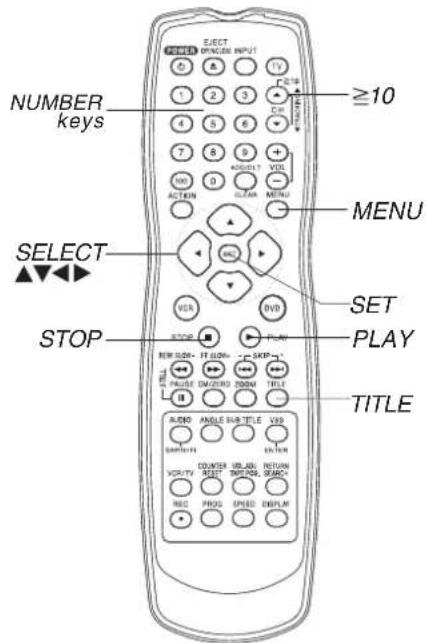
2 Press to select a page and press to select a title (Program No.).
Then, press SET or PLAY to start playing.
- "Pressing SET or PLAY" is not necessary when using NUMBER keys.
Using NUMBER keys starts playing automatically. The number of available titles varies with each disc.
2 digit number 12 ... 1 2 3 digit number 123 ... 100 1 2 3
3 Press TITLE to clear Direct navigator menu. (Press ACTION to display DVD MAIN menu.)
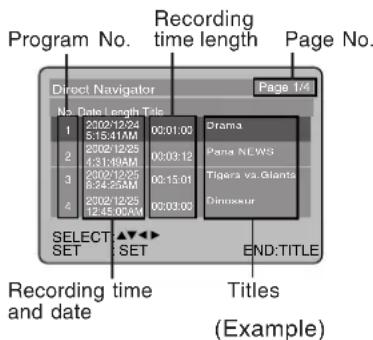
Play List
If the DVD-RAM features a Play List, your preselected list of favorite scenes is displayed for easy access. (Operation can vary according to how you edited the DVD-RAM.)
Press MENU
in Play/Stop mode to display the Play List menu.
2 Press to select a page and press to select a title (Play List No.).
Then, press SET or PLAY to start playing.
- "Pressing SET or PLAY" is not necessary when using NUMBER keys.
Using NUMBER keys starts playing automatically.
The number of available titles varies with each disc.
Example> 2 digit number 12…≥1012
3 digit number 123 100 1 2 3
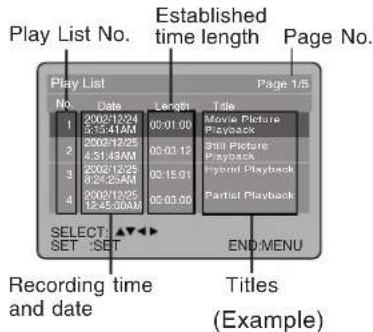
Press MENU to clear Play List menu.
(Press ACTION to display DVD MAIN menu.)
O
A
Notes
- Titles of Direct Navigator and Play List cannot be changed using this DECK.
- With Direct Navigator, up to 99 programs can be displayed. With Play List, up to 99 titles (999
scenes) can be displayed. - While DVD MAIN MENU is displayed, Direct Navigator and Play List display will not appear even if TITLE or MENU is pressed.
- When appears on the screen while a button is being operated, it means that the corresponding operation is prohibited by DECK or the disc.
43
DVD Operation using On-Screen Displays
When DISPLAY is pressed, On-Screen Displays show disc information (title/chapter/track number, elapsed playing time) and DECK information (repeat play, play mode).
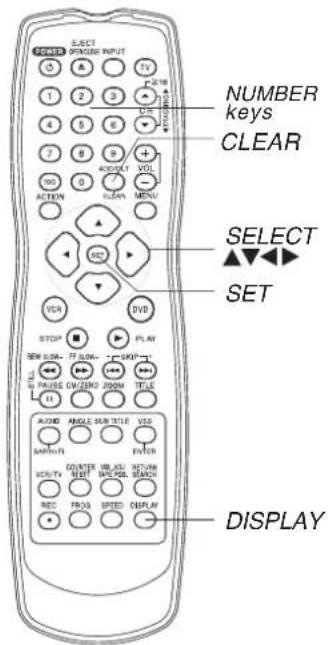
1 Press DISPLAY in Play or Stop mode to display "On-Screen Displays."
Each press of DISPLAY changes the on-screen display as follows. (Refer to pp. 45, 46.)
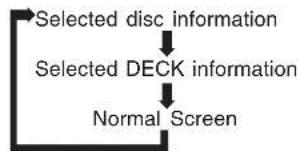
Note
- DISPLAY button does not function while DVD MAIN MENU or Direct Navigator or Play List is displayed.
2 Press to select an item, and press SET.
3 Press NUMBER keys to select the setting, and press SET.
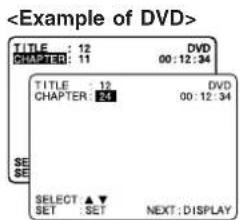
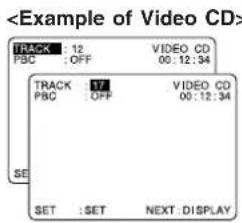
- When numbers are displayed (e.g. title number), NUMBER keys are also available.
If the number entered is not on the disc, the entry will have no effect. Re-enter the correct number.
For more details, refer to the disc operation information.
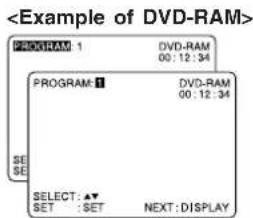
To return to normal screen, press CLEAR or DISPLAY repeatedly.
44
Ready Checklist DECK is in DVD mode, press DVD.
Notes
- When DISPLAY button is pressed during playback of a Video CD with Playback control, NUMBER keys are not available on the displayed screen. In this case, press DISPLAY again to remove the displayed screen.
- When appears on the screen while a button is being operated, it means that the corresponding operation is prohibited by DECK or the disc.
Detailed Descriptions of each On-Screen Display
Disc information screen (for DVD)
1. TITLE No.
- Select "TITLE", and press SET.
- Change the No. by pressing or NUMBER keys, and press SET.
2. CHAPTER No.
- Select "CHAPTER", and press SET.
- Change the No. by pressing or NUMBER keys, and press SET.
3. Disc currently being played
4. Elapsed playing time
The screen may be changed by selecting the elapsed time.
- Select the elapsed playing time ("xx:xx:xx"), and press SET.
- Change the elapsed time by pressing NUMBER keys.
Hours Minutes Seconds are entered in order.
If the time entered is not on the disc, the entry will have no effect.
Re-enter the correct time.
e.g., press 0 - 1 - 2 - 3 - 4 - 5 for 01:23:45.
Hour Minutes Seconds
This function does not work with some discs.
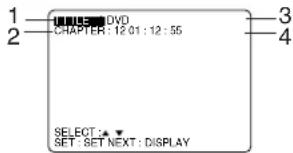
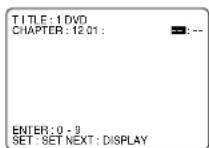
If SET is pressed while making entries, unit returns to the condition it was in before entries were made.
Disc information screen (for Video CD/CD)
A. TRACK No.
- Select "TRACK", and press SET.
- Change the No. by pressing or NUMBER keys, and press SET.
B. Playback control ON/OFF
[Video CD with playback control only]
ON Video CD menu play is displayed.
OFF Video CD menu play is not displayed.
C. Disc currently being played
Video CD CD
D. Elapsed playing time
Disc information screen (for DVD-RAM)
a. Direct Navigation (PROGRAM) or PLAY LIST No.
- Select "PROGRAM" or "PLAY LIST", and press SET.
- Change the No. by pressing or NUMBER keys, and press SET.
b. Disc currently being played
c. Elapsed playing time
The screen may be changed by selecting the elapsed time.
- Select the elapsed playing time ("xx:xx:xx"), and press SET.
- Change the elapsed time by pressing NUMBER keys.
Hours Minutes Seconds are entered in order. If the time
entered is not on the disc, the entry will have no effect.
Re-enter the correct time.
e.g., press 0 - 1 - 2 - 3 - 4 - 5 for 01 : 23 : 45
Hour Minutes Seconds
This function does not work with some discs.
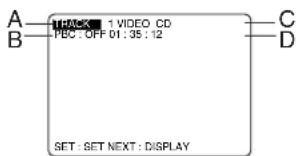
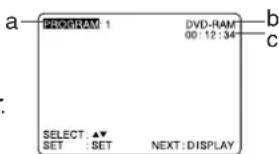
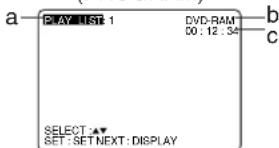
Direct Navigation (PROGRAM)
PLAY LIST
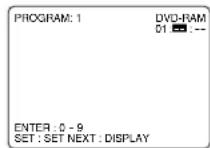
If SET is pressed while
making entries, unit returns to the condition it was in before entries were made.
O
AAG

- Track No. and the elapsed playing time are not
displayed during play started from menu of Video
CDs with playback control.
- When appears on the screen while a button is
being operated, it means that the corresponding operation is prohibited by DECK or the disc.
DVD Operation using On-Screen Displays (continued)
■ DECK information screen (for DECK)
a. Repeat Play
-
Select "REPEAT", and press SET*.
-
Change the desired mode during play by pressing , and press SET.
| DVD-Video CHAPTER | TITLE | OFF | ||
| DVD-RAM | (PROGRAM) | PROGRAM | DISC | OFF |
| (PLAY LIST) | PLAY LIST | ALL PLAY LIST | OFF | |
| Video CD/CD | TRACK | DISC | OFF | |

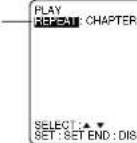
b. Play mode [Video CD/ CD only] (See p. 39 or 40.)
| PROGRAM PLAY | program play |
| RANDOM PLAY | random play |
| ----- | normal play |

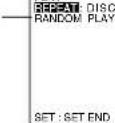
For your reference
- CHAPTER/TITLE REPEAT PLAY (DVD)
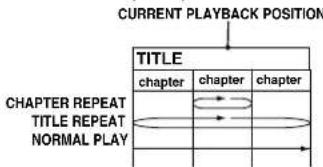
- TRACK/DISC REPEAT PLAY (Video CD/CD)
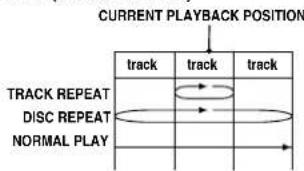
- PROGRAM/DISC REPEAT PLAY (DVD-RAM [PROGRAM])
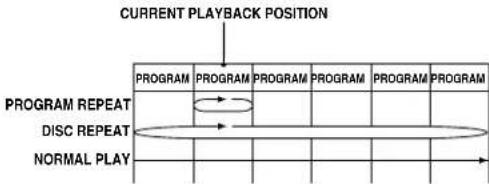
- PLAY LIST/ALL PLAY LIST REPEAT PLAY (DVD-RAM [PLAY LIST])
CURRENT PLAYBACK POSITION
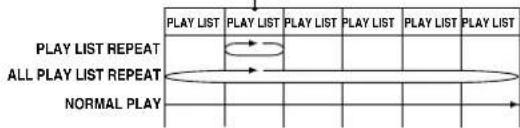
Note
For repeat play in VCR mode, see p. 32.
*Important: if a remote control button does not work when pressed, press the DVD button on the remote and try the button again.
MP3/WMA/JPEGPlaybackOperation
This unit can play MP3/WMA/JPEG format CD-R or CD-RW recorded for personal use on a PC, etc. Some discs may not play due to the condition of the recording.
1 Press POWER on the remote or DECK.
2 Press OPEN/CLOSE, then place an MP3/WMA/JPEG disc into the disc tray.
Press OPEN/CLOSE to close.
MP3/WMA/JPEG menu is displayed.
- Playback starts automatically (except JPEG files).
- CD directory is displayed.
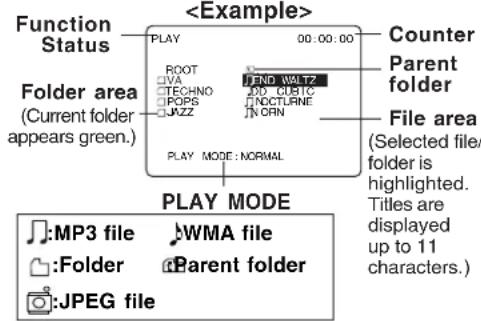
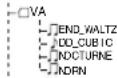
Notes
- Only File (not Folder) area operation is possible.
Files are displayed in the following order: (!...0,1....9,A,B.....Z).
4 -Select file (During STOP mode) 1)Press Aselect an MP3/WMA file (
MP3/WMAPlayback(see right).
2) Press ▲▼ to select a JPEG file (□).
JPEG Playback (see p. 48)
3)PressSKIP I (next) or I SKIP (previous) to skip a file/folder page (7files) in the File area.
- Select folder (During STOP mode)
1)Press A select a folder ().
2)Press SET to display files/folders contained in the folder. - Select parent folder (During STOP mode)
1) Press select a folder().
2)Press SET to make changes to the previous directory display.
5 Press ACTION to return the DVD MAIN MENU. ( Press ACTION again to return to the MP3/WMA/JPEG MENU.)
MP3/WMA Playback
Do steps 1-3 on left.
a Press to select an MP3/WMA file (During STOP mode)
b Press SETor PLAY to start playback.
Forward/Reverse Search
Press FF/SLOW+ or REW/SLOW- during play. Press PLAY to release.
- Search speed, slow at first, increases with each additional press of the button up to 5 levels.
Forward/Reverse Track Skip
Press SKIP or SKIP during play. Each press skips a track.
- If pressed within first 3 seconds of playback, skips to the previous track. If over 3 seconds, returns to top of track. (SKIP only.)
- Put DECK in Stop mode before performing folder/file selection (see step 4.)
Pause
Press PAUSE during play.
Press PLAY to release.
C Press STOP to stop play.
Press OPEN/CLOSE to eject the disc. The MP3/WMA/JPEG MENU is closed automatically.
Note
Copyright protected files and files containing errors cannot be played back. The DECK skips to the next file.
■ Select PLAY MODE [MP3/WMA Playback] (During STOP mode)
1) Press to move cursor to PLAY MODE.
2) Press to select the desired PLAY MODE (see below).
[PLAY MODE]
NORMAL: All MP3/WMA files are selected and played back one time only.
SINGLE REPEAT:
The selected MP3/WMA file is played back repeatedly.
FOLDER REPEAT:
The MP3/WMA files contained in the selected folder are played back repeatedly. However, folders below the selected folder are not played back.
DISC REPEAT:
All MP3/WMA files are played back repeatedly.
*Important:
if a remote control button does not work when pressed, press the DVD button on the remote and try the button again.

a
MP3/WMA/JPEGPlaybackOperation(continued)
JPEGPlayback
You can play back JPEG images.
Displayable Image Size: 32x32~7680x7680 pixels
Note Some JPEG format may not be played back.
Do steps 1~3 on page 47.
1 Press V to select an JPEG file (
Press SETor PLAY.
Selected JPEG file is displayed.
[JPEG Playback Screen]
■Returned on the MP3/WMA/JPEG MENU
Press STOP. (See p. 47)
■Next/Previous Search
Press SKIP▶or SKIP.
Start Slide-show Press FF/SLOW+ or
REW/SLOW- (below)
■ Enlarging an image Press ZOOM. (P. 49)
Rotating an image Press ANGLE. (P. 49)
3 Press STOP to return the MP3/WMA/JPEG MENU.
JPEG Slide-show
(During JPEG Playback.)
JPEG files are displayed automatically (about every 3 seconds) as a slide-show.
1 Press FF/SLOW+ or REW/SLOW-

Image changes every 3 seconds.
■Cancel slide show
Press STOP to return the MP3/WMA/JPEG MENU. (See p. 47)
■Still picture
Press STILL (only SLIDE).
Press PLAY to release.
Forward/Reverse File Skip Press SKIPor i SKIP.
Each press skips a file.
2 Press ACTION to return to the DVD MAIN MENU.
48
■Select PLAY MODE [JPEG Slide-show]
(During STOP mode) (See p. 47)
1) Press to move cursor to PLAY MODE.
2) Press select the desired PLAY MODE (see below).
[PLAY MODE]
NORMAL:
All JPEG files are selected and played back one time only.
SINGLE REPEAT:
The selected JPEG file is played back repeatedly.
FOLDER REPEAT:
The JPEG files contained in the selected folder are played back repeatedly. However, folders below the selected folder are not played back.
DISC REPEAT:
All JPEG files are played back repeatedly.
Operation can be done when files are in order, such as in the diagram below.
![PANASONIC PVD4743SK - [PLAY MODE] - 1](/content/2026/03/454527/images/5bfc95bf9428fe5f0817f3a80daebc40249b085e68b40fdc4046699dcbe5e9b5.jpg)
![PANASONIC PVD4743SK - [PLAY MODE] - 2](/content/2026/03/454527/images/f64f1810b8ab19b7e886a0d2e0c0170db239707ce8a334120f6d97d16803e5f5.jpg)
JPEG Zoom
(During JPEG Playback.)
You can enlarge specific portions of a JPEG picture and select the zoom ratio using the ZOOM button on the remote during JPEG Playback screen.
Set Zoom size.
Press ZOOM repeatedly to change display as follows.
Press STOP to return the MP3/WMA/JPEG MENU.
- You can enlarge the center portion of the image to one of 2 magnifications.
Operation can be done during Rotation (below). X 1.0 (ORIGINAL) X 1.5 (ZOOM 1) X 2.0 (ZOOM 2)
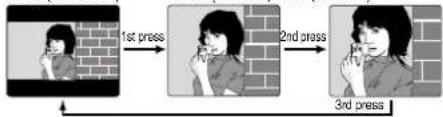
Use the , , and buttons to move the position up, down, left and right. (Position cannot be changed on X1.0 ORIGINAL images.)
JPEG Rotation
(During JPEG Playback.)
You can rotate a JPEG picture using the ANGLE button on the remote during JPEG Playback screen. (The JPEG picture will be rotated 90^ clockwise.)
Set rotation.
Press ANGLE repeatedly to change display as below.
Press STOP to return the MP3/WMA/JPEG MENU
Operation can be done during Zoom (above).
The vertical/horizontal ratio of rotated JPEG images may vary when they are displayed.
1st press 2nd press 3rd press
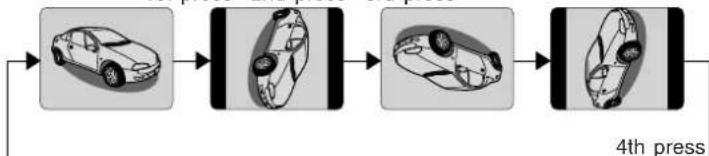
O
AAD
MPEG Layer-3 audio decoding technology licensed from Fraunhofer IIS and Thomson multimedia.

Windows Media, and the Windows logo are trademarks, or registered trademarks of Microsoft Corporation in the United States and/or other countries. WMA is a compression format developed by Microsoft Corporation. It achieves the same sound quality as MP3 with a file size that is smaller than that of MP3.

49
DVD Lock Feature
*Important: If a remote control button does not work when pressed, press the DVD button on the remote and try the button again.
You can prevent playback of DVDs of a specific rating level which may be unsuitable for children.
- Some DVDs are encoded with a rating level. If the disc rating is higher (stricter) than the one you preset, playback will be prohibited.
DVD Lock (DVD only)
A 4-digit code must be entered to view a blocked program or change rating settings.
1 Press ACTION* to display DVD MAIN MENU.

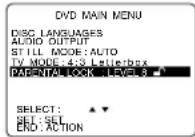
Press to select "PARENTAL LOCK," and press SET to display.

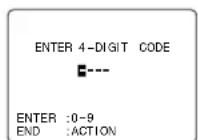
1) Press NUMBER keys to enter your secret code.
2) Enter same secret code again for confirmation.
3) Press SET to display.
To Make Corrections Press repeatedly to move the cursor. Press NUMBER keys to make the correction.

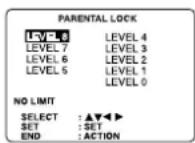
Press to select rating level, and press SET to select "LOCKED" or "UNLOCKED."
LEVEL 0: LOCK ALL, Playback of all DVDs, CDs, Video CDs, MP3, WMA and JPEG is prohibited. (Use to prohibit play of mature theme DVDs not encoded with rating level.)
LEVEL 1: mature theme DVDs
LEVEL 2 : DVDs expressly for children can be played back.
LEVEL 3 to 7: DVDs for general audiences/children can be played back. (DVDs with mature content are prohibited.)
LEVEL 8: NO LIMIT: (Factory preset) All DVDs can be played back.

Ready Checklist
DECK is in DVD mode, press DVD.
Caution
Discs not encoded with rating level will play even if the jacket states it is for mature audiences. For these discs, the DVD Lock Ratings will not work.
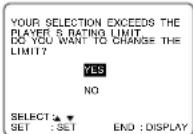
After DVD Lock is set and a blocked DVD is played, this message will appear. The message may differ depending on the disc.
To continue viewing a blocked program for now,
Press to select "YES" and SET. Then, enter your 4 digit secret code (see step 3 left). When "NO" is selected, blocked programs cannot be viewed.
PROGRAM RATING EXCEEDS
Change your secret code
- You will need your current code.
Do steps 1 ~ 2 left.
Enter current secret d
Press CLEAR to clear the code.
Do step 4 to enter new code.
Note
DO NOT forget your secret code.
50
Settings for DVD Operation
1 Press ACTION to display DVD MAIN MENU.
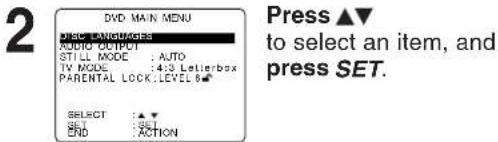
DISC LANGUAGES (See below)
All languages offered on the disc can be set. If the language not offered is set, the original disc language will be selected.
AUDIO OUTPUT (See p. 52.)
You can set the audio output that comes from the digital audio output terminal.
STILL MODE (See p. 53.)
To select "FIELD" (Field still) or "FRAME" (Frame still) to prevent jitter or make small text or fine patterns clearly visible in a still picture. When "AUTO" is set "FIELD" or "FRAME" is selected automatically.
TV MODE (See p. 53.)
To select whether the video material for a wide-screen will be played back in the Pan & Scan style, Letterbox style or 16:9 style.
Disc Languages (DVD only)
To select and set the language of the audio soundtrack, subtitles, or title/DVD menus for all discs to be played.
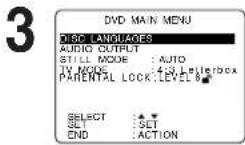
Press
to select
"DISC LANGUAGEES," and
press SET
to display screen.
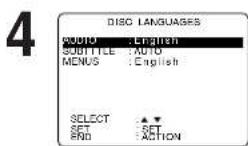
Press
to select an item, and press SET repeatedly for desired language. (Please refer right.)
Press ACTION to redisplay DVD MAIN MENU and go to step 2 to setup another item.
Or, press ACTION twice to exit.
Once initial settings are done, they remain in memory (even after power off) until changed. This means DECK will operate under the same conditions (especially DVDs) each time.
Ready Checklist
DECK is in DVD mode, press DVD.
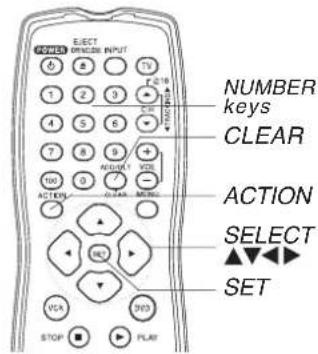
"AUDIO" selections
(Factory preset: English)
To select the audio soundtrack language.
English/Spanish/French/Japanese
Original: Original disc language
OTHER ****: Other language selection*
"SUBTITLE" selections
(Factory preset: AUTO)
To select the subtitle language.
AUTO: Same language selected for "AUDIO"
If language set for "AUDIO" is used in playback, subtitles will not appear.
If another language is used during playback, the subtitles will appear in the language selected at "AUDIO" setup.
English/Spanish/French/Japanese
OTHER ***: Other language selection*
"MONTHS" selections
(factory preset: English)
To select the language used in title menus or DVD menus.
English/Spanish/French/Japanese
OTHER ***: Other language selection*
To enter OTHER \*\*\*\*code number,
Press NUMBER keys (Please refer to language codes on page 54).
To make corrections, press
repeatedly to delete language code number, and correct.
* If the selected language is not offered, the original disc language is selected.
O
AAD
Settings for DVD Operation (continued)
Audio Output
Select the digital output to be output from the optical digital audio output connector of DECK.
1 Press ACTION* to display DVD MAIN MENU.

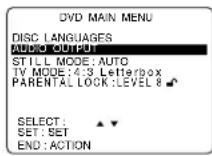
Press ▲
to select "AUDIO OUTPUT," and press SET to display screen.


Press ▲
to select an item, and press SET repeatedly for output. (See below.)
LPCM (DVD) selections
OFF: Linear PCM of less than 48kHz / 16 bit is output. When playing DVDs recorded in linear PCM of over 48kHz / 20 bit, no digital audio is output. (Factory preset)
PCM: When playing DVDs recorded in linear PCM of 48 kHz/20 bit/24 bit or more, digital audio converted to 44.1 kHz/16 bit or 48 kHz/16 bit is output. (Digital output of PCM audio is restricted to 48 kHz/16 bit or below for copyright protection.)
Dolby Digital"selections
Bitstream: Dolby Digital bitstream (1 ch - 5.1 ch) is output. (Factory preset)
PCM: When you have connected a amplifier that doesn't have a built-in Dolby Digital decoder.
“dtselections
Bitstream: DTS bitstream is output. (Factory preset)
PCM: When you have connected a amplifier that doesn't have a built-in DTS decoder.
DRC (Dynamic Range Compression) selections
OFF: Normal audio range is selected. (Factory preset) ON: For dynamic sound even at low volume, this is useful for late-night listening. [Dolby Digital DVDs only].
4 Press ACTION to redisplay DVD MAIN
MENU and go to step 2 to setup another item.
Or, press ACTION twice to exit.
52

Ready Checklist
DECK is in DVD mode, press DVD.
| Type of amplifier to be connected | Recommended setting | ||
| LPCM (DVD) | Dolby Digital | DTS | |
| No amplifier is connected | — | — | — |
| AV amplifier (with digital audio input connector) without Dolby Digital/DTS decoder | PCM | PCM*1 | PCM*1 |
| AV amplifier including Dolby Digital decoder | PCM | Bitstream | PCM |
| AV amplifier including Dolby Digital/DTS decoder | PCM | Bitstream | Bitstream*2 |
- Make settings according to amplifier connected to optical audio output as shown in above table.
1 When connecting an amplifier (with an optical digital input connector) which does not contain the Dolby Digital or DTS decoder, be sure to select "PCM". If "Bitstream" is selected, starting DVD play may cause such a high level of noise as to be harmful to your ears and damage the speakers.
2 When a DTS decoder is connected, please select "Bitstream" in "dts".
*Important: If a remote control button does not work when pressed, press the DVD button on the remote and try the button again.
Still Mode
Set to reduce jitter in a displayed still picture or a motion picture.
1 Press ACTION to display DVD MAIN MENU.
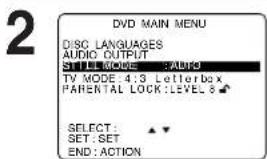
Press to select "STILL MODE," and press SET repeatedly for mode. (See below.)
AUTO: "FIELD" (Field still) or "FRAME" (Frame still) is automatically selected during the still mode. (Factory preset)
FIELD: "FIELD" (Field still) is always selected. This setting will reduce jitter when compared with "AUTO" on some discs.
FRAME:"FRAME" (Frame still) is always selected. Some texts and fine patterns will be seen clearly when compared with "AUTO" on some discs.
3 Press ACTION to exit this mode.
TV Mode
Set the screen display style for wide-screen video material playback.
1 Press ACTION to display DVD MAIN MENU.
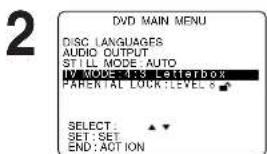
Press to select "TV MODE," and press SET repeatedly for mode. (See below.)
4:3 Pan & Scan (Factory preset): Wide-screen video data is played in Pan & Scan style (left and right of screen is trimmed.) - Video data not formatted in Pan & Scan will play in letterbox style.
4:3 Letterbox : Wide-screen video data is played in Letterbox style (top and bottom of screen has black margin).
16:9: Set "16:9" when using Wide-screen TV.
3 Press ACTION to exit this mode.
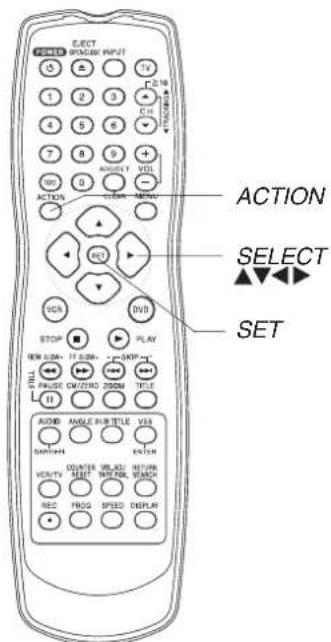
Example
- Pan & Scan (Factory preset)
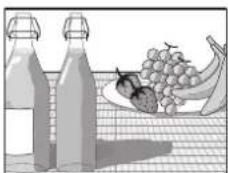
- Letterbox
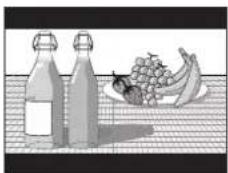
Operation
DVD
Language Code List
Enter the appropriate code number for the initial settings "AUDIO", "SUBTITLE" and/or "MENUS" (see p. 51).
| Code | Language |
| 6565 | Afar |
| 6566 | Abkhazian |
| 6570 | Afrikaans |
| 6577 | Ameharic |
| 6582 | Arabic |
| 6583 | Assamese |
| 6588 | Aymara |
| 6590 | Azerbaijani |
| 6665 | Bashkir |
| 6669 | Byelorussian |
| 6671 | Bulgarian |
| 6672 | Bihari |
| 6678 | Bengali; Bangla |
| 6679 | Tibetan |
| 6682 | Breton |
| 6765 | Catalan |
| 6779 | Corsican |
| 6783 | Czech |
| 6789 | Welsh |
| 6865 | Danish |
| 6869 | German |
| 6890 | Bhutani |
| 6976 | Greek |
| 6978 | English |
| 6979 | Esperanto |
| 6983 | Spanish |
| 6984 | Estonian |
| 6985 | Basque |
| 7065 | Persian |
| 7073 | Finnish |
| 7074 | Fiji |
| Lalin |
Warning and Instruction Displays
These displays will alert you to a missed operation or provide further instructions.
| CautionOSD Page | ||
| PLEASE SET CLOCK BY PRESSING ACTION KEY | If you attempt to set or review a TimerRecording and the Clock is not set... | 24 |
| PLEASE PREPARE FOR TIMERREC | If DECK is not in Stop mode or a cassette with record tab is not inserted 2 minutes before a Timer Recording is about to begin... | 2425 |
| CHECK CASSETTERECORD TAB | If you press REC on the remote control or DECK, and a cassette is inserted with no record tab... | 6 |
| NO CASSETTE | If you press PLAY, FF, REW, or REC on the remote control or DECK without a cassette inserted... | 2021 |
| TO CANCEL TIMER RECHOLD DOWN STOP KEYFOR APPROX 3 SEC | If you press STOP or POWERduring a Timer Recording...(visible in VCR mode only) | 25 |
| VIDEO HEADS MAY NEEDCLEANING PLEASE INSERTHEAD CLEANING CASSETTEREREFER TO MANUALEND : PLAY | If head cleaning becomes necessary while playing back a tape... | 4 |
| VCR LOCK ACTIVATED | If you press a function button other than STOP/EJECT or POWER while DECK isin VCR Lock mode... | 33 |
| REMOTE CONTROL IS SETTO TV MODEUSE VCR : VCR KEYUSE DVD : DVD KEY | If you press an invalid key on the remote while in TV mode... | 282934 |
| PLEASE CHECK THE DISC,AND FOR STAINS ORSCRATCHES ON DISC | If you press PLAY, and DECK reads data from astained or scratched disc in DVD mode. | 6 |
| THIS DISC MAY NOT BE PLAYEDIN YOUR REGION | Playback of a disc with different region number was attempted. Only discs marked region "1", "ALL", or those that include "1" are playable on this DECK. | 3 |
| THIS TYPE OF DISC CANNOT BEPLAYED. PLEASE INSERTADIFFERENT DISC | An unusable disc is inserted in the DECK. | 6 |
| CANNOT PLAY THIS FILE | This file format cannot be played.(Appears during MP3/WMA/JPEG file playback) | 47 |
| THIS FILE IS PROTECTED | This file is copyright protected and cannot beplayed back.(Playback is prohibited.) [WMA only] | 47 |
| IT IS PROHIBITED TO COPYDVD/VIDEO CD/CD TO VHS | If you press REC in DVD mode... | 21 |
eonnnnne
Jno人 JO
Before Requesting Service
Check the following points if you are having trouble with your DECK.
| Power | Correction |
| No power... | • Completely insert Power Plug into an AC outlet.• Set POWER button to on.• Make sure power source is active. |
| Power turns itself off... | • Auto power-off (shutoff) occurs after about 5 min. in DVD mode with no operation, or if there is no broadcast signal in TV or Playback mode.Turn the power back on. (pp. 23, 33) |
| Recording & Playback | Correction |
| TV program cannot be recorded... | • Check connections between DECK, external antenna, and TV.• Check channel selections.• Make sure your antenna system (CABLE or TV) is correctly set. (Channels [p. 18])• Make sure cassette record tab is intact. (p. 6) |
| Timer recording cannot be performed... | • Confirm that clock is set to current time and date.• Make sure Cable/DSS box (if used) is left on and tuned to channel to be recorded.• Set recording start/stop times correctly. (p. 24)• Timer recording may not be performed or continued if a power interruption occurs before or during a Timer Recording, even after power is restored. |
| There is no playback picture, or the playback picture is noisy or contains streaks... | • Select channel 3 or 4 on TV to match DECK output channel (3 or 4) (p. 16) or select LINE.• Set VCR/TV selector to "VCR."• Adjust TRACKING control in either direction. (p. 4)• Try Head Cleaning. (p. 4) |
| During special effects playback, picture may contain some vertical jitter when using a TV with an Automatic Vertical Hold Control... | • Set TV's Vertical Hold Control to MANUAL, then adjust. |
| DECK cannot be controlled... | • Make sure DECK power is on.• Check Remote batteries.• Make sure VCR LOCK is set to off. (p. 33)• Make sure Remote is in proper mode. (p. 28)• Make sure Timer Recording is not in progress. |
| Remote Control | Correction |
| DECK cannot be remote controlled... | • Make sure DECK power is on.• Make sure Remote is in VCR mode.• Aim Remote Control directly at remote sensor on DECK. (p.9)• Avoid any object blocking signal path.• Check Remote batteries. (p. 4)• Exposing DECK remote sensor to direct fluorescent or outdoor light may cause signal interference. |
| PROG buttons do not respond... | • PROG functions are not available in COMPONENT Video Output and S-VIDEO OUT. Set TV to either RF IN or VIDEO IN. (p. 10)• Check Remote batteries. (p. 4)• Press VCR or DVD button for DVD/OCR mode. (p. 28) |
Check the following points if you are having trouble with your DECK.
| DVD/ Video CD/ CD | Correction |
| Play fails to start even when PLAY is pressed... | ·This DECK cannot play discs other than DVDs, Video CDs and CDs. ·The disc may be dirty and require cleaning. |
| Play starts but then stops immediately... | ·Be sure disc is installed with label side up. |
| Picture is distorted during rapid advance or rapid reverse... | ·The picture will be somewhat distorted at times: this is normal. |
| No Forward/Reverse Scene Search play... | ·Some discs may have sections which prohibit Forward/Reverse Scene Search. (p. 23) |
| Play does not start even when title is selected... | ·Confirm the "DVD LOCK" setting. (p. 50) |
| Audio soundtrack and/or subtitle language is not the one selected at the initial settings... | ·If the audio soundtrack and/or subtitle language selected at DVD initial settings does not exist on the disc, it will not be accessible. |
| No subtitles... | ·Subtitles appear only when available on disc. ·"OFF" is selected at the changing subtitle language. Select "ON" at the "Subtitle Languages" section (p. 36) to display the subtitles. |
| Alternative audio soundtrack (or subtitle) language cannot be selected... | ·Alternative language cannot be selected with discs which do not contain more than one language. ·For some discs, alternative language cannot be selected with the AUDIO or SUB TITLE button. Try selecting it from the DVD MAIN MENU if available. |
| Angle cannot be changed... | ·This function is dependent on software availability. Even if disc has multiple angles, they may be recorded for specific scenes only (ANGLE indicator on DECK lights up). (p. 37) |
| Miscellaneous | Correction |
| Programs cannot be viewed on TV... | ·Make sure TV is set to output of DECK. ·Check connections between DECK, external antenna, and TV. ·Set VCR/TV selector to "TV." (p. 21) ·Make sure proper signal source is selected. |
| Video cassette cannot be inserted... | ·Insert the cassette with window side up; record tab facing you. |
| Video cassette ejects when a recording is started or the power is turned off for timer recording... | ·Make sure cassette record tab is intact. (p. 6) |
| In Stop mode, the motor (CYLINDER) continues to rotate... | ·To enable Quick play mechanism, the cylinder will rotate for about 3 minutes. This reduces response time from Stop to Play mode. |
| The disc cannot be removed.. | ·First, unplug DECK. Then, prepare a rigid wire (e.g. an extended paper clip) and, applying moderate force, insert it straight into the hole at the base of the tray. The tray will eject a little. Now, pull the tray all the way out and remove the disc. (p. 9) |
eennnne
Jno人 JO
Limited Warranty
Panasonic Canada Inc.
5770 Ambler Drive, Mississauga, Ontario L4W 2T3
PANASONIC PRODUCT - LIMITED WARRANTY
Panasonic Canada Inc. warrants this product to be free from defects in material and workmanship and agrees to remedy any such defect for a period as stated below from the date of original purchase.
DVD/VCR DECK-One (1) year, parts and labour
LIMITATIONS AND EXCLUSIONS
This warranty does not apply to products purchased outside Canada or to any product which has been improperly installed, subjected to usage for which the product was not designed, misused or abused, damaged during shipping, or which has been altered or repaired in any way that affects the reliability or detracts from the performance, nor does it cover any product which is used commercially. Dry cell batteries are also excluded from coverage under this warranty.
This warranty is extended to the original end user purchaser only.
A purchase receipt or other proof of date of original purchase is required before warranty service is performed.
THIS EXPRESS, LIMITED WARRANTY IS IN LIEU OF ALL OTHER WARRANTYES, EXPRESS OR IMPLIED, EXCLUDING ANY IMPLIED WARRANTYES OF MERCHANTABILITY OR FITNESS FOR A PARTICULAR PURPOSE.
IN NO EVENT WILL PANASONIC CANADA INC. BE LIABLE FOR ANY SPECIAL, INDIRECT OR CONSEQUENTIAL DAMAGES.
In certain instances, some jurisdictions do not allow the exclusion or limitation of incidental or consequential damages, or the exclusion of implied warranties, so the above limitations and exclusions may not be applicable.
Servicentre List
WARRANTY SERVICE
For product operation and information assistance, please contact your Dealer or our
Customer Care Centre at:
Telephone #:
Fax#:
Web:
(905) 624-5505
(905) 238-2360
www.panasonic.ca
For product repairs, please contact one of the following:
- Your Dealer who will inform you of an authorized Servicentre nearest you.
- Our Customer Care Centre at (905) 624-5505 or www.panasonic.ca
- A Panasonic Factory Servicentre listed below:
Richmond, British Columbia
Panasonic Canada Inc.
12111 Riverside Way
Richmond, BC V6W 1K8
Tel: (604) 278-4211
Fax: (604) 278-5627
Calgary, Alberta
Panasonic Canada Inc.
6835-8th St. N.E.
Calgary, AB T2E 7H7
Tel: (403) 295-3955
Fax: (403) 274-5493
Mississauga, Ontario
Panasonic Canada Inc.
5770 Ambler Dr.
Mississauga, ON L4W 2T3
Tel: (905) 624-8447
Fax: (905) 238-2418
Lachine, Quebec
Panasonic Canada Inc.
IF YOU SHIP THE PRODUCT TO A SERVICENTRE
Carefully pack and send prepaid, adequately insured and preferably in the original carton.
Include details of the defect claimed, and proof of date of original purchase.
ou
Jno人 JO
59
INDEX
DECK & VCR
A ACTION button 8,18
Accessories 4
ADD/DELETE button (Add or Delete a Channel) 8,19
Audio Broadcast types (Stereo/SAP/Mono) 26
Audio Mode (Playback, Recording) 27
Auto Operation Functions 31
Auto Shut-Off 33
B Batteries 4
C Channel ("SET UP CHANNEL") .18
Channel Up/Down,Tracking/V-Lock Button 4,8
Clock ("SET CLOCK") .18
Commercial Skip ..31
Connections .12~15
Copy Your Tapes (Dubbing) .35
COUNTER RESET button .8,32
D DISPLAY button 8,11 DST (Daylight Saving Time) .19 E EJECT button 8,20 ENTER button (For tuning TV Channel) 8,28 F FAST FORWARD/SEARCH button. 8,20
H Head Cleaning 4
I Index Search 30
Indicator (Multi Function Display) 11
Initial Setup (Ready to Play) 16, 17
INPUT button 8, 35
L. Limited Warranty 58
Location of Controls (Remote, DECK) 8-10
M Multi-Brand Control 28, 29
O On-Screen Displays (VCR) 11
One Touch Recording 21
P PAUSE/STILL button (Still Picture) 8,20
PLAY button Playback a Tape) 8,20
POWER button .8
PROG button (PROGRAM) .8,24
Program Clear, Review, Replace .25
Program End Search .30
Q Quality Picture 4
R REC button (Record on a Tape) 8,210 Record Tab 6 Remote Sensor 9 Remote Warning 34 Repeat Play 32 Reset All Memory Functions 9 REWIND/SEARCH button 8,20
SAP/Hi-Fi 27
SEARCH (Index and Program End Search) 30
Servcentre List 59
SLOW+/SLOW- button (Slow Motion Picture) 8, 20
Specifications 7
SPEED button 8, 21
Still (Freeze) Picture 20
STOP button 8, 20
T Tape Position, Tape Status 34
Timer Recording 24
Trouble Shooting 56, 57
TV mode button 8, 28
V VCR Lock 33
VCR mode button 8, 28
VCR/TV button 8, 21
VCR/TV Selector Feature 32
VOLUME +/- button (TV Volume) 8, 28
W Warning and Instruction Displays 55
Weak Signal Display 33
Z ZERO SEARCH button 8, 32
DVD
A ACTION button 8,51 ANGLE button (Multiple Angle Viewing) 8,37,49 AUDIO button (Audio Soundtrack Language) 8,36 Audio Output (For Selecting Audio Output) .52 Auto-Power Off Function 23
C CLEAR button 8,39,50 Component Video Output .10.13
D Direct Navigator 42
Disc Languages 51
DISPLAY button ("On-Screen Display") 8,44
DTS 14
DVD Menu 38
DVD mode button 8,28
DVD Lock Ratings 50
DVD-RAM 42,43
F Frame by Frame Picture 23
Forward/Reverse Chapter/Track Skip 23
Forward/Reverse Scene Search 23
1. DFE 17-18
J.PEG 47-49 KKaraoke(Vocal Selection for Karaoke Discs) 37
L Language Code List 54
M MENU button (To display DVD Menu) 8,38
MP3 .47
Multiple Angle Viewing .37
OPEN/CLOSE button 8,22 Optical Digital Audio Output 10,15
P PLAY button (Play a Disc) 8,22
Play List .43
Program Play (For Video CD/CD) 39
PROGRESSIVE button 9
Progressive Scan .10
R Random Play (For Video CD/CD) .40
Repeat Play .46
Resume Function .23
RETURN button .8,22
Rotation .49
S SEARCH button (Forward/Reverse Scene Search) 8, 23
SKIP or I button (Forward/Reverse Chapter/Track) 8, 23
Slide-show 48
SLOW+/SLOW- button (Slow Motion Picture) 8, 23
STILL button (Still Picture or Pause) 8, 23
Still Mode (For selecting "FIELD" or "FRAME") 53
STOP button 8, 22
SUB TITLE button (For selecting Subtitle Language) 8, 36
S-Video Out 10, 13
T TITLE button (Title Menu) 8,38 TV Mode (For selecting the screen display style) .53 V Video CD .23 VOLUME ADJUST button .8,40 V.S.S. (Virtual Surround Sound) .8,23 W WMA .47 Z ZOOM button (Picture Zoom) .8,37,45
Panasonic
Panasonic Canada Inc.
5770 Ambler Drive, Mississauga, Ontario L4W 2T3 (905) 624-5010 www.panasonic.ca
Montreal: 3075 Louis A. Amos, Lachine, Quebec H8T 1C4 (514) 633-8684
Toronto: 5770 Ambler Drive, Mississauga, Ontario L4W 2T3 (905) 624-8447
Calgary: 6835 8th Street N.E., Calgary, Alberta T2E 7H7 (403) 295-3955
Vancouver: 12111 Riverside Way, Richmond, BC V6W 1K8 (604) 278-4211
Printed in Indonesia LSQT0677A S0303-0

DOUBLEFEATURE
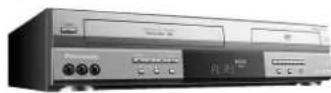
Omnivision 1
Panasonic
Cable RF coaxial LSJA0372
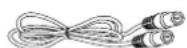
Insertion des piles
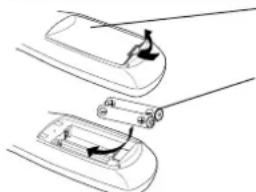
Alimentation: 120 V c.a., 60 Hz
Consommation:
Signal video:
Puisance du laser:CLASS II
commencer la lecture.

echerche avant/arriere
Selections "SOUS-TITRES"
Panasonic Canada Inc.
5770 Ambler Drive, Mississauga, Ontario L4W 2T3
Certificat de garantie limitee Panasonic
Panasonic Canada Inc.
Panasonic Canada Inc.
Panasonic Canada Inc.
12111 Riverside Way
6835-8thSt.N.E.
5770 Ambler Dr.
Richmond, BC V6W 1K8
Calgary, AB T2E 7H7
Mississauga, ON L4W 2T3
Tel.: (604) 278-4211
Panasonic Canada Inc.