
DTR 300 - DVB PHILIPS - Free user manual and instructions
Find the device manual for free DTR 300 PHILIPS in PDF.



| Brand | Philips |
| Model | DTR 300 |
| Product type | DVB-T decoder |
| Dimensions (L x H x D) | 258 x 42 x 155 mm |
| Net weight | 0.980 kg |
| Power supply | 230 V ~ 50 Hz, 15 W max |
| Standby consumption | 6 W max |
| Video decoding | MPEG-2 DVB, up to 720 x 576 pixels |
| Audio decoding | MPEG Layer I/II |
| Reception | COFDM 2K/8K, VHF III and UHF IV/V |
| Connectors | 2 SCART sockets (TV and VCR), analog audio out (RCA) and digital audio out (RCA), IEC antenna input, RF output, RS232 serial port, Ethernet port (inactive) |
| Main functions | Noise-free reception, automatic channel installation, electronic program guide (7-day EPG), favorite lists (4 TV, 4 radio), parental control, programmable timers, software update via over-the-air download |
| Remote control | Yes, with supplied AA batteries |
| Supplied accessories | Remote control, batteries (2x AA), SCART cable, RF coaxial cable, power cable, user manual, warranty booklet |
| Care and cleaning | Clean with a soft, slightly damp cloth. Do not use abrasive cleaners or aerosols. |
| Safety | Do not expose to moisture. Do not block ventilation slots. Leave a gap of about 2.5 cm around. Disconnect during thunderstorms. Do not place objects containing liquid. |
| Spare parts and repairability | No user-serviceable components. Any intervention must be carried out by qualified personnel. |
| General information | Compliant with European directives 95/47/EC and 2002/21/EC. |
| Frequency range | 47 - 862 MHz |
| Channels | UHF 21-69 |
Frequently Asked Questions - DTR 300 PHILIPS
User questions about DTR 300 PHILIPS
0 question about this device. Answer the ones you know or ask your own.
Ask a new question about this device
Download the instructions for your DVB in PDF format for free! Find your manual DTR 300 - PHILIPS and take your electronic device back in hand. On this page are published all the documents necessary for the use of your device. DTR 300 by PHILIPS.
USER MANUAL DTR 300 PHILIPS
natural_image
Exterior view of a Philips electronic device with control buttons (no readable text beyond branding)PHILIPS
natural_image
Line drawings of a remote control casing showing internal components and battery pack (no text or symbols)- 73/23/EEC
- 93/68/EEC
- 89/336/EEC
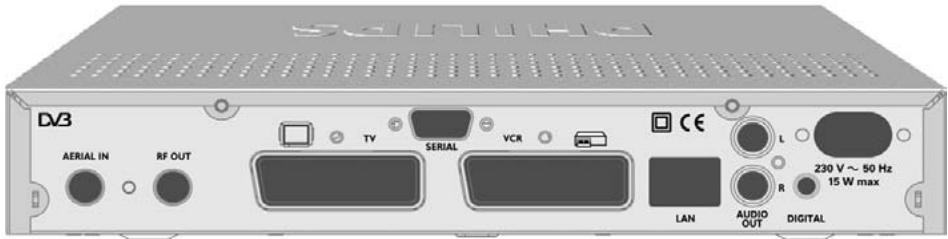
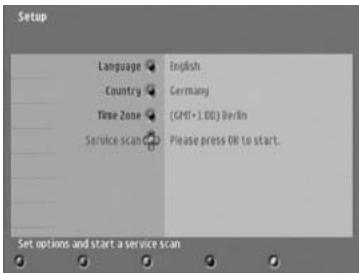
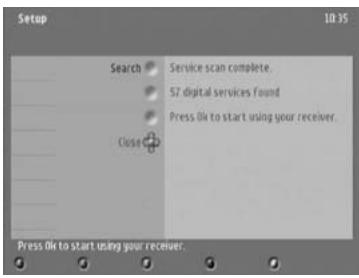
TABLE DES MATIÈRES
natural_image
Technical line drawing of a remote control casing with internal components and battery pack (no text or symbols)
18 UTILISATION DE BASE
Welcome to digital television
Congratulations on choosing the Philips DTR 300 digital terrestrial receiver.
With this product, you can enjoy advanced functions and features including:
- Award-winning noise-free reception
- Automatic programme installation
- Wide screen format
- TV SCART and VCR/DVD SCART connectors
- Personal channel list and favourite lists
- Electronic Programme Guide
This User Manual covers the installation of your receiver and the necessary steps to use the various functions, so you can optimally enjoy classic as well as unique features.
Lucas Covers
Paris, December 2004
Quick installation

Please read the safety section before connecting your receiver.
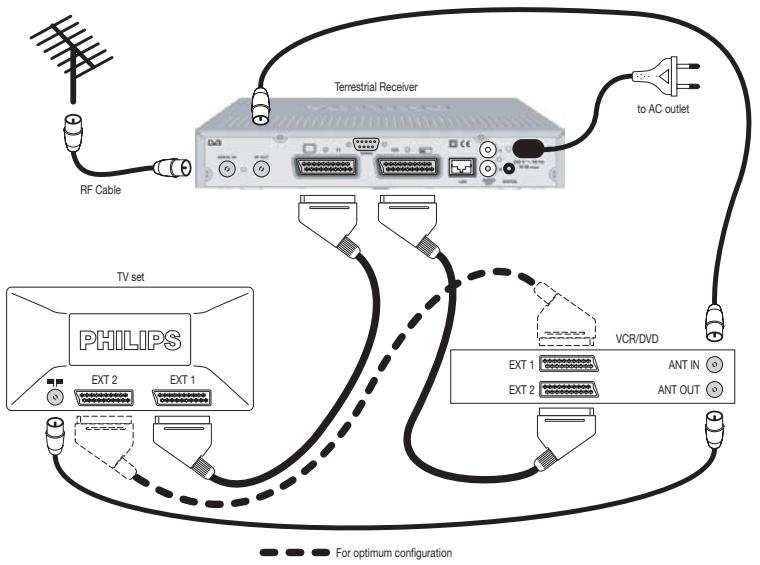
Requirements for fast and successful first installation are as follows:
- You already have an aerial.
- Your aerial is correctly pointed at the terrestrial transmitter corresponding to your area.
- Your digital receiver connection is according to the diagram above.
-
Your TV set is switched on.
-
Connect your receiver to the mains. The receiver front display gets on and the welcome screen appears.
- Press
to proceed.
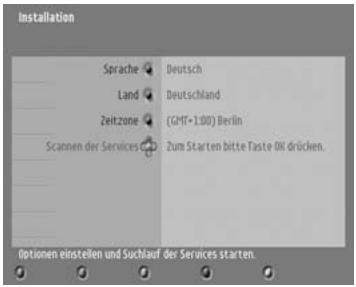
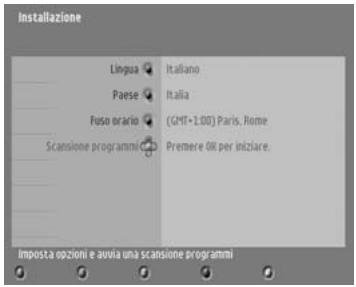
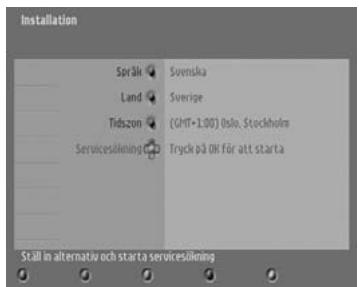
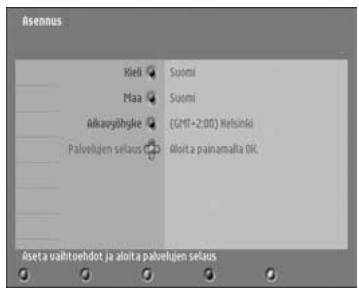
The Setup screen appears. The selection is on Service scan.
- Select your language and country.
- Press
to start scanning for channels.
During the channel scan, the following information is reported on screen:
- scanning progress,
• number of channels found.
When scanning is successfully completed, a completion message is displayed.
- Press
To know more about using your digital receiver consult chapter 6.
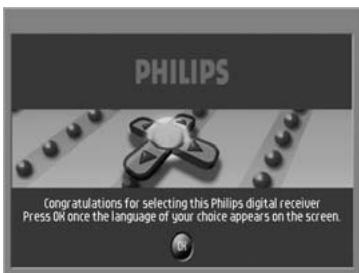
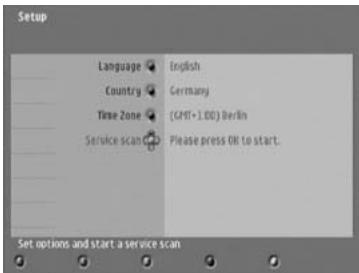
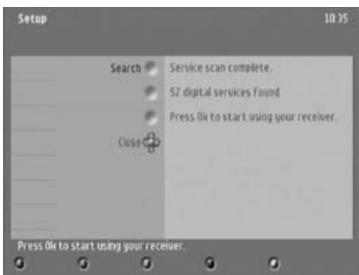
TABLE OF CONTENTS
Welcome to digital television ____ 2
Quick installation ____ 3
Meaning of symbols ____ 6
Safety and environmental instructions 6
2 Product description ____ 7
2.1 Unpacking ____ 7
2.2 Front view 8
2.3 Rear view 9
3 Remote control 10
3.1 Installing the batteries ____ 10
3.2 Using the remote control ____ II
4 Connecting your digital receiver 12
4.1 Connecting to a TV and a VCR both fitted with one SCART socket ____ 12
4.2 Connecting to your HiFi/Audio receiver equipment. (Analogue/Digital) ____ 14
4.3 Connecting to a video projector ____ 14
5 First installation 15
5.1 Channel scan ____ 15
5.2 Scanning failure ____ 16
5.3 Repeated scanning failure ____ 16
6 Day to day operation 17
6.1 Switch your receiver ON/OFF (standby) ____ 17
6.2 Select TV/Radio mode ____ 17
6.3 Change channel ____ 18
6.3.1 Using number buttons ____ 18
6.3.2 Using
6.3.3 Using
6.3.4 Using the channel list ____ 18
6.3.5 Using your favourite lists ____ 18
6.4 Channel banner ____ 19
6.5 Volume control - / + / × ____ 19
6.6 Changing the Subtitle selection (circular toggle) ____ 20
6.7 Changing the Audio language selection (circular toggle) ____ 20
6.8 Electronic Programme Guide ____ 20
6.9 Timers 20
6.9.1 Setting a timer when watching digital TV ____ 20
6.9.2 Set a timer from the Guide ____ 20
6.9.3 Deleting an active timer ____ 21
6.10 Using the TV / STB button ____ 21
6.11 Watching locked channels ____ 21
4 TABLE OF CONTENTS
7 Change the settings of your receiver 22
7.1 General information \_\_\_\_ 22
7.1.1 Basic menu navigation ____ 22
7.1.2 Change setting ____ 22
7.2 Preferences 23
7.2.1 Language ____ 23
7.2.2 Location 23
7.2.3 System settings ____ 23
7.2.3.1 TV 24
7.2.3.2 VCR ____ 24
7.2.3.3 Channel Banner 24
7.2.3.4 Volume 25
7.2.3.5 Remote Control ____ 25
7.3 Installation 25
7.3.1 Service lists ____ 25
7.3.1.1 Rearrange services ____ 25
7.3.1.2 View new TV channels ____ 26
7.3.1.3 Listen to new Radio stations ____ 26
7.3.2 Service setup 27
7.3.2.1 Add new services ____ 27
7.3.2.2 Reinstall all services ____ 27
7.3.3 Test reception ____ 27
7.3.4 Restore factory settings ____ 28
7.4 Information 28
7.5 Timers 29
7.5.1 Record/Remind 29
7.5.2 Sleep 30
7.6 Favourites \_\_\_\_ 30
7.6.1 TV Channels 30
7.6.2 Radio Stations ____ 31
7.7 Access Restrictions \_\_\_\_ 31
8 Menu tree 32
9 Advanced settings 34
9.1 Changing the remote control setting 34
9.2 More about recording \_\_\_\_ 34
9.2.1 Connecting for Prepare Record or Record Link ____ 34
9.2.2 Digital receiver and VCR settings 35
9.2.3 Recording using the VCR control feature ____ 35
9.2.4 Errors during recording ____ 35
10 Troubleshooting guide 36
II Technical specifications 38
Meaning of symbols
 | Important information:Must be read and understood.Must be kept in a safe place for future need. |
 | The “Batteries marking symbol” means used batteries must not be disposed together with your household waste.Please inquire about the local regulations regarding disposal of used batteries.For information: the Philips batteries supplied with your receiver remote do not contain hazardous substances such as Mercury, Cadmium, or Lead. |
 | The “Material recyclability symbol” means the package cardboard or User manual paper is recyclable. |
 | The “Material recyclability symbol” affixed on plastic parts means these parts are recyclable. |
 | The “Green Dot” affixed on cardboard means PHILIPS pays a financial duty to the “Avoidance and Recovery of Packaging Waste” organization.This receiver contains a large number of materials that can be recycled. If you are disposing of an old receiver, please take it to a recycling centre. |
I Safety and environmental instructions

Your receiver has been manufactured to meet the appropriate safety standards, but the instructions below should be followed to operate it safely:
- Before connecting the receiver to the mains, check that the mains supply voltage corresponds to the voltage printed on the rear of the receiver. If the mains voltage is different, consult the dealer.
- The receiver does not contain any user-serviceable parts. All maintenance work must be carried out by qualified personnel.
- If you disconnect the receiver from the mains, make sure to unplug it from the wall socket and not just from the AC socket at the back of the unit. Children could seriously injure themselves, as the free end of the cable is still alive.
- Unplug the receiver during lightning storms.
- To prevent fire or shock hazard, do not expose this equipment to rain or moisture.
- The receiver should be placed on a firm surface, and the ventilation openings must not be covered with items, such as newspapers, table clothes, curtains, etc.
6 SAFETY AND ENVIRONMENTAL INSTRUCTIONS
- Do not install the receiver near any heat sources such as radiators, stoves or other apparatus that produce heat. Protect it from direct sunlight.
- When installing the receiver, ensure there is a gap of approximately 2.5 cm around the receiver to enable air to circulate freely and prevent overheating.
- Leave accessible the mains connector at the back of the unit in case emergency shutdown is required.
- Do not place any combustible objects on the receiver (candles, etc.).
- No objects filled with liquids, such as vases, shall be placed on the unit. The receiver shall not be exposed to dripping or splashing. Should this happen, disconnect your receiver from the mains and consult your dealer.
- Make sure that children do not place any foreign objects in any of the openings.
- For cleaning, use a soft, damp (not wet) cloth. Never use any abrasive cloth and aerosol cleaners.
2 Product description
2.1 Unpacking
Unpack your receiver and check that the following cables and accessories are also included in the package:
- 1 remote control
- 2 batteries (2 x LR6 AA 1,5 V)
- 1 SCART lead
- 1 RF coaxial lead
- 1 mains cord
- 1 user manual
- 1 Worldwide Warranty booklet

Plastic bags can be dangerous. To avoid suffocation keep the bag away from babies and children
2.2 Front view
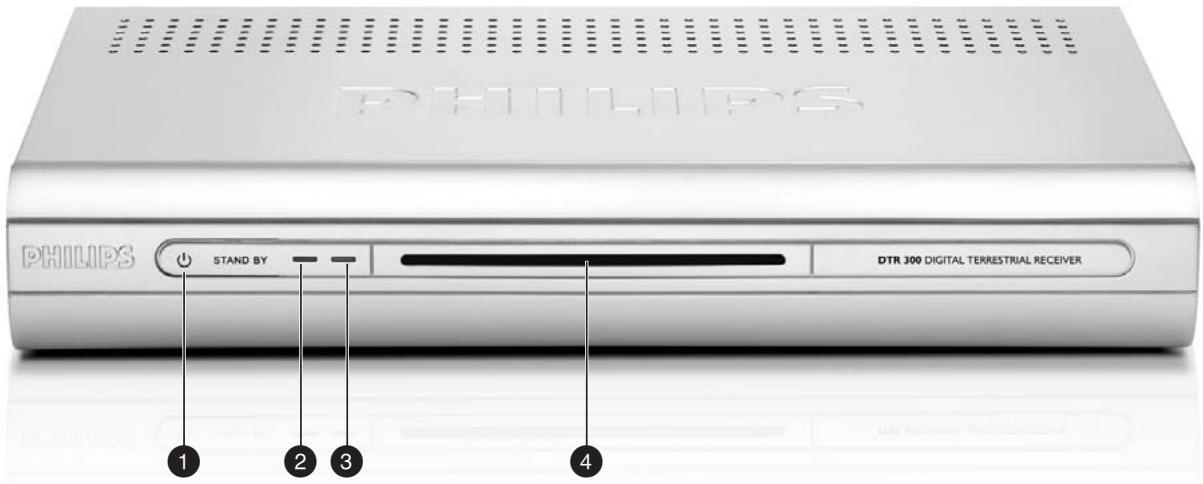
1 STANDBY button: ...... Switch the receiver ON or to standby.
2 LED1 (Red): ...... Display receiver status (see status indicator table).
3 LED2 (Red/Green/Orange): ...... Display receiver status (see status indicator table).
4 Remote control receiver window
Status indicator table
| Mode\LED | LED1(Red) | LED2(Red/Green/Orange) |
| Receiver in Standby | OFF | red |
| Watching TV | OFF | green |
| Listening to the radio | OFF | blinking green/orange |
| Pressing a remote control button | blinking | Depending on current mode |
| Timer active | ON | green |
| Timer active in Standby | ON | red |
| Software download | blinking | Depending on current mode |
8 PRODUCT DESCRIPTION
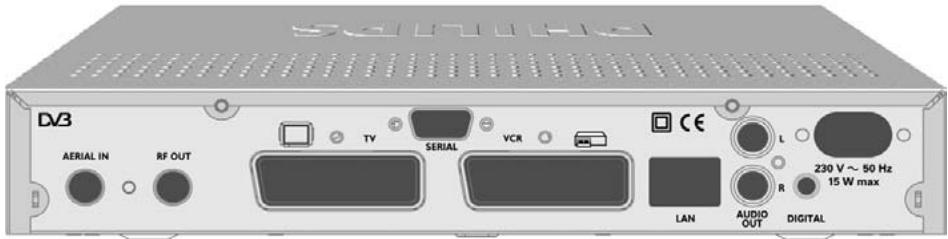
2.3 Rear view
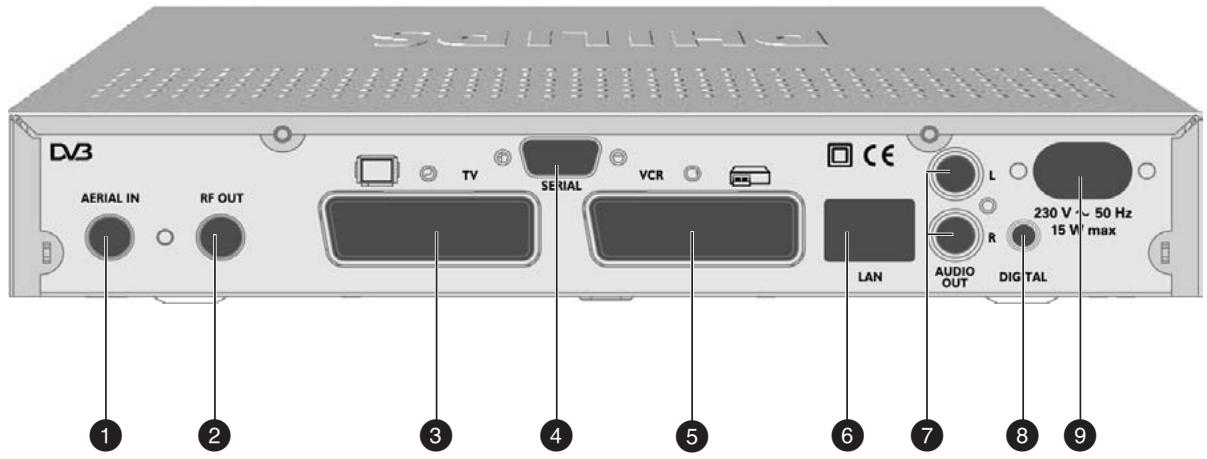
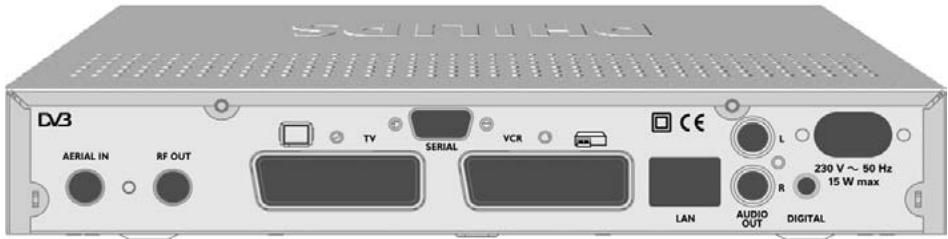
1 AERIAL IN (*): Input to connect your UHF aerial.
2 RF OUT (*): ...... RF output to be connected to the aerial input of your video recorder or TV set, refer to chapter 4 for recommended connection diagrams.
3 TV(*): SCART (1) socket to connect your TV set or a video projector (2).
4 SERIAL (*): ...... RS232 socket for serial data transfer during servicing.
5 VCR (*): SCART (1) socket to connect your video recorder.
6 LAN: Currently idle. For future use.
7 L/R AUDIO OUT (*):.... Left/Right analogue audio-cinch outputs to connect your HiFi/audio receiver system.
8 DIGITAL (*): Digital audio-cinch output to connect your HiFi/audio receiver system.
9 230V\~50Hz 15W max ( ^** ):.... Socket to connect the mains cord.
The label showing the type and serial number is underneath the receiver.
(1) SCART is also called Euroconnector or Peritel.
(2) To connect a video projector to the TV SCART socket refer to paragraph 4.3.
* Safety Extra Low Voltage
** Hazardous Voltage
3 Remote control
3.1 Installing the batteries
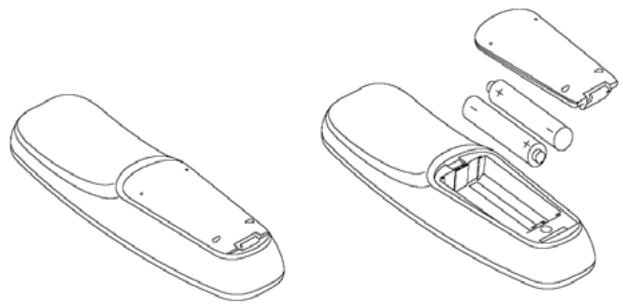
- Remove the back cover
- Insert two batteries (type R06G/AA - 1.5 V) supplied.
- Position them as shown in the diagram situated in the remote battery compartment.
natural_image
Technical line drawings of a remote control casing showing internal components and housing (no text or symbols)- Replace the cover.
- Your remote is now ready to control your digital terrestrial receiver.


Do not dispose of the batteries with your household waste.
Note: batteries are removable from the remote control with common household tools (e.g. screwdriver).
10 REMOTE CONTROL
3.2 Using the remote control
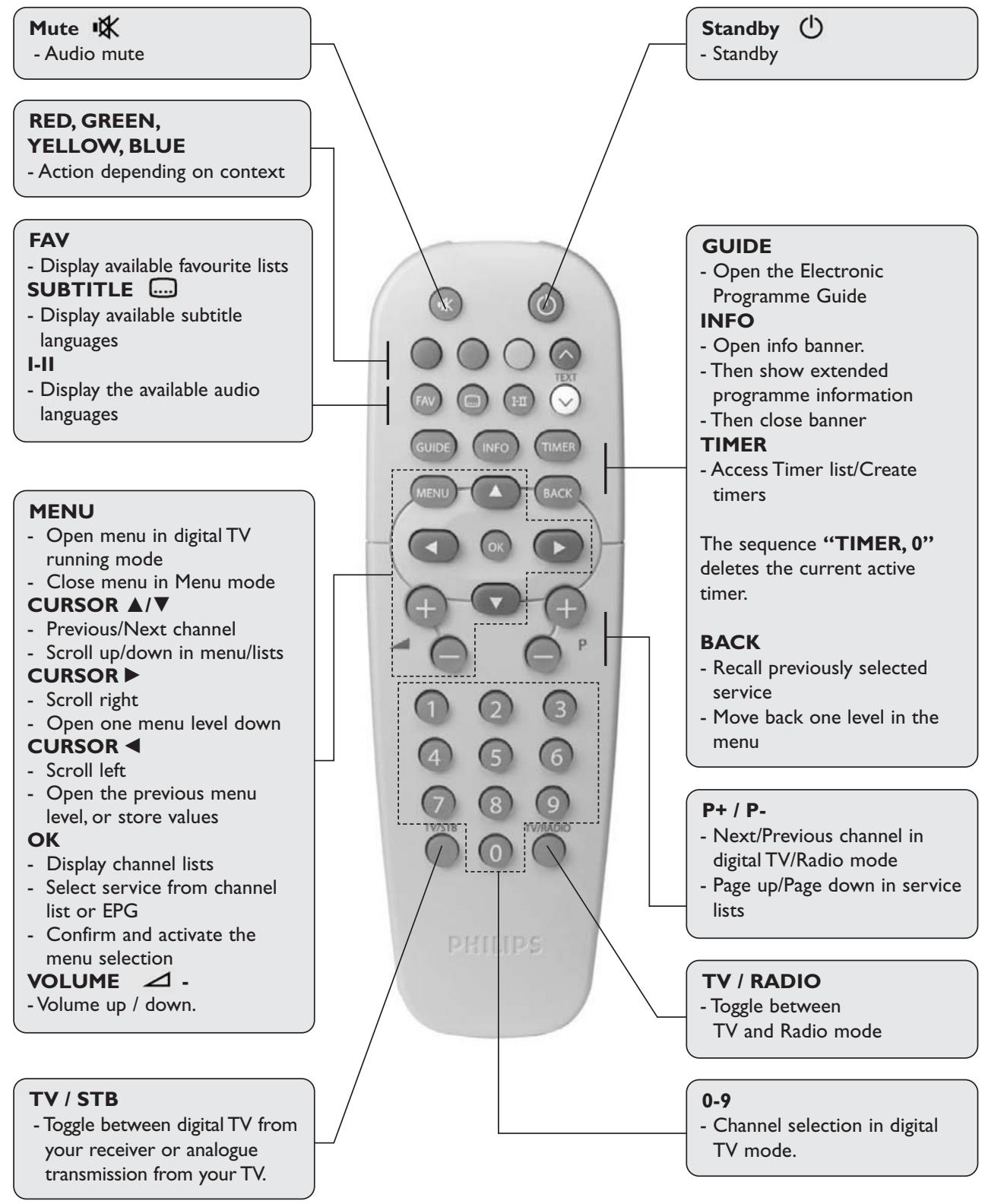
4 Connecting your digital receiver
There are several ways you can connect and incorporate your digital receiver into your existing audio / video equipment set up.

Warning!
Before starting to connect:
- Unplug all equipment (TV set, VCR and/or DVD, etc.) from the mains.
- Do not connect your digital receiver to mains supply now.
- Check your current wiring: you may not need to modify your existing Audio /Video set up connections if they already match the connection diagrams below.
- Depending on your exiting set up, choose the best suited connection method for incorporating your digital receiver into your existing Audio /Video set up. Please read chapters 4.1 and 4.2.
Note: when adding new equipment, be sure to refer to the related installation instructions of the relevant manual.
4. I Connecting to a TV and a VCR both fitted with one SCART socket
Incorporate your receiver in your existing installation as shown on the diagrams or follow the instructions below.
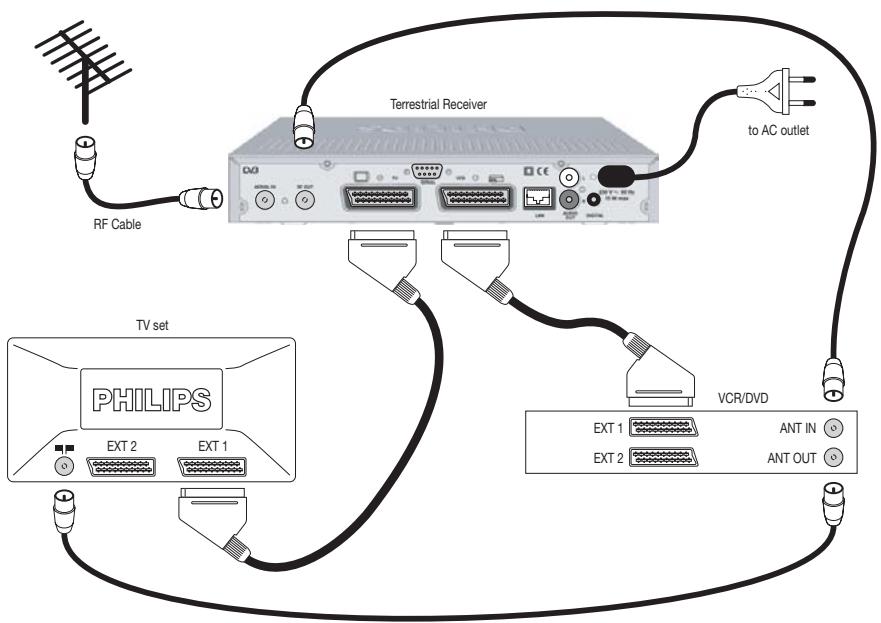
12 CONNECTING YOUR DIGITAL RECEIVER
- Plug your aerial lead plug into the “AERIAL IN” socket of your digital receiver.
- Connect the “RF OUT” socket of your digital receiver to the “ANT IN” socket of your VCR by means of the RF coaxial lead supplied with your digital receiver.
- Connect the “ANT OUT” socket of your VCR to the aerial input socket of your TV by means of a RF coaxial lead.
- Connect the “TV” SCART socket of your digital receiver to the “EXT1” SCART socket of your TV by means of the SCART lead supplied with your digital receiver.
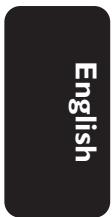
- Connect the "VCR" SCART socket of your digital receiver to the "EXT1" SCART socket of your VCR by means of a SCART lead. Alternatively, if your VCR supports the Easy Record feature, connect the "VCR" SCART socket of your digital receiver to the "EXT2" SCART socket of your VCR as shown on the second diagram.
- Plug all your equipment, excluding your digital receiver, into the mains.
- Switch on your TV and select a channel.
- Plug your digital receiver into the mains. Your digital receiver will display the WELCOME screen (the green LED will be illuminated).
- Read on chapter 5 to proceed with the channel scan of your digital receiver.
Note:
1- If you have a S-Video VCR refer to paragraph 7.2.3.2 for further settings and consult the user manual of your VCR.
2- With either connection set up you can:
- Watch digital TV while you record analogue TV.
- Watch analogue TV while you record digital TV.
- Record the digital TV channel you are watching.
- Watch Play Back from your VCR.
3- With the second connection set up, you can use the Easy Record feature provided your VCR supports it.
4.2 Connecting to your HiFi/Audio receiver equipment. (Analogue/Digital)
Depending on your HiFi / Audio receiver equipment, you might have several options to connect your digital receiver.
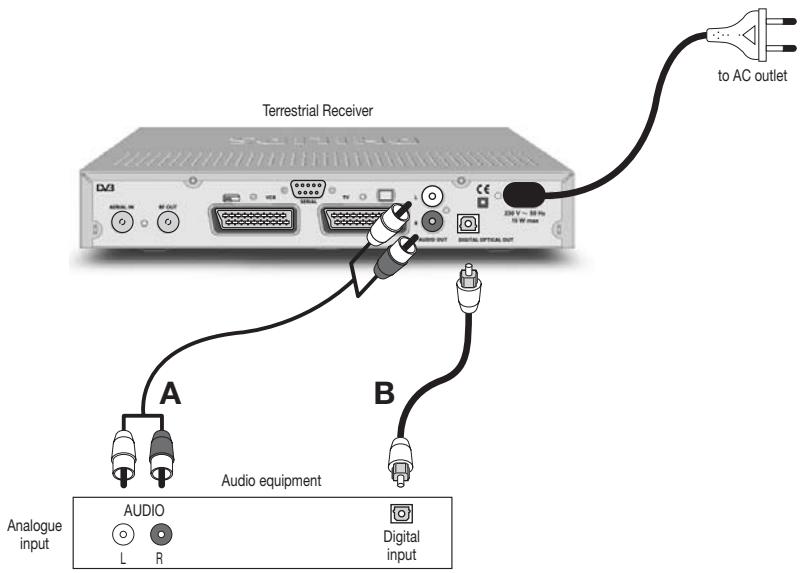
Analogue connection (A)
Connect the L/R audio output sockets to the relevant L/R audio input sockets of your audio equipment by means of a double CINCH cable (not supplied). Consult the user manual of your HiFi/Audio receiver equipment to choose the proper analogue audio inputs.
Note: with this connection set up you can control the audio volume up/down and mute with the remote control of your digital receiver and alternatively with your HiFi's remote control.
Digital connection (B)
Connect the audio “DIGITAL” output socket to the relevant digital audio input socket of your audio equipment by means of a single CINCH cable (not supplied). Consult the user manual of your HiFi/Audio receiver equipment to choose the proper digital audio input.
Note: with this connection set up you can only control the audio volume up/down and mute with your HiFi / Audio Receiver remote control, refer to the relevant user manual.
4.3 Connecting to a video projector
- Connect the "TV" SCART socket of your digital receiver to your video projector.
Often a video projector is fed with S-Video format video signal. If this is the case with your video projector, follow the instructions below for connection and installation: - Connect a SCART/S-Video adapter to the “TV” SCART of your receiver (not supplied), and connect the adapter to the S-Video input of your video projector by means of a S-Video cable.
- Refer to paragraph 7.2.3.1 to change the TV “Video Output” setting of your digital receiver to Y/C.
14 CONNECTING YOUR DIGITAL RECEIVER
English
5 First installation
Requirements for fast and successful first installation are as follows:
- You already have an aerial.
- Your aerial is correctly pointed at the terrestrial transmitter corresponding to your area (1).
- Your digital receiver connection is according to the diagram depicted in chapter 4.1 or 4.2.
-
Your TV set is switched on.
-
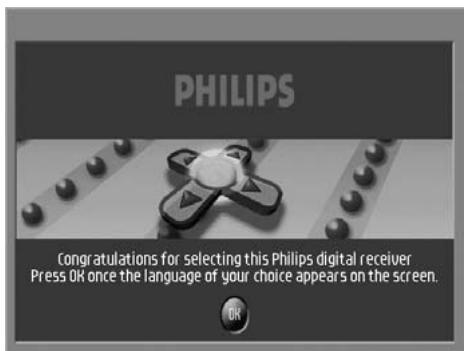
Connect your receiver to the mains. The receiver front display gets on and the welcome screen appears.
- Press
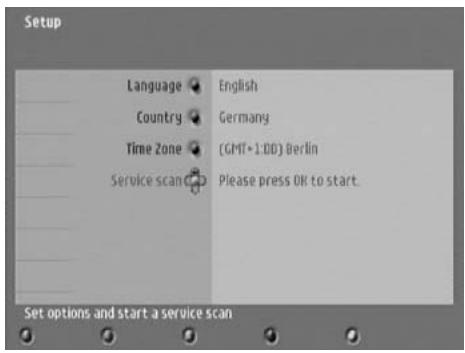
to proceed. The Setup screen appears.
5.1 Channel scan
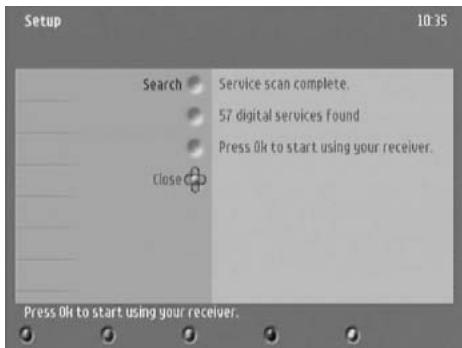
The Setup screen appears. The selection is on Service scan.
- Press ▲ to scroll up to the setup option you want to modify, and then press ▶ to access the option values.
- Press
to start scanning for channels.
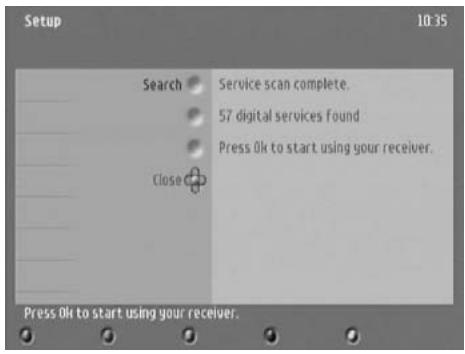
The following information is reported on screen:
- scanning progress,
- number of channels found.
When scanning is successfully completed, a completion message is displayed.
- Press
- Press
To know more about using your digital receiver consult chapter 6.
If scanning failed, proceed to chapter 5.2.
5.2 Scanning failure
No channels could be found. A scan failure message is displayed.
Before starting a new scan
It is recommended to perform the following checks:
- connections to your receiver (see chapter 4),
- signal quality (see paragraph 7.3.3),
- antenna installation,
- channel(s) available in the region corresponding to your area (1).
The scan failure message is displayed.
- Press
to exit this screen and access the main menu. - Proceed with installation as described in paragraph 7.3.2.
Note: if the same failure message appears after a while, refer to chapter 10.
(1) To check whether you can receive digital television in your region:
for Finland,
for France, consult web site www.tdf.fr
for Germany,
for Italy,
5.3 Repeated scanning failure
No channels could be found, even after checking the signal quality delivered by your aerial.
Either your aerial is not pointing properly at the digital TV transmitter, or your aerial installation needs to be upgraded, or you are not in the coverage area to correctly receive digital television. Please refer to the Troubleshooting guide at the end of this user manual.
For a proper diagnosis, call your electrical retailer.
6 Day to day operation
6.1 Switch your receiver ON/OFF (standby)
Your receiver is in standby mode (the red LED is on).
To wake up your receiver:
- Press one of the following remote control buttons:
, or a number button. - Alternatively, press the
button on the front panel.
You are watching digital TV (the green LED is on) or listening to digital radio (the green/orange LED is blinking).
To put your receiver in standby:
- Press the remote standby button.
- Alternatively, press the
button on the front panel.

Your receiver, as any electronic equipment, consumes power. In order to reduce power consumption, please switch your receiver to standby whenever you are not using it. For maximum energy saving we recommend you switch off the receiver by unplugging it from the mains if you are not using it for a long period of time.
6.2 Select TV/Radio mode
Your receiver is in TV mode.
To switch to RADIO mode:
- Press the
Your receiver is in radio mode
To switch to TV mode:
- Press the
6.3 Change channel
6.3.1 Using number buttons
You are watching digital TV or listening to a digital radio programme:
- Press number button(s) to select the desired channel number
6.3.2 Using
You are watching digital TV or listening to a digital radio programme:
- Press
- Press
to select the previous channel in the list.
6.3.3 Using (last channel recall)
You are watching digital TV or listening to a digital radio programme:
- Press the
6.3.4 Using the channel list
You are watching digital TV or listening to a digital radio programme:
- Press the
button to open the channel list. - Press the ▲ or ▼ button to move to the desired channel.
- Press
to view the selected channel.
6.3.5 Using your favourite lists
You are watching digital TV or listening to a digital radio programme:
- Press the
button to open the list of all available channel lists. - Press the ▼ or ▲ to move to the desired list.
- Press the
button to make the list active and tune your receiver to the channel that was tuned when the list was last activated.
Note: empty favourite lists are not displayed.
6.4 Channel banner
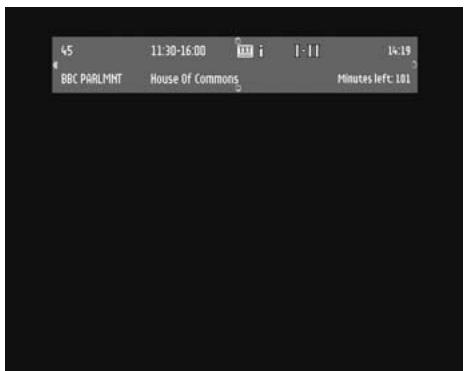
Each time you select a new channel, a banner appears at the top of the screen, indicating:
- Current channel number and name,
- Start and end time of the current programme,
- Current programme name,
- Icons for current channel properties (see table below),
- Current time,
- Time left before current programme end.
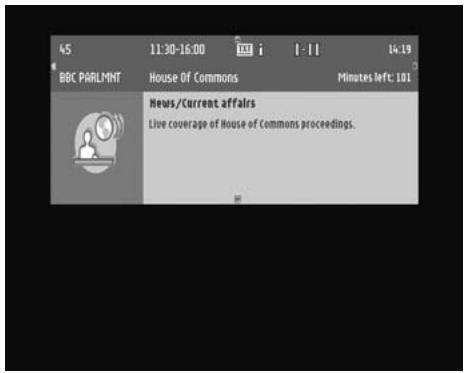
The banner displays information about the current programme (or “NOW” programme).
- Press the ▶ button to display information on the “NEXT” programme. Press the ◀ button to return to the “NOW” programme view.
- Press the ▼ button to display information on the next channel current programme.
- Press the ▲ button to display information on the previous channel current programme.
- Press the
button to display extended information on the current selection.
Alternatively:
Press
Then press
6.5 Volume control - / + /
You are watching digital TV or listening to a digital radio programme:
- Press < -> to decrease volume.
- Press < +> to increase volume.
- Press <⌘> to mute the sound, and press <⌘> again to de-mute.
Note: change of volume is signalled with a bar graph, while audio mute is signalled with an icon on the top right corner of the screen.
icon description

Teletext available

Information available

Subtitles available

Alternate audio languages available

Low battery

Favourite list
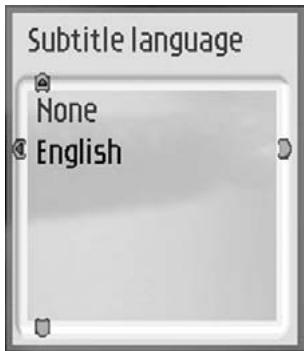

6.6 Changing the Subtitle selection (circular toggle)
- Press the <☐> button.
- Press the ▼ or ▲ to move to the desired subtitle language.
- Press
to confirm your selection. Alternatively, select None to disable subtitling.
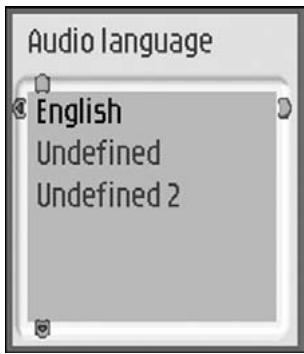
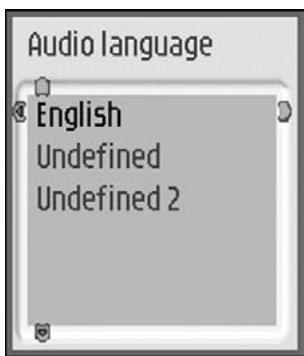
6.7 Changing the Audio language selection (circular toggle)
- Press the button.
- Press the ▼ or ▲ to move to the desired audio language.
- Press
to confirm your selection.
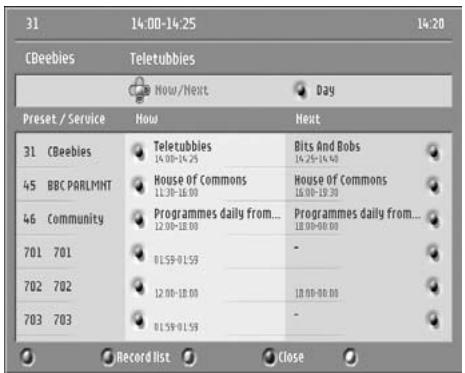
6.8 Electronic Programme Guide
You are watching digital TV or listening to a digital radio programme:
- Press the
button to open the programme guide. The current programme list (called "Now/Next") appears. - Press the ▶ button to consult the current day programme list.
- Press the ▼ or ▲ to move to the wanted channel.
- Press the
button to select the channel.
6.9 Timers
6.9.1 Setting a timer when watching digital TV
- Press the
button to access the timer list. - Then proceed as described in paragraph 7.5.1.
6.9.2 Set a timer from the Guide
- Scroll to the programme for which you want to set a timer.
- Press the red colour button or the
button to set a timer. The timer screen is displayed. - Modify the timer settings as appropriate. For instance, to set a reminder, select Remind as Type of timer (default is Record).
- Press the red colour button again to store the timer and return to the Guide.
6.9.3 Deleting an active timer
A timer is active and you are watching what you are recording. Recording is signalled by LED1 lit in red and LED2 lit in green.
- Press key sequence “TIMER, 0” to delete the active timer.
A timer is active and your receiver is in standby. Recording is signalled by LED1 lit in red and LED2 lit in orange.
- Press key sequence “TIMER, 0” to delete the active timer.
6.10 Using the TV / STB button
This button is used to switch between watching digital channels via your digital receiver and standard analogue channels on your TV.
You are watching digital TV.
- Press the TV/STB button to switch to analogue TV from your TV.
- Press the TV/STB button again to revert to digital TV.
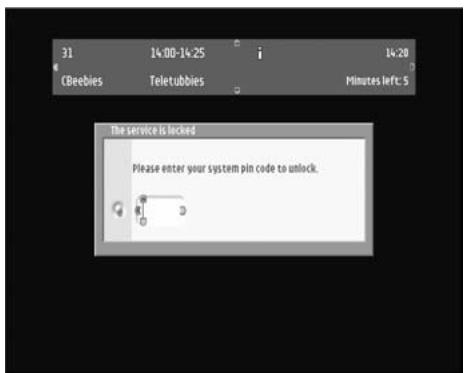
6.11 Watching locked channels
If you have selected a locked channel, you must unlock this channel to watch it.
When prompted to enter your PIN code:
- Enter your 4-digit PIN code (default is 1234).
7 Change the settings of your receiver
You can change the receiver settings to adapt the receiver to your aerial conditions, Audio/Video set up or other preferences.
7.1 General information
7.1.1 Basic menu navigation
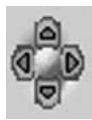
- In normal viewing mode, press
- the yellow ball indicating the current selection;
- the ▲, ▼, ◀ and ▶ green cursors, with red arrows indicating possible navigation directions.
Note: the Puck cursors are transferred to the right-hand side of the menu window for the adjustment of the settings. The up, down, right and left cursors appear at the top, bottom, left-hand side, and right-hand side of the window respectively.
- Press
- Press the ▲ or ▼ button to scroll up/down to select the wanted menu item.
- Press the ▶ button to display the sub-items corresponding to the highlighted item. Repeat this step as many times as necessary to access the desired option.
Note: press
- Then use the arrow buttons to move to the desired setting, or enter a value using the number buttons.
- Press
Notes:
- To open a menu item signalled by a lock, you must enter your PIN code.
- To avoid burning your TV screen on-screen messages/menus are automatically set off after 20 min.
22 CHANGE THE SETTINGS OF YOUR RECEIVER
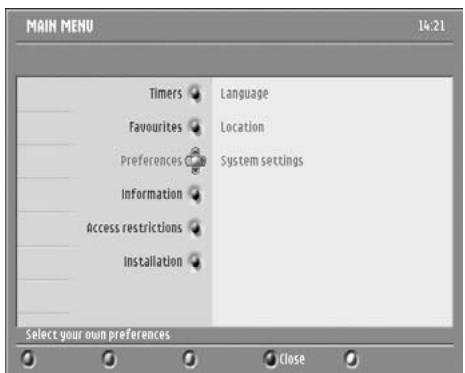
7.2 Preferences
- Press the
- Press the ▼ button to move the selection onto Preferences.
- Press the ▶ button to access the Preferences sub-menu.
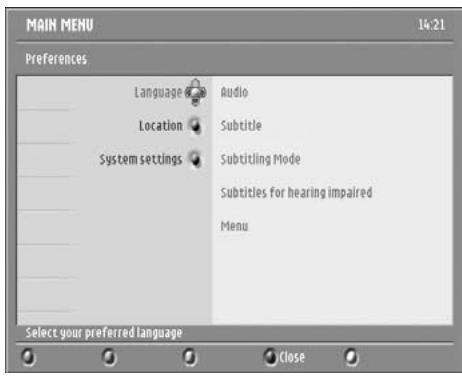
7.2.1 Language
Language is selected in the Preferences sub-menu. This item is used to select your receiver language settings, including the menu and audio languages.
- Press the ▶ button to access the language settings.
- Scroll to the setting you want to change.
The corresponding values are displayed on the right-hand side of the screen. - Press the ▶ button to access the settings:
- Audio
- Subtitles
- Subtitling Mode
- Subtitles for hearing impaired
- Menu
7.2.2 Location
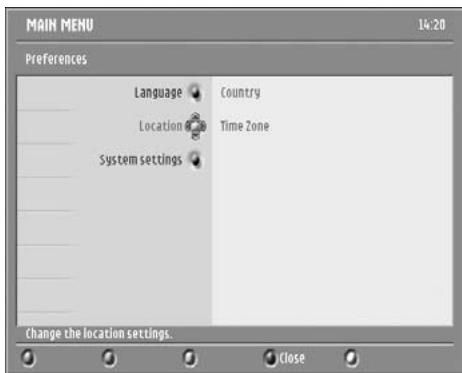
Location is selected in the Preferences sub-menu. This item is used to select the country where you operate your receiver and corresponding time zone.
- Press the ▶ button to access the location settings.
- Scroll to the setting you want to change.
The corresponding values are displayed on the right-hand side of the screen. - Press the ▶ button to access the settings:
- Country
- Time Zone
7.2.3 System settings
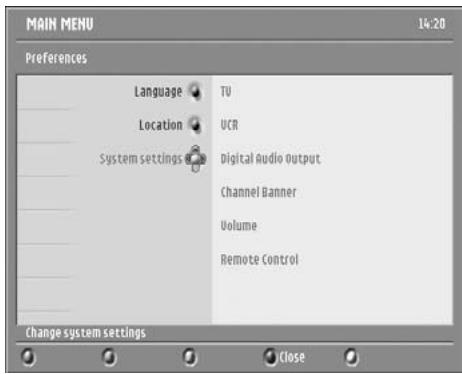
System settings is selected in the Preferences sub-menu.
- Press the ▶ button to access the system settings.
Note: if the parental control is active, you must enter your PIN code to access the relevant sub-items of this menu.
7.2.3.1 TV
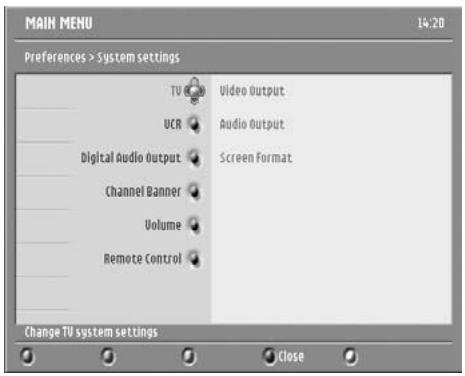
This item is used to select the format of the output signal for the TV and VCR SCART sockets.
- Scroll to the setting you want to change. The corresponding values are displayed on the right-hand side of the screen.
- Press the ▶ button to access the available values:
- Video Output: RGB, CVBS-PAL, CVBS-SECAM, or Y/C. RGB is the default and recommended setting.
• Audio Output: Stereo or Mono - Screen format: select the aspect ratio of the video output that best suits your TV.
Note: it is recommended to use the RGB setting to get the best video quality on the TV screen. If you use a video projector instead of a TV set, the YIC setting is recommended (refer to paragraph 4.3 for connection and installation).
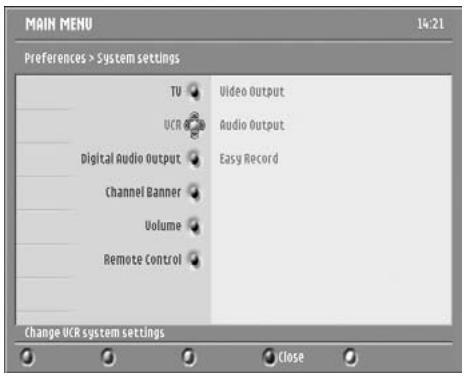
7.2.3.2 VCR
This item is used to select the format of the output signal for the VCR SCART socket.
- Scroll to the setting you want to change. The corresponding values are displayed on the right-hand side of the screen.
- Press the ▶ button to access the available values:
• Video Output: CVBS-PAL, CVBS-SECAM, or Y/C. CVBS-PAL is the default and recommended setting.
• Audio Output: Stereo or Mono - Easy Record: select the control method that suits your VCR. Refer to paragraph 9.2 and your VCR user manual.
Note: If you have a S-Video VCR, select the Y/C setting. Please consult the user manual of your VCR.
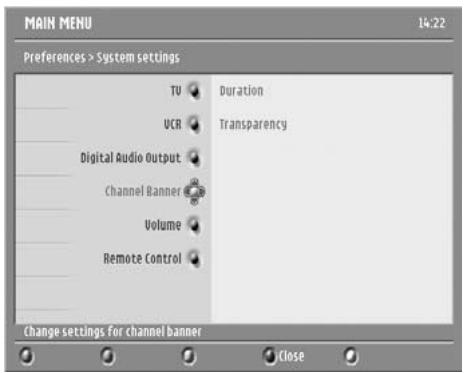
7.2.3.3 Channel Banner
This item is used to select the channel banner display settings.
- Scroll to the setting you want to change. The corresponding values are displayed on the right-hand side of the screen.
- Press the ▶ button to access the available values:
- Duration
- Transparency
24 CHANGE THE SETTINGS OF YOUR RECEIVER
7.2.3.4 Volume
This item is used to select the volume level at start-up.
- Press the ▶ button to access setting value.
- Press ▲ or ▼ to modify the volume level.
- Press
to confirm.
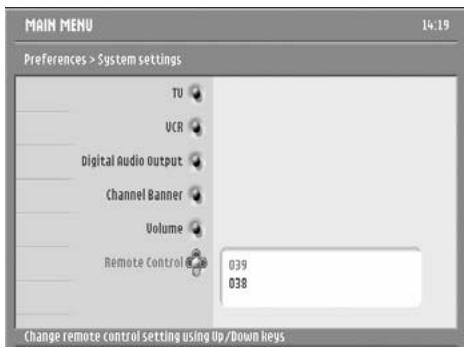
7.2.3.5 Remote Control
This item is used to set the remote control address.
- Press the ▶ button to access the available values.
- Move to the address you want to select: 039 or 038.
- Press
to confirm your selection. - Proceed as described in paragraph 9.1.

If you do not complete the procedure as described in paragraph 9.1, you will not be able to control your receiver using your remote control.
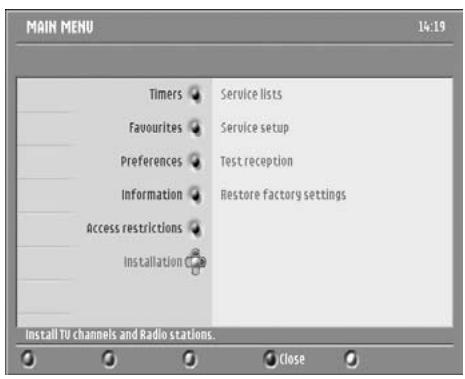
7.3 Installation
- Press the
- Press the ▼ button to select Installation.
- Press the ▶ button to access the Installation sub-menu.
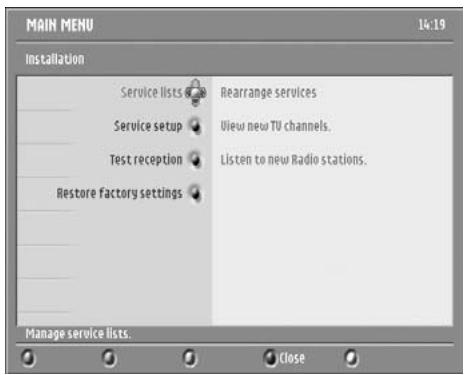
7.3.1 Service lists
This item is used to manage your service lists.
- Press the ▶ button to access the service list features.
7.3.1.1 Rearrange services
This feature is used to install/uninstall services and move services within the installed services list.
- First scroll to the service you want to uninstall/install/move.
- Press
to select the service. The service name appears in the Selected service zone.
To install a service you have selected from the list:
- Scroll to the position where you want to install the service.
- Press the green colour button. The service is removed from the uninstalled service list and appears in the installed services list.
To move the service you have selected within the list:
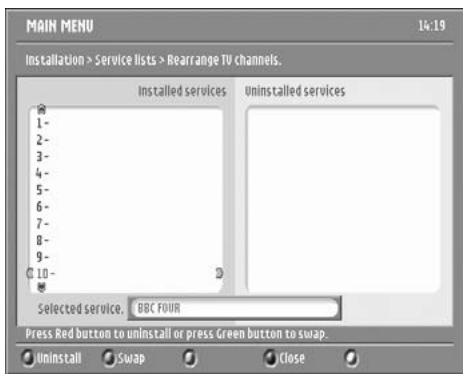
- Scroll to the position you want to move the service to.
- Press
to confirm.
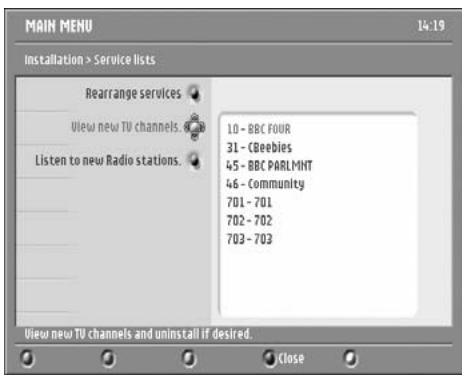
7.3.1.2 View new TV channels
- This feature is used to view the new channels found while your receiver is in standby.
- Press ▶ to view new channels found in the right-hand side of the screen.
- Scroll to the channel you want to view. The selected channel current programme is displayed.
Note: press
- Press ◀ to exit the screen and return to the Service lists sub-menu, or press the blue colour button to exit the menu.
7.3.1.3 Listen to new Radio stations
- This feature is used to listen to the new radio stations found while your receiver is in standby.
- Press ▶ to listen to new channels found.
- Scroll to the station you want to listen to.
Note: press
- Press ◀ to exit the screen and return to the Service lists sub-menu, or press the blue colour button to exit the menu.
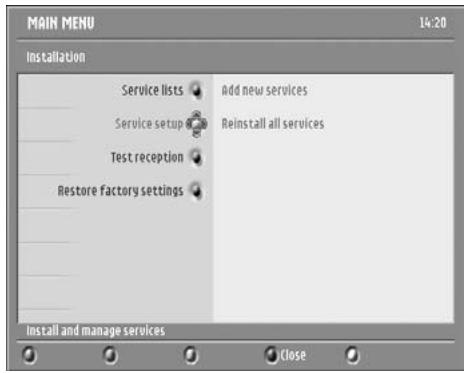
7.3.2 Service setup
This item is used to install services.
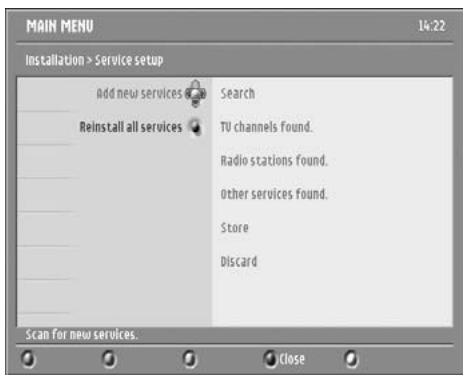
7.3.2.1 Add new services
This feature is used to install new available services.
- Press ▶ enable the installation feature.
- Press
to start searching for new services.
Note: to interrupt the search, press
Once the search has been completed, the total number of services found is displayed on the right-hand side of the
screen. The Puck moves to the Store button.
- Press
to store the new services. - Alternatively, scroll down to the Discard button and press
to discard the new services.
Note: before storing/discarding the services found, you may view the search results for TV/Radio channels and other services by scrolling up to the respective item.
- Press ◀ to exit the screen and return to the Service setup sub-menu, or press the blue colour button to exit the menu.
7.3.2.2 Reinstall all services
This feature is used to reinstall all services, overwriting the previous service settings.
- Press ▶ to enable the reinstallation feature. You are then prompted to confirm you want to reinstall services.
- Press
, then proceed as described above.
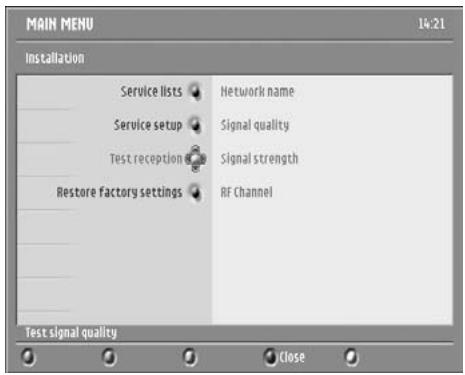
7.3.3 Test reception
This feature is used to help you position your antenna and check the availability of signals on specific RF channels. The selection is on RF channel.
- Press ▶ to access the list of RF channels.
- Scroll up or down the list to the RF channel you want to select.
- Press
to view the signal quality and strength for the selected channel. - If need be, move your antenna to obtain an adequate signal. When the signal is good enough, the name of the corresponding network is displayed.
- Press ▶ again to return the list of available RF channels and proceed as described above to check the signal quality and strength for another RF channel.
Note: if you cannot obtain an adequate signal, refer to the troubleshooting guide.
- Press ◀ to exit the screen and return to the Service lists sub-menu, or press the blue colour button to exit the menu.
7.3.4 Restore factory settings
To restore the receiver factory settings:
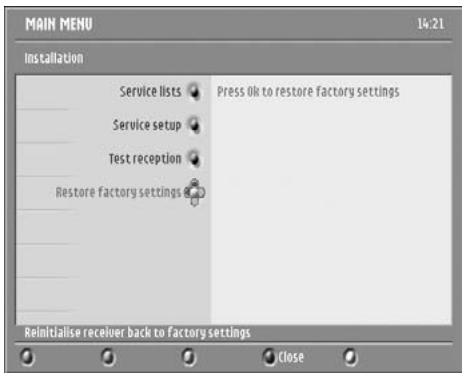
- Press
. You are then prompted to enter your master PIN code. - Enter the master PIN code. For more information on the master PIN code, refer to the troubleshooting guide.
Note: when restoring the factory settings, you lose all your personal settings.
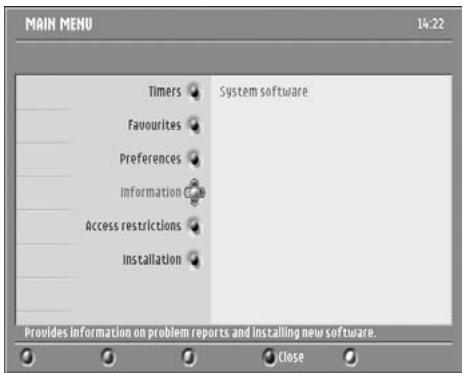
7.4 Information
- Press the ▶ button to access the System software submenu.
System software
This item is used to manage software updates, which are necessary to keep your receiver up-to-date with the developments in digital television and make new features available. Updates are part of normal transmissions.
Your receiver is originally set up to automatically accept software updates (recommended). If you want to be prompted each time new software is available, follow the instructions below.
- Press the ▶ button to access the System software settings.
The current hardware/software version is displayed, and the selection is on Always accept new software.
- Move the Puck to No if you want to be prompted when new software is available.
- Press
- Press ◀ to exit the screen and return to the System software item, or press the blue colour button to exit the menu.
Note: to carry out the update when new software is available, simply follow the on-screen instructions.
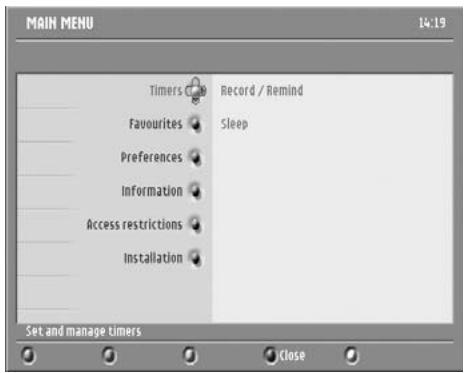
7.5 Timers
- Press the ▶ button to access the Timers sub-menu.
7.5.1 Record/Remind
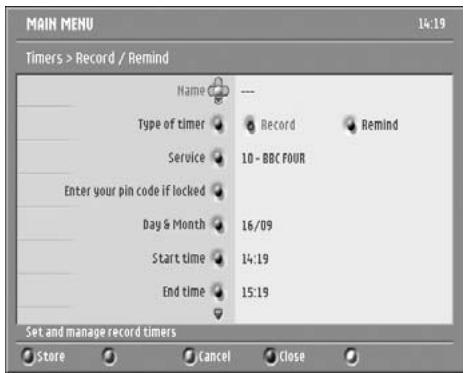
This item is used to set and edit recording timers and reminders.
- Press
To set a new timer:
Press the green colour button to access the timer settings.
- Scroll to the setting you want to change.
-
Press the ▶ button to access the setting values:
-
Type of timer
- Service
- Enter your PIN code if locked: PIN code is required when channels to be recorded are locked (move Parental Control from On to Off to enable recording of the selected channel).
- Day & Month
- Start time
- End time
- Audio language
- Subtitle language
-
Subtitles for hearing impaired
• Occurrence: Once, Daily, Weekly -
Press the red colour button to store the timer. The timer list is displayed, including the new timer.
- Press the yellow colour button to exit the screen and return to the Timers sub-menu, or press the blue colour button to exit the menu.
To edit an existing timer:
- Scroll within the timer list to the timer you want to modify.
- Press the ▶ button to access the setting values.
- Modify the setting values as appropriate (see above for details).
- Press the red colour button to store the timer.
A message appears, prompting you to programme your VCR.
- Press
to proceed. The timer list is displayed, including the modified timer. - Press the yellow colour button to exit the screen and return to the Timers sub-menu, or press the blue colour button to exit the menu.
To delete an existing timer:
- Scroll to the timer you want to delete.
- Press the red colour button to delete the timer. The timer
is removed from the list.
Note: deletion is immediate!
- Press the yellow colour button to exit the screen and return to the Timers sub-menu, or press the blue colour button to exit the menu.
Note: when a recording timer is running, you cannot zap through digital channels, but you can switch to analogue TV using the
To cancel a running timer:
Refer to paragraph 6.9.3.
7.5.2 Sleep
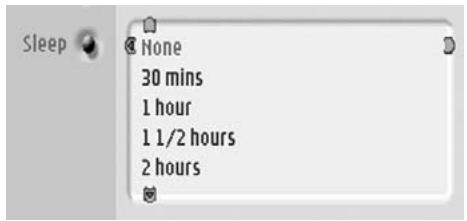
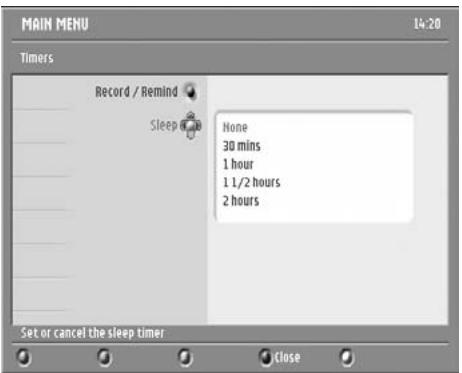
This item is used to set sleep timers.
- Press the ▶ button to access the sleep timer values.
- Scroll to the value you want to select: from 0 to 4 hours in steps of 30 minutes.
- Press
to confirm the sleep timer value. - Press ◀ to exit the screen and return to the main menu, or press the blue colour button to exit the menu.
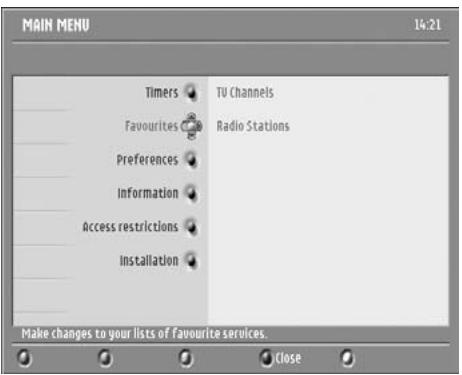
7.6 Favourites
- Press the ▶ button to access the Favourites sub-menu.
7.6.1 TV Channels
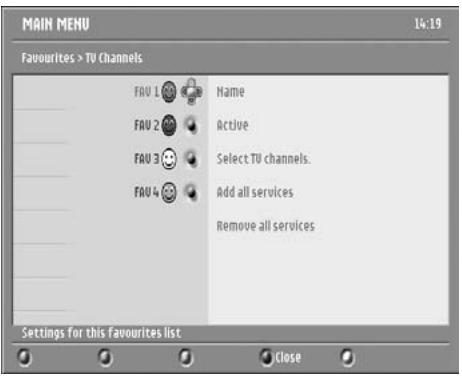
This item is used to create and edit TV favourite lists.
- Press the ▶ button to access the favourite list settings
- Scroll to the list you want to create or edit.
-
Press the ▶ button to access the setting values:
-
Name: you may change the list name using ◀ or ▶ to select the character to be edited, and ▲ or ▼ to scroll through the available characters
• Active: select Yes to enable the selected favourite list - Select TV channels: scroll to the channels, and press
to add them to the selected list - Add all services: press
to add all services - Remove all services: press
to remove all services
- Press ◀ to exit the screen and return to the main menu, or press the blue colour button to exit the menu.
7.6.2 Radio Stations
This item is used to create and edit radio favourite lists.
- If need be, press the
button to switch to radio mode. - Proceed as indicated above.
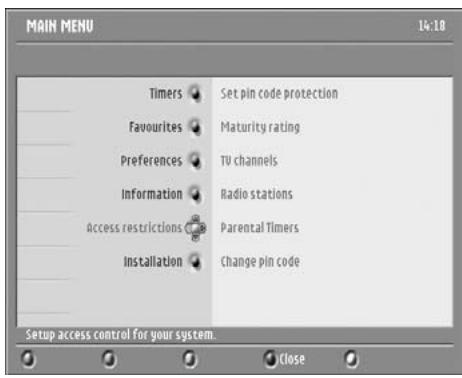
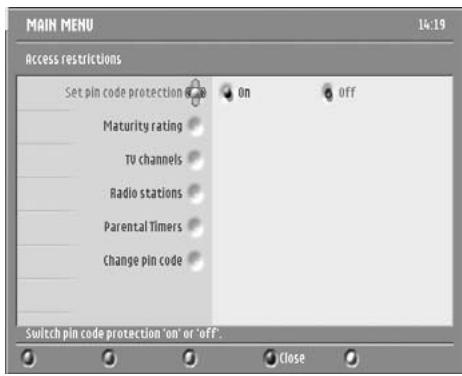
7.7 Access Restrictions
This item is used to enable and edit access restrictions.
- Press the ▶ button to access the Access restrictions setting values:
- Set PIN code protection: select On to enable access restrictions.
Note: if Set PIN code protection is set to No, you cannot set the other access restriction settings.
- Maturity rating: select a maturity rating to enable PIN code protection for programmes which maturity rating is higher. Alternatively, select None to disable this option.
- TV channels: scroll through the list and press
to lock access to a channel. - Radio stations: scroll through the list and press
to lock access to a station. - Parental Timers: press
to view existing timers. Then proceed as described for other timer types to set or edit parental timers (see paragraph 7.5.1). - Change PIN code: press ▶ to enable the PIN code change features, then enter your current and new PIN code as prompted, and then press
to confirm.
- Press the blue colour button to exit.
8 Menu tree
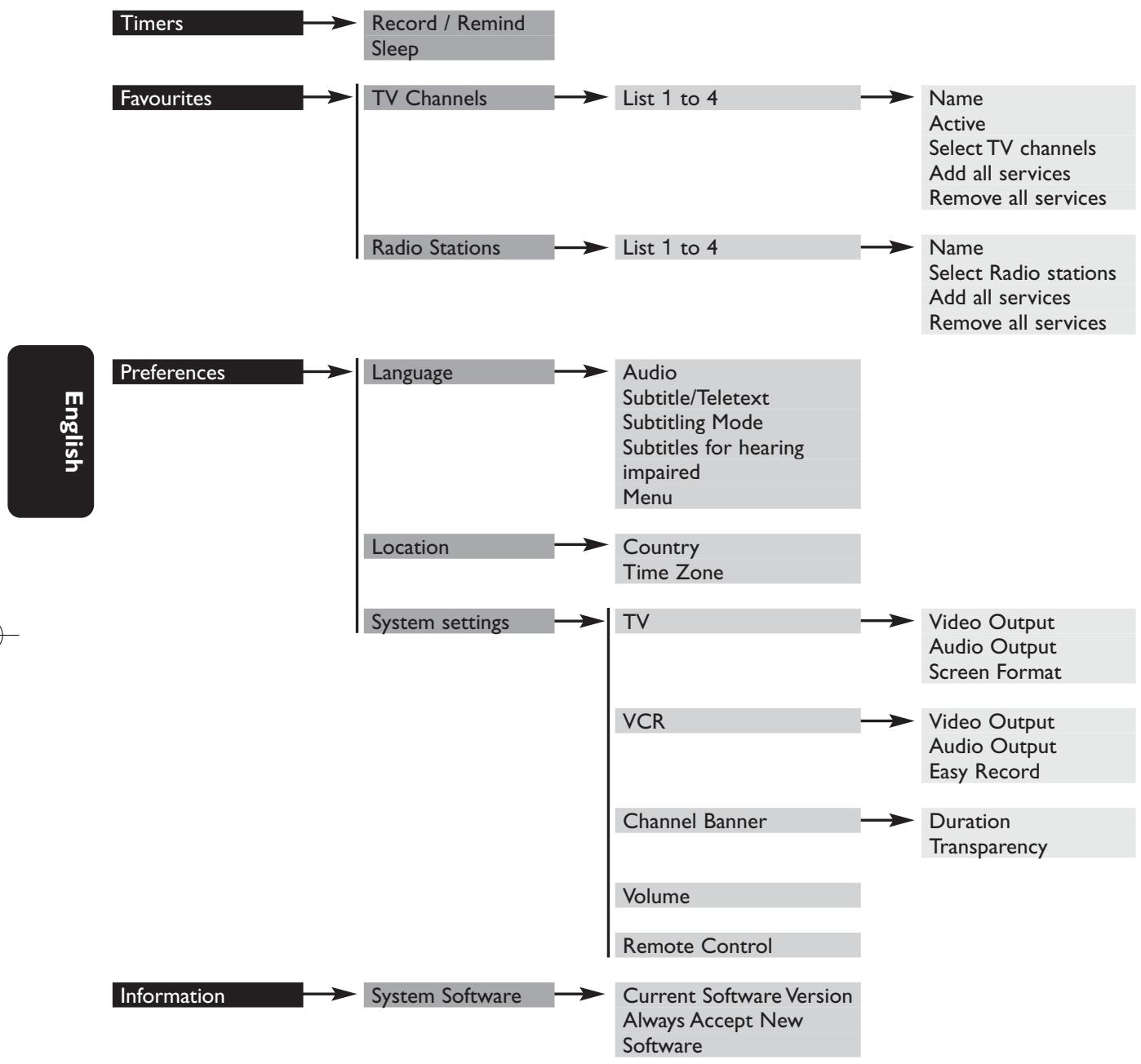
flowchart
graph TD
    A["Timers"] --> B["Record / Remind Sleep"]
    C["Favourites"] --> D["TV Channels"]
    D --> E["List 1 to 4"]
    E --> F["Name Active Select TV channels Add all services Remove all services"]
    C --> G["Radio Stations"]
    G --> H["List 1 to 4"]
    H --> I["Name Select Radio stations Add all services Remove all services"]
    J["Preferences"] --> K["Language"]
    K --> L["Audio Subtitle/Teletext Subtitling Mode Subtitles for hearing impaired Menu"]
    K --> M["Location"]
    M --> N["Country Time Zone"]
    K --> O["System settings"]
    O --> P["TV"]
    P --> Q["Video Output Audio Output Screen Format"]
    O --> R["VCR"]
    R --> S["Video Output Audio Output Easy Record"]
    O --> T["Channel Banner"]
    T --> U["Duration Transparency"]
    O --> V["Volume"]
    V --> W["Remote Control"]
    X["Information"] --> Y["System Software"]
    Y --> Z["Current Software Version Always Accept New Software"]
32 MENU TREE
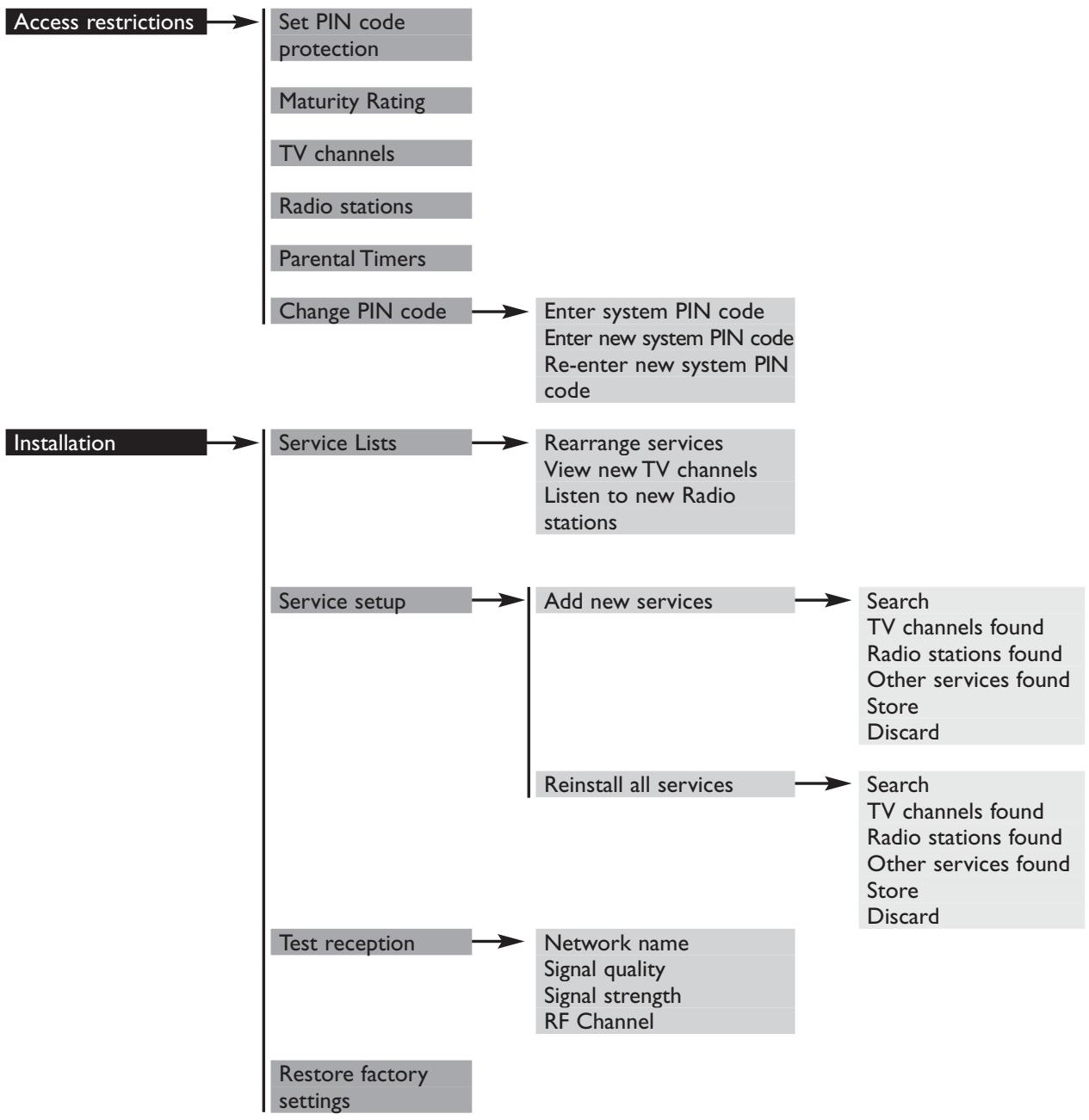
flowchart
graph TD
    A["Access restrictions"] --> B["Set PIN code protection"]
    B --> C["Maturity Rating"]
    C --> D["TV channels"]
    D --> E["Radio stations"]
    E --> F["Parental Timers"]
    F --> G["Change PIN code"]
    G --> H["Enter system PIN code\nEnter new system PIN code\nRe-enter new system PIN code"]

    I["Installation"] --> J["Service Lists"]
    J --> K["Rearrange services\nView new TV channels\nListen to new Radio stations"]

    L["Service setup"] --> M["Add new services"]
    M --> N["Search\nTV channels found\nRadio stations found\nOther services found\nStore\nDiscard"]
    M --> O["Reinstall all services"]
    O --> P["Search\nTV channels found\nRadio stations found\nOther services found\nStore\nDiscard"]

    Q["Test reception"] --> R["Network name\nSignal quality\nSignal strength\nRF Channel"]

    S["Restore factory settings"] --> T["End"]
9 Advanced settings
9.1 Changing the remote control setting
If you have other items of equipment in your home and the remote control of the Philips receiver interferes with them, you can change the setting of the remote control. For this you must change the setting of both your receiver and remote control.
To change the setting of your receiver:
Refer to paragraph 7.2.3.5.
To change the setting of your remote control:
- Press number buttons 1 and 3 simultaneously and hold them for at least 3 seconds
- Release the two buttons simultaneously.
- Enter the new setting according to remote control setting value set for your receiver within the next 60 seconds:
• 5 for alternative setting (38)
• 1 for the default factory setting (39)
Note: if the batteries are removed while a button is being pressed, the default setting (39) is restored.
9.2 More about recording
9.2.1 Connecting for Prepare Record or Record Link
This connection allows automatic recording without the necessity for programming your VCR. Prior to deciding on this connection method:
- Consult the user manual of your VCR to check if and how the “Easy Record” feature is supported. Most Philips VCR and DVD+RW recorders support one of the two Easy Record options.
- Verify that both your TV and VCR have two SCART sockets.
Incorporate your receiver in your existing installation:
- Plug your aerial lead plug into the “AERIAL IN” socket of your digital receiver.
- Connect the “RF OUT” socket of your digital receiver to the “ANT IN” socket of your VCR by means of the RF coaxial lead supplied with your digital receiver.
- Connect the “ANT OUT” socket of your VCR to the aerial input socket of your TV by means of a RF coaxial lead.
- Connect the “TV” SCART socket of your digital receiver to the “EXT1” SCART socket of your TV by means of the SCART lead supplied with your digital receiver.
- Connect the “VCR” SCART socket of your digital receiver to the “EXT2” SCART socket of your VCR (sometimes called “IN”) by means of a SCART lead.
- Connect the “EXT1” SCART socket of your VCR (sometimes called “OUT”) to the “EXT2” SCART socket of your TV by means of a SCART lead.
34 ADVANCED SETTINGS
- Plug all your equipment, except your digital receiver, into the mains.
- Switch on your TV and select a channel.
- Plug your digital receiver into the mains. Your digital receiver will display the WELCOME screen.
- Read on chapter 5 to proceed with the channel scan if not already done.
Note:
With this connection set up:
- You can watch digital TV while you record analogue TV.
- You can watch analogue TV while you record digital TV.
- You can record the digital TV channel you are watching without programming your VCR.
- You can watch Play Back from your VCR
9.2.2 Digital receiver and VCR settings
Refer to paragraph 7.2.3.2 on how to enable the “Easy Record” function of your digital receiver.
- Depending on your VCR brand and type, you have to set the “VCR control” option to “Prepare Record” or “Record Link”. Refer to the user manual of your VCR alternatively try the two options to find out the applicable one.
- Set your VCR to the mode allowing control by your digital receiver.
9.2.3 Recording using the VCR control feature
- Your digital receiver, TV and VCR are connected and set according to 9.2.1.
- You have programmed a timer on your digital receiver.
- At timer start, your VCR starts recording and at timer end your VCR stop recording under the control of your digital receiver. You no longer need VCR programming to record digital TV channels.
Note: some VCRs need to be in standby for the recording to start. Please refer to your VCR user manual.
9.2.4 Errors during recording
Three kinds of error can happen during the recording:
- Loss of input signal
- Loss of Power
- Locked channel
Your Philips receiver can detect those errors during the recording, it will signal you those errors the next time you will use it by a means of an on-screen alarm.
10 Troubleshooting guide
Experiencing difficulty operating your digital receiver? Check the following points first!
| Problem | Possible cause | Action |
| No picture, no sound and no front panel indication. | Receiver is not plugged into the mains. | Check mains connection and press the Standby button on the front of the receiver. |
| No picture, no sound, but the front panel red LED is on. | Your receiver is in Standby mode. | Press eitherorbutton or any number button to bring the receiver out of standby. |
| No picture, no sound but the front panel the left hand LED is on. | You are viewing standard analogue television.The SCART connection to the TV is faulty or loose.Your TV has not selected the correct AV/EXT channel. | Press thebutton on your remote.Check SCART TV connection, making sure cables are firmly pushed into the sockets.Try manually selecting the AV/EXT channel on your TV. |
| The remote does not operate. | A timer is running, the receiver is locked, the front LEDs are either Green / Red or Orange / RedThe remote control batteries have been inserted incorrectly or are dead.You are not aiming your remote control at the receiver. | Press the “TIMER” and the “0” buttons successively to cancel the TIMER and unlock the receiver.Check the condition of the batteries and replace if necessary, according to instructions earlier in this manual.Make sure you aim the remote at the receiver and not at the TV. |
| You cannot find all the channels you think should be available. | The signal to your aerial may be weak.Your aerial may need adjusting or your local transmitter may not be working. | Try retuning your receiver, following the relevant steps in paragraph 7.3.2. If you are still missing channels, your aerial may need adjusting.Call your local dealer. |
| You sometimes see a squared pattern on the screen, your picture is “freezing” or a picture showing a TV with a noisy pattern. | There could be a transmission problem.Your aerial may have been moved, for example by severe weather.Your aerial connection has become loose or disconnected. | This normally is only a temporary situation and should correct itself. Check signal quality and if necessary re-align your aerial. Check all aerial connections and make sure they are all firmly pushed into sockets. |
36 TROUBLESHOOTING GUIDE
| Problem | Possible cause | Action |
| You cannot select all of the channels and the P+/- or Arrow up/down buttons do not always work. | Some channels have been selected as favourites and the favourites mode is on. | Use thebutton to select another Favourite list. Use the All TV Channel list to see all available TV channels. |
| You cannot access a particular channel, even using the number buttons. | The parental lock has been activated on this channel and an OSD message prompts you for your PIN code. | Enter your parental code to access the channel or unlock the channel. See paragraph 7.7 for more details. |
| You have forgotten your PIN code. | When prompted for your PIN code, enter the Master PIN code. This will allow you to proceed as well as reset the PIN code to the default PIN code of the receiver (default is 1234). The Master PIN Code is 0711. Note: Keep this code secret to prevent your children from using it. | |
| I set the timer but it did not record what I wanted. | The video was set incorrectly. | Make sure that your video is set for the same time as your digital receiver. Alternatively use one of the Easy Record options to control automatically your VCR (see paragraph 9.2) |
| The order of my channels has changed. | They have been re-arranged as described in paragraph 7.3.1.1. | Refer to this section to change the order again. |
| The on-screen displays are not as sharp as expected. | If you have connected using SCART and you have an RGB-capable TV, one of the receiver settings could be wrong. You have connected the receiver TV SCART to a SCART socket of your TV set which is not RGB-capable | Refer to paragraph 7.2.3.1 and modify the “Video Output” setting to RGB. Check if the TV SCART socket of the TV is RGB-capable. If not refer to the user manual of your TV to change the SCART connection to your TV. |
| The picture on some channels seems to have been stretched or squashed. | The broadcast is probably in widescreen and the receiver settings may not be correct. | Check the receiver “Screen format” option setting, following the information in paragraph 7.2.3.1. If you have a widescreen TV, you may also need to check the settings on your TV. |
II Technical specifications
This product is in conformity with the requirements of the 95/47/EC and 2002/21/EC directives.
Video decoding
- MPEG-2 DVB compliant up to MP@ML
- Video bit rate: up to 15 Mbit/sec
- Video format: 4:3
(letter box if source is in 16:9) and 16:9 - Resolution: up to 720x576 pixels
Audio decoding
- MPEG layer I/II
Operation/Features
- Award-winning noise-free reception
- Automatic programme installation via scanning
- Automatic programme list update
- Programme editing for personalised installation (delete, add, move)
- Subtitles
- TV & Radio modes
- 4 Fav list for TV programme
- 4 Fav list for Radio programme
- Free to air reception
- 7-days Electronic Programme Guide (EPG)
- Parental lock with PIN code
- Child timer
- Fully remote controlled
- Menu controlled installation and operation using On Screen Display
- 10 event VCR timers
- Record Failure alarm
- Record header message
- Full range RF-loopthrough
- Software upgrade via over the air download
Application system resources
Processor clock speed 81 MHz
SDRAM - CPU/Video- Graphics 8/16 MB
Flash memory 4 MB
Terrestrial antenna interface
- RF input: IEC 169-2 female connector
- RF output (bypass): IEC 169-2 male connector
Reception-Demodulation
- Demodulation type: COFDM 2K / 8K
- Network: MFN/SFN
- Input frequency range: VHF III & UHF IV/V
- Loop-through frequency range (MHz): 47 - 862 MHz
- UHF Channel 21-69
Connections
TV SCART
Output: CVBS, Controlled audio L/R, RGB, Slow blanking, Fast blanking, S-Video (for LCD projector)
VCR SCART
Output: CVBS, Controlled audio L/R, Y/C
Audio CINCH:
Analogue audio output: L/R
Serial interface: RS232
Broadband interface:
10BaseT Ethernet connector for future use
Accessories
- Remote control Type RC19336001/01 ('Zappa')
- SCART cable
- RF coaxial lead
- User manual
- Worldwide Guarantee booklet
- Batteries: 2 x 1.5V type AA/R06
- Mains cord
Miscellaneous
- Temperature range (°C)
Operating +5 to 40
Storage -10 to +70 - Mains: 230 V \~ +/-10% 50 Hz
- Power consumption: 15 W max
- Standby: 6 W max
- Weight: 0.980 kg Including packaging 1.950 kg
- Dimensions: 258 / 42 / 155
The product complies with the following European council Directives:
Due to continued product improvements, this information is subject to change without notice.
natural_image
Technical line drawings of a remote control casing showing internal components and battery pack (no text or symbols)Paris, December 2004
Snabbinstallation

INNEHÅLLSFÖRTECKNING
Välkommen till digital television ____ 2
Snabbinstallation 3
Symbolernas innebörd ____ 6
4 INNEHÅLLSFÖRTECKNING
natural_image
Technical line drawing of a remote control casing with internal components and battery pack (no text or symbols)- 73/23/EEC
( - 93/68/EEC - 89/336/EEC
natural_image
Line drawings of a remote control casing showing internal components and battery pack (no text or symbols)- TABLE DES MATIÈRES
- UTILISATION DE BASE
- Welcome to digital television
- With this product, you can enjoy advanced functions and features including:
- Quick installation
- TABLE OF CONTENTS
- TABLE OF CONTENTS
- Change the settings of your receiver 22
- General information \_\_\_\_ 22
- Preferences 23
- Installation 25
- Information 28
- Timers 29
- Favourites \_\_\_\_ 30
- Access Restrictions \_\_\_\_ 31
- Menu tree 32
- Advanced settings 34
- Changing the remote control setting 34
- More about recording \_\_\_\_ 34
- Troubleshooting guide 36
- II Technical specifications 38
- Meaning of symbols
- I Safety and environmental instructions
- SAFETY AND ENVIRONMENTAL INSTRUCTIONS
- Product description
- Unpacking
- Front view
- PRODUCT DESCRIPTION
- Rear view
- Remote control
- Installing the batteries
- REMOTE CONTROL
- Using the remote control
- Connecting your digital receiver
- Warning!
- Before starting to connect:
- I Connecting to a TV and a VCR both fitted with one SCART socket
- CONNECTING YOUR DIGITAL RECEIVER
- Note:
- Connecting to your HiFi/Audio receiver equipment. (Analogue/Digital)
- Analogue connection (A)
- Digital connection (B)
- Connecting to a video projector
- CONNECTING YOUR DIGITAL RECEIVER
- First installation
- Channel scan
- Scanning failure
- Before starting a new scan
- Repeated scanning failure
- Day to day operation
- Switch your receiver ON/OFF (standby)
- Select TV/Radio mode
- Change channel
- Using number buttons
- Using
- Using (last channel recall)
- Using the channel list
- Using your favourite lists
- Channel banner
- Volume control - / + /
- icon description
- Changing the Subtitle selection (circular toggle)
- Changing the Audio language selection (circular toggle)
- Electronic Programme Guide
- Timers
- Setting a timer when watching digital TV
- Set a timer from the Guide
- Deleting an active timer
- Using the TV / STB button
- Watching locked channels
- Change the settings of your receiver
- General information
- Basic menu navigation
- Change setting
- Notes:
- CHANGE THE SETTINGS OF YOUR RECEIVER
- Preferences
- Language
- Location
- System settings
- TV
- VCR
- Channel Banner
- CHANGE THE SETTINGS OF YOUR RECEIVER
- Volume
- Remote Control
- Installation
- Service lists
- Rearrange services
- To install a service you have selected from the list:
- View new TV channels
- Listen to new Radio stations
- Service setup
- Add new services
- Reinstall all services
- Test reception
- Restore factory settings
- Information
- System software
- Timers
- Record/Remind
- To set a new timer:
- To edit an existing timer:
- To delete an existing timer:
- To cancel a running timer:
- Sleep
- Favourites
- TV Channels
- Radio Stations
- Access Restrictions
- Menu tree
- MENU TREE
- Advanced settings
- Changing the remote control setting
- More about recording
- Connecting for Prepare Record or Record Link
- ADVANCED SETTINGS
- Digital receiver and VCR settings
- Recording using the VCR control feature
- Errors during recording
- Troubleshooting guide
- TROUBLESHOOTING GUIDE
- II Technical specifications
- Video decoding
- Audio decoding
- Operation/Features
- Application system resources
- Terrestrial antenna interface
- Reception-Demodulation
- Connections
- TV SCART
- VCR SCART
- Audio CINCH:
- Broadband interface:
- Accessories
- Miscellaneous
- Snabbinstallation
- INNEHÅLLSFÖRTECKNING
- INNEHÅLLSFÖRTECKNING
Brand : PHILIPS
Model : DTR 300
Category : DVB