
SBCRU430 - Remote control PHILIPS - Free user manual and instructions
Find the device manual for free SBCRU430 PHILIPS in PDF.




| Product type | Universal remote control |
| Brand | PHILIPS |
| Model | SBCRU430 |
| Dimensions (approx.) | 20 × 5 × 2 cm |
| Weight (with batteries) | Approximately 100 g |
| Power supply | 2 AAA 1.5V batteries (R03/UM4) |
| Operating modes | TV, VCR, SAT |
| Number of controllable devices | Up to 3 |
| Infrared range | Approximately 10 meters |
| Automatic search function | Yes, sequential code search |
| Programming | By 3-digit code or automatic search |
| Code memory | Retained when changing batteries (if done quickly) |
| Configurable SAT mode | Can be set to control a second TV |
| Secondary volume control | Possible in VCR mode for the SAT device |
| Maintenance | Clean with a soft, dry cloth |
| Safety | Do not expose to moisture, avoid shocks |
| Spare parts | Batteries only, no repairable parts |
| Telephone support | France: 0800-904-013, Belgium: 0800-723-77, Switzerland: 0800-554-166 |
Frequently Asked Questions - SBCRU430 PHILIPS
User questions about SBCRU430 PHILIPS
0 question about this device. Answer the ones you know or ask your own.
Ask a new question about this device
Download the instructions for your Remote control in PDF format for free! Find your manual SBCRU430 - PHILIPS and take your electronic device back in hand. On this page are published all the documents necessary for the use of your device. SBCRU430 by PHILIPS.
USER MANUAL SBCRU430 PHILIPS
Universal Remote Control

Let's make things better.

PHILIPS
You just made a great choice by buying this Philips universal remote control! It takes the place of as many as three separate remote controls and can operate the most-used functions of almost any brand of TV, VCR, satellite tuner and cable decoder.
Best of all, it's quick to setup and easy to use! Here's how...
AT A GLANCE
Once you've installed the batteries, this remote is ready to work with any Philips TV, VCR or satellite tuner. Simply press the mode selector as indicated below - for the Philips device you wish to operate, and press to test. For other brands of equipment, it needs to be set up first-see Getting Started.
Choose TV, VCR, SAT. The remote has 3 operating modes: TV, VCR, and satellite tuner (SAT). The green indicator LEDs show which mode you're in. To switch between modes, press once to activate, then press it again to advance to the next mode.
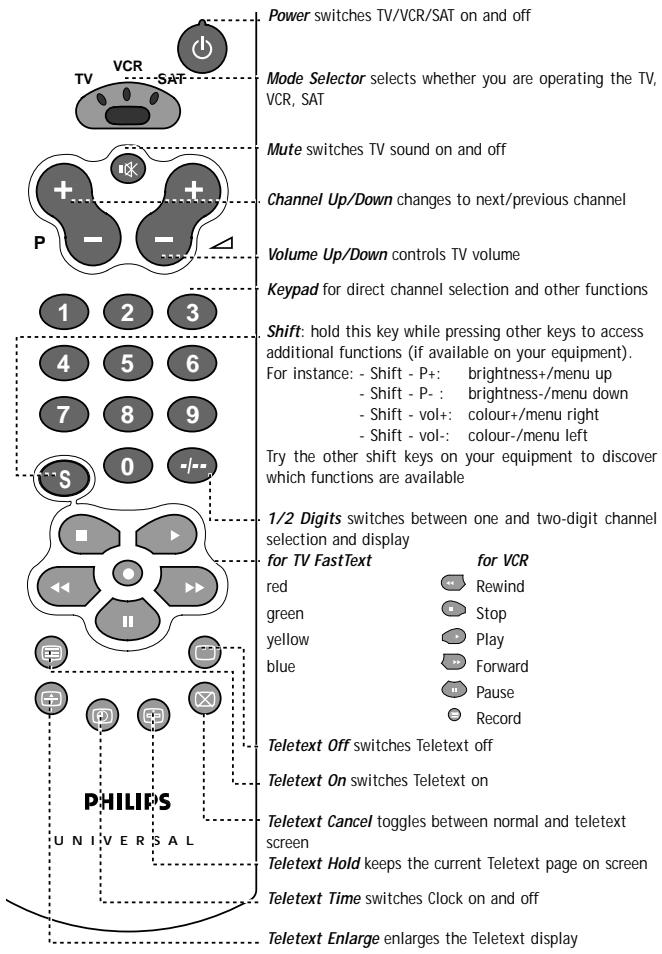
Try it out! The easiest way to find out how your new remote works, is to try pressing the keys and see what happens - don't worry, you won't damage anything! Most of the keys work just like on your original remote control. Of course, if your TV or VCR does not offer a specific function, pressing that key will have no effect.
DON'T FORGET THE BATTERIES!

You'll need two 1.5V batteries, type R03, UM4 or AAA only. Put them in like this.
Remember to replace the batteries at least once a year. Don't leave the batteries out for longer than one hour, otherwise you will need to set the remote up again.
GETTING STARTED
This remote is ready to work with any Philips TV, VCR or satellite tuner. For other brands of equipment, it needs to be set up first. That only takes a couple of seconds, thanks to Philips' Simple System Setup!
Before you start, make sure you're in the right mode for the equipment you're setting up (TV, VCR, or SAT). The green indicator LEDs show which mode is selected. To switch between modes, press once to activate, then press it again to advance to the next mode. Also, make sure the equipment is switched on. Sit right in front of it.
If you know the brand of your equipment, look at the code list at the back of this booklet, and find the first 3-digit code for your equipment.
① Press and hold ① and ③ at the same time until the green LED lights up. (Release the keys, the green LED should stay on) ② Enter the 3-digit code using the keypad. The green LED blinks twice.
That's it! Now, press a few keys on the remote to check that the equipment responds correctly. If it doesn't, try again using the next code in the list. In the rare instance that none of the codes work, follow the instructions in the next section.
Tip: Make a note of the code inside the battery case, and in the back of this booklet in case you ever need to setup again.
If you don't know the brand of your equipment or if you can not find it in the code list, setup still won't take long. Philips' patented Handsfree autosearch tests all the codes one after another and finds the right one for you! The search time averages about 90 seconds. (Maximum search time is 5 minutes for TV; 2 minutes for VCR and 4 minutes for SAT.)
Make sure the TV, VCR etc. is switched on. If it's a VCR, insert a tape and start playback. You will know when the correct code has been found because the equipment will switch off or the VCR will stop playback.
① Press and hold ① and ③ at the same time until the green LED lights up. ② Press to start the search. Each time the green LED blinks, another code is sent. When the right code is found, the equipment switches off (the VCR will stop playing).
③ Immediately press to stop the search. If you missed the correct code because the search went too far, switch the equipment back on, then press (down) to send the previous code again. Press (down) repeatedly until the equipment switches off again. ④ Once you've found the correct code, press to lock it in memory. The green LED blinks twice.
That's it! Now, switch the equipment manually on again, then press a few keys on the remote to check that the equipment responds correctly. In the rare instance that it doesn't, try again from step 1 to find a better code.
Note that code! To save time if you ever need to setup again, make a note of the correct code inside the battery case and in the back of this booklet. In case you have forgotten to note the code you can still 'read out' the code from the remote. Here's how:
① Make sure you've selected the right mode (with ②). Then press and release ① and ⑥ at the same time; the green LED lights up. ② Press . The green LED goes out. ③ Press ① and count the number of times the green LED blinks. This is the first digit of the 3-digit code. (No blinks means the digit is zero.)
Press 2 and count the number of blinks for the second digit.
Press 3 and count the number of blinks for the third digit.
ADVANCED TIPS AND TRICKS
TO CHANGE SAT MODE TO CONTROL A SECOND TV
The SAT mode on this remote is used to control additional equipment. It is factory preset to control a satellite receiver, but you can change it to control a second TV, for example.
Before you start, press to select SAT, and make sure the second TV is switched on.
① Press and hold 1 and 6 at the same time for about 3 seconds until the green LED lights up. ② On the keypad, enter 992. ③ Press to select TV mode, then press any key except once more. That's it!
Don't forget you now need to setup the remote to operate this second TV - see Getting started.
TO CONTROL THE SECOND TV'S VOLUME
If you have installed a second TV under SAT mode, you can also control that TV's volume when you are in VCR mode.
Before you start, press to select VCR.
① Press and hold ① and ⑤ at the same time until the green LED lights up (about 3 seconds).
② On the keypad, enter 993. ③ Press to select SAT. ④ Press any key (except ). That's it!
Now, when you're in VCR mode, (up/down) control the volume of the second (SAT) TV.
NEED HELP?
If you have questions about your remote or if you are missing certain functions on your remote, call our free-phone helpline!
Before you call, please read the manual carefully. Most questions will clear themselves. If you don't find an answer to your questions, make a note of your equipment in the table below - this makes it easier for the operators to help you quickly. Look for model numbers in the equipment instruction manual, or on the back of the equipment. Be in front of the equipment, this way our operators can help you verify the functionality of your remote.
In the UK. call 0800 968 118. In Ireland, call 1 800 553 136.
The model number of your Philips universal remote control is:
SBC RU430
Date of purchase:

Day/month/year
| Equipment | Brand | Model nr. | Used code |
| TV | |||
| VCR | |||
| SAT |
As you add new components to your home entertainment system, Philips again offers a universal remote control that will fit your new needs. Look for the unique full range of universal remote controls from Philips at a retailer near you.
RU 110: Universal easy TV zapper. RU 410: 1-in-1 Universal TV Remote with digits and TXT. RU 422: 2-in-1 Universal Remote Control for TV and VCR. RU 440: 4-in-1 Universal Remote Control for TV, VCR, SAT/Cable and AUX for audio. RU 455: 4-in-1 Universal Remote Control for TV, VCR, SAT/Cable and AUX for second device. RU 460: 6-in-1 Universal Remote Control - Pre-programmed and Learnable.
Another very nice product from Philips is the Philips SBC LI510 Remote Control Extender Set, the wireless extension of your infra-red (IR) remote control! This system allows you to operate every IR-driven equipment (i.e., Sat-receivers, VCRs or Hi-Fi-sets) from anywhere in or around the house.
DON'T FORGET THE BATTERIES!

ADJUSTING THE VOLUME ON THE SECOND TV
Bush: 064, 245, 401, 398, 321, 036, 309, 376, 382, 546
C
Cascade: 036
Cathay: 064
Centurion: 064
Century: 114
CGE: 274, 333
Cimline .036
Clarivox .064
Clatronic 397, 274
Clayton 412
Condor 397, 347
Contec 243, 036
Continental Edison 223, 360, 426
Crosley 114
Crown .064, 397, 445, 036, 606
Crystal 458
CS Electronics 243
CTC 274
Cybertron 245
D
Daewoo .064, 401, 036, 526
Dainichi 245, 242
Dansai .064
Dayton .036
De Graaf 235, 575
Decca .064, 099, 543
Dixi 064, 036
Doric 033
Dual 363, 379, 546
Dual Tec 244
Dumont .097, 114
E
Elbe 286
Elin 064, 575
Elite 245, 347
Elta .036
Emerson. 114, 388
Erres. 064, 039
Europhon. .543
Expert 233
F
Ferguson. .064,136,220 265,314,362,370
Fidelity. 243, 220, 388
Finlandia 235, 373, 386
Frontech 291,458,475,190,274
Fujitsu. .099,233
Funai 321,291,330
G
GEC 064,244,099,543,584
Geloso. .036
Genexxa 245,190
GoldStar .064,244,136,317
Goodmans .064, 244, 401, 398, .099, 262, 344, 370, 526
Gorenje 397
GPM 245
Graetz 190,388,584
Granada .064,244,099,235,366,386,543
Grandin 309
Grundig .097,218,222,514,562
H
Hanseatic .064,347,388
Hantarex .543
HCM .036,309,439
Hinari .064,245,036
Hisawa 309,482,427
Hypson .064,309,291
1
ICE 244, 291, 398
Imperial. 397, 445, 274
Indiana .064
Ingelen. 190, 584
Inno Hit .099,543
Interfunk. 064, 190, 274, 388, 539, 584
Intervention. 244, 291, 129
Isukai 245
ITS 398
ITT. 034, 190, 388, 575, 584
J
JVC 398,080,121
K
Kaisui 243, 244, 245, 036, 309
Kapsch 233,190,584
Kathrein .583
Kendo. .064,262,389
Kingsley 243
Kneissel 286,462
Korpel .064
Korting 114
Koyoda. 036
L
Leyco. .064,321,099,291
Liesenk & Tter. .064
Loewe. 114, 539
Luma 233
Luxor. 376, 388
M
M Electronic. 064, 244, 401, .036, 136, 132, 190, 314, 373, 507
Magnadyne 129, 114, 274, 543
Magnafon 129,543
Manesth 244,347,291,262
Marantz. .064
Marelli 114
Mark .064
Matsui .064,244,398 321,036,099,062,038 235,262,381,382,470 514,543,606
Mediator .064,039
Memorex. .036
Memphis 364
Metz. 114, 394, 562
Minerva .097,514,562
Minoka. 396, 439
Mitsubishi. 034, 114, 135, 177, 381, 539, 562
Mivar. 243, 317, 318, 319, 543
MTC 376,539
Multitech 243,036,129
N
Neckermann .064,114,218 376,532,583
NEI .064,458,364
Nikkai .064,243,245 099,291,062,364
Nobliko 129
Nokia 388,507,575
Nordmende 136,223,314,370
0
Oceanic 190,242,388
Onwa 460
Orion. 064, 321, 347
348,262,382,543
Osaki 244, 245, 099, 291, 439
0so. 245
Osume 099,184
Otake. 344
Otto Versand .064,244,347 037,218,370,376 532,539,562,583
P
Palladium 397
Panama 244, 291
Panasonic 277,153,190 253,394,584
Pathe Cinema 243, 347, 265
Pathe Marconi. 223, 360
Pausa .036
Perdio 347
Philco. 114, 274
Philips .064, 401, 033, 034, .039, 040, 114, 220, .320, 350, 359, 583
Phoenix. 114
Phonola .064, 039, 040, 114, 320
Pioneer. 136, 190, 314
Prandoni Prince. .543
Profex. 036, 388
Proline 348
Protech .064,244,445,036 291,129,458,274,364
Pye .034,039
0
Quelle .064,037,038,097 227,333,354,355 388,532,539,562
R
R-Line .064
Radiola. .064, 039, 350
Radiomarelli 114,543
RBM. .097
Rediffusion 388
Revox. 064
Rex. 233, 291, 190, 286
RFT 114
Roadstar 245, 036, 291
S
Saba 136, 114, 190, 223, 314, 362, 370, 584
Saccs 265
Saisho. 036, 291, 458, 038
262, 381, 543
Salora. 190, 376, 386, 388, 575
Sambers. 129, 543
Samsung. 064, 397, 244, 036, 291, 117, 317, 515, 583
Sandra 243
Sanyo. 099, 038, 184, 235, 366
SBR .064,033,034 039,040,220
Schaub Lorenz 388,584
Schneider .064,245,398,040 274,330,350,363,379,421
SEG 244, 291
SEI. 321, 129, 114,
Sei-Sinudyne. 037, 543
Seleco. 233, 190, 286, 389, 438
Sentra .062
Sharp 120
Shorai 321
Siarem 129, 114, 543
Siemens. 064, 184, 218, 222, 227, 354, 355, 562
Singer 114
Sinudyne 321, 129, 114, 262
Solavox 190
Sonitron. 235
Sonoko .064,036
Sonolor. 190,235,242
Sontec .064
Sony .037,038,532
Soundwave .064, 445
Standard. 244, 245, 036
Stern. 233, 190, 286
Sunkai 321,348,382
Susumu 245
Sysline .064
T
Tandy. 244, 245, 099, 190
Tashiko 244,386
Tatung .064,244,099,543
Tec. 244, 274
Technema 347
Technics 277
Teleavia 360, 370
Telefunken 136, 289, 333, 362, 370, 498, 525
Telemeister 347
Teletech. 036
Teleton. 244, 233, 376
Tensai 245, 321, 347, 344
Texet 243, 245
Thomson 136, 223, 314, 360, 370, 376, 426
Thorn. 064, 099, 062, 220, 388, 526, 532, 539, 562, 580
Thorn-Ferguson 370
Tomashi 309
Toshiba .062, 097, 270, 580
Triumph 270,543
U
Uher 233,347,330
Ultravox 129
Universum .064,397,291,132 373,448,519,562
V
Vestel .064
Videosat 274
Visa .036,190,584
Vision 347
Voxson 114, 190
W
Waltham 244
Watson .064,347
Watt Radio 129
Wega 114
White Westinghouse.....064,243,347
Y
Yoko .064,244,291,458
Z
Zanussi 233
A
Aiwa 027,334,375,379
Akai. 342,133,068,080
Akiba .099
Alba.099,047,305,236,342,379
Ambassador .047
Amstrad. .027,359
Anitech. .099
ASA. .064,108
Asuka .064
B
Baird. 027, 068, 131, 134
Basic Line. .099, 047, 305
Brandt Electronic. .068
Bush. .099,305,236,379
C
Catron. .047
CGE. .027
Cimline .099
Clatronic .047
Combitech 379
Condor .047
Crown. .099, 047, 305
D
Daewoo 047,305
Dansai. 099
De Graaf. .069, 193
Decca .027,108
Dual. .068
Dumont .027,108,131
E
Elcatech. .099
ESC 305,26
7
F
Ferguson 347,068,134,348
Fidelity .027
Finlandia. 108, 131
Finlux .027,108,069,131
Firstline .099, 064, 236, 072, 070
Fisher. .073, 074, 081, 131
Frontech. .047
Funai .027
G
GEC 108
General .047
GoldHand .099
GoldStar. 064, 252
Goodmans .099,027,047,064,305,430
Graetz .068,131,267
Granada 108,073,131
Grandin .099,027,064
Grundig. 099, 108, 061, 374, 253
222,030,033,034,234,376,430
H
Hanseatic .064
HCM .099
Hinari .099,031,267,379
Hitachi .027, 031, 069, 068
193,262,267
Hypson .099
1
Imperial .027
Ingersol .031
Interfunk .108
ITT .133, 073, 411, 068, 131, 267
ITV .064, 305
J
JVC .094,411,035,068,233,234
K
Kaisui .099
Kendo 236,133
Kenwood .068
Korpel .099
L
Lenco 305
Leyco .099
Loewe .064,031,108,033
Logik. 031, 267
Luxo. 133,075,073,070,131
M
M Electronic. .027
Manesth. .099, 072
Marantz 108,030,033
Matsui.....236,031,063,115,375,379
Memorex. .027,064,073,131
Memphis .099
Metz....374,222,030,033,189,254,486
Minerva. 222,033 Mitsubishi 108,094,070 Multitech .099, 027 Murphy . 027
N
NEC 094,065,068 Neckermann 108 Nesco. 099 Nokia.....133,075,073,068,131,267 Nordmende.....411,347,068,324,348
0
Oceanic .027, 068 Okano 342,375 Orion.....236,031,063,115,375,379 Osaki. .099, 027, 064 Otto Versand. 108
P
Palladium .099,064,033,068 Panasonic. 253, 189, 254, 486 Pathe Cinema. .063 Pathe Marconi .068 Pentax .069 Perdio .027 Philco .065 Philips....108, 411, 173, 430, 494, 510 Phonola. 108 Pioneer. 108, 094, 262 Portland .047 Profex 349 Profitronic 267 Proline .027 Pye 108
0
Fuba 448,396,423,736
G
G-Sat 210
Galaxis. 315
Gooding 598
Goodmans. 216
Grundig .598,200,216
355,490,777
H
Hinari 210
Hirschmann 529,200,600,424,699
Hitachi. 482
Houston. 695
Huth 270,315,247
1
Intervention 619
IRTE 636
ITT 13
5
J
JVC 542
K
Kathrein 200, 227, 119, 469
507, 531, 649, 685
Kreiselmeyer 200
Kyostar 448
L
La Sat 547, 540, 491, 634
Lenco 448
Lennox 619
Lupus 396
Luxor 600, 135
M
Manhattan 482,619,547
Marantz 227
Maspro 119,355,363
Matsui 371,598
Mediamarkt 270
Micro Technology 566
Minerva 598
Mintec 605
Morgan's 270, 540
Multistar 491
N
NEC 205
Neusat 719
Newhaus 247
Nikko 387, 740
Nokia. 482, 600, 135, 355, 424
Nordmende 389
Orbitech 528 Oxford 371 P Pace.482,210,094,355,363,818 Palladium 598 Palsat .528 Panda .482 Philips.482,227,319,355,490,609 Phonotrend .315,619,815 Promax .482 Prosat .315 Q Quadral 389,655 R Radiola 227 Radix 423 RFT .315,247,227,568 S Saba .547, 363, 736, 761 Sabre .482 Salora .135 SAT .378, 488, 543 Satec .210, 355 SatPartner .448, 547, 529, 719, 736, 761 Schwaiger 210,531 Seemann 423,605,653 SEG 448,396,566 Siemens 200 Skymaster 315,655 Sony 731 Sunstar 540 T Tantec 482,363 TechniSat .289,528,568,575 Telefunken .448 Teleka .270,640,699 Thomson .482 Tonna .695 Triad .378
U Universum. 598,200
V Ventana. 227 Vortec. 448 Vtech. 378
W Wisi 482,423,200,378,665 Z Zehnder 547
B
British Telecom 132
D
Decsat. 450
F
Filmnet .470
France Telecom. 478
J
Jerrold 030,303
M
M.N.E.T. 470
MNet. 470
P
PVP Stereo Visual Matrix .030
S
Salora 409
Scientific Atlanta .035, 304
T
Tele-1 .470
U
United Cable. 030
W
Westminster 132

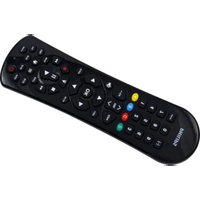
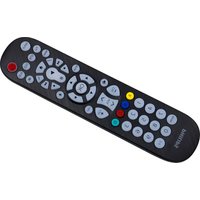
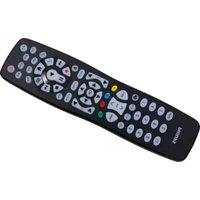
Brand : PHILIPS
Model : SBCRU430
Category : Remote control