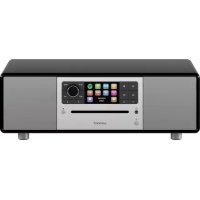
Prestige SO330 - Radio SONORO - Free user manual and instructions
Find the device manual for free Prestige SO330 SONORO in PDF.



| Product Type | Multimedia all-in-one alarm clock radio |
| Brand | Sonoro |
| Model | Prestige SO330 |
| Dimensions (L x W x H) | Approx 450 x 258 x 153 mm |
| Weight | Approx 7.2 kg |
| Power supply | AC mains adapter with universal adapter (VDE and UK) |
| Display | 2.8-inch TFT color screen |
| Playback modes | FM, DAB/DAB+, Internet Radio, Spotify Connect, CD (CD-DA, CD-R, CD-RW), Bluetooth, AUX In (RCA and 3.5 mm), Optical (Toslink), USB, Network playback (UPnP/DLNA) |
| Presets | 40 per FM/DAB+/Internet mode, 10 for Spotify |
| Network connectivity | Wi-Fi 2.4 and 5 GHz (802.11 a/b/g/n), Ethernet RJ45 |
| Multiroom function | Up to 5 speakers in a group (1 server + 4 clients) |
| Bluetooth | Version 4.1, AVRCP and A2DP profiles |
| USB port | FAT16/FAT32 playback, charging output 5V/2.1A |
| Supported audio formats | AAC, AAC+, MP3, WAV, WMA, FLAC (max 16-bit/48 kHz) |
| Standby power | < 1 W (normal standby), < 2 W (network standby) |
| Cleaning | Soft, dry cloth; for stubborn dirt, slightly damp cloth then dry |
| Safety | Intended use: personal non-commercial use; do not expose to moisture; unplug before cleaning |
| Warranty | 2 years (1 year in North America and Australia) from date of purchase |
| Accessories included | Remote control, CR2032 button cell, AC adapter with adapters, FM/DAB antenna, external Wi-Fi antenna, gloves, documentation |
Frequently Asked Questions - Prestige SO330 SONORO
User questions about Prestige SO330 SONORO
0 question about this device. Answer the ones you know or ask your own.
Ask a new question about this device
Download the instructions for your Radio in PDF format for free! Find your manual Prestige SO330 - SONORO and take your electronic device back in hand. On this page are published all the documents necessary for the use of your device. Prestige SO330 by SONORO.
USER MANUAL Prestige SO330 SONORO
natural_image
Front view of a sonoro audio recording device with sound waves and a digital control panel (no visible text or symbols on the device body)Bedienungsanleitung
Operating Manual
Mode d'emploi
Manuale operativo
GB Operating manual....60
natural_image
Exterior view of a modern audio recording device with ambient sound waves and a digital control panel (no readable text or symbols)1. Einleitung 6
http://www.spotify.com/connect/third-party-licenses

UPnP ^TM is a trademark of the UPnP ^TM Forum.
3. Erste Schritte
3.1 PRESTIGE auspacken
natural_image
Hand pressing a button on a device (no text or symbols visible)
natural_image
Technical line drawing of a bolt and nut assembly (no text or symbols)text_image
Diagram showing a hand inserting a cable into an electronic device with three labeled components and directional arrows indicating assembly or operation.text_image
Setup wizard Start now? YES NOtext_image
Setup wizard ✓ Setup wizard completed Press OK to exittext_image
Select your Audio System Please select your audio system from the list below. Scanning...text_image
PRESTIGE...261691c84 PRESTIGE 0...261691c84 CDtext_image
PRESTIGE...261691c84 PRESTIGE 0...261691c84 CDnatural_image
Exterior view of a modern audio recording device with sound waves and a digital control panel (no readable text or symbols)1. Introduction 62
1.1 Contact data 62
1.2 Intended use 63
2. Getting to know your PRESTIGE 63
2.1 Scope of delivery 63
2.2 Controls and ports 64
2.3 Technical data 69
2.4 Marks of approval and certificates 70
3. Getting started 71
3.1 Unpacking PRESTIGE 71
3.2 Inserting the battery in the remote control 71
3.3 Using the antennas 72
3.4 Performing initial setup 73
4. Basic operation 74
5. Using the menus 76
6. Display icons 77
7. FM Radio mode 78
7.1 Operation 78
7.2 Setup menu 80
8. DAB Radio mode 81
8.1 Operation 81
8.2 Setup menu 82
9. Internet Radio mode 84
9.1 Operation 84
9.2 Setup menu 85
9.3 Station list 86
9.4 Using the web portal 87
10. Spotify mode 88
10.1 Operation 88
10.2 Setup menu 89
11. My music mode 90
11.1 Operation 90
11.2 Setup menu 91
12. Bluetooth® Mode 93
12.1 Pairing 93
12.2 Operation 93
12.3 Setup menu 94
13. AUX In 1 mode 95
13.1 Operation 95
13.2 Setup menu 95
14. AUX In 2 mode 96
14.1 Operation 96
14.2 Setup menu 96
15. Optical mode 97
15.1 Operation 97
15.2 Setup menu 97
16. CD mode 98
16.1 Operation 98
16.2 Setup menu 99
17. Alarm 100
17.1 Setting the alarm 100
17.2 Turning the alarms on or off 101
17.3 Deactivating a sounding alarm 101
17.4 Snooze 101
18. Sleep timer 102
19. System settings 103
19.1 Accessing the system settings 103
19.2 Equalizer 103
19.3 Network 103
19.4 Time/date 104
19.5 Inactive standby 105
19.6 Language 105
19.7 Factory reset 105
19.8 Software update 105
19.9 Setup wizard 105
19.10 Info 105
19.11 Backlight 105
19.12 Multiroom 106
20. Using UNDOK ™ app to control PRESTIGE 107
21. Troubleshooting 109
22. Cleaning 111
23. Warranty 111
1. Introduction
Thank you for purchasing PRESTIGE. This operating manual and the safety manual provide all the information required for trouble-free and safe operation of PRESTIGE.
- Read the operating manual and the safety manual in their entirety before using PRESTIGE.
- Keep the operating manual and safety manual for future reference.
- If you pass PRESTIGE on to a third party, please provide them with the operating manual and safety manual as well.
- Failure to follow the operating manual and safety manual can result in serious injury or damage to PRESTIGE.
- We assume no liability for damage resulting from failure to observe the instructions in this operating manual and safety manual.
The images in this operating manual are intended to illustrate the actions necessary to operate PRESTIGE.
Enjoy your PRESTIGE!
1.1 Contact data
| Address sonoro | audio GmbH,Nordkanalallee 94,41464 Neuss, Germany |
| Phone +49 2131 | 8834-141 |
| Fax +49 2131 75 | 17-599 |
| E-mail support@sonoro.de | |
| Internet www.sonoro.de | |
1.2 Intended use
PRESTIGE is intended for personal use only. It is not intended for commercial use.
PRESTIGE is solely intended for the following tasks:
- Playback of FM/DAB+/Internet radio and Spotify streaming service.
- Playback of audio CD and MP3/WMA CD disc.
- Audio playback from external devices connected via AUX In, USB port or Optical Input.
- Audio playback from Bluetooth-enabled devices (e.g. mobile phones).
• Music stream to Bluetooth headphone devices. - Charging of external devices that are connected via the USB port.
Any other use is considered improper use and is prohibited. We assume no liability for damages resulting from improper use.
2. Getting to know your PRESTIGE
2.1 Scope of delivery
In addition to the PRESTIGE itself, the following accessories are also included in the scope of delivery:
- Remote control
- Operating manual
• One button cell (CR2032, 3 V) - Safety manual
- Power cable
- Spotify flyer
• FM/DAB telescopic antenna - External WiFi antenna
- Gloves
2.2 Controls and ports
Front view
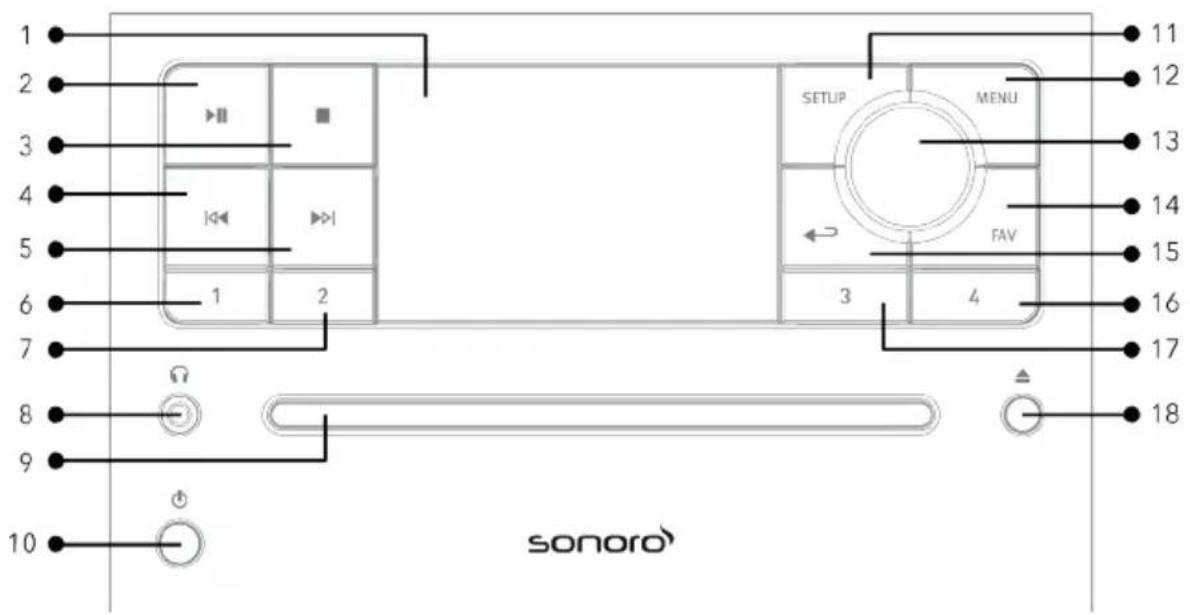
text_image
1 2 3 4 5 6 7 8 9 10 sonoro 11 12 13 14 15 16 17 18 SETUP MENU FAV 3 4 Ω Φ- Display 11. Setup button (SETUP)
- Play/pause button ( ) 12. Menu button (MENU)
- Stop button ( ) 13. Volume knob, navigation knob
- Left button, skip previous ( ) OK◀button (press the knob)
- Right button, skip next ( ) 1▲Favourite button (FAV)
- Preset 1 button (1) 15. Back button ( )
- Preset 2 button (2) 16. Preset 4 button (4)
- Headphone jack ( ) 17Preset 3 button (3)
- CD Slot 18. CD eject button ( )
- Standby button ( ⏻ )
Rear view
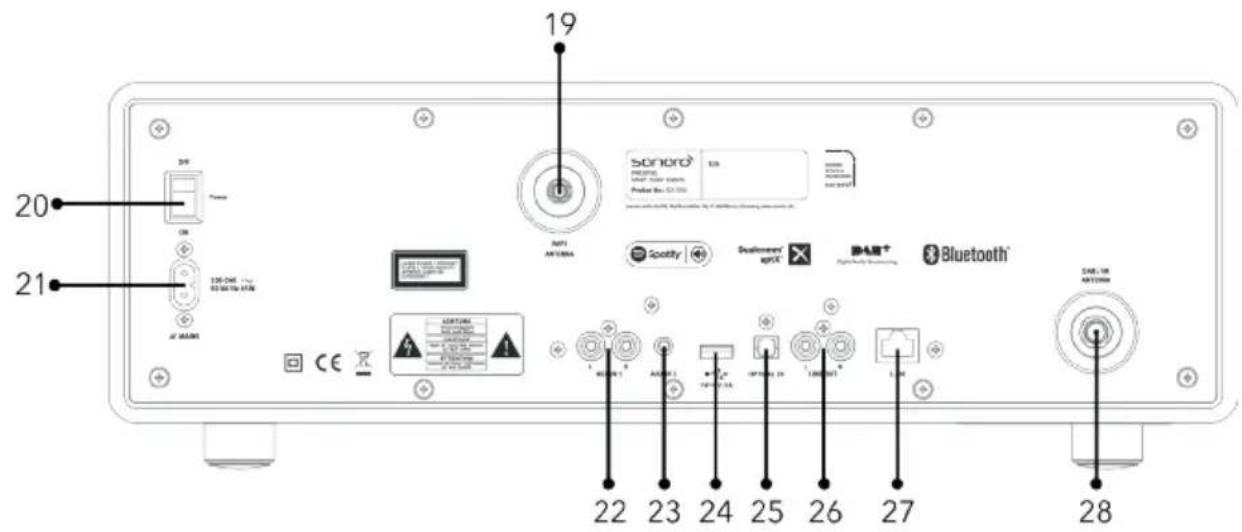
text_image
19 SONORO® PROFESSIONAL SYSTEMS Product No.: CD-130 20 ON Power 120+ Out - 1 hr 60+ 40+ 50+ 100+ 150+ 200+ 250+ 300+ 350+ 400+ 450+ 500+ 550+ 600+ 650+ 700+ 750+ 800+ 850+ 900+ 950+ 1000+ 1050+ 1100+ 1150+ 1200+ 1250+ 1300+ 1350+ 1400+ 1450+ 1500+ 1550+ 1600+ 1650+ 1700+ 1750+ 1800+ 1850+ 1900+ 1950+ 2000+ 2050+ 2100+ 2150+ 2200+ 2250+ 2300+ 2350+ 2400+ 2450+ 2500+ 2550+ 2600+ 2650+ 2700+ 2750+ 2800+ 2850+ 2900+ 2950+ 3000+ 3050+ 3100+ 3150+ 3200+ 3250+ 3300+ 3350+ 3400+ 3450+ 3500+ 3550+ 3600+ 3650+ 3700+ 3750+ 3800+ 3850+ 3900+ 3950+ 4000+ 4050+ 4100+ 4150+ 4200+ 4250+ 4300+ 4350+ 4400+ 4450+ 4500+ 4550+ 4600+ 4650+ 4700+ 4750+ 4800+ 4850+ 4900+ 4950+ 5000+ 5050+ 5100+ 5150+ 5200+ 5250+ 5300+ 5350+ 5400+ 5450+ 5500+ 5550+ 5600+ 5650+ 5700+ 5750+ 5800+ 5850+ 5900+ 5950+ 6000+ 6050+ 6100+ 6150+ 6200+ 6250+ 6300+ 6350+ 6400+ 6450+ 6500+ 6550+ 6600+ 6650+ 6700+ 6750+ 6800+ 6850+ 6900+ 6950+ 7000+ 7050+ 7100+ 7150+ 7200+ 7250+ 7300+ 7350+ 7400+ 7450+ 7500+ 7550+ 7600+ 7650+ 7700+ 7750+ 7800+ 7850+ 7900+ SCOTY® Dealouwer® APCE® DAIR® Bluetooth® DAIR: IN ANTOMIN® CE ACERTONE RIO/RIO/INT RIO/RIO/INT RIO/RIO/INT RIO/RIO/INT RIO/RIO/INT RIO/RIO/INT RIO/RIO/INT RIO/RIO/INT RIO/RIO/INT RIO/RIO/INT RIO/RIO/INT RIO/RIO/INT RIO/RIO/INT RIO/RIO/INT RIO/RIO/INT AOSORT® ADAMS® ADAMS® ADAMS® ADAMS® ADAMS® ADAMS® ADAMS® ADAMS® ADAMS® ADAMS® ADAMS® ADAMS® ADAMS® ADAMS® ADAMS® ADAMS® ADAMS® ADAMS® ADAMS® ADAMS® ADAMS® ADAMS® ADAMS® ADAMS® ADAMS® ADASM® ADASM® ADASM® ADASM® ADASM® ADASM® ADASM® ADASM® ADASM® ADASM® ADASM® ADASM® ADASM® ADASM® ADASM® ADASM® ADASM® ADASM® ADASM® ADASM® ADASM® ADASM® ADASM® ADASM® ADASM® ADASORT® ADASM® ADASM® ADASM® ADASM® ADASM® ADASM® ADASM® ADASM® ADASM® ADASM® ADASM® ADASM® ADASM® ADASM® ADASM® ADASM® ADASM® ADASM® ADASM® ADASM® ADASM® ADASM®GB
- External WiFi antenna jack
- Main ON/OFF switch
- AC socket
- Auxiliary input 1 (RCA)
- Auxiliary input 2 (3.5mm)
- USB port
- Optical port
- Line-output (RCA)
- LAN RJ45 Jack
- FM/DAB antenna jack
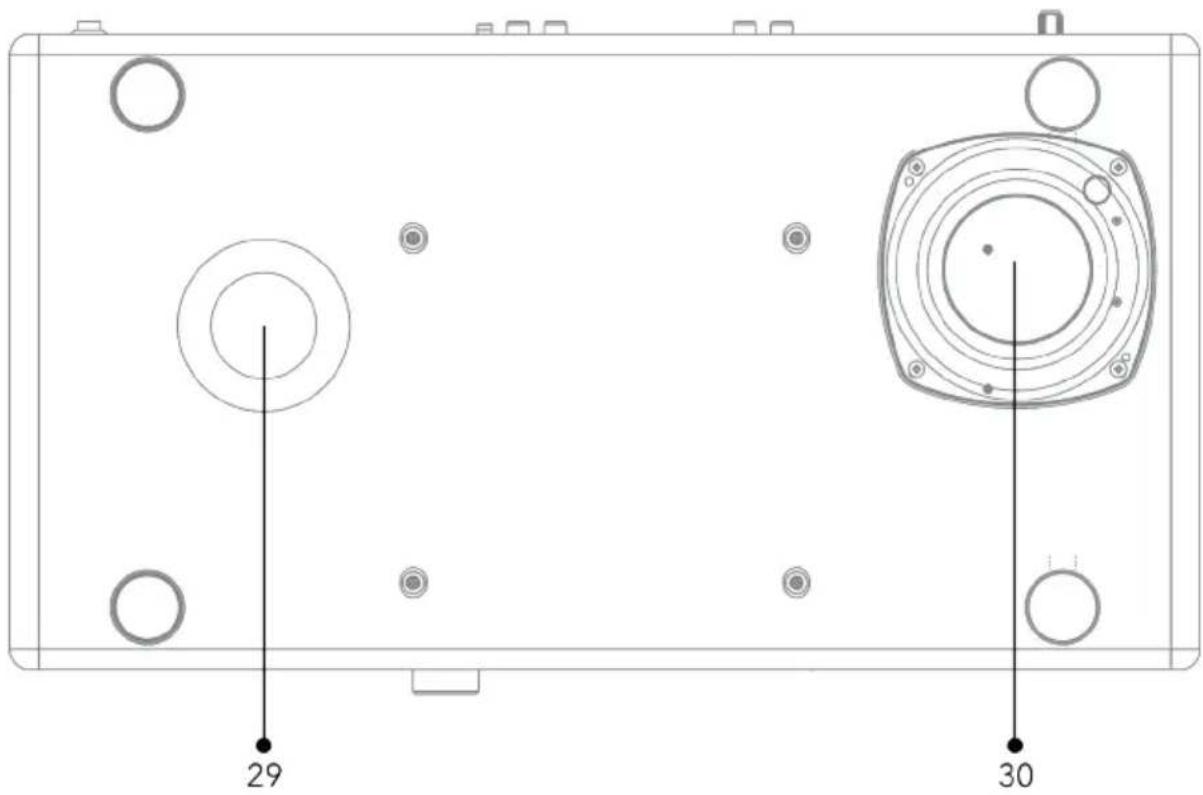
Bottom view
text_image
29 30- Bass reflex opening
- Subwoofer driver
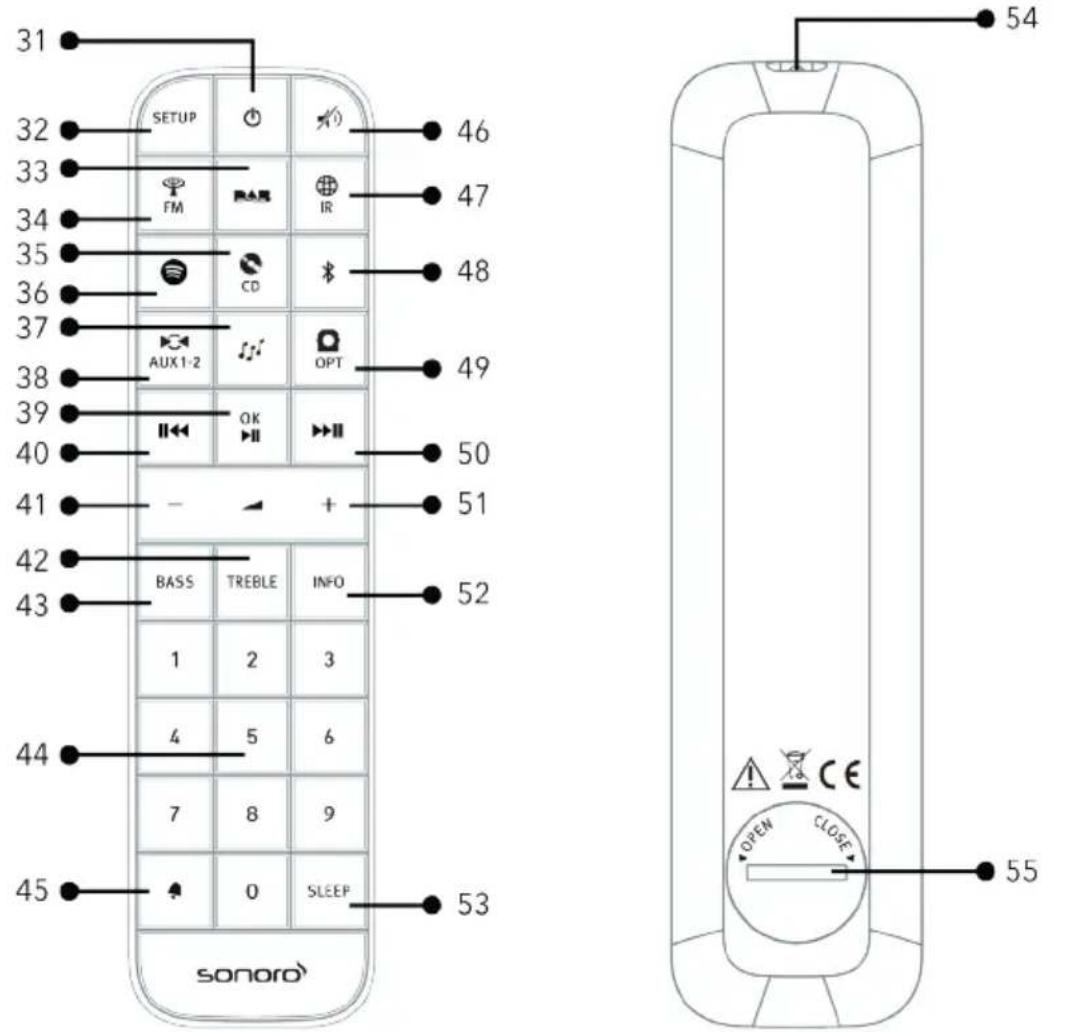
Remote control
text_image
31 32 SETUP 46 33 FM IR 47 34 35 36 CD 48 37 AUX1-2 OPT 49 38 39 OK 50 40 41 - + 51 42 BASS TREBLE INFO 52 43 1 2 3 44 4 5 6 7 8 9 45 0 SLEEP 53 sonoro 54 OPEN CLOSE 55GB
- Standby button ( ) 40 Left button, skip previous ( )
- Setup button (SETUP) 41. Volume down button ( )*
- DAB Radio mode ( ) 42. Treble setting button (TREBLE)
- FM Radio mode ( ) 43 Bass setting button (BASS)
- CD mode ( ) 44 Preset station buttons (1-9)
- Spotify mode ( ) 45 Alarm button ( )
- My Music mode ( ) 46. Mute button ( )
- Auxiliary input 1/2 mode ( ) 47. Internet Radio mode ( )
- Play/Pause/OK button ( ) 🎨Bluetooth mode ( )




- Optical input mode ( )
- Right button, skip next (
- Volume up button ( )*
- Information button (INFO)
- Sleeper timer button (SLEEP)
- Infrared transmitter
- Battery compartment


*Navigation buttons (+, -)
2.3 Technical data
| Specification Value | |
| Dimensions (W×D×H) approx. | 450 x 258 x 153 mm |
| Weight approx. 7.2 kg | |
| Operating temperature 0°C - +45°C | |
| Display 2.8" TFT colour display | |
| Frequency range, FM 87.50 MHz | -108.00 MHz |
| DAB/DAB+ Band III, 174,928 MHz | Hz-239,200 MHz |
| Internet radio More than 25,000 stations worldwide | |
| Station presets 40 for each FM | DAB/DAB + | Internet radio, 10 for Spotify | |
| CD support formats CD-DA, CD-R*, CD-RW*Audio CD, MPEG 1 Layer 3 (MP3), Windows Media Audio (WMA, DRM not supported)Sampling rate 16KHz~48KHz, bit rate max. 320kbps(* Playback dependent on quality of recording and medium) | |
| USB charging Output: DC 5V | 2.1A --- |
| USB playback Compatibility system: FAT 16, FAT 32 (not compatible with NTFS or other systems) | |
| AUX-IN Port 1 : RCA jack Sensitivity: 800mVPort 2 : 3.5mm jack Sensitivity: 300 mV | |
| Optical In, TOSLINK | Supports linear PCMSample rate: 32KHz/44.1KHz/48KHz/96KHzChannel: Stereo 16 bit, 24bit |
| Streaming | Bluetooth | Spotify | DLNA | UPnP |
| My music support media formats | AAC, AAC+, MP3, WAV, WMA, FLACMax. 16 bits, 2 channels, sample rate 48KHz |
| Network supported | IEEE 802.11 a/b/g/n, 2.4 & 5GHz bands, Ethernet2.412GHz-2.472GHz / 5.18GHz-5.24GHz / 5.26GHz-5.32GHz/ 5.50GHz-5.70GHz |
| Transmitted power | 15dBm for 2.4GHz / 17dBm for 5GHz WiFi |
| Encrypted key | WEP, WPA, WPA2 (PSK), WPS |
| Multiroom Function | Maximum of 5 speakers in a group (4 client and 1 server) |
| Bluetooth® | Version 4.1, Profile : AVRCP v1.5, A2DP 1.32.402GHz-2.480GHz |
| Transmitted power | 4dBm for BT / 7dBm for BT-LE |
| Battery | CR2032 (remote control) |
| Standby Power | < 1.0W |
| Network Standby | < 2.0W |
GB
2.4 Marks of approval and certificates

Bluetooth™
The Bluetooth® word mark and logos are registered trademarks owned by the Bluetooth SIG, Inc. and any use of such marks by sonoro audio GmbH is under license. Other trademarks and trade names are those of their respective owners.
The Spotify software is subject to third party licenses found here: http://www.spotify.com/connect/third-party-licenses

UPnP ^TM is a trademark of the UPnP ^TM Forum.
3. Getting started
3.1 Unpacking PRESTIGE
- Take PRESTIGE out of the packaging and check whether PRESTIGE or the individual parts exhibit damages. If this is the case, do not use PRESTIGE. Should you detect any damage, contact your dealer or sonoro audio GmbH customer support immediately.
- Check to make sure that the delivery is complete (see chapter "Scope of delivery").
- Place PRESTIGE at a suitable location.
- Remove the protective film from the display.
- Remove the protective card from the subwoofer driver.
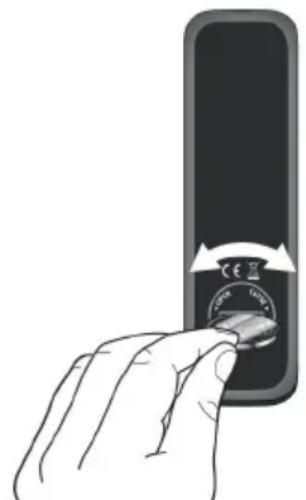
3.2 Inserting the battery in the remote control
- Open the battery compartment cover on the back of the remote control by turning it anticlockwise using a small coin.
- Insert the supplied batteries (CR2032, 3 V) with the label (+) side up.
- Replace and close the battery compartment cover by turning the cover clockwise using a small coin.
natural_image
Hand inserting a coin into a mobile phone (no text or symbols visible)
Do not block the infra-red sensor on the PRESTIGE and the infra-red transmitter on the remote control during use.
3.3 Using the antennas
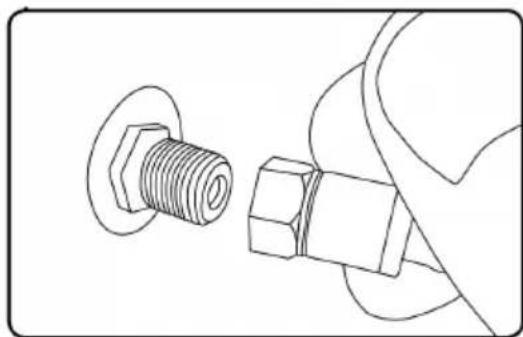
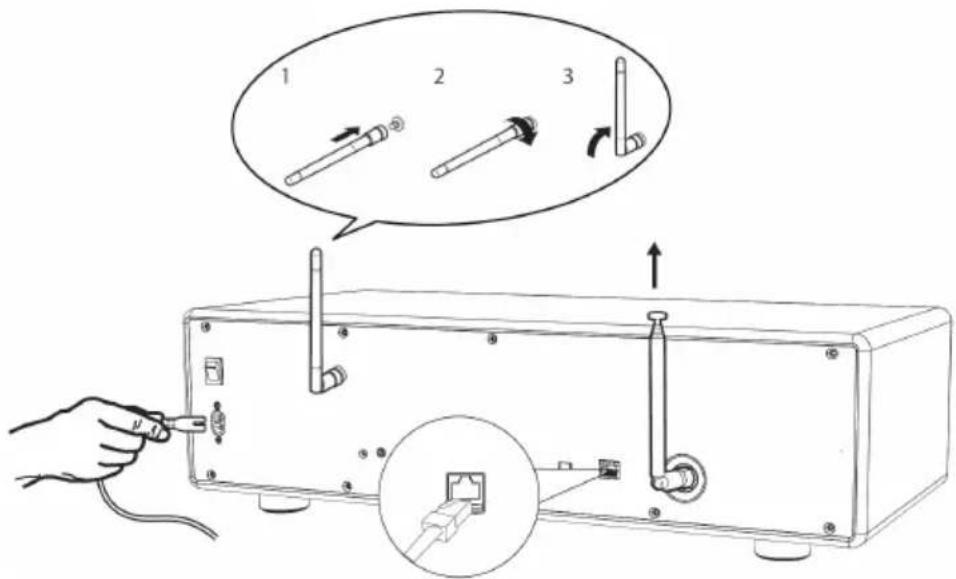
- Screw the rod antenna located on the back of PRESTIGE to the FM/DAB antenna connector.
natural_image
Technical line drawing of a bolt and nut assembly (no text or symbols)- If you are using the rod antenna, pull the arms of the rod antenna apart and align the antenna so that you have the best possible reception.

For even better reception, attach the cable to a suitable house antenna.
-
Screw the desired Wi-Fi antenna located on the back of PRESTIGE to the WiFi antenna connector. Lift Wi-Fi antenna upwards.
-
If you want to connect PRESTIGE to your network using an Ethernet cable, connect an Ethernet cable from LAN port on the back of PRESTIGE to your router.
text_image
Diagram showing three-step installation of a device with labeled components and an inset close-up view.- Plug-in the AC power cord.
3.4 Performing initial setup
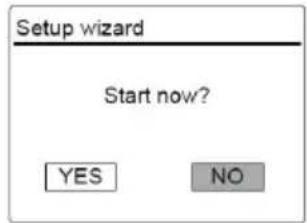
When PRESTIGE is powered on for the first time, the "Language" (to be used in the display) selection appears on the display. Then, the "Setup wizard" appears on the display. Follow the instructions below to configure some basic settings.
-
When the "Setup Wizard" is displayed, press + or - on the remote control (or rotate the navigation knob) to select "YES" and then press OK to start the setup
-
You are then prompted to select:
text_image
Setup wizard Start now? YES NO• Time format (12 or 24-hour),
- Source of auto update (Update from radio, Internet or no update).
Depending on the selection you have made, follow the instructions on the display to further set up date and time, time zone, daylight saving or wireless network. Rotate the navigation knob on PRESTIGE or press the navigation buttons on the remote control to make selections and then press OK to confirm (see chapter "Using the menus").
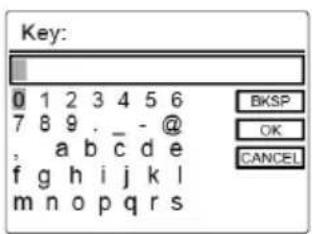
When update from Internet is selected, the Wi-Fi connection must be first established. When entering the key of your wireless network, rotate the navigation knob on PRESTIGE or press the navigation buttons on the remote control to select a character and then press OK to confirm. To delete the last entry, select [BKSP]. To cancel entering the key, select [CANCEL]. To confirm the entered key, select [OK].
text_image
Key: 0 1 2 3 4 5 6 7 8 9 . - @ , a b c d e f g h i j k l m n o p q r s BKSP OK CANCEL- When "Setup wizard completed" appears, press OK to exit the setting.
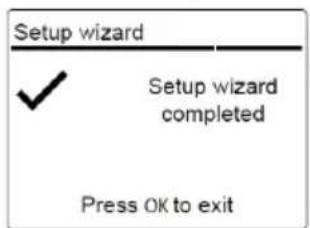
text_image
Setup wizard ✓ Setup wizard completed Press OK to exit- Alternative, use the Ethernet (LAN) connection to your router (with automatic configuration), select the [Wired] menu item in the available network.

To run the setup wizard again, go to [System Settings] and then select [Setup Wizard] (See chapter "System Settings").
- Basic operation
| To turn on Press . | PRESTIGE starts operation from the last selected playback mode. |
| To turn off (standby mode), | PressThe time and date (if set) are displayed.PRESTIGE will automatically turn off without playback and operation after 15 minutes. |
| To select a playback mode | Press MENU once, thenor(or rotate the navigation knob) to select a playback mode and then press OK to confirm.Mode sequence: FM Radio > DAB Radio > Internet Radio > Spotify > My Music > Bluetooth > Aux In 1 > Aux In 2 > Optical > CD |
| To directly select a playback mode | Press the direct operation mode key on the remote control to directly switching from one operation mode to the other. |
| To playback a CD Insert CD | disc in CD slot and PRESTIGE starts playing the CD. |
| To eject a CD Press the eject button ( ) on PRESTIGE. | |
| To control the volume Press + or - on the remote control or rotate the volume knob on PRESTIGE. | |
| To pair with a Bluetooth headphone | All operation modes except the Bluetooth mode, press and hold ➗ key on remote control. Or, press SETUP once, then + or - (or rotate the navigation knob) to select [Bluetooth headphone], then select [Bluetooth pairing] and then press OK to confirm.The small Bluetooth headphone icon ➗ is blinking and indicating that PRESTIGE is ready for pairing. The Bluetooth headphone icon ➗ stops blinking when pairing is completed. The paired Bluetooth headphone device name is temporarily shown in the display.Note: The pairing process is auto completion between PRESTIGE and Bluetooth headphone. Make sure that your Bluetooth headphone is already in discovery mode and ready for pairing, for more detail please refers to your Bluetooth device instruction manual. |
| To disconnect a paired Bluetooth headphone | Press SETUP once, then + or - (or rotate the navigation knob) to select [Bluetooth headphone], then select [Bluetooth disconnect] and then press OK to confirm. |
GB
5. Using the menus
There are three types of menus in PRESTIGE.
- Setup menu (for specific settings in a playback mode, e.g. [FM Auto Search] in FM mode)
- System settings (for general settings, e.g. time/date, language etc.)
- Main menu (for accessing the playback modes and sleep time)
| To access the menus Press | SETUP.Contents of the menus may differ in different playback modes. |
| To select an option in the menus | Rotate the navigation knob on PRESTIGE or press + or - on the remote control. |
| To confirm a selection in the menus | Press OK.(On PRESTIGE, press the navigation knob) |
| To go back one level in the menu | Press←. |
6. Display Icons
Refer to the table below for the meanings of the display icons when they show on the display.
| Wi-Fi connection is established (with signal strength). | |
| Wi-Fi is disconnected. | |
| LAN connection is established. | |
| LAN connection is unplugged. | |
| A Bluetooth device is connected. | |
| A Bluetooth headphone is connected. | |
| Alarm is activated. | |
| The radio station is in the preset list. | |
| FM RDS information is received. | |
| Radio signal is being received (with signal strength). | |
| Repeat all playback mode is active. | |
| Repeat one playback mode is active | |
| Repeat folder playback mode is active | |
| Shuffle playback mode is active. | |
| Repeat all and shuffle playback mode is active. | |
| Sleep timer is active. | |
| Stereo sound broadcast is available. | |
| Sound output is muted. | |
| A USB device is connected. | |
| Playback is paused. |
7. FM Radio mode
7.1 Operation
| To access the FM Radio mode | Press key on remote control.Or, press MENU once, thenor (or rotate the navigation knob) to select the FM Radio mode and then press OK to confirm. |
| To manually tune the frequency | Press or.Or, press and hold the navigation knob to active the manual tune. |
| To automatically tune to the next available station | Press and hold or.Or, press the navigation knob to start the automatic tuning. |
| To store a radio station in the preset list | A maximum of 40 radio stations can be stored.1. Press and hold the FAV key during approx. 3 sec on PRESTIGE until the preset list is shown.2. Press + or - (or rotate the navigation knob) to select a preset station number and then press OK to confirm. |
| To directly store a radio station in the preset list (1-9) | Tune to a station and then press and hold a preset station button (1-9) to directly store it in the preset list. |
| To recall a radio station in the preset list | 1. Press FAV.2. Press + or - (or rotate the navigation knob) to select a radio station in the preset list and then press OK to confirm.Or, press preset station button (0-9) to access a stored preset station (1-40). |
| To browse the radio station information (if available) | Press INFO repeatedly. |
| To mute or restore the sound output | Press ▶ or ▶ button. |
GB
7.2 Setup menu
Press SETUP in the FM mode to access the setup menu (see chapter "Using the menus"). The following options are available and the current settings (if applicable) are marked with an asterisk (*).
• [FM Auto Search]
To auto store all available radio stations in the preset list.*
All existing preset stations will be erased.
• [FM Scan Setting]
To decide if only stations with strong signals are scanned when performing automatic tuning.
• [FM Reception Setting]
To listen radio in stereo or mono sound output.
- [Bluetooth headphone]
To connect or disconnect with a Bluetooth headphone, see chapter "Basic operation".
- [System Settings]
See chapter "System Settings".
- [Main menu]
To access other playback modes, alarm or sleep timer.
8. DAB Radio mode
8.1 Operation
| To access the DAB Radio mode | Press the ▶AB key on remote control.Or press MENU once, then ▶◀◀ or▶▶■ (or rotate the navigation knob) select the DAB Radio mode and then press OK to confirm. |
| To search for DAB radio stations | The first time you select the DAB mode, or if the station list is empty, PRESTIGE will automatically perform a full scan and store all available stations in the station list. |
| To tune to a station Press | or ▶◀◀ ▶▶▶■ |
| To store a radio station in the preset list | A maximum of 40 radio stations can be stored.1. Press and hold the FAV key on PRESTIGE until the preset list is shown.2. Press + or - (or rotate the navigation knob) to select a preset station number and then press OK to confirm. |
| To directly store a radio station in the preset list (1-9) | Tune to a station and then press and hold a preset station button (1-9) to directly store it in the preset list. |
| To recall a radio station in the preset list | 1. Press FAV.2. Press + or - (or rotate the navigation knob) to select a radio station in the preset list and then press OK to confirm.Or, press a preset station button (0-9) to access a stored preset station (1-40). |
GB
| To browse the radio station information* (if available) | Press INFO repeatedly. |
| To mute or restore the sound output | Press 🔊 or ▶ button. |
*DAB information (if available) includes: Station name, Dynamic Label Segment (DLS), Signal strength, Program type (PTY), Ensemble Name, Frequency, Signal error rate, Bit rate and audio status, Codec, and Time and date.
8.2 Setup menu
Press SETUP in the DAB mode to access the setup menu (see chapter "Using the menus"). The following options are available and the current settings (if applicable) are marked with an asterisk (*).
- [Station List]
To display all available stations.
• [Scan]
To scan and store all available stations.
- [Manual Tune]
To manually tune the frequency. The list of available digital radio ensembles is shown.
• [Prune invalid Stations]
To remove all invalid stations from the station list.
• [DRC]
Some DAB broadcasts offer dynamic range compression (DRC). Compressing the dynamic range of a radio signal can increase the volume of quiet sounds and reduce the volume of loud sounds. You can select high, low or off level. High level is recommended for noisy environment.
- [Station Order]
To define how the stations are listed when browsing the station list. Options are:
• [Alphanumeric]: Arrange the stations in alphabetical order,
- [Ensemble]: List groups of stations that are broadcast together on the same ensemble.
- [Valid]: List valid stations first, then off-air stations.
- [Bluetooth headphone]
To connect or disconnect with a Bluetooth headphone, see chapter "Basic operation".
- [System Settings]
See chapter "System Settings".
- [Main menu]
To access other playback modes, alarm or sleep timer.
9. Internet Radio mode
9.1 Operation
Wi-Fi or Ethernet Internet connection must be established first to use the Internet radio (see chapters "Performing initial setup" and "Network").
| To access the Internet Radio mode | Press the IR key on remote control key.Or, press MENU once, thenllllllorggll (or rotate the navigation knob) to select the Internet Radio mode and then press OK to confirm.PRESTIGE starts connecting to the previously connected network and then the last listened station. |
| To tune to a radio station or podcast | See chapter "Station List". |
| To store a radio station in the preset list | A maximum of 40 radio stations can be stored.1. Press and hold the FAV key on PRESTIGE until the preset list is shown.2. Press + or - (or rotate the navigation knob) to select a preset station number and then press OK to confirm. |
| To directly store a radio station in the preset list (1-9) | Tune to a station and then press and hold a preset station button (1-9) approx. 3 sec. to directly store it in the preset list. |
| To recall a radio station in the preset list | 1. Press FAV key.2. Press + or - (or rotate the navigation knob) to select a radio station in the preset list and then press OK to confirm.Or, press preset station buttons (0-9) to access a stored preset station (1-40). |
| To browse the station information* (if available) | Press INFO repeatedly. |
| To mute or restore the sound output | Press ✅ button. |
GB
*Station information (if available) includes: Artist and track name, Station description, Station genre and location, Signal reliability, Codec and sampling rate, Playback buffer, and Date.
9.2 Setup menu
Press SETUP in the Internet radio mode to access the setup menu (see chapter "Using the menus"). The following options are available and the current settings (if applicable) are marked with an asterisk (*).
- [Last listened]
To tune to your last listened radio stations.
- [Station List]
To tune to any available Internet radio stations (See chapter "Station list").
• [Bluetooth headphone]
To connect or disconnect with a Bluetooth headphone, see chapter "Basic operation".
- [System Settings]
See chapter "System Settings".
- [Main menu]
To access other playback modes, alarm or sleep timer.
9.3 Station list
The following menus and sub-menus are available in the [Station List]:
• [My Favourites]
To browse and tune to the Internet radio stations that you have added to "My favourites" on the web portal (See chapter "Using the web portal").
- [Local (name of your location)]
To browse and tune to any radio stations available in your area. The stations are grouped into several categories.
• [Stations]
- [Location]: To browse and tune to radio stations by location.
- [Genre]: To browse and tune to radio stations by genre.
- [Search stations]: To search for any available radio stations by entering keywords.
- [Popular stations]: To browse and tune to the most popular Internet radio stations.
- [New stations]: To browse and tune to the latest Internet radio stations.
• [Podcasts]
- [Location]: To browse and tune to podcasts by location.
• [Genre]: To browse and tune to podcasts by genre. - [Search podcasts]: To search for any available podcasts by entering keywords.
• [My Added Stations]
To browse and tune to the radio stations that you have added to "My added stations" on the web portal (See chapter "Using the web portal").
• [Help]
- [Get access code]: To get the access code of PRESTIGE.
- [FAQ]: To get help when the Internet radio does not work properly.
9.4 Using the web portal
The Frontier Silicon Internet Radio portal website allows you to organise your "My favourites" and add new Internet radio stations on a computer. To do so, you need to first register at the web portal.
- In the Internet Radio mode, press SETUP and then go to [Station List]
[Help] > [Get access code]. Write down the access code.
- Go to www.wifiradio-frontier.com on the web browser of your computer.
- Register a new account with the access code.
- Following the instructions in the web portal, use the "My favourites" and "My added stations" features to add radio stations.
The added stations in "My favourites" can be accessed through [My favourites] in the Internet Radio mode of PRESTIGE.
The added stations in "My added stations" can be accessed through [My added stations] in the Internet Radio mode of PRESTIGE.
10. Spotify Mode

To play back music available from "Spotify", you need to install the "Spotify" application onto your mobile phone, set up an account and purchase the premium version (fee-charging). Also your mobile phone must be registered in the same Wi-Fi network as this PRESTIGE.
For the most up-to-date instructions on how to set up Spotify:
www.spotify.com/connect
10.1 Operation
| To access the Spotify mode | Press the ➕ key on remote control.Or, press MENU once, then ||◀◀ or▶▶|| (or rotate the navigation knob) to select the Spotify mode and then press OK to confirm. |
| How to use Spotify Connect | 1. Connect your PRESTIGE to your wifi network.2. Open up the Spotify app on your phone, laptop or tablet using the same wifi network.3. Play a song and select Devices Available.4. Select your PRESTIGE and start listening. |
| To pause or resume playback | Press ▶II . |
| To skip to the previous or next playback item | Press ||◀◀ or ▶▶II . |
| To store a playback item in the preset list | A maximum of 10 playback items can be stored.1. Press FAV until the save to preset is shown then press OK to confirm.2. Press + or - (or rotate the navigation knob) to select a preset item number and then press OK to confirm. |
| To directly store a playback item in the preset list (1-9) | Select a playback item and then press and hold a preset station button (1-9) to directly store it in the preset list. |
| To recall a playback item in the preset list | 1. Press FAV key.2. Press + or - (or rotate the navigation knob) to select a playback item in the preset list and then press OK to confirm.Or, press preset station buttons (0-9) to directly access a preset playback item (1-10). |
| To browse the information (if available) of the playback item | Press INFO repeatedly. |
10.2 Setup menu
Press SETUP in the Spotify mode to access the setup menu (see chapter
"Using the menus"). The following options are available and the current settings (if applicable) are marked with an asterisk (*).
- [Bluetooth headphone]
To connect or disconnect with a Bluetooth headphone, see chapter "Basic operation".
- [System Settings]
See chapter "System Settings".
- [Main menu]
To access other playback modes, alarm or sleep timer.
11. My Music Mode

NOTICE!
Risk of damage!
Improper handling of the PRESTIGE may cause damage.
Do not connect the PRESTIGE directly to the USB port of a computer or other external storage media such as external hard disk.

My Music mode can play back audio files stored on a connected USB memory stick or from a media server (UPnP) sharing the same Wi-Fi network with the PRESTIGE.
11.1 Operation
| To access the My Music mode | Press the √√ key on the remote control. Or, press MENU once, then ■◀◀ or▶▶■ (or rotate the navigation knob) to select the My Music mode and then press OK to confirm. |
| To play back audio files stored on a USB memory stick | Connect the USB memory stick to the USB port of PRESTIGE. Then press SETUP and select [USB Playback] from the setup menu (see chapter “Setup menu” on next page). |
| To pause or resume playback | Press ▶■ . |
| To skip to the previous or next audio file | Press■◀◀ or▶▶■ . |
| To quickly search backward or forward within an audio file | During playback, press and hold■◀◀ or▶▶■ |
| To add an audio file to “My Playlist” | Press and hold▶■ or the navigation knob when the file is highlighted in the selection menu. |
| To select a playback mode | Press FAV repeatedly.● Repeat all● Repeat once● Shuffle● Repeat all and shuffle |
| To browse the information (if available) of the audio file | Press INFO repeatedly. |
11.2 Setup menu
Press SETUP in the My Music mode to access the setup menu (see chapter "Using the menus"). The following options are available and the current settings (if applicable) are marked with an asterisk (*).
• [Shared Media]
To search for audio files on the Wi-Fi or Ethernet network.
Once a media server has been found, a selection menu will show for selection of audio files for playback from PRESTIGE.
• [USB Playback]
To search for audio files on the connected USB memory stick.
Once a USB memory stick has been found, a selection menu will show for selection of audio files for playback from PRESTIGE.
• [My Playlist]
To browse and play back audio files stored in "My playlist".
• [Repeat]
To turn on or off the repeat playback mode of the current folder/ playlist.
- [Shuffle]
To turn on or off the shuffle playback mode of the current folder/ playlist.
• [Clear My Playlist]
To clear entries from "My Playlist".
- [Prune Servers]
If this setting is set to "YES", inactive media servers will be displayed. You can then select a media server and "wake it up" (WOL "wake on LAN" function) in order to play back audio files from PRESTIGE.
- [Bluetooth headphone]
To connect or disconnect with a Bluetooth headphone, see chapter "Basic operation".
- [System Settings]
See chapter "System Settings".
- [Main menu]
To access other playback modes, alarm or sleep timer.
12. Bluetooth mode
PRESTIGE can connect to Bluetooth-enabled players (e.g. mobile phone) within a range of approximately 10 meters (30 feet).
12.1 Pairing
- Press ✝ key on remote control. Or, press SETUP once, then + or - (or rotate the navigation knob) to select the Bluetooth mode and then press OK to confirm.
The small Bluetooth icon 📄 is blinking, indicating that PRESTIGE is ready for pairing. - On your Bluetooth-enabled player, turn on the Bluetooth function and search for available Bluetooth devices.
- Select "PRESTIGE" in the list of available Bluetooth devices to start pairing.
- The Bluetooth icon ☒ stops blinking when pairing is complete.
12.2 Operation
| To access the Bluetooth audio mode | Press ✝ key on remote control.Or, press MENU once, then■◀◀ or▶▶▶. (or rotate the navigation knob) to select the Bluetooth mode and then press OK to confirm. |
| To start playback Select an | audio file from your Bluetooth- enabled player and start playback. |
| To pause or resume playback | Press ▶▶. |
| To skip to the previous or next audio file | Press ■◀◀ or▶▶▶. |
| To quickly search backward or forward within an audio file | During playback, press and hold■◀◀ or▶▶▶. |
| To disconnect the Bluetooth connection | Switch to another playback mode, orSelect [BT disconnect] from the setup menu (see below), orPress and hold ➤ in the remote control. |
| To browse the information (if available) of the audio file | Press INFO repeatedly. |
12.3 Setup menu
Press SETUP in the Bluetooth audio mode to access the setup menu (see chapter "Using the menus"). The following options are available and the current settings (if applicable) are marked with an asterisk (*).
- [Bluetooth disconnect]
To disconnect the Bluetooth connection.
• [View Details]
- [Bluetooth Info]: To get the existing Bluetooth connection status.
- [Connected Device]: To get the existing connected Bluetooth device name.
- [System Setting]
See chapter "System Settings".
- [Main menu]
To access other playback modes, alarm or sleep timer.
13. AUX In 1 mode
13.1 Operation
Your external player (e.g. Blu-ray player) must be connected to the auxiliary input jack 1 of PRESTIGE with an audio cable (with RCA connector, not supplied).
| To access the AUX In 1 mode | Press key on remote control to toggle AUX In. 1 mode.Or, press MENU once, then or . (or rotate the navigation knob) to select the AUX In 1 mode and then press OK to confirm. |
| To start and control playback | Perform all playback operations on the external player. |
| To mute or restore the sound output | Press or button. |
13.2 Setup menu
Press SETUP in the AUX In 1 mode to access the setup menu (see chapter "Using the menus"). The following options are available and the current settings (if applicable) are marked with an asterisk (*).
- [Bluetooth headphone]
To connect or disconnect with a Bluetooth headphone, see chapter "Basic operation".
- [System Settings]
See chapter "System Settings".
- [Main menu]
To access other playback modes, alarm or sleep timer.
14. AUX In 2 mode
14.1 Operation
Your external player (e.g. mp3 player) can be connected to the auxiliary input jack 2 of PRESTIGE with an audio cable (with 3.5 mm connector, not supplied).
| To access the auxiliary input 2 mode | Press key on remote control to toggle AUX In. 2.Or, press MENU once, then or (or rotate the navigation knob) to select the AUX In 2 mode and then press OK to confirm. |
| To start and control playback | Perform all playback operations on the external player. |
| To mute or restore the sound output | Press or button. |
14.2 Setup menu
Press SETUP in the AUX In 2 mode to access the setup menu (see chapter "Using the menus"). The following options are available and the current settings (if applicable) are marked with an asterisk (*).
- [Bluetooth headphone]
To connect or disconnect with a Bluetooth headphone, see chapter "Basic operation".
- [System Settings]
See chapter "System Settings".
- [Main menu]
To access other playback modes, alarm or sleep timer.
15. Optical mode
15.1 Operation
Your external player (e.g. TV device) can be connected to the optical input jack of PRESTIGE with an audio cable (with optical connector, not supplied).
| To access the optical mode | Press ☐ key on the remote control.Or, press MENU once, then ||◀◀ or▶▶|| (or rotate the navigation knob) to select the optical mode and then press OK to confirm. |
| To start and control playback | Perform all playback operations on the external player. |
| To mute or restore the sound output | Press 🔍 or ▶|| button. |
15.2 Setup menu
Press SETUP in the optical input mode to access the setup menu (see chapter "Using the menus"). The following options are available and the current settings (if applicable) are marked with an asterisk (*).
- [Bluetooth headphone]
To connect or disconnect with a Bluetooth headphone, see chapter "Basic operation". - [System Settings]
See chapter "System Settings". - [Main menu]
To access other playback modes, alarm or sleep timer.

The optical input is only supporting for the linear PCM, 2 channels 16 bit or 24bit music source.
16. CD Mode

NOTICE!
Risk of damage!
Improper handling of the PRESTIGE may cause damage. Do not insert not supporting format disc to the PRESTIGE.
16.1 Operation
PRESTIGE can playback audio files stored on an audio CD, CD-R and CD-RW. The playback is also depending on the disc quality.
| To access the CD mode | Press key on remote control. Or press MENU once, then or rotate the navigation knob) to select the CD mode and then press OK to confirm. |
| To pause or resume playback | Press ▶II . |
| To stop playback Press . | |
| To skip to the previous or next audio file | Press or ▶III . |
| To quickly search backward or forward within an audio file | During playback, press and hold or ▶III . |
| To select a playback mode | Press FAV repeatedlyRepeat allRepeat onceShuffle |
| To browse the information (if available) of the audio file | Press INFO repeatedly. |
16.2 Setup menu
Press SETUP in the CD mode to access the setup menu (see chapter "Using the menus"). The following options are available and the current settings (if applicable) are marked with an asterisk (*).
- [Resume setting]
The CD will resume playback from the last played position, even if you have switched modes or switch the device to Standby mode. This function is terminated when you eject the CD. This function is intended for audio books, for example.
- [Bluetooth headphone]
To connect or disconnect with a Bluetooth headphone, see chapter "Basic operation".
- [System Settings]
See chapter "System Settings".
- [Main menu]
To access other playback modes, alarm or sleep timer.
17. Alarm
17.1 Setting the alarm
- Press and hold 🔔 to access the alarm setting mode.
Alternatively, press SETUP in any playback mode and then select [Main menu] and then [Alarm].
You may also access the alarm setting mode when PRESTIGE is in the standby (off) mode. To do so, press and hold 🔔 button.
-
Select the alarm you want to set and then press OK.
-
The following options show how to set the alarm. Rotate the navigation knob or press the navigation buttons to perform the settings (see chapter "Using the menus").
- [Enable]
To turn on or off and set frequency of the alarm. The following options are available:
• [Off]: To deactivate the alarm.
• [Daily]: The alarm activates everyday.
- [Once]: The alarm activates once only.
• [Weekends]: The alarm activates on Saturdays and Sundays.
• [Weekdays]: The alarm activates from Monday to Friday.
• [Time]
To set the alarm time.
• [Mode]
To select the alarm sound source. The following options are available:
• [Buzzer]
- [Internet radio]
• [DAB radio]
• [FM radio]
• [Preset]
To select the last listened station or a preset station as the alarm sound source. This only shows when Internet radio, DAB or FM is selected in [Mode].
• [Volume]
To set the volume of the alarm sound.
• [Save]
To save the current settings.
Once [Save] is selected, the alarm settings will be stored. If an alarm is activated, the alarm icon 📁 will show.
17.2 Turning the alarms on or off
- When PRESTIGE is in operation mode or in the standby (off) mode, press repeatedly to switch on or off the alarm.
- When an alarm is turned on, the alarm icon (☐) will show.
17.3 Deactivating a sounding alarm
- Press ⏻ or ♦ to stop a sounding alarm.
17.4 Snooze
- To temporarily silence (default: 10 min) a sounding alarm, press the navigation knob or ⚡ buttons.
- Press + or - (or rotate the navigation knob) to change the snooze period (5, 10, 15 or 30 min).
- During the snooze period, the alarm icon will blink and the remaining snooze time will show.
- To cancel the snooze function, press ⏻ or ♠.
18. Sleep timer
The sleep timer sets the duration of time before PRESTIGE turns off automatically.
-
Press SETUP in any playback mode and then select [Main menu] and then [Sleep]. Or, direct press SLEEP button on the remote to turn the sleep timer on or off.
-
Press + or - (or rotate the navigation knob) to select a sleep timer (15, 30, 45, 60 or 90 min).
-
Press OK to confirm the selection.
When the sleep timer is active, the sleep timer icon (☐) and the remaining time will be shown. To cancel the sleep timer, select [Sleep OFF].
19. System settings
19.1 Accessing the system settings
- Press SETUP in any playback mode and then select [System Settings]
- Refer to the chapters below for details of each setting option.
- The current settings (if applicable) are marked with an asterisk (*).
- See chapter "Using the menus" for browsing and making selections in the system settings.
19.2 Equalizer
Select one of the sound equalizer options to adjust the sound according to your taste.
• [3D Sound]
3D Sound on, it extends the stereo area, thus improving the depth of the music playback.
• [Loudness]
Loudness on, it adapts the treble and bass levels to suit the current volume, so that delicate sounds can still be heard clearly when you listen to your music quietly.
• [Bass]
Adjust the bass level to tailor the sound of the audio playback.
• [Treble]
Adjust the treble level to tailor the sound of the audio playback.
- Select one of the pre-defined sound equalizer options including: [Flat], [Pop], [Rock], [Jazz] and [Classic].
19.3 Network
• [Network wizard]
To establish network connection.
• [WPS WLAN Setup]
Select this option if your wireless router supports both WPS and PBC setup methods.
• [View Settings]
To view the current network information.
• [WLAN Region]
To select a WLAN region.
- [Manual Settings]
Under the [Wireless] option, select [DHCP enable] to allocate IP address automatically or [DHCP disable] to do it manually.
- [NetRemote PIN setup]
To set up a NetRemote PIN.
• [Network Profile]
To display a list of networks saved by PRESTIGE.
- [Clear Network Setting]
To clear all network settings.
- [Keep Network Connected]
To keep the WiFi network connected or not. If [YES] is selected, this allows you to wake-up PRESTIGE from standby using a remote app. If [NO] is selected, this will switch OFF the WiFi network connection in standby mode.
19.4 Time/date
- [Set Time/Date]
To set time and date.
• [Auto Update]
To select a source (Radio, Internet network or no update) for automatic time update.
- If you are updating time from a source (Radio - FM/DAB), the daylight saving setting has no effect. The change of the summer-winter time takes place automatically when receiving a suitable FM / DAB radio station.
If you are updating time from the Internet network, set your time zone. The change from summer to winter time is not automatic.
- [Set Format]
To set 12 or 24-hour time format.
- [Set Timezone]
To set a time zone.
• [Daylight Savings]
To enable or disable daylight saving time.
19.5 Inactive standby
- This option sets the duration of time before PRESTIGE turns off automatically. Options include: Off, 2, 4, 5 and 6 hours.
19.6 Language
- This option sets the menu language. Options include: English, German, Danish, Spanish, French, Italian, Dutch, Norwegian, Polish, Portuguese, Finnish, Swedish and Turkish.
19.7 Factory reset
- This option clears all user-defined settings and replaces them with the original default settings.
19.8 Software update
• [Auto check] To set to periodically check for update.
- [Check now] To check for update immediately. If a new software is available, PRESTIGE will ask if you want to proceed with an update.
Before software upgrade, make sure that PRESTIGE is connected to a stable power connection. Disconnecting power during a software update may damage PRESTIGE.
19.9 Setup wizard
- To perform initial setup (see chapter "Performing initial setup").
19.10 Info
- This shows the current software version, spotify version, radio ID and friendly name.
19.11 Backlight
- [Dimmer Level]
To select the brightness level of the display. Options include: [High], [Medium], [Low] or [Auto].
If [Auto] is selected, the brightness level is automatically adjusted according to the ambient light sensor at the front of PRESTIGE.
19.12 Multiroom
Your PRESTIGE can be used with other compatible products as part of a multiroom system. Products under the same Wi-Fi network and synchronised in the same multiroom group can play the same content around your home. You may also create multiple groups for different areas of the home or for different users.
You can configure the multiroom groups in the system settings with the following options:
• [View Details]
To view your current multiroom status:
• [Ungrouped]: PRESTIGE is not part of a group.
- [Server]: PRESTIGE sends audio content to other group members.
- [Client]: PRESTIGE receives audio content from another product in the group.
- [Create New Group]
To create a new multiroom group.
- [Add to Group]
To add other compatible products to a current multiroom group.
• [List Current Clients]
To view the list of compatible products receiving audio contents from PRESTIGE.
- [Leave Group]
To remove compatible products from a multiroom group.
• [Dissolve Group]
To dissolve a multiroom group. Each product in the group will then be operated individually.
20. Using UNDOK ^TM app to control PRESTIGE
PRESTIGE is compatible with the Frontier Silicon's UNDOK™ app. The app offers comprehensive remote control functionality for FS based audio modules with an iOS or Android smart device.
To install and use the UNDOK™ app:
- Download the UNDOK™ app from "App Store" or "Google play" and install it on your iOS or Android smart device.

-
Connect your smart device to the same Wi-Fi network as PRESTIGE.
-
Launch the UNDOK™ app on your smart device. The app will search for compatible audio systems. You may also tap on "Set up audio system" to start searching for audio systems.
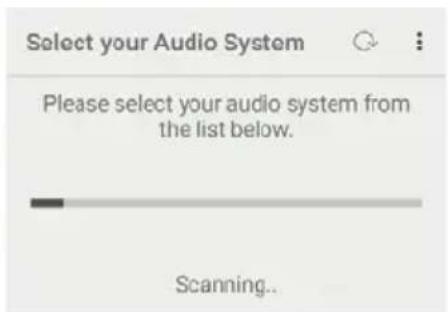
text_image
Select your Audio System Please select your audio system from the list below. Scanning...- Select "PRESTIGE" from the list of available audio systems
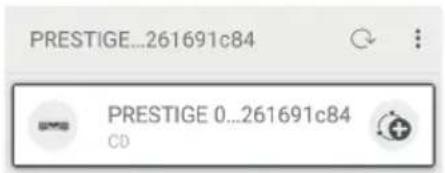
text_image
PRESTIGE...261691c84 PRESTIGE 0...261691c84 CDGB
5. Control PRESTIGE through the UNDOK™ app.
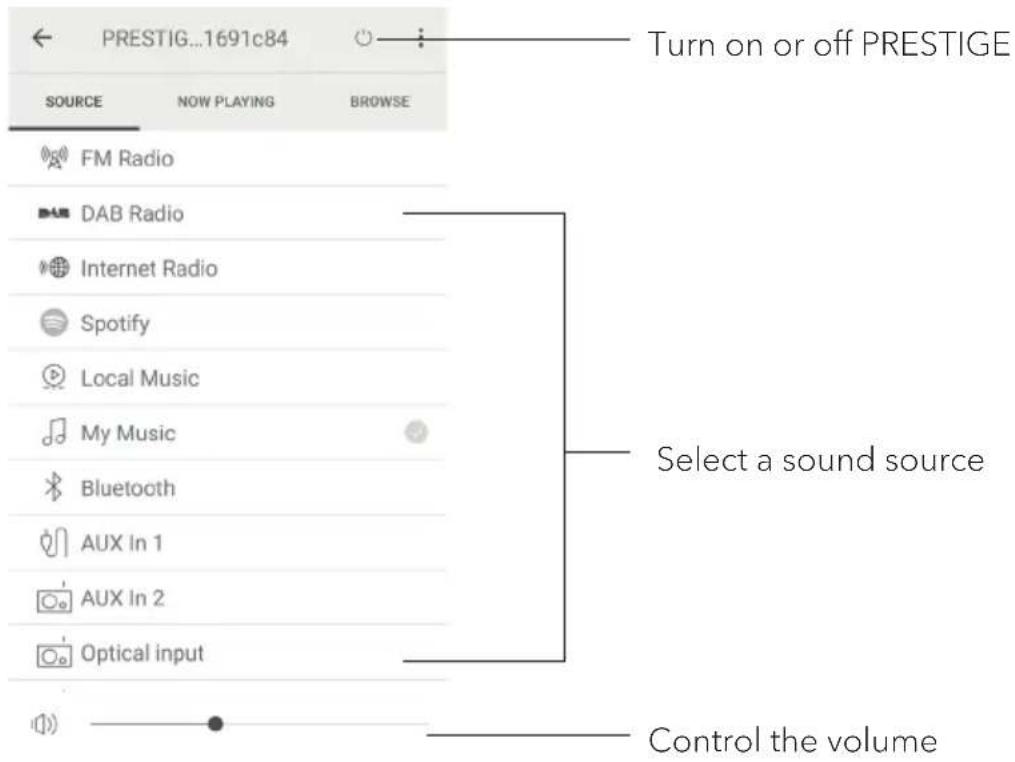
text_image
PRESTIG...1691c84 SOURCE NOW PLAYING BROWSE FM Radio DAB Radio Internet Radio Spotify Local Music My Music Bluetooth AUX In 1 AUX In 2 Optical input Turn on or off PRESTIGE Select a sound source Control the volumeYour PRESTIGE can be used with other compatible products as part of a multiroom system. You can use the UNDOK™ app to manage the multi-room groups.
To do so:
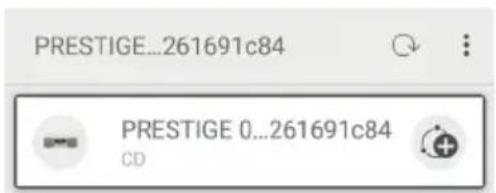
6. Tap on the edit group icon (☐) in the list of available audio system.
text_image
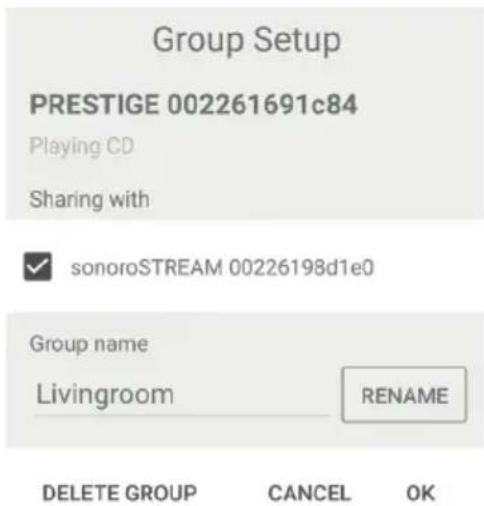
PRESTIGE...261691c84 PRESTIGE 0...261691c84 CD7. Add or remove PRESTIGE to or from multiroom groups, change a group name or delete a group as required.
text_image
Group Setup PRESTIGE 002261691c84 Playing CD Sharing with ✓ sonoroSTREAM 00226198d1e0 Group name Livingroom RENAME DELETE GROUP CANCEL OK21. Troubleshooting
Malfunctions can occur with any electrical equipment. This is not necessarily due to PRESTIGE defect. As such, you should check the following table to see if you can eliminate the problem yourself.
| Malfunction Possible cause | Solution | |
| No power Power cable is not properly connected. | Connect the power cable properly. | |
| No response from PRESTIGE | There is an error in PRESTIGE. | Disconnect and reconnect the power plug. Then turn PRESTIGE on again. |
| Remote control does not work, or only works sporadically | Distance to PRESTIGE is too large. | Reduce the distance between the remote control and PRESTIGE. |
| Battery is empty. Replace | the battery. | |
| No sound or poor sound Sound is turned off. Adjust the volume. | ||
GB
| Malfunction Possible cause | Solution | |
| Cannot connect to your Wi-Fi network | Router is not switched on or working properly. | Switch on your router or check the router conditions. |
| Setup method is incorrect. | Check if your router supports WPS and uses the correct setup method (PBC or PIN). | |
| Configure the Wi-Fi settings again. | ||
| Internet radio station does not work sometimes. | Some stations only support a limited number of listeners. | Try again later. |
| Station is not broadcasting. | Try again later. | |
| Some Internet radio stations disappear from the station list. | The station is removed from the list when it stops broadcasting. | Check again later. If the station broadcasts again, it will be brought back to the list. |
| CD playback does not start. | CD format is not supported. | Insert correct CD format in the CD slot. |
| CD is dirty. Clean the CD. | ||
| CD is damaged. Insert a different CD in the CD slot. | ||
| USB device does not work. | USB playback is not support. | Check the files and file system on the USB device. |
| USB device is not charging. | Check the USB cable. |
22. Cleaning

NOTICE!
Material damage due to improper cleaning!
Improper cleaning can result in damage to PRESTIGE or cause certain functions to stop working.
- Never use abrasive or solvent-based cleaning agents, as these may damage the surface of PRESTIGE.
- Never use hot or compressed air to dry PRESTIGE.
- The edges and corners of PRESTIGE are vulnerable to pressure. Protect these areas to prevent them from being subjected to excessive pressure.
Cleaning off fingerprints and light soiling
- Clean PRESTIGE only from the outside with a soft, dry cloth.
Cleaning off heavy soiling
- Clean PRESTIGE only from the outside with a slightly damp cloth and then dry PRESTIGE with a soft, dry cloth.
23. Warranty
When submitting warranty claims, the following applies without restricting your legal rights:
- Warranty claims can only be asserted within a period of max. 2 years (1 year in North America and Australia), calculated from the date of purchase.
- sonoro audio GmbH shall, at its own discretion, repair or replace PRESTIGE free of charge any defects caused by material or manufacturing defects within the warranty period.
- In case of a complaint, please contact our customer service department. You can find contact details under "Contact data" or at www.sonoro.de.
- No new warranty period begins following repair or replacement of PRESTIGE. The warranty period of 2 years (1 year in North America and Australia) from date of purchase remains applicable.
- Excluded from the warranty are batteries, damage caused by improper use, normal wear and tear, as well as defects which only minimally affect the value or usability of PRESTIGE. The warranty also expires in case of any modifications not made by our authorised service centre.
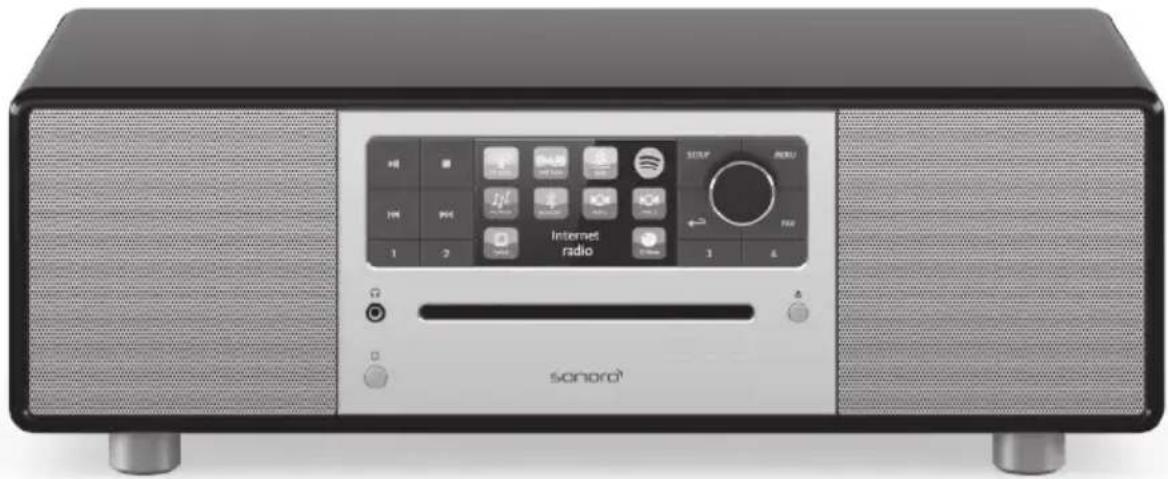
PRESTIGE
SO-330
SYSTÈME AUDIO STÉRÉO TOUT-EN-UN À 2 VOIES AVEC SUBWOOFER INTÉGRÉ, RADIO INTERNET, MULTIROOM, LECTEUR CD, DAB+ & BLUETOOTH®
natural_image
Exterior view of a Sanorai CD-ROM with sound waves and control panel (no readable text or symbols beyond branding)1. Introduction 116
http://www.spotify.com/connect/third-party-licenses

natural_image
Hand inserting a small circular component into a smartphone (no text or symbols visible)
natural_image
Technical line drawing of a bolt and nut assembly (no text or symbols)text_image
Diagram showing three labeled components of a device with an open panel, including a hand inserting cable to a plug and a close-up inset of the plug.text_image
Setup wizard Start now? YES NOtext_image
Setup wizard ✓ Setup wizard completed Press OK to exit- [Configuration PIN NetRemote]
Pour configurer un NIP NetRemote.
• [Profil réseau]
text_image
Select your Audio System Please select your audio system from the list below. Scanning...text_image
PRESTIGE...261691c84 PRESTIGE 0...261691c84 CDtext_image
PRESTIGE...261691c84 PRESTIGE 0...261691c84 CDnatural_image
Black and silver electronic device with sound waves, a digital screen labeled 'Internet radio', and a 'sonoro' logo (no readable text beyond branding)Manuale operativo
Sommario
natural_image
Hand inserting a small circular component into a mobile phone (no text or symbols visible)
natural_image
Technical line drawing of a mechanical component with a threaded bolt and hexagonal nut (no text or symbols)
text_image
Diagram showing a hand inserting wires into a device with three labeled components and an inset close-up of the plug-in socket.text_image
Setup wizard Start now? YES NOtext_image
Setup wizard ✓ Setup wizard completed Press OK to exittext_image
Select your Audio System Please select your audio system from the list below. Scanning...text_image
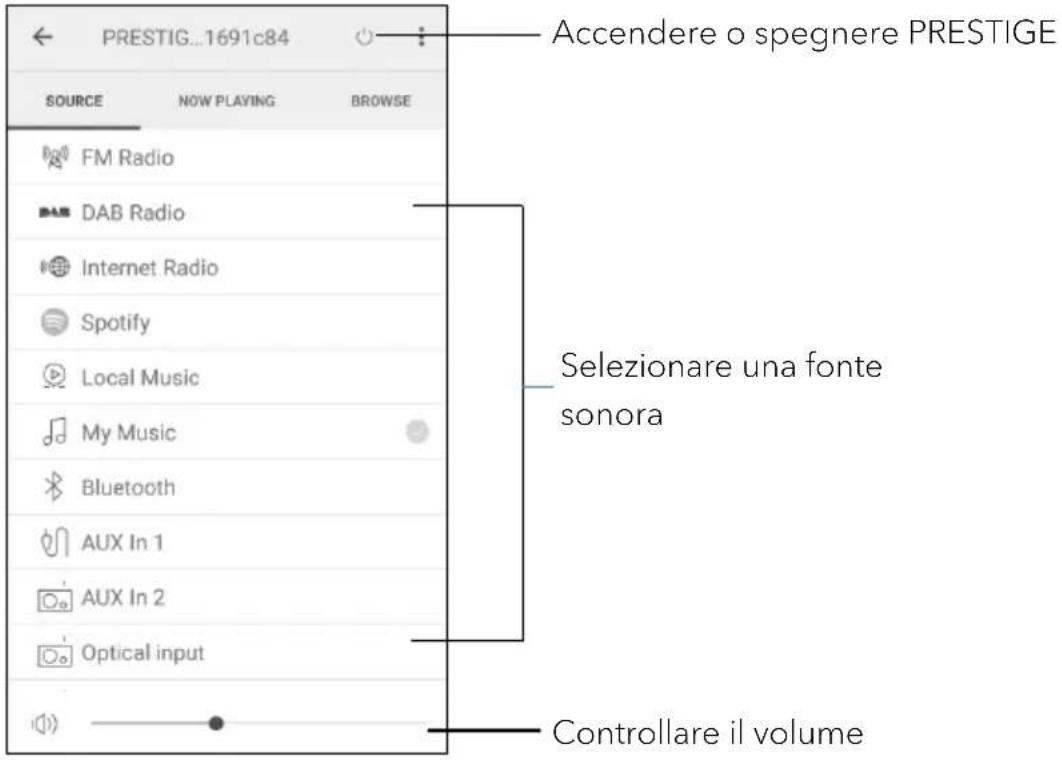
PRESTIGE...261691c84 PRESTIGE 0...261691c84 CD- Controllare PRESTIGE tramite l'app UNDOK™.
text_image
PRESTIG...1691c84 SOURCE NOW PLAYING BROWSE FM Radio DAB Radio Internet Radio Spotify Local Music My Music Bluetooth AUX In 1 AUX In 2 Optical input Accendere o spegnere PRESTIGE Selezionare una fonte sonora Controllare il volumetext_image
PRESTIGE...261691c84 PRESTIGE 0...261691c84 CDnatural_image
Black and silver electronic device with sound waves, a digital screen labeled 'Internet radio', and a 'sonoro' logo (no readable text beyond branding)11.1 Bediening....254
11.2 Menu Setup....255
12. Bluetooth-modus....257
12.1 Koppeling....257
12.2 Bediening....257
12.3 Menu Setup....258
13. AUX In 1-modus....259
13.1 Bediening....259
13.2 Menu Setup....259
14. AUX In 2-modus....260
14.1 Bediening....260
14.2 Menu Setup....260
text_image
54 OPEN CLOSE SO-AC 330 55natural_image
Hand holding a small electronic device with a circular dial and 'CE' label (no text or symbols on the device itself)
natural_image
Technical line drawing of a mechanical component with a threaded bolt and connector (no text or symbols)NL
text_image
Diagram showing a device with three labeled components and an open panel, illustrating electrical or mechanical assembly steps.text_image
Setup wizard Start now? YES NOtext_image
Setup wizard ✓ Setup wizard completed Press OK to exit• [NetRemote PIN set-up]
text_image
Select your Audio System Please select your audio system from the list below. Scanning..text_image
PRESTIGE...261691c84 PRESTIGE 0...261691c84 CDnatural_image
Front view of a sonoro audio recording device with sound waves and a digital screen (no visible text or symbols on the device body)13. AUX In 1 ....311
natural_image
Hand inserting a small circular component into a rectangular device (no text or symbols visible)
natural_image
Technical line drawing of a mechanical component with a threaded bolt and hexagonal nut (no text or symbols)text_image
Diagram showing a hand inserting a plug into an electronic device with three labeled components and an inset close-up of the plug.text_image
Setup wizard Start now? YES NO
text_image
Setup wizard ✓ Setup wizard completed Press OK to exittext_image
Select your Audio System Please select your audio system from the list below. Scanning...text_image
PRESTIGE...261691c84 PRESTIGE 0...261691c84 CDtext_image
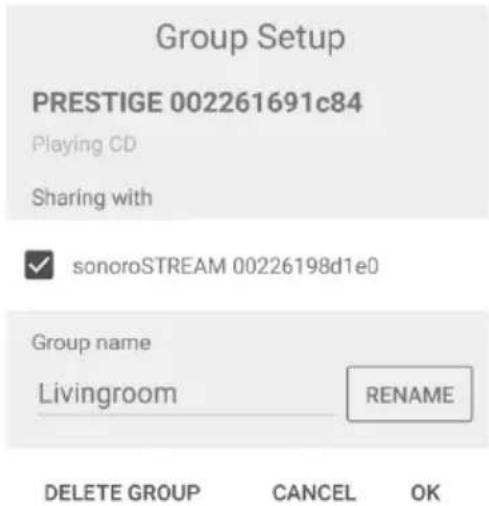
PRESTIGE...261691c84 PRESTIGE 0...261691c84 CD- Tilføj eller fjern PRESTIGE fra multi-rums grupper, skift en gruppes navn eller slet en gruppe.
text_image
Group Setup PRESTIGE 002261691c84 Playing CD Sharing with sonoroSTREAM 00226198d1e0 Group name Livingroom RENAME DELETE GROUP CANCEL OK21. Fejlfinding
At sonoro we are putting the utmost effort in to developing state-of-the-art products with impeccable quality standards. It is very important to us that you stay satisfied with your sonoro product for the lifetime of the unit. If for any reason you need assistance or have a warranty claim, please do not hesitate to get in touch with our Service Team.