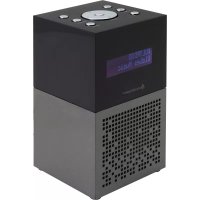
UR210AN - Radio Soundmaster - Free user manual and instructions
Find the device manual for free UR210AN Soundmaster in PDF.



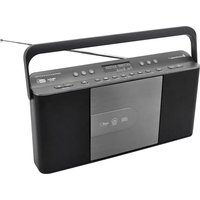
| Brand | Soundmaster |
| Model | UR210AN |
| Product type | DAB+/FM RDS digital radio |
| FM range | 87.5 – 108 MHz |
| DAB range | 174.928 – 239.200 MHz |
| Number of presets | 10 FM + 10 DAB |
| Power supply | 5V DC, 1.5 A mains adapter (input 100-240 V AC, 50/60 Hz) |
| Batteries | Not specified (uses mains adapter) |
| USB port | Yes (device charging) |
| Headphone jack | Yes (3.5 mm) |
| Antenna | Telescopic antenna for FM |
| Display | LCD display with adjustable backlight |
| Special features | Alarms (x2), Sleep, Sleep timer, Auto search, RDS |
| Maintenance and cleaning | Clean with a soft damp cloth; do not use harsh chemicals |
| Safety | Do not open; risk of electric shock; keep away from moisture; do not expose to heat sources |
| Repairability | Spare parts not mentioned; repair by qualified personnel only |
| General information | Importer: Wörlein GmbH, Germany; Compliant with Directive 2014/53/EU |
Frequently Asked Questions - UR210AN Soundmaster
User questions about UR210AN Soundmaster
0 question about this device. Answer the ones you know or ask your own.
Ask a new question about this device
Download the instructions for your Radio in PDF format for free! Find your manual UR210AN - Soundmaster and take your electronic device back in hand. On this page are published all the documents necessary for the use of your device. UR210AN by Soundmaster.
USER MANUAL UR210AN Soundmaster
DEUTSCH
ENGLISH
FRANÇAIS
NEDERLANDS
ITALIANO
NORSK
DANSK
SVENSKA
ČEŠTINA
Wartung und Pflege
89.45MHz Scanning...
Alarm 1 Wizard Source Buzzer
Alarm 1 Wizard

Alarm 1 Wizard Daily
Alarm 1 Wizard Alarm On
Set sleep time 30 minutes
SYSTEM MENÜ
Um in das Systemmenü zu gelangen:
System < Inactive Standby >
System < SW version >
AUFLADEN EXTERNER GERÄTE
Do not dispose of this product with the normal household waste at the end of its life cycle. Return it to a collection point for the recycling of electrical and electronic devices. This is indicated by the symbol on the product, user manual or packaging
The materials are reusable according to their markings. By reusing, recycling or other forms of utilization of old devices you make an important contribution to the protection of our environment.
Please contact your local authorities for details about collection points.
| WARNING | ! | |
| Risk of electric shockDo not open! |
Caution: To reduce the risk of electric shock, do not remove the cover (or back). There are no user serviceable parts inside. Refer servicing to qualified service personnel.

This symbol indicates the presence of dangerous voltage inside the enclosure, sufficient enough to cause electric shock.

This symbol indicates the presence of important operating and maintenance instructions for the device
Used batteries are hazardous waste and NOT to be disposed of with the household waste! As a consumer you are legally obligated to return all batteries for environmentally responsible recycling – no matter whether or not the batteries contain harmful substances*)
Return batteries free of charge to public collection points in your community or shops selling batteries of the respective kind.
Only return fully discharged batteries
*) marked Cd = cadmium, Hg = mercury, Pb = lead
- Only use mercury and cadmium-free batteries.
- Used batteries are hazardous waste and NOT to be disposed of with the household waste!!!
- Keep batteries away from children. Children might swallow batteries.
- Contact a physician immediately if a battery was swallowed.
- Check your batteries regularly to avoid battery leakage.
- Batteries shall not be exposed to excessive heat such as sunshine, fire or the like.
- CAUTION: Danger of explosion if battery is incorrectly replaced
- Replace only with the same or equivalent type

To prevent possible hearing damage, do not listen at high volume levels for long periods
- Use the device in dry indoor environments only.
- Protect the device from humidity.
- This apparatus is for moderate climates areas use, not suitable for use in tropical climates countries.
- No objects filled with liquids, such as vases, shall be placed on the apparatus.
Safety, Environmental and Setup Instructions
- The mains plug or an appliance coupler is used as the disconnect device, the disconnect devices shall remain readily operable.
- Connect this device to a properly installed and earthed wall outlet only. Make sure the mains voltage corresponds with the specifications on the rating plate.
- Make sure the mains cable stays dry during operation. Do not pinch or damage the mains cable in any way.
- A damaged mains cable or plug must immediately be replaced by an authorized service center.
- In case of lightning, immediately disconnect the device from the mains supply.
- Children should be supervised by parents when using the device.
- Clean the device with a dry cloth only.
- Do NOT use CLEANING AGENTS or ABRASIVE CLOTHS!
- Do not expose the device to direct sunlight or other heat sources.
- Install the device at a location with sufficient ventilation in order to prevent heat accumulation.
- Do not cover the ventilation openings!
- Install the device at a safe and vibration-free location.
- Install the device as far away as possible from computers and microwave units; otherwise radio reception may be disturbed.
- Do not open or repair the enclosure. It is not safe to do so and will void your warranty. Repairs only by authorized service/ customer center.
- No naked flame sources, such as lighted candles, should be placed on the unit.
- When you are necessary to ship the unit store it in its original package. Save the package for this purpose.
- In case of malfunction due to electrostatic discharge or fast transient (burst), remove and reconnect the power supply.
- If the unit is not using for a long period of time, disconnect it from the power supply by unplugging the power plug. This is to avoid the risk of fire.
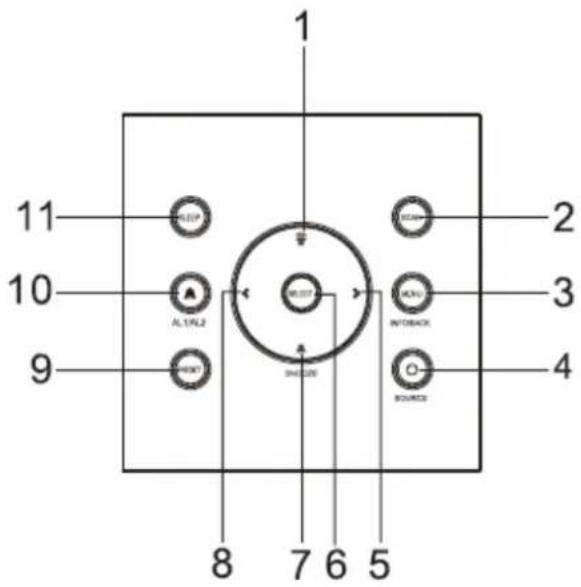
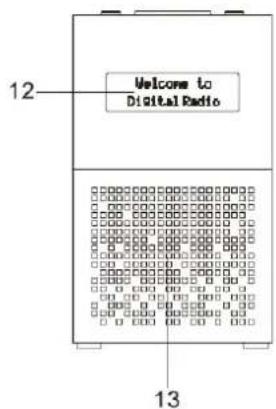
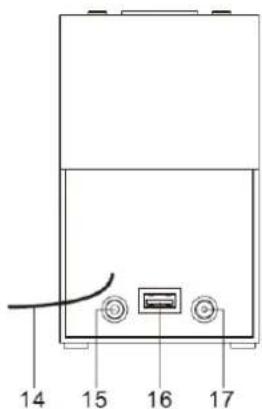
LOCATIONS OF CONTROLS
1 Volume + button
2 SCAN button
3 MENU / INFO / BACK button
4 ⏻ / SOURCE button
5 >> Forward button
6 SELECT button
7 Volume - button
8 « Backward button
9 PRESET button
10 Alarm button (AL1/AL2)
11 SLEEP button
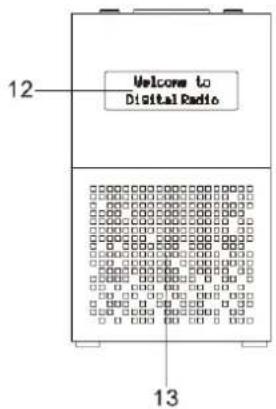
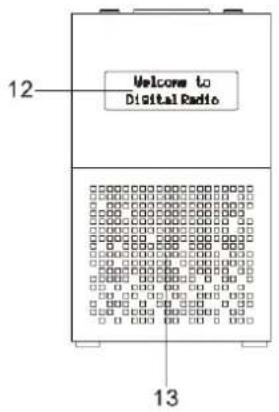
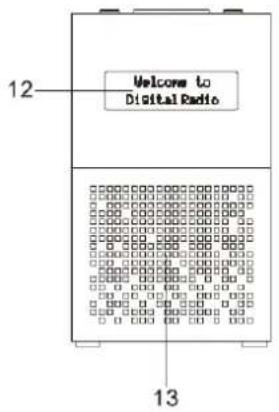
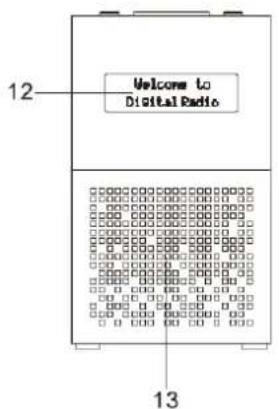
12 Display
13 Speaker
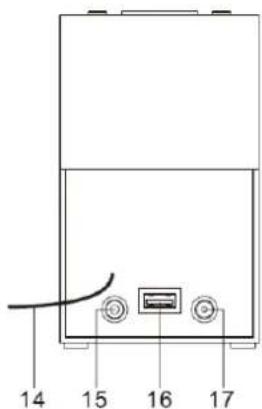
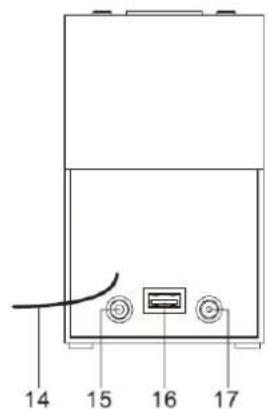
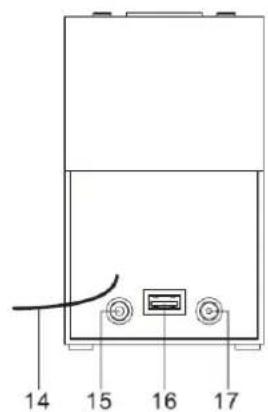
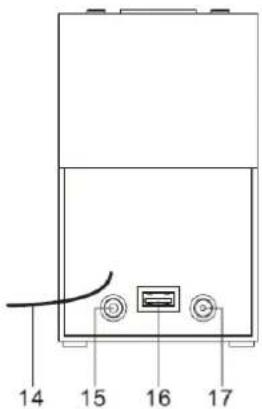
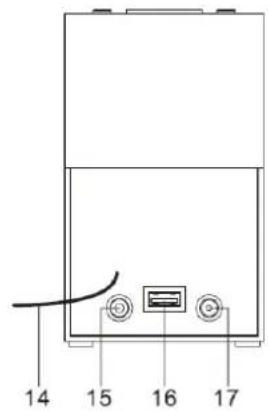
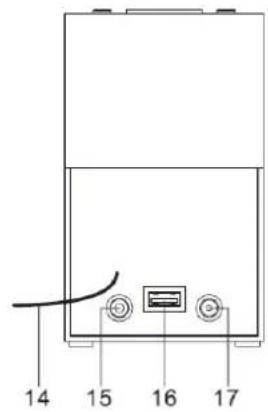
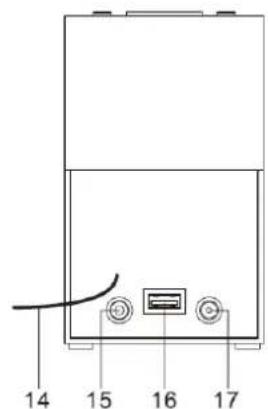
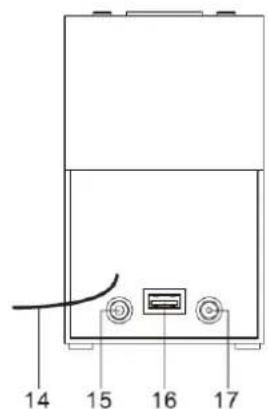
14 Antenna
15 Headphone jack
16 USB jack (for charging external devices)
17 DC IN jack
Care and maintenance
- Clean the radio with a soft damp cloth and let all parts dry completely after cleaning.
- Do not use any aggressive cleaners, brushes with nylon bristles, sharp or metallic cleaning utensils, knives, hard scrapers and the like. They could damage the surfaces of the radio.
- Do not immerse the radio in water and do not let water getting into the housing of the radio.
Storage
- Unplug the power adapter and clean the radio before storage.
• Always store the radio in a dry and clean place.
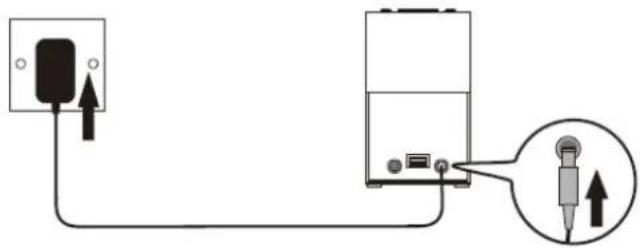
GETTING STARTED
- Connect the cord of the power adapter to the DC IN jack of the radio.
- Connect the plug of the power adapter to a wall socket.
The radio is powered and in standby mode when you see the display is switched on.
Power on or off
- Press the ⏻ /"SOURCE" button (4) in standby mode to turn the radio on.
- Press and hold the ⏻ /"SOURCE" button (4) when the radio is turned on to switch it to standby mode. The time and date show on the display in standby mode.
To completely disconnect the radio from power, remove the plug of the power adapter from the wall socket.
Setting the clock
The date and time of the radio is automatically set once it receives radio broadcast signals (and when such info is available). You may also set the date and time through the setting menu. To do so:
- Press the ◦SOURCE" button (4) to turn the radio on.
- Press and hold the "MENU" (3) button.
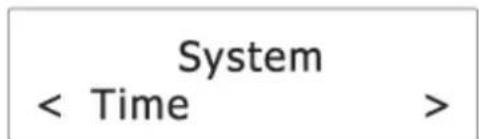
- Press the <or button (8/5) until you see "System" on the display and then press the "SELECT" button.
-
Press the
button (8/5) until you see "Time" on the display and then press the "SELECT" button. -
Press the « or » button (8/5) until you see "Set Time/Date" on the display and then press the "SELECT" (6) button.
- Press the « or » button (8/5) to set hour time and then press the "SELECT" button (6) to confirm.
- Repeat step 6 to continue setting minute time, date, month and year.
For more date and time settings, see chapter "Time".
Using the antenna
Unroll and extend the antenna to improve DAB/ FM signal reception.
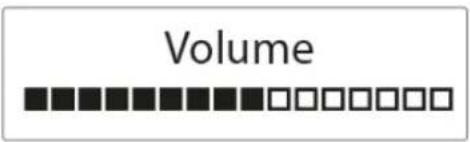
Controlling the volume
- Press the

button (1/7) to adjust the volume.
LISTENING TO DAB BROADCASTS
Selecting DAB mode
- Press the ⒶSOURCE" button (4) to turn the radio on.
- Press the "SOURCE" button (4) to select DAB mode.
DAB
Scanning for DAB stations
The first time you use the radio, or if the station list is empty, the radio automatically performs a station search. You may also perform a station search manually. To do so:
- In DAB mode, press the "SCAN" button (2) to activate the automatic station search.
Scanning... 42

The radio automatically stores radio stations with sufficient signal strength. After the search is complete, the first stored station is broadcast automatically.
Tuning to a DAB station
- In DAB mode, the <or button (8/5) to cycle through the DAB stations in the station list.
- Press the "SELECT" button (8/5) to tune to the selected DAB station.
Station list < DAB Station 3 >
Storing preset stations
You can store up to 10 DAB stations as preset stations.
- Tune to a DAB station.
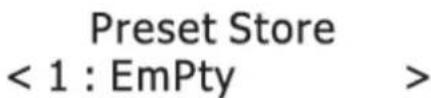
- Press and hold the "PRESET" button (9) until "Preset Store" shows on the display.
-
Press the «or button (8/5) to select a preset number.
-
Press the "SELECT" button (6) to confirm. The DAB station is stored with the selected preset number. Repeat steps 1-4 to store more preset stations.
Preset Store < 1 : EmPty >
- To tune to a preset station, press the "PRESET" button (9) once, then press the « or » button (8/5) to cycle through the list of preset stations and then press the "SELECT" button (6) to confirm the selection.
To change the DAB station assigned to a preset number, repeat steps 1 to 4 above to overwrite the existing DAB station.
Displaying DAB information
Press the "INFO" button (3) repeatedly to cycle through the following information (if available).
• Dynamic label segment (DLS)
- Signal strength
- Program type (PTY)
- Ensemble name
- Frequency
- Signal error rate
- Bitrate codec
- Time
- Date
Using the DAB menus
- In DAB mode, press and hold the "MENU" button (3) to access the DAB menus.
-
Press the <or button (8/5) to cycle through the below options.
-
Full scan
- Manual tune
• DRC - Prune
- System
See below for details of each option.
Full scan
Full scan is used to perform a wide range search for DAB stations.
- Press the "SELECT" button (6) to start scanning for available DAB stations. After the scanning is complete, the first detected station is broadcast automatically.
DAB < Full scan >
Manual tune
- Press the "SELECT" button (6) to confirm the selection "Manual tune".
- Press the «or» button (8/5) to tune the frequency manually.
DAB < Manual tune >
DRC (Dynamic Range Control)
DRC adds or removes a degree of compensation for the differences in the dynamic range between radio stations.
- Press the "SELECT" button (6) to confirm the selection "DRC".
-
Press the <or button (8/5) to cycle through the below options. The asterisk behind the option indicates the current setting.
-
DRC off: No compensation applied.
• DRC low: Medium compensation applied. -
DRC high: Maximum compensation applied.
-
Press the "SELECT" button (6) to confirm the selected option.
Prune
This feature removes any stations that are in the list but have no service in your area.
- Press the "SELECT" button (6) to confirm the selection "Prune".
-
Press the «or button (8/5) to cycle through the below options.
-
No: Return to the previous menu.
-
Yes: Remove invalid stations from the station list.
-
Press the "SELECT" button (6) to confirm the selected option.
System
See chapter "System menu" for details.
LISTENING TO FM BROADCASTS
Selecting FM mode
- Press the Ⓑ“SOURCE” button (4) to turn the radio on.
- Press the ⏻ / "SOURCE" button (4) to select the FM mode.
FM
Scanning for FM stations
- In FM mode, press the "SCAN" or "SELECT" button (2 or 6) to activate the automatic search for the next available FM station.
- After a strong FM radio station is detected, the search stops. The FM radio station is broadcast.
89.45MHz Scanning...
Tuning the FM frequency
- In FM mode, press the or button (8/5) to tune down or up the frequency.
- Once you have tuned up or down the frequency, press the "SCAN" or "SELECT" button (2 or 6) to activate the automatic search for the next available FM station in the selected tune up or down direction.
Storing preset stations
You can store up to 10 FM stations as preset stations.
- Tune to an FM station.
- Press and hold the "PRESET" button (9) until "Preset Store" shows on the display.
- Press the <or button (8/5) to select a preset number.
- Press the "SELECT" button (6) to confirm. The FM station is stored with the selected preset number. Repeat steps 1-4 to store more preset stations.
- To tune to a preset station, press the PRESET button (9) once, then press the « or » button (8/5) to cycle through the list of preset stations and then press the "SELECT" button (6) to confirm the selection.
To change the FM station assigned to a preset number, repeat steps 1 to 4 above to overwrite the existing FM station.
Displaying RDS information
Radio Data System (RDS) is a service that allows FM stations to transmit additional information. When you tune to an FM radio station that transmits RDS signals, the station name is displayed.
Press the "INFO" button (3) repeatedly to cycle through the following RDS information (if available).
- Radio text
- Program type (such as NEWS, SPORT, POP M,...)
- Program service
- Time
- Date
Using the FM menu
- In FM mode, press and hold the "MENU" button (3) to access the FM menus.
-
Press the <or button (8/5) to cycle through the below options.
-
Scan setting
- System
See below for details of each option.
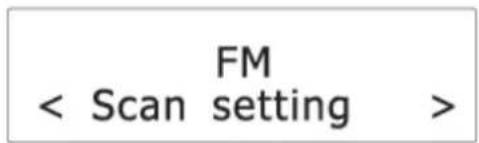
Scan setting
- Press the "SELECT" button (6) to confirm the selection "Scan setting".
- Press the or button (8/5) to cycle through the below options. The asterisk behind the option indicates the current setting.
• Strong stations only: Search for strong stations only.
• All stations: Search for all stations regardless of the signal strength.
- Press the "SELECT" button (6) to confirm the selected option
System
See chapter "System menu" for details.
USING THE ALARMS
Setting alarms
The radio lets you have 2 alarm settings.
To set the alarm:
- Press the Button(10) to select between Alarm 1 and Alarm 2 and then press the "SELECT" button (6) to confirm the selection.
- Press the <or button (8/5) to set the hour time of the alarm and then press the "SELECT" button (6). Press the <or button (8/5) to set the minute time of the alarm and then press the "SELECT" button (6).
- Press the <or button (8/5) to cycle through the duration options and then press the "SELECT" button (6) to confirm the selection
Alarm 1 Setup
Alarm 1 Wizard On time 07:50
Alarm 1 Wizard Duration 15
The duration defines the time before the radio returns to standby mode if the alarm is not deactivated. Duration options: 15, 30, 45, 60, 90 and 120 minutes.
- Press the
button (8/5) to cycle through the source options and then press the "SELECT" button (6) to confirm the selection.
The source defines the sound source of the alarm. Source options: DAB, FM and Buzzer. If DAB or FM is selected, you will also be prompted to select the last played station or one of the preset stations (if set) as the alarm.
-
Press the « or » button (8/5) to cycle through the interval options and then press the "SELECT" button (6) to confirm the selection The interval defines on which days the alarm is active. Interval options: Daily, Once, Weekends and Weekdays. If "Once" is selected, you will also be prompted to set a specific date.
-
Press the <or button (8/5) to adjust the volume level and then press the "SELECT" button (6). This setting defines the sound volume of the alarm.
-
Press the «or button (8/5) to select alarm on or off and then press the "SELECT" button (6) to confirm the selection.
Alarm 1 Wizard Source Buzzer
Alarm 1 Wizard Daily
Alarm 1 Wizard

Alarm 1 Wizard Alarm On
When the alarm setting is active, the corresponding alarm icon “A1” for alarm 1 and “A2” for alarm 2 will show on the display.
At the set time, the alarm will sound. The volume will increase gradually until it reaches the set volume level. The corresponding alarm icon will also flash on the display.
Turning the alarms on or off in standby mode
- In standby mode, press the Button (10) repeatedly to cycle through the alarm on or off settings. See the table below for details.
| Pressing | Alarm 1 | Alarm 2 |
| 1× | "Off" (Off) | "Off" (Off) |
| 2× | "On" (On) | "Off" (Off) |
| 3× | "Off" (Off) | "On" (On) |
| 4× | "On" (On) | "On" (On) |
- Press the "SELECT" button (6) to confirm the setting.
When the alarm setting is active, the corresponding alarm icon (A1) for alarm 1 and (A2) for alarm 2) will show on the display.
Deactivating a sounding alarm
Press the ⏻ / "SOURCE" button (4) or 🔊 button (10) to switch the radio to standby mode.
Snooze
- "Snooze buttons": 🎯 or 🏠 or ◀ or ▷ or "SELECT" (button1 or 8 or 5 or 7 or 6).
- To temporarily silence a sounding alarm, press one of the "SNOOZE" buttons. To change the snooze period, press one of the "SNOOZE" buttons repeatedly (options: 5, 10, 15 or 30 minutes).
- The radio will return to standby mode during the snooze period. The alarm will sound again when the snooze period is over.
- To cancel the snooze period and the alarm, press the ⏻ / "SOURCE" button (4).
Sleep
This sleep function defines the duration of time before the radio switches itself off automatically.
- When the radio is switched on, press the "SLEEP"
button(11) repeatedly to select a sleep period (Options: Off, 15, 30, 45, 60 and 90 minutes).
- Press the "SELECT" button (6) to confirm the selection.
Once a sleep period is set, the sleep icon (S) will show on the display. The radio will automatically switch off when the sleep period is over.
Set sleep time 30 minutes
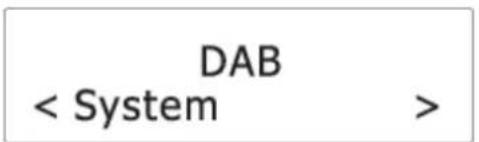
System menu
To access the system menu:
- Press and hold the "MENU" button (3) in DAB or FM mode.
- Press the <or button (8/5) to cycle through the options until you see "System".
- Press the "SELECT" button (6) to confirm the selection "System".
-
Press the <or button (8/5) to cycle through the below options.
-
Time
- Backlight
- Inactive Standby
- Language
- Factory Reset
- Software Version
See below for details of each option.
DAB
< System >
Time
- Press the "SELECT" button (6) to confirm the selection "Time".
-
Press the <or button (8/5) to cycle through the below options. The asterisk behind the option indicates the current setting.
-
Set Time/Date
- Auto Update
- Set 12/24 hour
- Set date format
See below for details of each option.
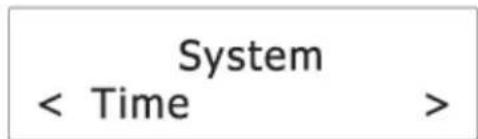
Set Time/Date
See chapter "Setting the clock".
Auto Update
This setting defines how the radio updates the time and date information.
- Press the "SELECT" button (6) to confirm the selection "Auto Update".
-
Press the <or button (8/5) to cycle through the below options. The asterisk behind the option indicates the current setting.
-
Update from Any: Update the time and date from any available signals.
- Update from DAB: Update the time and date from DAB signals.
- Update from FM: Update the time and date from FM signals.
-
No update: Do not update the time and date.
-
Press the "SELECT" button (6) to confirm the selected option.
Set 12/24 hour
- Press the "SELECT" button (6) to confirm the selection "Set 12/24 hour".
- Press the <or button (8/5) to cycle through the below time format options. The asterisk behind the option indicates the current setting.
• 12: Show the time in 12-hour format.
• 24: Show the time in 24-hour format.
- Press the "SELECT" button (6) to confirm the selected option.
Set date format
- Press the "SELECT" button (6) to confirm the selection "Set date format".
-
Press the <or button (8/5) to cycle through the below date format options. The asterisk behind the option indicates the current setting.
-
DD-MM-YYYY
-
MM-DD-YYYY
-
Press the "SELECT" button (6) to confirm the selected option.
Backlight
- Press the "SELECT" button (6) to confirm the selection "Backlight".
-
Press the <or button (8/5) to cycle through the below options. The asterisk behind the option indicates the current setting.
-
Timeout
- On level
- Dim level
See below for details of each option.
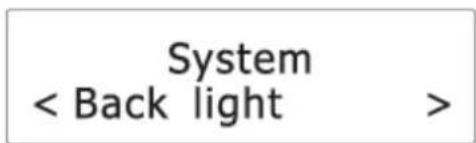
Timeout
This setting defines the duration of the backlight before it is dimmed.
- Press the "SELECT" button (6) to confirm the selection "Timeout".
-
Press the <or button (8/5) to cycle through the below timeout options (in seconds). The asterisk behind the option indicates the current setting.
-
On (the backlight does not dim)
- 10 sec
- 20 sec
- 30 sec
• 45 sec - 60 sec
- 90 sec
- 120 sec
-
180 sec
-
Press the "SELECT" button (6) to confirm the selected option.
On level
This setting defines the brightness level when the backlight is switched on.
- Press the "SELECT" button (6) to confirm the selection "On level".
-
Press the <or button (8/5) to cycle through the below brightness levels. The asterisk behind the option indicates the current setting.
-
Low
- Medium
-
High
-
Press the "SELECT" button (6) to confirm the selected option.
Dim level
This setting defines the brightness level when the backlight is dimmed.
- Press the "SELECT" button (6) to confirm the selection "Dim level".
-
Press the <or button (8/5) to cycle through the below brightness levels. The asterisk behind the option indicates the current setting.
-
Low
- Medium
-
High
-
Press the "SELECT" button (6) to confirm the selected option.
Inactive Standby
This setting defines the duration of time before the radio switches itself on automatically.
-
Press the "SELECT" button (6) to confirm the selection "Inactive Standby".
-
Press the <or button (8/5) to cycle through the below time options. The asterisk behind the option indicates the current setting.
-
Off
- 2 hour
- 4 hour
- 5 hour
-
6 hour
-
Press the "SELECT" button (8/5) to confirm the selected option.
System < Inactive Standby >
Language
This setting defines the language used in the menus.
- Press the "SELECT" button (6) to confirm the selection "Language".
-
Press the <or button (8/5) to cycle through the below language options. The asterisk behind the option indicates the current setting.
-
English
- Français (French)
- Deutsch (German)
- Italiano (Italian)
System < Language >
- Press the "SELECT" button (6) to confirm the selected option.
Factory Reset
This setting clears all user-defined settings and replaces them with the original default settings.
- Press the "SELECT" button (6) to confirm the selection "Factory Reset".
- Press the
button (8/5) to select "Yes" and then press the "SELECT" button (6) to confirm factory reset.
System < Factory reset >
Software Version
This option displays the current software version. Press the "SELECT" button (6) to confirm the selection "SW version".
System < SW version >
CHARGING EXTERNAL DEVICE
Connect an external device (e.g. smartphone, mp3 player) via a USB cable (not provided) to the USB jack on the back of the radio for charging. The radio cannot access the contents in the connected external device.
TECHNICAL SPECIFICATIONS
AC power adapter Input: AC 100 - 240V, 50/60Hz (use only supplied adaptor)
Output: DC 5 V 1,5A
Frequency Coverage FM 87.5 – 108 MHz
DAB 174.928 - 239.200 MHz
Number of preset radio stations. 10 (FM), 10 (DAB)
IMPORTER
Wörlein GmbH
Gewerbestrasse 12
D 90556 Cadolzburg
Germany
Tel.: +49 9103 71 67 0
Fax.: +49 9103 71 67 12
Email: service@woerlein.com
Allumer ou éteindre
English
Français (French)
Deutsch (German)
Italiano (Italian)
Zorg en onderhoud
In- of uitschakelen
• Dynamic label segment (DLS)
- Signal strength
- Program type (PTY)
- Ensemble name
- Frequency
- Signal error rate
- Bitrate codec
- Time
- Date
Intervalopties: Daily, Once, Weekends en Weekdays.
"Inactive Standby" (Inactive stand-by)
HET EXTERNE APPARAAT OPLADEN
Cura e manutenzione
- Signal strength
• Program type (PTY) - Ensemble name
- Frequency
- Signal error rate
- Bitrate codec
- Time
- Date
• Dynamic label segment (DLS)
English
Français (French)
Deutsch (German)
Italiano (Italian)
"Software Version (SW VER)"
På/av
• Dynamic label segment (DLS)
- Signal strength
- Program type (PTY)
- Ensemble name
- Frequency
- Signal error rate
- Bitrate codec
- Time
- Date
Bruke DAB-menyene
Tænd/sluk-knap
"Software Version (SW VER)"
Under dette punkt kan du se den aktuelle softwareversion.
OPLADNING AF EKSTERN ENHED
Ström på/av
89.45MHz Scanning...
System
Alarm 1 Wizard Source Buzzer
Alarm 1 Wizard Daily
Alarm 1 Wizard

Alarm 1 Wizard Alarm On
| Att trycka på 📁 | Larm 1 | Larm 2 |
| 1× | “Off” (Av) | “Off” (Av) |
| 2× | “On” (PÅ) | “Off” (Av) |
| 3× | “Off” (Av) | “On” (PÅ) |
| 4× | “On” (PÅ) | “On” (PÅ) |
Set sleep time 30 minutes
Systemmeny
System < Inactive Standby >
System < SW version >
LADDNING AV EXTERNA ENHETER
Péče a údržba
89.45MHz Scanning...
Systém
Alarm 1 Wizard Source Buzzer
Alarm 1 Wizard Daily
Alarm 1 Wizard

Alarm 1 Wizard Alarm On
Set sleep time 30 minutes
DAB < System >
System < Inactive Standby >
System < SW version >
NABÍJENÍ EXTERNÍHO ZAŘÍZENÍ
DAB 174,928–239,200 MHz
Hereby, Wörlein GmbH declares that this device is in compliance with the essenal requirements and other relevant provisions of Direcve 2014/53/EU.
A copy of the Declaraon of Conformity may be obtained at the following locaon:
Wörlein GmbH, Gewerbestrasse 12, D 90556 Cadolzburg, Germany
Email: info@woerlein.com
Tel.: +49 9103 71 67 0

- Wartung und Pflege
- SYSTEM MENÜ
- AUFLADEN EXTERNER GERÄTE
- To prevent possible hearing damage, do not listen at high volume levels for long periods
- LOCATIONS OF CONTROLS
- Care and maintenance
- Storage
- GETTING STARTED
- Power on or off
- Setting the clock
- Using the antenna
- Controlling the volume
- LISTENING TO DAB BROADCASTS
- Selecting DAB mode
- Scanning for DAB stations
- Tuning to a DAB station
- Storing preset stations
- Displaying DAB information
- Using the DAB menus
- Full scan
- Manual tune
- DRC (Dynamic Range Control)
- Prune
- System
- LISTENING TO FM BROADCASTS
- Selecting FM mode
- Scanning for FM stations
- Tuning the FM frequency
- Displaying RDS information
- Using the FM menu
- Scan setting
- USING THE ALARMS
- Setting alarms
- Turning the alarms on or off in standby mode
- Deactivating a sounding alarm
- Snooze
- Sleep
- System menu
- Time
- Set Time/Date
- Auto Update
- Set 12/24 hour
- Set date format
- Backlight
- Timeout
- On level
- Dim level
- Inactive Standby
- Language
- Factory Reset
- Software Version
- CHARGING EXTERNAL DEVICE
- TECHNICAL SPECIFICATIONS
- IMPORTER
- Allumer ou éteindre
- Zorg en onderhoud
- In- of uitschakelen
- "Inactive Standby" (Inactive stand-by)
- HET EXTERNE APPARAAT OPLADEN
- Cura e manutenzione
- "Software Version (SW VER)"
- På/av
- Bruke DAB-menyene
- Tænd/sluk-knap
- OPLADNING AF EKSTERN ENHED
- Ström på/av
- Systemmeny
- LADDNING AV EXTERNA ENHETER
- Péče a údržba
- Systém
- NABÍJENÍ EXTERNÍHO ZAŘÍZENÍ
Brand : Soundmaster
Model : UR210AN
Category : Radio