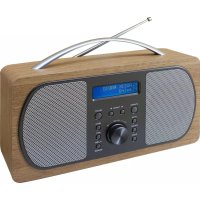
DAB600 - Radio Soundmaster - Free user manual and instructions
Find the device manual for free DAB600 Soundmaster in PDF.



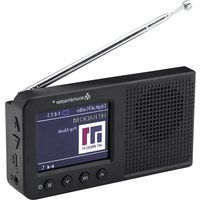
| Brand | Soundmaster |
| Model | DAB600 |
| Product type | Digital radio DAB+ / FM |
| Mains power supply | AC/DC adapter 100-240 V ~ 50/60 Hz, output 6 V DC, 1.5 A |
| Battery power supply | 4 AA alkaline batteries 1.5 V (not included) |
| Power consumption | 9 W (max), 0.4 W standby |
| Audio output power | 2 x 2 W RMS |
| Frequency ranges | DAB: 174-240 MHz; FM: 87.5-108 MHz |
| Main functions | Automatic and manual DAB/FM scan, 10 presets, dual alarm with snooze, sleep timer, information display (title, artist, signal strength, etc.) |
| Display | Digital display with adjustable backlight (low, medium, high) |
| Connectivity | 3.5 mm headphone jack |
| Antenna | Telescopic antenna |
| Maintenance and cleaning | Wipe with a dry cloth. Do not use detergents or abrasive products. |
| Safety | Do not open the device (risk of electric shock). Entrust repairs to qualified personnel. Use only indoors in a dry location. |
| Spare parts and repairability | Repair only by an authorized service center. No user-serviceable parts. |
| General information | Importer: Wörlein GmbH, Gewerbestrasse 12, 90556 Cadolzburg, Germany. Service: service@woerlein.com |
Frequently Asked Questions - DAB600 Soundmaster
User questions about DAB600 Soundmaster
0 question about this device. Answer the ones you know or ask your own.
Ask a new question about this device
Download the instructions for your Radio in PDF format for free! Find your manual DAB600 - Soundmaster and take your electronic device back in hand. On this page are published all the documents necessary for the use of your device. DAB600 by Soundmaster.
USER MANUAL DAB600 Soundmaster
DEUTSCH
ENGLISH
FRANÇAIS
NEDERLANDS
ITALANIO
NORSK
SVENSKA
DANSK
ČEŠTINA
ACHTUNG:
DAB DISPLAY INFORMATIONEN
Do not dispose of this product with the normal household waste at the end of its life cycle. Return it to a collection point for the recycling of electrical and electronic devices. This is indicated by the symbol on the product, user manual or packaging.
The materials are reusable according to their markings. By reusing, recycling or other forms of utilization of old devices you make an important contribution to the protection of our environment.
Please contact your local authorities for details about collection points.

WARNING
Risk of electric shock Do not open!

Caution: To reduce the risk of electric shock, do not remove the cover (or back). There are no user serviceable parts inside. Refer servicing to qualified service personnel.
This symbol indicates the presence of dangerous voltage inside the enclosure, sufficient enough to cause electric shock.

This symbol indicates the presence of important operating and maintenance instructions for the device.
Safety, Environmental and Setup Instructions
- Use the device in dry indoor environments only.
- Protect the device from humidity.
• Do not open the device. RISK OF ELECTRIC SHOCK! Refer opening and servicing to qualified personnel. - Connect this device to a properly installed and earthed wall outlet only. Make sure the mains voltage corresponds with the specifications on the rating plate.
• Make sure the mains cable stays dry during operation. Do not pinch or damage the mains cable in any way.
• A damaged mains cable or plug must immediately be replaced by an authorized service center. - In case of lightning, immediately disconnect the device from the mains supply.
• Children should be supervised by parents when using the device. - Clean the device with a dry cloth only.
Do NOT use CLEANING AGENTS or ABRASIVE CLOTHS!
- Do not expose the device to direct sunlight or other heat sources.
• Install the device at a location with sufficient ventilation in order to prevent heat accumulation. - Do not cover the ventilation openings!
• Install the device at a safe and vibration-free location. - Install the device as far away as possible from computers and microwave units; otherwise radio reception may be disturbed.
- Do not open or repair the enclosure. It is not safe to do so and will void your warranty. Repairs only by authorized service/ customer center.
- Only use mercury and cadmium-free batteries.
- Used batteries are hazardous waste and NOT to be disposed of with the household waste!!! Return the batteries to your dealer or to collection points in your community.
- Keep batteries away from children. Children might swallow batteries. Contact a physician immediately if a battery was swallowed.
- Check your batteries regularly to avoid battery leakage.
- Batteries shall not be exposed to excessive heat such as sunshine, fire or the like.
- CAUTION: Danger of explosion if battery is incorrectly replaced Replace only with the same or equivalent type

Used batteries are hazardous waste and NOT to be disposed of with the household waste! As a consumer you are legally obligated to return all batteries for environmentally responsible recycling - no matter whether or not the batteries contain harmful substances *).
Return batteries free of charge to public collection points in your community or to shops selling batteries of the respective kind
Only return fully discharged batteries.
*) marked Cd = cadmium, Hg = mercury, Pb = lead
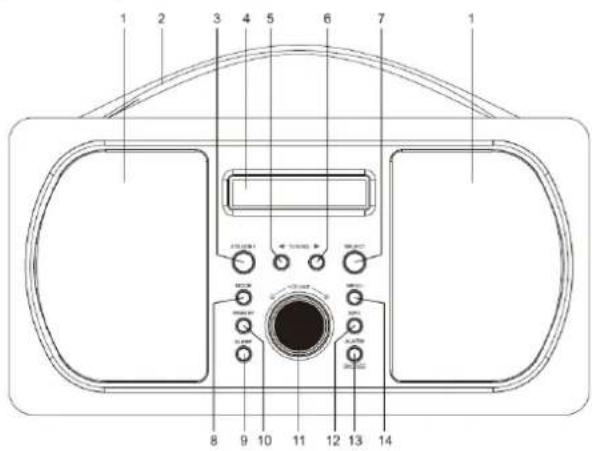
LOCATIONS OF CONTROLS
Front View Backside View
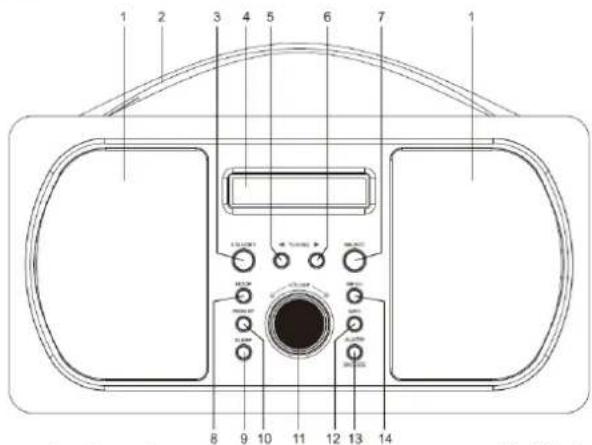
- Speaker
- Handle
- Standby ( ) button
- Display
- TUNING ◀ button
- TUNING ▶ button
-
Select button
-
Mode button
- Sleep button
- Preset button
- Volume knob
- Info button
- Alarm/Snooze button
- Menu button
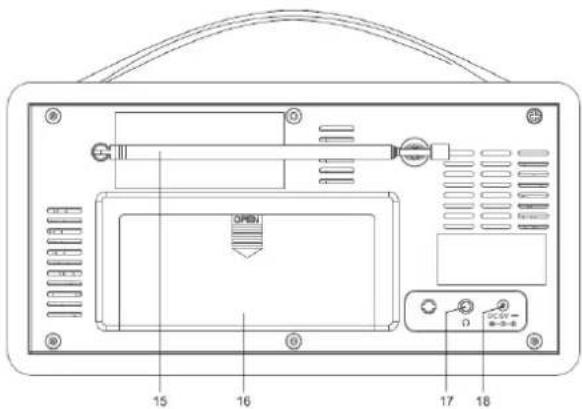
- Telescopic antenna
- Battery compartment
- Headphone ( ) Jack
- DC in jack
- AC/DC Adaptor (not shown)
BATTERY INSTALLATION
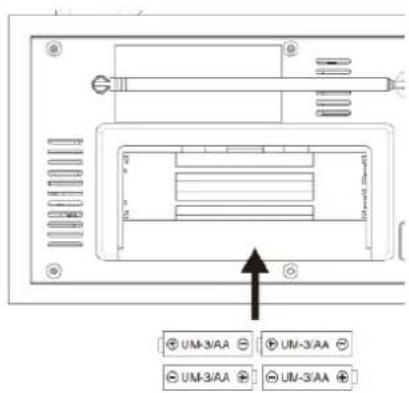
To use the appliance with batteries ensure that the power supply is NOT connected to the unit and install the batteries into the battery compartment.
- Slide off the battery compartment cover from the reverse of the radio.
- Insert 4 x AA 1.5V alkaline batteries (not included) in accordance with the diagram in the battery compartment. Take care to observe the correct polarity (+/-).
- Refit the battery compartment cover.
- Do not expose the batteries or the installed batteries to excessive heat (e.g. fire, sunshine or position close to radiators etc.).
Notes:
- All DAB radio's use more power during use than 'traditional' radios and so will run batteries down within a few hours. Therefore use of mains power (or rechargeable batteries) is recommended for extended listening.
• After about 10 minute without a signal, the device will automatically switch to "OFF" mode. - When a AC adapter cable is connected the batteries are automatically switched off.
CAUTION:
- Batteries can leak and lose battery acid. When not using the system for a long period of time, remove the batteries.
- Different battery types or new and used batteries must not be used together.
- Do not dispose of batteries with household waste. Return old batteries to the respective collection facilities or your dealer.
BASIC OPERATION - GETTING STARTED
- Place the appliance on a flat and stable surface.
- Connect the plug of the power supply into the socket at the rear of the radio, plug in the supplied AC power supply into the wall socket. The display backlight will illuminate for a few seconds, a welcome message will appear in the display briefly and the clock (00:00:00) will flash in the display and a message 'time is not set' will appear underneath.
- Fully extend the telescopic antenna.
- Press the "STANDBY" (3) button to turn the unit on, the DAB mode will automatically be selected and the radio will perform a full autoscan. The display will show 'Scanning', together with a slide bar that indicates the progress of the scan and the number of stations found so far.
- Once the scan has finished, the radio will select the first alphanumerically found station.
- Adjust the volume to the desired level by turning the "VOLUME" (11) knob.
- Press the "TUNING" ◀ or ▶ (5 or 6) buttons to scroll through the located stations. Once the station of choice is located, press the "SELECT" (7) button to select the station.
- Move the antenna or radio until the best reception is received.
- To switch to FM radio, press the "MODE"(8) button. Press the button again to return to DAB.
- To switch the radio into standby mode, press the "STANDBY (3) button. The radio will silence, the display will dim but the clock will still be displayed.
- If the clock does not automatically set, the clock can be set manually pls. see page 3 DAB - setup option.
USING THE RADIO - DAB MODE
DAB differs from analogue radio; the separate signals from a number of stations are grouped together and transmitted as a single frequency. These groups are referred to as multiplexes and ensembles. Each time a group has been found the name of the group will be shown on the lower half of the display.
DAB MODE - AUTO TUNE
This function allows the radio to search automatically for DAB Band III channels. Press the “MENU” (button to enter the tuning menu.
- In DAB mode, press the "MENU" (14) button 'Full scan' is displayed and press the "SELECT" (7) button. The radio will start to scan, the display will show 'Scanning', together with a slide bar that indicates the progress of the scan and the number of stations found so far.
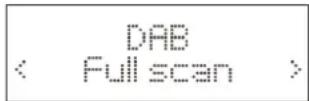
- When the scan is finished the radio will return to the station played before the scan was initiated but any new stations found will have been added.
DAB MODE – MANUAL TUNE
This function allows a specific or new ensemble to be manually added to the stations already available on the radio. Press the “MENU” (14) button once to enter the tuning menu.
- Press the MENU button and the press the "TUNING" ◀ or ▶ (5 or 6) buttons until 'Manual tune' (fig. 4) is displayed. Press the "SELECT" (7) button.
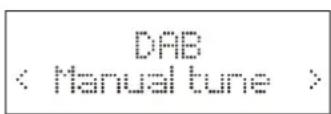
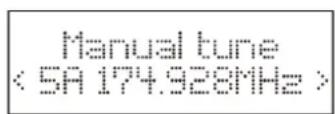
- Press the "TUNING" ◀ or ▶ (5 or 6) buttons until the desired frequency (e.g. fig. 5) is shown in the display, then press the "SELECT" (7) button. The top line will now display the channel number, the frequency and name of the ensemble and the lower line will show the signal strength.
- Press the "SELECT" (7) button again to add the ensemble and automatically tune to the station.
- Leave the function by pressing the "MENU" button (14) twice.
DAB MODE – PRUNE
This function allows all unavailable stations to be removed from the station list.
- Press the "MENU" (14) button to enter the menu.
- Press the "TUNING" ◀ or ▶ (5 or 6) buttons until 'Prune' is displayed and press the "SELECT" (7) button to confirm.
- Press the "TUNING" ◀ or ▶ (5 or 6) buttons to select
to confirm and delete. If is selected the operation will be cancelled. Press "SELECT" (7) to confirm. - After finish the above steps, press MENU button, select full scan to auto scan, then the unavailable stations will be removed from the station list.
DAB DISPLAY MODES
This function allows information relating to the current station to be shown in the second line of the display.
Press the" INFO" (12) button repeatedly to scroll through the following display modes
• Radio text - the broadcaster may include a scrolling message about the current program.
• DLS - Dynamic Label Segment, real-time information transmitted from station e.g. titles, artist.....
- Signal strength – the display will show a slide bar to indicate the strength of the signal. The stronger the signal, the longer the bar.
- Program type – this describes the style / genre of the program. If the information is not available the display will show ‘
- Ensemble / Multiplex (Group name) - the ensemble / multiplex is a group of station that are bundled and transmitted together in a single frequency. There are national and local multiplexes, local ones contain stations that are specific to the local area.
- Channel number / frequency – the display will show the channel number / frequency of the station being broadcast.
• Signal error – the display shows the stability and quality of the reception, 0=good.
• Audio bit rate – the display will show the digital audio bit rate being received.
- Power status – the display will show whether if the radio is being used on mains or battery. When in battery mode the display will show the battery capacity (21-100)
• Time - the time will be automatically updated by the radio time signal.
- Date - the date will be automatically updated by the radio time signal.
DAB SET UP OPTIONS
This function allows the DAB set up menu to be entered and a number of options to be changed.
With the music of choice playing, press the MENU button until 'Full scan' is displayed and then press the TUNING ◀ or ▶ (5 or 6) buttons to move through the menu options available and press the "SELECT" (7) button to enter each option.
| Menu | Options | ||
| „Full scan“ | Initiates full DAB scan | ||
| „Manual tune“ | Permits manual addition of DAB stations | ||
| „Prune“ | Removes unavailable DAB stations | ||
| „System“ | „Time“ | „Set Time / Date“ | hh:mm:dd: |
| „Auto update“ | “Update from any”“Update from DAB”“Update from FM”“No update” | ||
| „Set 12/24“ | 1224 | ||
| „Set date format“ | dd/mm/yyyymm/dd/yyyy | ||
| „Sleep“ | „Off“10 mins20 mins30 mins60 mins70 mins80 mins90 mins | ||
| „Backlight“ | „Low“„Medium“„High“ | ||
| „Factory reset“ | „Initiates reset“ | ||
| „SW version“ | „Display software version“ | ||
Menu legend:
„Time“
„Set Time / Date“
„Auto update“
„Update from any“
ons for time setting
Manually time and date setting
Options for automatically time settings
Time and date will be set form DAB and FM (RDS) automatically
„Update from DAB“
Time and date will be set form DAB automatically
„Update from FM“ Time and date will be set form FM (RDS) automatically.
„No update“
„Set 12/24“
„Set date format“
„Sleep“
„Backlight“
„Factory Reset“
„SW version“
Time and date will be not set automatically
Option for announce the time in 12 or 24 hour style
Date style option
Select the sleep time 10 - 90 minutes, "Off" = off
Display backlight adjusting ("Low"; Medium", "High")
Set the unit in factory default mode.
Shows the software version
USING THE RADIO - FM MODE
FM MODE - TUNING
- To select FM radio, press the "MODE" (8) button, the display will show 'FM' and then the frequency.
- To activate auto search press the "SELECT" (7) button or press and hold the "TUNING" ◀ or ▶ (5 or 6) buttons and the radio starts to scan up the frequency band, the display will show 'Scanning and it will stop automatically once a station has been found.
- To search manually, press the "TUNING" ◀ or ▶ (5 or 6) buttons and immediately release to increment the frequency by 0.05MHz.
- To change the audio mode (stereo or mono), press the "MENU" (14) button and press the TUNING ◀ or ▶ (5 or 6) buttons until 'Audio setting' is displayed. Press the "SELECT" (7) button to accept. Use the "TUNING" ◀ or ▶ (5 or 6) buttons button to switch from 'Stereo allowed' to 'Forced mono' and again to switch back. If 'stereo allowed' is selected the radio will automatically switch between stereo and mono mode. Once the audio mode of choice is displayed, press the "SELECT" (7) button to accept.
- To set the scan criteria, press the "MENU" (14) button and press the "TUNING" ◀ or ▶ (5 or 6) buttons until 'Scan setting' is displayed. Press the "SELECT" (7) button to accept. Use the "TUNING" ◀ or ▶ (5 or 6) buttons to switch from 'All stations' to 'Strong stations' and again to switch back. If 'strong stations' is selected the radio will only scan for strong stations. Once the scan criteria of choice is displayed press the "SELECT" (7) button to accept.
- If an FM RDS (Radio Data Signal) is present, the display will automatically show the station name and radio text (if available).
FM DISPLAY MODES
This function allows information relating to the current station to be shown in the second line of the display. If the "INFO" (12) button is then pressed repeatedly, the second line of the station display will scroll through the following modes with each subsequent press of the button.
- Radio text - the broadcaster may include a scrolling message about the current program.
- Program type – this describes the style / genre of the program. If the information is not available the display will show ‘
’. - Tuned frequency
• Audio mode – the display will show if the station being received is stereo or mono. - Power status – the display will show whether if the radio is being used on mains or battery. When in battery mode the display will show the battery capacity (21-100)
- Time - the time will be automatically updated by the radio time signal.
- Date - the date will be automatically updated by the radio time signal.
USING THE RADIO - PROGRAMMED STATION FUNCTION
This function allows up to 10 stations to be programmed into the memory and stored in DAB and FM modes.
- Follow the directions above to select a radio station.
- Press and hold the "PRESET" (10) button until the display shows 'Preset store # empty'.
-
Use the "TUNING" ◀ or ▶ (5 or 6) buttons to select the preset storage location and then press the "SELECT" (7) button to confirm. The station now broadcasting has now been stored in the selected location.
-
Repeat the above steps to store further stations.
| Preset Store <1: Empty > | Preset 1 Stored | Preset Recall <6: BBC Radio6> |
- To listen to the preset stations, press the "PRESET" (10) button once and then use the "TUNING" ◀ or ▶ (5 or 6) buttons turn to select the desired location and confirm with "SELECT" (7) button. If the preset has not been allocated, 'Preset empty' will be shown.
Note:
- If the unit is disconnected from the mains supply for any length of time and batteries are not installed; the programmed stations won't be lost.
SETTING AND USING THE ALARM
This unit has a dual alarm function.
SETTING THE ALARM (in operational mode only)
- Press the "ALARM / SNOOZE" (13) button to enter the alarm menu, press the button ONCE to display 'Alarm 1 set up' and press the button TWICE to display 'Alarm 2 set up'. Press the "SELECT" (7) button to accept alarm of choice.
- After selecting the alarm of choice, the hour digits will flash in the display. Use the "TUNING" ◀ or ▶ (5 or 6) buttons to select the correct alarm wake up hour and press the SELECT button to confirm. The minute digits will start to flash.
- Use the "TUNING" ◀ or ▶ (5 or 6) buttons to select the correct alarm minute and press the "SELECT" (7) button to confirm. The alarm duration will be displayed.
- Use the "TUNING" ◀ or ▶ (5 or 6) buttons to select the duration (90, 60, 45, 30, 15 minutes) of choice and press the "SELECT" (7) button to confirm. The alarm source will be displayed.
- Use the "TUNING" ◀ or ▶ (5 or 6) buttons to select the alarm source (Buzzer, DAB or FM) of choice and press the "SELECT" (7) button to confirm. If a radio source is displayed the radio source will now be displayed.
- Use the "TUNING" ◀ or ▶ (5 or 6) buttons to select the wake up station (last station listened to or DAB preset) of choice and press the "SELECT" (7) button to confirm. The alarm frequency will now be displayed.
- Use the "TUNING" ◀ or ▶ (5 or 6) buttons to select the alarm frequency ("Daily" = daily, "Once" = once, "Weekend" = weekend, "Weekdays" = weekdays) and press the "SELECT" (7) button to confirm. If 'once' is selected then use the "TUNING" ◀ or ▶ (5 or 6) buttons to set the date that the alarm is to activate. Please the select button to move to the next field in each case. When the date is set, the alarm volume will now be displayed.
- Use the TUNING (◀) or (▶) buttons to select the desired wake up volume and press the SELECT button to confirm. The alarm status will now be displayed.
- Use the "TUNING" ◀ or ▶ (5 or 6) buttons to select the status of choice (Off or On) and press the "SELECT" (7) button to confirm. This completes the set up procedure for the wake up mode.
Note
- To set the wake up options for the second alarm, follow the above procedure using 'Alarm 2' from the alarm menu.
ACTIVATING AND USING THE ALARM (in standby mode only)
- Switch the radio into standby mode.
- Press the ALARM / SNOOZE (13) button to display the current status of the alarms (e.g. Alarm 1: on and Alarm 2: off).
Press the button again to change the status to the next one in the sequence below until the status of choice is displayed. Press the "SELECT" (7) button to accept. An active alarm is indicated by a corresponding alarm icon (bell) in the display.
| Alarm 1: OffAlarm 1: Off | Alarm 1: OnAlarm 2: Off | Alarm 1: OffAlarm 2: On | Alarm 1: OnAlarm 2: On |
- Once the alarm has been set and activated, when the time on the clock is the same as the alarm time that has been set, the alarm will sound and the volume will gradually increase in volume to the one that has been set.
- The alarm will continue to sound and stop automatically after the time interval that has been set. To silence the alarm, press the "STANDBY ⏻" (3) button. If a repeat alarm has been set, the alarm indicator will remain illuminated and the alarm will sound again at the next programmed day unless the alarm has been turn off.
- To activate the snooze function, press the "ALARM / SNOOZE" (13) button when the alarm sounds. The alarm will silence, the display will display the clock and the snooze interval remaining and the (Zz) indicator. The alarm will sound again after approximately five minutes.
- To extend the snooze interval from the default 5 minutes, press the "Snooze" (13) button repeatedly after the alarm has been activated to scroll through the options available (5, 10, 15 and 30 minutes). When the snooze interval of choice is displayed stop pressing the button and this interval will now be used as the default. The "ALARM / SNOOZE" (13) button may be used repeatedly within the alarm activation time. To cancel the snooze function; press the "STANDBY ⬆" (3) button.
- To turn off the alarm permanently, follow step 3 until 'Alarm 1 off' is displayed. Press on the "SELECT" (7) button to select. The alarm is now off and the alarm symbol extinguishes.
Note
- If both alarms have been activated, priority will be given to the alarm that has the earliest activation time. If the snooze function is used for the first alarm and the activation time of the second alarm is within this period, the second alarm will not activate. If setting two alarms with activation times within one hour of the other one, always ensure that the alarm is silenced using the STANDBY (3) button.
SETTING AND USING THE SLEEP FUNCTION
This function will switch off the main unit automatically after a preset time interval.
- With the music of choice playing, press the "MENU" (14) button and the press the "TUNING" ◀ or ▶ (5 or 6) buttons until 'System' is displayed. Press the "SELECT" (7) button to accept.
- Use the "TUNING" ◀ or ▶ (5 or 6) buttons until 'Sleep' is shown in the display and press the "SELECT" (7) button to accept.
- The display will now show 'Set sleep time?' and the current sleep status.
- Use the "TUNING" ◀ or ▶ (5 or 6) buttons to select the time. When the sleep interval of choice is shown, press the "SELECT" (7) button to set.
- The sleep timer is now activated
- To cancel the sleep timer, press the "MENU" (14) button and follow the directions above until 'Sleep off' appears in the display.
- To check the sleep timer status, follow steps 1 & 2 above and the sleep interval remaining will be displayed.
OTHER FEATURES
USING HEADPHONES (not included)
Plug in the headphones at the point marked ‘☐’ on the back of the radio and adjust the listening volume to your chosen level. Excessive sound pressure from earphones and headphones can cause hearing loss. The speakers will not operate when earphones are fitted.
SETTING THE DISPLAY BACKLIGHT LEVEL (in operational mode only)
The light level for the display can be selected in operational modes (high, medium or low).
- With the radio in operational mode, press the "MENU" (14) button and the press the "TUNING" ◀ or ▶ (5 or 6) buttons until 'System' is displayed. Press the "SELECT" (7) button to accept.
- Use the "TUNING" ◀ or ▶ (5 or 6) buttons until 'Backlight' is shown in the display and press the "SELECT" (7) button to accept.
- Use the "TUNING" ◀ or ▶ (5 or 6) buttons until the backlight level of choice is displayed and then press the "SELECT" (7) to confirm.
- Pressing any button on the unit will switch the backlight to the highest setting for five seconds.
RESET
- If moving the radio to another location in the country the pre-tuned and stored DAB stations may no longer be available and it will be necessary to reset the radio back to the factory settings.
- With the unit switched on, press the "MENU" (14) button and the press the "TUNING" ◀ or ▶ (5 or 6) buttons until 'System' is displayed. Press the "SELECT" (7) button to accept.
- Use the TUNING ◀ or ▶ (5 or 6) buttons until 'Factory reset' is shown in the display and press the "SELECT" (7) button to accept.
- The display will now show 'Factory Reset?
Yes'. Use the "TUNING" ◀ or ▶ (5 or 6) buttons until is shown and then press the "SELECT" (7) button to confirm. The radio will display "Restarting..." and will then go into standby mode.
Note
- All stored programmed stations will be lost during reset.
TECHNICAL SPECIFICATIONS
AC adapter input 100 - 240V\~ 50/60Hz, 0.3A
AC adapter output 6V 1.5A

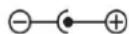
Power consumption 9W
Power consumption (standby) 0.4W
Battery DC 6V (1.5V x 4 AA)
Output Power Audio output 2 x 2W RMS
Frequency Range DAB 174-240MHz
FM 87.5-108MHz
Importer
Wörlein GmbH
Tel.: +49 9103 71 67 0
Gewerbestrasse 12
Fax.: +49 9103 71 67 12
D 90556 Cadolzburg
Email: service@woerlein.com
Germany
Remarques :
Opmerking:
Nota:
Merknader:
DAB-MODUS - MANUELT S∅K
*) markerade Cd = kadmium, Hg = kvicksilver, Pb = bly
PLACERING AV REGLAGE
Framsida
Anmärkningar:
Bemærkninger:
"Factory Reset" "SW version"
Sætter apparatet i fabriksstandardtilstand. Viser softwareversionen
SÅDAN BRUGES RADIOEN - FM-TILSTAND
FM-TILSTAND - TUNING
Poznámky:
POUŽÍVÁNÍ RÁDIA - REŽIM FM
REŽIM FM - LADĚNÍ

- ACHTUNG
- DAB DISPLAY INFORMATIONEN
- WARNING
- SAFETY, ENVIRONMENTAL AND SETUP INSTRUCTIONS
- LOCATIONS OF CONTROLS
- FRONT VIEW BACKSIDE VIEW
- BATTERY INSTALLATION
- NOTES
- CAUTION
- BASIC OPERATION - GETTING STARTED
- USING THE RADIO - DAB MODE
- DAB MODE - AUTO TUNE
- DAB MODE – MANUAL TUNE
- DAB MODE – PRUNE
- DAB DISPLAY MODES
- DAB SET UP OPTIONS
- USING THE RADIO - FM MODE
- FM MODE - TUNING
- FM DISPLAY MODES
- USING THE RADIO - PROGRAMMED STATION FUNCTION
- NOTE
- SETTING AND USING THE ALARM
- SETTING THE ALARM (IN OPERATIONAL MODE ONLY)
- ACTIVATING AND USING THE ALARM (IN STANDBY MODE ONLY)
- SETTING AND USING THE SLEEP FUNCTION
- OTHER FEATURES
- USING HEADPHONES (NOT INCLUDED)
- SETTING THE DISPLAY BACKLIGHT LEVEL (IN OPERATIONAL MODE ONLY)
- RESET
- TECHNICAL SPECIFICATIONS
- IMPORTER
- REMARQUES
- OPMERKING
- NOTA
- MERKNADER
- DAB-MODUS - MANUELT S∅K
- PLACERING AV REGLAGE
- ANMÄRKNINGAR
- BEMÆRKNINGER
- SÅDAN BRUGES RADIOEN - FM-TILSTAND
- FM-TILSTAND - TUNING
- POZNÁMKY
- POUŽÍVÁNÍ RÁDIA - REŽIM FM
- REŽIM FM - LADĚNÍ
Brand : Soundmaster
Model : DAB600
Category : Radio