
SCSB10 - Blu-ray player PANASONIC - Free user manual and instructions
Find the device manual for free SCSB10 PANASONIC in PDF.



| Product Type | Active soundbar with built-in amplifier (manual category: Blu-ray player) |
| Brand | Panasonic |
| Model | SC-SB10 |
| Dimensions (W × H × D) | Approx. 430 × 52 × 130 mm (without protrusion) / 431 × 52 × 134 mm (with protrusion) |
| Weight | Approx. 1.8 kg |
| Power Supply | AC adapter: 220-240 V AC, 50/60 Hz; DC input: 12 V, 4 A |
| Power Consumption | Operating: approx. 11 W; Standby (network OFF): 0.3 W; Standby (network ON): 0.5 W |
| Total Output Power | 40 W RMS (10 W × 2 front channels + 20 W subwoofer) |
| Speaker Type | Front: 4 cm cone full-range ×1, 1.4 cm dome tweeter ×1 per channel; Subwoofer: 8 cm cone woofer ×1, 8 cm passive radiator ×2 |
| HDMI Connectivity | 1 HDMI input (BD/DVD), 1 HDMI output (TV/ARC) – compatible with HDCP 2.2, 4K HDR (50p/60p) |
| Audio Connectivity | 1 AUX input (3.5 mm stereo mini-jack) |
| Bluetooth | Version 2.1+EDR, Class 1, Profile A2DP, Codec SBC, range ~10 m |
| HDMI ARC Audio Formats | Linear PCM 2-ch, Dolby Digital, DTS (bitstream) |
| Smart Functions | VIERA Link (HDAVI Control 5), sound modes (MUSIC, VOICE, CINEMA, STANDARD), bass adjustment (4 levels), audio delay (Auto/Off/Level 1/Level 2), auto power off (~19 min 30 s), Bluetooth standby |
| Firmware Update | Via UPDATE port (USB, not normally used) |
| Supplied Accessories | Remote control (incl. CR2025 battery), AC power cord, AC adapter |
| Care and Cleaning | Soft dry cloth; do not use alcohol, thinner, or benzine |
| Safety | Auto shut-off in case of overheating; protection against button battery ingestion (risk of chemical burns) |
| Operating Temperature | 0 °C to 40 °C |
| Operating Humidity | 20 % to 80 % RH (without condensation) |
| Remote Control Code | Adjustable (default code 1; changeable to code 2) |
Frequently Asked Questions - SCSB10 PANASONIC
User questions about SCSB10 PANASONIC
0 question about this device. Answer the ones you know or ask your own.
Ask a new question about this device
Download the instructions for your Blu-ray player in PDF format for free! Find your manual SCSB10 - PANASONIC and take your electronic device back in hand. On this page are published all the documents necessary for the use of your device. SCSB10 by PANASONIC.
USER MANUAL SCSB10 PANASONIC
Operating Instructions
Operating Instructions
Operating Instructions

Thank you for purchasing this product.
Please read these instructions carefully before using this product, and save this manual for future use.
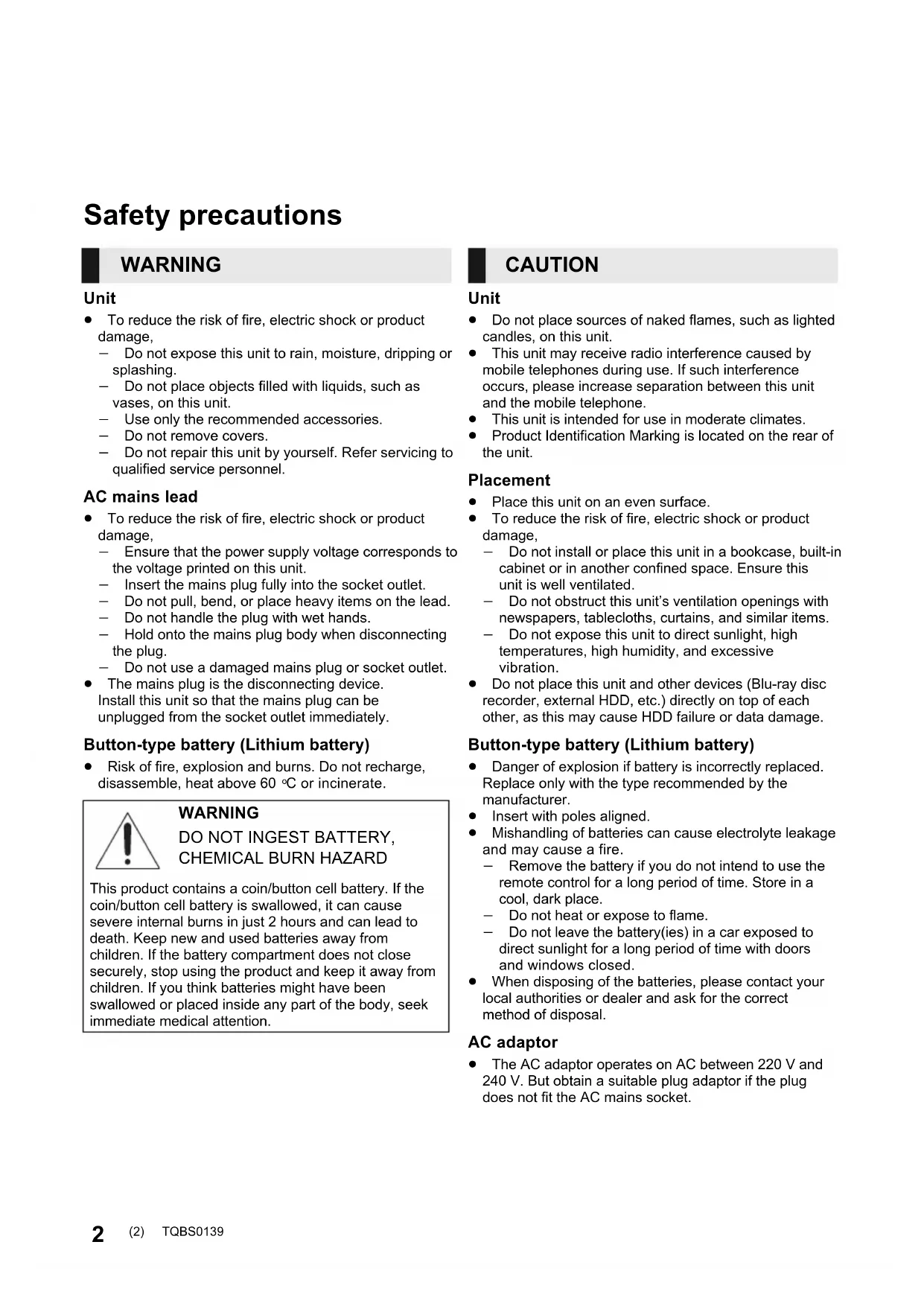
- To reduce the risk of fire, electric shock or product damage, do not expose this unit to rain, moisture, dripping or splashing.
- Do not place objects filled with liquids, such as vases, on this unit. Use only the recommended accessories. Do not remove covers.
- Do not repair this unit by yourself. Refer servicing to qualified service personnel.
AC mains lead
- To reduce the risk of fire, electric shock or product damage,
- Ensure that the power supply voltage corresponds to the voltage printed on this unit. Insert the mains plug fully into the socket outlet. Do not pull, bend, or place heavy items on the lead. Do not handle the plug with wet hands.
- Hold onto the mains plug body when disconnecting the plug. Do not use a damaged mains plug or socket outlet.
- The mains plug is the disconnecting device. Install this unit so that the mains plug can be unplugged from the socket outlet immediately.
Button-type battery (Lithium battery)
Risk of fire, explosion and burns. Do not recharge, disassemble, heat above 60 °C or incinerate.

WARNING
DO NOT INGEST BATTERY, CHEMICAL BURN HAZARD
This product contains a coin/button cell battery. If the coin/button cell battery is swallowed, it can cause severe internal burns in just 2 hours and can lead to death. Keep new and used batteries away from children. If the battery compartment does not close securely, stop using the product and keep it away from children. If you think batteries might have been swallowed or placed inside any part of the body, seek immediate medical attention.
CAUTION
Unit
- Do not place sources of naked flames, such as lighted candles, on this unit.
- This unit may receive radio interference caused by mobile telephones during use. If such interference occurs, please increase separation between this unit and the mobile telephone.
- This unit is intended for use in moderate climates.
- Product Identification Marking is located on the rear of the unit.
Placement
- Place this unit on an even surface.
- To reduce the risk of fire, electric shock or product damage,
- Do not install or place this unit in a bookcase, built-in cabinet or in another confined space. Ensure this unit is well ventilated.
- Do not obstruct this unit's ventilation openings with newspapers, tablecloths, curtains, and similar items.
- Do not expose this unit to direct sunlight, high temperatures, high humidity, and excessive vibration.
- Do not place this unit and other devices (Blu-ray disc recorder, external HDD, etc.) directly on top of each other, as this may cause HDD failure or data damage.
Button-type battery (Lithium battery)
- Danger of explosion if battery is incorrectly replaced. Replace only with the type recommended by the manufacturer.
- Insert with poles aligned.
- Mishandling of batteries can cause electrolyte leakage and may cause a fire.
- Remove the battery if you do not intend to use the remote control for a long period of time. Store in a cool, dark place.
- Do not heat or expose to flame.
- Do not leave the battery(ies) in a car exposed to direct sunlight for a long period of time with doors and windows closed.
- When disposing of the batteries, please contact your local authorities or dealer and ask for the correct method of disposal.
AC adaptor
- The AC adaptor operates on AC between 220 V and 240 V. But obtain a suitable plug adaptor if the plug does not fit the AC mains socket.
About Bluetooth®
Panasonic bears no responsibility for data and/or information that is compromised during a wireless transmission.
■ Frequency band used
This system uses the 2.4 GHz frequency band.
■ Certification of this device
- This system conforms to frequency restrictions and has received certification based on frequency laws. Thus, a wireless permit is not necessary.
- The actions below are punishable by law in some countries:
— Taking apart or modifying the unit.
– Removing specification indications.
■ Restrictions of use
- Wireless transmission and/or usage with all Bluetooth equipped devices is not guaranteed.
- All devices must conform to standards set by Bluetooth SIG, Inc.
- Depending on the specifications and settings of a device, it can fail to connect or some operations can be different.
- This system supports Bluetooth security features. But depending on the operating environment and/or settings, this security is possibly not sufficient. Transmit data wirelessly to this system with caution.
- This system cannot transmit data to a Bluetooth device.
■ Range of use
Use this device at a maximum range of 10 m.
The range can decrease depending on the environment, obstacles or interference.
■ Interference from other devices
- This system may not function properly and troubles such as noise and sound jumps may arise due to radio wave interference if this system is located too close to other Bluetooth® devices or the devices that use the 2.4 GHz band.
- This system may not function properly if radio waves from a nearby broadcasting station, etc. are too strong.
■ Intended usage
- This system is for normal, general use only.
- Do not use this system near equipment or in an environment that is sensitive to radio frequency interference (example: airports, hospitals, laboratories, etc).
Table of contents
Safety precautions...... 2
About Bluetooth ® 3
Before use
Accessories...... 4
Unit care 4
Control reference guide .... 5
This system (Front / Sides).... 5
This system (Rear) 5
Remote control 6
Getting started
Connections...... 7
Operations
Using this system 9
Linked operations with the TV (VIERA Link "HDAVI Control™")...... 10
Bluetooth ® connection.... 11
Advanced operations ...... 11
Reference
Troubleshooting 13
License 14
Specifications 15
- The illustrations shown may differ from your unit.
- Operations in this operating instructions are described mainly with the remote control, but you can perform the operations on this system if the controls are the same.
Accessories
Check the supplied accessory before using this system.
☐ 1 Remote control (with a battery) (N2QAYC000119) □ 1 AC mains lead □ 1 AC adaptor

- Product numbers are correct as of April 2017. These may be subject to change.
- Do not use AC mains lead and AC adaptor with other equipment.
- Do not use any other AC mains lead and AC adaptors except the supplied one.
Unit care
■ Clean this system with a soft, dry cloth
- When dirt is heavy, wring a cloth moistened in water tightly to wipe the dirt, and then wipe it with a dry cloth.
- Never use alcohol, paint thinner or benzine to clean this system.
- Before using chemically-treated cloth, carefully read the instructions that came with the cloth.
■ To dispose or transfer this system
This system may keep the user settings information in this system. If you discard this system either by disposal or transfer, then follow the procedure to return all the settings to the factory presets to delete the user settings.
(⇒ 13, "To return to the factory defaults.")
- The operation history may be recorded in the memory of this system.
Control reference guide
This system (Front / Sides)
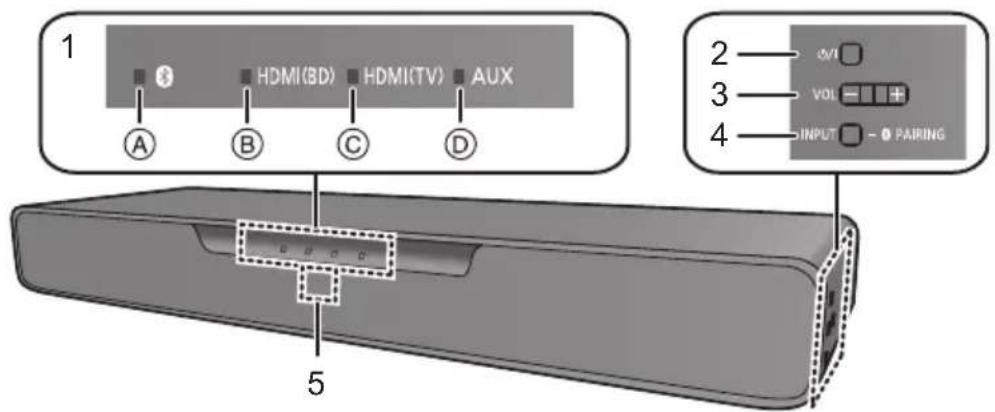
1 LED indicators
The currently-selected device is indicated by the lighting of the corresponding indicator.
Ⓐ Bluetooth ®) indicator (lights up blue) ⑧ HDMI(BD) indicator (lights up green) © HDMI(TV) indicator (lights up green) (D) AUX indicator (lights up green)
2 Standby/on switch (⏻/l)
Press to switch the unit from on to standby mode or vice versa. In standby mode, the unit is still consuming a small amount of power.
3 Adjust the volume of this system ( ⇒ 9)
4 [ I N ⚠️ U T / - PAIRING] button
- Selects the connected device (The device changes each time this button is pressed)
- Registers Bluetooth devices
5 Remote control signal sensor
Distance: Within approx. 7 m directly in front
Angle: Approx. 20° up and down and approx. 30° left and right
This system (Rear)
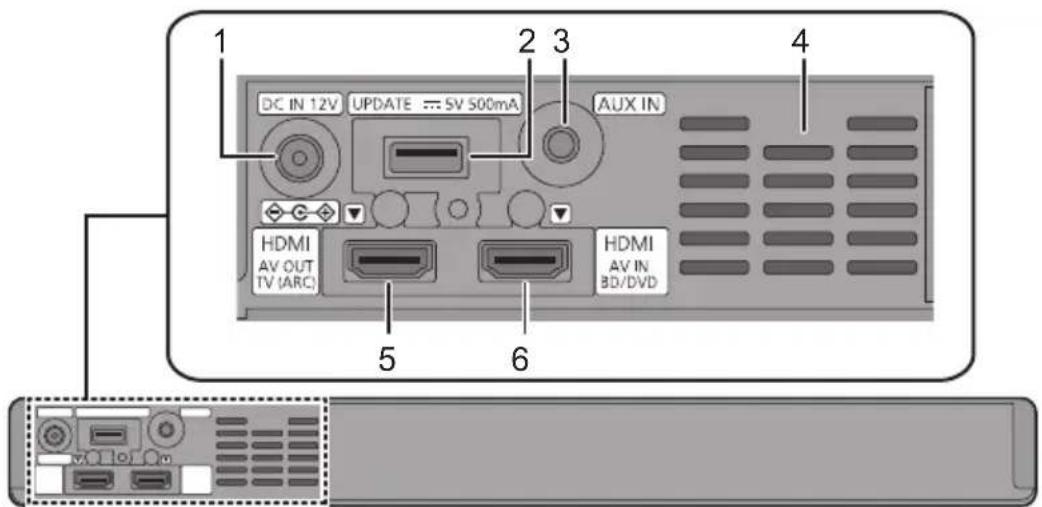
1 DC IN (12 V) terminal 2 Firmware update (UPDATE DG-5 V 500 mA) terminal* 3 AUDIO IN (AUX IN) terminal
4 Ventilation holes 5 HDMI AV OUT (TV (ARC)) terminal 6 HDMI AV IN (BD/DVD) terminal
* Note about firmware updates
Use the firmware update terminal to update the version of this system through a USB memory device. (Not used for normal operations.) For more details about version updates, refer to the support site below.
http://av.jpn.support.panasonic.com/support/global/cs/ (This site is in English only.)
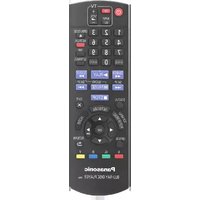
Remote control
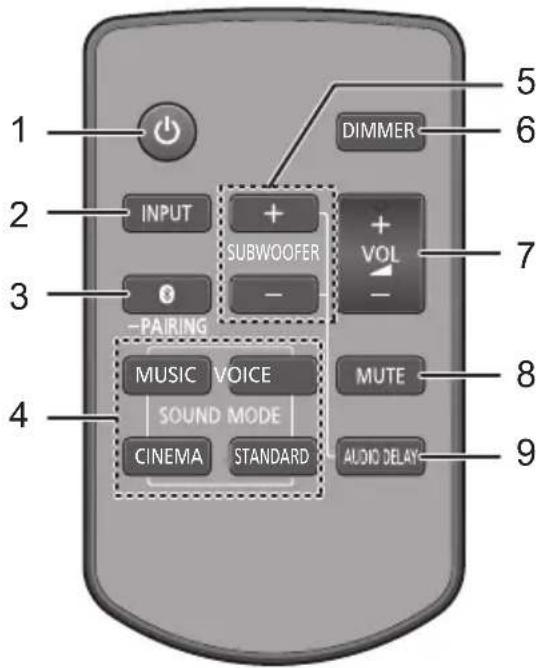
1 Turn this system on or off (→ 9) 2 Select the input source (→ 9) “HDMI(BD)” → “HDMI(TV)” → “AUX” “Bluetooth®” 3 Select the Bluetooth® device as the source (→ 9) 4 Select the sound mode (→ 9) 5 Adjust the bass (adjustable in four steps)
Lowest

Highest
6 Switch the brightness of the LED indicators 7 Adjust the volume of this system (→ 9) 8 Mute the sound (→ 9) 9 Adjust the delay between video and audio
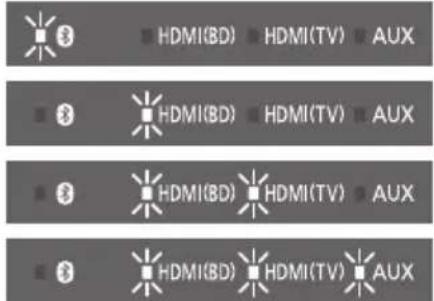
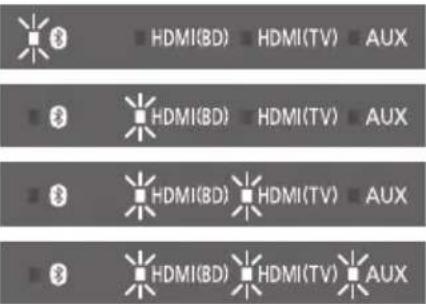
① Press [AUDIO DELAY] on the remote control.
- The current mode will be indicated by the corresponding LED indicator.
② While the current mode is indicated (about 10 sec), press [+ SUBWOOFER] or [SUBWOOFER -].
- The setting changes in the following order each time you press [+ SUBWOOFER]. (It changes in the reverse order if you press [SUBWOOFER -].)
"Auto" → "Off" → "Level 1" → "Level 2"
- If no operation is performed for about 10 sec or any button other than [+ SUBWOOFER], [SUBWOOFER -] or [DIMMER] is pressed, the indicators return to normal status. (If the bass is accidentally adjusted when [+ SUBWOOFER] or [SUBWOOFER -] is pressed, follow the steps again from step ①.)
"Auto"
"Off"

"Level 1"

"Level 2"

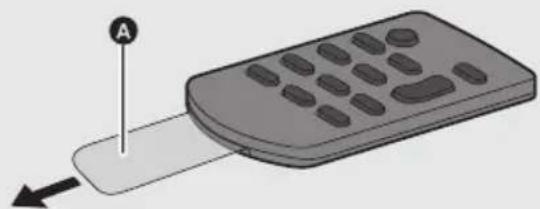
■ Before using for the first time
Remove the insulation sheet A.
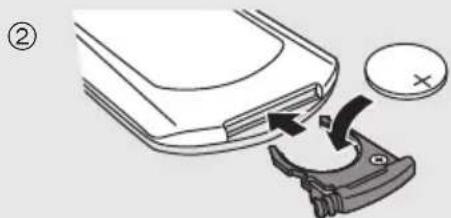
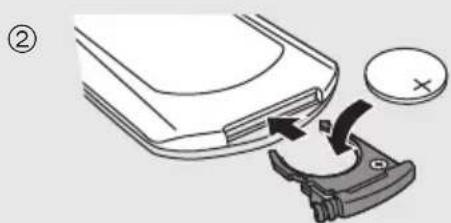
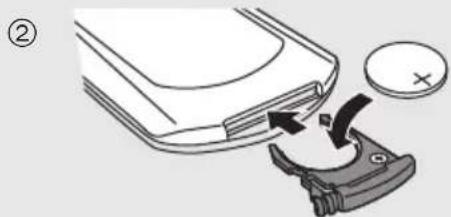
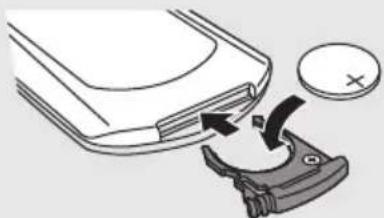
■ To replace a button-type battery
Battery type: CR2025 (Lithium battery)
①
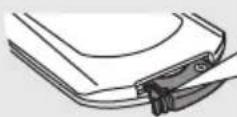
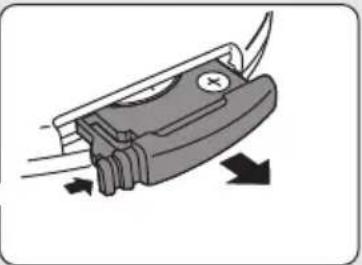
②
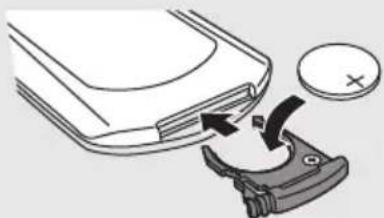
- Set the button-type battery with its (+) mark facing upward.
- The symbols on the supplied remote control represent the following:

Warning (refer to Operating Instructions for the button cell battery)
Connections
● Turn off all equipment before connection and read the appropriate operating instructions.
Do not connect the AC mains lead for this system to the socket outlet until all connections have been completed.
- Purchase an HDMI cable rated as "High-Speed HDMI Cable". Operation is not possible with a cable that does not meet the HDMI standards.
This system supports 3D content.
- You can connect a 3D-compatible TV and a 3D-compatible Blu-ray disc recorder/player to this system and enjoy spectacular 3D images of commercially-available Blu-ray discs and other storage media.
This system supports HDR (High Dynamic Range) pass-through of 4K (50p/60p) signals.
- An HDMI cable that supports 18 Gbps is required to enjoy 4K (50p/60p) HDR content.
- You can connect a 4K-compatible TV and a 4K-compatible Blu-ray disc recorder/player to this system and enjoy smooth high-definition pictures even on a large screen. (Two HDMI cables that support 18 Gbps are required.)
- Do not place this system directly on top of another device, such as a Blu-ray disc recorder.
- Keep magnetised items away. Magnetised cards, watches, etc., can be damaged if placed too close to this system.
![graph TD TV["TV"] -->|HDMI IN (ARC) Be sure to connect to the TV's ARC compatible terminal.| ARC_1["HDMI cable (not supplied)"] ARC_1 -->|DC IN 12V| HDMI1["HDMI AV OUT TV (ARC)"] ARC_1 -->|HDMI AV IN BD/DVD| HDMI2["HDMI OUT"] ARC_2["HDMI IN (ARC)"] -->|AC adaptor (supplied)| HomeSwitch["AC adaptor (…](/content/2026/03/448106/images/b5d966ccf1d0a4711c1f642baf92ec5a87e317a5473c00f8f17957a6e28a6151.jpg)
- The unit is in the standby condition when the AC adaptor is connected. The primary circuit is always "live" as long as the AC adaptor is connected to an electrical outlet.
- This system consumes a small amount of AC power (see 15) even when it is turned off. In the interest of power conservation, if you will not be using this system for a long time, unplug it from the household mains socket. The symbols on the supplied AC adaptor represent the following:
~ AC --- DC

Class II equipment (The construction of the product is double-insulated.)
■ Changing the settings of your TV
To connect this system and the TV with an HDMI cable, you need to change the TV settings to output sound correctly from this system. The instructions below use a Panasonic TV (VIERA) as an example.
- The operating procedure and the names of on-screen displays differ depending on the TV (VIERA). Refer to the operating instructions or electronic operating instructions for the TV (VIERA) for details.
1 Connect this system and the TV with an HDMI cable. (=> 7)
- After connecting this system and the TV, turn them on.
2 Set the TV's sound output destination to "Home Cinema".
• Operation example:
Press [Apps], select "VIERA Link", and set "Speaker Selection" to "Home Cinema".

- Check to see if the VIERA Link setting of each device is turned on.
- Please also follow the steps above after adding a new device, reconnecting to the TV or restoring the default settings.
Using the AUDIO IN (AUX IN) terminal
You can also connect this unit using a stereo mini plug audio cable (not supplied). Set the input of this system to "AUX".
![graph LR A["This system (rear)"] --> B["Stereo mini plug audio cable (not supplied)"] C["Device to be connected"] --> D["Headphone/earphone jack"]](/content/2026/03/448106/images/45e1d52598d95395999cd1f8f23f09f5c9928b9d5fd311e224b21ff940a59a3a.jpg)

- Use an HDMI cable (not supplied) to connect a Blu-ray disc recorder/player.
- When a stereo mini plug audio cable (not supplied) is connected, high-res sound sources are output in CD-sound source quality.
- The VIERA Link function of this system (=> 10, "Linked operations with the TV (VIERA Link "HDAVI Control™")") cannot be used.
For more details about other connection methods, refer to the support site below.
http://av.jpn.support.panasonic.com/support/global/cs/
(This site is in English only.)
Using this system
Preparation
• Turn on the TV and/or connected device.

1 Press [⏻] to turn on this system. 2 Select the source.
| Press To select | |
| [INPUT] | “HDMI(BD)”→“HDMI(TV)”→“AUX”↑——“(Bluetooth ®)←” |
| [®] “ | ”(Bluetooth ®) |
■ When “*” is selected as the source
On the Bluetooth® device:
Select this system as the output source of the connected Bluetooth® device and start the playback.
■ When "HDMI(BD)" is selected as the source
On the TV and the connected device:
Select the TV's input for this system and start the playback on the connected device.
■ To adjust the volume of this system
Press [+ VOL -].
• Each input mode retains a separate volume setting.
■ To select a sound mode
You can change the sound mode by pressing the appropriate button.
- Confirm that the HDMI(TV) indicator and the AUX indicator blink twice.

MUSIC: Enhances the sound of musical instruments and songs.
VOICE: Enhances the voice of news and sports commentaries.
CINEMA: Produces three-dimensional sound unique to movies.
STANDARD: Best suited for dramas and comedy shows.
■ To mute the sound
Press [MUTE].
- While muting, the HDMI(BD) indicator, HDMI(TV) indicator, and AUX indicator blink simultaneously.
- To cancel, press the button again or adjust the volume.
- Muting is cancelled if this system is turned off.

If this system does not operate as expected or sound is unusual, returning the settings to the factory preset may solve the problem. (⇒ 13, “To return to the factory defaults.”)
When the problem persists (⇒ 13, “Sound / Image”)
- If there is sound coming out of the TV's speakers, reduce the volume of the TV to its minimum.
- The maximum volume levels of the TV and this system may differ.
- Switch the TV's input to the TV tuner to select the TV as the video and audio source while playing the device connected to the HDMI AV OUT (TV (ARC)) terminal. In addition, when VIERA Link (HDMI) is turned off, switch the input of this system to TV mode.
- To select the TV as the audio source while playing the device connected to the AUDIO IN (AUX IN) terminal, switch the input of the TV to the TV tuner.
Linked operations with the TV (VIERA Link “HDAVI Control™”)
What is VIERA Link "HDAVI Control"?
VIERA Link “HDAVI Control” is a convenient function that offers linked operations of this system, and a Panasonic TV (VIERA) under “HDAVI Control”.
You can use this function by connecting the equipment with an HDMI cable. See the operating instructions for connected equipment for operational details.
What you can do with VIERA Link "HDAVI Control"
To make sure that the audio is output from this system, turn this system on by using the TV's remote control and selecting home cinema from the speaker menu of VIERA Link menu.
The availability and function of the settings may vary depending on the TV. Refer to the operating instructions for the TV for details.
■ Speaker control
You can select whether audio output is from this system or the TV speakers by using the TV menu settings.
Home cinema
This system is active.
- When this system is in standby mode, changing the TV speakers to this system in the VIERA Link menu will automatically turn this system on.
- You can control the volume setting of this system using the volume or mute button on the TV remote control.
- If you turn off this system, TV speakers will be automatically activated.
- Audio will automatically be output from this system if the TV is compatible with VIERA Link "HDAVI Control 4" or later.
TV
TV speakers are active.
■ Automatic input switching
When the following operations are performed, this system will automatically change the input to the corresponding source.
- When play starts on an HDMI connected device.*
— When the TV input is changed.
* If the speaker output setting on the TV is set to this system, the TV and this system turn on automatically (Power on link).
Power off link
When the TV is turned off, this system also turns off automatically. (This function does not work when Bluetooth ® is the source.)
■ Automatic lip-sync function
(for HDAVI Control 3 or later)
Delay between audio and video is automatically adjusted by adding time-lag to the audio output, enabling you to enjoy smooth audio for the picture.
- The delay information is automatically set if the TV is compatible with VIERA Link "HDAVI Control 3" or later and the VIERA Link is set to on.

- VIERA Link "HDAVI Control", based on the control functions provided by HDMI which is an industry standard known as HDMI CEC (Consumer Electronics Control), is a unique function that we have developed and added. As such, its operation with other manufacturers' equipment that supports HDMI CEC cannot be guaranteed.
- This unit supports "HDAVI Control 5" function. "HDAVI Control 5" is the standard for Panasonic's HDAVI Control compatible equipment. This standard is compatible with Panasonic's conventional HDAVI equipment.
- Please refer to individual manuals for other manufacturers' equipment supporting VIERA Link function.
Bluetooth® connection
By using the Bluetooth® connection, you can listen to the sound from the Bluetooth® audio device from this system wirelessly.
- Refer to the operating instructions of the Bluetooth® device for further instruction on how to connect a Bluetooth® device.
Preparation
- Turn on the Bluetooth® feature of the device and place the device near this system.
Bluetooth® pairing
1 Press [⚙] to select "⚙".
- If the indicator flashes quickly, go to step 3.
2 Press and hold [✗] until the "✗" indicator flashes quickly.
- If the ⚙ indicator flashes slowly, repeat step 2.
3 Select "SC-SB10" from the Bluetooth® device's Bluetooth® menu.
- If prompted for the passkey on the Bluetooth device, enter "0000".
- Once the Bluetooth device is connected, the " indicator stops flashing and lights up.

- You can register up to 8 devices with this system. If a 9th device is paired, the device that has not been used for the longest time will be replaced.
Connecting a paired Bluetooth® device
1 Press [?] to select “*”.
- If the ✕ indicator lights, a Bluetooth® device is already connected with this system. Disconnect it. (⇒ below)
2 Select "SC-SB10" from the Bluetooth® device's Bluetooth® menu.
■ Disconnecting a Bluetooth® device
Press and hold [until the “” indicator flashes.

- This system can only be connected to one device at a time.
Advanced operations
Auto Power Down
This system is automatically turned off if there is no audio input and when you do not use it for approx. 19 min and 30 sec.
1 While pressing
and holding
[+ SUBWOOFER]
"On" "Off"


On the remote control, press and hold [VOL -] on this system for more than 4 seconds.
- The current mode will be indicated by the corresponding LED indicator.
2 While the current mode is indicated (about 20 seconds), press [+ SUBWOOFER] again.
- The setting changes each time [+ SUBWOOFER] is pressed.
- The indicator for the selected setting blinks for 20 seconds and then exits the setting mode.
- The setting is maintained until it is changed again.
- Default setting of this function is "On".
Bluetooth® Standby
This function allows you to connect a paired Bluetooth® device when this system is in standby mode.
1 While pressing and holding
[SUBWOOFER -]
"On" "Off"

On the remote control, press and hold [VOL -] on this system for more than 4 seconds.
- The current mode will be indicated by the corresponding LED indicator.
2 While the current mode is indicated (about 20 seconds), press [SUBWOOFER -] again.
- The setting changes each time [SUB WOOFER –] is pressed.
- The indicator for the selected setting blinks for 20 sec and then exits the setting mode.
- The setting is maintained until it is changed again.
- Default setting of this function is "On".
Switching the Bluetooth® communication mode
Change the Bluetooth® connection link mode to suit the connection type. You can switch to Mode 2 (priority on sound quality) or Mode 1 (priority on connectivity) by following the steps below.
1 Press [] to select “”.
- Turn off the connection of your device in advance.
2 While pressing and holding
[DIMMER] on the remote control,
press and hold [VOL —] on this system for more than 4 sec.
- The current mode will be indicated by the corresponding LED indicator.
"Mode 1" "Mode 2"
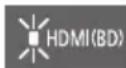
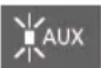
3 While the current mode is indicated (about 10 sec), press [DIMMER] again.
- The setting changes each time [DIMMER] is pressed.
- The indicator for the selected setting blinks for 10 seconds and then exits the setting mode.
- The setting is maintained until it is changed again.
- Default setting of this function is "Mode 2".
Turning off VIERA Link (HDMI) (HDAVI Control™)
You can turn off VIERA Link when, for example, operation becomes unstable while a non-Panasonic HDMI-compatible device is connected.
While pressing and holding [MUTE] on the remote control, press and hold [VOL -] on this system for more than 4 seconds.
- All the indicators will blink once when the volume limitation is turned off.
![PANASONIC SCSB10 - While pressing and holding [MUTE] on the remote control, press and hold [VOL -] on this system for more than 4 seconds. - 1](/content/2026/03/448106/images/ae3be4ae7a8ae0c142c1a42861101e014b19539594676ab478e3ad884937f71d.jpg)
- When VIERA Link (HDMI) is turned off, the ARC function becomes unavailable. To select the TV as the source, be sure to connect a stereo mini plug audio cable (not supplied).
- To reset the setting, return to the factory preset. (⇒ 13)
- Default setting of this function is "On".
Switching the AUX input mode
You can switch the AUX input mode (TV/Music) by following the steps below. Select the "TV" mode to connect to the TV, or select the "Music" mode to connect to a music device, etc.
1 While pressing and holding
[INPUT] on the remote control press and hold [VOL —] on this system for more than 4 seconds.
- The current mode will be indicated by the corresponding LED indicator.
"TV" "Music"
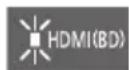
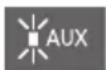
2 While the current mode is indicated (about 20 sec), press [INPUT] again.
- The setting changes each time [INPUT] is pressed.
- The indicator for the selected setting blinks for 20 sec and then exits the setting mode.
- Default setting of this function is "TV" mode.
Remote control code
When other Panasonic devices respond to this system's remote control, change the remote control code on this system and the remote control.
Preparation
- Turn off all other Panasonic products.
- Turn on this system.
Change the remote control code to code 2:
① Aim the remote control at this system's remote control sensor. ② Press and hold [MUTE] and [VOL —] on the remote control for more than 4 sec.
- All the indicators will blink for 10 sec when the code of this system is changed.

- To change the remote control code to code 1, repeat the steps above, but replace [VOL -] with [VOL +].
Turning off the volume limitation
If a state of the lowered volume disturbs you every time this system turns on, for example, it is possible to turn off this function as follows:
While pressing and holding [MUTE] on the remote control, press and hold [VOL +] on this system for more than 4 sec.
- All the indicators will blink once when the volume limitation is turned off.
![PANASONIC SCSB10 - While pressing and holding [MUTE] on the remote control, press and hold [VOL +] on this system for more than 4 sec. - 1](/content/2026/03/448106/images/a52444d582cb0d6770b82f097ea7db1f03fde585d1b518680c5515dfb191cd6d.jpg)
- Default setting of this function is "On".
- To reset the setting, return to the factory preset. (⇒ 13)
Troubleshooting
Before requesting service, make the following checks. If you are in doubt about some of the check points, or if the solutions indicated in the following guide do not solve the problem, consult your dealer for instructions.
For further dedicated help, support and advice about this system please visit: http://av.jpn.support.panasonic.com/support/global/cs/ (This site is in English only.)
To return to the factory defaults.
While this system is on, press and hold [⏻/l] on this system for more than 4 sec.
(All the indicators will blink twice when this system is reset.)
If this system does not operate as expected, returning the settings to the factory defaults may solve the problem.
- The remote control code will return to "1" when this system is returned to the factory preset. To change the remote control code, refer to page 12.
General operation
No power.
- Insert the AC mains lead securely. (→ 7)
- If the indicators blink and this system turns off immediately after you have turned it on, unplug the AC mains lead and consult your dealer.
The remote control does not work properly.
- The battery is depleted. Replace it with a new one. (⇒ 6)
- It may be necessary to set the code of the remote control again after changing the battery of the remote control. (⇒ 12)
- Use the remote control within the correct operation range. (⇒ 5)
- The remote control signal sensor may not receive signals if exposed to direct sunlight or strong light from an inverter fluorescent lamp.
- It is possible that the insulation sheet has not been removed. Remove the insulation sheet. (→ 6)
The "AUX" indicator keeps blinking fast.
Turn off this system and unplug the AC mains lead first, and then consult your dealer. Describe the LED indicator status when consulting the dealer.
This system is automatically switched to standby mode.
"Auto Power Down" function is on.
This system will automatically switch to standby mode when no signal is input and no operation is performed for approx. 19 min and 30 sec. Refer to page 11 to turn this function off.
This system does not operate correctly.
- Is the HDMI cable connected to the IN and OUT terminals the other way around? Turn off this system, and disconnect the AC mains lead and reconnect the HDMI cable.
- If the AUX indicator blinks in a pattern of two blinks followed by a pause three times, the remote control code of this system is different from that of the remote control. Set their remote control code again.
VIERA Link (HDMI) related operations no longer function properly.
- This may occur when the HDMI connections are changed, after a power failure or after the AC mains lead has been removed. Try the following:
- After connecting the TV (VIERA) and this system with an HDMI cable and turning on the TV (VIERA), disconnect the AC mains lead of this system while leaving the system turned on, and reconnect the AC mains lead.
Sound / Image
The TV's sound is not heard from this system. No sound (or image) is output even after the connected device starts playback.
- Turn muting off. (⇒ 9)
- Check the connections to the other device. (→ 7)
- Turn this system off and then on again.
- If this system is connected to a TV with an HDMI cable, check that the TV's HDMI terminal is labelled "HDMI (ARC)". If not, TV sound cannot be output from this system. When using a TV with an HDMI terminal that is not labelled "ARC", connect the headphone/earphone jack of the TV and the AUDIO IN (AUX IN) terminal using a stereo mini plug audio cable (not supplied). (⇒ 8, "Using the AUDIO IN (AUX IN) terminal")
- If this system is connected to a Panasonic TV (VIERA), when you turn on this system by operating it directly, sound may not be output from it. In this case, turn on this system via VIERA Link by operating the remote control of the TV (VIERA).
- If the connections are correct, there might be a problem with the cables. Redo the connections with different cables.
- Check the audio output settings on the connected device.
The volume is lowered when this system is turned on.
If this system is turned off with the volume setting in the greater half (above 50), this system will automatically lower the volume to the middle (50) when this system is turned on. (⇒ 12)
There is no audio.
The power of this system turns off automatically.
(When this system detects a problem, a safety measure is activated and this system automatically switches to standby mode.)
- There is a problem with the amplifier.
- Is the volume extremely high? If so, lower the volume.
- Is this system placed in an extremely hot place? If so, move this system to a cooler place and wait a few moments and then try to turn it on again.
- Depending on the combination of the TV and the connected device used, when the TV is turned off and on or the input is switched, audio may be temporarily disabled.
- If the HDMI(BD) indicator and the HDMI(TV) indicator light up and the AUX indicator keeps blinking, HDCP 2.2 is not supported by the HDMI terminal or setup of the TV. Refer to the operating instructions of the TV for details.
Bluetooth®
Pairing cannot be done.
Check the Bluetooth® device condition.
The device cannot be connected.
- The pairing of the device was unsuccessful or the registration has been replaced. Try pairing the device again. (⇒ 11)
- This system might be connected to a different device. Disconnect the other device and try pairing the device again.
The device is connected but audio cannot be heard through this system.
For some built-in Bluetooth® devices, you have to set the audio output to "SC-SB10" manually. Read the operating instructions for the device for details.
The sound is interrupted.
- The device is out of the 10 m communication range. Bring the Bluetooth® device closer to this system.
- Remove any obstacle between this system and the device.
- Other devices that use the 2.4 GHz frequency band (wireless router, microwaves, cordless phones, etc.) are interfering. Bring the Bluetooth® device closer to this system and distance it from the other devices.
License
The Bluetooth® word mark and logos are registered trademarks owned by the Bluetooth SIG, Inc. and any use of such marks by Panasonic Corporation is under license. Other trademarks and trade names are those of their respective owners.
The terms HDMI and HDMI High-Definition Multimedia Interface, and the HDMI Logo are trademarks or registered trademarks of HDMI Licensing Administrator, Inc. in the United States and other countries.
HDAVI Control™ is a trademark of Panasonic Corporation.
Applicable to HDMI AV OUT (TV (ARC)) only

For DTS patents, see http://patents.dts.com. Manufactured under license from DTS Licensing Limited. DTS, the Symbol, & DTS and the Symbol together are registered trademarks of DTS, Inc. © DTS, Inc. All Rights Reserved.

Dolby, Dolby Audio, and the double-D symbol are trademarks of Dolby Laboratories.
Specifications
AMPLIFIER SECTION
RMS output power (non-simultaneous drive)
Front ch (L, R ch)
10 W per channel (1 kHz, 10 %, 6 Ω)
Subwoofer ch
20 W (100 Hz, 10 %, 3 Ω)
Total RMS output power
40 W
SPEAKER SECTION
Front speakers (Built-in, L/R)
Full range
4 cm cone type × 1/ch
Tweeter
1.4 cm dome type × 1/ch
Impedance (Total)
6 Ω
Subwoofers (Built-in)
Woofer
8 cm cone type × 1
Impedance (Total)
3 Ω
Passive radiator
8 cm ×2
Bluetooth® SECTION
Bluetooth® system specification
Bluetooth® Ver. 2.1+EDR
Wireless equipment classification
Class 1
Supported profiles
A2DP
Supported codec
SBC
Frequency band
2.4 GHz band FH-SS
Operating distance
Approx. 10 m Line of sight
TERMINALS SECTION
HDAVI Control
This unit supports "HDAVI Control 5" function.
HDMI AV input (BD/DVD) 1
Input connector type A (19 pin)
HDMI AV output (TV (ARC)) 1
Output connector type A (19 pin)
For update only 1
AUX input 1
32 kHz, 44.1 kHz, 48 kHz
32 kHz, 44.1 kHz, 48 kHz,
88.2 kHz, 96 kHz,
176.4 kHz, 192 kHz
Audio format
(BD/DVD)
(TV (ARC))
Linear PCM (2 ch)
Linear PCM (2 ch),
Dolby Digital / DTS (Bitstream)
GENERAL
Power supply
DC 12 V 4 A
AC adaptor
AC 220 V to 240 V, 50/60 Hz
Power consumption
Approx. 11 W
Power consumption in standby mode
When "Network Standby"* is "OFF"
Approx. 0.3 W
When "Network Standby"* is "ON"
Approx. 0.5 W
Dimensions (W×H×D)
Approx. 430 ×52 ×130 mm
(including the projecting parts)
Approx. 431 ×52 ×134 mm
Mass
Approx. 1.8 kg
Operating temperature range
0 °C to +40 °C
Operating humidity range
20 % to 80 % RH (no condensation)

* "Network Standby" means "Bluetooth ® Standby" and "VIERA Link".
- Specifications are subject to change without notice.
- Mass and dimensions are approximate.
- Total harmonic distortion is measured by a digital spectrum analyzer.
Precautions
WARNING
Device
"HDMI(BD)" → "HDMI(TV)" → "AUX"
↑ “Bluetooth®)
(HDMI) 32 kHz, 44.1 kHz, 48 kHz,
88.2 kHz, 96 kHz
176.4 kHz, 192 kHz
Audio format
(BD/DVD)
Linear PCM (2 channels)
(TV (ARC))
Linear PCM (2 channels),
Dolby Digital / DTS (Bitstream)
GENERAL
Power supply
DC 12 V 4 A
AC adapter
"HDMI(BD)" → "HDMI(TV)" → "AUX"
“Bluetooth®”
32 kHz, 44.1 kHz, 48 kHz
(HDMI) 32 kHz, 44.1 kHz, 48 kHz,
88.2 kHz, 96 kHz,
176.4 kHz, 192 kHz
Audio format
(BD/DVD)
32 kHz, 44.1 kHz, 48 kHz
(HDMI)
32 kHz, 44.1 kHz, 48 kHz,
88.2 kHz, 96 kHz,
176.4 kHz, 192 kHz
Audio format
(BD/DVD)
"HDMI(BD)" → "HDMI(TV)" → "AUX"
↑ “Bluetooth®)
②
32 kHz, 44.1 kHz, 48 kHz
(HDMI)
32 kHz, 44.1 kHz, 48 kHz,
88.2 kHz, 96 kHz,
176.4 kHz, 192 kHz
Audio format
(BD/DVD)
Linear PCM (2 ch.)
(TV (ARC))
Linear PCM (2 ch.),
Dolby Digital / DTS (Bitstream)
GENERAL
Power supply
DC 12 V 4 A
AC adapter
AC 220 V to 240 V, 50/60 Hz
Power consumption
Approx. 11 W
Disposal of Old Equipment and Batteries
Only for European Union and countries with recycling systems

These symbols on the products, packaging, and/or accompanying documents mean that used electrical and electronic products and batteries must not be mixed with general household waste.
For proper treatment, recovery and recycling of old products and used batteries, please take them to applicable collection points in accordance with your national legislation.
By disposing of them correctly, you will help to save valuable resources and prevent any potential negative effects on human health and the environment.
For more information about collection and recycling, please contact your local municipality.

Penalties may be applicable for incorrect disposal of this waste, in accordance with national legislation.
Note for the battery symbol (bottom symbol):
This symbol might be used in combination with a chemical symbol. In this case it complies with the requirement set by the Directive for the chemical involved.
German
Declaration of Conformity (DoC)
Hereby, "Panasonic Corporation" declares that this product is in compliance with the essential requirements and other relevant provisions of Directive 2014/53/EU.
Customers can download a copy of the original DoC to our RE products from our DoC server:
http://www.doc.panasonic.de
Contact to Authorised Representative: Panasonic Marketing Europe GmbH,
Panasonic Testing Centre, Winsbergring 15, 22525 Hamburg, Germany
| Type of wireless Frequency band | Maximum power (dBm e.i.r.p.) |
| Bluetooth® | 2402 - 2480 MHz 10 dBm |
German
Manufactured by: Panasonic Corporation
Kadoma, Osaka, Japan
Importer for Europe: Panasonic Marketing Europe GmbH
Panasonic Testing Centre
Winsbergring 15, 22525 Hamburg, Germany
EU
Panasonic Corporation
http://www.panasonic.com
© Panasonic Corporation 2017
En Ge Fr It Du
TQBS0139
F0417HA0

- AC MAINS LEAD
- BUTTON-TYPE BATTERY (LITHIUM BATTERY)
- WARNING
- CAUTION
- UNIT
- PLACEMENT
- AC ADAPTOR
- ABOUT BLUETOOTH®
- FREQUENCY BAND USED
- CERTIFICATION OF THIS DEVICE
- RESTRICTIONS OF USE
- RANGE OF USE
- INTERFERENCE FROM OTHER DEVICES
- INTENDED USAGE
- TABLE OF CONTENTS
- BEFORE USE
- GETTING STARTED
- OPERATIONS
- REFERENCE
- ACCESSORIES
- UNIT CARE
- CONTROL REFERENCE GUIDE
- THIS SYSTEM (FRONT / SIDES)
- LED INDICATORS
- STANDBY/ON SWITCH (⏻/L)
- ADJUST THE VOLUME OF THIS SYSTEM ( ⇒ 9)
- REMOTE CONTROL SIGNAL SENSOR
- THIS SYSTEM (REAR)
- NOTE ABOUT FIRMWARE UPDATES
- REMOTE CONTROL
- BEFORE USING FOR THE FIRST TIME
- TO REPLACE A BUTTON-TYPE BATTERY
- CONNECTIONS
- THIS SYSTEM SUPPORTS 3D CONTENT
- THIS SYSTEM SUPPORTS HDR (HIGH DYNAMIC RANGE) PASS-THROUGH OF 4K (50P/60P) SIGNALS
- CHANGING THE SETTINGS OF YOUR TV
- CONNECT THIS SYSTEM AND THE TV WITH AN HDMI CABLE. (=> 7)
- SET THE TV'S SOUND OUTPUT DESTINATION TO "HOME CINEMA
- USING THE AUDIO IN (AUX IN) TERMINAL
- USING THIS SYSTEM
- PREPARATION
- LINKED OPERATIONS WITH THE TV (VIERA LINK “HDAVI CONTROL™”)
- WHAT IS VIERA LINK "HDAVI CONTROL
- WHAT YOU CAN DO WITH VIERA LINK "HDAVI CONTROL
- SPEAKER CONTROL
- HOME CINEMA
- TV
- AUTOMATIC INPUT SWITCHING
- POWER OFF LINK
- AUTOMATIC LIP-SYNC FUNCTION
- BLUETOOTH® CONNECTION
- BLUETOOTH® PAIRING
- CONNECTING A PAIRED BLUETOOTH® DEVICE
- ADVANCED OPERATIONS
- AUTO POWER DOWN
- BLUETOOTH® STANDBY
- SWITCHING THE BLUETOOTH® COMMUNICATION MODE
- PRESS [] TO SELECT
- WHILE PRESSING AND HOLDING
- WHILE THE CURRENT MODE IS INDICATED (ABOUT 10 SEC), PRESS [DIMMER] AGAIN
- TURNING OFF VIERA LINK (HDMI) (HDAVI CONTROL™)
- WHILE PRESSING AND HOLDING [MUTE] ON THE REMOTE CONTROL, PRESS AND HOLD [VOL -] ON THIS SYSTEM FOR MORE THAN 4 SECONDS
- SWITCHING THE AUX INPUT MODE
- WHILE THE CURRENT MODE IS INDICATED (ABOUT 20 SEC), PRESS [INPUT] AGAIN
- REMOTE CONTROL CODE
- CHANGE THE REMOTE CONTROL CODE TO CODE
- TURNING OFF THE VOLUME LIMITATION
- WHILE PRESSING AND HOLDING [MUTE] ON THE REMOTE CONTROL, PRESS AND HOLD [VOL +] ON THIS SYSTEM FOR MORE THAN 4 SEC
- TROUBLESHOOTING
- TO RETURN TO THE FACTORY DEFAULTS
- IF THIS SYSTEM DOES NOT OPERATE AS EXPECTED, RETURNING THE SETTINGS TO THE FACTORY DEFAULTS MAY SOLVE THE PROBLEM
- GENERAL OPERATION
- NO POWER
- THE REMOTE CONTROL DOES NOT WORK PROPERLY
- THE "AUX" INDICATOR KEEPS BLINKING FAST
- THIS SYSTEM IS AUTOMATICALLY SWITCHED TO STANDBY MODE
- THIS SYSTEM DOES NOT OPERATE CORRECTLY
- VIERA LINK (HDMI) RELATED OPERATIONS NO LONGER FUNCTION PROPERLY
- SOUND / IMAGE
- THE TV'S SOUND IS NOT HEARD FROM THIS SYSTEM. NO SOUND (OR IMAGE) IS OUTPUT EVEN AFTER THE CONNECTED DEVICE STARTS PLAYBACK
- THE VOLUME IS LOWERED WHEN THIS SYSTEM IS TURNED ON
- THERE IS NO AUDIO
- THE POWER OF THIS SYSTEM TURNS OFF AUTOMATICALLY
- BLUETOOTH®
- PAIRING CANNOT BE DONE
- THE DEVICE CANNOT BE CONNECTED
- THE DEVICE IS CONNECTED BUT AUDIO CANNOT BE HEARD THROUGH THIS SYSTEM
- THE SOUND IS INTERRUPTED
- LICENSE
- APPLICABLE TO HDMI AV OUT (TV (ARC)) ONLY
- SPECIFICATIONS
- AMPLIFIER SECTION
- SPEAKER SECTION
- BLUETOOTH® SECTION
- TERMINALS SECTION
- GENERAL
- PRECAUTIONS
- DEVICE
- DISPOSAL OF OLD EQUIPMENT AND BATTERIES
- ONLY FOR EUROPEAN UNION AND COUNTRIES WITH RECYCLING SYSTEMS
- NOTE FOR THE BATTERY SYMBOL (BOTTOM SYMBOL)
- GERMAN
- DECLARATION OF CONFORMITY (DOC)
Brand : PANASONIC
Model : SCSB10
Category : Blu-ray player