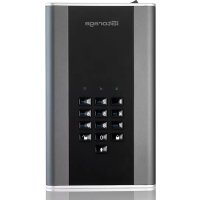
DiskAshur DT2 - External hard drive iStorage - Free user manual and instructions
Find the device manual for free DiskAshur DT2 iStorage in PDF.


| Product type | Desktop external hard drive with hardware encryption |
| Storage capacity | Up to 8 TB |
| Connectivity | USB 3.1 (cable included) |
| Power supply | Universal AC adapter included |
| Encryption | AES 256-bit XTS mode (hardware) |
| Authentication | Admin and user PIN (7 to 15 digits) |
| Security features | Brute force protection, self-destruct, auto-lock, read-only |
| LED indicators | Red (standby), Blue (admin), Green (user) |
| Buttons | Unlock, Lock, Shift |
| OS compatibility | Windows, macOS (reformatting required) |
| Default file format | NTFS |
| Dimensions (approx.) | Approx. 18 x 12 x 4 cm (desktop drive) |
| Weight (approx.) | Approx. 800 g |
| Operating temperature | 0°C to 40°C |
| Warranty | 2 years |
| Maintenance | Clean with a dry soft cloth; avoid liquids |
| Spare parts | USB cable and AC adapter available from the manufacturer |
Frequently Asked Questions - DiskAshur DT2 iStorage
User questions about DiskAshur DT2 iStorage
0 question about this device. Answer the ones you know or ask your own.
Ask a new question about this device
Download the instructions for your External hard drive in PDF format for free! Find your manual DiskAshur DT2 - iStorage and take your electronic device back in hand. On this page are published all the documents necessary for the use of your device. DiskAshur DT2 by iStorage.
USER MANUAL DiskAshur DT2 iStorage
English User Manual - Table of Contents 4
USER MANUAL
disk@shur DT

Please make sure you remember your PIN (password), without it there is no way to access the data on the drive.
If you are having difficulty using your diskAshur DT² drive please contact our technical department by email - support@istorage-uk.com or by phone on +44 (0) 20 8991 6260.
Copyright © iStorage, Inc 2017. All rights reserved.
Windows is a registered trademark of Microsoft Corporation.
All other trademarks and copyrights referred to are the property of their respective owners.
Distribution of modified versions of this document is prohibited without the explicit permission of the copyright holder.
Distribution of the work or derivative work in any standard (paper) book form for commercial purposes is prohibited unless prior permission is obtained from the copyright holder.
DOCUMENTATION IS PROVIDED AS IS AND ALL EXPRESS OR IMPLIED CONDITIONS, REPRESENTATIONS AND WARRANTY, INCLUDING ANY IMPLIED WARRANTY OF MERCHANTABILITY, FITNESS FOR A PARTICULAR PURPOSE OR NON-INFRINGEMENT, ARE DISCLAIMED, EXCEPT TO THE EXTENT THAT SUCH CLAIMERS ARE HELD TO BE LEGALLY INVALID
Table of Contents
Introduction 5
Box Contents 5
- diskAshur DT² Layout 6
- Connecting your diskAshur DT2 7
- diskAshur DT² LED States 8
- How to use the diskAshur DT^2 for the first time 8
- Unlocking the diskAshur DT^2 9
- Locking the diskAshur DT^2 9
- Entering Admin Mode 9
- Changing the Admin PIN 10
9.Adding a new User PIN in Admin Mode 11 - Changing the User PIN in Admin Mode 11
- Deleting the User PIN in Admin Mode 11
- Set Read-Only in Admin Mode 12
- Enable Read/Write in Admin Mode 12
- How to create a Self-Destruct PIN 12
- How to delete the Self-Destruct PIN 13
- How to Unlock with the Self-Destruct PIN 13
- How to Create an Admin PIN after a Brute Force attack or Reset 14
- Setting the Unattended Auto-Lock Clock 14
- Turn off the Unattended Auto-Lock Clock 15
- How to Unlock diskAshur DT^2 with User PIN 15
- Changing the User PIN in User Mode 15
- Set Read-Only in User Mode 16
- Enable Read/Write in User Mode 16
- Brute Force Protection 17
- How to perform a complete reset 17
- Initialising and formatting the diskAshur DT2 18
- diskAshur DT² Setup for Mac OS 20
- diskAshur DT² Setup for Linux (Ubuntu 14.04) 22
- Hibernating, Suspending or Logging off from the Operating System 25
- How to check Firmware in Admin Mode 25
- How to check Firmware in User Mode 26
- Technical Support 27
- Warranty and RMA information 27

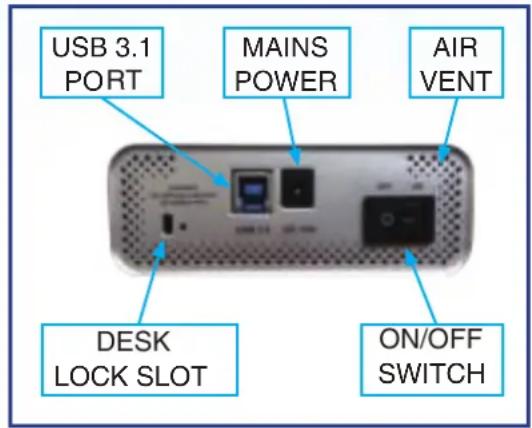
diskAshur DT^2 rear view
Introduction
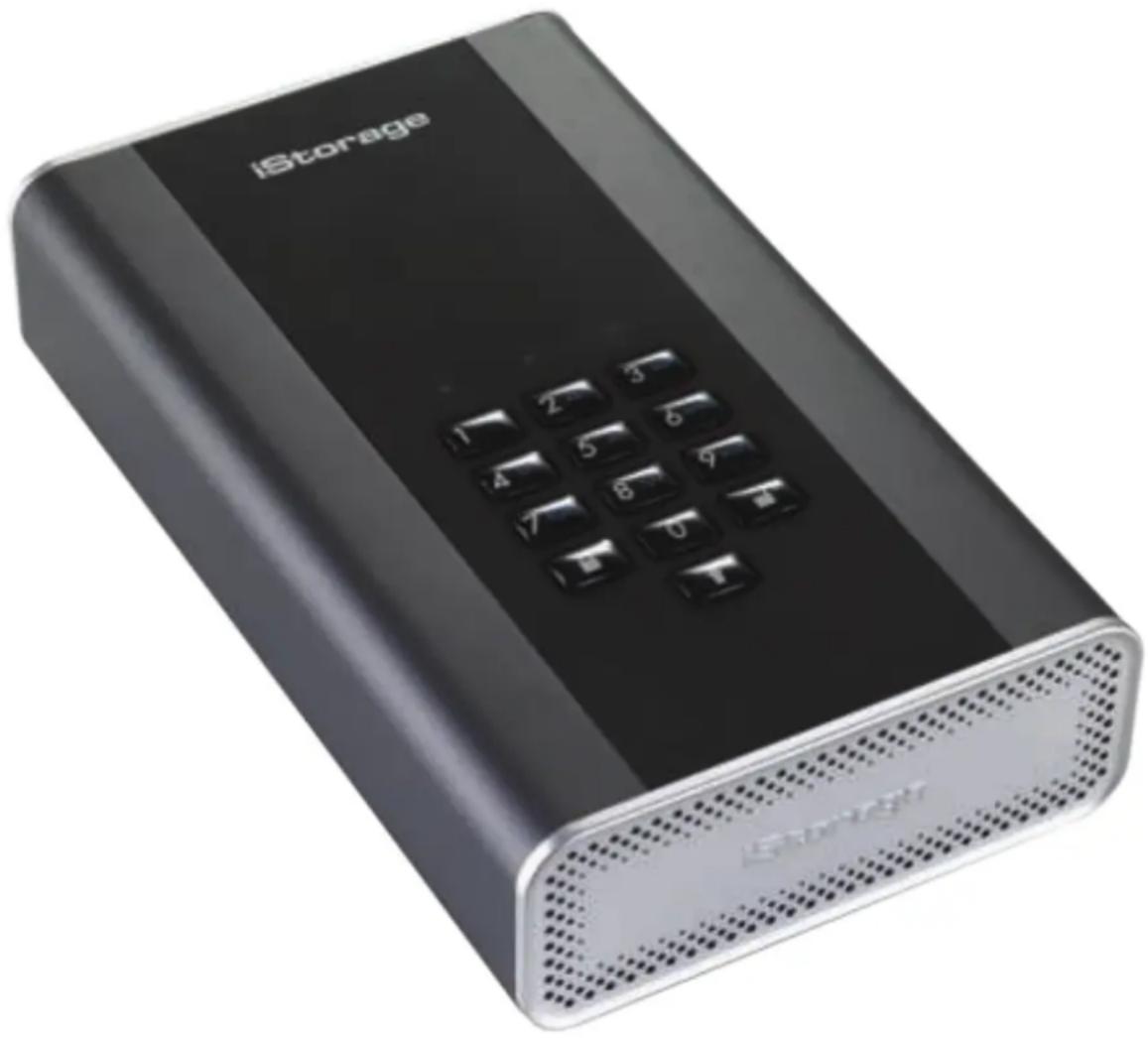
The diskAshur DT^2 is an easy to use, ultra-secure, hardware encrypted desktop hard drive with capacities of up to 8TB. Simply switch the power on and connect the USB 3.1 cable to any computer and enter a 7-15 digit PIN, if the correct PIN is entered, all data stored on the drive will be decrypted and accessible. To lock the drive and encrypt all data, simply eject the diskAshur DT^2 from the host computer and the entire contents of the drive will be encrypted (full disk encryption) using military grade AES 256-bit hardware encryption (XTS mode). If the drive is lost or stolen and an incorrect PIN is entered 15 consecutive times, the drive will reset, the encryption key will be deleted and all data previously stored on the drive will be lost forever.
One of the unique and underlying security features of the GDPR compliant diskAshur DT^2 is the dedicated hardware based secure microprocessor (Common Criteria EAL4+ ready), which employs built-in physical protection mechanisms designed to defend against external tamper, bypass attacks and fault injections. Unlike other solutions, the diskAshur DT^2 reacts to an automated attack by entering the deadlock frozen state, which renders all such attacks as useless. In plain and simple terms, without the PIN there's no way in!
Box Contents
- diskAshur DT² Drive
- USB Cable
- Universal Mains Adapter
- Quick Start Guide
1. diskAshur DT² Layout
The indicator light displays the following colours to indicate the various modes of operation:
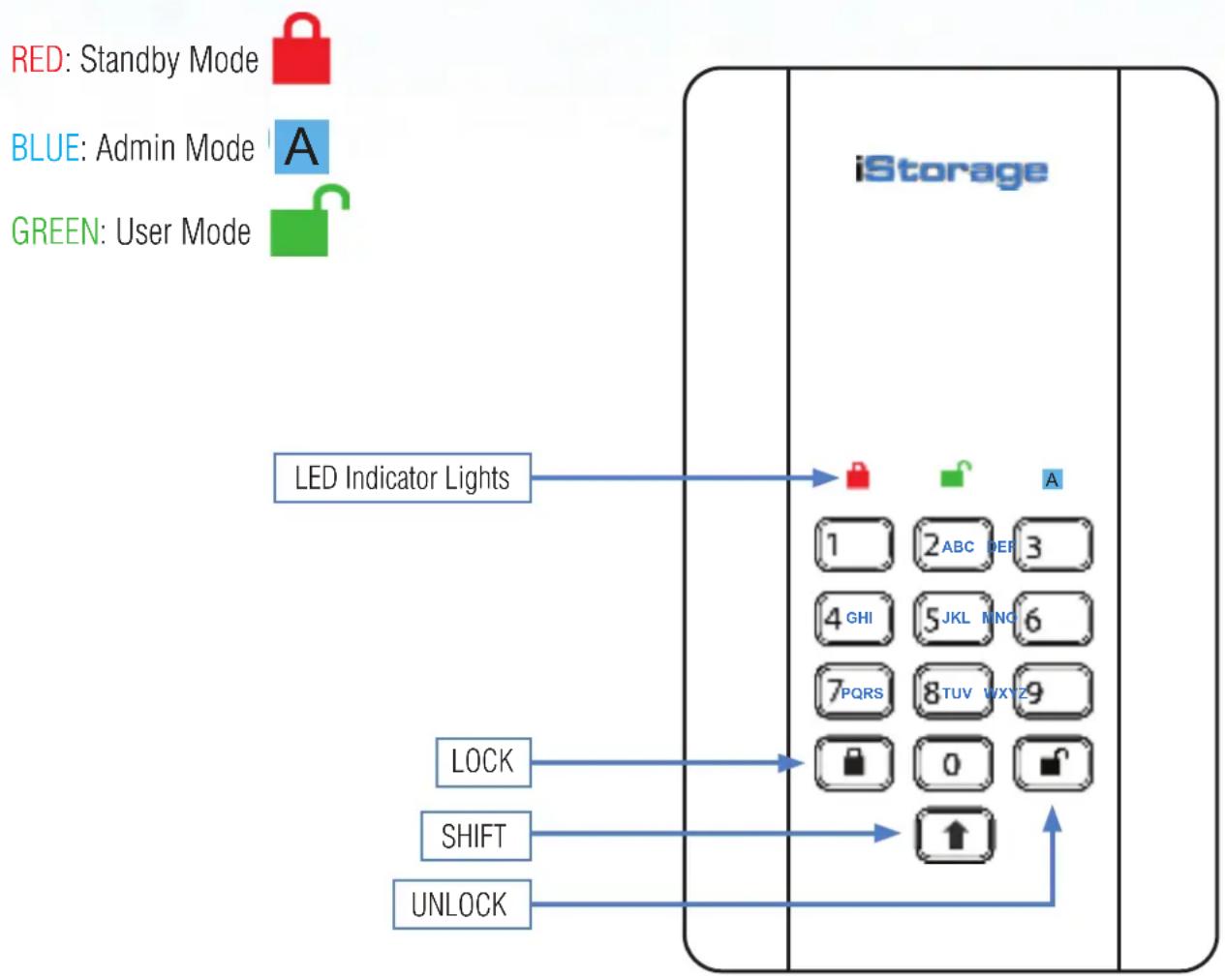
The "UNLOCK" button is used to access the diskAshur DT² and it can also be used as an OK acknowledgement in the following operations:
- Entering a PIN
- Confirming a new PIN
- Accessing various command settings
The "SHIFT" button can be used for additional combinations. SHIFT + 1 is a separate value than just 1. To create a PIN using additional combinations, press and hold down the SHIFT button whilst entering your 7-15 digit PIN. e.g. SHIFT + 26756498.
To lock diskAshur DT² and return it to Standby State ( ) press the “Lock” button.
2. Connecting your diskAshur DT²
Be sure to read the following information before you begin to use the diskAshur DT².

Attention: Use only the cables provided with your diskAshur DT².
You may damage the drive if you use a cable not included with the diskAshur DT².
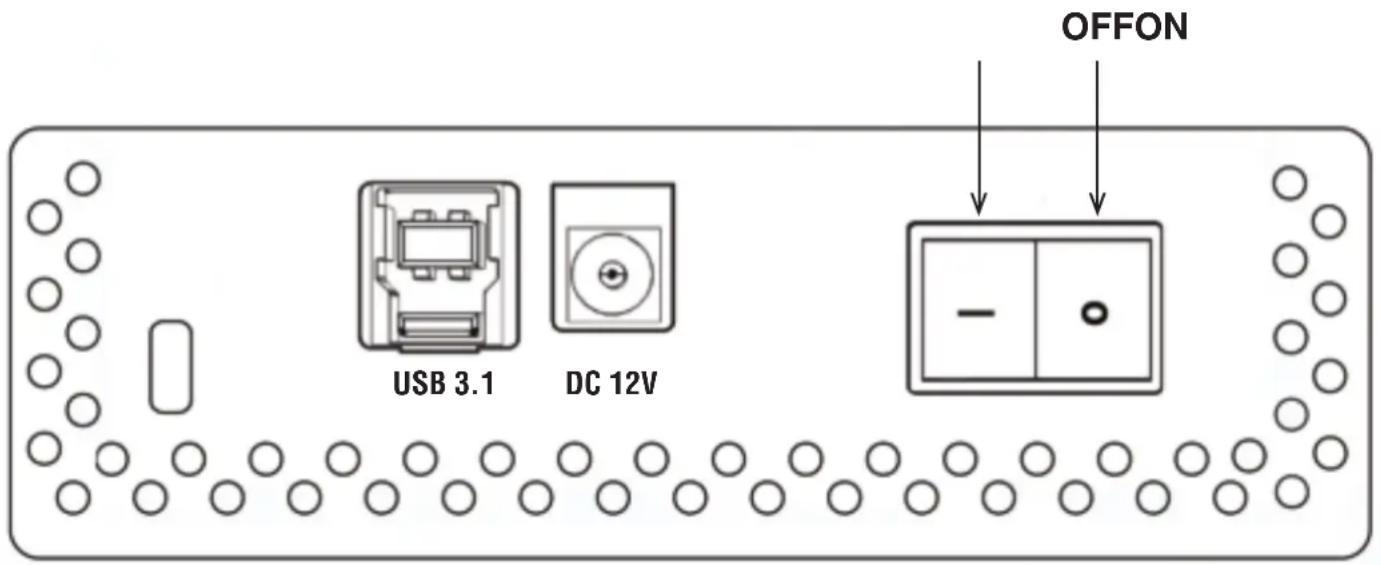
- Ensure that the power switch on the back of the diskAshur DT^2 is in the OFF position.
- Connect the diskAshur DT^2 to a power outlet using the included AC Adapter.
- Attach the USB cable to the diskAshur DT² drive and to an available USB port on your computer.
- Turn the power switch on the back of the diskAshur DT² to the ON position.
- The LED indicator light should turn RED, indicating that the drive is now ready to use.
3. diskAshur DT² LED States
When the diskAshur DT^2 is plugged in, there are three possible behaviours for the LED indicators as shown in the table below.
| RED GREEN BLUE diskAshur DT | 2 State | |
| Solid Off Off Factory Reset | 1 | |
| Solid Solid Solid Brute Force | 2 | |
| Solid Off Off Standby | 3 | |
- In Factory Reset State, the drive is waiting for the operation to set up an Admin PIN.
- In Brute Force state, the drive is waiting for an operation to get more PIN entry attempts.
- In Standby state, the drive is waiting for an operation to unlock the drive, or enter Admin mode, or reset the drive.
4. How to use the diskAshur DT^2 for the first time
The diskAshur DT^2 is shipped with a default Admin PIN of 11223344 and although it can be used straight out of the box with the default Admin PIN, for security reasons we highly recommend a new Admin PIN be created immediately by following the instructions under section 8 'Changing the Admin PIN'.
Please follow the 3 simple steps in the table below to unlock the diskAshur DT² for the first time with the default Admin PIN.
| Instructions - first time use LED LED State | ||
| 1. Connect the diskAshur DT² to a USB port | RED LED will be solid awaiting PIN entry | |
| 2. Enter Admin PIN (default - 11223344) | RED LED remains solid | |
| 3. Within 10 seconds press the "UNLOCK" button once to unlock diskAshur DT² | GREEN and BLUE LEDs will alternately blink several times and then to a solid BLUE LED changing to a blinking GREEN and finally solid GREEN LED | |

Note: Once the diskAshur DT² has been successfully unlocked, the GREEN LED will remain on and in a solid state. It can be locked down immediately by pressing the “LOCK” button once or by clicking the ‘Safely Remove Hardware/Eject’ icon within your operating system. To ensure no data is corrupted, we recommend using ‘Safely Remove Hardware/Eject’.
5. Unlocking the diskAshur DT²
The diskAshur DT^2 can be unlocked with either an Admin or User PIN whilst in standby state (solid RED LED).
- To unlock as the Administrator, enter the Admin PIN and press the "UNLOCK" button.
- To unlock as a User, first press the "UNLOCK" button (all LEDs, blink on and off) and then enter the User PIN and press the "UNLOCK" button again.
- If correct User PIN is entered, both GREEN and BLUE LEDs will blink alternately and then return to a solid GREEN LED.
- If correct Admin PIN is entered, both GREEN and BLUE LEDs will blink alternately, then to a solid BLUE for 1 second and then to the unlocked state, a solid GREEN LED.
- If correct PIN is entered, the drive displays as "iStorage diskAshur DT² USB Device" under "Computer Management/Device Manager".
In an unlocked state (GREEN LED), there are two possible behaviours for the LED indicators, shown in the table below.
| RED GREEN BLUE diskAshur DT | 2 | |
| Off | Solid Off No data transfer | |
| Off | Blink Off Data transfer in progrss | |
6. Locking the diskAshur DT²
To lock the drive, press the "LOCK" button once or by clicking the 'Safely Remove Hardware/Eject' icon within your operating system. If data is still being written to the drive, please wait until all data has been written to the drive before pressing the 'LOCK' button or safely ejecting from the Operating System. When the unattended Auto-Lock timeout is activated, the drive will automatically lock after a predetermined amount of time.

Note: The diskAshur DT cannot be recognized by the operating system in standby state.
7. Entering Admin Mode
To enter the Admin Mode, do the following:
| 1. In standby state (solid RED LED), press and hold down “UNLOCK + 1” buttons | Solid RED LED will change to blinking GREEN and BLUE LEDs | |
| 2. Enter the Admin PIN (default - 11223344) and press “UNLOCK” button | GREEN and BLUE LEDs blink rapidly together for a few seconds then to a solid GREEN and finally a solid BLUE LED indicating the diskAshur DT2 is in “Admin Mode” | |
To exist Admin mode, press the "LOCK" button.
8. Changing the Admin PIN
PIN requirements:
- Must be between 7-15 digits in length
- Must not contain only repetitive numbers, e.g. (3-3-3-3-3-3-3)
- Must not contain only consecutive numbers, e.g. (1-2-3-4-5-6-7), (7-8-9-0-1-2-3-4), (7-6-5-4-3-2-1)
Password Tip: You can create a memorable word, name, phrase or any other Alphanumeric PIN combination by simply pressing the key with the corresponding letters on it.
Examples of these types of Alphanumeric PINs are:
- For "password" you would press the following keys: 7 (pqrs) 2 (abc) 7 (pqrs) 7 (pqrs) 9 (wxyz) 6 (mno) 7 (pqrs) 3 (def)
4 (ghi) 7 (pqrs) 8 (tuv) 6 (mno) 7 (pqrs) 2 (abc) 4 (ghi) 3 (def)
Using this method, long and easy to remember PINs can be created.

Note: The SHIFT key can be used for additional combinations. SHIFT + 1 is a separate value than just 1. To create a PIN using additional combinations, press and hold down the SHIFT button whilst entering your 7-15 digit PIN. e.g. SHIFT + 26756498.
To change the Admin PIN, first enter the "Admin Mode" as described in section 7. Once the drive is in Admin Mode (solid BLUE LED) proceed with the following steps.
| 1. In Admin mode, press and hold down “UNLOCK + 2” buttons | Solid BLUE LED will change to blinking GREEN and solid BLUE LEDs | |
| 2. Enter NEW Admin PIN and press “UNLOCK” button | Blinking GREEN and solid BLUE LEDs will switch to a single GREEN LED blink and then back to blinking GREEN and solid BLUE LEDs | |
| 3. Re-enter the NEW Admin PIN and press “UNLOCK” button | Blinking GREEN and solid BLUE LEDs change to a rapidly blinking BLUE LED and finally to a solid BLUE LED indicating the Admin PIN has been successfully changed | |
9. Adding a new User PIN in Admin Mode
To add a New User, first enter the "Admin Mode" as described in section 7. Once the drive is in Admin Mode (solid BLUE LED) proceed with the following steps.
| 1. In Admin mode, press and hold down “UNLOCK + 3” buttons | Solid BLUE LED will change to blinking GREEN and solid BLUE LEDs | |
| 2. Enter New User PIN and press “UNLOCK” button | Blinking GREEN and solid BLUE LEDs will switch to a single GREEN LED blink and then back to blinking GREEN and solid BLUE LEDs | |
| 3. Re-enter the New User PIN and press “UNLOCK” button | GREEN LED rapidly blinks for a few seconds then changes to a solid BLUE LED indicating the User PIN has been successfully created | |
10. Changing the User PIN in Admin Mode
To change an existing User PIN, first enter the "Admin Mode" as described in section 7. Once the drive is in Admin Mode (solid BLUE LED) proceed with the following steps.
| 1. In Admin mode, press and hold down “UNLOCK + 3” buttons | Solid BLUE LED will change to blinking GREEN and solid BLUE LEDs | |
| 2. Enter New User PIN and press “UNLOCK” button | Blinking GREEN and solid BLUE LEDs will switch to a single GREEN LED blink and then back to blinking GREEN and solid BLUE LEDs | |
| 3. Re-enter the New User PIN and press “UNLOCK” button | GREEN LED rapidly blinks for a few seconds then changes to a solid BLUE LED indicating the User PIN has been successfully changed | |
11. Deleting the User PIN in Admin Mode
To delete a User PIN, first enter the "Admin Mode" as described in section 7. Once the drive is in Admin Mode (solid BLUE LED) proceed with the following steps.
| 1. In Admin mode, press and hold down “SHIFT + 3” buttons and release | Solid BLUE LED will change to blinking RED LED |
| 2. Press and hold down “SHIFT + 3” buttons again. | Blinking RED LED will change to solid RED LED and then to a solid BLUE LED indicating the User PIN was successfully deleted |
12. Set Read-Only in Admin Mode

Important: If data has just been copied to the diskAshur DT², make sure to properly disconnect the drive first by clicking 'Safely Remove Hardware/Eject' the diskAshur DT² from the Operating System before reconnecting and setting the diskAshur DT² as 'Read-Only/Write-Protection'.
When Admin writes content to the diskAshur DT² and restricts access to read-only, the User cannot change this setting in User mode. To set the diskAshur DT² to Read-Only, first enter the "Admin Mode" as described in section 7. Once the drive is in Admin Mode (solid BLUE LED) proceed with the following steps.
| 1. In Admin mode, press and hold down “7 + 6” buttons. (7=Read + 6=Only) | Solid BLUE LED will change to blinking GREEN and BLUE LEDs | |
| 2. Release 7+6 buttons and press “UNLOCK” | GREEN and BLUE LEDs will change to a solid GREEN LED and then to a solid BLUE LED indicating the drive is configured as Read-Only | |
13. Enable Read/Write in Admin Mode
To set the diskAshur DT² to Read/Write, first enter the "Admin Mode" as described in section 7. Once the drive is in Admin Mode (solid BLUE LED) proceed with the following steps.
| 1. In Admin mode, press and hold down “7 + 9” buttons. (7=Read + 9=Write) | Solid BLUE LED will change to blinking GREEN and BLUE LEDs | |
| 2. Release 7+9 buttons and press “UNLOCK” | GREEN and BLUE LEDs change to a solid GREEN LED then to a solid BLUE LED indicating the drive is configured as Read/Write | |
14. How to create a Self-Destruct PIN
The self-destruct feature allows you to set a PIN which can be used to perform a crypto-erase on the entire drive. When used, the self-destruct PIN will delete ALL data, Admin/User PINs and then unlock the drive. Activating this feature will cause the Self-Destruct PIN to become the new User PIN and the diskAshur DT² will need to be partitioned and formatted before any new data can be added to the drive.
To set the Self-Destruct PIN, first enter the "Admin Mode" as described in section 7. Once the drive is in Admin Mode (solid BLUE LED) proceed with the following steps.
| 1. In Admin mode, press and hold down "UNLOCK + 6" buttons | Solid BLUE LED will change to blinking GREEN and solid BLUE LEDs | |
| 2. Create a 7-15 digit Self-Destruct PIN and press the "UNLOCK" button | Blinking GREEN and solid BLUE LEDs will switch to a single GREEN LED blink and then back to blinking GREEN and solid BLUE LEDs | |
| 3. Re-enter the PIN and press the "UNLOCK" button | GREEN LED will rapidly blink for several seconds and then changes to a solid BLUE LED to indicate the Self-Destruct PIN has been successfully configured | |
15. How to Delete the Self-Destruct PIN
To delete the Self-Destruct PIN, first enter the "Admin Mode" as described in section 7. Once the drive is in Admin Mode (solid BLUE LED) proceed with the following steps.
| 1. In Admin mode, press and hold down “SHIFT + 6” buttons | Solid BLUE LED will change to a blinking RED LED | |
| 2. Press and hold down “SHIFT + 6” buttons again | Blinking RED LED will become solid and then change to a solid BLUE LED indicating the Self-Destruct PIN was successfully deleted | |
16. How to Unlock with the Self-Destruct PIN
When used, the self-destruct PIN will delete the encryption key, ALL data, Admin/User PINs and then unlock the drive. Activating this feature will cause the Self-Destruct PIN to become the new USER PIN and the diskAshur DT^2 will need to be partitioned and formatted before any new data can be added to the drive.
To activate the Self-Destruct mechanism, the drive needs to be in the standby state (solid RED LED) and then proceed with the following steps.
| 1. In standby state, press the “UNLOCK” button | → | RED LED switches to all LEDs, RED, GREEN & BLUE blinking on and off |
| 2. Enter your Self-Destruct PIN and press the “UNLOCK” button | → | RED, GREEN and BLUE blinking LEDs will change to GREEN and BLUE LEDs alternating on and off for approximately 15 seconds and finally shifts to a solid GREEN LED |

Important: When the Self-Destruct mechanism is activated, all data, the encryption key and the Admin/User PINs are deleted. The Self-Destruct PIN becomes the User PIN. No Admin PIN exists after the Self-Destruct mechanism is activated. The diskAshur DT² will need to be reset (see 'How to perform a complete reset' Section 25, on page 17) first in order to create an Admin PIN with full Admin privileges including the ability to create a User PIN.
17. How to Create an Admin PIN after a Brute Force attack or Reset
It will be necessary after a Brute Force attack or when the diskAshur DT^2 has been reset to create an Admin PIN before the drive can be used. If the drive has been brute forced or reset, the drive will be in a standby state (solid RED LED). to create an Admin PIN proceed with the following steps.
PIN requirements:
- Must be between 7-15 digits in length
- Must not contain only repetitive numbers, e.g. (3-3-3-3-3-3-3)
- Must not contain only consecutive numbers, e.g. (1-2-3-4-5-6-7), (7-8-9-0-1-2-3-4), (7-6-5-4-3-2-1)

Note: The SHIFT key can be used for additional combinations. SHIFT + 1 is a separate value than just 1. To create a PIN using additional combinations, press and hold down the SHIFT button whilst entering your 7-15 digit PIN. e.g. SHIFT + 26756498.
| 1. In Standby state, press and hold down “SHIFT + 1” buttons | Solid RED LED will change to blinking GREEN and solid BLUE LEDs | |
| 2. Enter NEW Admin PIN and press “UNLOCK” button | Blinking GREEN and solid BLUE LEDs will switch to a single GREEN LED blink and then back to blinking GREEN and solid BLUE LEDs | |
| 3. Re-enter the NEW Admin PIN and press “UNLOCK” button | Blinking GREEN LED and solid BLUE LED change to BLUE LED rapidly blinking for a few seconds and then to a solid BLUE LED indicating the Admin PIN was successfully configured. | |
18. Setting the Unattended Auto-Lock Clock
To protect against unauthorised access if the drive is unlocked and unattended, diskAshur DT² can be set to automatically lock after a pre-set amount of time. In its default state, the diskAshur DT² Unattended Auto Lock feature is turned off. The Unattended Auto Lock can be set to activate between 5 - 99 minutes.
To set the Unattended Auto Lock, first enter the "Admin Mode" as described in section 7. Once the drive is in Admin Mode (solid BLUE LED) proceed with the following steps.
| 1. In Admin mode, press and hold down“UNLOCK + 5” buttons | Solid BLUE LED will change to blinking GREENand BLUE LEDs | |
| 2. Enter the amount of time that you would like to set the Auto-Lock timeout feature for, the minimum time that can be set is 5 minutes and the maximum being 99 minutes (5-99 minutes). For example enter:05 for 5 minutes20 for 20 minutes99 for 99 minutes | ||
| 3. Press the “SHIFT” button | Blinking GREEN and BLUE LEDs will change to a solid GREEN for a second and then finally to a solid BLUE LED indicating the Auto-Lock time out is successfully configured | |
19. Turn off the Unattended Auto-Lock Clock
To turn off the Unattended Auto Lock, first enter the "Admin Mode" as described in section 7. Once the drive is in Admin Mode (solid BLUE LED) proceed with the following steps.
| 1. In Admin mode, press and hold down “UNLOCK + 5” buttons | Solid BLUE LED will change to blinking GREEN and BLUE LEDs | |
| 2. Enter “00” and press the “SHIFT” button | Blinking GREEN and BLUE LEDs will change to a solid GREEN for a second and then finally to a solid BLUE LED indicating the Auto-Lock time out has been successfully switched off | |
20. How to Unlock diskAshur DT² with User PIN
| 1. In the standby state (solid RED LED) Press the "UNLOCK" button | RED LED switches to all LEDs, RED, GREEN & BLUE blinking on and off |
| 2. Enter User PIN and press the "UNLOCK" button | RED, GREEN and BLUE blinking LEDs will change to alternating GREEN and BLUE LEDs then to a rapidly blinking GREEN LED and finally shifts to a solid GREEN LED indicating drive successfully unlocked in User mode |
21. Changing the User PIN in User Mode
To change the User PIN, first unlock the diskAshur DT² with a User PIN as described above in section 20. Once the drive is in User Mode (solid GREEN LED) proceed with the following steps.
| 1. In User mode press and hold down “UNLOCK + 4” | Solid GREEN LED will change to a blinking GREEN LED and a solid BLUE LED | |
| 2. Enter New User PIN and press the “UNLOCK” button | Blinking GREEN and solid BLUE LEDs will switch to a single GREEN LED blink and then back to blinking GREEN and solid BLUE LEDs | |
| 3. Re-enter New User PIN and press the “UNLOCK” button | Blinking GREEN and solid BLUE LEDs will switch to a rapidly blinking GREEN LED and then to a solid GREEN LED indicating successful User PIN change | |
22. Set Read-Only in User Mode

Important: If data has just been copied to the diskAshur DT^2 , make sure to properly disconnect the drive first by clicking 'Safely Remove Hardware/Eject' the diskAshur DT^2 from the Operating System before reconnecting and setting the diskAshur DT^2 as 'Read-Only/Write-Protection'.
To set the diskAshur DT² to Read-Only, first enter the "User Mode" as described in section 20. Once the drive is in User Mode (solid GREEN LED) proceed with the following steps.
| 1. In User mode, press and hold down “7 + 6” buttons. (7=Read + 6=Only) | Solid GREEN LED will change to blinking GREEN and BLUE LEDs | |
| 2. Release 7+6 buttons and press “UNLOCK” | GREEN and BLUE LEDs will change to a solid GREEN LED indicating the drive is configured as Read-Only | |

Note: 1. This setting is activated the next time the drive is unlocked.
- If a User set the drive as Read-Only, Admin can override it by setting the drive as Read/Write in Admin mode.
- If Admin set the drive as Read-Only, the User cannot set the drive as Read/Write
23. Enable Read/Write in User Mode
To set the diskAshur DT² to Read/Write, first enter the "User Mode" as described in section 20. Once the drive is in User Mode (solid GREEN LED) proceed with the following steps.
| 1. In User mode, press and hold down “7 + 9” buttons. (7=Read + 9=Write) | Solid GREEN LED will change to blinking GREEN and BLUE LEDs | |
| 2. Release 7+9 buttons and press “UNLOCK” | GREEN and BLUE LEDs will change to a solid GREEN LED indicating the drive is configured as Read/Write | |

Note: 1. This setting is activated the next time the drive is unlocked.
- If a User set the drive as Read-Only, Admin can override it by setting the drive as Read/Write in Admin mode.
- If Admin set the drive as Read-Only, the User cannot set the drive as Read/Write
24. Brute Force Protection
If an incorrect PIN is entered 15 (3 x 5 PIN clusters) consecutive times, then all Admin/User PINs, the encryption key and all data will be deleted and lost forever. The diskAshur DT² will then need to be formatted and partitioned before it can be reused.
- If a PIN is entered incorrectly 5 (five) consecutive times, all LEDs - RED, GREEN, BLUE will light up and become solid.
- Switch the ON/OFF power button OFF and then back ON again to get five more PIN attempts. If PIN is incorrectly entered 5 more times, (10 in total - 5 from step 1 and 5 from step 2) all LEDs - RED, GREEN, BLUE will light up and become solid again.
- Switch the ON/OFF power button OFF, then hold down the "SHIFT" button while switching the power back ON again, all LEDs - RED, GREEN, BLUE will light up and blink together.
- With all LEDs blinking, enter "47867243" and press the "UNLOCK" button to get 5 final attempts.

Caution:
After 15 consecutive incorrect PIN entries the Brute Force Defence Mechanism activates and deletes all Admin/User PINs, the encryption key and data. A new Admin PIN must be created, refer to Section 17 on page 14 on 'How to Create an Admin PIN after a Brute Force attack or Reset', the diskAshur DT2 will also need to be partitioned and formatted before any new data can be added to the drive.
25. How to perform a complete reset
To perform a complete reset, the diskAshur DT must be in a standby state (solid RED LED). Once the drive is reset then all Admin/User PINs, the encryption key and all data will be deleted and lost forever and the drive will need to be formatted and partitioned before it can be reused.
To reset the diskAshur DT^2 proceed with the following steps.
| 1. In standby state, press and hold down “0” button until all LEDs blink alternately on and off | Solid RED LED will change to all LEDs, RED, GREEN and BLUE blinking alternately on and off |
| 2. Press and hold down “2 + 7” buttons until all LEDs become solid for a second and then to a solid RED LED | RED, GREEN and BLUE alternating LEDs will change to all solid for a second and then to a solid RED LED indicating the drive has been reset |

Important: After a complete reset a new Admin PIN must be created, refer to Section 17 on page 14 on 'How to Create an Admin PIN after a Brute Force attack or Reset', the diskAshur DT^2 will also need to be partitioned and formatted before any new data can be added to the drive.
26. Initialising and formatting the diskAshur DT²
After a 'Brute Force Attack' or a complete reset of the diskAshur DT² will delete all data, encryption key and partition settings. You will need to initialise and format the diskAshur DT² before it can be used.
To initialise your diskAshur DP, do the following:
- Attach the diskAshur DT^2 to the computer.
- Create a new Admin PIN - see page 14, section 17, 'How to create an Admin PIN after a Brute Force attack or reset'.
- With the diskAshur DT² in standby state (RED LED) enter New Admin PIN to unlock (GREEN LED).
- Windows 7: Right click Computer and then click Manage and then select Disk Management
Windows 8: Right-click left corner of desktop and select Disk Management
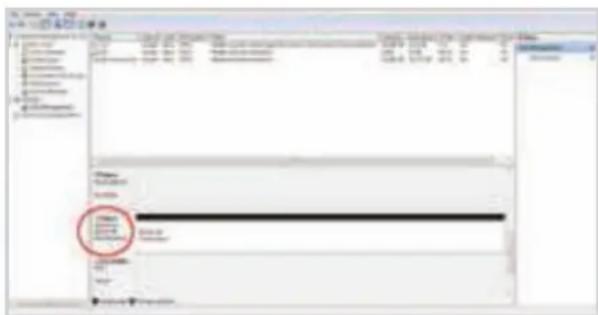
Windows 10: Right click on the start button and select Disk Management - In the Computer Manage window, click Disk Management. In the Disk Management window, the diskAshur DT2 is recognised as an unknown device that is uninitialised and unallocated.

Note: If the Initialise Disk Wizard window opens, click Cancel.
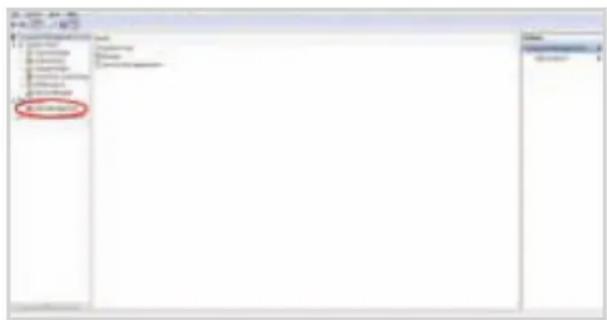
- Right-click Unknown Disk, and then select Initialise Disk.
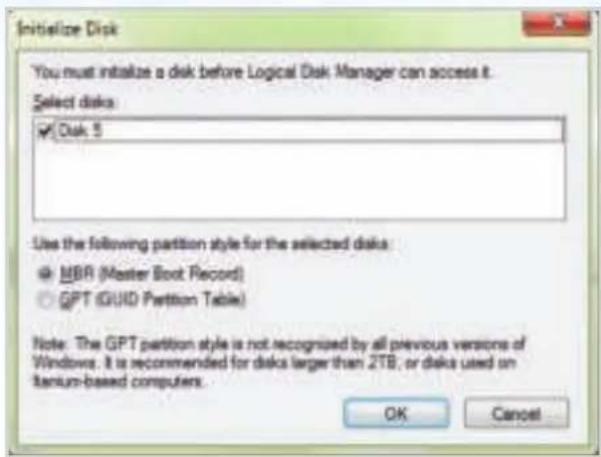
- In the Initialise Disk window, click OK.
- Right-click in the blank area under the Unallocated section, and then select New Simple Volume. The Welcome to the New Simple Volume Wizard window opens.
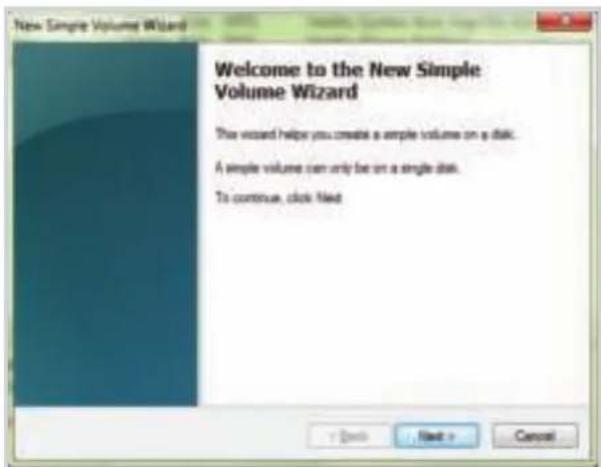
- Click Next.
- If you need only one partition, accept the default partition size and click Next.
- Assign a drive letter or path and click Next.
- Create a volume label, select Perform a quick format, and then click Next.
- Click Finish.
- Wait until the format process is complete. The diskAshur DT2 will be recognised and it is available for use.
27. diskAshur DT² Setup for Mac OS
Your diskAshur DT² is preformatted in NTFS for Windows. To reformat the drive to a Mac compatible format please read below.
Once the drive is unlocked, open Disk Utility from Applications/Utilities/Disk Utilities.
To format the diskAshur DT?:
- Select diskAshur DT² from the list of drives and volumes. Each drive in the list will display its capacity, manufacturer, and product name, such as 'iStorage diskAshur DT² Media' or 232.9 diskAshur DT².
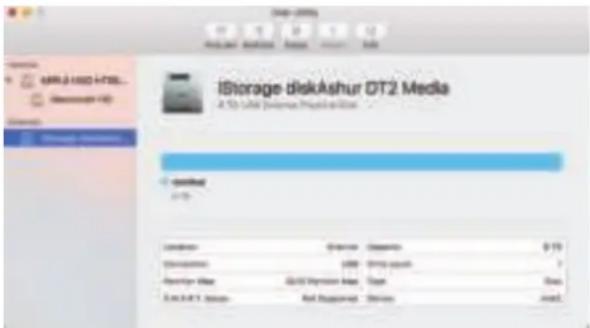
- Click the 'Erase' button (figure 1).
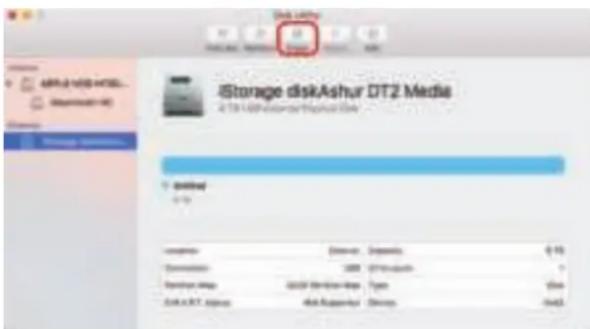
figure 1
- Enter a name for the drive (figure 2). The default name is Untitled. The name of the drive will eventually appear on the desktop.
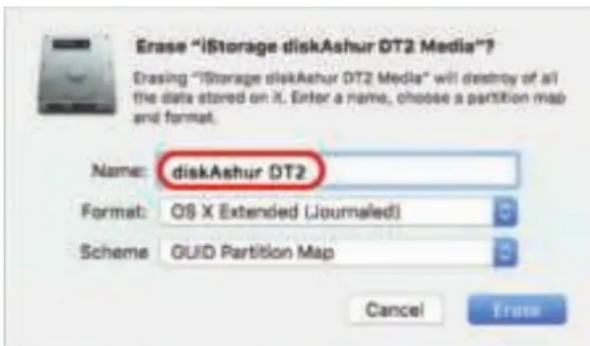
figure 2
- Select a scheme and volume format to use. The Volume Format dropdown menu (figure 3) lists the available drive formats that the Mac supports. The recommended format type is 'Mac OS Extended (Journaled).' The scheme format dropdown menu lists the available schemes to use (figure 4). We recommend using 'GUID Partition Map' on drives larger than 2TB.
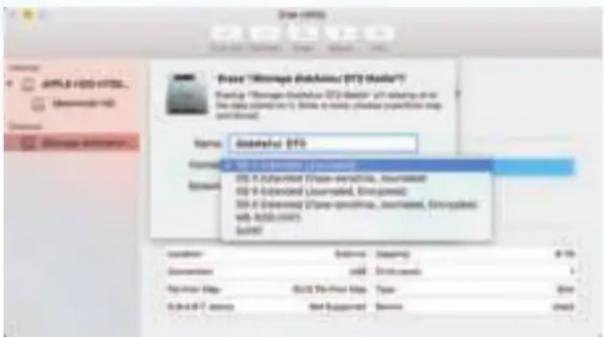
figure 3
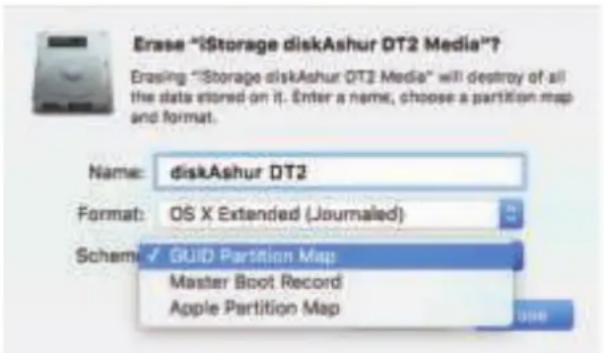
figure 4
- Click the 'Erase' button. Disk Utility will unmount the volume from the desktop, erase it, and then remount it on the desktop.
28. diskAshur DT² Setup for Linux (Ubuntu 14.04)
If your diskAshur DT² has been initialised and formatted in NTFS for Windows, you can directly use the drive on Ubuntu. If not, please read below.
To format the diskAshur DT^2 as FAT filesystem:
- Open 'Unity Dash' and type 'Disks' in the search box. Click on the 'Disks' utility when displayed.
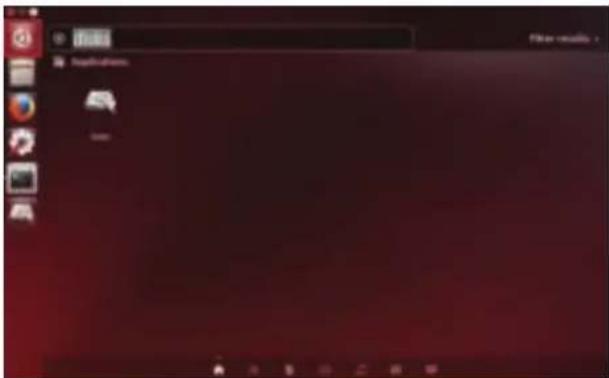
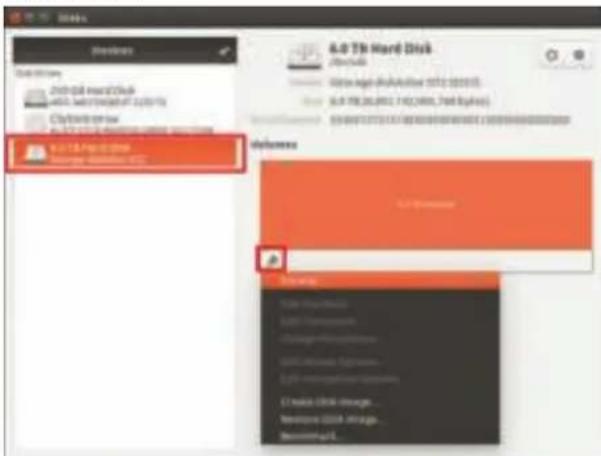
- Click to select the drive (6.0 TB Hard Disk) under 'Devices'. Next click on the gears icon under 'Volumes' and then click on 'Format'.
- Select 'Compatible with all systems and devices(FAT)' for the 'Type' option. And enter a name for the drive, e.g: diskAshur DT². Then, click the 'Format' button.
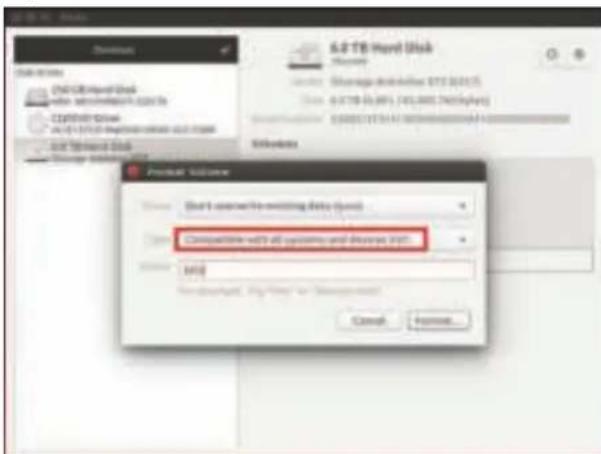
4. Click 'Format' again.
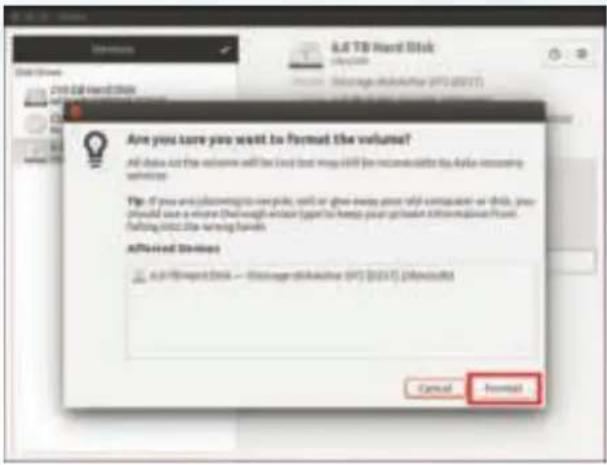
5. The drive will start to be formatted.
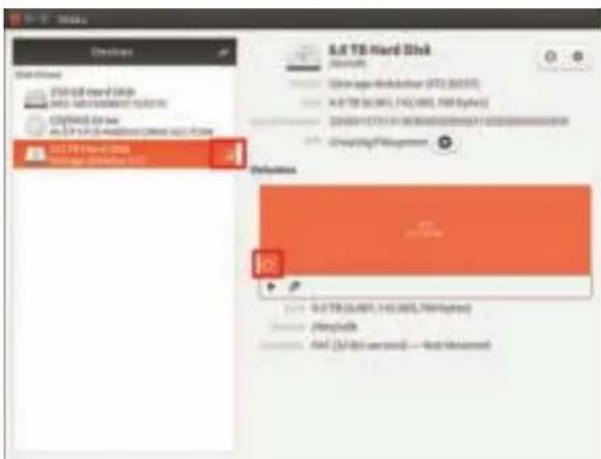
6. After the format process is finished, click to mount the drive to Ubuntu.
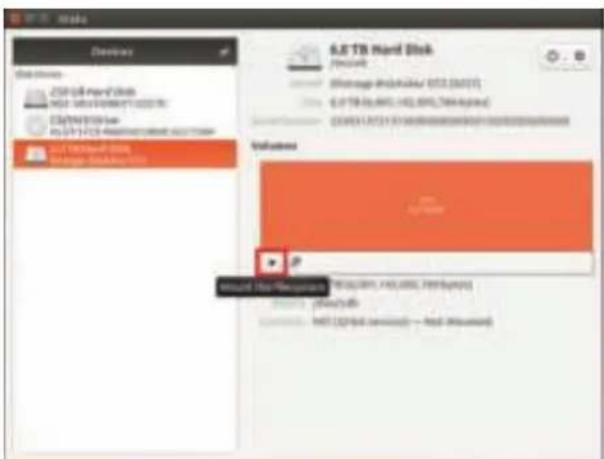
- Now the drive should be mounted to Ubuntu and ready to use.
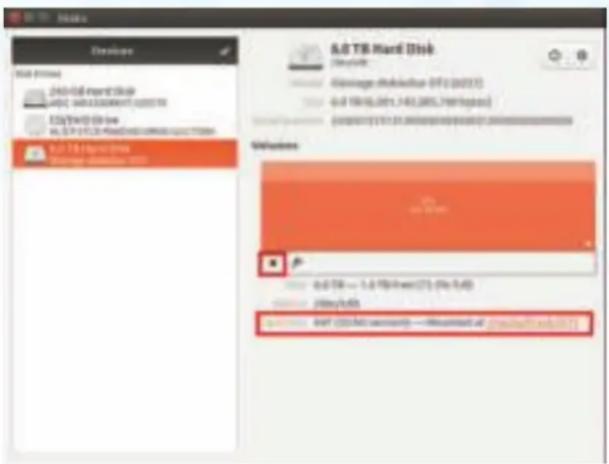
- A disk icon will be shown as seen in the image below. You can click the disk icon to open your drive.
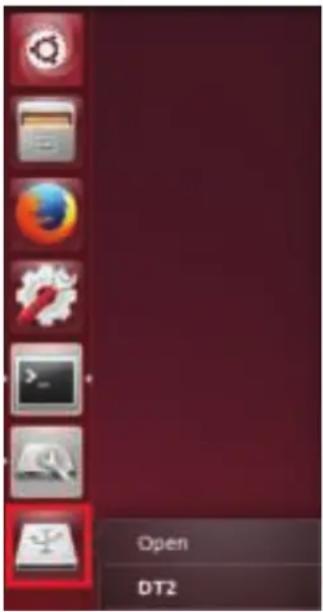
Lock diskAshur DT² for Linux (Ubuntu 14.04)
It is strongly recommended to right click your drive icon and then click 'Safely remove' in the OS to eject (lock) your diskAshur DT^2 , especially after data has been copied or deleted from the drive.
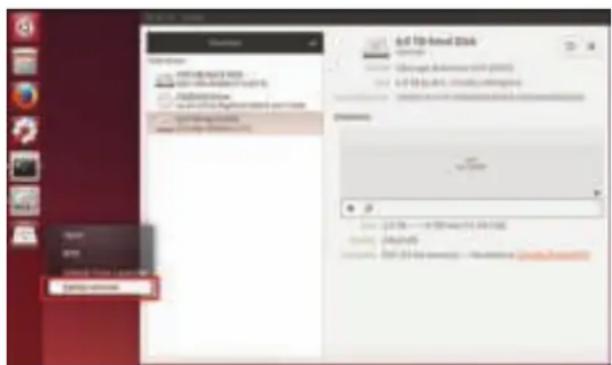
29. Hibernating, Suspending, or Logging off from the Operating System
Be sure to save and close all the files on your diskAshur DT² before hibernating, suspending, or logging off from the operating system.
It is recommended that you lock the diskAshur DT ^2 manually before hibernating, suspending, or logging off from your system.
To lock, simply press the 'LOCK' button on the diskAshur DT² or by clicking the 'Safely Remove Hardware/Eject' icon within your operating system.

Attention: To ensure your data is secure, be sure to lock your diskAshur DT² if you are away from your computer.
30. How to check Firmware in Admin mode
To check the firmware revision number, first enter the "Admin Mode" as described in section 7. Once the drive is in Admin Mode (solid BLUE LED) proceed with the following steps.
| 1. In Admin mode press and hold down “3 + 8” until GREEN and BLUE LEDs blink together | Solid BLUE LED will change to blinking GREEN and BLUE LEDs | |
| 2. Press the “UNLOCK” button and the following happens; a. ALL LED's (RED, GREEN & BLUE) become solid for 1 second. b. RED LED blinks indicating the integral part of the firmware revision number. c. GREEN LED blinks indicating the fractional part. d. ALL LED's (RED, GREEN & BLUE) become solid for 1 second. e. LEDs return to solid BLUE | ||
For example, if the firmware revision number is '1.2', the RED LED will blink once (1) and the GREEN LED will blink two (2) times. Once the sequence has ended the RED, GREEN & BLUE LED's will blink together once and then return to a solid BLUE LED.
31. How to check Firmware in User Mode
To check the firmware revision number, first enter the "User Mode" as described in section 20. Once the drive is in User Mode (solid GREEN LED) proceed with the following steps.
| 1. In User mode press and hold down “3 + 8” until GREEN and BLUE LEDs blink together | Solid GREEN LED will change to blinking GREEN and BLUE LEDs | |
| 2. Press the “UNLOCK” button and the following happens; a. ALL LED's (RED, GREEN & BLUE) become solid for 1 second. b. RED LED blinks indicating the integral part of the firmware revision number. c. GREEN LED blinks indicating the fractional part. d. ALL LED's (RED, GREEN & BLUE) become solid for 1 second. e. LEDs return to solid GREEN | ||
For example, if the firmware revision number is '1.2', the RED LED will blink once (1) and the GREEN LED will blink two (2) times. Once the sequence has ended the RED, GREEN & BLUE LED's will blink together once and then return to a solid BLUE LED.
32. Technical Support
iStorage provides the following helpful resources for you:
iStorage's Website
https://www.istorage-uk.com
E-mail correspondence
support@istorage-uk.com
Telephone support with our Technical Support Department on +44 (0) 20 8991-6260.
iStorage's Technical Support Specialists are available from 9:00 a.m. to 5:30 p.m. GMT - Monday through Friday.
33. Warranty and RMA information
Two Year Warranty:
iStorage offers a 2-year warranty on the iStorage diskAshur DT² against defects in materials and workmanship under normal use. The warranty period is effective from the date of purchase either directly from iStorage or an authorised reseller.
Disclaimer and terms of warranty:
THE WARRANTY BECOMES EFFECTIVE ON THE DATE OF PURCHASE AND MUST BE VERIFIED WITH YOUR SALES RECEIPT OR INVOICE DISPLAYING THE DATE OF PRODUCT PURCHASE.
ISTORAGE WILL, AT NO ADDITIONAL CHARGE, REPAIR OR REPLACE DEFECTIVE PARTS WITH NEW PARTS OR SERVICEABLE USED PARTS THAT ARE EQUIVALENT TO NEW IN PERFORMANCE. ALL EXCHANGED PARTS AND PRODUCTS REPLACED UNDER THIS WARRANTY WILL BECOME THE PROPERTY OF ISTORAGE.
THIS WARRANTY DOES NOT EXTEND TO ANY PRODUCT NOT PURCHASED DIRECTLY FROM ISTORAGE OR AN AUTHORIZED RESELLER OR TO ANY PRODUCT THAT HAS BEEN DAMAGED OR RENDERED DEFECTIVE: 1. AS A RESULT OF ACCIDENT, MISUSE, NEGLECT, ABUSE OR FAILURE AND/OR INABILITY TO FOLLOW THE WRITTEN INSTRUCTIONS PROVIDED IN THIS INSTRUCTION GUIDE: 2. BY THE USE OF PARTS NOT MANUFACTURED OR SOLD BY ISTORAGE; 3. BY MODIFICATION OF THE PRODUCT; OR 4. AS A RESULT OF SERVICE, ALTERNATION OR REPAIR BY ANYONE OTHER THAN ISTORAGE AND SHALL BE Void. THIS WARRANTY DOES NOT COVER NORMAL WEAR AND TEAR.
NO OTHER WARRANTY, EITHER EXPRESS OR IMPLIED, INCLUDING ANY WARRANTY OR MERCHANTABILITY AND FITNESS FOR A PARTICULAR PURPOSE, HAS BEEN OR WILL BE MADE BY OR ON BEHALF OF ISTORAGE OR BY OPERATION OF LAW WITH RESPECT TO THE PRODUCT OR ITS INSTALLATION, USE, OPERATION, REPLACEMENT OR REPAIR. ISTORAGE SHALL NOT BE LIABLE BY VIRTUE OF THIS WARRANTY, OR OTHERWISE, FOR ANY INCIDENTAL, SPECIAL OR CONSEQUENTIAL DAMAGE INCLUDING ANY LOSS OF DATA RESULTING FROM THE USE OR OPERATION OF THE PRODUCT, WHETHER OR NOT ISTORAGE WAS APPRISED OF THE POSSIBILITY OF SUCH DAMAGES.
iStorage®
© iStorage, 2017. All rights reserved.
iStorage Limited, iStorage House, 13 Alperton Lane
Perivale, Middlesex. UB6 8DH, England
Tel: +44 (0) 20 8991 6260 | Fax: +44 (0) 20 8991 6277
e-mail: info@istorage-uk.com | web: www.istorage-uk.com
BENUTZERHANDBUCH
disk@shur DT
31. Technical Support
iStorage Limited, iStorage House, 13 Alperton Lane
Perivale, Middlesex. UB6 8DH, England
Tel.: +44 (0) 20 8991 6260 | Fax: +44 (0) 20 8991 6277
E-Mail: info@istorage-uk.com | Web: www.istorage-uk.com
MANUEL D'UTILISATION
disk@shur DT
31. Assistance technique
iStorage Limited, iStorage House, 13 Alperton Lane
Perivale, Middlesex. UB6 8DH, Angleterre
Tel.:+44(0)2089916260|Fax:+44(0)2089916277
Courriel:info@istorage-uk.com | Site Web:www.istorage-uk.com