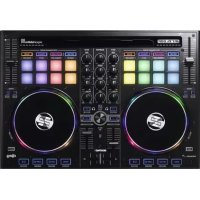
Beatpad 2 - DJ Equipment Reloop - Free user manual and instructions
Find the device manual for free Beatpad 2 Reloop in PDF.

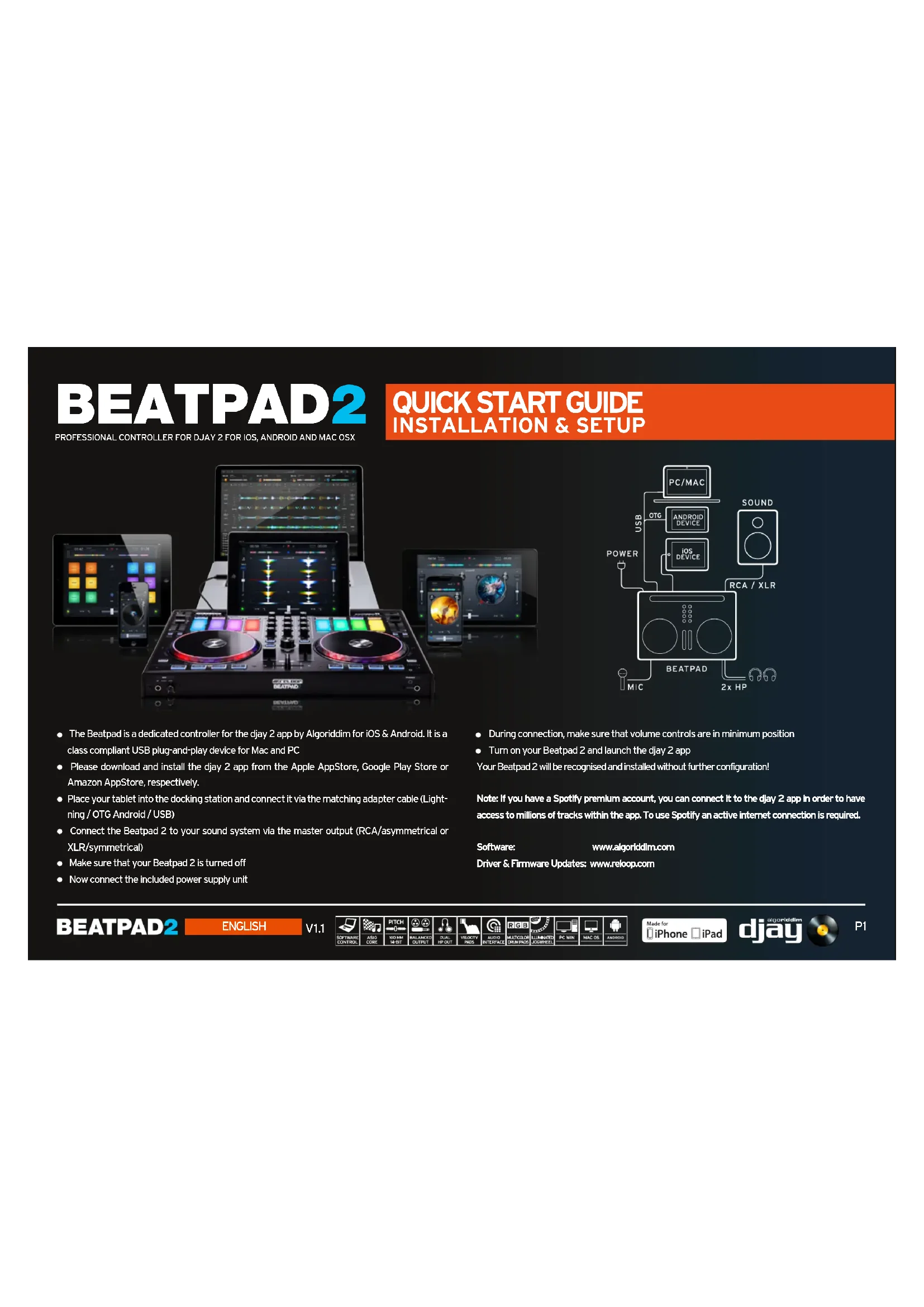


| Product type | DJ controller for djay 2 app (iOS/Android) and USB Plug & Play for Mac/PC |
| Brand | Reloop |
| Model | Beatpad 2 |
| Dimensions (approx.) | 500 x 250 x 55 mm |
| Weight (approx.) | 2.0 kg |
| Power supply | Provided power adapter (DC) |
| Connections | Master output (coaxial/unbalanced and XLR/balanced), headphone output, auxiliary input, USB port |
| Main functions | Pitch Bend, Pitch Fader, Key Lock, Track Select, Load, Jog Wheel (vinyl/scratch mode), Mixer (Master, Phones, Cue Mix, AUX), Library/Rec, Cue, GAIN, EQ (Classic/Filter), Line Fader, Crossfader, Sync, Set Cue, Jump to Cue, Play/Pause, Performance pads (Cue, Sampler, Bounce Loop, Touch FX, Jog FX, Slicer, Looped Slicer) |
| Software compatibility | djay 2 by Algoriddim (iOS, Android, Mac, PC); compatible with Spotify Premium |
| Maintenance and cleaning | Wipe with a soft, dry cloth. Do not use chemicals. |
| Safety | Set volume to minimum when connecting. Use only the provided adapter. Avoid moisture and shocks. |
| Spare parts and repairability | Parts not available separately. Contact customer service for repairs. |
| General information | Manual available for download at reloop.com. Firmware and driver updates on the Reloop website. |
Frequently Asked Questions - Beatpad 2 Reloop
User questions about Beatpad 2 Reloop
0 question about this device. Answer the ones you know or ask your own.
Ask a new question about this device
Download the instructions for your DJ Equipment in PDF format for free! Find your manual Beatpad 2 - Reloop and take your electronic device back in hand. On this page are published all the documents necessary for the use of your device. Beatpad 2 by Reloop.
USER MANUAL Beatpad 2 Reloop
INSTALLATION & SETUP
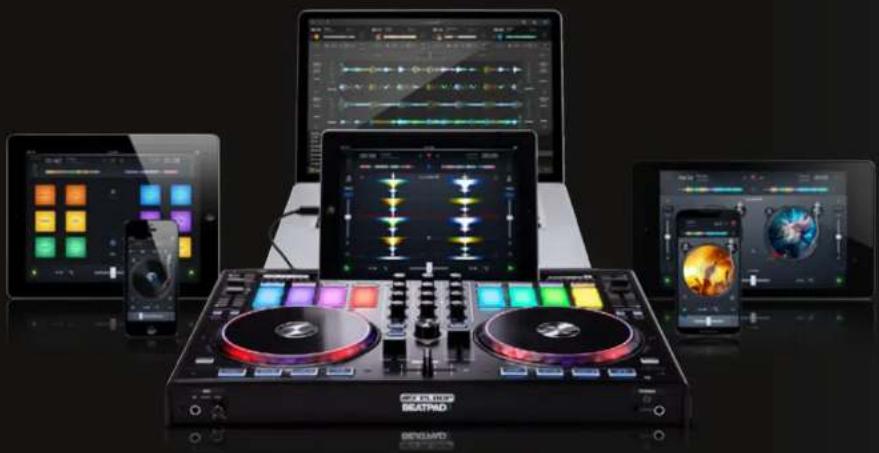
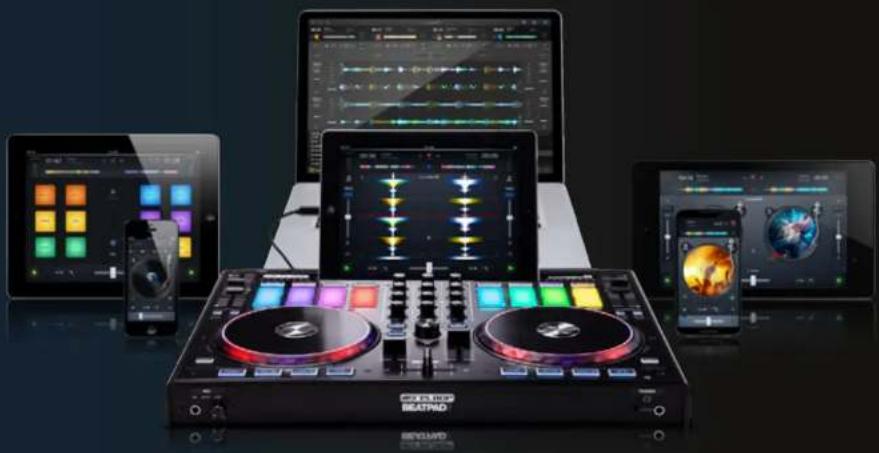
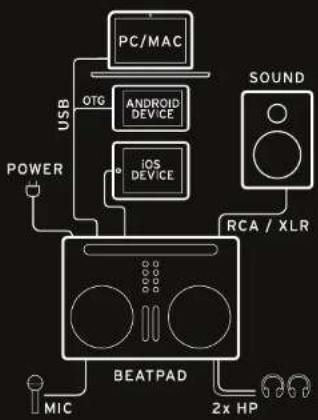
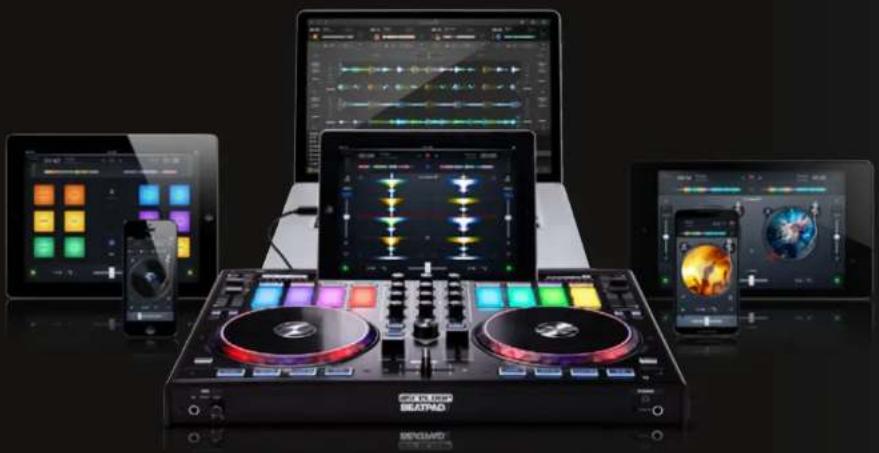
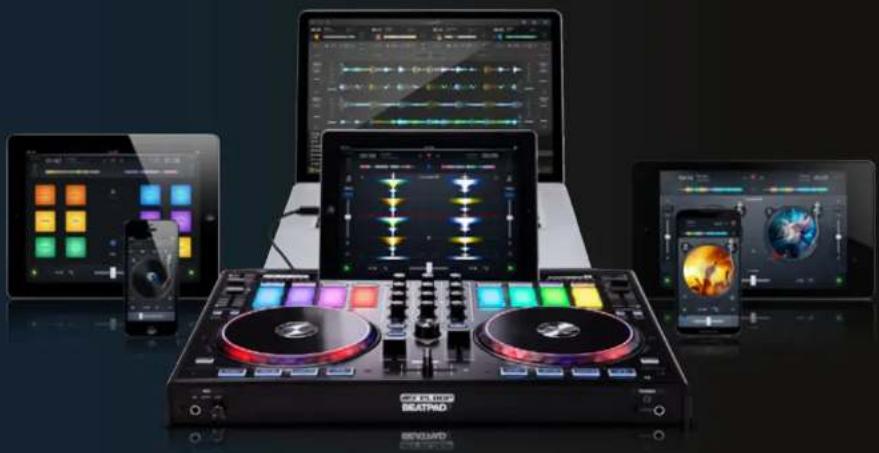
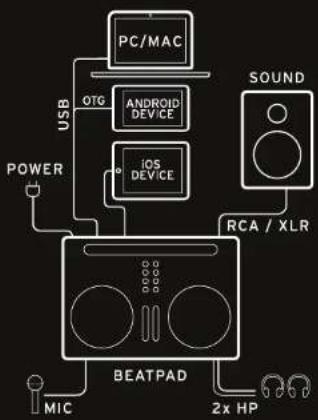
The Beatpad is a dedicated controller for the djay 2 app by Algoriddim for iOS & Android. It is a class compliant USB plug-and-play device for Mac and PC
- Please download and install the djay 2 app from the Apple AppStore, Google Play Store or Amazon AppStore, respectively.
- Place your tablet into the docking station and connect it via the matching adapter cable (Lightning / OTG Android / USB)
- Connect the Beatpad 2 to your sound system via the master output (RCA/asymmetrical or XLR/symmetrical)
Make sure that your Beatpad 2 is turned off
Now connect the included power supply unit
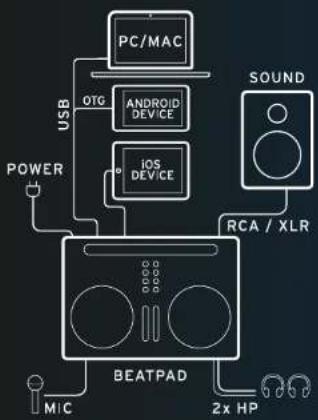
During connection, make sure that volume controls are in minimum position
- Turn on your Beatpad 2 and launch the djay 2 app
Your Beatpad 2 will be recognised and installed without further configuration!
Note: If you have a Spotify premium account, you can connect it to the djay 2 app in order to have access to millions of tracks within the app. To use Spotify an active Internet connection is required.
Software:
www.algoriddim.com
Driver & Firmware Updates: www.reloop.com
QUICK START GUIDE
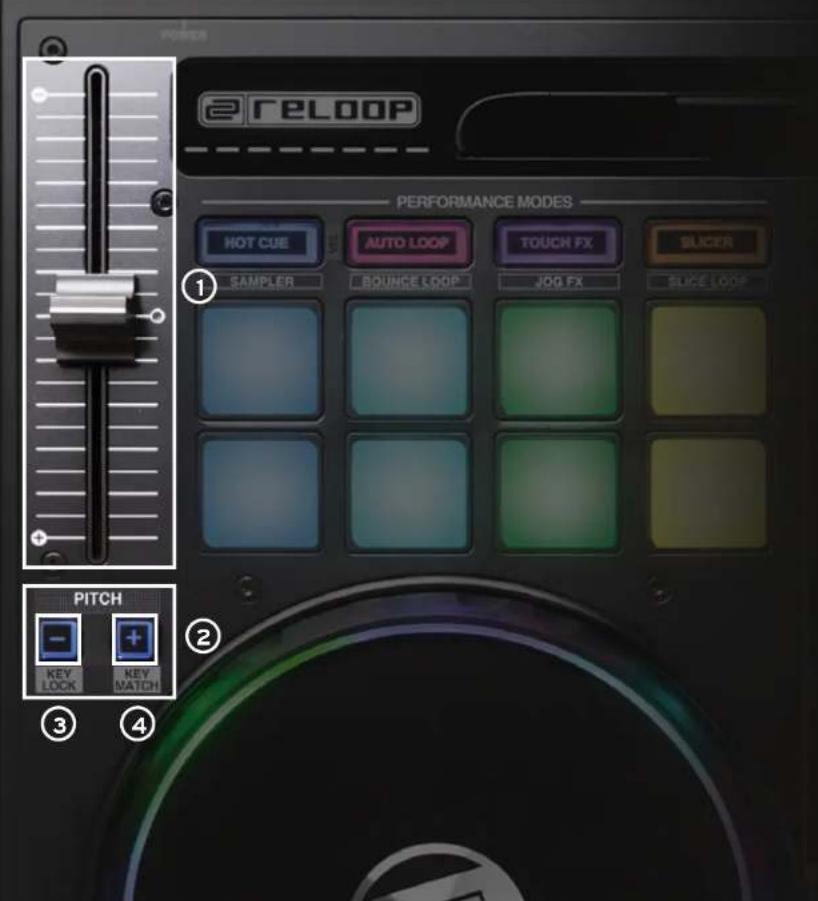
PITCH
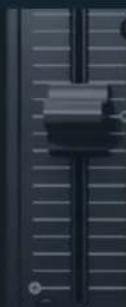
PITCH Pitch fader changes the permanent speed of the track.
2 PITCH BEND Using pitch bend speeds up or slows down the track temporarily.
SHIFT+ PITCH BEND- Key Lock The current track's key will be kept when Key Lock (master tempo) is activated.
4 SHIFT + PITCH BEND + Key Match: Automatically matches the key of the opposite deck for harmonic mixing.
BEATPAD2
ENGLISH
V1.1




P2
QUICK START GUIDE
TRACKNAVIGATION
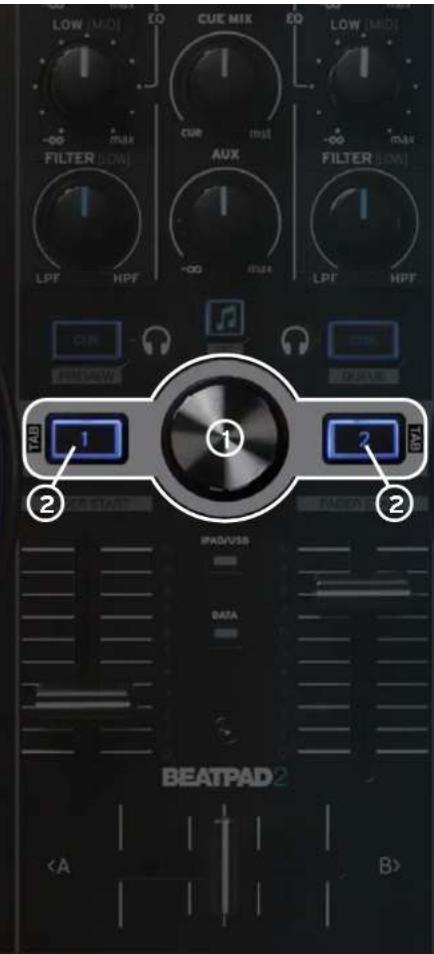
① TRACKSELECT
Use the track select encoder to browse through
your iTunes / Spotify library.
LOAD1/2 Press 1 or 2 to load tracks onto either deck.
SHIFT+
③ LOAD1/2
Herewith you can jump between the various
media library tabs.
JOG WHEEL MODES
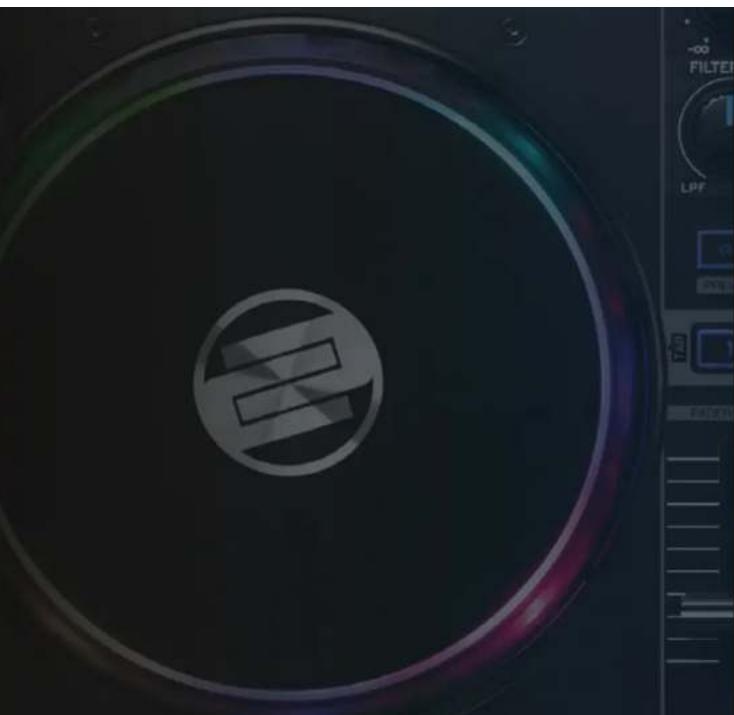
JOGWHEEL The jog wheel is in vinyl/scratch mode by default.
The surface is touch-sensitive and reacts to body
tension. By turning the log wheels edge it is pos
sible to pitch bend.
④ SHIFT+
JOG WHEEL
By holding the shift button and simultaneously
turning the log wheel you can activate the fast se
arch function within a track.

QUICK START GUIDE
MIXER SECTION
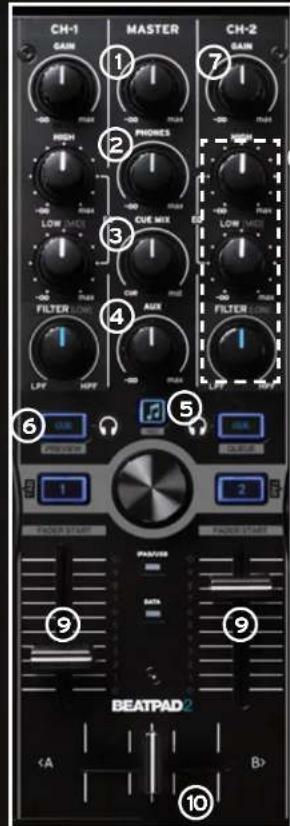
MASTER Controls the master output volume.
② PHONESControlisyourheadphonevolume.
CUE MIX Mixes the headache signal between your selected channel and the master output signal.
AUX Controls the output volume to your DJ monitors.
LIBRARY/REC By pressing you can switch to another media library.
SHIFT ^+ Library REC: Via REC you can record your set in day 2.
CUE Allows you to monitor each deck via your headphones.
SHIFT + CUE left/right = Preview / Queue Preview: Lets you directly monitor the currently selected
track in your playlist without having to load it. Queue: Loads the track into the waiting queue tab.
GAIN Fine adjusts the input volume for each deck.
EQ You can select between two different equalizer modes.
Classic EQ: Controls the high, mid and low frequencies Filter EQ: Controls the high and low frequencies
and additionally offers a low/high pass filter.
The respective mode can be selected via the EQ preset switch on the device's backside.
LINE FADER Adjusts channel volume.
Shift + linefader = fader-start: Hold SHIFT and bring up a linefader to automatically start the track from the temporary cue point. Bring the line fader down and the track returns to the temporary cue point and goes into pause mode.
CROSSFADE Enables you to fade between your decks
BEATPAD2
ENGLISH
V1.1



QUICK START GUIDE
TRANSPORT SECTION
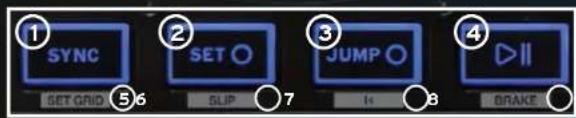
SYNC Sync automatically matches a track to the BPM of the other deck.
SET CUE This will create a temporary CUE point. Each time you press SET a new CUE point is set and can be seen by a white CUE marker on the record.
JUMP TO CUE Pressing JUMP TO CUE will take you to the last set CUE point set by SET CUE If no CUE POINT was set it will jump to the beginning of the track.
4 PLAY/PAUSE Press to launch and pause your track.
SHIFT+SYNC SET GRID: Sets a grid point at the selected position.
SHIFT+SET CUE SLIP: Activates slip mode.
SHIFT+JUMP TO CUE RETURN TO START: Returns to the start of the track.
@SHIFT+PLAY BRAKE: Activates the vinyl brake effect.
QUICK START GUIDE
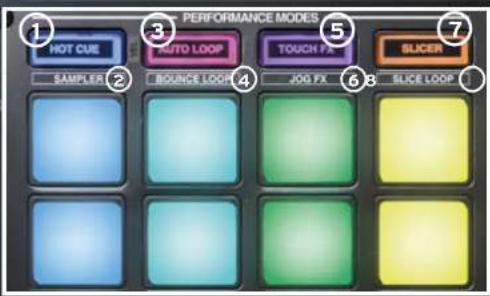
PERFORMANCE MODE SECTION
CUE Press a pad to set a CUE and shift +CUE to delete.
Shift+Hot CUE = VELCOITY ON/OFF (De-)activates pad velocity mode. When
this is active, the pads send additional information regarding touch-sensitivity
and pressure. This way you can, for example, adjust a touch FX's intensity.
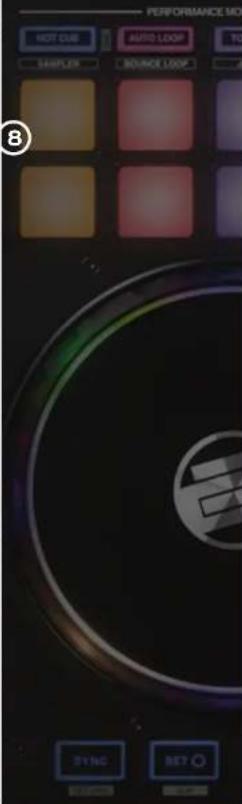
SAMPLER Load samples onto each sample bank and launch them using the drum pads to remix your track on the fly.
SHIFT+SAMPLER SAMPLER VIEW Opens sampler view.
AUTOLOOP
Each of the 8 pads dispenses of a different length. By pressing, it becomes instantly active, according to the length. Pressing again deactivates auto loop.
BOUNCE Press BOUNCE LOOP MODE and hit a pad to cut up your track each drum pad has a different length
⑤ TOUCH FX
The pads dispose of various instant effects. Depending on the pressure used on the pad, the effect's intensity will be varied. Please observe that the pad velocity function has to be activated for this, otherwise the effect will always be at maximum intensity.
⑥ JOG FX
You can use up to two effects at the same time, by selecting one effect each from the upper pad row and the lower pad row. If you want to change an effect, hold the shift button and press the corresponding pad. The effect will be replaced by the next available effect in the effect list. By turning the jog wheel you can control the effect's parameter. If you hold the shift button while doing so, you can adjust the dry/wet parameter.
⑦ SLICER
The slicer divides the track into 8 segments across the pads. You can now remix a track spontaneously by playing with the various pad segments.
LOOPED SLICER
In looped slicer mode the 8 segments are repeated deconstructively in the loop.
QUICK START GUIDE
CONNECTION PANELS
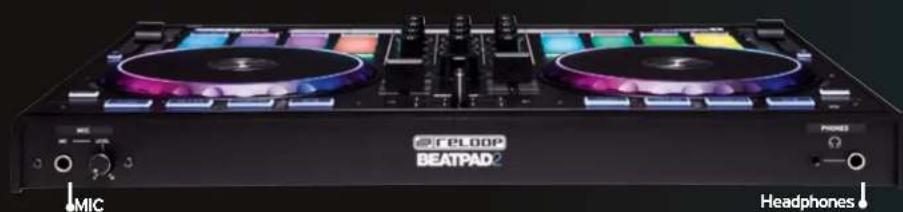
Plug in a 3.5mm or 6.3mm headphone jack
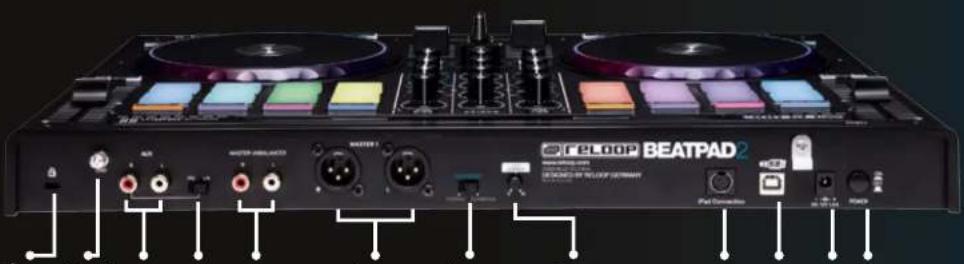
EKSSTNGONLCKX 1000000000000000000000000000000000000000000000000000000000000000000000000000000
PS-DIN connection Mac or PC USB connection Mac or PC Power connection
BEATPAD2
PROFESSIONAL CONTROLLER FÜR DJAY 2 AUF IOS, ANDROID UND MAC OSX
QUICK START GUIDE
INSTALLATION & SETUP
INSTALLATION & SETUP
CONTROLEUR PROFESSIONNEL POUR DJAY 2 SUR IOS, ANDROID ET MAC OSX
INSTALLATION & SETUP
m = 311 ;

m = 311

12 + u + 4q = 1 + uq dH

m = 311

12 + u + 4q = 1 + uq dH


P23
QUICK START GUIDE
TRACKNAVIGATION
① TRACKSELECT
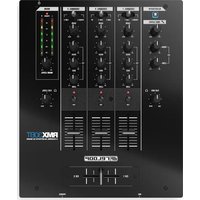


Brand : Reloop
Model : Beatpad 2
Category : DJ Equipment