303346 - Mouse Titanwolf - Free user manual and instructions
Find the device manual for free 303346 Titanwolf in PDF.



| Product type | Wired gaming mouse |
| Brand | Titanwolf |
| Model | 303346 |
| Sensor | Pixart PMW3310 |
| Maximum resolution | 5000 DPI (5 adjustable levels) |
| Polling rate | Up to 1000 Hz |
| Number of programmable keys | 9 |
| Number of side buttons | 4 |
| Switch type | HUANO |
| Scroll wheel | Bidirectional |
| LED lighting | Configurable (multiple modes and colors) |
| Glide pads | Durable |
| Ergonomics | Ambidextrous (for left and right-handed users) |
| Interface | USB |
| Compatible operating systems | Windows XP, Vista, 7, 8, 8.1, 10 (32/64 bit) |
| Required disk space | 20 MB |
| Power supply | USB (bus-powered) |
| Configuration software | Titanwolf_PARITY.exe (provided on CD) |
| Macro creation | Yes (up to 62 combinations) |
| Factory settings | Restorable via software |
| Package contents | Mouse, user manual, software CD |
| Maintenance | Clean with a dry cloth; avoid moisture |
| Warranty | Manufacturer's warranty (terms not specified) |
| Disposal | Follow the WEEE directive (recycling) |
Frequently Asked Questions - 303346 Titanwolf
User questions about 303346 Titanwolf
0 question about this device. Answer the ones you know or ask your own.
Ask a new question about this device
Download the instructions for your Mouse in PDF format for free! Find your manual 303346 - Titanwolf and take your electronic device back in hand. On this page are published all the documents necessary for the use of your device. 303346 by Titanwolf.
USER MANUAL 303346 Titanwolf
- Scope of delivery 13
- Specifications 13
- System requirements 13
4.Installation 14 - Software settings 20
- Safety instructions and Disclaimer 20
- Disposal instructions 20
Thank you for choosing a TITANWOLF product. Please read the following user manual carefully so that you can enjoy the purchased product for a long time.
1. Scope of delivery
- Wired Gaming Mouse
- User manual
- Software CD
2. Specifications
- Perfectly designed to meet the needs of gamers: up to 5000 DPI, variable polling rate up to 1000Hz
- Pixart PMW3310 sensor ensures accurate gaming and a more thrilling gaming experience in conjunction with HUANO mouse buttons
- 9 programmable buttons, configurable LED lighting
- 5 DPI levels
- 2-way mouse scrolling wheel
- Durable gliding pads, 4 side buttons, ergonomically designed for left and right-handed users
3. System requirements
- Operating system: Microsoft® Windows® 10 (32/64bit), Windows® 8.1, Windows® 8 (32/64bit), Windows® 7 (32/64bit), Windows® Vista (32/64bit), Windows® XP (32/64bit)
- Hard disk: 20MB of free disk space is required
4. Installation
Connect the device to a free USB port on your computer.
Installation is necessary to use the gaming mouse that you have purchased. For this purpose, insert the driver CD into your drive. The automatic playback opens.
Click on "Run autorun.exe" to start the installation. If you need to install the software manually, then open the contents of the software CD and then run the "Titanwolf_PARITY.exe"
Titanwolf_Software
A confirmation prompt is displayed that needs to be accepted with "Yes".

Now follow the instructions of the installation wizard to carry out the installation properly.
Once the process is completed, you can stop the installation program by clicking on "Finish". The software is now fully installed and can be used immediately.
5. Software settings
You have the option of carrying out many settings in the configuration software of the gaming mouse.
5.1 Resetting to factory settings
- Reset All: It is possible to reset the settings of the current profile back to the factory settings using the "Restore" button.
5.2 Configuration
The options, which are explained in detail below, can be configured and saved as profiles. Using the mouse, select "Export" in the main menu to save the current profile with the current settings.
To enable a different profile, click below on one of the profile buttons (profile 1 - profile 5).
5.2.1 General
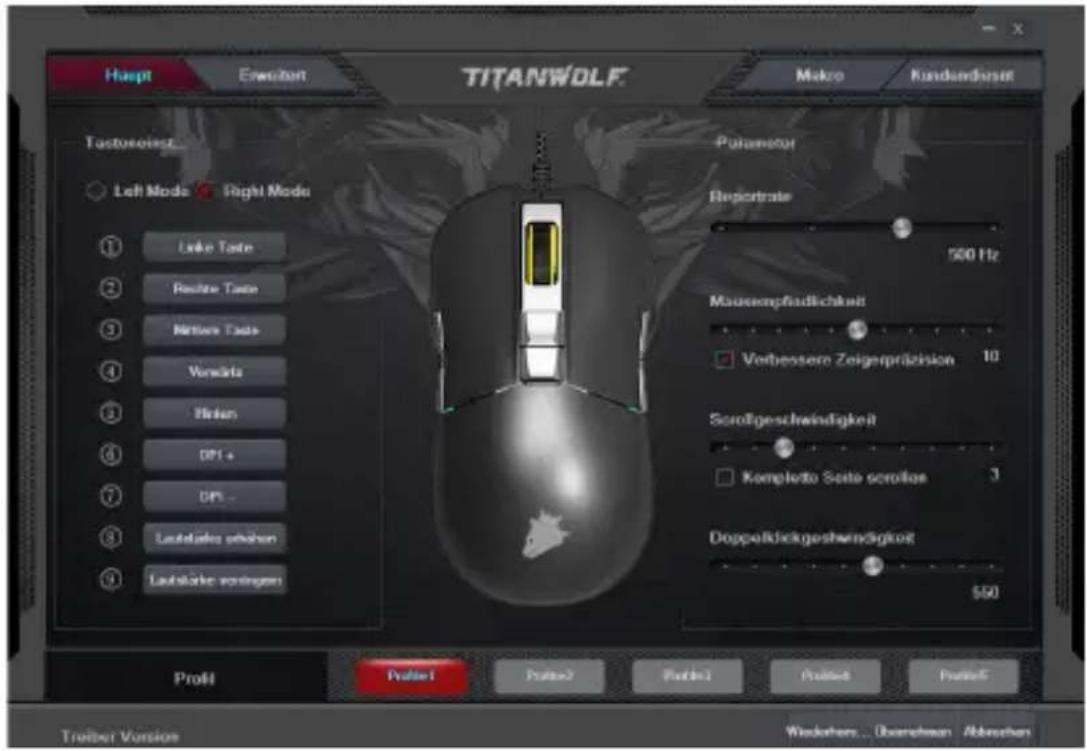
- Main: In the "Main" menu item, you can individually assign the different mouse buttons, configure the sensitivity of the mouse, the scrolling speed, the double-click speed, as well as the polling rate.
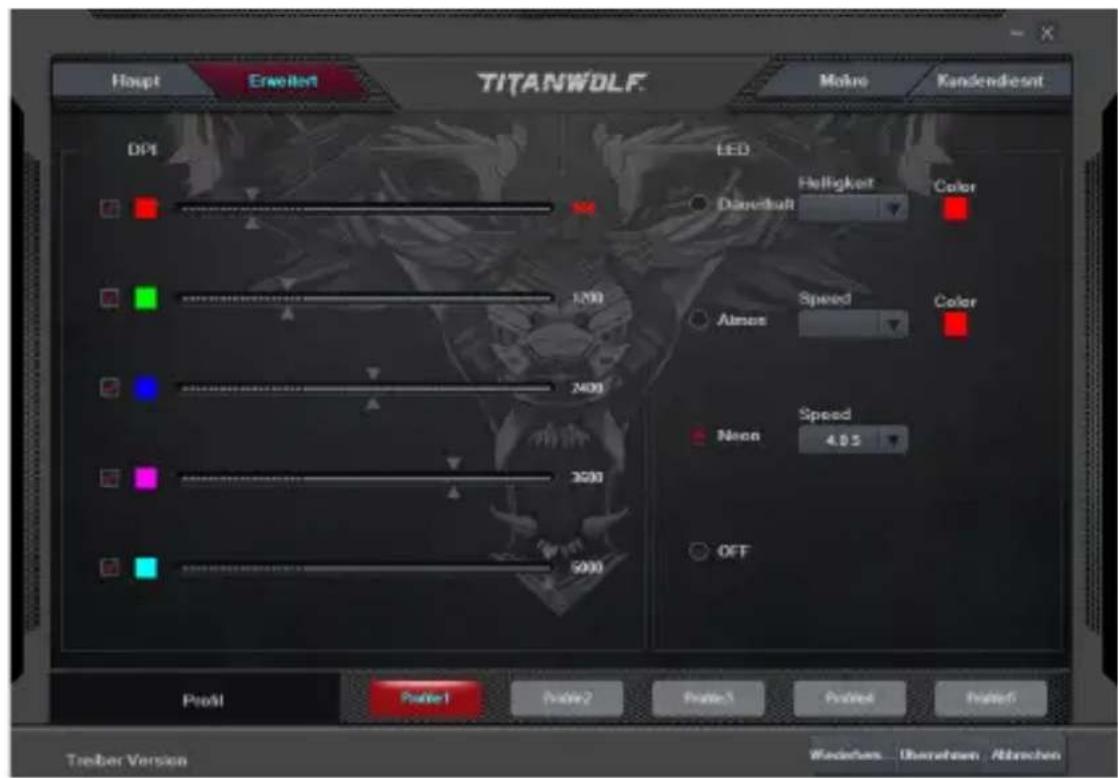
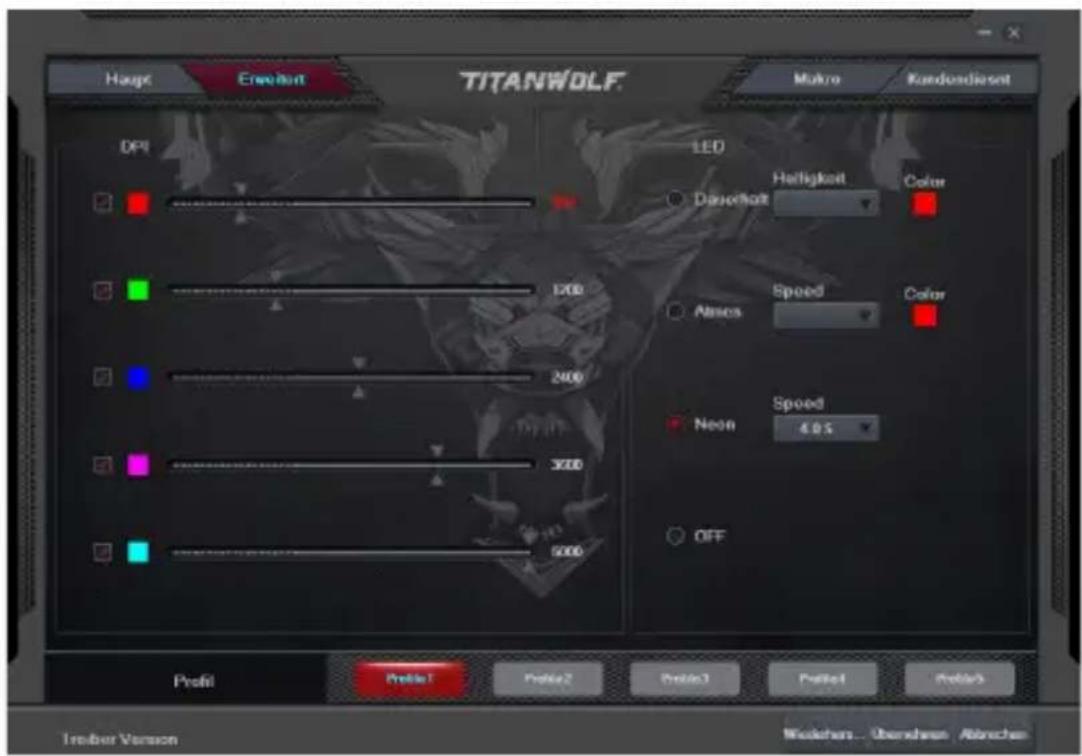
- Advanced: You can configure the light effects individually in the "Advanced" menu item. You can select between several light modes and colours and they can also be changed as desired. In addition, the DPI levels can be configured in this menu item.
- Polling rate: Select your preferred polling rate to define the intervals at which the mouse sends the position data to the computer. A polling rate of 1000Hz means that data is sent 1000 times per second
- Double-click speed: The double-click speed defines the maximum time between two clicks, so that it can be registered as a double click and not two individual clicks.
- Scrolling speed: The scrolling speed of the mouse wheel can be configured here.
- Mouse sensitivity: You can adjust the sensitivity of the mouse in this menu item.

- Configuring the mouse buttons: The buttons at the top of the mouse as well as those at the side can be freely configured. Please click on "Main" to access the desired settings. To reconfigure a button, click on the appropriate button next to the number on the mouse symbol which corresponds to the desired button. The mapping of numbers and buttons is shown in the diagram. You not only can choose from preconfigured options, but can also make individual settings. A special feature is the option of creating macros, which is explained in detail in Chapter section 5.3.
Note: Please remember that the "Z" and "Y" keys are reversed. To configure, use the letter other than the one desired to get the right result.
5.2.2 DPI
In the DPI settings under "Advanced" menu item, you have the option of configuring 5 individual DPI levels or disabling them if desired. You can choose different DPI values between 500 and 5000 DPI using the 5 DPI levels.
5.2.3 LED lighting
You can customise the LED lighting of the mouse accordingly. The effect can be selected depending on the appearance as desired. You can select an effect in the menu item "LED" and accordingly adjust the settings.
5.3 Creating macros
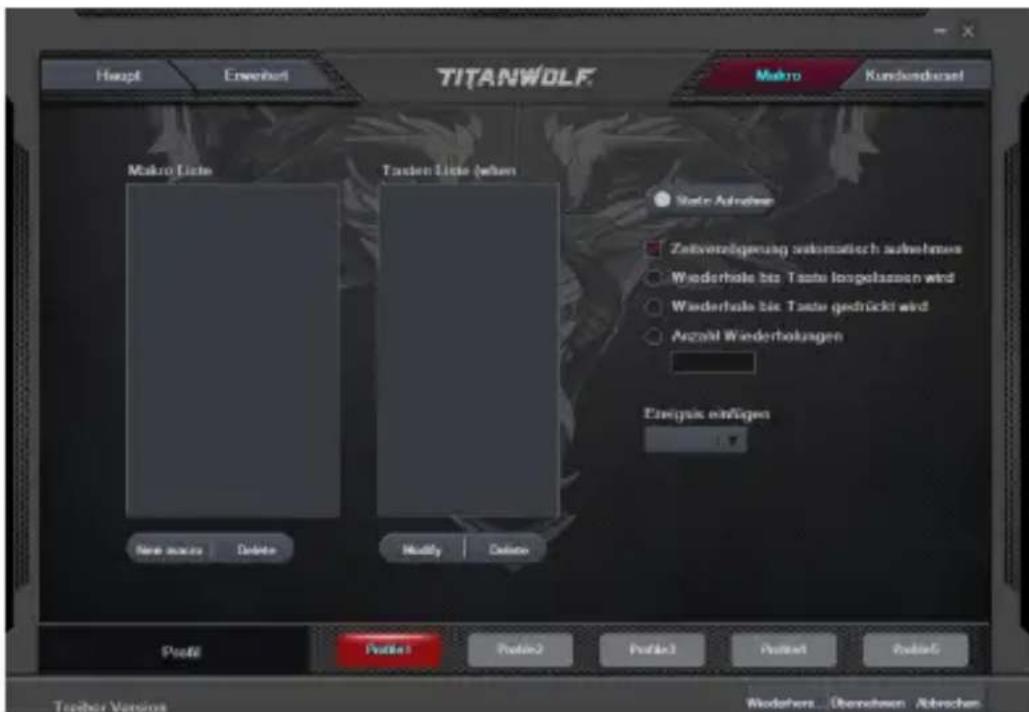
Macros are recordings of specific key sequences, which can be run by pressing a single mouse button depending on the configuration. This can, for example, be keystrokes or mouse commands. To define a macro, click the "Macro Manager" button in the left section of the software.
To start recording a new macro, first click on "New macro". Then, define a name. Select the desired macro. The recording can then be started using the "Start recording" button and stopped using the "Stop recording" button. Additional options are available on the right side of the Macro Manager for recording the steps.
In this way, you can define whether the time between pressing the individual buttons and the stop times are measured and recorded, so that the recorded macro is executed several times when the mouse button is pressed. You can customise
other settings by right clicking on the "Key Press Sequence" field. The option of editing the recorded steps subsequently is also available.
Note:
- Please remember that the "Z" and "Y" keys are reversed. To configure, use the letter other than the one desired to obtain the right result. Special characters and the numpad cannot be used as a macro.
- The macro function is limited to 62 combinations (31 characters).
Ensure that you do not exceed this limit.

6. Safety instructions and disclaimer
Never try to open the device to carry out repairs or modifications. Avoid contact with the mains voltage. Do not short-circuit the product. The device is not waterproof, therefore please use it only in dry surroundings. Protect it from high humidity, water and snow. Do not expose the device to high temperatures. Do not expose the device to sudden changes in temperature or strong vibrations, as this could damage the electronic components.
Check the device for any damage before using it. The device should not be used if it has been subject to impact or has been damaged in any other manner. Please comply with the local regulations and restrictions. Do not use the device for purposes other than those described in the user manual. This product is not a toy. Keep it out of the reach of children or mentally disabled persons. Any repair or modifications to the device, which is not carried out by the original supplier, will void any warranty and guarantee claims. The device should be used only by persons who have read and understood this user manual. The specifications of the device may be changed without special prior notice.

7. Disposal instructions
In line with the European WEEE directive, electrical and electronic devices should not be disposed of along with domestic waste. Their components must be sent separately for recycling or disposal, as improper disposal of toxic and dangerous components may permanently damage the environment. According to the electrical and electronic equipment act (ElektroG), you are obliged (as a consumer) to return (free of charge) all electrical and electronic devices to the manufacturer, the point of sale, or public collection points at the end of their service life. The relevant local laws regulate the details in this regard. The symbol on the product, in the user manual or/and the packaging refers to these regulations. With this manner of sorting, recycling and disposal of used devices, you make an important contribution towards protecting our environment.

WEEE Guideline: 2012/19/EU WEEE Register no.: DE 67896761
WD Plus GmbH hereby certifies that the device 303346/20180628DG049 complies with the fundamental requirements and all other relevant stipulations. A complete conformity statement can be obtained from: WD Plus GmbH, Wohlenbergstraße 16, 30179 Hannover