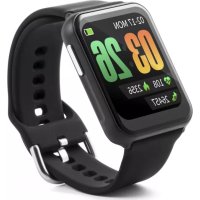
TXSW7HR - Smartwatch TECHNAXX - Free user manual and instructions
Find the device manual for free TXSW7HR TECHNAXX in PDF.



| Product type | Smartwatch |
| Brand | Technaxx |
| Model | TXSW7HR |
| Screen | Color screen 1.69" (4.3 cm), resolution 240×280 pixels |
| Dimensions | 46 × 35.5 × 11.2 mm |
| Weight | 32 g |
| Power | Lithium polymer battery 190 mAh, 3.7 V |
| Battery life | 5 to 7 days in normal use, up to 15 days on standby |
| Charging time | Approximately 2 hours |
| Protection rating | IP67 (dust and temporary immersion resistant) |
| Connectivity | Bluetooth 5.0, range up to 8 m |
| Sensors | Heart rate sensor (PAH8009ES), temperature sensor (±0.3°C), accelerometer |
| Main functions | Body temperature, blood oxygen, heart rate, sleep tracking, step counter, distance, calories, notifications, anti-loss, photo control, music |
| Compatible app | FunHealth (Android 9.0+ / iOS 13.0+) |
| Health compatibility | Apple Health and Google Fit |
| App languages | EN, DE, FR, ES, PT, IT, PL, NL, RU, CZ, UA, DK, S, FIN, N |
| Box contents | TX-SW7HR watch, magnetic charging cable, user manual |
| Warranty | 2 years |
| Care and cleaning | Clean with a soft dry cloth, avoid solvents |
| Safety | Do not open, do not expose to extreme heat, follow battery safety instructions |
| Repairability | Repairs must be carried out by the manufacturer or authorized persons |
Frequently Asked Questions - TXSW7HR TECHNAXX
User questions about TXSW7HR TECHNAXX
0 question about this device. Answer the ones you know or ask your own.
Ask a new question about this device
Download the instructions for your Smartwatch in PDF format for free! Find your manual TXSW7HR - TECHNAXX and take your electronic device back in hand. On this page are published all the documents necessary for the use of your device. TXSW7HR by TECHNAXX.
USER MANUAL TXSW7HR TECHNAXX
TX-SW7HR Smartwatch with body temperature measurement
The manufacturer Technaxx Deutschland GmbH & Co.KG hereby declares that this device, to which this user manual belongs, complies with the essential requirements of the standards referred to the Directive RED 2014/53/EU. The Declaration of Conformity you find here: www.technaxx.de/ (in bar at the bottom "Konformitätserklärung"). Before using the device the first time, read the user manual carefully.
Service phone No. for technical support: 01805 012643 (14 cent/minute from
German fixed-line and 42 cent/minute from mobile networks). Free Email:
support@technaxx.de
The support hotline is available Mon-Fri from 9 am to 1 pm & 2 pm to 5 pm
This device has a rechargeable battery. It must be fully charged before first use. NOTE: Charge the battery of the device every 2-3 month if it is not used!
Keep this user manual for future reference or product sharing carefully. Do the same with the original accessories for this product. In case of warranty, please contact the dealer or the store where you bought this product.
Warranty 2 years
Enjoy your product * Share your experience and opinion on one of the well-known internet portals.
Features
- Smartwatch to monitor your body temperature, Blood oxygen, sport activities, heart rate, your fitness and your sleep activities
- Displays heart rate, steps, distances, burned calories, sleep time, time & date
- Notification reminder: calls, SMS, WhatsApp, social media, achieved goals, activity reminder, drink reminder
- Full touch display 1.69" (4.3cm)
- Free FunHealth APP in Google Play Store and Apple AppStore
- Anti-lost function: find your mobile phone or the Smartwatch
IP67 Waterproof - 5-7 working days
- Wake up screen by turning your wrist
- Connection to Apple Health and Google Fit
Technical specifications
| Display | 1.69" (4.3cm) Color Screen (240*280 Pixel) | |
| Processor | NRF52832 | |
| Heart rate sensor | PAH8009ES | |
| Temerature sensor tolerance | ±0.3°C | |
| Protection class | IP67 | |
| Bluetooth / Distance | Version 5.0 / ~8m | |
| BT transmitting frequency | 2.4GHz | |
| BT max. radiated output power | 2.5mW | |
| Power supply | Built-in rechargeable 190mAhLithium-polymer battery 3,7V | |
| Operating time | ~5-7 days usage / ~15 days standby | |
| Charging time | ~2 hours (use the magnetic charging cable with a USB charging adapter) | |
| APP | FunHealth (iOS & Android) | |
| Compatibility | Android 9.0 or above & iOS 13.0 or above | |
| Supported APP Languages | EN, DE, FR, ES, PT, IT, PL, NL, RU, CZ, UA, DK, S, FIN, N (June 2021) | |
| Weight / Dimensions | 32g / (L) 46 x (W) 35.5 x (H) 11.2mmmin. wrist size: 15cmmax. wrist size: 21cm | |
| Storage temperature / Operation temperature | -10°C up to 45°C | |
| Package Contents | Technaxx® Smartwatch TX-SW7HR, charging cable, user manual | |
Charging
| Plug the magnetic USB charger in a USB-port with power source | |
| Now connect the magnetic charger to the watch to charge it |
Product overview
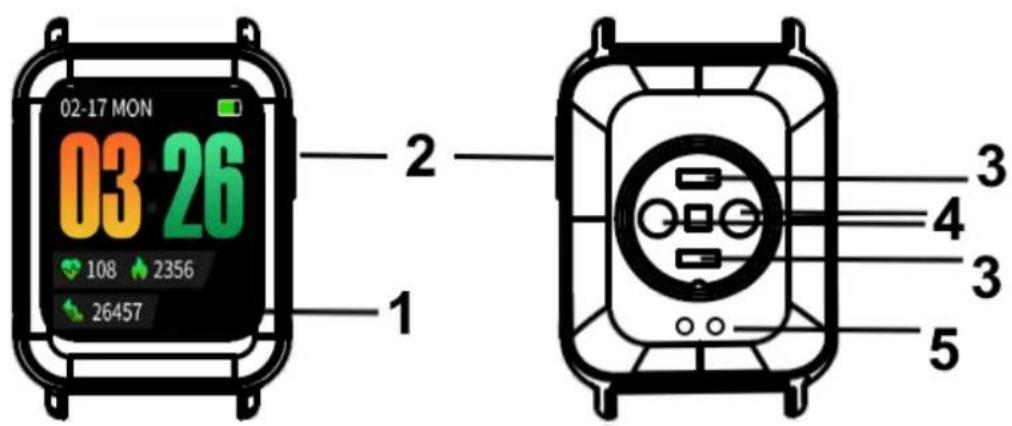
| 1 | Display | 4 | Thermometer sensor |
| 2 | Button | 5 | Charging pins |
| 3 | Heart rate sensor |
NOTE: The device should be charged at least 1 hour before use.
Start up
Connect the Smartwatch with the magnet charger or press down the button (2) for 3 seconds.
Install FunHealth APP on your smart phone
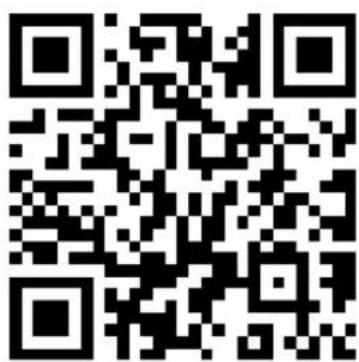
Search for the "FunHealth" app in the Google Play Store/Apple App Store or scan the QR code shown in the instructions or on the smartwatch to start the installation.

Connect the Smart watch with the FunHealth APP
Wait until the device is fully charged. Activate the Bluetooth and GPS of your Smartphone.
- Open the FunHealth APP and confirm all requests to get the most out of the APP.
-
Press "Add Device" in the top right corner of the FunHealth App.
-
Scan the QR code on your watch.
Info: You can hide the QR code by tapping the display 5 times.
Do not now where to find it? Go to the point QR-Code in the manual below.
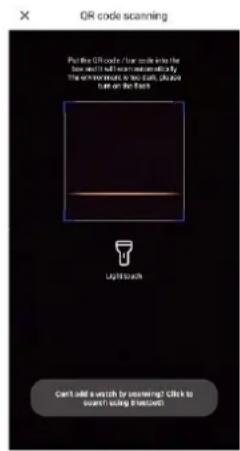
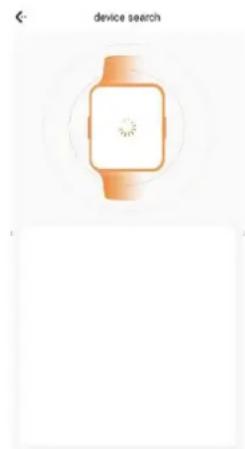
- Now the Smartwatch is connected with your Smartphone and the APP. Info: Time, date and health data are automatically synchronized. You can perform a manual synchronization by pulling down the page.
INFO: If the last mobile device connected to your Smartwatch is turned on and the Bluetooth function is activated on both devices, then the Smartwatch will automatically connect with the mobile device.
Short App description
FunHealth App connection is necessary for a well working progress of watch and App. There for you need to enable your Smartphones Bluetooth.
The App is split into two main interface, Sport/Activity and Watch.
Sport/Activity interface
-
Top left corner: You can set your personal information. The more information you give the better the app can calculate burned calories and distance.
-
Top right corner: First time, here you tap to add a new watch. This can be down by scanning the QR-Code which you find on the watch itself or you can also make Bluetooth search for the device. If the watch is connected successfully "Add Device" is replaced by "Connected".
-
General: Under Activity you find your current taken steps, burned calories and the distance you have covered. As well you see the Sleep data of the last night, the Heart rate graph of
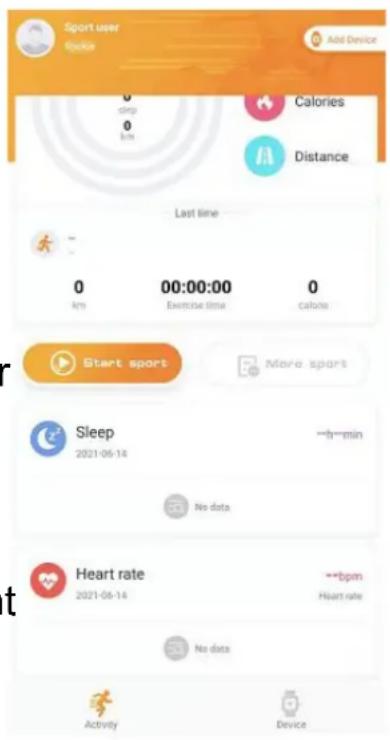
today, the current measured body temperature and the blood oxygen.
Info: During the measurement, the app must be synchronized to display body temperature and blood oxygen in the app.
Watch interface
- Incoming call notification: Enable/disable to get a notification of a call on your watch. You even can decline the call on your watch.
- Sedentary reminder: Enable to be reminded to be active. Set time period, frequency and days.
- Water reminder: Enable to be reminded of drinking. Set time period, frequency and days.
- Message reminder: Enable the Apps, e.g. WhatsApp, push messages that are displayed on the watch.
- Daily alarm clock: Set up to 5 alarms.
- Find Watch: Tap on it to send a signal to your watch. Watch starts to vibrate. (Bluetooth connection required)
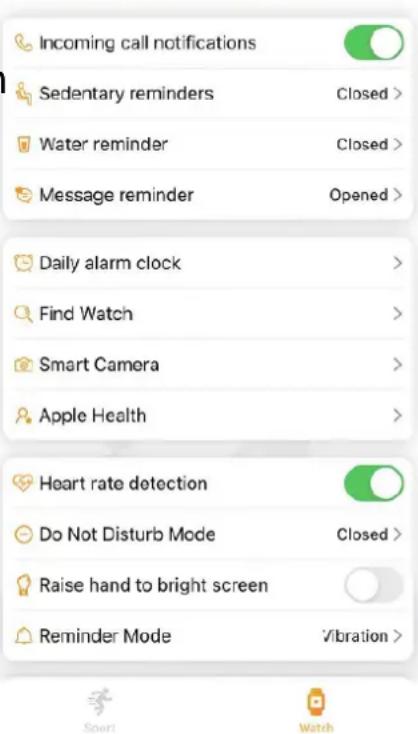
- Smart camera: Open the photo function on the watch. To use the watch as a remote trigger. (Bluetooth connection required)
- Apple Health/ Google Fit: Sync your data with Apple Health or Google Fit.
- Heart rate detection: Allows recording of continuous measurement of heart rate. (Bluetooth connection required)
- Do not disturb mode: Enable and set the time period you do not want push messages on the watch.
- Raise Hand to bright screen: Enable/disable to turn display on/off when wrist is turned.
- Reminder mode: Set the mode how push messages should notify you on your watch.
Start using
When the Smart watch is connected to the APP successfully, it will synchronize the time, the date and the language. It counts steps, distance and calories automatically. Press the button to activate the LCD screen.
→ Swipe up on the start screen to see the main settings. Like: Do not disturb mode (moon), change brightness (sun), lock your screen (lock), go to the settings (gear) and find your phone (phone).
→ Swipe right on the start screen to see your daily achievement. Swipe right again to measure your current heart rate. Swipe right again to see your daily sleep information.
→ Swipe down on the start to see your notifications.
→ Swipe left on the start screen to see functions. Like: Today, Workout, Health, Sleep, Notifications, Alarm, Music, Photo, Find Phone, Stopwatch, QR-Code (for pairing with App), Settings.
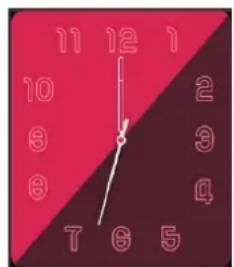
Main screens
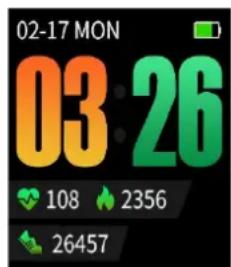
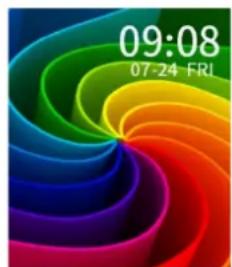
Press and hold to change the watch face.
Today
Swipe left from the start screen. Tap this icon to enter this option. You see the counted footsteps, calculated distance and calorie consumption of today. Swipe left again for historical data from the hole week.
Workout
Swipe left from the start screen. Tap this icon to enter this option. Now you can choose between different sports. Swipe down until you have reached the desired sport. Tap on it and choose your goal and set it. Now press on play to start the workout. Historical reports are saved under Records (last option).
Health
Swipe left from the start screen. Tap this icon to enter this option.
Now you can choose between Heart rate, Blood oxygen and
Body temperature measurement.
- Heart rate

Tap this icon to measure your heart rate now.
You will see your current heart rate and a rating like
"Comfortable". Depending on the rating the colored bars will pop up.
The rating is ascending from Blue (Comfortable) to Red (Extreme).
It helps to rate your current heart rate.
Swipe left to see the heart rate graph of today.
- Blood Oxygen

Tap this icon to measure your blood oxygen value now. You will see your current blood oxygen value.
The oxygen saturation of the blood is in the normal range between 94 and 98 percent. If the value is lower, it is referred to as a lack of oxygen in the blood (hypoxemia).
- Body Temperature
Tap this icon to measure your body temperature now. You will see your current skin temperature and your body temperature.
Note: The skin temperature is normally lower than the body temperature.
Skin temperature (real
measured temperature of
the skin)
Body temperature
(calculated based on skin
temperature)
Sleep
Swipe left from the start screen. Tap this icon to enter this option.
You see the total, light and deep sleep time of your last night.
Swipe left again and you see the historical data of this week.
If you would like to monitor your sleep quality based on your sleeping time, you should wear the Smartwatch on your wrist while you go to sleep. Swipe down for historical data. Sleep is tracked from 9pm to 9am, automatically (can not be changed).
Notifications

Short way: Swipe down from the start screen.
Long way: Swipe left from the start screen and then down, until you see this icon. Tap this icon to enter this option. Here you can see the notifications.
Alarm
Swipe left from the start screen and then down, until you see this icon. Tap this icon to enter this option.
Here you can set alarms and see the alarms you set. The set alarms set via app are synced with the watch and the other way around.
Music
Swipe left from the start screen and then down, until you see this icon. Tap this icon to enter this option.
Now you can start and stop the music by pressing the play/pause button, previous or next title.
Note: The FunHealth App has to be opened on your Smartphone Smartphone and Bluetooth needs to be enabled. App opened in background is okay as well.
Photo
Swipe left from the start screen and then down, until you see this icon. Tap this icon to enter this option.
The camera on your phone turns on and you can take a picture via pressing the camera at the watch screen.
Note: The FunHealth App has to be opened on your Smartphone and Bluetooth needs to be enabled. App opened only in background does not work.
Find Phone
Swipe left from the start screen and then down twice, until you see this icon. Tap this icon to enter this option.
Now the Smartwatch send a notification to your phone and begins to ring.
Note: The FunHealth App has to be opened on your Smartphone Smartphone and Bluetooth needs to be enabled. App opened in background is okay as well.
Stopwatch
Swipe left from the start screen and then down twice, until you see this icon. Tap this icon to enter this option.
Press play button to begin. Press the round arrow for a lap time. To zero the stopwatch press the pause and round arrow button.
Swipe left before pressing round arrow button for reset to see the lap counter and every single laptime.
QR-Code
Swipe left from the start screen and then down twice, until you see this icon. Tap this icon to enter this option.
Now you see a QR-Code. Scan it with the FunHealth App to pair the device with your Smartphone and the Fun Health App.
Settings
Short way: Swipe up from the start screen and tap on the gear icon.
You can also enable Do not disturb mode (moon), change brightness (sun), lock your screen (lock), go to the settings (gear) and find your phone (phone).
Long way: Swipe left from the start screen and then down twice, until you see this icon. Tap this icon to enter this option.
Here you can see the set the brightness, the screen on time, strength of vibration, sedentary, reset the watch and see the system information under about.
Power-Off
Hold down the button (2) for 3 seconds (display needs to be on). The smartwatch shows the option Restart or Power off. Press restart to restart the watch. Choose power off to power off the watch. If you do not choose either of the two options the start screen appears again.
Hints
- Bluetooth connection becomes disconnected when the device exceeds a certain distance. - Reconnect with Bluetooth if Bluetooth does not work for more than 5 min. - Before binding the bracelet to another account, you need to unbind it with the current account and Smartphone. - If the bracelet cannot be illuminated, connect the bracelet to the charger.
Safety instructions
- Rebuilding or modifying the product impairs product safety. - All modifications and repairs of the device or accessories must be performed by the manufacturer or by persons expressly authorized by the manufacturer. - Never open the product by yourself or perform repairs by yourself! - Handle the product carefully. It can be damaged by knocks, blows or even by falling from low height. - Keep the product away from damp, moisture and extreme heat. - Never immerse the product in water or other fluids. - Technical specifications are subject to change without notice. - Never heat the battery above 60°C and do not drop or throw it into the fire, danger of explosion/fire hazard! - Do not short-circuit the battery. - Do not subject the battery to mechanical stress. Avoid dropping, striking, bending, twisting or cutting the battery. - Discontinue the charging process immediately should the battery become overheated. A battery that becomes overheated or deformed during the charging process is defective and should no longer be used. - Never drain the battery completely, as this shortens its lifetime. - If the battery must be stored, it is recommended that it be stored at 30% of its loading volume. Store out of direct sunlight. Ideal storage temperature: 10 - 20°C . - Keep the product away from little children.
Disposal
Old electrical appliances from private households
- If you no longer want to use the appliance, hand it in free of charge at a public collection point for old electrical appliances. - Old electrical appliances must never be placed in the residual waste bins.
Further disposal instructions
- Return the old electrical appliance in such a way that its subsequent reuse or recycling is not impaired. Batteries must be removed beforehand and the destruction of containers containing liquids must be avoided. - Old electrical appliances can contain harmful substances. If the device is handled incorrectly or damaged, this can lead to damage to health or water and soil contamination when the device is later recycled.
CE
Products marked with this symbol meet all applicable community regulations of the European Economic Area.
Technaxx Deutschland GmbH & Co KG has issued a "declaration of conformity" in accordance with the applicable directives and relevant standards. has been created. This can be viewed at any time upon request.
Security and Disposal Hints for Batteries: Hold children off batteries When a child swallowed a battery go to a doctors place or bring the child into a hospital promptly! Look for the right polarity (+) and (-) of batteries! Always change all batteries. Never use old and new batteries or batteries of different types together. Never short, open, deform or load up batteries! Risk of injury! Never throw batteries into fire! Risk of explosion!
Hints for Environment Protection: Packages materials are raw materials and can be recycled. Do not disposal old devices or batteries into the domestic waste. Cleaning: Protect the device from contamination and pollution (use a clean drapery). Avoid using rough, coarse-grained materials or solvents/aggressive cleaner. Wipe the cleaned device accurately. Important Notice: Should battery fluid leak from a battery wipe the battery case with a soft cloth dry. Distributor: Technaxx Deutschland GmbH & Co.KG, Kruppstr. 105, 60388 Frankfurt a.M., Germany
The symbol of the crossed-out dustbin on batteries or accumulators indicates that they must not be disposed of with household waste at the end of their service life. If batteries or accumulators contain mercury (Hg), cadmium (Cd) or lead (Pb), you will find the respective chemical symbol below the symbol of the crossed-out trash can. You are legally obliged to return old batteries and accumulators after use. You can do this free of charge in a retail store or at another collection point near you. Addresses of suitable collection points can be obtained from your city or local government.
Batteries may contain substances that are harmful to the environment and human health. Special care must be taken when handling batteries containing lithium because of the particular risks involved. The separate collection and recycling of old batteries and accumulators is intended to avoid negative effects on the environment and human health.
Please avoid the generation of waste from old batteries as much as possible, e.g. preferring batteries with a longer life or rechargeable batteries. Please avoid littering public spaces by not carelessly leaving batteries or electrical and electronic equipment containing batteries. Please consider ways to reuse a battery instead of disposing of it, for example by reconditioning or repairing the battery.
Further information on the Battery Act can also be found on the Internet at www.batteriegesetz.de.
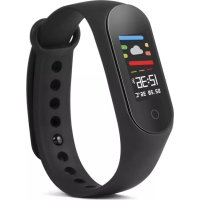

- TX-SW7HR SMARTWATCH WITH BODY TEMPERATURE MEASUREMENT
- THIS DEVICE HAS A RECHARGEABLE BATTERY. IT MUST BE FULLY CHARGED BEFORE FIRST USE. NOTE: CHARGE THE BATTERY OF THE DEVICE EVERY 2-3 MONTH IF IT IS NOT USED
- FEATURES
- TECHNICAL SPECIFICATIONS
- CHARGING
- PRODUCT OVERVIEW
- START UP
- INSTALL FUNHEALTH APP ON YOUR SMART PHONE
- CONNECT THE SMART WATCH WITH THE FUNHEALTH APP
- SHORT APP DESCRIPTION
- SPORT/ACTIVITY INTERFACE
- WATCH INTERFACE
- START USING
- HEALTH
- HEART RATE
- BLOOD OXYGEN
- BODY TEMPERATURE
- SLEEP
- NOTIFICATIONS
- ALARM
- MUSIC
- PHOTO
- FIND PHONE
- STOPWATCH
- QR-CODE
- SETTINGS
- POWER-OFF
- HINTS
- SAFETY INSTRUCTIONS
- DISPOSAL
- FURTHER DISPOSAL INSTRUCTIONS
- CE
Brand : TECHNAXX
Model : TXSW7HR
Category : Smartwatch