29PT8640 - TV PHILIPS - Free user manual and instructions
Find the device manual for free 29PT8640 PHILIPS in PDF.



User questions about 29PT8640 PHILIPS
0 question about this device. Answer the ones you know or ask your own.
Ask a new question about this device
Download the instructions for your TV in PDF format for free! Find your manual 29PT8640 - PHILIPS and take your electronic device back in hand. On this page are published all the documents necessary for the use of your device. 29PT8640 by PHILIPS.
USER MANUAL 29PT8640 PHILIPS
Thank you for purchasing this television set.
This handbook has been designed to help you install and operate your TV set.
We would strongly recommend that you read it thoroughly.
Table of Contents
Installation
Installing your television set ....2
The keys on the TV set 2
Remote control keys 3
Quick installation 4
Program sort 4
Program name 4
Manual store 5
Favourite Programmes ....5
Other settings in the Install menu 5
Operation
Picture settings 6
Sound adjustments 6
Feature settings 6
Timer function 7
TV lock 7
Teletext 8
Screen Formats 9
Using PIP 9
Peripherals
Video recorder 10
Other equipment 10
To select connected equipment 10
Sides connections 11
Video recorder or DVD keys 11
Practical information
Tips 12
Glossary 12

Recycling
The materials used in your set are either reusable or can be recycled.
To minimise environmental waste, specialist companies collect used appliances and dismantle them after retrieving any materials that can be used again (ask your dealer for further details).
Installing your television set
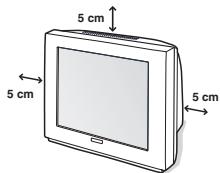
① Positioning the television set
text_image
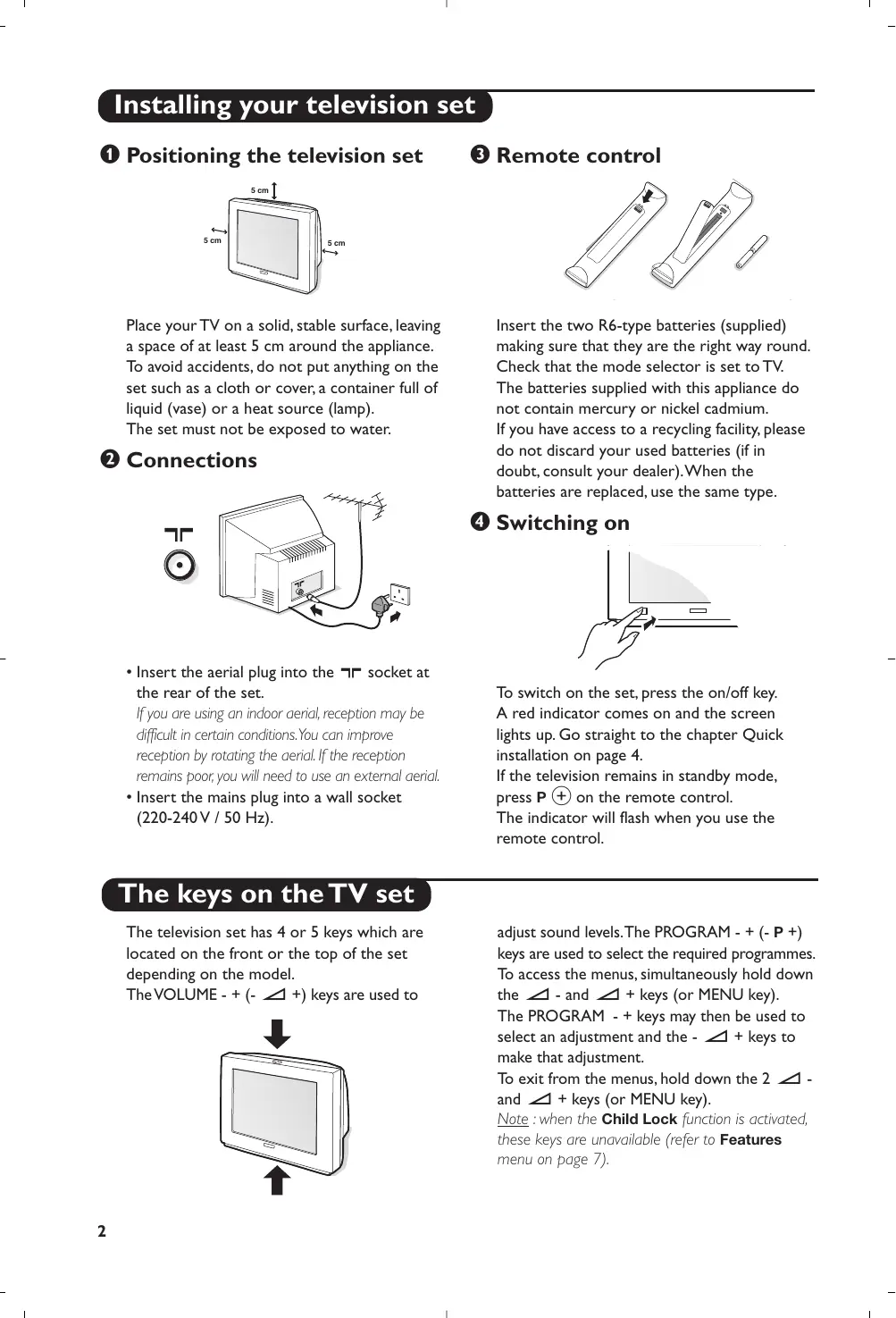
5 cm 5 cm 5 cmPlace your TV on a solid, stable surface, leaving a space of at least 5 cm around the appliance. To avoid accidents, do not put anything on the set such as a cloth or cover, a container full of liquid (vase) or a heat source (lamp). The set must not be exposed to water.
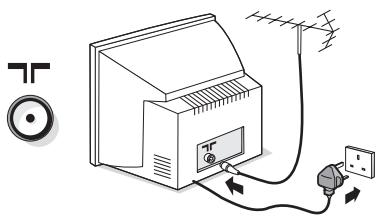
② Connections
natural_image
Diagram of a TV power supply connected to an electrical outlet, showing connections via wires and a switch (no text or labels present)- Insert the aerial plug into the ☐ socket at the rear of the set.
If you are using an indoor aerial, reception may be difficult in certain conditions. You can improve reception by rotating the aerial. If the reception remains poor, you will need to use an external aerial.
- Insert the mains plug into a wall socket (220-240V / 50 Hz).
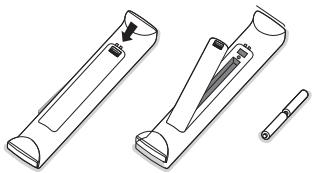
③ Remote control
natural_image
Technical line drawing of two mechanical components with a small cylindrical component nearby (no text or symbols)Insert the two R6-type batteries (supplied) making sure that they are the right way round. Check that the mode selector is set to TV. The batteries supplied with this appliance do not contain mercury or nickel cadmium. If you have access to a recycling facility, please do not discard your used batteries (if in doubt, consult your dealer). When the batteries are replaced, use the same type.
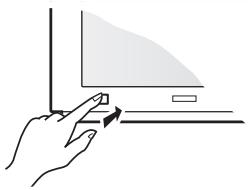
④ Switching on
natural_image
Line drawing of a hand holding a ruler and pointer, with no text or symbols presentTo switch on the set, press the on/off key. A red indicator comes on and the screen lights up. Go straight to the chapter Quick installation on page 4.
If the television remains in standby mode, press P ⊕ on the remote control.
The indicator will flash when you use the remote control.
The keys on the TV set
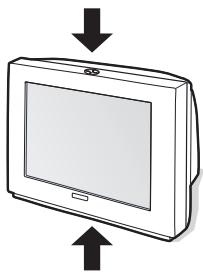
The television set has 4 or 5 keys which are located on the front or the top of the set depending on the model.
The VOLUME - + (- ∠ +) keys are used to
natural_image
Illustration of a flat-screen monitor with directional arrows indicating orientation (no text or symbols)adjust sound levels. The PROGRAM - + (- P +) keys are used to select the required programmes. To access the menus, simultaneously hold down the △ - and △ + keys (or MENU key). The PROGRAM - + keys may then be used to select an adjustment and the - △ + keys to make that adjustment.
To exit from the menus, hold down the 2 △ - and △ + keys (or MENU key).
Note : when the Child Lock function is activated, these keys are unavailable (refer to Features menu on page 7).
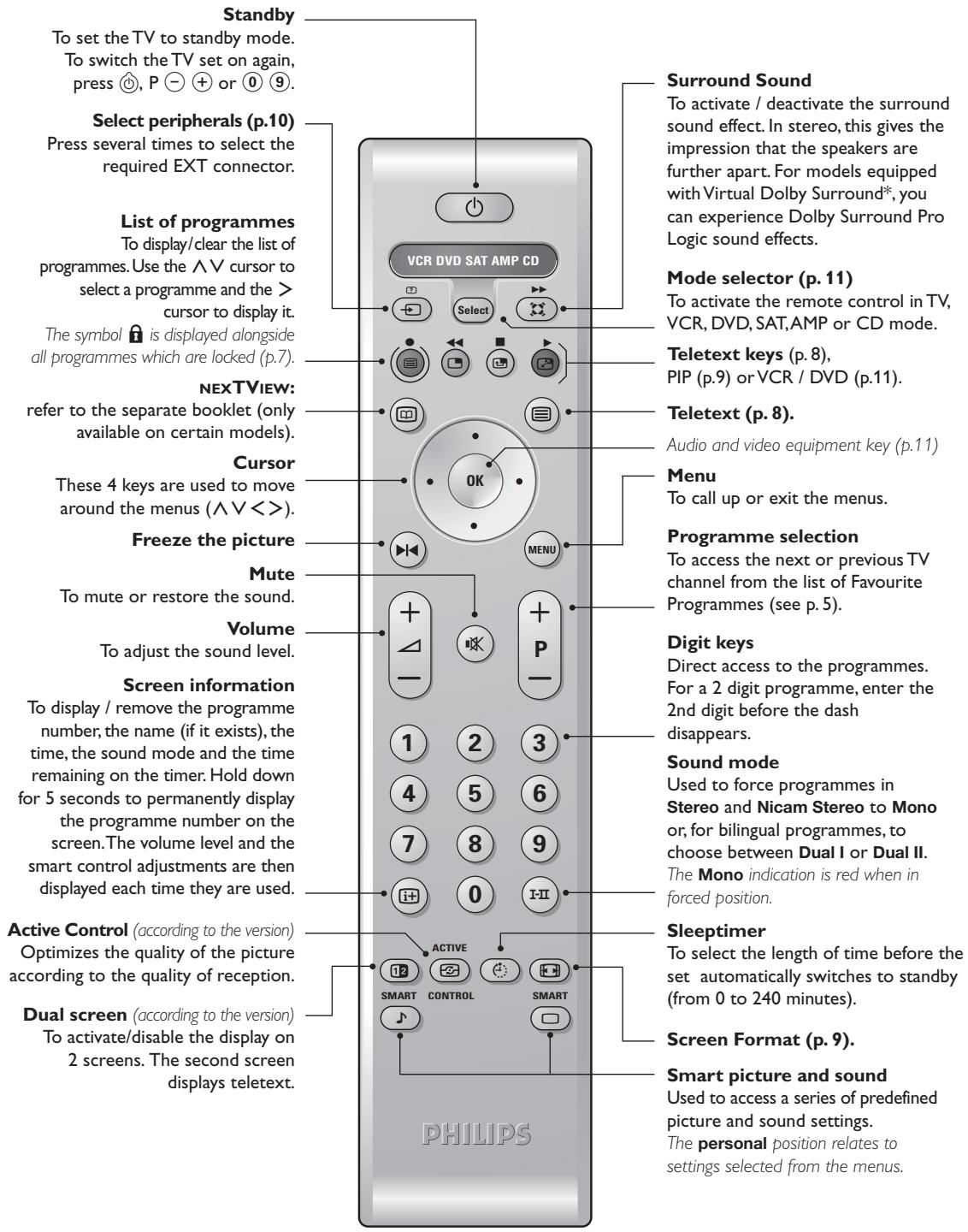
Remote control keys
text_image
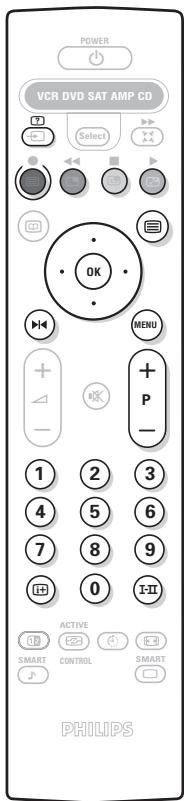
Standby To set the TV to standby mode. To switch the TV set on again, press ⏻, P ⏻ + or Ⓞ ⑨. Select peripherals (p.10) Press several times to select the required EXT connector. List of programmes To display/clear the list of programmes. Use the ∧ V cursor to select a programme and the > cursor to display it. The symbol 🔒 is displayed alongside all programmes which are locked (p.7). NEXTVIEW: refer to the separate booklet (only available on certain models). Cursor These 4 keys are used to move around the menus (∧V < >). Freeze the picture Mute To mute or restore the sound. Volume To adjust the sound level. Screen information To display / remove the programme number, the name (if it exists), the time, the sound mode and the time remaining on the timer. Hold down for 5 seconds to permanently display the programme number on the screen. The volume level and the smart control adjustments are then displayed each time they are used. Active Control (according to the version) Optimizes the quality of the picture according to the quality of reception. Dual screen (according to the version) To activate/disable the display on 2 screens. The second screen displays teletext. VCR DVD SAT AMP CD Select OK MENU P - 1 2 3 4 5 6 7 8 9 0 I-II ACTIVE SMART CONTROL SMART PHILIPS Surround Sound To activate / deactivate the surround sound effect. In stereo, this gives the impression that the speakers are further apart. For models equipped with Virtual Dolby Surround*, you can experience Dolby Surround Pro Logic sound effects. Mode selector (p. 11) To activate the remote control in TV, VCR, DVD, SAT,AMP or CD mode. Teletext keys (p. 8), PIP (p.9) or VCR / DVD (p.11). Teletext (p. 8). Audio and video equipment key (p.11) Menu To call up or exit the menus. Programme selection To access the next or previous TV channel from the list of Favourite Programmes (see p. 5). Digit keys Direct access to the programmes. For a 2 digit programme, enter the 2nd digit before the dash disappears. Sound mode Used to force programmes in Stereo and Nicam Stereo to Mono or, for bilingual programmes, to choose between Dual I or Dual II. The Mono indication is red when in forced position. Sleeptimer To select the length of time before the set automatically switches to standby (from 0 to 240 minutes). Screen Format (p. 9). Smart picture and sound Used to access a series of predefined picture and sound settings. The personal position relates to settings selected from the menus.* Manufactured under license from Dolby Laboratories.
"Dolby" and the double-D symbols are trademarks of Dolby Laboratories.
Quick installation
When you turn on the TV set for the first time, a menu is displayed on screen.
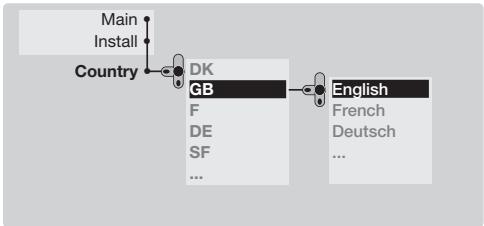
This menu prompts you to select the country and language for the menus :
text_image
Main Install Country DK GB F DE SF ... English French Deutsch ...If the menu is not displayed, press and hold down the △- and △+ keys on the TV set for 5 seconds to display the menu.
① Use the ∧V cursor on the remote control to select your country and validate with >.
If your country does not appear in the list, select choice “...”
② Next select your language using the ∧ ∨ cursor and validate with >.
③ The search starts automatically. All the available TV programmes will be stored.
This operation takes a few minutes.
The display shows the progress of the search and the number of programs found. At the end of the search, the menu disappears.
To exit or interrupt the search, press Ⓜ. If no programme is found, consult the possible solutions p. 12.
4 If the transmitter or cable network sends the automatic sort signal, the programs will be numbered correctly. In this case, the installation is complete.
5 If this is not the case, you need to use the Sort menu to number the programs correctly.
Some transmitters or cable networks broadcast their own sort parameters (region, language, etc.). In this case, indicate your choice using the cursor and validate with > .
Program sort
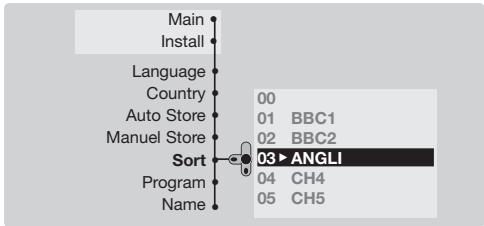
1 Press key Ⓜ.The Main menu is displayed on the screen.
text_image
Main Install Language Country Auto Store Manuel Store Sort Program Name 00 01 BBC1 02 BBC2 03 ANGLI 04 CH4 05 CH5② With the cursor, select the Install menu followed by the Sort menu.
3 Select the programme you want to move using the ∧ ∨ cursor and press >.
4 Then use the V cursor to select the new number and validate with <.
⑤ Repeat steps ③ and ④ for each program you wish to renumber.
6 To quit the menus, press ⓘ+
Program name
If required, you can give a name to the programmes and external connectors.
Note : on installation, the programs are named automatically when an identification signal is sent.
① Press the Ⓜ key.
② With the cursor, select the Install menu, then Name.
③ Use the Ⓑ P ⭕ keys to select the programme to name or rename.
4 Use the <> cursor to move around the name display area (5 characters) and the ∧ ∨ cursor to select the characters.
⑤ When the name has been entered, use the Ⓜkey to exit. The name is stored.
⑥ Repeat steps ③ to ⑤ for each programme you wish to name.
⑦ To quit the menus, press ⓘ.
Manual store
This menu is used to store the programmes one at a time.
① Press the Ⓜ MENU key.
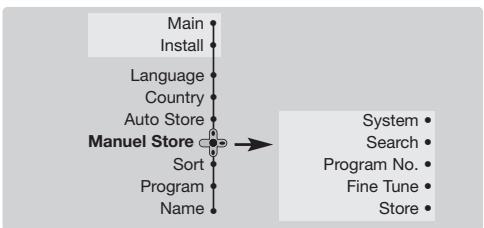
② With the cursor, select the Install menu then Manual store :
flowchart
graph TD
    A["Main"] --> B["Install"]
    B --> C["Language"]
    C --> D["Country"]
    D --> E["Auto Store"]
    E --> F["Manuel Store"]
    F --> G["Sort"]
    G --> H["Program"]
    H --> I["Name"]
    I --> J["System"]
    J --> K["Search"]
    K --> L["Program No."]
    L --> M["Fine Tune"]
    M --> N["Store"]
③ System: select Europe (automatic detection*) or Western Europe (BG standard), Eastern Europe (DK standard), United Kingdom (I standard) or France (LL' standard).
* Except for France (LL' standard), you must select
choice France.
4 Search : press >.The search starts. Once a programme is found, the scanning stops and its name is displayed (when available). Go to the next step. If you know the frequency of the required programme, this can be entered directly using the 0 to 9 keys.
If no picture is found, consult the possible solutions (p. 12).
5 Program No.: enter the required number with the <> or ① to ⑨ keys. Example: program 1, enter ⑩⑪.
6 Fine Tune : if the reception is not satisfactory, adjust using the <> cursor.
⑦ Store : press >.The program is stored.
⑧ Repeat steps ④ to ⑦ for each programme to store.
⑨ To quit the menus, press ⓘ+
Favourite programmes
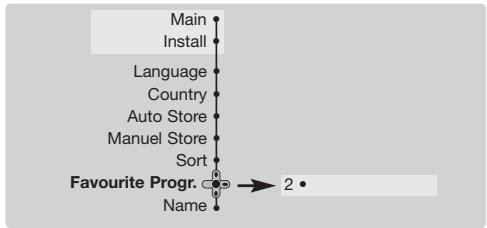
This menu allows you to select the programmes to be accessed with the ⏻ P ⊕ key.
① Press the Ⓜ MENU key.
② With the cursor, select the Install menu then Favourite Progr. and press >.
text_image
Main Install Language Country Auto Store Manuel Store Sort Favourite Progr. 2 • NameThe list of favourite programmes is displayed. The programmes that were stored at installation will automatically appear on this list.
③ Use the up/down cursor to select the required programme.
4 Use the left/right cursor to add or remove a programme from the list.
5 Run through steps ③ and ④ for each programme to be added or removed from the list.
6 To exit, press ⓘ+ several times.
Other settings in the Install menu
① Press the Ⓜ key and select the Install menu:
② Language : to change the display language for the menus.
③ Country : to select your country (GB for Great Britain).
This setting is used for the search, automatic programme sort and teletext display. If your country does not appear in the list, select “...”
4 Auto Store : to start automatic search for all programmes available in your region. If the transmitter or cable network sends the
automatic sort signal, the programmes will be numbered correctly. If this is not the case, you need to use the Sort menu to renumber the programmes (see p. 4).
Some transmitters or cable networks broadcast their own sort parameters (region, language, etc.). In this case, indicate your choice using the cursor and validate with > . To quit or interrupt the search, press MENU . If no picture is found, consult the possible solutions (p. 12).
5 To quit the menus, press ⓘ.
Picture settings
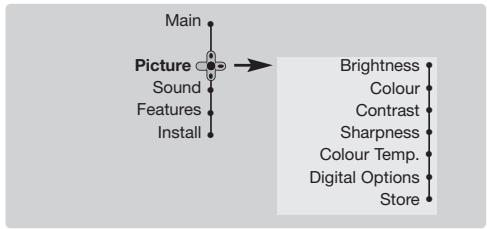
① Press Ⓜ then > cursor. The Picture menu is displayed :
flowchart
graph TD
    A["Main"] --> B["Picture"]
    B --> C["Sound"]
    B --> D["Features"]
    B --> E["Install"]
    F["Brightness"] --> G["Colour"]
    F --> H["Contrast"]
    F --> I["Sharpness"]
    F --> J["Colour Temp."]
    F --> K["Digital Options"]
    F --> L["Store"]
② Use the ∧V cursor to select a setting and the <> cursor to adjust.
Note : during the picture adjustment, only the selected line remains displayed. Press ∧∨ to display the menu again.
③ Once the adjustments have been made, select Store and press > to store them. Press Ⓗ to exit.
Description of the adjustments :
- Brightness: this changes picture brilliance.
- Colour: this changes the intensity of the colour.
- Contrast: this changes the difference between the light and dark tones.
- Sharpness: this changes the picture definition.
- Colour Temp.: this changes the colour rendering: Cold (bluer), Normal (balanced) or Warm (redder).
- Digital Options :
- 100 Hz : 100 Hz processing.
- Digital Scan (according to the version): reduces line flicker which is visible on some pictures.
- Double lines : doubling of vertical resolution which removes visible picture lines. Advised for NTSC (60Hz) pictures.
Sound adjustments
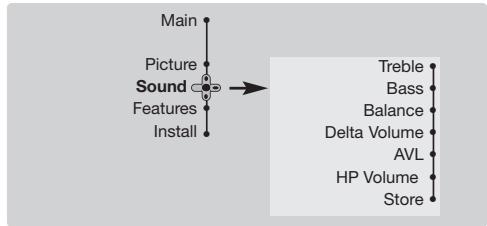
① Press Ⓜ, select Sound (∨) and press >.The Sound menu is displayed :
flowchart
graph TD
    A["Main"] --> B["Picture"]
    B --> C["Sound"]
    C --> D["Features"]
    D --> E["Install"]
    F["Treble"] --> G["Bass"]
    G --> H["Balance"]
    H --> I["Delta Volume"]
    I --> J["AVL"]
    J --> K["HP Volume"]
    K --> L["Store"]
② Use the ∧V cursor to select a setting and the <> cursor to adjust.
③ Once the adjustments have been made, select Store and press > to store these changes.
4 To quit the menus, press ⓘ.
Description of the settings :
- Treble: this alters the high frequency sounds.
- Bass: this alters the low frequency sounds.
• Balance : this balances the sound on the left and right speakers. -
Delta Volume: this is used to compensate any volume discrepancies between the different programs or EXT sockets. This setting is available for programs 0 to 40 and the EXT sockets.
-
AVL (Automatic Volume Leveller): this is used to limit increases in sound, especially on program change or advertising slots.
- HP Volume : allows you to adjust the headphones volume independently from the loud-speakers on the TV set.
Feature settings
1 Press Ⓜ, select Features (V) and press >.
You can adjust :
② Timer, Child Lock and Parental Cont.: see next page
③ DNR: Min, Med (optimum position), Max or Off : attenuates picture noise (snow) in difficult reception conditions.
4 Rotation (only available on very large screen sets): large screen sets are sensitive to terrestrial magnetic field variations. This setting is used to compensate for this by
adjusting the picture rotation.
5 Dynamic Contrast (according to the version): Min, Med (optimum position), Max or Off. Enhances the contrast of details in lighter, average and darker areas.
⑥ Decoder : select the programme(s) that use the external decoder then select the connector where the decoder is connected : EXT1 or EXT2.
If the decoder is connected to the video recorder, select the video recorder's connector (EXT2).
⑦ To quit the menus, press ⓘ.
Timer function
This menu lets you use the TV set as an alarm.
① Press the Ⓜ MENU key.
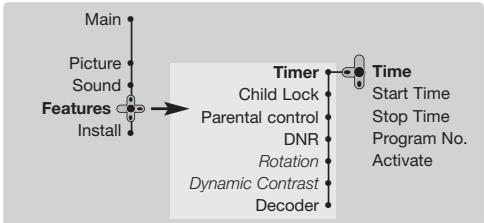
② With the cursor, select the Features menu then Timer :
flowchart
graph TD
    A["Main"] --> B["Picture"]
    A --> C["Sound"]
    A --> D["Features"]
    A --> E["Install"]
    B --> F["Timer"]
    C --> F
    D --> F
    E --> F
    F --> G["Child Lock"]
    F --> H["Parental control"]
    F --> I["DNR"]
    F --> J["Rotation"]
    F --> K["Dynamic Contrast"]
    F --> L["Decoder"]
    M["Time"] --> N["Start Time"]
    M --> O["Stop Time"]
    M --> P["Program No."]
    M --> Q["Activate"]
③ Time : enter the current time.
Note : the time is updated automatically each time the TV set is switched on via the teletext information on programme 1. If this program does not have teletext, the update will not take place.
4 Start Time : enter the start time.
⑤ Stop Time : enter the standby time.
6 Program No.: enter the number of the programme for the wake-up alarm.
⑦ Activate : the settings include:
- Once for a single alarm,
• Daily for each day, - Stop to cancel.
8 Press ⏻ to put the TV set in standby. It will automatically come on at the time programmed. If you leave the TV set on, it will just change programmes at the time entered (and will go to standby mode at the Stop Time). By combining the TV lock and Timer functions, you can restrict the period during which the TV set is used, for example by your children.
TV lock
You can block certain programs or inhibit use of the TV set completely by locking the keys.
Child lock
① Press MENU.
② With the cursor, select the Features menu and position Child Lock to On.
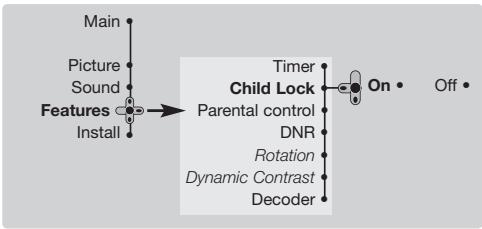
flowchart
graph TD
    A["Main"] --> B["Picture"]
    A --> C["Sound"]
    A --> D["Features"]
    A --> E["Install"]
    B --> F["→"]
    C --> F
    D --> F
    E --> F
    F --> G["Timer"]
    G --> H["Child Lock"]
    H --> I["Parental control"]
    I --> J["DNR"]
    J --> K["Rotation"]
    K --> L["Dynamic Contrast"]
    L --> M["Decoder"]
    M --> N["On • Off •"]
3 Turn off the TV set and hide the remote control. The TV set cannot be used (except via the remote control).
④ To cancel : position Child Lock to Off.
Parental control
1 Press the Ⓜ key, select the Features menu then Parental Cont.:
② You must enter your secret access code.
The first time you enter this, enter code 0711
twice and then enter your new code choice. The menu is displayed.
3 Parental Cont.: Use the ∧ ∨ cursor to select the TV programme required and validate with >.The 🔒 symbol will be displayed opposite the programmes or sockets that are locked. From now on, to view a locked programme, you must enter your secret code, otherwise the screen will stay blank.
The access to the Install menu is also locked. Caution, for encrypted programs using an external decoder, you must lock the corresponding EXT socket.
4 Change code : this allows you to enter a new 4 digit code. Confirm your new code by entering it a second time.
If you have forgotten your secret code, enter the universal code 0711 twice.
⑤ Unlock all: this is used to unlock all locked programmes.
6 Lock All: this is used to lock all the TV programmes and EXT connectors.
⑦ Press the ⓘ+ key to quit.
Teletext
Teletext is an information system broadcast by certain channels which can be consulted like a newspaper. It also offers access to subtitles for viewers with hearing problems or who are not familiar with the transmission language (cable networks, satellite channels, etc.).
text_image
POWER VCR DVD SAT AMP CD Select OK MENU P - 1 2 3 4 5 6 7 8 9 0 ACTIVE SMART CONTROL SMART PHILIPS| Press : | You will obtain : | |
 | Teletext call | This is used to call teletext, change to transparent mode and then exit. The summary appears with a list of items that can be accessed. Each item has a corresponding 3 digit page number.If the channel selected does not broadcast teletext, the indication 100 will be displayed and the screen will remain blank (in this case, exit teletext and select another channel). |
[A3A2] | Selecting a page | Enter the number of the page required using the 0 to 9 or ⊖ P + keys. Example: page 120, enter 1 2 0. The number is displayed top left, the counter turns and then the page is displayed. Repeat this operation to view another page.If the counter continues to search, this means that the page is not transmitted. Select another number. |
 | Direct access to the items | Coloured areas are displayed at the bottom of the screen. The 4 coloured keys are used to access the items or corresponding pages.The coloured areas flash when the item or the page is not yet available. |
| Contents | This returns you to the contents page (usually page 100). | |
 | Direct selection of sub-pages | Certain pages contain sub-pages (for example, page 120 contains sub-pages 1/3, 2/3 and 3/3).Use the <> cursor to directly access the sub-pages of your choice. |
 | Enlarge a page | This allows you to display the top or bottom part of the page and then return to normal size. |
 | Double page teletext(only available on certain versions) | To activate or deactivate the double page teletext display mode. The active page is displayed on the left and the following page is displayed on the right. Press ⚠️ if you want to hold a page (i.e. the contents page). The active page is then displayed on the right. To return to normal mode, press Ⓗ-11. |
| [OW60] | Hidden information | To display or hide the concealed information (games solutions). |
   | Favourite pages | Instead of the standard coloured areas displayed at the bottom of the screen, you can store 4 favourite pages on the first 40 channels which can then be accessed using the coloured keys (red, green, yellow, blue). Once set, these favourite pages will become the default every time tetetext is selected.1 Press the ⚠️ key to change to favourite pages mode.2 Display the teletext page that you want to store.3 Press the coloured key of your choice for 3 seconds. The page is now stored.4 Repeat the operation with the other coloured keys.5 Now when you consult teletext, your favourite pages will appear in colour at the bottom of the screen. To temporarily retrieve the standard items, press ⚠️. To clear everything, and return the standard items as the default, press ⚠️ for 5 seconds. |
Screen Formats
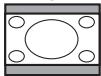
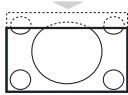
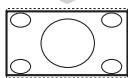
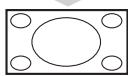
The pictures you receive may be transmitted in 16:9 format (wide screen) or 4:3 format (conventional screen). 4:3 pictures sometimes have a black band at the top and bottom of the screen (letterbox format). This function allows you to optimise the picture display on screen.
If your television is equipped with a 4:3 screen.
Press the Ⓜ key (or ∧ ∨ cursor) to select the different modes:
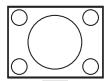
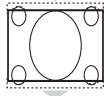
4:3 The picture is reproduced in 4:3 format.
Expand 4:3 The picture is enlarged vertically. This mode is used to cancell the black bands when watching a programme in letterbox format.
Compress 16:9 The picture is compressed vertically into 16:9 format.
If your television is equipped with a 16:9 screen.
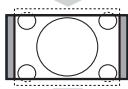
Press the Ⓗ key (or <> cursor) to select the different modes:
This TV set is also equipped with automatic switching which will select the correct-screen format, provided the specific signals are transmitted with the programmes.
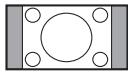
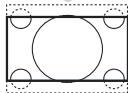
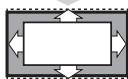
4:3 The picture is reproduced in 4:3 format and a black band is displayed on either side of the picture. The picture may be progressively enlarged using the V cursor.
Zoom 14:9 The picture is enlarged to 14:9 format, a thin black band remains on both sides of the picture. The cursor allow you to compress and move the image vertically to view the top or bottom of the picture (subtitles).
Zoom 16:9 The picture is enlarged to 16:9 format. This mode is recommended when displaying pictures which have black bands at the top and bottom (letterbox format). Use the cursor if you wish to compress and move the image vertically to view the top or bottom of the picture.
Subtitle Zoom This mode is used to display 4:3 pictures using the full surface of the screen leaving the sub-titles visible. Use the cursor to increase or decrease the compression at the bottom of the screen.
SuperWide This mode is used to display 4:3 pictures using the full surface of the screen by enlarging the sides of the picture. The cursor allow you to scroll the image up or down the screen.
Widescreen This mode restores the correct proportions of pictures transmitted in 16:9 using full screen display.
Auto Format (only available on certain versions). The format of the picture is automatically adjusted to fill as much of the screen as possible.
Using PIP
(only available on certain versions)
This feature enables you to display a small superimposed window. You can display in this window the picture from an appliance connected to the TV (e.g. video recorder, DVD, ...).
1 Press the ☐ key to display the PIP screen. A small superimposed window appears in the main screen.
② Use the ⏻ key to select a picture from the appliance connected to the TV.
3 Press the ☐ key again to change the size of the window then make it disappear.
4 Use the ⏻ key if you want to hide the window. You can also shift it progressively by using the cursor (only on position 5).
⑤ Use the 🔒 key if you want to swap the 2 pictures.
Connecting peripheral equipment
Depending on the versions, the TV set is equipped with 2 or 3 SCART connectors EXT1, EXT2 and EXT4 located on the rear.
The EXT1 connector has audio video inputs/outputs and RGB inputs.
The EXT2 connector has audio video inputs/outputs and S-VHS inputs.
The EXT4 connector (if available) has audio video inputs/outputs and RGB inputs.
Video recorder
text_image
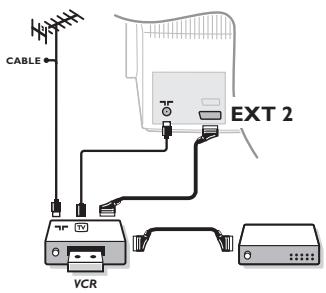
CABLE EXT 2 VCRCarry out the connections shown opposite, using a good quality euroconnector cable.
If your video recorder does not have a euroconnector socket, the only connection possible is via the aerial cable. You will therefore need to tune in your video recorder's test signal and assign it programme number 0 (refer to manual store, p. 5).
To reproduce the video recorder picture, press Ⓞ.
Video recorder with decoder
Connect the decoder to the second euroconnector socket of the video recorder. You will then be able to record scrambled transmissions. See also the Decoder menu (page 6).
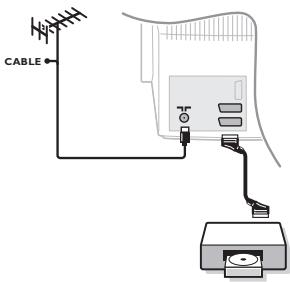
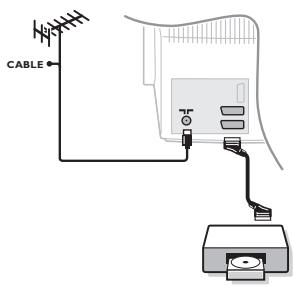
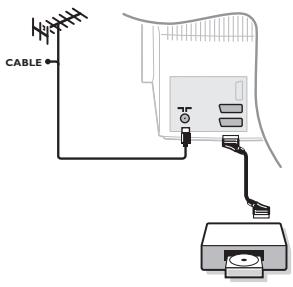
Other equipment
text_image
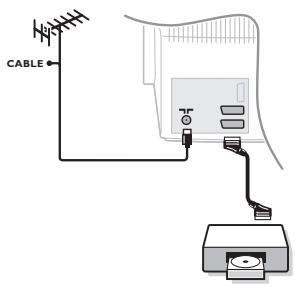
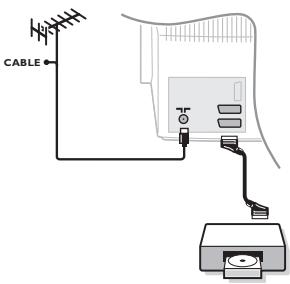
CABLESatellite receiver, decoder, DVD, games, etc.
Carry out the connections shown opposite.
To optimise picture quality, connect the equipment which produces the RGB signals (digital decoder, games, etc.) to EXT1 or EXT4, and the equipment which produces the S-VHS signals (S-VHS and Hi-8 video recorders, certain DVD drives) to EXT2.
To select connected equipment
Press the ⏻ key to select EXT1, EXT2, S-VHS2 (S-VHS signals from the EXT2 socket), EXT3 for connections on the front panel and EXT4 (if available).
Most equipment (decoder, video recorder) carries out the switching itself.
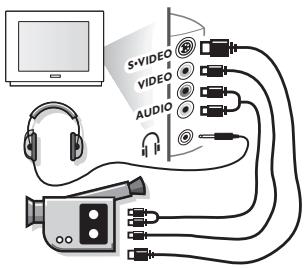
Side connections
text_image
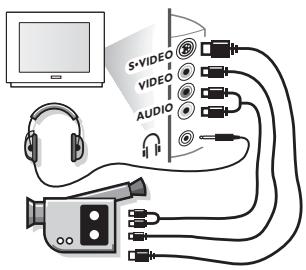
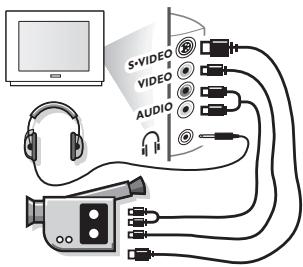
S+VIDEO VIDEO AUDIOMake the connections as shown opposite.
With the ➕ key, select EXT3.
For a mono set, connect the sound signal to the AUDIO L (or AUDIO R) input. The sound automatically comes out of the left and right speakers of the set. Do not connect VIDEO and S-VIDEO cable at the same time. This may cause picture distortion.
Headphones
Press the ⏻ key to mute the sound on the TV set (see also sound settings, page 6).
The headphone impedance must be between 32 and 600 Ohms.
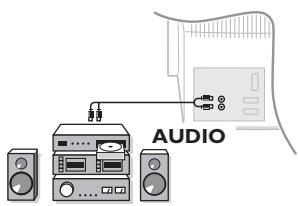
Amplifier (only available on certain versions)
text_image
AUDIOTo connect to a hi-fi system, use an audio connection cable and connect the "L" and "R" outputs on the TV set to the "AUDIO IN" "L" and "R" input on your hi-fi amplifier.
EasyLink Function
(only available on certain versions)

If your video recorder has an EasyLink function, during installation, the language, country and available channels are automatically transmitted to the video recorder. Equally, when the video recorder is in standby, pressing the ● key on the remote control will start the recording of the same programme displayed on the TV set.
The video recorder must be connected to the EXT2 connector (see p. 10).
Video recorder or DVD, SAT, AMP, CD keys
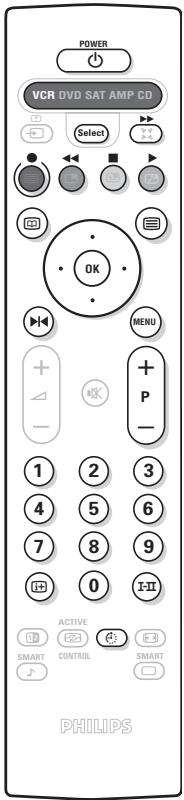
The remote control lets you control the main functions of the VCR or DVD.
text_image
POWER VCR DVD SAT AMP CD Select OK MENU + - 1 2 3 4 5 6 7 8 9 0 ACTIVE SMART CONTROL SMART PHILIPSPress the Select key to select the required mode : VCR, DVD, SAT, AMP or CD. The remote control indicator lights up to display the selected mode. It switches off automatically after 60 seconds if left idle.
The remote control automatically returns to TV mode.
The following keys are operational, depending on the equipment :
standby,
fast rewind,
fast forward,
recording,
stop,
play,
pause,
DVD : subtitling language
DVD : subtitle selection
VCR : tape list function,
MENU menu,
cursor navigation and adjustments,
OK validation,
①⑨ digit keys,
(-) P (+) programme selection,
I-II audio selection.
OSD menu,
VCR timer.
The remote control is compatible with all video recorders using the RC5 standard and all DVDs using the RC6 standard.
Tips
Poor reception
The proximity of mountains or high buildings may be responsible for ghost pictures, echoing or shadows. In this case, try manually adjusting your picture: see Fine Tuning (p.5) or modify the orientation of the outside aerial.
Does your antenna enable you to receive broadcasts in this frequency range (UHF or VHF band)?
In the event of difficult reception (snowy picture) switch the Dynamic NR on the Features menu to ON. (p. 6).
No picture
If the television does not switch on, please press the standby key ⏻ (located on the remote control) twice.
Have you connected the aerial socket properly? Have you chosen the right system? (p. 5).
Poorly connected euroconnector cables or aerial sockets are often the cause of picture or sound problems (sometimes the connectors can become half disconnected if the TV set is moved or turned). Check all connections.
Peripheral equipment gives a black and white picture
To play a video cassette, check that it has been recorded under the same standard (PAL, SECAM, NTSC) which can be replayed by the video recorder.
The remote control no longer works
Check that the mode selector on the side of the remote control is set to TV.
No sound
If on certain channels you receive a picture but no sound, this means that you do not have the correct TV system. Modify the System setting (p. 5).
Teletext
Are certain characters not displayed correctly? Check that the Country setting has been positioned correctly (p.5).
Remote control
The TV set does not react to the remote control; the indicator on the set no longer flashes when you use the remote control? Replace the batteries.
Standby
When you switch the TV set on it remains in standby mode and the indication Locked is displayed when you use the keys on the TV set?
The Child Lock function is switched On (p. 7). If the set receives no signal for 15 mins, it automatically goes into standby mode.
To save power, your set is fitted with components that give it a very low power consumption when in standby mode (less than 1 W).
Still no results?
If your TV set breaks down, never attempt to repair it yourself: contact your dealer's after-sales service.
Cleaning the set
Only use a clean, soft and lint-free cloth to clean the screen and the casing of your set. Do not use alcohol-based or solvent-based products.
Glossary
RGB Signals : These are 3 Red, Green and Blue video signals which directly drive the red, green and blue emitters in the cathode ray tube. Using these signals provides better picture quality.
NICAM sound : Process by which digital sound can be transmitted.
System : Television pictures are not broadcast in the same way in all countries. There are different standards: BG, DK, I, and L L'. The SYSTEM setting (p. 6) is used to select these different standards. This is not to be confused with PAL or SECAM colour coding. Pal is used in most countries in Europe, Secam in France, Russia and most African countries. The United States and Japan use a different system called NTSC.
100Hz : Conventional televisions (50 Hz) produce a visible image flicker. Thanks to 100 Hz technology, the scanning frequency is doubled. It is visually more comfortable and the flickering effect is reduced.
16:9 : Refers to the ration between the length and height of the screen. Wide screen televisions have a ration of 16/9, conventional screen TV sets have a ration of 4/3.
Introduction
natural_image
Diagram of a TV power outlet connected to an antenna and a power outlet, with no visible text or symbols.natural_image
Technical line drawing of a handheld device with a clip and handle, showing internal components (no text or symbols)natural_image
Illustration of a hand pressing a button on a computer monitor (no text or symbols)natural_image
Illustration of a flat-screen monitor with directional arrows indicating compression or movement (no text or symbols)text_image
CABLE EXT 2 VCRnatural_image
Diagram of an outdoor air conditioner unit connected to a power outlet via cable, with no visible text or symbols.natural_image
Technical line drawing of a handheld device with a clip and handle, showing no text or symbols
natural_image
Hand holding a ruler and pointer, pointing at a screen (no text or symbols visible)natural_image
Illustration of a flat-screen monitor with directional arrows indicating left and right sides (no text or symbols)Teletext-toetsen (p. 8)
of PIP (p.9) of VCR / DVD (p.11).
③ Systeem: selecteer Europe (automatisch zoeken*) of West Eur (BG-norm), East Eur (DK-nrom), UK (I-norm) of France (LL-norm).
text_image
CABLE EXT 2 VCRnatural_image
Diagram of a TV power supply connected to an antenna and a power outlet, with no visible text or symbols.natural_image
Technical line drawing of a handheld device with a clip and handle, showing part assembly (no text or symbols)natural_image
Line drawing of a hand holding a ruler and a triangular ruler above a surface (no text or symbols)natural_image
Illustration of a flat-screen TV with directional arrows indicating compression or movement (no text or symbols)text_image
CABLE EXT 2 VCRtext_image
Diagram showing connections between a TV power supply, antenna, and power outlet with labeled componentsnatural_image
Technical line drawing of a handheld device with a clip and handle, showing internal components (no text or symbols)natural_image
Hand interacting with a laptop screen showing a screen area (no text or symbols visible)natural_image
Illustration of a flat-screen TV with directional arrows indicating compression or rotation (no text or symbols)Funzioni televideo (p. 8), PIP (p.9) o VCR / DVD (p. 11).
text_image
CABLE EXT 2 VCRAltri apparecchi
text_image
CABLEnatural_image
Diagram of a TV power supply connected to an antenna and a power outlet (no text or symbols present)natural_image
Technical line drawing of two electronic devices with a clip and a separate cylindrical component (no text or symbols)natural_image
Hand holding a pointer at an angle on a ruler, no text or symbols presentnatural_image
Illustration of a flat-screen TV with directional arrows indicating compression or compression (no text or symbols)text_image
CABLE EXT 2 VCRtext_image
Diagram showing connections between a TV power supply, antenna, and electrical outlet with labeled componentsnatural_image
Technical line drawing of two mechanical components with a small cylindrical part inserted (no text or symbols)natural_image
Hand holding a pointer at a desk with a curved arrow pointing upward (no text or symbols visible)Trykk på av/på-tasten for å sette TV-apparatet i gang. En rød lampe tennes, og skjermen lyser. Gå direkte til kapittelet om rask installasjon på side 4. Hvis TV-apparatet er i pausestilling, trykker du på P + på fjernkontrollen.
natural_image
Illustration of a flat-screen monitor with directional arrows indicating left and right sides (no text or symbols)natural_image
Three-step diagram showing a square frame with circular holes and an oval shape inside, connected by arrows (no text or symbols)text_image
CABLE EXT 2 VCRtext_image
Diagram showing connections between a TV power outlet, antenna, and power plug with signal labelsnatural_image
Technical line drawing of a handheld device with a clip and a separate clip, showing no text or symbols.natural_image
Hand holding a ruler and pointer, pointing at a small screen (no text or symbols visible)natural_image
Illustration of a flat-screen TV with directional arrows indicating compression or compression (no text or symbols)text_image
CABLE EXT 2 VCRtext_image
Diagram showing connections between a TV power supply, antenna, and electrical outlet with labeled componentsnatural_image
Technical line drawing of a handheld device with a clip and handle, showing internal components (no text or symbols)natural_image
Hand holding a ruler and pointer, pointing at a screen (no text or symbols visible)natural_image
Illustration of a flat-screen monitor with directional arrows indicating orientation (no text or symbols)text_image
CABLE EXT 2 VCRnatural_image
Diagram of an outdoor air conditioner unit connected to a power outlet via wires, with no visible text or symbols.natural_image
Technical line drawing of two electronic device components with a small cylindrical component nearby (no text or symbols)natural_image
Line drawing of a hand holding a ruler and a triangular ruler above a surface (no text or symbols)natural_image
Illustration of a flat-screen TV with directional arrows indicating compression or loading (no text or symbols)natural_image
Three schematic diagrams showing circular and oval shapes with mounting holes, no text or symbols present.text_image
CABLE EXT 2 VCRnatural_image
Diagram of a TV power outlet connected to an antenna and a power outlet, with no visible text or symbols.natural_image
Technical line drawing of a handheld device with a clip and handle, showing internal components (no text or symbols)natural_image
Hand holding a ruler and pointer, pointing at a curved surface (no text or symbols)natural_image
Illustration of a flat-screen TV with directional arrows indicating compression or rotation (no text or symbols)Botones teletexto (p. 8)
PIP (p.9) o VCR / DVD (p.11).
natural_image
Three schematic diagrams showing progressive assembly of circular components within rectangular chambers, with no text or symbols present.flowchart
graph TD
    A["Rectangle with circles"] --> B["Circle with dashed outline"]
    B --> C["Circle with solid outline"]
    C --> D["Circle with solid outline"]
    D --> E["Circle with solid outline"]
    E --> F["Circle with solid outline"]
    F --> G["Circle with solid outline"]
    G --> H["Circle with solid outline"]
    H --> I["Circle with solid outline"]
    I --> J["Circle with solid outline"]
    J --> K["Circle with solid outline"]
    K --> L["Circle with solid outline"]
    L --> M["Circle with solid outline"]
    M --> N["Circle with solid outline"]
    N --> O["Circle with solid outline"]
    O --> P["Circle with solid outline"]
    P --> Q["Circle with solid outline"]
    Q --> R["Circle with solid outline"]
    R --> S["Circle with solid outline"]
text_image
CABLE EXT 2 VCRnatural_image
Illustration of a TV power supply connected to an antenna and a power outlet (no text or symbols present)- Insira a ficha da antena na tomada situada na retaguarda do aparelho.
natural_image
Technical line drawing of a handheld device with a clip and handle, showing internal components (no text or symbols)natural_image
Hand holding a computer monitor with a screen, showing the screen area and navigation arrow (no text or symbols)natural_image
Illustration of a flat-screen TV with directional arrows indicating compression or loading (no text or symbols)As teclas de PROGRAM - + (- P +) permitem seleccionar os canais desejados.
Teclas teletexto (p. 8)
Chamar o teletexto (p. 9).
text_image
CABLE EXT 2 VCRtext_image
Diagram showing connections between a TV power supply, antenna, and a power outlet with labeled components.natural_image
Technical line drawing of a handheld device with a clip and handle, showing internal components (no text or symbols)natural_image
Hand holding a ruler and pointer, pointing at a screen (no text or symbols visible)natural_image
Illustration of a flat-screen TV with directional arrows indicating compression or rotation (no text or symbols)natural_image
Three-step diagram showing a square with a central circle and three oval shapes below, connected by arrows (no text or symbols)text_image
CABLE EXT 2 VCRtext_image
Diagram showing a TV power outlet connected to an antenna and a power outlet, with labels for signal components.natural_image
Technical line drawing of a handheld device with a clip and handle, showing internal components (no text or symbols)natural_image
Hand holding a ruler and pointer, pointing at a curved surface (no text or symbols)natural_image
Illustration of a flat-screen TV with directional arrows indicating compression or lifting (no text or symbols)text_image
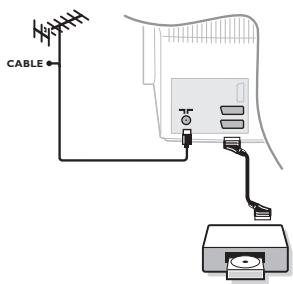
CABLE EXT 2 VCRDiğer cihazlar
text_image
CABLEYan bağlantılar
text_image
S+VIDEO VIDEO AUDIOnatural_image
Diagram of a TV power supply connected to an antenna and a power outlet, with no visible text or symbols.natural_image
Technical line drawing of a handheld device with a clip and handle, showing internal components (no text or symbols)natural_image
Line drawing of a hand holding a ruler and a triangular ruler above a surface (no text or symbols)natural_image
Illustration of a flat-screen TV with two directional arrows indicating compression or lifting (no text or symbols)text_image
CABLE EXT 2 VCRMás készülékek
text_image
CABLEtext_image
Diagram showing connections between a TV power supply, antenna, and a power outlet with signal linesnatural_image
Technical line drawing of a handheld device with a clip and a separate clip (no text or symbols)natural_image
Hand holding a ruler and pointer, pointing at a screen (no text or symbols visible)natural_image
Illustration of a flat-screen TV with directional arrows indicating compression or rotation (no text or symbols)text_image
CABLE EXT 2 VCRInny osprzęt
text_image
CABLEnatural_image
Diagram of a TV power adapter connected to an antenna and power outlet (no text or symbols present)natural_image
Technical line drawing of a handheld device with a clip and handle, showing internal components (no text or symbols)natural_image
Hand holding a pen and ruler, pointing at a screen (no text or symbols visible)natural_image
Simple line drawing of a flat-screen monitor with directional arrows indicating compression or movement (no text or symbols)text_image
CABLE EXT 2 VCRnatural_image
Diagram of a TV power adapter connected to an antenna and power outlet, with no visible text or symbols.- Konektor antény zasuňte do zdierky 📂 na zadnej strane prijímača.
natural_image
Technical line drawing of a handheld device with a clip and handle, showing internal components (no text or symbols)Vložte 2 batérie typu R6 (pribalené), dajte pozor na správnu polaritu.
natural_image
Hand holding a pen pointing at a screen with a shaded triangular area above (no text or symbols)natural_image
Illustration of a flat-screen monitor with directional arrows indicating orientation (no text or symbols)text_image
CABLE EXT 2 VCROstatné zariadenia
text_image
CABLEBočné pripojenia