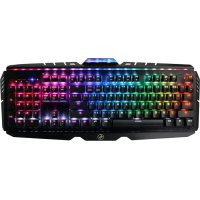
GKB720RGBRD - Keyboard IOGEAR - Free user manual and instructions
Find the device manual for free GKB720RGBRD IOGEAR in PDF.



| Product Type | Mechanical Gaming Keyboard |
| Brand | IOGEAR |
| Model | GKB720RGBRD (HVER™ PRO) |
| Backlighting | RGB multi-zone, 18 built-in modes + customizable DIY mode |
| Number of Keys | 104 keys (standard) with multimedia and macro functions |
| Simultaneous Key Presses | Full NKRO (no limitation) |
| Windows Key Lock | Yes (Fn + Windows key) |
| WASD / Arrow Key Swap | Yes (Fn + W) |
| Customization Software | HVER PRO UI (free download) – macros, profiles, advanced RGB |
| User Profiles | 3 programmable slots |
| Multimedia Shortcuts | 12 keys (Fn + F1-F12): player, volume, previous/next, etc. |
| Power | Via USB 2.0 port |
| Connection | Fixed USB cable, USB-A connector |
| System Compatibility | Windows Vista, 7, 8, 8.1, 10 |
| Foldable Feet | Yes, to adjust typing angle |
| Keycap Puller | Included (for cleaning or replacement) |
| Dimensions | Approximately 440 x 135 x 38 mm (estimated) |
| Weight | Approximately 900 g (estimated) |
| Standards / Certifications | FCC Class B, CE (EMC, low voltage, R&TTE) |
| Warranty | 2 years |
Frequently Asked Questions - GKB720RGBRD IOGEAR
User questions about GKB720RGBRD IOGEAR
0 question about this device. Answer the ones you know or ask your own.
Ask a new question about this device
Download the instructions for your Keyboard in PDF format for free! Find your manual GKB720RGBRD - IOGEAR and take your electronic device back in hand. On this page are published all the documents necessary for the use of your device. GKB720RGBRD by IOGEAR.
USER MANUAL GKB720RGBRD IOGEAR
RGB Mechanical Gaming Keyboard
GKB720RGB-BN / GKB720RGB-RD
PART NO. Q1514
Welcome to Kaliber Gaming
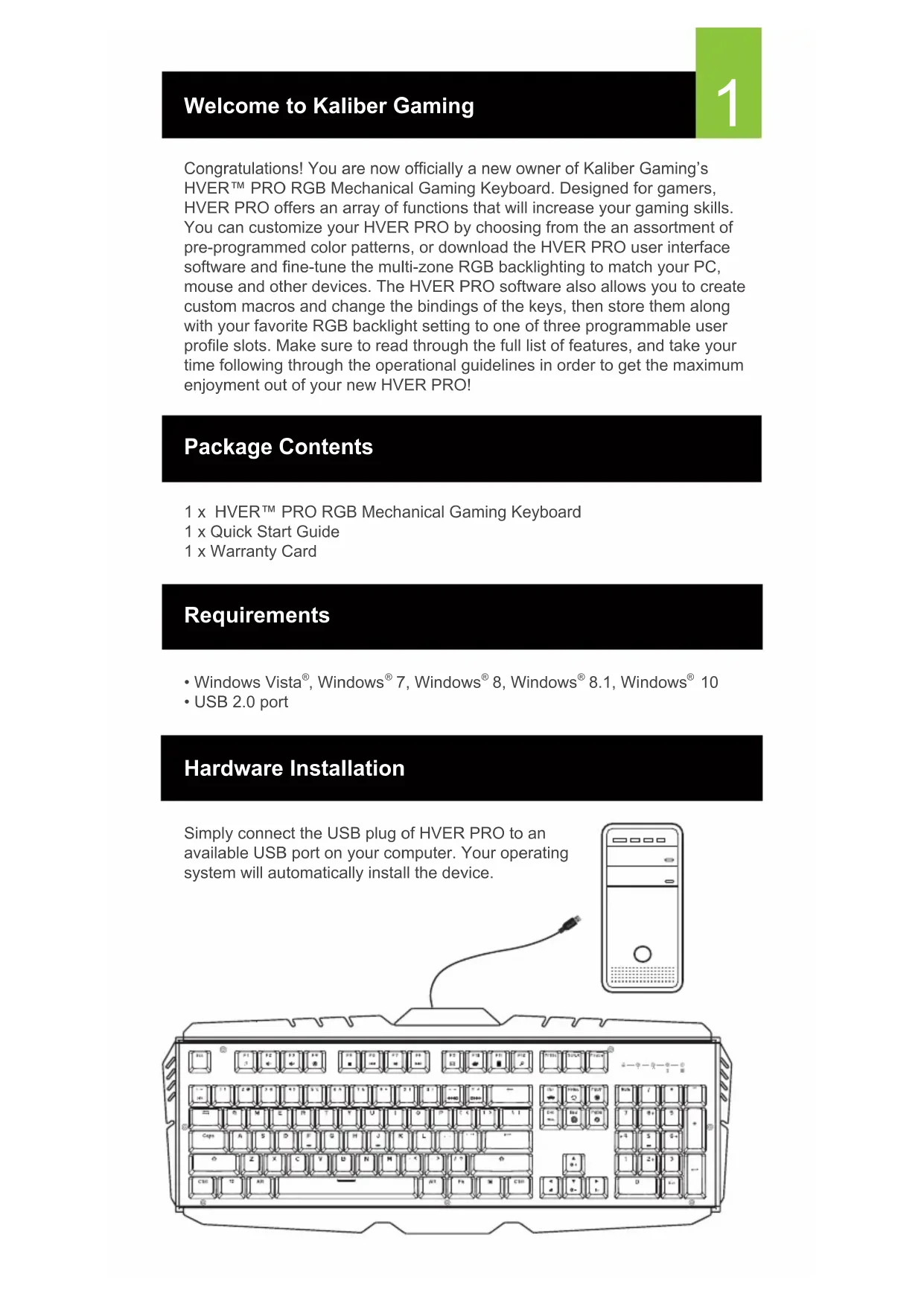
Congratulations! You are now officially a new owner of Kaliber Gaming's HVER™ PRO RGB Mechanical Gaming Keyboard. Designed for gamers, HVER PRO offers an array of functions that will increase your gaming skills. You can customize your HVER PRO by choosing from the an assortment of pre-programmed color patterns, or download the HVER PRO user interface software and fine-tune the multi-zone RGB backlighting to match your PC, mouse and other devices. The HVER PRO software also allows you to create custom macros and change the bindings of the keys, then store them along with your favorite RGB backlight setting to one of three programmable user profile slots. Make sure to read through the full list of features, and take your time following through the operational guidelines in order to get the maximum enjoyment out of your new HVER PRO!
Package Contents
1 x HVER™ PRO RGB Mechanical Gaming Keyboard
1 x Quick Start Guide
1 x Warranty Card
Requirements
- Windows Vista®, Windows® 7, Windows® 8, Windows® 8.1, Windows® 10
- USB 2.0 port
Hardware Installation
Simply connect the USB plug of HVER PRO to an available USB port on your computer. Your operating system will automatically install the device.
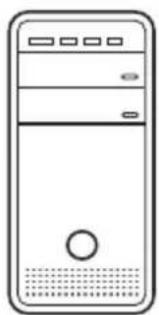
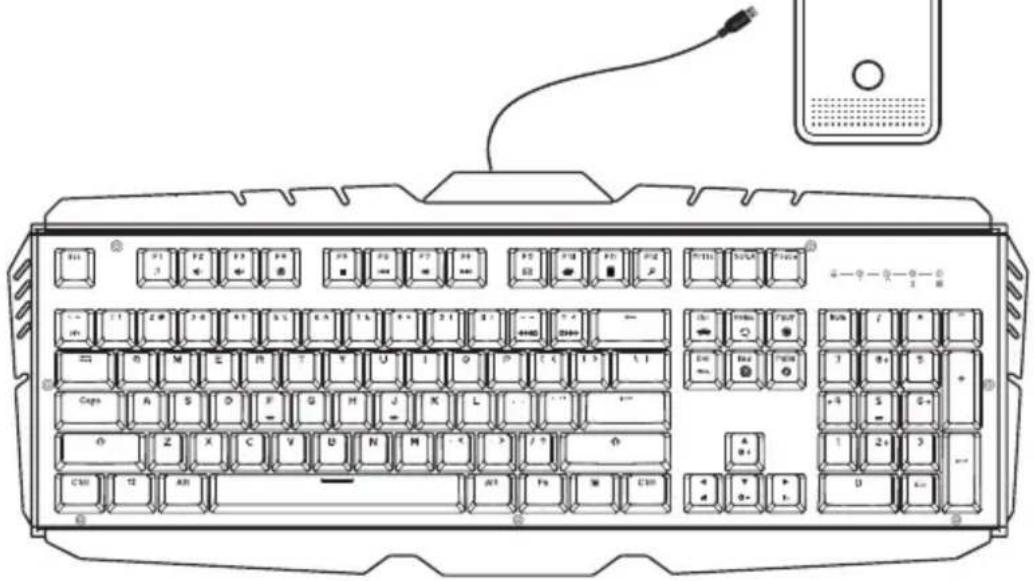
The HVER user interface software allows creating custom macro functions and specialized hotkeys, as well as fine-tuning the RGB backlighting. The HVER PRO user interface software is a free download available on the IOGEAR website location below: https://www.iogear.com/product/GKB720RGB/
Operation
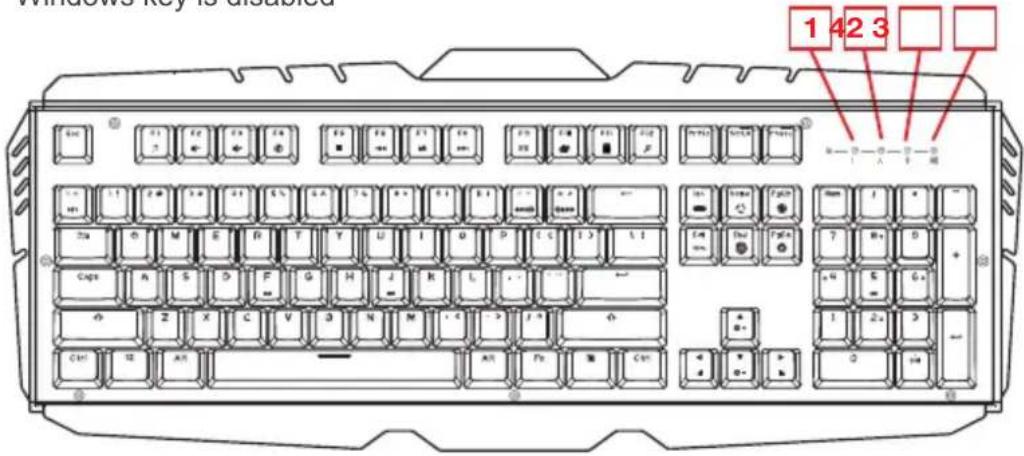
Keyboard - Front View
- Num Lock LED - turns on when Num Lock key is pressed
- Caps Lock LED - turns on when Caps Lock key is pressed
- Scroll Lock LED - turns on when Scroll Lock key is pressed
- Windows Lock LED - turns on when Fn + is pressed to indicate the Windows key is disabled
Windows Key Lockout
The Windows key lockout prevents the Windows menu from popping up and interfering with your game if accidentally pressed while gaming.
Press Fn + key to lockout the Windows menu function. The Windows Lock LED will light up to confirm the Windows key is locked out Press Fn ^+ again to unlock the Windows key.
WASD Key Swap
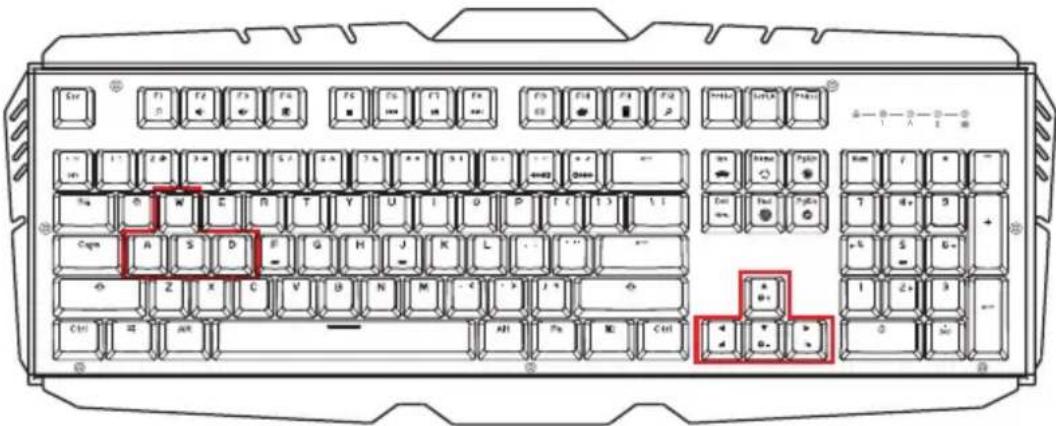
The W, A, S, and D key functions can be swapped with the arrow keys for better functionality with certain games, especially MMO (Massively Multiplayer Online) games. Press Fn + W to swap key functions, and press Fn + W again to swap back to normal operation.
Anti-Ghosting / NKRO
As gaming has exploded in popularity, the term Anti-Ghosting has evolved from its original meaning to now describe a non-mechanical keyboard's ability to accurately detect individual keystrokes when certain combinations of buttons are pressed. Mechanical keyboards do not suffer this problem, and may instead have a limit to the total number buttons that can be pressed simultaneously. This limit is expressed as N-Key Rollover (NKRO) where N equals the number of keys that can be pressed simultaneously. HVER PRO has no limit and features full NKRO, meaning every keystroke will be detected no matter how many keys are simultaneously pressed. Now you can play with confidence knowing your keyboard won't hold you back!
LED Backlight Functions
The HVER PRO has 18 built-in backlight modes, and is also programmable using the HVER PRO user software. The built-in backlight modes are controlled by the following six keys, each having three lighting modes.
Fn + Ins = 7 Color cycle, rainbow breathing, rainbow fixed
Fn + Del = Rainbow ripple, rainbow rotation, rainbow ebb and flow
Fn + Home = Rainbow explosion keys, rainbow following keys, rainbow split keys
Fn + End = Rainbow flash keys, falling rainbow, rainbow pulse keys
F_n + PgUp = Rainbow twist, rainbow waves, rainbow rain
Fn + PgDn = Rainbow scan,fixed single color,rainbow eruption
Backlight Color Adjustments
Press Fn + Space once to open the color palette. The keyboard backlighting will show a palette of available backlight colors across the keys. Press any fixed color key to replace the rainbow lighting with that color for the lighting effects above, or press the space bar to return to a rainbow effect lighting effects above.
Backlight Pattern Adjustments
Press Fn + ▲ to increase brightness
Press Fn + ▼ to decrease brightness
Press Fn + to shift light flow direction right
Press Fn + ▷ to shift light flow direction left
Press Fn ++ to increase light speed
Press Fn + - to decrease light speed
DIY Custom Lighting
The HVER PRO has a DIY lighting mode that can be programmed without using the HVER PRO user software.
To set the DIY lighting mode:
- Press Fn + ~ to start DIY programming. The 4 status LEDs will begin flashing.
- Press the keys you want to light. Each press will cycle the key color as follows: Red, Orange, Yellow, Green, Cyan, Blue, Purple, White, Off.
- Press Fn + ~ again to exit and save setting. The 4 status LEDs will stop flashing.
Hotkeys
There a 12 hotkeys offering quick access to the most commonly used functions.
Press Fn + F1 through F12 to activate the desired function.
Windows Hotkeys Function
Fn+F1 Media Player
Fn+F2 Volme Down
The following features require installation of the HVER PRO user interface software, available as a free download the from the IOGEAR website.
Macro Keys
The HVER PRO keys can be programmed to execute a series of keystrokes with only a single press. These are great gaming tools for casting spells, etc. but they can also be used to simplify your life outside of gaming. You can use programmable buttons for simple text shortcuts like entering passwords or email addresses, accessing special menus and executing multi-key commands when using powerful programs like Photoshop and Solidworks. To create and store Macro Key functions you will need to download the HVER PRO user interface software from the IOGEAR website.
User Profiles
The HVER PRO software can store up to three custom user profiles, each with differently programmed macro keys and LED backlighting. To create and store custom user profiles you will need to download the HVER PRO user interface software from the IOGEAR website.
Keyboard - Rear View
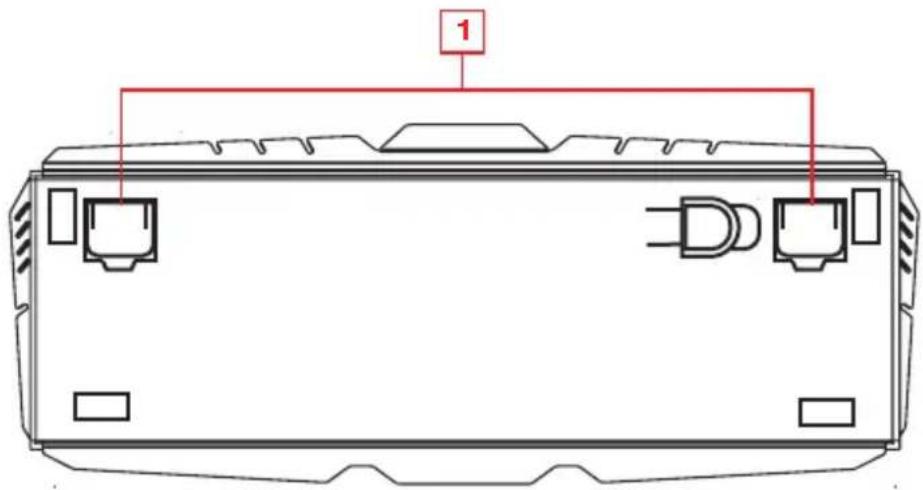
Foldout Leg (see Foldout Leg Keycap Removal Tool)
Foldout Legs
For greater comfort during long gaming sessions, you can adjust the typing angle of your HVER by folding the legs in or out on the back of the keyboard.
Keycap Removal Tool
The HVER PRO includes a tool that assists in removing the keycaps for cleaning, or when exchanging them for a custom set. To remove a keycap, center the tool over the keycap and press downward until it snaps over the cap. Lift up with even pressure until the keycap is removed.
Compliance Information
FCC Statement
B digital device, pursuant to Part 15 of the FCC Rules. These limits are designed to provide reasonable protection against harmful interference in a residential setting. This product generates, uses, and can radiate radio frequency energy and, if not installed and used as directed, it may cause harmful interference to radio communications.
CE Compliance
This device has been tested and found to comply with the following European Union directives: Electromagnetic Capability (2004/108/EC), Low Voltage (2006/95/EC) and R&TTED (1999/5/EC).
Limited Warranty
WE'RE HERE TO HELP YOU!
NEED ASSISTANCE SETTING UP THIS PRODUCT?
Make sure you:
- Visit www.iogear.com for more product information
- Visit www.iogear.com/support for live help and product support
Warranty Information
This product carries a 2 Year Limited Warranty. For the terms and conditions of this warranty, please go to http://www.iogear.com/support/warranty
Register online at http://www.iogear.com/register
Important Product Information
Product Model
Serial Number
Contact
IOGEAR
https://iogear.custhelp.com
support@iogear.com
www.iogear.com
http://www.iogear.com/register
https://iogear.custhelp.com
support@iogear.com
www.iogear.com
http://www.iogear.com/support/warranty
https://iogear.custhelp.com
support@iogear.com
www.iogear.com

- Welcome to Kaliber Gaming
- Package Contents
- Requirements
- Hardware Installation
- Operation
- Keyboard - Front View
- Windows Key Lockout
- WASD Key Swap
- Anti-Ghosting / NKRO
- LED Backlight Functions
- Backlight Color Adjustments
- Backlight Pattern Adjustments
- DIY Custom Lighting
- To set the DIY lighting mode:
- Hotkeys
- Windows Hotkeys Function
- Macro Keys
- User Profiles
- Keyboard - Rear View
- Foldout Legs
- Keycap Removal Tool
- Compliance Information
- FCC Statement
- CE Compliance
- Limited Warranty
- WE'RE HERE TO HELP YOU!
- NEED ASSISTANCE SETTING UP THIS PRODUCT?
- Contact
Brand : IOGEAR
Model : GKB720RGBRD
Category : Keyboard