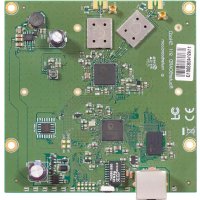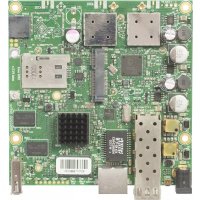
RB922UAGS5HPACD - Router Mikrotik - Free user manual and instructions
Find the device manual for free RB922UAGS5HPACD Mikrotik in PDF.


User questions about RB922UAGS5HPACD Mikrotik
0 question about this device. Answer the ones you know or ask your own.
Ask a new question about this device
Download the instructions for your Router in PDF format for free! Find your manual RB922UAGS5HPACD - Mikrotik and take your electronic device back in hand. On this page are published all the documents necessary for the use of your device. RB922UAGS5HPACD by Mikrotik.
USER MANUAL RB922UAGS5HPACD Mikrotik
EN - English - Quick Guide:

This device needs to be upgraded to RouterOS v7.10.2 or the latest stable version, to ensure compliance with local authority regulations! It is the end users' responsibility to follow local country regulations, including operation within legal frequency channels, output power, cabling requirements, and Dynamic Frequency Selection (DFS) requirements. All MikroTik devices must be installed according to instructions.
This "5GHz RouterBOARD" series Quick Guide covers models: RB911G-5HPnD, RB912UAG-5HPnD, RB922UAGS-5HPacD, RB911G-5HPacD, RB911-5HnD (911 Lite5 dual), RB911-5HacD (911 Lite5 ac), RB911-5Hn (911 Lite5).
This is a wireless network device. You can find the product model name on the label (ID).
Please visit the user manual page on https://mt.lv/um for the full up-to-date user manual. Or scan the QR code with your mobile phone.
Technical specifications, brochures, and more info about products at https://mikrotik.com/products
The most important technical specifications for this product can be found on the last page of this Quick Guide.
Configuration manual for software in your language with additional information can be found at https://mt.lv/help
If you need help with configuration, please seek a consultant https://mikrotik.com/consultants
Depending on the antenna used, you need to set its gain and set "Installation" or "Outdoor", depending on the type of use. This is to ensure that the EIRP complies with the limit set by the local authorities. This is done in the Quickset menu.

First Use:
This product comes without enclosure and is designed to be installed into the users' end products or enclosures. Compatible MikroTik enclosure for this product can be found at https://mikrotik.com/products/group/enclosures
The device comes in ESD protective packaging. When handling electrical equipment please observe the following safety precautions:
Use a wrist grounding strap when unpacking and working with electrical components to avoid electrical discharge (ESD) damage;
After unpacking please place the router on the anti-static mat;
When mounting the unit make sure there are no objects that can damage or touch the PCB plate;
The device can be mounted in your desired location using the factory-provided holes in a PCB plate, located on each side of the device;
Before connecting the device to the power source, please attach the antennas to the connectors;
- Connect the device to the power source;
- Connect your PC to the Ethernet port;
- Configuration should be made using a web browser WebFig or the WinBox configuration tool https://mt.lv/WinBox; multiple configuration methods are available to ensure accessibility;
- Open http://192.168.88.1 in a web browser to start setup. If the IP address is unavailable, use WinBox and connect using the MAC address. The username is "admin", and there is no password (or, for some models, check user and wireless passwords on the sticker);
- Click the "Check for updates" button and update RouterOS to the latest version;
For a manual update, visit the products page at https://mikrotik.com/products to find your product. The required packages are accessible under the "Support&Downloads" menu;
- Upload downloaded packages to the WinBox "Files" menu and reboot the device;
- By upgrading your RouterOS software to the latest version, you can ensure optimal performance, stability, and security updates;
In the "QuinkSet" up the mode and "Busesigny Auntry, to apply country regulation settings;
- Set the antenna gain, depending on the antenna used;
- Set up your router password in the bottom field.
Safety Information:
Before you work on any MikroTik equipment, be aware of the hazards involved with electrical circuitry, and be familiar with standard practices for preventing accidents. The installer should be familiar with network structures, terms, and concepts.
The product comes without enclosure and is meant to be installed into the enclosure by trained and qualified personnel. The installer is responsible for making sure, that the Installation of the equipment is compliant with local and national electrical codes. Do not attempt to disassemble, repair, or modify the device.
- Use only the power supply and accessories approved by the manufacturer, and which can be found in the original packaging of this product
This equipment is to be installed by trained and qualified personnel, as per these installation instructions. The installer is responsible for making sure, that the Installation of the equipment is compliant with local and national electrical codes.
Do not attempt to disassemble, repair, or modify the device. If service is needed, please contact MikroTik support.
This product can be used both indoors and outdoors. Please read the mounting instructions carefully before beginning installation. Failure to use the correct hardware and configuration or to follow correct procedures could result in hazardous situation to people and damage to the system. To install outdoors make sure to use at least IP54 rating enclosure.
We cannot guarantee that no accidents or damage will occur due to the improper use of the device. Please use this product with care and operate at your own risk!
The socket-outlet shall be installed near the equipment and shall be easily accessible.
In the case of device failure, please disconnect it from power. The fastest way to do so is by unplugging the power adapter from the power outlet.
This is a Class A product. In a domestic environment, this product might cause radio interference in which case the user might be required to take adequate measures
To avoid contamination of the environment, separate the device from household waste and dispose of it in a safe manner, for example, in designated areas. Become familiar with procedures for properly transporting the equipment to designated collection points in your area.
Exposure to Radio Frequency Radiation: This MikroTik equipment complies with the FCC, IC, and European Union radiation exposure limits set forth for an uncontrolled environment. This MikroTik device should be installed and operated no closer than 330 centimeters from your body, occupational user, or the general public.
Manufacturer: Mikrotikls SIA, Unijas 2, Riga, Latvia, LV1039
BG-BbIrapckn.Bbp30 pBkoBOIDCTBO:

Toba yctpoicBO Tp6Ba Da 6bde HndcptpoeHO Do RuterOS v7.10.2 uHn Hau-HOBATA Cta6uHa Bepcn, 3a da ce rapaHTnpa cna3BaHTo Ha MeCTHHe Hape6o!
KpaHNTe nOtpe6ntenCa otROBOpHN da cna3BaT MeCTHne pa3nope6b, BkHouHTeHNO pa6oTa B pAMKnTe Ha 3aKaOHn YecToTH KaHa, N3XoHa MoUHOCT, H3NCKBaHNA 3a OkabEnBaHe H3NCKBaHNA 3a DnHAMuHep H36op Ha YecToTA (DFS). Bcnu K yctpoiCTBa Ha MikroTik Tp6Ba da 6bDat HhCTaHnPAHn CbIJaCHO hNCTpyKUnTE.
Toba 6bp30 pblkOoDCTBO 3a cepra,5GHz RouterBOARD"obxbaa ma moen: RB911G-5HPnD, RB912UAG-5HPnD, RB922UAGS-5HPacD, RB911G-5HPacD, RB911-5HnD (911 Lite5), RB911-5HnD (911 Lite5 dual), RB911-5HacD (911 Lite5 ac), RB911-5Hn (911 Lite5).
ToBa e 6e3KuHNO mpekoYo yctpoCTBO. MoKeTe Da HamepuTe HMeTo Ha MoeJa Ha npOyKTa Ha etKeTa Ha perntbpa (ID).
Mon, nocetete ctpanuata c pkoBODCTBO 3a notpebnten Ha https://mTv/um-bg 3a nHOTo AKTyAnn3npaHO pkoBODCTBO 3a ynotpe6a. IINCKAHPaTe QR KOA C MOBNNNc TenefoH.
Texnueckn cneuufkaun, bpoowyn n noobey uhoopmaun 3a npodyknte na https://mikrotik.com/products
HaBaxhnteTexnueckn Cneunkaun 3a To3n npdykT MORAT da 6bDat HamepeHn Ha nocnepHATA ctpanuHa TOba Kpatko pboOBOCTBO.
PbKOBODCTBO 3a KOHdNpypnaHe Ha coDyep Ha Baunn EeNK C DonbHnTeHa HhOpMaun MoKeTe Da HamepuTe Ha https://mt.lv/help-bg
Ako imate hyxda ot nomou npKoHpypupahe, moJ, noTbpcTe KOHCyIaHT https://mikrotik.com/consultants
B 3aBnCmOCT ot n3non3BaHata aHTeHa, Tp6Ba da HAcTpOnte HeHhToY cunBaHe n ,Installation" Ha ,Indoor" uN ,Outdoor", B 3aBnCmOCT ot tna Ha n3non3BaHe. ToBa e, 3a da ce rapaHTnpa, ye EIRP oTRObApHa orpaHueHHeTO, onpeJeNEHO OT MeCTHne Bnactn. ToBa ce npabn B MeHoto Quickset.
Pbpa ynotpe6a:

To3n npOdyKT ce npEpaIra 6e3 Kopnyc n e npEpaHa3aHae 3a INCTaIIpAne B kpaHn npOdyKTH Nk KyTm Ha notpe6bTeJIte. CbBMeCTM KOpnyc MikroTik 3a To3n npOdyKT MoKeTe Da HamePHTe Ha https://mikrotik.com/products/group/enclosures
- YcTpoIcTBOTo ce doCTabra B ESD 3aunTHa onakOBka. Korato pa60NTe c eNEKtpnuecko o6OpyDbaHe, cna3BaIte cneHnTe npEpa3Hm MePK:
N3nON3BaIte 3aEMBaIa neHTa 3a KITKaT, KOrTo pa3oNaKOBate n pa6OTte C eNEKTpuEeCKn KOMNoHETn, 3a Da N36erHete NOBpeDa OT eJekTpueckn pa3pRd (ESD);
Cne KaTo pa3oNaKOBaTe, noCTaBeTe pyTepa Bbpxy aHTnCTaTuHaTa noDnOxxKa;
Korato MOHTnpaTe yCTpoiCTBOTo, YBepTe Ce, Ye HMA npEmdT, KOITo MOra T da NOBpeJr NIO DOKOChT PNOyTa Ha NeaTHaT PNaTka;
O yctpoiCTBOTO MOKe Da CE MOHTnpa Ha JeHaHOTo OT Bac MRCTo C NOMOuTa Ha 4abpuHIO OCHrypeHnte OTBOpn B NeHaTHa PnAtka, pa3noJoxeHn OT BCKa CTpaHa Ha yctpoiCTBOTO;
- Ipei Da CbPkeTe ycTpoCTBOTo KbM h3TOUHnKa Ha 3axpaHbAHe, MoJI, npNKpeIeTe aHTeHtE KbM KOHeKTopTe;
CbbpxTe ycTPOINCTBOTO KbM n3TOUHnKa Ha 3axpaHbAhe;
Cbpxe Taun KOMnHtp KbM Ethernet npTa; - KOnHpyaunraT Tp86Ba da ce n3BpbBa c nomouna Ha ye6 6pay3bp WebFig uInn HnctpymEnTa 3a KOHpypaunr WinBox https://mt.lv/WinBox; HnueHn Ca MHOKCTBO MeToDn 3a KOHpynpnaHe, 3a da Ce OcNpyn DocTbHOCt;
- OTbopeTe http://192.168.88.1 Bye6 6pay3bpa, 3a da 3anoyhe TnacTPOkata. Ako IP apecBt He e DocTBneH, H3noN3BaIte WinBox n ce CbPke Tepe3 MAC apeca. Iotpe6nteJckTo ImE e "admin", a napona Hma (INN 3a HKoMoeN npOBepe NTpe6nteKNTe IN 6e3KmHnnapoH naTKepe);
KnHHeHa 6yToHa "Check for updates" n akTyan3npaTe RuterOS do noCneHata Bepcn;
3a pbyuHa akTuayn3auy, nocTeTe cTpaHuaTa C npOyuKT Ha https://mikrotik.com/products, 3a da Hamepnte BuaHra npOyuKT. Heo6xOumnte nakeTu ca doCTbHnB MeHTo "Support&Downloads";
Kaete n3terneHnTe naekTu B MeHTo "Files" Ha WinBox n pectapnpaTte yctpoIcTBoto; - 4pe3 aktyanin3npane Ha coptyepa Ha Baunr RouterOS do nocnepnata Bepn, moke Ta rapaHTnpate onTmna HpOINBODnteHOCCT, cta6nHoc naktyan3aun 3a cnpyhocct;
B MeHIOTo HcTckpeKIMa H36peTe"RpaRpaRpa, 3a da npnOKeTHe HaCtpoKnTe 3a peRyInpaHa He cTpaHaTa;
3aadte ycnBaeHTo Ha aHTeHaTb 3aBNCIMOcT OT n3nON3BaHaTa aHTeHa;
3aaine npoJata Ha Bauin pyTeBdoHOTone.
HΦopMaun3a6e3oNaChOCT:
- PpEn Da pa6oTnE C KAKBTo N Da e O6opUyBaHe MikroTik, HMaTe PpeBnD onaChOCTnE, Cbbp3AHn C enekTpuecknE BepuHn, n Ce 3an0HaNe CbC CTAnapTHnE PpaKtnk 3a PpeoTbPaTaBAe Ha HInuJeHTN. HcTaNtApOpT Tpr6Ba Da e 3ano3HAT C mpeXOBnTE ctpkTyPn, TepMNn H KOHcIuN.
PpOdykTbT ce doCTaB 6e3 Kopnyc n e npEHa3NaHey 3a IHCTaIpahe B KOpNyca ot ObyeH N KBaIIMnupanepcoHAn. IHCTaIaTOpt b e OTROpeH da ce yBepn, ye HCTanaunra Ha oObopydBaHeTo E CBOTBeTCTBne C MeCTHnTe N HAIOHaHInHte enektpueckn Koekcn. He ce onITbaIte da paarno6BaTe, peMOHTnPate nn MoDnFmuPate ycTPOCTBOTO. - Ⅲποπλβαητε Camo 3axpaHbαe ἀκεcoaρι, Θόδρενι ΘΟποπλθομι Θαστην Θακερενι Θακερενι Θακερενι Θακερενι Θακερενι Θακερενι Θακερενι Θακερενι Θακερενι Θακερενι Θακερενι Θακερενι
ToBa 6opDyBaHe Tp8Ba Da 6BdE IHCTaIpaHO O t ObyuH KBAINuPnAnpecoH, CbrIaCHO Te3n HNCTpyKun 3a MoTak. IHCTanatOpbTe oTROBpeH Da Ce yBepn, Ye IHCTaIpaHeTo Ha 6opDyBaHeTo E B CbOTBeCTBne C MeCTHnTE HaUHOHaHHTe ENEKTpuYeCKn KOeKcN.
He ce onntbaTe da pa3rno6raTe, pemontpate nn MoNnOuPate yctpoCtBOTo. Ako e Heo6xOmo 06cnykBaHe, moJ, CbpxKeTe ce c noDpBxKata ha MikroTik.
To3n npOdyKT MoKeJa 3e ce nON3Ba KaKTo Ha 3aKpTto, Taka H oOTpTo. MoJra, npOHTeTe BHMMATEHNO HcHTpyKUIMTe 3a MOHTax, npEJa da 3aONuHTeMoHTaKa. Hen3nON3BaHeTo Ha npABnHnaXapDyep u KOnCfHyprauCaI INn HennBbHNHeTo Ha npABnHnTe npOeDpyn Da doOBede Do anacha cnTyauzna 3a Xopata n NobpeDa h CnCTemata. 3a da IHCTanipate Ha OTkPto, YbePeTe Ce, yeNtON3BaTE KopynC kNaCNsKnAuaHai-MaNko IP54.
He MoXeM Da rapaHTnpame, Ye HMa Da Bb3HKnHAT NnUdEHTn Nn UeTn NopaDn HnPaBnHa yNtpe6a Ha yCTpoiCTBOTo. MoJr, nON3BaTe To3n npOyKT BHMaTeJIHO n pa6oTe Ha cBoI co6CTBeH pUC! - KOHTaKbT Tpr6Ba Da 6bDe MOHTnpaH 6m30 Do o6OpyDbaHeTo n Da 6bDe NeCHO DOCTbneH.
B cnyaHa noBpeHa yctpoicTBTO, MoJra, n3KnIOyTe ro ot 3axpaHbAHeTo. Hau-6bp3nT hauHH da Hapabnt ToBa e KaTo n3KnIOHTe 3axpaHbAua aadantepOT KOHTAKTa.
ToBa e npOyKT ot KnaA. B DoMaUHa Cpea To3n npOyKT MoKe Da npuHn paDnOCMyeHn, B KOITcnyaM MoKe da ce HANOKn nOteTEnrT da B3eme aEKBaTHN MepKn.
3a da n36eHete 3aMbpcaBaHe Ha OKoHnata cpeHa, OTdeneTe yCTpoiCTBOTo OT 6HTOBITE OTnaDbIuN Iro 3xBbPteNo 6e3onaceHauHHanpIMep B o6ocOBeHn 3a ToBA MeCTa. 3ano3HaIte Ce C npoeDypnTe 3a npaBInHO TpaHCnpTupAHe Ha o6opyBaHTo Do onpeDeneHn PyHKTOBE 3a cb6nPape BbB aBuaH paOH.
Hsnahe Ha padnooctoHO nIbvahe: ToBa o60pyBaHe MikroTik otroBapHa orpaHueHnra 3a paduaqna Ha paduaonHHata paduaqna FCC, IC n Ebponeckn CbO3, onpeJeHn 3a HeoHTponipa HcpeA. Toba ycToPcTb MikoTik Tp6Ba da 6bde nHCTanipaHo n EKcnnoatnpaHo Ha He no-Manko ot 330 caHTmEtpa OT BaWeto TAn, npOpeCnoHale NoTpeBnten nn Wpokata OseCTbeHocT.
Pon3BODHTen: Mikrotikls SIA, Unijas 2, Pura, NaTbna, LV1039.
CS - Cesko. Rychly pruvodce:

Aby bo lyzistno dodrzovani predispu mstnich urad, musy tyt toto zaizen upgradovano na RuterOS v7.10.2 nebo na nejnovej's stabilin verz! Je na koncovych uizatelich, ayd dorzovali mstni predispy, vctne provozu v ramc legalnich frekvencnich kanalu, yvystupnho vykonu, pozadavku na kabelaz a pozadavku na dynamicky vyber frevence (DFS). Vsechna zaizen MikroTik musi byt naintalovana podlePokynu.
Tato rychla pfrucka rady 5GHz RouterBOARD zahrnuje modely: RB911G-5HPnD, RB912UAG-5HPnD, RB922UAGS-5HPacD, RB911G-5HPacD, RB911-5HnD (911 Lite5), RB911-5HnD (911 Lite5 dual), RB911-5HacD (911 Lite5 ac), RB911-5Hn (911 Lite5).
Denne "5GHz RouterBOARD" series hurtiguide daker RB911G-5HPnD, RB912UAG-5HPnD, RB922UAGS-5HPacD, RB911G-5HPacD, RB911-5HnD (911 Lite5), RB911-5HnD (911 Lite5 dual), RB911-5HacD (911 Lite5 ac), RB911-5Hn (911 Lite5).
NL - Netherlands. Snelgids:

IpoNyKt MikroTik, KOTOpbIe NoCTabJIHOcB Ebpa3Hckn TaMOxHeHHb COIO3, OueHbAIOTCy CYeTOM COOTBeTCTByOuNX Tpe6oBaHm N NOMeHbI 3HaKOM EAC, KaK noka3aHO HNKe:
UA - YkpaIHcbKa. KopoTkn noci6HnK:

CepnpiopnoohOBHTDorRuterOSv7.10.2a6octAHbOCTabHbOIEBepci,io63ae3neuHTMBIOBIDHCTbMICeBmHOPMaBnI! KIncEBiKOpNCTyBaHi HeCyTB BIDNOBdAaNbHcTb 3a DOTpIMaHHMicEBrN pabnB, BKIOUaOHpyHKIOHyBAHHB Mekax 3akOHHX qACTOTNHX KaHaJIb, BIXiHy notyKHiCTb, BIMOrn Do KaBenB Ta BImOrn o do Bn60y dHAmHoi yactOTn (DFS). Bci padionpncptoi MikroTik nobHHi 6byt BCTahOBnehi BiNDobIDHO do IHCTpykui.
Ley KopoTkn nocBnck cepii "5GHz RouterBOARD" oxonnoe moen: RB911G-5HPnD, RB912UAG-5HPnD, RB922UAGS-5HPacD, RB911G-5HPacD, RB911-5HnD (911 Lite5), RB911-5HnD (911 Lite5 dual), RB911-5HacD (911 Lite5 ac), RB911-5Hn (911 Lite5).
Lepnpctpi 6e3dpotoboi mepeki.Bu mokeTe 3naHT Ha3By moedeI npodykTy Ha etnkeTj kopnyc (ID).
BybIaKc, BiDbiAaTe CTOpHky NociBnka KOpNCTyBaHa Ha https://mt.lv/um-ua dIe nobHO' OHOBneHO' Bepci' nociBnka KopNCtBuHa. Abo cKaHyTe QR-KoI 3a donOMorO MObinbHoro TenefoHy.
Texhih xapaekepnctuk, bpoospyra doatakobai hopmaia npnpdykuio ha https://mikrotik.com/products
HaBaxnBiiTexHvHiXapaKTEpncTNu bOro BnOpy MoxHa 3aHTN Ha OCTaHHI CTOpHJI bOro KOPOTKO NOcIHNA.
IocibHK 3 HanaaHTyBaHH nporpaMHoro 3a6e3neHn BAHO MOBOIO INOpMaJIcIO MOXHa 3HaHTN 3a nocunAHm https://mt.lv /help
RkioBAMnptiHaDnonomora3HanaWtYBaHHM,3BepHtbcraoKOHcyNbTaHTahttps://mikrotik.com/consultants
3aIeKHO BINB KOpCtOByaHoi aHTEH, BN NOBHH H BCTAHOBNT II KOeipicH NTcJIeHn Ta napameTp «Installationntor Outdo6o TIny BIKOpCTaHH. LHe Heobxidno dner TORO, 06 EIRP BiNobJab NIMITy, BCTAHOBneHm MicEBOIO BnaIoIO. LpepoNTbc M MeHIO Quickset.
Nepwi kpoK:


》,3anexKHO BID
Ley npdykT noctabnBc6e3 koprnyc Ta npna3auehen dIra BCTaHOBHeH B KIneB1 npdykTu a6o koprnyc KopnctyBaiv. Cymichn Kopnyc MikroTik nIy 2b0rnpdykTu moKHa 3aHnTn 3a aDpecoIO https://mikrotik.com/products/group/enclosures
- Pnctpi noctabTbcre B aHTncTaTHHni ynaKoBci. PiI qac po60Tu 3 eNEktpuHm 06laHaHHM dOtpmyTeCb hAcTyHnx 3axoJb 6e3neK:
BnKOpCTOByIe peMHeCb 3a3EmHeHHra nID qac po3nakyBaHHra Ta po6OTn 3 eNEKTPuHMM KOMnOHeHTAMN, Uo6 yHnKHyTn noWkoJKeHHra eNEKTPuHMM po3pAOM (ESD);
Pio3naybaHHNOKJAdTbMapwpyTNaTOPHaANTCTATNUHKNIMOK
IiJcMoTHaKy npncpoHnepeKoHaHTeCra, 0 HeMae npeDMeTIB, kI MoKyTb noKOHTn a60 TOPKHyTcR pNactHH DpyKOBaHOI nTaT;
Pnncpi MoKHa BCTaHOBHTy 6axaHomy Mici 3a Donomoro 3aBOcBHX OTbopIB y nactHI dpykOBHOI nataH, po3taoBaHx 3 Koxhoro 60ky npctpO;
Federal Communication Commission Interference Statement
This equipment has been tested and found to comply with the limits for a Class A digital device, pursuant to Part 15 of the FCC Rules. These limits are designed to provide reasonable protection against harmful interference in a commercial installation.
This equipment generates, uses, and can radiate radio frequency energy and, if not installed and used in accordance with the instruction manual, may cause harmful interference to radio communications. Operation of this equipment in a residential area is likely to cause harmful interference in which case the user will be required to correct the interference at his own expense
FCC Caution: Any changes or modifications not expressly approved by the party responsible for compliance could void the user's authority to operate this equipment.
This device complies with Part 15 of the FCC Rules. Operation is subject to the following two conditions: (1) This device may not cause harmful interference, and (2) this device must accept any interference received, including interference that may cause undesired operation.
Note: This unit was tested with shielded cables on the peripheral devices. Shielded cables must be used with the unit to ensure compliance.
Exposure to Radio Frequency Radiation: This MikroTik equipment complies with the FCC and IC radiation exposure limits set forth for an uncontrolled environment. This MikroTik device should be installed and operated no closer than 330 centimeters from your body, occupational user, or the general public.

Innovation, Science and Economic Development Canada
This device contains license-exempt transmitter(s)/receiver(s) that comply with Innovation, Science, and Economic Development Canada's license-exempt RSS(s). Operation is subject to the following two conditions: (1) This device may not cause interference. (2) This device must accept any interference, including interference that may cause undesired operation of the device.
This Class A digital apparatus complies with Canadian ICES-003.
The device for operation in the band 5150-5250 MHz is only for indoor use to reduce the potential for harmful interference to co-channel mobile satellite systems.
Exposure to Radio Frequency Radiation: This MikroTik equipment complies with the FCC and IC radiation exposure limits set forth for an uncontrolled environment. This MikroTik device should be installed and operated no closer than 330 centimeters from your body, occupational user, or the general public.
CE Declaration of Conformity
| BG | С насточу Мikrotikls SIA денице, чу тозим татларовь орета RTORBOARD в съюговь сдоставлелу 2014/53/EU. ДцлосшилтTekт на EC дениампая за съюговь мосяда с посему на садлелу Inteерnet对接с: https://mikrotik.com/products |
| CS | Тимо Mikrotikls SIA prohalasuje, Ze typ radioevho zaflzeni RTORBOARD je v souladu se smernici 2014/53/EU. Üplné zněni EU prohalasnó o shodě je k dispozici na teto internetové adresse: https://mikrotik.com/products |
| DA | Hermed erklaer Mikrotikls SIA, at radioudystyrtpen RTORBOARD er i overensstammelse med direktiv 2014/53/EU. EU-overensstammelseserklaeringens fulde tekst kan findes på folgende internetadresse: https://mikrotik.com/products |
| DE | Hiermit erklärt Mikrotikls SIA, dass der Funkanlageyp Typ RTORBOARD der Richtlinie 2014/53/EU entspricht. Der vollständige Text der EU-Konformitätserkärung ist unter der folgenden Internetadresse verflügbar: https://mikrotik.com/products |
| EL | М не пагουа о/n Mikrotikls SIA, δηλώνει σο σράδεσπλιαμός RTORBOARD πλροι τυ συκίγia 2014/53/EE. To πλήρες κειμένον τη διλωση συμύρωσης EE διατίβειαι στην ακόλουθη στοσελίδα στο διαδίκτυο: https://mikrotik.com/products |
| EN | Hereby, Mikrotikls SIA declares that the radio equipment type RTORBOARD is in compliance with Directive 2014/53/EU. The full text of the EU declaration of conformity is available at the following internet address: https://mikrotik.com/products |
| ES | Por la presente, Mikrotikls SIA declara que el tipo de equipo radioeléctrico RTORBOARD es conforme con la Directiva 2014/53/UE. El此文 completo de la declaración UE de conformidad está disponible en la Directions Internet sugíente: https://mikrotik.com/products |
| ET | Касolevaga deklareerib Mikrotikls SIA, et káesolev raioseadme tüup RTORBOARD vastab direktivi 2014/53/EL nõuetele. ELi vastavusdeklaratsioni täielik tekst on kättesaadav järgmisel internetiadressil: https://mikrotik.com/products |
| FI | Mikrotikls SIA vakuuttaa, alla radiolaitetyppi RTORBOARD on direktiviin 2014/53/EU mukainen. EU-vaatimustenmukaisuusvuutukusen tãysmittainen teksti on saatavilla seuraavassa internetosotteessa: https://mikrotik.com/products |
| FR | Le sousigné, Mikrotikls SIA, declare que l'équipment radioélectrique du type RTORBOARD est conforme à la directive 2014/53/UE. Le此文 complet de la déclaration UE de conformité est disponible à l'ADDRESS internet suivante: https://mikrotik.com/products |
| HR | Mikrotikls SIA ovime izjavljupe da je radijska oprema tipa RTORBOARD u skladu s Direktivom 2014/53/EU. Cjeloviti tekst EU izjave o sukladnosti dostupan je na sljedećoj internetskoj adressi: https://mikrotik.com/products |
| HU | Mikrotikls SIA igazolja, hogy a RTORBOARD tipusu rädioberendezés megfelé a 2014/53/EU irányelvnek. Az EU-megfelöségi nyilatkozat teljes szövege elérhetô a kóvetkežó internetes cimen: https://mikrotik.com/products |
| IT | Il fabbricante, Mikrotikls SIA, dichiar che il tipo di apparecchiatura radio RTORBOARD é conforme alla direttiva 2014/53/EU. Il testo Completo della dichiarazione di conformità UE è disponibile al segmente indirizzo Internet: https://mikrotik.com/products |
| IS | Hér meô lyssir Mikrotikls SIA pvi yfir à RTORBOARD er i samraemi við grunnkröfur og a:rakr krofur, sem gerāar eru i tilskipun 2014/53/EU. Fullur texti ESB samraemisyfirlsingar er a finna a eftifarandi veffangi: https://mikrotik.com/products |
| LT | A$, Mikrotikls SIA, patvirtinu, kad radioj irengini tipas RTORBOARD atitinka Direktya 2014/53/ES. Visas ES attikties deklaracjos tekstas prieinamas šiuo interneto adresu: https://mikrotik.com/products |
| LV | Ar sö Mikrotikls SIA deklare, ka radioiekärta RTORBOARD atbilist Direktivai 2014/53/ES. Pilins ES atbilistías deklaracijas teksts ir pieejams ösadä interneta vietne: https://mikrotik.com/products |
| MT | B'dan, Mikrotikls SIA, niddikjara li dan it-tip ta' taghmir tar-radju RTORBOARD huwa konformi mad-Direttiva 2014/53/UE. It-test kollu tad-dikjarazzjoni ta' konformità tal-UE huwa disponbbl fdan l-inderizz tal-Internet li gej: https://mikrotik.com/products |
| NL | Hierbij verkaar ik, Mikrotikls SIA, gata type radioapparatuur RTORBOARD conform is met Richtlijn 2014/53/EU. De volledige tekst van de EU-conformiteitsverklaring kan worden gradapleegd op het volgende internetadres: https://mikrotik.com/products |
| NO | Mikrotikls SIA erklaerer herved at utyret RTORBOARD er i samsvar med de grunnlegende krav og ørige relevante krav i direktiv 2014/53/EU. Den fulle teksten til EU-samsvarserklaeringen er tilgengelig pa falgende internetadresse: https://mikrotik.com/products |
| PL | Mikrotikls SIA niewszym oswiadzca, ze typ urzadzenia radiowego RTORBOARD jest zgodny z dyrektywa 2014/53/EU. Pelny tekst deklaracji zgodnosci UE jest dostępany pod nastepujacym adresem internetowym: https://mikrotik.com/products |
| PT | O(a) abaixo assinado(a) Mikrotikls SIA declara que o presente tipo de equipoamento de rädo RTORBOARD estáandincondido com a Diretiva 2014/53/EU. O此文 integral da declaração de conformidade estáandincondido no segundo no segundo de Internet: https://mikrotik.com/products |
| RO | Prin preenza, Mikrotikls SIA declara cà tipul de的操作amente rädo RTORBOARD este in conformitate cu Direcva 2014/53/EU. Textul integral al declaraiei UE de conformitate esteandincondido la urmaãoarea adresa internet: https://mikrotik.com/products |
| SK | Mikrotikls SIA týmtvo vyhlasuje, ze rárové zariadenie typu RTORBOARD je v sülade so smernicou 2014/53/EU. Üplné EU vylhäsenie o zhode je k dispozici na tejo internetovej adrese: https://mikrotik.com/products |
| SL | Mikrotikls SIA potrijube, da je tip radisje opreme RTORBOARD skladen z Direktivo 2014/53/EU. Celotno besedilo izjave EU o skladnosti je na voljo na naslednjem spltnem naslov: https://mikrotik.com/products |
| SV | Härmed fösärkar Mikrotikls SIA attenna typ av radioustrusting RTORBOARD überenstämmer med direktiv 2014/53/EU. Den fullständiga texten till EU-fösärkan om overensstämme finns på foljande webbadress: https://mikrotik.com/products |
WLAN
| Operating Frequency / Maximum output power Betriebsfrequenz / maximale Ausgangsleistung | 5150-5250 MHz / 23 dBm (only for RB911-5HacD) |
| Fréquence de fonctionnement / puissance de sortie maximale Frequenza operativa / massima potenza di uscita | 5250-5350 MHz / 20 dBm (only for RB911-5HacD) |
| Frecuencia de funciona bajo potencia de salute maxima | |
| PaçoboyaçaçoTa / Maximoímbary Bixóndáry Moçinhoctb | 5470-5725 MHz / 27 dBm |

This MikroTik device meets Maximum transmit power limits per ETSI regulations. For more detailed information see Declaration of Conformity above / Dieses MikroTik-Gerät erfußt die maximalen Sendeleistung Grenzwerte gemäß ETSI-Vorschriften. Weitere Informationen finden Sie offen in der Konformitätserklärung / Cet appeareil MikroTik respecte les limites de puissance de transmission maxime conformément aux reglementations ETSI. Pour plus d'informations, voir la déclaration de conformité ci-dessus / Questo disposativo MikroTik é conforme ai limiti di potenza massima di trasmissione in conformità le normative ETSI. Per ulteriori informazioni, consultare la dichiarazione di conformità supra / Este dispositivo MikroTik cumple con los values limite de potencia maxima de transmisión de acuero con la normativa ETSI. Para obtener información mas detallada, consulte la Declaracion de conformidad anterior / 3To yctpoCTBO MikroTik COOTBETCTBYET npedbHm 3auehenm MAKcIMAbHO MOUcHm NpepaHm B COOTBETCBN c npabnAmn ETSI. Dn aonyehn6o0ee noDpOboHn HOpmaun CM. DeknapaHIO COOTBETCBN Bblie.
The WLAN function for this device is restricted to indoor use only when operating in the 5150 to 5350 MHz frequency range. / Die WLAN-Funktion des GeRs ist nur fur die Verwendung im Innenaumen im Freqenzbereich 5150 bis 5350 MHz beschrankt. / La fonction WLAN de cet apparieil est limite a une utilisation en interieur uniquement lorsqu'il fonction dans la gamme de frequencies 5150 à 5350 MHz. / La funzione WLAN per lo sto dispositivo e limitata all'uso interno solo quando si opera nella gamma di frequenza da 5150 a 5350 MHz. / La funzione WLAN para este dispositivo esta restringida al uso en interiores solo quando se opera en el rango de frequencia de 5150 a 5350 MHz. /ФункьWAANDAI TOTO yctpoiCTBA orpanuHema nCnObl3OBAHmEBNHTPn NOMEeHnTolbKn pR paBote B dmanaOHe cAtoT ot 5150 do 5350 MfU.
| AT | BE | BG | CH | CY | CZ | DE |
| DK | EE | EL | ES | FI | FR | HR |
| HU | IE | IS | IT | LI | LT | LU |
| LV | MT | NL | NO | PL | PT | RO |
| SE | SI | SK | TR | UK(NI) |
(EN) Technical Specifications / (DE) Technische Spezifikationen / (FR) Spécifications techniques / (IT) Specifiche tecniche / (ES) Especillasiones professionnelles / (RU) Texhnueckne xapaKTepnctnkn:
| (EN) Product Power Input Options (DE) Produkt Stromquellen Optionen (FR) Options d'entrée d'alimentation du produit (IT) Opzioni di ingresso alimentazione del prodotto (ES) OPCiones de entrada de energia del produit (RU)Πaramétrbps вховnos моцносту р骄傲укta | (EN) IP class of the enclosure (DE) IP-Klasse des Gehäuses (FR) Classe IP du boîtier (IT) Classe IP della custodia (ES) Clase de IP del recinto (RU) Кlassс зашиты корpusca IP | (EN) Operating Temperature (DE)Betriebstempoarur (FR) température de fonctionnement (IT) temperatura di esercizio (ES) Temperatura de funcionaamento (RU) Рабочь TempepaTура |
| RB911G-5HPnD: DC Jack (8-28 V DC), PoE In Ethernet Port (8-28 V DC); RB911-5Hn: PoE In Ethernet (8-30 V DC); RB912UAG-5HPnD, RB922UAGS-5HPacD, RB911G-5HPacD: DC Jack (8-30 V DC), PoE In Ethernet Port (8-30 V DC); RB911-5HnD: PoE In Ethernet (6-30 V DC); RB911-5HacD: PoE In Ethernet (10-30 V DC) | -0°..+70°C-4 |