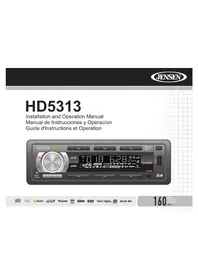
HD5313 - Car radio JENSEN - Free user manual and instructions
Find the device manual for free HD5313 JENSEN in PDF.



| Product type | Car stereo with HD Radio receiver |
| Brand | JENSEN |
| Model | HD5313 |
| Chassis dimensions | 178 x 178 x 50 mm (7 x 7 x 2 inches) |
| Weight | Approximately 1.5 kg |
| Power supply | 11 to 16 V DC, negative ground |
| Fuse | 15 A, ATO type |
| Output power | 4 x 50 W max (RMS not specified) |
| Signal-to-noise ratio | > 90 dB |
| Frequency response | 20 Hz - 20 kHz, -3 dB |
| Channel separation | > 60 dB |
| Supported audio formats | CD-DA, MP3, WMA |
| Supported media | CD-R/RW, SD card (up to 8 GB), USB flash drive |
| FM tuner | 87.5 - 107.9 MHz |
| AM tuner | 530 - 1710 kHz |
| HD Radio | Yes, with iTunes Tagging and multicast |
| iPod/iPhone connectivity | Via USB cable (30-pin), charge and control |
| Audio outputs | RCA front, rear and subwoofer |
| Equalizer | 5 preset curves: POP, JAZZ, CLAS, BEAT, ROCK |
| Display | Black STN LCD with blue LED backlight |
| Removable front panel | Yes, with carrying case |
| Auxiliary input | 3.5 mm jack on front panel |
| Operating temperature | -20 °C to 65 °C |
| Warranty | 12 months (parts and labor) |
Frequently Asked Questions - HD5313 JENSEN
User questions about HD5313 JENSEN
0 question about this device. Answer the ones you know or ask your own.
Ask a new question about this device
Download the instructions for your Car radio in PDF format for free! Find your manual HD5313 - JENSEN and take your electronic device back in hand. On this page are published all the documents necessary for the use of your device. HD5313 by JENSEN.
USER MANUAL HD5313 JENSEN
Introduction 1
Front Panel Release 2
Operation 3
Tuner Operation 5
CD Player Operation 8
MP3/WMA Operation 10
iPod Operation 13
Care and Maintenance 15
Troubleshooting 16
Specifications 17
CONTENIDO
Congratulations on your purchase of the Jensen HD5313 Mobile Receiver. It's a good idea to read all of the instructions before beginning the installation. We recommend having your Jensen HD5313 installed by a reputable installation shop.
Features
*HD Radio™ Technology with iTunes Tagging – Save Song Information from Most FM HD Radio Stations, 50 Song Memory Buffer, Transfers Song Information to iPod.
- iPod High Speed Direct Connect Interface via USB for Playlists, Artists, Albums and Songs. Power Management Charges iPod during iPod mode.
- SD Card Slot - Support for 8GB Media (Behind Front Panel)
- Front Panel Aux Input and USB - Supports Most Flash Memory Devices
- 5 Selectable EQ Curves - POP, JAZZ, CLAS, BEAT, ROCK
- Front, Rear and Sub RCA Line Outputs
- Black STN Liquid Crystal Display (LCD) with Blue LED Backlighting
*HD Radio™ Technology Manufactured Under License From iBiquity Digital Corporation. U.S. and Foreign Patents. HD Radio™ and the HD and HD Radio logos are proprietary trademarks of iBiquity Digital Corporation.
Precautions
NOTE: If the HD5313 is to be installed in a car equipped with an onboard drive or navigation computer, do not disconnect the battery cable. If the cable is disconnected, the computer memory may be lost. Under these conditions, use extra caution during installation to avoid causing a short circuit.
WARNING! Only connect the unit to a 12-volt power supply with proper grounding.
WARNING! Never install this unit where operation and viewing could interfere with safe driving conditions.
WARNING! Never disassemble or adjust the unit.
WARNING! Avoid installing the unit where it will be subject to excessive temperature, such as from direct sunlight or hot air from the heater, or where it will be subject to dust, dirt or excessive vibration.
WARNING! To prevent injury from shock or fire, never expose this unit to moisture or water.
WARNING! Never use irregular discs.
WARNING! Using an improper fuse may cause damage to the unit and result in a fire.
Technical Assistance
If you require assistance, contact Technical Support at 1-800-323-4815 from 9:00am to 6:00pm EST Monday through Friday.
JENSEN
HD5313
Front Panel Release
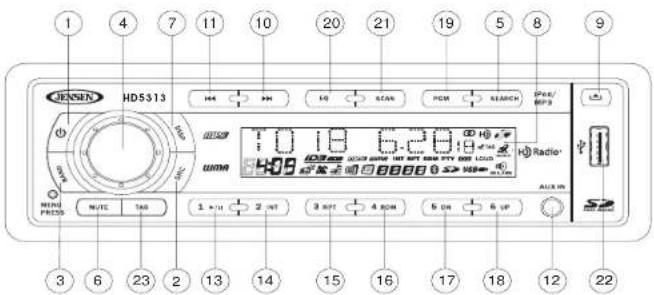
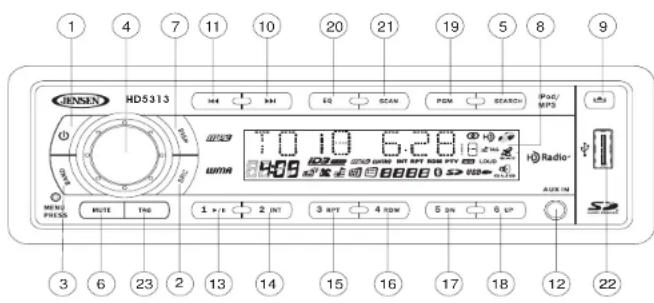
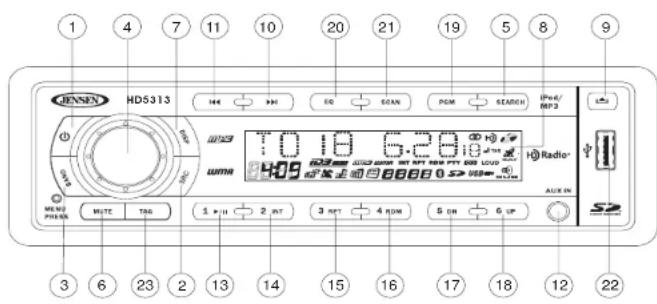
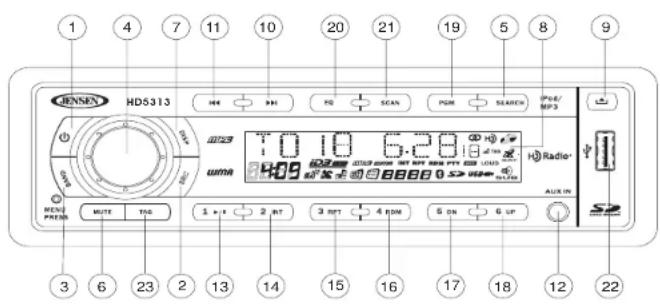
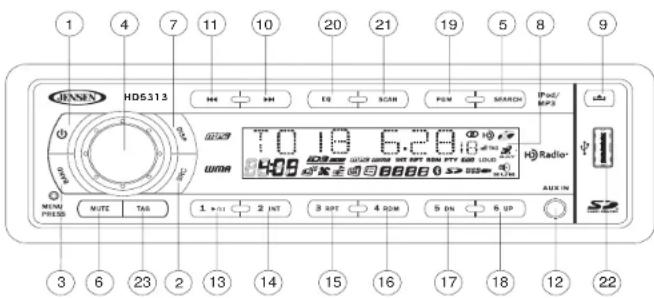
The 开 P button (9) releases the mechanism that holds the front panel to the chassis.
Detaching the Front Panel
To detach the front panel:
- Press the power button (1) to turn the unit off.
- Press the button (9) and allow the front panel to fold down.
- Pull to release the right side of the panel.
- Pull the left side of the panel to remove it.
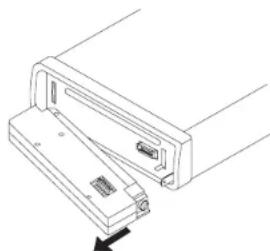
- After removing the front panel, store it in the supplied carrying case and take it with you when you leave the car.
Re-attaching the Front Panel
To re-attach the front panel, make sure the electrical terminals on the back of the panel are free of dust and dirt, as debris could cause intermittent operation or other malfunctions. Position the right side of the panel in place until correctly engaged, then lightly press the left side of the panel until the mechanism locks it into place.
Precautions when Handling the Front Panel
- Do not drop the front panel.
- Do not put pressure on the display or control buttons when detaching or re-installing the front panel.
-
Do not touch the contacts on the front panel or on the main unit body. It may result in poor electrical contact. Remove any dirt or foreign substances with a clean, dry cloth.
-
Do not expose the front panel to high temperatures or direct sunlight.
- Keep all volatile agents (e.g. benzene, thinner, or insecticides) from touching the front panel.
- Do not attempt to disassemble the front panel.
HD5313
JENSEN
Operation
Power
Press the (power) button (1) or any other button on the front of the radio (except release) to turn the unit on. Press the power button to turn the unit off.
Liquid Crystal Display (LCD)
The liquid crystal display (LCD) panel (8) displays the frequency, time and activated functions of the unit, including a disc indicator, which appears lit when a disc is inserted.
NOTE: LCD panels may take longer to respond when subjected to cold temperatures for an extended period of time. In addition, the visibility of the numbers on the LCD may decrease slightly. The LCD display will return to normal when the temperature increases to a normal range.
Mode
Press SRC (2) to select a different mode of operation, as indicated on the display panel. Available modes include HD RADIO/TUNER (FM1, FM2, FM3, AM1, AM2), CD, USB, SD CARD, iPod (if connected) and AUX (auxiliary).
NOTE: CD, USB, SD CARD and iPod modes are only available if the associated device or media is inserted.
Audio Mute
Press the MUTE button (6) to silence the audio volume. "MUTE" flashes in the display. Press any button to cancel MUTE.
Volume / Audio Control
To increase the volume, rotate the rotary encoder (4) clockwise. To decrease the volume, rotate the rotary encoder counter-clockwise. When volume is adjusted, the volume level will be shown on the display panel as a number ranging from "VOL 00" (lowest) to "VOL 100" (highest).
Press the rotary encoder repeatedly to step through the following audio: VOLUME, BASS, TREBLE, BALANCE, FADER and SUB W. The unit automatically exits audio control mode after five seconds of inactivity.
BASS
To adjust the bass level from -10^ to 10^ , press the rotary encoder until "BAS" appears on the display. Rotate the control clockwise to increase or counter-clockwise to decrease the bass. "00" represents a flat response.
TREBLE
To adjust the treble level from "10" to "10", press the rotary encoder until "TRB" appears on the display. Rotate the control clockwise to increase or counter-clockwise to decrease the treble. "00" represents a flat response.
BALANCE
To adjust the balance from "10L" (full left) to "10R" (full right), press the rotary encoder until "BAL" appears on the display. Rotate the control to adjust the balance between the left and right speakers. "L=R" represents a center balance.
FADER
To adjust the fader from "10F" (full front) to "10R" (full rear), press the rotary encoder until "FAD" appears on the display. Rotate the control to adjust the fader between the front and rear speakers. "F=R" represents an equal balance between the front and rear speakers.
SUBW
To turn the subwoofer on/off, press the rotary encoder until "SUBW" appears on the display. Rotate the control to choose "ON" or "OFF". "OFF" is the default setting.
Menu Operation
Press and hold the rotary encoder (4) to access the system menu.
Repeatedly press the rotary encoder button to access menu options in the following order:
- BEEP ON/OFF: The beep tone feature allows the selection of an audible beep tone to be heard each time a button is pressed on the face of the radio. "BEEP ON" is the default display. Turn the rotary encoder to select the "BEEP OFF" option.
- P--VOL: Turn the rotary encoder to select the default volume the radio will assume when first turned on.
- PCLK ON/OFF: When "ON", the clock and backlight will remain on when the unit is turned off.
- HOURS 12/24: This option allows selection of a 12 hour or 24 hour clock format. "HOURS 12" is the default setting. Turn the rotary encoder to change to the 24 hour clock format.
- DIMMER: Turn the rotary encoder to change the LCD backlight brightness from HIGH (default) to MIDDLE to LOW.
- LOCAL/DX (distant): If the stereo signal is intermittent, you can select "LOCAL" to access only strong local stations. "DX" is the default setting.
Equalizer
Press the EQ button (20) to choose one of the following pre-defined bass and treble curves: POP > JAZZ > CLAS > BEAT > ROCK > OFF .
Loudness
Press and hold the BAND button (3) toggle loudness on/off. When listening to music at low volumes, this feature will boost the bass and treble ranges to compensate for the characteristics of human hearing.
Auxiliary Input
To access an auxiliary device:
- Connect the portable audio player to the AUX IN jack on the front panel (12).
- Press the SRC button (2) to select AUX mode.
- Press SRC again to cancel AUX mode and go to the next mode.
Setting the Clock
If not already showing, press the DISP button (7) to display the clock. With the clock displayed, press and hold the DISP button and the time will flash on the display. Press the >> button (10) to adjust the hours or the |<< button (11) to adjust the minutes. When in "HOURS 12" mode, "AM" or "PM" will appear on the display to indicate AM or PM. When no adjustment is
made for five seconds, the time will become set and normal operation will resume.
Reset Button
The RESET button is located behind the front panel and should be activated for the following reasons:
- initial installation of the unit when all wiring is completed
- function buttons do not operate
- error symbol on the display
Use a ball point pen or thin metal object to press the RESET button. This may be necessary should the unit display an error code.
HD5313
JENSEN
Tuner Operation
Press the SRC button (2) to switch to HD RADIO mode.
About HD Radio™ Technology
HD Radio technology allows CD-quality digital broadcasting of your local AM and FM radio stations. HD Radio broadcasts can include multiple channels on the same frequency, which is called multicasting. With multicast, you can receive up to three additional multicast channels: HD2, HD3, HD4. With your HD5313 radio, you will receive HD Radio digital broadcasts automatically when tuned to a station that offers HD Radio technology.
Select a Band
Press the BAND button (3) to change between three FM bands and two AM band. Each band stores up to six preset stations.
Tuning
When tuning to an HD Radio channel, "LINKING" may appear on the LCD while the initial digital information is received. Once linked, "Hd1" appears in the bottom center of the LCD.
NOTE: Not all FM or AM stations offer HD Radio (digital) broadcasting. You will receive both analog and digital stations with the HD5313.
Manual Tuning
Press the >>| (10) or |<< (11) button for more than three seconds to enter manual tuning mode, then press the >>| or << buttons to move the radio frequency number up or down one step.
Auto Seek Tuning
Press the >>| (10) or |<< (11) button to automatically seek the next station.
HD Radio Multicast Channels
To tune to an HD Radio multicast channel, tune to the main signal and then press the PGM button (19). If a subchannel is available, the corresponding multicasting number appears in the bottom left corner of the LCD.
Analog/Digital Reception
Press and hold the PGM button to change between "Auto", "Digital" and "Analog". When set to "AUTO", the station will first be received in Analog but will change to Digital when a digital signal is detected and the HD icon will illuminate. If the digital signal becomes unavailable, the unit will revert to Analog reception. In "Auto" or "Digital" mode, the HD icon flashes until a digital signal is received, and remains lit during digital HD Radio reception.
NOTE: Digital signals are not as strong as traditional analog signals. When tuned to a digital HD Radio station, the signal may begin to fade in rural areas. In this case, switching to analog tuning will eliminate signal fading issues. However, you will not receive digital or HD Radio Multicast stations in analog mode.
Preset Stations
Six numbered preset buttons store and recall stations for each band.
Store a Station
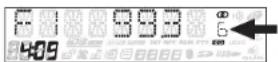
Select a band (if needed), then select a station. Hold a preset button (13-18) for three seconds. The preset number will appear in the display.
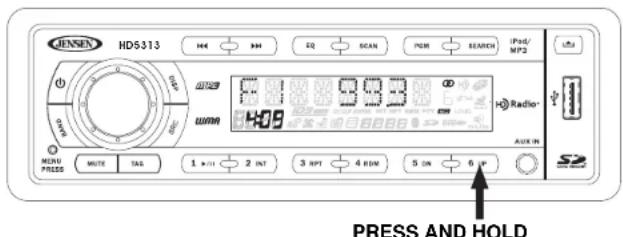
PRESET NUMBER APPEARS
NOTE: HD Radio multicast channels can be stored as preset stations.
Recall a Station
Select a band (if needed). Press a preset button (13-18) to select the corresponding stored station.
Scan
Press the SCAN button (21) to scan the current AM or FM band. The unit will pause for 5 seconds at each station. Press the SCAN button again to stop scanning when the desired station is reached.
Broadcast Information
During HD Radio broadcasting, available broadcast information will automatically appear on the LCD. Press the DISP button (7) multiple times to view broadcast information in the following order:
Band/Frequency
- Station Call Letters
- S o n g
A r t i s t
RDS Category
The information will scroll across the screen if longer than 8 characters.
NOTE: The amount of information displayed when receiving an HD Radio signal is dependent upon what is being broadcast. Some stations broadcast their call letters (name), the artist's name, song title, and category of music.
iTunes Tagging
The HD5313 offers iTunes® Tagging, which allows the user to "Tag" songs playing on HD Radio™ stations for purchase later through iTunes. When the TAG button (23) is pressed, the unit stores the title and artist song information that can then be transferred to your iPod when connected to the USB connector. A list titled "Tagged" will appear in iTunes, allowing you the option to purchase your tagged songs.
iPod Compatibility
Models supported, but not limited to, include the following
- iPod Nano 4G
- iPod Classic
iPod Touch - iPod Nano 3G
Tagging Music
To begin tagging music, tune to an HD Radio station. The "TAG" icon must be illuminated, indicating a digital station is being received. Press the TAG button. The song information is saved to the head unit memory until an iPod is connected. When the tag is successful, the screen displays "TAG SENT". You can tag up to 50 songs before the tags must be transferred to an iPod or deleted. When the Tag memory reaches capacity (50 tags) the screen displays "STORED FULL".
Table 1: TAG Messages
| Tag Message Reason | |
| TAG NOT AVAILABLE Make sure HD Radio signal is being received. | |
| ALREADY STORED Song has already been tagged. You cannot save the same song twice unless you tag it on a differ-ent station. | |
| IPOD ERR iPod error. Check iPod. | |
| TRANSFER FAILD Error sending tags to the iPod. Make sure iPod is powered on and reconnect until "TAG SENT" is displayed. | |
HD5313
JENSEN
Table 1: TAG Messages
| Tag Message Reason | |
| THIS IPOD NOT SUPPORT TAG | iPod is not compatible for tagging. Check list of compatible iPods. |
| IPOD IS FULL Not enough space on iPod to store tags. | |
| STORED FULL Head unit memory is full. | |
NOTE: Tags saved to your iPod can be managed using the iTunes software, available at www.apple.com/ iTunes.
Downloading Tags to your iPod
To download tags to your iPod, plug an iPod into the USB connector. All existing tags are automatically transferred to the iPod and deleted from the head unit's memory. If an iPod is connected when a song is tagged, the Tag will be immediately transferred to the iPod.
NOTE: When transferring Tags to an iPod, the head unit must remain in Radio mode until the "TAG SENT" message is displayed. To purchase tagged songs, you must sync your iPod to iTunes and then click the "Tagged" list on the left side of the iTunes software screen. Click the "view" button for purchasing information.
Erase Tags Stored on Head Unit
To delete all tags stored on the head unit, press and hold the TAG button for 5 seconds. When "DEL TAG" appears on the display, push the rotary encoder to confirm the tag erase operation. When all tags have been deleted, "DEL OK" appears on the screen.
CD Player Operation
CD mode can only be accessed when a disc is inserted. If a disc is already in place, press the SRC button (2) to access CD mode and begin playback automatically.
Insert CD
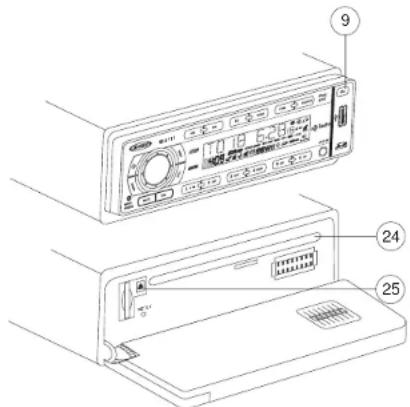
Press the button (9) and allow the front panel to fold down to display the disc slot. With the label surface facing up, fully insert a compact disc into the slot until the mechanism engages and pulls the disc in. After inserting a disc, lift the front panel up to return it to the closed position and begin playing the disc.
Eject CD
To eject a disc, first press the button (9) and allow the front panel to fold down to display the disc slot (24).
Press the eject button (25) located to the left of the disc slot to eject the disc. If the disc is not removed from the unit within 15 seconds, the disc will be reloaded to prevent accidental damage.
NOTE: The unit is designed for play of standard 5^ (12 cm.) compact discs only. Do not attempt to use 3^ (8 cm.) CD singles in this unit, either with or without an adaptor, as damage to the player and/or the disc may occur. Such damage will not be covered by the warranty on this product.
Pause
Press the 1/>/|| button (13) to suspend disc play. Press the play/pause button again to resume disc play.
Track Select
Press the >>| (10) or |<< (11) button for less than one second to advance to the next track on the CD. The selected track number will appear on the
display. Press and hold the >>| (10) or | (11) button for more than one second to fast forward or fast reverse through the disc. CD play starts when the button is released.
Intro Scan (INT)
During disc play, press 2/INT (14) to play the first 10 seconds of each track on the disc. When the desired track is reached, press 2/INT again to end the scan and play the selected track.
Repeat (RPT)
Press 3/RPT (15) during disc play to continuously repeat the track. Press 3/RPT again to stop repeating.
Random (RDM)
Press 4/RDM (16) during disc play to play all tracks on a CD in random, shuffled order. Press 4/RDM again to stop random play.
Display ID3 Tag Information
Press the DISP button (7) to display any text encoded on the CD (song title, artist, etc.).
CD Player Error Codes
If a problem should develop while operating the CD player, one of the following error codes may appear on the display panel:
- ERROR-1: Mechanical error (insert disc/eject disc)
- ERROR-2: Servo disc error
HD5313

- ERROR-3: Servo DSP error
- ERROR-4: USB Error
- NO FILE: The media source (CD, USB, SD CARD) contains no media files
-
IPOD ERR: iPod authentication error or connected iPod not supported
-
INVALID: Action not applicable (i.e. 5 DN/6 UP pressed when disc has no folders)
If an error code should appear, try ejecting and reloading the disc or device into the player. While the media source is out of the unit, make sure it is clean and undamaged, and then load it correctly. If this does not solve the problem, pressing the reset button may help, but will erase the time and preset memory. If the suggested measures do not solve the problem, contact an authorized warranty station near you or contact customer service at 1-800-323-4815 for further assistance.
Electronic Shock Protection (ESP)
This unit is equipped with electronic shock protection as follows:
CD-DA: About 10Sec (Non compressed mode)
About 34Sec (Compressed mode)
MP3: About 20Sec (@44.1KHz/128Kbps)
About 10Sec (@44.1KHz/256Kbps)
WMA: About 22Sec (Regardless of Bitrate)
MP3/WMA Operation
MP3 and WMA (Windows Media Audio) music files are digital audio files that are compressed to allow more files on a single CD. This unit can play MP3/WMA directly from files contained on a CD-R/RW, SD card or USB device using the buttons on the receiver as described below. Many types of software are available for converting audio files into MP3/WMA formats. Jensen recommends Nero or Roxio Easy CD Creator. Depending on the media type and recording method, some CD-R/RWs may be incompatible with this unit. This unit supports playback of MP3/WMA and CDDA (CDA), Mixed-Mode CDs and CD-Extra (including multi-session discs). Discs on which the session has not been closed will not play.
Notes on MP3/WMA Play
This unit can play MP3 (MPEG1, 2, 2.5 Audio Layer 3). However, the MP3 recording media and accepted formats are limited. When writing MP3/WMA, pay attention to the following restrictions.
Acceptable Media
The MP3/WMA recording media acceptable to this unit are CD-ROM, CD-R and CD-RW, SD cards and USB devices. When using CD-RW, use full format rather than quick format to prevent malfunction.
Acceptable Medium Formats
The following formats are available for the media used in this unit. The maximum number of characters used for file name including the delimiter (".") and three-character extension are indicated in parentheses.
ISO 9660 Level 1 (11 characters)
ISO 9660 Level 2 (31 characters)
- Joliet (unicode)
Up to 200 characters can be displayed in the long file name format. For a list of available characters, see the instruction manual of the writing software and the section "Entering File and Folder Names" below. The media reproducible on this unit has the following limitations:
Maximum number of nested folders: 8
Maximum number of files per disc: 999
Maximum number of folders per disc: 255 (256 for USB/SD) Maximum number of files per media device: 9999
MP3/WMA written in formats other than those listed above will not play successfully and their file names or folder names will not be displayed properly.
MP3/WMA Encoder and CD Writer Settings
Use the following settings when compressing audio data in MP3 data with the MP3 encoder.
- Sampling bit rate: MP3/WMA: 16~320 Kbps & VBR
- Sampling frequency: MPEG1: 32/44.1/48 KHz, MPEG2: 16/22.05/24 KHz, MPEG2.5: 8/11.025/12 KHz, WMA: 22.05/32/44.1/48 KHz.
When using a CD writer to record MP3/WMA up to the maximum disc capacity, disable additional writing. To record an empty disc up to the maximum capacity at once, select the "disc at once" option.
Entering ID3 Tag
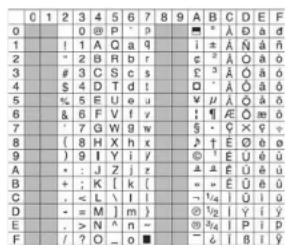
This unit supports ID3 versions 1.0, 1.1, 2.0 and 2.3 (Max 64 bytes). For the character codes, refer to the table to the right.
Entering File and Folder Names
Names using the code list characters are the only file names and folder names that can be entered and displayed. Using any other character will cause the file and folder names to be displayed incorrectly. The unit
recognizes and plays only files with the MP3/WMA extension.
NOTE: A file name entered with characters not on the code list may not play correctly.
Writing Files into a Medium
When a medium containing MP3/WMA data is loaded, the unit checks all data. If the medium contains many folders or non-MP3/WMA files, MP3/WMA play will be delayed, it may take time for the unit to move to the next file, and searches may not be performed smoothly or it may not play at all. Loading such a medium may produce loud noise and cause damage to the speakers. Do not attempt to play a medium containing a non-MP3/WMA file with the MP3/WMA extension or a medium containing non MP3/ WMA files.
Bit Rates
The unit supports bit rates from 16 - 320 kbps.
HD5313
JENSEN
File Playing Order
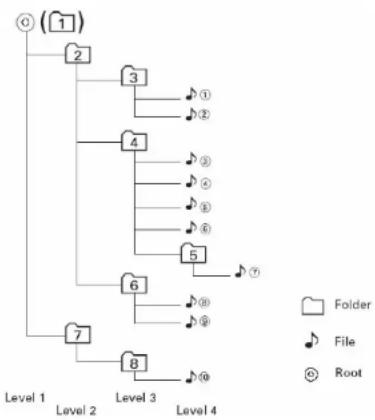
When selected for play, files and folders are accessed in the order they were written by the CD writer. As a result, the order in which they are expected to be played may not match the order in which they are actually played. You may be able to set the order in which MP3/WMA are to be played by writing them onto a medium such as a CD-R with their file names beginning with play sequence numbers such as "01" to "99".
For example, a medium with the following folder/file hierarchy is subject to File or Track Search, as shown below.
Loading an MP3/ WMA Disc
Press the button (9) to lower the front panel, then Insert an MP3/WMA disc. After the disc is loaded, the track number and elapsed time will appear, then the display will scroll through any ID3 Tag information while the file is playing. If the disk contains ID3 tag information, you can scroll through it by pressing the DISP button (7). If no ID3 tag information is available, the unit will display the elapsed time. When ID3 information is available, the display will alternate between track name and format/track number.
Installing a USB Device
Insert your USB thumb drive into the USB slot (22) on the front of the radio. The unit will automatically search for MP3 and WMA files on the device and
begin playback. You can access USB mode from any other mode by pressing the SRC button (2). "USB" is displayed on the LCD. The "USB" icon flashes in the bottom right corner of the display when a USB device is being read and remains lit while inserted.
NOTE: Not all USB devices are supported by this unit. Standard USB memory sticks approved by Microsoft are supported.
WARNING: Do not remove the device when USB PLAY mode is active. Press SRC (2) to change to another mode before removing the device.
Loading an SD Card
Insert the SD card, with the label facing the right side, into the SD slot located behind the front panel. Close the front panel when finished.
The unit will read the files on the card automatically. The "SD" icon flashes in the bottom right corner of the display when an SD card is being read and remains lit while inserted.
To remove the card, first press the SRC button (2) to switch to another mode and stop SD playback. Press in on the card to eject it, and then pull it straight out. Most cards have a thin recess that helps with removal.
Pause
Press the 1/>| button (13) to suspend file play. Press the play/pause button again to resume play.
JENSEN
HD5313
Track Select
Press the >>| (10) or | (11) button for less than one second to advance to the next track, or press and hold to fast forward or fast reverse through the disc. Disc play starts when the button is released.
Navigating Folders
Press the 5 DN and 6 UP buttons (17, 18) to move forward or backward 10 tracks. Press and hold to move to the next or previous folder/director.
Intro Scan (INT)
- Press the INT button (14) to select "INT FOLD" and play the first 10 seconds of each track in the current folder.
- Press INT again to select "INT ON" and play the first 10 seconds of each track.
- When the desired track is reached, press INT again to end the scan and play the selected track.
Repeat (RPT)
- Press the RPT button (15) to select "RPT FOLD" and repeatedly play the current folder.
- Press RPT again to select "RPT ON" and repeatedly play the current file/track.
- Press RPT a third time to choose "RPT OFF" and resume normal playback.
Random (RDM)
- Press the RDM button (16) to select "RDM FOLD" and randomly play the current folder.
- Press RDM again to select "RDM ON" and randomly play all files.
- Press RDM a third time to choose "RDM OFF" and resume normal playback.
MP3/WMA File or Folder Search
The unit offers two methods of searching for files or folders:
Direct File Number Search
- Press the SEARCH button (5). The LCD will display "TRK 001", allowing you to enter up to a 3-digit track number. The third digit position is active (blinking) when you first press the Search button.
- Turn the rotary encoder (4) to select the third digit of the track number.
- Press the rotary encoder to confirm and move to the second digit, or press and hold to play the selected track.
-
Turn the rotary encoder to select the second digit of the track number.
-
Press the rotary encoder to confirm and move to the first digit, or press and hold to play the selected track.
- Turn the rotary encoder to select the first digit of the track number.
- Press and hold the rotary encoder to confirm and play the selected track.
Navigation Search
Press the SEARCH button (5) twice. The LCD will display "NAVIGATE". Turn the rotary encoder (4) to navigate through all folders and sub-folders on the disc. The folder names will be displayed on the LCD. Press the rotary encoder to access the sub-folders or files. Turn the rotary encoder to navigate, and then press the rotary encoder to confirm and begin file play. During navigation search, turn the rotary encoder counter-clockwise to return to the previous folder level.
Display Information
Press the DISP button (7) to display the clock or available ID3 information, as follows: song title, directory name, artist name, etc.
HD5313
JENSEN
iPod Operation
Accessing iPod Mode
This unit is equipped with an iPod ready function that will allow you to control your iPod (if compatible) using the front panel control buttons. The following iPod versions are supported:
- iPod Nano 4G
- iPod Classic
·iPo dTouc h
- iPod Nano 3G
NOTE: Use the Apple 30-pin iPod to USB cable that came with your iPod to connect the iPod to the USB connector.
The unit will automatically switch to iPod mode when an iPod is plugged into the USB connector. To return to the iPod menu from any other source menu, press the SRC button (2) on the front panel until "IPOD" appears on the display.
NOTE: The HD5313 will not select video files regardless of whether or not a video file was the last file playing when the iPod was plugged into the radio. Only music files are supported.
Turning the iPod On/ Off
The iPod power turns on automatically when the iPod is connected to the 30-pin iPod cable, as long as the automobile ignition is turned on. You can turn the iPod off by disconnecting it from the cable or by turning the ignition
off. When the ignition is turned off, the iPod will pause and then enter sleep mode after 2 minutes.
NOTE: When connected, the iPod will continuously recharge when the unit is in iPod mode, as long as the vehicle ignition is turned on.
Display Information
iPod song information, when available, appears on the LCD screen automatically during playback. Press the DISP button (7) to manually display iPod playback information in the following order:
Track/Elapsed Time
Clock
Song TITLE
·ARTIST
- CATEGORY (Album Name)
Play/Pause
Press the 1/>/| button (13) to suspend or resume play. "PAUSE" flashes on the display when paused.
Track Selection
Select a Track
Press the >>| (10) or | << (11) for less than 1 second to advance to the next song in the current category. When a song has been playing for at least one second, press the | << (11) to replay the song from the beginning. When a song has been playing for more than one second, you must press | << twice to move to the previous file.
Fast Forward / Fast Reverse
Press and hold the >>| (10) or |<< (11) for more than 1 second to fast forward or fast reverse. Playback begins when the button is released.
Repeat (RPT)
Press the RPT button (15) once during disc play to select "REPEAT SONG" and continuously repeat the selected song.
Press RPT twice to select "RPT ALBM" and continuously repeat the entire album/folder.
Press RPT a third time to select "RPT OFF" and stop the repeat function.
Random (RDM)
Press the RDM button (16) to select "RDM ALL" and randomly play the files in all folders.
Press the RDM button again to select "RDM ALBM" and randomly play the files in the current album (folder).
Press RDM a third time to select "RDM OFF" and to stop the shuffle function.
Category Search Mode
- During iPod playback mode, press the SEARCH button (5) to enter iPod Category Search Mode.
- Turn the rotary encoder (4) to access categories in the following order:
- Playlist
- Podcast
A r t i s t
A b u m
Genre - S o n g
Composer - After selecting the desired category, press the rotary encoder button (4) within 5 seconds to confirm.
- Turn the rotary encoder (4) to browse songs or folders in the current category.
- Press the rotary encoder button within 5 seconds to select a category/ song.
- Repeat steps 4 and 5 until the desired song is played.
HD5313
JENSEN
Care and Maintenance
CD Player
The following guidelines will help you extend the life of your CD player:
- When cleaning the vehicle interior, do not get water or cleaning fluids on the unit.
- The CD player will not operate properly in extreme hot/cold or under damp conditions. In case of such conditions, wait until the vehicle interior reaches a normal temperature or any condensation on the disc player lens has evaporated before using the player.
- Never insert anything other than round 5" CDs into the player. Attempting to insert CDs of other sizes (even with an adaptor) will cause damage not covered by the warranty.
- Always remove the CD when the player is not is use.
- The unit is designed with a vibration dampening CD mechanism to minimize interruption of disc play due to normal vibration in a moving vehicle. However, occasional sound skips may occur when driving on very rough roads. This will not scratch or damage the disc, and normal play will resume when the rough conditions cease.
Compact Discs
CD-R and CD-RW Capability
Depending on media type and method of "recording/burning", some CD-R/ RWs may be incompatible with this unit. After "recording/burning", the session must be closed. Please refer to your software's recommended procedures for closing a disc/session. Review your recording software to familiarize yourself with the correct "recording/burning" procedures. We recommend using the latest versions of ROXIO™ or NERO™ burning software.
In addition, this unit will only recognize the CDDA (Compact Disc Digital Audio). MP3 and .WMA formats "recorded / burned" onto a CD-R RW. This unit does not support .WAV, .OGG or other formats.
CD Care and Handling
Dirt, dust, scratches and warpage can cause skips in the playback and deterioration of sound quality. Please follow these guidelines to take care of your compact discs.
- Carefully wipe fingerprints, dust and dirt from the disc's playing surface with a soft cloth. Wipe in a straight motion from the inside to the outside of the disc.
-
Never use chemicals such as record sprays or household cleaners to clean CDs, as they can irreparably damage the disc's surface.
-
Discs should be kept in their storage cases when not in use.
- Do not expose discs to direct sunlight, high temperatures or high humidity for long periods.
- Do not stick paper, tape or CD labels on disc surfaces, as internal damage may occur.
Troubleshooting
| Problem Cause | Corrective Action | |
| Does not operate (display does not light) | No power to yellow wire; no power to red wire | Check connection with test light: check vehicle fuse with test light |
| Fuse blown Replace fuse | ||
| Front panel not installed properly | Reinstall front panel | |
| No power to unit Fuse | blown Check/replace fuse | |
| Not all speakers operate | Incorrect splices or connections | Check all splices and connections |
| Speaker wires shorting to chassis ground or to each other | Check splices, insulate all bare wires | |
| Blows fuses Power wire | wire shorting to ground | Make sure wire is not pinched |
| Speaker wires shorting to ground | Make sure wire is not pinched | |
| Incorrect fuse/fuse too small | Install fuse of correct rating | |
| CD skips too much Receiver | Receiver mount is not solid or backstrap is not secure | Check mounting and strap, tighten if needed |
| Installation angle more than 30% | Adjust angle to less than 30% | |
| ERROR 1 Mechanism | error Press reset button | |
| No File No supported | filesfound on disc/card | Insert different disc card with appropriate file type |
| Disc error Disc dirty, scratched, upside down | Replace with clean, properly installed disc | |
HD5313

Specifications

CEA Power Ratings
Power Output 13 Watts RMS x 4 channels into 4-Ohms @ < 1% THD+N
Signal to Noise Ratio. .70dBA below reference (Reference: 1 Watt, 4-Ohms)
Frequency Response 20 Hz - 20 kHz, -3dB. (Aux Input used as reference input)
Reference Supply Voltage. 14.4VDC
CD Player
Compatible Disc Media CD-R/RW
Compatible Media Formats. CD-DA, MP3, WMA
Signal to Noise Ratio @ 1 kHz >90dB
Frequency Response 20Hz to 20 kHz, -3dB
Channel Separation >60dB @ 1 kHz
D/A Converter 1bit/channel
FM Tuner
Tuning Range 87.5MHz - 107.9MHz
Mono Sensitivity (-30dB) 10dBuV
Quieting Sensitivity (-50dB) 15dBuV
Signal to Noise Ratio @ 1 kHz 58dB
Stereo Separation @ 1 kHz. >30dB
Frequency Response 30Hz -12kHz, -3dB
AM Tuner
Tuning Range 530 kHz - 1710 kHz
Sensitivity (-20dB) 15uV
Signal to Noise Ratio @ 1 kHz 50dB
Frequency Response 100Hz-2kHz,-3dB
Auxiliary Input
Input Sensitivity. 400mV RMS for 1 watt RMS into 4-ohms
Frequency Response 20Hz to 20kHz, -3dB
Input Impedance 10k ohms
General
Power Supply 11 to 16VDC, negative ground
Power Antenna (Blue) .500mA max, current limited protection
Operating Temperature 20C\~65C
Fuse 15-amp, ATO type
DIN chassis dimensions. 7" X 7" X 2" (178mm x 178mm x 50mm)
Specifications subject to change without notice.
HD5313
JENSEN
Introduccion
Electronic Shock Protection (ESP)
Allumer/ Eteindre I'iPod
Reproduction/ Suspension
Sortie puissance 13 Watts RMS x 4 channels into 4-Ohms @ < 1% THD+N
Rapport signal au bruit 70dBA below reference (Reference : 1 Watt, 4-Ohms)
Réponse en fréquence 0 Hz - 20 kHz, -3dB. (Aux Input used as reference input)
Voltage de reference. 14.4VDC
Lecteur CD
Disque Media Compatible. CD-R/RW
Formats Media Compatiblees CD-DA, MP3, WMA
DO NOT RETURN THIS PRODUCT TO THE STORE
Audiovox Electronics Corporation ("the Company") is committed to quality and customer service, and are pleased to offer you this Warranty. Please read it thoroughly and contact the Company at 1-800-323-4815 with any questions.
Who is covered?
The Company extends this warranty to the original retail purchaser of products purchased through an authorized Audiovox retailer in the U.S.A., Puerto Rico or Canada. This warranty is not transferable or assignable. Proof of purchase is required in the form of an original sales receipt.
What is covered?
The Company warrants that should this product or any part thereof, under normal use, be proven defective in material or workmanship within 12 months from the date of original purchase, such defect(s) will be repaired or replaced with a new or reconditioned product (at the Company's option) without charge for parts and repair labor.
What is not covered?
This Warranty does not cover the following:
- Damage incurred during shipping or transporting the product to the Company or a service center
- Elimination of car static or motor noise
- Defects in cosmetic, decorative or non-operative structural parts
- Correction of antenna problems
Costs incurred for installation, removal or reinstallation of the product
- Consequential damage to compact discs, USB devices, digital media cards, accessories or vehicle electrical systems
- Damage caused by improper installation, mishandling, misuse, neglect, accident, blown fuse, battery leakage, theft or improper storage
- Products whose factory serial number/bar code label(s) or markings have been removed or defaced
- Damage resulting from moisture, humidity, excessive temperature, extreme environmental conditions or external natural causes
Please review the "Care and Maintenance" section of your Installation and Operation Manual for additional information regarding the proper use of your product.
Limitations
THE EXTENT OF THE COMPANY'S LIABILITY UNDER THIS WARRANTY IS LIMITED TO THE REPAIR OR REPLACEMENT PROVIDED ABOVE AND, IN NO EVENT, SHALL THE COMPANY'S LIABILITY EXCEED THE PURCHASE PRICE PAID BY PURCHASER FOR THE PRODUCT.
This Warranty is in lieu of all other express warranties or liabilities. ANY IMPLIED WARRANTY, INCLUDING ANY IMPLIED WARRANTY OF MERCHANTABILITY, SHALL BE LIMITED TO THE DURATION OF THIS WRITTEN WARRANTY. ANY ACTION FOR BREACH OF ANY WARRANTY HEREUNDER INCLUDING ANY IMPLIED WARRANTY OF MERCHANTABILITY MUST BE BROUGHT WITHIN A PERIOD OF 24 MONTHS FROM DATE OF ORIGINAL PURCHASE. IN NO CASE SHALL THE COMPANY BE LIABLE FOR ANY CONSEQUENTIAL OR INCIDENTAL DAMAGES FOR BREACH OF THIS OR ANY OTHER WARRANTY, EXPRESS OR IMPLIED, WHATSOEVER. No person or representative is authorized to assume for the Company any liability other than expressed herein in connection with the sale of this product.
Some states do not allow limitations on how long an implied warranty lasts or the exclusion or limitation of incidental or consequential damage so the above limitations or exclusions may not apply to you. This Warranty gives you specific legal rights and you may also have other rights which vary from state to state.
Obtaining Warranty Service
- To obtain repair or replacement within the terms of this Warranty, call 1-800-323-4815 for the location of a warranty station serving your area.
- You must prepay the initial shipping charges to the Company. The Company will pay the return shipping charges for all warranted products returned to an address within the U.S.A., Puerto Rico or Canada.
- Please package the product securely to avoid shipping damage. We recommend using a carrier that provides tracking service to prevent lost packages. Lost or damaged packages are not covered by this warranty.
- Provide a detailed description of the problem(s) for which you require service.
Garantía Limitada
NE RENVOYEZ PAS CE PRODUIT AU MAGASIN
Audiovox Electronics Corporation
Hauppauge, NY 11788
Technical Assistance: 1-800-323-4815
www.jensen.com
© 2009 Audiovox
Ver.072909
Printed in China

- CONTENIDO
- Features
- Precautions
- Technical Assistance
- JENSEN
- HD5313
- Front Panel Release
- Detaching the Front Panel
- Re-attaching the Front Panel
- Precautions when Handling the Front Panel
- Operation
- Power
- Liquid Crystal Display (LCD)
- Mode
- Audio Mute
- Volume / Audio Control
- BASS
- TREBLE
- BALANCE
- FADER
- SUBW
- Menu Operation
- Equalizer
- Loudness
- Auxiliary Input
- Setting the Clock
- Reset Button
- Tuner Operation
- About HD Radio™ Technology
- Select a Band
- Tuning
- Manual Tuning
- Auto Seek Tuning
- HD Radio Multicast Channels
- Analog/Digital Reception
- Preset Stations
- NOTE: HD Radio multicast channels can be stored as preset stations.
- Recall a Station
- Scan
- Broadcast Information
- iTunes Tagging
- iPod Compatibility
- Tagging Music
- Downloading Tags to your iPod
- Erase Tags Stored on Head Unit
- CD Player Operation
- Insert CD
- Eject CD
- Pause
- Track Select
- Intro Scan (INT)
- Repeat (RPT)
- Random (RDM)
- Display ID3 Tag Information
- CD Player Error Codes
- Electronic Shock Protection (ESP)
- MP3/WMA Operation
- Notes on MP3/WMA Play
- Acceptable Media
- Acceptable Medium Formats
- MP3/WMA Encoder and CD Writer Settings
- Entering ID3 Tag
- Entering File and Folder Names
- Writing Files into a Medium
- Bit Rates
- File Playing Order
- Loading an MP3/ WMA Disc
- Installing a USB Device
- Loading an SD Card
- Navigating Folders
- MP3/WMA File or Folder Search
- Direct File Number Search
- Navigation Search
- Display Information
- iPod Operation
- Accessing iPod Mode
- Turning the iPod On/ Off
- Play/Pause
- Track Selection
- Select a Track
- Fast Forward / Fast Reverse
- Category Search Mode
- Care and Maintenance
- CD Player
- Compact Discs
- CD-R and CD-RW Capability
- CD Care and Handling
- Specifications
- CEA Power Ratings
- FM Tuner
- AM Tuner
- General
- Introduccion
- Allumer/ Eteindre I'iPod
- Reproduction/ Suspension
- Lecteur CD
- DO NOT RETURN THIS PRODUCT TO THE STORE
- Who is covered?
- What is covered?
- What is not covered?
- Limitations
- Obtaining Warranty Service
- Garantía Limitada
- NE RENVOYEZ PAS CE PRODUIT AU MAGASIN
Brand : JENSEN
Model : HD5313
Category : Car radio