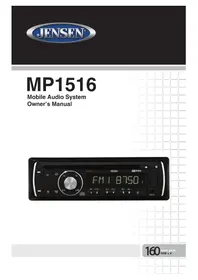
MP1516 - Car stereo JENSEN - Free user manual and instructions
Find the device manual for free MP1516 JENSEN in PDF.



| Product Type | Car stereo with CD/MP3/WMA player, AM/FM tuner, USB port, SD card reader, auxiliary input, iPod/iPhone compatibility |
| Brand and Model | JENSEN MP1516 |
| Dimensions (W x H x D) | 178 x 51 x 170 mm (7 x 2 x 6.7 inches) - DIN format |
| Power Supply | 11-16 V DC, negative ground |
| Output Power | 13 W RMS x 4 channels into 4 ohms (CEA standard) |
| Signal-to-Noise Ratio | >90 dBA (CD player), 70 dBA (radio) |
| Radio Functions | AM/FM with RDS/EON, 30 presets (18 FM, 12 AM), automatic and manual tuning |
| Supported Audio Formats | CD, CD-R/RW, MP3, WMA (via CD, USB, SD) |
| Inputs | USB (front), SD/MMC (behind faceplate), 3.5 mm auxiliary input, iPod/iPhone connector |
| Playback Functions | Repeat, random, scan, folder search, ID3 tag display |
| Detachable Faceplate | Yes, with release button and protective case |
| Remote Control Included | Yes, CR2025 battery included |
| Display | LCD backlit, white |
| Safety Features | 10 A ATO fuse, short-circuit protection, automatic volume mute in emergency |
| Maintenance and Cleaning | Clean faceplate with silicone cloth and mild detergent; avoid water and solvents |
| Common Spare Parts | User guide (30613840), wiring harness (30313840), trim ring (30413840), main sleeve (30113840), hardware bag (30513840), remote control (30713840) |
| Operating Temperature | -10 °C to 60 °C |
| iPod/iPhone Compatibility | iPod touch 4G, iPhone 4S and earlier models (with original cable) |
Frequently Asked Questions - MP1516 JENSEN
User questions about MP1516 JENSEN
0 question about this device. Answer the ones you know or ask your own.
Ask a new question about this device
Download the instructions for your Car stereo in PDF format for free! Find your manual MP1516 - JENSEN and take your electronic device back in hand. On this page are published all the documents necessary for the use of your device. MP1516 by JENSEN.
USER MANUAL MP1516 JENSEN
Mobile Audio System Owner's Manual
Thank you for choosing a Jensen product. We hope you will find the instructions in this owner's manual clear and easy to follow. If you take a few minutes to look through it, you'll learn how to use all the features of your new Jensen MP1516 Mobile Audio System for maximum enjoyment.
Made for

iPod iPhone
"Made for iPod" and "Made for iPhone" means that an electronic accessory has been designed to connect specifically to iPod or iPhone, respectively, and has been certified by the developers to meet Apple performance standards. Apple is not responsible for the operation of this device or its compliance with safety or regulatory standards. Please note that the use of this accessory with iPod or iPhone may affect wireless performance.
iPod and iPhone are trademarks of Apple Inc., registered in the U.S. and other countries..
WARNING! Stop your vehicle before carrying out any operation that could interfere with your driving.
WARNING! Never disassemble or adjust the unit. Do not attempt to modify the unit. Modifying the unit may cause an accident.
WARNING! To prevent injury from shock or fire, never expose this unit to moisture or water.
WARNING! Never use irregular discs.
WARNING! Do not turn on the unit if the temperature inside the vehicle is below -4^ (-20°C) or above 140^ (60°C).
WARNING! When replacing a fuse, the replacement must be the same amperage as shown on the fuse holder. Never replace a fuse with another fuse of a different value. Do not use a fuse with a higher amperage rating than the fuse originally supplied with your unit, otherwise damage to the unit or a fire will result.
CONTENTS
FEATURES 4
WARNING BEFORE INSTALLATION 5
INSTALLATION TOOLS 7
BEFORE YOU INSTALL 7
Remove the Old Unit from the Dashboard 8
Mark the Polarity of the Speaker Wires 8
INSTALLATION 9
DIN Front/Rear Mount 9
USING THE DETACHABLE FACEPLATE 12
Removing the Faceplate 12
Installing the Faceplate 13
WIRING CONNECTIONS 14
CONTROLS AND INDICATORS 16
Battery Installation 19
Using the Remote Control 19
Remote Control Functions 20
BASIC OPERATION 22
Turning the Unit On of Off 22
Selecting an Audio Source 22
Volume 22
Mute 22
Sound Adjustment Mode 22
Setting the Clock 23
Turning the Preset Beep Sound On or Off 23
Preset Equalizer Function 23
RADIO OPERATION 24
Selecting a Radio Band 24
Selecting a Frequency 24
Radio Data System (RDS) Operation 25
Selecting a Track 28
Pausing or Resuming Playback 28
Scanning Tracks 28
Repeating a Track 28
Playing Tracks in a Random Order 28
MP3/WMA Playback 29
Multi-Session CD Reading 30
Electronic Skip Protection 30
Disc Notes 31
USB OPERATION 33
MP3/WMA Playback 33
COMMON REPLACEMENT PARTS 39
FEATURES
AM/FM Receiver
RDS/EON Operation
CD/MP3/WMA Player with Electronic Skip Protection (ESP)
Supports CD-R and CD-RW Playback
Automatic Memory Storing
Fully Detachable Faceplate
- Preset Equalization
- USB and SD Card Interface
- Auxiliary Input Function
- iPod®/iPhone® Ready Function
Remote Control
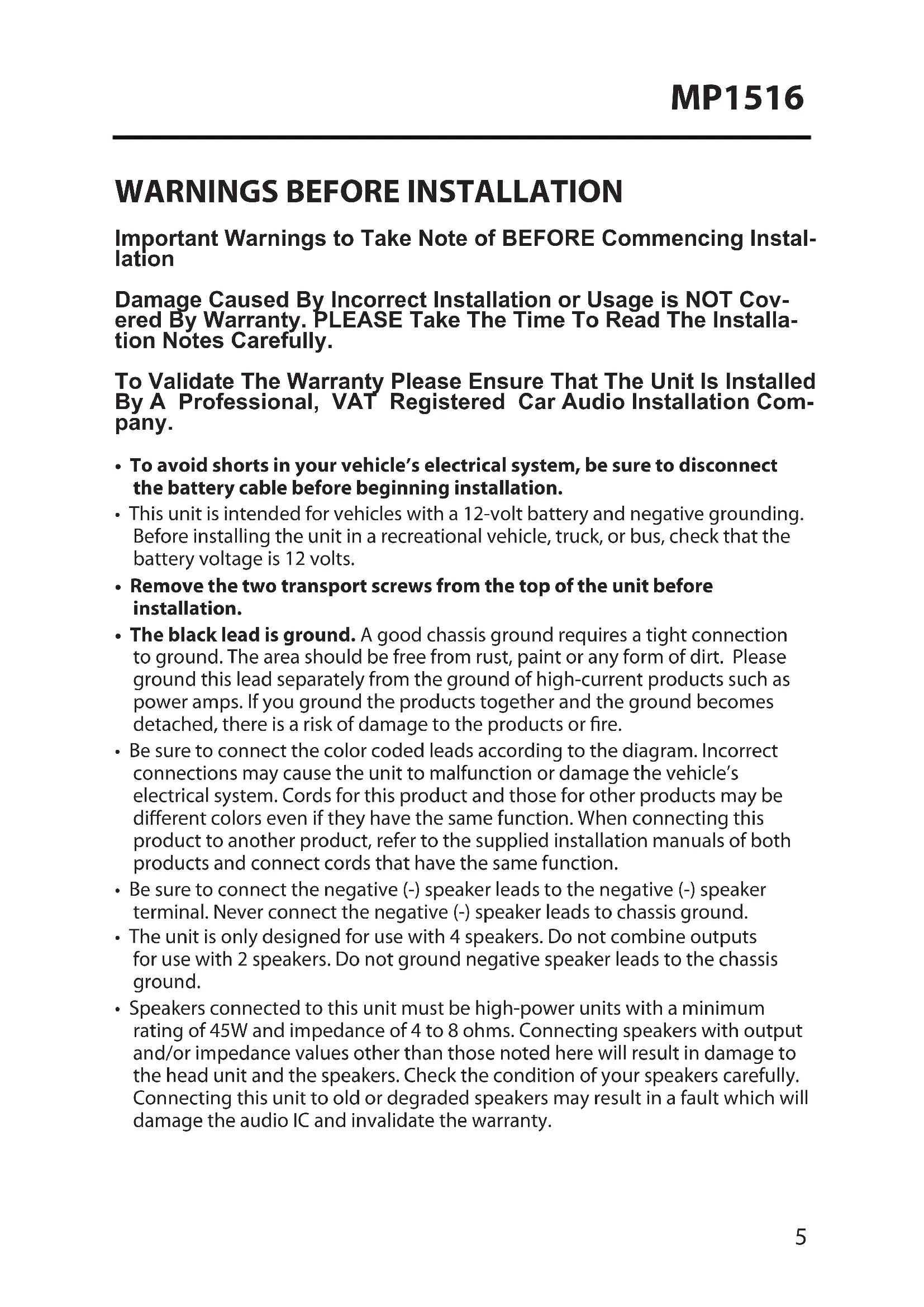
WARNING BEFORE INSTALLATION
ImportantWarnings to Take Note of BEFORE Commencing Installation
Damage Caused By Incorrect Installation or Usage is NOT Covered By Warranty. PLEASE Take The Time To Read The Installation Notes Carefully.
To Validate The Warranty Please Ensure That The Unit Is Installed By A Professional, VAT Registered Car Audio Installation Company.
- To avoid shorts in your vehicle's electrical system, be sure to disconnect the battery cable before beginning installation.
- This unit is intended for vehicles with a 12-volt battery and negative grounding. Before installing the unit in a recreational vehicle, truck, or bus, check that the battery voltage is 12 volts.
- Remove the two transport screws from the top of the unit before installation.
- The black lead is ground. A good chassis ground requires a tight connection to ground. The area should be free from rust, paint or any form of dirt. Please ground this lead separately from the ground of high-current products such as power amps. If you ground the products together and the ground becomes detached, there is a risk of damage to the products or fire.
- Be sure to connect the color coded leads according to the diagram. Incorrect connections may cause the unit to malfunction or damage the vehicle's electrical system. Cords for this product and those for other products may be different colors even if they have the same function. When connecting this product to another product, refer to the supplied installation manuals of both products and connect cords that have the same function.
- Be sure to connect the negative (-) speaker leads to the negative (-) speaker terminal. Never connect the negative (-) speaker leads to chassis ground.
- The unit is only designed for use with 4 speakers. Do not combine outputs for use with 2 speakers. Do not ground negative speaker leads to the chassis ground.
-
Speakers connected to this unit must be high-power units with a minimum rating of 45W and impedance of 4 to 8 ohms. Connecting speakers with output and/or impedance values other than those noted here will result in damage to the head unit and the speakers. Check the condition of your speakers carefully. Connecting this unit to old or degraded speakers may result in a fault which will damage the audio IC and invalidate the warranty.
-
If this unit is installed in a vehicle that does not have an ACC (accessory) position on the ignition switch, the red lead of the unit should be connected to a terminal coupled with ignition switch ON/Off operations. If this is not done, the vehicle battery may be drained when you are away from the vehicle for several hours.
- Secure the wiring with cable clamps or adhesive tape. To protect the wiring, wrap adhesive tape around them where they lie against metal parts. To avoid short-circuiting, cover all disconnected lead with insulating tape. There is a possibility of short-circuiting if the leads are not insulated.
- Route and secure all wiring so it cannot touch any moving parts, such as the gear lever and handbrake. Do not route wiring in places that get hot, such as near the heater outlet. If the insulation of the wiring melts or gets torn, there is a danger of the wiring short-circuiting to the vehicle's body.
- Don't pass the yellow lead through a hole into the engine compartment to connect to the battery. This will damage the lead's insulation and cause a very dangerous short.
- Do not short any leads. If you do, the protection circuit may fail to work when it should.
- Never feed power to other equipment by cutting the insulation of the power supply lead of the unit and tapping into the lead. The current capacity of the lead will be exceeded, causing overheating.
- Since an unique audio I/C circuit is employed, never wire the unit so the speaker leads are directly grounded or the left (-) and right (-) speaker leads are common.
- When this product's source is switched ON, a control signal is outputted through the blue lead. Connect to an external power amp's system remote control or the car's Auto-antenna relay control terminal (max. 300mA 12 V DC). If the car features a glass antenna, connect to the antenna booster power supply terminal.
- When an external power amp is being used with this system, do not connect the blue lead to the amp's power terminal. Likewise, do not connect the blue lead to the power terminal of the auto-antenna. Such connection could cause excessive current drain and a major malfunction. Refer to the relevant owner's manual for details on connecting the power amp and other units, then make the connections correctly.
- Do not block any vents or heater panels. Blocking them will cause heat to build up and may result in fire.
-
Make sure that the unit has a good chassis ground. A good ground connection will eliminate most electrical noise. A good chassis ground requires a tight connection to the vehicles metal chassis. The area around the ground connection should be clean, bare metal without rust, paint, plastic or dirt for a good electrical connection.
-
If noise is still experienced when the motor of the vehicle accelerates, a choke should be placed in line with the power to the unit. The installation company will know what is required.
- When replacing the fuse(s) the replacement must be of the same amperage as shown on the fuse holder. Never replace a fuse with another fuse of a different value. If the fuse blows again please contact your installation company.
- Double check that all wiring and connections are correct before re-connecting the battery and turning on the unit.
- After completing the installation and before operating the unit, reconnect the battery, then press the RESET button with a pointed object, such as a ball-point pen to set the unit to its initial status. After pushing the button, wait a few seconds for the red light to flash.
INSTALLATION TOOLS
Two removal wrenches are supplied for taking out the old unit and place with this brand name car radio. The following tools and supplies may also be needed for the installation, but are not supplied:
Installation Tools:
- Phillips Screwdrivers
- Wire Stripper
- Wire Cutter
- Hammer
- Pencil
- Electrical Tape
Electric Drill
Installation Supplies:
Machine Screws
Crimp Connectors
14 Gauge Wire for Power Connections
14-16 Gauge Speaker Wires
BEFORE YOU INSTALL
Automotive audio equipment installations can be troublesome at times, even to the most experienced of installation technicians. If you are not confident working with electrical wiring, removing and reinstalling interior panels, carpeting, dashboards or other components of your vehicle, please call your dealer in order to have the unit professionally installed.
Remove the Old Unit from the Dashboard
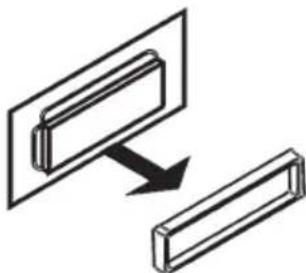
- Remove the outer trim frame.
DIN Front Mount
- Insert the keys supplied with the old unit into both sides of the unit as shown in figure below until they click. Pull to remove the old unit from the dashboard.
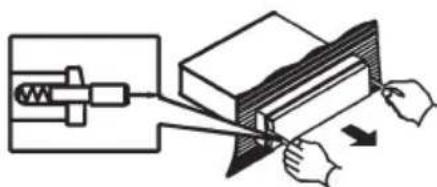
Do not disconnect wires at this time!
3. Mark the Polarity of the Speaker Wires
Marking the polarity of the speaker wires will make it easier to connect the existing speakers to your car radio. Consult the wiring diagram of the existing head unit before disconnecting any wires. If you are not positive of the polarity of the existing wires from the speakers to the head unit, install new wires.
- While the old unit is playing, disconnect the wires from one speaker.
- Take a length of masking tape and fold it around the wire so it forms a flag.
- On the masking tape mark the polarity of the speaker wires (+ & -) , as well as left or right, and front or rear.
- Double check that you marked the first speaker correctly by checking that the speaker wires are the same at the head unit.
- Repeat this procedure for all of the speakers.
- Mark the power, ground, and any other wires.
INSTALLATION
It's a good idea to read all of the instructions before beginning the installation. We recommend having your Jensen MP1516 Mobile Audio System installed by a reputable installation shop.
WARNING! Disconnect the negative battery terminal from the battery before starting installation. Consult the vehicle's owner's manual for proper instructions.
NOTE: Mark the polarity of the existing speaker wires before disconnecting battery.
Notes:
- Choose a mounting location where the unit will not interfere with the driver.
- Before installing the unit, temporarily connect the wiring. Make sure it is connected up properly and the unit and the system work properly.
- To ensure proper installation, use only parts included with the unit. The use of unauthorized parts can cause malfunctions.
- Consult with your nearest dealer if installation requires the drilling of holes or other modifications to the vehicle.
- Install the unit where it does not get in the driver's way and cannot injure the passenger if there is a sudden stop, like an emergency stop.
- If the installation angle exceeds 30^ from horizontal, the unit might not give its optimum performance.
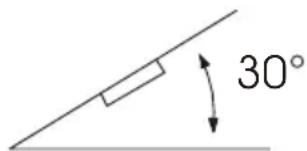
- Avoid installing the unit where it would be subject to high temperature, such as from direct sunlight, or hot air from the heater, or where it would be subject to dust, dirt or excessive vibration.
DIN Front/Rear Mount
This unit can be properly installed either from "Front" (conventional DIN Frontmount) or "Rear" (DIN Rear-mount installation, utilizing threaded screw holes at the sides of the unit chassis). For details, refer to the following illustrated installation methods.
Remove the Transport Screws Before Installation
Remove the two transport screws from the top of the unit before installing the unit.
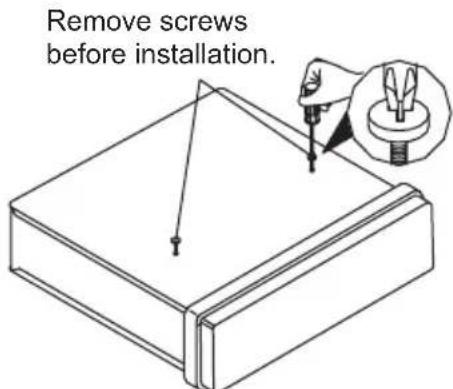
DIN Front Mount (Method A)
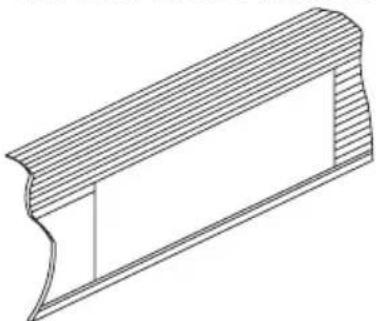
Installation Opening
This unit can be installed in any dashboard having an opening as shown below:
Installing the Unit
Be sure you test all connections first, and then follow these steps to install the unit
- After removing the old radio and mounting sleeve, insert the supplied mounting sleeve into opening.
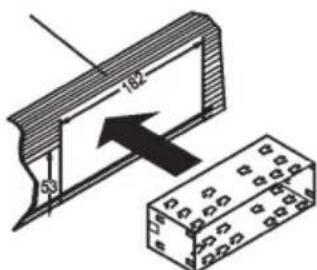
- Bend the tabs on the mounting sleeve to keep the mounting sleeve firmly in place.
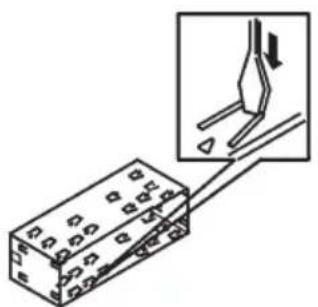
- Attach the wires from the unit to existing wires. See the wiring connections diagram. Insert the radio into the dashboard. Then apply the trim frame to the outside of radio.
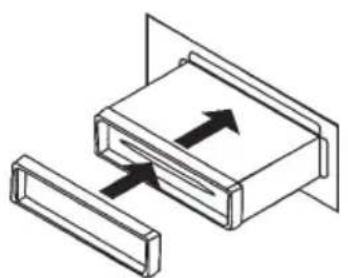
- Support the radio using the supplied rear mounting bolt and steel bar. See the parts list.
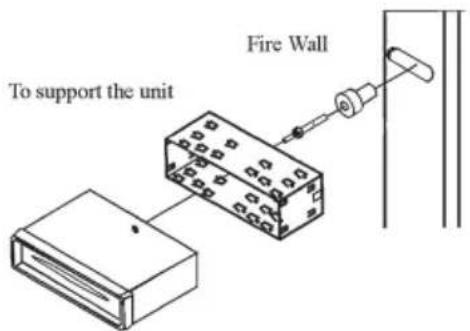
DIN Rear Mount (Method B)
This method of installation uses the screw holes at the sides of the unit and the holes of the existing vehicle mounting bracket. This is only intended as a general guide; contact the vehicle's manufacturer for specific instructions.
NOTE: Outer trim frame, hook, and mounting sleeve are not used for this installation.
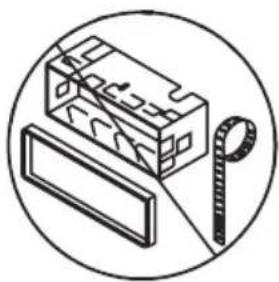
-
Remove the hooks on both sides.
-
Align the screw holes of the mounting bracket supplied with the car and the screw holes of the main unit. Tighten the two screws on each side of the unit. Then fasten the brackets to the car.
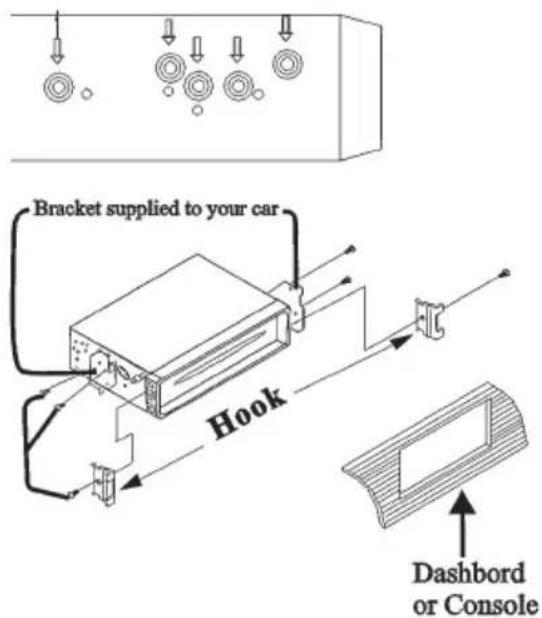
- Attach the wires of the unit to the existing speaker wires. See the wiring diagram.
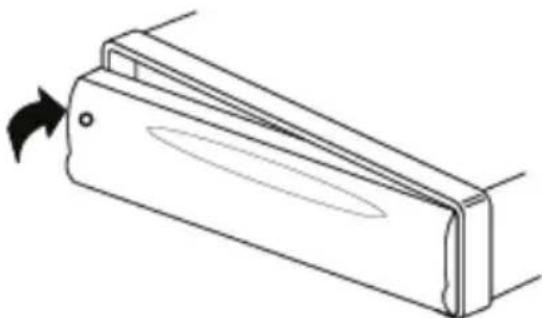
USING THE DETACHABLE FACEPLATE Removing the Faceplate
- Press the (release) button on the faceplate and pull off the faceplate.
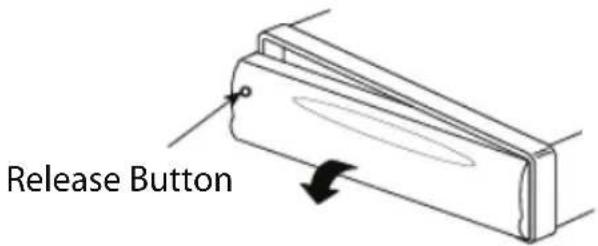
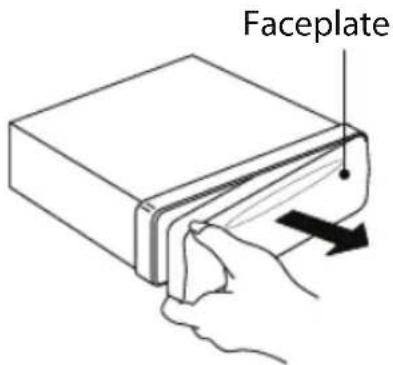
- Keep the faceplate in the protective case.

Installing the Faceplate
To install the faceplate, insert the faceplate into the housing and make sure it is properly installed. Otherwise, the display may appear to be abnormal or some buttons will not function properly.
Handling Precautions
- Do not drop the faceplate.
- Do not put pressure on the display or control buttons when detaching or reinstalling the faceplate.
- Do not touch the contacts on the faceplate or on the main unit body. It may result in poor electrical contact.
- If any dirt or foreign substances adhere to the contacts, they can be removed with a clean and dry cloth.
- Do not expose the faceplate to high temperatures or direct sunlight.
- Keep away any volatile agents (e.g. benzene, thinner, or insecticides) from touching the surface of the faceplate.
- Do not attempt to disassemble the faceplate.
WIRING CONNECTIONS
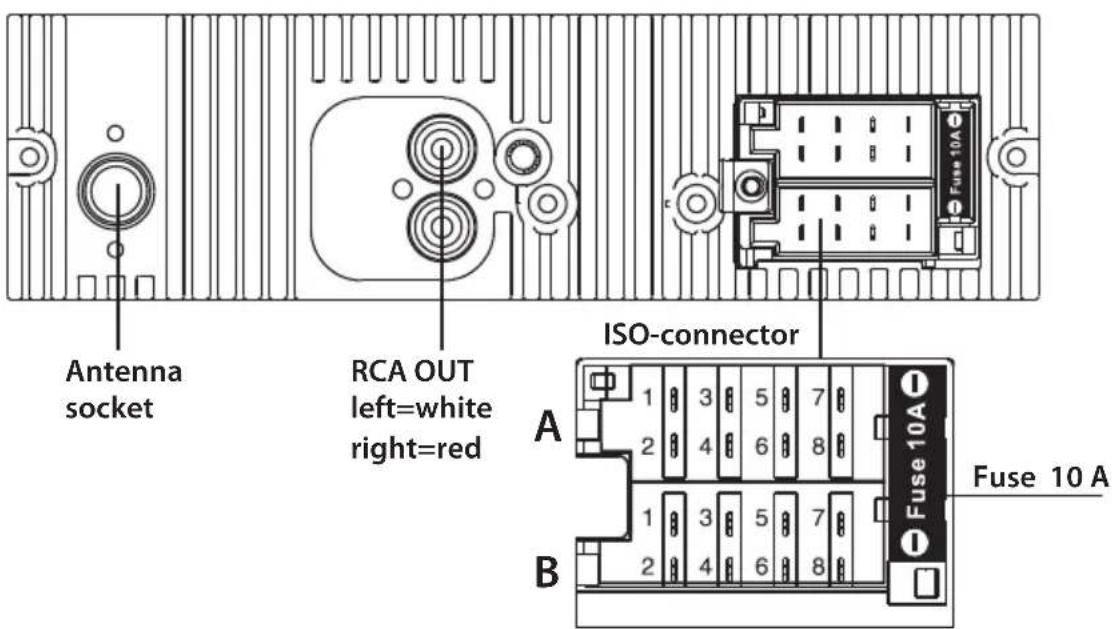
Connector A
- Rear right speaker (+) /Blue
- Rear right speaker (-) /Blue-White
- Front right speaker (+) / Grey
- Front right speaker (-) / Grey-White
- Front left speaker (+) / Green
- Front left speaker (-) / Green-White
- Rear left speaker (+) / Brown
- Rear left speaker (-) / Brown-White
Connector B
-
-
- 3.-
- Battery 12V (+)/Yellow
- Antenna Power / Blue
- Panel Light / White
- ACC+/Red
- Ground / Black
Black Ground
Connect the Black Ground wire to the vehicle body/chassis. Make sure that you have a good chassis ground. Good ground connections will eliminate most electrical noise from the motor and alternator. A good chassis ground requires a tight connection to the vehicle's metal chassis. The area around the ground connection should be clean, bare metal without rust, paint, plastic, dust or dirt for a good electrical connection.
Yellow Memory Backup
Connect the Yellow Memory Backup wire to an electrical terminal always supplied with power regardless of ignition switch position.
Blue Remote
Connect the Orange Remote to an Auto-antenna or power amp control wire/remote connection. Maximum current 300Ma 12 V DC. (Low Current)
White Panel Light
Connect the White Panel Light to the lighting circuit of vehicle. This will illuminate the buttons on the display for night time operation. This wire can also be connected to the Blue Remote wire to activate the buttons when the unit is powered on. DO NOT JOIN THE WHITE WIRE TO THE LIGHTING CIRCUIT OF THE VEHICLE IF CONNECTED TO THE BLUE REMOTE WIRE.
Speaker Wiring Notes
Follow the above wiring diagram to install the head unit with new or existing speakers.
- This unit is designed for use with four (4) speakers with an impedance from 4 Ohms to 8 Ohms.
- An impedance load of less than 4 Ohms could damage the unit.
- Never bridge or combine the speaker wire outputs. When not using four speakers, use electrical tape to tape the ends of the unused speaker outputs to prevent a short circuit.
- Never ground the negative speaker terminals to chassis ground.
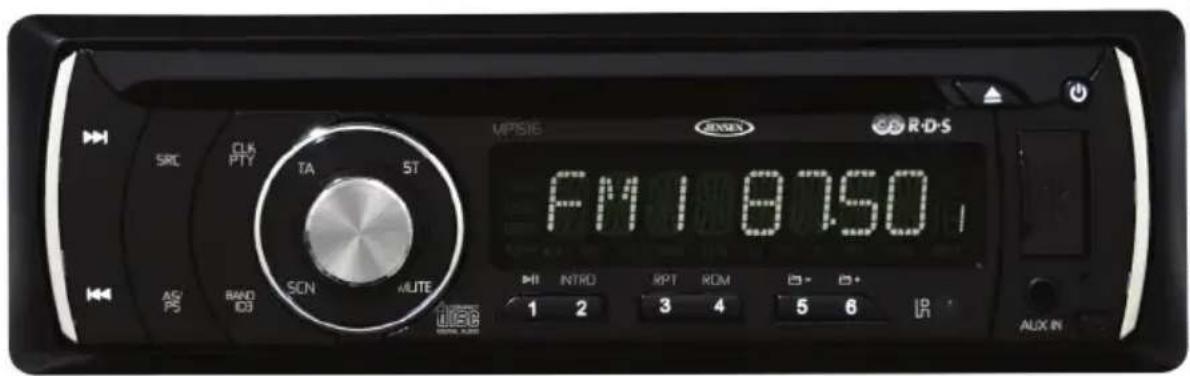
CONTROLS AND INDICATORS
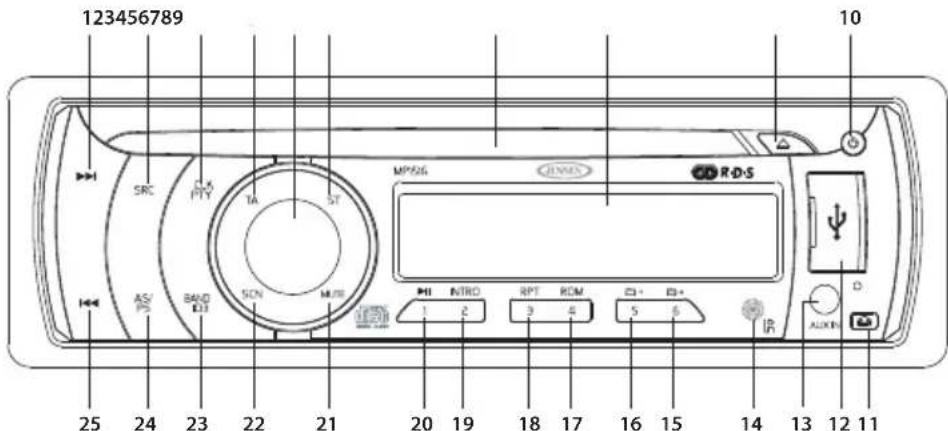
1. (Next Track / Fast Forward) Button
During disc play, this button is used to quickly select the end of a particular track in the forward direction. With each press of the button, the next higher TRACK number will be selected as shown on the display panel. Press and hold the button to advance rapidly in the forward direction as indicated by the elapsed time display.
2. SRC (Mode Select) Button
Press this button to select radio, auxiliary device or disc play. USB or SD mode can only be selected when an USB flash memory or SD card is inserted into the USB port or SD port, respectively.
3. CLK/PTY (Clock/Program Type) Button
Press this button to show the clock on the display panel.
In FM radio mode, press this button once to show the music type program. Press this button twice to show the speech type program. Press this button a third time to switch the PTY function off.
4. TA (Traffic Announcement) Button
Press this button to turn the traffic announcement function on or off.
5. Volume Knob (when rotated) / SEL (Sound Select) Button (when pressed)
Rotate the knob to increase or decrease the volume. VOL will appear on the display panel, followed by the setting number.
When pressed, the knob performs the Select function. This button is used to select the audio function (bass, treble, balance, fade or loudness) to be adjusted.
6. ST (Stereo) Button
In FM radio mode, press this button to switch between stereo and mono mode of reception.
7. Disc Slot
With the label surface facing up, fully insert a compact disc into the slot until the load mechanism engages.
Note: This unit is designed for play of standard 5'' (12 cm) Compact Discs ONLY. Do not attempt to use 3'' (8 cm) CD-Singles in this unit, either with or without an adapter, as damage to the player and/or disc can occur. Such damage will not be covered by the Warranty on this product.
8. Liquid Crystal Display Panel
The Liquid Crystal Display (LCD) panel displays the band and radio station frequency. If the station transmits music information this will also be displayed. This information usually consists of song title and artist. Also the radio can display PTY categories such as news, sports, talk etc.
9. A eject) Button
Press this button to eject the disc from the slot. If the disc is not removed from the slot within 5 seconds, it will automatically be loaded into the slot again. When the disc is ejected and removed, the unit will automatically switch to radio mode.
10. (Power On/Off) Button
Press this button to turn the unit ON. Press this button to turn the unit OFF.
11.4Release Panel)Button
Press this button to release the faceplate from the chassis.
12. USB Input Cover
Front panel cover which when open allows the connection of a USB device, iPod®, or auxiliary input device for playback of music files.
13. Auxiliary Input Jack
Accepts a 3.5 mm jack which can accept signals from various audio/video devices.
14. Remote Control Receiver
Detects signals from the remote control.
15. 6 /E(Folder Up) Button
Press this button once to advance one folder.
16. 5 /E Folder Down) Button
Press this button once to go back one folder.
17. 4/RDM (Random) Button
Press this button to play all the tracks in random order. Press this button again to stop random play.
18. 3 / RPT (Repeat) Button
Press this button to repeat the current track. Press this button again to repeat the current folder. Press this button third time to cancel the repeat function.
19. 2/INTRO (Introduction) Button
Press this button to play the first 10 seconds of each track. Press this button again to resume playback.
20. 1 Play/Pause) Button
Press this button to pause playback. Press this button again to resume playback.
21. Mute Button
Press this button to mute the audio. Press this button again to unmute the audio.
22. SCN (Scan) Button
In radio mode, pressing this button will enter the scan mode. The unit will scan to a higher frequency station and stay on each station for five seconds (the corresponding frequency will flash on LCD).
23. BAND / ID3 Button
In radio mode, press this button to select or change the radio band (FM1, FM2, FM3, AM1 or AM2).
In MP3 playback mode, press this button to show ID3 Tag information.
24. AS/PS (Auto Store/Preset Scan) Button
Press to scan through a 5 second preview of each station preset. Press and hold to access the Auto-Store Tuning feature which will automatically scan and enter up to eighteen strong stations into the six preset memory locations for FM1, FM2 and FM3. If the radio is in AM mode, it will scan and store up to twelve strong stations into the six preset memory in AM1 and AM2. If you have already set the preset memories to your favorite stations, activating the Auto-Store feature will erase those stations and enter the new strong stations. This feature is most useful when travelling in an area where you are not familiar with the local stations. After completing an Auto-Store Tuning function, the radio automatically performs an 5 second preview of each stored preset.
25. (Previous Track / Fast Reverse) Button
During disc play, this button is used to quickly select the beginning of a particular track in the backward direction. With each press of the button, the next lower TRACK number will be selected as shown on the display panel. Press and hold the button to advance rapidly in the reverse direction as indicated by the elapsed time display
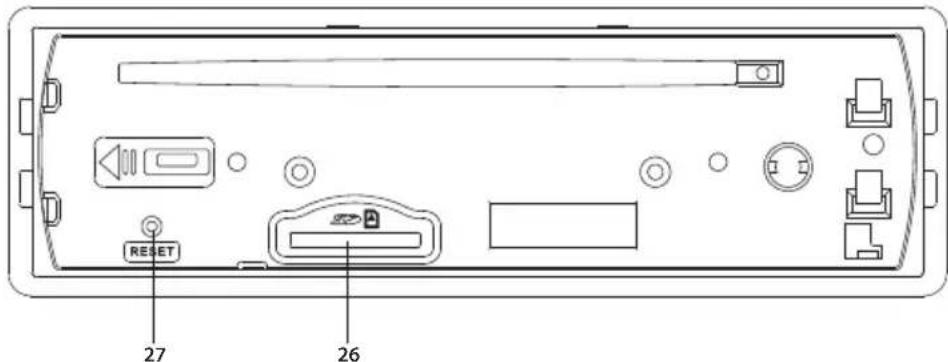
26. SD Memory Card Slot
The memory card slot is located behind the front panel and is used to insert an SD card for playback of music files.
27. Reset Button
The reset button is accessed when the front panel is removed. Press this button to reset the system settings to the factory default settings.
This unit comes with a full remote control system. A CR-2025 Lithium battery is included with the remote control.
Battery Installation
In case you have to replace the batteries:
- Remove the cover from the back of the remote control.
- Install one CR-2025 Lithium battery.
Note: Make sure that the proper polarity (+ or -) is observed.
- Fix the cover to the back of the remote control.
Using the Remote Control
- Point the Remote Control at the remote control receiver on front panel of the unit. Make sure that the signal path is not obstructed.
- Press the function keys on the handset to control the system. Note: The maximum distance at which signals can be received is about 6 feet.
Do not drop or throw the remote control. Do not place the remote control in a location that is exposed to direct sunlight or next to a heating unit or other heat source.
Remote Control Functions
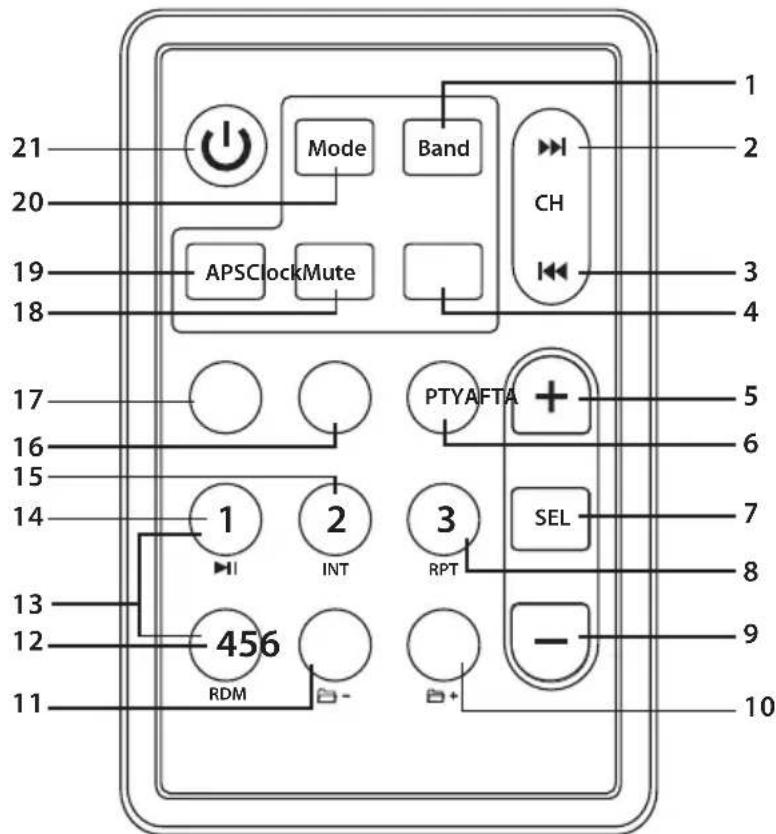
1. Band Button
Press this button to select or change the radio band (FM1, FM2, FM3, AM1 or AM2).
2. Stations Tune/Seek Up/Track Up) Button
In radio mode, press the button briefly to activate the automatic seek function and tune to next strong station.
In MP3/WMA mode, press the button to move to the following track.
In iPod® or iPhone® mode, press the button to play the next track in the current category.
3. Stations Tune/Seek Down / Track Down) Button
Press the button briefly to activate the automatic seek function and tune to the previous strong station.
In MP3/WMA mode, press the button to move to the previous track.
In iPod® or iPhone® mode, press the button to play the previous track in the current category.
4. Mute Button
Press this button to mute the audio. Press this button again to unmute the audio.
5. Increase Volume) Button
Press this button to increase the volume.
6. PTY (Program Type) Button
Press this button once to show the music type program. Press this button twice to show the speech type program.
7. SEL (Sound Select) Button
Press this button select the audio function (bass, treble, balance, fade or loudness) to be adjusted.
8. 3/RPT (Repeat) Button
Press this button to repeat the current track. Press this button again to cancel the repeat function.
9. (Decrease Volume) Button
Press this button to decrease the volume.
10. 6 /E(Folder Up) Button
Press this button once to advance one folder.
11. 5/1(Folder Down) Button
Press this button once to go back one folder.
12. 4/RDM (Random Play) Button
Press this button to play all the tracks in random order. Press this button again to stop random play.
13. 1-6 (Preset Radio Memory) Buttons
Six numbered preset buttons store and recall channels for each band.
14. 1/>(CD Pause/Play) Button
Press this button to pause playback. Press this button again to resume playback.
15. 2/INT (Introduction Scan) Button
Press this button to play the first 10 seconds of each track. Press this button again to resume playback.
16. AF (Alternative Frequencies) Button
Press this button to turn the Alternative Frequencies function on or off.
17. TA (Traffic Announcement) Button
Press this button to turn the Traffic Announcement function on or off.
18. Clock (Time Clock Display) Button
Press this button to show the clock on the display panel.
19. APS (Auto Preset Scan) Button
Press to activate the radio preset scan. Press and hold to activate the Auto-Store Tuning feature.
20.ModeButton
Press this button to select radio, auxiliary device or disc play. USB or SD mode can only be selected when an USB flash memory or SD card is inserted into the USB port or SD port, respectively.
21. (Power On/Off) Button
Press this button to turn the unit ON. Press this button to turn the unit OFF.
BASIC OPERATION
Turning the Unit On or Off
Press the Power On/Off) button, or press and hold any button to turn the unit on. The display panel will show the message "JENSEN" to indicate the unit is ready for use.
When the unit is on, press the 電 _ 0 Power On/Off) button to turn the unit off. The display panel will show the message "GOODBYE".
Selecting an Audio Source
Press the SRC button on the faceplate or the MODE button on the remote control to select radio, auxiliary device or disc play.
Note: USB or SD mode can only be selected when an USB flash memory or SD card is inserted into the USB port or SD port, respectively.
Volume
Rotate the volume knob on the faceplate or press the button on the remote control to adjust the volume level. The larger the number, the higher the volume level.
Mute
Press the MUTE button briefly to mute the sound instantly. Press it again to restore the sound. Adjusting the volume knob also cancels the mute function.
Sound Adjustment Mode
The sound adjustment mode allows you to easily adjust your mobile audio system to meet the acoustical characteristics of your vehicle
Loudness Control
- Press the SEL button until "LOUD OFF" appears on the display panel. This indicates that the loudness function is OFF.
- Rotate the volume knob to select ON or OFF.
Bass
- Press the SEL button repeatedly until "BAS" appears on the display panel.
- Rotate the volume knob to adjust. When an equalizer preset is ON, bass control is not available.
Treble
- Press the SEL button repeatedly until "TRE" appears on the display panel.
- Rotate the volume knob to adjust. When an equalizer preset is ON, treble control is not available.
Balance
- Press the SEL button repeatedly until "BAL" appears on the display panel.
- Rotate the volume knob to adjust the balance between the left and right speakers.
Fader
- Press the SEL button repeatedly until "FAD" appears on the display panel.
- Rotate the volume knob to adjust the balance between the front and rear speakers.
Setting the Clock
The time clock can be set anytime when the power is on.
- Press the CLK/PTY button on the faceplate or the Clock button on the remote control once (press and hold for more than 2 seconds during radio mode). The time will appear on the display panel.
- Press and hold the button until the hour blinks on the display panel. Rotate the volume knob to set the hours.
- Press the volume knob for the minutes to blink. Rotate the volume knob to set the minutes.
- Press the CLK/PTY button on the faceplate or the Clock button on the remote control again or leave the unit idle for new setting to take effect.
- Press the CLK/PTY button on the faceplate or the Clock button on the remote control anytime to view the time clock display.
Turning the Preset Beep Sound On or Off
- Press the SEL button repeatedly until "BEEP ON" appears on the display panel.
- Rotate the volume knob to select "BEEP OFF" or "BEEP ON",
- Leave the unit idle for the setting to take effect.
Preset Equalizer Function
The Equalizer Preset function applies a preset sound level to the unit's audio output signal in accordance to the type of music being played.
To Select an Equalizer Preset:
- Press the SEL button repeatedly until "EQ" appears in the display panel.
- Rotate the volume knob to choose the equalizer sound effects. The sequence of equalizer settings will be as follows:

RADIO OPERATION
Selecting a Radio Band
Press the SRC button on the faceplate or the MODE button on the remote control to select radio mode. The radio frequency appears in the display panel together with the frequency memory band (FM1, FM2, FM3, AM1 or AM2).
The unit has five preset memory bands - three FM Bands (FM1, FM2, and FM3) and two AM Bands (AM1, and AM2) selects. Each of the five bands can store up to six preset stations, for a total of 30 preset memory stations.
Selecting a Frequency
In radio mode, press the BAND/ID3 button on the faceplate or the Band button on the remote control briefly to select the desired band. The reception band will change in the following order:
F1 F2 F3 AM1 AM2
(FM1) (FM2) (FM3) (AM1) (AM2)
Radio Tune / Seek Function
In radio mode, press and hold the SEEK key button for 2 seconds, and the display panel will show "MANU SEEK". Press the SEEK key button once to manually adjust the radio frequency.
Tuning
Press the SEEK key button once. The radio will seek the next strong and clear frequency station. Repeat to seek more stations in your listening area with a strong signal.
Mono/Stereo Reception Control
The reception of distant stations may be improved by selecting "MONO" operation. "MONO" operation may cut down some reception noise.
-
In FM radio mode, press the SEL button until "MONO" appears on the display panel.
-
Rotate the volume knob to select STEREO or MONO.
Local / Distant Control
The local and distance reception setting can improve radio reception, depending on the location where the radio is being used.
-
In FM radio mode, press the SEL button until "LOCAL" appears on the display panel.
-
Rotate the volume knob to select "LOCAL" or "--DX--".
Save Your Preset Stations
There are six numbered preset buttons which can store and recall stations for each band. While listening to a radio station you would like to save as a pre-set, press and hold one of the buttons numbered 1-6 until you hear a beep. The button you pressed is now the pre-set button for that station.
Automatic Scan and Store
While listening to the FM radio, press and hold the F/PS button. The receiver will automatically scan and save stations of the 3 FM bands.
While listening to the AM radio, press and hold the F/PS button. The receiver will automatically scan and save stations of the 2 AM bands.
Scan and Preview Saved Stations
Press the F/PS button once and the receiver will scan the radio stations in the current band.
Radio Data System (RDS) Operation
The Radio Data System (RDS) simultaneously transmits digital data along with the audio signal on FM radio. Although RDS is a European standard, it is also used in the USA, where it is called Radio Broadcast Data System (RBDS). RDS enables traffic reports to be received and provides many facilities, including enabling the radio station name and program information to be displayed on the display panel. RDS service availability varies with areas. If RDS service is not available in your area, the following services are not available, either.
AF-Alternative Frequency
Press the AF button on the faceplate to turn the Alternative Frequency function on or off. When the radio signal strength is poor, enabling the AF function will allow the unit to tune to the same PI (Program Identification) as the current station but with stronger signal strength, so that you do not have to retune the stations when driving between different transmitter coverage areas. When the AF symbol is on, RDS information is received; when AF symbol is flashing, RDS information is not yet received.
PS (Program Service name): the name of station will be display instead of frequency.
If RDS service is not available in your area, turn off the AF mode. The default setting is OFF.
TA - Traffic Announcement
Press the TA button to turn Traffic Announcement function on or off.
In TA mode traffic programs will be automatically searched, until the program is received. When a traffic announcement is received the unit will temporarily switch to the tuner mode (regardless of the current mode) and begin broadcasting the announcement. After the traffic announcement is over, it will return to the previous mode and volume level.
To interrupt a traffic announcement, briefly press the TA button; it will not switch off the TA mode.
PTY - Program Type
This radio will allow you to select the type of program required, and will search for a station broadcasting that type of program. Press the CLK/PTY button on the faceplate or PTY button on the remote control once to show the music type. Then press 1-6 button to choose the different music types available.
Press the PTY button twice to show the speech type program. Then press 1-6 button to choose the different speech type program. Each number key will show 3 different speech programs for you to choose (see table below).
| Button M | Music Group Speech Group | |
| 1 | Rock, classic, country News, Persnlty | |
| 2 | Cls_Rock, Oldies, R&_B Infor, Public | |
| 3 | Adlt_Hit, Soft, Soft_R&B Sports, College | |
| 4 | Soft_Rck, Nostalga Language, Weather, Talk | |
| 5 | Top_40, Jazz, Rel_Musc Rel_Talk | |
| 6 | Habl_Esp, Musc_Esp, Hip hop | Test, ALERT |
When PTY is selected, the radio starts to search corresponding PTY information, and stops if the corresponding PTY information is detected. If no buttons are pressed within several seconds, the previously selected PTY is searched. During one loop, if desired the PTY is not found, the unit will return to the previous mode.
Press the CLK/PTY button on the faceplate or PTY button on the remote control for a third time to switch the PTY function off.
Mask Different Program Information (DPI) / Mask All
During MASK DPI mode, the unit will mask only the AF which has different PI. This is the default mode.
During MASK ALL mode, the unit will mask the AF which has a different PI and no RDS signal with high field strength.
- Press the SEL (sound select) button for 2 seconds. "TA SEEK" appears on the display panel.
- Press the SEL (sound select) button again so that "MASK DPI" appears on the display panel.
- Rotate the volume knob to toggle between MASK DPI and MASK ALL mode.
- Leave the unit idle for the mode to take effect.
Retune S/L - Short/Long
This function sets the initial duration of automatic TA Search
- Press and hold the SEL (sound select) button until "TA SEEK" appears on the display panel.
- Press the SEL button to cycle through the menu selections until "RETUNE_S" appears on the display panel.
- Rotate the volume knob to toggle between "RETUNE_S" or "RETUNE_L". The default is "RETUNE_S".
Insert a disc into CD slot with label side up. The disc will be automatically loaded into the unit, even when it is off or in radio mode. The word "LOAD" will blink on the display panel and the CD will play automatically.
Ejecting a Disc
Press the (Eject) button to eject the disc from the slot. If the disc is not removed from the slot within 5 seconds, it will automatically be loaded into the slot again. When the disc is ejected and removed, the unit will automatically switch to radio mode.
Selecting a Track
Press the SEEK▶Button to advance CD to the next track. Track numbers will be shown on the display. Press and hold SEEK▶ fast forward.
Press the SEEK 1 button to go to a previous track. Track numbers will be shown on the display. Press and hold the SEEK 1 button to fast reverse. Disc will play normally when the 1 /Pause/Play) button is pressed.
Pausing or Resuming Playback
Press the 1 /▶II (Pause/Play) button to pause the CD. Press the 1 /▶II (Pause/Play) button again to resume playback.
Scanning Tracks
Press the 2 / INTRO (Introduction) button to play the first 10 seconds of each track, "INT" will appear on the display panel. Press this button again to resume playback.
Repeating a Track
Press the 3 / RPT (Repeat) button to repeat the current track. Press it again to cancel the repeat function.
Playing Tracks in a Random Order
Press the 4/RDM (Random) button to play all the tracks in random order. "RDM" will appear on the display panel. Press this button again to stop random play.
MP3/WMA Playback
While you are playing a disc with MP3 or WMA files, the first file in the root folder will be played. As the file is playing "MP3" or "WMA" will be displayed first, then if there is any ID3 information that will be displayed as the file is playing.
Displaying ID3 Tag Information
While you are playing an MP3 file which has ID3 Tag information, press the BAND/ ID3 button repeatedly to show the ID3 Tag information on the display panel. The ID3 Tag information will be as follows:
Folder File Title ArtistAlbum
If there is no ID3 Tag information, nothing will be shown on the display panel.
Folder Down
Press the 5 button once to go back one folder.
Folder Up
Press the 6 / 日 button once to advance one folder.
Search Modes
There are three search modes to help find your favorite MP3 and WMA tracks. The search modes only works with MP3/WMA CDs, and USB flash memory with MP3/WMA files.
Simple Track Search
Press the SEEK or button to go to the next track or previous track.
Track Search
Press the F/PS button, TRK-SCH will appear on the display. Rotate the volume knob to select the track number. Press and hold the SEL button for 2 seconds, the number of the track is assigned according to you added the file into the media.
The file which are written later will be assigned a larger number.
Folder Search
Press the F/PS button twice and NAVIGATE will be appear on the display panel. Rotate the volume knob to select the folder name. Then press the SEL button to play the chosen folder.
Multi-Session CD Reading
This unit can read multi-session CDs. The multi-session reading will be activated automatically if the player detects a file that is written in multi-session format.
Electronic Skip Protection
The unit is equipped with Electronic Skip Protection (ESP) circuits. Electronic Skip Protection is for driving on rough roads. The CD will play for 10 seconds on rough roads without skipping. If driving on a rough road for more than 10 seconds, the CD may skip.
For MP3 or WMA playback, files will play for 60 seconds. If the road is rough for more than 60 seconds, the CD with MP3 or WMA files may skip.
Disc Notes
Notes on discs:
- This unit will only play the following discs:
| Type of Disc Label on the disc Recorded | Material Size of Disc | ||
| CD, MP3, WMA Audio | DISC | DIGITAL AUDIO | |
This unit only reads 12 cm discs.
- Do not use irregularly shaped discs such as heart or star-shaped discs as they may cause the unit to malfunction. Be sure to use round shape CD discs only for this unit.
- Do not stick paper or tape, etc, onto the label side or the recording side of any discs, as it may cause a malfunction.
- Dirty, dusty, scratched, and warped discs may not operate properly.
Notes on CD-Rs (recordable CDs)/CD-RWs (rewritable CDs):
- The unit cannot play CD-R or CD-RW discs that are not finalized. This is also called "closing the session" in some CD-R/CD-RW software. (Please refer to your CD-R/CD-RW recorder or CD-R/CD-RW software manual for more information on the finalization process).
-
Depending on the recording status, and conditions of the disc and the equipment used for the recording, some CD-Rs/CD-RWs may not be played on this unit. For more reliable play back, please see following recommendations:
-
Use CD-RWs with speed 1x to 4x and write with speed 1x to 2x.
- Use CD-Rs with speed 1x to 8x and write with speed 1x to 2x.
- Do not play a CD-RW which has been written for more than 5 times.
Notes on MP3 files (MP3 Version Only):
- The disc must be in the ISO9660 level 1 or level 2 format, or Joliet or Romeo in the expansion format.
- When naming a MP3 file, be sure the file name extension is“.MP3”.
- For a non-MP3 file, even though the file name extension is ".MP3", the unit cannot recognize it.
Cleaning and Handling Discs
To enjoy the best sound quality, handle discs as indicated below:
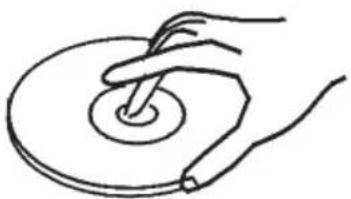
- Clean the discs with a cleaning cloth. Clean each disc from the center to the outside edge.
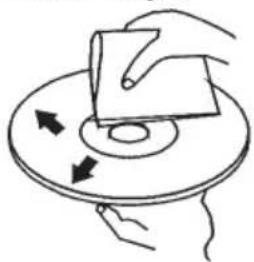
- Don't use CDs with blobs of glue or ink on its surface.
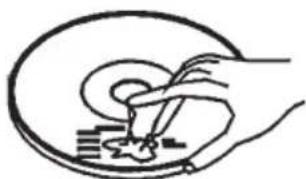
- Don't use CDs with labels or stickers on its surface. If the labels start to rub away, any remainder of glue can interfere with the good performance of the unit.
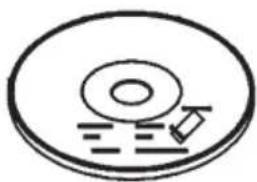
- Hold and handle discs by the edges to keep the disc clean. Don't touch the surface of the disc.
USB OPERATION
The unit contains a USB interface. The USB interface is located on the faceplate beneath the protective cover. You can connect an USB memory device using this interface.
- Locate the USB Input Cover on the faceplate.
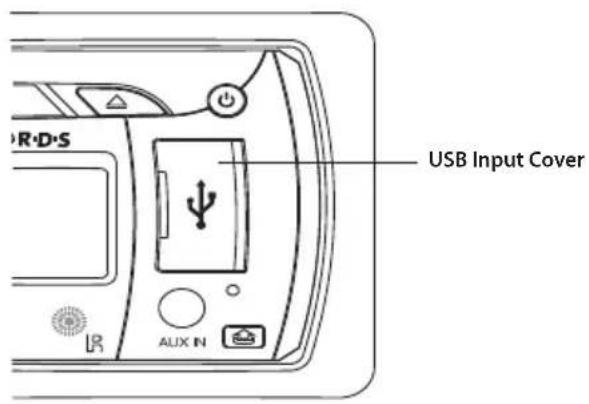
- Lift the USB Input Cover to reveal the USB connector.
- Insert the USB device into the USB connector. The unit will read the audio files on the USB device automatically. "USB PLAY" will appear on the display panel.
- If the unit is in another mode of operation press the SRC button on the faceplate or the MODE button on the remote control to select USB mode.
Note: When in USB play mode, be sure not to remove the USB device from the USB connector.
Note: The unit can only support a standard USB memory device. When connecting an MP3 player that uses normal batteries (non rechargeable batteries), the batteries should be removed from the MP3 player first and then connected to the USB connector. Otherwise, damage to the batteries may result.
Note: This unit supports a USB device with up to 8GB storage size. If there is any compatibility problems, we recommend you to format your USB device in FAT32 mode before using it. If the problem persists, consult your dealer for assistance.
MP3/WMA Playback
To play MP3/WMA files from a USB flash memory, insert a USB flash memory into the USB connector on the left side of the unit. The unit will start playing MP3/WMA files on the USB flash memory automatically.
If the MP3/WMA files are stored in folders on the USB drive, the unit will start by playing the first song in the first folder. After playing all the files sequentially in the first folder, the unit will play sequentially all of the files in the next folder. The unit will continue playing through all of the folders on the USB drive in this manner.
If the USB drive has loose files and folders containing files, it will play the loose files sequentially, then it will play the files in the folders sequentially.
There is an SD Memory Card Slot on the housing of the unit. The housing is accessed by removing the faceplate.
- Press the release button on the faceplate.
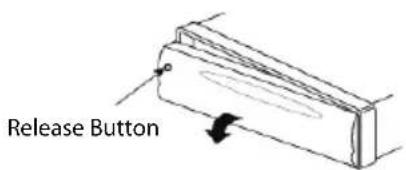
- Pull off the faceplate to reveal the Memory Card slot.
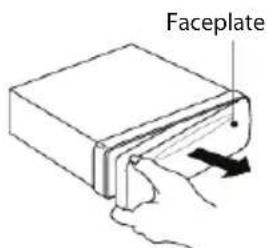
- Insert an SD card into the Memory Card slot.
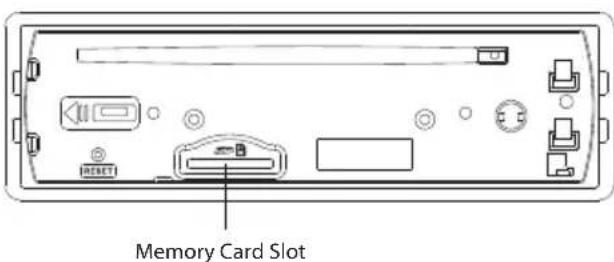
- Install the faceplate. The unit will search the MP3 files in the card and start to play MP3 files automatically. "SD PLAY" will appear on the display panel.
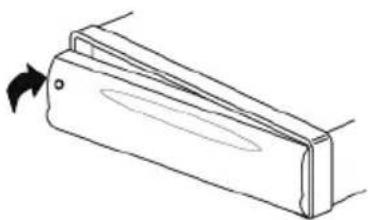
- If the unit is in another mode of operation press the SRC button on the faceplate or the MODE button to select SD play mode.
Note: This unit supports a SD/MMC card with up to 8GB storage size. If there is any compatibility problems, we recommend you to format your SD/MMC card in FAT32 mode before using it. If the problem persists, consult your dealer for assistance.
MP3/WMA Playback
To play MP3/WMA files from a SD card, remove the faceplate and insert a SD card into the SD Memory Card Slot on the housing. The unit will start playing MP3/WMA files on the SD card memory automatically when the faceplate is installed. If the MP3/WMA files are stored in folders on the SD card, the unit will start by playing the first song in the first folder. After playing all the files sequentially in the first folder, the unit will play sequentially all of the files in the next folder. The unit will continue playing through all of the folders on the SD card in this manner. If the SD card has loose files and folders containing files, it will play the loose files sequentially, then it will play the files in the folders sequentially.
Connect your iPod or iPhone with the original iPod cable (supplied with the iPod). This unit can play all audio from an iPod or iPhone up to the iPhone 4S and iPod Touch 4G. The iPad is not supported.
Play/Pause
Once the unit has been connected, playback will start automatically. During playback, press the "▶" to play, pause or resume play.
Browsing your iPod
- Press the F/PS button. "PLAY LIST" will appear on the display panel.
- Rotate the volume knob to cycle through "PLAY LIST", "ARTIST", "ALBUM", "GENRE", "SONGS", "COMPOSER", "AUDIO BOOK", and "PODCAST". The listing is the same as your iPod's listing.
- Press the volume knob to confirm your desired category.
- Rotate the volume knob for further selection and press the volume knob to confirm.
Detaching your iPod
Unplug your iPod cable from the USB port anytime to eject the iPod.
SPECIFICATIONS
CEA Power Ratings

Power output: 13 watts RMS X 4 channels into 4-ohms @ < 1% THD+N
Signal to noise ratio: 70dBA below reference.
(Reference: 1 watt, 4-ohms)
Frequency response: 20Hz to 20kHz (-3dB),
Auxiliary input used as source reference
Reference supply voltage: 14.4VDC
CD Player
Signal-to-noise ratio: >90dBA
Frequency response: 20Hz - 20kHz -3dB
Channel separation: >55dB @ 1kHz
D/A converter: 1 Bit/CH
FM Tuner
Tuning range (USA): 87.5MHz - 108.00MHz
Tuning range (Europe): 87.50MHz-108.00MHz
Tuning range (South America): 87.50MHz-108.00MHz
Mono sensitivity: 12dBf
50dB quieting sensitivity (stereo): 16dBf
Stereo separation @ 1kHz: >35dB
Frequency response: 30Hz-17kHz. -3dB
AM Tuner
Tuning range (USA): 530 kHz - 1710kHz
Tuning range (Europe): 522kHz-1620kHz
Tuning range (South America): 530 kHz - 1710kHz
Sensitivity @ 20dB signal to noise: 30uV
Frequency response: 50Hz - 2kHz -3dB
Auxiliary Input
Input sensitivity: 400mV RMS for 1 watt RMS into 4-ohms
Frequency response: 20Hz to 20kHz , -3dB
Input impedance: 10 k-ohms
General
Power supply: 11-16 VDC, negative ground
Power Antenna (Blue): 500mAmp Max, current limited protection.
Operating Temp: -10C~60C
Fuses: 10 amp fast blow ATO
DIN chassis dimensions: 2^ × 7^ × 6.7^
(51mm×178mm×170mm)
Specifications subject to change without notice
TROUBLESHOOTING
Before going through the checklist, the check wiring connections. If any of the problems persist after checking the list, contact your nearest service dealer.
| ProblemCause | Solution | |
| No power. • The car ignition switch is not on. • The fuse is blown. | • If the power supply is connected to the car accessory circuits, but the engine is not running, switch the ignition key to "ACC". • Replace the fuse. Make sure the amperage matches the specified value. | |
| Disc cannot be loaded or ejected. | • A disc is loaded inside the player. • The transport screws are installed. | • Remove the disc in the player, then insert a new one. • Remove the two transport screws from the top of the unit. |
| Disc does not play back. | • The disc is inserted in the wrong direction. • Incompatible disc is used. • Disc is warped or scratched. • The compact disc is extremely dirty or defective. • The laser pickup is dirty. • The temperature inside the car is too high. • Condensation. | • Insert the compact disc with the label facing upward. • Use a compatible disc. • Use disc in good condition. • Clean the disc with a soft cloth or try to play a new one. • Clean the laser pickup with a cleaning disc. • Cool off until the temperature returns to normal. • Turn the player off for an hour, then try again |
| No sound. • The volume is at minimum. • The wiring is not properly connected. | • Adjust the volume to a desired level. • Check the wiring connection. | |
| Sound skips. | • The installation angle is greater than 30 degrees. • The disc is extremely dirty. • The disc is defective. | • Adjust the installation angle to less than 30 degrees. • Clean the compact disc. • Play a new compact disc. |
| The operation keys do not work. | ·The built-in microcomputer is not operating properly due to noise. | ·Press the RESET button. ·The faceplate is not properly installed. |
| The radio does not work. | ·The antenna cable is not connected. | ·Insert the antenna cable firmly. |
| The radio station automatic selection does not work. | ·The signals are too weak.·Se | ect a station manually. |
CARE AND MAINTENANCE
- Use only a clean silicon cloth and neutral detergent to clean the front panel. A rough cloth and non-neutral detergent (such as alcohol) may result in scratching or discoloration.
- Do not get water or cleaning fluids on the unit.
- Do not use petroleum distillates to clean this unit.
- Insert only 5'' (12 cm) compact discs into the player. The mechanism can be damaged by foreign objects.
- Do not attempt to use a 3'' (8 cm) CD-Single disc in this unit, either with or without an adaptor. Damage to the player and/or disc may occur. Such damage is not covered by the Warranty on this product.
- The CD player may not operate properly in extreme hot or cold. If such conditions occur, allow the interior of the vehicle to reach a normal temperature before using player.
- When the vehicle warms up during cold weather or under damp conditions, condensation may appear on the display panel. Should this occur, the screen will not operate properly until the moisture has evaporated.
- We suggest you use a cleaning disc in this unit more frequently than you may in a home unit due to the environmental conditions of the vehicle.
Replacing the Fuse
Make sure the amperage matches the specified value when replacing the fuse(s). If the fuse is bad, check the power connection and replace the fuse with a new one. If the same problem occurs, this might indicate a malfunction within the unit.
Warning! When replacing a fuse, do not use a fuse with a higher amperage rating than the fuse originally supplied to your unit, otherwise damage will result to your unit.
COMMON REPLACEMENT PARTS
| Owner's Manual, Install Manual and Quick Start Guide 306 | 13840 |
| Wire Harness 30313840 | |
| Trim Ring 30413840 | |
| Main Sleeve 30113840 | |
| Hardware Bag 30513840 | |
| Remote Control 30713840 |

Audiovox Electronics Corporation
Hauppauge, NY 11788
Technical Assistance: 1-800-323-4815
www-mobile.jensen.com
© 2012 Audiovox
Printed in China
MP1516
(FM1) (FM2) (FM3) (AM1) (AM2)
Audiovox Electronics Corporation
Hauppauge, NY 11788
4. Touche TA (announce de traffic)
(FM1) (FM2) (FM3) (AM1) (AM2)
(Reference: 1 watt, 4-ohms)
Bandepassante:20Hzà 20kHz (-3dB).
Audiovox Electronics Corporation
Hauppauge, NY 11788
Assistance technique: 1-800-323-4815
www-mobile.jensen.com
© 2012 Audiovox
Imprimé en Chine

- CONTENTS
- USB OPERATION 33
- COMMON REPLACEMENT PARTS 39
- FEATURES
- WARNING BEFORE INSTALLATION
- INSTALLATION TOOLS
- Installation Tools:
- Installation Supplies:
- BEFORE YOU INSTALL
- Remove the Old Unit from the Dashboard
- Mark the Polarity of the Speaker Wires
- INSTALLATION
- Notes:
- DIN Front/Rear Mount
- Remove the Transport Screws Before Installation
- DIN Front Mount (Method A)
- Installation Opening
- Installing the Unit
- DIN Rear Mount (Method B)
- USING THE DETACHABLE FACEPLATE Removing the Faceplate
- Installing the Faceplate
- Handling Precautions
- WIRING CONNECTIONS
- Connector A
- Connector B
- Black Ground
- Yellow Memory Backup
- Blue Remote
- White Panel Light
- Speaker Wiring Notes
- CONTROLS AND INDICATORS
- (Next Track / Fast Forward) Button
- SRC (Mode Select) Button
- CLK/PTY (Clock/Program Type) Button
- TA (Traffic Announcement) Button
- Volume Knob (when rotated) / SEL (Sound Select) Button (when pressed)
- ST (Stereo) Button
- Disc Slot
- Liquid Crystal Display Panel
- A eject) Button
- (Power On/Off) Button
- 11.4Release Panel)Button
- USB Input Cover
- Auxiliary Input Jack
- Remote Control Receiver
- 6 /E(Folder Up) Button
- 5 /E Folder Down) Button
- 4/RDM (Random) Button
- 3 / RPT (Repeat) Button
- 2/INTRO (Introduction) Button
- 1 Play/Pause) Button
- Mute Button
- SCN (Scan) Button
- BAND / ID3 Button
- AS/PS (Auto Store/Preset Scan) Button
- (Previous Track / Fast Reverse) Button
- SD Memory Card Slot
- Reset Button
- Battery Installation
- Using the Remote Control
- Remote Control Functions
- Band Button
- Stations Tune/Seek Up/Track Up) Button
- Stations Tune/Seek Down / Track Down) Button
- Mute Button
- Increase Volume) Button
- PTY (Program Type) Button
- SEL (Sound Select) Button
- 3/RPT (Repeat) Button
- (Decrease Volume) Button
- 6 /E(Folder Up) Button
- 5/1(Folder Down) Button
- 4/RDM (Random Play) Button
- 1-6 (Preset Radio Memory) Buttons
- 1/>(CD Pause/Play) Button
- 2/INT (Introduction Scan) Button
- AF (Alternative Frequencies) Button
- TA (Traffic Announcement) Button
- Clock (Time Clock Display) Button
- APS (Auto Preset Scan) Button
- 20.ModeButton
- (Power On/Off) Button
- BASIC OPERATION
- Turning the Unit On or Off
- Selecting an Audio Source
- Volume
- Mute
- Sound Adjustment Mode
- Loudness Control
- Bass
- Treble
- Balance
- Fader
- Setting the Clock
- Turning the Preset Beep Sound On or Off
- Preset Equalizer Function
- To Select an Equalizer Preset:
- RADIO OPERATION
- Selecting a Radio Band
- Selecting a Frequency
- Radio Tune / Seek Function
- Tuning
- Mono/Stereo Reception Control
- Local / Distant Control
- Save Your Preset Stations
- Automatic Scan and Store
- Scan and Preview Saved Stations
- Radio Data System (RDS) Operation
- AF-Alternative Frequency
- TA - Traffic Announcement
- PTY - Program Type
- Mask Different Program Information (DPI) / Mask All
- Retune S/L - Short/Long
- Ejecting a Disc
- Selecting a Track
- Pausing or Resuming Playback
- Scanning Tracks
- Repeating a Track
- Playing Tracks in a Random Order
- MP3/WMA Playback
- Displaying ID3 Tag Information
- Folder Down
- Folder Up
- Search Modes
- Simple Track Search
- Track Search
- Folder Search
- Multi-Session CD Reading
- Electronic Skip Protection
- Disc Notes
- Notes on discs:
- Notes on CD-Rs (recordable CDs)/CD-RWs (rewritable CDs):
- Notes on MP3 files (MP3 Version Only):
- Cleaning and Handling Discs
- USB OPERATION
- Play/Pause
- Browsing your iPod
- Detaching your iPod
- SPECIFICATIONS
- CD Player
- FM Tuner
- AM Tuner
- Auxiliary Input
- General
- TROUBLESHOOTING
- CARE AND MAINTENANCE
- Replacing the Fuse
- COMMON REPLACEMENT PARTS
- MP1516
- Touche TA (announce de traffic)
Brand : JENSEN
Model : MP1516
Category : Car stereo