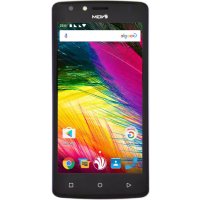
You Color Smart 5 Plus - Smartphone NGM-Mobile - Free user manual and instructions
Find the device manual for free You Color Smart 5 Plus NGM-Mobile in PDF.



| Product Type | Smartphone |
| Brand | NGM-Mobile |
| Model | You Color Smart 5 Plus |
| Operating System | Android™ 6.0 Marshmallow |
| Dual SIM | Yes, management of two SIM cards with automatic 3G/4G switching |
| Fingerprint Sensor | Yes, located on the back, up to 5 fingerprints |
| Connectivity | Wi-Fi, Bluetooth®, GPS, USB port |
| Battery | Lithium polymer, non-removable, rechargeable via USB |
| Memory Card | Micro-SD, usable as internal or external storage |
| Screen | Capacitive touch, unlock by swipe, pattern, PIN, password or fingerprint |
| Main Functions | Phone, Messages, Internet, Camera, Music player, Gallery, Contact management, Email, Gmail |
| Ringtones | Customizable, formats .mid, .wav, .ogg, .mp3, vibration, Do Not Disturb mode |
| Power | Mains charger or USB PC, NGM original charger recommended |
| Maintenance and Cleaning | Charge in a covered and dry place, avoid power surges |
| Security | Screen lock by pattern, PIN, password or fingerprint |
| Spare parts and repairability | Non-removable battery, replacement by NGM authorized service |
Frequently Asked Questions - You Color Smart 5 Plus NGM-Mobile
User questions about You Color Smart 5 Plus NGM-Mobile
0 question about this device. Answer the ones you know or ask your own.
Ask a new question about this device
Download the instructions for your Smartphone in PDF format for free! Find your manual You Color Smart 5 Plus - NGM-Mobile and take your electronic device back in hand. On this page are published all the documents necessary for the use of your device. You Color Smart 5 Plus by NGM-Mobile.
USER MANUAL You Color Smart 5 Plus NGM-Mobile
English - Quick Guide. 19
Copyright © 2016 NGM
Welcome to the NGM Android™ world. Thank you for purchasing NGM You Color Smart 5. With this device you can have access to the many features of the new Android™ 6.0 Marshmallow OS, to manage your contacts, email, social networks and to discover the opportunities of Internet with just a single touch! Discover the full potential of your new "smart" phone. By visiting the official website www.ngm.eu you can browse through the whole range of NGM mobile phones, ask for after sales assistance, access the forum for technical assistance and download software updates.
Warning: Data Connection of NGM You Color Smart 5 is active as soon as you first turn on the phone (and also after every factory data reset). If you do not have a special or "flat" rate for data connection with your SIM card, you are recommended to turn off data traffic and set up a Wi-Fi connection, in order to avoid additional costs.
The battery: your device is provided with a lithium polymer battery. The battery is located in the back cover and cannot be removed from its placement. To replace the battery, contact the NGM Service Center. If a phone reboot is needed, e.g. when the phone is blocked, press and hold power ON button for 15 seconds
ENGLISH
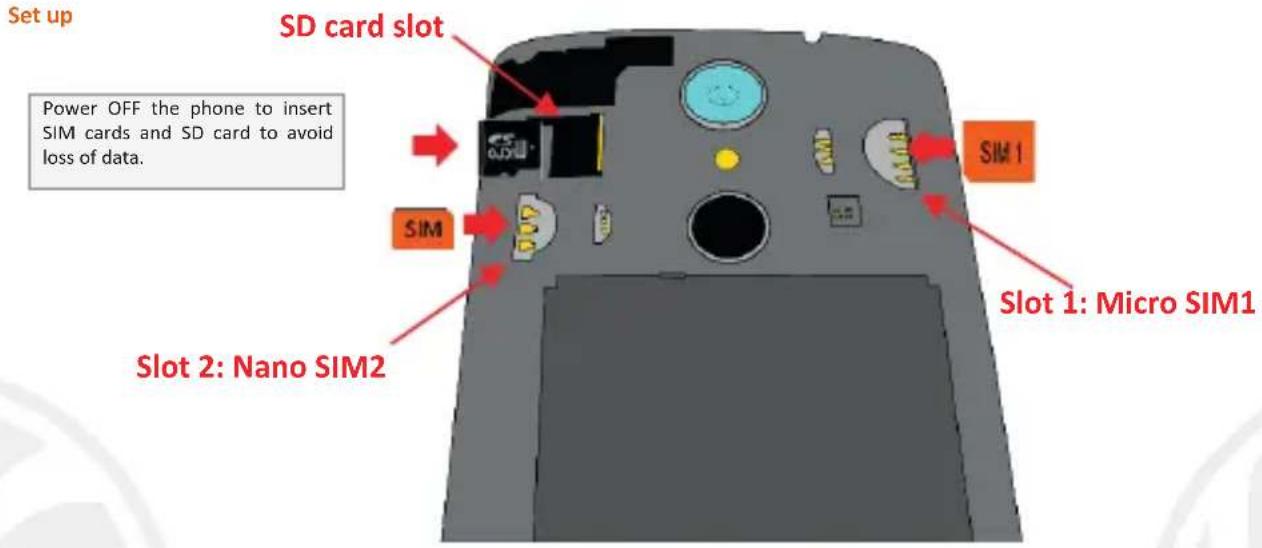
Inserting the memory card: to better manage all the functions of NGM You Color Smart 5, we recommend you to use a micro-SD card: insert it into the backside of the phone. After powering OFF the phone, remove the back cover through the related lift on the bottom right of the device, and insert SD card as shown in the figure.
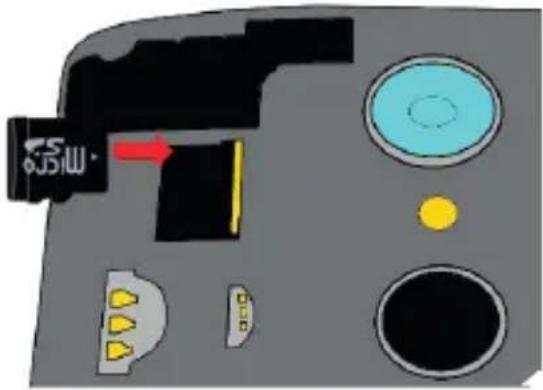
WARNING!! Android 6.0 Marshmellow introduced a new SD card management. When you first insert it on the device, you can choose to use your card as internal storage, instead of external. This option will give you more storage for your own applications, as you have a wider internal storage, but in this case you will be asked to format your SD card, for the exclusive use of your device. Once your SD card has been formatted as internal storage, it will be no more readable from any other device, so you will have to format memory card again from your PC, to be able to use it for other purposes.

Replace the cover as shown in the figure.
Charging the battery
Charge the battery before starting to use the device. Use the supplied USB cable and the USB connector on the top side of the phone. Connect the charger to the provided wall socket adapter, and then the device to the USB cable. You can also charge the phone by connecting it with the PC USB port, but in this case charging will take longer. When the battery is charging, an animated icon on the screen will show the charging progress if the phone is on. Once the battery icon is filled, it is fully charged and the phone can be disconnected from the grid.
Attention: Do not connect the phone to a booting-up or running down PC to avoid voltage jumps. To preserve the functionality of the product and the integrity of the warranty, we recommend the use of original NGM chargers. Please charge the battery indoors, in a dry and favorable environment. It's normal for the battery to get slightly warm during the charging process. The battery will reach its full capacity when cycled several times.
Power on, power off and standby
To turn on the phone, press and hold the power on/off key. To turn off your device, press and hold the same key and confirm by selecting "Shutdown". A quick pressure sets the phone in stand-by mode (screen off) or allows you to go back to the lock screen (see below).
ENGLISH
Main Screen
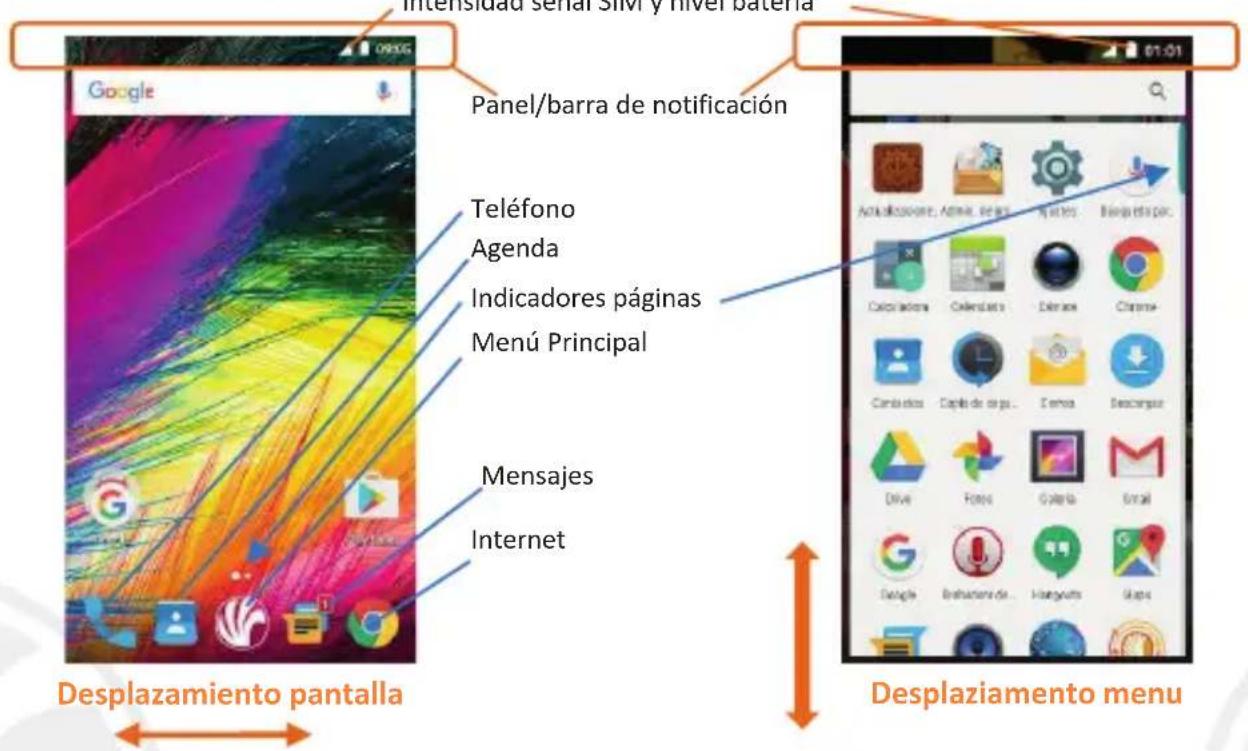
Use the touch screen by tapping, holding or dragging a finger across the screen. The main screen is the starting point for using all the applications on your phone. Other pages will be available to the right of the main page, as soon as you insert shortcuts or widgets into them: press and hold the desired application icon and drop it onto one of the desktop-thumbsnails. By swiping to the right with the held icon, you will create new pages that you can fill with shortcuts and widgets. You can also customize the four widgets next to the central menu icon by pressing, holding and moving them onto the desktop. To delete a shortcut or widget, tap and hold the icon and drag it onto the "X Remove" symbol on the screen. By moving an icon over another, you can create folders on the desktop and by long pressing an empty space on the desktop you can change the wallpaper.
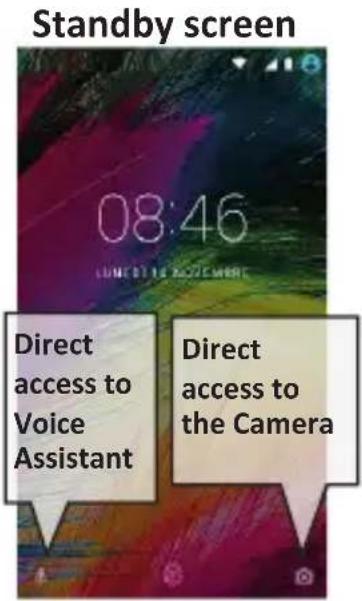
Swipe up to unlock the screen with pattern, PIN or password or place your finger on the fingerprint sensor
Screen lock with activated Fingerprint
The main menu
Select an application from the main menu or scroll downwards to view other applications. Press back key to return to the previous screen, press the Home key to return to the main screen.
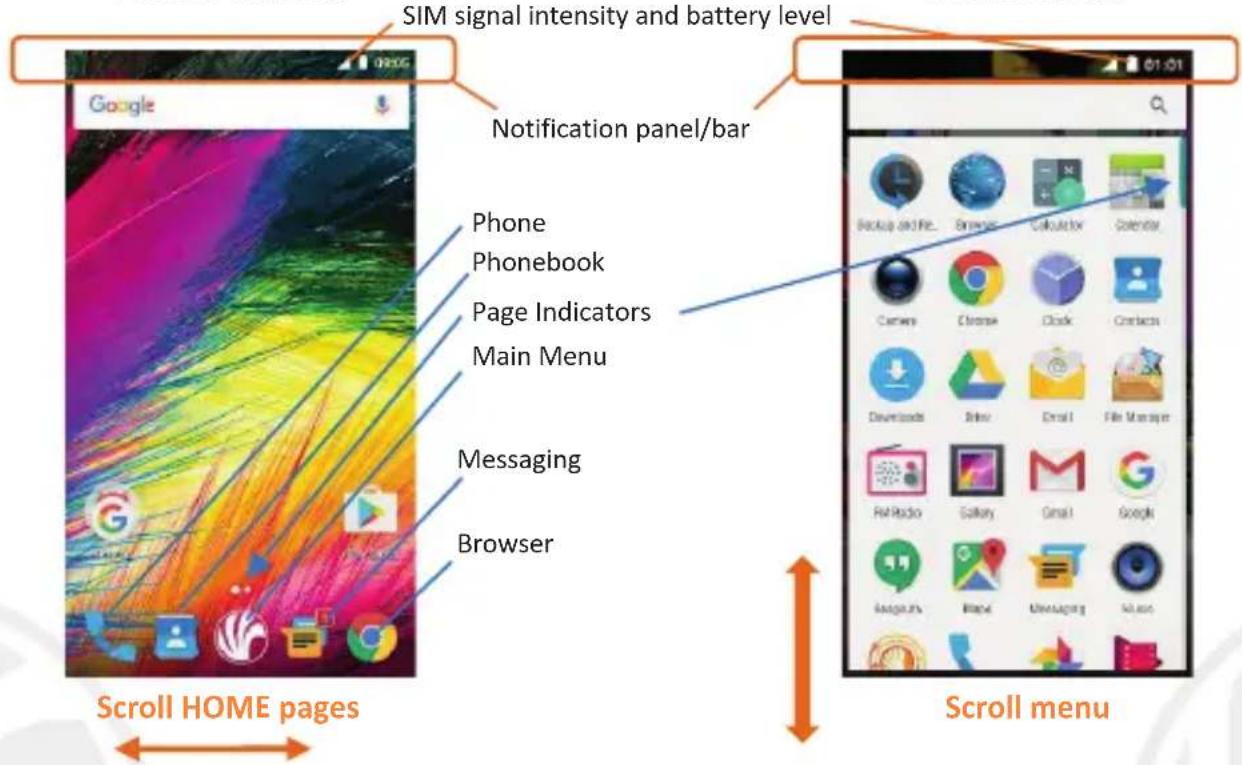
Home Screen
Main Menu
ENGLISH
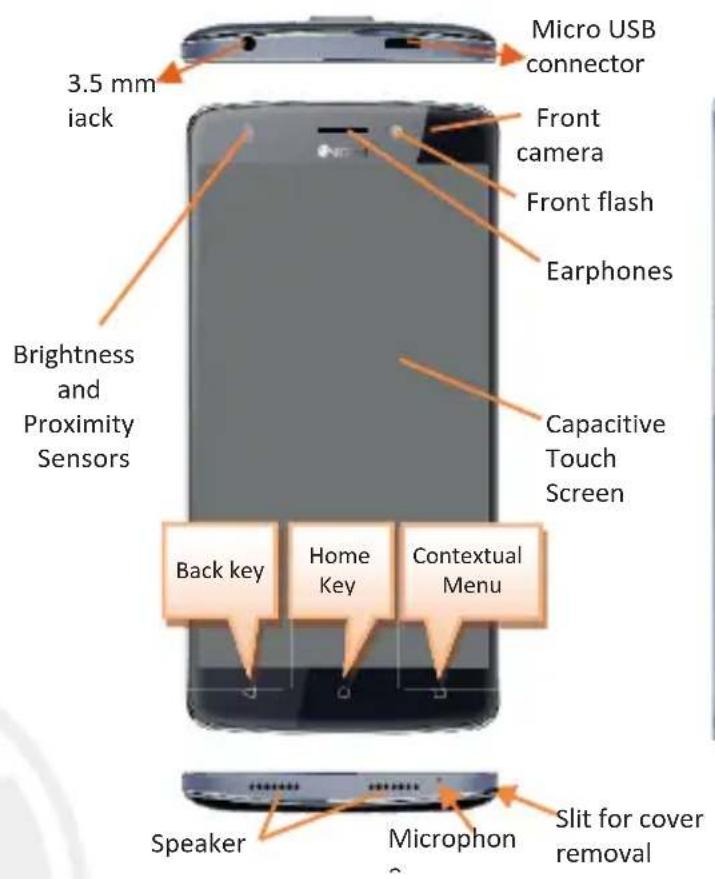
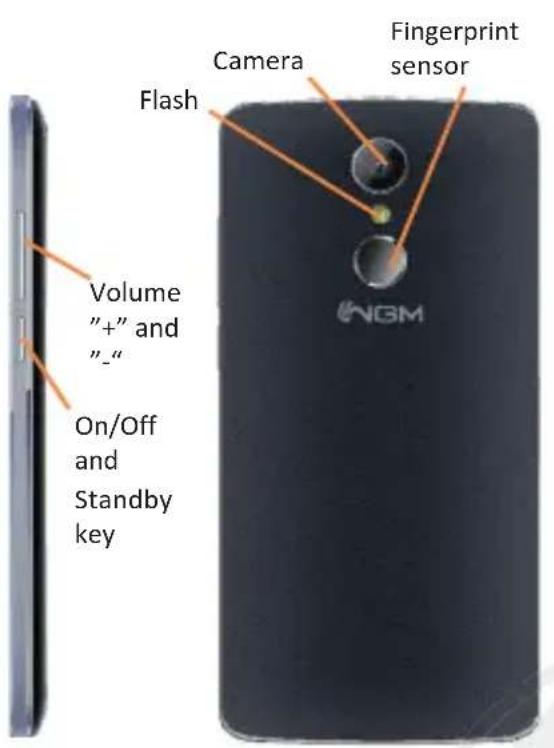
RAPID ACCESS
Notification panel: To open the Notification Panel, touch the upper icons bar. When scrolling down, the notifications will be shown first; if you continue scrolling down, you will also display the Quick Setup keys. With F , you will erase all notifications in the panel. To hide the panel, drag up the bottom of the panel or tap the Back key. Notifications will also be visible in the unlock screen.
Recent applications: When you are inside any application, long press the key: a list of the applications you have recently accessed will be shown and can be directly selected.
Lock screen: from the main menu, select Settings > Security > Screen Lock. Select the desired unlocking mode (None, Slide, Pattern, PIN or Password) and confirm. To quickly lock the screen, briefly press the power on/off key. To unlock it, follow the instructions on the screen.
Lock screen with fingerprint: Your NGM You Color Smart 5 introduced a new lock method, the most reliable one: your fingerprint. On Settings > Security > Fingerprint you can add up to 5 fingerprints to unlock your phone, but also to access to some applications like Gallery, Music Player and Camera. Before starting to register your fingerprints, you will be asked to set an alternative lock method, choosing from pattern, PIN or password in order to be able to unlock the phone even if your fingerprint is not recognized by the sensor. So you will set up your fingerprint, placing several times your finger on the sensor at the back side of the phone, until your device will confirm that the wizard has been completed. Then, to unlock the phone you will just lay your finger on the sensor gently.
Contextual Menu: Most applications have a Contextual Menu key. By clicking on that key, you can display a contextual menu referred to the application itself, with related functions.
ENGLISH
MANAGING CALLS
From the main screen touch the Phone icon; use the virtual keypad to enter the desired phone number (select icon to display the virtual keypad)
Press the handset icon.
To end the call press the red end call key.
To answer a call, select Reply on the popup that appears at the top of the screen, or tap the pop-up itself to display the call screen. Now drag the phone icon to the right onto the blue handset to answer the call; to reject it, drag it to the left onto the red handset. To reject with message, drag up the handset. To silence an incoming call, press Volume "+" or "-" (on the right side of the phone).
Call a number from the call log
From the main menu, first select the Phone App and then select Call Log from the contextual menu or from the Clock icon (hide the virtual keypad first); this will display the call logs with the missed, received and outgoing calls.
Select the handset icon next to the desired number.
MANAGING CONTACTS
Add a new contact:
Note: In the contact contextual menu, you can access the Import/Export functions and several other settings.
From the main menu select the Contacts icon.
Press on the bottom.
Choose where to save the new contact, selecting "More Fields"
Insert Name, Number and other contact details (if saving on Phone) and confirm with
Add a new contact from call log:
From Phone menu, access the Call Logs (contextual menu or Clock icon).
Click on the empty contact icon then select the icon in the top right.
Choose Create New Contact on the top or add the number to an Existing contact by selecting it from the list. Once you selected the saving path and added name and any further information (when saving in Phone), confirm with Note:you can set instance in midswv, go on *mp3 favortre
Setting the ringtones
From the main menu, select Settings > Sound and Notification > General.
Select Phone Ringtone and choose the desired ringtone. If you want to set a custom ringtone: in Music, select the desired audio track and choose Use as Ringtone in the contextual menu. The audio file will be added to the available ringtones list.
Quickly turn on/off the vibration mode: to quickly disable call and message ringtones press the Volume "-" key. Once the minimum volume has been reached, the phone will enter the vibration mode.
In the same way you can manage media and alarms volume
Do not disturb mode: Android™ Marshmallow, basing on some information introduced by Lollipop, implemented a new audio profile mode: Do Not Disturb Activating this option from Notification Panel, you can choose from different configurations:
Total Silence, to block all audio notifications, including alarms, music, videos and games.
- Alarms only, to block all audio notifications, except for alarms
Priority only, with this option you can choose notifications, events, reminders or alarms which will be set as priority and never be stopped.
Within any configuration you can set also the duration of all the settings, choosing between "Until you turn this off" and "For one hour" options.
ENGLISH
To choose which notification you want to set as priority, go on Settings > Audio and Notifications > Do not Disturb. Here you can choose events, reminders, messages and calls from specific contacts to set as priority. In Priority only mode, alarms will be always set as priority.
Within the same menu, on Automatic rules, you can set a scheduled power ON, choosing between several periods of time.
In Settings > Sound and Notifications > Notifications, you can choose not to receive notifications from specific applications selectable from the Notifications app menu.
Send and read SMS and MMS Read SMS and MMS: when you receive a new SMS or MMS, an icon appears in the notification panel. By clicking on the displayed icon, you can directly access the conversation and read the incoming message. In any case, you can view the incoming messages from the home screen or menu by selecting Messaging.
Sending SMS and MMS: From the Home page or from the main menu, choose Messaging and then the icon on the top. Type the first letters of a name into the recipients field to search for a contact and select it from the pop-up or directly enter the phone number; otherwise select the icon next to the field and select the recipient(s) from the contacts. Write the text into the dedicated space with the virtual keypad. Select the icon to insert multimedia files (the message will automatically be converted into MMS) and press key.
CONNECTIVITY: To better use the potentiality provided by the device and its operating system, you must have an active data connection; data connection of NGM You Color Smart 5 is active when you first power ON the phone. If it is not included into your mobile phone plan, data traffic may cause you extra costs, so it is recommended to configure an Internet connection via WiFi. To enable data traffic on one of the SIM cards, activate it from the Quick Setup buttons in the notifications panel (Signal icon).
Connect to the Internet using Wi-Fi® You can connect to the WLAN using Wi-Fi option. To activate it, from the main menu choose Settings > WiFi I/O. Please follow all warnings and indications concerning the use of wireless devices in areas where the use of such functions is restricted (airplanes, hospitals, etc.). Go offline mode when you have to use only the functions that do not require Network access.
Connecting to a Bluetooth device: turn ON the Bluetooth device you want to connect with. Refer to the device documentation.
From the main menu, choose Settings > Bluetooth on/off to turn on Bluetooth. In the contextual menu you will find additional functions and settings.
Choose Search to automatically find other Bluetooth devices.
Among the discovered devices, select the device name to associate with. The phone will attempt to associate with the device, which may be asked for a pairing code.
Connect to the Internet: from the main menu, choose Browser. Type the URL into the address bar to start browsing. If you choose to navigate using data connection, be aware of costs or choose a "flat" data contract with your service provider. Alternatively, use WiFi (see "Connectivity") where possible.
Gmail account setup: In order to better manage the Android™ OS functionalities, it is recommended to configure a new Gmail account, or insert an existing one. This will allow you to access all Android™ OS applications.
E-mail: By configuring a default account you can easily manage your e-mails and display them automatically on your phone. If you want to use also a different Email account, you can configure a new account with another provider within the Email app in the Main Menu.
ENGLISH
Synchronization: Synchronization is the most efficient approach to manage your useful data because it allows you to make a backup of the data on your device with an internet account. In case of replacement, loss or damage of the phone you will not experience loss of data. The synchronization can be activated individually for each synchronized application installed; you can find the application list in Settings > Account[Installed App list]. To add a new account, select Add Account. The synchronization uses an active data connection, which could result in data traffic costs. It is advisable to use a WiFi connection when available.
GPS geolocation: The Global Positioning System (GPS) is a satellite-based positioning system, with a global and continuous coverage. To access GPS, select Settings > Localization I/O. When the GPS function is activated, the phone starts to collect data from satellites and determines the current position. The Fix Times (position detection) are variable and can be affected by several external factors (clouds, high buildings, etc.). Limit the use of battery and memory by switching off this function when you don't need it.
NGM You Color Smart 5 Dual SIM
With your new NGM You Color Smart 5 smartphone, you will enjoy the convenience of Dual SIM, i.e. the ability to handle two SIM cards and consequently two telephone numbers with a single device. You will discover useful features such as setting the preferred SIM for calls, messages and data connection and the possibility to quickly move the data connection, and automatically the 3G/4G, from one SIM to the other without physically having to exchange them. At any time you can manage ringtones and notifications for each SIM card independently, exactly as if you had two separate devices.
Managing the two SIM cards: from the main menu, select Settings > SIM Management. Select the on/off keys next to the phone operators corresponding to "SIM1" and "SIM2" to activate or deactivate selectively the SIM at any time. From this menu you can also customize the color and name for each SIM icon and decide which SIM to use as default for calls, messages and data connection or choose "always ask" if you don't want to set a SIM card as default. By selecting a SIM for data connection, the 3G/4G service will be automatically activated on the same SIM. This allows you to move the 3G/4G connection (normally available on slot1 only) from one SIM to the other without physically exchanging them.
ENGLISH
CHOOSE THE PREFERRED SIM FOR DATA CONNECTION: To enable data traffic on one of the SIM cards, select Settings > SIM Settings > Data connection, and choose the SIM card on which to activate data connection and automatically the 3G/4G service. Then, activate the switch from the Quick Setup button in the notifications panel (signal icon).
SET RINGTONES WITH DUAL SIM. The Dual SIM management allows you to set a different ringtone for each SIM card. From the main menu, select Settings > Sound and Notification > General. Select Voice call ringtone > SIM1 or SIM2 and choose the desired ringtone for each SIM card.
MANAGE CALLS WITH DUAL SIM: your Dual SIM device allows you to set a default SIM for phone calls (see "Managing the two SIM cards"). If no choice has been made, dial the number with the virtual keypad (icon), press the handset icon and choose the SIM card that you wish to call with.
Call a number from the call log
From the main menu, enter the Phone app and hide the virtual keypad by dragging it down. Select Call logs from the contextual menu or from the Clock icon; the logs with the missed, received and outgoing calls will be displayed.
In case no default SIM has been set, select the handset icon next to the desired number and choose which SIM to call with.
Send SMS and MMS with Dual SIM: As for the calls, also for messages you can set a default SIM card. If no SIM has been chosen, whenever you send a message you will be prompted to choose which SIM you want to use for sending messages From the Messaging menu, select the icon in the upper part. Enter recipients manually or by choosing them from the address book, as previously described in the paragraph "Sending and receiving SMS and MMS", enter the text into the appropriate place with the virtual keypad, select and then the desired SIM.
Warning:
Formating and delivery of this user manual is based on the Android™ operating system, NGM Italia will not bear responsibility for any incompliance with the above guidelines or improper use of the mobile phone. NGM reserves the right to modify any of the content in this user guide without previous public announcement. The content of this manual may vary from the actual content displayed in the mobile phone. In that case, the latter shall govern.
Copyright © 2016 NGM
No part of this manual may be reproduced, distributed, translated, or transmitted in any form or by any means, electronic or mechanical, including photocopying, recording, or storing in any information storage and retrieval system, without the prior written permission of NGM Italia.
Bluetooth® is a registered trademark of the Bluetooth SIG, Inc. worldwide.
Wi-Fi® and the Wi-Fi logo are registered trademarks of the Wi-Fi Alliance.
ENGLISH
Pantalla Principal
Menu Principal
ESPÁNOL