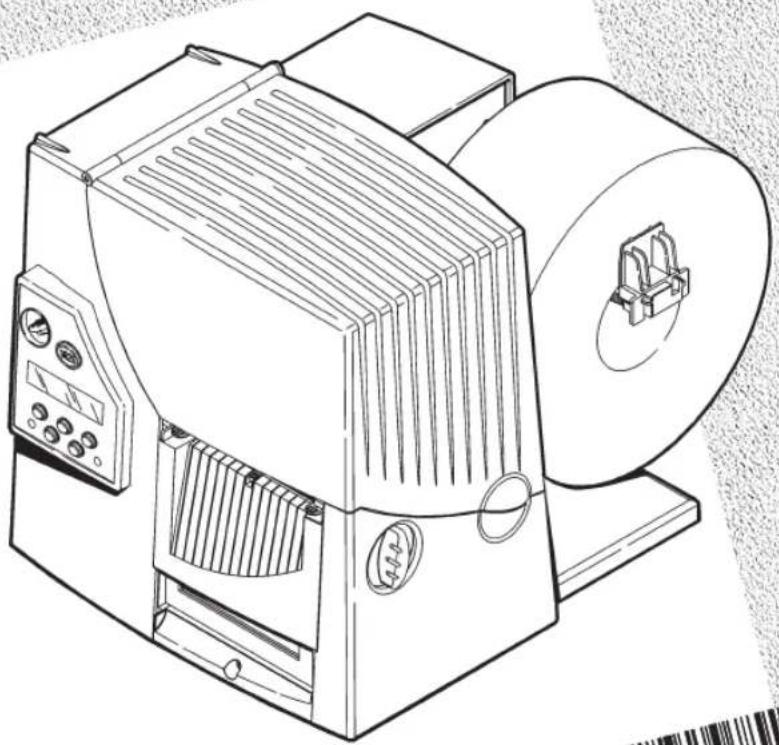
Monarch 9825 - Label printer Paxar - Free user manual and instructions
Find the device manual for free Monarch 9825 Paxar in PDF.


| Product Type | Label Printer |
| Brand | Paxar |
| Model | Monarch 9825 |
| Dimensions (H x W x D) | 31.8 cm x 30.5 cm x 33 cm (without metal cover) |
| Weight | 9.5 kg (without metal cover); 13.2 kg (with metal cover) |
| Power Supply | 115 V AC, 60 Hz; 100 V AC, 50/60 Hz; 230 V AC, 50 Hz (automatic switching) |
| Printing Method | Thermal transfer (ribbon) or direct thermal |
| Print Head | Thermal, width 10.2 cm, resolution 8 dots/mm (203 dpi) |
| Print Speed | 6.4 cm/s (serial barcodes); 10.2 or 15.2 cm/s (parallel barcodes) |
| Max. Print Area | 10 cm x 41 cm |
| Label Types | Thermal transfer, direct thermal, linerless |
| Label Width | 2 cm to 11 cm |
| Label Length | 1.3 cm to 45 cm |
| Label Thickness | 7 to 12 mils |
| Ribbon | Standard, length 600 m, width adapted to label (e.g., 10.2 cm for 11 cm label) |
| Display | 2-line LCD |
| Indicators | Power (green), Fault (flashing yellow) |
| Interfaces | Parallel (IEEE-1284/Centronics), RS-232 serial (9 or 25 pins) |
| Options | Peel mode, tear bar, metal cover, Ethernet server |
| Maintenance | Regular cleaning of print head, platen and sensors; possible replacement of print head |
| Safety | Automatic power supply 115/230 V; precautions against static electricity when handling print head |
| Spare Parts | Replacement print head (ref. 12055101), ribbon take-up mandrel, cables, CLEAN-STRIP cleaning tape |
| Repairability | Print head replacement possible by user; other repairs by technical service |
| Operating Temperature | Thermal transfer: 4°C to 35°C; Direct thermal: 4°C to 40°C |
Frequently Asked Questions - Monarch 9825 Paxar
User questions about Monarch 9825 Paxar
0 question about this device. Answer the ones you know or ask your own.
Ask a new question about this device
Download the instructions for your Label printer in PDF format for free! Find your manual Monarch 9825 - Paxar and take your electronic device back in hand. On this page are published all the documents necessary for the use of your device. Monarch 9825 by Paxar.
USER MANUAL Monarch 9825 Paxar
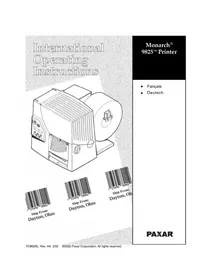
International Operating Instructions
Monarch®
9825™ Printer
natural_image
Line drawing of a mechanical device with control panel and spool (no text or symbols)♦ Français
♦ Deutsch
Ship From: Dayton, Ohio
Ship From: Dayton, Ohio
Ship From Dayton, Oh
PAXAR
Each product and program carries a respective written warranty, the only warranty on which the customer can rely. Monarch reserves the right to make changes in the product, the programs, and their availability at any time and without notice. Although Monarch has made every effort to provide complete and accurate information in this manual, Monarch shall not be liable for any omissions or inaccuracies. Any update will be incorporated in a later edition of this manual.
©2002 Paxar Corporation. All rights reserved. No part of this publication may be reproduced, transmitted, stored in a retrieval system, or translated into any language in any form by any means, without the prior written permission of Paxar Corporation.
WARNING
This equipment has been tested and found to comply with the limits for a Class A digital device, pursuant to Part 15 of the FCC Rules. These limits are designed to provide reasonable protection against harmful interference when the equipment is operated in a commercial environment. This equipment generates, uses, and can radiate radio frequency energy and, if not installed and used in accordance with the instruction manual, may cause harmful interference to radio communications. Operation of this equipment in a residential area is likely to cause harmful interference in which case the user will be required to correct the interference at his own expense.
CANADIAN D.O.C. WARNING
This digital apparatus does not exceed the Class A limits for radio noise emissions from digital apparatus set out in the Radio Interference Regulations of the Canadian Department of Communications.
MONARCH ^® , 917, 9800, 9825, and 9850 are trademarks of Monarch Marking Systems, Inc.
Paxar is a trademark of Paxar Corporation.
Microsoft and MS-DOS are registered trademarks of Microsoft Corporation.
Windows and NT are registered trademarks of Microsoft in the U.S. and other countries.
NetWare is a registered trademark of Novell, Inc. in the United States and other countries.
Centronics is a registered trademark of Centronics Data Computer Corporation.
TrueType is a registered trademark of Apple Computer, Inc.
Hewlett-Packard is a registered trademark of Hewlett-Packard Inc.
HP Jet Admin and HP Web Jet Admin are trademarks of Hewlett-Packard, Inc.
Adobe and Acrobat are trademarks of Adobe Systems Incorporated which may be registered in certain jurisdictions.
Other products are trademarks or registered trademarks of their respective countries and are hereby acknowledged.
Paxar Corporation
170 Monarch Lane
Miamisburg, OH 45342
In Switzerland: GOMARO s.a - La Rosaire 5 - CH 1123 Aclens
http://www.gomaro.ch/
TABLE DES MATIÈRES
MISE EN ROUTE 1-1
L'impression Sans Papier De Support 2-9
natural_image
Illustration of a hand turning a tool with a black arrow indicating rotation (no text or symbols)natural_image
Technical line drawing of a mechanical device with no visible text or symbolsnatural_image
Line drawing of a hand holding a handheld device with buttons and a cable connector (no text or symbols)natural_image
Line drawing of a hand operating a computer with a magnified inset showing the internal components (no text or symbols)natural_image
Illustration of hands operating a mechanical device with a magnified inset showing a tool (no text or symbols present)natural_image
Technical line drawing of a mechanical assembly with gears and rollers (no text or symbols)natural_image
Illustration of a hand holding a rolled-up sheet of paper with a circular band (no text or symbols)flowchart
graph TD
    A["←"] --> B["SUPPLY Supply Pos"]
    B --> C["→"]
Cancel Graphic? ← Yes
flowchart
graph LR
    A["MAIN MENU"] --> B["← Repeat Batch"]
    B --> C["→"]
Printing xxxx of xxxx
The Electronic Font Foundry
11 Silwood Road
Ascot
SL5 OPY
Angleterre
(0) 1344 875 201
www.eff.co.uk
ENTRETIEN
natural_image
Line drawing of hands assembling or adjusting a mechanical component (no text or symbols visible)natural_image
Technical line drawing of hands using a tool to adjust or install a mechanical component (no text or symbols visible)natural_image
Line drawing of a hand operating a mechanical clamp or bracket assembly (no text or symbols present)natural_image
Illustration of a hand operating a mechanical device with no visible text or symbolsnatural_image
Technical line drawing of mechanical assembly with gears and rollers (no text or symbols)natural_image
Line drawing of hands assembling or adjusting a mechanical component (no text or symbols visible)flowchart
graph TD
    A["MAIN MENU"] --> B["Setup"]
    B --> C["→"]
flowchart
graph LR
    A["SETUP"] --> B["Contrast"]
    B --> C["→"]
Foncé

DANS LES SPEC
Clair
DÉPANNAGE
6
flowchart
graph TD
    A["DIAGNOSTICS"] --> B["User Diag"]
    B --> C["→"]
Tastenfunktionen
Feed/Cut:
flowchart
graph LR
    A["MAIN MENU\nCancel All"] --> B["→"]
natural_image
Illustration of a hand turning a mechanical component with a curved arrow indicating rotation (no text or symbols present)natural_image
Technical line drawing of a mechanical device with no visible text or symbolsnatural_image
Illustration of a hand holding a control panel next to a mechanical device (no text or symbols visible)natural_image
Technical line drawing of hands operating a mechanical component with tools (no text or symbols visible)natural_image
Line drawing of a hand connecting a device to a control panel, with an inset magnified view showing the cable being inserted (no text or symbols present)natural_image
Illustration of hands operating a mechanical device with a magnified inset showing a tool (no text or symbols present)natural_image
Technical line drawing of a mechanical assembly with gears and rollers (no text or symbols)natural_image
Illustration of a hand holding a rolled-up sheet of paper with a circular band (no text or symbols)Print (Druck) Position:
Supply (Material) Position:
flowchart
graph TD
    A["←"] --> B["SUPPLY Supply Pos"]
    B --> C["→"]
flowchart
graph TD
    A["Cancel Graphic?"] --> B["←"]
    B --> C["Yes"]
flowchart
graph TD
    A["Cancel Font?"] --> B["← Yes"]
MAIN MENU ← Repeat Batch →
Printing xxxx of xxxx
The Electronic Font Foundry
11 Silwood Road
GB - Ascot SL5 OPY
+ (0) 1344 875 201
www.eff.co.uk
PFLEGE UND WARTUNG
5
natural_image
Technical line drawing of hands assembling or adjusting a mechanical component (no text or symbols visible)natural_image
Line drawing of hands using a tool to adjust or install components on a mechanical component (no text or symbols visible)natural_image
Technical line drawing of a hand operating a mechanical clamp or fixture (no text or symbols present)natural_image
Illustration of hands operating a battery pack with circuit breakers and a switch (no text or symbols visible)natural_image
Technical line drawing of mechanical components including a bolt, gear, and housing (no text or symbols)natural_image
Line drawing of hands assembling or adjusting a mechanical component (no text or symbols present)flowchart
graph LR
    A["MAIN MENU"] --> B["Setup"]
    B --> C["→"]
flowchart
graph TD
    A["SETUP"] --> B["Contrast"]
    B --> C["→"]
DIAGNOSTICS ← User Diag →
USER DIAG ← Test Label
For supplies, service or assistance call toll free: Fournitures et assistance en Suisse.
GOMAR000a54Ba608air(15 t)CHU.123Aclens - Suisse
1-800-263-4650 (In Canada) Tel: 021 869 97 70 - Fax: 021 869 96 02
www.monarch.com http://www.gomaro.ch