MID7050 - Tablet COBY - Free user manual and instructions
Find the device manual for free MID7050 COBY in PDF.



| Product Type | Touchscreen Internet Tablet |
| Brand | Coby |
| Model | MID7050 |
| Processor | Cortex A9 (1 GHz) |
| RAM | 512 MB |
| Internal Storage | 4 GB or 8 GB depending on model |
| Screen | 7-inch TFT LCD (800 x 480), resistive |
| Operating System | Android 4.1 Jelly Bean |
| Wi-Fi Connectivity | IEEE 802.11 b/g/n |
| Expandable Storage | microSDHC up to 32 GB |
| Ports | USB 2.0 Hi-Speed (Micro-USB), 3.5 mm headphone jack, DC power port |
| Power | Rechargeable Li-polymer battery, 5V DC power adapter |
| Main Functions | Web browsing, email, YouTube, e-book reader, app store (SlideME), media player |
| Sensors | Orientation sensor (accelerometer) |
| Audio | Built-in speaker, microphone, headphone output |
| Package Contents | Tablet, protective case, USB cable, power adapter |
| Dimensions | Approximately 19 x 12 x 1.2 cm (estimated) |
| Weight | Approximately 360 g (estimated) |
| Care and Cleaning | Unplug before cleaning, use a damp cloth, no liquid or aerosol cleaners |
| Safety | Do not expose to moisture, do not open the casing, follow FCC guidelines |
Frequently Asked Questions - MID7050 COBY
User questions about MID7050 COBY
0 question about this device. Answer the ones you know or ask your own.
Ask a new question about this device
Download the instructions for your Tablet in PDF format for free! Find your manual MID7050 - COBY and take your electronic device back in hand. On this page are published all the documents necessary for the use of your device. MID7050 by COBY.
USER MANUAL MID7050 COBY
Unit at a Glance 5
About the Touchscreen 8
Protective Film 8
Touchscreen Actions. 8
About the Orientation Sensor 9
Inserting a Memory Card or USB Flash Drive.....10
Resetting the Tablet 12
GETTING STARTED 13
Turning the Tablet on and off 13
Turning the Screen On and Off (Standby) 14
Unlocking the Screen 14
About Applications 16
Preinstalled Applications. 17
Installing Applications 18
About Widgets 19
Adding Widgets to a Home Screen. 19
Removing Widgets 19
About Notifications 19
CONNECTING TO THE INTERNET 21
Requirements 21
Connect to a Wi-Fi network 22
BROWSING THE WEB 24
Browser menu. 26
MANAGING APPLICATIONS 28
OPTIONAL CONNECTIONS 31
Connecting to a Computer 31
Connecting Headphones 32
SETTING THE SYSTEM OPTIONS 33
SPECIFICATIONS 34
SUPPORT 35
SAFETYNOTICES 36

Thank You
Congratulations on your purchase of a Coby Kyros Internet Tablet. This guide is provided to help you get started quickly with your player; please read it carefully and save it for future reference.
For detailed instructions, up-to-date information, and helpful tips, please visit the Coby website at www.cobyusa.com.

This manual is available for download from the Coby website as a PDF file.
To view PDF documents, download and install the free Adobe Acrobat reader from the Adobe website at www.adobe.com.
Package Contents
Please make sure that the items shown below are included in the package. Should an item be missing, please contact the local retailer from which you purchased this product.
- Cobyros® Internet Tablet
Protective pouch - USB cable
Power adapter

This package may contain plastic bags or other materials that pose a hazard to children. Be sure to safely dispose of all packing materials after opening.
Features
Browse the Web.
Visit your favorite websites
- Check your e-mail
Keep in touch with friends and family
- Watch YouTube™ videos
Browse the world's most popular video-sharing community
Read your favorite books
Download thousands of books with the included
E-book reader
Discover thousands of apps for AndroidTM
Games, applications, and more with the installed
marketplace
- Connect to the Internet wirelessly
High-speed Wi-Fi 802.11 b/g/n networking
Enjoy your media library anywhere
Portable powerhouse plays popular music, video,
and photo formats
microSDHC memory card reader
Increase your storage capacity (up to 32 GB sup
ported)
Automatic orientation detection
Read any way you want; the display adjusts automatically!
- Reading books in the ePub format requires the included E-book reader application.

Getting to Know the Internet Tablet
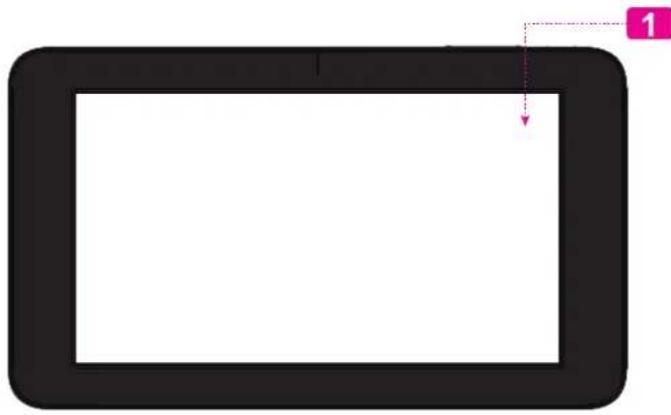
Unit at a Glance
| NameDescription | ||
| 1 Touchscreen LCD | Display and control screen. Touch controls are displayed on the screen. | |
4s116b3
| NameDescription | ||
| 2 Power jack(DC input) | Charge and power the tablet with the included power adapter. | |
| 3 USB 2.0 Hi-speed port | Connect to a computer to transfer data (e.g., music, videos, photos, files). | |
| 4 Reset key Press to | reset the tablet if it freezes or otherwise behaves abnormally. (Use a paperclip or other small object to gently press this key.) | |
| 5 Speaker Speaker | output is automatically muted when using headphone Jack. | |
| 6 Headphone jack | Audio output connection for headphones.Note:Speaker output is automatically disabled when headphones are connected to the player. | |
| 7 MIC Recording sound | ||
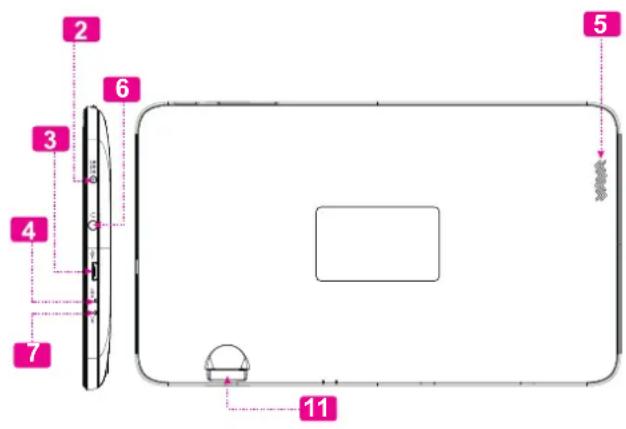
| NameDescription | ||
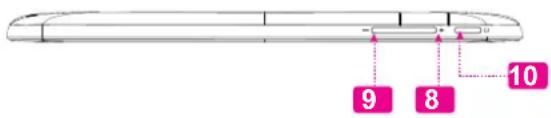
| 8 V | Volume + key | Press to increase the volume level. |
| 9 V | Volume - key | Press to decrease the volume level. |
| 10 | Power key Press | to turn the unit on, or to turn the screen on and off. Press and hold to access the Power Off menu. |
| 11 | microSDHC card slot | Load external microSDHC memory cards here. |
About the Touchscreen
Your tablet comes equipped with an easy-to-use touch-screen.
Our MID7050 with resistive touchscreen requires slight pressure on the plastic screen to activate tablet's functions. This may be done with a single finger or plastic stylus.
Our MID7051 with capacitive multi-touchscreen requires gentle fingertip touch on the glass screen to activate tablet's functions. Multiple fingers may be used to perform gestures (e.g. 2-finger picture zoom).

Please note on MID7051: Your finger tips must not be covered. A stylus may be used. Make sure it is for capacitive touchscreens.
Protective Film
A thin film has been applied to the touchscreen to protect it during shipping. The protective film should be removed before use. To remove it, simply take a corner of the film and peel it away from the screen.
Touchscreen Actions
You can control the functions of the tablet by using the touchscreen. To control the tablet with the touchscreen, use your fingertip or stylus to manipulate icons, buttons, menu items, the on-screen keyboard, and other items displayed on the screen.
You can perform the following actions on the touchscreen using your fingertip or stylus.

Note: You must use capacitive stylus on multi-touch capacitive screens.
| Touch: To activate an on-screen item (e.g., application icons, buttons, menu items, and the letter/symbols of the on-screen keyboard), simply touch them with your fingertip or stylus. | |
| Touch and Hold: | Some on-screen items have an alternate action if you touch and hold it (e.g., opening an alternate menu, or to activate the drag function). To touch and hold an item, touch the item and do not lift your fingertip/stylus until the action occurs. |
| Drag: Drag an on | on-screen item to change its position (e.g., an application icon on the home screen). To drag an item, touch and hold it for a moment, then without lifting your fingertip/stylus, move your fingertip/ stylus on the screen until the item reaches its target destination. |
| Swipe: Swipe up | down on the screen to scroll through a list. On some screens, you may be able to swipe left/right to change the view. To swipe, touch the screen and then quickly move your fingertip/stylus across the screen without lifting your fingertip/stylus. Do not pause on the screen with your fingertip/stylus at the initial point of contact or you may accidentally drag an item instead. |
| Double-tap: Quick | quickly tap the screen twice on a webpage or other application screen to zoom (the application must support the double-tap/zoom function). Within the browser, double-tapping a web-page section will cause the browser to zoom and fit that section to the width of the screen. |
About the Orientation Sensor
The tablet contains a sensor that will automatically change the orientation of most screens as you rotate the tablet. The sensor works best when the tablet is rotated perpendicular to the ground (i.e., when the tablet is held upright and not fat on its back).
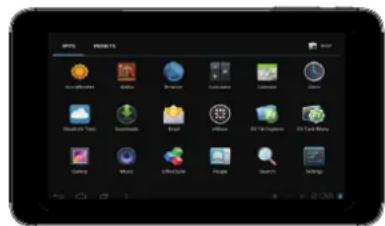
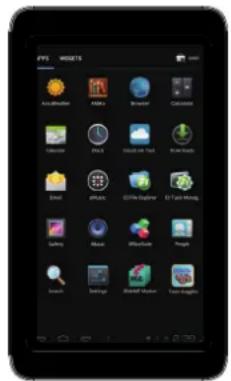
The orientation sensor can be turned on and off in the Display settings menu.
Charging the Tablet
The tablet comes with a built-in rechargeable lithium-polymer battery.
Before using the tablet, the battery should be charged fully. Press lower right corner settings, next to battery icon is charging percentage.
To charge the battery:
- Plug one end of the included power adapter into an AC 100-240V outlet.
- Plug the other end of the included power adapter into the Power jack on the tablet.
- Disconnect the power adapter when the tablet is fully charged.

The battery used in this device may present a fire or chemical burn if mistreated. Do not disassemble, incinerate, or heat the device. Do not leave the device in a place subject to direct sunlight, or in a car with its windows closed. Do not connect the device to a power source other than that which is indicated here or on the label as this may result in the risk of fire or electric shock.
Inserting a Memory Card or USB Flash Drive
The tablet accepts microSDHC memory cards and USB flash drive. A USB On-the-Go (OTG) cable (sold separately) is required to connect USB Flash Drives:
Increase the memory capacity of your tablet
+ Play media files stored on the memory card (e.g., music, video, or photo files).
To insert a memory card :
- Align the memory card with the card slot. The metal contacts of the memory card should face down away from the LCD screen.
- Slide the card into the spring-loaded slot. Push the card in until it clicks into place.
To connect a USB Flash drive:
- Check the tablet specifications to determine the type of USB port (micro-USB or mini-USB).
- To connect an USB flash drive purchase a USB On-the-Go (OTG) cable adapter that corresponds to your USB port.
- The USB OTG cable will adapt the Tablet's USB port to the full size connector on your flash drive.

Do not attempt to insert objects other than a microSDHC memory card into the card slot. A compatible memory card should fit easily into the card slot; if you encounter resistance, check the alignment of the card. Do not attempt to force the card in.
Avoid touching the gold contacts of the memory card.
To release and remove a memory card:
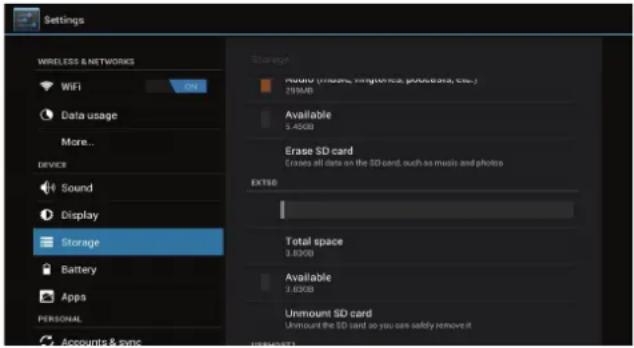
1. UNMOUNT the memory card.
a. From the home screen, tap the Launcher Tab, and then touch Settings to show the settings menu.
b. Touch Storage to show the storage settings.
c. Touch Unmount shared storage to prepare the memory card for safe removal.
- Push the card further into the slot until you hear a click. The card will spring out of the slot.
- Grasp the card by its edge to remove it.

To avoid damage and data corruption, do not remove a memory card while data is being written to or read from the card. For example, do not remove a card while playing a music file stored on the card.
Resetting the Tablet
Reset the tablet if it should freeze and not respond or otherwise malfunction.
- Disconnect your tablet if it is connected to a computer.
- Press the reset button on the bottom of the unit. See "Getting to Know your Internet tablet" section for reference.

Getting Started
Turning the Tablet on and off
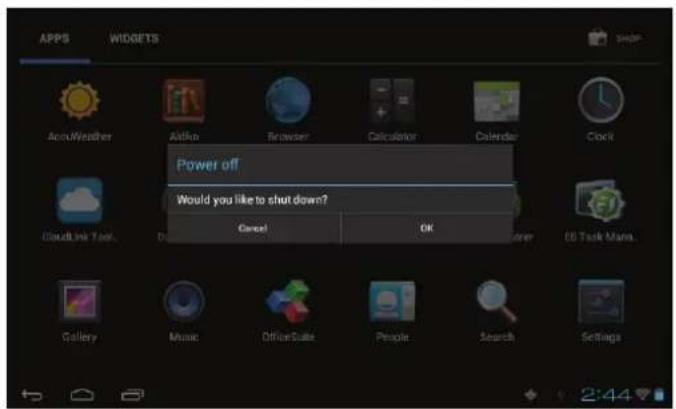
- Touch OK to turn off the tablet.
To turn the tablet on:
Press and hold the Power key until the LCD screen turns on and you see Coby Logo, then wait until you see the Unlock screen.
To turn the tablet off:
- Press and hold the Power key until the confirmation message appears.
Turning the Screen On and Off (Standby)
When the tablet is on, you can turn off the screen to conserve battery power. Simply press the Power key once to turn the screen off. Press the Power key again to turn the screen back on.

To conserve battery power, the screen can be set to turn off automatically when the tablet is not in use (between 15 seconds and 30 minutes). This Sleep option can be found in the Display menu.
Unlocking the Screen
When the screen turns off, you will have to unlock the screen when you turn it back on.
To unlock the screen, touch and drag the lock icon to the edge of the circle that appears.
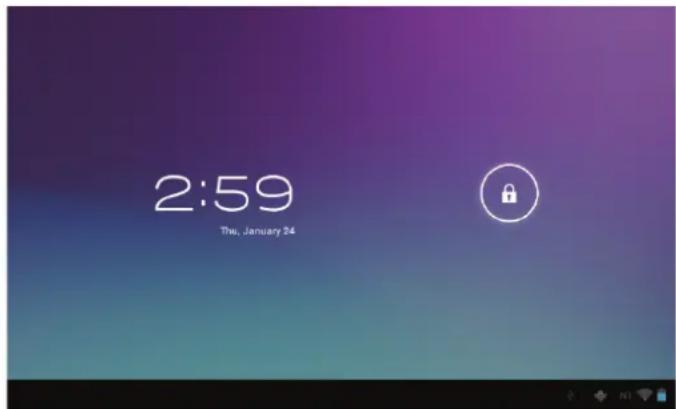
If a password has been set, enter the password to finish unlocking the screen. The Screen Unlock password can be set in the Security settings menu.
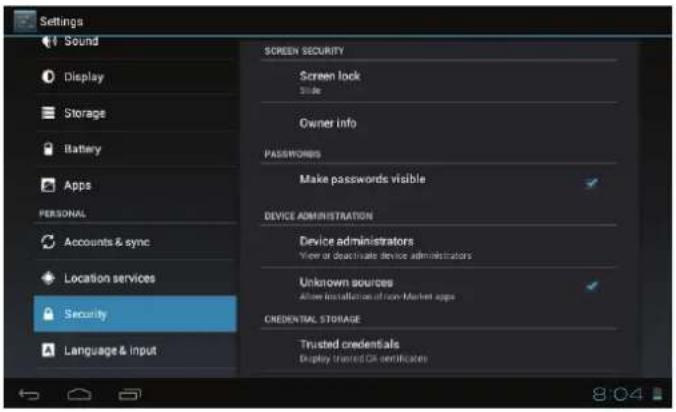

WARNING: Please write down your password lock pattern/PIN/Password. Misplacing or forgetting this method will lock the user out. Recovering the unit will reset the device back to factory defaults. ALL YOUR DATA & PROGRAMS WILL BE LOST.
Home Screen at a Glance
The home screen is the starting point for all of the features of your tablet.
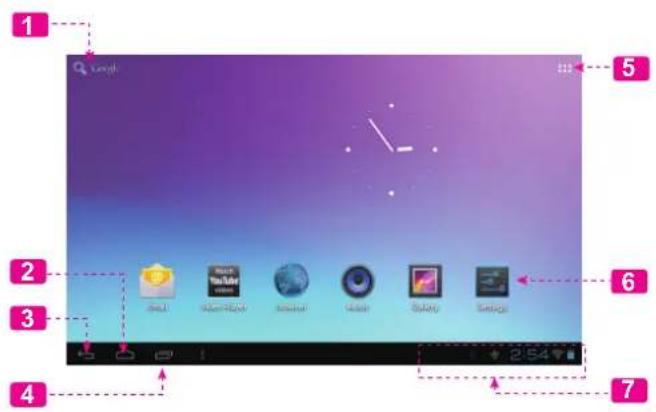
| NameDescription | ||
| 1 | Google Search | Touch to search with Google browser. |
| 2 | Home icon | Touch to back to the central Home Screen. |
| 3 | Back icon Touch | to back to the previous screen. |
| 4 | Recent Apps | Touch to display the list of thumbnail images of apps you have worked recently. Touch an App to open it. |
| 5 Launcher Tab | Open the Launcher to view the list of all Applications and Widgets installed on the tablet. Touch the Launcher tab to open the Launcher. | |
| 6 Icons Touch an icon | icon to open an application or folder. | |
| 7 Notification bar | Shows notification icons such as time, battery level, and the network signal strength; touch the bar to open the full Notifications panel. Touch a Notification icon to display more detail. | |
About Applications
To open an application, touch the application icon on the home screen or in the Launcher.
Launcher screen:
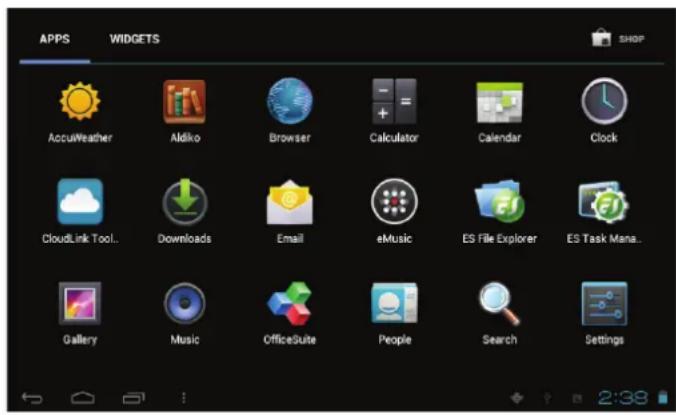

The screen shown above is for illustrative purposes only. Coby reserves the right to modify and improve the final list of applications available on the tablet.
Preinstalled Applications
Some applications have been installed on your tablet for your convenience. These applications include:
| Aldiko | Download and read thousands of e-books. Supports the ePub standard. |
| Browser | Browse the web. |
| Calendar | Display the calendar or record events and appointments to manage your schedule. |
| + Calculator | Perform simple mathematical operations. |
| Clock | View the current time, or set an alarm. |
| eMusic | Get $10 of music from eMusic. |
| Check your e-mail. | |
| ES File Explorer | View and manage files stored on the tablet. Visit http://www.estrongs.com/en/products/file-explorer.html for more information. |
| ES Task Manager | Turn off background apps to conserve battery power. Visit http://www.estrongs.com/en/products/task-manager.html for more information. |
| Gallery | View photos and videos, plus edit photos. |
| SlideME | Access to thousands of apps with SlideME Marketplace. |
| Music | Play music. |
| Settings | Access the Settings menu to adjust the tablet's options. |
| Watch YouTube videos | Launch the mobile YouTubeTM browser page to watch internet videos. |
Installing Applications
You can also download an install additional applications from the device's applications marketplace, the web browser, or other sources.
The tablet must be set to allow installation of applications from non-Market sources. The Unknown sources option can be set in the Application settings menu.

Your Coby Mobile Internet Device may include access to, or information on, content, products, applications and services from third parties. Your use of such third party content, products, applications and services is at the discretion of such third party and expressly governed by such third party's terms of use, including any such third party's privacy policies, for such content, products, applications and services. Coby Electronics Corporation is not responsible for and expressly disclaims all warranties of any kind with respect to all such third party content, products, applications and services. Coby Electronics Corporation will not be responsible for any loss, costs, or damages incurred due to your access to or use of third party content, products, applications or services.
About Widgets
Widgets are self-contained applications that you can place on the Home screens to access your favorite features.
Adding Widgets to a Home Screen
- Navigate to the Home screen which you want to place the Widget on.
- Touch the Launcher Tab.
- Touch WIZGETs to show all widgets, and then hold on a widget icon to add it to the Home screen.
Removing Widgets
Touch and hold the Widget until Remove icon appears at the top side of the screen, then drag the Widget to the Remove icon to remove it.

About Notifications
The icons that appear in the Notification bar at the bottom right corner of the screen alerts you when new messages arrive or alarms or other application events occur.
View and respond to the notifications by opening the full Notifications panel.
Touch the Notification bar to open the Notifications panel.
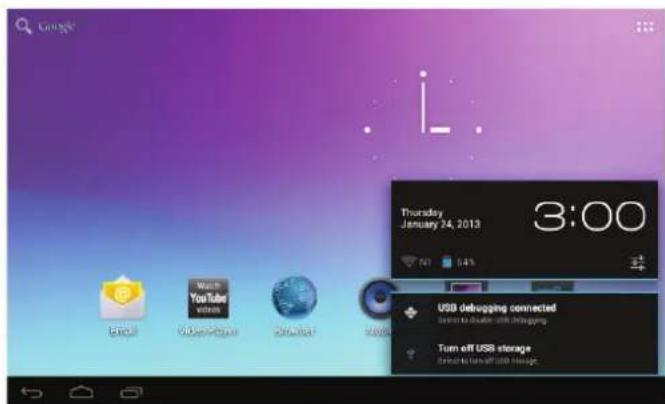
To respond to a notification:
Touch a notification in the list; the Notifications panel will close and the application associated with the notification will launch.
To close the Notifications panel:
Touch any other area of screen except the Notifications panel, or;
Touch the Back icon.

Connecting to the Internet
This tablet can utilize Wi-Fi data networks to connect to the Internet.
Wireless Wi-Fi technology can provide Internet access at distances of over 300 feet; however, this distance can be affected by your surrounding environment and Wi-Fi router. In general, being closer to Wi-Fi router improve performance.
Requirements
In order to connect to the Internet, you will need either of the following:
A wireless router or access point with a broadband Internet connection
The tablet has 802.11 b/g/n Wi-Fi radio. The tablet will also work on wireless routers that only support 802.11 b/g.
Please refer to your wireless router's documentation for help, or ask your network administrator for details.

You may encounter open Wi-Fi networks, or "hot spots." These networks are usually configured so that you can simply connect to them without needing to know its settings; the tablet will obtain all the information it needs from the router automatically.

A minimum connection speed of 64 Kbps is recommended. Faster speeds will enable a better Internet experience.
You will need to know the name of your network (SSID), as well as the password or other credentials if your network is secured. These settings can usually be found on the administration webpage of your wireless router.
Connect to a Wi-Fi network
The Notification bar displays icons that indicate your tablet's Wi-Fi status.
| Connected to a Wi-Fi network (waves indicate connection strength). | |
| [no icon] | There are no Wi-Fi networks in range, or the Wi-Fi radio is off. |
- Turn on the Wi-Fi radio if it is not already on. To turn on Wi-Fi:
a. Go to the Home screen:
Touch the Home icon.
b. Open the Launcher screen:
Touch the Launcher Tab, then touch Settings.
c. Open the Wireless & networks menu:
Touch WIRELESS & NETWORKS.
d. Open the Wi-Fi settings menu:
Touch WiFi.
e. Make sure that the Wi-Fi option box is setted to ON: Touch and slide the block right to enable the Wi-Fi connection.
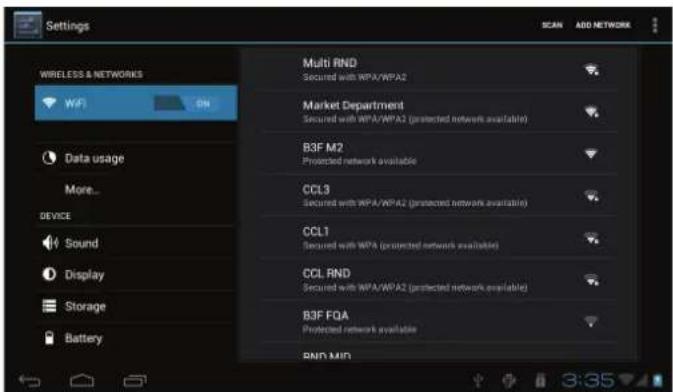
When Wi-Fi is on, the tablet will look for and display a list of available Wi-Fi networks.

If a network that you have connected to previously is found, the tablet will connect to it.
If you don't see your network in the list, you can force the tablet to re-scan. To scan for networks, tap the SCAN icon that located on the top right corner of the screen.
- Select an available Wi-Fi network to connect to:
In the same Wi-Fi settings menu above, touch a network in the list.
If the network is open, the tablet will prompt you to confirm connection to the network. Touch Connect to confirm.
If the network is secured (as indicated by a Lock icon), the tablet will prompt you to enter a password or other credentials. Touch the Wireless password box to show the on-screen keyboard and then use it to enter the password. Touch Connect to confirm.
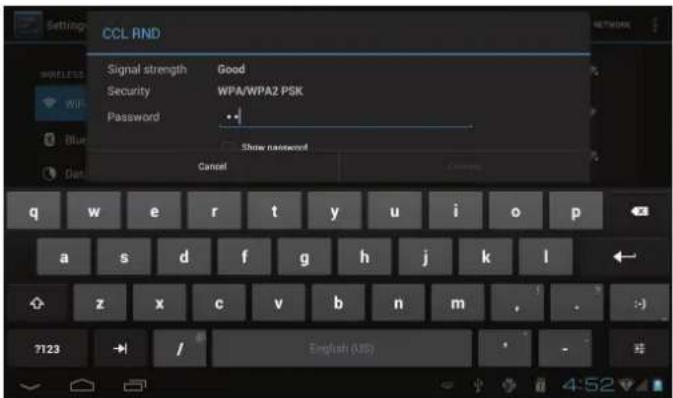
When you have successfully connected to a Wi-Fi network, the Notifications bar at the bottom of the screen will show a Wi-Fi signal indicator.


To learn about how to add a Wi-Fi network when it is not in range or when the router is set to obscure the network name (SSID); or to configure advanced Wi-Fi options, please refer to the manual.

Browsing the Web
The Browser application lets you visit webpages and find information on the web. Keep up with the news, your friends, or enjoy video from YouTube™, the world's most popular video-sharing community.
To use Browser, the tablet must be connected to the Internet. Read the section "Connecting to the Internet" to learn how to connect to the Internet.
To open Browser, touch the Browser icon on the Home screen or in the Launcher.
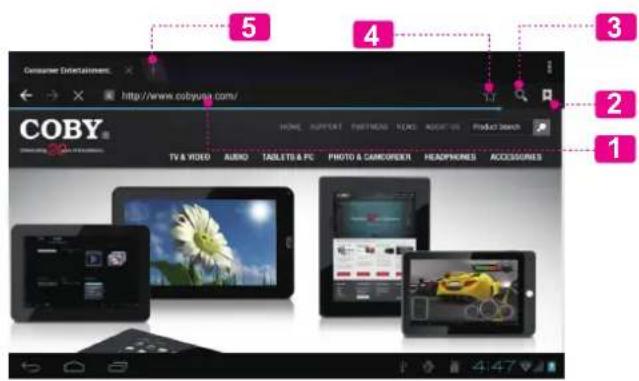
| NameDescription | ||
| 1 | Address bar Displays the address (URL) of the current page. Touch the bar to enter a new address or to search the web. | |
| 2 | Goto Bookmarks icon | Touch to view bookmarks, to view your most visited sites, or to view your browser history. |
| 3 | Search icon | Touch to search with Google browser. |
| 4 | AddBookmark icon | Touch to add bookmarks. |
| 5 | New Window (+) Creates new browser window. | |
Some common Browser actions are described below.
-
To go to a webpage.
-
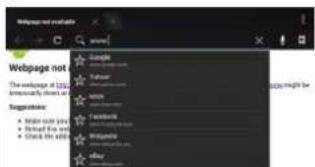
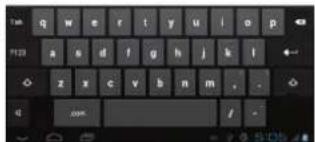
Touch the Address bar at the top of the Browser screen. The keyboard will open automatically. (If the Address bar is not visible, drag the page down to return to the top of the Browser screen.)
-
Use the keyboard to enter the ad-dress (URL) of the webpage (e.g., www.cobyusa.com).
-
Touch Enter key to open the webpage.
To bookmark a webpage.
Bookmark your favorite webpages in order to visit them quickly without entering a URL.
-
Go to the webpage that you want to bookmark
-
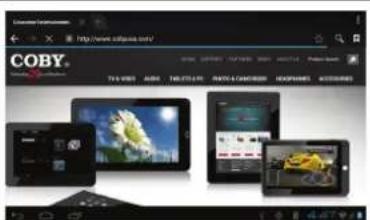
Touch the Add Bookmark icon.
-
If desired, you can modify the name of the bookmark or its location (URL address). Otherwise, touch OK to finish adding the bookmark.

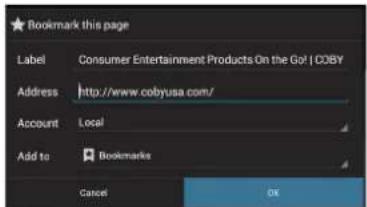
+ To go to a bookmarked webpage.
- Touch the GotoBookmark icon.

- Touch a bookmark tile to open it.
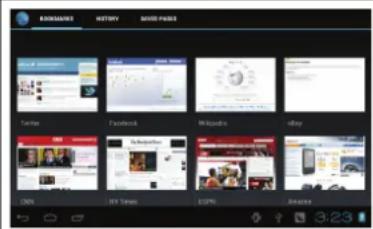
+ To delete a bookmarked webpage.
- Touch the Goto Bookmark icon.

- Touch and hold a bookmark tile to open the option menu.
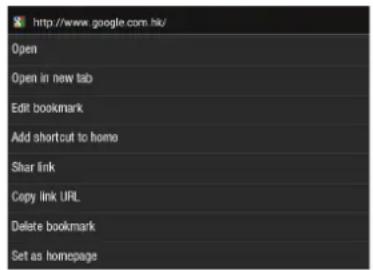
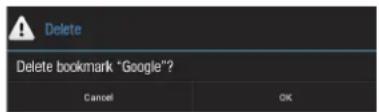
- Touch "Delete bookmark".
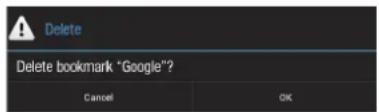
- Touch "OK" to confirm.
Browser menu
While viewing a webpage, touch the icon show as right to open the Browser Menu, the icon is locate on the top right corner of the screen, the options are:
Refresh: Refresh the current webpage.
Forward: Go to the next webpage.
New tab: Open the webpage in a new window, under a new tab.
New incognito tab: Open the webpage in a new window, under a new tab, and the pages you view in the new window will not appear in your browser history or search history. See the on-screen explanation of going incognito.
+ Share page: Use Email to send the webpage URL.
Find on page: Search for content on the current page.
Request desktop site:
Save for offline reading: Save this page onto the internal memory, then you can read it when the internet connection is disable.
Page info: View information about the current page, including the URL.
Settings: Customize the Browser.

Managing Applications
Downloading and installing new applications to your tablet can extend its functionality in many ways.
You can download and install applications from the included Applications store. To open the Applications store:
- Touch the Launcher icon.
- Touch the Apps Marketplace icon.
When installing an application, it will tell you what functions it needs to control and if it needs access to your data. Make sure you review these access requirements carefully before completing the installation.
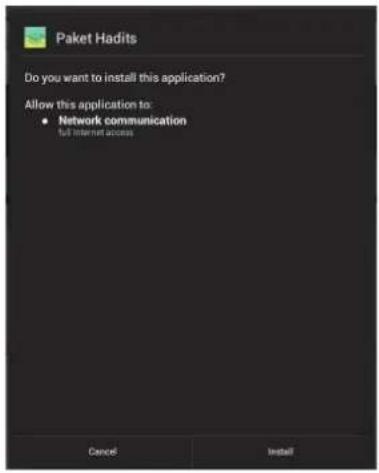

Be especially cautious with applications that request access to many functions or to a significant amount of your data. You are responsible for the results of applications installed on your tablet.
You can learn more about SlideME, and browse for applications by visiting their website at http://slideme.org/.

Some developers allow you to download and install applications directly from their website.

Your Coby Mobile Internet Device may include access to, or information on, content, products, applications and services from third parties. Your use of such third party content, products, applications and services is at the discretion of such third party and expressly governed by such third party's terms of use, including any such third party's privacy policies, for such content, products, applications and services. Coby Electronics Corporation is not responsible for and expressly disclaims all warranties of any kind with respect to all such third party content, products, applications and services. Coby Electronics Corporation will not be responsible for any loss, costs, or damages incurred due to your access to or use of third party content, products, applications or services.
To uninstall an application:
- From the Home screen, touch the Launcher Tab.
- Touch Settings to open the Settings menu.
- Touch Apps, a list of all applications installed on the tablet will display on screen.
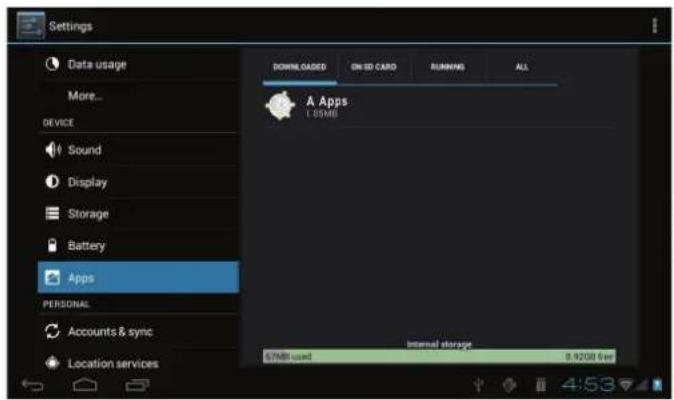
- Touch the name of the application you want to uninstall; the Application Info screen will open.

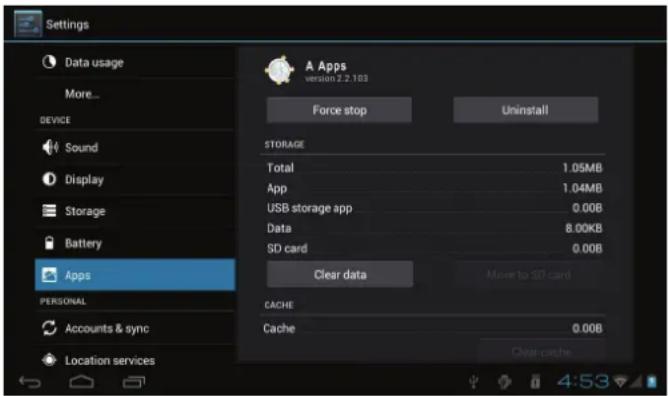
- Touch Uninstall. The tablet will prompt you to confirm.
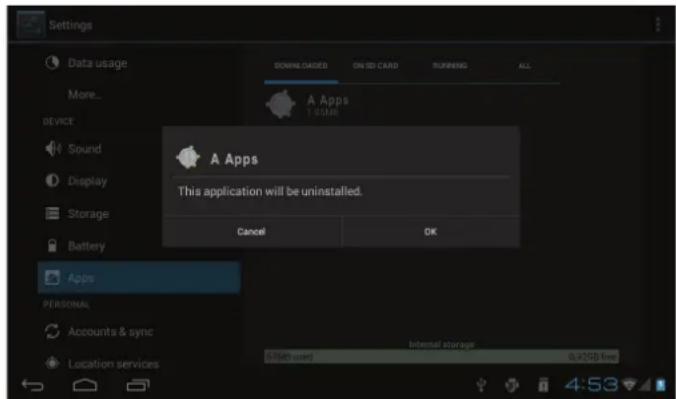
- Touch OK to uninstall the application.

Or you can uninstall an application from the Launcher screen directly. Touch and hold an application icon until the Uninstall icon Uninstall appears, drag the application icon to the Uninstall icon to uninstall the application.

Optional Connections
Connecting to a Computer
Connect the tablet to a computer to transfer files.
- Connect your tablet to the computer.
With the included USB cable:
- Plug the small end of the cable into the USB 2.0 Hi-speed connector of the tablet.
Plug the large end of the cable into an available USB 2.0 Hi-speed port on the computer.
When your tablet is connected, a USB icon will appear in the Notification bar.

Touch the Notification bar to open the notifications panel.
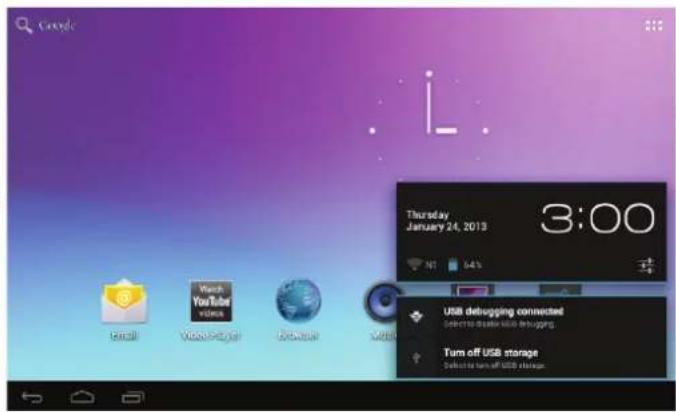

The Tablet's "mass storage mode" is compatible with many operating systems including: Microsoft® Windows XP, Vista, 7 or higher and Mac OS or Linux.
2. Mount the storage drive.
- Touch USB connected to mount the tablet's built-in storage, then touch "Turn on USB storage" and "OK" when prompted to confirm. When mounted, you can copy files to/from your computer.
Your tablet will be recognized by the computer as a Removable Storage drive. Drag and drop files between your tablet and the computer. To learn more about copying files, please refer to the documentation included with your computer or operating system.
Connecting Headphones
Connect a pair of headphones (or earphones) to the tablet to enjoy media in private.
Lower the volume level of the tablet before connecting headphones, and then slowly raise the volume to a comfortable listening level.
The headphones must have a 3.5mm (1/8 in) plug.
+ When headphones are connected, speaker output will be disabled automatically.

Hearing experts advise against the constant use of personal stereos played at high volume. Constant exposure to high volumes can lead to hearing loss. If you should experience ringing in the ears or hearing loss, discontinue use and seek medical advice.

Setting the System Options
Open the system settings menu to adjust how the tablet looks and functions.

Many applications will have their own settings; refer to the documentation provided by the application developer to learn more.
To open the Settings menu:
- From the Home screen, touch the Launcher Tab.
- Touch Settings to open the Settings menu.
The settings are grouped by category. Touch a category to open and adjust its settings on the right side.
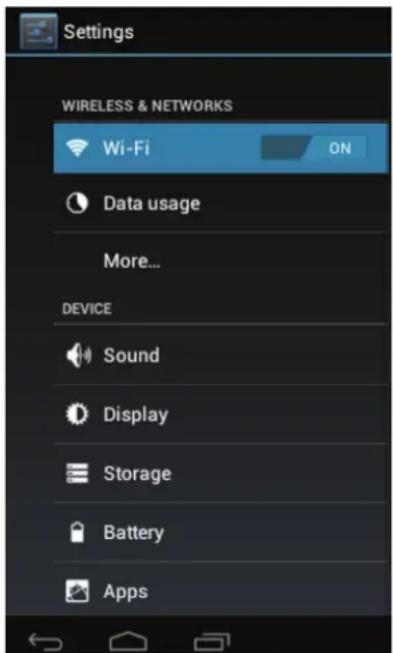
Setting The System Options Page 33

Specifications
Please visit www.cobyusa.com for the latest product information. Design, specifications, and manual are subject to change without notice.
| Processor Cortex | TM -A9 (1 GHz) |
| RAM 512 MB | |
| Storage Built-in-Sto | storage is model dependant and indicated on product packaging. (e.g. -4 = 4GB, -8 = 8GB)¹ microSDHC card slot (max. 32GB sup-ported) |
| Display | MID7050: 7.0" TFT LCD (800 x 480), resistive touchscreen MID7051: 7.0" TFT LCD (800 x 480), capacitive touchscreen |
| Networking Wi-Fi IEEE 802.11 b/g/n | |
| Audio Output 3.5 m | mm headphone |
| PC Interface | USB 2.0 Hi-speed (MicroUSB connector) |
| Additional Features | Built-in microphone speaker |
| Operating System | Android™ 4.1 (Jelly Bean) |
| Power | Rechargeable Li-poly battery Power Adapter (DC 5V) 2 |
1 1GB= 1 Billion bytes. Available storage capacity will be less due to operating system and pre-installed software applications. Actual formatted capacity will vary.
2 Battery life will vary based on settings, usage and other factors.

Support
If you have a problem with this device, please check our website at www.cobyusa.com for Frequently Asked Questions (FAQ) and product updates. If these resources do not resolve the problem, please contact Technical Support.
Coby Electronics Technical Support
Email: techsupport@cobyusa.com
Web: www.cobyusa.com
Phone: For US Residents: 877-302-2629, Monday-Friday (9:00AM-9:00PM EST)
For Canadian Residents: 855-542-8917, Monday-Friday (8:00AM-8:00PM EST)

Safety Notices

CAUTION
WARNING: SHOCK HAZARD. DO NOT OPEN. AVIS: RISQUE DE CHOC ELECTRIQUE. NE PAS OUVRIR

CAUTION: TO REDUCE THE RISK OF FIRE AND ELECTRIC SHOCK, DO NOT REMOVE THE COVER (OR BACK) OF THE UNIT. REFER SERVICING ONLY TO QUALIFIED SERVICE PERSONNEL.
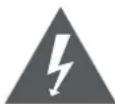
The lightning flash with arrowhead symbol within an equilateral triangle is intended to alert the user to the presence of uninsulated "dangerous voltage" within the product's enclosure that may be of sufficient magnitude to constitute a risk of electric shock.
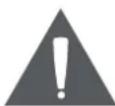
The exclamation point within an equilateral triangle is intended to alert the user to the presence of important operation and servicing instructions in the literature accompanying the appliance.

For recycling or disposal information about this product, please contact your local authorities or the Electronics Industries Alliance: www.eiae.org.
For Customer Use:
Enter below the serial number that is located on the rear of the unit. Retain this information for future reference.
Model No.
Serial No.
WARNING: To prevent fire or shock hazard, do not expose this device to rain or moisture. Dangerous high voltage is present inside the enclosure. Do not open the cabinet.
Protect your hearing: Hearing experts advise against the constant use of personal stereos played at high volume. Constant exposure to high volumes can lead to hearing loss. If you should experience ringing in the ears or hearing loss, discontinue use and seek medical advice.
Note: If the product suddenly has no response or powers off, an electrostatic discharge may be the cause. In this circumstance, please follow the procedures below for recovery:
- Turn off the unit by pushing and holding the slide button at the right (Power off position) for 15 seconds.
- Turn on the unit again
FCC Statement:
This device complies with Part 15 of the FCC Rules. Operation is subject to the following two conditions:
(1) This device may not cause harmful interference, and
(2) This device must accept any interference received, including interference that may cause undesired operation.
Note: This equipment has been tested and found to comply with the limits for Class B digital devices, pursuant to Part 15 of the FCC rules. These limits are designed to provide reasonable protection against harmful interference in a residential installation. This equipment generates, uses and can radiate radio frequency energy and, if not installed and used in accordance with the instructions, may cause harmful interference to radio communications. However, there is no guarantee that interference will not occur in a particular installation. If this equipment does cause harmful interference to radio or television reception, which can be determined by turning the equipment off and on, the user is encouraged to try to correct the interference by one or more of the following measures:
- Reorient or relocate the receiving antenna.
- Increase the separation between the equipment and receiver.
- Connect the equipment into an outlet on a circuit different from that to which the receiver is connected.
- Consult the dealer or an experienced radio/TV technician for help
Use of shielded cable is required to comply with Class B limits in Subpart B of Part 15 of the FCC rules.
Do not make any changes or modifications to the equipment unless otherwise specified in the manual. If such changes or modifications should be made, you could be required to stop operation of the equipment.
FCC Radiation Exposure Statement:
This equipment complies with FCC radiation exposure limits set forth for an uncontrolled environment.
End user must follow the specific operating instructions for satisfying RF exposure compliance.
This transmitter must not be co-located or operating in conjunction with any other antenna or transmitter.
Important Safety Instructions
- Read Instructions: All the safety and operating instructions should be read before the product is operated.
- Retain Instructions: The safety and operating instructions should be retained for future reference.
- HeedWarnings: All warnings on the product and in the operating instructions should be adhered to.
- Follow Instructions: All operating and usage instructions should be followed.
- Cleaning: Unplug this product from the wall outlet before cleaning. Do not use liquid cleaners or aerosol cleaners. Use a damp cloth for cleaning.
- Attachments: Use only attachments recommended by the manufacturer. Use of other attachments may be hazardous.
- Water and Moisture: Do not use this product near water (e.g., near a bath tub, washbowl, kitchen sink, laundry tub, in wet basements, or near a swimming pool and the like).
- Ventilation: Slots and openings in the cabinet are provided for ventilation to ensure reliable operation of the product and to protect it from overheating. These openings should never be blocked by placing the product on a bed, sofa, rug, or other similar surface. This product should not be placed in a built-in installation such as a bookcase or rack unless proper ventila
tion is provided or the manufacturer instructions have been adhered to.
- Power Sources: This product should be operated only from the type of power source indicated on the rating label. If you are not sure of the type of power supply to your home, consult your product dealer or local power company. For products intended to operate from battery power or other sources, refer to the operating instructions.
- Overloading: Do not overload wall outlets, extension cords, or integral convenience receptacles as this can result in a risk of fire or electric shock.
- Object and Liquid Entry: Never push objects of any kind into this product through openings as they may touch dangerous voltage points or shout-out parts that could result in a fire or electric shock. Never spill liquid of any kind on the product.
- Servicing: Do not attempt to service this product yourself as opening or removing covers may expose you to dangerous voltage or other hazards. Refer all servicing to qualified service personnel.
- Damage Requiring Service: Unplug this product from the wall outlet and refer servicing to qualified service personnel under the following conditions: a) when the power-supply or plug is damaged; b) if liquid has been spilled or if objects have fallen into the product; c) if the product has been exposed to rain or water; d) if
the product does not operate normally by following the operating instructions. Adjust only those controls that are covered by the operating instructions as improper adjustment of other controls may result in damage and will often require extensive work by a qualified technician to restore the product to its normal operation; e) if the product has been dropped or damaged in any way; f) when the product exhibits a distinct change in performance—this indicates a need for service.
- Replacement Parts: When replacement parts are required, be sure that your service technician has used replacement parts specified by the manufacturer or have the same characteristics as the original part. Unauthorized substitutions may result in fire, electric shock, or other hazards.
- Safety Check: Upon completion of any service or repairs to this product, ask the service technician to perform safety checks to ensure that the product is in proper operating condition.
- Heat: The product should be situated away from heat sources such as radiators, heat registers, stoves, or other products (including amplifiers) that produce heat.
Legal and Trademark Notices
No portion of this package, including shape, graphics, and design, may be reproduced or transmitted in any form or by any means, electronic or mechanical, including by photocopying, recording or use of any information storage and retrieval system without express written permission from Coby Electronics Corp. Unauthorized reproduction or distribution of this package, design, or any portion of it will be prosecuted to the maximum extent possible under law.
Coby and Kyros are trademarks of Coby Electronics Corporation. Android, Google, YouTube and other marks are trademarks of Google Inc. The Android robot is reproduced or modified from work created and shared by Google and used according to terms described in the Creative Commons 3.0 Attribution License. microSDHC is a trademark of SD-3C, LLC. USB is a registered trademark of USB Implementers Forum, Inc. SlideME and SlideME logo are trademarks of SlideME LLC. OfficeSuite is a product of Mobile Systems, Inc. CLOUDLINK logo is a trademark of Cloudlink, LLC and any logo or trademark used from Partners within its Productivity Tool are trademarks of their respective owners. All other trademarks, registered trademarks, and logos are of their respective owners. This unit may feature content, applications, products and/or services offered or controlled by third parties and your use of same is governed by such third parties' terms of use. Coby Electronics Corporation is not responsible for any such third party content, applications, products and/or services. Please consult unit manual for further details.

- Toque "Delete bookmark" (borrar marcador).
GESTION DES APPLICATIONS 106
CONNEXIONS OPTIONNELLES 109
Coby Electronics Technical Support
Courriel: techsupport@cobyusa.com
Internet: www.cobyusa.com
Coby Electronics Corp.
1991 Marcus Ave, Suite 301
Lake Success, NY 11042
www.cobyusa.com
www.ecoby.com
Coby is a registered trademark of Coby Electronics Corporation. Printed in China.
COBY es lamarca registrada de COBY Electronics Corporation. Imprimido en China.

- GETTING STARTED 13
- CONNECTING TO THE INTERNET 21
- BROWSING THE WEB 24
- MANAGING APPLICATIONS 28
- OPTIONAL CONNECTIONS 31
- SETTING THE SYSTEM OPTIONS 33
- SPECIFICATIONS 34
- SUPPORT 35
- SAFETYNOTICES 36
- Thank You
- Package Contents
- Features
- Getting to Know the Internet Tablet
- About the Touchscreen
- Protective Film
- Touchscreen Actions
- About the Orientation Sensor
- Charging the Tablet
- To charge the battery:
- Inserting a Memory Card or USB Flash Drive
- To insert a memory card :
- To connect a USB Flash drive:
- To release and remove a memory card:
- UNMOUNT the memory card.
- Resetting the Tablet
- Getting Started
- Turning the Tablet on and off
- Turning the Screen On and Off (Standby)
- Unlocking the Screen
- Home Screen at a Glance
- About Applications
- Preinstalled Applications
- Installing Applications
- About Widgets
- Adding Widgets to a Home Screen
- Removing Widgets
- About Notifications
- To close the Notifications panel:
- Connecting to the Internet
- Requirements
- A wireless router or access point with a broadband Internet connection
- Connect to a Wi-Fi network
- Browsing the Web
- + To go to a bookmarked webpage.
- + To delete a bookmarked webpage.
- Browser menu
- Managing Applications
- To uninstall an application:
- Optional Connections
- Connecting to a Computer
- Mount the storage drive.
- Connecting Headphones
- Setting the System Options
- Specifications
- Support
- Coby Electronics Technical Support
- Safety Notices
- CAUTION
- For Customer Use:
- FCC Statement:
- FCC Radiation Exposure Statement:
- Important Safety Instructions
- Legal and Trademark Notices
- GESTION DES APPLICATIONS 106
- CONNEXIONS OPTIONNELLES 109
- Coby Electronics Corp.
Brand : COBY
Model : MID7050
Category : Tablet