USER MANUAL MID7127 COBY
GETTING TO KNOW THE COBY KYROS .5
About the Touchscreen 8
Protective Film 8
Touchscreen Actions. 8
About the Orientation Sensor 10
Charging the Tablet 10
Inserting a Memory Card 11
GETTING STARTED 15
Turning the Tablet on and off 15
Turning the Screen On and Off (Standby) ....16
Unlocking the Screen 16
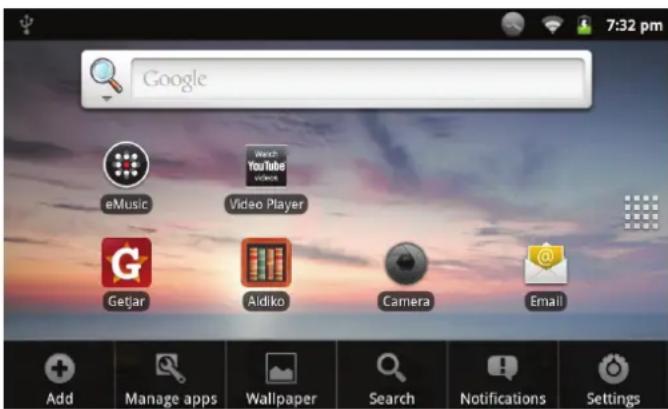
Home Screen at a Glance 17
About Applications 18
Preinstalled Applications 19
Installing Applications 20
About Menus 20
About Notifications 22
CONNECTING TO THE INTERNET 24
Requirements 24
Connect to a Wi-Fi network 25
BROWSING THE WEB 27
MANAGING APPLICATIONS 31
OPTIONAL CONNECTIONS 34
- Connecting to a Computer 341
Connecting to a TV 35
Connecting Headphones 36
Using the USB Full-Size Adapter 37
Connecting a Keyboard 37
Connecting a Storage Device 38
SETTING THE SYSTEM OPTIONS 38
SPECIFICATIONS 39
SUPPORT 40
SAFETYNOTICES 41

Thank You
Congratulations on your purchase of a Coby® Kyros™ Internet Tablet. This guide is provided to help you get started quickly with your player; please read it carefully and save it for future reference.
For detailed instructions, up-to-date information, and helpful tips, please visit the Coby website at www.cobyusa.com.

The manual is available for download from the Coby website as a PDF file.
To view PDF documents, download and install the free Adobe Acrobat reader from the Adobe website at www.adobe.com.
Package Contents
Please make sure that the items shown below are included in the package. Should an item be missing, please contact the local retailer from which you purchased this product.
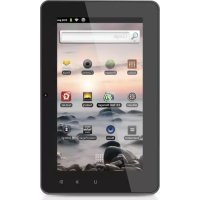
Coby Kyros Internet Tablet
Protective pouch
+ USB cable
USB host/keyboard adapter
Professional stereo Earphones
+Poweradapter

This package may contain plastic bags or other materials that pose a hazard to children. sure to safely dispose of all packing materials after opening.
Features
Browse the Web. Visit your favorite websites
Check your e-mail Keep in touch with friends and family
+ Watch YouTube™ videos
Browse the world's most popular video-sharing community
Read your favorite books Download thousands of books with the included E-book reader *
+ Discover thousands of apps for Android™ Games, applications, and more with the installed marketplace
+ Connect to the Internet wirelessly High-speed Wi-Fi 802.11 b/g networking
HDMI output to your TV ** Enjoy videos, photos and more in the comfort of your living room
Enjoy your media library anywhere Portable powerhouse plays popular music, video, and photo formats
microSD memory card reader Increase your storage capacity (up to 32 GB supported)
Built-in camera Convenient front-facing camera
Automatic orientation detection Read any way you want; the display adjusts automatically!
- Reading books in the ePub format requires the included E-book reader application.
** Requires optional HDMI cable (Type A-to-Type C). 1080p HD video playback requires a video file encoded at 1080p. Streaming video quality will be affected by the source, and the quality and condition of your network connection.

Getting to Know the Coby Kyros
Unit at a Glance
MID7127
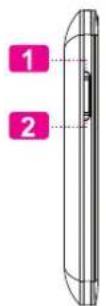
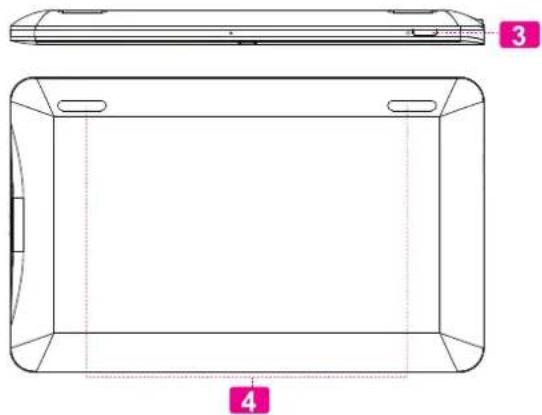
| NameDescription |
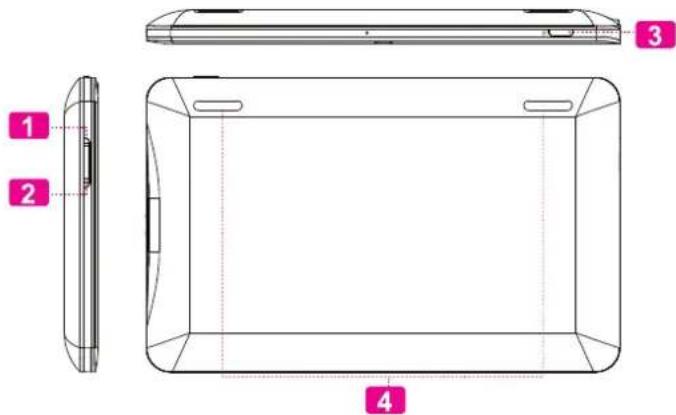
| 1 Volume + key | Press to increase the volume level. |
| 2 Volume - key | Press to decrease the volume level. |
| 3 Power key Press | to turn the unit on, or to turn the screen on and off.
Press and hold to access the Power Off menu. |
| 4 Speakers Stereo | speakers. |
| |
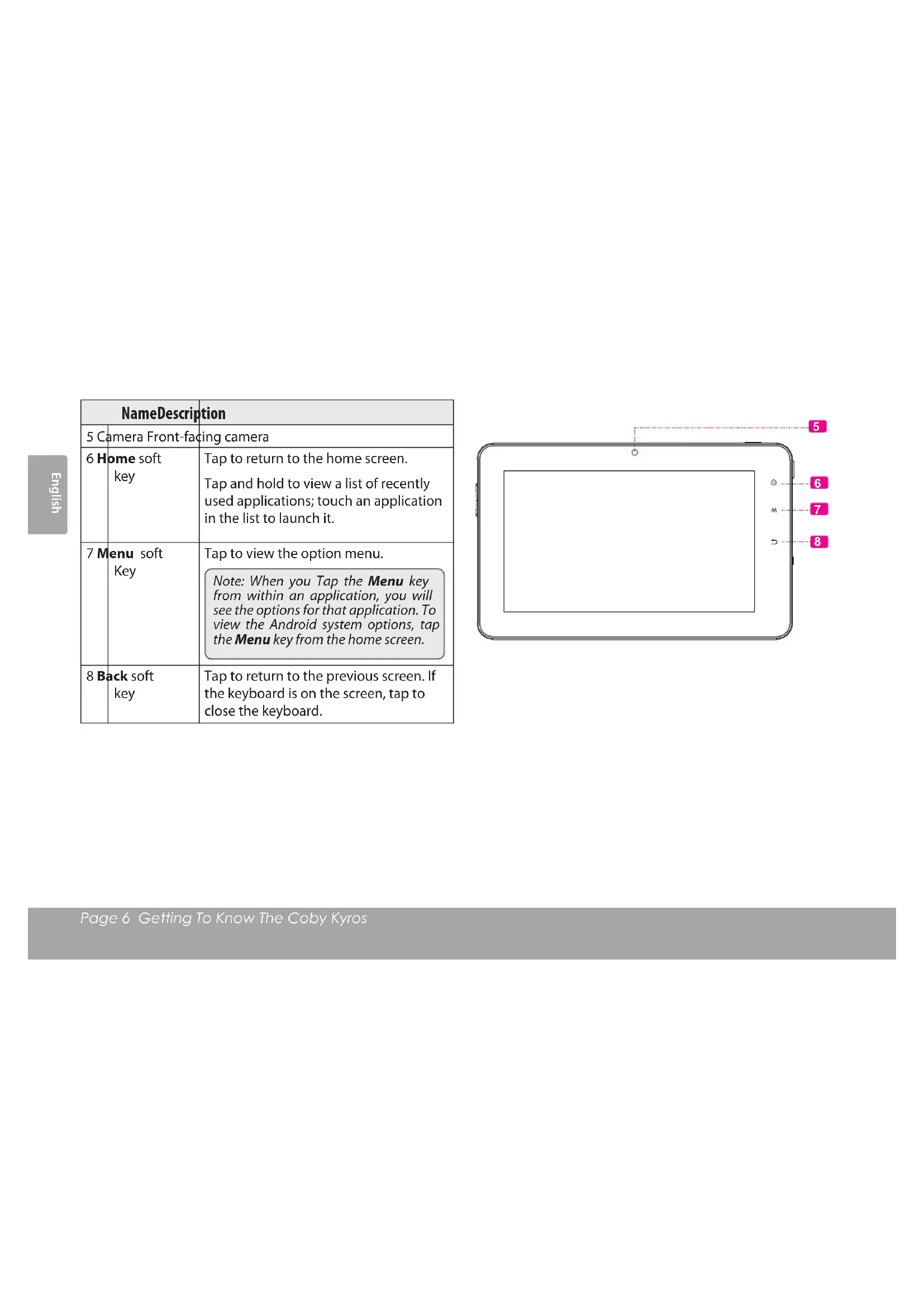
| 5 Camera Front-facing camera |
| 6 Home soft key | Tap to return to the home screen. Tap and hold to view a list of recently used applications; touch an application in the list to launch it. |
| 7 Menu soft Key | Tap to view the option menu. Note: When you Tap the Menu key from within an application, you will see the options for that application. To view the Android system options, tap the Menu key from the home screen. |
| 8 Back soft key | Tap to return to the previous screen. If the keyboard is on the screen, tap to close the keyboard. |

| NameDescription |
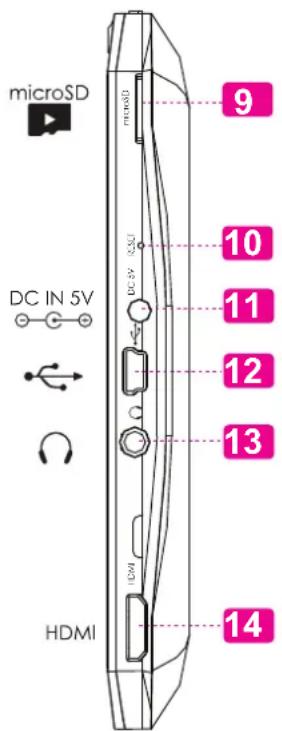
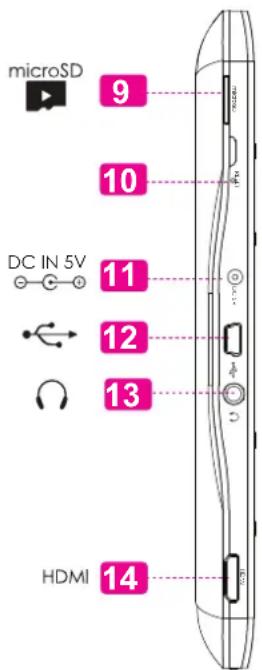
| 9 m | microSD card slot | Load external microSD memory cards here. |
| 10 | Reset key Press | to reset the tablet if it freezes or otherwise behaves abnormally. (Use a paperclip or other small object to gently press this key.) |
| 11 | Power jack (DC input) | Charge and power the tablet with the included power adapter. |
| 12 | USB 2.0 Hi-speed port | Connect to a computer to transfer data (e.g., music, videos, photos, files). |
| 13 | Headphone jack | Audio output connection for headphones.
Note: Speaker output is automatically disabled when headphones are connected to the player. |
| 14 | HDMI jack (mini Type C) | Connect to a TV or other display. |
MID8127
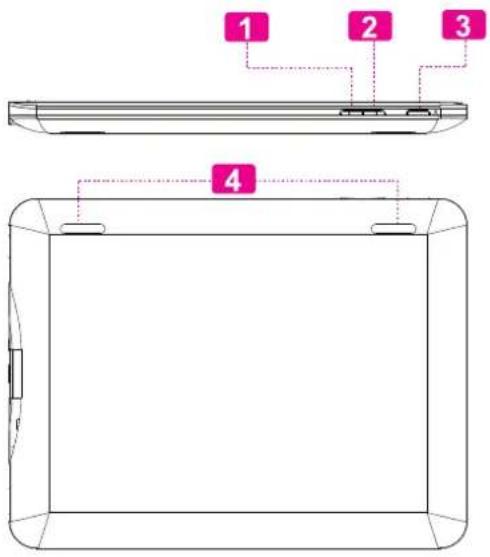
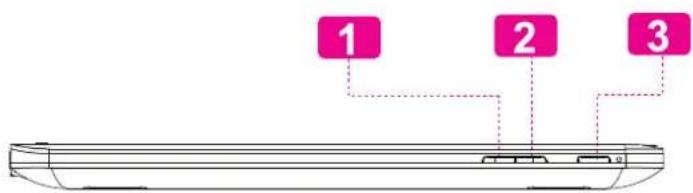
| NameDescription |
| 1 Volume - key | Press to decrease the volume level. |
| 2 Volume + key | Press to increase the volume level. |
| 3 Power key Press | to turn the unit on, or to turn the screen on and off.
Press and hold to access the Power Off menu. |
| 4 Speakers Stereo | speakers. |
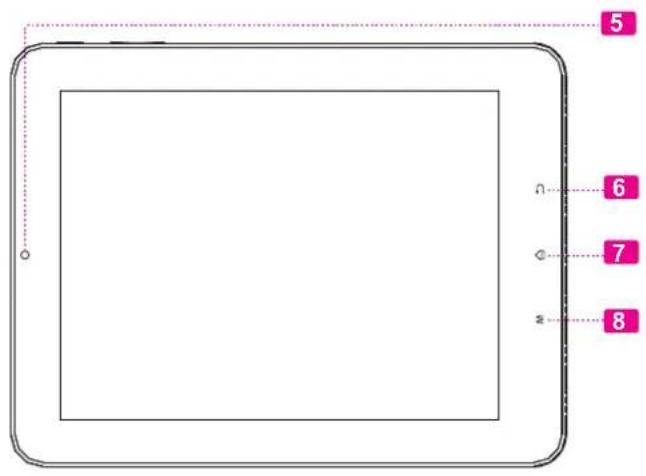
| NameDescription |
| 5 Camera Front-facing camera |
| 6 Home soft key | Tap to return to the home screen. Tap and hold to view a list of recently used applications; touch an application in the list to launch it. |
| 7 Menu soft Key | Tap to view the option menu.
Note: When you Tap the Menu key from within an application, you will see the options for that application. To view the Android system options, tap the Menu key from the home screen. |
| 8 Back soft key | Tap to return to the previous screen. If the keyboard is on the screen, tap to close the keyboard. |
| NameDescription |
| 9 m | microSD card slot | Load external microSD memory cards here. |
| 10 | Reset key Press | to reset the tablet if it freezes or otherwise behaves abnormally. (Use a paperclip or other small object to gently press this key.) |
| 11 | Power jack (DC input) | Charge and power the tablet with the included power adapter. |
| 12 | USB 2.0 Hi-speed port | Connect to a computer to transfer data (e.g., music, videos, photos, files). |
| 13 | Headphone jack | Audio output connection for headphones.
Note: Speaker output is automatically disabled when headphones are connected to the player. |
| 14 | HDMI jack (mini Type C) | Connect to a TV or other display. |
About the Touchscreen
Your tablet comes equipped with an easy-to-use touch-screen.
Our capacitive multi-touchscreen requires gentle fingertip touch on the glass screen to activate tablet's functions. Multiple fingers may be used to perform gestures (e.g. 2-finger picture zoom).
Please note: Your finger tips must not be covered.

To avoid damaging the screen, do not touch it with excessive force or with any other than your finger. For best response, make sure your hands are clean before using the screen controls.
Protective Film
A thin film has been applied to the touchscreen to protect it during shipping. The protective film should be removed before use. To remove it, simply take a corner of the film and peel it away from the screen.
Touchscreen Actions
You can control the functions of the tablet by using the touchscreen in combination with the three touch keys located on the bezel. To control the tablet with the touchscreen, use your fingertip to manipulate icons, buttons, menu items, the on-screen keyboard, and other items displayed on the screen.
You can perform the following actions on the touchscreen using your fingertip.
| Touch: To activate an on-screen item (e.g., application icons, buttons, menu items, and the letter/symbols of the on-screen keyboard), simply touch them with your fingertip. |
| Touch and Hold: | Some on-screen items have an alternate action if you touch and hold it (e.g., opening an alternate menu, or to activate the drag function). To touch and hold an item, touch the item and do not lift your fingertip until the action occurs. |
| Drag: Drag an | on-screen item to change its position (e.g., an application icon on the home screen). To drag an item, touch and hold it for a moment, then without lifting your fingertip, move your fingertip on the screen until the item reaches its target destination. |
| Swipe: Swipe | up/down on the screen to scroll through a list. On some screens, you may be able to swipe left/right to change the view. To swipe, touch the screen and then quickly move your fingertip across the screen without lifting your fingertip. Do not pause on the screen with your fingertip at the initial point of contact or you may accidentally drag an item instead. |
| Double-tap: Q | Quickly tap the screen twice on a webpage or other application screen to zoom (the application must support the double-tap/zoom function). Within the browser, double-tapping a web-page section will cause the browser to zoom and fit that section to the width of the screen. |
About the Orientation Sensor
The tablet contains a sensor that will automatically change the orientation of most screens as you rotate the tablet. The sensor works best when the tablet is rotated perpendicular to the ground (i.e., when the tablet is held upright and not fat on its back).
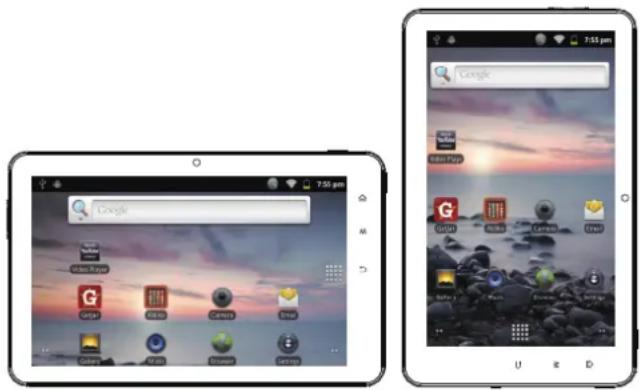
The orientation sensor can be turned on and off in the Display settings menu.
Charging the Tablet
The tablet comes with a built-in rechargeable lithium-polymer battery.
Before using the tablet, the battery should be charged fully. The Status Indicator will light blue when the battery is charged fully.
To charge the battery:
- Plug one end of the included power adapter into an AC 100-240V outlet.
- Plug the other end of the included power adapter into the Power jack on the tablet.
- Disconnect the power adapter when the tablet is fully charged.

The battery used in this device may present a fire or chemical burn if mistreated. disassemble, incinerate, or heat the device. Do not leave the device in a place subject to direct sunlight, or in a car with its windows closed. Do not connect the device to a power source other than that which is indicated here or on the label as this may result in the risk of fire or electric shock.
Inserting a Memory Card
The tablet accepts microSD memory cards. Insert a memory card into the microSD card slot to:
Increase the memory capacity of your tablet
Play media files stored on the memory card (e.g., music, video, or photo files).
To insert a memory card:
- Align the memory card with the card slot. The metal contacts of the memory card should face down away from the LCD screen.
- Slide the card into the spring-loaded slot. Push the card in until it clicks into place.

Do not attempt to insert objects other than microSD memory card into the card slot. A compatible memory card should fit easily into the card slot; if you encounter resistance, check the alignment of the card. Do not attempt force the card in.
Avoid touching the gold contacts of the memory card.
To release and remove a memory card:
- UNMOUNT the memory card.
a. From the home screen, tap the Menu key, and then touch Settings to show the settings menu.
b. Touch SD card & Device storage to show the SD card & device storage settings.
c. Touch Unmount SD card to prepare the memory card for safe removal.
- Push the card further into the slot until you hear a click. The card will spring out of the slot.
- Grasp the card by its edge to remove it.

To avoid damage and data corruption, remove a memory card while data written to or read from the card. For example, do not remove a card while playing a music file stored on the card.
do not is being

Getting Started
Turning the Tablet on and off
To turn the tablet on:
Press and hold the Power key until the LCD screen turns on. Wait until the Home screen appears; the tablet is now ready for use.
To turn the tablet off:
- Press and hold the Power key until the Device Options menu appears.
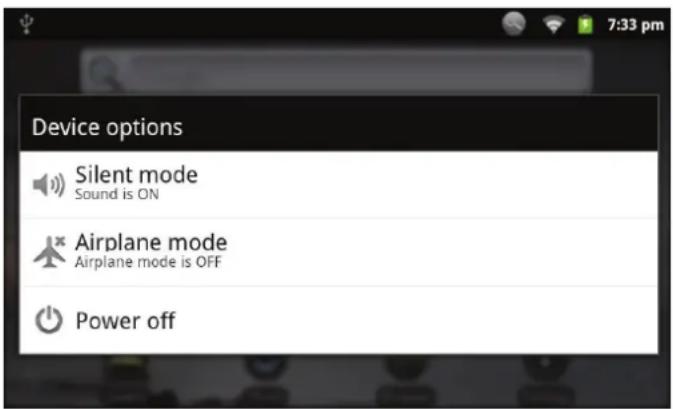
- Touch Power off on the screen. A confirmation message will appear.
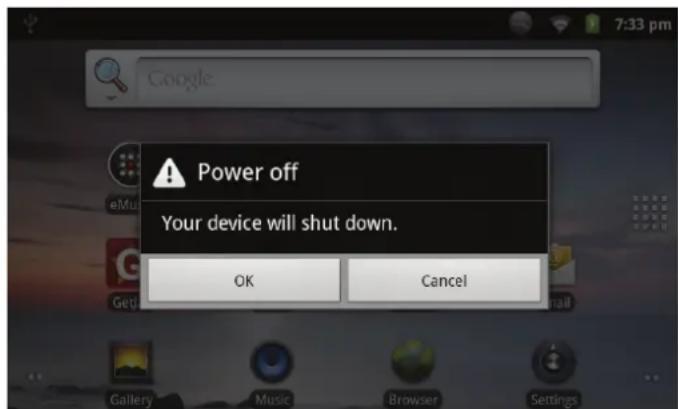
- Touch OK to turn off the tablet.
Turning the Screen On and Off (Standby)
When the tablet is on, you can turn off the screen to conserve battery power. Simply press the Power key once to turn the screen off. Press the Power key again to turn the screen back on.

To conserve battery power, the screen be set to turn off automatically when the ta let is not in use (between 15 seconds and 30 minutes). This Screen timeout option can be found in the Display settings menu.
Unlocking the Screen
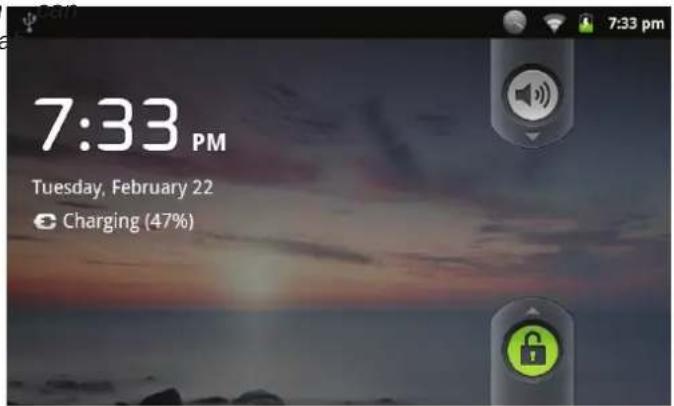
When the screen turns off, you will have to unlock the screen when you turn it back on.
To unlock the screen, drag the lock icon across the screen towards the speaker icon.
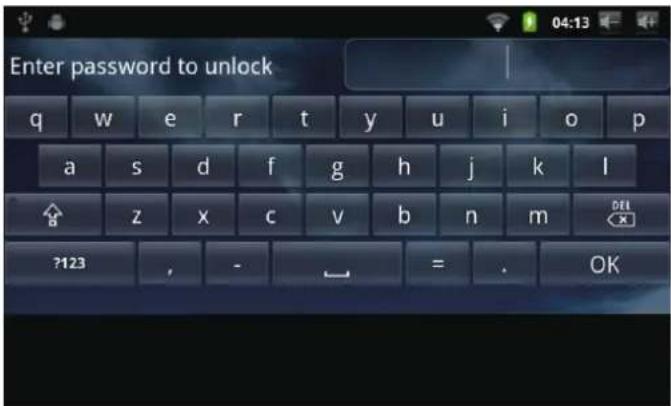
If a password has been set, enter the password to finish unlocking the screen. The Screen Unlock password can be set in the Location and security settings menu.
Home Screen at a Glance
The home screen is the starting point for all of the features of your tablet.
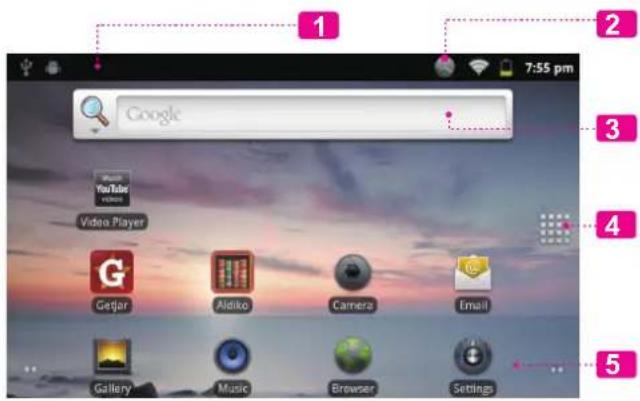
| NameDescription |
| 1 | Notification bar | Shows notification icons such as new messages and alarms; drag the bar down to the bottom of the screen to open the full Notifications panel. The right side of the bar also shows status information such as the time, battery level, and network signal strength.
Note: You can press the Menu key and then touch Notifications to open the full Notifications panel from the Home screen. |
| 2 | Search icon Touch | to search with Google. |
| NameDescription |
| 3 W | Widgets Widgetstare small applications that you can use directly from the home screen. To add widgets to the home screen, touch and hold an empty spot on the home screen; the Add to Home screen menu will appear. Touch Widgets; then choose a widget from the menu. |
| 4 LauncherTab | Open the Launcher to view a list of all applications installed on the tablet. Touch the Launcher tab to open the Launcher.Note: You can swipe left and right to view additional screens. |
| 5 Icons Touch an icon to open an application or folder |
About Applications
To open an application, touch the application icon on the home screen or in the Launcher.
Launcher screen:
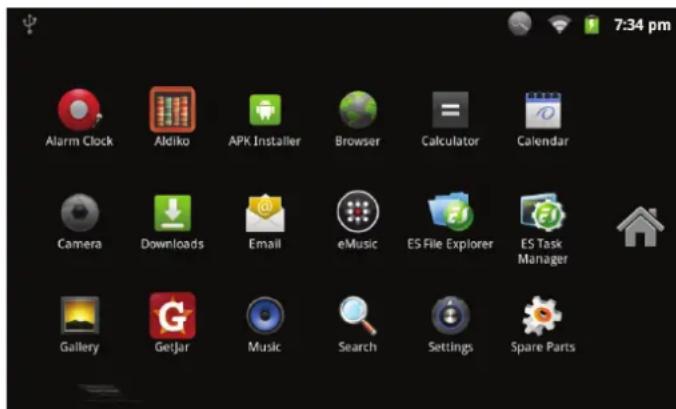

The screen shown above is for illustrative purposes only. Coby reserves the right to modify and improve the final list of applications available on the tablet.
Preinstalled Applications
Some applications have been installed on your tablet for your convenience. These applications include:
| Alarm Clock | View the current time, or set an alarm. |
| Aldiko | Download and read thousands of e-books. Supports the ePub standard. |
| APK Install | Find and display app installation files (APKs) on your tablet. |
| GetJar | Access to thousands of apps with GetJar Marketplace. |
| Browser | Browse the web. |
| eMusic | Get $10 of music from eMusic. |
| Calculate | Perform simple mathematical operations. |
| Camera | Take pictures or videos with the front-facing camera. |
| Email | Check your e-mail. |
| ES File Explorer | View and manage files stored on the tablet. Visit http://www.estrongs.com/en/products/file-explorer.html for more information. |
| ES Task Manager | Turn off background apps to conserve battery power. Visit http://www.estrongs.com/en/products/task-manager.html for more information. |
| Gallery | View photos and play videos. |
| Music | Play music. |
| Settings | Access the Settings menu to adjust the tablet's options. |
| Watch YouTube videos | Launch the mobile YouTubeTM browser page to watch internet videos. |
Installing Applications
You can also download an install additional applications from the device's applications marketplace, the web browser, or other sources.
The tablet must be set to allow installation of applications from non-Market sources. The Unknown sources option can be set in the Application settings menu.

Your Coby Mobile Internet Device may include access to, or information on, content, products, applications and services from third parties. Your use of such third party content, products, applications and services is at the discretion of such third party and expressly governed by such third party's terms of use, including any third party's privacy policies, for such content, products, applications and services. Coby Electronics Corporation is not responsible for and expressly disclaims all warranties of any kind with respect to all such third party content, products, applications and services. Coby Electronics Corporation will not be responsible for any loss, costs, or damages incurred due to your access to or use of third party products, applications or services.
There are two types of menus used by the tablet.
Option menus contain items related to the current screen or application. To view an option menu, press the Menu key.

Not all screens or applications have an option menu; if a menu does not exist, nothing will happen if you press the Menu key.
Context menus contain items related to a specific item on the screen. To view a context menu, touch and hold an item on the screen.
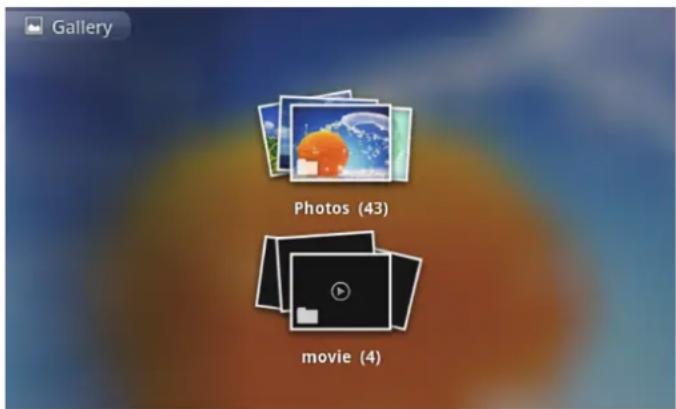
Touch & hold Photo(43).
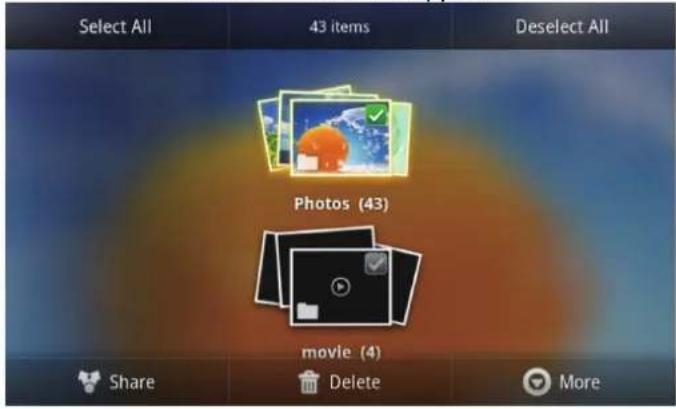

Not all items have a context menu; if does not exist, nothing will happen if you touch and hold the item.
About Notifications
The icons that appear in the Notification bar at the top of the screen alerts you when new messages arrive or alarms or other application events occur.
View and respond to the notifications by opening the full Notifications panel.
- Drag the Notification bar down to the bottom of the screen to open the Notifications panel from any screen, or;
- On the Home screen, press the Menu key and then touch Notifications to open the Notifications panel.

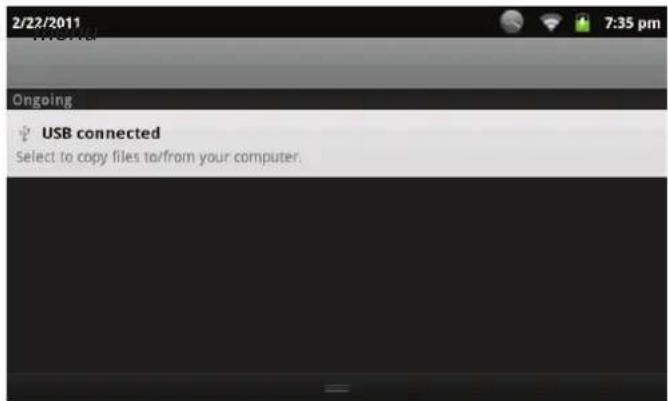
To respond to a notification:
Touch a notification in the list; the Notifications panel will close and the application associated with the notification will launch.
2. To clear all notifications:
Touch the Clear button at the top right of the Notifications panel; the panel will close and all notifications will be cleared.
3. To close the Notifications panel:
Drag the handle at the bottom of the Notifications panel to the top of the screen, or;
Press the Back key.

Connecting to the Internet
This tablet can utilize Wi-Fi data networks to connect to the Internet. Wireless Wi-Fi technology can provide Internet access at distances of over 300 feet; however, this distance can be affected by your surrounding environment and Wi-Fi router.
Requirements
In order to connect to the Internet, you will need the following:
1. A wireless router or access point with a broadband Internet connection
The wireless router must support Wi-Fi 802.11b/g connections. If the router supports 802.11n, make sure that it has been configured to acc qept 802.11b/g connections as well.
Please refer to your wireless router's documentation for help, or ask your network administrator for details.

You may encounter open Wi-Fi networks, or "hot spots." These networks are usually configured so that you can simply connect to them without needing to know its settings; the tablet will obtain all the information it needs from the router automatically.

A minimum connection speed of 64 Kbps is recommended. Faster speeds will enable a better Internet experience.
2. The wireless router network settings
You will need to know the name of your network (SSID), as well as the password or other credentials if your network is secured. These settings can usually be found on the administration webpage of your wireless router.
Connect to a Wi-Fi network
The Notification bar displays icons that indicate your tablet's Wi-Fi status.
| Connected to a Wi-Fi network (waves indicate connection strength). |
| [no icon] | There are no Wi-Fi networks in range, or the Wi-Fi radio is off. |
- Turn on the Wi-Fi radio if it is not already on. To turn on Wi-Fi:
b. Go to the Home screen:
Press the Home key.
c. Open the Settings menu:
Tap the Menu key, then touch Settings.
d. Open the Wireless & networks menu:
Touch Wireless & networks.
e. Open the Wi-Fi settings menu:
Touch Wi-Fi settings.
f. Make sure that the Wi-Fi option box is checked: Touch Wi-Fi.
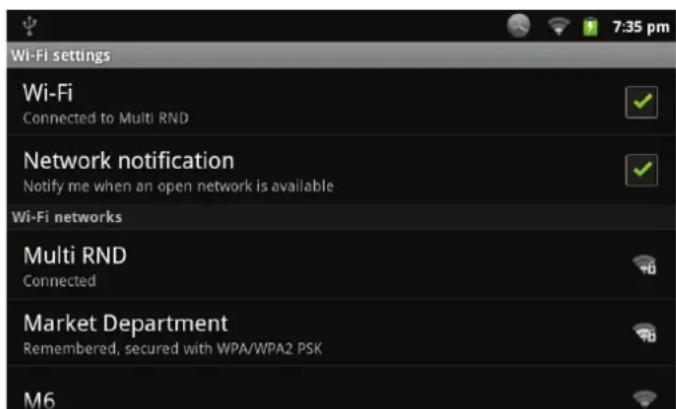
When Wi-Fi is on, the tablet will look for and display a list of available Wi-Fi networks.
If a network that you have connected to previously is found, the tablet will connect to it. If you don't see your network in the list, you can force the tablet to re-scan. To scan networks, tap the Menu key, and then to Scan.
2. Select an available Wi-Fi network to connect to:
In the same Wi-Fi settings menu above, touch a network in the list.
If the network is open, the tablet will prompt you to confirm connection to the network. Touch Connect to confirm.
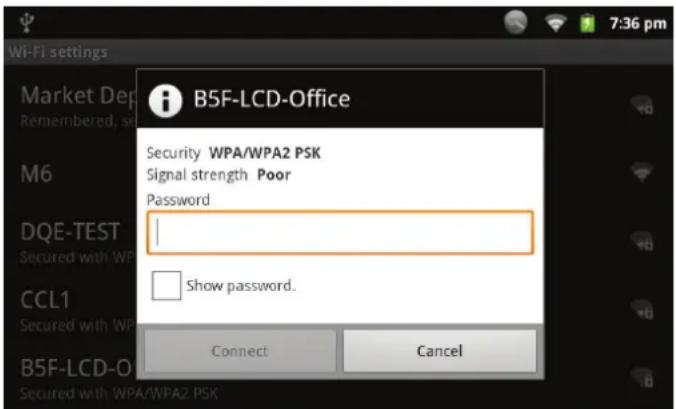
If the network is secured (as indicated by a Lock icon), the tablet will prompt you to enter a password or other credentials. Touch the Wireless password box to show the on-screen keyboard and then use it to enter the password. Touch Connect to confirm.
When you have successfully connected to a Wi-Fi network, the Notifications bar at the top of the screen will show a Wi-Fi signal indicator.

Browsing the Web
The Browser application lets you visit webpages and find information on the web. Keep up with the news, your friends, or enjoy video from YouTube™, the world's most popular video-sharing community.
To use Browser, the tablet must be connected to the Internet. Read the section "Connecting to the Internet" to learn how to connect to the Internet.
To open Browser, touch the Browser icon on the Home screen or in the Launcher.
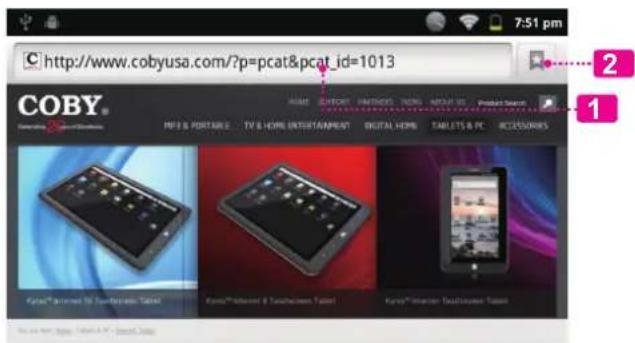
| NameDescription |
| 1 | Address bar Displays the address (URL) of the current page. Touch the bar to enter a new address or to search the web. |
| 2 | Bookmark icon Touch the bookmark icon to add or view bookmarks, to view your most visited sites, or to view your browser history. |
Some common Browser actions are described below.
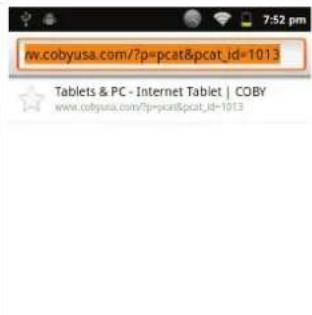
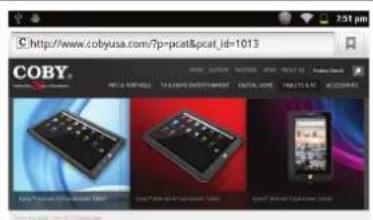
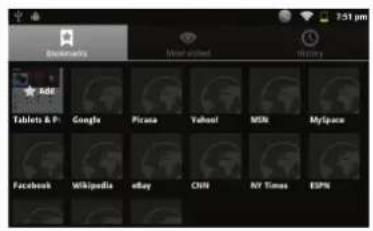
Bookmark your favorite webpages in order to visit them quickly without entering a URL.
- Go to the webpage that youwant to bookmark
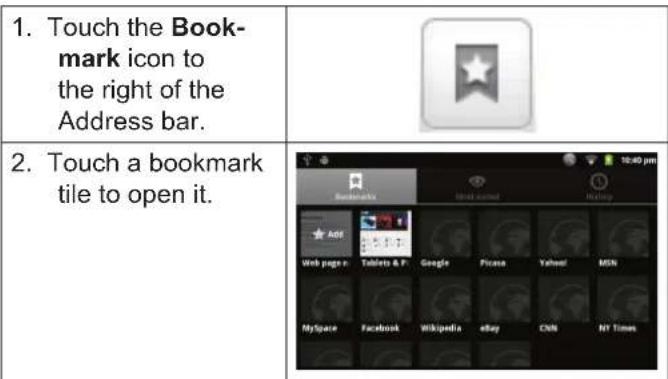
- Touch the Bookmark icon to the right of the Ad-dress bar.
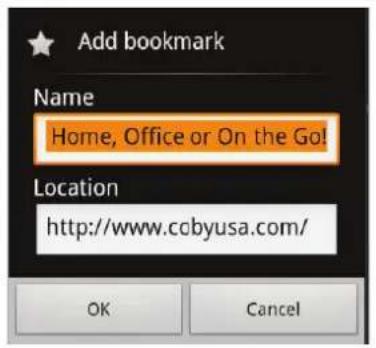
- Touch the Add tile.

- If desired, you can modify the name of the bookmark or its location (URL address). Otherwise, touch OK to finish adding the bookmark.
+ To go to a bookmarked webpage.
+ To open a new browser window.
| 1. Press the Menu key to show the Browser options. | New window | Bookmarks | Windows |
| Dafnach | Finanach | Mire |
| 2. Touch New Window to open a new browser window. | New window |
- To switch between browser windows.
| 1. Press the Menu key to show the Browser options. | New window Bookmarks Windows
Rafch Tronard More |
| 2. Touch Windows to show a list of open browser windows. | Windows |
| 3. Touch the name of a window to switch to it, or touch the “x” to close the window. | New window Google http://www.google.com/Android/GooglePlay.comAndroid home
Consumer Entertainment Products On the Go | COBY Elecs.
http://www.elecys.com |

Managing Applications
Downloading and installing new applications to your tablet can extend its functionality in many ways.
You can download and install applications from the included Applications store. To open the Applications store:
- Touch the Launcher icon.
- Touch the Apps Marketplace icon.

When installing an application, it will tell you what functions of the phone it needs to control and if it needs access to your data. Make sure you review these access requirements carefully before completing the installation.
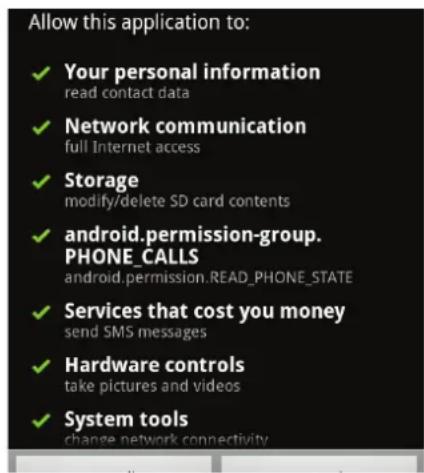

Be especially cautious with applications that request access to many functions or to a significant amount of your data. You are responsible for the results of applications installed on your tablet.
You can learn more about GetJar, and browse for ap-To uninstall an application:
plications by visiting their website at www.getjar.com.

Some developers allow you to download and install applications directly from their website.

Your Coby Mobile Internet Device may access to, or information on, content, products, applications and services from third parties. Your use of such third party content, products applications and services is at the discretion of such third party and expressly governed by such third party's terms of use, including any such third party's privacy policies, for such content products, applications and services. Coby Electronics Corporation is not responsible for and expressly disclaims all warranties of any kind with respect to all such third party content, products, applications and services. Coby Electronic Corporation will not be responsible for any loss, costs, or damages incurred due to your access to or use of third party content, products, applications or services.
- From the Home screen, tap the Menu key.
- Touch Settings to open the Settings menu.
-
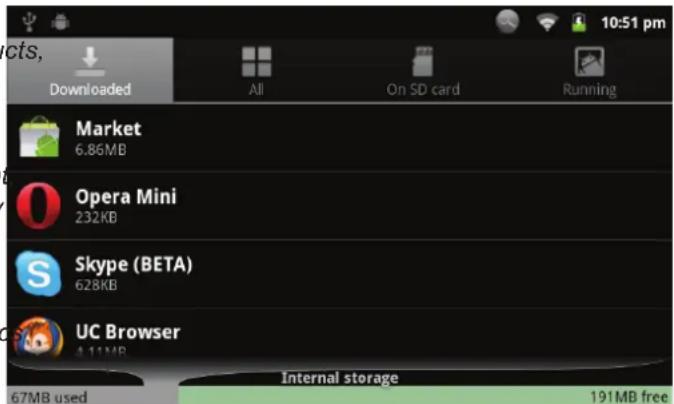
Touch Applications, and then touch Manage applications to show a list of all applications installed on the tablet.
-
Touch the name of the application you want to uninstall; the Application Info screen will open.
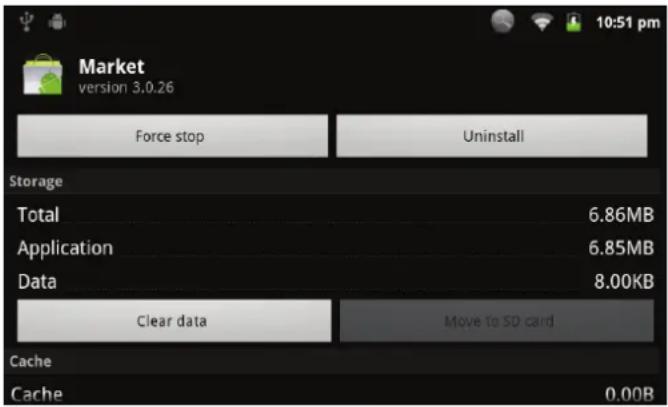
- Touch Uninstall. The tablet will prompt you to confirm.
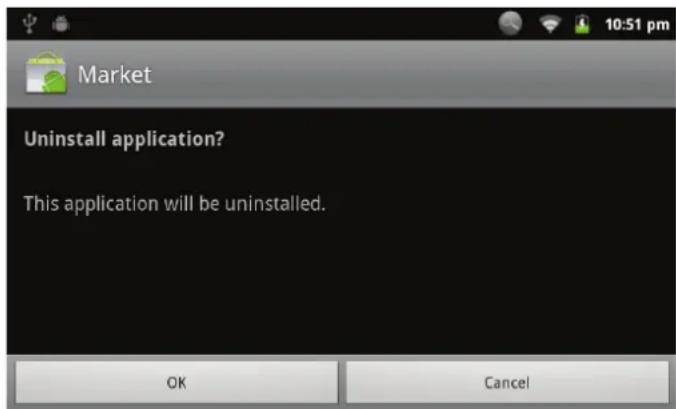
- Touch OK to uninstall the application.

Optional Connections
Connecting to a Computer
Connect the tablet to a computer to transfer files.
- Connect your tablet to the computer.
With the included USB cable:
Plug the small end of the cable into the USB 2.0 Hi-speed connector of the tablet.
Plug the large end of the cable into an available USB 2.0 Hi-speed port on the computer.
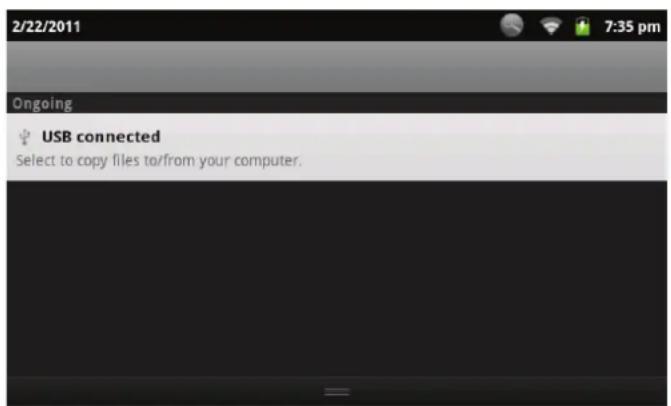
- When your tablet is connected, a USB icon will appear in the Notification bar.
Drag the Notification bar down to open the notifications panel.
3. Mount the storage drive.
Touch USB connected (Internal) to mount the tablet's Connect to a TV to enjoy your tablet from the comfort of built-in storage, then touch Mount when prompted to your living room. An HDMI cable (Type A-to-Type C) is confirm. When mounted, you can copy files to/from required to connect the tablet to a TV. your computer to it.
If a memory card is installed, touch USB connected (External) to mount the card, then touch Mount when prompted to confirm. When mounted, you can copy files to/from the computer to it.
Before connecting the tablet to the TV, you will have to adjust a few display settings on the tablet.
Make sure that the tablet is set to output over HDMI
Your tablet will be recognized by the computer as a Removable Storage drive. Drag and drop files between your tablet and the computer. To learn more about copying files, please refer to the documentation included with your computer or operating system.
Connecting to a TV
For optimal visual performance, make sure that the video output resolution of your tablet matches the capabilities of the TV.
To adjust the display settings:
- From the home screen, press the Menu key, and then touch Settings to show the settings menu.
- Touch Display to show the Display settings.
- Touch HDMI, and then touch a resolution option that matches the display capabilities of the TV:
a. Choose 1080P if your TV is capable of displaying 1080p video.
b. Choose 720P if your TV is capable of displaying 720p or 1080i video.
To connect the tablet to the TV:
- Plug the small end of the HDMI cable into the mini HDMI connector of the tablet.
- Plug the large end of the HDMI cable into the HDMI port on the TV.
- Turn on the TV, and set its display mode to the HDMI port that the tablet is connected to.
The tablet's display will be output to the TV screen.

If you need help setting the display mode of the TV, please refer to the documentation provided by the TV manufacturer.
If there is no sound from the tablet on your TV, you may need to set the HDMI switch settings.
Connecting Headphones
Connect a pair of headphones (or earphones) to the tablet to enjoy media in private.
Lower the volume level of the tablet before connecting headphones, and then slowly raise the volume to a comfortable listening level.
The headphones must have a 3.5mm (1/8 in) plug.
+ When headphones are connected, speaker output will be disabled automatically.

Hearing experts advise against the constant use of personal stereos played at high volume. Constant exposure to high volumes can lead to hearing loss. If you should experience ringing in the ears or hearing loss, discontinue use and seek medical advice.
Using the USB Full-Size Adapter
The USB full-size adapter can be used to connect and use USB devices with the tablet. The adapter converts the mini USB port on the tablet into a USB On-the-Go (OTG) connector.
Connecting a Keyboard
For times when you want to type for an extended period of time, you may want to connect a full-size keyboard to the tablet.
Use the included USB full-size (Type A) adapter to connect a keyboard to the tablet.
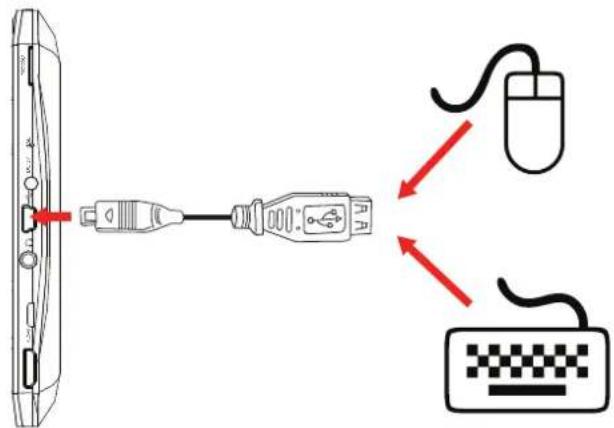

You may also use this connection mouse to the tablet.
The adapter supports one connection at a time. To use a keyboard and mouse simultaneously, you will need to add an external USB hub.
Connecting a Storage Device
Use the included USB full-size (Type A) adapter to connect a storage device to the tablet (e.g., a USB flash memory drive).

This connection supports a maximum storage size of 4 GB. For additional storage capacity, a microSD card can be added to the tablet.

Setting the System Options
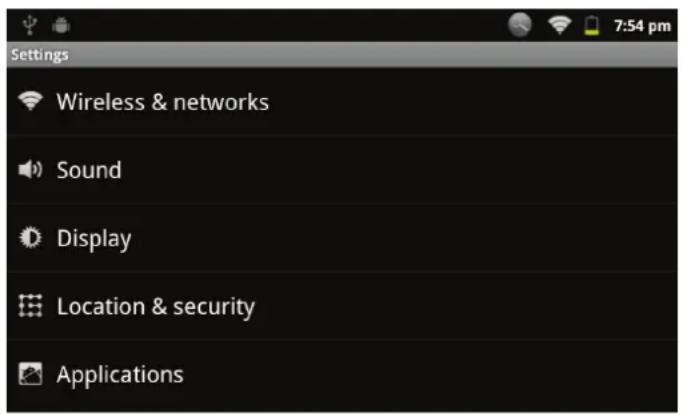
Open the system settings menu to adjust how the tablet looks and functions.
The settings are grouped by category. Touch a category to open and adjust its settings.

Many applications will have their own settings refer to the documentation provided by the application developer to learn more.

Please refer to the manual for a description of the items in the Settings menu.
To open the Settings menu:
- From the Home screen, press the Menu key.
- Touch Settings to open the Settings menu.

Specifications
Please visit www.cobyusa.com for the latest product information. Design, specifications, and manual are subject to change without notice.
| Processor Cortex A8 (1 GHz) |
| RAM 512 MB DDR2 | |
| Storage 4GB flash b | built-in
microSD card slot (max. 32GB supported) |
| Display MID7127: | 7.0" TFT LCD (800 x 480),
capacitive touchscreen
MID8127: 8.0" TFT LCD (800 x 600),
capacitive touchscreen |
| Wi-Fi Networking | IEEE 802.11 b/g |
| Video Output Mini | HDMI, type C (1080p and 720p supported) |
| Audio Output 3.5 m | mm headphone |
| PC Interface | USB 2.0 Hi-speed |
| Additional Fea-tures | Front-facing camera (0.3 MP)
Built-in microphone
Stereo speakers |
| Operating Sys-tem | Android™ 2.3 |
| Power | Rechargeable Li-poly battery Power Adapter (DC 5V) |
| Playback Time (hours) * | MID7127: Up to 14 hours music, 4.5 hours video, 6 hours web browsing |
| MID8127: Up to 15 hours music, 4.5 hours video, 6 hours web browsing |
- Music was tested with a 128 kbps MP3 file; video was tested with a 1920 x 1080 MPEG-4/AVC file; browsing was tested with the screen brightness set to default. Actual playback results may vary.

Support
If you have a problem with this device, please check our website at www.cobyusa.com for Frequently Asked Questions (FAQ) and product updates. If these resources do not resolve the problem, please contact Technical Support.
Coby Electronics Technical Support
Email: techsupport@cobyusa.com
Web: www.cobyusa.com
Phone: For US Residents: 877-302-2629, Monday-Friday (9:00AM-9:00PM EST)
For Canadian Residents: 855-542-8917, Monday-Friday (8:00AM-8:00PM EST)

Safety Notices

CAUTION
WARNING: SHOCK HAZARD. DO NOT OPEN. AVIS: RISQUE DE CHOC ELECTRIQUE. NE PAS OUVRIR
CAUTION: TO REDUCE THE RISK OF FIRE AND ELECTRIC SHOCK, DO NOT REMOVE THE COVER (OR BACK) OF THE UNIT. REFER SERVICING ONLY TO QUALIFIED SERVICE PERSONNEL.
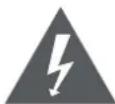
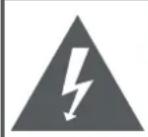
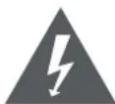
The lightning flash with arrowhead symbol within an equilateral triangle is intended to alert the user to the presence of uninsulated "dangerous voltage" within the product's enclosure that may be of sufficient magnitude to constitute a risk of electric shock.
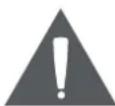
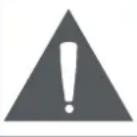
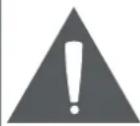
The exclamation point within an equilateral triangle is intended to alert the user to the presence of important operation and servicing instructions in the literature accompanying the appliance.

For recycling or disposal information about product, please contact your local authorities or the Electronics Industries Alliance: www.eiae.org.
For Customer Use:
Enter below the serial number that is located on the rear of the unit. Retain this information for future reference.
Model No.
Serial No.
WARNING: To prevent fire or shock hazard, do not expose this device to rain or moisture. Dangerous high voltage is present inside the enclosure. Do not open the cabinet.
Protect your hearing: Hearing experts advise against the constant use of personal stereos played at high volume. Constant exposure to high volumes can lead to hearing loss. If you should experience ringing in the ears or hearing loss, discontinue use and seek medical advice.
Note: If the product suddenly has no response or powers off, an electrostatic discharge may be the cause. In this circumstance, please follow the procedures below for recovery: this turn off the unit by pushing and holding the slide button at the right (Power off position) for 15 seconds.
FCC Statement:
This device complies with Part 15 of the FCC Rules. Operation is subject to the following two conditions:
(1) This device may not cause harmful interference, and
(2) This device must accept any interference received, including interference that may cause undesired operation.
Note: This equipment has been tested and found to comply with the limits for Class B digital devices, pursuant to Part 15 of the FCC rules. These limits are designed to provide reasonable protection against harmful interference in a residential installation. This equipment generates, uses and can radiate radio frequency energy and, if not installed and used in accordance with the instructions, may cause harmful interference to radio communications. However, there is no guarantee that interference will not occur in a particular installation. If this equipment does cause harmful interference to radio or television reception, which can be determined by turning the equipment off and on, the user is encouraged to try to correct the interference by one or more of the following measures:
- Reorient or relocate the receiving antenna.
- Increase the separation between the equipment and receiver.
- Connect the equipment into an outlet on a circuit different from that to which the receiver is connected.
- Consult the dealer or an experienced radio/TV technician for help
Use of shielded cable is required to comply with Class B limits in Subpart B of Part 15 of the FCC rules.
Do not make any changes or modifications to the equipment unless otherwise specified in the manual. If such changes or modifications should be made, you could be required to stop operation of the equipment.
Important Safety Instructions
- Read Instructions: All the safety and operating instructions should be read before the product is operated.
- Retain Instructions: The safety and operating instructions should be retained for future reference.
- HeedWarnings: All warnings on the product and in the operating instructions should be adhered to.
- Follow Instructions: All operating and usage instructions should be followed.
- Cleaning: Unplug this product from the wall outlet before cleaning. Do not use liquid cleaners or aerosol cleaners. Use a damp cloth for cleaning.
- Attachments: Use only attachments recommended by the manufacturer. Use of other attachments may be hazardous.
- Water and Moisture: Do not use this product near water (e.g., near a bath tub, washbowl, kitchen sink, laundry tub, in wet basements, or near a swimming pool and the like).
- Ventilation: Slots and openings in the cabinet are provided for ventilation to ensure reliable operation of the product and to protect it from overheating. These openings should never be blocked by placing the product on a bed, sofa, rug, or other similar surface. This product should not be placed in a built-in installation such as a bookcase or rack unless proper ventila
tion is provided or the manufacturer instructions have been adhered to.
- Power Sources: This product should be operated only from the type of power source indicated on the rating label. If you are not sure of the type of power supply to your home, consult your product dealer or local power company. For products intended to operate from battery power or other sources, refer to the operating instructions.
- Overloading: Do not overload wall outlets, extension cords, or integral convenience receptacles as this can result in a risk of fire or electric shock.
- Object and Liquid Entry: Never push objects of any kind into this product through openings as they may touch dangerous voltage points or shout-out parts that could result in a fire or electric shock. Never spill liquid of any kind on the product.
- Servicing: Do not attempt to service this product yourself as opening or removing covers may expose you to dangerous voltage or other hazards. Refer all servicing to qualified service personnel.
- Damage Requiring Service: Unplug this product from the wall outlet and refer servicing to qualified service personnel under the following conditions: a) when the power-supply or plug is damaged; b) if liquid has been spilled or if objects have fallen into the product; c) if the product has been exposed to rain or water; d) if
the product does not operate normally by following the operating instructions. Adjust only those controls that are covered by the operating instructions as improper adjustment of other controls may result in damage and will often require extensive work by a qualified technician to restore the product to its normal operation; e) if the product has been dropped or damaged in any way; f) when the product exhibits a distinct change in performance—this indicates a need for service.
- Replacement Parts: When replacement parts are required, be sure that your service technician has used replacement parts specified by the manufacturer or have the same characteristics as the original part. Unauthorized substitutions may result in fire, electric shock, or other hazards.
- Safety Check: Upon completion of any service or repairs to this product, ask the service technician to perform safety checks to ensure that the product is in proper operating condition.
- Heat: The product should be situated away from heat sources such as radiators, heat registers, stoves, or other products (including amplifiers) that produce heat.
Legal and Trademark Notices
Coby and Kyros are trademarks of Coby Electronics Corporation.
Android is a trademark of Google Inc. Use of this trademark is subject to Google Permissions.
Portions of the artwork used for this package are modifications based on work created and shared by Google and used according to terms described in the Creative Commons 3.0 Attribution License.
HDMI, the HDMI Logo and High-Definition Multimedia Interface are trademarks or registered trademarks of HDMI Licensing LLC.
microSD is a registered trademark of the SD Card Association.
USB is a registered trademark of USB Implementers Forum, Inc. YouTube™ is a trademark of Google, Inc.
All other trademarks and logos are property of their respective owners unless indicated otherwise.

CONOZCA LA TABLETA COBY KYROS 49
Sizio web: www.cobyusa.com
Telfono: Los residentes de US: 877-302-2629, De Lunes a viernes (9:00-21:00 EST)
Residents de Canada: 855-542-8917, De lunes a viernes (8:00-20:00 EST)

Avisos de Seguidad
PRECAUCIONES
ADVERTENCIA: PELIGRO DE ELECTROCUCION NO ABRIR.
PRECAUCION: PARA REDUCIR EL RIESGO DE INCENDIO Y CHOQUE ELECTRICO, NO RETIRE LA CUBIERTA (O PARTE POSTERIOR) DE LA UNIDAD. PARA REALIZAR EL MANTENIMIENTO, ACUDA UNICAMENTE A PERSONAL DE SERVICIO CALIFICADO.
Applications Pre-installedes 110
Installation d'Applications 111
| NomDescription |
| 1 Touche Volume + | Press to increase the volume level. |
| 2 Touche Volume - | Press to decrease the volume level. |
| 3 Touche Marche/Arrêt | Press to turn the unit on, or to turn the screen on and off.
Press and hold to access the Power Off menu. |
| 4 Haut-par-leurs | Stereo speakers. |
| NomDescription |
| 1 Touche Volume - | Press to decrease the volume level. |
| 2 Touche Volume + | Press to increase the volume level. |
| 3 Touche Marche/Arrêt | Press to turn the unit on, or to turn the screen on and off.
Press and hold to access the Power Off menu. |
| 4 Haut-par-leurs | Stereo speakers. |

Coby Electronics Technical Support
Courriel: techsupport@cobyusa.com
Internet: www.cobyusa.com
Do not make any changes or modifications to the equipment unless otherwise specified in the manual. If such changes or modifications should be made, you could be required to stop operation of the equipment.
Coby Electronics Corp.
1991 Marcus Ave, Suite 301
Lake Success, NY 11042
www.cobyusa.com
www.ecoby.com
Coby is a registered trademark of Coby Electronics Corporation. Printed in China.
COBY es lamarca registrada de COBY Electronics Corporation. Imprimido en China.