ASUS RPN14 - TV signal amplifier

RPN14 - TV signal amplifier ASUS - Free user manual and instructions

Find the device manual for free RPN14 ASUS in PDF.
📄 28 pages English EN Download 💬 AI Question ⚙️ Specs
Notice ASUS RPN14 - page 4
View the manual : Français FR English EN Español ES
Pick your language and provide your email: we'll send you a specifically translated version.
SKIP

Frequently Asked Questions - RPN14 ASUS

User questions about RPN14 ASUS

0 question about this device. Answer the ones you know or ask your own.

Ask a new question about this device

The email remains private: it is only used to notify you if someone responds to your question.

No questions yet. Be the first to ask one.

Download the instructions for your TV signal amplifier in PDF format for free! Find your manual RPN14 - ASUS and take your electronic device back in hand. On this page are published all the documents necessary for the use of your device. RPN14 by ASUS.

USER MANUAL RPN14 ASUS

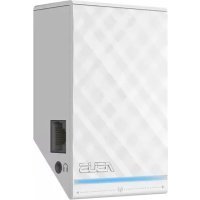
natural_image Line drawing of a rectangular electronic device with a grid-patterned panel and a small rectangular component on the side (no text or symbols)

Quick Start Guide

ASUS RPN14 - 1

ASUS RPN14 - 2

ASUS RPN14 - 3

ASUS RPN14 - 4

English....3

French....11

Italian 20

Germany 29

Danish....39

Dutch 48

Finish....57

Greek....66

Norwegian 75

Portuguese 84

Spanish....93

Swedish....102

WEU8662 / First Edition / Sept. 2013

ASUS RPN14 - 5

ASUS RPN14 - 6

ASUS RPN14 - 7

ASUS RPN14 - 8

Package contents

☑ Range Extender

Quick Start Guide

NOTE: If any of the items is damaged or missing, please contact your retailer.

A quick look

1) Ethernet port
2) Audio port
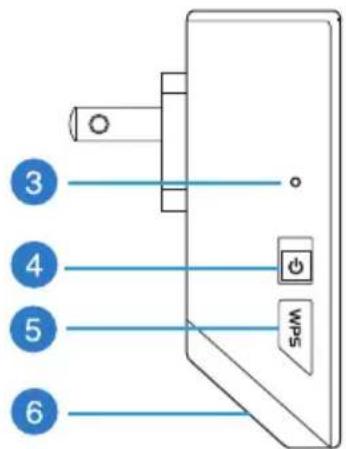
3) Reset button
4) Power On/Off button
5) WPS button
6) Night light
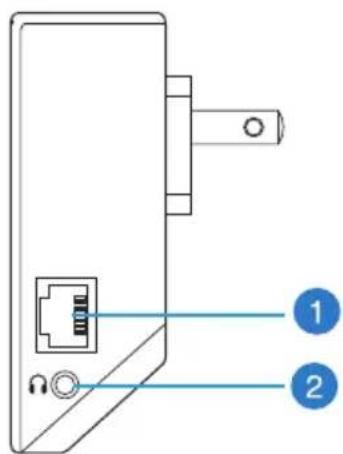
ASUS RPN14 - A quick look - 1

text_image Diagram of a device panel with labeled ports and connectors, showing two blue circular annotations labeled 1 and 2.

ASUS RPN14 - A quick look - 2

text_image 3 4 5 6 WPS

ASUS RPN14 - A quick look - 3

ASUS RPN14 - A quick look - 4

ASUS RPN14 - A quick look - 5

ASUS RPN14 - A quick look - 6

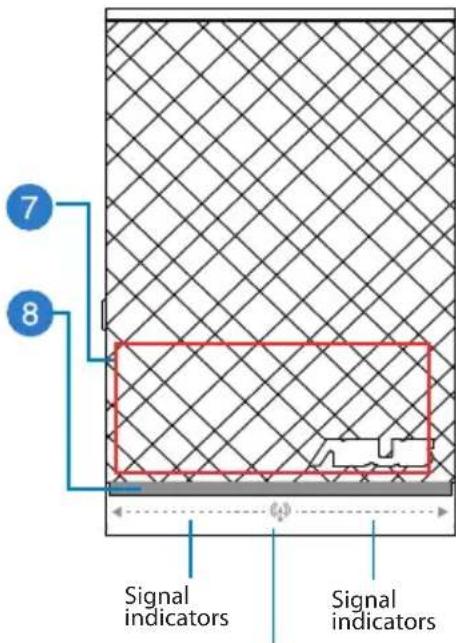
7) Touch controller
Touch the marked area to turn on/off the night light by default. You can log into the Range Extender's Web GUI to change the settings.
8) LED indicators

  • System Indicator: The System Indicator lights up when the Range Extender is powered on and flashes when the Ethernet cable or audio cable is connected.
    • Signal indicators: The lights indicate the connection signal strength from the Range Extender to the router.
Indicators Performance
Excellent
Good
Poor
No connection

ASUS RPN14 - A quick look - 7

text_image 7 8 Signal indicators Signal indicators

System Indicator

ASUS RPN14 - A quick look - 8

ASUS RPN14 - A quick look - 9

ASUS RPN14 - A quick look - 10

ASUS RPN14 - A quick look - 11

Setting up the Range Extender

Turning the Range Extender on

  1. Place the Range Extender near your Router.
  2. Plug the Range Extender into a power outlet, wait one minute for the system indicator to flash twice and turn into solid blue.
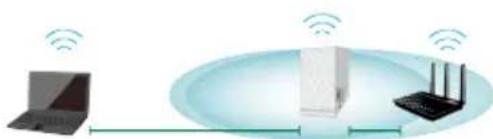
ASUS RPN14 - Turning the Range Extender on - 1

natural_image Illustration of a network device with a laptop, server, and router connected via wireless links (no text or symbols)

Connecting to a network

Select one of the following ways to connect the Range Extender to a network.

Option A: Connecting through GUI

  1. Use a computer/notebook/tablet PC to find and connect to ASUS_RPN14 wireless network.
  2. Launch a web browser and enter http://repeater.asus.com or 192.168.1.1 in the address bar to access the Range Extende0r.
  3. Enter the default login name and password, which are admin/admin.
  4. Follow the Quick Install Setup steps below to set up the Range Extender:

- Select the Wi-Fi network that you want to extend and enter its security password.
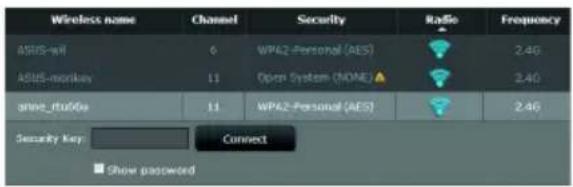
ASUS RPN14 - Option A: Connecting through GUI - 1

text_image Wireless name Channel Security Ratio Frequency ASUS-well 6 WPA2-Personal (AES) 2.4G ASUS-monkey 11 Open System (NONE) ▲ 2.4G drive_Florida 11 WPA2-Personal (AES) 2.4G Security Key Connect Show password

ASUS RPN14 - Option A: Connecting through GUI - 2

ASUS RPN14 - Option A: Connecting through GUI - 3

ASUS RPN14 - Option A: Connecting through GUI - 4

ASUS RPN14 - Option A: Connecting through GUI - 5

- Enter a name for the new Extender network.
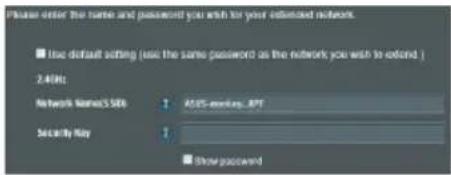
ASUS RPN14 - Option A: Connecting through GUI - 6

text_image Please enter the name and password you wish for your estimated network. Use default setting (use the same password as the network you wish to extend) 2.40Hz Network Name:500 A125-keeping - RPT Security Key 1 Show password

- Connect your wireless devices to the new Extender network.
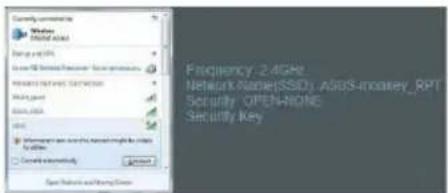
ASUS RPN14 - Option A: Connecting through GUI - 7

text_image Comedy connectivity Windows Network mask Energy and WiFi Power/USB Services Services Services Power grid Power mask WLAN Management on the network might be done Information Connect information Frequency: 2.4GHz Network Name(SSD) /AGDS-Gokey_RPT Security OPENADONE Security Key

Option B: Using WPS (Wi-Fi Protected Setup)

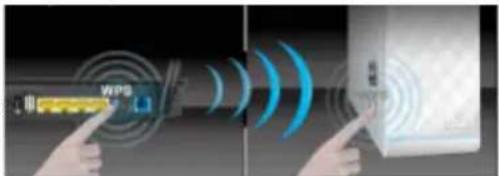
  1. Press the WPS button on the side of the Range Extender for more than two seconds, until the system indicator flashes.
  2. Press the WPS button on the router within two minutes.

NOTE: Refer to the router's manual for the location of the WPS button.

  1. Check if the Range Extender's system indicator turns into solid blue, which indicates that the Range Extender has connected to the wireless network successfully. The Range Extender's wireless network name (SSID) changes to your existing Wi-Fi network name, ending with _RPT. For example:

Existing network name: existing NetworkName

New network name: existing NetworkName_RPT
ASUS RPN14 - Option B: Using WPS (Wi-Fi Protected Setup) - 1

text_image Diagram illustrating Wi-Fi signal transmission via a device, showing clock, display, and screen with waveform patterns

6

ASUS RPN14 - Option B: Using WPS (Wi-Fi Protected Setup) - 2

ASUS RPN14 - Option B: Using WPS (Wi-Fi Protected Setup) - 3

ASUS RPN14 - Option B: Using WPS (Wi-Fi Protected Setup) - 4

ASUS RPN14 - Option B: Using WPS (Wi-Fi Protected Setup) - 5

To connect an additional Wi-Fi device to your Extender network, use the same network password as that of your existing wireless router.

Move the Range Extender

When the connection is complete, locate the Range Extender between the router and the wireless device to get better performance.
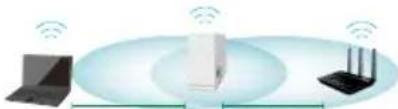
ASUS RPN14 - Move the Range Extender - 1

natural_image Illustration of three wireless devices with network icons (no text or symbols)

NOTE: To get the best connection performance, ensure that at least two signal indicators light up.

Signal Indicators

• To get the best performance, place the Range Extender between your router and wireless device.
- The signal indicators indicate the connection performance from the Range Extender to the Router. Refer to the LED indicators in section A Quick Look.
- If no signal indicator lights up, search the network again in Option A or make sure that your router supports WPS in Option B.

Wireless Media Playback

The Range Extender supports wireless media playback, which allows you to stream and play your network music through its audio port. You can use ASUS AiPlayer app to control the music streaming over the Range Extender from your mobile device. Search for "RP-N14" or "ASUS AiPlayer" from Google Play or App Store and download the app to your mobile device.
ASUS RPN14 - Wireless Media Playback - 1

NOTES:

  • AiPlayer supports mp3, wav., flac, and acc files.
  • You can insert an earphone, powered speaker, or stereo system to the 3.5mm stereo audio port.

ASUS RPN14 - NOTES: - 1

Frequently Asked Questions

Q1: I cannot access the web GUI to configure the RP-N14 settings.

  • Close all running web browsers and launch again.
  • Follow the steps below to configure your computer settings based on its operating system.

Windows 7

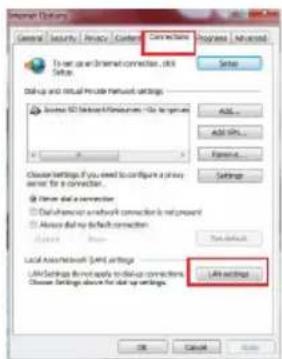
A. Disable the proxy server, if enabled.

  1. Click Start > Internet Explorer to launch the web browser.
  2. Click Tools > Internet options > Connections tab > LAN settings.
  3. From the Local Area Network (LAN) Settings screen, untick Use a proxy server for your LAN.
  4. Click OK when done.

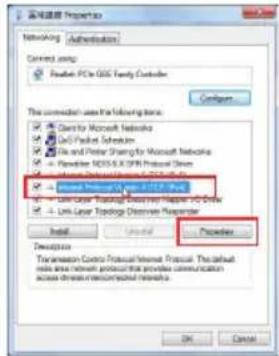
B. Set the TCP/IP settings to automatically obtain an IP address.

  1. Click Start > Control Panel > Network and Internet > Network and Sharing Center > Manage network connections.
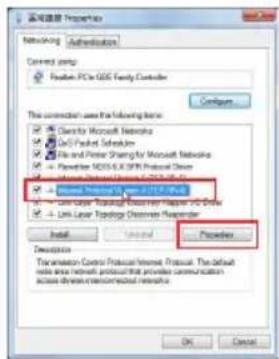
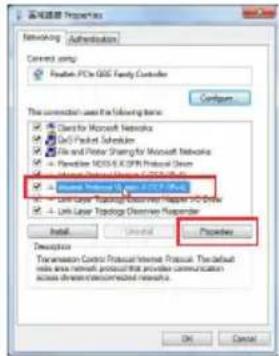
  2. Select Internet Protocol Version 4 (TCP/IPv4), then click Properties.
  3. Tick Obtain an IP address automatically.
  4. Click OK when done.

ASUS RPN14 - Windows 7 - 1

text_image Network Settings General Security Privacy Control Connection Settings Progress Advanced To set open or network connection, click Setup Setup Set up and virtual network settings Source SD Network Networks - For General Add Add Tools... Delete Delete Settings If you need to configure a proxy server for a connection. Change that is connected Default when network connection is not present Always did you default connection. Local Audio network (LAD) settings LAD Settings do not apply to data connections. Choose Settings about the data setup settings. All settings

ASUS RPN14 - Windows 7 - 2

text_image Networking Properties Networking | Authentication Control switch: Paperback PC to GSG Family Controller Configure This connection uses in the following text: ■ Clarity of Microsoft Networks ■ Lab/Packlet Schedules ■ File and Print Sharray by Microsoft Networks - Preview MSOS X: IP/XP Protocol Drive - Internet Protocol (MSOS X: IP/XP)... ■ Frontier Protection System (F1/F2) Pack - Link Layer Topology Detector Provider V-Drive - Link Layer Topology Detector Provider V-Drive Install Cancel Procedure Description Transmission Control Protocol Internet Protocol. This default role area network protocol that provides communication access drive reconnected interface. OK Cancel

ASUS RPN14 - Windows 7 - 3

ASUS RPN14 - Windows 7 - 4

ASUS RPN14 - Windows 7 - 5

Mac 10.5.8

A. Disable the proxy server, if enabled.

  1. From the menu bar, click Safari > Preferences... > Advanced tab.
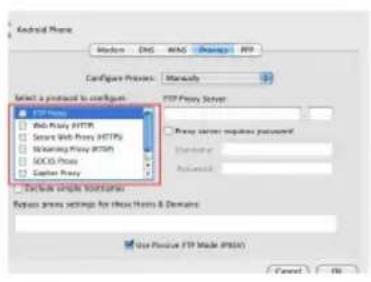
  2. Click Change Settings... in the Proxies field.
  3. From the list of protocols, deselect FTP Proxy and Web Proxy (HTTP).
  4. Click OK when done.

B. Set the TCP/IP settings to automatically obtain an IP address.

  1. Click the Apple icon 📄 > System Preferences > Network.
  2. Select Ethernet and select Using DHCP in the Configure field.
  3. Click Apply when done.

ASUS RPN14 - Mac 10.5.8 - 1

text_image Android Phone Medium DNS NAS Remote WiFi Configure Presets: Manusky Select a protocol to config: FTP Server □ Web Fiji HTTP □ Smart Web Fiji HTTPS □ Networking Fiji HTTPS □ SOCIS Fiji □ Adapter Fiji FTP Proxy Server Proxy server: https://localhost/ Unilateral Available Exclude simple barriers Ratios access settings for these Ports & Domains Use Passive FTP Model (PSMA) Cancel No

ASUS RPN14 - Mac 10.5.8 - 2

text_image English

Q2: Why doesn't the touch controller work?

- Ensure that you touch the area correctly. Refer to A Quick Look for the location of the touch area.


ASUS RPN14 - Q2: Why doesn't the touch controller work? - 1

ASUS RPN14 - Q2: Why doesn't the touch controller work? - 2

ASUS RPN14 - Q2: Why doesn't the touch controller work? - 3

ASUS RPN14 - Q2: Why doesn't the touch controller work? - 4

Q3: My router security is WEP, and I entered a wrong passphrase or security key on the extender. Now I cannot access the Extender any more. What can I do?

- The Range Extender cannot check whether the WEP passphrase is correct or not. When entered a wrong passphrase, your wireless device cannot get the correct IP address from the Range Extender. Please reset the Range Extender to its factory defaults to get the IP address back.

Q4: When I connect a speaker or stereo system to RP-N14, there is no sound coming out when I play audio files.

- Make sure that you have not turned off the audio output via the touch controller. The touch controller is set to turn on/off the night light and mute/unmute the audio by default. You can log into the Range Extender's Web GUI to change the settings.

Manufacturer ASUSTeK Computer Inc.Tel: +886-2-2894-3447Address: No. 150, LI-TE RD., PEITOU, TAIPEI 112, TAIWAN
Authorised representative in EuropeASUS Computer GmbHAddress: HARKORT STR. 21-23, 40880 RATINGEN, GERMANY
Authorised distributors in TurkeyBOGAZICI BIL GISAYAR SAN. VE TIC. A.S.Tel: +90 212 3311000Address: AYAZAGA MAH. KEMERBURGAZ CAD. NO.10 AYAZAGA/ISTANBULCIZGI Elektronik San. Tic. Ltd. Sti.Tel: +90 212 3567070Address: CEMAL SURURI CD. HALIM MERIC IS MERKEZINo: 15/C D:5-6 34394MECIDIYEKOY/ ISTANBULKOYUNCU ELEKTRONiKBiLGi iSLEM SiST. SAN. VEDIS TIC. A.S.Tel: +90 216 5288888Address: EMEK MAH.ORDUCAD. NO:18, SARIGAZi, SANCAKTEPE ISTANBUL
natural_image Illustration of three connected devices with wireless signal icons (no text or symbols)
text_image Wireless name Channel Security Radio Frequency ASUS-xml 6 WPA2-Personal (AES) 2.4G ASUS-monkey 11 Open System (NONE) ▲ 2.4G amru_16u05u 11 WPA2-Personal (AES) 2.4G Security Key: Connect Show password

ASUS RPN14 - Q4: When I connect a speaker or stereo system to RP-N14, there is no sound coming out when I play audio files. - 1

ASUS RPN14 - Q4: When I connect a speaker or stereo system to RP-N14, there is no sound coming out when I play audio files. - 2

ASUS RPN14 - Q4: When I connect a speaker or stereo system to RP-N14, there is no sound coming out when I play audio files. - 3

ASUS RPN14 - Q4: When I connect a speaker or stereo system to RP-N14, there is no sound coming out when I play audio files. - 4

text_image Please enter the same and passacted you with for your extended network. ■ Use default acting (use the same password as the network you wish to extend ) 2.4GHz Network Name(SIN) 1 ADSS-credit, RPT Security Key 2 ■ Show password
text_image Security update Windows Network security Energy & DIPs Network Network Security Network Network Security WLAN WLAN Internet and the network light in the system Connect security. Open Network and Security Center Frequency, 2.4GHz Network Name(010), ASUB-monkey_RFT Security_OPEN/NONE Security Key
natural_image Illustration of three wireless devices connected via wireless links, no text or symbols present
text_image Available on the App Store

REMARQUES :

text_image Internet Options General Security Privacy Control Connection Help Progress Advanced To use an Internet connection, click Setup Send-up and install include network settings. License SD network resources - Use to prepare Add... Add down... Remove... Choose settings if you need to configure a proxy service for a connection. Enter that a connection. Delete where any network connection is not present. Allow that my network connection. Local Network User settings Link Settings (which apply to local connections) Choose settings above the disk-up settings. Live options OK Cancel

Français

ASUS RPN14 - REMARQUES : - 1

text_image Networking Properties Authentication Current ramp 放弃 PCs iOS Family Controller Configure This connection uses the following items: □ Clarity: Microsoft Networks □ Go Packed Schedules □ File and Print Sharing: Microsoft Networks □ Provider: NOS/8.0/SPR Protocol Server □ Network Protocol (Form1-1) / 2.0.0.0.0.0 □ Link Layer Topology Detection Procedure To Drive □ Link Layer Topology Detection Parameter Install Cancel Procedure Description Transmission Control Protocol Internet Protocol: The default wire area network protocol that provides communication access drive reconnected protocols OK Cancel

ASUS RPN14 - REMARQUES : - 2

ASUS RPN14 - REMARQUES : - 3

ASUS RPN14 - REMARQUES : - 4

ASUS RPN14 - REMARQUES : - 5

Mac 10.5.8

text_image Network Show All Location Automatics Status: Connected Internet: 1. currently active and has the IP address (32.204.123.4) Configur: Using DHCP IP Address: 352.168.123.41 Socket Mask: 255.253.253.0 Router: 250.168.123.1 DNS Server: 352.168.123.1 Search Domain: Advanced
natural_image Illustration of a network device with a laptop, tower, and wireless devices (no text or symbols)
text_image Wireless name Channel Security Radio Frequency ASWS-wil 0 WPA2-Personal (AES) 2.4G ASWS-monkey 11 Open Systems (NONE)▲ 2.4G aws_rta60s 11 WPA2-Personal (AES) 2.4G Security Key: Connect Show password

ASUS RPN14 - Mac 10.5.8 - 1

ASUS RPN14 - Mac 10.5.8 - 2

ASUS RPN14 - Mac 10.5.8 - 3

ASUS RPN14 - Mac 10.5.8 - 4

text_image Please order the name and password you wish for your estimated networks ■ Use default setting (use the same password as the network you wish to extend ) 2.4GHz Network Name/Side 1 A357-ewayey: .897 Security May 1 ■ Other password
text_image Diagram illustrating Wi-Fi signal transmission via a touch screen, showing waveform patterns and control interface elements.

ASUS RPN14 - Mac 10.5.8 - 5

ASUS RPN14 - Mac 10.5.8 - 6

ASUS RPN14 - Mac 10.5.8 - 7

ASUS RPN14 - Mac 10.5.8 - 8

natural_image Illustration of three wireless devices with network icons (no text or symbols)
text_image Available on the App Store

NOTAS:

text_image Internet Settings General Security Privacy Control Connection To use an Internet connection, click Setup Send-up and install include network settings Business SDI network resources - Do not expand Add... Add so... Remove... Choose settings if you need to configure a proxy service for a connection. Never add a server icon Dish where any such link is not present Always add any such link Local Network (LME) settings LME settings must apply to deliver connections Choose settings above the send-up settings. Progress Advanced OK Cancel Help

Español

ASUS RPN14 - NOTAS: - 1

text_image Networking Properties Networking Authentication Control switch Phenix PCs GDS Family Controller Configure The connection uses in the following items: Class for Microsoft Networks GDS Packard Schedule File and Power Sharing for Microsoft Networks - Paperback NOSLS & CNTP Protocol Server - Internet Provider Network (USB) V2.0 Mobile Provider Network (USB) V2.0 Link Layer Monitoring System (USB) V2.0 Link Layer Topology Display System Install Cancel Properties Description Transmission Control Protocol Internet Protocol. The default wire area network protocol that provides communication access drivers connected networks. OK Cancel

ASUS RPN14 - NOTAS: - 2

ASUS RPN14 - NOTAS: - 3

ASUS RPN14 - NOTAS: - 4

ASUS RPN14 - NOTAS: - 5

Mac 10.5.8

text_image Network Location Automatics Status: Connected Internet: 1.2878.043.043.043.043.043.043.043.043.043.043.043.043.043.043.043.043.043.043.043.043.043.043.043.043.043.04 Config: Using DHCP IP Address: 192.168.125.41 Socket Mask: 255.255.255.0 Router: 255.168.125.1 DNS Server: 192.168.125.1 Search Domain: Advanced

ASUS RPN14 - Mac 10.5.8 - 1

ASUS RPN14 - Mac 10.5.8 - 2

ASUS RPN14 - Mac 10.5.8 - 3

ASUS RPN14 - Mac 10.5.8 - 4

Manual assistant
Powered by Anthropic
Waiting for your message
Product information

Brand : ASUS

Model : RPN14

Category : TV signal amplifier