
45 Platinum - Smartphone ARCHOS - Free user manual and instructions
Find the device manual for free 45 Platinum ARCHOS in PDF.



| Product type | Smartphone |
| Brand | ARCHOS |
| Model | 45 Platinum |
| Dimensions | 130 x 65 x 10 mm |
| Weight | 140 g |
| Screen size | 4.5 inches |
| Screen resolution | 480 x 854 pixels |
| Operating system | Android 4.2 Jelly Bean |
| Processor | Dual core 1.2 GHz |
| RAM memory | 512 MB |
| Internal storage | 4 GB |
| Expandable storage | Micro SD up to 64 GB |
| Rear camera | 5 megapixels |
| Front camera | 0.3 megapixel (VGA) |
| Battery | 1800 mAh, removable lithium-ion |
| Dual SIM | Yes (1 x Micro SIM 3G, 1 x standard SIM) |
| Connectivity | Wi-Fi 802.11 b/g/n, Bluetooth 4.0, GPS |
| Power supply | USB charger 5V |
| Box contents | Phone, battery, headset, Micro SIM adapter, USB cable, charger, guides |
| Care and cleaning | Use a soft cloth, avoid abrasive products |
| Safety | Use original accessories, do not expose to moisture |
| Spare parts and repairability | Removable battery, accessible SIM and micro SD cards, repair by a professional |
Frequently Asked Questions - 45 Platinum ARCHOS
User questions about 45 Platinum ARCHOS
0 question about this device. Answer the ones you know or ask your own.
Ask a new question about this device
Download the instructions for your Smartphone in PDF format for free! Find your manual 45 Platinum - ARCHOS and take your electronic device back in hand. On this page are published all the documents necessary for the use of your device. 45 Platinum by ARCHOS.
USER MANUAL 45 Platinum ARCHOS
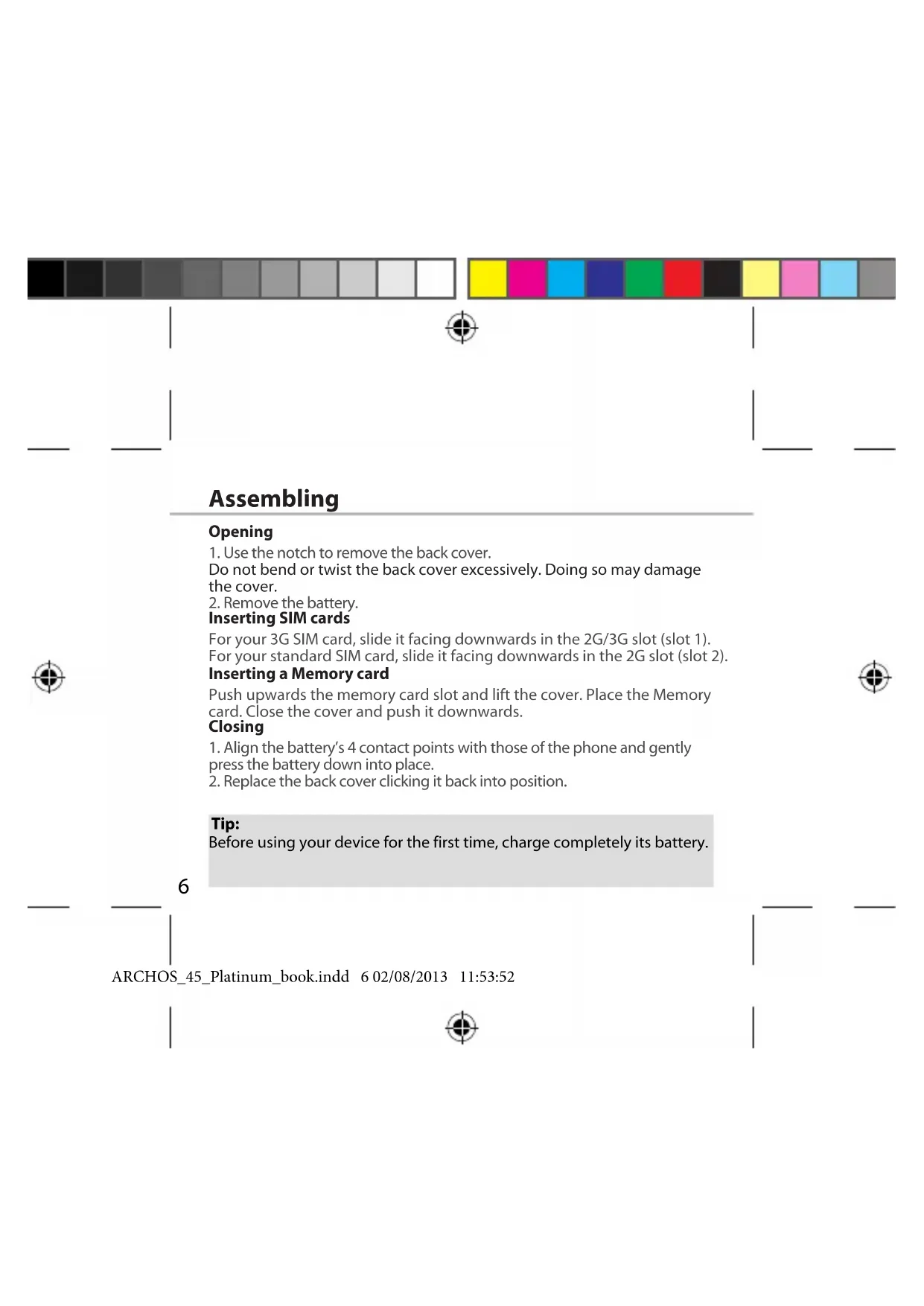
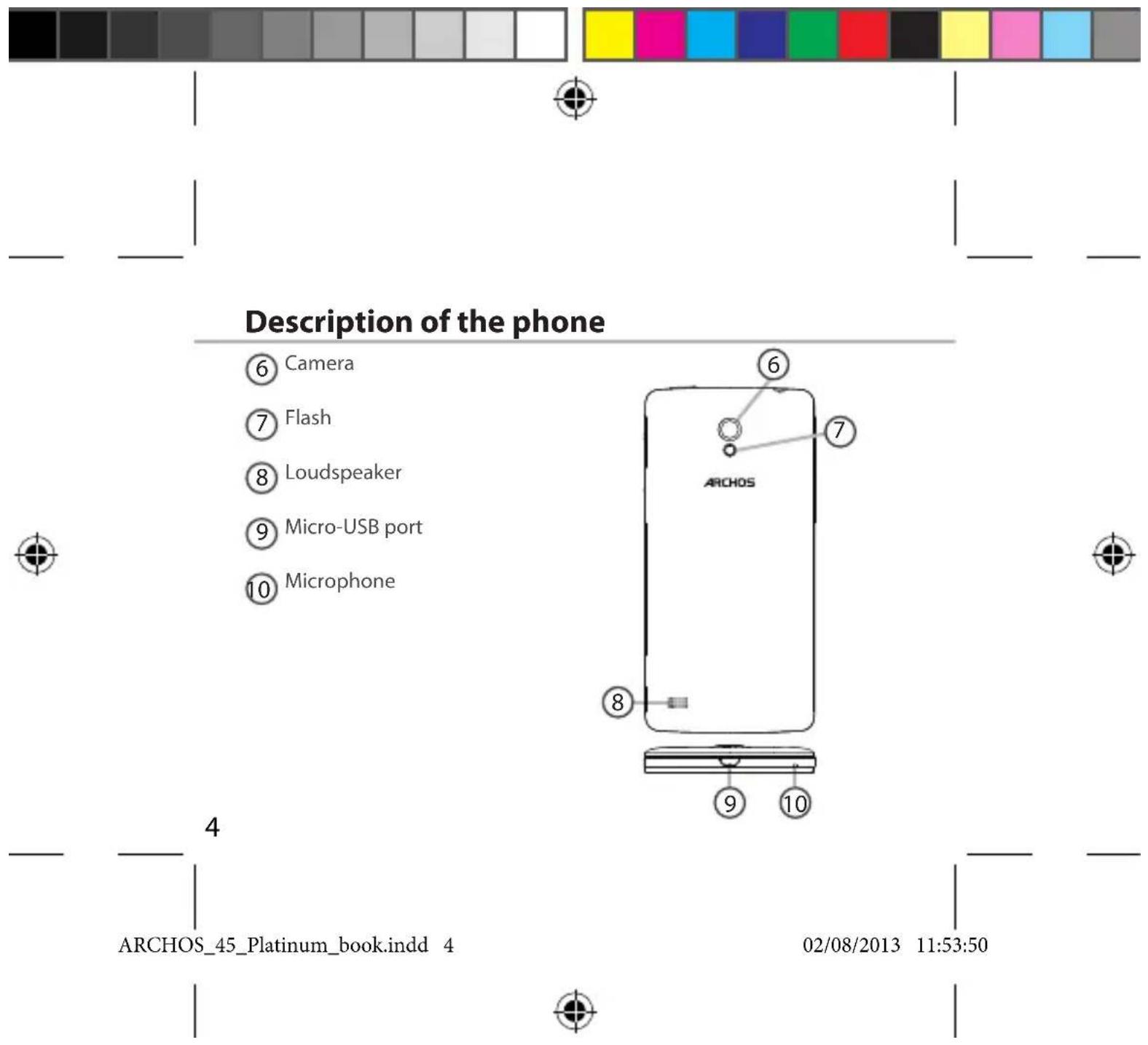
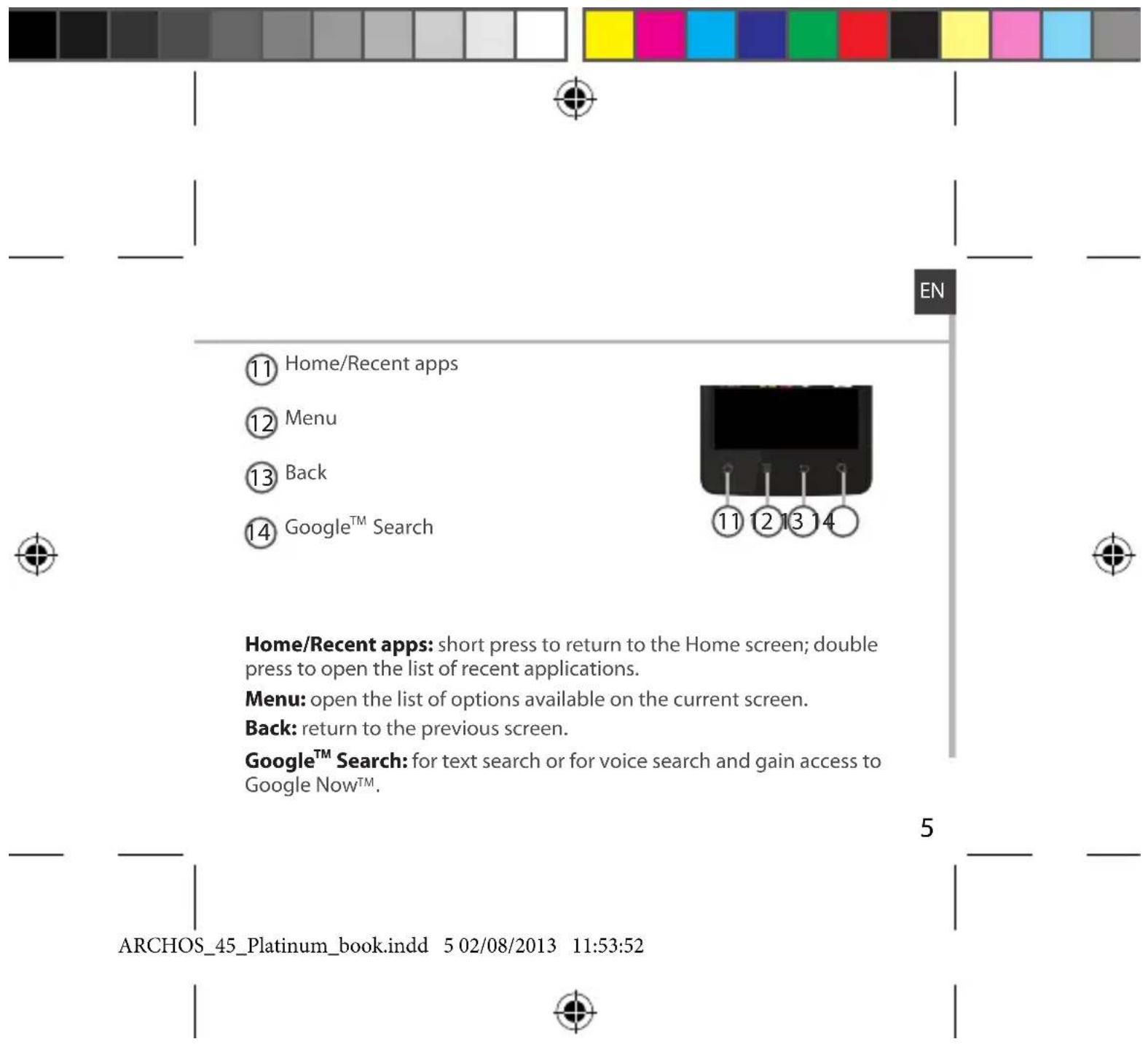
Description of the phone. 3
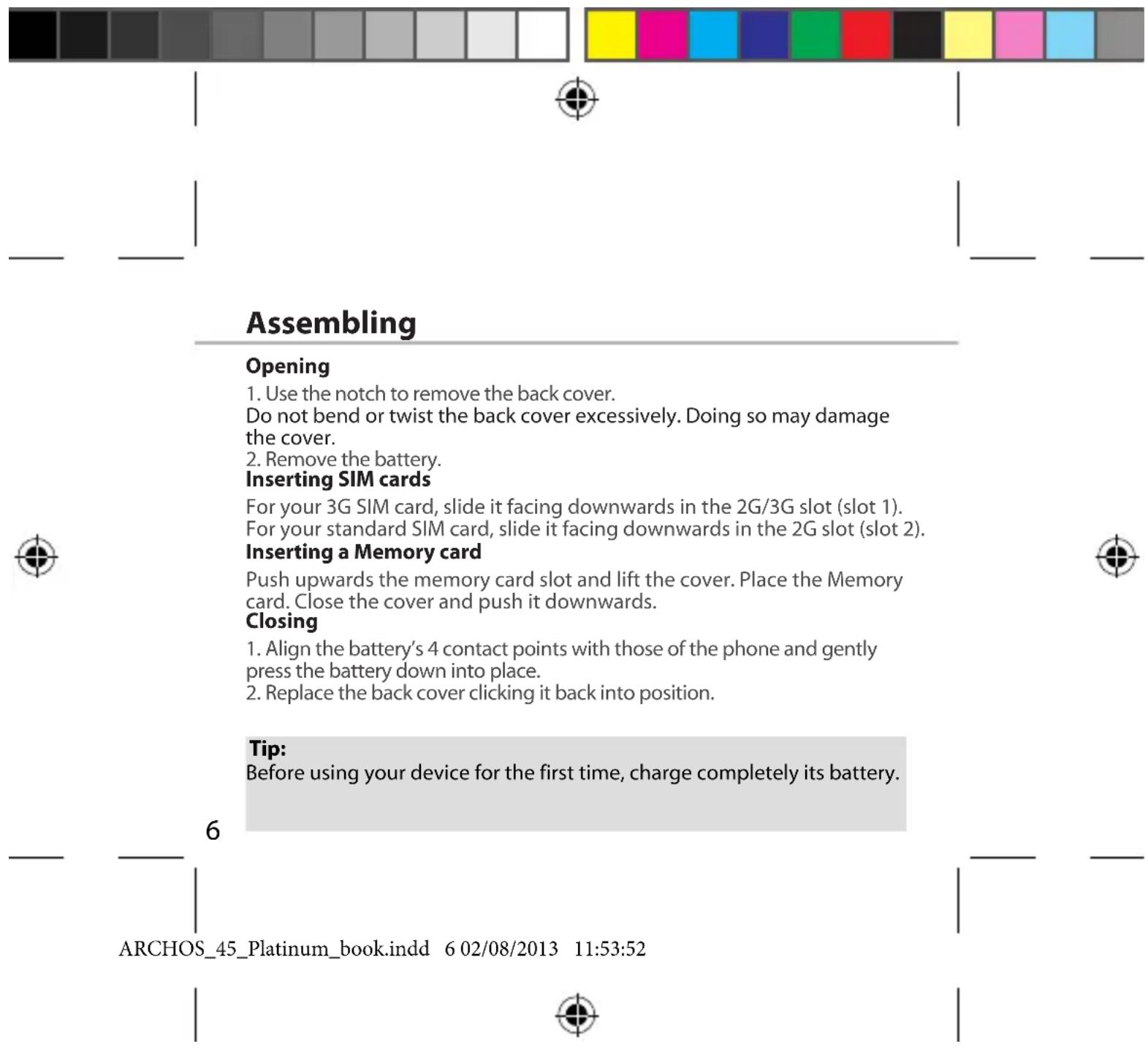
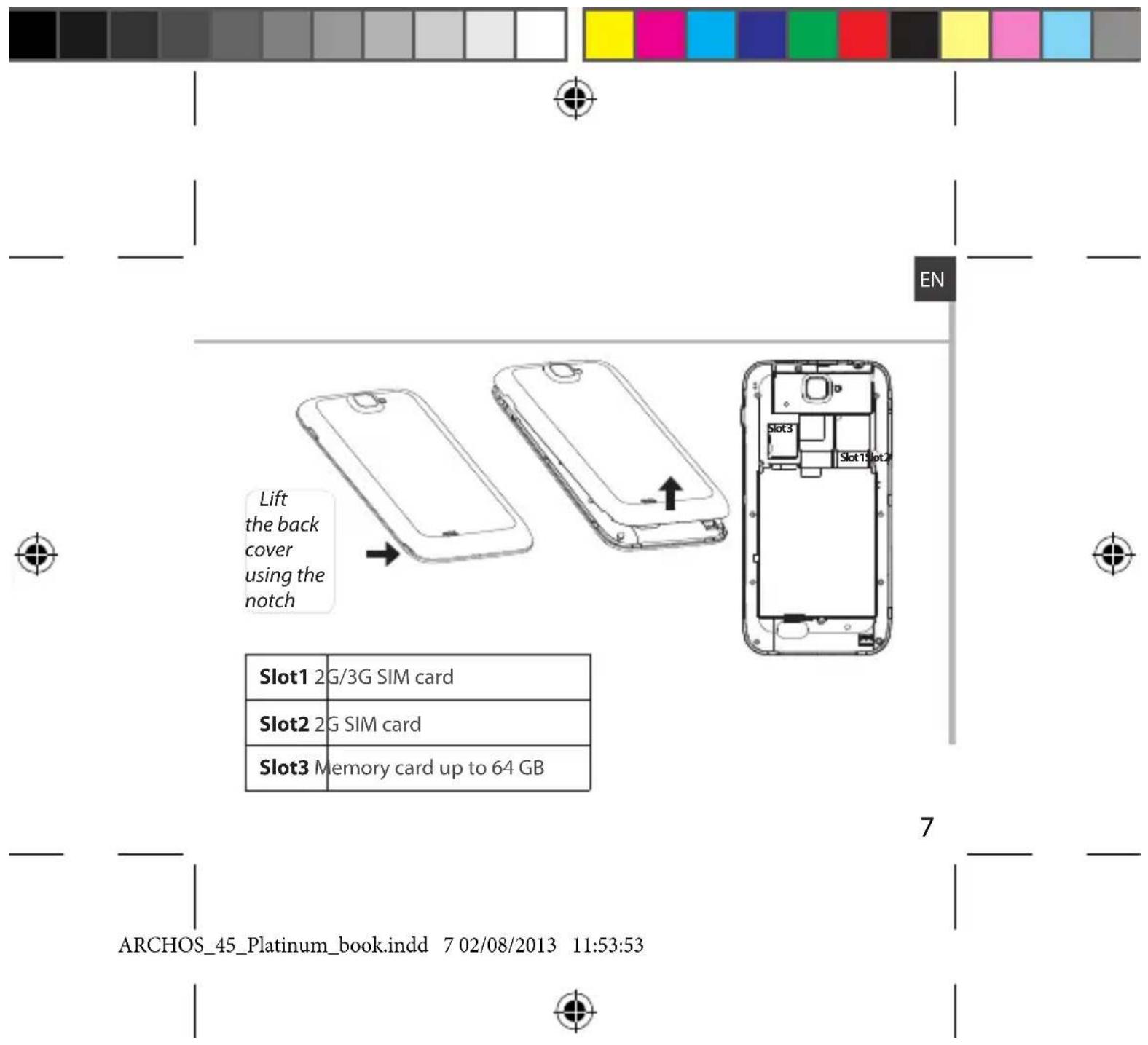
Assembling. 6
Getting started. 8
3G & WiFi connection. 10
Google account & Contacts. 12
Hints & tips with AndroidTM 14
Troubleshooting. 16
For more information, please consult the FAQs on www.archos.com. Make sure to read them before considering any product return. As we are often updating and improving our products, your device's software may have a slightly different appearance or modified functionality than presented in this Quick Start Guide.
ARCHOS_45_Platinum_book.indd 102/08/2013 11:53:48
Package Contents
Check your product box for the following items:
-ARCHOS 45 Platinum
-Battery
-Headset
-Micro SIM adaptor
-USB cable
-Charger
-Quick start guide
-Warranty Legal & Safety notices
The items supplied with your device and available accessories may vary depending on your region or service provider.
The supplied items are designed only for your device and may not be compatible with other devices.
Unapproved accessories may cause your device to malfunction.
2
ARCHOS_45_Platinum_book.indd 202/08/2013 11:53:48
Getting started
Turn ON
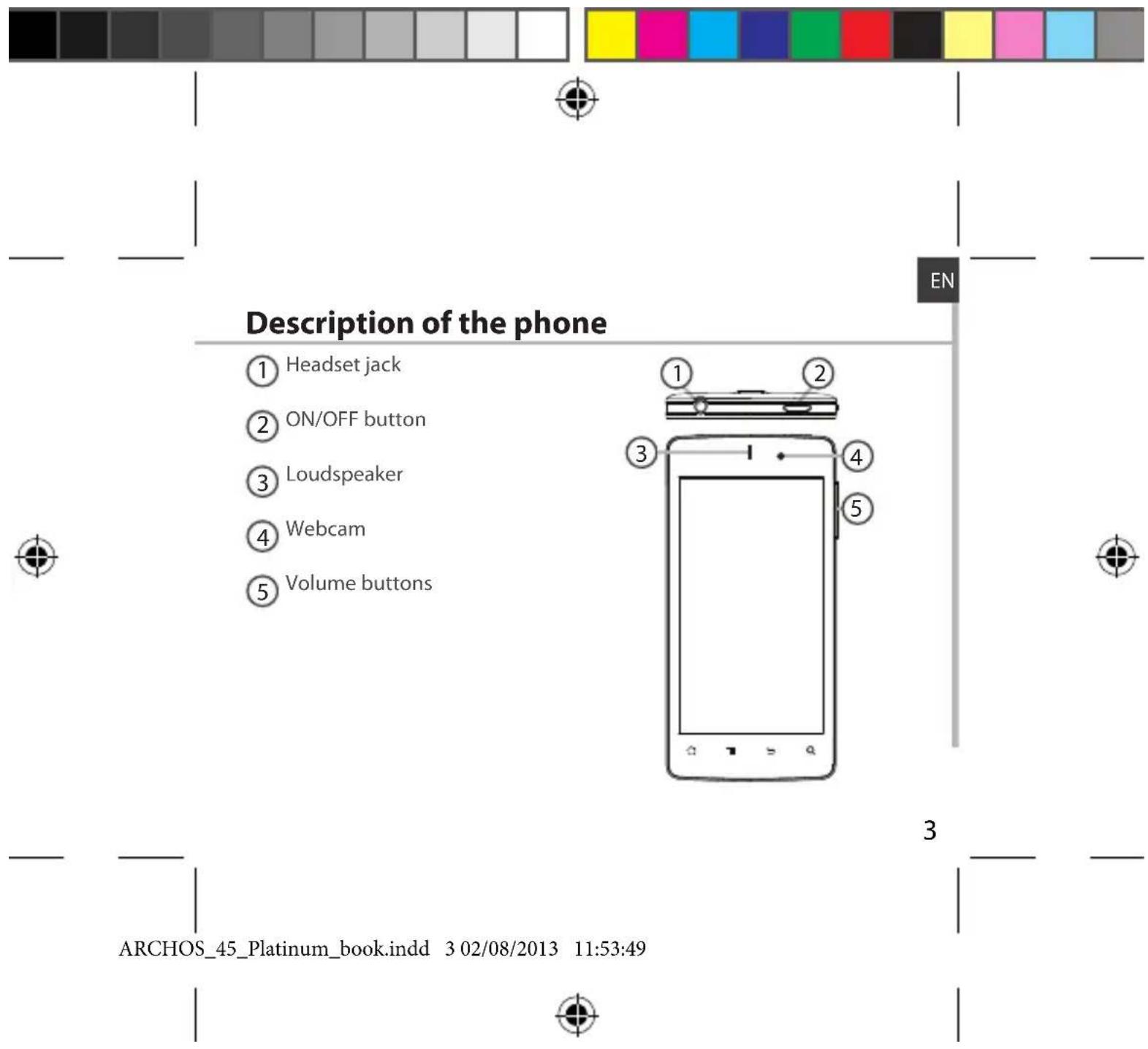
- Press and hold the ON/OFF button to turn on the device.
When you turn on your device, a PIN code may be requested.
- Type the PIN code supplied with your SIM card.
Beware of typing a wrong PIN code.
- Select'OK'.
Turn OFF
To turn off your device, press and hold the ON/OFF button, and then select Power off > OK.
Sound & Notification profiles
-
When the device is turned on, press and hold the ON/OFF button.
-
Select an option.
Silent Vibrate Sound

Tip:
Your device goes in standby mode when you do not use it for a specified period of time. To wake up your device, press the ON/OFF button.
To set the duration, go to Settings > Display > Sleep.
ARCHOS_45_Platinum_book.indd 802/08/2013 11:53:53
3G & WiFi connection
3G connection
With your 3G SIM card, you should be connected to the Internet without any further setup. The ARCHOS will only have signal if you are in an area covered by your 3G provider's 3G or EDGE network. When connected to the 3G network, the 3G icon is displayed in the status bar.
Activating the mobile data
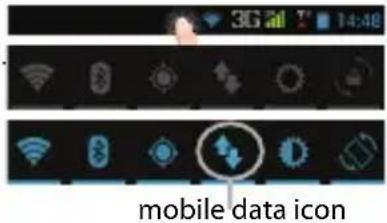
To be able to access Internet, the mobile data icon must be activated.
-
Drag down the status bar.
-
Touch the mobile data icon to activate it. The mobile data icon is blue when activated
Tip:
When you encounter connection problem's, see the FAQs on www.archos.com or contact your 3G network connection provider.
10
ARCHOS_45_Platinum_book.indd 10 02/08/2013 11:53:53
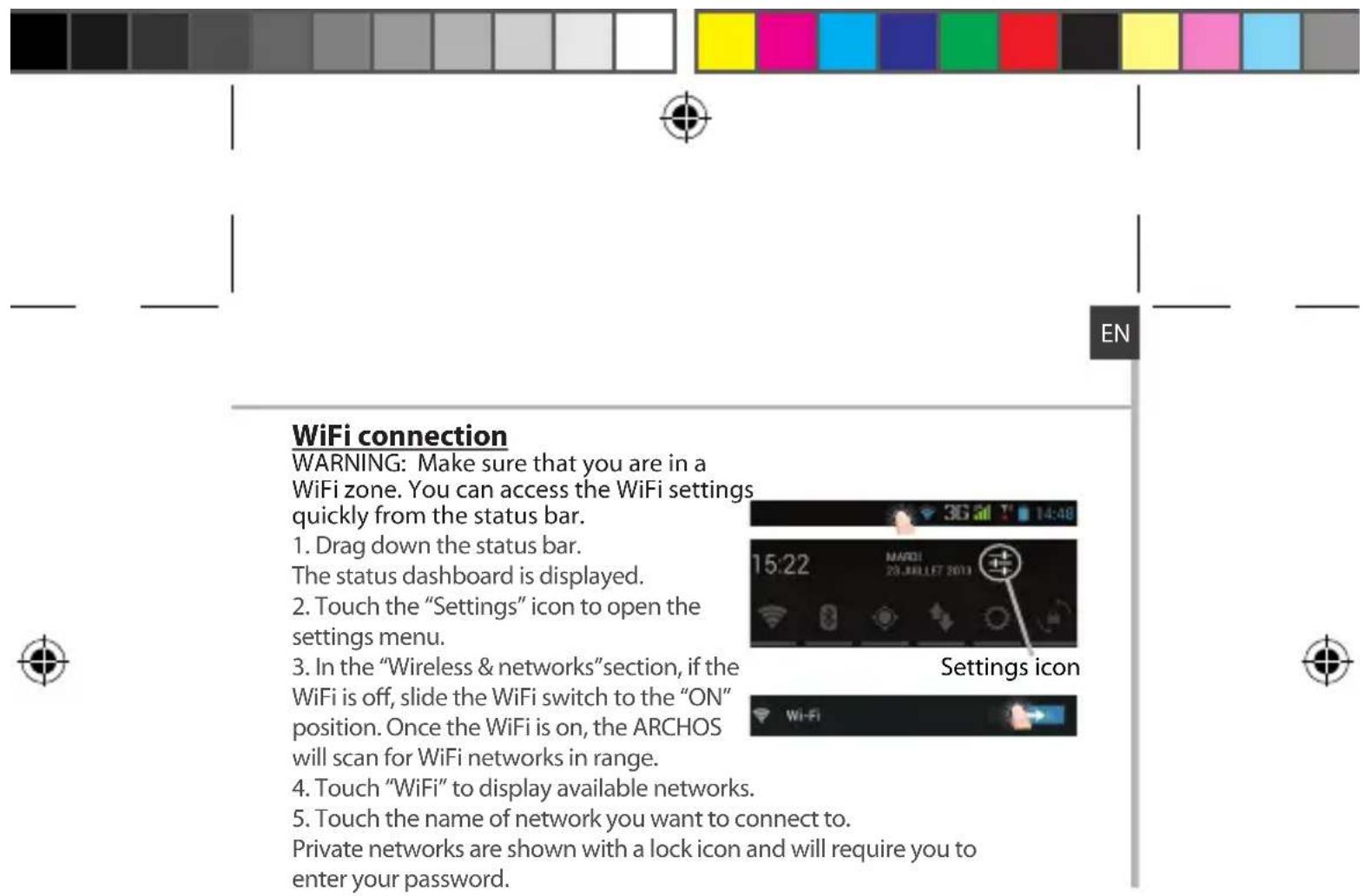
ARCHOS_45_Platinum_book.indd 11 02/08/2013 11:53:54
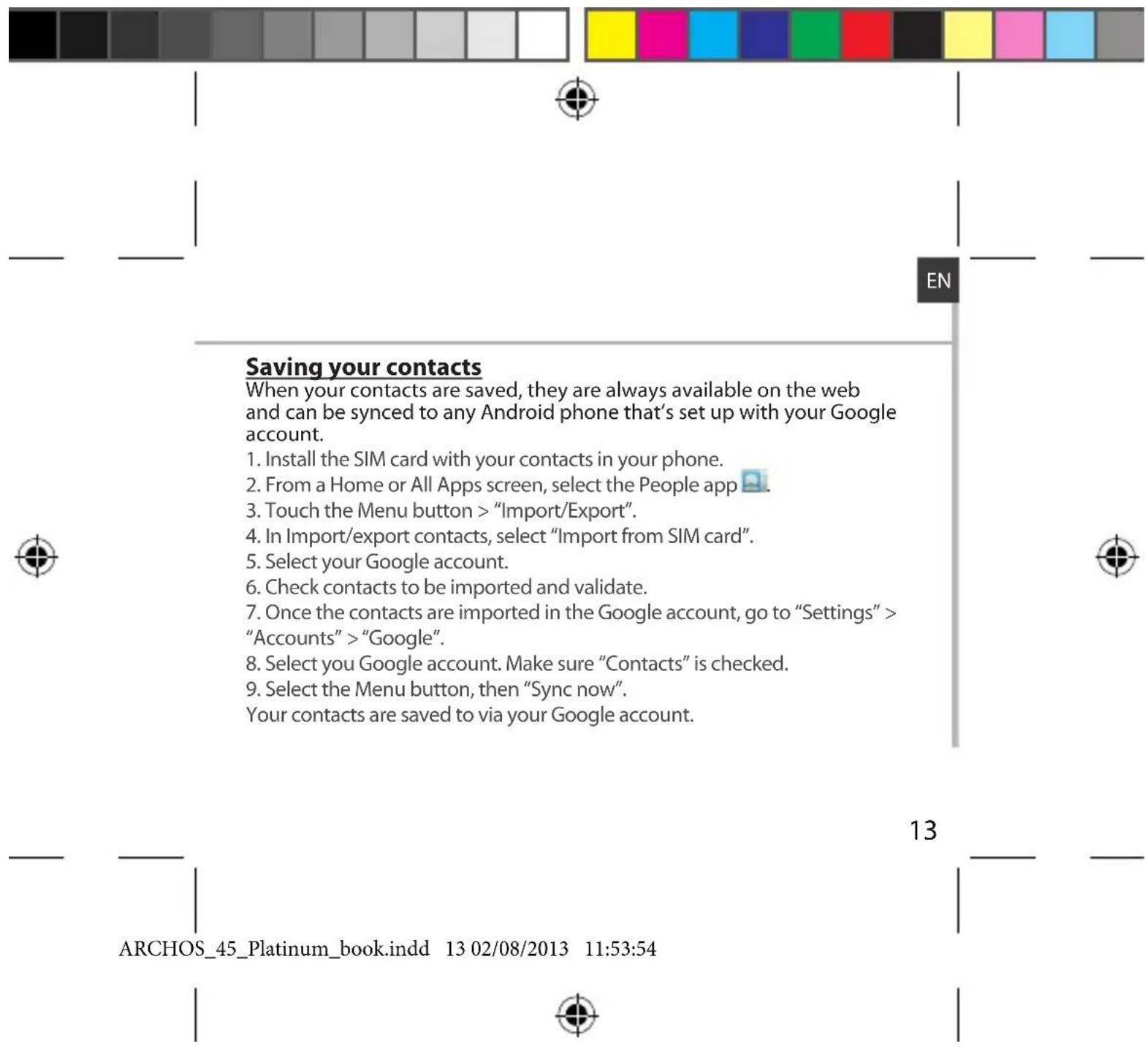
Google & Contacts
Adding a Google account
A Google account lets you take full advantage of any Google apps and services that you may want to use.
- Go to "Settings" → "Accounts" > "Add account".
- Select the account type "Google" to add.
- Follow the onscreen instructions to enter information about the account.
Once the account is created, you can access Play Store, Gmail, Hangouts, Maps and many other apps.
Synchronizing info
Information must be sync to be saved. Your data are backed up on Google servers.
- Go to "Settings" > "Accounts" > "Google".
- Select your account.
The list of information that can be sync are displayed. - Check all information in order to sync them.
You can get them back in case of loss of your device or SIM card.
When your Google account is added to a new device, all your saved information are collected.
12
ARCHOS_45_Platinum_book.indd 12 02/08/2013 11:53:54

Hints & tips with Android™
The extended home screen:
Navigate between different home screen panels by swiping left and right.
Home button
Short press the Home button to go back to the main screen.
Double press the Home button to display all the apps you have opened.
Swipe any app left or right to close it.
Moving a home screen item:
Touch and hold your finger onto it until the positioning gridlines appear, then slide it to the desired location, and release your finger.
Removing a home screen item:
Touch and hold it, slide your finger towards the top of the screen and drop it over the "Remove" icon.
Uninstalling an item:
From the "All apps" screens, touch and hold it, slide your finger towards the top of the screen and drop it over "Uninstall" bin.
14
ARCHOS_45_Platinum_book.indd 14 02/08/2013 11:53:54
Table des matieres
FR
PpOfJn3ByKOB n yBedeomJIeHn
- Korinda yctpoicBO BKIOUeHO, HAKMnte N yIepKUNBaIte KHOIIKY BKIOUeHNI/ BbIKIOUeHNI. 2. BbI6epNTe OINH N3 BapMaHTOB.
Bε3 3Byka Bn6paun Co 3ByKOM
Iopcka3Kn. Ecnn ycTpoiCtBO He nCnOJIb3yEtc B TeueHne onpeJeHHoro BpeMeHn, ceHCOPhBn EKpaH BblKIOuayetc. TTo6bl BKIOUHTb EKpaH, HaxMMTe KHOKNy BKIOUeHn N BblKIOUeHn. TTo6bl 3aTaB dNITeBHoCTb, nepeINTe K MeHIO Settings > Display > Sleep (HacTpoiKn > DucPnei > Pexm CHa).
120
ARCHOS_45_Platinum_book.indd 120 02/08/2013 11:54:16
Yuetnag3aNcBGoogleKoHTaKTbI
Добavenhoe yuethoJ 3annCn Google
Yyehn3aHcBGoogle n03BOJareN0nb3OBaTbCnpeMnyeCTBaMn IIO6bIX npInOKeHn uycnyr Google, KOtOpBle Bbl 3axOTNe NcNoJIb3OBaTb.
-
Перашисту к раздени Settings Accounts > Add account (Hастpoи >Учтные заимс > Добагиь учетую заимс).
-
Bb6epnte TnDIO6aBnEmo yHeTHO3Anncn Google.
-
BbInonHnIe nHCTpyKuHn Ha 3kpaHe IJyBBOda INHOpMaunn O6 yUeTHoN 3aIncn. KaT ToIbKO yUeTHaY 3aIncs b6yTe CO3dHa, Bbl 6yDeTe IMeTb DOCTyn K Play Store, Gmail, Hangouts, Maps n MHOrIM dpyrIM npInnoKeHHM.
CnHxpoHn3aunn HhOpMaunn
IIN CoXpaHHeHn HOpMaun CnHxpoHn3npynte ee. Pe3epBHOe KOINPOBaHne BaUnx DaHbIX BbINONHReTcHa cepBepbl Google.
-
Перашисту К раздени Settings > Accounts > Google (Hастори > Учелные заимс > Google).
-
Bb6epnte yueTHyio 3aINcB. Byet OTO6paKeH CNICOK DaHHbIX, KOtOpble MOrT 6bITb CnHXPOHn3NpOBAhbl.
3.ДяснхрониЗациOTMeTbTe BCE daHHbIe.
Pn noTepe yctpoiCTBa nn SIM-KapTbI Bbl CMOKeTe NOJyUHTb CBON daHbIe c cepBepa.
PnIIO6abHeHn yueTHoN 3aNNcN GoOg He HOBoe yCTPOeCTBO CObnpaetc Bc coXpaHeHHa INHOpMaun.
124
ARCHOS_45_Platinum_book.indd 124 02/08/2013 11:54:17

3HaKOMCTBO C AndroidTM
PacunpeHHbI DomaHm3KpaH:
BbnoHnIte npexoDbI MeKdy pa3NHybIMn NaHeJMy DOMaUHero 3KpaHa, CMeuay INx BLeBO INBpabo.
Khonka Home:
Haxmnte IIN BO3Bpata K rIaBHOMy 3KpaHy. IBOHoe KacAHne IIN OTKpbITnCnCKA NocJeDnHX PnIOJKeHn.
IpepeueeHne 3neMeHTa DomauHero 3kpaHa:
PnKoCHNTecb K 3JIeMeHTy u ydePxNBaIte naIeU, noka He noBHTcCeTka nO3uHIOHIOPOBaHnra, 3aTeM nepeMeCTIte erO B Tpe6yEmoe NOIOXKeHne, n OTnyCTIte naIeU.
YdaJIeHHe 3IeMeHrTa DOMaUHero 3KpaHa:
PpIKoCHNTecb K 3JemeHTy u ydepxnBaar naneu, npOBeDnte erO K BepxHeu qactn 3KpaHa n OTnyCTnte HaN NIKTOrpamMoR Remove (ydaIITb).
DenHctannnnaeIeMeHTa:
PpIKoCHNTecb K 3IeMeHtHy Ha 3KpaHe «Bce npInOKeHnra» u ydepxNBaR naIeU, npOBeINte erO K BepXHeu qactn 3KpaHa n OTnyCTnte HaI nnKTOrpAMMO Uninstall (dennctanlnpoBaTb).
126
ARCHOS_45_Platinum_book.indd 126 02/08/2013 11:54:17

YcTpaHHe HEnoJaOK
TeneoHpearpnyetHaDenCTBnHnHe BkIouaETc
Поберп Te KOТаКтб AkKуМЛЯТОра,ИЗВLEКНЕ И NOВТOPH O YСТАНБИЕ AkKуMЛЯТОр,3aTeM ChOBa BKNIOHTe TeteФон. Поберп Te yobehь Зapяда AkKуMЛЯТОр,БblIOHNTe ZapяДу B TeueHne He MeHee 20 MmHyT.
He ydaetcnoKIOUHTb TeneoH He MoKET K cTeN, HIN OTO6paKaeTc coo6ueHne No service (Her cTeN)
PnBtaiTeCb yCTaHOBNb CoeHHeHne Bpyrom Mce. PpOBepbTe y OepaTopa HauHne NOKpbTnA CETn. PpOBepbTe y OepaTopa, DeCTBaTbIbHa IIN BaHa SIM-kapTa. PnBtaiTeCb BbIbPaTb DocTyHHyIO CETb (CETn) BpyHyo. PnBtaiTeCb yCTaHOBNb CoeHHeHne No3Ke, eCN CETb NepepyKeHa.
He ydaeTcBbINOJIHrTbNXCOJUaIe Bbl3OBbl
Y6eHITcB, YTO TeneoH NOkKnIOueH K CeTn, N UTO CeTb DOCTynHa N He NepeRpyKeHa.
He ydaetc npHnMaTb BXoAunne Bbl3OBbl
YbntcB, TTo Tepeoh BkIOueH N IOKIOueH K cTeN (PpOBepbTe, YTO cTeb DOCTyHa H neperpykeha).
3a6knipoban PIN-koD SIM-kaptbi
O6paTITcB K onepatopy Mo6nIbHOB C83N DIA NOpUeHNA PUK-KoJa (Personal Unblocking Key — nepcoHaJIbHi pa36noknpyuoiKoJ).
Hactpoika HOBOI cTeu 3G
Ecn yctpoCTBO He yctahOBnIO coeIMHeHne C cetbIO NOCTaBUNka ycnyr CB3N 3G aBTOMaTueckn 6paTNTecb K NOCTaBUNky ycnyr CB3N 3G dIy NtUyeHn npaMeTPOB NOKIIouHn.
Ha ekpahe yctpoiCTBa KocnHTeCb nyHKta Settings (HactpoKn).Bb6epnte Wireless & networks > More...>Mobile networks (BeCnpoBOnHra CB3b n cetu >DOnOpHInTeBHO...> Cetu Mo6nBHoN CB3n).
BbIepeNt Network settings (HactpoKnc cTe). B pa3dene Network operators (OnepaTopb ceTn) BbIepeNte HxKnOro onepaTopa. B pa3dene Access Point Names (Mmeha ToeK DocTyna) BbIepeNte npaBnBHeO MMA TOUKN DoCTyNa N BBeINTE TOUHbI NapaMeTpbl IOpKnIOueHn, PpeIOCTaBnEHHbI NOCTaBUNKOM yCnyr CBs3N 3G.
ARCHOS_45_Platinum_book.indd 128 02/08/2013 11:54:17
Open Source Software Offer
The software bundled with this product includes software files subject to certain open source license requirements. Such open source software files are subject solely to the terms of the relevant open source software license. Such open source software is provided on an "AS IS" basis to the maximum extent permitted by applicable law.
For the open source files contained herein, please access "Open source license" section located at: Settings\About tablet\Legal information on the device for the relevant copyright and licensing terms. You may obtain a copy of Apache License, Version 2.0 at http://www.apache.org/licenses/License-2.0. You may also obtain a copy of GNU General Public License, Version 2 at the Free Software Foundation, INC, S1 Franklin Street, Fifth Floor, Boston, MA 02110-1301, USA.
Until the date that is three years after our last shipment of this product, you may obtain a copy of the source code corresponding to the binaries for any GPL-Licensed file by contacting ARCHOS customer service at http://www.archos.com and ARCHOS will send you a link to such source code or will provide instructions to get the source on a physical medium.
This offer is valid to anyone in receipt of this information.

129
ARCHOS_45_Platinum_book.indd 129 02/08/2013 11:54:18
National restrictions
This device is intended for home and office use in all EU countries (and other countries following the EU directive 1999/5/EC) without any limitation except for the countries mentioned below:
Country Restriction ReasonRemark
Bulgaria None General authorization required for outdoor use and public service
France Outdoor use limited to 10 mW e.i.r.p. within the band 2454- 2483.5 MHz
Military Radiolocation use. Refarming of the 2.4 GHz band has been ongoing in recent years to allow current relaxed regulation. Full implementation planned 2012
Italy None If used outside of own premises, general authorization is required.
Luxembourg None General authorization required for network and service supply (not for spectrum)
Norway Implemented This subsection does not apply for the geographical aera within a radius of 20km from the centre of Ny-Alesund
130
ARCHOS_45_Platinum_book.indd 130 02/08/2013 11:54:18

Russian
None Only for indoor applications
Federation
Note: Frequency 2454-2483.5MHZ are restricted to indoor use in France.
Consult the declaration of conformity on http://www.archos.com/products/declaration_conformity.html
SAR
After the laboratory measurement, this mobile phone SAR value is:
MAX HEAD:0.391W/kg BODY:1.281W/kg


131
ARCHOS_45_Platinum_book.indd 131 02/08/2013 11:54:18


- PACKAGE CONTENTS
- GETTING STARTED
- TURN ON
- TURN OFF
- SOUND & NOTIFICATION PROFILES
- TIP
- G & WIFI CONNECTION
- G CONNECTION
- ACTIVATING THE MOBILE DATA
- GOOGLE & CONTACTS
- ADDING A GOOGLE ACCOUNT
- SYNCHRONIZING INFO
- HINTS & TIPS WITH ANDROID™
- THE EXTENDED HOME SCREEN
- HOME BUTTON
- MOVING A HOME SCREEN ITEM
- REMOVING A HOME SCREEN ITEM
- UNINSTALLING AN ITEM
- TABLE DES MATIERES
- PPOFJN3BYKOB N YBEDEOMJIEHN
- YUETNAG3ANCBGOOGLEKOHTAKTBI
- ДОБAVENHOE YUETHOJ 3ANNCN GOOGLE
- CNHXPOHN3AUNN HHOPMAUNN
- HAKOMCTBO C ANDROIDTM
- PACUNPEHHBI DOMAHM3KPAH
- KHONKA HOME
- IPEPEUEEHNE 3NEMEHTA DOMAUHERO 3KPAHA
- YDAJIEHHE 3IEMEHRTA DOMAUHERO 3KPAHA
- DENHCTANNNNAEIEMEHTA
- YCTPAHHE HENOJAOK
- OPEN SOURCE SOFTWARE OFFER
- NATIONAL RESTRICTIONS
- SAR
Brand : ARCHOS
Model : 45 Platinum
Category : Smartphone