
Platinum 60 - Smartphone ARCHOS - Free user manual and instructions
Find the device manual for free Platinum 60 ARCHOS in PDF.




| Product type | Smartphone |
| Brand | ARCHOS |
| Model | Platinum 60 |
| Dimensions (L x W x H) | 165 x 83 x 9 mm |
| Weight | 180 g |
| Screen size | 6 inches |
| Screen resolution | HD (720 x 1280) |
| Battery capacity | 2500 mAh |
| Battery type | Removable lithium-ion |
| Power supply | Micro-USB power adapter |
| Connectivity | WiFi 802.11 b/g/n, Bluetooth 4.0, micro-USB |
| Network | 2G (GSM), 3G (WCDMA) |
| SIM slots | Dual Micro-SIM |
| Internal storage | 8 GB |
| Expandable storage | microSD up to 32 GB |
| RAM | 1 GB |
| Processor | Quad-core 1.3 GHz |
| Rear camera | 5 MP |
| Front camera | 2 MP |
| Operating system | Android 6.0 (Marshmallow) |
| Care and cleaning | Clean with a soft, dry cloth. Do not use abrasive products. |
| Safety | Do not expose to water or humidity. Use only approved accessories. |
| Spare parts and repairability | Removable battery, removable back cover. For repairs, contact ARCHOS support. |
| General information | Made in China. Manual available at notice-facile.com. |
Frequently Asked Questions - Platinum 60 ARCHOS
User questions about Platinum 60 ARCHOS
0 question about this device. Answer the ones you know or ask your own.
Ask a new question about this device
Download the instructions for your Smartphone in PDF format for free! Find your manual Platinum 60 - ARCHOS and take your electronic device back in hand. On this page are published all the documents necessary for the use of your device. Platinum 60 by ARCHOS.
USER MANUAL Platinum 60 ARCHOS
Congratulations on the purchase of an ARCHOS device! This quick start guide helps you start using your device properly. If you have more questions concerning the use of your device, visit us at:

twitter.com/archos

www.facebook.com/archos
Blog
https://blog.archos.com/

http://faq.archos.com/

www.archos.com, click Support > After-sales support

www.archos.com, click Support > Downloads > Declaration of conformity
As we are often updating and improving our products, your device's software may have a slightly different appearance or modified functionality than presented in this quick start guide.

Unboxing
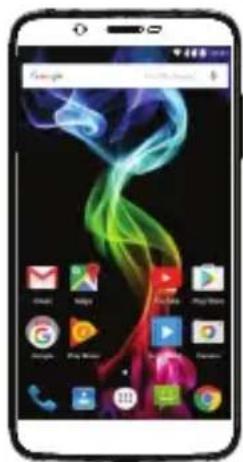
ARCHOS 60 Platinum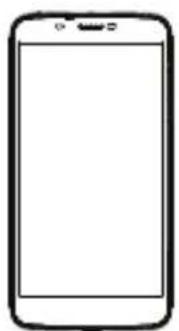
Warranty, legal and safety notice
Quick start guide
Charger adapter
Charging cable
Describing your device
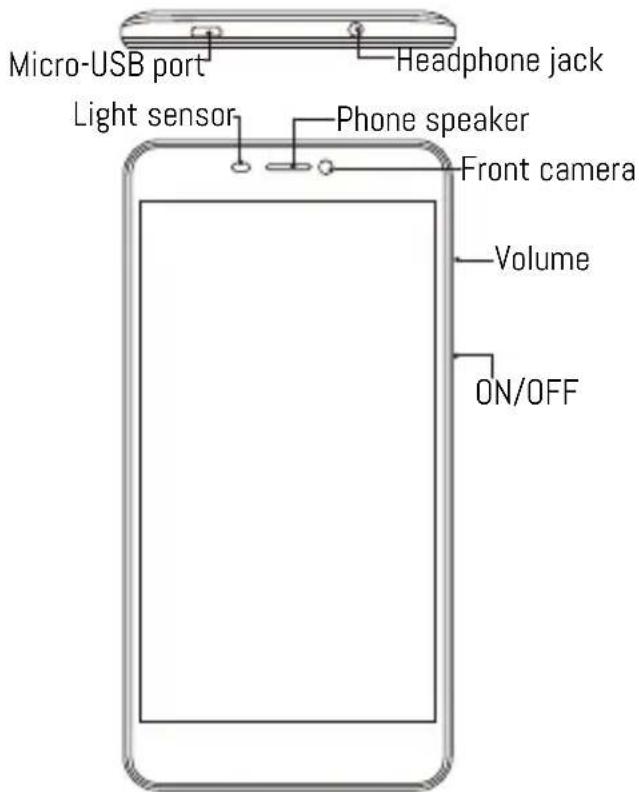
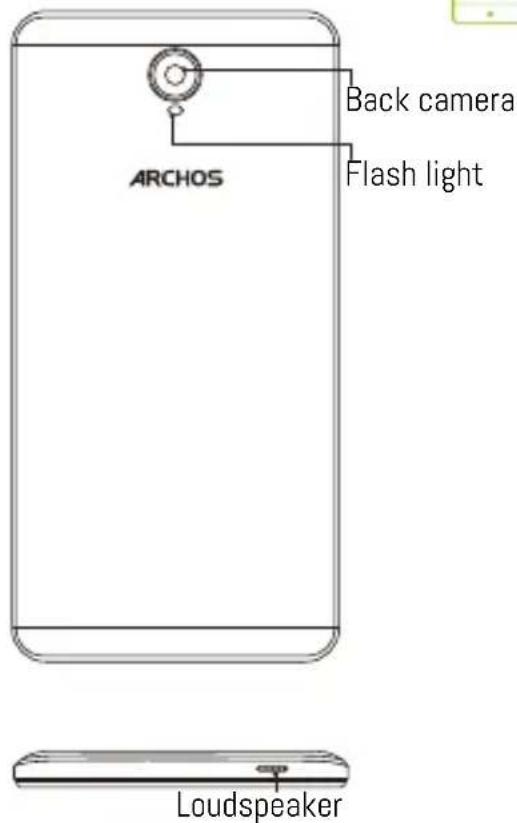

Assembling
After you have unpacked your mobile phone box:
- Remove the device's back cover using the notch.
- Insert your SIM card or Memory card in the corresponding slot.
- Insert the device's battery.
- Replace the back cover.
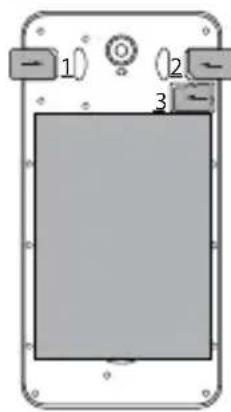
| 3G/2G slot 1 Micro-SIM | |
| 3G/2G slot 2 Micro-SIM | |
| Memory card slot 3 Micro-SD card | |
When inserting your SIM card or micro-SD card, make sure to follow the illustration, otherwise you may damage the slot or the card.
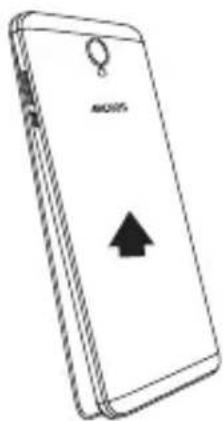
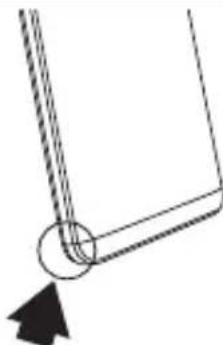
Starting up
Charging your battery completely
Plug the charging cable in the Micro-USB port and the adapter in a power outlet. Leave the device until the battery is fully charged.
Turning ON
- Press and hold the ON/OFF button to turn on the device.
- Follow the instructions to set up your device.
Activating mobile data connection
- Touch and pull down the status bar to display it.
- Touch the bar again to reveal the quick settings.
- Select the Settings icon.
- In Wireless & networks, select Data usage, then the SIM card tab.
- Slide the Mobile data switch to turn it on or off.
Activating WiFi connection
- Touch and pull down the status bar to display it.
- Touch the bar again to reveal the quick settings.
- Select the WiFi icon to activate the WiFi connection.
- Select "WiFi" below the WiFi icon.
- Touch the name of the network you want to connect to.
Private networks are shown with a lock icon and will require you to enter your password.

Troubleshooting
- My device is frozen: press the ON/OFF button for more than 10 seconds or remove and replace the battery, then turn on the device.
- My device encounters dysfunctions: go to Settings > About phone > Check for update system to check for updates. If your device is up-to-date, try to reset the device from Settings > Factory data reset > Backup & restore. We recommend saving your files before resetting.
- My WiFi reception is too low: make sure you are not far from the WiFi hotspot. Update the firmware of the device: http://www.archos.com/support. Reset and redefine your connection parameters. Contact your WiFi connection provider.
- My device bootlogo is playing in a loop: you need to completely reset your device. Go to faq.archos.com and select your device. In Backup & Recovery, select How to reinitialize my ARCHOS.
FOR MORE ANSWERS ABOUT YOUR TECHNICAL DIFFICULTIES, DO NOT HESITATE TO VISIT: FAQ.ARCHOS.COM
Contact us

www.archos.com, click Support > After-sales support

Activating mobile data connection
Activating WiFi connection
Open Source Software Offer
The software bundled with this product includes software files subject to certain open source license requirements. Such open source software files are subject solely to the terms of the relevant open source software license. Such open source software is provided on an "AS IS" basis to the maximum extent permitted by applicable law.
For the open source files contained herein, please access "Open source license" section located at: Settings\About phone\Legal information on the device for the relevant copyright and licensing terms. You may obtain a copy of Apache License, Version 2.0 at http://www.apache.org/licenses/License-2.0. You may also obtain a copy of GNU General Public License, Version 2 at the Free Software Foundation, INC, 51 Franklin Street, Fifth Floor, Boston, MA 02110-1301, USA.
Until the date that is three years after our last shipment of this product, you may obtain a copy of the source code corresponding to the binaries for any GPL-Licensed file by contacting ARCHOS customer service at http://www.archos.com and ARCHOS will send you a link to such source code or will provide instructions to get the source on a physical medium.
This offer is valid to anyone in receipt of this information.
National restrictions
This device is intended for home and office use in all EU countries (and other countries following the EU directive 1999/5/EC) without any limitation except for the countries mentioned below:
Country Restriction ReasonRemark
Bulgaria: None. General authorization required for outdoor use and public service.
France: Outdoor use limited to military radiolocation use. Refarming of the 2.4 GHz band has been ongoing in recent years to allow current relaxed regulation. Full implementation planned 2012.
Italy: None. If used outside of own premises, general authorization is required.
Luxembourg: None. General authorization required for network and service supply (not for spectrum).
Norway: Implemented. This subsection does not apply for the geographical area within a radius of 20 km from the centre of Ny-Alesund.
Russian Federation: None. Only for indoor applications.
Note: Frequencies 2454-2483.5 MHz are restricted to indoor use in France.
SAR
After the laboratory measurements, the SAR values for this mobile are:
Head Max: 0.219 W/Kg (10g) Body Max: 1.719 W/Kg (10g)
Archos company (Contact address: ARCHOS SA 12 Rue Ampère 91430 Igny France) declares that this device is in compliance with the essential requirements and other relevant provisions of Directive 1999/5/EC: http://www.archos.com/support/download/conformity/CE_DOC_AC60PL.pdf. Par la présente, ARCHOS (adresse de contact: ARCHOS SA 12 Rue Ampère 91430 Igny France) déclare que l'appareil est conforme aux exigences essentielles et aux autres dispositions pertinentes de la directive 1999/5/CE. La déclaration de conformité peut être consultée sur le site: http://www.archos.com/support/download/conformity/CE_DOC_AC60PL.pdf

CE 0700


Brand : ARCHOS
Model : Platinum 60
Category : Smartphone