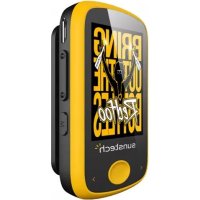
Ibiza - Mp3 player Sunstech - Free user manual and instructions
Find the device manual for free Ibiza Sunstech in PDF.



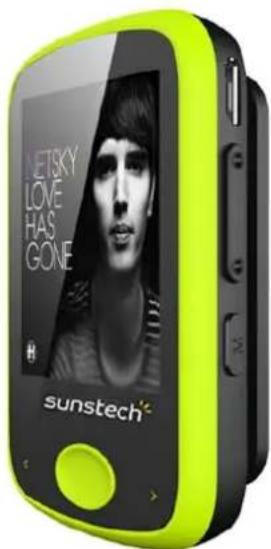
| Product Type | Portable MP3/MP4 player with FM radio and voice recorder |
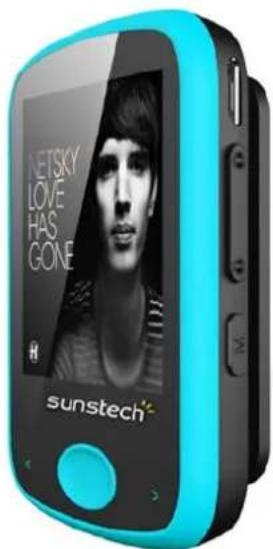
| Brand and Model | Sunstech Ibiza |
| Dimensions (W × H × D) | 63 × 39 × 17 mm |
| Screen | Color TFT 1.8 inch (diagonal), 160 × 128 pixels, 64,000 colors |
| Power Supply | Rechargeable lithium-polymer battery 3.7 V, 300 mAh; charging via USB port (optional AC adapter) |
| Battery Life | Up to 15 hours of music playback, 3 hours of video (after full charge, power saving mode) |
| Internal Storage Capacity | 4 GB |
| Memory Expansion | Micro SD/TF card slot (up to 16 GB) |
| Supported Audio Formats | MP3, WMA, WAV |
| Supported Video Formats | AMV (requires conversion with included software) |
| Supported Image Formats | JPEG, BMP |
| FM Radio | Frequency 87.5 – 108 MHz; stores up to 20 stations; automatic search |
| Voice Recording | WAV format via built-in microphone; adjustable quality (32 to 256 kbps) |
| Equalizer | 7 modes: Normal, Rock, Pop, Classic, Soft, Jazz, DBB |
| Additional Functions | Pedometer, lyrics display, repeat/random, slideshow, screen saver, auto-off |
| Connectivity | USB 2.0 port (compatible with USB 1.1); 3.5 mm headphone jack |
| Interface Languages | Multilingual (French, English, Spanish, Portuguese, etc.) |
| Compatible Operating Systems | Windows XP/Vista/7; Mac OS 9.2 or later |
| Maintenance and Cleaning | Clean with a soft, slightly damp cloth; do not use abrasive products; unplug before cleaning |
| Safety | Do not expose to water, heat (>40°C), magnetic fields; do not disassemble; use only specified accessories |
| Spare Parts and Repairability | No user-serviceable parts; refer all repairs to qualified technician |
| Package Contents | Player, earphones, USB cable, user manual, warranty card |
Frequently Asked Questions - Ibiza Sunstech
User questions about Ibiza Sunstech
0 question about this device. Answer the ones you know or ask your own.
Ask a new question about this device
Download the instructions for your Mp3 player in PDF format for free! Find your manual Ibiza - Sunstech and take your electronic device back in hand. On this page are published all the documents necessary for the use of your device. Ibiza by Sunstech.
USER MANUAL Ibiza Sunstech
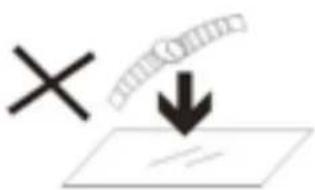
- DO NOT place objects on top of the device, as objects may scratch the device.
natural_image
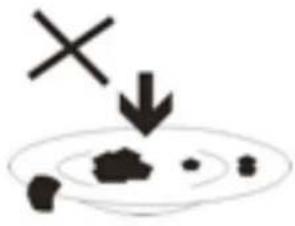
Simple diagram with a cross and downward arrow, no text or symbols present- DO NOT expose the device to dirty or dusty environments.

natural_image
Black and white soccer ball with a cross symbol and downward arrow, no text or labels present- DO NOT place the device on an uneven or unstable surface.
natural_image
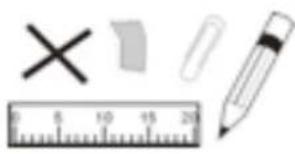
Illustration of basic geometric and technical symbols including a cross, pencil, ruler, and eraser (no text or labels)- DO NOT insert any foreign objects into the device.
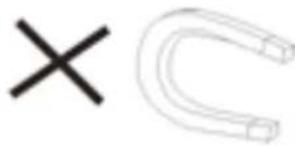
- DO NOT expose the device to strong magnetic or electrical field.

- DO NOT expose the device to direct
sunlight as it can damage the device. Keep it away from heat sources.
60°C(140°F)

natural_image
Two black arrows pointing up and down, stacked vertically (no text or symbols)20°C(68°F)
- DO NOT store your device in
temperatures higher than 40°C(104°F).
The internal operating temperature for
this device is from 20°C(68°F) to
60^(140^)

natural_image
Simple illustration of a cloud with raindrops and a black 'X' symbol (no text or labels)- DO NOT use the device in the rain.
natural_image
Illustration of a hand holding a mobile phone with a keypad, enclosed in a circle (no text or symbols)- Please check with your Local
Authority or retailer for proper disposal of electronic products.
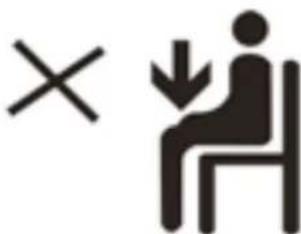
- The device and adaptor may
product some heat during normal
operation of charging. To prevent
discomfort or injury from heat exposure, DO NOT leave
the device on your lap.
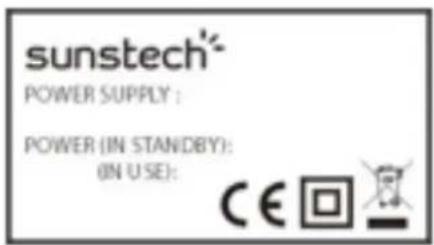
- POWER INPUT RATING: Refer to the rating label on the device and be sure that the power adaptor complies with
the rating. Only use accessories specified by the manufacturer.
natural_image
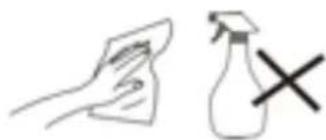
Simple line drawing of a hand cleaning a spray bottle with a 'X' mark (no text or symbols)- Clean the device with a soft cloth. If needed, dampen the cloth slightly
before cleaning. Never use abrasives or cleaning solutions.
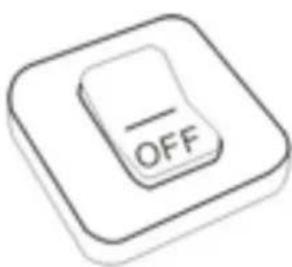
- Always power off the device to install or remove external devices that do not support hot-plug.
flowchart
graph LR
    A["Input"] --> B["Processing"]
    B --> C["Output"]
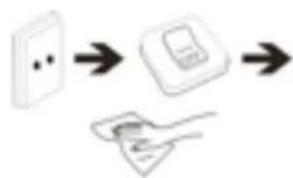
- Disconnect the device from an
natural_image
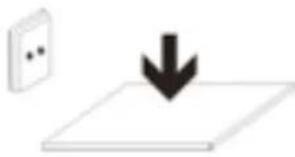
Simple diagram showing a downward arrow pointing to a grid, with a wall and two dots nearby (no text or symbols)- PLUGGABLE EQUIPMENT: the socket-outlet shall be installed near the equipment and shall be easily
accessible.
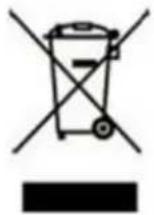
European Union: Disposal Information
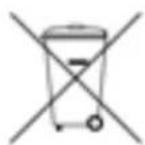
The symbol above means that according to local laws and regulations your product and/or its battery shall be disposed of separately from household waste. When this product reaches its end of life, take it to a collection point designated by local authorities. The separate collection and recycling of your product and/or its battery at the time of disposal will help conserve natural resources and ensure that it is recycled in a manner that protects human health and the environment.
Table of Contents
1 Caution & Safety Guide: 6
2 Introduction....7
2.1 PACKAGE CONTENTS 7
2.2 MINIMUM SYSTEM REQUIREMENTS....8
2.3 FEATURES & SPECIFICATIONS 9
3 Precautions....9
4 Product Overview 10
5 Basic Operation 11
5.1 POWER ON/OFF 11
5.2 RESETTING THE DEVICE....11
5.3 BATTERY 11
5.3.1 Battery Level Indicator 11
5.3.2 Charging Procedure....12
5.4 CONNECTING WITH YOUR COMPUTER.... 13
5.4.1 USB Connected Mode 13
5.4.2 Safe Removal....13
6 Operating Modes.... 15
6.1 Music.... 15
6.1.1 Browse and Select / Delete Music 15
6.1.2 Play / Pause Music 16
6.1.3 Adjusting Volume 16
6.1.4 Fast Forward / Fast Rewind Music.... 16
6.1.5 Next / Previous Track 16
6.1.6 Browse Song Lyrics 16
6.1.7 Music Setup.... 16
6.2 MOVIE 17
6.2.1 Fast Forward / Fast Rewind Video 18
6.3 RECORD 18
6.3.1 REC Setup.... 19
6.4 RADIO 20
6.5 PICTURE....21
6.6 PEDOMETER....22
6.7 SETTINGS 23
6.7.1 Clock Setup....23
6.7.2 LCD Setup 23
6.7.3 Power Off 24
6.7.4 System info....24
6.8 BROWSER....25
7 AMV Converter Software.... 25
7.1 AMV CONVERTER INSTALLATION 25
7.2 USING THE AMV CONVERTER 26
8 Formatting Storage Memory 28
9 Support....28
10 Troubleshooting....29
11 Technical Specifications 30
1 Caution & Safety Guide:
Symbol Definitions
DANGER - Indicates an imminently hazardous situation, which, if not avoided, will result in death or serious injury. This symbol appears only in the most extreme situations.
WARNING - Indicates a potentially hazardous situation which could result in death or serious injury.
CAUTION - Indicates a potentially hazardous situation, which, if not avoided, may result in minor/moderate injury or product/property/damage. It also warns against unsafe practices

The lightning flash with arrowhead symbol, within an equilateral triangle is intended to alert the user to the presence of insulated 'dangerous voltage' within the product's enclosure that may be of sufficient magnitude to constitute a risk of electric shock to persons.
WARNING: TO REDUCE THE RISK OF ELECTRIC SHOCK DO NOT REMOVE COVER (OR BACK), NO USER SERVICEABLE PARTS INSIDE REFER SERVICING TO QUALIFIED SERVICE PERSONNEL

The exclamation point within an equilateral triangle is intended to alert the user to the presence of important operating and maintenance (servicing) instructions in the literature accompanying the appliance.
READ ALL INSTRUCTIONS BEFORE USE

Always follow basic safety precautions when using this speaker system with iPod/iPhone dock, especially when children are present.
SAFETY INSTRUCTIONS
1) Read this Instruction Manual before you attempt to connect or operate the appliance.
2) Keep these instructions in good condition. Heed all warnings. Follow all instructions.
3) Save this Instruction Manual for future reference.
4) The apparatus shall not be exposed to dripping or splashing and no objects filled with liquids, such as vases, shall be placed on the product. Dry location use only.
5) No naked flame source, such as candles, should be placed on the product.
6) Children should be supervised to ensure that they do not play with the appliance.
7) Ventilation should not be impeded by covering the ventilation openings.
8) Ensure that the unit is plugged into an AC 220-240V 50Hz power outlet. Using higher voltage may cause the unit to malfunction or even fire catching. Turn off the unit before unplugging it from power source to completely switch it off.
9) Do not plug/ unplug the power plug into/from an electrical outlet with wet hands.
10) If the power plug does not fit into your outlet, do not force the plug into an electrical socket if it does not fit.
11) Only use accessories, which are specified by the manufacturer.
12) Use replacement parts, which are specified by the manufacturer.
13) Install the unit in accordance with the manufacturer's instructions.
14) Place the unit where there is good ventilation. Place the system on a flat, hard and
stable surface. Do not expose to temperatures above 40^ C. Allow at least 10 cm clearance from the rear and the top of the unit and 5 cm from each side.
15) Press the player's buttons gently. Pressing them too hard can damage the player.
16) Dispose of used batteries in an environmental-responsible manner.
17) Always ensure that the product is unplugged from the electrical outlet before moving or cleaning. Clean it with dry cloth only.
18) Unplug the product during lightning, storms or when it will not be used for long periods of time.
19) This product has no user-serviceable parts. Do not attempt to repair this product yourself. Only qualified service personnel should perform servicing. Take the product to the electronics repair shop of your choice for inspection and repair.
20) NEVER let anyone, especially children, push anything into holes, slots or any other openings in the unit's casing as this could result in a fatal electric shock.
21) Don't mount this product on a wall or ceiling.
22) Do not place the unit near TVs, speakers and other objects that generate strong magnetic fields.
23) This unit is for indoor use only.
24) Do not leave the unit unattended when it is in use.
NOTE: when the system is switched to standby mode, it is still consuming some power. To disconnect the system completely, remove the AC power plug from the wall outlet.
2 Introduction
Thank you for purchasing the IBIZA 4GB Multimedia Player with Micro SD/TF Card Slot. This is a portable digital audio video player and voice recorder – complete with an integrated microphone allowing the creation of voice memos and recording lectures/speeches. It is capable of high-quality playback of both MP3 and WMA digital audio files.
It's stylish, lightweight and compact size allows you to take it anywhere you go while it's slim but rugged design, ensures durability and stable operation. With a 1.8-inch 65K full-colour TFT display, you can view all your favourite digital photos and videos* on the go. A built-in FM radio receiver allows you to listen to your favourite FM radio channels as well. It can also act as a USB storage device ("Flash Disk") thereby allowing you to store other data files on the player.
*Requires conversion to suitable video format.
2.1 Package Contents
Carefully unpack and remove the contents. If any of the following items are missing or damaged, contact the store you purchased the device from.
- Earphones
- USB Cable
- User Guide
- Warranty card
2.2 Minimum System Requirements
- Computer: IBM PC/AT or compatible computer preinstalled with the following Windows operating systems. Windows XP Home Edition (Service Pack 2 or later)/ Windows XP professional (Service Pack 2 or later)/Windows XP Media Center Edition (Service Pack 2 or later)/Windows XP Media Center Edition 2004 (Service Pack 2 or later)/Windows XP Media Center Edition 2005 (Service Pack 2 or later)/ Windows Vista Home Basic/Windows Vista Home Premium/Windows Vista Business/Windows Vista Ultimate/ Windows 7 Not supported by 64 bit version OS. Not supported by OSs other than above.
- CPU: Pentium III 733 MHz or higher (For Windows Vista, Pentium III 800 MHz or higher)
- RAM: 128 MB or more (For Windows XP, 256 MB or more; for Windows Vista, 512 MB or more)
- Hard Disk Drive: 240 MB or more of available space (1.5 GB or more is recommended). More space may be required depending on the version of the operating system. Additional space is required for storing music, video and photo data.
- Display: 800 × 600 pixels (or higher) (recommended 1024 × 768 or higher), High Color (16 bit) (or higher)
- (Image Converter may not operate properly at color settings at or below 256 colors.)
- Sound board
• USB port (Hi-Speed USB is recommended) - When converting AVI, RM, RMVB, WMV and AMV format videos, it is required to have AMV Converter installed to your PC.
- The operation for every computer may not be same even if they meet the above System Requirements.
- Not supported by the following environments: Personally constructed PCs or operating systems / An environment that is an upgrade of the original manufacturer-installed operating system / Multi-boot environment / Multi-monitor environment / Macintosh
• Supported Operating Systems - Windows XP / Vista / 7
○ MAC OS 9.2 or above* - USB port
* Included video conversion software not supported on MAC.
2.3 Features & Specifications
• 1.8-inch(Diagonal) 65K full-colour TFT display (160X128 pixel)
• Music playback function (Supports MP3 and WMA format)
- Video playback function (Support AMV format, and conversion software included in Player)*
- JPEG and BMP picture file viewing with slideshow function
• Built-in FM tuner
• Voice recording with built-in microphone WAV
- Sport pedometer support
- Micro SD/TF card slot support external memory expanded (up to 16GB)
• Language support: multi languages;
- Built-in rechargeable 3.7V Li-Polymer battery, supports up to 3 hours video or 15 hours music playback.
- 7 EQ effect
• Energy-saving settings: auto-backlight off, auto-power off
• USB 2.0 High-speed, compatible with USB1.1
- Simple plug and play operation on Windows, MAC
• Dimensions: 63×39×17mm (W*H*D)
*Requires conversion to compatible AMV format that is playable on player. (Conversion software (AMV Converter) used to convert source video file in AVI, RM, RMVB, WMV and AMV format to compatible AMV format supported by multimedia Player. The software included in Player)
**Included video conversion software not supported on MAC OS.
3 Precautions
This Installation and User Guide contains important safety measures and correct operational information. Please read all of the information in this Installation and User Guide carefully before using the device. Please operate player correctly as instructed in the Installation and User Guide.
- Before charging for the first time, or recharging, to ensure best battery life, please turn this unit off. The player can be recharged while on but this practice is not recommended.
- Do not place the player in high temperatures (over 40 °C), humidity or dusty environments, especially not in a car with windows closed in extremely warm or extremely cold weather. Do not expose the display to intense sunlight for prolonged periods
-
Do not drop the player as this will cause damage to unit.
-
Do not apply force to the TFT screen or scratch with pointed objects as this can damage the screen leading to abnormally operation.
- When using your earphones to listen to music, select a suitable volume, turn down the volume level or stop use if you feel tingling in or around your ears. Prolonged listening at excessively high volume can permanently damage your hearing. It is advisable to keep the volume at a moderate level.
- Do not disconnect the USB cable from your computer abruptly when formatting, uploading or downloading is still in progress.
- Do not dismantle the player as there are no user serviceable parts inside.
• Do not use alcohol, thinner or benzene to clean the surface of the player. - Do not use the player while driving or operating devices which could bring injury to others.
4 Product Overview
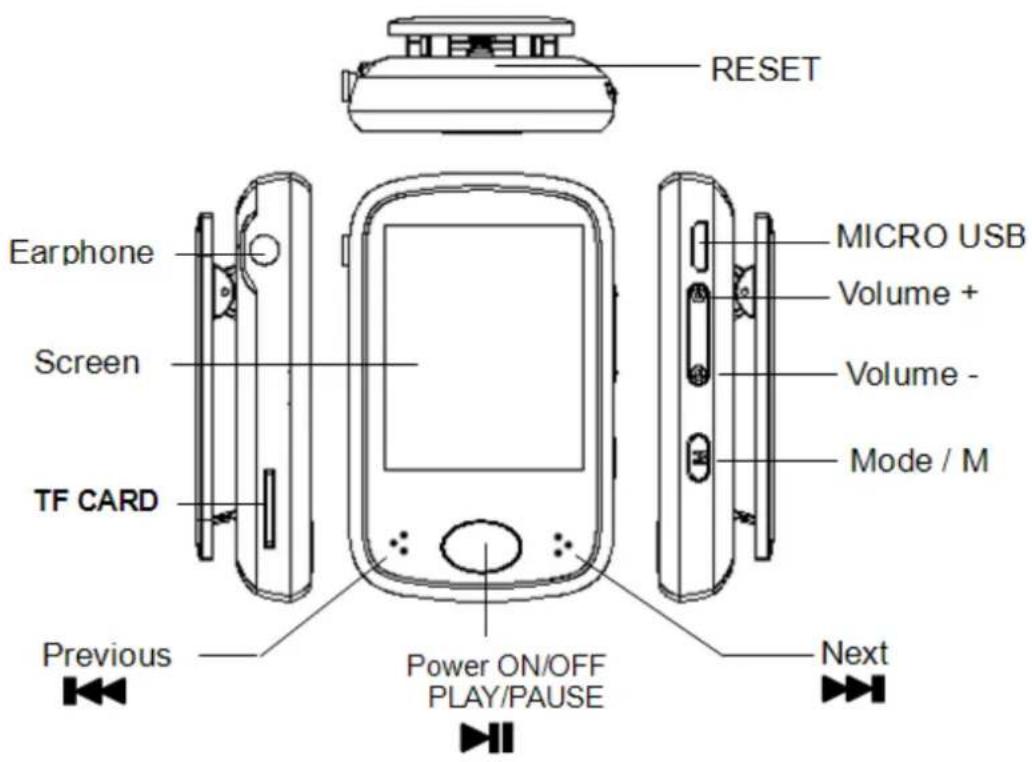
| Front View | |
| LCD Screen | |
| "Vol + " | Volume + volume increase |
| "Vol - " | Volume – volume decrease |
| "▶| | | Power ON / Power OFF |
| Confirm / play and pause | |
| "▶▶| " | Next / Press and hold - Fast forward |
| " |◀◀ " | Previous / Press and hold - Fast backward |
| Side View | |
| "Menu " | Short press - Exit to upper menu |
| Press and hold - Exit to main menu | |
| Reset Button | |
| Bottom View | |
| Micro SD/TF Card Slot; | |
| USB Port/Charge | |
| 3.5mm Earphone Port | |
5 Basic Operation
5.1 Power On/Off
To power on, press and hold the "▶" button for about 2 seconds.
To power off, press and hold the "▶II" button for about 2 seconds.
5.2 Resetting the Device
If the MP3/video/voice recorder stops responding or doesn't work correctly, please power it off and after two seconds, power on again. The unit should reset and resume normal operation as long as the unit has remaining battery power.
5.3 Battery
5.3.1 Battery Level Indicator
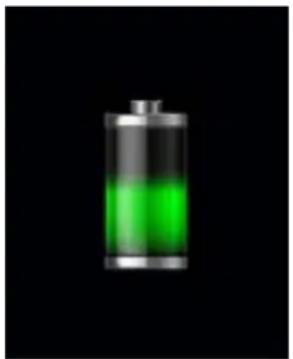
This player adopts built-in high capacity Li-ion rechargeable batteries. The charge level status of the battery in the unit can be easily determined by referring to the Battery Level Indicator icon as shown below. The Battery Level Indicator also shows the charging process and status when the unit is being charged. While charging, the battery will repeatedly display 1 bar and then sequentially increase to four bars before repeating from 1 to 4 bars again. When battery charge is complete, 4 bars will be displayed on the Battery Level Indicator.
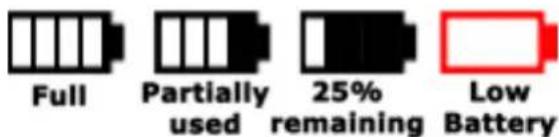
The playback time can vary depending on many different factors such as volume, backlight activity and usage. The player has the option to apply power saving features to help minimise the power usage so that your battery will last longer before requiring a recharge. Please refer to the operation mode: "Settings" section of this manual for more details on setting the power saving features.
5.3.2 Charging Procedure
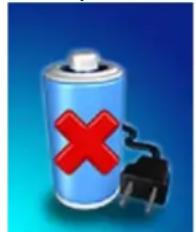
If the battery charge is low, the battery level indicator will display a red empty frame and the "Low Battery" icon will be displayed. Please turn the player off and use the included USB cable to charge the battery from a computer.
natural_image
Illustration of a battery with a red 'X' symbol and a black plug, against a blue background (no text or symbols)Note: You can also charge this unit using any USB power adaptor. Always verify the adapter output voltage matches the specification of this unit. Unplug the adaptor when not in use to preserve adaptor life. USB charging is your best option if you are unsure of your adapters compatibility with this unit.
When you attach the player to your computer a "Connected to PC" image will appear. Please refer to the "Connecting with computer" section of this manual for instructions on how to safely remove the player from the operating system. Once connected to a powered USB port, you will observe the charge progress animation display as shown below. Once the player is fully charged, the battery electricity will show a full battery image and is ready for maximum operation.
natural_image
Battery icon with green liquid inside, set against black background (no text or symbols)The player requires approximately 3 hours to fully charge or recharge the battery.
Warning:
- Before charging for the first time, or recharging, to ensure best battery life, please turn the unit off. The player can be recharged while on but this practice is not recommended.
- Charge the player overnight prior to first use
Important: For Windows XP OS, the unit can be operated while charging. Keep the player connected to the USB port but remove the player from the Operating System. Please refer to section "5.4.2 Safe Removal" on page 11 for more information.
5.4 Connecting with Your Computer
5.4.1 USB Connected Mode
This player has a high-speed USB 2.0 port which is compatible with Windows XP, Vista, 7; MAC OS 9.2 and over.
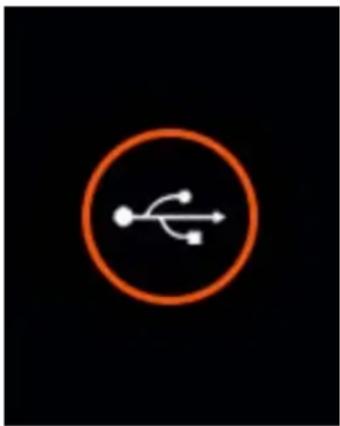
Several seconds after connecting to a powered USB port on your PC (or MAC), the player will display "USB connected mode" with the following image:
natural_image
Orange circular icon with a white USB symbol inside, set against a black background (no text or numbers)Once the player has been successfully connected to your computer, you can access the base memory on the MP3 player (and if you have installed a micro SD/TF card, memory in this card as well) and transfer files.
Load the Windows Explorer (or the equivalent drive/file location utility in MAC) on your computer. Next, locate the MP3/4 player drives which will be labelled "IBIZA4GB" and if populated "Micro SD/TF Card"
Note: Do not remove the USB cable connection between the player and your computer before the player is safely removed from your computer system. Doing so can corrupt the files on the player or even damage the flash memory. Please refer to section "5.4.2 Safe Removal" to follow for more information.
5.4.2 Safe Removal
To ensure that no data is lost when removing the player from your computer, please do not unplug the player prior to "safely removing" it. The following is proper methods to follow for removal of the MP3/4 device.
Safe Removal in Windows XP
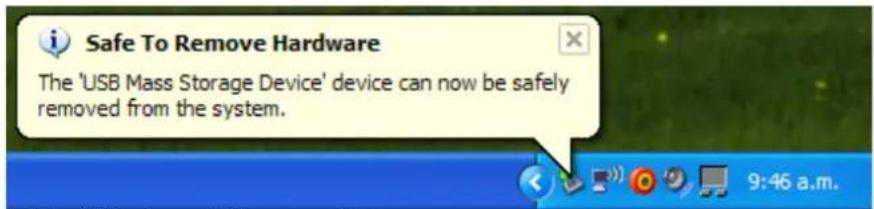
When the player is connected to your Computer, an icon similar to the one shown below will appear in the status bar on the right bottom of the Windows XP Desktop. This icon allows the safe-removal of portable devices.

Simply left-click on the icon, then select "USB Mass Storage Device" from the list that appears.

The device is now ready for safe-removal. A "balloon box" will appear indicating that the device may now be safely unplugged. If Windows fails to remove the device you will be informed. Please ensure that you are not busy copying to/from the player and that all "Windows" are closed to allow safe-removal of the player.
Safe Removal in Windows Vista and 7
When the player is connected to your Computer, an icon similar to the one shown below will appear. This icon allows the safe-removal of portable devices. Simply left-click on the icon, then select "USB Mass Storage Device" from the list that appears.

Windows will then prepare the device for safe-removal and attempt to remove the device. A dialog box will appear indicating that the device may now be safely unplugged. If Windows fails to remove the device you will be informed. Please ensure that you are not busy copying to/from the player and that all "Windows" are closed to allow safe-removal of the player.
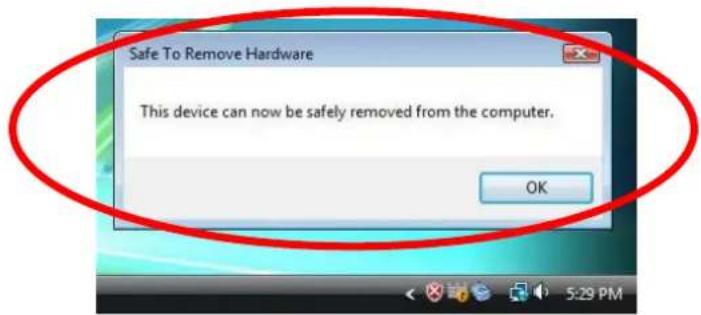
Safe Removal in MAC OS
When the player is connected to your MAC computer, two drive icons labelled "IBIZA4GB" and "Micro SD/TF Card" will appear on the desktop. Respectively click on this two drive icons and select from the drop-down menu the "Eject IBIZA4GB", "Eject Micro SD/TF Card" option. Once the two drive icons both disappear the player is safe to remove from your computer.
6 Operating Modes
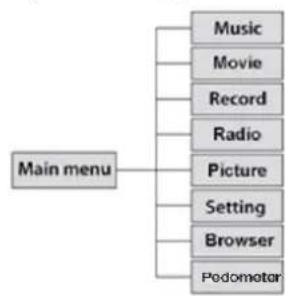
flowchart
graph TD
    A["Main menu"] --> B["Music"]
    A --> C["Movie"]
    A --> D["Record"]
    A --> E["Radio"]
    A --> F["Picture"]
    A --> G["Setting"]
    A --> H["Browser"]
    A --> I["Pedomotor"]
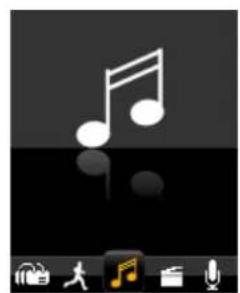
natural_image
Icon of a musical note displayed on a dark screen, with no visible text or symbols.6.1
On the main menu, select the "Music" option using the "10" key and then press "▶1" to enter music playback mode.
natural_image
Game interface icons including musical notes, microphone, and running figure (no text or symbols)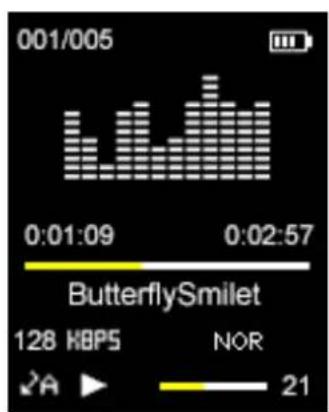
bar
| Time | Value | | -------- | ----- | | 0:01:09 | 128 | | 0:02:57 | 21 |To return to the main menu from the Music mode screen shown above, long press the "Menu" key repeatedly until main menu is once again displayed.
6.1.1 Browse and Select / Delete Music
From the "music playback mode" screen, press ▶II" to pause playing and short press "Menu" key. Then Music files operation mode will be shown. You can select the memory from "Local folder" or "Card folder" which you would like to browse, or delete files.
| Music | Music |
| Local folder | ROOT |
| Card folder | RECORD |
| Delete file | Hotel California |
| Delete all | |
| Exit |
Select Music: Press "▶II" to enter "Local folder" or "Card folder". Browse files or folders using the "◀◀" or "▶◀◀" keys, Press "▶II" to select a file or enter a folder. When in a subfolder, press "Menu" to return to the upper folder.
Delect Music: Press "▶" to enter "Delete file". Browse files or folders using the "◀◀" or "◀◀", Press " " to select a file. Using the " " or " "◀◀s to select "No" or "Yes", and Press "▶◀" to confirm.
Delect all Music: Press "▶1" to select "Delete all". Using the "◀◀" or "▶◀" keys to select "No" or "Yes", and Press "▶" to confirm.
6.1.2 Play / Pause Music
Press the "▶II" key to pause / resume playback of audio.
6.1.3 Adjusting Volume
Press "+" or "-" keys to increase or reduce the volume respectively.
6.1.4 Fast Forward / Fast Rewind Music
When an audio file is playing, you can fast forward or fast rewind it by pressing and holding the "▶" to fast forward or "◀" to fast rewind.
6.1.5 Next / Previous Track
Briefly press the "◀◀" or "◀◀" keys to skip to the previous or next audio track respectively while playing audio files.
6.1.6 Browse Song Lyrics
When music playing, long press "Menu" key. Song Lyrics will be shown if song lyrics file is saved in the folder.
6.1.7 Music Setup
From the "music playback mode" screen, press "▶I" to play music. When music playing, short press "Menu" key. Then enter to music settling.
| Music | Music |
| Repeat | Normal |
| Equalizer | Repeat one |
| Exit | Folder |
| Repeat folderl | |
| Repeat all | |
| Random |
1. Repeat Mode:
| Repeat Mode Mode/Function |
| Normal Play music one by one in order |
| Repeat One Repeat a single song |
| Folder Stop after playing all the songs in a selected subfolder |
| Repeat Folder Repeat all songs in a selected subfolder |
| Repeat all Repeat all songs |
| Random Play music randomly |
| Intro Play the first 10 seconds of all songs |
Under "Folder" and "Repeat Folder" mode, the unit will recognize the songs in root folders first and play them once or repeat them continuously by default. To play music files located in other subfolders, simply select the file using the "File Explorer functioning". Doing so will then allow you to play all compatible music files present in this folder.
2. Equalizer Select:
Normal, Rock, Pop, Classic, Soft, Jazz, and DBB are supported. Use the “◀◀” or “▶keys to scroll and view all the EQ options. The selected EQ option will automatically be activated, but it will not be saved to memory. If you wish to permanently use a selected EQ mode, please press “▶I” to save the selected EQ option to memory.
Note: This player does not support playback of music while simultaneously viewing photos.
Note: Lower frequencies (60, 300) will primarily affect bass and the higher frequencies (1K, 3K and 6K) will affect the treble level.
6.2 Movie
Select "Video" in the main menu using the "◀◀" or "▶▶" keys and then press "▶▶" to enter video playback mode.
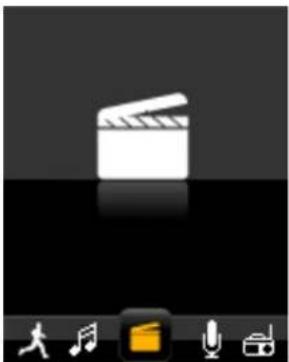
natural_image
Computer app icon showing a clapperboard and playback controls (no text or symbols)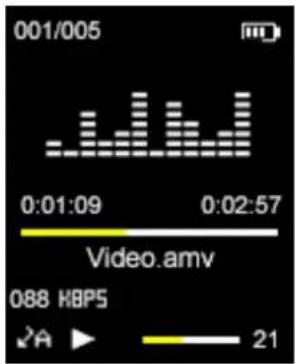
Then press "Menu" key to select the memory from "Local folder" or "Card folder" which you would like to browse, delete or Repeat files.
| Video |
| Local folder |
| Card folder |
| Delete file |
| Delete all |
| Repeat |
| Exit |
Use the "◀◀" or "◀◀" keys to browse through the available video files and " " key | to select a file or folder. Press the " ▶▶▼" key to Play / Pause the currently playing video; Press the "+" or "-" keys to adjust the volume.

natural_image
Illustration of a rural landscape with green hills, scattered houses, and a sun (no text or symbols)6.2.1 Fast Forward / Fast Rewind Video
When a video is playing, you can fast forward or fast rewind the video, by pressing and holding the "▶▶" or "◀◀" keys.
6.3 Record
Select "Record" in main menu using the "◀◀" or "▶leys and then press " " to enter the voice recording mode where the recording mode screen below will be shown.
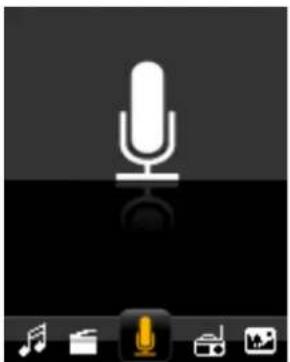
natural_image
Desktop interface with microphone icon and playback controls (no text or symbols)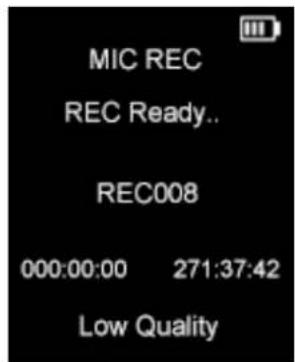
Press "▶1" to start recording and press "Menu" to stop and save the recorded file. When a recording is in progress, you can pause the recording by pressing ", to resume press the "▶1" key again. Repeat the above steps to start a new recording session.
The recorded files are stored in the "RECORD" folder of base "FLASH" memory by default. To listen to recorded files, simply select the file you desire to listen to from the Music play mode. Please refer to section "6.1.1 indicated on page 13 for more information.
If the screen displays "Full Space", it indicates that there is no space for new recordings. Please delete other files to create more free space for storing new recordings.
6.3.1 REC Setup
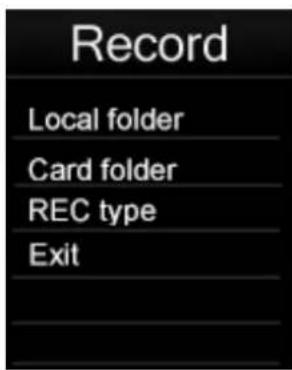
Before starting a recording session in the MIC REC mode, Press "Menu" key to display "Record" Setting options: Local folder, Card folder and REC Type.
To store recorded files in Local folder: Select local folder as stored folder for recording files. Press "▶II" to enter Local folder (or subfolder), and press "Menu" to return MIC REC mode. Then the recorded files will be stored in the "Local folder"
To store recorded files in Card folder: Select card folder as stored folder for recording files. Press “▶I” to enter Card folder (or subfolder), and press “Menu” to return MIC REC mode. Then the recorded files will be stored in the “Card folder”
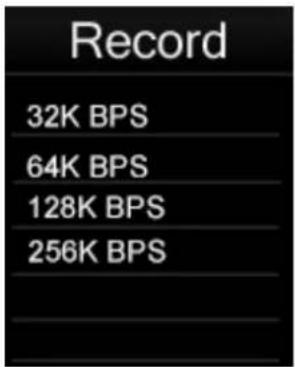
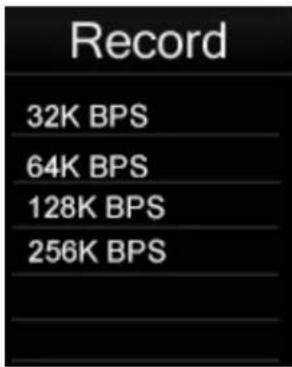
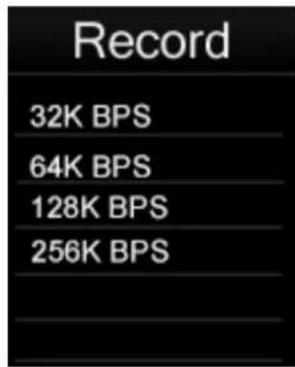
REC type: Select one of the four options and press "▶II" to confirm and "Menu" to return to "Record Setting" menu.
High quality (256K BPS): Better recording quality (using higher bit rate) but larger file size. Low quality (32K BPS): Poorer recording quality (using lower bit rate) but smaller file size.
Note: When recording, you may wish to disconnect your earphones to improve the recording quality.
6.4 Radio
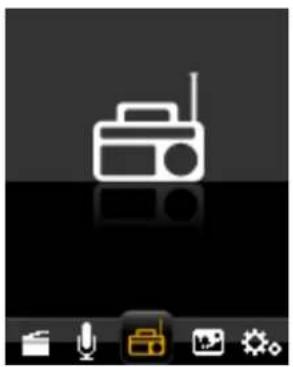
Select "FM" in main menu using "◀◀" or "▶◀" keys and then press "▶◀" to enter the FM radio mode.
Then you can manually scan the radio frequencies for radio stations by pressing the "▶" and "◀◀" keys. If press and hold "▶" and "◀" keys, fast sanning will start.
natural_image
Desktop interface with icon of a radio and monitor, no visible text or symbols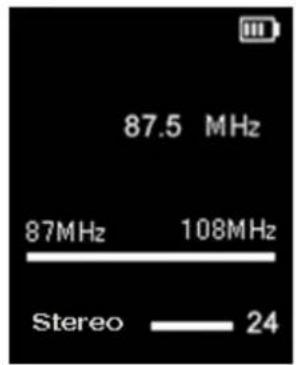
From the FM mode screen, Press "Menu" key to display the FM submenu, FM submenu includes the setup options: Save, Record, Delete, Delete all, Auto Search, Exit.
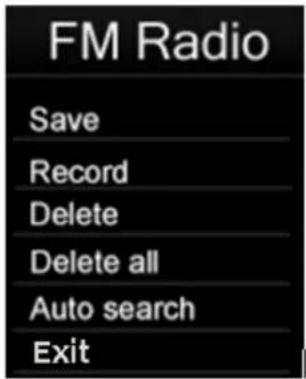
Save: To Save an FM channel, from the FM submenu, select "Save" and press "to save the preset channel; A total of 20 radio stations can be stored in memory.
Record: To record the FM programme selected, from the FM submenu, select "Record" and press "▶II" to record the preset FM programme; the recorded files are stored in the "FMRECORD" folder of base "FLASH" memory by default. Please refer to section "6.3.1 Rec(ord) Setup" indicated on page 17 for more information.
Delete: To remove a preset FM channel, from the FM submenu, select "Delete" and press "▶II" to delete the preset channel;
Delete all: To remove all of FM channel saved, from the FM submenu, select "Delete all" and press "▶I" to delete all of FM channel saved;
Auto Search:
Select "auto" from the FM submenu and press "▶II" to confirm, It will automatically scan for available FM channels and save them automatically. After auto scan is complete, press "▶II" to select / browse through the saved channels.
Note: In FM mode, the earphone is used as an antenna. Please ensure that the earphone is attached securely to the player before using the FM Radio function.
6.5 Picture
Select the "Photo" option from the main menu using the◀◀" or ▶▼Heys then press "▶▼" to enter the photo browser mode. press "Menu" key to select the memory from "Local folder" or "Card folder" which you would like to browse,.
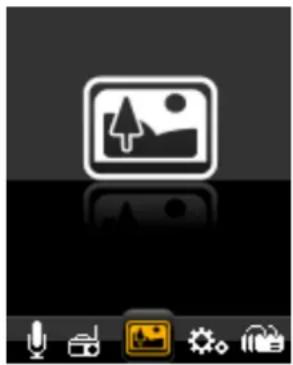
natural_image
Desktop interface with icon set, navigation tabs, and refresh icons (no text or symbols)Use the "◀◀" or "▶leys to browse through the available photo files and " " keyed" select a file or folder. Once a photo file is selected, it will be displayed in full screen mode.
Press the "◀◀" or "◀◀" keys to view either the next or previous photo.
Photo setting
In the photo browser mode, Press "Menu" key to display the Photo submenu. Then select the memory from "Local folder" or "Card folder" which you would like to browse, or delete files and Playback set.
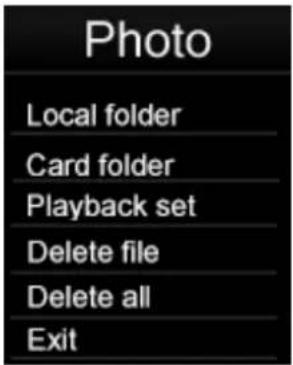
Select Playback set and press the “▶II” key to enter. You can choose Manual play or Auto play. Press the “▶II” key to activate the photo Auto play function. Once this function is activated the player will play through the photos present in the currently selected folder. While the photo slideshow function is active.
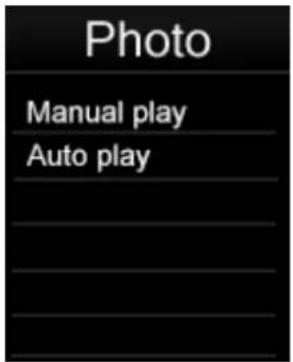
You can adjust the slideshow time. There are 9 selectable time periods (2, 3, 4, 5, 6, 7, 8, 9, 10 seconds) to choose the photo slideshow period.
6.6 Pedometer
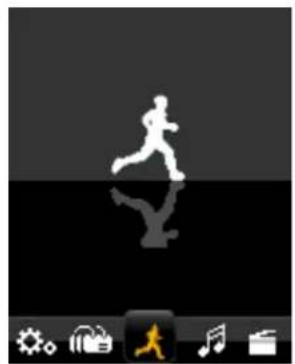
Select "Pedometer" from the main menu using the "or "lys and then press "I" to enter the Pedometer mode.
natural_image
Silhouette of a running person on a dark surface with icons below (no text or symbols)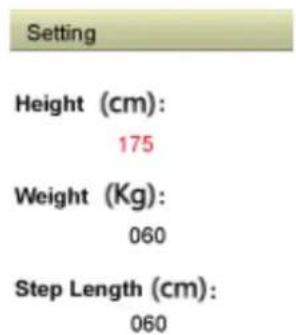
Press "▶II " the select"ON/Off "
Press "▶II" the entry "ON"
Press "◀ / ▶"the select "Pedometer"
Press "▶1to start Pedometer
Press "M" to back on one level or sub menu, Long press return the main menu.
! ! ! Before using the entry"setting"---"Heigh"—"weight"—"Step Length" setting.
6.7 Settings
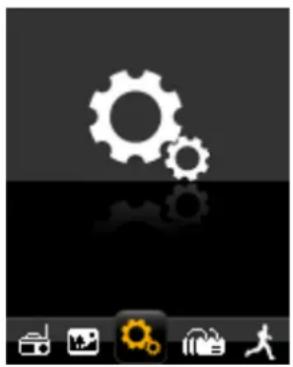
Select "Settings" in the main menu using the "◀◀" or "▶leys and then press " " to ▶ll enter the settings mode.
natural_image
Desktop interface with gear icons and icons (no readable text or symbols)6.7.1 Clock Setup
Select "Clock" in the settings mode using the "◀◀" or "▶keys and then press " " to ▶I enter the Clock settings mode. using "+" or "-" keys to select the time which need adjust, and then use the "◀◀" or "▶ab adjust the time. press " " to confirm the adjustment.
6.7.2 LCD Setup
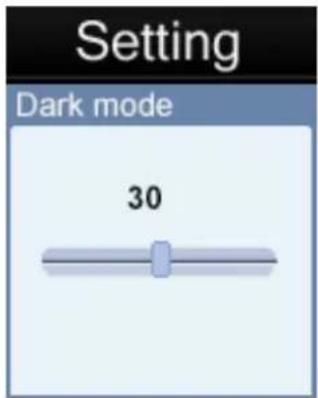
Dark mode: Setup the backlight time of the TFT screen. The selected time will determine how long the backlight stays ON each time the control keys are used and before it is turned off to conserve power. If the selected time is 0, it will keep screen backlight permanently on before it is turned off.
6.7.3 Power Off
The auto power off feature is a useful feature to help conserve power when not in use for a set period of time. When you select this option, the unit will automatically power off the unit after the selected time frame.
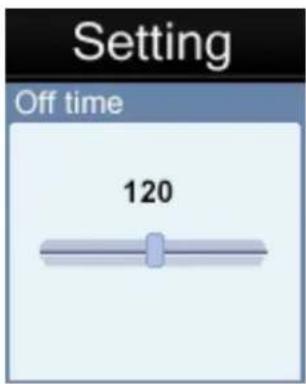
There are 20 selectable options: OFF, 10, 200 seconds to choose from for the auto power off time. The tiem 0 option if selected will disable the auto power off function. The other time length options, when selected, will determine the idle time which needs to elapse before the unit will auto power off to conserve power.
If a unit is powered off automatically by the auto power off function after the idle time, users can restart this unit, by pressing and holding "▶II" key for 2 seconds to turn the unit back on.
6.7.4 System info
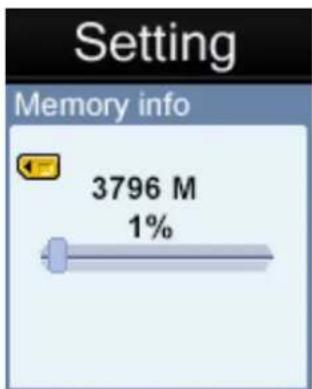
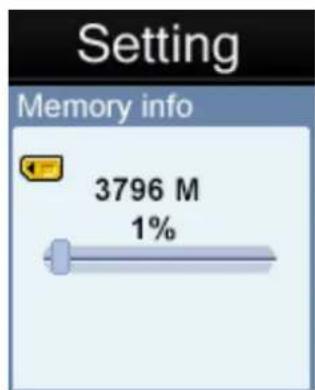
1) Memory Info: This displays Memory capacity.
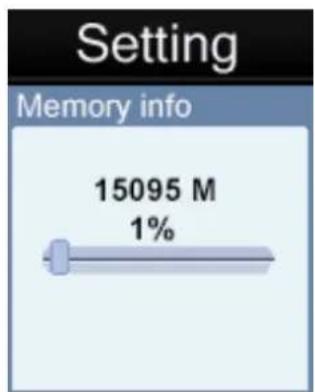
Flash Memory
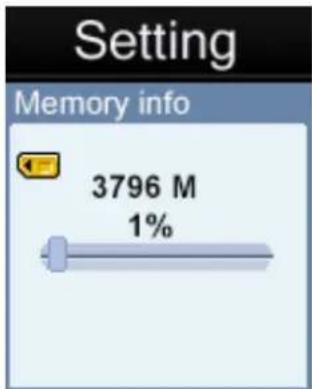
Card memory
Note: Card memory would not been shown if no Micro SD/TF Card installed.
2) Firmware verdion. (only for supplier operation purpose)
6.8 Browser
Select "Browser" in the main menu using the " "◀◀" key▶and then press " " to ▶▶▶ enter the Browser mode. Then select the memory of "Local folder" or "Card Folder" which you want to browse.
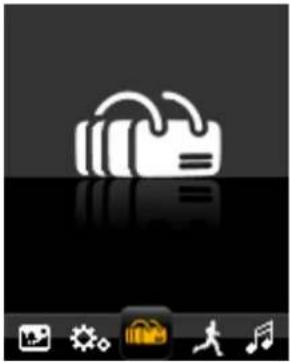
natural_image
Desktop interface with icons for music, navigation, and music note (no readable text or symbols)Browser is a media manager mode which displays all supported media files stored on the player in folder structure view for quick and convenient access. The biggest advantage of using this mode is that it is possible to select music, photo, or video files without having to first select the correct mode from the main menu. The player will determine the media file type and automatically setup the correct mode to play the selected file.
7 AMV Converter Software
7.1 AMV Converter Installation
This video conversion software can convert video files from avi, rm, wmv and amv into a compatible AMV video format for the player. This application is provided in the Player.
Note: This software only works on Windows XP/Vista/7 OS.
-
Turn on your computer, After your version of Windows® has loaded, connect your player with your computer. Then you can find the AMV Converter driver in your PC driver list.
-
In AMVConverter driver, please select "Setup.exe" file and double click it to start installation.
-
Click "Next" to continue.
-
Click "Install" to continue.
-
Click "Finish" to finish the installation. The AMV Converter wizard "amvtransform" will appear on your desktop.

7.2 Using the AMV Converter
- Turn on your computer. After Windows® has loaded; double click the wizard on your desktop to start AMV convert software.
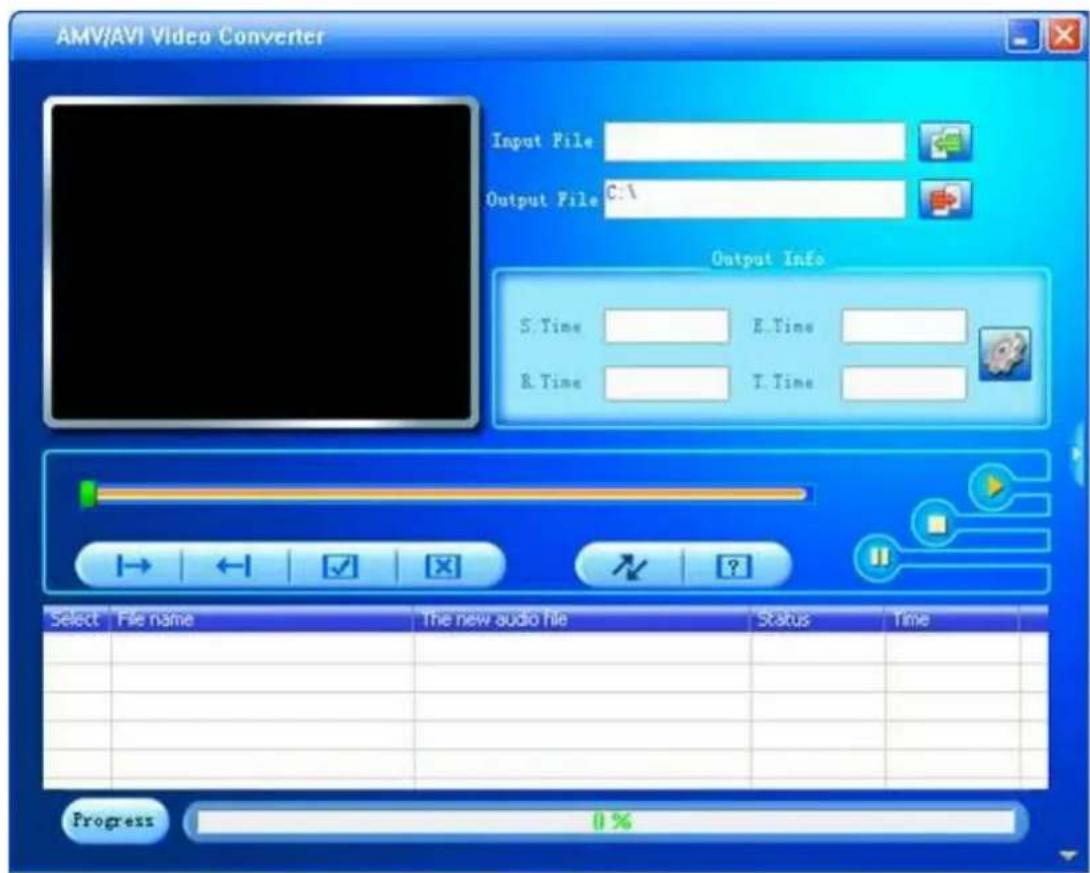
- Click "settings."

' input file button to add a source video file and configure the conversion
- Click "

" button to setup the option parameters as desired and click "Confirm" to
save the conversion entry.
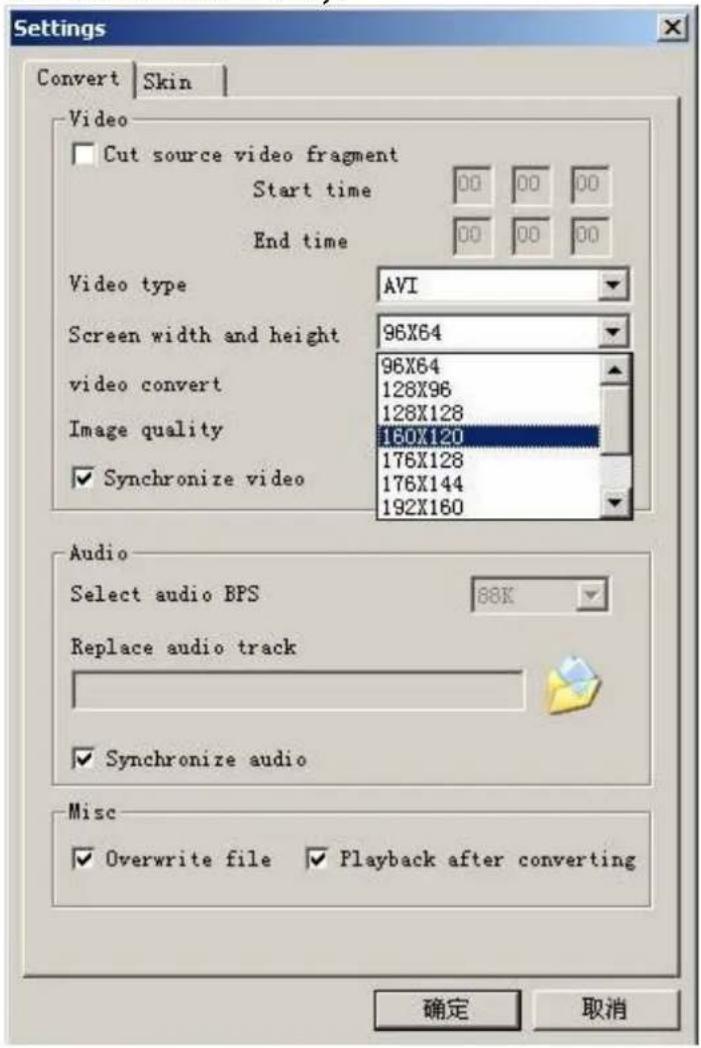
Note: Please always select "160 x 120" as the resolution which is compatible with this unit.
- Repeat step 2-3 to add more conversion entries.
- Once all required conversion entries have been entered as listed in the main window view, click on the "→" button to begin the conversion process. During the conversion, the process column will indicate the conversion progress status.
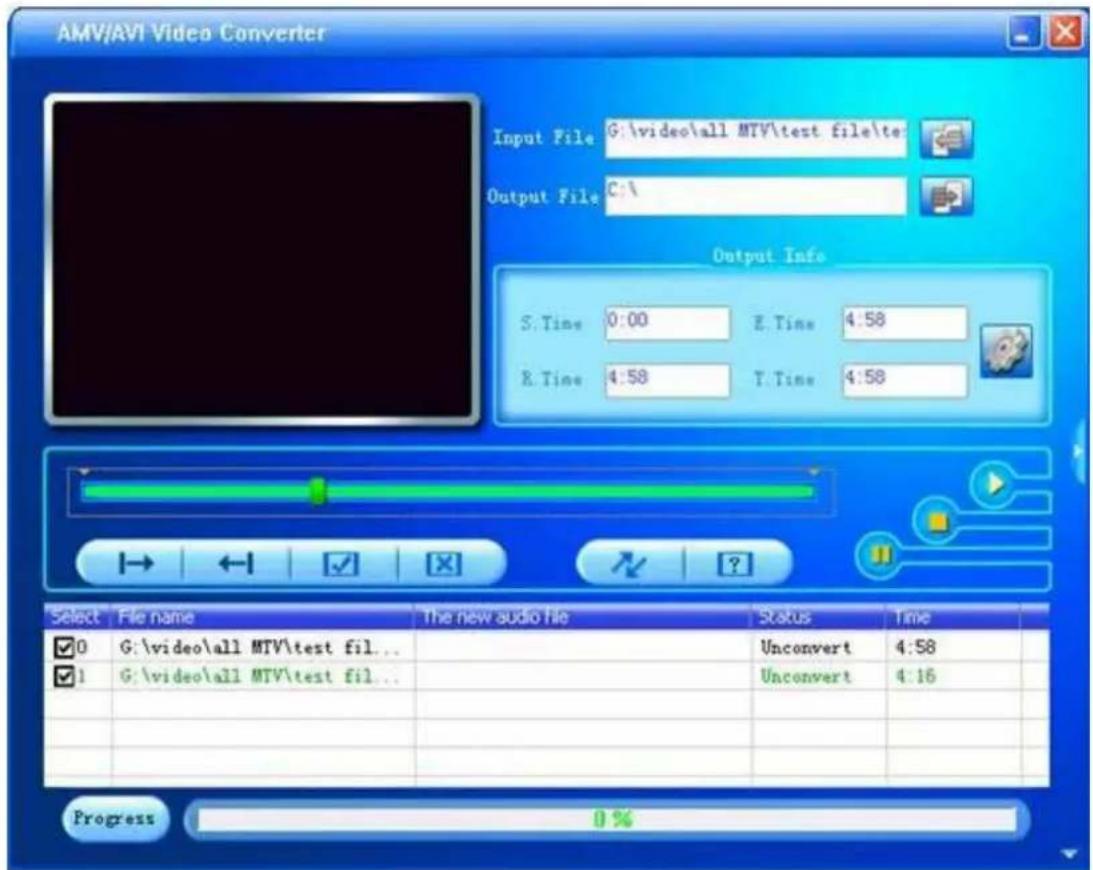
- Once the software has finished converting all the video files, locate the converted file(s) and copy them onto the player. You can now playback the converted video files on the player.
Note: It is highly recommended that you close all other CPU intensive applications while converting videos as they could interfere with the video conversion process.
8 Formatting Storage Memory
This unit internal memory storage require formatting, please ensure that the formatting options are set to format using either the FAT or FAT32 system. You may re-format the player at any time to restore a valid file system. All recent versions of Microsoft Windows support the FAT and FAT32 file systems.
9 Support
Should you encounter problems with the installation or usage of this device, please follow these steps:
- Read the Installation and User Guide again carefully
- Check the "Troubleshooting" section of this User Guide
- Try restarting the unit by powering the unit OFF and ON
10 Troubleshooting
If you are having problems with this product, please refer to this troubleshooting section before contacting the store you purchased the device from:
| Problem Possible causes and solutions | |
| Unit does not turn ON Recharge the | player battery then press and hold the Power On/Off key for 2 seconds to turn on the player. |
| The player does not respond to any key presses | Press and hold the Power On/Off key for 2 seconds to turn on the player. |
| The screen is blank and control doesn't respond when pressed | The unit may be powered off. Press and hold Power On/Off key for 2 seconds to turn on the player. |
| Player is unable to play the selected media file | The selected media file may be corrupted or of a format not supported by the player. |
| No audio when media file is played | Confirm the volume is not set to "0" level. Check that the earphone is securely connected to the player's earphone jack. Check that the earphone is not faulty |
| Music files only play for the first 10 seconds even though the audio files are much longer | Check that the music setting "Repeat Mode" is not set to "Intro" mode. |
| Files loaded on player cannot be found when viewed on player | Ensure that the files is placed in a directory no deeper than 3 subfolders deep as the player will only recognise files in subfolders up to 3 levels deep only. |
| The Player is not detected when connected to a PC | Check and ensure that the USB cable is securely attached to the player and also to the PC. |
| The player does not voice recordings | Check that there is enough free memory. |
| The unit powers off automatically and does not start again even after the unit has been restarted | This could be due to low battery power, please recharge the unit. |
| The unit powers off automatically even though battery power level is not low | This is due to the Auto power off function which is a feature of the device. Please refer to section "6.7.3 Auto Power Off" indicated on page 23 for more information. |
11 Technical Specifications
| Screen 1.8 inch TFT; 65K real color display, Resolution: 160 x 128 pixel | |
| Resolution 160 x 128 pixel | |
| Battery Built-in 3.7V 300mAh Rechargeable battery | |
| Audio format MP3.WMA.WAV | |
| Picture format JPEG, BMP | |
| Video format The video file should be converted to .AMV format firstly by firmware provided. | |
| FM Radio 87.5-108MHz | |
| EQ Normal / Rock / Pop / Classic /Soft / Jazz / DBB | |
| S/N 85dB | |
| Max. output power of Earphone | 10mW + 10mW |
| Built-in Capacity 4GB | |
| Micro SD Card Support Up to 16GB | |
| Operating system Window XP / Vista / 7; MAC OS 9.2 or above | |
| Multi Language English, Spanish, French, Portuguese, etc. | |
CAUTION
Danger of explosion if battery is incorrectly replaced.
Replace only with the same or equivalent type.
The battery shall not be exposed to excessive heat such as sunshine, fire or the like.
Environmentally friendly disposal
Old electrical appliances must not be disposed of together with the residual waste, but have to be disposed of separately. The disposal at the communal collecting point via private persons is for free. The owner of old appliances is responsible to bring the appliances to these collecting points or to similar collection points. With this little personal effort, you contribute to recycle valuable raw materials and the treatment of toxic substances.
Made in China
Warranty conditions
- The warranty of this product is for 2 years since the purchase date.
- The warranty will exclude breakdowns caused by bad use of the product, wrong installation or installation in not desirable places for a proper maintenance of the product, rips, updates of the products
that are not the supplied by the brand, pieces wore away for its use or for not domestic or inappropriate
use. Also are excluded breakdowns caused for manipulations of the products by people or companies
alien to our company.
- For any request regarding the warranty terms, the purchase receipt must be attached.
Correct disposal of this Product
(Waste Electrical & Electronic Equipment(WEEE)
Your product is designed and manufactured with high quality materials and
components which can be recycled and reused.
This symbol means that electrical and electronic equipment, at their end of-
life should be disposed of separately from your household waste.
Please dispose of this equipment at your local community waste collection/
recycling centre.
In the European Union there are separate collection systems for used electrical and electronic products. Please help us to conserve the environment we live in!
DECLARATIONOFCONFORMITY
CouncilDirective(s) to which conformity is declared:
Directive(2004/108/EC)-EMC
Directive(2011/65/EU)-RoHS
ApplicationoftheStandards:
EN55022:2010EN61000-3-2:2006+A1:2009+A2:2009
EN61000-3-2:2013EN55024:2010
EPA3050B:1996EN1122B:2011
EPA3052:1996EPA3060A:1996
EPA7196A:1992EPA3540C:1996
EPA8270D:2007IEC62321:2008
Manufacturer'sname:
AFEXSUNS,S.A.
Manufacturer'saddress:
c/Metall6-8,08110,MontcadaiReixac
Typeofequipment:
MP4Player
Trade:
SUNSTECH
Modelno.:
IBIZA
(Serial number range:160700001 - 160701010)
We, the undersigned, hereby declare under our sole responsibility that the specified equipment is in conformity with the above Directive(s) and Standard(s)
Place:Barcelona
(Signature)
Víctor Planas Bas
(Full name)
Date:12-July-2016
General Manager
(Position)
sunstech
IBIZA
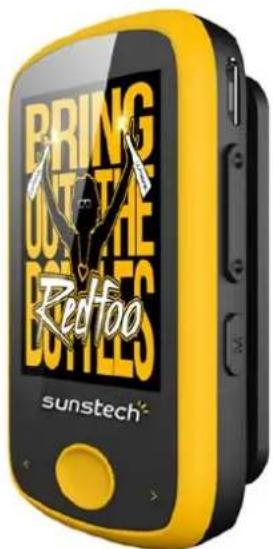
Manual del usuario
natural_image
Simple diagram with a cross and downward arrow, no text or symbols presentnatural_image
Black and white soccer ball with a cross symbol and downward arrow, no text or labels presentnatural_image
Illustration of a ruler, pencil, eraser, and geometric shapes (no text or symbols)natural_image
Simple graphic with a black X and a sunburst shape (no text or symbols)natural_image
Simple illustration of a cloud with raindrops and a cross symbol (no text or labels)natural_image
Illustration of a hand holding a mobile phone inside a circle (no text or symbols)natural_image
Symbolic icon showing a person sitting with a cross and a downward arrow, indicating no text or numbers present.natural_image
Simple line drawing of a hand cleaning a spray bottle with a 'X' mark (no text or symbols)natural_image
Simple line drawing of a toggle switch with 'OFF' label on the button (no additional text or symbols)natural_image
Simple line drawing of a screwdriver and a cross symbol (no text or labels)natural_image
Simple diagram showing a downward arrow on a flat surface next to an electrical outlet (no text or symbols)
Low
used
remaining
Battery
natural_image
Illustration of a blue cylindrical battery with a red 'X' symbol and a black plug, against a blue gradient background (no text or symbols)natural_image
Battery icon with green liquid, shown against black background (no text or symbols)natural_image
Orange circular icon with a white USB symbol inside, set against a black background (no text or numbers)natural_image
Icon of a musical note with sound waves, displayed on a dark background (no text or symbols)6.1
natural_image
Mobile app icon showing a musical note and sound waves (no text or symbols)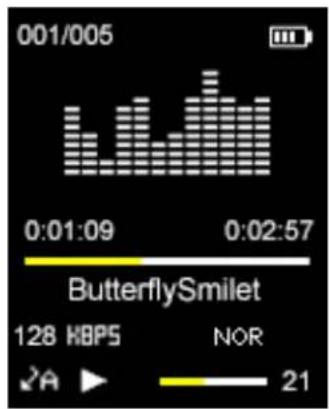
bar
| Time | Value | | -------- | ----- | | 0:01:09 | 128 | | 0:02:57 | 21 || Music | Music |
| Local folder | ROOT |
| Card folder | RECORD |
| Delete file | Hotel California |
| Delete all | |
| Exit |
| Music | Music |
| Repeat | Normal |
| Equalizer | Repeat one |
| Exit | Folder |
| Repeat folderl | |
| Repeat all | |
| Random |
1. Modo Repetición:
natural_image
Desktop interface with clapperboard icon and playback controls (no text or symbols)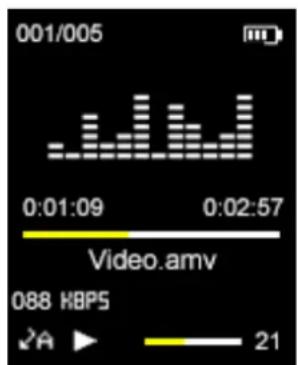
bar
| Time | Value | | -------- | ----- | | 0:01:09 | 0 | | 0:02:57 | 21 |natural_image
Illustration of a rural landscape with green hills, scattered houses, and a sunlit sky (no text or symbols)natural_image
Desktop interface with microphone icon and playback controls (no text or symbols)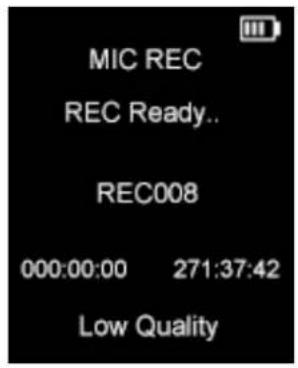
natural_image
Desktop interface with icon of a radio and monitor, no visible text or symbols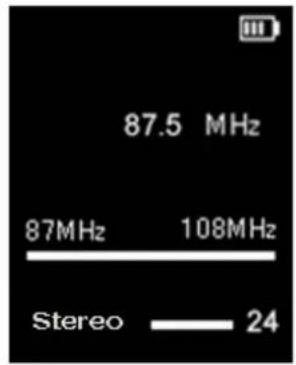
natural_image
Desktop interface with icon set, no visible text or symbolsnatural_image
Silhouette of a running person with motion lines, displayed on a dark screen with app icons at the bottom (no text or symbols on the figure itself)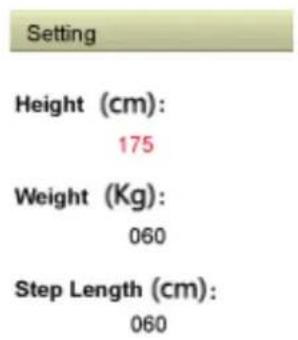
Pulse "▶II", selección "ON/Off"
Pulse "▶II", entrada "ON"
natural_image
Icon set with gear and gear symbols on a dark background, accompanied by icons for documents, images, tools, and a person (no text or labels)Memoria Flash
natural_image
Desktop interface with icons for music, navigation, and music note (no readable text or symbols)Danger of explosion if battery is incorrectly replaced.
Replace only with the same or equivalent type.
The battery shall not be exposed to excessive heat such as sunshine, fire or the like.
Environmentally friendly disposal
Old electrical appliances must not be disposed of together with the residual waste, but have to be disposed of separately. The disposal at the communal collecting point via private persons is for free. The owner of old appliances is responsible to bring the appliances to these collecting points or to similar collection points. With this little personal effort, you contribute to recycle valuable raw materials and the treatment of toxic substances.
Hecho en China
Directiva(2004/108/EC)-EMC Directiva(2011/65/EU)-RoHS
natural_image
Simple diagram with a cross and downward arrow, no text or symbols presentnatural_image
Black and white soccer ball with a cross symbol and downward arrow, no text or labels presentnatural_image
Illustration of a ruler, pencil, eraser, eraser cross, and plastic sheet (no text or symbols)natural_image
Simple graphic with a black X and a sunburst shape (no text or symbols)natural_image
Simple illustration of a cloud with raindrops and a cross symbol (no text or labels)natural_image
Illustration of a hand holding a mobile phone with a keypad, enclosed in a circle (no text or symbols)natural_image
Silhouette of a person sitting on a chair with a downward arrow, symbolizing decline or reduction (no text or symbols present)natural_image
Simple line drawing of a hand cleaning a cloth next to a spray bottle with an 'X' mark (no text or symbols)natural_image
Simple line drawing of a button with an 'OFF' label on the right side (no additional text or symbols)natural_image
Simple line drawing of a screwdriver and a cross symbol (no text or labels)natural_image
Simple 3D diagram showing a wall with a downward arrow and a plane, no text or symbols present.natural_image
Battery icon with red X mark and black plug, symbolizing battery charging (no text or symbols)natural_image
Battery icon with green liquid inside, set against black background (no text or symbols)natural_image
Orange circular icon with a white USB symbol inside, set against a black background (no text or numbers)natural_image
Icon of a music note with musical notes and playback controls (no text or symbols)6.1 Musique
natural_image
Black and white icon set with musical notes, a microphone, and a person silhouette (no text or symbols)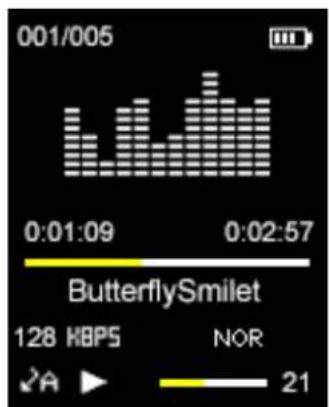
bar
| Time | Value | | -------- | ----- | | 0:01:09 | 128 | | 0:02:57 | 21 || Music | Music |
| Local folder | ROOT |
| Card folder | RECORD |
| Delete file | Hotel California |
| Delete all | |
| Exit |
| Music | Music |
| Repeat | Normal |
| Equalizer | Repeat one |
| Exit | Folder |
| Repeat folderl | |
| Repeat all | |
| Random |
natural_image
Desktop interface with a clapperboard icon and icons for music, video, and audio (no text or symbols on the main elements)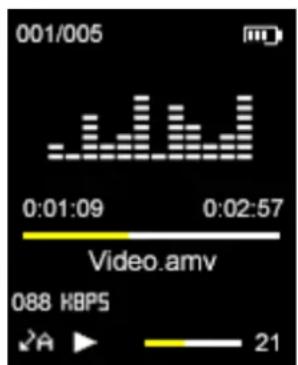
bar
| Time | Value | | -------- | ----- | | 0:01:09 | 0 | | 0:02:57 | 21 |natural_image
Illustration of a rural landscape with green hills, scattered houses, and a sun (no text or symbols)natural_image
Desktop interface with microphone icon and playback controls (no text or symbols)
| Record | Record |
| Local folder | 32K BPS |
| Card folder | 64K BPS |
| REC type | 128K BPS |
| Exit | 256K BPS |
natural_image
Generic computer app icon showing a radio with antenna and control buttons (no text or symbols)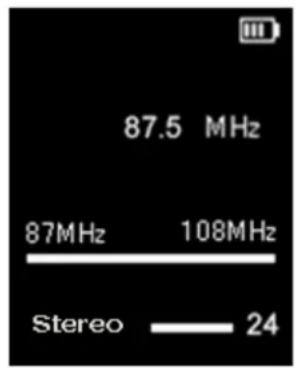
natural_image
Desktop interface with icon set showing a photo frame, menu icons, and navigation tabs (no text or symbols)natural_image
Icon set with gear and key symbols on a dark background, no readable text or labelsnatural_image
Desktop interface with icons for music, music note, and music app (no readable text or symbols)DÉCLARATIONDECONFORMITÉ
Directive(2004/108/EC)-EMC
Directive(2011/65/EU)-RoHS
Applicationdesnormes:
EN55022:2010EN61000-3-2:2006+A1:2009+A2:2009
EN61000-3-2:2013EN55024:2010
EPA3050B:1996EN1122B:2011
EPA3052:1996EPA3060A:1996
EPA7196A:1992EPA3540C:1996
EPA8270D:2007IEC62321:2008
Nomdufabricant:
AFEXSUNS,S.A.
Adressedufabricant:
c/Metall6-8,08110,MontcadaiReixac
Typed'équipement:
LecteurMP4
MarqueCommerciale:
SUNSTECH
Modèlen°:
IBIZA
natural_image
Simple diagram with a cross and downward arrow over a circular pattern, no text or symbols present.natural_image
Black and white soccer ball with a cross symbol and downward arrow, no text or labels presentnatural_image
Illustration of a ruler, eraser, eraser, and pencil (no text or symbols)natural_image
Simple graphic with a black X and a sunburst shape (no text or symbols)natural_image
Simple illustration of a cloud with raindrops and a black X symbol (no text or labels)natural_image
Illustration of a hand holding a mobile phone inside a circle (no text or symbols)natural_image
Simple icon of a person sitting on a chair with a downward arrow, no text or symbols present.natural_image
Simple line drawing of a hand cleaning a spray bottle with a 'X' mark (no text or symbols)flowchart
graph LR
    A["Device"] --> B["Document"]
    B --> C["Hand with Paper"]
natural_image
Simple line drawing of a screwdriver and a black X symbol (no text or labels)natural_image
Simple 3D diagram showing a downward arrow pointing to a white square (no text or symbols)natural_image
Illustration of a battery with a red 'X' symbol and an electrical plug, against a blue gradient background (no text or symbols)natural_image
Battery icon with green liquid inside, set against black background (no text or symbols)natural_image
Orange circular icon with a white USB symbol inside, set against a black background (no text or numbers)natural_image
Desktop icon with musical note and playback controls (no text or symbols)6.1
natural_image
Black and white app icon showing a musical note with sound waves, no text or symbols present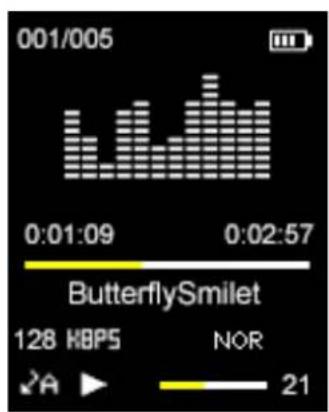
bar
| Time | Value | | -------- | ----- | | 0:01:09 | 128 | | 0:02:57 | 21 || Music | Music |
| Local folder | ROOT |
| Card folder | RECORD |
| Delete file | Hotel California |
| Delete all | |
| Exit |
| Music | Music |
| Repeat | Normal |
| Equalizer | Repeat one |
| Exit | Folder |
| Repeat folderl | |
| Repeat all | |
| Random |
1. Modo Repetição:
natural_image
Computer app interface showing a clapperboard icon and playback controls (no text or symbols on icons)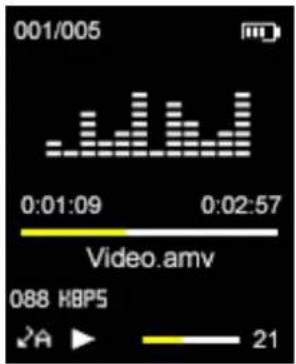
natural_image
Illustration of a rural landscape with green hills, scattered houses, and a sunlit sky (no text or symbols)natural_image
Desktop interface with microphone icon and playback controls (no text or symbols)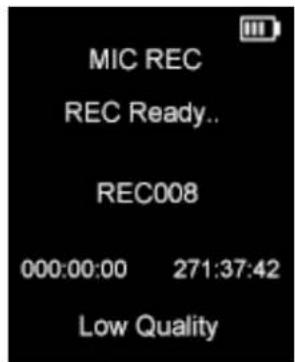
natural_image
Desktop interface with icon of a radio receiver and gear symbols (no text or labels)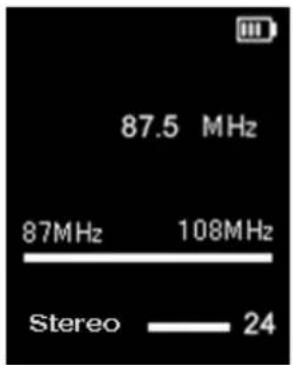
natural_image
Desktop interface with icon set showing a landscape image and icons for audio, video, gear, and file (no text or symbols)natural_image
Icon set with gear and tools on a dark background, no readable text or symbols presentMemória Flash
Memória do cartão
natural_image
Desktop interface with icons for music, music note, and music app (no readable text or symbols)Danger of explosion if battery is incorrectly replaced.
Replace only with the same or equivalent type.
The battery shall not be exposed to excessive heat such as sunshine, fire or the like.
Environmentally friendly disposal
Old electrical appliances must not be disposed of together with the residual waste, but have to be disposed of separately. The disposal at the communal collecting point via private persons is for free. The owner of old appliances is responsible to bring the appliances to these collecting points or to similar collection points. With this little personal effort, you contribute to recycle valuable raw materials and the treatment of toxic substances.
Fabricado em China
Directiva(2004/108/EC)-EMC
Directiva(2011/65/EU)-RoHS
AplicaçãodasNormas:
EN55022:2010EN61000-3-2:2006+A1:2009+A2:2009
EN61000-3-2:2013EN55024:2010
EPA3050B:1996EN1122B:2011
EPA3052:1996EPA3060A:1996
EPA7196A:1992EPA3540C:1996
EPA8270D:2007IEC62321:2008
Nomedofabricante:
AFEXSUNS,S.A.

- Table of Contents
- Caution & Safety Guide:
- Symbol Definitions
- READ ALL INSTRUCTIONS BEFORE USE
- SAFETY INSTRUCTIONS
- Introduction
- Package Contents
- Minimum System Requirements
- Features & Specifications
- Precautions
- Product Overview
- Basic Operation
- Power On/Off
- Resetting the Device
- Battery
- Battery Level Indicator
- Charging Procedure
- Warning:
- Connecting with Your Computer
- USB Connected Mode
- Safe Removal
- Safe Removal in Windows XP
- Safe Removal in Windows Vista and 7
- Safe Removal in MAC OS
- Operating Modes
- 6.1
- Browse and Select / Delete Music
- Play / Pause Music
- Adjusting Volume
- Fast Forward / Fast Rewind Music
- Next / Previous Track
- Browse Song Lyrics
- Music Setup
- Repeat Mode:
- Equalizer Select:
- Movie
- Fast Forward / Fast Rewind Video
- Record
- REC Setup
- Radio
- Auto Search:
- Picture
- Photo setting
- Pedometer
- Settings
- Clock Setup
- LCD Setup
- Power Off
- System info
- Browser
- AMV Converter Software
- AMV Converter Installation
- Using the AMV Converter
- Formatting Storage Memory
- Support
- Troubleshooting
- Technical Specifications
- CAUTION
- Environmentally friendly disposal
- Warranty conditions
- Correct disposal of this Product
- DECLARATIONOFCONFORMITY
- Directive(2004/108/EC)-EMC
- Directive(2011/65/EU)-RoHS
- We, the undersigned, hereby declare under our sole responsibility that the specified equipment is in conformity with the above Directive(s) and Standard(s)
- sunstech
- IBIZA
- Modo Repetición:
- Directiva(2004/108/EC)-EMC Directiva(2011/65/EU)-RoHS
- Musique
- DÉCLARATIONDECONFORMITÉ
- Modo Repetição:
- Directiva(2004/108/EC)-EMC
- Directiva(2011/65/EU)-RoHS
Brand : Sunstech
Model : Ibiza
Category : Mp3 player