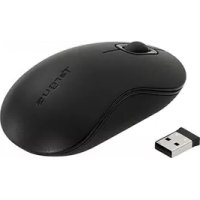
AMW56EU - Mouse TARGUS - Free user manual and instructions
Find the device manual for free AMW56EU TARGUS in PDF.



| Brand | Targus |
| Model | AMW56EU |
| Product type | Optical wireless mouse for laptop |
| Color | Black |
| Dimensions (L x W x H) | Approximately 10 x 6 x 3 cm |
| Weight | Approximately 100 g (with batteries) |
| Sensor type | Optical |
| Resolution | 800-1200 dpi (typical) |
| Interface | USB (micro USB receiver) |
| Connectivity | 2.4 GHz wireless |
| Range | Approximately 10 m |
| Power source | 2 AA batteries (not included) |
| Battery life | Up to 6 months (depending on usage) |
| Key features | Plug & Play, automatic power saving, low battery indicator |
| Number of buttons | 3 (left click, right click, clickable scroll wheel) |
| Compatible operating systems | Windows 2000/XP/Vista/7, Mac OS X 10.4 or later |
| Package contents | Mouse, USB receiver, 2 AA batteries, user manual |
| Care and cleaning | Clean with a soft, dry cloth. Do not use solvents. |
| Safety | No special instructions. Keep out of reach of children. |
| Spare parts and repairability | Rechargeable or non-rechargeable batteries. No spare parts available. |
| Warranty | Limited manufacturer's warranty (see manual) |
Frequently Asked Questions - AMW56EU TARGUS
User questions about AMW56EU TARGUS
0 question about this device. Answer the ones you know or ask your own.
Ask a new question about this device
Download the instructions for your Mouse in PDF format for free! Find your manual AMW56EU - TARGUS and take your electronic device back in hand. On this page are published all the documents necessary for the use of your device. AMW56EU by TARGUS.
USER MANUAL AMW56EU TARGUS
| Targus® WIRELESS OPTICAL LAPTOP MOUSE |
©2010 Manufactured or imported by Targus Europe Ltd., Hounslow, Middlesex, TW4 5DZ, UK. All rights reserved. Targus is either a registered trademark or trademark of Targus Group International, Inc. in the United States and/or other countries. Features and specifications are subject to change without notice. All trademarks and registered trademarks are the property of their respective owners.

N2953

FCC
User Guide
Targus Wireless Optical Laptop Mouse
Table of Contents
GB – English
Targus Wireless Optical Laptop Mouse 6
Targus Wireless Optical Laptop Mouse
FI – Suomi
Targus Wireless Optical Laptop Mouse
NL – Nederlands
Targus draadloze optische laptopmuis 96
NO - Norsk
Targus Wireless Optical Laptop Mouse
SK – Slovenčina
Targus Wireless Optical Laptop Mouse
GB - Introduction
Thank you for your purchase of the Targus Wireless Optical Laptop Mouse. The accompanying micro USB receiver is small enough to leave plugged into your computer or simply store it inside the mouse when travelling. This is a plug and play device so no additional software is required.
Contents
• Targus Wireless Optical Laptop Mouse
- 2 x AA Energizer* MAX * Batteries
• Micro USB Receiver
-UserGuide
System Requirements
Hardware
• USB port
Operating System
• Microsoft Windows* 2000
• Microsoft Windows* XP
• Microsoft Windows Vista®
• Microsoft Windows ^® 7
•MacOS*X 10.4 or later
Targus Wireless Optical Laptop Mouse
Installing the Batteries
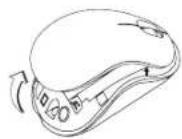
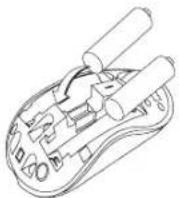
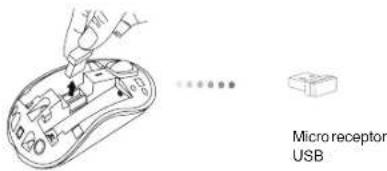
- Remove the battery cover from the top of the mouse by using the notch on the back. Carefully lift the cover up as shown in the diagram.
- Remove the micro USB receiver stored inside the center compartment.
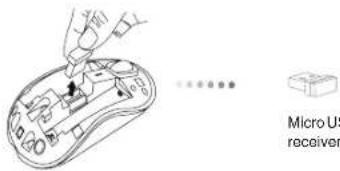
text_image
Micro U receiverTargus Wireless Optical Laptop Mouse
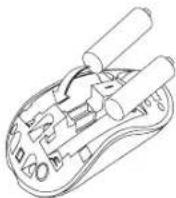
- Insert the two AA batteries, making sure that the positive (+) and negative (-) ends of each battery match the polarity indicators inside the battery compartment.
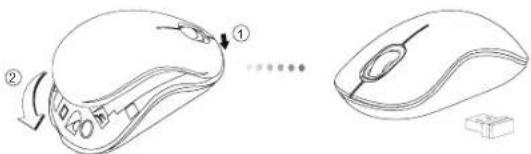
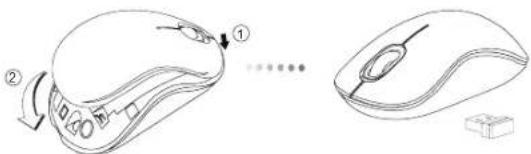
- Replace the battery cover.
natural_image
Line drawing of a computer mouse with labeled parts, showing front and side views (no text or symbols)
NOTE: THE FRONT OF THE LID SHOULD BE INSERTED FIRST BEFORE SNAPPING THE BACK OF THE LID DOWN.
Targus Wireless Optical Laptop Mouse
Establishing the Connection
(A) Plug the USB receiver into an available USB port on your computer.

(B) Turn on the mouse by sliding the power switch to the ON position, located on the bottom of the mouse.
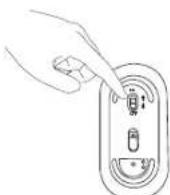
This mouse is a plug and play device. It will automatically operate when the USB receiver is connected to the computer.
Targus Wireless Optical Laptop Mouse
Targus Wireless Optical Laptop Mouse
Power On:
Slide the power switch to the ON position.
Power Off:
Slide the power switch to the OFF position.
Power Saving mode:
After an extended period of time, if the mouse is not used, it will automatically enter power saving mode to conserve power and increase battery life. Click on any mouse button or simply move the mouse to resume the normal operation. The mouse may take a few seconds to reconnect with your computer.
Battery Life Indicator
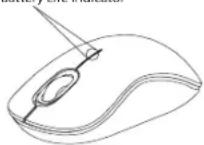
- When the mouse is turned on, the LED illuminates for 3 seconds and then fades out
• The low power light will start flashing every 3 seconds when less than 5% of the battery power remains. Replace the batteries as soon as possible
Battery Life Indicator
Power Management
- To extend the life of your battery, turn off the mouse while travelling or when you're not using it.
Targus Wireless Optical Laptop Mouse
BG – Въведение
Targus Wireless Optical Laptop Mouse
Targus Wireless Optical Laptop Mouse
text_image
Diagram showing two views of a computer mouse with labeled parts and a small inset box, illustrating the process from step ① to step ②.
ЗАБЕЛЕЖКА: ПОСТАВЕТЕ ПРЕДНАТА ЧАСТ НА КАПАКА, ПРЕДИ ДА ПРИТИСНЕТЕ ЗАДНАТА, ЗА ДА ШРАКНЕ НА МЯСТО.
Targus Wireless Optical Laptop Mouse
Targus Wireless Optical Laptop Mouse
Targus Wireless Optical Laptop Mouse
Включване:
Targus Wireless Optical Laptop Mouse
CZ – Úvod
Targus Wireless Optical Laptop Mouse
Installing the Batteries
Targus Wireless Optical Laptop Mouse
natural_image
Line drawing of a computer mouse with two labeled parts (① and ②), showing a close-up view of the interior and side views (no text or symbols present)
POZNÁMKA: P EDNÍ ÁST VÍKA VLOŽTE P ED ZAKLAPNUTÍM ZADNÍ ÁSTI VÍKA.
Targus Wireless Optical Laptop Mouse
Navázání spojení
Targus Wireless Optical Laptop Mouse
Targus Wireless Optical Laptop Mouse
Zapnutí:
Přepínač posuňte do polohy ON (zapnuto).
Vypnuti:
Přepínač posuňte do polohy OFF (vypnuto).
Targus Wireless Optical Laptop Mouse
DE – Einführung
- Micro USB-Receiver
Targus Wireless Optical Laptop Mouse
text_image
Micro USB- ReceiverTargus Wireless Optical Laptop Mouse
natural_image
Line drawing of a computer mouse with labeled parts, showing front and side views (no text or symbols)
Targus Wireless Optical Laptop Mouse
Targus Wireless Optical Laptop Mouse
Targus Wireless Optical Laptop Mouse
Einschalten:
Targus Wireless Optical Laptop Mouse
DK – Introduktion
Targus Wireless Optical Laptop Mouse
Targus Wireless Optical Laptop Mouse
text_image
Diagram showing two computer mouse states: one with a scroll and arrow, the other with a cable and switch.
NOTE: DEN FORRESTE DEL AF LÅGET SKAL SÄTTES I F∅R DEN BAGESTE SIDE.
Targus Wireless Optical Laptop Mouse
Targus Wireless Optical Laptop Mouse
Targus Wireless Optical Laptop Mouse
Tænd:
Targus Wireless Optical Laptop Mouse
EE – Sissejuhatus
Targus Wireless Optical Laptop Mouse
Patareide paigaldamine
Targus Wireless Optical Laptop Mouse
- Sisestage AA-patarei, jälgides, et patarei pluss (+) ja miinus (-) otsad vastaksid patareipesas asuvatele polaarsusmärgistele.
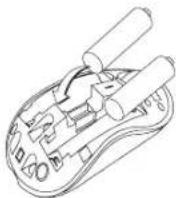
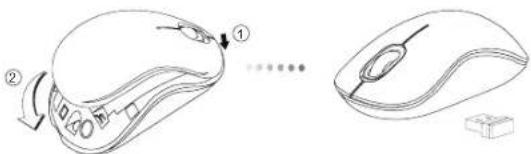
- Pange patareikaas tagasi.
text_image
Diagram showing two views of a computer mouse with labeled parts and a small inset box, illustrating the process from step ① to step ②.
MÄRKUS: KAANE ESIOSAS TULEB SISESTADA ENNE, KUI KAANE TAGAOSA KLÖPSUGA ALLA SURUDES SULGETE.
Targus Wireless Optical Laptop Mouse
Ühenduse loomine
Targus Wireless Optical Laptop Mouse
Targus Wireless Optical Laptop Mouse
Sisse lülitamine:
Lükake toitelüliti asendisse ON (sees).
Välja lülitamine:
Targus Wireless Optical Laptop Mouse
ES - Introducción
Targus Wireless Optical Laptop Mouse
Targus Wireless Optical Laptop Mouse
natural_image
Line drawing of a computer mouse with labeled parts, showing front and side views (no text or symbols)
Targus Wireless Optical Laptop Mouse
Targus Wireless Optical Laptop Mouse
Targus Wireless Optical Laptop Mouse
Encender:
Targus Wireless Optical Laptop Mouse
FI – Johdanto
Targus Wireless Optical Laptop Mouse
Paristojen asennus
Targus Wireless Optical Laptop Mouse
natural_image
Line drawing of a computer mouse with labeled parts, showing front and side views (no text or symbols)
HUOM: KANNEN ETUOSA KUULUU ASETTAA ENSIN PAIKALLEEN ENNEN KANNEN TAKA-OSAN ALASNAPSAUTTAMISTA.
Targus Wireless Optical Laptop Mouse
Targus Wireless Optical Laptop Mouse
Targus Wireless Optical Laptop Mouse
Virta päälle:
Targus Wireless Optical Laptop Mouse
FR - Introduction
Targus Wireless Optical Laptop Mouse
Installation des piles
Targus Wireless Optical Laptop Mouse
natural_image
Line drawing of a computer mouse with labeled parts, showing front and side views (no text or symbols)
REMARQUE: INSÉREZ EN PREMIER LA PARTIE AVANT DU COUVERCLE, PUIS ENCLEN-CHEZ LA PARTIE ARRIÈRE EN POSITION.
Targus Wireless Optical Laptop Mouse
Targus Wireless Optical Laptop Mouse
Targus Wireless Optical Laptop Mouse
Mise en route :
Targus Wireless Optical Laptop Mouse
GR – Εισαγωγή
Targus Wireless Optical Laptop Mouse
Targus Wireless Optical Laptop Mouse
natural_image
Line drawing of a computer mouse with labeled parts (no text or symbols present)
Targus Wireless Optical Laptop Mouse
Targus Wireless Optical Laptop Mouse
Targus Wireless Optical Laptop Mouse
Ενεργοποίηση:
Targus Wireless Optical Laptop Mouse
Targus Wireless Optical Laptop Mouse
HR - Uvod
Zahvaljujemo na kupnji Targus bežični optički miš za prijenosna računala. Mikro USB prijamnik koji dolazi u kompletu dovoljno je sićušan da ga možete ostaviti uključenog u računalu ili ga jednostavno možete staviti u miša dok putujete. Uređaj funkcionira na principu uključi-i-radi te ne zahtijeva dodatne pogonske programe.
Sadržaj
text_image
Mikro prijamiTargus Wireless Optical Laptop Mouse
- Umetnite AA bateriju pazeći da se pozitivni (+) i negativni (-) polovi baterije poklapaju s indikatorima polova u spremniku.
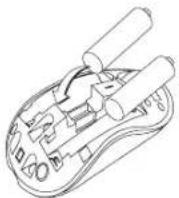
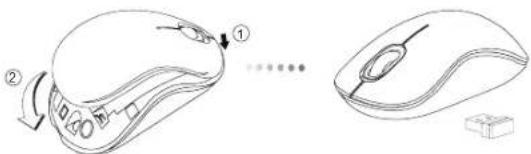
- Vratite poklopac spremnika za baterije natrag na mjesto.
natural_image
Line drawing of a computer mouse with two labeled parts (① and ②), showing the interior and side views without any text or symbols.
bilješka: Prije zalvaranja poklopca pritiskom na stražnji dio, prednji dio poklopca treba biti umetnut u predvi eni utor.
Targus Wireless Optical Laptop Mouse
Uspostavljanje veze
Targus Wireless Optical Laptop Mouse
Targus Wireless Optical Laptop Mouse
Uključivanje:
Pogurnite gumb za napajanje u ON (uključeno) poziciju.
Isključivanje:
Pogurnite gumb za napajanje u OFF (isključeno) poziciju.
Štedni način rada:
Targus Wireless Optical Laptop Mouse
Targus Wireless Optical Laptop Mouse
HU – Bevezetés
natural_image
Line drawing of a hand inserting a plug into a device, with no visible text or symbolsTargus Wireless Optical Laptop Mouse
natural_image
Line drawing of a computer mouse with two labeled parts (① and ②), showing a close-up view of the interior and side views (no text or symbols present)
MEGJEGYZÉS: A FEDÉL HÁTULJÁNAK LECSUKÁSA EL TT EL SZÖR BE KELL ILLESZTENI A FEDÉL ELEJÉT.
Targus Wireless Optical Laptop Mouse
Targus Wireless Optical Laptop Mouse
Targus Wireless Optical Laptop Mouse
Bekapcsolás:
Targus Wireless Optical Laptop Mouse
IT – Introduzione
Targus Wireless Optical Laptop Mouse
Targus Wireless Optical Laptop Mouse
natural_image
Line drawing of a computer mouse with labeled parts, showing front and side views (no text or symbols)
NOTA: PRIMA DI FAR SCATTARE IN POSIZIONE LA PARTE POSTERIORE DEL COPERCHIO INSERIRE LA PARTE ANTERIORE.
Targus Wireless Optical Laptop Mouse
Targus Wireless Optical Laptop Mouse
Targus Wireless Optical Laptop Mouse
Accensione:
Targus Wireless Optical Laptop Mouse
Targus Wireless Optical Laptop Mouse
LT - Ivadas
Targus Wireless Optical Laptop Mouse
natural_image
Line drawing of a computer mouse with two labeled parts (① and ②), showing the interior and side views without any text or symbols.
PASTABA: PIRMA STATYKITE DANGTELIO PRIEK, O TADA SPUSTEL KITE JO GAL, KOL PASIGIRS SPRAGTEL JIMAS.
Targus Wireless Optical Laptop Mouse
Kaip sujungti
Targus Wireless Optical Laptop Mouse
Targus Wireless Optical Laptop Mouse
Targus Wireless Optical Laptop Mouse
Targus Wireless Optical Laptop Mouse
LV - levads
Targus Wireless Optical Laptop Mouse
natural_image
Line drawing of a computer mouse with two labeled parts (① and ②), showing a transformation from the original image to the next image (no text or symbols present)
PIEZ ME: VISPIRMS IEVIETOJIET V KA PRIEKŠPUSI, P C TAM NOLAIDIET UN AIZTAISIET V KA AIZMUGURI.
Targus Wireless Optical Laptop Mouse
Savienojuma izveide
Targus Wireless Optical Laptop Mouse
Targus Wireless Optical Laptop Mouse
leslēgt:
Targus Wireless Optical Laptop Mouse
NL - Introductie
Targus Wireless Optical Laptop Mouse
De batterijen installeren
Targus Wireless Optical Laptop Mouse
natural_image
Line drawing of a computer mouse with labeled parts, showing front and side views (no text or symbols)
OPMERKING: DE VOORZIJDE VAN HET DEKSEL MOET INGEBRACHT WORDEN VOORDAT U DE ACHTERKANT ERVAN KUNT NEERKLAPPEN.
Targus Wireless Optical Laptop Mouse
De verbinding tot stand brengen
Targus Wireless Optical Laptop Mouse
Targus Wireless Optical Laptop Mouse
Inschakelen:
Targus Wireless Optical Laptop Mouse
NO – Introduksjon
Takk for at du kjøpte en Targus trådlos optisk mus for bærbare PC-er. Den medfolgende mikro-USB-mottakeren er liten nok til at den kan forbli koblet til datamaskinen din, eller den kan oppbevares inne i musen på reiser. Dette er en "plug-n-play"-enhet, så ingen ekstra programvare er påkrevd.
Innhold
Targus Wireless Optical Laptop Mouse
Installere batterier
Targus Wireless Optical Laptop Mouse
natural_image
Line drawing of a computer mouse with labeled parts, showing front and side views (no text or symbols)
MERK: FRONTEN PÅ LOKKET SKAL SETTES INN F∅R BAKSIDEN AV LOKKET KNIPSES NED.
Targus Wireless Optical Laptop Mouse
Targus Wireless Optical Laptop Mouse
Targus Wireless Optical Laptop Mouse
Inschakelen:
Targus Wireless Optical Laptop Mouse
Targus Wireless Optical Laptop Mouse
PL - Wstep
Targus Wireless Optical Laptop Mouse
natural_image
Line drawing of a computer mouse with labeled parts, showing front and side views (no text or symbols)
Targus Wireless Optical Laptop Mouse
Targus Wireless Optical Laptop Mouse
Targus Wireless Optical Laptop Mouse
Targus Wireless Optical Laptop Mouse
PT - Introdução
Targus Wireless Optical Laptop Mouse
- Retire o receptor Micro USB.
text_image
Micro receptor USBTargus Wireless Optical Laptop Mouse
natural_image
Line drawing of a computer mouse with labeled parts, showing front and side views (no text or symbols)
NOTA: A PARTE DA FRENTE DA TAMPA DEVE SER INSERIDA EM PRIMEIRO LUGAR, ANTES DE PRESSIONAR FECHAR A PARTE DE TRÁS DA TAMPA.
Targus Wireless Optical Laptop Mouse
Fazer a ligação
Targus Wireless Optical Laptop Mouse
Targus Wireless Optical Laptop Mouse
Ligado: (ON)
Targus Wireless Optical Laptop Mouse
Targus Wireless Optical Laptop Mouse
RO - Introducere
Targus Wireless Optical Laptop Mouse
natural_image
Line drawing of a computer mouse with two labeled parts (① and ②), showing a close-up view of the interior and side views (no text or symbols present)
OBSERVA IE: PARTEA DIN FA A CAPACULUI TREBUIE S FIE INTRODUS ÎNAINTE DE A AP SA ÎN JOS CAPACUL.
Targus Wireless Optical Laptop Mouse
Stabilirea conexiunii
Targus Wireless Optical Laptop Mouse
Targus Wireless Optical Laptop Mouse
Pornit:
Targus Wireless Optical Laptop Mouse
Targus Wireless Optical Laptop Mouse
RU – Введение
Targus Wireless Optical Laptop Mouse
natural_image
Line drawing of a computer mouse with two labeled parts (① and ②), showing the interior and side views without any text or symbols.
Targus Wireless Optical Laptop Mouse
Targus Wireless Optical Laptop Mouse
Targus Wireless Optical Laptop Mouse
SE - Introduktion
Targus Wireless Optical Laptop Mouse
natural_image
Line drawing of a computer mouse with labeled parts, showing front and side views (no text or symbols)
OBS: FRAMSIDAN PÅ LOCKET SKA PLACERAS PÅ PLATS INNAN DU KNÄPPER FAST. BAKSIDAN AV LOCKET.
Targus Wireless Optical Laptop Mouse
Targus Wireless Optical Laptop Mouse
Targus Wireless Optical Laptop Mouse
Sätt på:
Targus Wireless Optical Laptop Mouse
Targus Wireless Optical Laptop Mouse
SI - Uvod
Targus Wireless Optical Laptop Mouse
- Vstavite AA baterijo in preverite, ali pozitivni (+) in negativni (-) konec ustrezata indikatorjema polarnosti znotraj prostorčka za baterijo.
- Pokrov za baterijo dajte nazaj na svoje mesto.
natural_image
Line drawing of a computer mouse with two labeled parts (① and ②), showing the interior and side views without any text or symbols.
OPOMBA: PREDEN ZADNJI DEL POKROVA POTISNETE NAVZDOL IN GA ZAPRETE, JE TREBA ŠE PREJ NAMESTITI SPREDNJI DEL POKROVA.
Targus Wireless Optical Laptop Mouse
Targus Wireless Optical Laptop Mouse
Targus Wireless Optical Laptop Mouse
Vklop:
Targus Wireless Optical Laptop Mouse
Targus Wireless Optical Laptop Mouse
SK – Úvod
natural_image
Line drawing of a computer mouse with a hand inserting a cable (no text or symbols)Mikro USB prijímač
Targus Wireless Optical Laptop Mouse
natural_image
Line drawing of a computer mouse with labeled parts, showing a close-up and disassembly (no text or symbols present)
POZNÁMKA: NAJPRV ZASU TE PREDNÚ AS KRYTU, AŽ POTOM ZATLA TE JEHO ZADNÚ AS NADOL.
Targus Wireless Optical Laptop Mouse
Nadviazanie spojenia
Targus Wireless Optical Laptop Mouse
Targus Wireless Optical Laptop Mouse
Zapnutie:
Targus Wireless Optical Laptop Mouse
Targus Wireless Optical Laptop Mouse
TR – Giriş
natural_image
Illustration of a hand using a computer mouse to adjust a component, with a separate icon labeled 'Mikro' (no text or symbols on the diagram itself)Targus Wireless Optical Laptop Mouse
natural_image
Line drawing of a computer mouse with labeled parts, showing a close-up and disassembly (no text or symbols present)
NOT: KAPA IN ARKASINA BASTIRILMADAN ONCE ON TARAFI TAKILMALIDIR.
Targus Wireless Optical Laptop Mouse
Bağlantı Kurma
Targus Wireless Optical Laptop Mouse
Targus Wireless Optical Laptop Mouse
Güç Açık:
Targus Wireless Optical Laptop Mouse
AR - المقدمة
Targus Wireless Optical Laptop Mouse
تركيب البطاريات
natural_image
Line drawing of a hand using a handheld device to press or install an electronic device (no text or symbols visible)Targus Wireless Optical Laptop Mouse
natural_image
Line drawing of a computer mouse with labeled parts, showing a close-up and disassembly (no text or symbols present)
Targus Wireless Optical Laptop Mouse
Ejراء الاتصال
Targus Wireless Optical Laptop Mouse
تشغيل الطاقة: