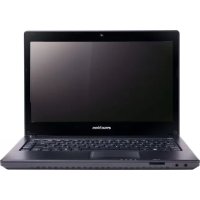
D732 - Laptop eMachines - Free user manual and instructions
Find the device manual for free D732 eMachines in PDF.



| Product type | Laptop |
| Brand | eMachines |
| Model | D732 |
| Series | eMachines Series Notebook |
| Processor | Not specified (varies by configuration) |
| RAM | Not specified (varies by configuration) |
| Hard drive | Not specified (varies by configuration) |
| Screen | LCD screen (size not specified) |
| Integrated webcam | Yes (on some models) |
| Touchpad | Touchpad with left/right buttons |
| Keyboard | AZERTY keyboard with special keys (Fn combinations) |
| USB ports | 3 USB 2.0 ports (1 on left, 2 on right) |
| Video port | 1 VGA port, 1 HDMI port |
| Network port | Ethernet RJ-45 10/100/1000 Base |
| Audio jack | Microphone input, headphone/speaker output |
| Memory card reader | 2-in-1 (SD/MMC) |
| Optical drive | Yes (CD/DVD) |
| Battery | Removable, charge indicator (orange when charging, blue when fully charged) |
| Power supply | AC adapter (dedicated power connector) |
| Security | Kensington lock slot |
| Cooling | Ventilation slots |
| Operating temperature | 5°C to 35°C |
| Storage temperature | -20°C to 65°C |
| Humidity (non-condensing) | 20% to 80% |
Frequently Asked Questions - D732 eMachines
User questions about D732 eMachines
0 question about this device. Answer the ones you know or ask your own.
Ask a new question about this device
Download the instructions for your Laptop in PDF format for free! Find your manual D732 - eMachines and take your electronic device back in hand. On this page are published all the documents necessary for the use of your device. D732 by eMachines.
USER MANUAL D732 eMachines
eMachines Notebook Series
Quick Guide
© 2010 All Rights Reserved.
eMachines Notebook Series Quick Guide
Original Issue: 07/2010
eMachines Notebook Series
Model number:
Serial number:
Date of purchase:
Place of purchase:
First things first
We would like to thank you for making an eMachines notebook your choice for meeting your mobile computing needs.
Your guides
To help you use your eMachines notebook, we have designed a set of guides:
First off, the setup poster helps you get started with setting up your computer.
The eMachines Generic User Guide contains useful information applying to all models in the eMachines product range. It covers basic topics such as system recovery, using the keyboard, audio, etc. Please understand that due to its nature, the eMachines Generic User Guide will occasionally refer to functions or features which are only contained in certain models, but not necessarily in the model you have purchased. Such instances are marked in the text with language such as "only for certain models".
This Quick Guide introduces you to the basic features and functions of your new computer. For more on how your computer can help you to be more productive, please refer to the eMachines Generic User Guide, which contains detailed information on such subjects as system utilities, data recovery, expansion options and troubleshooting. In addition it contains warranty information and the general regulations and safety notices for your notebook. It is available in Portable Document Format (PDF) and comes preloaded on your notebook. Follow these steps to access it:
1 Click on

Start > All Programs > eMachines Documentation.
2 Click on eMachi
nes Generic User Guide.

Note: Viewing the file requires Adobe Reader. If Adobe Reader is not installed on your computer, clicking on eMachines Generic User Guide will run the Adobe Reader setup program first. Follow the instructions on the screen to complete the installation. For instructions on how to use Adobe Reader, access the Help and Support menu.
Your eMachines notebook tour
After setting up your computer as illustrated in the setup poster, let us show you around your new eMachines notebook.
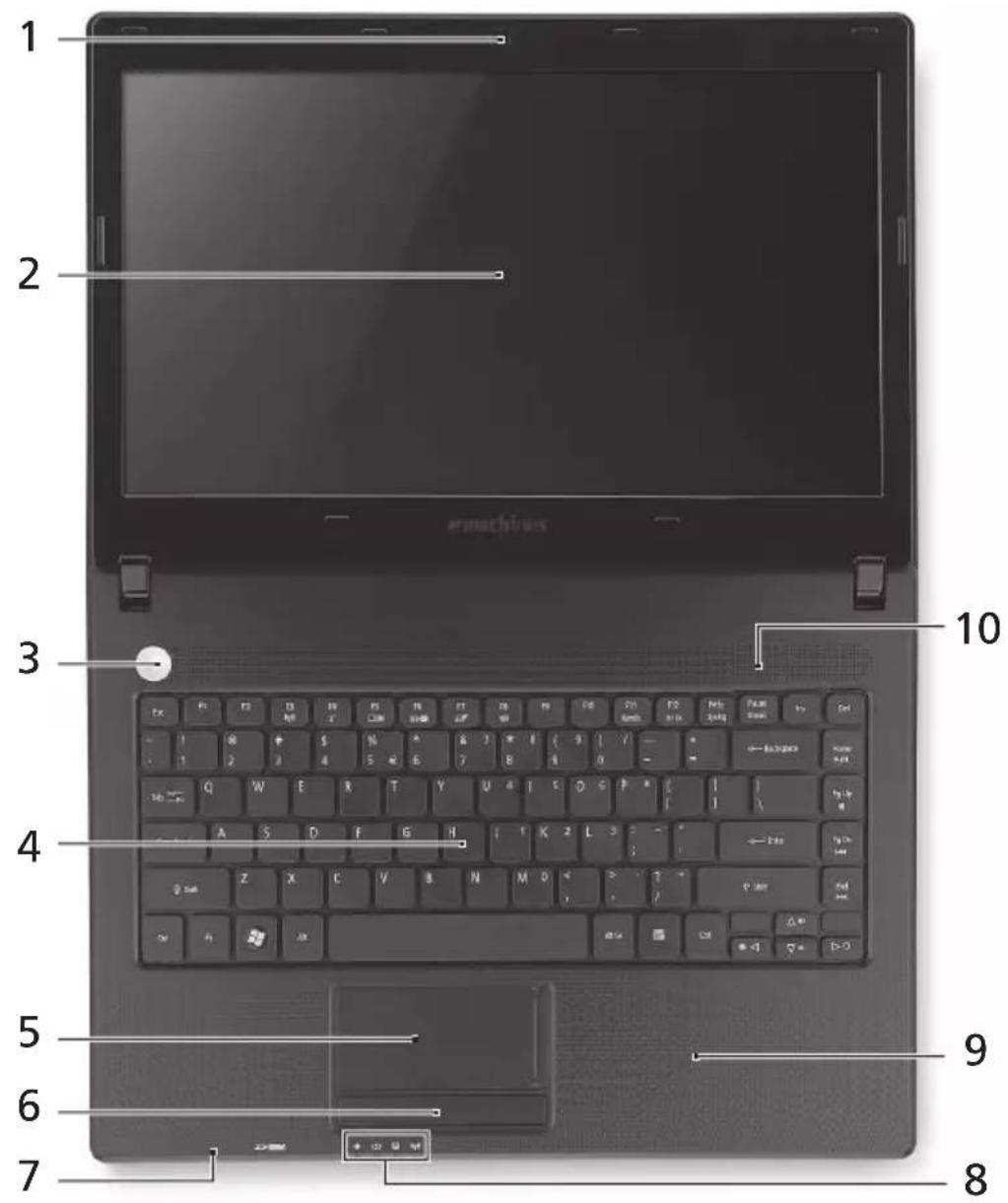
Top view
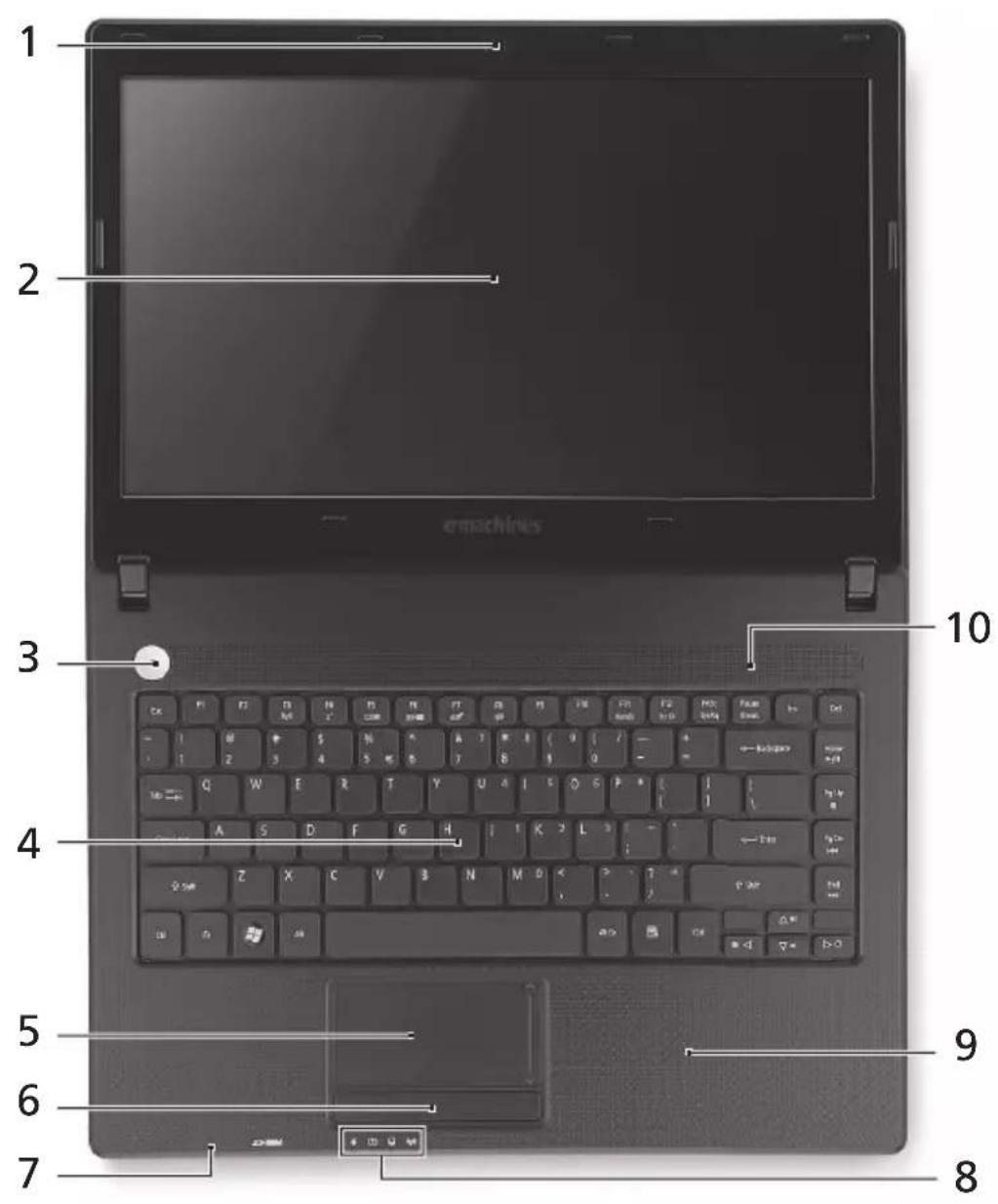
# Icon Item Description
1 Integrated webcam Web camera for video communication (only for certain models).
| # Icon Item | Description | |
| 2 Display screen Also called Liquid-Crystal Display (LCD), displays computer output (configuration may vary by model). | ||
| 3 | Power button Turns the computer on and off. | |
| 4 Keyboard For entering data into your computer. | ||
| 5 | Touchpad | Touch-sensitive pointing device which functions like a computer mouse. |
| 6 Click buttons (left and right) | The left and right buttons function like the left and right mouse buttons. | |
| 7 Microphone Internal microphone for sound recording. | ||
| 8 | Power indicator Indicates the computer's power status. | |
| Battery indicator Indicates the computer's battery status.1. Charging: The light shows amber when the battery is charging.2. Fully charged: The light shows blue when in AC mode. | ||
| HDD indicator Indicates when the hard disk drive is active. | ||
| Communication indicator | Indicates the computer's wireless connectivity device status. | |
| 9 Palmrest Comfortable support area for your hands when you use the computer. | ||
| 10 Speaker | Delivers audio output. | |
Hotkeys
The computer employs hotkeys or key combinations to access most of the computer's controls like screen brightness and volume output.
To activate hotkeys, press and hold the <Fn> key before pressing the other key in the hotkey combination.
| Hotkey Icon Function Description | ||
| +Fn> + <F3> | ( ) | Communication Enables/disables the computer's communication devices. (Communication devices may vary by configuration.) |
| +Fn> + <F4> | Z² | Sleep Puts the computer in Sleep mode. |
| +Fn> + <F5> | □|□ | Display toggle Switches display output between the display screen, external monitor (if connected) and both. |
| +Fn> + <F6> | ■ | Display off Turns the display screen backlight off to save power. Press any key to return. |
| +Fn> + <F7> | ○ | Touchpad togglesTurns the internal touchpad on and off. |
| +Fn> + <F8> | 呦 | Speaker toggle Turns the speakers on and off. |
| +Fn> + <D> | Brightness up Increases the screen brightness. | |
| +Fn> + <▲> | Brightness decreases the screen brightness. down | |
| +Fn> + <△> | Volume up Increases the sound volume. | |
| +Fn> + <▼> | Volume down Decreases the sound volume. | |
| +Fn> + <Home> | /|II | Play/Pause Play or pause a selected media file. |
| +Fn> + <Pg Up> | ■ | Stop Stop playing the selected media file. |
| +Fn> + <Pg Dn> | ■ | Previous Return to the previous media file. |
| +Fn> + <End> | ■ | Next Jump to the next media file. |
Closed front view

# Icon Item Description
1

Microphone jack Accepts inputs from external microphones.

Headphone/speaker/ Connects to audio line-out devices (e.g., line-out jack speakers, headphones).
2

2-in-1 card reader Accepts Secure Digital (SD), MultiMediaCard (MMC
Note: Push to remove/install the card. Only one card can operate at any given time.
Rear view

# Icon Item Description
1 Battery bay Houses the computer's battery pack.
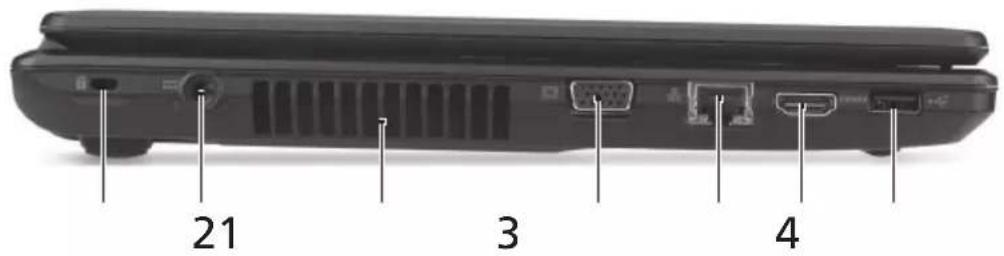
Left view
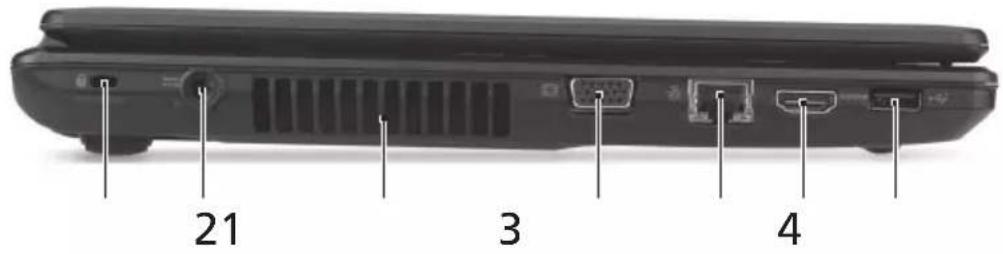
# Icon Item Description
1

Kensington lock slot Connects to a Kensington-compatible computer security lock.
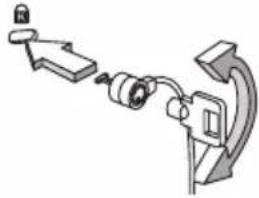
Note: Wrap the computer security lock cable around an immovable object such as a table or handle of a locked drawer. Insert the lock into the notch and turn the key to secure the lock. Some keyless models are also available.
2

DC-in jack Connects to an AC adapter.
3 Ventilation slots Enable the computer to stay cool, even after prolonged use.
4

External display (VGA) Connects to a display device (e.g., external port monitor, LCD projector).
5

Ethernet (RJ-45) port Connects to an Ethernet 10/100/1000-based network.
6 HDMI port Supports high-definition digital video connections.
7

USB 2.0 port Connects to USB 2.0 devices (e.g., USB mouse, USB camera).
Right view

21345
| # Icon Item Description | |
| 1 | USB 2.0 ports Connect to USB 2.0 devices (e.g., USB mouse, USB camera). |
| 2 Optical drive Internal optical drive; accepts CDs or DVDs. | |
| 3 Optical disk access indicator | Lights up when the optical drive is active. |
| 4 Optical drive eject button | Ejects the optical disk from the drive. |
| 5 Emergency eject hole Ejects the optical drive tray when the computer is turned off. Note: Insert a paper clip to the emergency eject hole to eject the optical drive tray when the computer is off. | |
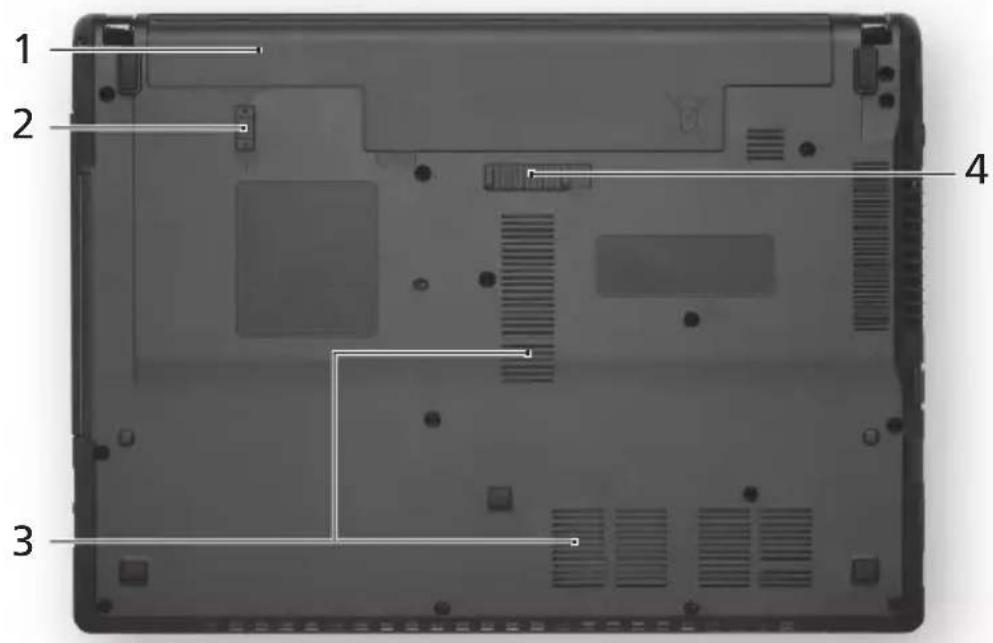
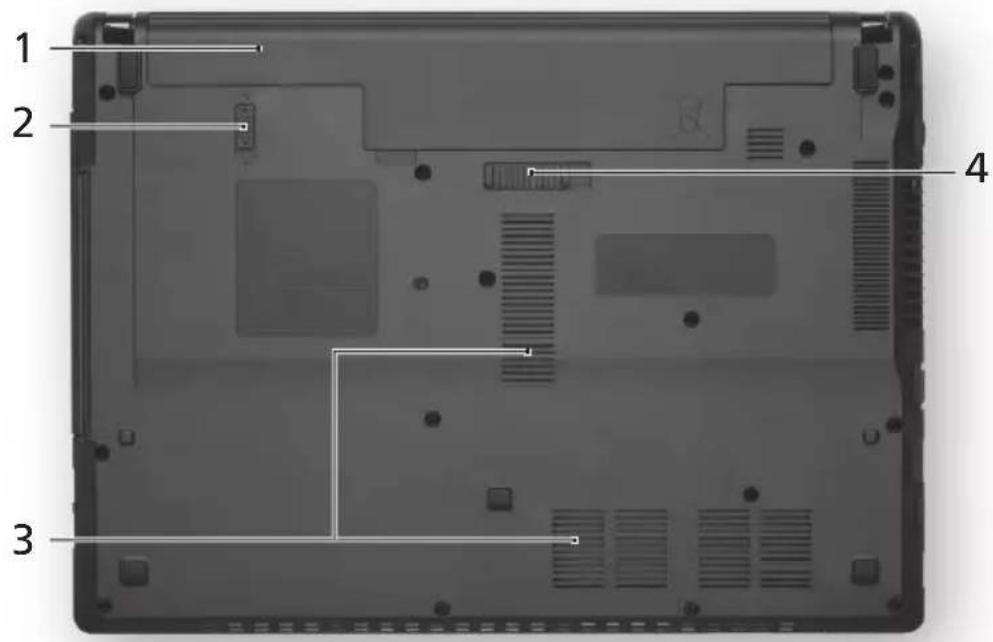
Base view
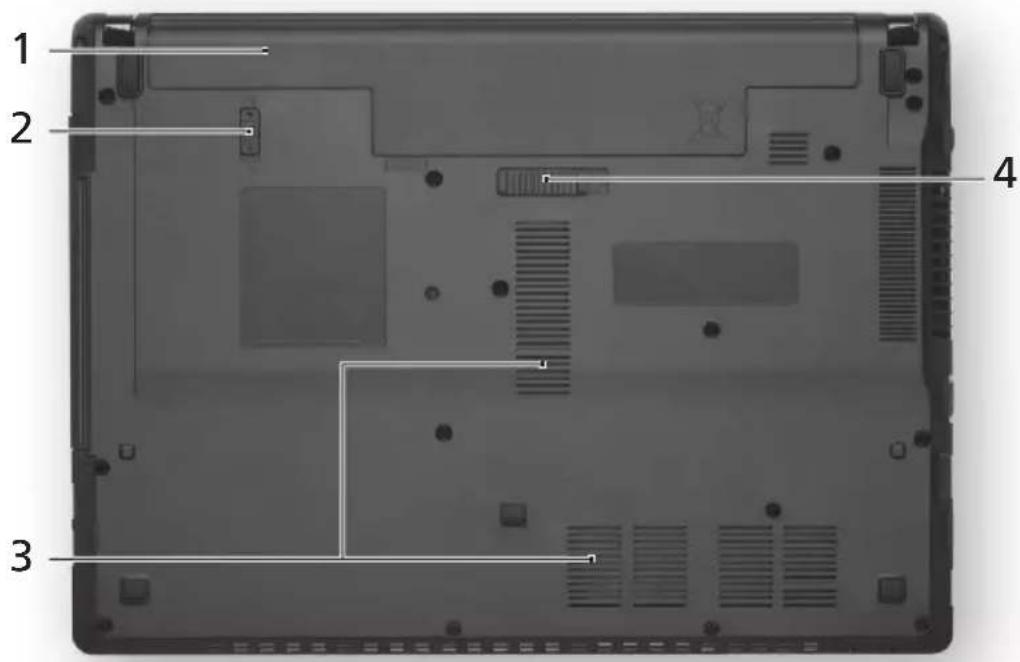
# Icon Item Description
1 Battery bay Houses the computer's battery pack.
2

Battery lock Locks the battery in position.
3 Ventilation slots Enable the computer to stay cool, even after prolonged use.
4

Battery release latch Releases the battery for removal.
Environment
Temperature:
-
Operating: 5^ C to 35^ C
Non-operating: -20^ to 65^ -
Humidity (non-condensing):
-
Operating: 20% to 80% .
Non-operating: 20% to 80%
Gamme de notebook eMachines
Guide rapide
eMachines Notebook Series
Snelgids
2 2-i h tisare Tar Secure Digital (SD), MultiMediaCard
(MMC).
© 2010 Bce npaba coxpanHebl.
Kpatkoeyko0DCTBO Nb3OBaTeNa HoYt6yka cepnn eMachines
Mbl pa3pa60tani pnd pykoBODCTB, KOToPbIe NOMOryT Bam B pa6oTe c HoyT6yKOM eMachines:
3TOT nlaKat NOMOXET BbINOJHHTb nepBOHaayhHyHO HAcTPOky KOMIbIOTepa.
TnnoBOe pyKOBoDCTBO NOb3OBeJRA KOMnbIOTepa eMachines COePKN TNOJIe3HyIO INΦOpMaUHO, PpIMeHmYIO KO BcEM MOJeNMAKOMNbIOTepoB eMachines. B HEM ONcMbIAOTCA TAKNE OCHOBHe TEMbI, KaK BOCCTAHOBJIeHne CNTEmbl, pa60Ta C KnabHaTyPoJ, 3ByKOM N T.D. YUHTTE, UTO TnnoBOe
pykoBODCTBO nonb3OBaTeTn KOMnbIOTepa eMachines ABJIeTcO6o6UeHHbIM, N03tOMy B HEM INHOrda 6yDyT ONNCbIBaTBcra yHKuIN INN CBOJCTBA,
peaHn3OBaHHbIe He B KynIeHHoB Bam MoJeN, a JINb B ONpeJeHHbIX MoJeJx 3ToI cepuB Taknx CnyaX B TeKCTe daetc nometka "TOnbKO dIpy onpeJeHHbIX MoJeN".
3TO KpaTkoe pyKOBoDCTBO 3HaKOMNT BAC C OCHOBbIMN XapaKTepNCtNKaMn IN yHKUIMN BaIero HOBOrO KOMNbIOTepe. YTo6bl y3HaTb, KaC NOMoUb KOIMNbIOTepe pOBICITb IPOUN3BOIDTEbHOCTb pa60Tb, CM. TInNOoe pyKOBoDCTBO NOb3OBATEJg KOMNbIOTepe eMachines, coDePkaUee noOp6HbIe cBeJeHnA NO TAKIM TEmAM, KaC SiCTeMHbIe yTINITbI, BOCCTaHOBJIeHne DaHHbIX, CNoOC6bl HapaUWBAHn CnCTeMHbIX pecypcoB n UcTpaHeHne HeuCnpaBHocTei. B hem TaKKe npNBedeHa IHΦopMaqua O rapaHTnHOM o6CnykBaHn, a TAKKe o6Une npEiNaHn i npabnla 6e3oNaChOCTn npu pa6oTe c HoYt6yKom. 3TO pyKOBoDCTBO B VnDE pfaiJa PDF n3HaayalbHo 3arpyxeH O KOMNbIOTepe. JIra erO OTKpbITnR BbINOHNITE cJeDuOuSe:
1 Haxmnte Pnyck > Bce nporpaMMbl > DokymeHTaun eMachines.
2 Haxmnte TnnoBoe pyKoBODCTBO nIb3ObaTeJ KOMnbIoTepa eMachines.

NITaHnIOCToHHOrTO KA
Cnyknt nna noKluyeHn aanTepa nepemehoro Toka.
3 BeHTnJIaCIOHHbIEOTBep
I03B0JIOKOMNbIOTepyHe npeIpeBaTbcA daXe npn dInTeNbHOn pa6Ote.
Cnyknt nna noKluyeHn yctpoiCTBa oTo6paXeHn (Ha npMep, BHeuHero MOHTopa, KK-npoeKTopa).
6 HDMi Pa3beM HDMI
Cnyknt dna noKnueHn K cetn Ethernet 10/100/1000 Mnt/c.
7 Pa3bem USB 2.0
CnykntIJIPOdkHIOUeHnK NCTOCHNkAm UcfoBOro BInDeo BbICOKOyETKOCtN.
Cnyknt dIy NOdknOyeHna yCTpoiCTB C nHTeppeim USB 2.0 (Ha npimep,MbIuN nn KaMepbl).
BnD cnpaba

21 3
3HaOK 3JeMeHT OnncahHe
| 1 | Разьемы USB 2.0 | Служот дд подклочени устroduст в с interерфсом USB 2.0 (надример, мыши пи камеры). |
| 2 | Пробов onтinueckeхдисков | Вунтугни probovod onтinueckeх дисков расcentан на Incпльозовке komпакт-дисков пи DVD-dисков. |
| 3 Иnd ipop образецяк onтinueckeу мд ipop ontinueckeу ontinueckeу ontinueckeу ontinueckeу ontinueckeу ontinueckeу ontinueckeу ontinueckeу ontinueckeу ontinueckeу ontinueckeу ontinueckeу ontinueckeу ontinueckeу ontinueckeу ). | ||
| 4 Кон извileеця Диска иЗ probovа | Служот дд под弗 onтinueckeх дис; ontinueckeх ontinuecke ontinuecke ontinuecke ontinuecke ontinuecke ontinuecke ontinuecke ontinuecke ontinuecke ontinuecke ontinuecke ontinuecke ontinuecke ontinuecke ontinuecke ontinuecke ontinuecke on tove ontinue ontinue ontinue ontinue ontinue ontinue ontinue ontinue ontinue ontinue ontinue ontinue ontinue ontinue ontinue ontinue ontinue ontinue ontinue ontinue ontinue ). | |
| 5 | Ова服务中心 аварийого ИзBLE ue�еня | Служот дд под弗 onтinueckeх дис; ontinueckeх ontinuecke ontinuecke ontinuecke ontinuecke ontinuecke ontinuecke ontinuecke ontinuecke ontinuecke ontinuecke ontinuecke ontinuecke ontinuecke ontinuecke ontinuecke ontinuecke ontinuecke on tove ontinue ontinue ontinue ontinue ontinue ontinue ontinue ontinue ontinue ontinue ontinue ontinue ontinue ontinue ontinue ontinue ontinue ontinue ontinue ontinue ontinue ). |
BnD cHn3y
3HaOK 3nemr Onncahne
Notebook serial machines
Skrócony poradnik
Rada notebookü eMachines
StručnéPokyny
- Pa60THa: O'T 20% Do 80%
3a cxbxpaheHne:OT20%do80%
eMachines seeria sulearvutid
Luhijuhend
© 2010 All Rights Reserved.
© 2010 All Rights Reserved.
eMachines 禾丶則藥藥,藥藥藥藥藥藥藥藥藥藥藥藥藥藥藥藥藥藥藥藥藥藥藥藥藥藥藥藥藥藥藥藥藥藥藥藥藥藥藥藥藥藥藥藥藥藥藥藥藥藥藥藥藥藥藥藥藥藥藥藥藥藥藥藥藥藥藥藥藥藥藥藥藥藥藥藥藥藥藥藻藻藻藻藻藻藻藻藻藻藻藻藻藻藻藻藻藻藻藻藻藻藻藻藻藻藻藻藻藻藻藻藻藻藻藻藻藻藻藻藻藻藻藻藻藻藻藻藻藻藻藻藻藻藻藻藻藻藻藻藻藻藻藻藻藻藻藻藻藻藻
貯公は言言
BaRoHaJI KJIeHcEHOHaERAnBaRoHaJI KJIeOHeHcJdRnE
Jack headphone/ speaker/line-out
Menghubungkan ke perangkat line-out audio (mis. pengeras suara, headphone).
2 Pemhakartu
Menerima Secure Digital (SD), MultiMediaCard (MMC).
(mis., mouse USB, camera USB).
Tampak kanan

21 3
#Ikon Item Keterangan
mnnnne nnnn nn nnnn nnnn nnnn nnnn nnnn nnnn nnnn nnnn nnnn nnnn nnnn nnnn nnnn nnnn nnnn nnnn nnnn nnnn nnnn nnnn nnnn nnnn nnnn nnnn nnnn nnnn nnnn nnnn nnnn nnnn nnnn nnnn nnnn nnnn
JNJQJNTUJH
| # | ### | ### | ### |
| 1 | ### | ### | ### |
| 2 | ### | Liquid-Crystal Display (LCD) ### | ### |
| 3 | ### | ### | ### |
| 4 | ### | ### | ### |
| 5 | ### | ### | ### |
| 6 | ### | ### | ### |
| 7 | ### | ### | ### |
| 8 | ### | ### | ### |
| ### | ### | ### | |
| 9 | ### | ### | ### |
| 10 | ### | ### | ### |
JW
| # | laanam | laanam | laanam |
| 1 | laanam | laanam | |
| line-out | |||
| 2 | 2-in-1 | Secure Digital (SD), MultiMediaCard (MMC). |
J 1

#
1 1
2
| # | lanan | lanan | lanan |
| 1 | K | Kingsdon | Kingsdon |
| 2 | DC-in | DC-in | |
| 3 | |||
| 4 | (VGA) | (VGA) | |
| 5 | Ethernet (RJ-45) | Ethernet 10/100/1000 | |
| 6 | HOMI | HDMI | HDMI |
| 7 | USB 2.0 | USB 2.0 (LAN) |
2

21 3
| # | lanaan | lanaan | lanaan |
| 1 | USB 2.0 | USB 2.0 (LAN) LANLANLANLAN USB) | |
| 2 | CD DVD | ||
| 3 | |||
| 4 | |||
| 5 |
JNJNJNJNJNJ
| # | laan | laan | laan |
| 1 | |||
| 2 | |||
| 3 | |||
| 4 |
2
·
5C 35°C
a4 = 12 - a3 = 12
- eMachines Notebook Series
- First things first
- Your guides
- Your eMachines notebook tour
- Top view
- # Icon Item Description
- Hotkeys
- Closed front view
- Rear view
- Left view
- Right view
- Base view
- Environment
- Gamme de notebook eMachines
- BnD cnpaba
- BnD cHn3y
- Notebook serial machines
- Rada notebookü eMachines
- eMachines seeria sulearvutid
- 貯公は言言
- Tampak kanan
- #Ikon Item Keterangan
- JW
- J 1
- #
- 2
Brand : eMachines
Model : D732
Category : Laptop