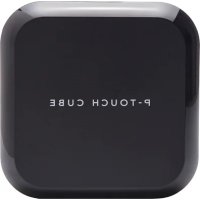
PTouch CUBE Plus PTP710BT - Sports camera POLAROID - Free user manual and instructions
Find the device manual for free PTouch CUBE Plus PTP710BT POLAROID in PDF.



| Product type | Action camera (sports cam) |
| Brand | Polaroid |
| Model | PTouch CUBE Plus PTP710BT |
| Dimensions | 35 x 35 x 35 mm (estimated) |
| Weight | Approximately 45 g (estimated) |
| Power supply | Built-in rechargeable lithium-ion battery, charges via micro USB port |
| Maximum video resolution | 1440p at 30 fps |
| Photo resolution | 8 MP (3264 x 2448) |
| Capture modes | Video, photo, burst (up to 100 photos at 10 fps), slow motion (720p/120 fps), time-lapse (1 s or 3 s interval) |
| Connectivity | Built-in Wi-Fi (standard range), Polaroid Cube+ mobile app (iOS/Android) |
| Storage | microSD card (up to 128 GB, Class 10 recommended) |
| LED indicators | Green LED (on), red (photo/video), blue (Wi-Fi), orange (low battery/charging/card error) |
| Battery life | Not specified, approximately 90 minutes of continuous recording (estimated) |
| Maintenance and cleaning | Clean with a soft, dry cloth. Do not submerge in water. |
| Safety | The built-in magnet may affect medical devices (pacemaker). Keep away from credit cards, hard drives. |
| Box contents | Cube+ camera, micro USB cable, documentation |
| Repairability | Battery not user-replaceable. No official spare parts listed. |
| Support | Website: www.polaroidcube.com/support, email: cspolaroid@camarketing.com |
Frequently Asked Questions - PTouch CUBE Plus PTP710BT POLAROID
User questions about PTouch CUBE Plus PTP710BT POLAROID
0 question about this device. Answer the ones you know or ask your own.
Ask a new question about this device
Download the instructions for your Sports camera in PDF format for free! Find your manual PTouch CUBE Plus PTP710BT - POLAROID and take your electronic device back in hand. On this page are published all the documents necessary for the use of your device. PTouch CUBE Plus PTP710BT by POLAROID.
USER MANUAL PTouch CUBE Plus PTP710BT POLAROID
- Rear Cover
- MicroSD Slot
- Micro USB Port
- Rear Cover Latch
Table of Contents
On and Off 12
SD Card 13
Photos and Videos 15
Installing the Cube+ App 16
Connecting to Wi-Fi 16
Using the App 17
Video 19
Slow Motion 20
Time-Lapse 20
Still Photo 21
Burst Mode 22
Editing Video, Time-Lapse and 23
Slow Motion
10|ENEN|11
Capturing Stills from Video 26
Adjusting Other Settings 27
Saving and Sharing 28
Battery and Charging 29
Understanding the LED Functions 29
Warnings 33
Using Your Polaroid Cube+™ Camera
On
Hold the multifunction button until the LED turns green and you hear 3 beeps. All set!
Off
Hold multifunction button until the LED turns off and you hear 1 long beep followed by 1 short beep.
Charging the Battery
The battery in your Cube+ comes partially charged. To charge, connect the included USB cable to the camera and connect the other
12|ENEN|13
end of the cable to a power source such as a computer or wall outlet. No damage will occur to the camera or battery if used prior to a full charge. For more detailed information, see Battery and Charging.
SD Card
A microSD card must be present for your Polaroid Cube+ to work. To insert a microSD card, lift the rear cover and with the metal contacts facing up, insert the card and gently push in until you hear a click. To remove a card, gently tap the card and the SD card will pop out.
If no microSD card is present, your camera will beep continuously and the LED will blink
orange until a new microSD card is inserted.
Your camera will also blink orange if there is a problem reading the card. You may need to format your card or try a different card.
When your microSD memory is almost full (1GB remaining), the LED will blink alternating orange and red. Once the SD card is completely full you'll hear a single short beep and you will no longer be able to take photos or videos. The LED will blink orange and red until the microSD card is removed or data is transferred from the camera.
Your Polaroid Cube camera can accommodate microSD cards with storage capacities up to
128GB. We suggest using microSD cards Class 10 and above. Cards lower than Class 6 may cause slower recording/reading speed as well as other unexpected issues.
Still Photos
Press the multifunction button once. You'll hear a short beep and the LED will blink red once.
Video
Double press the multifunction button. You'll hear two short beeps and the LED will blink red while you are recording. To stop recording, press the multifunction button one time. You'll hear a single short beep and the LED will return to a solid green.
Install the Polaroid Cube+ App
Downloading the Polaroid Cube+ app will allow you to access many advanced functions of your Cube+ camera and will also allow you to use your smartphone as a viewfinder. Download the Polaroid Cube+ app from the App Store and follow the onscreen instructions to set up your account and sync to your camera.
For FAQs, trouble shooting or customer service, go to www.polaroidcube.com/support
Connecting to Wi-Fi
Press and hold the Wi-Fi button. You'll hear one long beep and the LED will blink blue as it connects.
- Go to the Settings menu on your smartphone.
16|ENEN|17
- Select the Wi-Fi menu.
- Select the CUBE+XXXXXXX (the 8-digit number will vary).
- When prompted, input the Polaroid Cube standard Wi-Fi password "1234567890". It may take up to 5 seconds for the Wi-Fi connection to be established. While connected, the LED will blink a low-intensity blue.
To disconnect from Wi-Fi, press and hold the Wi-Fi button until you hear a long beep and the LED stops blinking blue.
Using the App to Take Photos and Videos
Open the Polaroid Cube app. After setting up your account/signing in, you'll be taken to the
Viewfinder screen. The screen automatically opens up to video capture. To change to another capture mode, tap the video icon in the left bottom corner of the screen. Icons of other photo/video modes will appear across the bottom of the screen. Tap the preferred icon to access that mode.
Your account settings can be adjusted at any time in the Camera Detail screen of the Cube+ app. Tap or swipe down the small bar located at the top of the viewfinder screen to reach these settings. For more details see page 204.

Video

Tap once to begin recording video.

Tap once to stop recording video.

Tap to capture a still image while continuing to record video (no interruption to video).
108
0 Resolution: Tap this number at the top of the screen to choose between available resolution options:
1440p at 30fps
1080p at 30 or 60fps
720p at 30 or 60fps
00:00:00
Video Time: Displays video length.
NOTE: For best playback on your PC or Mac of videos captured at 1440p, use QuickTime or VLC.

Slow Motion

Tap once to begin slow-motion capture.

Tap once to end slow-motion capture.
60 FPS Resolution: Slow motion is captured at 720p/120fps.

Time-Lapse

Tap once to begin time-lapse capture.
20|ENEN|21

Tap once to end time-lapse capture.

Time-Lapse Settings: Tap this icon at the top of the screen to choose between 1 second or 3 second time-lapse.
Recording Time: Displays total of time-lapse video.

Still Photo

Tap once to take photo.

Megapixel Settings: Tap this icon at the top of the screen to choose between available resolution options: 8 megapixel (8MP)
6 megapixel (6MP)
3 megapixel (3MP)

Timer Settings: Tap this icon at the top of the screen to choose between available timer settings:
Off
3 seconds
10 seconds

Burst Mode

Tapping and holding the still photo capture button will allow you to capture several photos in quick succession. Bursts capture at 10 frames per second, up to 100 photos at a time.
22|ENEN|23

Burst Counter: Displays number of photos captured.
3MP is the only resolution available in Burst Mode. Your Cube+ automatically captures photos at this resolution without affecting settings for other capture modes.
Editing Video, Time-Lapse and Slow Motion To edit in any of these capture formats, first select and view in playback mode.
Trim Start and End Frames
Tap and drag the end points to the preferred start and stop points. Trimmed frames will grey out. Tap 'Trim' from upper right of screen to finalize edit. (Video Trim not supported on Android.)

Slow Motion Start & End Points
Tap and drag the triangles to adjust slow motion start and end points.

Capture Stills from Video, Time-Lapse and Slow Motion
Tap any section of the video timeline to zoom into that section. Tap the image below the timeline to save it as a still image.

26|ENEN|27
Adjusting Other Settings
You can adjust many of your Cube settings from the Camera Detail screen. To reach the Camera Detail screen, tap or swipe down the bar located at the top of the viewfinder screen.
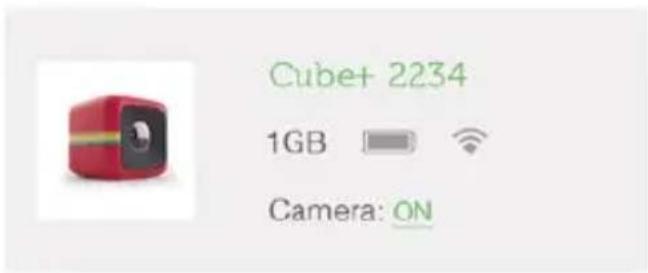
Tap icon [1] to edit camera name and icon.
Advanced Camera Settings
Light frequency ⑦
50Hz>
Tap the information icons to learn more.
Tap current setting to view other setting options.
Saving and Sharing
Select your photo(s) or video(s). Tap the Send icon and then choose to save or share from the menu. Then follow the prompts that follow your selection. For more information go to www.polaroidcube.com/support.
28|ENEN|29
Battery and Charging
When battery reaches 10% the LED will glow orange. Your camera will automatically shut down if battery level reaches 0% .
To charge your Polaroid Cube, plug it into either an outlet or computer, using the included micro USB cable. The LED will blink orange while charging. Your camera can still be used when charging from the wall outlet.
Understanding the LED Functions
Static Green
Camera is on, with sufficient battery power and SD memory to capture imagery.
Single Red Flash with Short Beep
Photo captured.
Rapid Red Flash with Two Short Beeps
Recording video.
Rapid Blue Flash with One Long Beep
Camera is pairing to Wi-Fi.
Intermittent Slow Blue Flashing
Camera is paired to Wi-Fi.
One Blue Flash with One Long Beep
Wi-Fi is being turned off while camera is on.
One Long Beep, No Flashing
Wi-Fi is being turned on while camera is off.
30|ENEN|31
One Long Beep, One Short Beep, No Flashing
Camera is being turned off while Wi-Fi is on.
Static Orange
Battery power is under 10% (around 3.62V).
Camera will turn off when power dips to 3.55V.
Rapid Orange Flash with Continuous Short Beeps
No SD card present or SD card error. Insert an SD card or format the SD card and try again. Be sure to back up all image files from the existing SD card before formatting.
Alternating Orange and Red Flashing
Low SD capacity (1GB remaining): One short beep will sound when SD reaches capacity and camera will stop recording.
Rapid Orange Flash While Connected to Power or PC
Camera battery is charging.
Orange Flash While Connected to PC
Data is transferring between camera and PC.
Overheating
During extended use, your Polaroid Cube ^+ camera may feel warm to the touch. This is a normal operating occurrence and does not indicate any product defect or reason
32|ENEN|33
to slow down the fun.
Your Cube+ app will warn you with an error message if it reaches the maximum safe usage temperature of 70°C / 158°F . If you see this warning, stop using your camera and allow it to cool. If temperatures exceed 70°C / 158°F , your camera will first stop recording videos and photos and eventually shut down. Your camera can be turned on again after it has cooled down to a safe temperature.
Magnet SafetyWarnings
The magnet mount on your Polaroid Cube is a low-powered magnet. As with any magnet, it is best to follow these safety precautions.
Medical Devices:
Some medical devices can be sensitive to magnetic fields. If the user has a pacemaker, defibrillator, implanted insulin pump, or other electronic medical device or has health issues that require the use of any such device, avoid using the Polaroid Cube+ and/or any related accessories until consulting a physician.
Pregnant Women:
Pregnant Women should consult a physician before using any magnetic device.
Damage to Electronics/ Magnetic Storage Media:
Direct contact to magnetic fields may cause damage to magnetic storage media, hard
34|ENEN|35
drives, electronic devices and credit cards/ items with magnetic stripes. To avoid damage, extend micro USB cord as far as possible from your computer, or use a longer micro USB cord.
Have questions? Need technical support?
Want to know more? Get in touch at:
cspolaroid@camarketing.com
www.polaroidcube.com
8 megapixel (8MP)
6 megapixel (6MP)
3 megapixel (3MP)

GEORG: can this translation be shortened at all?
- Table of Contents
- Using Your Polaroid Cube+™ Camera
- On
- Off
- Charging the Battery
- SD Card
- Still Photos
- Video
- Install the Polaroid Cube+ App
- Connecting to Wi-Fi
- Using the App to Take Photos and Videos
- Slow Motion
- Time-Lapse
- Still Photo
- Burst Mode
- Trim Start and End Frames
- Slow Motion Start & End Points
- Capture Stills from Video, Time-Lapse and Slow Motion
- Adjusting Other Settings
- Saving and Sharing
- Battery and Charging
- Understanding the LED Functions
- Static Green
- Alternating Orange and Red Flashing
- Rapid Orange Flash While Connected to Power or PC
- Orange Flash While Connected to PC
- Overheating
- Magnet SafetyWarnings
- Medical Devices:
- Pregnant Women:
- Damage to Electronics/ Magnetic Storage Media:
- GEORG: can this translation be shortened at all?
Brand : POLAROID
Model : PTouch CUBE Plus PTP710BT
Category : Sports camera