TechniPad 8G - Tablet TECHNISAT - Free user manual and instructions
Find the device manual for free TechniPad 8G TECHNISAT in PDF.


| Product type | Touchscreen tablet |
| Brand | TechniSat |
| Model | TechniPad 8G |
| Screen | 8 inches (20.4 cm), resolution 1024 x 768, 4:3 format, capacitive |
| Processor | Dualcore ARM Cortex-A9 1,6 GHz |
| RAM memory | 1 Go DDR3 |
| Internal storage | 16 Go |
| Operating system | Android 4.1.1 (Jelly Bean) |
| Front camera | 2,0 Mégapixels |
| Rear camera | 5,0 Mégapixels |
| Connectivity | Wi-Fi, Bluetooth, 3G, USB 2.0, HDMI, 3,5 mm headphone jack |
| Battery | Li-Polymère 4000 mAh, 3,7 V |
| Dimensions | 203 x 154 x 11 mm |
| Weight | Approximately 450 g |
| Power supply | 5V DC, 2A (power adapter included) |
| Care and cleaning | Clean with a dry, soft cloth or TechniSat LCD screen cleaning kit ref. 0000/3830 |
| Safety | Do not open, avoid water and heat sources, use in temperate climate |
| Warranty | 24 months legal warranty from date of purchase |
| Main functions | Web browsing, Android apps, multimedia playback, GPS, HDMI output, Bluetooth, Wi-Fi |
| Included accessories | USB Micro-B/Type A cable, power adapter, user manual |
| Spare parts and repairability | LCD screen cleaning kit available as option; technical support by phone |
Frequently Asked Questions - TechniPad 8G TECHNISAT
User questions about TechniPad 8G TECHNISAT
0 question about this device. Answer the ones you know or ask your own.
Ask a new question about this device
Download the instructions for your Tablet in PDF format for free! Find your manual TechniPad 8G - TECHNISAT and take your electronic device back in hand. On this page are published all the documents necessary for the use of your device. TechniPad 8G by TECHNISAT.
USER MANUAL TechniPad 8G TECHNISAT
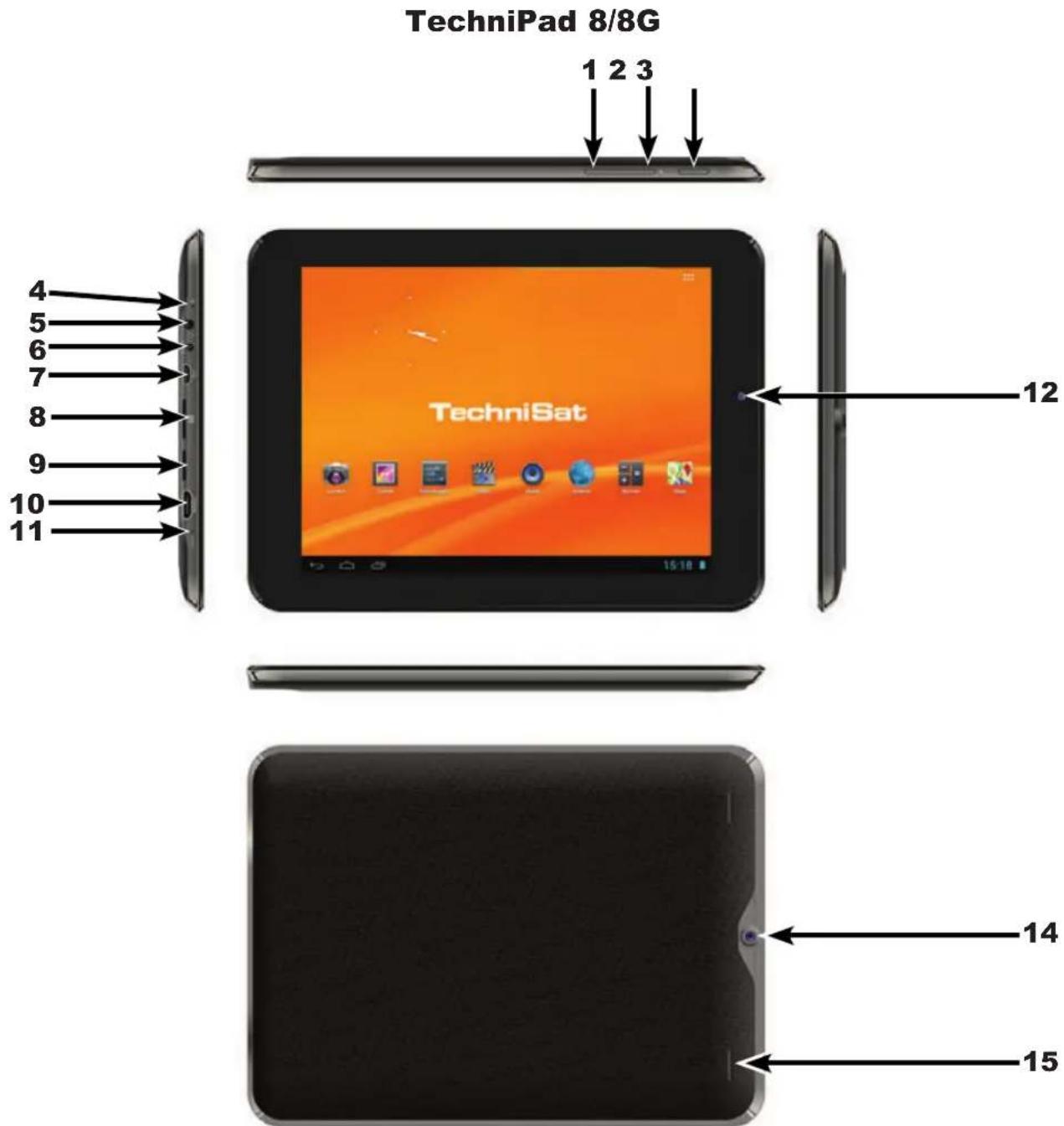
1 Volume -
2 Volume +
3 On/Standby incl. charging LED
4 Microphone
5 Headphone output (3.5mm jack plug)
6 5V DC socket
7 USB port
8 SIM card reader ^1)2)
9 MicroSD card reader 1)
10 HDMI output
11 Reset button
12 Front camera
13 right loudspeaker
14 Rear-side camera
15 left loudspeaker
1) Inserting the card: Push the respective card into the card reader with the contacts aligned to the screen and the respective card slot, until it snaps into place.
Removing the card: Press gently on the card so it is released and pushed out a few millimetres. You can now pull the card out.
2) The SIM card reader is only installed on the TechniPad 8G model.
TechniPad 10/10G
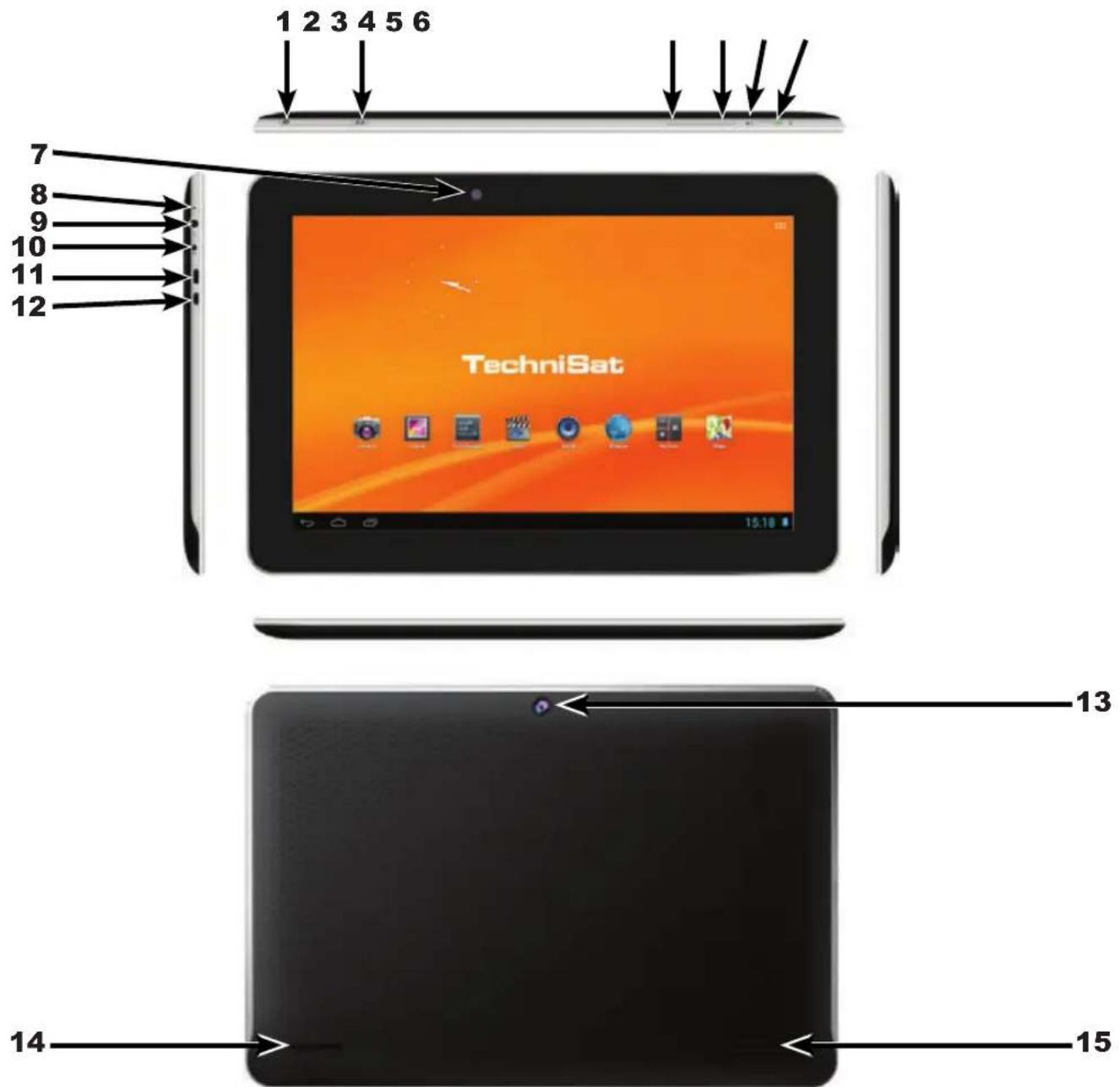
1 MicroSD card reader ^1)
2 SIM card reader ^1) ^2)
3 Volume -
4 Volume +
5 Reset button
6 On/Standby incl. charging LED
7 Front camera
8 Microphone
9 Headphone output (3.5mm jack plug)
10 5V DC socket
11 HDMI output
12 USB port
13 Rear-side camera
14 right loudspeaker
15 left loudspeaker
1) Inserting the card: Push the respective card into the card reader with the contacts aligned to the screen and the respective card slot, until it snaps into place.
Removing the card: Press gently on the card so it is released and pushed out a few millimetres. You can now pull the card out.
2) The SIM card reader is only installed on the TechniPad 10G model.
2 Table of contents
1 Figures....2
2 Table of Contents .... 4
3 Please read this first. 5
3.1 Intended use....5
3.2 Manufacturer's declaration....5
3.3 Important instructions....6
3.3.1 Safety 6
3.3.2 Disposal 7
3.3.3 Power consumption in Standby and during operation 7
3.3.4 Care and cleaning 8
3.3.5 Legal notices 8
3.3.6 Servicing notes....8
4 Basic operation....9
4.1 Switching the tablet on/off 9
4.2 Unlocking/locking the screen 10
4.3 Homescreen....11
4.3.1 Placing apps and widgets on the homescreen....12
4.3.2 Changing the wallpaper of the homescreen....12
4.4 Starting and exiting an app....12
4.5 Volume adjustment....13
4.6 Installing apps 13
4.6.1 Installing an app using an APK file.... 13
4.6.2 Installing an app via an app shop....14
4.7 Uninstalling apps 15
5 Settings....16
5.1 Wireless & networks....16
5.1.1 Wi-Fi....16
5.1.1.1 Selecting the Wi-Fi network 17
5.1.1.2 Entering a Wi-Fi network manually.... 18
5.1.1.3 WPS fast connection 18
5.1.2 Bluetooth 19
5.1.3 Data usage....20
5.2 Device 20
5.2.1 Sounds 20
5.2.2 Display 21
5.2.3 HDMI 21
5.2.4 Storage....22
5.2.5 Battery 22
5.2.6 Apps 23
5.3 Personal 23
5.3.1 Location services 23
5.3.2 Security 24
5.3.3 Language & input 24
5.3.4 Backup & reset....25
5.4 Accounts....25
5.5 System 26
5.5.1 Date & time....26
5.5.2 Accessibility 26
5.5.3 About tablet 27
6 Technical data / functional scope....27
7 Technical terms ...... 29
8 Troubleshooting guide .... 31
3 Please read this first
Before starting to use your device, please check first that everything has been supplied. The following should be included in the scope of delivery:
1 TechniPad, 1 operating manual, 1 USB cable (type Micro-B / Type A), 1 power supply unit
3.1 Intended use
- Connection for charging the battery via the mains voltage of 230 V / 50Hz (using the power supply unit supplied) or via USB ports.
- The device is only suitable for connection to audio and video devices and computers that meet DIN standards and have a CE mark.
- Use is permitted in a dry environment in private and commercial premises.
- Any other use is expressly forbidden.
3.2 Manufacturer's declaration
The tablet is equipped with the WLAN, Bluetooth and 3G radio functions ^(only TechniPad 8G/10G) and fulfils the following requirements:
- R&TTE Directive 1999/5/EC
- Ecodesign Directive 2009/125/EC
- EU directive 2006/95/EC (low voltage directive)
- EN 60950
- EU directive 2004/108/EC (EMC directive)
- EN 55013, EN 55020, EN 61000-3-2
and bears the CE mark.
The full conformity declaration can be found on the TechniSat website at www.technisat.de.
C€0700
3.3 Important instructions
Please observe the following instructions to avoid any safety hazards, to prevent damage to the device and to help protect the environment.
3.3.1 Safety
For your own protection, read the safety notes carefully before using your new device. The manufacturer accepts no liability for damage caused by inappropriate handling, or by non-compliance with the safety precautions.
Never open the device! Touching parts that conduct high voltages can be fatal!
⚠️ Any necessary repairs to the receiver should only be carried out by qualified personnel.
Only operate the receiver in a temperate climate.


Do not switch on immediately after transporting the device in the cold for a lengthy period and then bringing it into a warm environment; wait until device reaches room temperature.
Do not expose the set to dripping or sprayed water. If water gets into the device, switch it off and contact the service department.
⚠️ Never warm up the device artificially by using heat sources to heat it up in addition to normal use.


In the event of a thunderstorm, disconnect the tablet from the power supply unit and remove this from the socket. Overvoltage can damage the device.
In the event of an obvious fault with the device, emanation of noise or smoke, major malfunctions, damage to the housing as well as liquid getting into the device, switch off the device immediately and contact the service department.
3.3.2 Disposal
The packaging material used for your receiver consists entirely of recyclable materials. Please sort the components appropriately and dispose of them in line with your local waste disposal regulations ☐.
At the end of its useful life span, this product must not be disposed of with your regular household waste. It must be taken to a recycling collection point for electrical and electronic equipment.
The ⚫ symbol on the product, the operating manual or the packaging refers to this.
The materials in the device are reusable according to their marking. You can make an important contribution towards protecting our environment by ensuring that valuable raw materials are re-used or by arranging other forms of utilisation of old devices.

natural_image
Recycling symbol composed of three chasing arrows forming a triangle (no text or labels)Please contact your local authority for the location of the nearest recycling point.
Please ensure that dead batteries from the remote control and electronic waste items are not sent to your regular household refuse site, but are correctly disposed of (either in special bins for problem waste, or at collection points at specialist dealers).
natural_image
Symbol of a trash bin crossed with a diagonal line and a horizontal bar below (no text or numbers present)3.3.3 Power consumption in Standby and during operation
The power consumption of the device both in Standby mode as well as during operation depends on the settings you have made and the functions being used.
For example, you can reduce the power consumption during operation by reducing the brightness of the display. The higher the brightness setting, the higher the power consumption.
3.3.4 Care and cleaning
The housing and the display should only be cleaned using a dry, soft cloth or appropriate special cleaners such as the TechniSat LCD panel cleaning set, and only when switched off.
You can purchase the LCD screen cleaning kit at your dealer, under the name LCD screen cleaner and item number 0000/3830.

Using damp cloths and other spray cleaners or very aggressive chemical detergents is likely to cause damage to the high quality surfaces of the housing and the display.
3.3.5 Legal notices
i Your device bears the CE symbol and complies with all requisite EU standards.
TechniSat is not liable for damage to the product due to external influences, wear or inappropriate handling, unauthorised repair work, modifications or accidents. TechniSat will not accept any liability for loss of data stored in the internal memory of this product.
Subject to change for amendments and printing errors. Status at 04/13 Duplication and reproduction only with the publisher's approval. You can find the current version of the manual in PDF format in the download area of the TechniSat home page at www.technisat.de.
TechniPad 8, TechniPad 8G, TechniPad 10, TechniPad 10G and TechniSat are registered trademarks of
3.3.6 Servicing notes
This product has been quality-tested and is covered by the legally required warranty period of 24 months from the date of purchase. Please keep the receipt in a safe place as proof of purchase.
Warning!
Please contact our Technical Hotline first if you encounter a problem with this equipment:
Mon. - Fri. 8am - 8pm
03925/92201800
If the device needs to be sent to us for any reason, please only use the following address:
the exact procedure for operating, setting up and selecting options for the various apps (applications/programmes), and for the Android operating system, depends on the respective software developers and can also change when the app or the operating system is updated. Unfortunately TechniSat does not exercise any influence over this, so only a basic method of operation can be described in this manual.
Warning - indicates an important note which you absolutely should observe in order to avoid problems with the device, loss or misuse of data, or unintended operation.
Tip - indicates a note about the function being described, as well as other associated functions that may need to be observed with reference to the respective place in the instruction manual.
4.1 Switching the tablet on/off
When the tablet is fully switched off, hold down the On/Standby button for about 3 seconds.
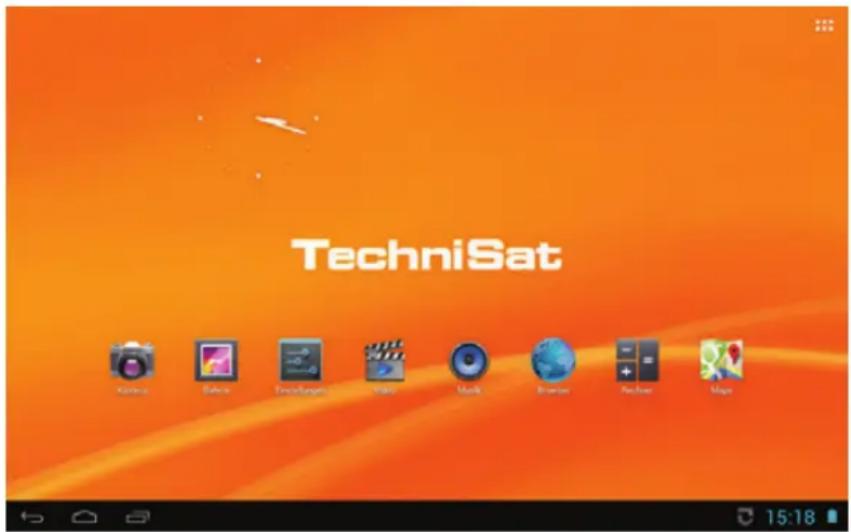
The tablet starts and the locked screen is then displayed. The screen must now be unlocked as described in the following Point 4.2 to be able to use the tablet. The homescreen is now shown.
With the display switched on, hold down the On/Standby button for about 1 second, tap on Switch off in the selection menu and confirm this by tapping on OK in the query which appears.
4.2 Unlocking/locking the screen
If the tablet is is Standby mode (display is locked and switched off), press the On/Standby button for a short time to switch on the display.
The locked screen appears after the display has been reactivated. The screen must now be unlocked to be able to use the tablet.

Tap on the lock icon, then move your finger in the direction of the opened lock icon that now appears.
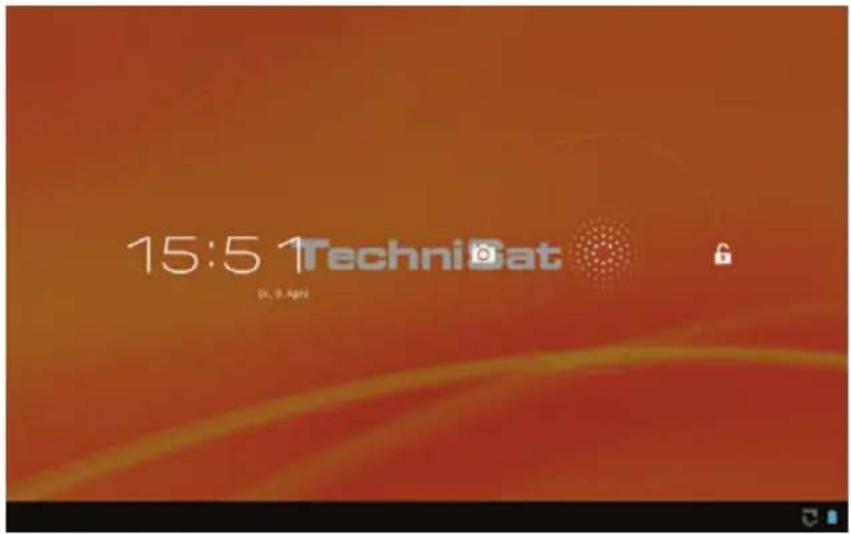
The locked screen is hidden and the last screen shown before the display was locked is then displayed.
While the display is switched on, briefly press the On/Standby button to switch off the display and lock it.
i Please note that open apps are not stopped or closed by switching off and locking the display.
i Please also note the setting made under Point 5.3.2 to unlock the screen.
4.3 Homescreen
The homescreen already contains several apps and widgets when delivered ex works, but it can be adapted completely according to your wishes as described under Point 4.3.1.
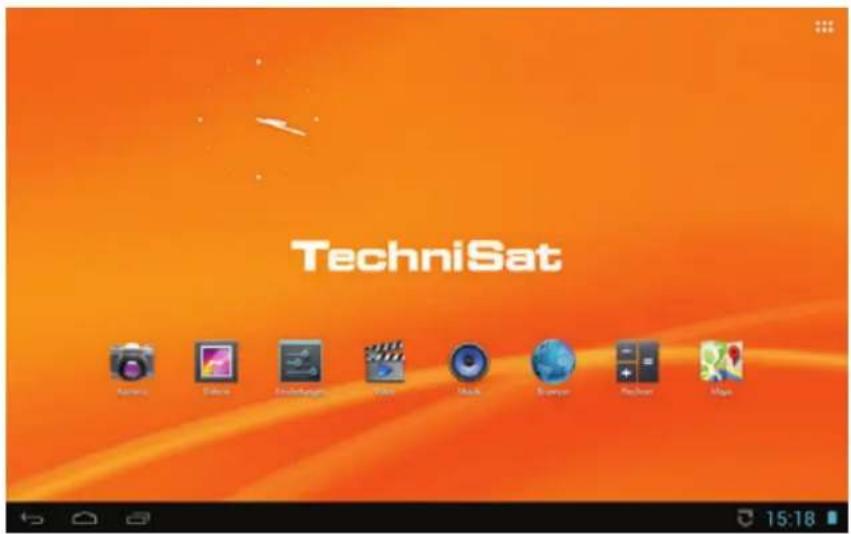
You can move between pages on the homescreen by swiping your finger from one side to the other.
The time and the battery charge level are displayed in the bottom lines (status bar) on the right along with various messages. The and icons are located on the left hand side.
Go back
Go to the homescreen/jump to the main page of the homescreen
Access a list of currently active apps
The status bar is also displayed in all other screen images but can also be hidden from apps or minimised to a row of points.
Tap on one of the messages to open the messages field or on the time displayed in the lower right hand corner of the screen.
Tap on one of the messages to open or move it to the right to delete it.
Tap in the upper area of the message field to switch to the quick settings.
In quick settings it is possible, for example, to enable/disable the WLAN, flight mode, automatic screen rotation and messages, or to alter the display brightness.
There is also an : : : icon in the upper right corner of the homescreen for accessing a list of all installed apps and widgets.
4.3.1 Placing apps and widgets on the homescreen
To place new apps or widgets on the homescreen, first access the list of all installed apps and widgets by tapping on :::
Now switch between APPS and WIDGETS as necessary by tapping on the respective tab on the upper left-hand edge of the screen.
You can move to the next page of the alphabetically sorted list of apps/widgets by swiping your finger from one side to the other.
Now tap on the app or widget you want and continue to press on it.
The wallpaper changes to the homescreen while you are touching the app or widget; you can also now move the app or the widget to the desired position.
Move the app or widget next to the blue frame which appears in order to move it to another homescreen page.
i Apps and widgets which are already on the homescreen can also be repositioned by tapping, holding and moving.
You can remove an app or widget by tapping, holding and moving it to the X appearing on the upper edge of the screen.
4.3.2 Changing the wallpaper of the homescreen
Tap on a free part of the homescreen and hold for about 1 second.
Select one of the options displayed in the query which appears.
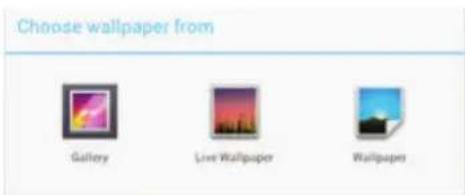
Now select the desired wallpapers image and the image section by moving and dragging the blue frame which appears.
4.4 Starting and exiting an app
You can start an app by briefly tapping on it in the homescreen or in the list of installed apps.
Exit the app by tapping on the ↩ or icon.
The app continues to run in the wallpapers but is hidden. For example you can play music and use other apps in parallel at the same time.
i Please note that this procedure can be blocked by apps and these may only be hidden by taking appropriate steps within the app.
To completely exit an app, tap on ☐ and move the app away to the right or exit using a relevant function within the app, if there is one available.
4.5 Volume adjustment
Control the volume using the Volume - or Volume + buttons; see page 2 #1 and #2 or page 3 #3 and #4.
or
Tap on the time displayed in the status bar and switch to quick settings by tapping in the upper area of the message field.
Now push the slide control to the volume position you want.
4.6 Installing apps
Apps can either be installed on the tablet by copying the APK file to the tablet or via one of the many available app shops.
4.6.1 Installing an app using an APK file
First copy the APK file for the respective app onto the tablet.
Files can be copied to the tablet using a USB connection to a PC, or via Bluetooth, or by downloading directly from the internet onto the tablet. The APK file to be installed can also be located on a MicroSD card, which you can insert into the card reader. The process for doing this via a USB connection is described below.
Connect the tablet to your PC using the cable supplied with the tablet.
The following query now appears.
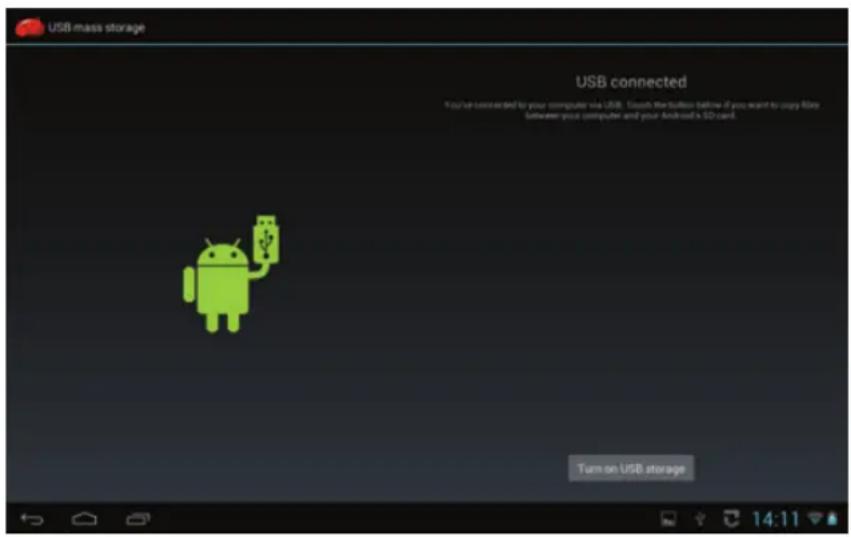
Tap on Activate USB memory stick.
If this does not happen automatically, open the drive for the tablet in the desktop of your PC and copy the APK file onto the tablet.
Now disconnect the USB connection by first tapping on Deactivate the USB memory stick and then removing the USB cable.
Open the Explorer app and then the directory in which the APK file is located.

The Installation of apps from unknown sources function must be activated first if it has been deactivated.

To do this, either tap on the APK file and then Settings, or access the item via the Setup menu (Point 5.3.2).

Installation of apps from unknown sources represents a certain security risk, which is why an appropriate security message appears. This function should be deactivated again after installing the desired APK file to prevent unintentional or unnoticed installation of other apps or malware.
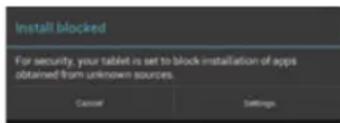

Once the Installation of apps from unknown sources function has been activated, tapping on the app to be installed displays a message in which the access rights required by the app are listed.
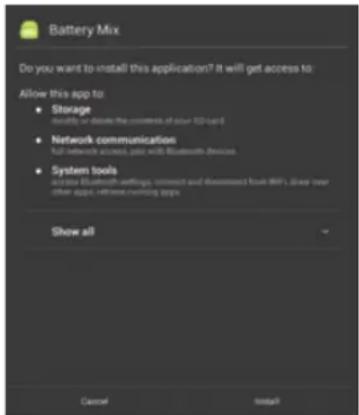
Tap on Install to start the installation.
4.6.2 Installing an app via an app shop
Access the app shop which you wish to install an app from.

The exact procedure to follow here will differ, since the app shops are apps themselves. Please follow the instructions on the screen.
Enter a search term or the name of the app to be installed into the search field.
Open the detailed view including the app description by tapping on the app in the list.
Tap on Install.

A note now appears (see Point 4.6.1) in which the access rights required by the app are listed.
Tap on Install to start the installation.
4.7 Uninstalling apps
Access the settings as described under Point 5.
In the DEVICE category, tap on Apps.
Select the All app list on the right side of the screen by scrolling to the left or the right through the lists.
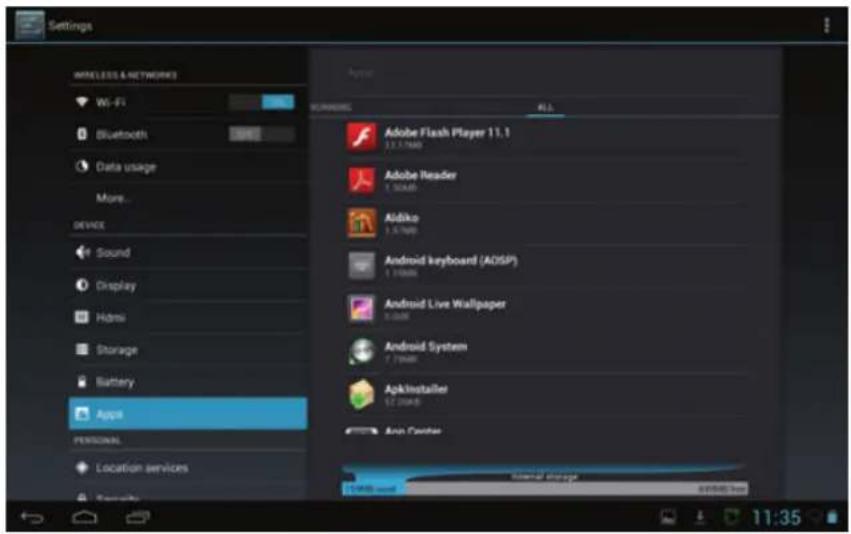
Tap on the app you want to uninstall.
A display appears containing a variety of information (for example the memory being used, required access rights) and options for this app.
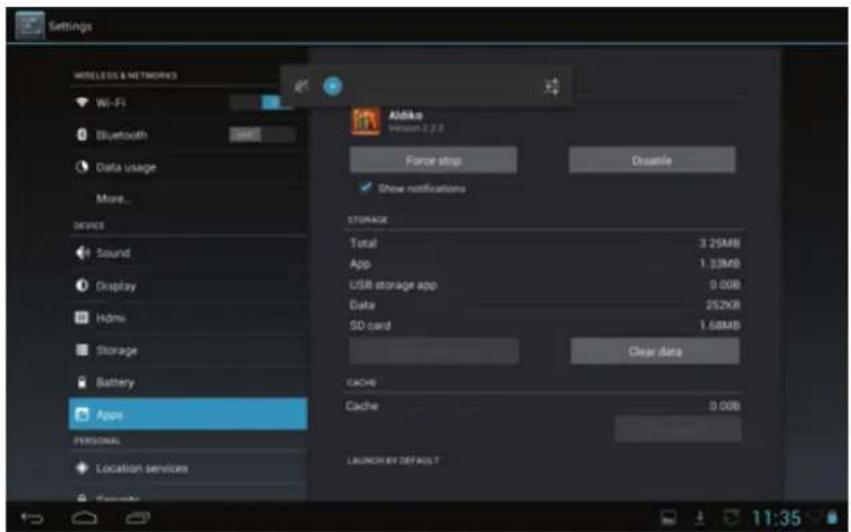
Now tap on Disable in the upper right area and confirm the query that appears by tapping on OK.
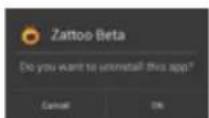
The app will now be uninstalled and an appropriate notice will be displayed on the screen.
5 Settings
Access the settings menu by tapping the app on the homescreen or in the app list or on the Settings item in the quick settings (see Point 4.3).
i Please note that in some menu items advanced options and settings can be accessed via in the upper right corner of the screen.
5.1 Wireless & networks
5.1.1 Wi-Fi
In the WIRELESS & NETWORKS category, select the Wi-Fi item and tap on the slide switch to activate Wi-Fi.
The Wi-Fi network in your environment is searched for and subsequently displayed on the screen.
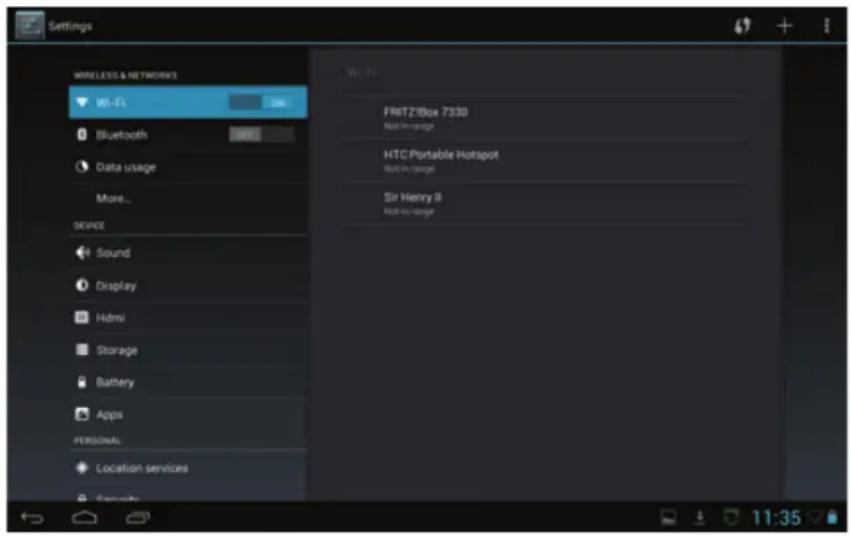
If the tablet has already been connected once with one or more reachable Wi-Fi network, a connection to the last Wi-Fi network selected will now be established automatically.
5.1.1.1 Selecting the Wi-Fi network
Tap on the Wi-Fi network that you wish to connect the tablet to.
If the network key for the selected Wi-Fi network has already been correctly entered once, the tablet will now be automatically connected with this Wi-Fi network. If the selected Wi-Fi network is still unknown, the input mask now appears so the password can be entered.
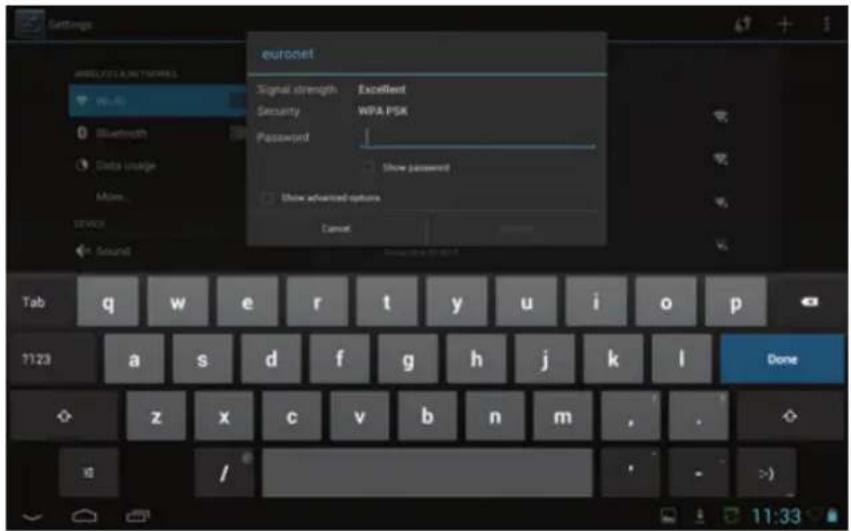
Enter the password, then tap on Connect.
The tablet will now be connected with the Wi-Fi network if the input was correct.
i Please note the setting for the right of access for unknown devices in the router of the selected network. This must allow access if the tablet needs to be connected to this router for the first time.
5.1.1.2 Entering a Wi-Fi network manually
If the network you wish to connect the tablet to is not found while searching through the available Wi-Fi networks, or if this is switched to invisible (SSID is switched off), the SSID can also be entered manually.
Tap on the plus icon in the upper right hand corner to open the input mask.
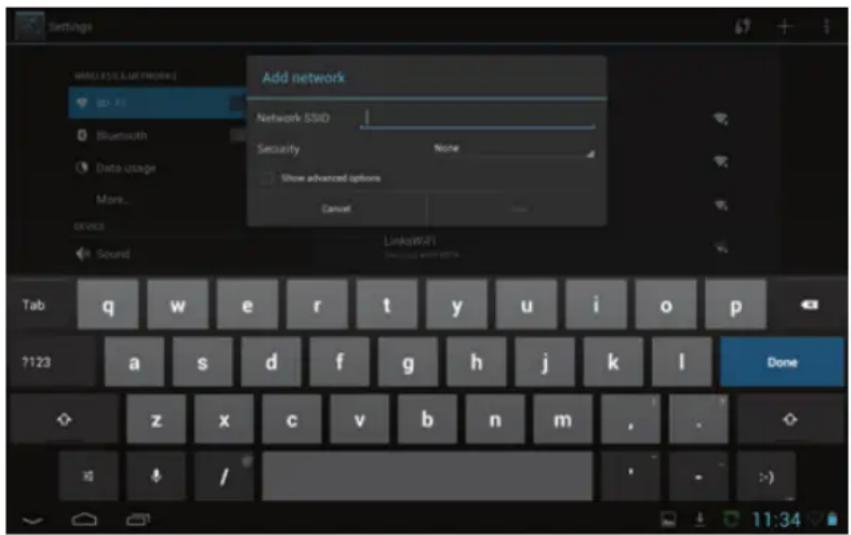
Use the numeric keypad to enter the SSID of the network.
Select the network key being used in the Security menu.
Now enter the password, then tap on Connect.
The tablet will now be connected with the Wi-Fi network if the input was correct.
i Please note the setting for the right of access for unknown devices in the router of the selected network. This must allow access if the tablet needs to be connected to this router for the first time.
5.1.1.3 WPS fast connection
If your router has a WPS fast connection function you can also use this to connect the tablet to the Wi-Fi network.
Activate the function in your router, then tap on the double arrow icon in the upper right hand corner.
i Automatic pairing is started and the progress is displayed on the screen.
5.1.2 Bluetooth
In the WIRELESS & NETWORKS category, select the Bluetooth item and tap on the slide switch to activate Bluetooth.
i Devices in your environment with Bluetooth enabled are now searched for and subsequently displayed on the screen.
i Please note that unknown (not yet paired) devices can only be found if their visibility is switched on.
The visibility of the tablet can be switched on and off by tapping the device name in the list.
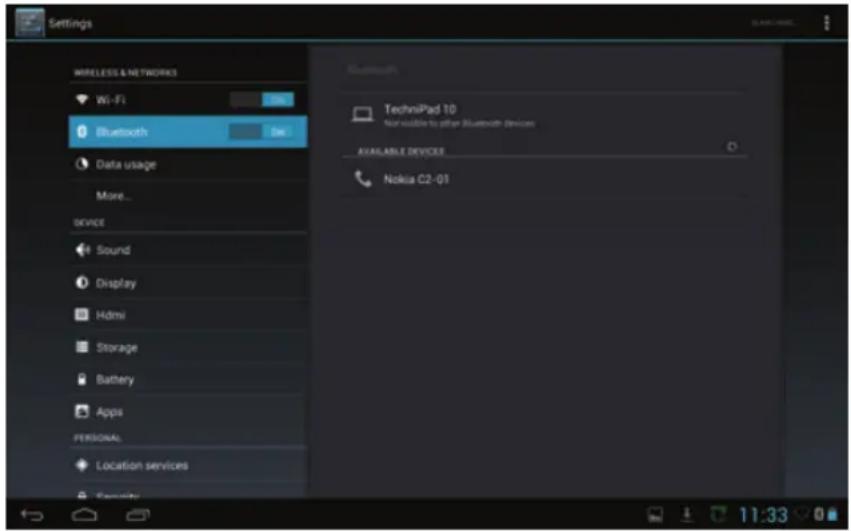
Tap on the name of the device you want to pair the tablet with.
A message with a passkey number appears on the screen of both devices after a short moment.
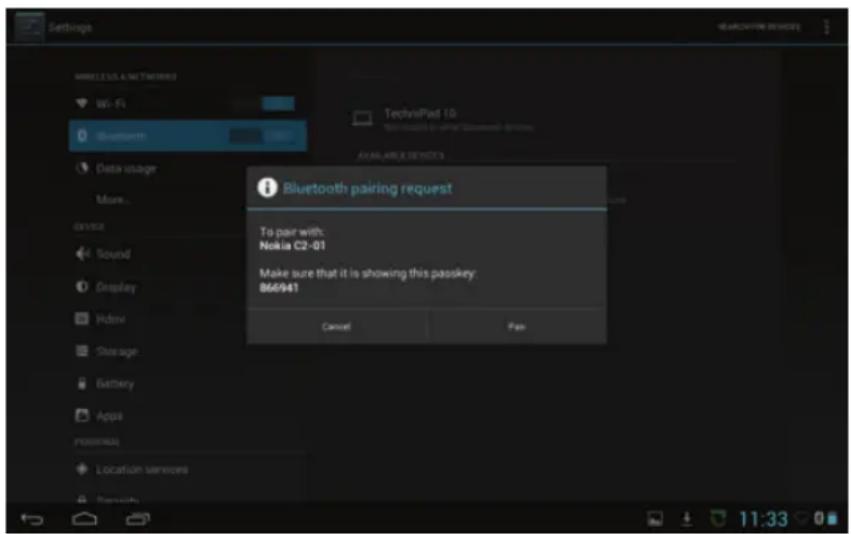
Compare the passkey numbers of both devices and confirm by tapping Pair.
For devices with no display, it may be necessary to enter the device passkey number in the tablet.
5.1.3 Data usage
In the WIRELESS & NETWORKS category, select the Data usage item.
The data use of the apps for the selected period will be displayed.
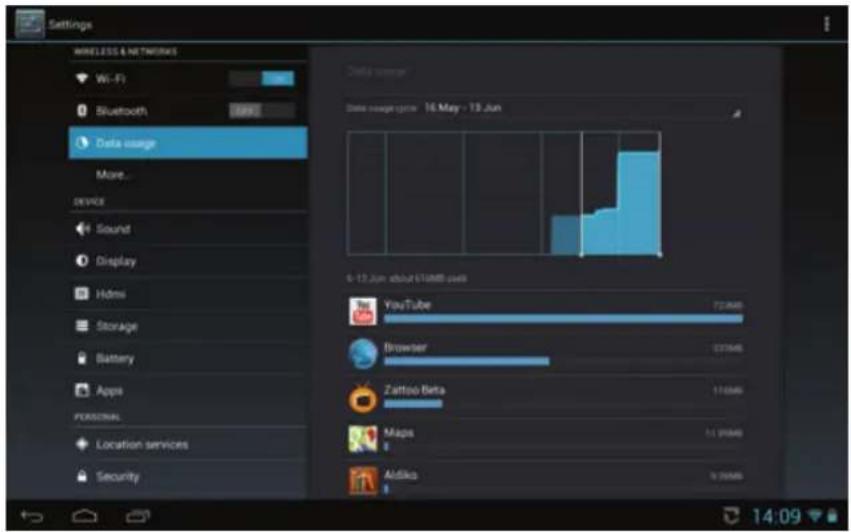
You can see detailed information by restricting the display to a certain period of time and/or selecting an app.
5.2 Device
5.2.1 Sounds
In the DEVICE category, select the Sounds item.
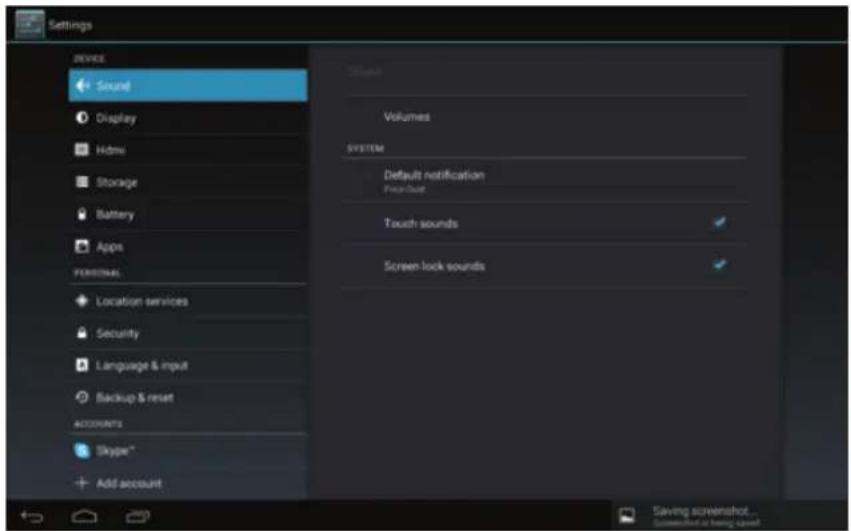
You can set the volume for playing media, messages and the alarm using Volumes.
You can select the message tone played for incoming emails, for example, via Default notification.
Enable/disable touch sounds and screen lock sounds, play a confirmation sound for touching the touch screen, and enable/disable the screen lock.
5.2.2 Display
In the DEVICE category, select the Display item.
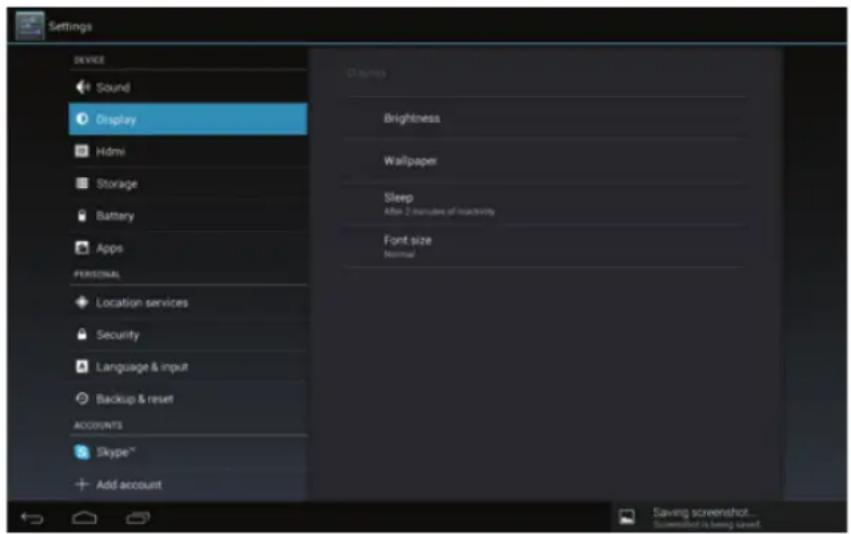
Set the desired display brightness using Brightness. Note that the battery life reduces as the display brightness is increased.
The image to be displayed in the wallpaper of the homescreen can be selected using wallpaper. See also Point 4.3.2.
Use Sleep to select the time period that should elapse before the tablet automatically locks the display and switches off, where no operation occurs in this period.
i Select the font size which should be displayed in this menu, for example, under the point Font size.
5.2.3 HDMI
In the DEVICE category, select the HDMI item.
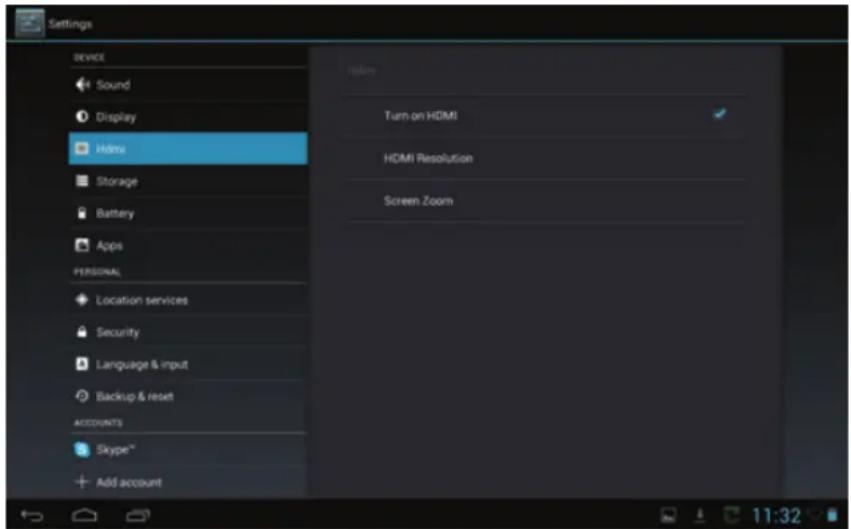
Enable/disable video display via the HDMI output (page 2 #10 or page 3 #11) under Turn on HDMI. When the function is enabled, the image displayed on the tablet display can also be displayed at the same time on a TV.
You can select the resolution with which the image is displayed via the HDMI output using HDMI Resolution.
If parts of the screen are not displayed on the TV or there are black edges around the picture, the size of the picture display can be adjusted and adapted to the TV using Screen Zoom.
5.2.4 Storage
In the DEVICE category, select the Storage item.
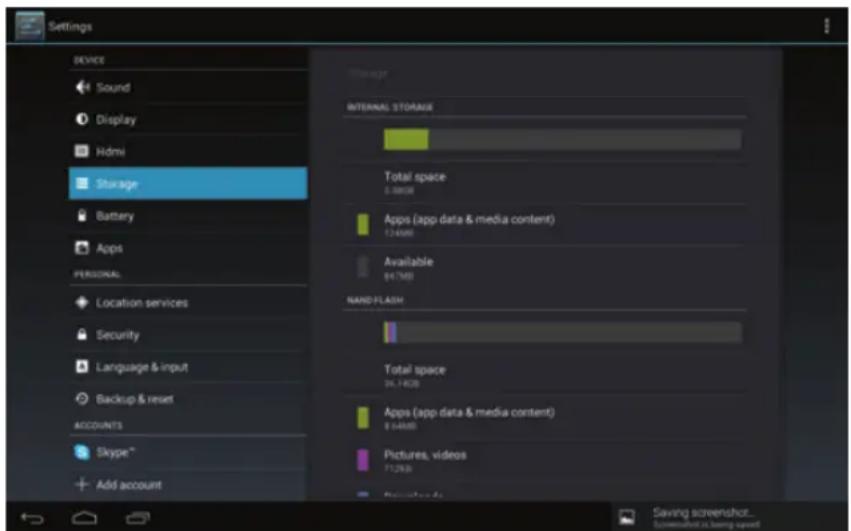
i Information concerning the level of usage of the internal memory or of an inserted MicroSD card is displayed in this menu.
If you wish to remove an inserted MicroSD card, first tap the Remove SD card item under SD card in this menu to avoid data loss on the memory card.
5.2.5 Battery
In the DEVICE category, select the Battery item.
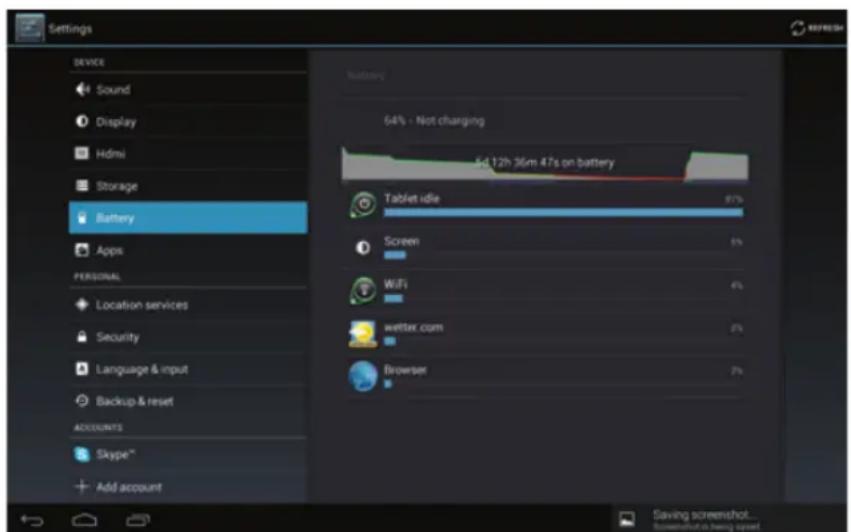
Information concerning the level of battery use is displayed in this menu. Detailed information can be obtained by tapping the graphic or the respective consumer.
5.2.6 Apps
In the DEVICE category select the Apps item.
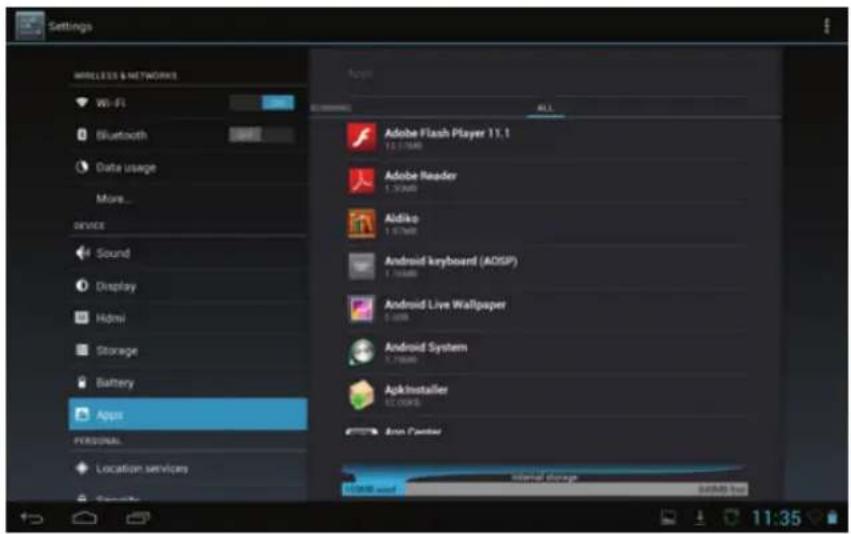
In this menu information is displayed about which apps you have downloaded, which apps are installed on the SD card, which apps are currently active, as well as all installed apps.
Further information and options about the apps can be obtained by tapping on the respective app. The information and options which are available differ according to the list in which you tapped the app.
5.3 Personal
5.3.1 Location services
In the DEVICE category select the Location services item.
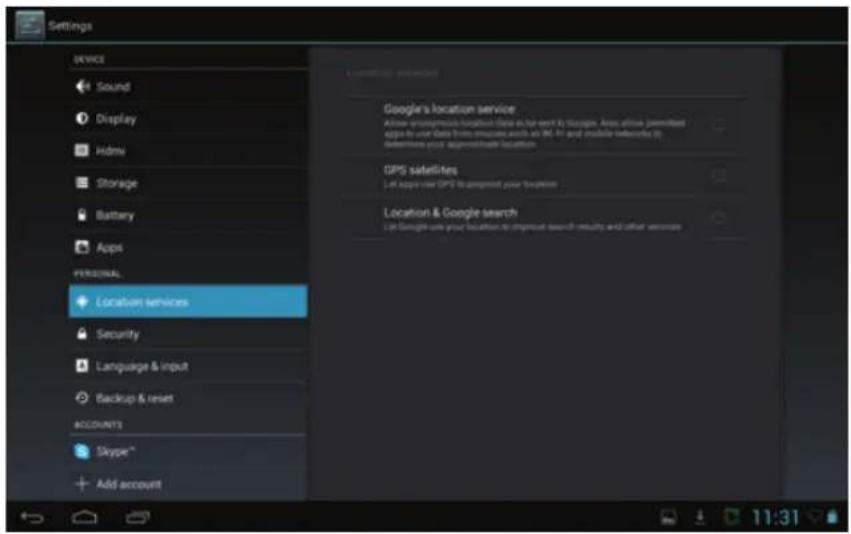
You can enable/disable use of the Location services, for example the GPS satellites, in this menu.
5.3.2 Security
In the PERSONAL category, select the Security item.
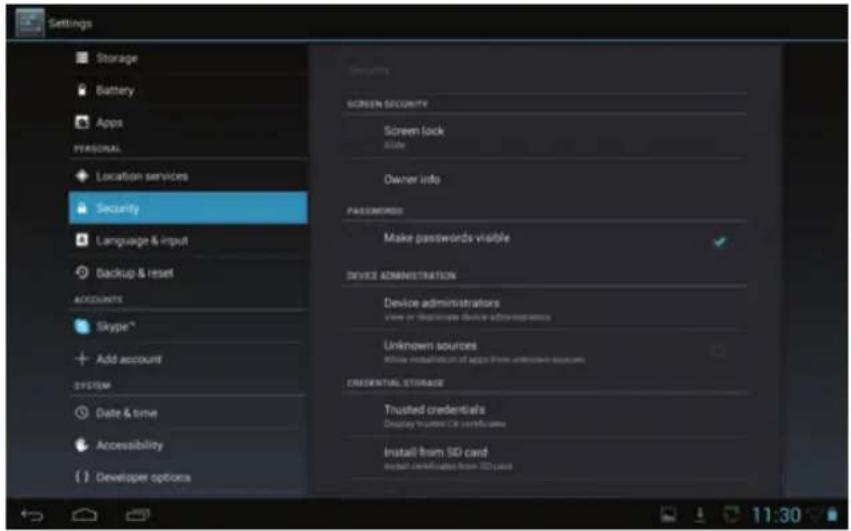
i Security-related settings for the tablet can be performed in the Security menu. For example you can determine whether the tablet can be unlocked simply by swiping with the finger or, for example, whether it is necessary to enter a PIN number.
5.3.3 Language & input
In the PERSONAL category, select the Language & input item.
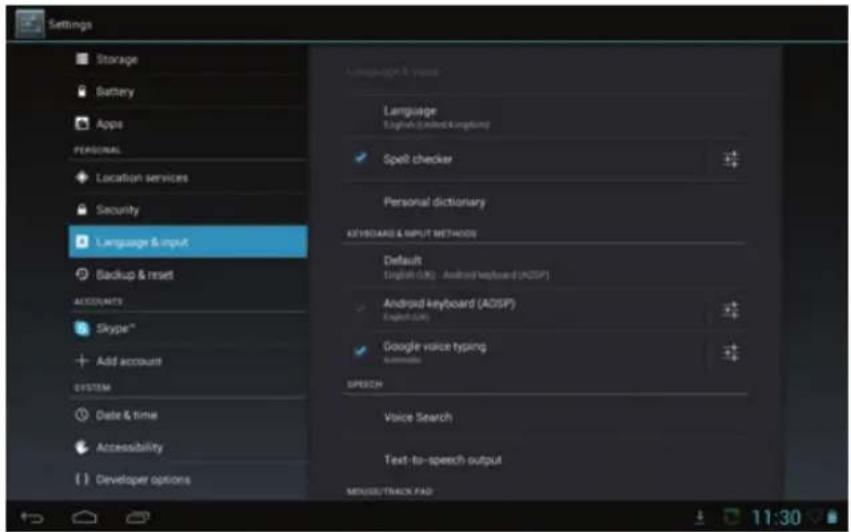
You can use this menu to select your preferred language and enable/disable the spell checker and voice input. You can also configure the keyboard here as well as switch to another keyboard (if there is another keyboard app installed).
5.3.4 Backup & reset
In the PERSONAL category, select the Backup & reset item.
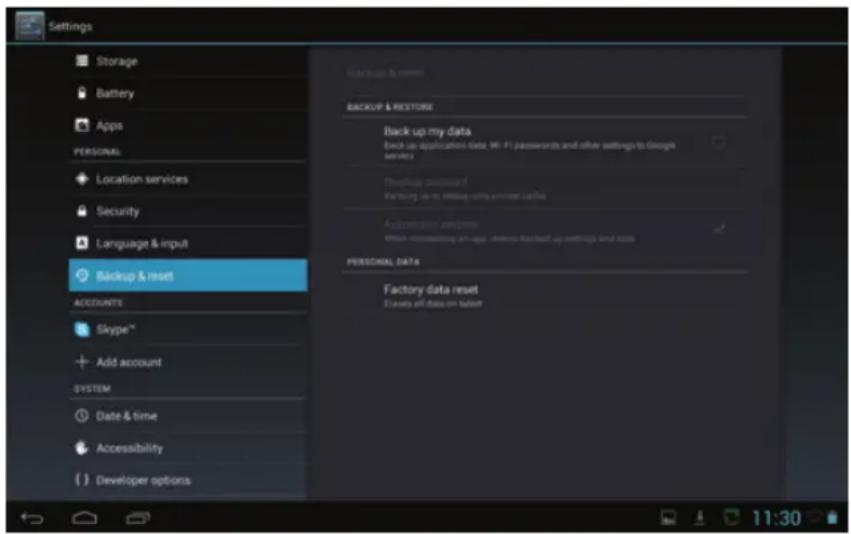
You can use this menu to configure backups of your data (app data, Wi-Fi passwords etc.) as well as resetting the tablet to the factory settings.
5.4 Accounts
In the ACCOUNTS category, select the Add an account item to add a Google account, for example, to your tablet.
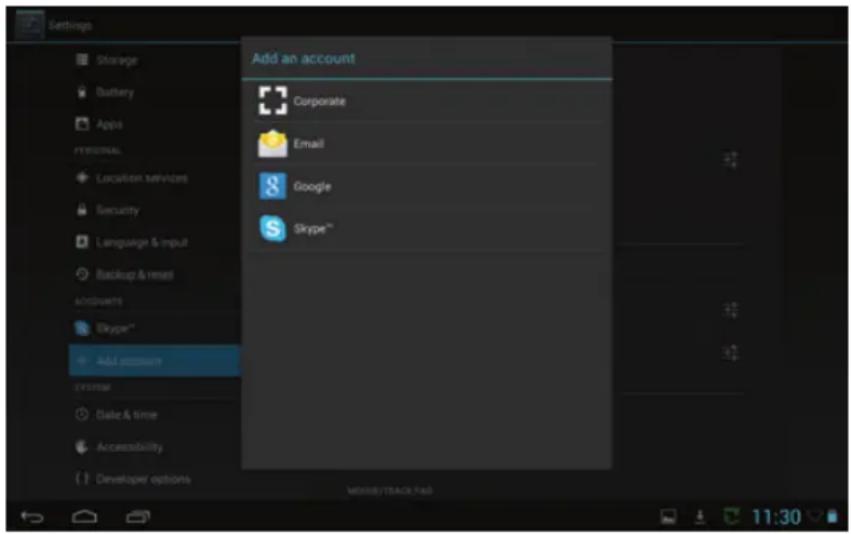
i Accounts already added are displayed in this category. You can also make any necessary changes.
i You can use this account, for example, to retrieve and write emails and to synchronise contact and calendar data.
5.5 System
5.5.1 Date & time
In the SYSTEM category, select the Date & time item.
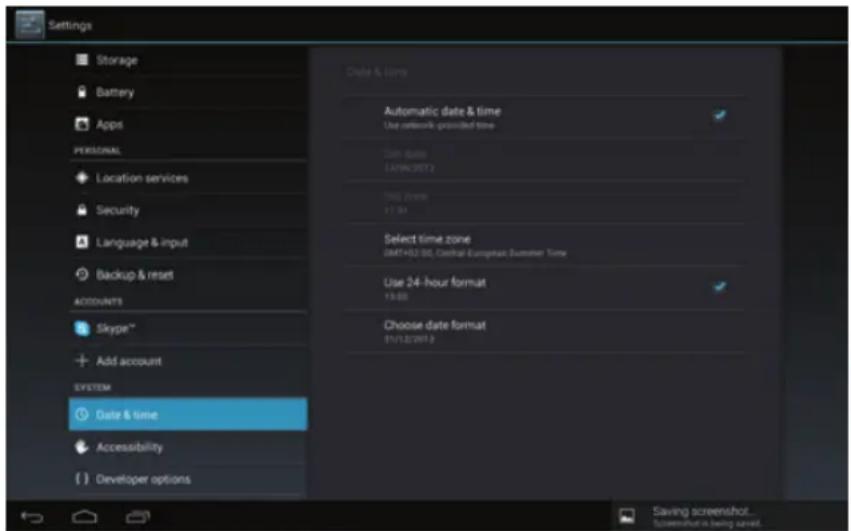
You can use this menu to manually adjust the time or activate the automatic setting as well as select the time and date format you want.
5.5.2 Accessibility
In the SYSTEM category, select the Accessibility item.
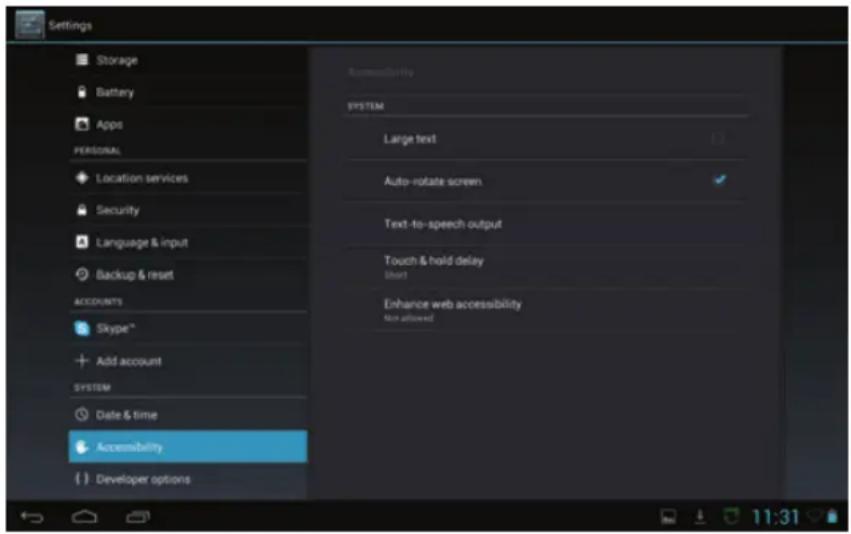
In addition to the adjustment of the font size undertaken under Point 5.2.2, you can also use Large text to enable/disable a further increase in the size of the text.
i Disable/enable automatic adjustment of the display according to the orientation of the tablet (portrait/landscape) using Auto-rotate screen.
i You can configure the language output under Text-to-speech.
Under Touch/hold delay, select the time period that should elapse before touching the display should be interpreted as holding.
5.5.3 About the tablet
In the SYSTEM, category, select the About tablet item.
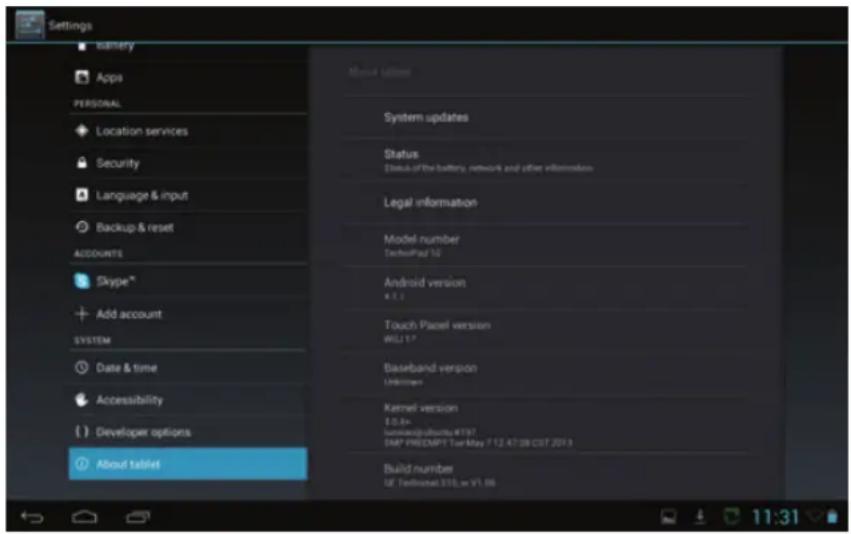
You can use this menu to access information about the tablet (e.g. the Android version being used).
6 Technical data / functional scope
LCD panel
TechniPad 8/8G
Diagonal 20.4 cm
Resolution 1024 x 768
Width/height ratio 4:3
touch screen Yes (multi-capacitive)
TechniPad 10/10G
Diagonal 25.8 cm
Resolution 1280 x 800
Width/height ratio 16:10
touch screen Yes (multi-capacitive)
Cameras
Front camera 2.0 MP
Rear camera 5.0 MP
Speakers
Number of speakers 2
Output in W 2 x 0.5 W
System
Android version 4.1.1 (Jelly Bean)
CPU Dual core ARM Cortex A9 1.6 GHz
Random access memory 1GB DDR3
Internal Flash memory
32 GB
16 GB(TechniPad 8/8G)
(TechniPad 10/108G)
Connector - headphone socket
Model 3.5 mm jack (stereo) internal speaker automatically switches off
Connector - USB port
Plug-in connector Micro-B (socket) Model USB 2.0
Connector - HDMI
Connector HDMI Type C Supported resolutions 720 x 480p @ 60 Hz 720 x 576p @ 50 Hz 1280 x 720p @ 50 / 60 Hz 1920 x 1080p @ 50 / 60 Hz
Mains adapter
TechniPad 8/8G
Input voltage from the power supply unit 100 - 240 V / 50 - 60 Hz Nominal voltage from the power supply unit AC 230 V / 50 Hz Nominal voltage for the tablet DC 5 V / 2 A
TechniPad 10/10G
Input voltage from the power supply unit 100 - 240 V / 50 - 60 Hz Nominal voltage from the power supply unit AC 230 V / 50 Hz Nominal voltage for the tablet DC 5 V / 2.5 A
Battery
TechniPad 8/8G
Type Li Poly Output 4000 mAh / 3.7 V
TechniPad 10/10G
Type Li Poly Output 6000 mAh / 3.7 V
Dimensions / weight
TechniPad 8/8G
Weight (in g) about 449 / 452 Dimensions (W x H x T in mm) approx. 203 x 154 x 11
TechniPad 10/10G
Weight (in g) about 654 / 657 Dimensions (W x H x T in mm) approx. 259 x 177 x 11
7 Technical Terms
App
App is an abbreviation for Application and is the designation for an application (program) for a tablet or smartphone. These can be downloaded and installed directly from an online shop.
Standby
The mode in which the TV is not fully switched off, has a low power consumption and can be switched on using the remote control.
Bluetooth
Bluetooth is a radio interface which allows data to be exchanged wirelessly between devices
CE mark
The manufacturer declares that the TV is in compliance with the Directives of the European Union.
DHCP
Dynamic Host Configuration Protocol. Dynamic assignment of an IP address and other configuration parameters for devices connected to the network (e.g. computers, televisions, receivers, radios etc.) is carried out via the DHCP function using an appropriate server.
Download
Download = downloading a file from a server via the internet.
An email is an electronic message sent to a certain recipient over the internet.
Flight mode
Flight mode deactivates all radio functions of the device to comply with all requirements, for example of hospitals and airlines.
GPS
GPS stands for Global Positioning System. This is a satellite-supported technology with which the device can determine its current location and use this for navigation purposes, for example.
HDMI
The High Definition Mulimedia Interface is an interface for transmitting high definition digital video data as well as digital audio data.
Internet
The internet is a worldwide data network; see also WWW
MicroSD card
A MicroSD card is an electronic memory card and is used, for example, for smartphones, tablets, MP3 players etc.
Network switch
A network switch serves to distribute the available bandwidth of the network line attached to it (input) to all the other network lines (output) attached to the switch.
PIN
The Personal Identification Number serves to provide simple security against unauthorised access.
Router
A router operates in a similar way to a network switch, except it can also use the DHCP function to manage and allocate IP addresses and other configuration parameters for devices connected to the network e.g. computers, televisions, receivers, radios etc.).
SIM card
Identification of the device to the mobile operator takes place via the SIM card.
Standby
see Standby.
Touch screen
With touch screens, commands are entered directly via the screen. This means that no other data entry devices such as a keyboard or a mouse are necessary with touch screen devices.
Update
A newer, updated version of an app or the Android operating system, for example, can be installed on the device via updates. Updates are used to integrate in new functions or to improve existing functions. It therefore also possible that the method of operation as well as the options offered by an app or the operating system will change when performing updates.
USB
Universal Serial Bus = interface for digital transmission of various data.
Widget
Widgets represent a means of simplified access to an app on the homescreen and can, for example, automatically display updated information such as news, share prices or weather forecasts.
Wi-Fi / WLAN
WLAN stands for Wireless Local Area Network and describes a previously configured radio network in a local delimited area.
WWW
WWW = world wide web. Using so-called URLs various web pages are addressed and can, in this way, be accessed via the WWW in order to display images, text, videos, music etc.
8 Troubleshooting guide
| Fault Possible cause Solution | ||
| The device cannot be operated; shows no response | The device is blocked Press the | e Reset button briefly to restart the tablet (see p.2 #11 or p.3 #5) |
| The device is not connecting to the selected Wi-Fi network | The password was entered incorrectly | Correct entry of the password |
| The Wi-Fi router is blocking unknown devices | Check the settings in the router | |
| The desired Wi-Fi network is not found | The SSID of the Wi-Fi network is switched off | Check the settings in the router |
| The Wi-Fi network is too far away / the reception is too weak | Reduce distance to the Wi-Fi router or a repeater | |
| Bluetooth pairing does not work | The visibility of the other device is switched off | Switch on the visibility of the device |
| The password was not entered correctly or the query was not confirmed in time | Repeat the pairing | |
| The device is too far away Reduce the distance | ||
| The picture on the tablet does not appear on the attached TV | The HDMI output is not activated | Activate the HDMI output (see Point 5.2.3) |
| An HDMI resolution which is not supported by the TV was selected | Change the HDMI resolution (see Point 5.2.3) | |
| The MicroSD card is not recognised | The MicroSD card is defective | Use another MicroSD card |
| The MicroSD card is formatted for the wrong file system | Format the MicroSD card on a PC with FAT32 or in the tablet (see 5.2.4) | |
TechniSat
Mode d'emploi
TechniPad 8 / 8G / 10 / 10G
1 Illustrations
1 Illustrations....2
2 Table des matières .... 4
5.2.6 Applications 23
5.3 Utilisateur 23
natural_image
Recycling symbol composed of three chasing arrows forming a triangle (no text or labels)natural_image
Symbol of a trash bin crossed with no text or numbers, representing waste sorting or restriction (no text present)Raccordement - port USB
natural_image
Recycling symbol composed of three chasing arrows forming a triangle (no text or labels)natural_image
Symbol of a trash bin crossed with no text or numbers, representing waste sorting or disposal (no text present)
- Table of contents
- Figures....2
- Table of Contents .... 4
- Please read this first. 5
- Basic operation....9
- Settings....16
- Technical data / functional scope....27
- Technical terms ...... 29
- Troubleshooting guide .... 31
- Please read this first
- Intended use
- Manufacturer's declaration
- Important instructions
- Safety
- Never open the device! Touching parts that conduct high voltages can be fatal!
- Disposal
- Power consumption in Standby and during operation
- Care and cleaning
- Legal notices
- Servicing notes
- Switching the tablet on/off
- Unlocking/locking the screen
- Homescreen
- Placing apps and widgets on the homescreen
- Changing the wallpaper of the homescreen
- Starting and exiting an app
- Volume adjustment
- Installing apps
- Installing an app using an APK file
- Installing an app via an app shop
- Uninstalling apps
- Settings
- Wireless & networks
- Wi-Fi
- Selecting the Wi-Fi network
- Entering a Wi-Fi network manually
- WPS fast connection
- Bluetooth
- Data usage
- Device
- Sounds
- Display
- HDMI
- Storage
- Battery
- Apps
- Personal
- Location services
- Security
- Language & input
- Backup & reset
- Accounts
- System
- Date & time
- Accessibility
- About the tablet
- Technical data / functional scope
- LCD panel
- TechniPad 8/8G
- TechniPad 10/10G
- Cameras
- Speakers
- System
- Connector - headphone socket
- Connector - USB port
- Connector - HDMI
- Mains adapter
- Battery
- Dimensions / weight
- Technical Terms
- App
- Standby
- Bluetooth
- CE mark
- DHCP
- Download
- Flight mode
- GPS
- HDMI
- Internet
- MicroSD card
- Network switch
- PIN
- Router
- SIM card
- Touch screen
- Update
- USB
- Widget
- Wi-Fi / WLAN
- WWW
- TechniSat
- Mode d'emploi
- TechniPad 8 / 8G / 10 / 10G
- Illustrations
- Illustrations....2
- Table des matières .... 4
- Raccordement - port USB
Brand : TECHNISAT
Model : TechniPad 8G
Category : Tablet