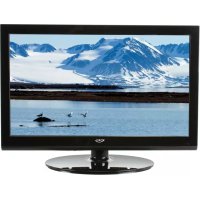
HTL 2231D - Television XORO - Free user manual and instructions
Find the device manual for free HTL 2231D XORO in PDF.



| Product Type | 21.5" (54.8 cm) LED TV |
| Brand | Xoro |
| Model | HTL 2231D |
| Resolution | 1920 x 1080 pixels (Full HD) |
| Backlight | Edge LED |
| Contrast | 1000:1 |
| Brightness | 250 cd/m² |
| Response Time | 3.5 ms |
| Viewing Angle (H/V) | 170° / 160° |
| TV System | PAL BG/DK/I, SECAM BG/DK/L/L' |
| Audio | NICAM/A2, speakers 2 x 3 W |
| Connections | HDMI (1080p), VGA, YPbPr, SCART, USB 2.0, headphone jack, SPDIF coaxial, composite AV input, RF antenna |
| Tuner | Digital DVB-T and analog |
| USB Recording | PVR on USB flash drive (FAT32), Time Shift |
| Multimedia Playback | Photos (JPEG, BMP, PNG), music (MP3, WMA, AAC), videos (MPEG-1/2/4, AVI, MPG, VOB) |
| Other Features | Teletext, 7-day EPG, timer, parental lock |
| Power Supply | AC 100-240 V, 50/60 Hz; DC 12 V, 5 A |
| Power Consumption | Max. 38 W, standby < 1 W |
| Dimensions (with stand) | 530 x 383 x 200 mm |
| Dimensions (without stand) | 530 x 383 x 80 mm |
| Weight (with stand) | 3.6 kg |
| Package Contents | TV, remote control, batteries, user manual, warranty card |
Frequently Asked Questions - HTL 2231D XORO
User questions about HTL 2231D XORO
0 question about this device. Answer the ones you know or ask your own.
Ask a new question about this device
Download the instructions for your Television in PDF format for free! Find your manual HTL 2231D - XORO and take your electronic device back in hand. On this page are published all the documents necessary for the use of your device. HTL 2231D by XORO.
USER MANUAL HTL 2231D XORO
FREE TO CHOOSE INNOVATIONS

LCD TV with DVB, HDIII, USβ, PVR Ready, Time-shift and LED Backlight HTL 2231D
U.S. Patens Nos. 4,631,603; 4,577,216; 4,819,098; 4,907,093; 5,315,448 and 6,516,132
"This product incorporates copyright protection technology that is protected by U.S. patents and other intellectual property rights. Use of this copyright protection technology must be authorized by Macrovision, and is intended for home and other limited viewing uses only unless otherwise authorized by Macrovision. Reverse engineering or disassembly is prohibited."
Dolby
Manufactured under license from Dolby Laboratories. "Dolby" and the double-D symbol are trademarks of Dolby Laboratories. Confidential Unpublished works. 1992-1997 Dolby Laboratories, Inc. All rights reserved.
Packungsinhalt
LED (Rot = Stand-By / Grün = An)
News Current Affairs
Heino Graf Bassewitz
Do not unplug USB device. Create PVR file system, please wait...

Zeitzzone (Time Zone)
Compatibility of USB 7
Recycling 7
In the box 9
Features 9
Mounting the Stand 10
Quick Start Guide 11
Connectors
Rear connection panel 12
Top Side 13
Front Side. 13
The Remote Control
Insert Battery 14
Operation range 14
Buttons 15
Connection
Power 17
Antenna 17
SCART 17
HDMI 17
YUV 18
USB 18
CVBS 18
VGA 19
Headphone 19
Digital Audio Out by Coaxial 19
First Time Installation 20
Sources 21
DVB-T Mode
Getting into DVB-T mode 22
Important buttons and there functions 22
Videotext 23
EPG 25
Analog TV Tuner
Getting into analog TV mode 26
Important buttons and there functions 26
Videotext 26
Recorder
Preparation of the USB Storage 27
Check PVR File System 27
Format 28
Time-Shift Size 28
Recording a program 29
Recording in Stand-By mode 29
Schedule Recording by EPG 29
Time-Shift Function 30
Playback of recorded program 31
Multimedia-Player
Photo 32
Music 33
Movie 34
LCD Settings
General 36
Channel Setting 37
Picture Setting 41
Sound Setting 43
Time Setting 44
Options 46
Lock Setting 47
Troubleshooting 48
Specifications 50
User Manual
- All the safety and operating instructions should be read before the product is operated.
- Retain Instructions - The safety and operating instructions should be retained for future reference.
- All warnings on the product and in the operating instructions should be adhered to.
- All operating and use instructions should be followed.
Operation
- Receiving analogue or digital TV broadcast.
- Recording of DVB-T broadcast on USB media.
- Time Shift function of DVB-T Broadcast on USB media.
- Playback of recorded broadcast fro USB media.
- Connecting external devices by HDMI, video components (YUV), SCART, VIDEO or VGA.
- No other operation are allowed.
Antenna
The device can be connected to an antenna.
- Unplug the power cord cable from the mains outlet before connecting or disconnecting the DVB-T to/from the antenna, otherwise both might be damaged.
- If an outside antenna or cable system is connected to the product, be sure the antenna or cable system is grounded so as to provide some protection against voltage surges and built-up static charges.
- Pull out the antenna connection if the appliance is not to be used over a longer period of time.
USB
Due to the legal requirements of CE-conformity, the customer is asked to only connect USB-Sticks to the USB port.
Safety Information
Power Supply
- Never touch the plug with wet hands.
- If you want to pull the plug out of the plug socket, always pull directly on the plug. Never pull on the cable as it could tear.
- Make sure that the power cable is not bent, caught or run over and that it does not come into contact with heat sources.
- Make sure that the power cable is not wound around the device while in operation.
- Never place the machine on the power cable while it is being operated.
- Only use extension cables that are designed for the power consumption level of the machine.
- Keep the appliance away from rain and any moisture.
- Only operate the machine if the electrical voltage stated on the type plate beneath the machine agrees with the voltage on your plug socket. The wrong voltage can destroy the machine.
- Do not stand vases etc. on the appliance.
- Water could seep into the appliance.
- Do not open the appliance.
- Pull out the mains plug if the appliance is not to be used over a longer period of time.
- Take care that nobody can trip over the power supply cable.
Operation and Position
- Do not connect accessories on the device which are not defined by the manufacture.
- Do not place this product on an unstable cart, stand, tripod, bracket, or table. The product may fall, causing serious injury to a child or adult, and serious damage to the product. Use only with a cart, stand, tripod, bracket, or table recommended by the manufacturer, or sold with the product.
- Any mounting of the product should follow the manufacturer's instructions, and should use a mounting accessory recommended by the manufacturer.
- A product and cart combination should be moved with care. Quick stops, excessive force, and uneven surfaces may cause the product and cart combination to overturn.
- Do not uses the device permanent in the 4:3 mode. This can cause damage to the screen.
- Do not increase the volume when the device is just playing very quiet sections. This cold damage the speaker if very loud passages starts all of a sudden after the quiet section.
- Switch the device off by the Off/On switch if it is not going to used for a longer period of time.
- Disconnect the main plug during thunderstorms.
- Slots and openings in the cabinet are provided for ventilation and to ensure reliable operation of the product and to protect it from overheating, and these openings must not be blocked or covered.
- The openings should never be blocked by placing the product on a bed, sofa, rug, or other similar surface.
- This product should not be placed in a built-in installation such as a bookcase or rack unless proper ventilation is provided or the manufacturer's instructions have been adhered to.
- Protect the device against weather influences, moistures and high temperature.
- Never spill liquid of any kind on the product.
- Do not expose the device and the remote control to direct sunlight.
- If an outside antenna or cable system is connected to the product, be sure the antenna or cable system is grounded so as to provide some protection against voltage surges and built-up static charges.
- Arrange the TV set so, that the back side has a distance of 1.2 inches from the wall and that the right, left and top side have a distance of 4 inch from the wall.
Compatibility of the integrated USB port
- Due to legal requirements of CE-conformity, the customer is asked to only connect USB-Sticks to the USB port.
- The USB port can be supported 8 GB flash memory size or more. In order to the many different USB-Sticks and the build-in electronics components a support of all USB-Sticks can not guaranteed.
- Please format the USB-Sticks only with FAT 32 file system. NTFS file system is not supported and can not recognize by the USB port.
- By using USB-Sticks for recording, the USB flash memory need to be prepared. The USB Stick will be formatted.
Recycling of electronic devices
This product is designed and manufactured with high quality materials and components which can be recycled and reused.
This symbol means that electrical and electronic equipment, at their end-of-life, should be disposed of separately from your household waste.
Please, dispose of this equipment at your local community waste collection/recycling centre. In the European Union there are separate collection systems for used electrical and electronic product. Please, help us to conserve the environment we live in!
Recycling of paper and carton
The material recycling symbol on the carton and user manual denotes that they are recyclable. Dispose them not with the normal household waste.

Recycling of plastic parts
The material recycling symbol on the plastic parts denotes that they are recyclable. Dispose them not with the normal household waste.

Green Dot
-
Servicing - Do not attempt to service this product yourself as opening or removing covers may expose you to dangerous voltage or other hazards. Refer all servicing to qualified service personnel.
-
Damage Requiring Service - Unplug this product from the wall outlet and refer servicing to qualified service personnel under the following conditions:
a. When the power-supply cord or plug is damaged.
b. If liquid has been spilled, or objects have fallen into the product.
c. If the product has been exposed to rain or water.
d. If the product does not operate normally by following the operating instructions.
Adjust only those controls that are covered by the operating instructions as an improper adjustment of other controls may result in damage and will often require extensive work by a qualified technician to restore the product to its normal operation.
e. If the product has been dropped or damaged in any way, and
- When the product exhibits a distinct change in performance this indicates a need for service.
- When replacement parts are required, be sure the service technician has used replacement parts specified by the manufacturer or have the same characteristics as the original part. Unauthorized substitutions may result in fire, electric shock, or other hazards.
- Please read in the section Troubleshooting our service address and phone number.
- Nicotine can be destroyed the electronically components and can pollute the LCD TFT panel.
Pixel error
The terms defined in the specifications of defective pixels (bright and dark pixels, line defects and differences in brightness) describe the maximum allowed amount and type of defects, which are excluded from the guarantee.
Dolby
Manufactured under license from Dolby Laboratories. "Dolby" and the double-D symbol are trademarks of Dolby Laboratories. Confidential Unpublished works. 1992-1997 Dolby Laboratories, Inc. All rights reserved.
In the box
Following accessories should be in the box:
HTL 2231D LCD-TV
Remote Control with Batteries
- Manual
- Warranty card
If any of the accessories are missing, then contact your dealer as soon as possible. Keep all the original packaging in case you need to return the set to the dealer.
Features
High quality display
Full-HD Resolution of 1920× 1080 Pixel
- LED Backlight for low power consumption
- Many Connections: VGA, RF, Y Pb Pr with progressive scan, CVBS, SCART and HDMI
HDMI Supports up to 1080p input resolutions
- Stereo audio input
- Integrated analog TV Tuner with videotext
- Integrated digital terrestrial TV Tuner (DVB-T) with EPG and videotext
- PVR Ready function—records DVB-T Broadcast on USB storage
- Time-Shift function
- Internal Multimedia-Player for playback Movies (AVI, MPG, ect.), Photos (JPEG, BMP, PNG) and Music (MP3, AAC, WMA) files from USB media
Automatic or manual channel search
- Auto-shutdown to save power when no signal input
Color: Black with piano finish
Mounting the Stand
- Place the TV set on soft cloth or cushion with face down.
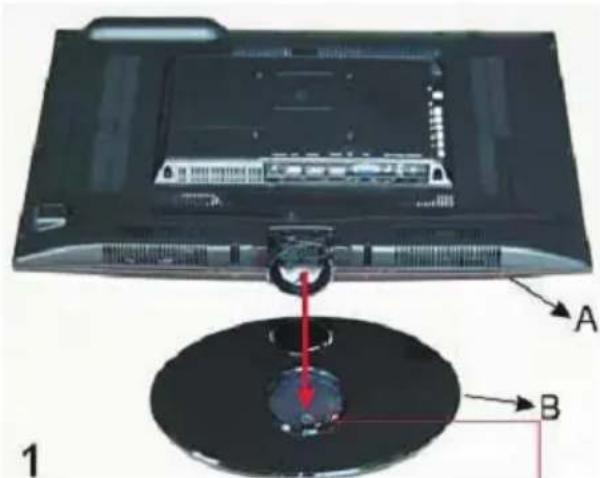
- Mount the stand in the support at the bottom of the TV set according to the angle illustrated

-
Screw the stand in the direction illustrated into the place (Note: It sounds click when screwing the stand, it's normal).
-
Screw the provided 1 bolt into the socket and fixed it.
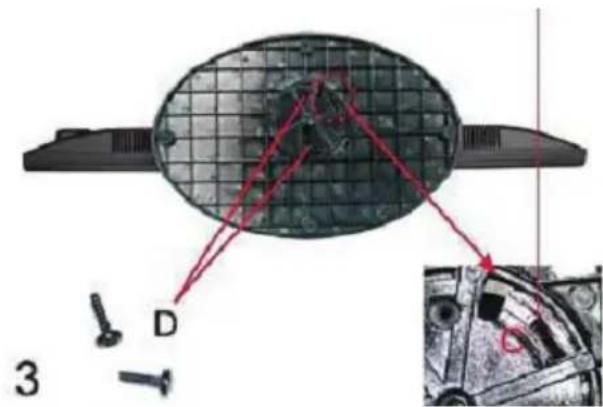
Note: Be sure to store the screws in a safe place. Keep the screws away from small children.
- Mount the stand in order to the description on the previous page.
- Connect the aerial or input source to the appropriate input socket at the rear of the set.
- Connect the small round plug on the power adaptor cable to the power input socket at the rear of the set.
- Connect the main cable between the power adapter and the main supply. The LED will show a red light.
- Switch the power on by pressing the POWER button on the front panel or the remote control. The LED will show a green light.
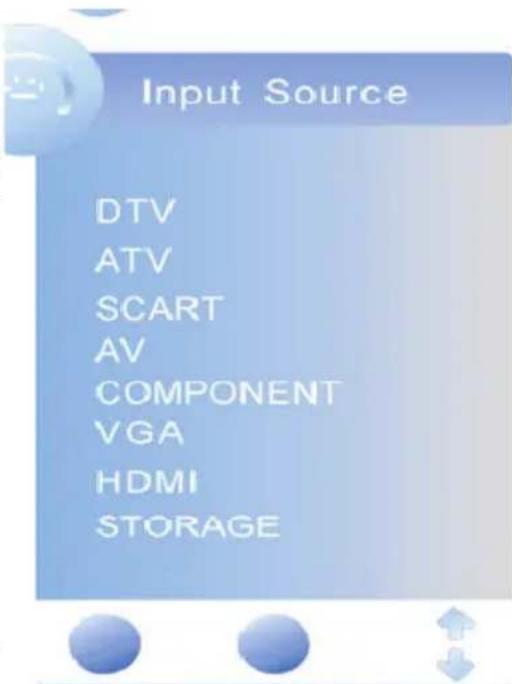
- Use the SOURCE button on the front panel or the remote control and a popup window with the sources appears on the screen. You can select following sources: DTV, ATV, SCART, AV, Component, VGA, HDMI or USB. You can use the front panel control to adjust the volume or select a channel, as shown below, or you may use the remote control and confirm by OK button.
A. Analog TV tuner (for example: cable system) After switched on and press the SOURCE button and choose "ATV" by pressing the navigation button UP/DOWN and confirm by the OK button. Now the HTL 2231D is in TV Mode. By the first using of the TV set, the systems starts automatically the menu for searching the TV channels (please refer page 20).
B. Multimedia-Player: Switch on the unit and press the SOURCE button and choose "Storage" by pressing the navigation button UP/DOWN and confirm by the OK button. Now the HTL 2231D is in USB Mode.
C. DVB-T mode: Switch on the unit and press the SOURCE button and choose "DTV" by pressing the navigation button UP/DOWN and confirm by the OK button. Now the HTL 2231D is in DVB-T mode. By the first using of the TV set, the systems starts automatically the menu for searching the TV channels (please refer page 20).
- To switch the set off a short time, press the POWER button, the set will go into stand-by and the LED will show red. If you are not going to use the set for some time, switch the power off completely by unplugging the mains cable.
Connectors

Bottom Rear Side
| No. | Name | Function Description |
| 1 | DC 12V In | DAC power input |
| 2 | USB | USB port for PVR function |
| 3 | HDMI | HDMI Audio/Vido Input |
| 4 | PC IN VGA | VGA signal of computer input |
| 5 | PC IN AUDIO | Audio Input for VGA |
| 6 | SCART | Euro AV (Audio/Video) input |
| 7 | HEADPHONE | Headphone |
| 8 | SPDIF | Digital Sound output |
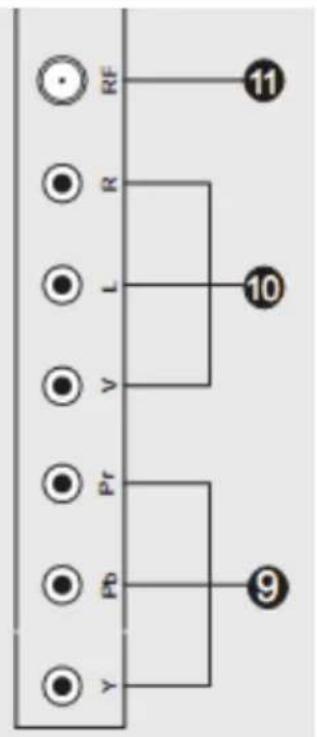
Rear Side Left
| No. | Name | Function Description |
| 9 Y Pb Pr | Y video input for component | |
| 10 V / L / R | CVBS video input and Stereo (R/L) audio input for CVBS and YPbPr | |
| 11 | RF | RF Antenna input for DVB-T o analogue TV |
Buttons of the Right Side
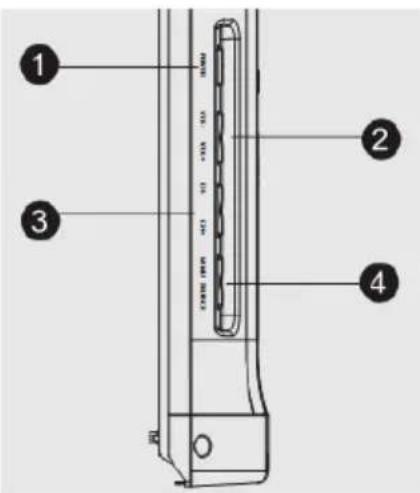
| No. | Button | Function |
| 1 POWER On / Off button | ||
| 2 VOL- / VOL+ Change Volume | ||
| 3 CH- / CH+ Change TV Channel | ||
| 4 | MENUSOURCE | LCD Menu button and select Source |
Front Side
LED
The LED shows the status of the device. RED indicates the Stand-By mode and GREEN indicates that the device is ON.
IR
Infrared receiver
Speaker
Right and left speaker on the bottom side
LCD Panel
LCD TFT Panel
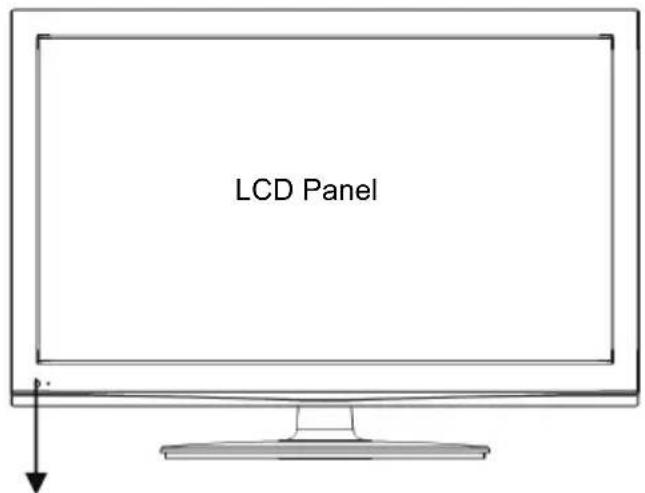
IR = Infra Red Receiver for Remote Control
LED (Red = Stand-By / Green = On)
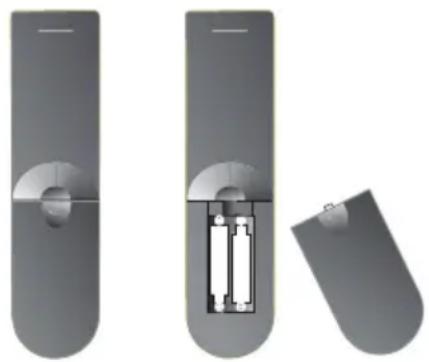
Insert battery into the remote control
Insert the batteries in the remote control:
- Open the cover.
- Insert the batteries. Make sure to match - and +.
- Close the cover
Notes on batteries:
Improper use may cause battery leakage and corrosion.
Please follow the instructions below:
- Do not insert the batteries in the wrong direction
- Do not use different types of batteries together
- If you do not use the remote control for a long time, remove the batteries
- If the remote control operates not correctly, replace the batteries
- If battery leakage occurs, wipe the battery liquid from the battery compartment, then insert new batteries
Make sure that the used batteries are disposed properly according to you local regulations.
Operation range
Point the remote control at the IR:
- Within about 5m with angle about 30 grade in both direction.
Notes:
- Do not expose the IR of the device to a strong light source or direct sunlight.
- Direct the remote control at the infrared receiver (IR) of the player
- Do not drop the remote control.
- Do not spill water or put anything wet on it.
- Do not disassemble the remote control.
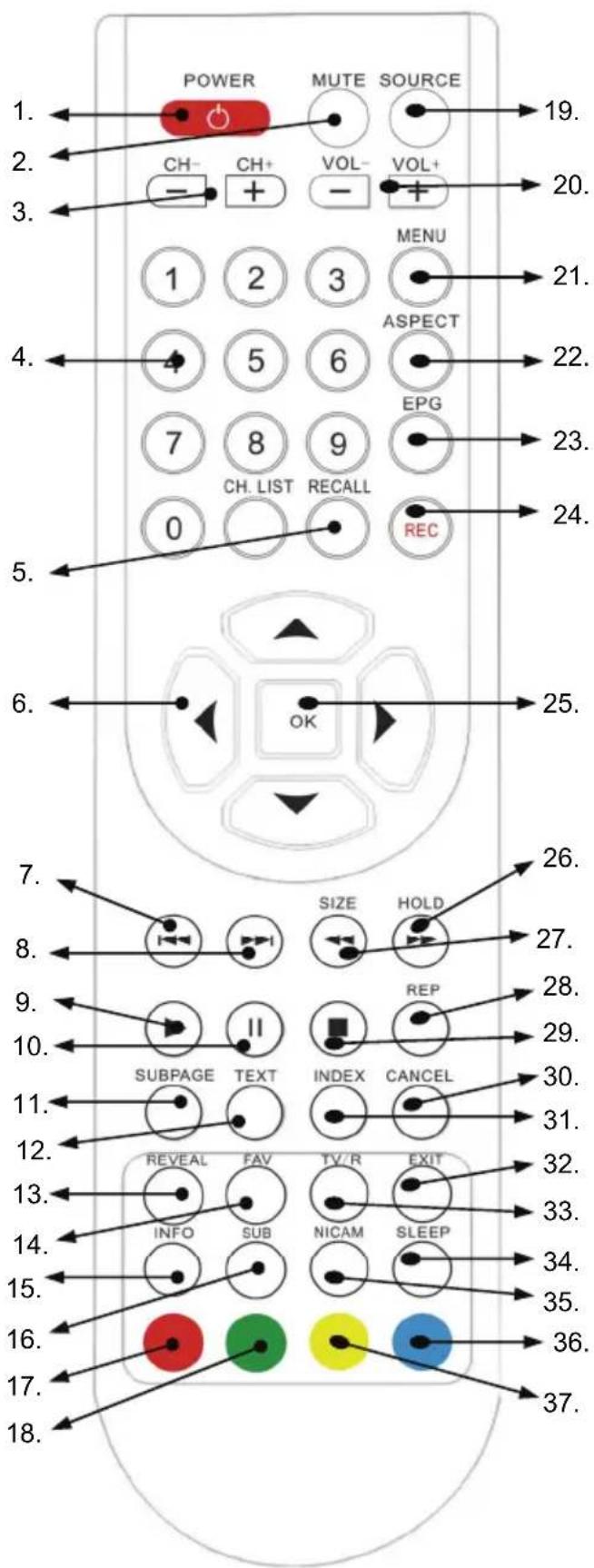
Buttons of the remote control:
ATV: Analogue TV Tuner
DTV: Digital TV Tuner
Rec: Recorder
USB: Multimedia-Player (USB)
- POWER button
- MUTE button
- Change Channel buttons (CH-/CH+)
- Numeric Buttons (0 ... 9) / Channel list button (CH.LIST)
- Last Channel button (RECALL)
- Navigation Cross (Top, Bottom, Left, Right)
- USB: Previous File (I<<)
- USB: Next File (>>|)
- USB: Play button (>
- USB: Pause button (II)
- ATV + DTV: Videotext Subpage button (SUBPAGE)
- ATV + DTV: Activates Videotext (TEXT)
- ATV + DTV: Videotext Reveal button (REVEAL)
- Favourite Button (FAV)
- Information button (INFO)
- DTV: Subtitle button (SUB)
- RED button for Videotext and different functions
- GREEN button for Videotext and different functions
More button description on the row.
Remote Control
Buttons of the remote control:
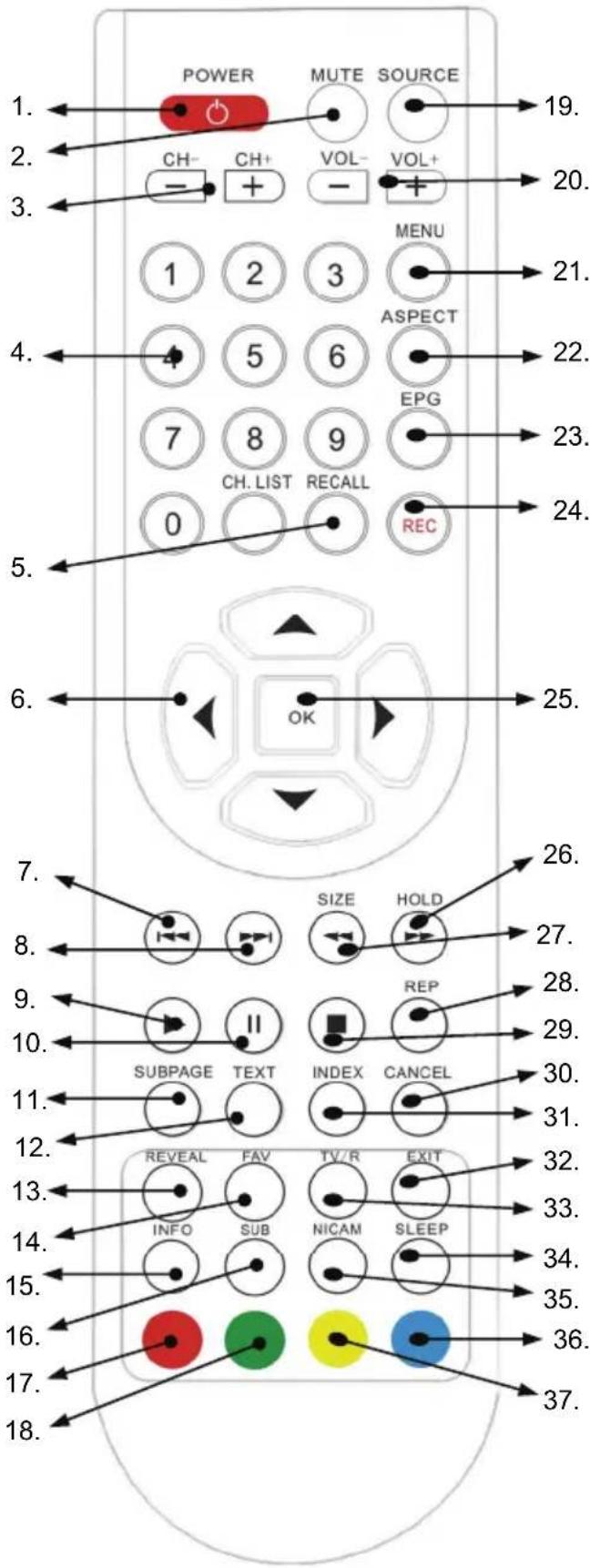
ATV: Analogue TV Tuner
DVB-T: Digital TV Tuner
Rec: Recorder
USB: Multimedia-Player (Storage)
19. SOURCE button (SOURCE)
20. Changes Volume (VOL- / VOL+)
21. LCD Menu button (MENU)
22. Aspect Ratio button (ASPECT)
23. DTV: EPG button (EPG)
24. Rec. Record button (RECORD)
25. Confirmation button (OK)
26. ATV + DTV: Holds Videotext pages (HOLD); USB: Fast Forward ()
27. ATV + DTV: Zoom of Videotext (SIZE); USB: Fast Rewind (<<)
28. USB: Repeat function (REP)
29. USB: Stop button
30. ATV + DTV: Reduce Videotext window (CANCEL)
31. ATV + DTV: Videotext Index page button (INDEX)
32. Exits Menu's (EXIT)
33. DTV: TV/Radio button (TV/R)
34. Sleep Timer button (SLEEP)
35. ATV + DTV: Audio button (NICAM)
36. BLUE button for Videotext and different other functions
37. YELLOW button for Videotext and different other functions
Power connection
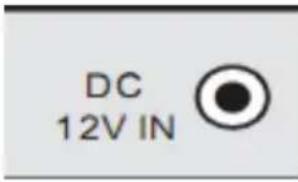
Connect the power cable (small connector) to the DC 12 V IN input of the TV set. Connect the power cable of AC/DC power adapter with the wall mounted power outlet.
On the front side you can see a red LED light. The TV set is now in Stand-By mode. By pressing the POWER button on the remote control or on the top side of the device the red LED changes to a green light.
Antenna
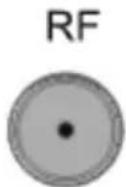
The TV set has an analogue and a digital TV Tuner inside. For receiving analogue TV signals please connect the antenna cable with the RF connector on the TV set and with the VHF/UHF roof antenna or with a CATV antenna plug.
For receiving digital terrestrial TV signals please connect the TV set with the RF plug and also with the roof antenna. If no roof antenna is available, please use indoor aerial.
For activating the analogue TV Tuner, please switch with the SOURCE button and choose in the popup window "ATV" or "DTV" for digital terrestrial TV.
Note:
For getting the best DVB-T reception please uses the roof antenna. If not possible, than you can connect the TV set with an active indoor aerial.
SCART Input
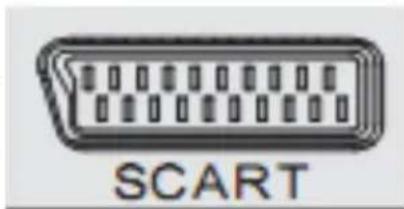
Audio- and Video signals from a VCR or a setup box can be transmitted by SCART. Please connect a SCART cable with the SCART input on the TV set and with the SCART output on the VCR or setup box.
Press the SOURCE button and choose „SCART" in the popup window and the SCART interface is activated.
HDMI
If you want connect a multimedia device with HDMI like a game console „PS3" or a Setup box with the TV set, you can establish a HDMI connection. Please connect the HDMI cable on the HDMI interface on the TV set and the HDMI output of the multimedia device.
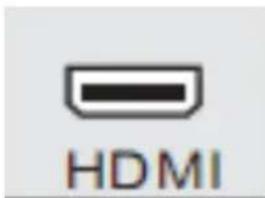
You can also connect the TV set to you personal computer by HDMI cable. Here you can uses the Full-HD resolution (1920 x 1080).
Please press the SOURCE button and choose "HDMI" in the popup window and the HDMI input is active.
Connection
Component Y Pb Pr Video- and Stereo Audio input
If you uses more than one multimedia terminals and the SCART, HDMI and S-Video connection are used, than you connect the next device by the audio/video component input (Y Pb Pr). Please connect the wire of an 3-pin component

Y

Pb

Pr

V

L

R
cable with the YPbPr input of the TV set and the multimedia device. Please pay attention to the coloured coding of the cable, inputs jacks (LCD set) and the video output jacks (source):
- "Y" with the green wire or RCA plug
- "Pb" with the blue wire or RCA plug
- "Pr" with the red wire or RCA plug
With this kind of connection only video signals are transmitted. For listening sound on the TV you should establish also a sound connection. Please connect the white and red wire of the 2-pin component cable with the AUDIO OUT (source) and the RCA jack with the "L" and "R" of the TV set.
Please press the SOURCE button and choose Component in the popup window. The YUV input is active.
Video- and Stereo Audio input
If you uses more than one multimedia terminals and the SCART, HDMI and YUV connection are used, than you connect the next device by the CVBS. Please connect the CVBS cable with the CVBS input of the TV set and with the CVBS output of the multimedia device. With this kind of connection only video signals are transmitted. For listening sound on the TV you should establish also a sound connecti

V

L

R
Please connect the white and red wire of the 2-pin component cable with the AUDIO OUT (source) and the RCA jacks "L" and "R" of the TV set.
Please press the SOURCE button and choose AV^ in the popup window. The CVBS input is active.
USB Port
This USB port has different functions:
- After connect of USB storages, you can record DVB-T broadcast.
- Playback of recorded DVB-T broadcast
- Time-Shift Function
- Playback of media content like Movies, Music and Pictures
- Update of the system
Note:
Due to the legal requirements of CE-conformity, the customer is asked to only connect USB-Sticks to the USB port.
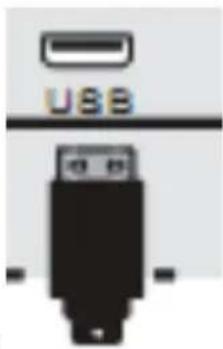
USB
VGA
You can use the TV set as a PC monitor by using the VGA interface. Please connect a VGA cable with the VGA input of the TV set and with the PC.
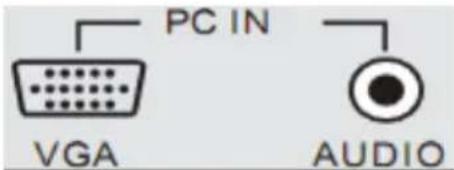
With this kind of connection only video signals are transmitted. For
listening sound on the TV you should establish also a sound connection. Please connect the white and red wire of the 2-pin component cable with the AUDIO OUT (source) and the stereo jack with the "PC AUDIO" plug of the TV set.
Please press the SOURCE button and choose "VGA" in the popup window. The VGA input is active.
Notes:
- Before you connect the TV set with the PC, please change the graphic resolution of the PC to: 640 x 480, 800 x 600 or 1024 x 768.
- Please establish the connection and switch to PC-VGA input.
- For displaying the best results, please uses the native resolution with HDMI connection of the TV LCD panel:
HTL 2231D 1920 x 1080 Pixel
Headphone
You can connect a headphone to the TV set. Please uses a headphone with 3.5 mm phone jack and plug them to the headphone port on the left side of the HTL 2231D.

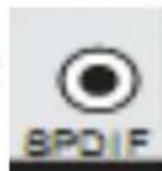
Digital Sound output by Coaxial
You can connect a digital amplifier to the TV set. Please connect a RCA cable to the SPDIF plug of the TV set and to your digital amplifier. Your amplifier shall decode Dolby Digital sound.
First Time Installation
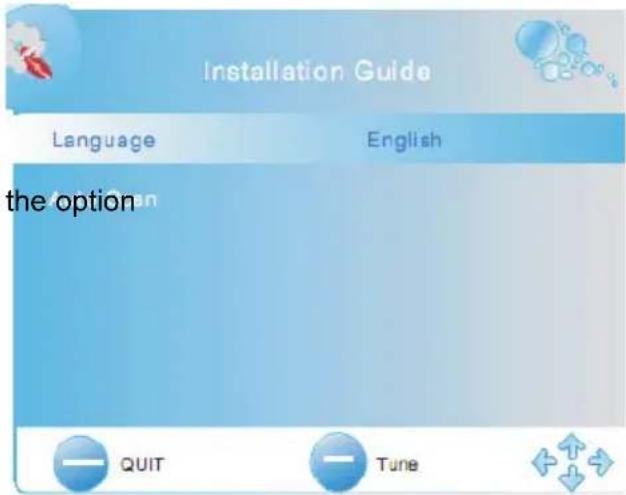
When you start the HTL 2231D TV set the first time and choose TV or DTV, than appears the installation guide on the screen. With this guide you can search analogue and digital TV channels. The search routine includes the frequencies of the analogue and digital broadcaster.
- Please select the OSD language. You can choose the pre-installed languages by pressing the or buttons. If you find your languages, please confirm the language by pressing the OK button.
- Press the button and navigate to "Auto Tuning". The search starts when you press the button.
- A new popup window appears on the screen. There you can see the option country selection. Please choose the suitable country by pressing the or buttons.
- If you had chosen the country, please press the button, so that the "Start" field will be marked with blue and is active. Press the OK button and the search starts immediately.
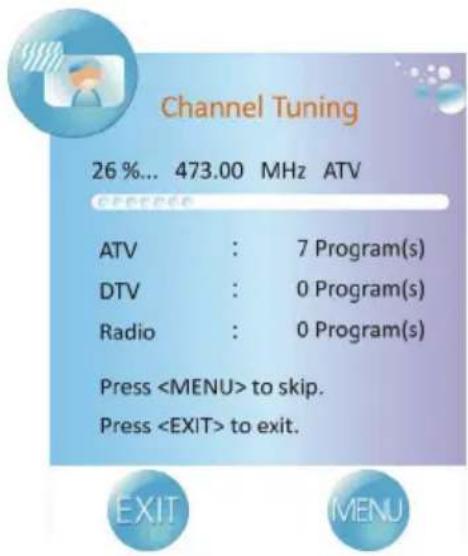
- A new window opens on the screen, where the status of the searching is documented. The values of the found TV broadcast stations of analogue, digital and Radio are listed.
- After finishing of the searching, all found TV broadcast station will be saved into the channel list.
- You can look at the TV channel list by pressing the CH.LIST button.
Note:
The complete searching needs a couple of minutes.

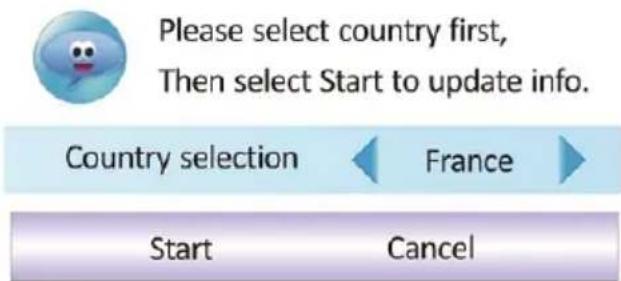
Please select country first, Then select Start to update info.
Country selection

France

Start
Cancel
The single sources and inputs of the HTL 2231D TV set can be choose by pressing the SOURCE button on the remote control or the SOURCE on the right side of the TV set. A popup window appears on the screen. The sources are:
DTV DVB-T TV Tuner
ATV Analogue TV Tuner
SCART SCART Video/Audio Input
AV CVBS Video Input
Component Video component input
VGA VGA port
HDMI HDMI Video/Audio input
Storage USBport
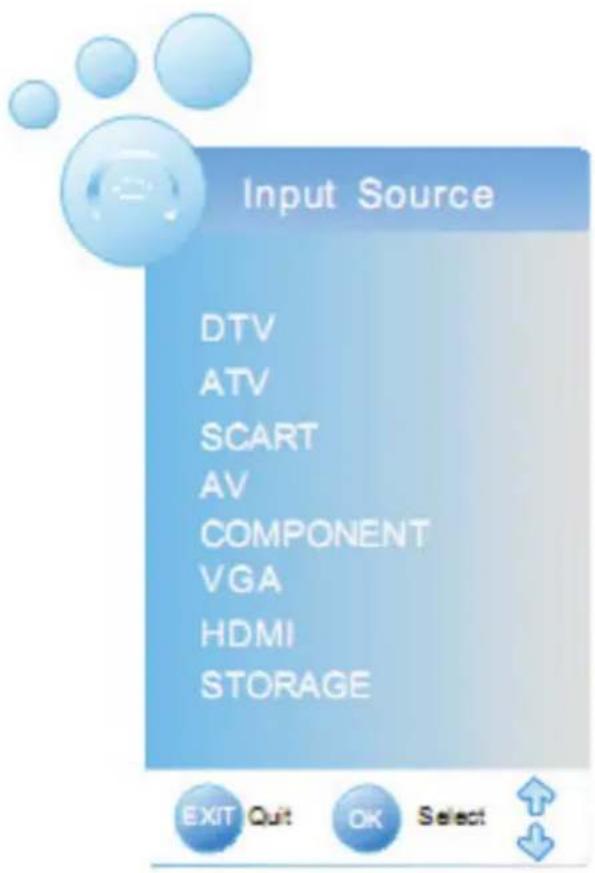
There you can choose the source by pressing the / button. Confirm the selected source with the OK button.
If you want to use the terrestrial digital TV (DVB-T), than you need to change the source into DTV. Press the SOURCE button and navigate to DTV with the / button. Confirm the selection DTV by pressing the OK button.
Important buttons and there functions
Channel List
Press the CH.LIST button on the remote control and you gets the provided and receives TV broadcast stations. By using the / buttons you can select the TV station, which you like. To disappear thee channel list, press the EXIT button.

Change TV channel
To change to TV channel you can press the CH- or CH+ button.
Select TV Channel
You have also quick access to the different TV channels by using the numeric buttons.
Last TV channel
Press the RECALL button to go back to the last TV channel.

Change the Volume
By pressing the VOL- or VOL+ buttons you can adjust the volume of the speaker.
EPG
Press EPG button to show the EPG information. For detailed information about the EPG please refer the section about EPG.
Favourite list
If you had defined some TV or Radio into a favourite list, than you have a quick access to the favourite list by pressing the FAV button.
Subtitle
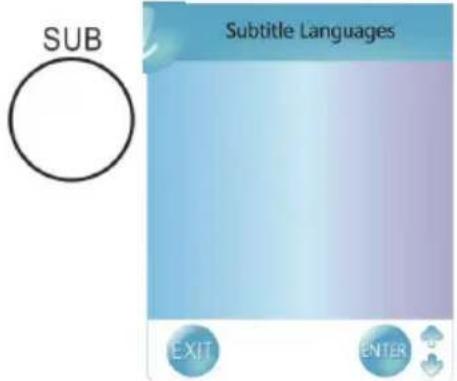
Press SUB button to turn on or off the subtitle on the screen. This function can be activated, if the service is provide by the TV channel and program. In case that subtitles are supported, than they will be listed into the popup window. You can choose the subtitle and start them with the OK button.
Note:
Subtitles are not supported in every country.
Important buttons and there functions
TV/Radio
Press TV/RADIO button to switch between TV and Radio station.
Tele-/ Videotext
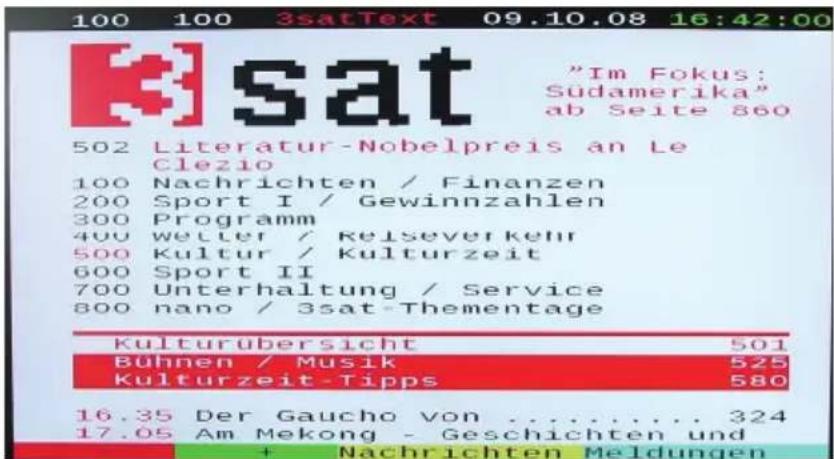
Press TEXT button to view the videotext information of the current TV program.
1. With the numeric buttons you can select special videotext pages.
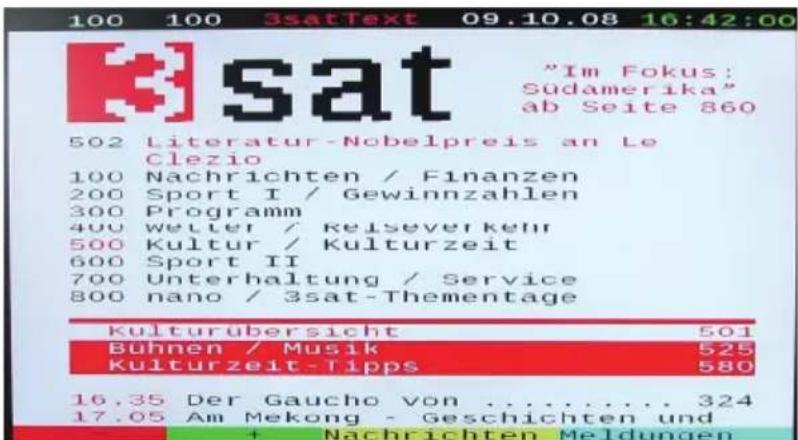
2. On the bottom side of the videotext window you can find four colored fields (Red, Yellow, Green, Blue). The colored fields correspond with the colored buttons on the remote control. Press one of the colored button, the TV set goes directly to this videotext page.
3. With the RED button you can choose to the previous videotext page.
4. With the GREEN button you can choose the next videotext page.
5. With the YELLOW button you can choose the pre-defined videotext page.
6. With the BLUE button you can choose the pre-defined videotext page.
7. The TXT button hidden the opened videotext window. Press again, than opens the window.
8. With the CANCEL button you can switch the activated Videotext window transparency, so that the live picture is visible. Press again the CANCEL button, than the Videotext window switches off.
9. The INDEX button makes a quick access to the first videotext page (for example page 100).
10. With the SIZE button you can zoom in the videotext window on full screen size. Than you can see the first half videotext page. Press again the SIZE button and you can the second part of the videotext page. By pressing the third time the SIZE button the videotext window changes to normal size and view.
11. To close the Videotext window please press the EXIT or two times the TXT button.
Language or another Audio
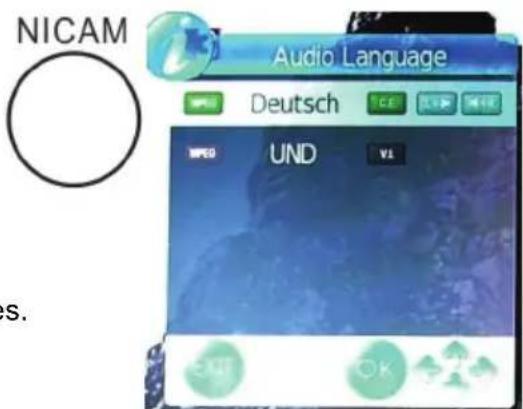
Press NICAM button to change the audio language or the audio track output. After pressing the NICAM button a popup window appears on the screen, where you can select the preferred audio language or sound mode by using the / buttons. Confirm the selection by pressing the OK button.
Note:
Some broadcaster supports different languages or sound modes.
Important buttons and there functions
Quick-Information
Press the OK button during the live picture and a popup window appears on the screen. The information in the window are TV program title, current date, current time, duration of the actual TV program, resolution of the transmission (for example 576i) and if videotext is available.
On the right side you can find an arrow sign. By pressing the button you gets information about the next TV program.
Ländermagazin
Thr, Oct 09 2008
17:15

17:45
English
Teletext
576i
Information
Press the INFO button during the live picture and detailed information are appears on the screen.
17:19
Next

News Current Affairs
Heino Graf Bassewitz
Beside the TV program title, time, date, duration time of the current program title, resolution of the broadcast and if videotext is available, you can see the detailed EPG information of the current TV program. With the / buttons you can browse all EPG information, if more than one page is available. By pressing the button you gets information about the next TV program and there EPG information.
EPG
The electronic program guide (EPG) can be activated by pressing the EPG button as well and the EPG window appears on the screen.
The EPG window is organized in three sections:
Top Current TV channel number (e.g. DTV 1) and TV broadcast station name
Date, duration time of the current TV program and the TV program title
Middle EPG overview by list
Bottom Buttons for navigation
EPG
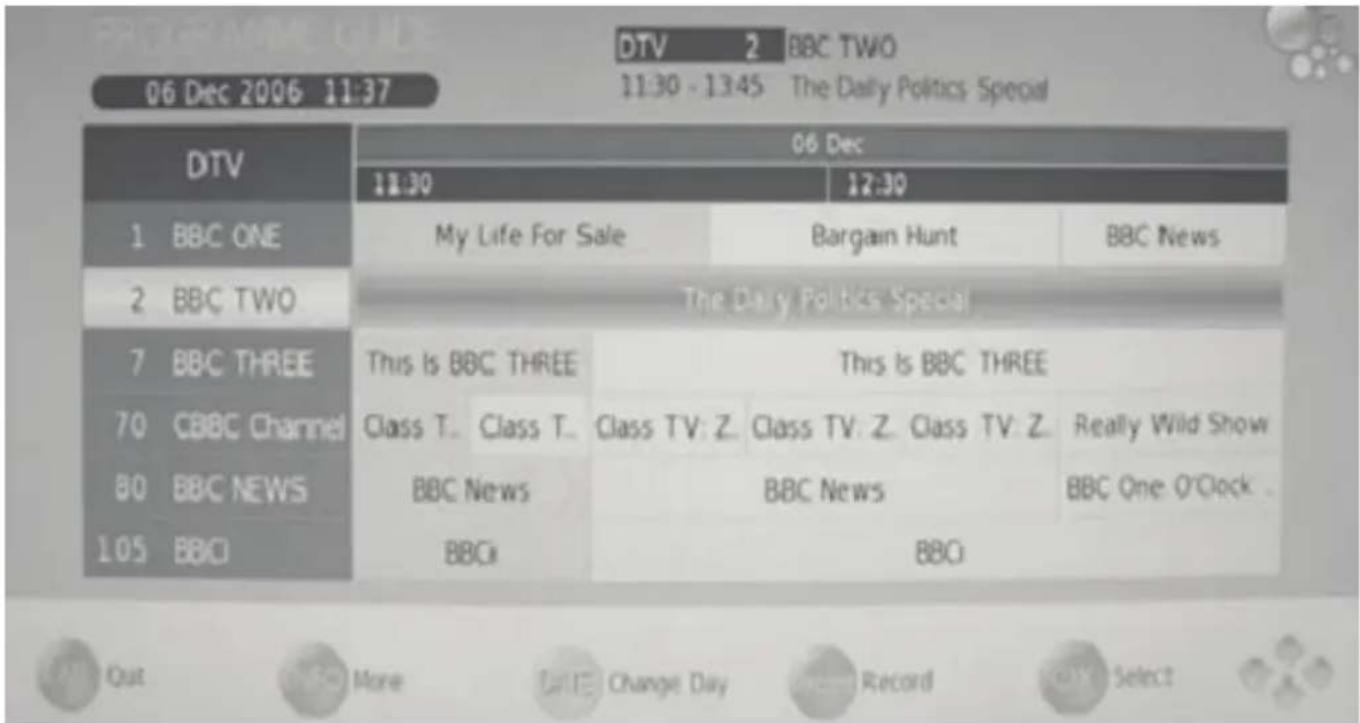
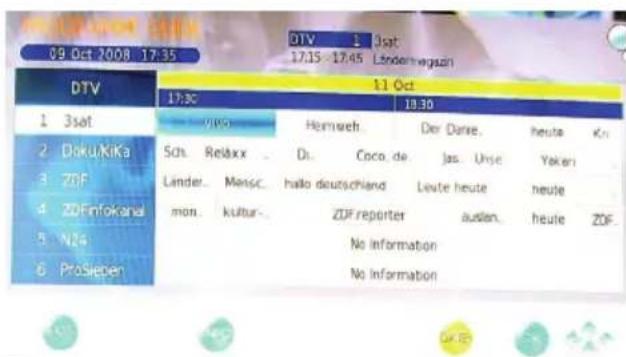
The active and current TV station and TV program is accentuate in blue. Inside of the TV station you can navigate with the or buttons to the previous or next TV program. With the / buttons you can change to the TV broadcast station. Following button help you for easier navigation:
EXIT Exit of the EPG window
INFO Access to detailed EPG information by each TV program
YELLOW Switches from daily mode to weekly mode
RECORD Press the REC button to program a DVB-T broadcast recording.
By the weekly mode the date bar changes from the bright blue into yellow. Now you can browse to the next date by using the or buttons.
Press again the YELLOW button and the displaying changes from the weekly mode into the daily mode.
Note:
The HTL 2231D set supports 7-days EPG preview.
If you want to use the analogue TV Tuner (Cat TV), than you need to change the source into TV. Press the SOURCE button and navigate to TV with the / button. Confirm the selection ATV by pressing the OK button.
Channel List
Press the CH.LIST button on the remote control and you gets the provided and receives TV broadcast stations. By using the / buttons you can select the TV station, which you like. To disappear thee channel list, press the OK button.

Change TV channel
To change to TV channel you can press the CH- or CH^+ button.
Select TV Channel
You have also quick access to the different TV channels by using the numeric buttons.
Last TV channel
Press the RECALL button to go back to the last TV channel.

Change the Volume
By pressing the VOL- or VOL+ buttons you can adjust the volume of the speaker.
Tele-/ Videotext
Press TEXT button to view the videotext information of the current TV program.
-
With the numeric buttons you can select special videotext pages.
-
On the bottom side of the videotext window you can find four colored fields (Red, Yellow, Green, Blue). The colored fields correspond with the colored buttons on the remote control. Press one of the colored button, the TV set goes directly to this videotext page.
-
With the RED button you can choose to the previous videotext page.
-
With the GREEN button you can choose the next videotext page.
-
With the YELLOW button you can choose the pre-defined videotext page.
-
With the BLUE button you can choose the pre-defined videotext page.
-
The TEXT button hidden the opened videotext window. Press again, than opens the window.
-
With the CANCEL button you can switch the activated Videotext window transparency, so that the live picture is visible. Press again the CANCEL button, than the Videotext window switches off.
-
The INDEX button makes a quick access to the first videotext page (for example page 100).
-
With the SIZE button you can zoom in the videotext window on full screen size. Than you can see the first half videotext page. Press again the SIZE button and you can the second part of the videotext page. By pressing the third time the SIZE button the videotext window changes to normal size and view.
-
To close the Videotext window please press the EXIT or two times the TEXT button.
The recorder works only in DVB-T mode. You can record only DVB-T broadcast. Please pay attention to following rules:
- Connect USB storage to the USB port on the left side.
- Prepare the USB storage by the TV set before starting recording
- Do not disconnect the power during recording.
Preparation of USB Storage for Recording
- Press the MENU button to select CHANNEL.
- Press the button to select PVR System and press the or OK button to enter the sub-menu, as shown.
- Press the MENU button to return to the previous menu.
- Press the EXIT button to exit.
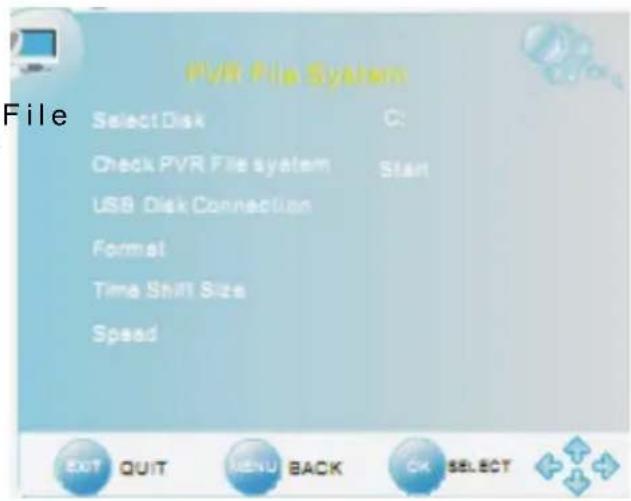
Select Disk
Select a disk to store the recorded file. Press the button to select Select Disk and press the or OK button to prompt a submenu, as shown.
- The item Disk is highlighted and press the
button select desired disk. The available item varies depending on the external USB device connected to the unit.
- Press the button to highlight OK and press the OK button to confirm.
Check PVR File System
Press the button to select Check PVR File System and press the or OK button to start to check the PVR File system.
After checking PVR file system, the item "USB Disk" will display "Pass" indicating the file system in the USB disk connected has been checked and ready to use.
If the USB disk does not have a PVR File System, then unit will prompt a message asking user to format it.

Disk
C:
OK
Cancel
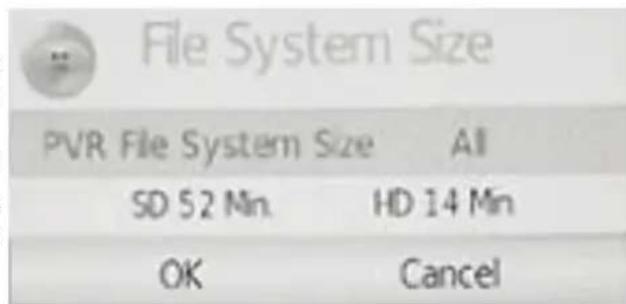
Format
Press the button to select Format and press the or OK button to prompt a sub-menu which occurs only when the USB device is plugged in for the first time, as shown:
- The item PVR File System Size is highlighted and press the button to choose the capacity to be format. The available cap device connected to the unit.

Format disk
Do not unplug USB device.
Create PVR file system,请放 wait...
Press the button to highlight OK and press the OK button to format the disk you selected.
During disk formatting, please do not unplug the USB device and wait for several minutes.
Notes:
- All data on the connected device will be lost if you confirm to format.
It is strongly recommended that the USB device is dedicated only for this unit. Various external data contain in the USB device might cause PVR file system corrupt and requires formatting. - Once USB device is formatted, unit will create a unique file system on it. Therefore, it is not advisable to connect USB device to a computer to export data.
We cannot guarantee compatibility (operation and/or bus power) with all USB mass storage devices and assumes no responsibility for any loss of data that may occur when connected to this unit. - With large amounts of data, it may take longer for the system to read the contents of a USB device. Unit may require longer time to format depending on the volume of the USB device.
- Some USB devices may not be properly recognized.
Even when they are in a supported format, some files may not play or display depending on the content. - Please make sure the USB device's file system is FAT32.
- USB device must be a high speed USB2.0 in order to operate properly.
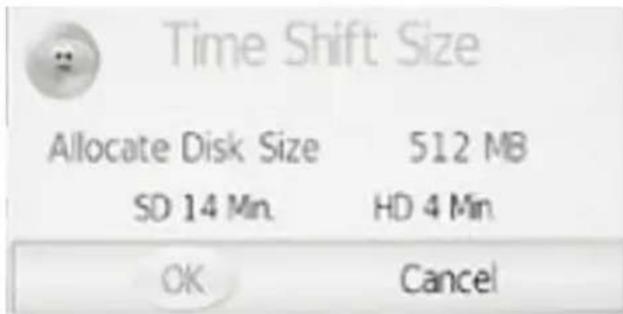
Time Shift Size
- After the disk format is finished, the menu as shown on the right will appear.
The item Time Shift Size is highlighted, press the button to choose a size to be allocate for time shift. - Press the button to highlight OK and press the OK button to confirm and return.
Speed, Remain Space
Once USB device is checked, this item will display the USB data transfer rate and the remaining space in it.
Max record time
Press the button to select Max record time and press the button select desired time as the max record time.
Recording program
After you setup the settings on the PVR File System menu, you can record a DTV program on the external USB device. Select the desired program then press the REC button on the remote control to start recording and the progress bar will be displayed. During recording, the progress bar will fade out in 10 seconds.

Press the REC button again, an REC icon will blink on the bottom right corner of the screen and it will fade out in 10 seconds. Recording stops when you press the STOP button and the recorded file is stored in the external USB device automatically.
Recording in standby mode
This unit is able to do recording while in sleep mode.
- Start a recording, then press the power button.
While recording in standby mode, unit will not output any picture or sound. The power indicator will flash in green and red consecutively while there is a recording in standby mode.
Schedule Recording by EPG
Schedule record is a function which allows you to record future program. You can first set up a schedule record, then unit will record the program when the program is broadcast. It will stop recording when the program finish.
- Press the EPG button to display Electronic Program Guide menu.
- Select your desired TV program and press the REC button to enter the Recorder menu.
- From here you can modify the start and end date time of your record schedule by using the direction button once.
- Use the time to change.
- Use the button to select desired item and press the OK button to enter.
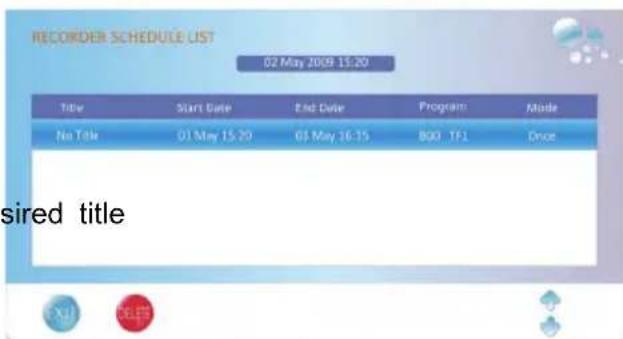
- After setting, press the OK button to confirm and the Recorded Schedule List will display. The scheduled program will be recorded automatically at the time you set. You can schedule more recordings and the scheduled programs will be listed in the Recorded Schedule List. While in Recorder menu, you can also press the green button to enter the Recorded Schedule List.
- Press the button to select desired title and press the red button to delete it.
- Press the EXIT button to exit.

Recorder
02 May 2009 15:20
| Program | 800 TF1 |
| Start Date | 2009/05/03 |
| Start Time | 15:20 |
| End Date | 2009/05/03 |
| End Time | 16:15 |
| em anbde | Once |



Time Shift Function
This function allows you to pause and fast forward/rewind normal Live DTV viewing at any time without missing any of the live broadcast, provide that a USB storage device is connected.
During viewing a DTV program, press the PAUSE button on the remote control to pause live TV. A progress bar is displayed on the screen:
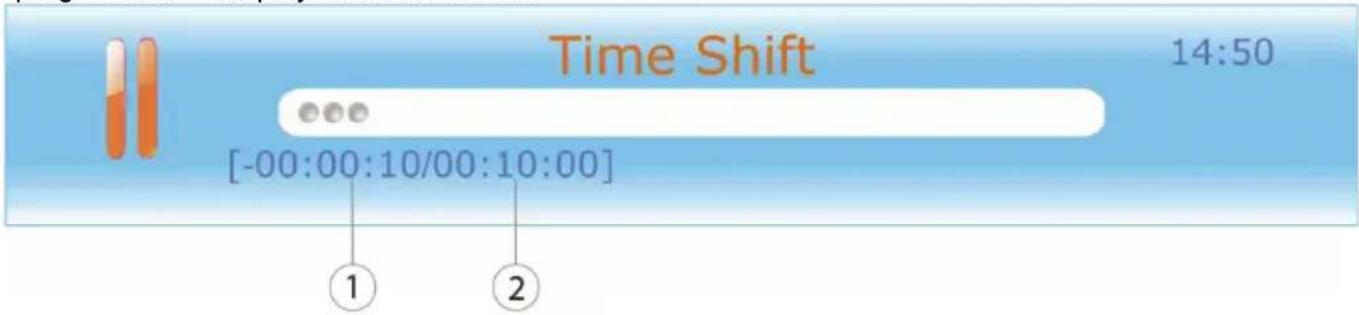
- Current time behind live TV.
- Total allowable time for time shifting. Varies depending on the time shift size.
- The progress bar will fade out in 10 seconds.
Press the PLAY (>||) button to continue playing the program from the point where it was paused. An progress bar is displayed on the screen.
The progress bar will fade out in 10 seconds.
Time shift function stops when the current save time becomes 00:00:00.

While in Time Shift mode, operations below can be use.
Press the >> or << button repeatedly to increases the fast forward/rewind speed.
Press the >> button to jump about 30 seconds forward.
Press the |<< button to jump about 30 seconds backward.
Press the STOP button to cancel the Time-Shift function.
Playing recorded program
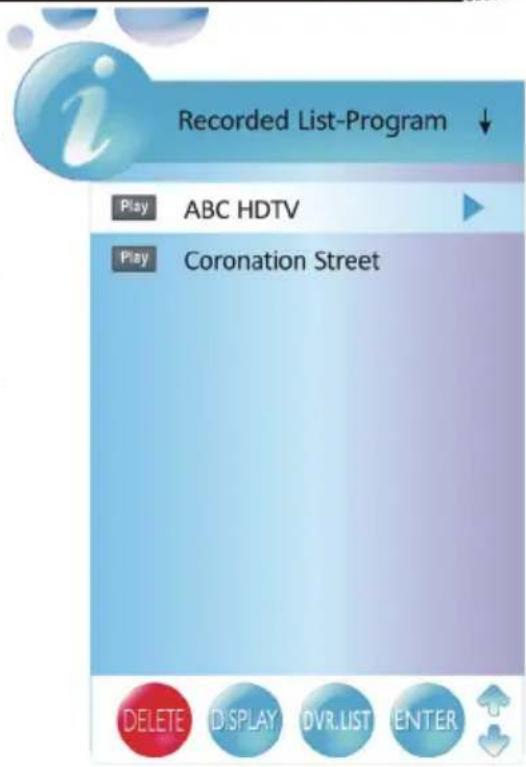
You can play the selected program in the recorded list.
- Press the INDEX button on the remote control to enter the Recorded List.
- Press the INDEX button repeatedly to list the files by named Program, Channel or Time.
- Press the button to select desired file and press the INFO or direction button to display the information of the file.
- Press the button to select desired file and press the OK button to playback selected file.
- While playing, you can see a playback progress bar as shown below.

Multimedia-Player—USB
USB Operation
- Press SOURCE button to select STORAGE mode input.
- Press SOURCE button again to exit.
Note:
The main menu is divided into: PHOTO, MUSIC, MOVIE three categories, you can press the left right choice. Automatic classification system to better document, it will only show supported file. For example, under PHOTO displays only JPEG, BMP, and PNG files
Important Notes:
- Do not uses more than 300 folders on the storage.
- Do not uses more than 5000 pictures in one folder
- Please pay attention to the memory size of the USB storages (not more than 320 GB).
- Please uses only certified USB 2.0 High Speed cable.
- Due to the legal requirements of CE-conformity, the customer is asked to only connect USB-Sticks to the USB port.
PHOTO
In the USB menu press button to choose PHOTO, then press OK button to enter the next menu level. Reach the BMP, JPEG and other documents in the folder, press button to move the cursor. Select the picture you want to play.
Press button to influence next page. If you move the cursor to UP FOLDER, than the device returns to the previous menu level.
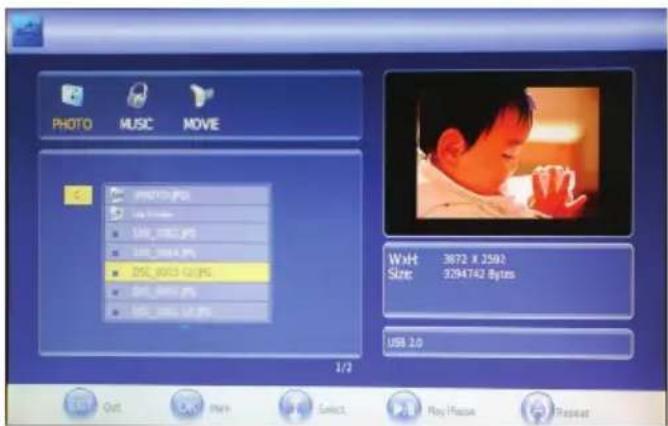
Your cursor in the document to be selected after about 2 seconds to automatically enter the browse mode, image content displayed in a small window; press OK button to select which you want to play the item, press PLAY / PAUSE, you can cut to full screen to play the selected content.
Operation:
After cutting to full screen you can press PLAY button or PAUSE button to control the image play or pause
Press 1 < 1 and 1 button to manually play on a picture and the next one image
Press EXIT button to exit full-screen mode, press MENU button to bring up TV main menu.
Supported Picture File Formats:
JPEG JPG or JPE files up to a resolution of 3000 x 3000 Pixel
Bitmap BMP files up to a resolution of 3000× 3000 Pixel
PNG PNG files up to a resolution of 1000 x 1000 Pixel
MUSIC
In the USB menu press button to choose the MUSIC, then press OK button to enter the next menu level. Press button, to move the cursor and select the songs you want to play.
Press button to influence next page. If you move the cursor to UP FOLDER, than the device returns to the previous menu level.
Your cursor in the document to be selected after about 2 seconds to automatically enter the browse mode, in accordance with set "Repeat" mode play. Browse mode, no PAUSE function.

Press PLAY button or PAUSE button and enter Playlist playback mode, as shown on the right.
Of the progress bar on the left, press button to move the cursor up and down. Then select OK button to switch the song playing.
ID Tags information are displayed from the music file, when available.
Operation:
PLAY (> ), PAUSE () , Previous file (| < |) , Next File (> > | ), Fast Forward (> >) , Fast Rewind (< <) button can be achieved play / pause, previous song, next song, fast forward, rewind function. Up to 16 times as fast-forward rewind.
Press EXIT button to exit the Playlist mode.
Press MENU button to tune out the TV main menu.
Press BLUE button to switch off the screen and listen only the music.
Supported Music File Formats
MP3 MP3 files with a bit rate between 32 to 320 kbps
WMA WMA Version 9 files with a bit rate between 32 to 320 kbps
AAC AAC LC 2.0 files with a bit rate between 32 to 192 kbps
Multimedia-Player—USB
MOVIE
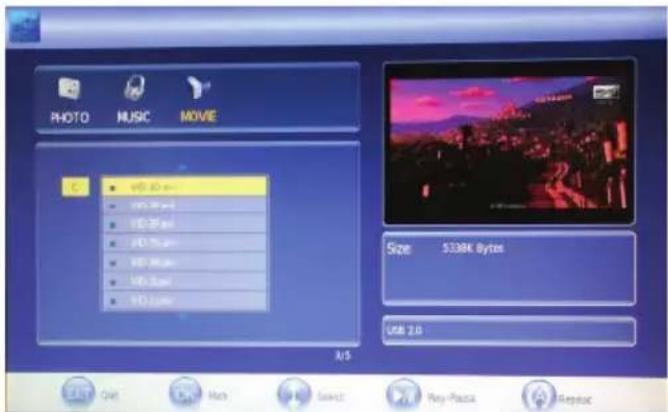
In the USB menu press button to choose the MOVIE, then press OK button to enter the next menu level. Press button, to move the cursor and select the songs you want to play.
Press button to influence next page. If you move the cursor to UP FOLDER, than the device returns to the previous menu level.
Your cursor in the document to be selected after about 2 seconds to automatically enter the browse mode, playing in a small window. Browse mode, Previous File (I<<), Next File ( ) , Fast Forward () and Fast Rewind (< < ) button are not the role of.
Operation
Press OK button to select the file you want to play, and then PLAY (≥) / PAUSE (||) button by a small window cut into the full-screen playback.
PLAY (>) , PAUSE (||) , Previous File (|<<) , Next File (>>|) , Fast Forward (>>) , Fast Rewind (<<) button can be achieved play or pause, previous song, next song, fast forward, rewind function.
Press EXIT button to exit full-screen mode.
Press MENU button to tune out the TV main menu.
Supported Movie File Formats
- Available resolution size of the files is under 720x576 (W x H) pixel.
- If there is impossible code to express in the file, it may be displayed as " _ " mark on the display.
- If the number of the screen frame is over 30 per second, this unit may not operate normally.
- If the video and audio structure of recorded file is not interleaved, either video or audio is outputted.
- Different MPEG-4 codices are supported. There must be encoded with are MPEG-4 part 2 (MPEG-4 SP/ASP) standard.
-
Supported formats are:
-
MPEG-4 codec in AVI or MP4 container
- MPEG-1 codec in MPG or DAT container
-
MPEG-2 codec in MPG or VOB container
-
No video files with a codec VC-1, H.264 are supported
- No container of MKV, MOV, 3GP or QT are supported
-
Supported Audio tracks in the movie files are:
-
MPEG-4: MP3, WMA
- MPEG-1/2: MP2 / MPA
- Sampling Frequency: 8 - 48 kHz (MP3) or 32 - 48 kHz (WMA)
- Bit rate: 8 to 320 kbps (MP3) or 32—192 kbps (WMA)
- Files with AC3 are not supported
Here you can notice the specifications of your files for reference:
Pictures:
Music:
Movies:
LCD Settings
Press the MENU button and you gets access to the different LCD settings. The beside picture shows the different categories "Time", "Channel", "Lock", "Options", "Sound" and "Picture" which characterizes with symbols. The following description shows a list of each categories.
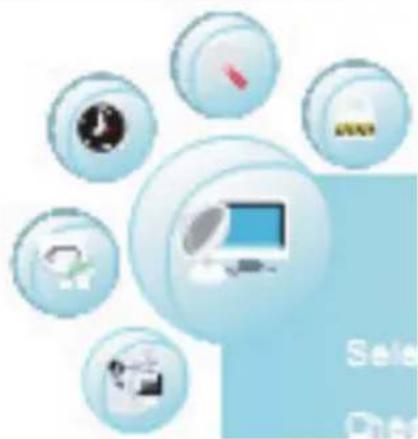

Time
Clock, On Time, Off Time, Sleep timer, Time zone and Auto Stand-By

Sound
Sound mode, Treble, Bass, Balance, Auto Volume, Surround Mode
Picture
Picture Mode, Contrast, Brightness, Col our, Sharpness, Hue, Colour Temperature, Aspect Ratio, Noise Reduction and Screen (only by VGA mode)

Channel
Auto Search, DTV manual search, TV manual search, Programme Edit

Lock
Lock Channel, Password, Block Channel, Parental Control

Options
Language, Audio language, Subtitle language, Country, Default
After starting the LCD settings you can change the category by using the or buttons. You can enter in each category by pressing the button and this category is active.
Each option or setting can be change by or buttons.
To exit the active category please press repeatedly the button.
To leave the TV settings, press the EXIT or MENU button.
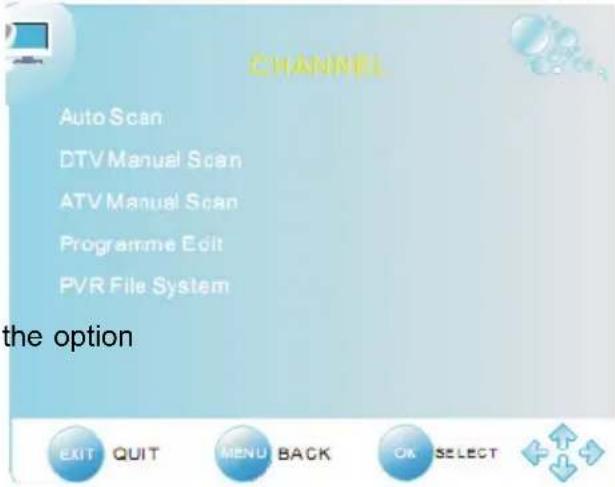
Channel setting
The channel settings include the options for Auto Search (Auto Tuning), DTV manual Search, ATV manual Search, Programme Edit and PVR File System.
Auto search (Auto Tuning)
With this setting you can search the TV broadcast station for analogue and digital TV programs.
- Press the button and navigate to "Auto Tuning". The search starts when you press the button.
- A new popup window appears on the screen. There you can see the option country selection. Please choose the suitable country by pressing the or buttons.
- If you had chosen the country, please press the button, so that the "Start" field will be marked with blue and is active. Press the OK button and the search starts immediately.
- A new window opens on the screen, where the status of the searching is documented. The values of the found TV broadcast stations of analogue, digital and Radio are listed.
- After finishing of the searching, all found TV broadcast station will be saved into the channel list. You can look at the TV channel list by pressing the CH.LIST button.
Note:
The complete searching needs a couple of minutes.
DTV Manual Search (DTV Manual Tuning)
Press the button and navigate to the option "DTV manual Tuning". The search starts when you press the button.
- You can change the channel by using or buttons. So you can define, on which channel shall be runs the search.
- Starts the searching by the OK button.
To leave the DTV manual tuning, press the EXIT or MENU button.
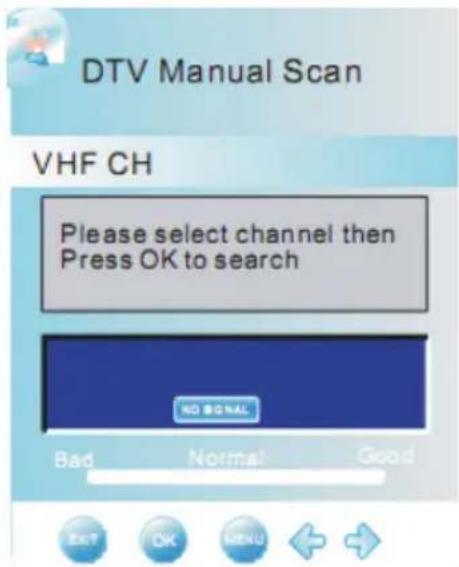
Channel setting
ATV Manual Search (ATV Manual Tuning)
Press the button and navigate to the option "ATV manual Tuning". The search starts when you press the button. The options are:
Storage To
- System (B/G for West Europe, I for UK, D/K for Eastern Europe and France, L or LL for part of France)
- Current TV channel
Search
- Fine Tuning
- Skip
Frequency
- With the / buttons you can browse to each setting.
- With the or buttons you can choose the position in the channel list, where the found TV channel is stored.
- Go to "Audio" and choose the Audio system by using the or buttons.
- Go to "Search" and start them by the button.
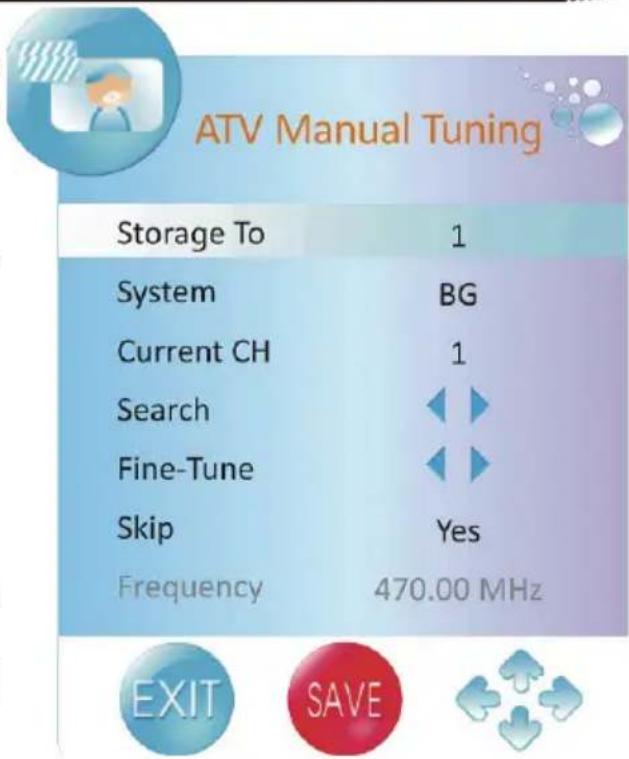
Fine Tuning
By using the or buttons you can start the fine tuning of each TV channel, if the signal is too weak or distorted.
Skip
By using the or buttons you can activate the Skip function.
Yes - The channel is skipped by changing the TV channel with the CH- or CH+ button.
- No - The Skip function is deactivated.
Other buttons for navigation
With the RED button you can save the changes, if you for example has changes the Audio system.
To leave the ATV manual tuning, press the EXIT or MENU button.
Channel setting
The option "Programme Edit" includes settings for Moving and sorting, Skip and define Favourites.
Move a TV channel (SWAP)
This option is responsible for sorting the TV channel, so that you can define your personal view of the TV channel list.
- With the / buttons you can choose the TV channel, which shall be edit.
- Press the YELLOW button and be chosen TV channel you can see now an arrow symbol.
- Move the TV channel with the / buttons on the position which you like.
- Press the YELLOW button to confirm and save the moving.
- To leave the setting press the EXIT button.
the

Program Edit
TV 1


Define TV Channels into Favourites
Here you can define your preferred TV channels into a favourite list. You can activate the list by pressing the FAV button.
- With the / buttons you can choose the TV channel, which shall be edit.
- Press the FAV button and beside the chosen TV channel you can see now heart symbol.
- To leave the setting press the EXIT button.
Note:
If you want to delete a favourite TV channel from the favourite list, than browse the TV channel which is marked by a heart symbol and press the FAV button. The heart symbol is deleted and this TV channel can not seen anymore in the favourite list.
Skip a TV Channel
With this option you can define single TV channel which can not dial anymore by using the numeric buttons.
- With the / buttons you can choose the TV channel, which shall be skipped.
- Press the BLUE button and beside the chosen TV channel you can see now blue symbol.
- To leave the setting press the EXIT button.
LCD Settings
Channel setting
Rename a TV Channel (only by analogue TV channel possible)
With this option you can rename single analogue TV channel and define a new label.
- With the / buttons you can choose the TV channel, which shall be skipped.
- Press the GREEN button and bes chosen TV channel you can see now green symbol.
- With the / buttons you can browse the letters on each place.
- With the or buttons you can go to the next position.
- Save the new label of the TV channel by pressing the MENU button.
- To leave the setting press the EXIT button.
Program Edit
TV 1
Delete a TV Channel
With this option you can delete single TV channel from the TV list.


- With the / buttons you can choose the TV channel, which shall be skipped.
- Press the RED button and beside the chosen TV channel you can see now red symbol.
- Confirm the deleting by pressing again the RED button.
- To leave the setting press the EXIT button.
Note:
The selected TV channel is now deleted from the TV channel list.
LCD Settings
Picture setting
The picture settings include option for "Picture Mode", "Contrast", "Brightness", "Colour", "Sharpness", "Tint", "Colour Temperature", "Aspect Ratio", "Noise Reduction" and "Screen".
Picture Mode
With the or buttons you can choose the picture mode. The live picture changes to the preset settings. The presets are:
Dynamic
Standard
Mild
You can define you own settings if you uses the USER options.
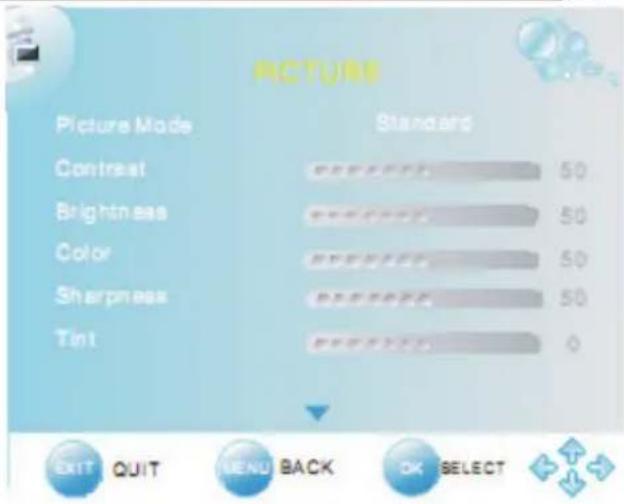
Brightness
With the or buttons you can select the level of brightness. This option is only than active, when you use the USER option by the picture mode.
Contrast
With the or buttons you can select the level of contrast. This option is only than active, when you use the USER option by the picture mode.
Colour
With the or buttons you can select the level of contrast. This option is only than active, when you use the USER option by the picture mode.
Sharpness
With the or buttons you can select the level of sharpness. This option is only than active, when you use the USER option by the picture mode.
Tint
With the or buttons you can select the level of hue. This option is only than active, when you uses the USER option by the picture mode.
Colour Temperature
With the or buttons you can select the level of colour temperature. The three preset options are:
Cool
Warm
Medium
You can define you own settings if you uses the USER options. Than you can get access to the three colours "Red", "Green" and "Blue". Select the level of each colour by using the or buttons.
Noise Reduction
With the or buttons you can activate or deactivate the noise reduction. The option ON starts the noise reduction and OFF deactivate them.
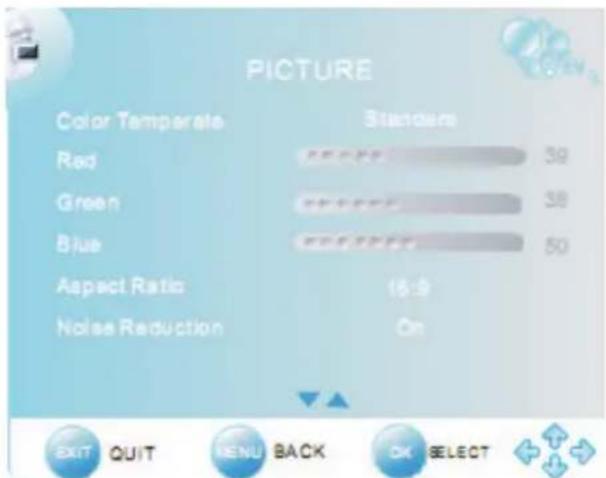
Picture setting
Aspect Ratio
With the or buttons you can select the aspect ratio and changes the view on the screen. The options are:
16:9 - The picture is every time in full screen mode, independent from the supported aspect ratio.
4:3 - The picture view is 4:3 and shows on the left and right side a black bar, independent from the supported aspect ratio.
- Auto - The view is defined by the supported aspect ratio and the adjustment is automatically. By 16:9 is the picture in full screen and by 4:3 show the screen the black bars on the right and left side.
- Zoom 1 - This option can be used for an 4:3 aspect ratio. The picture is zoomed into full screen by keeping the aspect ratio. Parts of the picture will be cut-off (specially on the top or bottom side) and can not seen anymore.
- Zoom 2 - This option can be used for an 16:9 widenscreen or cinemascope picture. The picture is zoomed into full screen by keeping the aspect ratio. Parts of the picture will be cut off (specially on the right and left side) and can not seen anymore.
By every source except the internal DVD-Player you can change the aspect ratio by pressing the ASPECT button on the remote control.
Note:
Do not uses the 4:3 aspect ratio every time, because you can damage the TFT LCD screen.
When you use the VGA input, than you have several additional options for the adjustment of the picture. These options are behind the setting SCREEN.
Press the button to get access to the SCREEN options. The sub-options are:
- Auto Adjust
Horizontal Position
Vertical Position
Size
Phase
Auto Adjust

You can uses the Auto adjust option to synchronizes
the picture from the PC VGA port in an optimal way. Press the button to synchronize the screen to display.
Horizontal and Vertical Position
With these option you can adjust the VGA picture manually on the screen. Press the or buttons and the picture shifts to high and width.
Size
Press the or buttons to change the size of the VGA picture on the screen, until a stable image is obtained.
Phase
Use or buttons to adjust the phase of the ADC sampling clock relative to the H-sync signal, until a stable image is obtained.
Save the new settings by pressing the MENU button. To leave the setting press the EXIT button.
Sound setting
The sound settings include options for "Sound Mode", "Treble", "Bass", "Balance", "Auto Volume" and "Surround".
Sound Mode
With the or buttons you can select the sound mode. The preset options are:
Music
Movie
Sport
Standard
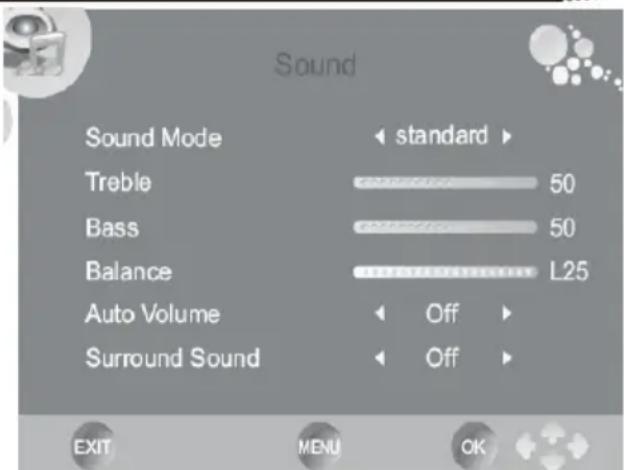
You can define you own settings if you uses the USER options. Than you have access to the settings of treble and bass.
Treble and Bass
With the or buttons you can select the level treble and bass. These option are only than active, when the USER option by sound mode is set.
Balance
With the or buttons you can select the balance.
Auto Volume
With this option you can activate an automatic damping of the volume, if very loud sound passage are happened. This mode is like a Night Mode. With the or buttons you can activate or deactivate the damping.
- ON - The damping is active
- OFF - deactivate the damping
Surround Sound
This option activates the surround effects by the sound output. With the or buttons you can activate or deactivate the surround sound.
ON - The Surround Sound is active
- OFF - deactivate the Surround Sound
Time setting
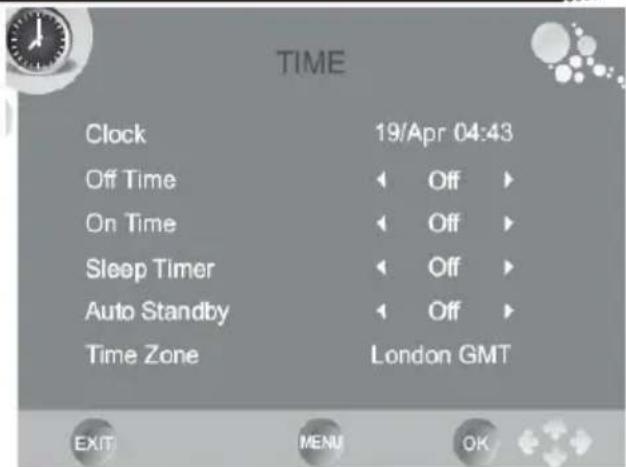
The Time settings include the options for "Clock", "Off Time", "On Time", "Sleep Timer", "Auto Stand-By" and "Time Zone".
Clock
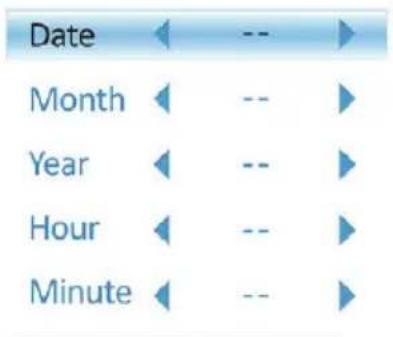
Choose the clock setting with the button and start to change the clock by pressing the OK button. An additional popup window appears on the screen.
With the / buttons you can choose every suboption. With the or buttons you can change the options. The sub-options are:
- Date
Month
Year - Hour
- Minute
If you had change some settings, please navigate to the button to "Close" and press the OK button for the saving the changes.
Off Time of the HTL 2231D
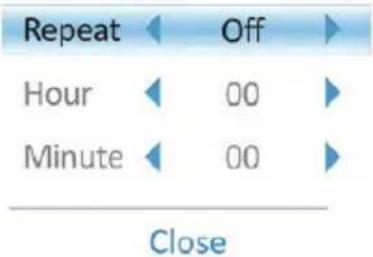
With this option you can program the TV set for automatically switch off. Start the option by pressing the button and a new popup window appears on the screen. There you can define each setting to program the off time. The settings are:
Repeat
Here you can define the cycle of the off time:
A. Once
B. Every Day
C. Monday-Friday
D. Monday-Saturday
E. Saturday-Sunday
F. Sunday
G. Off
- Hour
Define the clock in hour (e.g. 18 o'clock)
- Minute
Define the clock in minutes (e.g. 15 minutes)
Close
Time setting
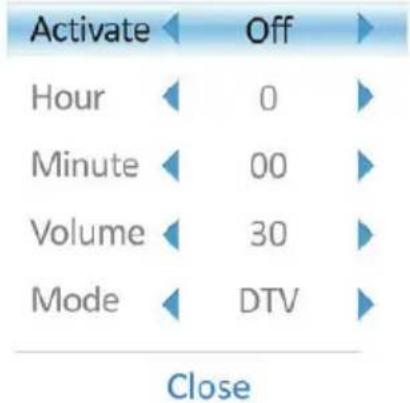
On Time of the TV set
With this option you can program the TV set for automatically switch on. Start the option by pressing the button and a new popup window appears on the screen. There you can define each setting to program the on time. The settings are:
Activate
Here you can define the cycle of the on time:
A. Once
B. Every Day
C. Monday-Friday
D. Monday-Saturday
E. Saturday-Sunday
F. Sunday
G. Off
- Hour
Define the clock in hour (e.g. 18 o'clock)
- Minute
Define the clock in minutes (e.g. 15 minutes)
Volume
Here you can define the volume level by switch on the TV set
Mode
Here you can define the Mode, in which the TV set starts by On Time. You can choose DTV, ATV and Radio
For example, you define the settings to Monday-Friday, 8:05 o'clock, Volume 40 and DTV. Then the TV set starts between Monday and Friday at 8:05 o'clock with the last active DTV channel by a volume of 40.
Sleep Timer
With the option you can program the Sleep Timer to switch off the TV set. The preset steps are defined in minutes.
Note:
You can also start the Sleep Timer by pressing the SLEEP button on the remote control. By repeatedly pressing the SLEEP button you can change the presets minutes.
Auto Stand-By
With this option you can program the TV set for automatically switch off, when after several minutes no active signal provided by the source (HDMI, DVD, VGA, ect.)
Time Zone
With this option you can set the Time Zone. If you had chosen by the first time installation the country, than the Time Zone is defined already.
LCD Settings
Option
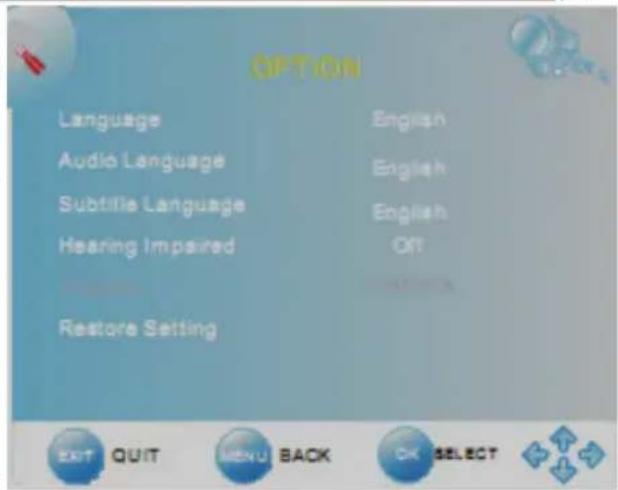
The Option Settings include the "Language", "Audio language", "Subtitle language", "Country" and the "Factory Default".
You can change each setting by using the or buttons.
Language
Here you can select the language for the OSD.
Audio language
This option is important in DVB-T mode and you can select the audio language. Some broadcast TV stations supports multi-lingual TV programs.
Subtitle language
This option is important in DVB-T mode and you can select the subtitle language. Some broadcast TV stations supports subtitles in TV programs.
Country
Here you can define the country. The country setting has influence by other options, like Time Zone or the searching of ATV and DTV channels.
Restore Setting
With this option you can load and reset the factory default settings. All personally settings are deleted.
Lock setting
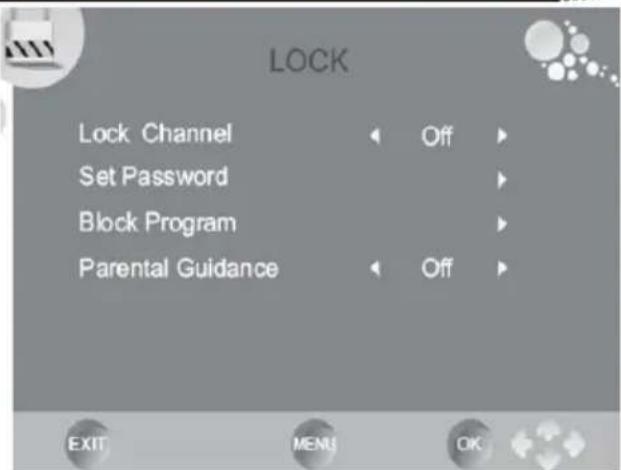
The LOCK settings include the option for "Lock Channel", "Set Password", "Block Program" and the "Parental Guidance".
Before you can change the settings, you have to insert the preset password if you enter into the menu. The password is "0 0 0 0"
Lock Channel
With this option you can lock a channel.
Set Password
With this option you can change the preset password. Please insert the new password and confirm the new password again.
Block Program
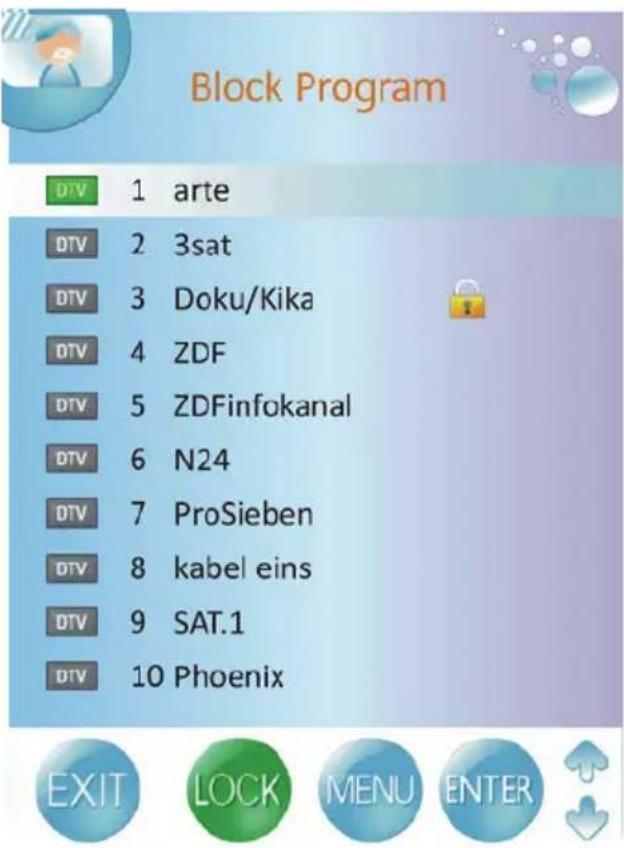
With this option you can block single TV channels. After starting the option the channel list appears on the screen. With the / buttons you can choose TV channel which you want to block. To block a channel please press the GREEN button on the remote control. On the chosen TV channel appears a lock symbol. Save the settings by pressing the MENU button.
The block TV channel can not choose anymore.
Parental Guidance
With this option you can define the level of the parental control. The parental control can be only than active when the TV broadcaster supports this function.
Check the following guide for the possible cause of a problem before contacting service.
Technical Support of Xoro/MAS:
| Problem Solution | |
| TV won't switch on | Check the mains cable is connected properly to both the mains supply and the mains adapterCheck the cable from the mains adapter is connected properly to the set.The electronic circuit may have reset.Pull the plug out, wait for 60 seconds, then plug back again. |
| No picture | Check the aerial or other input is connected properly Check that the correct input is selected, using the SOURCE button. Check the brightness and contrast settings in the Picture Setting. |
| No sound | Check that the VOLUME isn't turned down, or the MUTE button pressed. Check that the audio cables are connected to the correct inputs. |
| Picture has wrong colour | Check that the correct input is selected, using the SOURCE button. |
| The picture is unstable when used with a PC | Check the Picture Setting and adjust the view by Auto Adjust match the video output settings of the PC. |
| There are a few coloured spots on the screen | High resolution LCD screens often have a small number of faulty pixels. This is normal and within the bounds of our quality control checks. |
| Picture with wrong scaling | The LCD has the wrong aspect ratio. Please press the ASPECT button to switch the aspect ratio from 16:9 to 4:3. |
| No DVB-T reception | Switch the player into the DVB-T mode. No DVB-T reception in your region. Realign the antenna. Please pay attention to the direction of the antenna tower. Please use an active indoor aerial or a roof antenna. Retry the Auto Scan. |
| Picture freezes | Realign the antenna. Please pay attention to the direction of the antenna tower. Please use an active indoor aerial or a roof antenna. |
| Strong mosaics or artefacts | Realign the antenna. Please pay attention to the direction of the antenna tower. |
| No searching possible | Realign the antenna. Please pay attention to the direction of the antenna tower. Control the Country selection |
| No Audio or no second audio language | Press the NICAM button. Many TV broadcaster supports just only one language. |
| No subtitles | Press the SUB-T button. Many TV boradcaster does not support subtitles. |
Picture Quality
Die picture quality by DVB-T depends on the different areas and the different conditions. Some parameters are important for the picture quality, the bit rates, the resolution and the reception of the transmitted DVB-T signals.
Bit rate
The bit rates is fixed by the TV broadcaster and can be different between each TV program. Also the different TV broadcaster define the bit rate different to each others. If you see by watching DVB-T strong mosaics structures, artefacts or an un sharp picture, than you can try to increase the Signal strength and Signal quality by searching a better position of the indoor aerial. Maybe you can try also to change a passive indoor aerial to an active indoor aerial. But, if you can realizes optimal condition by receiving the DVB-T signals and you have anymore the artefacts or mosaics structures, than is the transmitted bit rates to low.
In Germany for example the values are very different by the bit rates:
ZDF 2700 until 4500 kbps
ARD 2000 until 4500 kbps
HR 1800 until 3500 kbps
Private TV Stations 1800 until 2700 kbps
If the bit rate is higher, than the picture quality is mostly better and the picture is more than less by artefacts or mosaic structures.
Resolution
The second influence by the picture quality is the transmitted resolution. If the resolution is higher than you can see a more sharper picture. For example:
ARD/ZDF 720x576 or 704x576 (that's PAL Full D1 resolution)
Other 544x576or 528x576
Receiving Condition
If you see by the information Signal strength and Signal quality some low values, you can try to find another antenna position to increase the reception quality. Visible indicators for a worst reception of the DVB-T signals is for example the a freeze picture or the message "No Signal".
The reception quality depends for example on the kind of the antenna. Three different kind of antenna are available, the passive and active indoor aerial and the roof antenna. Realign your indoor aerial in this way, that you get the best reception as possible. Helpfully it to know in which direction are the public antenna power and than you can adjust the antenna to this direction.
If a passive indoor aerial can not receive the DVB-T signal strong enough, please try an active indoor aerial. The best reception results are by the roof antenna possible.
Specifications
| Model | HTL |
| Screen Size 21.5 Inch (54.8 cm) | |
| Resolution 1920 x 1080 Pixel | |
| Aspect Ratio 16:9 | |
| Brightness 250 cd / sqm | |
| Contrast 1000:1 | |
| Reaction Time 3.5 ms | |
| LCD Backlight LED Edge | |
| Viewing Angle 160° (vertical) / 170° (horizontal) | |
| TV System PAL BG / DK / I or SECAM BG / DK / L / L' | |
| Audio System NICAM / A2 | |
| Connectors | |
| HDMI Standard TMDS max. 1080p | |
| Y Pb Pr | Y: 1 V p-p // Pb und Pr: 0,7 V p-p |
| CVBS | Y: 1,0 V p-p +/- 3 dB |
| SCART | RGB: 1,0 V p-p 75 Ohm |
| VGA Resolution | 640 x 480 / 800 x 600 / 1024 x 768 with 60 Hz |
| Antenna Input | RF Antenna Plug, 75 Ohm |
| Speaker | Max. 2 x 3 Watts |
| Power AC 100 - 240 V by 50/60 Hz | DC 12 V by max. 3.3 A |
| Power Consumption | Max. 38 Watt / < 1 Watt Stand-By |
| Dimension | 530 x 383 x 200 mm with Stand 530 x 383 x 80 mm without Stand |
| Weight | 3.6 kg with Stand |
| Pixel Error | |
| Bright Pixel | ≤ 0 |
| Dark Pixel (Dark Dot) | ≤ 4 |
| Bright + Dark Pixel | ≤ 4 |
| Line Defects | No |
| Differences in Brightness (Mura) | No |
CONSIGNES DE SECURITE IMPORTANTES 5
Notes 8
Recyclage 9
CHARACTERISTIQUES 10
Contenu 10
Selection DES SOURCES 22
MODE TNT 23
Présentation 23
Les touches importantes 23
Télétexte 24
EPG 26
TUNER ANALOGIQUE 27
Recorded List-Program


ABC HDTV


Coronation Street




USB
Please select country first, Then select Start to update info.
Country selection

France

Start
Cancel
Note:
Luminosite (Brightness)
Fuseau hora (Time Zone)
Langue audio (Audio Language)
Support technique Xoro/MAS:
Tel.: 0160867006
Internet: www.xoro.fr
- Email: support@xoro.fr / maintenancelogistique@wanahoo.fr


- Dolby
- Packungsinhalt
- Zeitzzone (Time Zone)
- Mounting the Stand 10
- Quick Start Guide 11
- Connectors
- The Remote Control
- Connection
- First Time Installation 20
- Sources 21
- DVB-T Mode
- Analog TV Tuner
- Recorder
- Multimedia-Player
- LCD Settings
- User Manual
- Operation
- Antenna
- USB
- Safety Information
- Power Supply
- Operation and Position
- Compatibility of the integrated USB port
- Recycling of electronic devices
- Recycling of paper and carton
- Recycling of plastic parts
- Green Dot
- Pixel error
- In the box
- Features
- Mounting the Stand
- Buttons of the Right Side
- Front Side
- LED
- IR
- Speaker
- LCD Panel
- Insert battery into the remote control
- Operation range
- Notes:
- Buttons of the remote control:
- Remote Control
- Power connection
- Note:
- SCART Input
- HDMI
- Component Y Pb Pr Video- and Stereo Audio input
- Video- and Stereo Audio input
- USB Port
- VGA
- Headphone
- Digital Sound output by Coaxial
- First Time Installation
- Important buttons and there functions
- Channel List
- Change TV channel
- Select TV Channel
- Last TV channel
- Change the Volume
- EPG
- Favourite list
- Subtitle
- TV/Radio
- Tele-/ Videotext
- Language or another Audio
- Quick-Information
- Information
- Preparation of USB Storage for Recording
- Select Disk
- Check PVR File System
- Format
- Format disk
- Time Shift Size
- Speed, Remain Space
- Max record time
- Recording program
- Recording in standby mode
- Schedule Recording by EPG
- Time Shift Function
- Playing recorded program
- Multimedia-Player—USB
- USB Operation
- Important Notes:
- PHOTO
- Operation:
- Supported Picture File Formats:
- MUSIC
- Supported Music File Formats
- MOVIE
- Supported Movie File Formats
- Channel setting
- Auto search (Auto Tuning)
- DTV Manual Search (DTV Manual Tuning)
- ATV Manual Search (ATV Manual Tuning)
- Fine Tuning
- Skip
- Other buttons for navigation
- Move a TV channel (SWAP)
- Program Edit
- Define TV Channels into Favourites
- Skip a TV Channel
- Delete a TV Channel
- Picture setting
- Picture Mode
- Brightness
- Contrast
- Colour
- Sharpness
- Tint
- Colour Temperature
- Noise Reduction
- Aspect Ratio
- Auto Adjust
- Horizontal and Vertical Position
- Size
- Phase
- Sound setting
- Sound Mode
- Treble and Bass
- Balance
- Auto Volume
- Surround Sound
- Time setting
- Clock
- Off Time of the HTL 2231D
- Repeat
- - Hour
- - Minute
- Close
- On Time of the TV set
- Activate
- Sleep Timer
- Auto Stand-By
- Time Zone
- Option
- Language
- Audio language
- Subtitle language
- Country
- Restore Setting
- Lock setting
- Lock Channel
- Set Password
- Block Program
- Parental Guidance
- Picture Quality
- Bit rate
- Resolution
- Receiving Condition
- Specifications
- Luminosite (Brightness)
- Fuseau hora (Time Zone)
- Langue audio (Audio Language)
Brand : XORO
Model : HTL 2231D
Category : Television