NX820HG - Talkie Walkie KENWOOD - Free user manual and instructions
Find the device manual for free NX820HG KENWOOD in PDF.



| Product Type | Professional Mobile Two-Way Radio |
| Brand | Kenwood |
| Model | NX820HG |
| Power Supply | 13.6 V DC ±15% (negative ground) |
| RF Antenna Connector | 50 Ω |
| GPS Antenna Connector | 50 Ω |
| Microphone Jack | Yes, with backlight control |
| External Speaker Jack | 3.5 mm jack, 4 W / 4 Ω |
| ACC Connector | D-SUB 15-pin for accessories |
| Fuse | 15 A (in power cable) |
| Display | LCD with status icons |
| Programmable Functions | Assignable keys: scan, zones, groups, calls, etc. |
| Frequency Band | Not specified (dealer programmable) |
| Communication Modes | Analog and digital (NXDN) |
| Scan | Channel scan with priority and temporary skip |
| FleetSync | Alphanumeric two-way paging (analog mode) |
| DTMF Calls | Manual, automatic dialing and redial |
| Trunking Calls | Analog (dispatch, telephone) |
| GPS | Position reporting with KRA-40 antenna (optional) |
| Short Messaging | Up to 48 characters (15 messages in memory) |
| Signaling | QT/DQT, 2-tone, DTMF, FleetSync, NXDN ID |
| Scrambler/Encoder | 16 codes for secure transmission |
| Safety | Do not operate in explosive atmosphere; avoid antenna contact during transmission |
| Maintenance | Refer to qualified technician; do not disassemble |
Frequently Asked Questions - NX820HG KENWOOD
User questions about NX820HG KENWOOD
0 question about this device. Answer the ones you know or ask your own.
Ask a new question about this device
Download the instructions for your Talkie Walkie in PDF format for free! Find your manual NX820HG - KENWOOD and take your electronic device back in hand. On this page are published all the documents necessary for the use of your device. NX820HG by KENWOOD.
USER MANUAL NX820HG KENWOOD
TRANSCEPTOR DIGITAL VHF TRANSCEPTOR DIGITAL UHF TRANSCEPTOR DIGITAL 800MHz
ACC (D-SUB 15 Pin Connector)
| Pin No. | Name I/O Description | Specification | ||
| 1 SB | O DC Power (Switched) | B) Output 13.6 V ±15% Max. 2 A | ||
| 2 IGN | I Ignition Signal Input | Min. Input: 10.8 V Max. Input: 16.0 V | ||
| 3 SP2/PA O Loudspeaker Output/ Public Address Output 4 Ω | ||||
| 4 | DETO | O | RX Detected Audio Output | 280 mVp-p (typ.) |
| 5 | DATAI | I | TX Data Input | 100 kΩ |
| 6 | FNC1/ TXD | I/O | Programmable/ PC Serial Data from Radio | High Impedance |
| 7 | FNC2/ RXD | I/O | Programmable/ PC Serial Data to Radio | High Impedance |
| 8 | FNC3 | I/O | Programmable | High Impedance |
| 9 | FNC4 | I/O | Programmable | High Impedance |
| 10 | FNC5 | I/O | Programmable | High Impedance |
| 11 | FNC6 | I/O | Programmable | High Impedance |
| 12 | 50MC | O | DC Power Output | 5 V, Max 100 mA |
| 13 | HR1 | I | Horn Alert Signal Input | Max 2 A |
| 14 | HR2 | O | Horn Alert Signal Output | Max 2 A |
| 15 | GND | — | Ground | Ground |
Speaker Jack (3.5 mm Phone Jack) 4 W/ 4 Ω
| Pin No. | Name I/O Description | Specification | ||
| 1 | SPO | O | External Speaker Output | 4 Ω |
| 3 | GND | — | Ground | Ground |
DC Input Connector
| Pin No. | Name I/O Description | Specifici cation | |
| Red | B | I DC Power Input | 13.6 V ±15% |
| Black | GND | I Ground | Ground |
Microphone Jack
| Pin No. | Name I/O Description | Specification | ||
| 1 | MBL | O | MIC Backlight Control | High Impedance |
| 2 SB | O DC Power (Switched) | B) Output 13.6 V ±15% | ||
| 3 | GND | — | Ground | Ground |
| 4 | PTT/ TXD | I/O | PTT/ PC Serial Data from Radio | High Impedance |
| 5 | ME | — | Mic Ground | Ground |
| 6 MIC | I Mic Signal | Input | 600 Ω | |
| 7 | HOOK/ RXD | I | Hook/ PC Serial Data to Radio | High Impedance |
| 8 | DM | I/O | Mic Data Detection | High Impedance |
RF Antenna Terminal
50Ω impedance
GPS Antenna Terminal
50Ω impedance
THANK YOU
We are grateful you have chosen KENWOOD for your personal mobile applications.
This instruction manual covers only the basic operations of your mobile radio. Ask your dealer for information on any customized features they may have added to your radio.
NOTICES TO THE USER
Government law prohibits the operation of unlicensed transmitters within the territories under government control.
Illegal operation is punishable by fine and/or imprisonment.
Refer service to qualifi ed technicians only.
SAFETY: It is important that the operator is aware of, and understands, hazards common to the operation of any transceiver.

WARNING
EXPLOSIVE ATMOSPHERES (GASES, DUST, FUMES, etc.)
Turn OFF your transceiver while taking on fuel or while parked in gasoline service stations. Do not carry spare fuel containers in the trunk of your vehicle if your transceiver is mounted in the trunk area.
INJURY FROM RADIO FREQUENCY TRANSMISSIONS
Do not operate your transceiver when somebody is either standing near to or touching the antenna, to avoid the possibility of radio frequency burns or related physical injury.
DYNAMITE BLASTING CAPS
Operating the transceiver within 500 feet (150 m) of dynamite blasting caps may cause them to explode. Turn OFF your transceiver when in an area where blasting is in progress, or where "TURN OFF TWO-WAY RADIO" signs have been posted. If you are transporting blasting caps in your vehicle, make sure they are carried in a closed metal box with a padded interior. Do not transmit while the caps are being placed into or removed from the container.
One or more of the following statements may be applicable:
FCC WARNING
This equipment generates or uses radio frequency energy. Changes or modifi cations to this equipment may cause harmful interference unless the modifi cations are expressly approved in the instruction manual. The user could lose the authority to operate this equipment if an unauthorized change or modifi cation is made.
INFORMATION TO THE DIGITAL DEVICE USER REQUIRED BY THE FCC
This equipment has been tested and found to comply with the limits for a Class B digital device, pursuant to Part 15 of the FCC Rules. These limits are designed to provide reasonable protection against harmful interference in a residential installation.
This equipment generates, uses and can generate radio frequency energy and, if not installed and used in accordance with the instructions, may cause harmful interference to radio communications. However, there is no guarantee that the interference will not occur in a particular installation. If this equipment does cause harmful interference to radio or television reception, which can be determined by turning the equipment off and on, the user is encouraged to try to correct the interference by one or more of the following measures:
- Reorient or relocate the receiving antenna.
- Increase the separation between the equipment and receiver.
- Connect the equipment to an outlet on a circuit different from that to which the receiver is connected.
- Consult the dealer for technical assistance.
PRECAUTIONS
Observe the following precautions to prevent fire, personal injury, and transceiver damage.
- Do not attempt to configure the transceiver while driving; it is too dangerous.
- Do not disassemble or modify the transceiver for any reason.
- Do not expose the transceiver to long periods of direct sunlight, nor place it near heating appliances.
- If an abnormal odor or smoke is detected coming from the transceiver, switch the transceiver power off immediately, and contact your KENWOOD dealer.
- Use of the transceiver while you are driving may be against traffic laws. Please check and observe the vehicle regulations in your area.
- Do not use options not specified by KENWOOD.
CAUTION
The transceiver operates in 12V negative ground systems only! Check the battery polarity and voltage of the vehicle before installing the transceiver.
Use only the supplied DC power cable or a KENWOOD optional DC power cable.
Do not cut and/or remove the fuse holder on the DC power cable.
WARNING
For passenger safety, install the transceiver securely using the supplied mounting bracket and screw set so the transceiver will not break loose in the event of a collision.
CONTENTS
GETTING STARTED 1
GETTING ACQUAINTED 3
PROGRAMMABLE FUNCTIONS 5
BASIC OPERATIONS 6
SCAN 8
FleetSync: ALPHANUMERIC 2-WAY PAGING FUNCTION 10
TRUNKING CALLS (ANALOG) 12
DTMF CALLS. 13
Note: The following instructions are for use by your KENWOOD dealer, an authorized KENWOOD service facility, or the factory.
SUPPLIED ACCESSORIES
Carefully unpack the transceiver. We recommend that you identify the items listed below before discarding the packing material. If any items are missing or have been damaged during shipment, file a claim with the carrier immediately.
DC power cable (with fuses) 1
15 A fuse 2
Mounting Bracket 1
Screw set
- 5 × 16 ~mm self-tapping screw. 4
M4 x 6 mm hex-headed screw with washer. 4
Spring washer 4 - Flat washer. 4
Microphone (with cable)
KMC-35 1
Microphone hanger (with 4× 16 mm self-tapping screws) 1
Instruction manual 1
PREPARATION

WARNING
Various electronic equipment in your vehicle may malfunction if they are not properly protected from the radio frequency energy which is present while transmitting. Typical examples include electronic fuel injection, anti-skid braking, and cruise control. If your vehicle contains such equipment, consult the dealer for the make of vehicle and enlist his/her aid in determining if they will perform normally while transmitting.
Power Cable Connection

CAUTION
The transceiver operates in 12V negative ground systems only! Check the battery polarity and voltage of the vehicle before installing the transceiver.
1 Check for an existing hole, conveniently located in the fi rewall, where the power cable can be passed through.
- If no hole exists, use a circle cutter to drill a hole, then install a rubber grommet.
2 Run the power cable through the fi rewall and into the engine compartment.
3 Connect the red lead to the positive (+) battery terminal and the black lead to the negative (-) battery terminal.
- Place the fuse as close to the battery as possible.
4 Coil the surplus cable and secure it with a retaining band.
- Be sure to leave enough slack in the cables so the transceiver can be removed for servicing while keeping the power applied.
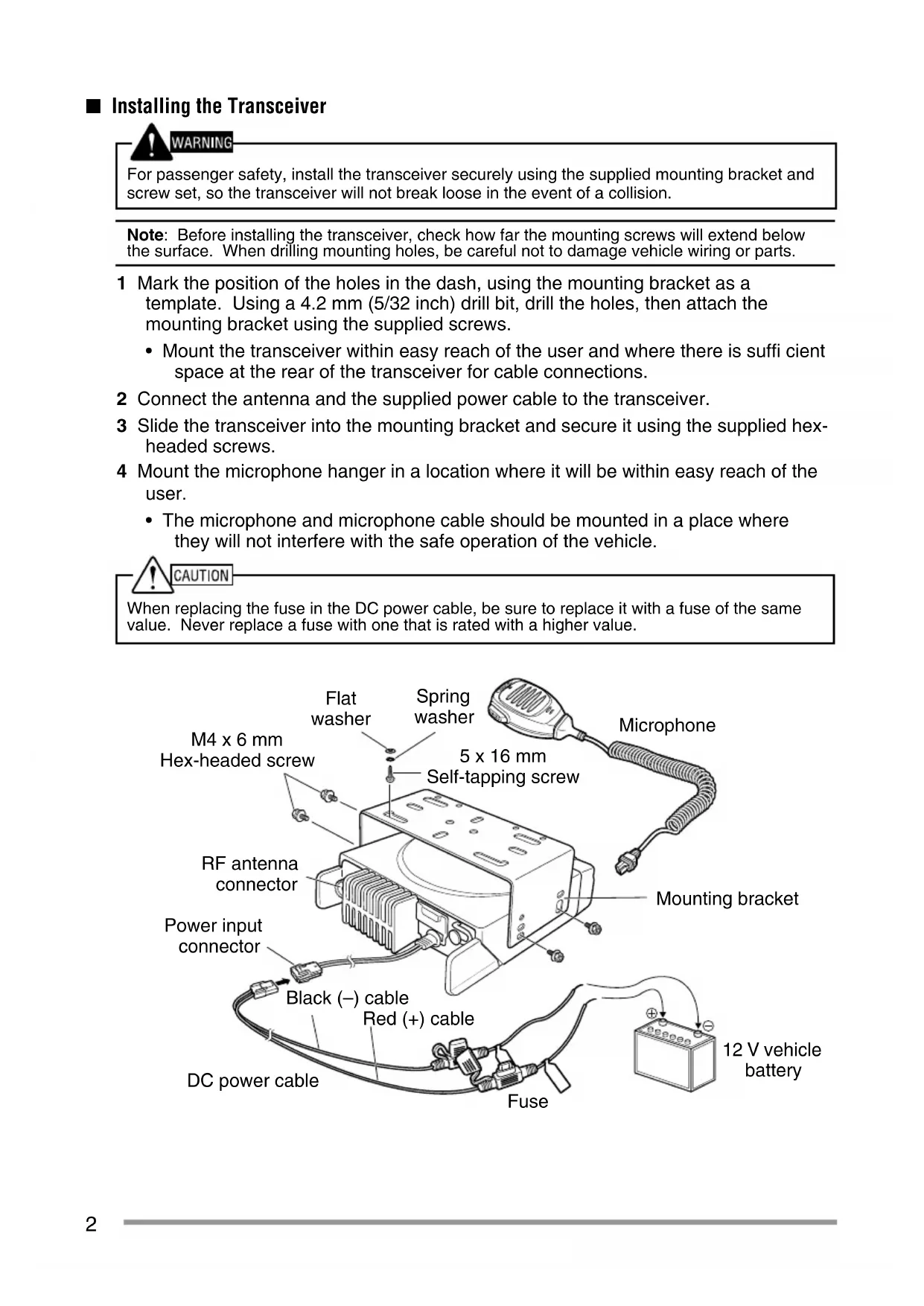
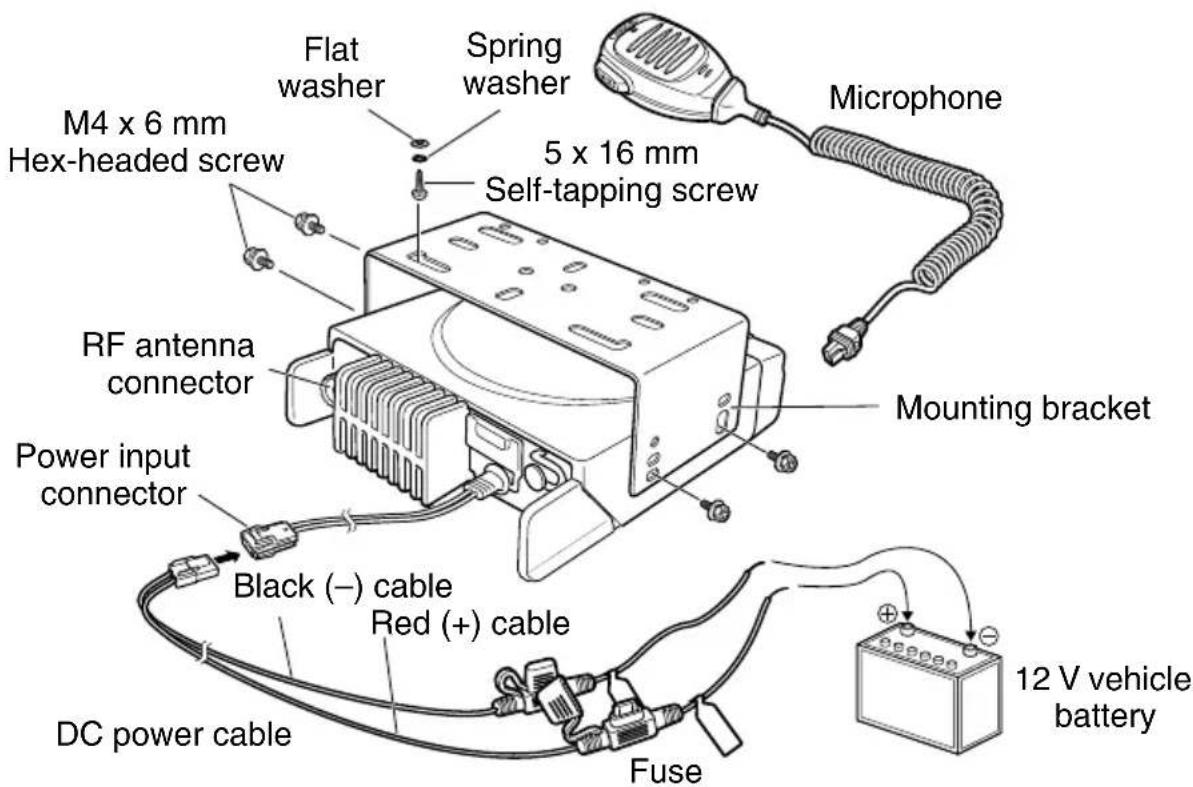
■ Installing the Transceiver

For passenger safety, install the transceiver securely using the supplied mounting bracket and screw set, so the transceiver will not break loose in the event of a collision.
Note: Before installing the transceiver, check how far the mounting screws will extend below the surface. When drilling mounting holes, be careful not to damage vehicle wiring or parts.
1 Mark the position of the holes in the dash, using the mounting bracket as a template. Using a 4.2mm (5/32 inch) drill bit, drill the holes, then attach the mounting bracket using the supplied screws.
- Mount the transceiver within easy reach of the user and where there is sufficient space at the rear of the transceiver for cable connections.
2 Connect the antenna and the supplied power cable to the transceiver.
3 Slide the transceiver into the mounting bracket and secure it using the supplied hex-headed screws.
4 Mount the microphone hanger in a location where it will be within easy reach of the user.
- The microphone and microphone cable should be mounted in a place where they will not interfere with the safe operation of the vehicle.
When replacing the fuse in the DC power cable, be sure to replace it with a fuse of the same value. Never replace a fuse with one that is rated with a higher value.
GETTING ACQUAINTED
FRONT AND REAR VIEWS
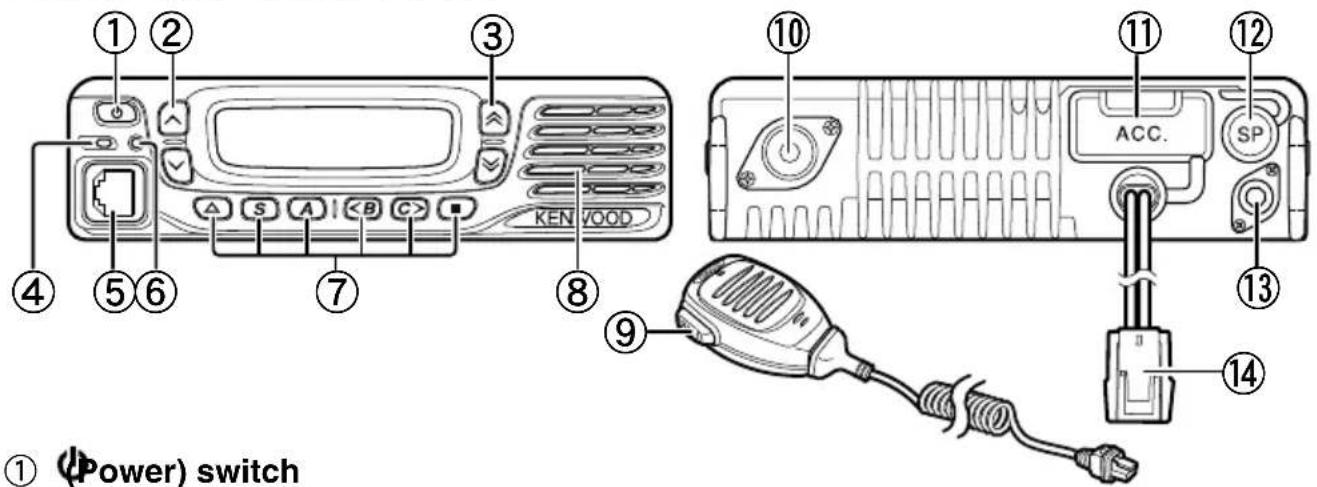
① (Power) switch
Press to switch the transceiver ON or OFF.
② / keys
Press to activate their programmable functions {page 5}.
③ /keys
Press to activate their programmable functions {page 5}.
④ TX/RX Indicator
Lights red while transmitting and green while receiving a signal. Flashes orange when receiving an optional signaling call.
⑤ Microphone jack
Insert the microphone plug into this jack.
⑥ Status Indicator
Lights blue during a specifi ed mode, based on dealer programming.
⑦ ▲/S/A//■ keys
Press to activate their programmable functions {page 5}.
⑧ Speaker
Internal speaker.
⑨ PTT switch
Press this switch, then speak into the microphone to call a station.
RF antenna connector
Connect the RF antenna to this connector.
⑪ ACC connector
Connect the ACC to this connector, via the KCT-60.
⑫ External speaker jack
Connect an external speaker to this jack.
GPS antenna connector
Connect the KRA-40 GPS antenna to this connector.
Power input connector
Connect the DC Power Cable to this connector.
DISPLAY
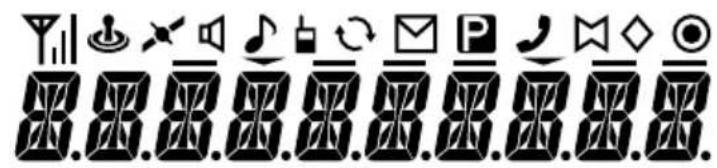
| Icon Description | |
| YII | Displays the signal strength. |
| Not used. | |
| X | Appears when the GPS position is determined. |
| Appears when Monitor or Squelch Off is activated. | |
| Blinks when an incoming call matches your Optional Signaling. | |
| Appears when the Talk Around function is on. | |
| Lights while scanning or while paused on a channel. Blinks when scan is temporarily stopped. | |
| Lights when a caller message is in the stack memory. Blinks when the new message is in the stack memory. | |
| P | The selected channel is the Priority channel. |
| J | Appears when the selected group is programmed as telephone IDs. Blinks during Auto Telephone search. |
| M | The Horn Alert function is on. |
| ◇ | The Scrambler/ Encryption function is on. |
| The Public Address function is on. | |
| - | Not used. |
| - | The current zone is added to the scan sequence. |
| - | The External Speaker function is on. |
| - | The AUX A function is on. |
| - | The AUX B function is on. |
| - | The current Channel/Group ID is added to the scan sequence. |
| - | The Operator Selectable Tone function is on. |
| - | Not used. |
PROGRAMMABLE FUNCTIONS
The , , , , , S, A,
None
2-tone 1,10
- Auto Telephone
Autodial
- Autodial Programming
AUX A
AUX B
- Broadcast ^3
Call 1~6
- CH/GID Down
- CH/GID Recall
- CH/GID Up
- Channel Entry
CW Message
- Direct CH/GID 1 ~ 5
Display Format
Emergency 5
External Speaker
Fixed Volume
- Forced Search
- Function
GPS Position Display
- Group ID/Channel Entry
Group 6
- Group + Short Message
- Group + Status
Home CH/GID
- Horn Alert
Individual 6
- Individual + Short Message
- Individual + Status
LCD Brightness
Lone Worker
- Maintenance
Monitor
Monitor Momentary
Operator Selectable Tone
Priority-channel Select
Public Address
- Scan
- Scan Delete/Add
- Scrambler/ Encryption
- Scrambler/ Encryption Code
Selcall 9
- Selcall + Short Message
- Selcall + Status
- Send the GPS data
Short Message
Site Down
Site Lock
Squelch Level
- Squelch Off
- Squelch Off Momentary
- Stack
Status
Talk Around
Telephone Disconnect
Transceiver Password
Volume Down
Volume Up
Zone Delete/Add
Zone Down
Zone Up
Available only for Analog Conventional operation.
2 Available only for Analog Trunking operation.
3 Available only for NXDN Trunking operation.
Available only for NXDN Conventional operation.
Emergency can be programmed only on the key. When assigned, the dealer must set the key assignment hold to "Enable" and second function as "Emergency".
Available only for NXDN Conventional operation and NXDN Trunking operation.
7 Available only for Analog Conventional, Analog Trunking, and NXDN Conventional operation.
Available only for Analog Conventional and NXDN Conventional operation.
Available only for Analog Conventional and Analog Trunking operation.
10 Available only for NX-720H/ NX-720HG/ NX-820H/ NX-820HG.
SWITCHING POWER ON/ OFF
Press switch the transceiver ON.
- A beep sounds and the display illuminates.
- If the Transceiver Password function is programmed, "password" will appear on the display.
Press again to switch the transceiver OFF.
Transceiver Password
To enter the password:
1 Press the key to select a digit.
- When using a microphone DTMF keypad, simply enter the password digits and proceed to step 4.
2 Press the key to accept the entry and move to the next digit.
- Press the A or # key to delete an incorrect digit.
- Press the C> key to delete all.
3 Repeat steps 1 and 2 to enter the entire password.
The password can contain a maximum of 6 digits.
4 Press the S or key to confirm the entered password.
- If you enter an incorrect password, an error tone sounds and the transceiver remains locked.
ADJUSTING THE VOLUME
Press the [Volume Up] key to increase the volume. Press the [Volume Down] key to decrease the volume.
If Squelch Off has been programmed onto a key, you can use that function to listen to background noise while adjusting the volume level.
SELECTING A ZONE AND CHANNEL/GROUP ID
Select the desired zone and channel/group ID using the keys programmed as [Zone Up]/[Zone Down] and [CH/GID Up]/[CH/GID Down].
- You can program names for zones and channels/group IDs with up to 10 characters.
- If the Voice Announce function has been set up by your dealer, an audio voice will announce the new zone, channel and group number when changing the zone, channel, and/or group.
TRANSMITTING
1 Select the desired zone and channel/group ID.
2 Press the key programmed as [Monitor] or [Squelch Off] to check whether or not the channel is free.
- If the channel is busy, wait until it becomes free.
3 Press the PTT switch and speak into the microphone. Release the PTT switch to receive.
- For best sound quality, hold the transceiver approximately 1.5 inches (3 ~ 4 cm) from your mouth.
Making Group Calls (Digital)
If a key has been programmed as [Group], you can select a group ID from the list to make a call to those parties on a Conventional channel.
To select a group ID:
1 Press the key programmed as [Group].
2 Press the key to select a group ID/name from the list.
3 Press and hold the PTT switch to make the call.
- Speak into the transceiver as you would during a normal transmission.
Making Individual Calls (Digital)
If a key has been programmed with [Individual], you can make calls to specific persons.
1 Press the key programmed as [Individual].
2 Press the key to select a unit ID from the list.
- When using a microphone DTMF keyboard, you can enter a unit ID directly.
3 Press and hold the PTT switch to make the call.
- Speak into the transceiver as you would during a normal transmission.
RECEIVING
Select the desired zone and channel. If signaling has been programmed on the selected channel, you will hear a call only if the received signal matches your transceiver settings.
Note: Signaling allows your transceiver to code your calls. This will prevent you from listening to unwanted calls. Refer to "SIGNALING" on page 15 for details.
Receiving Group Calls (Digital)
When you receive a group call on a Conventional channel and the received group ID matches the ID set up on your transceiver, you can hear the caller's voice.
When you receive a group call on a Trunking channel, the transceiver automatically switches to the communications channel to receive the call.
Receiving Individual Calls (Digital)
When you receive an individual call, a ringing tone will sound and the caller's ID will appear on the display. To respond to the call, press and hold the PTT switch and speak into the transceiver as you would during a normal transmission.
SCAN
Scan monitors for signals on the transceiver channels. While scanning, the transceiver checks for a signal on each channel and only stops if a signal is present.
To begin scanning, press the key programmed as [Scan].
The indicator appears.
- When a signal is detected on a channel, Scan pauses at that channel. The transceiver will remain on the busy channel until the signal is no longer present, at which time Scan resumes.
To stop scanning, press the [Scan] key again.
Note: To use Scan, there must be at least 2 channels in the scan sequence.
TEMPORARY CHANNEL LOCKOUT
During scan, you can temporarily remove specific channels from the scanning sequence by selecting them and pressing the key programmed as [Scan Delete/Add].
- The channel is no longer scanned. However, when scanning is ended and restarted, the channels are reset and deleted channels will again be in the scanning sequence.
PRIORITY SCAN
If a Priority channel has been programmed, the transceiver will automatically change to the Priority channel when a call is received on that channel, even if a call is being received on a normal channel.
- The indicator appears when the selected channel is the Priority channel (depending on dealer setting).
SCAN REVERT
The Scan Revert channel is the channel selected when you press the PTT switch to transmit during scan. Your dealer can program one of the following types of Scan Revert channels:
- Selected: The last channel selected before scan.
- Selected + Talkback: Same as "Selected", plus you can respond to calls on the channel at which scan is paused.
- Priority: The Priority channel.
- Priority + Talkback: Same as "Priority", plus you can respond to calls on the channel at which scan is paused.
- Last Called + Selected: The last channel on which you receive a call.
SCAN DELETE/ADD
You can add and remove zones and/or channels/group IDs to and from your scan list.
1 Select your desired zone and/or channel/group ID.
2 Press the key programmed as [Zone Delete/Add] (to add/remove zones) or [Scan Delete/Add] (to add/remove channels/group IDs).
- You can also press and hold the key programmed as [Scan Delete/Add] to add/ remove zones.
- When a channel/Group ID is added to scan, the icon appears on the display.
- When a zone is added to scan, the icon appears on the display.
FleetSync: ALPHANUMERIC 2-WAY PAGING FUNCTION
FleetSync is an Alphanumeric 2-way Paging Function, and is a protocol owned by JVC KENWOOD Corporation.
Note: This function is available only in analog operation.
SELCALL (SELECTIVE CALLING)
A Selcall is a voice call to a station or group of stations.
Transmitting
1 Select your desired zone and channel.
2 Press the key programmed as [Selcall] to enter Selcall mode.
3 Press the key to select the station you want to call.
4 Press the PTT switch and begin your conversation.
Receiving
An alert tone will sound and the transceiver will enter Selcall mode. The calling station's ID will appear when a Selcall is received. You can respond to the call by pressing the PTT switch and speaking into the microphone.
Identification Codes
An ID code is a combination of a 3-digit Fleet number and a 4-digit ID number. Each transceiver has its own ID.
- Enter a Fleet number (100 ~ 349) to make a group call.
- Enter an ID number (1000 ~ 4999) to make an individual call in your fleet.
- Enter a Fleet number to make a call to all units in the selected fleet (Fleet call).
STATUSMESSAGE
You can send and receive 2-digit Status messages which may be decided in your talk group. Messages can contain up to 16 alphanumeric characters. Status messages range from 10 to 99 (80 ~ 99 are reserved for special messages).
A maximum of 15 received messages (combined status messages and short messages) can be stored in the stack memory of your transceiver.
Transmitting
1 Select your desired zone and channel.
2 Press the key programmed as [Status] to enter Status mode (proceed to step 5) or [Selcall + Status] to enter Selcall mode (proceed to step 3).
3 Press the key to select the station you want to call.
- If Manual Dialing is enabled, you can enter a station ID by using the microphone DTMF keypad by pressing and holding the S or key. Repeat this process until the entire ID is entered.
4 Press the key to enter Status mode.
5 Press the key to select the status you want to transmit.
- If Manual Dialing is enabled, you can enter a station ID by using the microphone DTMF keypad (refer to step 3, above).
6 Press the PTT switch to initiate the call. - "COMPLETE" appears on the display when the status has been successfully transmitted.
Receiving
A calling ID or text message will appear when a Status call is received. Press any key to return to normal operation.
Reviewing Messages in the Stack Memory
1 Press the key programmed as [Stack], or press and hold the key programmed as [Selcall], [Status], or [Selcall + Status] to enter Stack mode.
- The last received message is displayed.
2 Press the key to select the desired message.
- Message types are identified as follows:
ID: Caller ID, ST: Status Message, ME: Short Message
- Press and hold the S or key for 1 second to cycle the display information as follows:
ID Name > Status/Short Message > CH/GID
3 Press the key to return to normal operation.
To delete the selected message, press the A or # key. To confirm the deletion, Press the S or 丰 key.
- To delete all messages, press and hold the A or # key for 1 second. To confirm the deletion, Press the S or × key.
SHORT MESSAGES
This transceiver can receive short data messages which contain a maximum of 48 characters.
- Received short messages are displayed the same as Status messages. A maximum of 15 received messages (combined status messages and short messages) can be stored in the stack memory of your transceiver.
GPS REPORT
GPS data can be manually transmitted by pressing the key programmed as [Send the GPS data]. If set up by your dealer, GPS data may be automatically transmitted at a preset time interval.
- When using the NX-720HG/ NX-820HG/ NX-920G, you must connect a KRA-40 GPS antenna.
- When using the NX-720H/ NX-820H/ NX-920, you must connect an external GPS unit.
- When the power is turned ON and/or the reception condition of the GPS satellite is poor, positioning completion time may take longer.
TRUNKING CALLS (ANALOG)
PLACING A DISPATCH CALL
1 Select the desired zone and channel/group ID.
2 Press and hold the PTT switch.
3 If the "PTT Proceed" tone sounds, communication is possible; start speaking into the microphone. Release the PTT switch to receive.
- For best sound quality at the receiving station, hold the microphone approximately 1.5 inches (3 ~ 4 cm) from your mouth.
- Your dealer can deactivate the Proceed PTT tone, if necessary. Ask your dealer for details.
RECEIVING A DISPATCH CALL
1 When a dispatch call is received, the transceiver will automatically change to the correct group ID and you will hear the call.
2 Readjust the volume as necessary.
PLACING A TELEPHONE CALL
1 Select the desired zone and channel/group ID.
2 Press and hold the PTT switch for approximately 1 second to ensure a connection.
- Confirm that there is a dial tone after releasing the PTT switch.
3 Alternatively, press the key programmed as [Auto Telephone] to automatically search for a Telephone Repeater.
- "AUTO TEL" appears on the display and the icon blinks.
- When the transceiver connects to a telephone line, a dial tone sounds, the icon appears on the display, and the transceiver enters the Off Hook state.
4 Place the call, following the instructions for making a DTMF call, starting on page 9.
5 When the called party responds, press the PTT switch and speak into the microphone. Release the PTT switch to receive.
- Only one person can speak at a time.
RECEIVING A TELEPHONE CALL
1 When a telephone call is received, the transceiver will automatically change to the correct group ID and you will hear the call.
- A ringer tone will sound when a call is received.
2 Press and hold the PTT switch to speak, and release it to receive.
- Only one person can speak at a time.
DISCONNECT WITH TELEPHONE
To end the call, press the # key or the key programmed as [Telephone Disconnect] while communicating.
DTMF (DUAL TONE MULTI FREQUENCY) CALLS
MANUAL DIALING
1 Press and hold the PTT switch.
2 Enter the desired digits using the microphone DTMF keypad.
- If you release the PTT switch, transmit mode will end even if the complete number has not been sent.
- If the Keypad Auto PTT function has been enabled by your dealer, you do not need to press the PTT switch to transmit; you can make the call simply by pressing the microphone DTMF keys.
Store & Send
1 Press the key programmed as [Autodial].
2 Enter up to 30 digits using the microphone DTMF keypad.
3 Press the PTT switch to make the call.
AUTODIAL
Autodial allows you to quickly call DTMF numbers that have been programmed onto your transceiver.
1 Press the key programmed as [Autodial].
- The first entry in the Autodial list appears on the display.
2 Press the key to select an autodial list number.
- You can also enter a number from 01 ~ 32 directly using the microphone DTMF keypad.
3 Press the PTT switch to make the call.
Storing an Autodial Entry
1 Press the key programmed as [Autodial Programming].
2 Press the key to select a memory location number.
3 Press the key to enter a name for the list number.
4 Press the key to select a digit.
5 Press the C> key to accept the entered digit and move the cursor to the right.
- Press the A or # key to delete an incorrect digit. Press and hold the A or # key to delete all digits.
6 Repeat steps 4 and 5 to enter the entire name.
7 Press the key to accept the name and enter a number.
8 Press the key to select a digit.
- You can also enter digits directly using the microphone DTMF keypad.
9 Press the Skey to accept the entered digit.
- Press the A or # key to delete an incorrect digit. Press and hold the A or # key to delete all digits.
10 Repeat steps 8 and 9 to enter the entire number.
11 Press the S or 水 key to accept the number and store the entry.
Removing an Autodial Entry
1 Press the key programmed as [Autodial Programming].
2 Press the key to select a memory location number.
3 Press the A or # key.
- "DELETE" appears on the display.
- Additionally, you can press and hold the A or # key to delete all entries.
4 Press the S or 喜 key to confirm the deletion.
REDIALING
1 Press the key programmed as [Autodial].
2 Press the key, then press the 0 key.
- If there is no data in the radial memory, an error tone will sound.
3 Press the PTT switch to make the call.
STUN
This function is used when a transceiver is stolen or lost. When the transceiver receives a call containing a stun code, the transceiver becomes disabled. The stun code is cancelled when the transceiver receives a call with a revive code.
- "STUN" appears on the display while the transceiver is stunned.
ADVANCED OPERATIONS
EMERGENCY CALLS
If your transceiver has been programmed with the Emergency function, you can make emergency calls.
1 Press and hold the key programmed as [Emergency].
- Ask your dealer for the length of time necessary to hold this key before the transceiver enters Emergency mode.
- When the transceiver enters Emergency mode, it will change to the Emergency channel and begin transmitting based on how it is set up by your dealer.
2 To exit Emergency mode, press the [Emergency] key again.
- If the Emergency mode completes a preset number of cycles, Emergency mode will automatically end and the transceiver will return to the zone and channel that was in use before Emergency mode was entered.
Note:
Your dealer can set the transceiver to emit a tone when transmitting in Emergency mode.
Your dealer can set the transceiver to emit tones and received signals as normal, or mute the speaker during Emergency operation.
SCRAMBLER (ANALOG) / ENCRYPTION (DIGITAL)
Secure (Encrypted) Transmission
Press the key programmed as [Scrambler/ Encryption] to switch the transceiver to secure (encrypted) transmission.
The icon appears on the display.
- Pressing the PTT switch after the Scrambler or Encryption function has been turned ON encrypts the transmitted signal.
Selecting the Scrambler Code or Encryption Key
1 Press the key programmed as [Scrambler/ Encryption Code] to enter Code or Key Selection mode.
2 Press the key to increase or decrease the code or key.
- There are 16 available Scrambler codes or Encryption keys (1 ~ 16).
SIGNALING
Quiet Talk (QT)/ Digital Quiet Talk (DQT)
Your dealer may have programmed QT or DQT signaling on your transceiver channels. A QT tone/ DQT code is a sub-audible tone/code which allows you to ignore (not hear) calls from other parties who are using the same channel.
Operator Selectable Tone (OST)
If a key has been programmed with [OST], you can reprogram the QT/DQT settings on each of your channels.
1 Select your desired channel.
2 Press and hold the key programmed as [OST] for 1 second.
3 Press the key to select your desired tone or code.
- Your dealer can set up to 40 tones/codes.
4 When you have finished operating using OST, press the [OST] key again to turn the OST function OFF.
Radio Access Number (RAN)
RAN is a signaling system designed for digital radio communications.
When a channel is set up with a RAN, squelch will only open when a call containing a matching RAN is received. If a call containing a different RAN is made on the same channel you are using, you will not hear the call. This allows you to ignore (not hear) calls from other parties who are using the same channel.
■ Optional Signaling
Your dealer may also program several types of optional signaling for your transceiver channels.
2-tone Signaling: 2-tone Signaling opens the squelch only when your transceiver receives a call containing matching 2 tones (available only for NX-720H/ NX-720HG/ NX-820H/ NX-820HG).
DTMF Signaling: DTMF Signaling opens the squelch only when the transceiver receives a call containing a matching DTMF code.
FleetSync Signaling: Refer to "SELCALL (SELECTIVE CALLING)" on page 10.
NXDN ID Signaling: NXDN ID is an optional signaling system available only for digital communications.
MONITOR/ SQUEELCH OFF
You can use the key programmed as [Monitor] or [Squelch Off] to listen to weak signals that you cannot hear during normal operation and to adjust the volume when no signals are present on your selected channel.
The icon appears on the display while Monitor or Squelch Off is activated.
Your dealer can program a key with one of four Monitor/Squelch Off functions:
- Monitor: Press to deactivate QT, DQT, DTMF, 2-tone, or FleetSync Signaling. Press again to return to normal operation.
- Monitor Momentary: Press and hold to deactivate QT, DQT, DTMF, 2-tone or FleetSync Signaling. Release to return to normal operation.
- Squelch Off: Press to hear background noise. Press again to return to normal operation.
- Squelch Off Momentary: Press and hold to hear background noise. Release to return to normal operation.
Squelch Level
If a key has been programmed as [Squelch Level], you can readjust your transceiver's squelch level:
1 Press the key programmed as [Squelch Level].
- The current squelch level appears on the display.
2 Press the 空 / 空 key to select your desired squelch level from 0 to 9.
3 Press the key to store the new setting.
SIGNAL STRENGTH INDICATOR
The signal strength indicator displays the strength of received calls. No icon appears when no signal is available.
Y
Y1
Y
Y
Strong Sufficient Weak Very weak
flashes when out of range (NXDN Trunking only).
PUBLIC ADDRESS (PA)
The PA system can only be used with an external speaker.
1 Press the key programmed as [Public Address] to activate the Public Address function.
The icon appears on the display.
2 Press and hold the PTT switch, then speak into the microphone to make your address through the external speaker.
3 Press the [Public Address] key again to exit Public Address.
HORN ALERT
When a call is received that matches the optional signaling set up on your transceiver, Horn Alert causes the vehicle horn or some other external alert to sound. This function notifies you of a received call when you are away from your vehicle.
To toggle Horn Alert ON and OFF, press they key programmed as [Horn Alert].
- The icon momentarily appears on the display when Horn Alert is active.
EXTERNAL SPEAKER
When attaching an external speaker to the transceiver via the KCT-60, press the key programmed as [External Speaker] to output all received signals through the external speaker.
The icon appears on the display.
Press the [External Speaker] key again to output all received signals only through the built-in speaker.
DISPLAY BRIGHTNESS
You can cycle the display brightness between high, low, and off by pressing the key programmed as [LCD Brightness].
The Time-out Timer prevents you from using a channel for an extended duration. If you continuously transmit for a preset time, the transceiver will stop transmitting and an alert tone will sound. Release the PTT switch.
AUXILIARY PORT
Press the key programmed as [AUX A] or [AUX B] to activate the auxiliary port. The auxiliary port is used with external devices.
The icon appears on the display when the auxiliary A port is active.
The icon appears on the display when the auxiliary B port is active.
BUSY CHANNEL LOCKOUT (BCL)
If BCL is set up by your dealer, you will be unable to transmit if the channel is already in use.
- "BUSY" appears on the display when you press the PTT switch. Use a different channel or wait until the channel becomes free.
If your dealer has programmed BCL Override for your transceiver, you can override the BCL by pressing the PTT switch again, immediately after releasing it, when the channel is busy.
CONTROL CHANNEL HUNT
On digital Trunking channels, the transceiver automatically searches for a control channel.
- While searching for a control channel, the antenna icon will flash and no signals can be received.
PTT ID
PTT ID is the transceiver unique ID code which is sent each time the PTT switch is pressed and/or released. (PTT ID can be made only in analog operation.)
COMPANDER
If programmed by your dealer for a channel, the compander will remove excessive noise from transmitted signals, providing higher clarity of signals. (The compander is used only in analog operation.)
- Your dealer must set the compander for both the transmit side and the receive side in order for the compander to operate.
TRANSMIT POWER
Your dealer has programmed a transmit power level for each channel. Power levels can be high, medium (available only for NX-720H/ NX-720HG/ NX-820H/ NX-820HG), or low.
NX-720H
NX-720HG
NX-820H
NX-820HG
NX-920
NX-920G
MODE D'EMPLOI
JVCKENWOOD Corporation
Description de la borne
MISE SOUS/HORS TENSION
QT (Quiet talk)/DQT (Digital quiet talk)
TRANSCEPTOR DIGITAL VHF TRANSCEPTOR DIGITAL UHF TRANSCEPTOR DIGITAL 800MHz
NX-720H NX-720HG NX-820H NX-820HG NX-920NX-920G