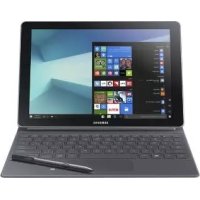
Galaxy Book 10.6 - Tablet SAMSUNG - Free user manual and instructions
Find the device manual for free Galaxy Book 10.6 SAMSUNG in PDF.
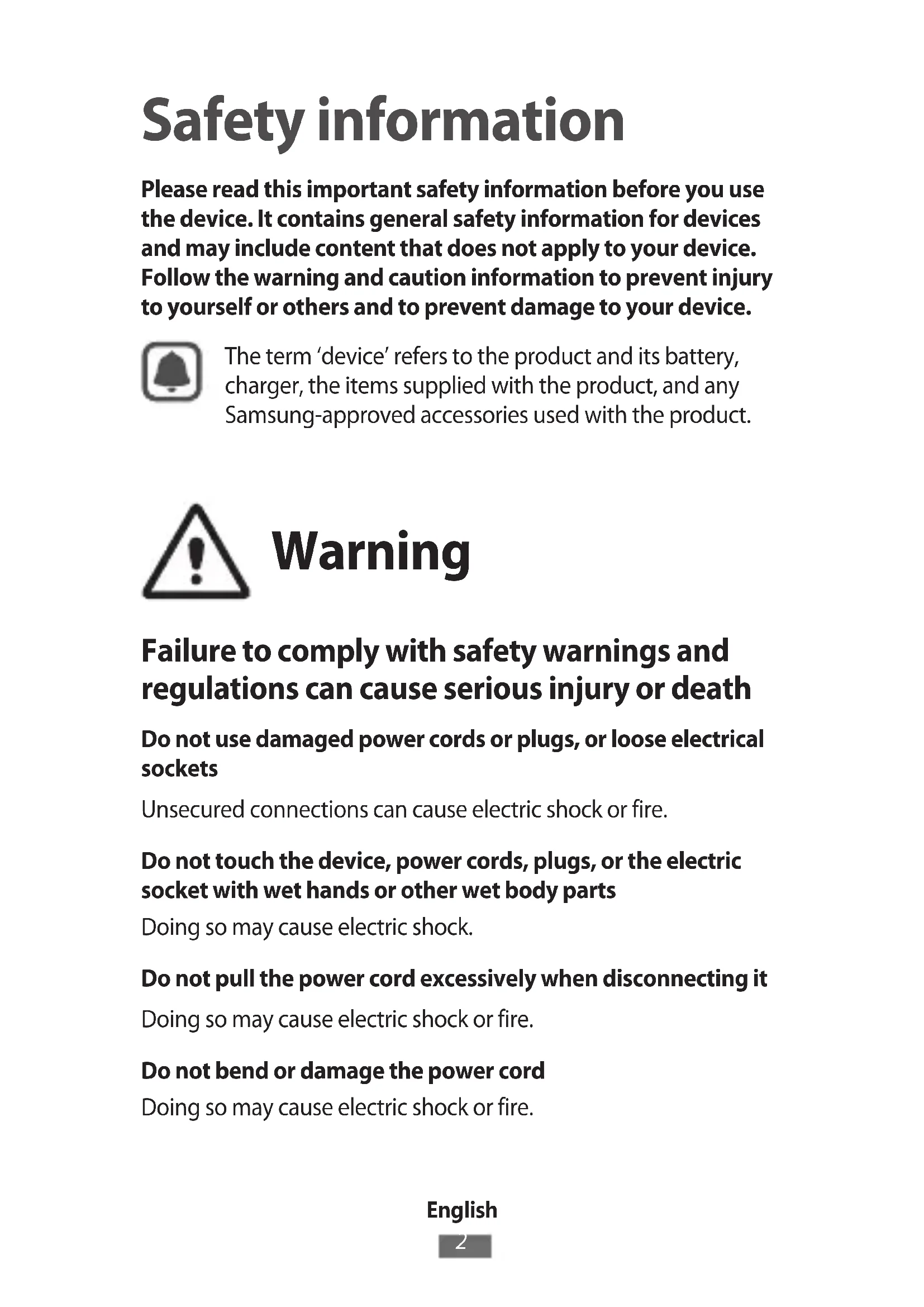
View the manual :
 FR
FR
 BG
BG
 CS
CS
 DA
DA
 DE
DE
 EL
EL
 EN
EN
 ES
ES
 ET
ET
 FI
FI
 HE
HE
 HU
HU
 ID
ID
 IT
IT
 JA
JA
 KK
KK
 KO
KO
 LT
LT
 LV
LV
 MK
MK
 MN
MN
 MY
MY
 NL
NL
 NO
NO
 PL
PL
 PT
PT
 RO
RO
 RU
RU
 SK
SK
 SL
SL
 SQ
SQ
 SV
SV
 TR
TR
 UK
UK
 VI
VI
 ZH
ZH
FR
BG
CS
DA
DE
EL
EN
ES
ET
FI
HE
HU
ID
IT
JA
KK
KO
LT
LV
MK
MN
MY
NL
NO
PL
PT
RO
RU
SK
SL
SQ
SV
TR
UK
VI
ZH
Pick your language and provide your email: we'll send you a specifically translated version.
| Product type | Tablet |
| Brand | Samsung |
| Model | Galaxy Book 10.6 |
| Screen size | 10.6 inches |
| Screen resolution | 1920 x 1080 pixels (Full HD) |
| Processor | Intel Atom x5-Z8350 |
| RAM | 4 GB |
| Storage capacity | 64 GB eMMC |
| Operating system | Windows 10 |
| Battery | Lithium-ion 30 Wh |
| Battery life (claimed) | Up to 8 hours |
| Dimensions (L x W x H) | 261.2 x 176.6 x 8.9 mm |
| Weight | 650 g |
| Power supply | AC adapter 5V / 2A |
| Wireless connectivity | Wi-Fi 802.11 a/b/g/n/ac, Bluetooth 4.2 |
| Ports | 1 x USB-C, 1 x headphone jack |
| Main functions | Web browsing, office work, multimedia, e-book reading |
| Care and cleaning | Clean with a soft, dry cloth; avoid abrasive products |
| Safety | Do not expose to moisture, shocks, or extreme temperatures |
| Spare parts and repairability | Battery, screen and connectors available; repair recommended by a professional |
| General information | User manual available for download on the manufacturer's website |
Frequently Asked Questions - Galaxy Book 10.6 SAMSUNG
How to turn on and off the Samsung Galaxy Book 10.6?
Press the power button located on the top or side edge for 2 seconds to turn on. To turn off, hold the button down then select 'Shut down' from the menu.
How to connect an external keyboard?
Use Bluetooth connection or a USB keyboard via the USB-C port. Enable Bluetooth in Windows settings to pair the keyboard.
How to increase battery life?
Reduce screen brightness, disable Wi-Fi and Bluetooth when not in use, close background apps, and enable power saving mode in settings.
How to perform a factory reset?
Go to Settings > Update & Security > Recovery, then under 'Reset this PC', click 'Get started'. Choose 'Remove everything' for a full reset.
Can I use a stylus with the Galaxy Book 10.6?
Yes, the tablet is compatible with Wacom active styluses. Make sure the stylus is compatible with the device's touch screen.
How to update the operating system?
Go to Settings > Update & Security > Windows Update, then click 'Check for updates'. Install the offered updates.
How to transfer files from a computer?
Connect the tablet to the computer via a USB-C cable. On the tablet, authorize file transfer. You can then copy-paste files from the computer.
How to clean the screen without damaging it?
Use a slightly damp microfiber cloth with water or a special screen cleaner. Do not press too hard and avoid harsh chemicals.
What to do if the tablet won't turn on?
Hold the power button for 10-15 seconds to force a restart. If nothing happens, plug in the charger and wait a few minutes before trying again. If the problem persists, contact Samsung support.
Where can I download the user manual?
The manual is available for free download on Samsung's website or on platforms like notice-facile.com. Search for 'Galaxy Book 10.6 manual' and download the corresponding PDF.
User questions about Galaxy Book 10.6 SAMSUNG
0 question about this device. Answer the ones you know or ask your own.
Ask a new question about this device
No questions yet. Be the first to ask one.
Download the instructions for your Tablet in PDF format for free! Find your manual Galaxy Book 10.6 - SAMSUNG and take your electronic device back in hand. On this page are published all the documents necessary for the use of your device. Galaxy Book 10.6 by SAMSUNG.
USER MANUAL Galaxy Book 10.6 SAMSUNG
Manual assistant
Powered by Anthropic
Waiting for your message
Product information
Brand : SAMSUNG
Model : Galaxy Book 10.6
Category : Tablet