UX26I56BTCDUGA06 - Television BLAUPUNKT - Free user manual and instructions
Find the device manual for free UX26I56BTCDUGA06 BLAUPUNKT in PDF.



| Product Type | Television |
| Brand | Blaupunkt |
| Model | UX26I56BTCDUGA06 |
| Screen size (diagonal) | 66 cm (26 inches) |
| Resolution | HD Ready (1366 x 768 pixels) |
| Weight | More than 20 kg |
| Power supply | 230 V ~ 50 Hz |
| Tuner | DVB-T, DVB-C, analog |
| Connectivity | HDMI (x3), VGA, component, SCART, USB, CI, headphone out, coaxial audio out |
| Special features | USB recording, PVR, 7-day TV guide, teletext, subtitles, multi-language audio, Ecohome mode |
| Wall mount | VESA standard 100 mm |
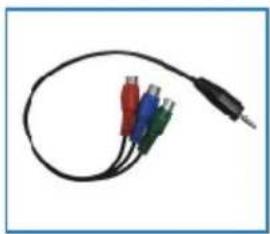
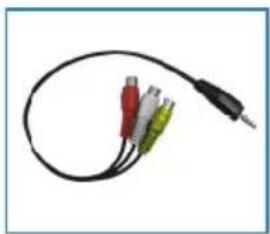
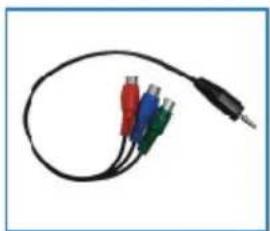
| Included accessories | Mini component cable, quick start guide, installation kit |
Frequently Asked Questions - UX26I56BTCDUGA06 BLAUPUNKT
User questions about UX26I56BTCDUGA06 BLAUPUNKT
0 question about this device. Answer the ones you know or ask your own.
Ask a new question about this device
Download the instructions for your Television in PDF format for free! Find your manual UX26I56BTCDUGA06 - BLAUPUNKT and take your electronic device back in hand. On this page are published all the documents necessary for the use of your device. UX26I56BTCDUGA06 by BLAUPUNKT.
USER MANUAL UX26I56BTCDUGA06 BLAUPUNKT
DVB-T | DVB-C* | USB | PVR* | DVD*
natural_image
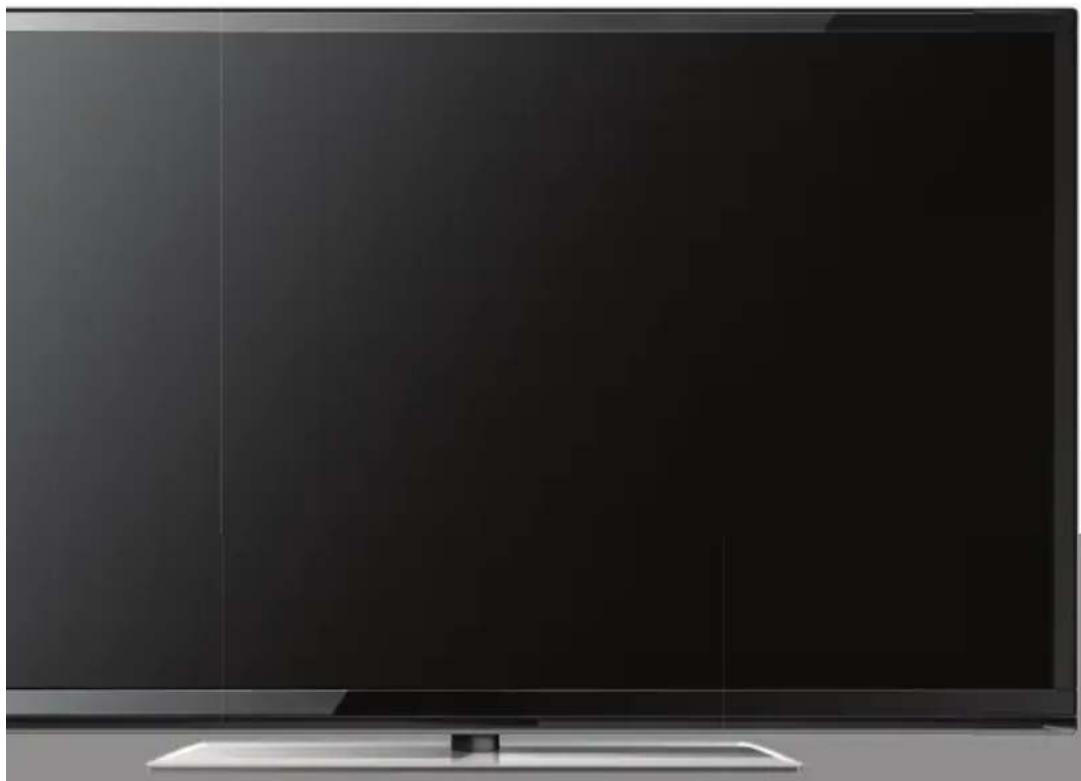
Front view of a modern flat-screen TV with black screen and stand (no visible text or symbols)Important safety instructions
Please, read these safety instructions and respect the following warnings before the appliance is operated:
This TV with the weight of more than 20 kg must be lifted and carried by at least two people.
Be careful! This TV does not contain any parts which could be repaired by the user. In case of a fault, contact the producer or the authorized service. The contact with certain parts inside the appliance might endanger your life. The guarantee is not provided for the faults caused by non-professional interactions!
Do not remove the rear part of the appliance.
For optimum conditions in presentation and compatibility via the HDMI input, we recommend using a high quality HDMI cable.
In order to prevent fi re spread, always keep candles and other open fl ames away from this product.

This appliance is designed for receiving and reproduction video and sound signals. Any other use is strictly forbidden.
The ideal distance to watch TV is approximately five times longer of the diagonal of the screen The light striking upon the screen from other light sources can cause reflections and make the quality of the picture worse.
Please, ensure the sufficient ventilation and appropriate distance of the appliance from other pieces of furniture.
Install the product at least 5cm from the wall for ventilation.
The TV set is designed to be used in moderate climate.
The TV set is designed exclusively for the operation in a dry place. When using the appliance outside, please, make sure it is protected against moisture (rain, splashing water). Never expose the appliance to moisture.
Do not place any containers with water on the appliance, such as vases, etc. These containers might get pushed over, which would endanger electric safety. Place the appliance exclusively on flat and stable surfaces. Do not place any objects such as newspaper or blankets, etc. on or under the appliance.
Make sure the appliance does not stand on any power cables as they might get damaged. Mobile phones and other devices such as WLAN adapters, monitoring cameras with
wireless signal transmission, etc. might cause electromagnetic interference and they should not be placed near the appliance.
Do not place the appliance near heating elements or in a place with direct sunshine as it has a negative effect on cooling of the appliance. Heat storage is dangerous and it can seriously reduce the lifetime of the appliance. In order to ensure the safety, ask the qualified person to remove the dirt from the appliance.
Try to prevent the mains cable or (if it is part of delivery) mains adapter damage. The appliance can only be connected with a supplied mains cable/adapter.
be ● Storms are dangerous for all electric appliances. If the mains or aerial wiring is struck by the lightening, the appliance might get damaged, even if it is turned off. Thus you should disconnect all the cables and connectors of the appliance before the storm.
To clean the screen of the appliance use only a damp and soft cloth. Use only clean water, never detergents or in no case dissolvents.
Warning:
Never connect any external devices to a live appliance. Switch off not only the TV but also the devices which are being connected! Plug the appliance plug into the wall outlet after connecting the external devices and the aerial!
Always make sure there is free access to the appliance main switch and to its mains plug.
The appliance is not designed for a use in a workplace fitted with monitors.
The systematic use of headphones at high volume might lead to irreversible hearing damage.
- Ensure environmental disposal of this appliance and any components including batteries. When in doubt, please, contact your local authority for details of recycling.
While installing the appliance, do not forget that furniture surfaces are treated with various varnishes, plastics, etc. or they might be polished. The additions contained in these products might cause destruction of base material of appliance stand. This will result in the holdovers of this material stuck to the furniture surface, which are difficult to remove, if not even impossible.
The screen of your TV responds to the top quality requirements and it was checked in details for accidental faulty pixels several times. Due to the technological properties of the manufacturing process, it is not possible to eliminate the existence of a small number of faulty points on the screen for 100% (even with maximum care while production provided). These faulty pixels are not considered faults in terms of guarantee conditions, if their extent is not greater than the boundaries defined by DIN norm.
Important safety instructions
Important information regarding use of video games, computers, captions and other fixed image displays.
The extended use of fixed image program material can cause a permanent "shadow image" on LCD screen (this is sometimes incorrectly referred to as "burnout to the screen"). This shadow image is then permanently visible on the screen in the backro-und. It is a partly irreversible damage. You can avoid such a damage by respecting the following instructions:
Reduce the brightness/contrast setting to a minimum viewing level.
- Do not display the fixed image for a long period of time. Avoid displaying of:
» Teletext time and charts,
» TV/DVD menu, e.g. DVD contents,
» In the „Pause“ mode (hold): Do not use this mode for a long time, e.g. while watching a DVD or a video.
» Turn off the appliance if you are not using it.
Batteries
Observe the correct polarity when inserting the batteries.
Do not expose batteries to high temperatures and do not place them on locations where the temperature might increase quickly, e.g. near the fire or on the direct sunshine.
Do not expose batteries to excessive radiant heat, do not throw them into the fire, do not disassemble them and do not try to recharge unrechargeable batteries. They could leak out or explode.
» Never use different batteries together or mix new and old ones.
» Dispose of batteries in an environmentally friendly way.
» Most of the EU countries regulate the disposal of batteries by law.
Disposal
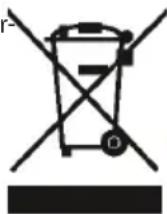
Do not dispose of this appliance as unsorted municipal waste. Return it to a designated collection point for the recycling of WEEE. By doing so, you will help to converse resources and protect the environment. Contact your retailer or local authorities for more information.
What is included in the box
Accessories
Supply of this TV includes following parts:

natural_image
Front view of a flat-screen television displaying (no visible text or symbols)1x TV
natural_image
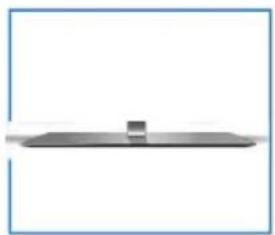
Simple line drawing of a flat rectangular object with a small protrusion on top (no text or symbols)1x Stand neck
1x Stand
natural_image
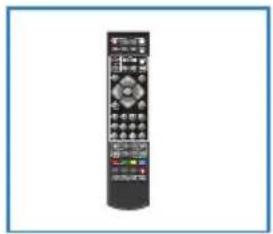
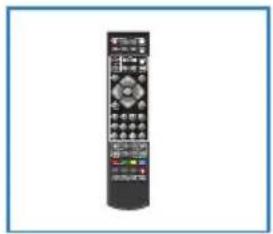
Black remote control device with multiple ports and buttons (no visible text or labels)1x Remote control
natural_image
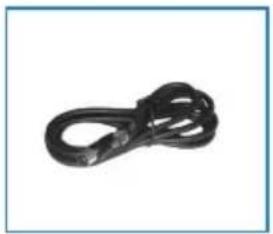
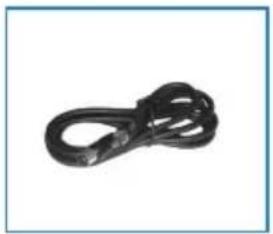
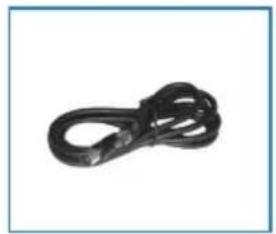
Close-up of a black metal chain link (no text or symbols visible)1x RF cable *
natural_image
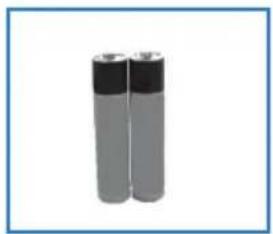
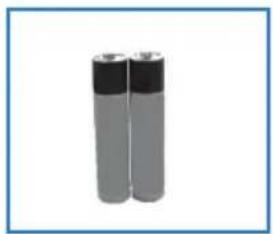
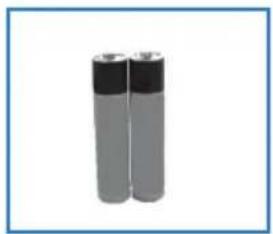
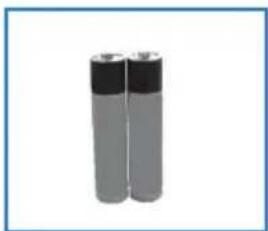
Two gray cylindrical batteries with black lids, shown against a white background (no text or symbols visible)2x AAA batteries
natural_image
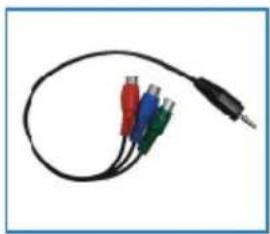
Coiled audio amplifier cable with four colored connectors (red, blue, green, black) against white background1x Mini-Component-Cable * (optional)
1x User guide
natural_image
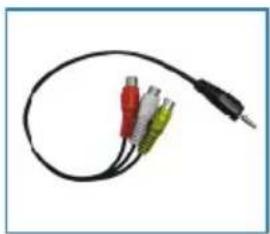
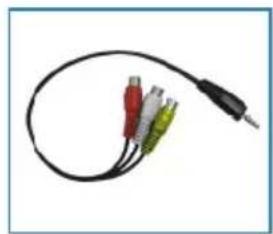
Coiled audio amplifier cable with three colored connectors (red, green, yellow) and a black connector at the end (no text or symbols visible)1x Mini A/V Cable * (optional)
1x Quick Start Guide
natural_image
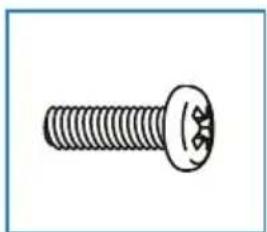
Simple line drawing of a screw with a flanged head and threaded shaft (no text or symbols)1 x TV stand installation packet
* - selected models only
Please save your packaging as you will need this in the event of warranty/service repair or support. We are unable to carry out warranty/service if you are unable to package it correctly. The safest way to package your item in the event of warranty/service repair is in its original box/packaging.
Stand neck assembly
Please follow the instruction in stand installation leaflet, located in the accessories bag.
Safe installation
Position the TV close to the wall to avoid the possibility of it falling when pushed.
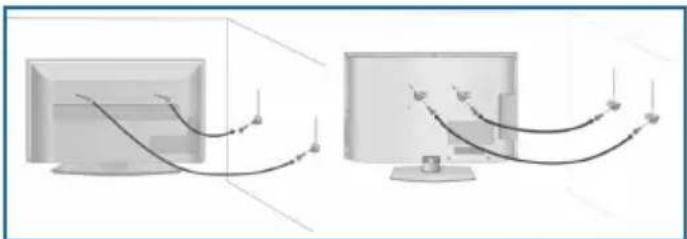
The instructions shown below are a safer way to set up the TV, by fixing it to the wall, avoiding the possibility of it falling forwards if pulled. This will prevent the TV from falling forward and causing injury. This will also prevent the TV from damage.
This method is used if the TV is placed on a glass surface or you do not wish to screw anything into your furniture.
Ensure that children do not climb or hang onto the TV.
For this type of installation you will need a fastening chord
A) Using one/both of the top wall-mounting holes and screws (the screws are already supplied in the wall mounting holes) fasten one end of the fastening chord/s to the TV.
B) Secure the other end of the fastening chord/s to your wall.
natural_image
Two computer monitors connected by wires, one showing a cable to the screen (no text or symbols visible)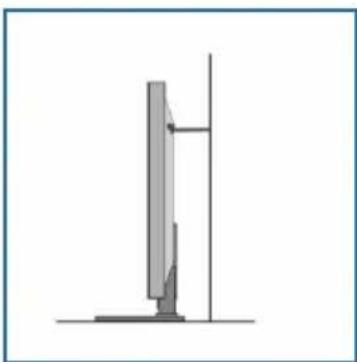
natural_image
Simple line drawing of a vertical structure with a base and vertical supports (no text or symbols)Wall mounting the TV
This television requires a VESA 100 wall mount, or equivalent.
-
Remove the four screws highlighted below.
-
The wall mount can now be easily attached to the mounting holes on the rear of the TV. These holes are indicated in the picture below.
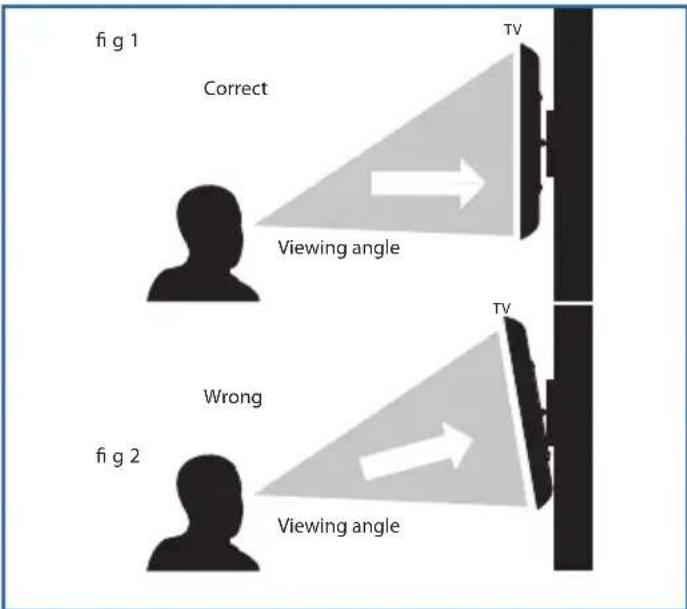
For optimum viewing, if wall mounting the TV higher than eye level, the TV should be tilted downwards so that the TV's screen is 'face on'. See fig 1 and 2
Getting started - initial set up
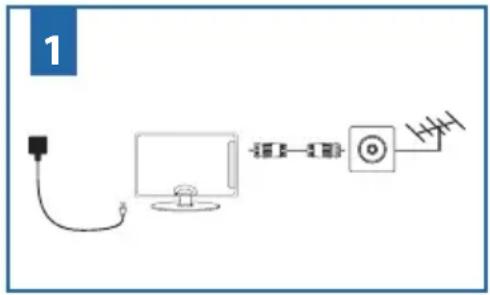
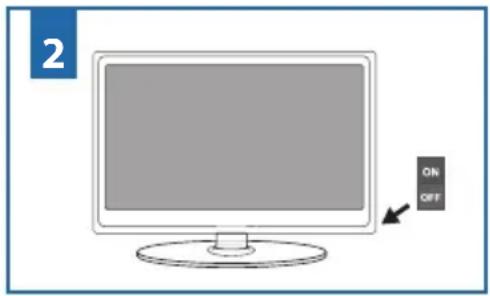
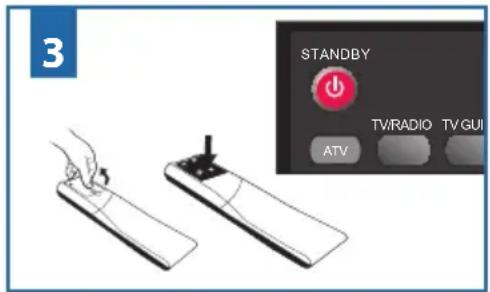
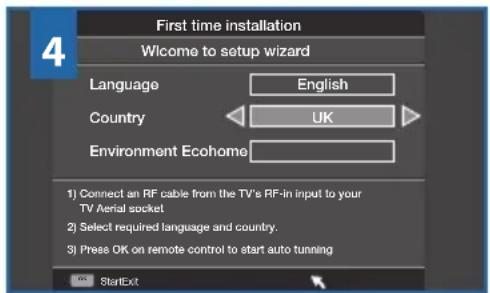
- Using the RF cable supplied, connect the TV to the TV Aerial wall socket (Fig A). Connect the power cable to the Electrical outlet (Fig B).
- Turn on the device with marked ON/OFF switch
- Insert the batteries supplied into the Remote control and press the Standby button to power on the TV.
- You will now be welcomed with the initial set-up screen. If it does not appear, on the remote control, please press [MENU] then 8-8-8-8 and the menu will appear. As part of our continuing efforts to reduce energy consumption, we added a new Ecohome feature (appears on the screen first installation). This function helps reduce energy consumption up 15% compared to other modes. The image brightness is reduced using Ecohome mode. If this setting does not suit your environment, you can choose from other modes
Note: the professional mode is the optimal default mode, but consumes 15% more than the Ecohome)
Select your language, country and environment.
Press OK on the remote control and tuning will start.
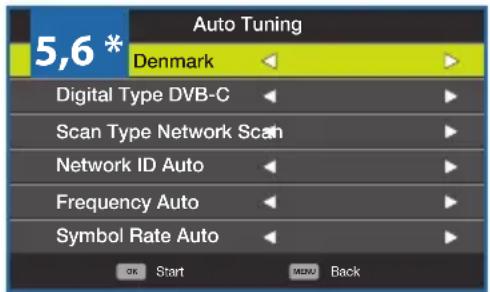
- In the next step select your digital boradcasting type. You can choose between DVB-T and DVB-C*. The analog section will be searched automatically, since most cable networks includes analog channels.*
- Select DVB-C if your TV is connected to a broadband cable network. Keep all default settings as possible. Then press [OK] button to start search. If DVB-C channels are not found, contact your network provider for the valid "Network ID". Then perform a new search. Press the [MENU], select "Automatic Channel Search" and enter here the inquired network ID. Start your search with the [OK] button. *
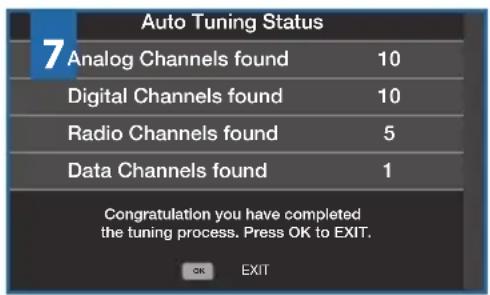
- After completion of the following channel search screen is displayed:
If the TV finds some, but not all, of the Digital channels, the TV is functioning correctly but the signal being received is not strong enough. (The signal strength needs to be above 85% - you can see the signal strength the TV is receiving when you change chan-
nels/ programmes) you will need to increase the signal reception in order to receive all of the channels available. The most economical way to do this is by purchasing and connecting a 'signal booster' in between the TV and the TV aerial socket. If this does not solve the problem, you will need to upgrade the TV aerial to a digital hi-gain compatible aerial
* - only for models with DVB-C tuner
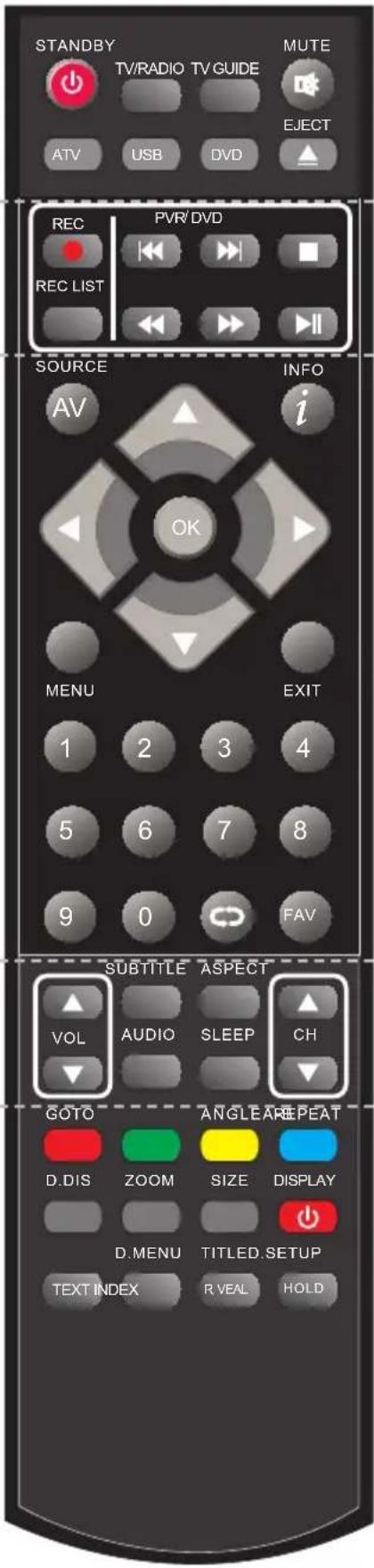
- STANDBY - Switch on TV when in standby or vice versa.
MUTE – Mute the sound or vice versa.
TV/RADIO – Switch to Digital and switch between TV and radio in Digital mode.
TV GUIDE – Opens the 7 Day TV Guide (Digital mode).
ATV - Switch to analogue TV source.
USB - Switch to USB source.
DVD ^1 - Switch to DVD mode
EJECT ^1 - DVD Eject
- REC ^3 – To record what is currently on television.
REC LIST ^3 – Opens the list of what you have previously recorded.
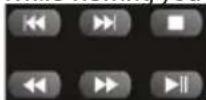
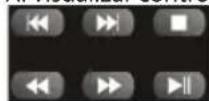
- To restart the current chapter *
- To advance forward to the next chapter*.
- To stop the playback*.
- To play in fast rewind mode*.
- To play in fast forward mode*.
- To play/pause
* - Pause live TV when USB Memory Stick is inserted).
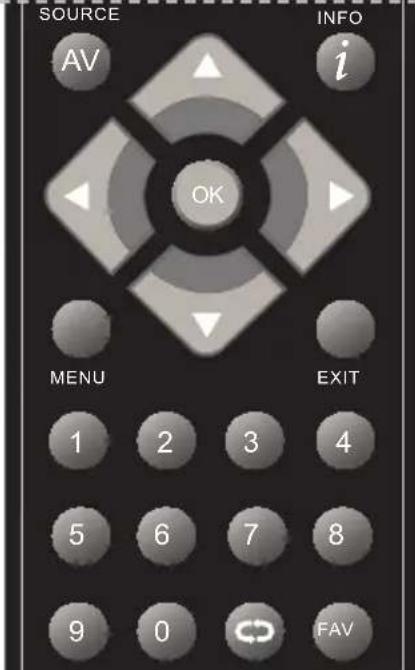
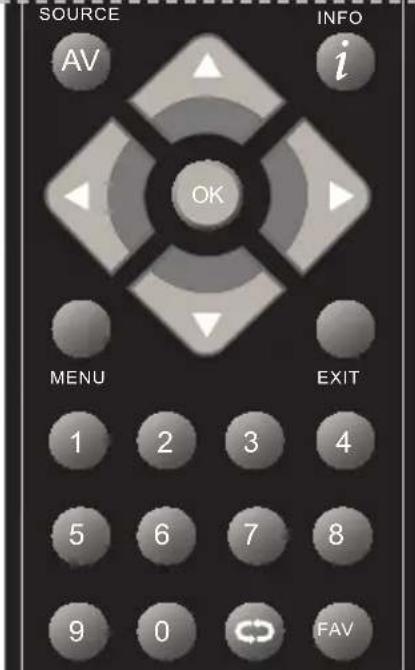
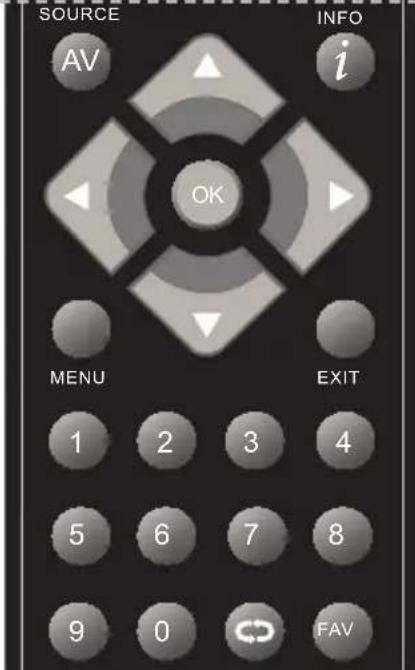
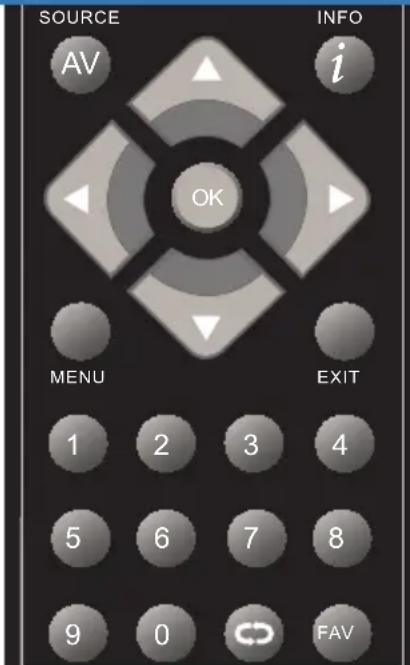
- SOURCE/AV - To display the input/source menu.
INFO – Press once for now/next channel information. Press twice for programme information about current programme.
(▲/▼/◄/►/OK) – Allows you to navigate the on-screen menus and adjust the system settings to your preference.
MENU - To display OSD menu.
EXIT - To exit all menus.
NUMBER BUTTONS - 0 - 9 to select a TV channel directly.
- To return to the previous channel viewed.
FAV - To display favourites menu.
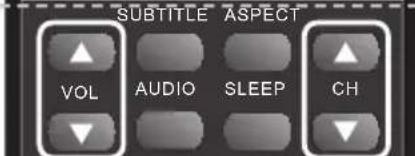
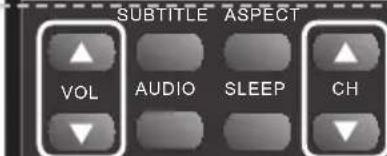
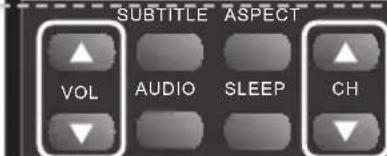
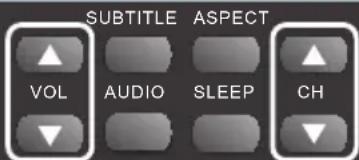
- VOL ▲/▼ - To increase / decrease the sound level.
SUBTITLE – To switch the dialogue at the bottom of the screen (on/off).
ASPECT – To switch the screen between the different picture formats.
AUDIO - To change the audio language (if available).
SLEEP – Press repeatedly to cycle through the sleep options.
CH ▲/▼ – To increase or decrease the channel being watched.
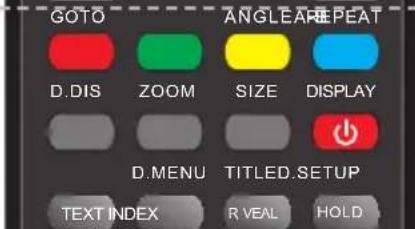
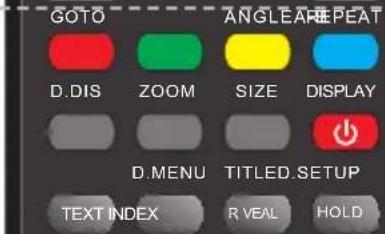
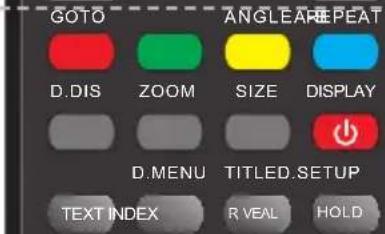
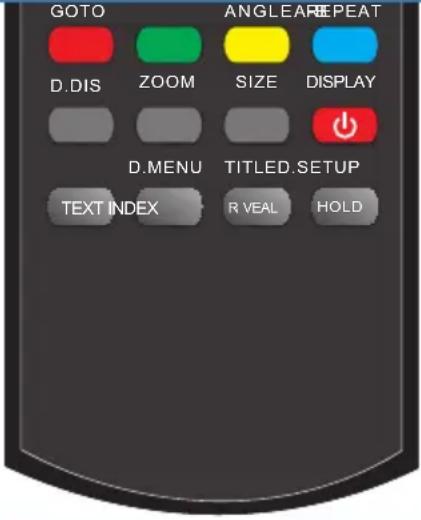
- GOTO ^1 - DVD mode - To go to a specific chapter
A-B ^1 – DVD mode - Press once to set point, press a second time to return to point
ANGLE ^1 - DVD mode - Select different angle of DVD (if available)
REPEAT ^1 - DVD mode - To repeat playback
D.DIS ^1 – DVD mode - To display the current disc information
ZOOM ^1 – DVD mode - To zoom in
SIZE - Teletext mode - To change the display size in Teletext mode
DISPLAY – To switch off the screen when listening to radio
DVD SETUP ^1 /TEXT – DVD mode - To display the DVD setup menu Teletext mode - To enter Teletext
D.MENU 1/INDEX – DVD mode - To display the DVD disc menu Teletext mode – To display the index page
TITLE ^1 /REVEAL – DVD mode - To display the DVD title menu Teletext mode – To reveal or hide the hidden words.
HOLD ^1 - Teletext mode - Hold current page which is displayed
S MODE ^2 - Sound mode options
P MODE ^2 - Picture mode options
1 - Functions are available for TVs with DVD players interiertem available.
2 - Functions are available for TVs without a DVD player and PVR available.
3 - Functions are available for TVs with PVR available.
1
TV buttons & Source menu
| ▲ | Eject * |
| II◀ | Play / Pause * |
| Vol+ | Volume up and menu right |
| Vol- | Volume down and menu left |
| CH+ | Programme/Channel up and menu up |
| CH- | Programme/Channel down and menu down |
| MENU | Displays Menu/OSD |
| SOURCE | Displays the input source menu |
| STANDBY | Standby Power On/Off |
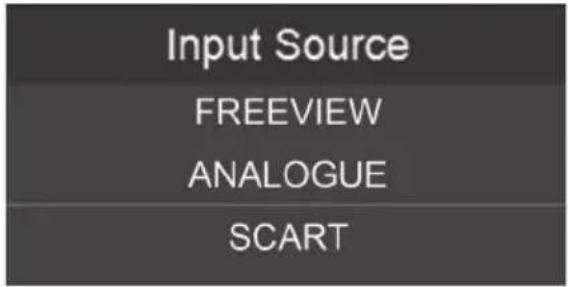
Choosing Mode Input/Source
To switch between the different input/connections.
a) Using the buttons on the remote control:
- Press [SOURCE/ AV] - The source menu will appear.
- Press [▼] or [▲] to select the input you require.
- Press [OK].
b) Using the buttons on the Television:
- Press [SOURCE].
- Scroll up / down using CH+/CH- buttons to the input/source you require.
- Press Vol+ to change input/source to the one selected.
* - Only on supported devices
natural_image
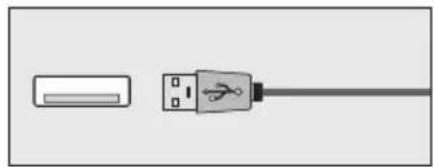
Diagram showing a USB cable connector with a rectangular port and a separate plug symbol (no text or labels)USB
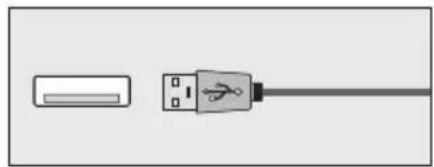
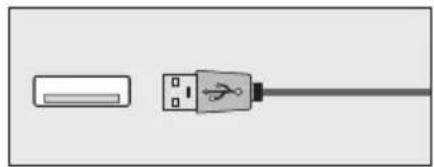
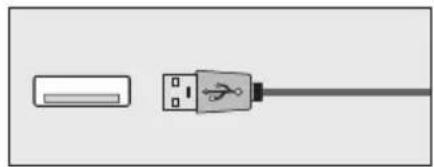
Port USB
natural_image
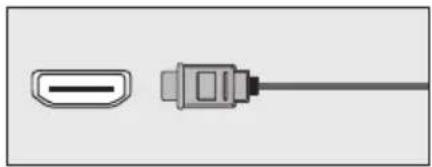
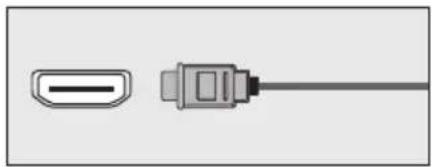
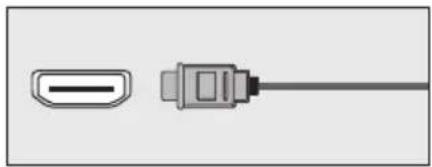
Diagram showing two connected components: a USB port and a cable (no text or symbols)HDMI 1, 2, 3* in
HDMI input 1, 2*, 3*
natural_image
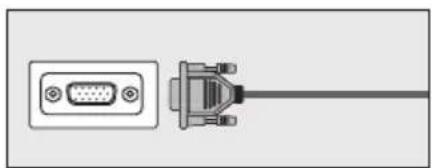
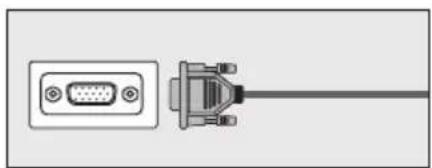
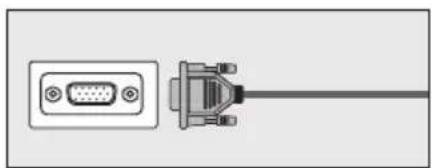
Diagram of a VGA connector with an external cable (no text or symbols)VGA(PC)
VGA-PC - Input
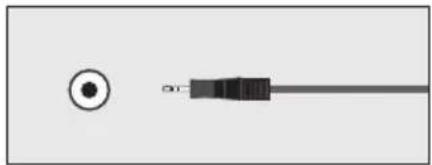
natural_image
Pure electrical connector diagram without any text or symbolsVGA (PC) Audio In
3.5mm PC audio input
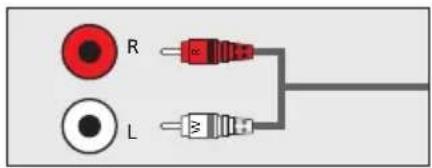
natural_image
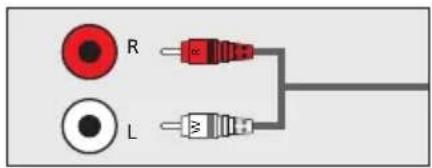
Pure electrical connector diagram showing two red and white components connected to a gray cable (no text or symbols)R/L - Video & YPbPr audio In
Component / Video audio input
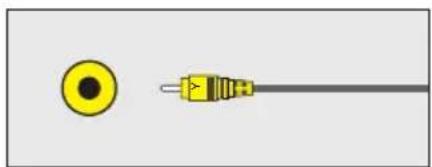
natural_image
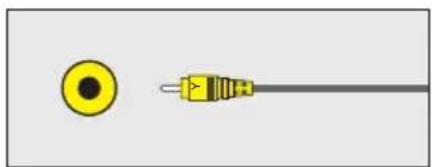
Pure electrical connector diagram showing a yellow circular component and a black terminal block connected to a gray cable (no text or symbols)Video (CVBS) *
VIDEO Input
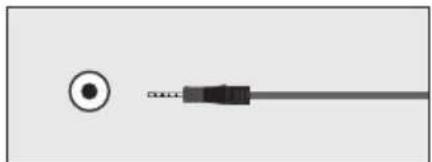
natural_image
Pure electrical connector diagram without any text or symbolsMini YPbPr*
Mini HD-Component-input
natural_image
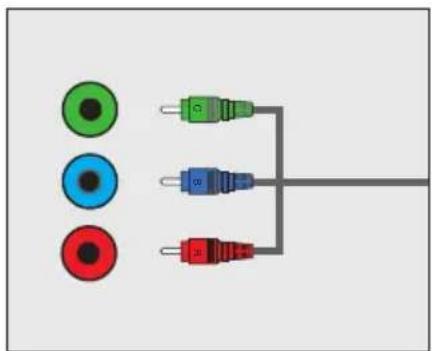
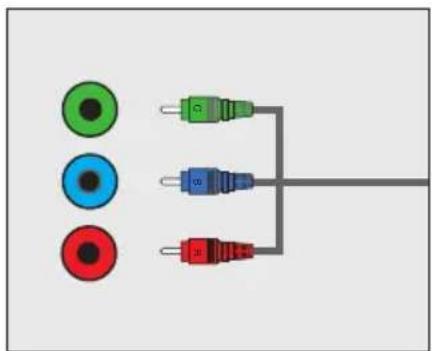
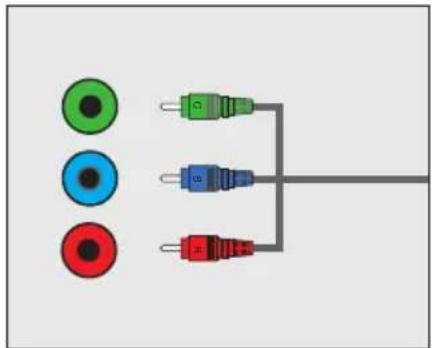
Pure electrical connector diagram showing three colored wires connected to a terminal block (no text or symbols)YPbPr*
Component HD Input
natural_image
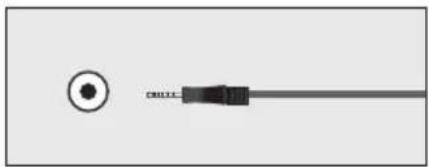
Pure electrical connector diagram without any text, numbers, or symbolsMini Video *
Video and Audio R/L for Video, YPbPr input
natural_image
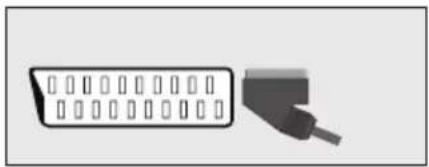
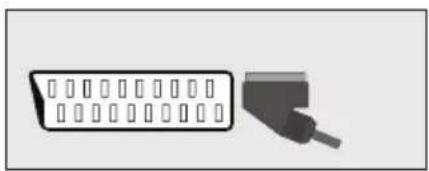
Pure electrical connector diagram without any text or symbolsSCART*
SCART input
natural_image
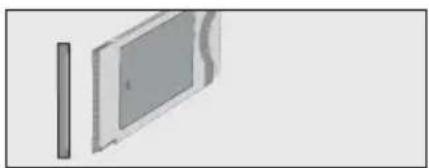
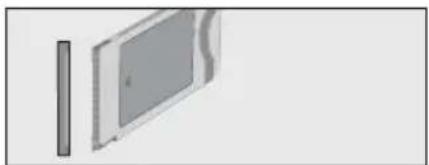
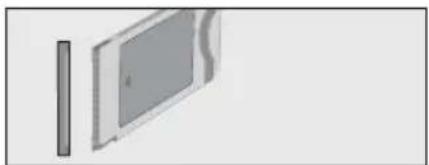
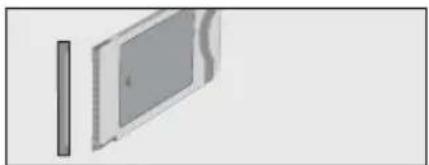
Simple 3D diagram of a rectangular panel with a side wall and a curved top section, no text or symbols present.CI Card IN
Common Interface Module Input

natural_image
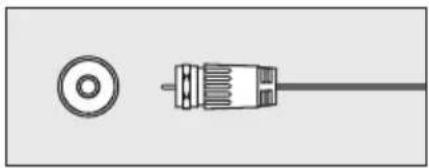
Pure electrical connector diagram without any text, numbers, or symbolsRF In
RF / TV Aerial Input

natural_image
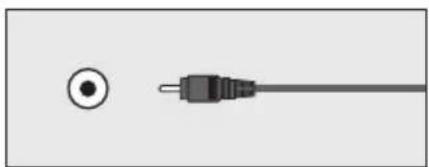
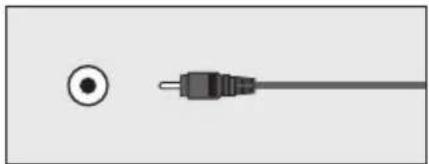
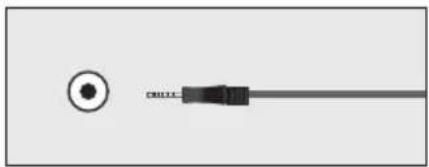
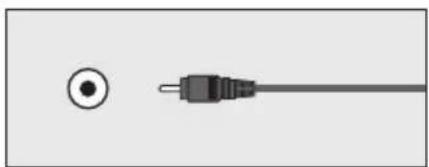
Pure electrical connector diagram showing a circular socket and a black cable (no text or symbols)COAX Audio Out
Digital Coax output
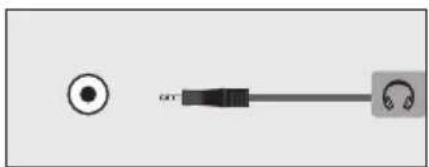
natural_image
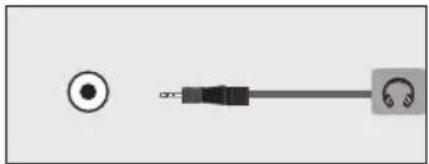
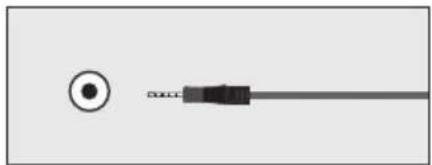
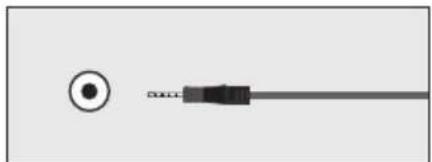
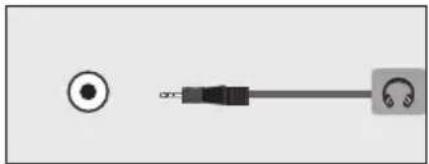
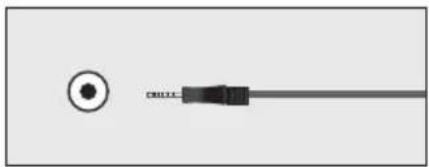
Pure electrical connector diagram without any text or symbolsHEADPHONES
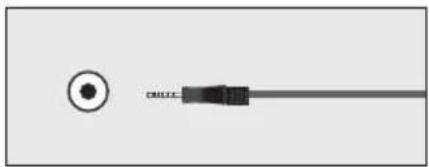
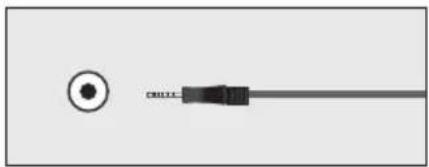
3.5mm Headphone output
Connecting a DVD Player/Recorder, Video Recorder or Cable/Satellite Box
TVs Input/Source should be set to SCART.

flowchart
graph LR
    A["Computer"] --> B["SCART IN"]
    B --> C["RF IN"]
    C --> D["RF OUT RF IN"]
    D --> E["SCART OUT"]
    E --> F["Antenna"]
    F --> G["Output"]
Connecting a Camcorder, Camera or Games Console
TVs Input / Source should be set to Video.
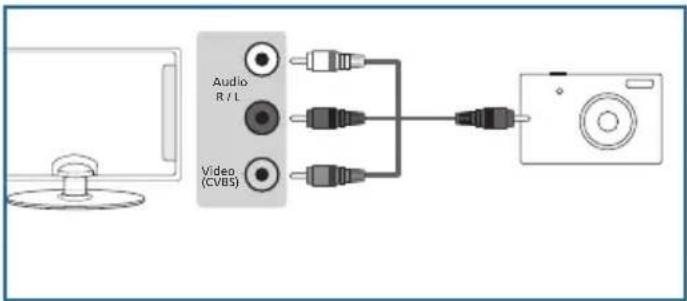
Connecting a High Definition (HD) Device
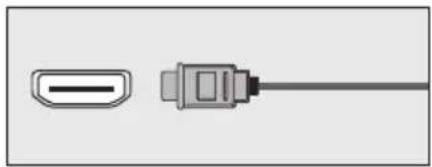
Option 1 - via HDMI to HDMI cable A HDMI cable can output both video and audio and enables you to enjoy digital-quality video and audio with minimal loss of quality. TVs Input/Source should be set to HDMI.
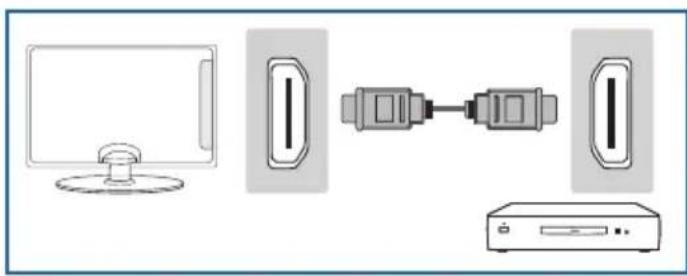
natural_image
Diagram showing a computer monitor connected to two USB drive units via a cable (no text or symbols present)Option 2 - via Component cable or Mini YPbPr
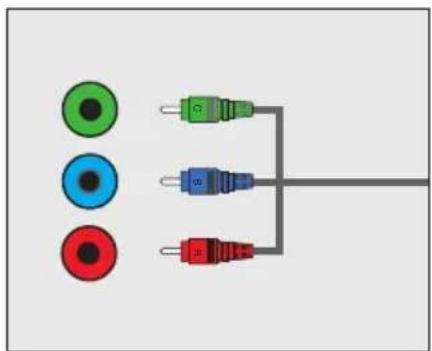
If you are supplied with a cable from the device which has RED, GREEN, BLUE, RED & WHITE connectors you must use included YPbPr to MINI YPbPr cable adaptor to connect via Component (for picture) and by phono cable (for sound).
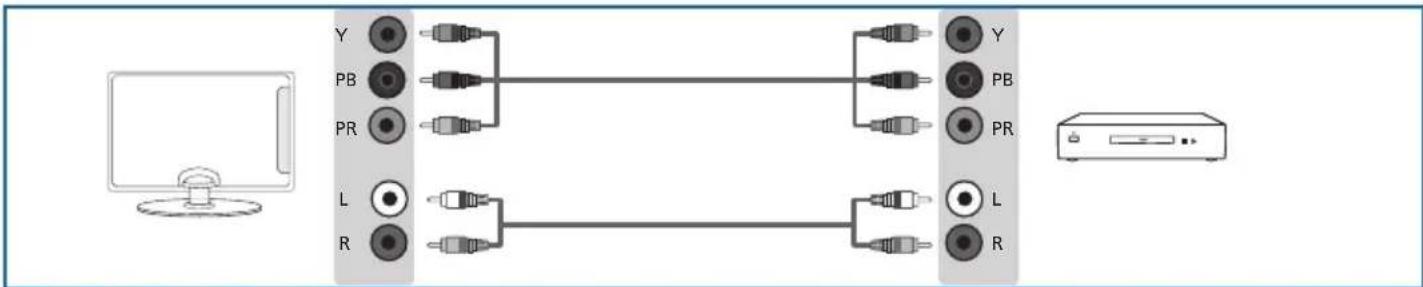
flowchart
graph LR
    A["Computer monitor"] --> B["Y"]
    A --> C["PB"]
    A --> D["PR"]
    A --> E["L"]
    A --> F["R"]
    B --> G["USB cable"]
    C --> H["USB cable"]
    D --> I["USB cable"]
    E --> J["USB cable"]
    F --> K["USB cable"]
    G --> L["External CD"]
    H --> L
    I --> L
    J --> L
    K --> L
Connecting TV to PC (using as a computer monitor)
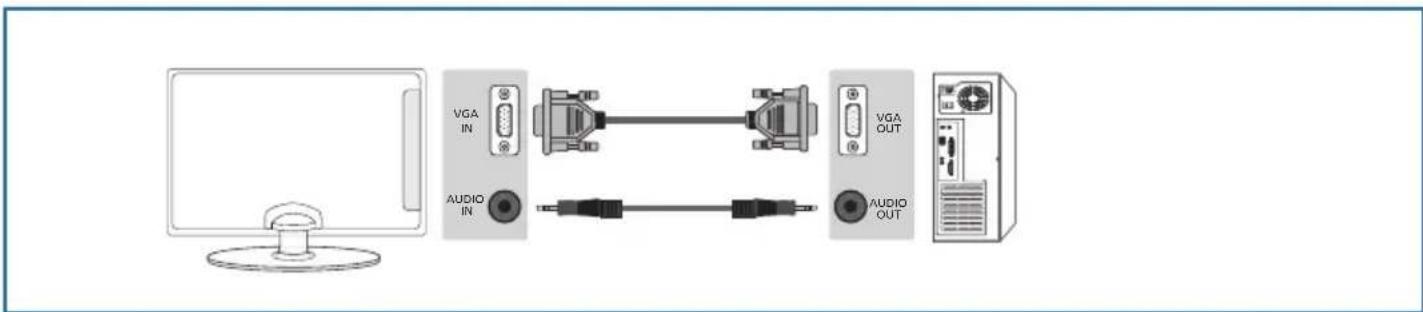
Connect VGA output with PC or Laptop graphic card VGA output using VGA cable (not supplied) for video. If you want to use built in TV speakers connect TVs 3,5 mm audio input with 3,5mm PC audio output (optional PC headphones output) using 3,5mm audio cable (not supplied). TVs Input/Source should be set to VGA.
TV Menu operation
TV Menu Operation | Channel menu | Picture menu
TV Menu Operation
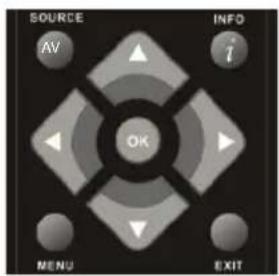
To access this menu, press [MENU] button on the remote control. To enter a menu press [OK]
If you wish to make changes to any of the default settings, use the scroll (▲/▼/◄/►) buttons. To confirm any settings press [OK] button.
To exit this menu at anytime, press [EXIT] button.
Channel menu
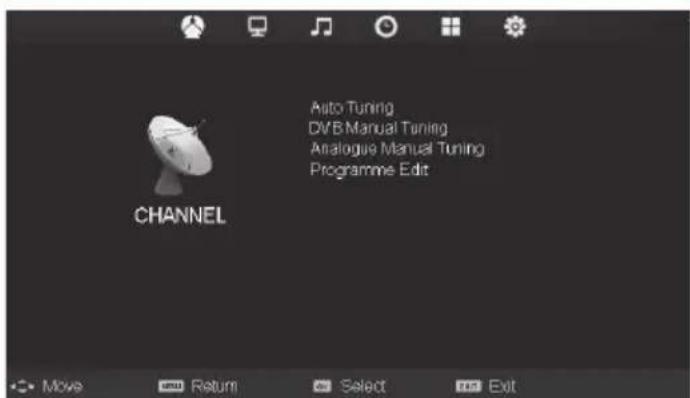
Auto Tuning - Allows you to retune the television for all digital channels, digital radio stations and analogue channels.
Digital Manual Tuning- Allows you to manually tune your digital signal.
Analogue Manual Tuning - Allows you to manually tune your analogue signal.
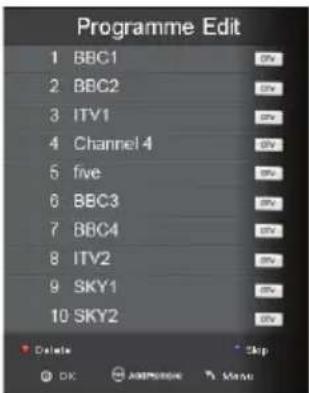
Programme Edit - Allows you to delete, skip and add favourite channels.
Picture menu
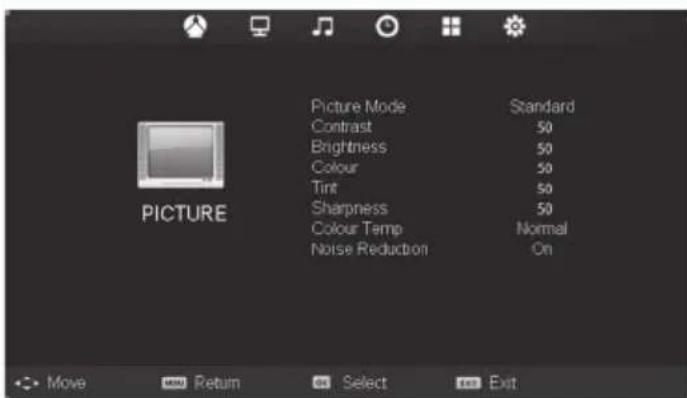
Picture Mode - Choose from the following presets.
| Standard Default settings |
| Dynamic Recommended settings for fast moving pictures |
| Mild Set to be lighter in colour and less bright |
| Personal Lets you manually alter all the settings |
| Ecohome Consume 15% less energy. |
Contrast - Switch the balance between black and white.
Brightness - Increase or decrease the brightness of the picture.
Colour - Increases the colour from black and white.
Tint - Lets you increase or decrease the level of tint within the picture.
Sharpness - Increase or decrease the sharpness of the picture.
Colour Temperature - Choose from the following presets.
| Normal Default settings |
| Warm Increases red within the picture |
| Cool Increases blue within the picturew |
Noise Reduction - Choose from the following presets.
| Off Turns noise reduction off | |
| Low Minor system adjustment | |
| Middle Medium system adjustments | |
| High | Maximum system adjustments |
| Default Default settings | |
Tip: If you do not press any buttons for 10 seconds, the menu will automatically exit. You can change the length of time before the menu exits automatically - see 'Menu Duration' section.
TV Menu operation
Sound menu | Time menu | Feature menu
Sound menu
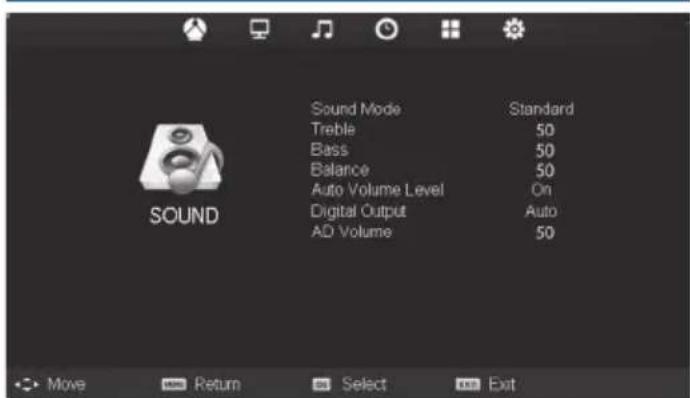
Sound Mode - Choose from the following presets:
| Standard Default settings |
| Music Emphasises music over voices |
| Movie Provides live and full sound for movies |
| Personal Selects your personal sound settings |
| Sports Emphasises sound for sports |
Tip: Treble and bass levels can only be adjusted when the sound mode 'Personal' is selected.
Treble - To adjust the amount of high frequency within the sound.
Bass - To adjust the amount of low frequency within the sound.
Balance - To switch the sound between the left and right speakers.
Auto Volume Level (AVL) - When 'on' is selected, the volume will stay at a constant level regardless of input/source.
Digital Output - This is the digital COAX Audio output. Choose from the following options:
| Off | Off |
| Auto Selects the best settings automatically | |
| PCM Select this option if you are connecting to a Stereo Hi-fi via coax cable (Pulse-code modulation (PCM) is a digital representation of an analogue signal) | |
AD Volume - Increase or decrease the overall volume.
Time menu
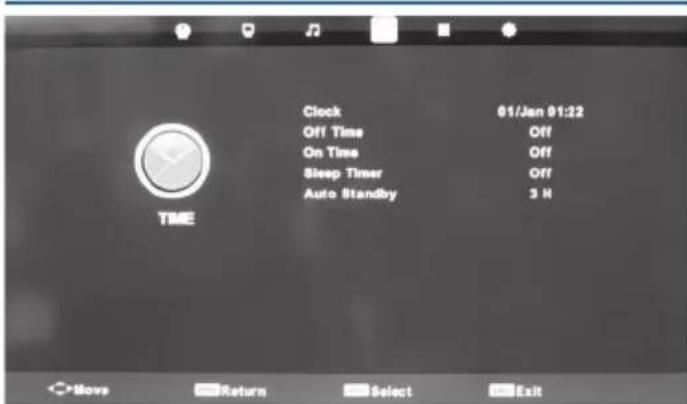
Clock - Set the date and time.
Off Time - Allows you to set a specific time for your TV to turn off.
On Time - Allows you to set a specific time for your TV to turn on, the channel it will then display, the source it will be on and also the volume. This function can then be toggled to repeat every day or a certain day.
Time Zone - Change your current time zone.
Sleep Timer - Lets you set the sleep timer so the television automatically switches off after a set amount of time. Off -> 10min -> 20min -> 30min -> 60min -> 90min -> 120min -> 180min -> 240min.
Auto standby - Toggle the Function on and off.
Feature menu
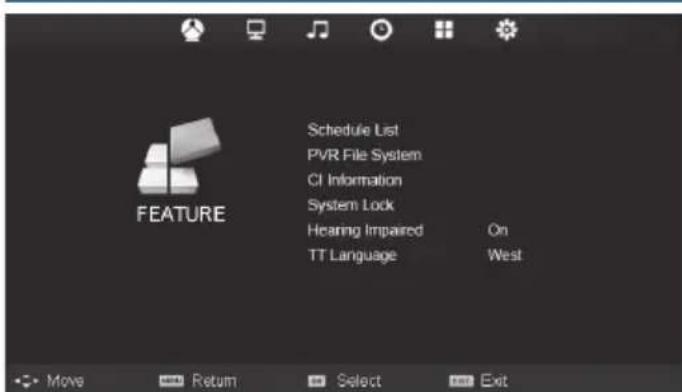
Schedule List - Lists your programme reminders.
PVR File System - Checks the file system of the connected USB device and displays the information about the check results.
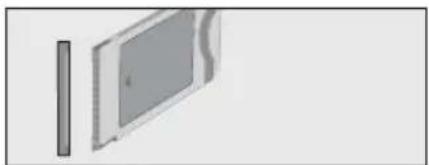
CI Information - Pay per view services require a "smartcard" to be inserted into the TV. If you subscribe to a pay per view service the provider will issue you with a 'CAM' and a "smartcard". The CAM can then be inserted into the COMMON INTERFACE PORT (CI Card In).
System Lock - Allows you to lock or unlock the menu. You will be asked to enter a 4 digit password use the ◀ button to quit the password input. Use the ▶ button to clear. Default password is 0000.
Hearing Impaired - If signal provides support for the hearing impaired, the subtitles can be displayed by pressing the "Subtitle". If you set a Hearing Impaired on and switch to a channel with support for hearing impaired subtitles will be activated automatically.
TT Language - Encoding settings for the proper display of teletext characters.
Setup menu
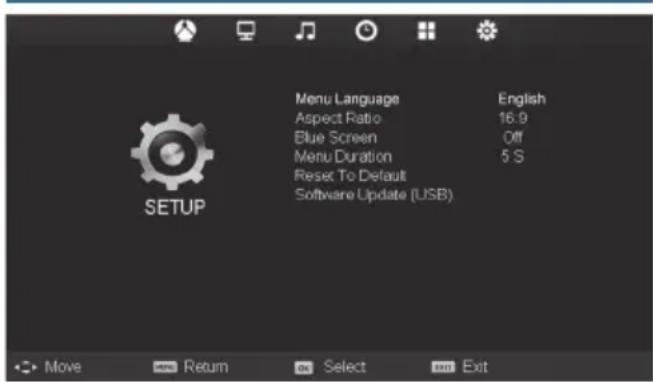
Menu language - Allows you to change the language of the menu.
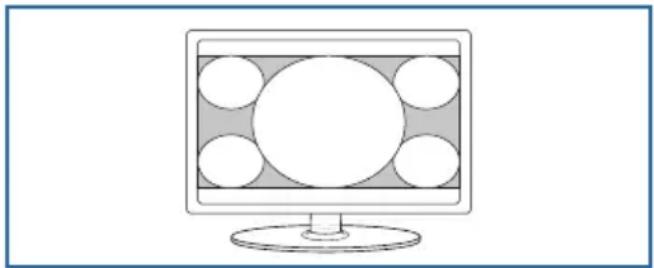
Aspect Ratio - Within the EU the picture format varies depending on the channel/broadcast. There are a number of different options to best meet your needs.
Auto - Automatically displays the best picture format. So the picture is in the correct position. May have black lines at the top/bottom and/or sides.
Original - Will display the picture from the broadcaster without any change.
Zoom - The picture is the correct proportion but zoomed in to fill the screen.
natural_image
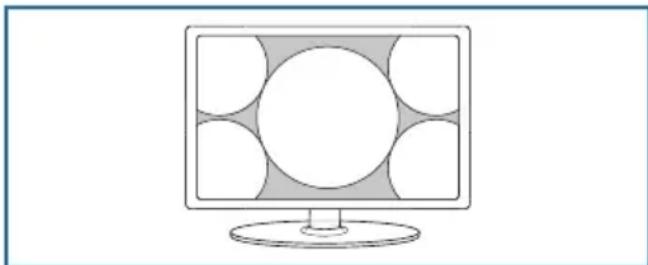
Line drawing of a computer monitor with a circular screen and six abstract geometric patterns on the screen (no text or symbols)4:3 - Displays the 4:3 picture in its original size. Side bars are shown to fill the 16:9 screen.
natural_image
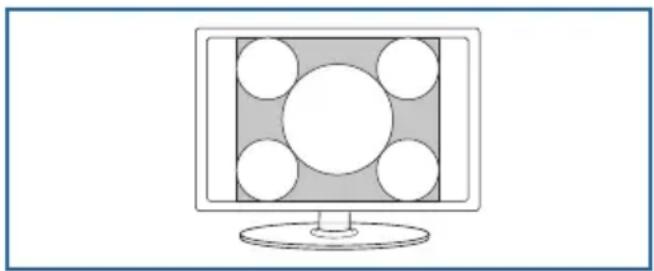
Computer monitor with a central circular design and surrounding white circles on a gray background (no text or symbols)16:9 - Fills the screen with a regular 16:9 signal and 4:3 picture will be stretch to fill the screen
natural_image
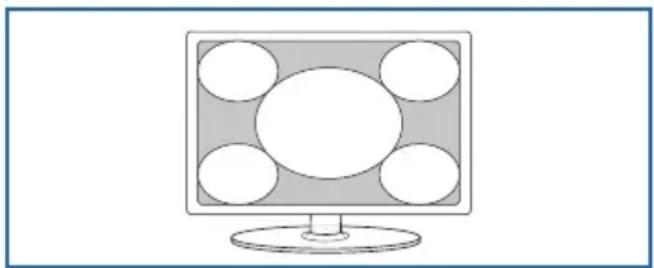
Simple line drawing of a computer monitor with five circular buttons on the front panel (no text or symbols)14:9 - Displays the 14:9 picture in the correct proportion. As a result side bars are shown on the screen.
natural_image
Simple line drawing of a computer monitor with a circular panel on the screen (no text or symbols)Blue Screen - Changes the background when there is no input between clear and a blue background (Only available on some sources).
Menu Duration - Lets you adjust the amount of time the On Screen Menu stays on the screen before disappearing.
Reset to default
Reset Menu System - This resets the menus to factory settings.
Reset TV Channels - This clears all the TV channels from the television.
Software Update (USB) - From time to time we may release new fi rmware to improve the operation of the television (available to download). This menu lets you install the new software/fi rmware onto the television. Further details of how to do this will be issued with the fi rmware. Contact the helpline or refer to the 'product support' section of the website.
TV Menu operation
PC Settings | 7 Day TV Guide | USB record\*
PC Settings
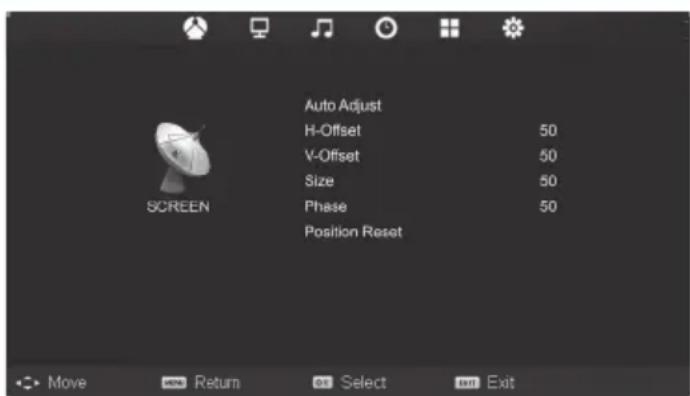
Auto Adjust - Lets you automatically configure the television to be used as a computer monitor.
H Off set - Changes the horizontal position of the picture.
V Off set - Changes the vertical position of the picture.
Tip: If the computer is left in-active for a period of time, the television will switch into a 'sleep' state (the screen will power off to save power). To switch back on press the standby button.
7 Day TV Guide / USB Record
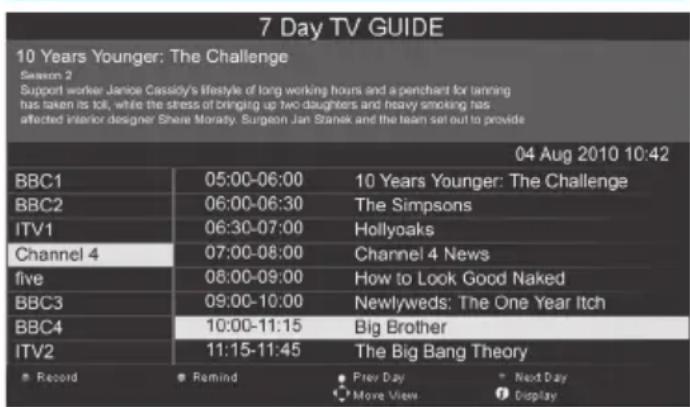
TV Guide is available in Digital TV mode. It provides information about forthcoming programmes (where supported by the Digital channel). You can view the start and end time of all programmes and on all channels for the next 7 days and set reminders.
- Press [TV GUIDE]. The following 7 Day TV Guide will appear.
- Navigate through the menu using ▲/▼/◄/►.
You can now:
Record a Programme by pressing RED.*
Set a reminder by pressing GREEN.
View a previous day by pressing YELLOW.
View the next day by pressing BLUE.
- Press [EXIT] to exit the 7 day TV Guide.
Note: This TV is designed to operate with USB memory sticks up to 32GB. It is possible to use either a USB memory stick or a USB portable Hard Drive of a larger capacity, however, it must be formatted to the FAT32 file system in order to operate correctly. At the time of printing this user guide, Windows XP/Vista computers are only capable of formatting up to 32GB, therefore, you will need a software programme/ utility to format larger USB drives/hard drives to FAT32. Additional help and support is available from the web site.
USB Record - Digital mode\*
USB RECORD – DIGITAL/FREEVIEW MODE
Built into this television is a USB record facility. This function is available in Digital mode when.
used in conjunction with a compatible USB memory stick or USB Hard drive. The benefits of this are as follows:
- Pause live TV and then playback, fast forward and rewind (up to live TV).
- One button record, if you decide you want to record the current programme.
- Easy programmable recording from the 7 day TV Guide
- Record TV and watch back on your computer/laptop.
Due to the nature of the product, it is necessary to use a high speed USB memory stick (as the TV reads from and writes to the memory stick at the same time, some memory sticks may not be suitable).
Minimum Specification - USB Memory Stick
Read Speed 20 MB/s (Mega Byte Per Second)
Write Speed 6 MB/s (Mega Byte Per Second)
If you wish to use a USB portable hard drive larger than 32GB, please refer to the FAQ section at the rear of this user guide.
TV Menu operation
Pause Live TV (Time Shift)\* | USB mode / Media player
Pause Live TV (Time Shift) \*
Pausing Live TV is very simple.
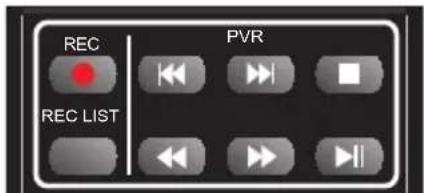
- Press the play/pause button and the television will pause and the live content will be recorded. To resume watching press play/pause again.
- Press fast forward to go forward in a recording (i.e. to skip adverts).
- Press fast rewind to go back in a recording (i.e. if you fast forwarded too far).
Tip: When you switch the TV to standby or change channel the Time Shift memory is wiped. To restart time shift you must press play/pause button.
One Button Record
At any point in time you may decide to record the current channel that you are watching. To do this you need to press the [REC] button.
Tip: This television contains one TV tuner, therefore it can only record the channel you are watching or record one channel while the television is in standby mode.
Note: USB record function is only available in Digital TV mode. Due to copyright laws and illegal copying/ recording it is not possible to record to/from any other input/output source.
USB mode / Media player
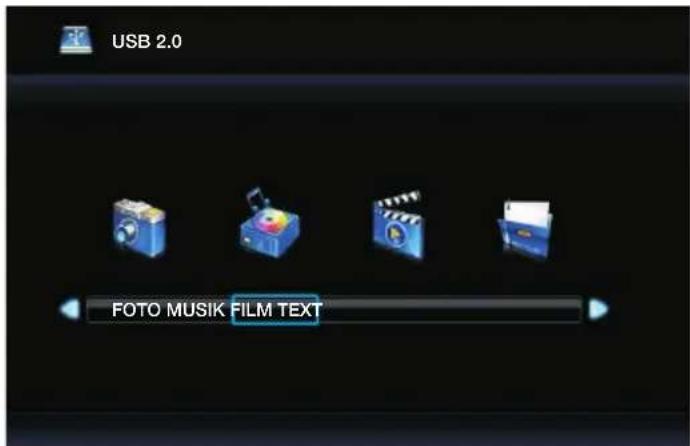
USB mode offers playback of various different types of content that you have saved on your USB Memory Stick.
Please refer to technical specification page for compatible file types
On switching to USB source the above menu screen will appear. The content will be divided into Photo, Music, Movie and Text based on fi le type.
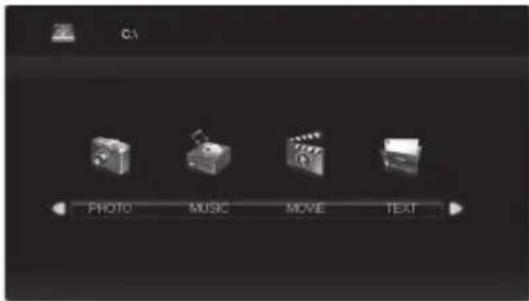
- You can navigate through the menus using the scroll ▲/▼/◄/► buttons. To confirm the item you wish to play/view press [OK] button.
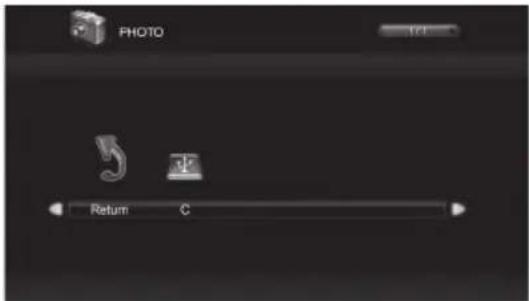
- Select the drive you require. (If your drive only has 1 partition you will only see 1 item).
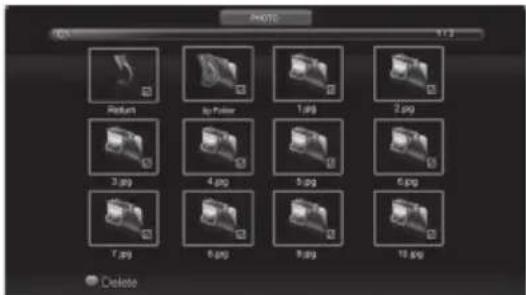
- You can now access the item. Press OK to view.
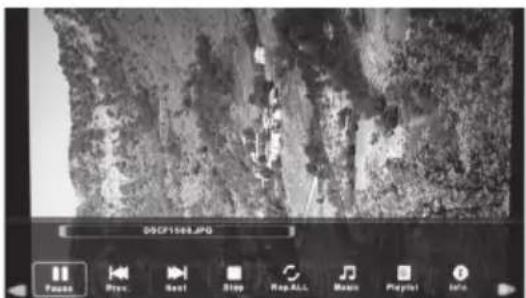
- While viewing you control the item using or by
pressing (i) and using ▲/▼/◄/► and (OK)
To access this menu, press [D. MENU] button on the remote control. If you wish to make changes to any of the default settings, use the scroll ▲/▼/◄/► buttons. To confirm any settings press [OK] button.
To exit this menu at anytime, press [EXIT] button.
General Setup Page
TV Display - Choose from the following options
| 4:3PanScan | PS Traditional picture format, often used on old fi lm |
| 4:3LetterBox | LB Traditional picture which has been adapted for widescreen |
| Wide Widescreen picture format | |
OSD Language - Select desired language
Audio Setup Page
Speaker Setup - Choose from the following options
| LT/RT Set LT/RT Downmix |
| Stereo Set Stereo Downmix |
Dolby Digital Page
Dual Mono
| Stereo Outputs 2 channels of sound both left and right |
| Mono L Outputs left side sound |
| Mono R Outputs right side sound |
| Mix Mono Outputs a single channel of sound but mix between right and left |
Dynamic Range - This is the difference between the quietest and loudest sounds. This setting works only with DVD discs recorded in Dolby digital.
Preference Page
TV Type - Choose from the following options
| NTSC Normally used for discs from North America, Japan etc |
| PALThe standard for discs from UK/Europe, most of Asia, Australia etc |
| Auto For both NTSC and PAL |
Default - This option allows you reset all DVD settings to factory settings.
Important. DVD - Only for tv's with built in DVD
Questions: Answers:
| I have set up digital TV, but the search did not find any channels or/and the channels I receive are fragmented. | 1. I am not receiving any signal2. Make sure you have a suitable antenna. Many indoor antennas cclaim that they are digital-ready, but does not receive signal.3. Consider whether you should buy a signal amplifier; it is much cheaper than a digital antenna and solves 70% of the problems with poor signal conditions.4. In case of the above, use only analog tv until the signal becomes stronger in your areaTo achieve the best performance, we recommend that you use a highgain digital antenna. If you receive some digital stations, you must first try to connect a signal amplifier between the TV and TV aerial socket. |
| Why is the sound so distorted for the ears? | Change the audio settings in Sound menu as shown earlier in the instructions to increase bass and lower treble |
| I have inserted a disc in the player and it shows "No Disc" | 1. Make it sure you have loaded the page with the correct side2. Ensure that the disc is clean and is not scratched3. Some copied discs do not play.4. Check that the DVD is Region 2 - to change the region - look under the "change region" in the user manual. |
| The subtitles are running, when I watch a DVD | Each time you press "subtitles" button you switch between the different languages. Off is one of the options. If the subtitles still appear, you have to disable them in the DVD menu. |
| I connected the TV to my VCR via scarct, but there is nothing displayed. | Besides the SCART, connect the antenna cable from the wall jack to the VCR and other aerial cables from the VCR to the TV. |
| TV lost all preset channels The Danish cable providers (You See, Stofa, Danish cable TV and others) modify 4 times a year their channels. In this case, you must return your channels to find all the channels again. This is NOT a fault caused by the TV. But something that all TV brands will do | |
natural_image
Two computer monitors connected by cable, showing wiring routing (no text or symbols visible)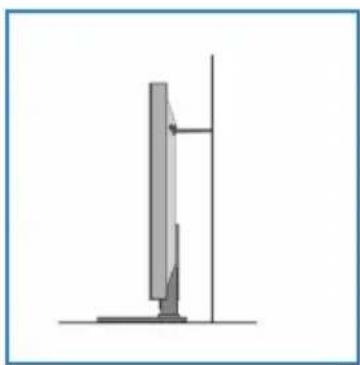
natural_image
Simple line drawing of a vertical structure with a base and vertical supports (no text or symbols)3
4
5
natural_image
Diagram showing a USB cable connector with a rectangular port and a separate connector (no text or symbols)USB Porta USB
natural_image
Pure electrical connector diagram without any text or symbolsMini Video * Video AV Entrada + Audio (L/R) Entrada
natural_image
Diagram showing two connected components: a USB port and a cable (no text or symbols)HDMI 1, 2*, 3* in Entrada HDMI 1, 2*, 3*
natural_image
Pure electrical connector diagram without any text or symbolsSCART * Entrada SCART
natural_image
Diagram of a VGA connector with an external cable, showing port and socket (no text or labels)VGA(PC) Entrada VGA-PC
natural_image
Simple 3D diagram of a rectangular panel with a vertical side and a curved top, no text or symbols present.natural_image
Pure electrical connector diagram without any text or symbolsnatural_image
Diagram of a coaxial cable connector with a circular head and threaded shaft (no text or symbols)RF In Entrada de Antena RF/TV
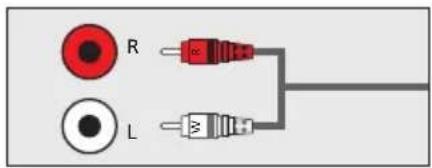
R/L - Video & YPbPr audio In * Entrada audio de Componente/Vídeo
natural_image
Simple diagram showing a circular connector and a black cable with a plug (no text or symbols)COAX Audio Out Salida Digital Coaxial
natural_image
Pure electrical connector diagram showing a yellow circular component and a black terminal block connected to a gray cable (no text or symbols)Video (CVBS) * Video - Entrada
natural_image
Pure electrical connector diagram without any text or symbolsHEADPHONES Salida de 3,5mm para auriculares
natural_image
Pure electrical connector diagram without any text or symbolsMini YPbPr * Entrada Mini HD para Componente
natural_image
Pure electrical connector diagram showing three colored circular components connected to a terminal block (no text or symbols)YPbPr * Entrada HD para Componente
* - opcional
flowchart
graph LR
    A["Computer monitor"] --> B["SCART IN RF IN"]
    B --> C["RF OUT RF IN"]
    C --> D["SCART OUT RF OUT"]
    D --> E["Antenna"]
natural_image
Diagram showing a desktop computer connected to two USB drive units via cable (no text or symbols)natural_image
Line drawing of a computer monitor with a circular screen and six abstract geometric patterns on the screen (no text or symbols)natural_image
Illustration of a computer monitor with a central screen and surrounding circular elements (no text or symbols)natural_image
Illustration of a computer monitor with five circular windows on the screen (no text or symbols)natural_image
Illustration of a computer monitor with a central blank screen and four circular buttons on the sides (no text or symbols)natural_image
Black-and-white photo of two flowers with visible petals and leaves, displayed within a media player interface (no readable text or symbols on the flower image itself)- Al visualizar controle el elemento utilizando
natural_image
Front view of a flat-screen television displaying (no visible text or symbols)1x téléviseur
natural_image
Simple line drawing of a flat rectangular object with a small protrusion on top (no text or symbols)1x pied
1x le col de support
natural_image
Black remote control device with multiple ports and buttons (no visible text or labels)1x télécommande
natural_image
Close-up of a black, knotted rope or cable with looped ends (no text or symbols visible)1x câble RF
natural_image
Two gray cylindrical batteries with black lids, shown against a white background (no text or symbols visible)2x piles AAA
natural_image
Coiled black audio amplifier cable with four colored connectors (red, blue, green, purple) shown against white background1x Mode d'emploi
natural_image
Coiled audio amplifier cable with three connected audio ports (red, green, yellow) and a black connector (no text or symbols visible)1x câble Mini AV *
natural_image
Simple line drawing of a screw with a flanged head and threaded shaft (no text or symbols)natural_image
Two computer monitors connected by cable, showing wiring and connection points (no text or symbols)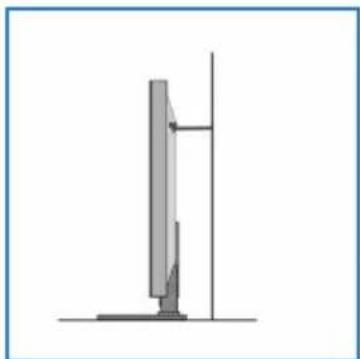
natural_image
Simple line drawing of a vertical structure with a base and vertical supports (no text or symbols)3
4
5
natural_image
Diagram showing a USB cable connector with a rectangular port and its internal plug (no text or symbols)USB
Port USB
natural_image
Diagram showing two connected components: a USB port and a cable (no text or symbols)HDMI 1, 2*, 3* in
Entrée HDMI 1, 2*, 3*
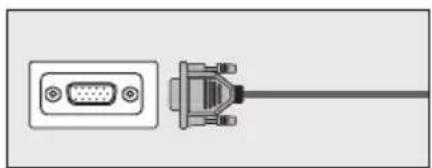
natural_image
Diagram of a VGA connector with an external cable (no text or symbols)natural_image
Pure electrical connector diagram showing two red and white components connected to a gray cable (no text or symbols)natural_image
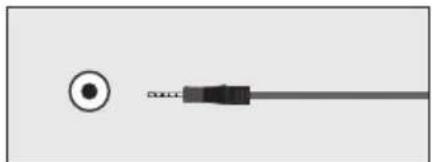
Pure electrical connector diagram showing a yellow circular component and a black terminal block connected to a gray cable (no text or symbols)Video (CVBS) *
Entrée VIDÉO
natural_image
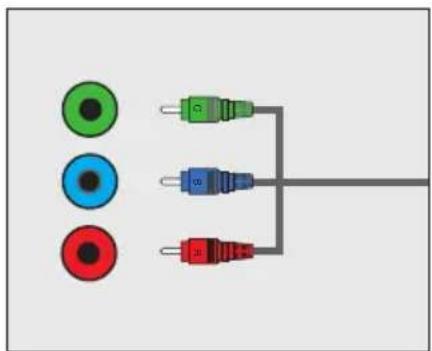
Pure electrical connector diagram without any text or symbolsMini YPbPr*
Entrée HD
Mini composante
natural_image
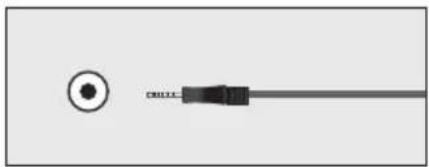
Pure electrical connector diagram showing three colored circular components connected to a terminal block (no text or symbols)YPbPr*
Entrée HD composante
natural_image
Pure electrical connector diagram without any text or symbolsnatural_image
Pure electrical connector diagram without any text or symbolsSCART*
Entrée SCART
natural_image
Simple 3D diagram of a rectangular panel with a vertical side and a curved top section, no text or symbols present.natural_image
Pure diagram of a connector with a circular head and a rectangular body, no text or symbols present.RF In
Entrée antenne RF / TV
natural_image
Pure electrical circuit lines without any symbolsnatural_image
Pure electrical connector diagram without any text or symbolsflowchart
graph LR
    A["Computer"] --> B["SCART IN"]
    B --> C["RF IN"]
    C --> D["Switch"]
    D --> E["SCART OUT"]
    E --> F["RF OUT RF IN"]
    F --> G["Switch"]
    G --> H["Antenna"]
    H --> I["Wireless Cable"]
natural_image
Diagram showing a desktop computer connected to two USB drive units via cable (no text or symbols)natural_image
Line drawing of a computer monitor with a circular screen and six abstract geometric patterns on the screen (no text or symbols)natural_image
Computer monitor with a central screen showing six white circles arranged in a square pattern (no text or symbols)natural_image
Simple line drawing of a computer monitor with five circular buttons on the front panel (no text or symbols)natural_image
Simple line drawing of a computer monitor with a circular panel on the screen (no text or symbols)natural_image
Black-and-white photo of a woman blowing a white object, with floating bubbles in the background (no text or symbols)| G./D. Lt/Rt downmix |
| Stéréo Stereo downmix |
Réglage Dolby D
Dual Mono -
natural_image
Two computer monitors connected by cable, showing wiring and connection points (no text or symbols visible)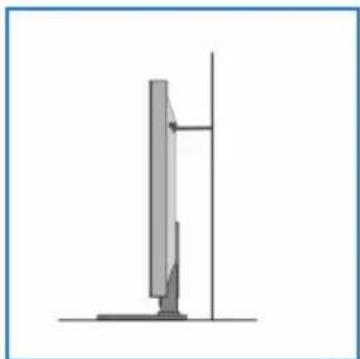
natural_image
Simple line drawing of a vertical structure with a horizontal support line (no text or symbols)3
4
5
natural_image
Diagram showing a USB cable connector with a rectangular port and its internal plug (no text or symbols)USB Porta USB
natural_image
Pure electrical connector diagram without any text or symbolsMini Video * Entrada vídeo AV e Audio (L/R)
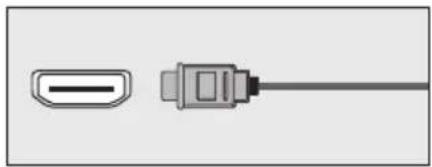
natural_image
Diagram showing two connected components: a USB port and a cable (no text or symbols)HDMI 1, 2*, 3* in Entrada HDMI 1, 2*, 3*
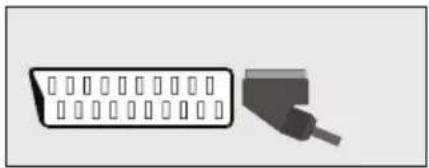
natural_image
Pure electrical connector diagram without any text or symbolsSCART * Entrada SCART
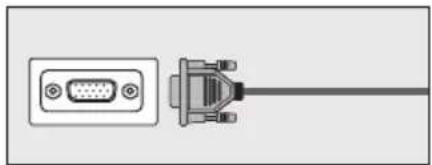
natural_image
Diagram of a VGA connector with an external cable (no text or symbols)VGA(PC) Entrada VGA-PC
natural_image
Simple line drawing of a door with a vertical bar on the left side (no text or symbols)natural_image
Pure diagram of a connector with a circular head and a straight cable, no text or symbols present.RF In RF / TV Aerial Input
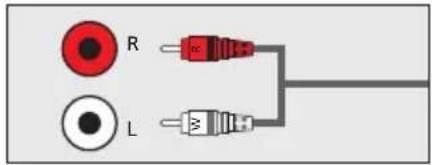
R/L - Video & YPbPr audio In * Entrada audio de Componente/Vídeo
natural_image
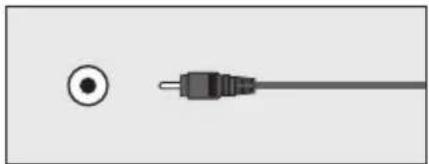
Simple diagram showing a circular connector and a black cable with a plug (no text or symbols)COAX Audio Out Entrada de Antena RF/TV
natural_image
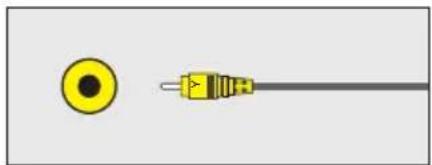
Simple diagram showing a yellow circular connector next to a black cable with a yellow connector (no text or symbols)Video (CVBS) * Video - Input
natural_image
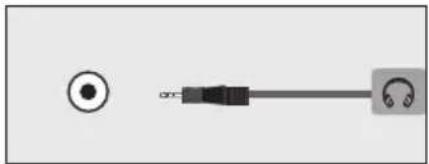
Pure electrical connector diagram without any text or symbolsHEADPHONES Salida de 3,5mm para auriculares
natural_image
Pure electrical connector diagram without any text or symbolsMini YPbPr* Entrada HD para Mini Componente
natural_image
Pure electrical connector diagram showing three colored wires connected to a terminal block (no text or symbols)YPbPr * Entrada HD para Componente
natural_image
Diagram showing a desktop computer connected to two USB drive units via cable (no text or symbols present)
natural_image
Line drawing of a computer monitor with a blank screen and circular design on the screen (no text or symbols)natural_image
Illustration of a computer monitor with a central screen showing six white circles arranged in a grid pattern (no text or symbols)natural_image
Illustration of a computer monitor with five circular buttons arranged in a grid pattern (no text or symbols)natural_image
Illustration of a computer monitor with a central blank screen and surrounding circular elements (no text or symbols)natural_image
Black-and-white photo of two flowers with visible petals and leaves, displayed in a video player interface (no text on flower or background)natural_image
Front view of a flat-screen television displaying (no visible text or symbols)1x TV
natural_image
Simple line drawing of a flat rectangular object with a small protrusion on top (no text or symbols)1x base d'appoggio
natural_image
Black remote control device with multiple function keys and buttons (no visible text or labels)1x Eelecomando
natural_image
Close-up of a black metal chain link (no text or symbols visible)1x cavo RF
natural_image
Two gray cylindrical batteries with black lids, shown against a white background (no text or symbols visible)natural_image
Coiled black audio amplifier cable with four colored connectors (red, blue, green, purple) shown against white background
1x guida utente
natural_image
Coiled audio amplifier cable with three red, green, and black connectors (no text or symbols visible)1x mini-AV per cavo Component *
natural_image
Simple line drawing of a screw with a flanged head and threaded shaft (no text or symbols)natural_image
Two computer monitors connected by cable, showing wiring routing (no text or symbols visible)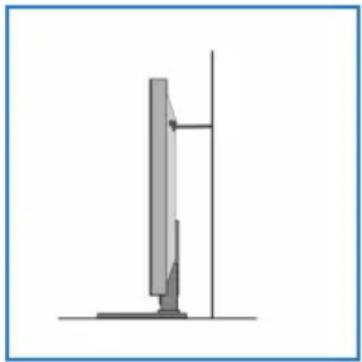
natural_image
Simple line drawing of a vertical computer monitor with a stand (no text or symbols)natural_image
Diagram showing a USB cable connector with a rectangular port and its connector icon (no text or labels)USB Porta USB
natural_image
Pure electrical connector diagram without any text or symbolsMini Video * Ingresso video A/V e ingresso Audio (L/R)
natural_image
Diagram showing two connected components: a USB port and a cable (no text or symbols)HDMI 1, 2*, 3* in Ingresso HDMI1, 2*, 3*
natural_image
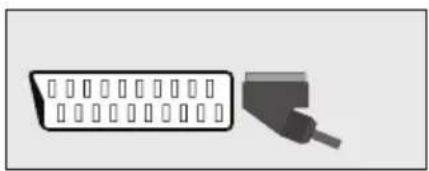
Pure electrical connector symbol without any text or labelsSCART * Ingresso SCART
natural_image
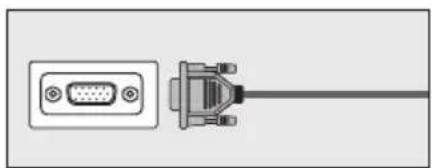
Diagram of a VGA connector with an external cable, showing port and socket (no text or labels)VGA(PC) Ingresso VGA-PC
natural_image
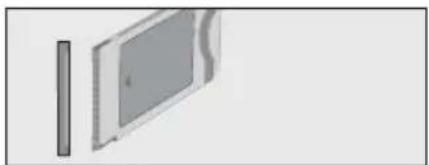
Simple line drawing of a rectangular panel with a vertical side and a curved top, no text or symbols present.CI Card IN Ingresso modulo Common interface
natural_image
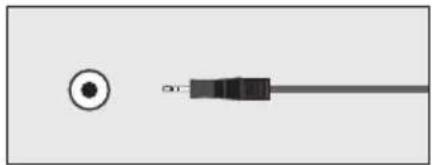
Pure electrical connector diagram without any text, numbers, or symbolsVGA (PC) Audio In In 3.5mm – ingresso audio PC
natural_image
Pure diagram of a connector with a circular head and a rectangular cable, no text or symbols present.RF In Ingresso antenna RF / TV
natural_image
Pure electrical connector diagram showing two red and white components connected to a gray cable (no text or symbols)R/L - Video & YPbPr audio In * Componente / ingresso video audio
natural_image
Simple diagram showing a circular connector and a black cable with a plug (no text or symbols)natural_image
Pure electrical connector diagram showing a yellow circular component and a black terminal block connected to a gray cable (no text or symbols)Video (CVBS) * Ingresso VIDEO
natural_image
Pure electrical connector diagram without any text or symbolsnatural_image
Pure electrical connector diagram without any text or symbolsMini YPbPr* Componente ingresso HD
natural_image
Pure electrical connector diagram showing three colored circular components connected to a gray wire (no text or symbols)YPbPr * Componente ingresso HD
* - Opzionale
Connessioni
natural_image
Diagram showing a computer monitor, two USB connectors, and a CD-ROM (no text or symbols present)natural_image
Line drawing of a computer monitor with a circular design on the screen (no text or symbols)natural_image
Computer monitor with a central screen showing six white circles arranged in a square pattern (no text or symbols)natural_image
Simple line drawing of a computer monitor with five circular buttons on the front panel (no text or symbols)natural_image
Simple line drawing of a computer monitor with a circular panel on the screen (no text or symbols)natural_image
Black-and-white photo of a woman blowing a bubble, no visible text or symbols| Lt/Rt Lt/Rt downmix |
| Stereo Stereo downmix |
natural_image
Front view of a flat-screen television displaying (no visible text or symbols)1x TV
natural_image
Simple line drawing of a flat rectangular object with a small protrusion on top (no text or symbols)natural_image
Front view of a black remote control with multiple function keys and buttons (no visible text or symbols)1 x Fernbedienung
natural_image
Close-up of a black metal chain link (no text or symbols visible)1x HF Antennenkabel
natural_image
Two gray cylindrical batteries with black caps, one side split (no text or symbols visible)2x Batterien AAA
natural_image
Coiled black cable with four colored connectors (red, blue, green, black) against white background, no text or symbols visible.natural_image
Coiled audio amplifier cable with three colored connectors (red, green, yellow) attached to a black connector (no text or symbols visible)1x Mini A/V Kabel * (optional)
natural_image
Simple line drawing of a screw with a flanged head and threaded shaft (no text or symbols)natural_image
Two identical diagrams showing cable routing between a monitor and a desktop computer (no text or symbols)Wandmontage
natural_image
Two identical diagrams showing a soccer field with six dots and half-sat (no text or symbols)3
4
5
natural_image
Diagram showing a USB cable connector with a rectangular port and its connector icon (no text or labels)USB
USB-Eingangsport
natural_image
Pure electrical connector diagram without any text or symbolsMini Video *
natural_image
Diagram showing two connected components: a USB port and a cable (no text or symbols)HDMI 1, 2*, 3* in
natural_image
Pure electrical connector diagram without any text or symbolsSCART*
SCART-Eingang
natural_image
Diagram of a VGA connector with an external cable, showing port and socket (no text or labels)VGA(PC)
VGA PC-Anschluß
natural_image
Simple line drawing of a rectangular panel with a vertical side and a curved top, no text or symbols present.CI Card IN
natural_image
Pure diagram of a connector with a circular head and a cylindrical shaft, no text or symbols present.RF In
natural_image
Pure electrical connector diagram showing two red and white components connected to a gray cable (no text or symbols)R/L - Video & YPbPr audio In *
natural_image
Simple diagram showing a circular connector and a plug (no text or symbols)COAX Audio Out
natural_image
Pure electrical connector diagram showing a yellow circular component and a black terminal block connected to a gray cable (no text or symbols)Video (CVBS) *
Videoeingang
natural_image
Pure electrical connector diagram without any text or symbolsHEADPHONES
Kopfhörerausgang
natural_image
Pure electrical connector diagram without any text or symbolsMini YPbPr*
natural_image
Pure electrical connector diagram showing three colored circular components connected to a gray wire (no text or symbols)YPbPr*
natural_image
Diagram showing a computer monitor connected to two USB drive units via a cable (no text or symbols present)natural_image
Illustration of a computer monitor with five circular windows on its screen (no text or symbols)natural_image
Illustration of a computer monitor with a central blank screen and surrounding circular elements (no text or symbols)natural_image
Illustration of a computer monitor with a central screen showing six white circles arranged in a pattern (no text or symbols)USB Multimedia Player

Hinweis
USB Multimedia Player

- Important safety instructions
- Please, read these safety instructions and respect the following warnings before the appliance is operated:
- In order to prevent fi re spread, always keep candles and other open fl ames away from this product.
- Warning:
- Important information regarding use of video games, computers, captions and other fixed image displays.
- Batteries
- Disposal
- What is included in the box
- Accessories
- Stand neck assembly
- Safe installation
- For this type of installation you will need a fastening chord
- Wall mounting the TV
- Getting started - initial set up
- Note: the professional mode is the optimal default mode, but consumes 15% more than the Ecohome)
- TV buttons & Source menu
- Choosing Mode Input/Source
- Connecting a Camcorder, Camera or Games Console
- Connecting a High Definition (HD) Device
- Connecting TV to PC (using as a computer monitor)
- TV Menu operation
- TV Menu Operation | Channel menu | Picture menu
- Channel menu
- Picture menu
- Sound menu | Time menu | Feature menu
- Reset to default
- PC Settings | 7 Day TV Guide | USB record\*
- You can now:
- USB Record - Digital mode\*
- Pause Live TV (Time Shift)\* | USB mode / Media player
- Pause Live TV (Time Shift) \*
- One Button Record
- USB mode / Media player
- General Setup Page
- Audio Setup Page
- Dolby Digital Page
- Preference Page
- Important. DVD - Only for tv's with built in DVD
- Réglage Dolby D
- Connessioni
- Wandmontage
- USB Multimedia Player
- Hinweis
Brand : BLAUPUNKT
Model : UX26I56BTCDUGA06
Category : Television