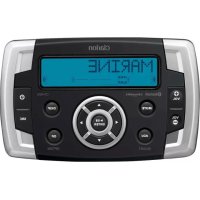
CMS2 - Radio CLARION - Free user manual and instructions
Find the device manual for free CMS2 CLARION in PDF.



| Product Type | Marine Radio |
| Brand | Clarion |
| Model | CMS2 |
| Category | Radio |
| Power Supply | 14.4 V DC (10.8 to 15.6 V) |
| Maximum Output Power | 50 W x 4 |
| RMS Output Power | 20 W x 4 (4 Ω, ≤1% THD+N) |
| Signal-to-Noise Ratio | 74 dB (ref. 1 W, 4 Ω) |
| FM Tuner | US Range: 87.9-107.9 MHz; Europe/Asia/Australia: 87.5-108 MHz |
| AM Tuner | US Range: 530-1710 kHz; Europe/Asia/Australia: 531-1620 kHz |
| Weather Band | 7 channels (162.400 to 162.550 MHz) |
| Bluetooth | Version 3.0+EDR, profiles A2DP, AVRCP 1.4, aptX, SSP |
| SiriusXM Compatibility | Yes (separate tuner required) |
| USB Port | USB 2.0 high-speed, 1 A, FAT/FAT32, up to 32 GB |
| iPod/iPhone Compatibility | iPod nano 6G/7G, iPod touch 3G/4G/5G, iPhone 3GS/4/4S/5/5C/5S (iOS 5.0+) |
| AUX Input | RCA, adjustable sensitivity (Mid/Low/High) |
| Equalizer | 10 presets (Flat, Jazz, Pop, Classic, Rock, News, Urban, Rave, Movie, Techno) + manual adjustment |
| Parental Control | Yes (4-digit PIN code) |
| Wired Remote Control | Optional (MW1, MW2, MW4) |
| Protection | Waterproof display controller |
| Speaker Impedance | 4 to 8 Ω per channel |
Frequently Asked Questions - CMS2 CLARION
User questions about CMS2 CLARION
0 question about this device. Answer the ones you know or ask your own.
Ask a new question about this device
Download the instructions for your Radio in PDF format for free! Find your manual CMS2 - CLARION and take your electronic device back in hand. On this page are published all the documents necessary for the use of your device. CMS2 by CLARION.
USER MANUAL CMS2 CLARION
For USA and Canada only
www.clarion.com
Dear Customer:
Congratulations on your purchase of a Clarion mobile electronic product. We are confident that you'll enjoy your Clarion experience.
There are many benefits to register your product. We invite you to visit our web site at www.clarion.com to register your Clarion product.
We have made product registration simple with our easy to use website. The registration form is short and easy to complete. Once you're registered, we can keep you informed of important product information.
Register at www.clarion.com- it's easy to keep your Clarion product up to date.
Contents
1 FEATURES 3
2. PRECAUTIONS 3
3. CAUTIONS ON HANDLING 3
4.CONTROLS. 4
About the Registered Marks, etc 4
Names of Buttons and Their Functions 5
Optional Wired Remote Control Unit Operation 6
- OPERATIONS 7
Radio (AM/FM) Operation 8
Weather Band Operation 9
SiriusXM Satellite Radio Operation 10
USB Mode Operation 12
iPod/iPhone Mode Operation 13
Aux Operation 14
Bluetooth Operation 15
6.TROUBLESHOOTING 16
7. SPECIFICATIONS 17
INSTALLATION AND WIRE CONNECTION 18
1. FEATURES
SiriusXM-ReadyTM
- Weather Band Radio
- Watertight Controller
Built-In Bluetooth®
- 50Wx4 Built-In Amplifier
- Compatible with iPod®/iPhone®
USB


Bluetooth



2. PRECAUTIONS
WARNING
For your safety, while boating, keep the volume to a level at which external sounds can be heard.
- This unit has precision parts inside. Even in the event that trouble arises, never open the case, disassemble the unit, or lubricate the parts.
- FCC STATEMENT
2.1 This device complies with Part 15 of the FCC Rules. Operation is subject to the following two conditions:
(1) This device may not cause harmful interference.
(2) This device must accept any interference received, including interference that may cause undesired operation.
2.2 Changes or modifications not expressly approved by the party responsible for compliance could void the user's authority to operate the equipment.
Note:
This equipment has been tested and found to comply with the limits for a Class B digital device, pursuant to Part 15 of the FCC Rules. These limits are designed to provide reasonable protection against harmful interference in a residential installation. This equipment generates uses and can radiate radio frequency energy and, if not installed and used in accordance with the instructions, may cause harmful interference to radio communications. However, there is no guarantee that interference will not occur in a particular installation. If this equipment does cause harmful interference to radio or television reception, which can be determined by turning the equipment off and on, the user is encouraged to try to correct the interference by one or more of the following measures:
- Reorient or relocate the receiving antenna.
- Increase the separation between the equipment and receiver.
- Connect the equipment into an outlet on a circuit different from that to which the receiver is connected.
- Consult the dealer or an experienced radio/TV
- technician for help.
FCC Radiation Exposure Statement
This equipment complies with FCC radiation exposure limits set forth for an uncontrolled environment. This equipment should be installed and operated with minimum distance 20cm between the radiator & your body
- IC warning
3.1 This device complies with Industry Canada licence-exempt RSS standard(s). Operation is subject to the following two conditions: (1) This device may not cause interference, and (2) This device must accept any interference, including interference that may cause undesired operation of the device.
3.2. Changes or modifications not expressly approved by the party responsible for compliance could void the user's authority to operate the equipment.
3. CAUTIONS ON HANDLING
- Protect from high temperature. Expose to direct sunlight for an extended period of time can produce very high temperature in your vessel. Cool down the interior before starting the playback.
4. CONTROLS
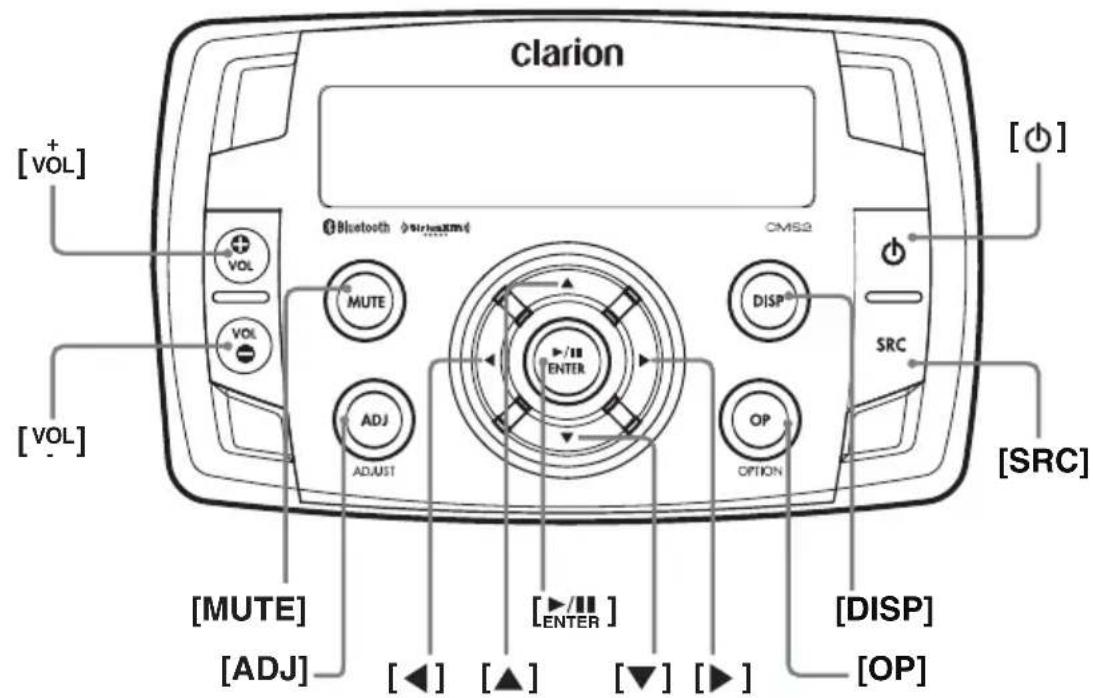
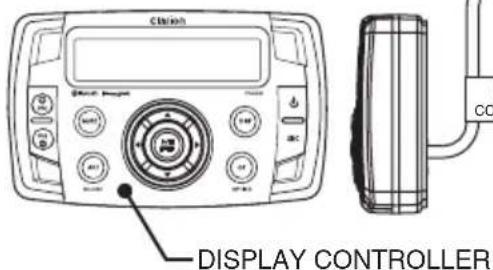
Display Controller
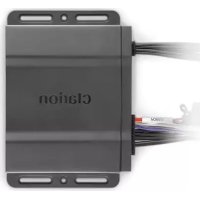
Black Box Controller
About the registered marks, etc.
- Windows Media™ and the Windows logo are trademarks, or registered trademarks of Microsoft Corporation in the United States and/or other countries.
-
"Made for iPod" and "Made for iPhone" mean that an electronic accessory has been designed to connect specifically to iPod or iPhone, respectively, and has been certified by the developer to meet Apple performance standards. Apple is not responsible for the operation of this device or its compliance with safety and regulatory standards. Please note that the use of this accessory with iPod or iPhone may affect wireless performance. iPhone and iPod are trademarks of Apple Inc., registered in the U.S. and other countries.
-
The Bluetooth word mark and Logos are owned by the Bluetooth SIG, Inc. and any use of such marks by Clarion Corporation of America is under license. Other trademarks and trade names are those of their respective owners.
Sirius, XM and all related marks and logos are trademarks of SiriusXM Radio Inc. All rights reserved. - © 2013 CSR plc and its group companies. The aptX® mark and the aptX logo are trade marks of CSR plc or one of its group companies and may be registered in one or more jurisdictions.
Note: Be sure to read this chapter while referring to the front diagram in chapter "4.CONTROLS"
Display Controller
Power Button
- Press the button to turn power on or off.
[vD]VolumeButton
- Press VOL+ button to increase the volume.
- Press VOL- button to decrease the volume. The maximum volume level is "46".
[MUTE]Button
- Press this button to mute the audio output.
- Press it again to unmute the audio output.
[SRC] Source Button
- Press SRC button to switch modes among FM, AM, Weather Band, SiriusXM, USB/iPod, AUX and BT Audio.
[DISP] Display Button
- Press DISP button to switch the display indication.
- Press and hold DISP button to turn off the screen.
[OP] Option Button
- Press OP button to access option menu items for necessary functions in every mode.
- In different modes, the option menu items are different. Please see the operation introduction of every mode for more details.
[ Entay/Pause/Enter/SiriusXM Replay
- Press this button to Play or Pause.
- Press this button to confirm operating Tuner Mode, Weather Band Mode, SiriusXM mode, iPod/iPhone
mode, USB mode and BT Audio mode. - In SiriusXM play screen, press the Play/Pause button to enter Replay mode.
While in SiriusXM Replay mode, press and hold the Play/Pause button for 3 seconds to exit the SiriusXM Replay mode.
Left Arrow / Right Arrow Buttons
- Use these buttons for tuning up and down in Tuner Mode, Weather Band Mode, SiriusXM mode, iPod/ iPhone mode, USB mode and BT Audio mode.
Search Up / Search Down Buttons
- Use these buttons to recall the preset in Tuner Mode and Weather Band and SiriusXM Mode. Press and hold these buttons enter into Manual Store.
- In USB mode, use these buttons to select a folder.
[ADJ] Adjust Button
- Press ADJ to access the adjust menu. Press [▲] repeatedly to select the item to be adjusted:
EQ
Press the [ 一 ] buttons to change EQ: Flat->Jazz->Pop->Classic->Rock->News->Urban->Rave->Movie->Techno->User
Loud On/Off
Press the [ / ] buttons to select Loundness between ON and OFF.
Subwoofer On/Off
Press the [ / ] buttons to select Subwoofer between ON and OFF.
Subwoofer Gain
Press the [ / ] buttons to adjust the Subwoofer Gain range: 0 to 12
Subwoofer LPF
Press the [ 一 ] buttons to adjust the Subwoofer Low Pass Filter range:80HZ/120HZ/180HZ
Bass Level
Press the [ ] buttons to adjust the Bass level range: -12 to +12
Middle Level
Press the [ ] buttons to adjust the Middle level range: -12 to +12
Treble Level
Press the [ ] buttons to adjust the Treble level range:-12 to +12
Balance
Press the [ ] buttons to adjust the Balance between the Left and Right speakers from L12 (full left) to R12 (full right).
Fader
Press the [▶] buttons to adjust the Fader between the Rear and Front speakers from R12 (full rear) to F12 (full front).
AUX In Mid/Low/High
Press the [ / ] buttons to select the "Mid", "Low" or "High".
Contrast
Press the 1 buttons to see LCD contrast from 01-15. Default setting is 08.
Beep
Press the [ ] buttons to select Beep tone between ON and OFF.
BT Disconnect/Connect
Press the l buttons to Disconnect and Connect the Bluetooth.
Area Mode
Press the button to select the suitable country area of the radio.
U.S.A->Europe->Asia->AUST (Australia)
Reset Setting
Press the button to restore the factory default settings.
About
Press the button to view the device hardware and software versions.
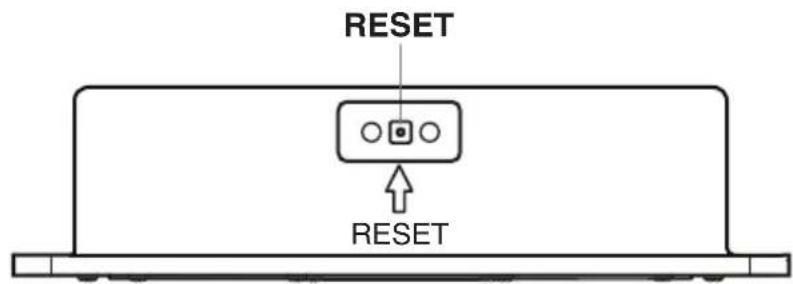
Black Box
[RESET]Button
-
Press RESET button with a ball point pin to:
-
Perform a complete system reset.
- In the event that button do not respond or operate correctly.
- When an Error Code or Message is displayed.
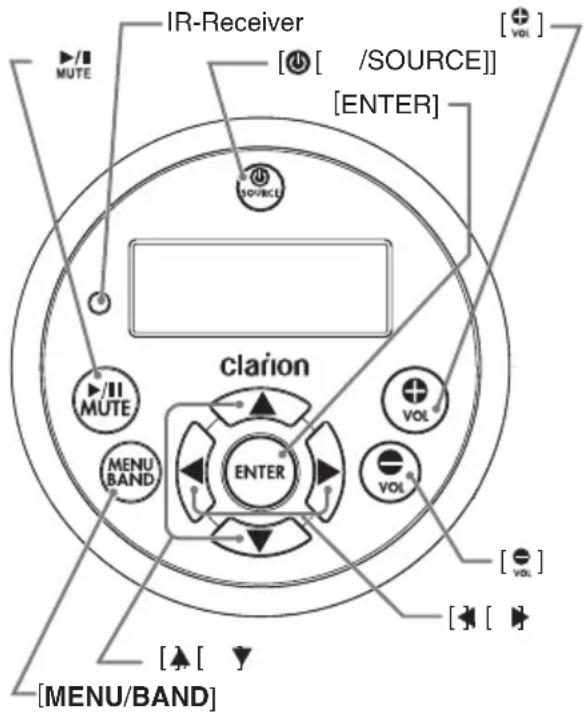
Optional Wired Remote Control Unit Operations
Following operations are enabled by remote control with the separately sold Wired Remote Control Unit MW1 (shown below), MW2 or MW4.
Note: If the remote control is connected with this unit while the power on, please restart this unit again to confirm the normal display.
CAUTION
Lower the volume level before powering the source unit off. The source unit stores the last volume setting.
WARNING
EXPOSING THE UNIT TO WATER WITH THE FRONT PANEL OPEN WILL CAUSE DAMAGE OR UNIT MALFUNCTION!
[SOURCE]Button
- Press the [SOURCE] button to turn the power on and press and hold it (1 sec.) to turn the power off.
Each time the [ SOURCE] button is pressed, the mode switches.
Note: If the above equipment is not connected, corresponding mode cannot be selected.
[ENTER]Button
- AM/FM/Weather Band mode - Confirm (in Preset and Manual store)
- USB mode - Confirm (in Menu/Search mode)
- iPod/iPhone mode - Confirm (in Menu/Search mode)
SiriusXM mode - Confirm ch (in Search mode) - AUX In mode - No function
BT Audio mode - Confirm (in Menu/Search mode)
[按钮]
- Press the [ ] button to increase the volume.
- Press the [ ] button to idecrease the volume.
// Buttons
- ADJ/OP(Option) mode - Adjust the current item
AM/FM/Weather Band mode - Station Up/Down &Seek Up/Down (Press and hold) - USB mode - Previous/Next track & Fast Forward / Reverse (Press and hold)
- iPod/iPhone mode - Previous/Next track & Fast Forward/Reverse (Press and hold)
AUX In mode - No function
SiriusXM mode-Channel Tune Up/Down,Fast Channel Tune Up/Down (Press and hold),Move cursor (Direct mode)&Enter the Parent Code Window - SiriusXM Replay mode - Press and Release the Left or Right Arrow to skip back or forward one song/track. Press and Hold will Fast Forward/Fast Rewind through the Replay buffered content.
- BT Audio mode - Previous/Next track & Fast Forward/Reverse (Press and hold)
[ ]/ [ Buttons
- ADJ/OP(Option) mode - Select the menu item
- AM/FM/Weather Band mode - Preset Station Up / Down & Enter into Manual Store (Press and hold)
- USB mode - Folder Up/Down & Select (in Folder search mode)
- iPod/iPhone mode - Select (in Menu mode)
- AUX In mode - No function
- SiriusXM mode - Preset channel Up/Down, Category Up/Down (in Category mode), Numeric Up/Down (Direct mode), input Parent code interface
BT Audio mode - No function
[MENU/BAND] Buttons
- Press this button to access menu items for necessary functions in every mode.
- In different modes, the menu items are different. Please see the operation introduction of every mode for more details.
MUTE] Buttons
AM/FM/Weather Band mode - Mute On/Off
- USB mode - Play/Pause
- iPod/iPhone mode - Play/Pause
AUX In mode - Mute On/Off
SiriusXM mode - Replay Mode, Press and Hold for 3-seconds to exit Replay Mode.
BT Audio mode - Play/Pause
5. OPERATIONS
Basic Operation
Note: Be sure to read this chapter referring chapter "4.CONTROLS"
CAUTION
When the unit is turned on, starting and stopping the engine with its volume raised to the maximum level it may cause hearing damage. Be careful about adjusting the volume.
Turning on and off the power
Note:
- Start the engine before using this unit.
-
Be careful about using this unit for a long time without running the engine. If you drain the vessel battery too far, you may not be able to start the engine and this can reduce the service life of the battery.
-
Start the engine. The power button / knob illumination on the unit will light up.

Engine ON position
- Press the [ ] power button to turn On or Off the power.
Selecting a mode
-
Press the [SRC] button to display source menu.
-
External equipment not connected to this unit is not displayed.
Adjusting the volume
- Press VOL+ button to increase the volume.
- Press VOL- button to decrease the volume.
CAUTION
While boating, please be aware of the volume levels in residential, family areas and local volume level ordinances.

Mute
Press the [MUTE] button to turn the mute On and Off.
Display OFF/ON
This feature will allow the user to turn the display OFF in the event the display is too bright in different lighting conditions.
To use this feature, please follow these steps:
- To turn the display OFF, Press and release the Power Button and the display will turn OFF, but the audio from the current source will continue to play.
- To turn the display ON, Press and release the Power Button and the display will turn back ON.
With the display OFF, the ability to change tracks and adjust volume will still remain.
Select Tuner As Playing Source
Press the [SRC] Source button to select the AM/FM mode.
World Tuner
This unit is initially set to USA frequency intervals of 10kHz for AM and 200kHz for FM. When using it outside the USA, the frequency reception range can be switched to the intervals below.
| U.S. A standard | Europe standard | Aisa standard | Australia standard | ||
| AM | Frequency spacing | 10KHz 9KHz 9KHz 9KHz 9KHz 9KHz 9KHz 9KHz 9KHz 9KHz 9KHz 9KHz 9KHz 9KHz 9KHz 9KHz 9KHz 9KHz 9KHz 9KHz 9KHz 9KHz 9KHz 9KHz 9KHz 9KHz 100KHz | |||
| Frequency range | 530-1710 KHz | 531-1602 KHz | 531-1620 KHz | 531-1620 KHz | |
| FM | Frequency spacing | 200KHz 50KHz 50KHz 50KHz 50KHz 50KHz 50KHz 50KHz 50KHz 50KHz 50KHz 50KHz 50KHz 50KHz 50KHz 50KHz 50KHz 50KHz 50KHz 50KHz 50KHz 100KHz | |||
| Frequency range | 87.9-107.9 MHz | 87.5-108 MHz | 87.5-108 MHz | 87.5-108 MHz | |
[ ] Tuning Up / [ ] Tuning Down Buttons
- Press the [▶] / [▲] button change intervals step by step.
- Press and hold the [ ] / [ ] button to seek to the next strongest station.
Recalling a Preset Station
A total of 10 preset positions (P1~P10) exists to store individual radio stations in memory.
Press [ ] / [ ] button to select the desired preset station.
Presets
- Select the desired station with seek tuning or manual tuning.
- Press and hold the [ / ] button
- Press the [ / ] button to select a preset number.
- Press the [ ENTER ] button to store current station into preset memory.
[OP] Options Button
During listening to the radio (AM/FM), press the [OP] Options Button to access the radio options.
Radio Mode Options:
Auto Store LO/DX
Auto Store
Only stations with sufficient signal strength will be detected and stored in the memory.
- Press the [OP] Options button.
- Press the [ / ] button until "Auto Store" is displayed.
- Press the [ENTER] button to start automatically select nine strong stations and store them into nine presets. The new stations replace any stations already stored in the band.
LO/DX
When LOCAL seeking is ON, only those radio stations with strong radio signal could be received.
- Press the [OP] Options button.
- Press the [ / ] button until "LO/DX" is displayed.
- Press the [ / ] button to select local (LO) or distant (DX) mode.
Note: Press [OP] Option button to exit.
Area Set
This option allows you to select the appropriate frequency spacing for your area.
- Press the [ADJ] Adjust button.
- Press the [ / ] button until "Area U.S.A" is displayed.
- Press the [ / ] scroll through the Area options: "Area U.S.A", "Area Europe", "Area Asia", "Area AUST (Australia)"
Note: Default is USA frequency. Once the region is changed, all the stations in the preset memory will be erased.
[▶] Tuning Up / [▲] Tuning Down Buttons
- Press the [ ] / [ ] button to change intervals step by step.
- Press and hold the [ ] / [ ] button to seek to the next strongest station.
Recalling a Preset Station
A total of 7 preset positions (WB1~WB7) exists to store individual weather band stations in memory. Press [▲] / [▼] button to select the desired preset weather band station to recall the stored frequency.
Scan
During listening of the weather band, press the [OP] Options Button to access available options.
- Press the [OP] Options button to select SCAN.
- Press the [ENTER] button to start scanning available stations. Press again to stop.
Note: Only stations with acceptable reception will lock to SCAN. Scan time is approximately 10 seconds.
Only SiriusXM® brings you more of what you love to listen to, all in one place. Get over 140 channels, including commercial-free music plus the best sports, news, talk, comedy and entertainment. Welcome to the world of satellite radio. A SiriusXM Vehicle Tuner and Subscription are required. For more information, visit www.siriusxm.com
Displaying the Radio ID
Before you listen to satellite radio, you must subscribe to the service using the SiriusXM Radio ID number.
-
Press [SRC] button to enter SiriusXM mode.
-
Press [ ] or [ ] to select channel "0".
The unit displays Radio ID.
Note:
- The Radio ID is located on the bottom of the SiriusXM Connect Vehicle Tuner.
- Please note that the SiriusXM Radio ID does not include the letters I, O, S or F.
- Activate the SiriusXM Connect Vehicle Tuner using one of the two methods below:
Online: Go to "www.siriusxm.com/activatenow".
Phone: Call 1-866-635-2349.
To activate SiriusXM Canada service go to www.xmradio.ca and click on "ACTIVATE RADIO" in the top or call XM customer Care at 1-877-438-9677.
Channel Up [▶] Down [▲] Operation
- Press the [Right Arrow to advance to the next channel. Press the [Left Arrow to go to previous channel.
- Press and Hold in the [▶] Right Arrow to fast forward search channel.
Press and Hold in the [Left Arrow to fast backward search channel.
Recalling a Preset Station
- Press the [ I ] button to enter into the Preset List.
- Press the [ / ] button to select the desired Preset you wish to access.
- Press the [Enter] button to confirm tune to that channel.
Note: If no operation, after 3 seconds will return to the select Preset automatically.
Presets
- Press and hold the [ / ] button to enter into the Manual Store
- Press the [ / ] button to select a preset number.
- Press the [Enter] button to store current channel into preset.
[OP] Options Button
From the SiriusXM play screen, press the [OP] Options Button to access the SiriusXM options. SiriusXM Mode Options:
Replay Category Direct Tune Mature Channel Parental Code
Replay
- Press the [OP] Options button.
- Press the [ / ] button until "Replay" is displayed.
- Press and hold [▶711] button for 3-seconds to exit the Replay mode.
Category Search
- Press the [OP] Options button.
- Press the [ / ] button until "Category SCH" is displayed.
- Press the [Enter] button to enter Category Search mode.
- Press [▲/▼] button to scroll available categories.
- Press [ / ] button to scroll channels with in the category.
- Press the [ ENTER ] button to confirm to tune to that channel.
Direct Tune
- Press the [OP] Options button.
- Press the [▲/▼] button until "Direct Tune" is displayed.
- Press the button to enter Direct Tune mode.
- Press the [ / ] button to change the digit or [ / ] button to change the number.
- Press the [7] button to confirm channel number selection.
Parental Controls
The SiriusXM Parental Control feature allows you with the ability to prevent unauthorized access to mature content channels. When enabled, the Parental Control feature requires you to enter a passcode to tune to the locked mature content channels. Information on setting up the passcode, setting up the mature content channels to be locked, and the method to access the locked channels is described below.
- For setting up the passcode, press the [OP] button and press the [ / ] button to select "Parental". Press the [Enter] button to change passcode. Enter old passcode, new passcode. To enter code, Press the [ / ] button to decide number and [] or [] to select digit. You after enter the passcode, you need to press the [Enter] button to confirm passcode. The default passcode set for the Parental Lock is "1111". This can be changed, please refer to the Manage Passcode section.
Note: Press [ADJ] to access the adjust menu, press [ / ] to select the [Reset] mode, and then press set the parent code to the factory default value.
- For setting up the mature content channels to be locked, press the [OP] button to enter into the option menu, press the [ / ] button to select the Mature CH and [ ] or [ ] to set "L (Lock)". You will be asked to input passcode. Enter passcode and "Successful" will be displayed if it is successful. Please write down the new 4-digit passcode for future reference.
- For unlocking the mature content channels, press the [OP] button to enter into the option menu, press the [ / ] button to select the Mature CH and [] or [] to set "U (Unlock)". You will be asked to input passcode. Enter the passcode and "Successful" will be displayed if it is successful.
- For accessing the mature content channels, select channel by "Direct Tune". Press the [OP] button and select "Direct Tune" by pressing the [Enter] button. Input desired mature content channels and input passcode, then you can tune to that mature content channels.
Note: Press [OP] Option button to exit.
SiriusXM ReplayTM function
The Replay feature allows you to pause,rewind, and replay of live SiriusXM Satellite Radio.
- While listening to a SiriusXM channel, press the [▶/■] button to enter Replay mode. The display will show "PAUSE" when entering this mode.
- Press and hold the [ENTER] button for 3-seconds to resume playback of the stored audio from the point at which it was paused. During playback, the SiriusXM Tuner will continue to store the channel audio until you exit the Replay mode.
During REPLAY playback
- Fast rewind: Press and hold [▲].
- Fast forward: Press and hold [▶].
- Returning to the beginning of the current song: Press [ ] (If you press [ ] in the first 2 seconds of a song, you return to the beginning of the previous song.)
-
Advancing to the beginning of the next song: press [▶].
-
Press and hold the ENTER button to exit Replay mode
Note:
- Press the [OP] Option button to enter into the Option Menu to select the Go-Live function and press the [ENTER] button, also can finish Replay mode.
- If you continue to press the [▶] button until the end, the Replay mode is canceled, and the unit will change to live SiriusXM radio mode.
- If you change channels while in Replay mode, the unit will exit Replay mode to live Satellite mode and clear the Replay memory.
Changing the Display
Text information, such as the channel name, artist name, song title and content is available with each SiriusXM channel. The unit can display this text information as explained below:
In SiriusXM mode, press [DISP] button. Each time you press this button, the display changes as shown below:
Channel name =>Artist Name =>Song Title=>Content Info Category Name
Note: If there is no text information, nothing will be displayed.
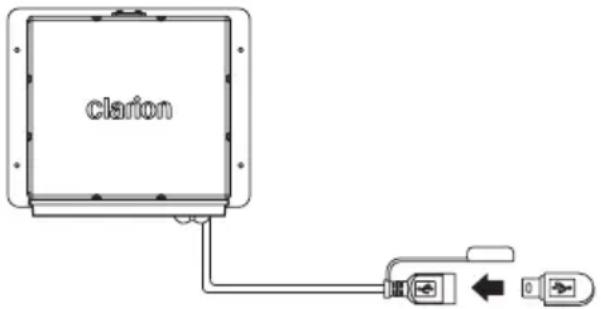
Connect
- Insert a USB device into the USB pigtail.
- To remove the USB device, you should first select another source or turn off the power, in order to avoid damaging the USB device. Then take off the USB device.
[▶] Right Arrow / [←] Left Arrow Buttons
- Press the [▶] Right Arrow to advance to the next track/ song.
Press the [Left Arrow to go to previous track/song.
- Press and Hold in the [▶] Right Arrow to fast forward through the track/song.
Press and Hold in the [Left Arrow to fast backward through the track/song.
Play / Pause
Press the button to pause the track/song that is currently playing.
Press the [Enter] button to resume playing the track/song that has been paused.
Folder Select
This function allows you to select a folder containing MP3/
WMA files and start playing from the first track in the folder.
Press the [ / ] button to select a folder.
[DISP] Display Button
Press [DISP] button to check ID3 information.
[OP] Options Button
From the USB device play screen, press the [OP] Options Button to access the USB device options. USB Mode Options:
Search Function
- Press the [OP] Options button.
- Press the [ / ] button until "Search Mode" appears on the display.
- Press the Enter enter into the folder list.
- Press the [ / ] button to select the a folder.
- Press the [Enter] button to enter the file list search mode. And then the track list appears in the display.
- Press the [ / ] button to select a track.
- Press the button to play.
Repeat Feature
This function allows you to Repeat All tracks/ songs, Repeat the currently playing track/song, or to turn the Repeat feature OFF.
- Press the [OP] Options button.
- Press the [ / ] button until "Repeat All" is displayed.
- Press the [ / ] to scroll through the Repeat options: "Repeat All", "Repeat Song", "Repeat FLD"
- When the Repeat option you would like to use appears on the display, Press the [B] button to select that Repeat option.
Random Feature
This function allows you to play tracks/songs from the current album, songs or artists in a random order.
- Press the [OP] Options button.
- Press the [ / ] button until "Random OFF" appears on the display.
- Press the [ / ] to scroll through the Shuffle options. "Random OFF", or "Random ON"
- When the Random option you would like to use appears on the display, Press the button to select that Random option.
Intro Feature
This function allows you to play the first 10 seconds to each track on the device.
- Press the [OP] Options button.
- Press the [ / ] button until "Intro OFF" appears on the display.
- Press the [ / ] to scroll through the Intro options. "Intro OFF", or "Intro ON"
- When the Intro option you would like to use appears on the display, Press the [B] button to select that Intro option.
Note:
- Press [OP] Option button to exit.
After 8 seconds of no action, you will return to the play screen for the current source in use.

Connect
Connect an iPod/iPhone to the USB pigtail using a iPod/ iPhone USB Cable. When connecting a device, the unit will read the files automatically. The track information displays on the screen once playback starts.
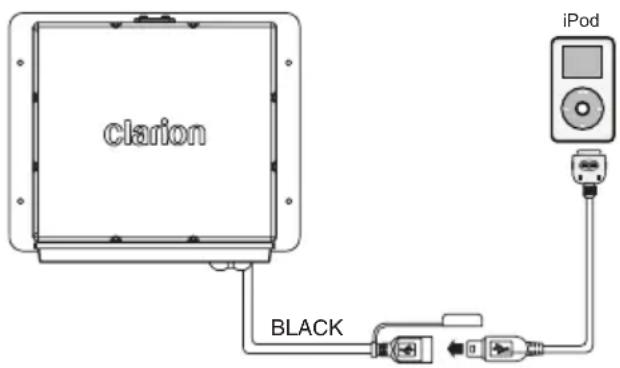

Compatible iPod/iPhone
You can connect the following iPod/iPhone:
- iPod nano (6G)
iPhone 4 - iPod nano (7G)
iPhone 4S - iPod touch (3G)
iPhone 5 - iPod touch (4G)
iPhone 5C - iPod touch (5G)
iPhone 5S
iPhone 3GS
Minimum iOS 5.0 or higher

[ ] Right Arrow / [ ] Left Arrow Buttons
- Press the [▶] Right Arrow to advance to the next track/ song.
Press the [Left Arrow to go to previous track/song. - Press and Hold in the [▶] Right Arrow to fast forward through the track/song.
- Press and Hold in the [Left Arrow to fast backward through the track/song.
![CLARION CMS2 - [ ] Right Arrow / [ ] Left Arrow Buttons - 1](/content/2026/02/384628/images/b7d50faac7dbeb83887089d1dd18cea8cffba0dca6550d0d261481dead360628.jpg)
Play / Pause
Press the [ button to pause the track/song that is currently playing.
Press the [B] button to resume playing the track/song that has been paused.

[DISP] Display Button
Press [DISP] button to check iPod information.
![CLARION CMS2 - [DISP] Display Button - 1](/content/2026/02/384628/images/b27f37d48987677f328e7294912589beae22c09bddf37a6251582617ec608cbd.jpg)
[OP] Options Button
From the iPod/iPhone play screen, press the [OP] Options Button to access the iPod/iPhone options. iPod/iPhone Mode Options:
Search Function
- Press the [OP] Options button.
- Press the [ / ] button until "Search Mode" appears on the display.
- Press the [Enter] button to enter into the Search mode.
- Press the [ T] button to select the among Playlist → Artists → Albums → Genres → Songs → Composers.
- Press the [ENTER] button to confirm selecting Playlists or Artists or Albums or Genres or Songs or Composers.
- When display the desired Playlist or Artists or Album or Genre orComposer, press [when the Music file will be displayed.
- Press the [ / ] button to select File.
- Press the button to confirm wanted File to play.
Repeat Feature
This function allows you to Repeat All tracks/ songs, Repeat the currently playing track/song, or to turn the Repeat feature OFF.
- Press the [OP] Options button.
- Press the [ / ] button until "Repeat All" is displayed.
- Press the [ / ] to scroll through the Repeat options: "Repeat All", "Repeat Song", "Repeat OFF"
- When the Repeat option you would like to use appears on the display, Press the [B]k button to select that Repeat option.
Shuffle Feature
This function allows you to play tracks/songs from the current playlist, songs, genre or artists in a shuffle order.
- Press the [OP] Options button.
- Press the [ / ] button until "Shuffle OFF" appears on the display.
- Press the [ / ] to scroll through the Shuffle options. "Shuffle OFF", or "Shuffle ON"
- When the Shuffle option you would like to use appears on the display, Press the [B] button to select that Shuffle option.
Setting iPod Simple Control Mode
Use this function if you wish to operate through your iPod/ iPhone connected to this unit via the USB Cable. The factory default setting is OFF.
- When in iPod/iPhone mode, Press the [OP] Options button.
- Press the [ / ] button until "Simple Control" appears on the display.
- Press the [ / ] to navigate through your iPod/iPhone Menu Options.
-
When "Simple Control" is displayed, press the [▶/II] button to turn the Simple Control ON or OFF.
-
ON: iPod/iPhone controls are made through your connected iPod/iPhone device.
- OFF: iPod/iPhone controls cannot be made through your connected iPod/iPhone.
Note:
- When performing iPod/iPhone operations using Simple Control, make the operations slowly. If repetitive operations are performed too quickly, unforeseen errors may occur.
- When performing iPod/iPhone operations using Simple Control, please do not operate the iPod/iPhone and the unit at the same time, otherwise unexpected events may occur.
- Some iPod/iPhone models do not support this function. Please consult Clarion Customer Service or Clarion website to confirm which models are supported
AUX Operation
The AUX RCA inputs in this system are provided to allow playback of sounds and music from external devices connected to this unit.
Press the [SRC] button to select the "AUX In".
AUX Input sensitivity setting
Make the following settings to select the sensitivity when sounds from external devices connected to this unit are difficult to hear even after adjusting the volume.
- Press the [ADJ] adjust button.
- Press the [ I ] button until "Aux In Mid" is displayed.
- Press the [ / ] button to select the "Mid", "Low" or "High".
Note: When AUX mode is selected, AUX IN sensitivity can be adjusted.
Pairing the Bluetooth Device
- From your Bluetooth enabled device, turn the Bluetooth ON and search for Bluetooth devices.
- When a list of available Bluetooth devices appear on your Bluetooth device, select "Clarion".
- "Successful" will appear on the CMS2 display.
- The unit will automatically enter the BT Audio source and you can now start streaming audio from your Bluetooth enabled device.
Note: If the mobile phone doesn't support SSP (Simple Secure Pairing) Profile, please enter the pass code of "0000".
Disconnect / Re-Connect
- Press the [ADJ] adjust button.
- Press the [ / ] button until "BT Disconnect" or "Connect" is displayed.
- Press the button to confirm the selection.
Audio Streaming Operations. What is audio streaming?
Audio streaming is a technique for transferring audio data such that it can be processed as a steady and continuous stream. Users can stream music from their external audio player to their audio system wirelessly and listen to the tracks through the boat's speakers. Please consult your nearest Clarion dealer for more information on the product of wireless audio streaming transmitter offered.
CAUTION
Please avoid operating your connected mobile phone while audio streaming as this may cause noise or sound choppy on the song playback. Audio streaming may or may not resume after telephone interrupt as this is dependent on mobile phone.
[OP] Options Button
From the BT Audio play screen, press the [OP] Options Button to access the BT Audio Options:
Search Function
- Press the [OP] Options button.
- Press the [ / ] button until "Search Mode" appears on the display.
- Press the [Enter] button to enter into the Search mode.
- Press the [▲/▼] button to select the among Radio Playlist → Artists → Songs → Albums → Genres → Compilations → Composers.
- Press the [Enter] button to confirm selecting Radio or Playlists or Artists or Songs or Albums or Genres or Compilations or Composers.
- When display the desired Radio or Playlist or Artists or Songs or Album or Genres or Compliations or Composers, press [Bn]hen the Music file will be displayed.
- Press the [ / ] button to select File.
- Press the button to confirm wanted File to play.
Note: The search feature requires the paired and connected device that the minimum Bluetooth AVRCP1.4 be incorporated to function.
Repeat Feature
This function allows you to Repeat All tracks/songs, Repeat the currently playing track/song,or to turn the Repeat feature OFF.
- Press the [OP] Options button.
- Press the [ / ] button until "Repeat All" is displayed.
- Press the [ / ] to scroll through the Repeat options: "Repeat All", "Repeat Song", "Repeat OFF"
- When the Repeat option you would like to use appears on the display, Press the [Enter] button to select that Repeat option.
Shuffle Feature
This function allows you to play tracks/songs from the current playlist, songs, genre or artists in a shuffle order.
- Press the [OP] Options button.
- Press the [ / ] button until "Shuffle OFF" appears on the display.
- Press the [ / ] to scroll through the Shuffle options. "Shuffle OFF", or "Shuffle ON"
- When the Shuffle option you would like to use appears on the display, Press the [Enter] button to select that Shuffle option.
Note:
- Press [OP] Option button to exit.
After 8 seconds of no action, you will return to the play screen for the current source in use. - Repeat and Shuffle function may not work on all Bluetooth enabled devices.
Play / Pause a track
Press the button to pause the track/song that is currently playing.
Press the button to resume playing the track/song that has been paused.
[▶] Right Arrow / [←] Left Arrow Buttons
- Press the [▶] Right Arrow to advance to the next track/song.
Press the [Left Arrow to go to previous track/song. - Press and Hold in the [▶] Right Arrow to fast forward through the track/song.
Press and Hold in the [Left Arrow to fast backward through the track/song.
Note:
- Not all Bluetooth enabled devices will support the fast forward and fast backward function.
- Playing order will depend on BT Audio player. When [<] button is pressed, some Bluetooth devices will restart the current track depends on the duration of playback. During music streaming playback, "BT Audio" will be shown on the display. When BT Audio device is disconnected, "BT Disconnect" will be shown on the display. Some Bluetooth audio players may not have play/pause synchronized with this unit. Please make sure both device and main unit are in the same play/pause status in BT Audio mode.
ID3 Display
During music streaming playback, press [DISP] to view the ID3 display information: ALBUM->TITLE->ARTIST...
6. TROUBLESHOOTING
GENERAL
| Problem Cause | Measure | |
| The unit will not power on | The vessels accessory switch is not on | If the power supply is properly connected to the vessel's accessory terminal, switch the ignition key to "ACC" |
| No sound | Volume is set too low Increase the volume to audible level | |
| Wiring is not properly connected | Correct wiring connections | |
| The controller is not responding | The built-in internal processor is not operating properly | Press the RESET button with a ball point pen |
| Auto seek function can not find any stations | The antenna cable is not connected | Insert the antenna cable securely |
| The signals are too weak Select a station manually | ||
Bluetooth
| Problem Cause | Measure | |
| Cannot pair the Bluetooth enabled device with the audio system. | The device does not support the profiles required for the system. | Use another device to connect. |
| The Bluetooth function of the device is not enabled. | Refer to the user manual of the device for how to enable the function. | |
| The audio quality is poor after connection with a Bluetooth-enabled device. | The Bluetooth reception is poor. | Move the device closer to the audio system or remove any obstacle between the device and the system. |
SiriusXM Advisory Messages
| Message Description | |
| CHEK TUNER | Check the SiriusXM tuner connection on the back of the unit to ensure that its correctly connected. |
| CHK ANTENA Ensure the | SiriusXM antenna cable is connected to the SiriusXM tuner correctly. Check the SiriusXM antenna wire for breaks or sharp bends. Replace the antenna if necessary. Press RESET located.... If the message remains, the antenna may have been damaged. |
| NO SIGNAL The vehicle | must be outside, and the antenna must have a clear view of the southern sky. The magnetic antenna must be mounted on the outside of the vehicle for the best reception. |
| CHAN UNSUB This channel | is not included in your SiriusXM subscription plan. Call 1-866-635-2349 to subscribe. |
| CH UNAVAIL This channel | is not a valid SiriusXM channel. The channel number has been entered incorrectly, or the channel was removed from the SiriusXM channel lineup |
| CH LOCKED The selected | channel has been locked by a mature channel has been selected. A prompt to enter the unlock code will appear. |
| SUBSCRIBEN UPDATED | An update to your SiriusXM subscription has been received by the SiriusXM tuner. Press any button to continue. |
7. SPECIFICATIONS
FM Tuner
Frequency Range: USA 87.9 - 107.9MHz
Europe 87.5 - 108.0MHz
Asia 87.5 - 108.0MHz
Australia 87.5 - 108.0MHz
Usable Sensitivity: 4 V (S/N=30dB)
Image Rejection: >45dB
Stereo Separation: >25dB
AM Tuner
Frequency Range: USA 530 - 1710KHz
Europe 531-1602KHz
Asia 531 - 1629KHz
Australia 531-1629KHz
Usable Sensitivity: 40dB (S/N=20dB)
Weather Band Selection
CH.1 162.400MHz CH.2 162.425MHz
CH.3 162.450MHz CH.4 162.475MHz
CH.5 162.500MHz CH.6 162.525MHz
CH.7 162.550MHz
Audio
Maximum Power Output: 50W x 4
Bass Control (60Hz): ± 12dB
Treble Control (10kHz): ± 12dB
Middle Control: (1kHz): ± 12dB
USB
USB: 2.0 High Speed
USB Port: 1.0A
USB Voltage: 5.0V
Maximum MP3/WMA Songs: 65535 Maximum
MP3/WMA Folder: 255
Maximum Songs per Folder: 65535 Maximum
USB Memory Size: 32G
USB Flash Drive and Hard FAT/FAT32
Drive Compatible Format:
Bluetooth
Specification: Bluetooth Version. 3.0+EDR
Enhanced Data Rate)
Supported Profiles: A2DP (Advanced Audio
Distribution Profile)
AptX (CD Quality audio
bandwidth matching and reproduced)
(Simple Secure Pairing)
Send/Receive Sensitivity: Class 2
General
Power Supply Voltage: 14.4V DC (10.8 to 15.6V allowable)
Grounding System: Negative Ground
Speaker Impedance: 4-8 ohms per channel
Note: Specifications and design are subject to change without notice for further improvement.
Power Output:
20W × 4 RMS (4 Ω @14.4V
≤1%THD+N)
Signal to Noise Ratio:
74dB (reference: LPF 1 W
into 4 Ω)

INSTALLATION AND WIRE CONNECTION
1. BEFORE STARTING
- This set is exclusively for use in vessels with a negative ground 12V power supply.
- Read these instructions carefully.
- Be sure to disconnect the battery “-” terminal before starting. This is to prevent short circuits during installation. (Figure 1)
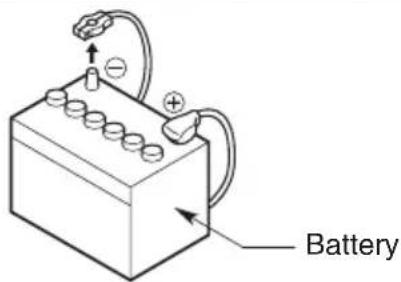
Figure 1
2. INSTALLATION CAUTIONS
- In order to avoid any interference, do not install the tuner module or control unit in the proximity of the engine compartment.
- The use of unauthorized parts can cause permanent damage to the unit.
- Always check your wire connections to ensure proper installation before turning on the unit.
- Consult with your nearest dealer for proper installation or if common parts need to be used. Seek assistance if modifications or drilling holes to your vessel is needed.
- Do not install the unit where it will be subjected to excessive moisture, dust, dirt, foreign particles or vibration. Areas of high temperature from the engine, direct sunlight, heater or hot air should also be avoided.
- Do not install the unit in a location where it will interfere with the vessel operation, or it will injure the passengers if there is a sudden or emergency stop.
3. DISPLAY CONTROLLER INSTALLATION
- The control unit should be mounted to a dry, clean and flat surface. Ensure the rear gasket is fully sealed to the mounting surface without distorting the unit.
- Select one of the three recommended methods that best fit your vessel.
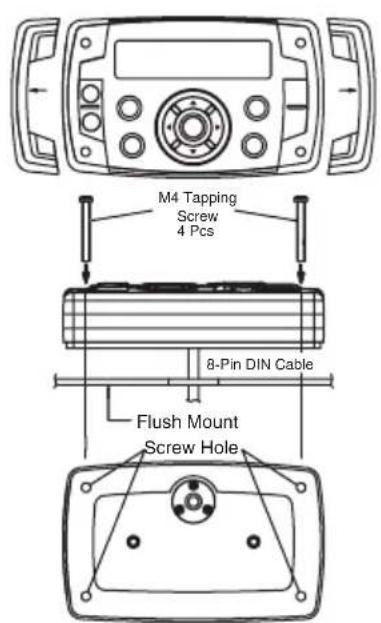
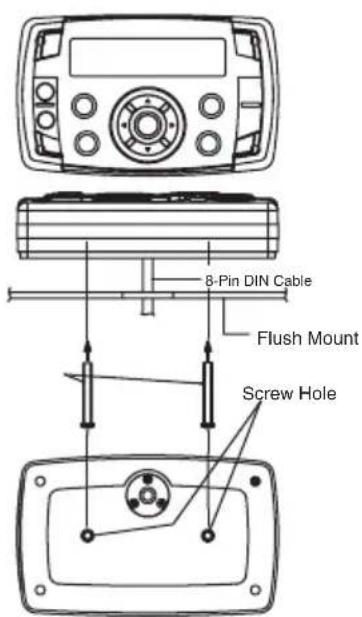
Method 2Method 1
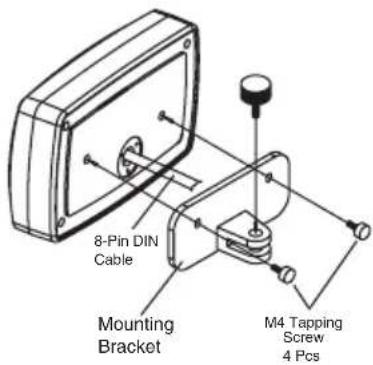
This method requires the purchase of the optional BKU001 Gimbal mount accessory
Method 3
4. BLACK BOX INSTALLATION
- Select an area with sufficient ventilation for the mounting of the black box in order to prevent the module from overheating. You may mount the black box in a horizontal or vertical position. If the black box is mounted in a vertical position, do not mount the module with the harness exit points directly facing up to prevent water collecting in these areas.
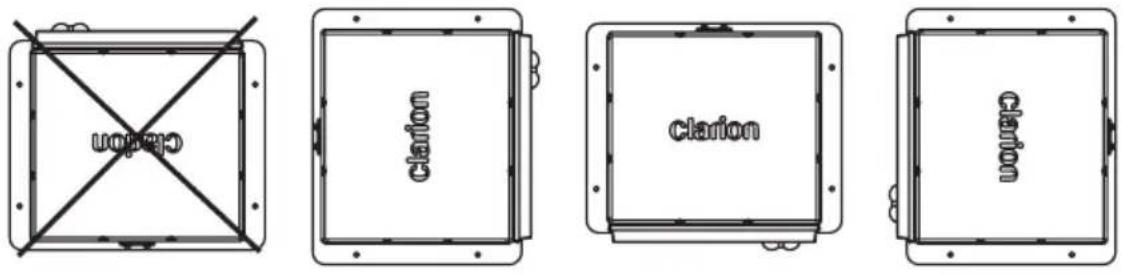
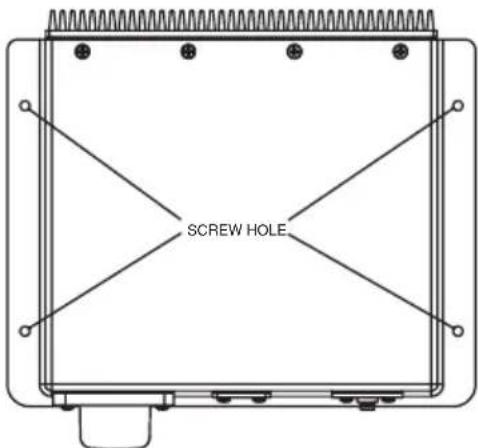
- Please refer to the diagram below for the mounting screw hole positions. Always use the shortest length of screw possible.
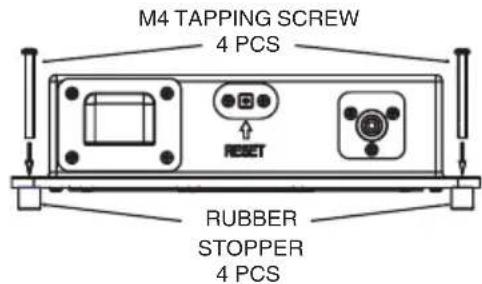
- During installation, use the 4 rubber mounting stoppers (included in the package) for the bottom of the module. This provides clearance from surface moisture and provides sufficient ventilation for the heat sink.
- Extension wires/cables may be needed to route the harness and cable throughout the vessel.
Note: Retain some slack in the harness/ cables to prevent damage to the wires. It is recommended relieve stress in all cables and harnesses.
- Always read through the wiring diagram in this manual first, and follow all the wiring diagrams carefully. The connections should be secured and insulated with crimp connectors or electrical tape to ensure proper connections.
- Once the wiring connections are completed, connect the negative terminal on the battery, turn the vessel accessory ON and power on the unit to check if it is operating correctly. If abnormalities occur, disconnect the battery negative terminal, recheck all wiring and try again. Please refer to the troubleshooting section for assistance.
BLACK BOX MOUNTING
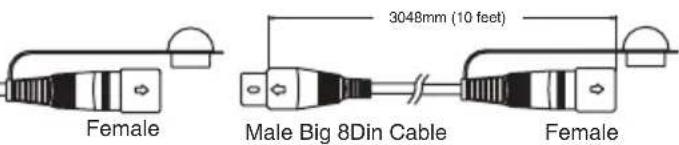
5.WIRE CONNECTION
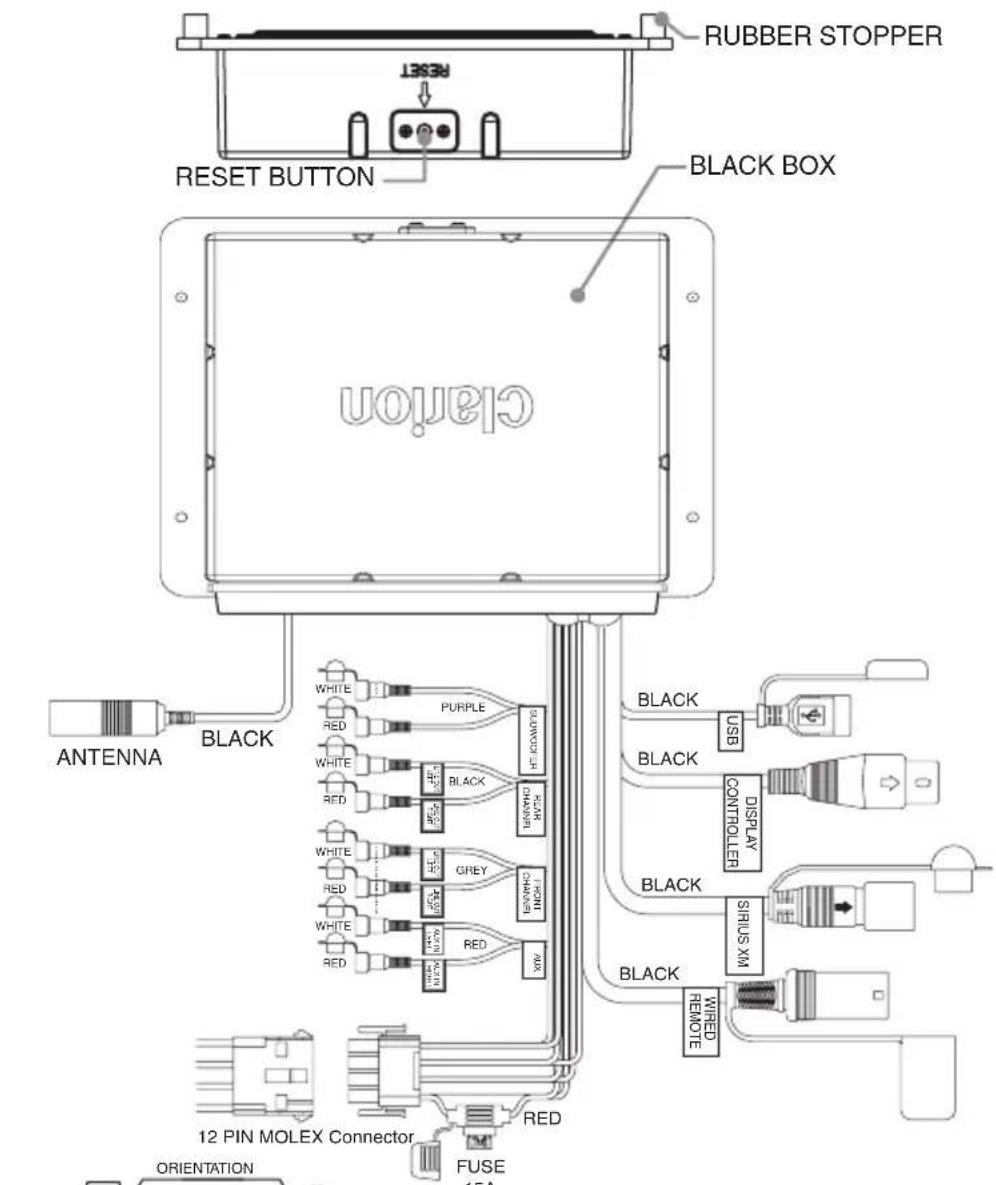
| ORIENTATION | |
| SECTION A-A | SECTION B-B |
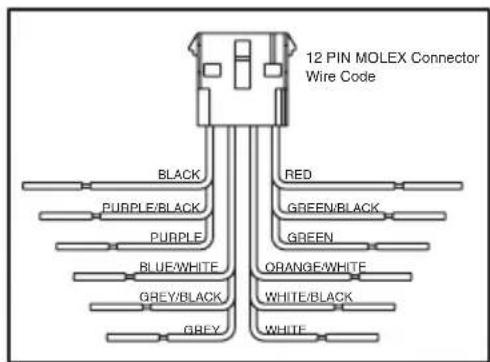
| PIN NO. | WIRE COLOR | WIRE DEFINITION | AWG |
| 1 | GREEN | SPEAKER REAR LEFT (+) | 20 |
| 2 | GREEN/BLACK | SPEAKER REAR LEFT (-) | 20 |
| 3 | RED | ACCESSORY/IGNITION SWITCHED (+12V) | 16 |
| 4 | WHITE | SPEAKER FRONT LEFT (+) | 20 |
| 5 | WHITE/BLACK | SPEAKER FRONT LEFT (-) | 20 |
| 6 | ORANGE/WHITE | ILLUMINATION | 20 |
| 7 | GREY | SPEAKER FRONT RIGHT (+) | 20 |
| 8 | GREY/BLACK | SPEAKER FRONT RIGHT (-) | 20 |
| 9 | BLUE/WHITE | AMPLIFIER REMOTE TURN ON (+) | 20 |
| 10 | PURPLE | SPEAKER REAR RIGHT (+) | 20 |
| 11 | PURPLE/BLACK | SPEAKER REAR RIGHT (-) | 20 |
| 12 | BLACK | GROUND (-) | 16 |
DONNÉES D'ENREGISTREMENT DU PRODUIT CLARION
3. PRECAUTIONS DE MANUTENTION
[ Entpouton Lecture/Pause/Entree/Reprise
SiriusXM
Lecture/Pause
Lecture/Pause
BT Disconnect/Connect (Conectar/Desconectar BT)
Asia 87.5 - 108.0 MHz
Australia 87.5 - 108.0 MHz
Sensibilidad可用: 4 V (S/N=30 dB)
Clarion Corporation of America
All Rights Reserved. Copyright © 2014: Clarion Corporation of America Printed in China

- Contents
- FEATURES
- PRECAUTIONS
- WARNING
- Note:
- CAUTIONS ON HANDLING
- CONTROLS
- Display Controller
- Black Box Controller
- About the registered marks, etc.
- Power Button
- [vD]VolumeButton
- [MUTE]Button
- [SRC] Source Button
- [DISP] Display Button
- [OP] Option Button
- [ Entay/Pause/Enter/SiriusXM Replay
- Left Arrow / Right Arrow Buttons
- Search Up / Search Down Buttons
- [ADJ] Adjust Button
- EQ
- Loud On/Off
- Subwoofer On/Off
- Subwoofer Gain
- Subwoofer LPF
- Bass Level
- Middle Level
- Treble Level
- Balance
- Fader
- AUX In Mid/Low/High
- Contrast
- Beep
- BT Disconnect/Connect
- Area Mode
- U.S.A->Europe->Asia->AUST (Australia)
- Reset Setting
- About
- Black Box
- [RESET]Button
- Optional Wired Remote Control Unit Operations
- CAUTION
- [SOURCE]Button
- [ENTER]Button
- [按钮]
- // Buttons
- [ ]/ [ Buttons
- [MENU/BAND] Buttons
- MUTE] Buttons
- OPERATIONS
- Basic Operation
- Turning on and off the power
- Selecting a mode
- Adjusting the volume
- Mute
- Display OFF/ON
- Select Tuner As Playing Source
- World Tuner
- [ ] Tuning Up / [ ] Tuning Down Buttons
- Recalling a Preset Station
- Presets
- [OP] Options Button
- Auto Store
- LO/DX
- Area Set
- Displaying the Radio ID
- Channel Up [▶] Down [▲] Operation
- [OP] Options Button
- Replay
- Category Search
- Direct Tune
- Parental Controls
- SiriusXM ReplayTM function
- During REPLAY playback
- Changing the Display
- Connect
- [▶] Right Arrow / [←] Left Arrow Buttons
- Play / Pause
- Folder Select
- [DISP] Display Button
- Search Function
- Repeat Feature
- Random Feature
- Intro Feature
- Connect
- Compatible iPod/iPhone
- [ ] Right Arrow / [ ] Left Arrow Buttons
- Play / Pause
- Shuffle Feature
- Setting iPod Simple Control Mode
- AUX Operation
- AUX Input sensitivity setting
- Pairing the Bluetooth Device
- Disconnect / Re-Connect
- Audio Streaming Operations. What is audio streaming?
- Play / Pause a track
- ID3 Display
- TROUBLESHOOTING
- SPECIFICATIONS
- FM Tuner
- AM Tuner
- Weather Band Selection
- Audio
- USB
- Bluetooth
- General
- INSTALLATION AND WIRE CONNECTION
- BEFORE STARTING
- INSTALLATION CAUTIONS
- DISPLAY CONTROLLER INSTALLATION
- BLACK BOX INSTALLATION
- 5.WIRE CONNECTION
- DONNÉES D'ENREGISTREMENT DU PRODUIT CLARION
- PRECAUTIONS DE MANUTENTION
- [ Entpouton Lecture/Pause/Entree/Reprise
- SiriusXM
- Lecture/Pause
- BT Disconnect/Connect (Conectar/Desconectar BT)
- Clarion Corporation of America
Brand : CLARION
Model : CMS2
Category : Radio