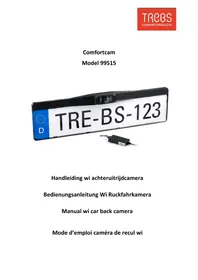
Comfortcam 99515 - Dashcam TREBS - Free user manual and instructions
Find the device manual for free Comfortcam 99515 TREBS in PDF.

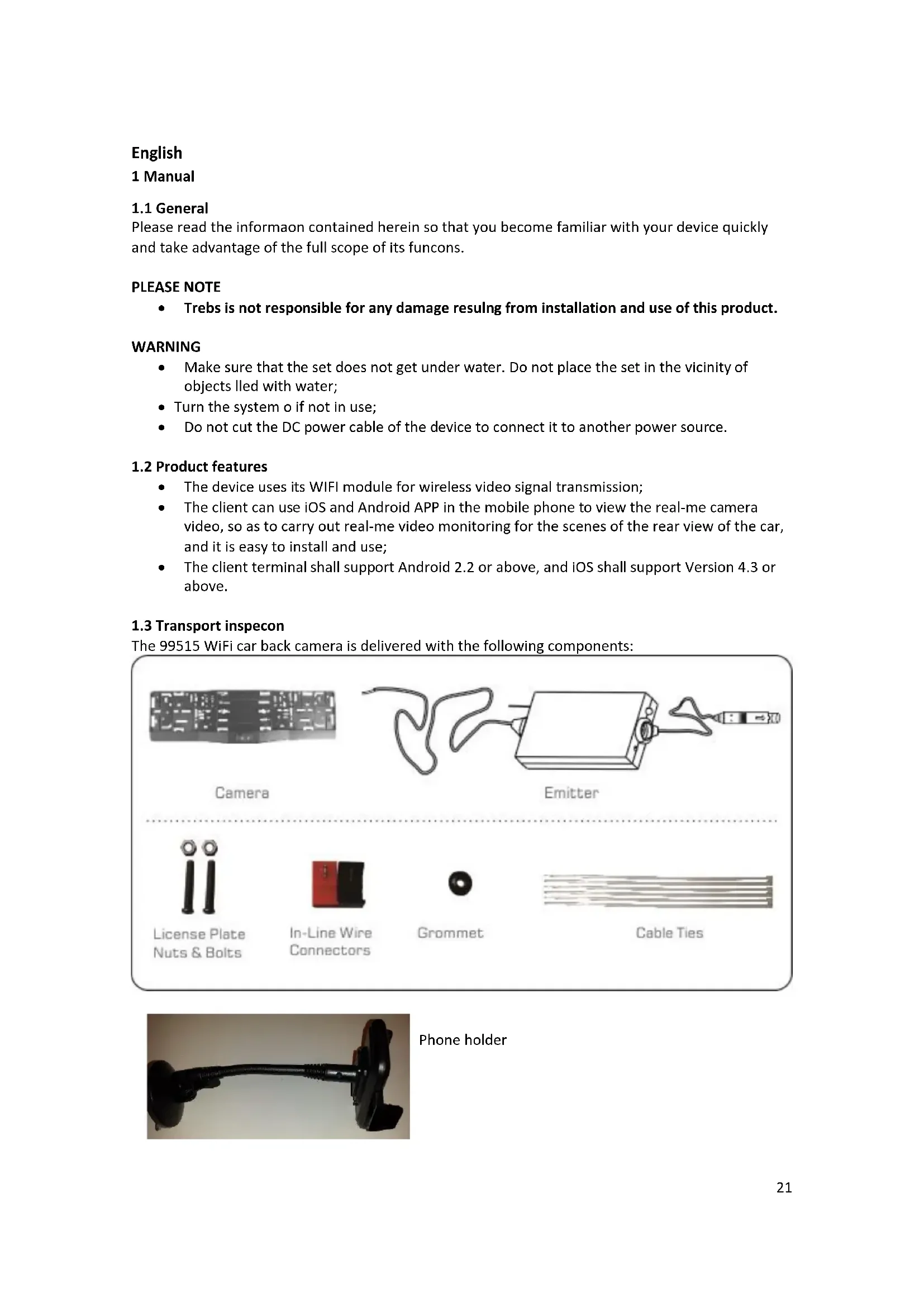


| Product type | Wireless WiFi rear view camera |
| Brand | Trebs |
| Model | Comfortcam 99515 |
| Camera dimensions | 525 × 148 × 45 mm |
| Camera weight | 102 g |
| WiFi transmitter dimensions | 71 × 35,5 × 12,3 mm |
| WiFi transmitter weight | 60 ± 5 g |
| Power supply | 12 V DC |
| Consumption (camera) | 120 mA |
| Consumption (transmitter) | 150 mA max |
| Image sensor | CMOS, 720 × 480 pixels |
| Video formats | NTSC / PAL |
| Night vision | Range > 3 m (infrared) |
| Horizontal viewing angle | 80° |
| WiFi frequency | 2.4 GHz (2400-2483.5 MHz) |
| WiFi protocol | IEEE 802.11 b/g/n |
| Encryption | WPA2 |
| Transmission range | ≥ 10 m (without obstacle) |
| Operating temperature | -10 to +50 °C |
| Storage temperature | -20 to +60 °C |
| Operating humidity | 15 % to 85 % RH |
| Main functions | Real-time WiFi video transmission, smartphone app (iOS/Android), automatic activation in reverse, image mirroring |
| Maintenance | Clean with a soft, dry cloth. Do not use abrasive products. |
| Safety | Do not reverse the polarity. Do not expose to water or splashes. Disconnect if not used for a long time. |
| Spare parts / repairability | No user-serviceable parts. Contact Trebs customer service for assistance. |
Frequently Asked Questions - Comfortcam 99515 TREBS
User questions about Comfortcam 99515 TREBS
0 question about this device. Answer the ones you know or ask your own.
Ask a new question about this device
Download the instructions for your Dashcam in PDF format for free! Find your manual Comfortcam 99515 - TREBS and take your electronic device back in hand. On this page are published all the documents necessary for the use of your device. Comfortcam 99515 by TREBS.
USER MANUAL Comfortcam 99515 TREBS
Manual wi car back camera
1.2 Eigenschappen product
5. Declaraon of conformity
5. Declaraon of conformity
Please read the informaon contained herein so that you become familiar with your device quickly and take advantage of the full scope of its funcons.
PLEASE NOTE
- Trebs is not responsible for any damage resulting from installation and use of this product.
WARNING
- Make sure that the set does not get under water. Do not place the set in the vicinity of objects lled with water;
- Turn the system o if not in use;
- Do not cut the DC power cable of the device to connect it to another power source.
1.2 Product features
The device uses its WIFI module for wireless video signal transmission;
- The client can use iOS and Android APP in the mobile phone to view the real-me camera video, so as to carry out real-me video monitoring for the scenes of the rear view of the car, and it is easy to install and use;
- The client terminal shall support Android 2.2 or above, and iOS shall support Version 4.3 or above.
1.3 Transport inspecon
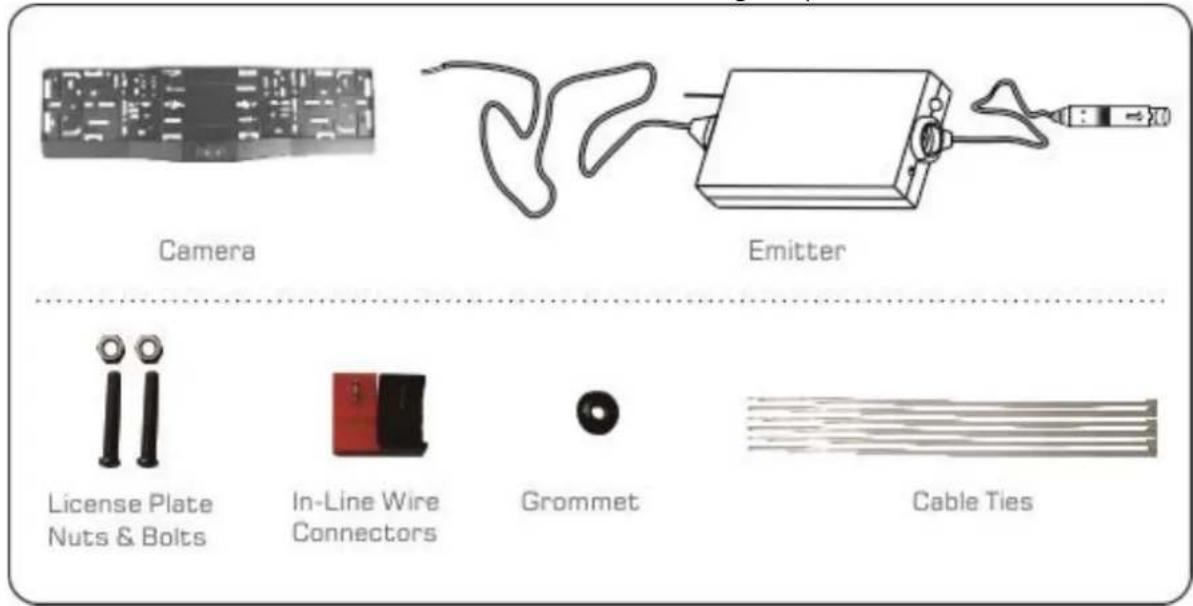
The 99515 WiFi car back camera is delivered with the following components:
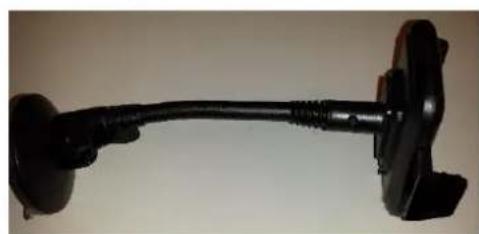
Phone holder
2 Installaon
2.1 Installaon of the emier
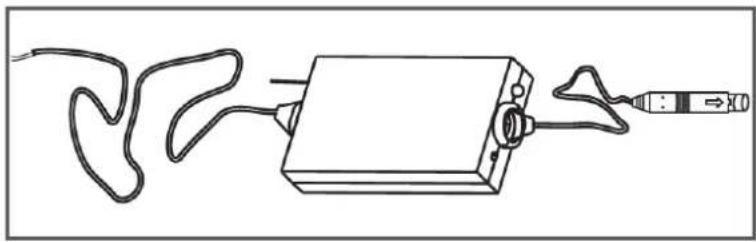
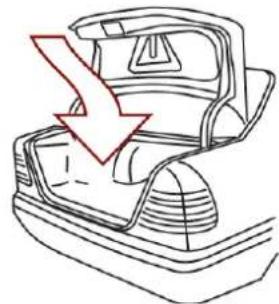
Mount the transmier using cable es in the trunk so that it cannot come loose. Make sure the transmier is placed close to the reversing lights.
PLEASE NOTE: For opumum operaon, the transmier should be placed as far away as possible from iron / metal parts
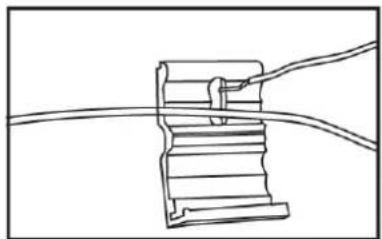
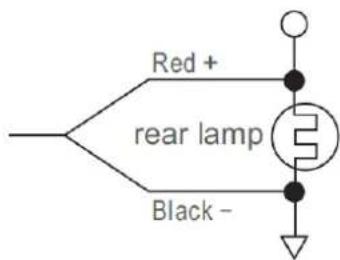
Connect the red cable using the red In-Line wire connector to the ^+ of the reverse light and the black cable using the black in-line wire connector to the - of the reverse light.
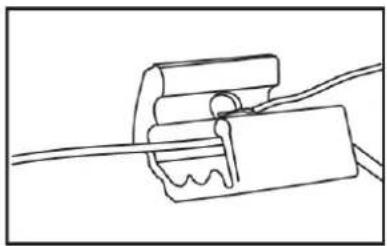
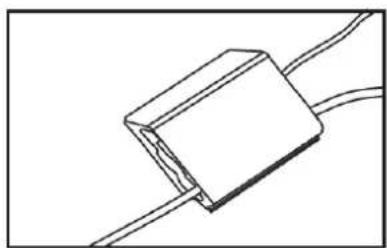
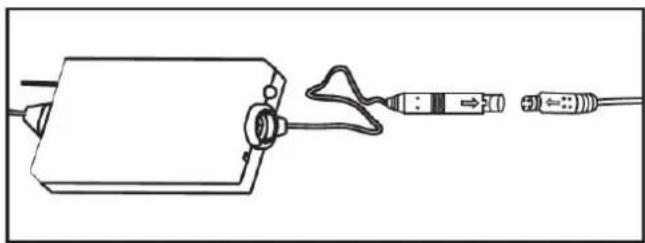
Test the system before the installaon! Connect the camera to the wire. Install the app (see chapter 2.3 or 2.4 below) and test whether the device is working properly by pung the car in revise. If you receive images from the camera on you mobile device, you can clear away the cables neatly behind interior panels or carpet using cable es
PLEASE NOTE
- The positive and negative pole of the power cable of the emier box are connected to the positive and negative pole of the rear lamp of the car:
- Never reverse the positive and negate pole. Otherwise the emier box and the camera can be damaged and cannot be used:
- The antenna of the emier box shall not be near any metal part of the car. Otherwise the eming distance and the image transmission eect can be inuenced.
2.2 Installaon instrucons for the camera
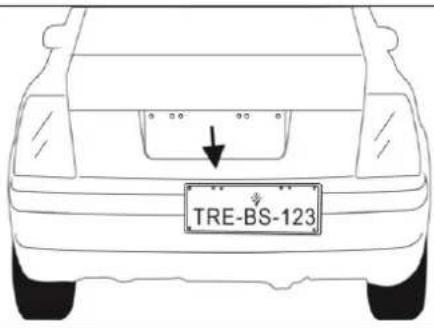
Remove the license plate and the current license plate holder.
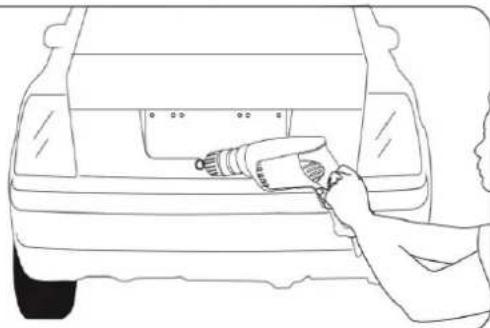
Drill a hole for the wiring of the camera on the right spot behind the license plate. Make sure the camera has a central posion.
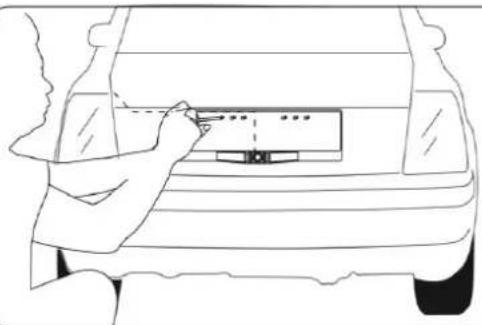
Route the cable through the hole in the car and aach the grommet.
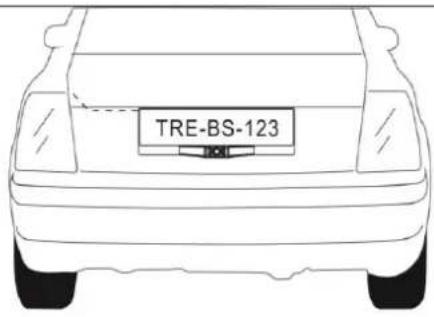
Tighten all screws and put the plate back on the car. The installaon of the camera is now ready.
2.3 Operaons for Android-app
- .Search "Sight WIFI" soware, and download. The icon looks as following:
Connecn WiFi:
The steps below only need to be followed on initial use. Aer this, the wi car back camera is already stored in the default sengs of your mobile device.
- Put your car in reverse aer you mounted the camera. This will acvate the camera. Now you can connect to you mobile device.
- Go to sengs in the main interface of your mobile device.
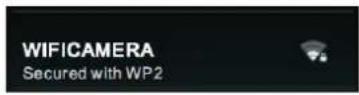
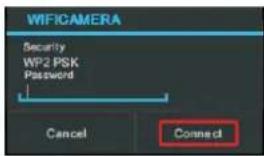
- Click "Wi-Fi", select your camera, and connect the wifi of the mobile device terminal to the wi of the tool. The initial SSID of the device is "WIFICAMERA". Then type in the password of the device (Default password: 88888888). As shown below:




View the video:
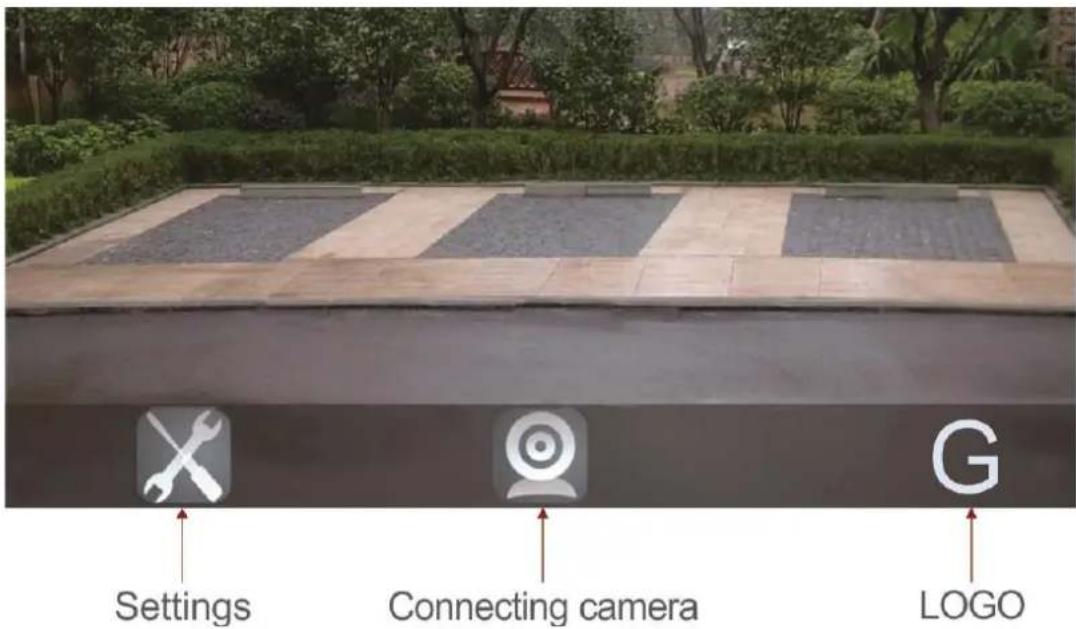
Open the APP, and if the connecn between the wi of the tool and the mobile device terminal is successful, the icon will be highlighted, and the images transmied from the wi camera tool can be seen in the APP, as shown in the gure.
In the real-me monitoring mode, the user can press the icon to reverse the image.
PLEASE NOTE:
If you connect to the mobile phone, please close the WIFI signal previously opened;
- The image display me is related to the CPU memory, sware version, working sware number of the mobile phone;
- Please note that there is a small delay (around 10 seconds) between the actual situaon and the display of images;
- If the background is black or the image is sll, please exit the APP, and check whether the wi connecn is normal. Then open the APP again to enter the soware interface.
Sengs:
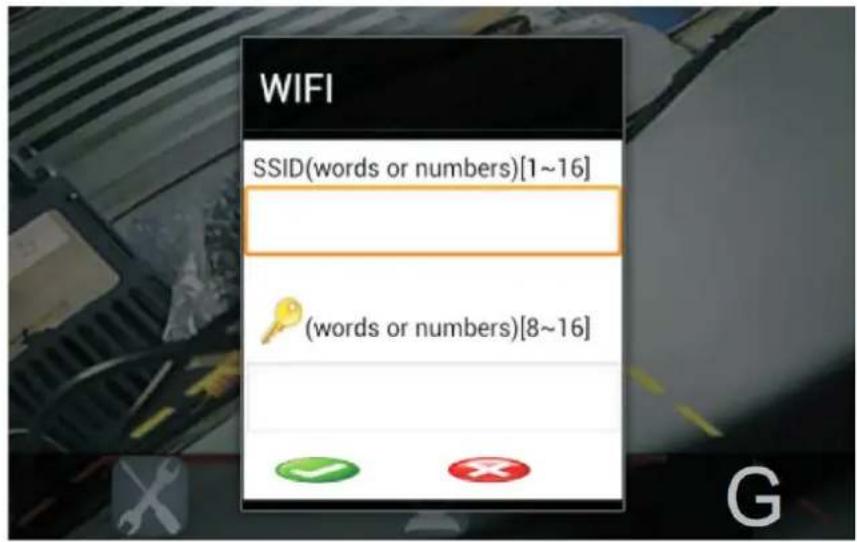
Press this icon to enter into the sengs menu. You can change the default factory SSID and password of the wi camera tool, and clicking will show whether the change is successful, and clicking to cancel the new SSID set.
PLEASE NOTE
- You can press the RESET buon of the emier to renew the default factory SSID and password;
- When you change the SSID and password, you have to erase the network in the "Sengs", and then reconnect to the new network. Otherwise login error will remain displayed.
2.3.1 Special sengs for Android 4.3 users
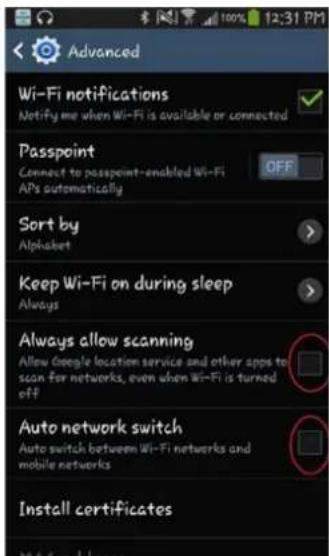
Due to the forced internet sengs in android 4.3 you must change the sengs in the Wi sengs of the used device.
- Go to: sengs -> Wi -> menu buon -> advanced;
- Change the allow scanning seng, and the auto network switch seng to unchecked (see picture);
- Now your Android 4.3 device stays connected.
2.4 Operaons for Apple iOS-app
- Go to app store;
- .Search "Sight WIFI" soware, and download. The icon looks as following:

Connecn WiFi:
The steps below only need to be followed on initial use. Aer this, the wi car back camera is already stored in the default sengs of your mobile device.
- Put your car in reverse aer you mounted the camera. This will acvate the camera. Now you can connect to you mobile device.
- Go to sengs in the main interface of your mobile device.
Click "Wi-Fi", select your camera, and connect the wi of the mobile device terminal to the wi of the tool. The initial SSID of the device is "WIFICAMERA". Then type in the password of the device (Default password: 88888888).

View the video:
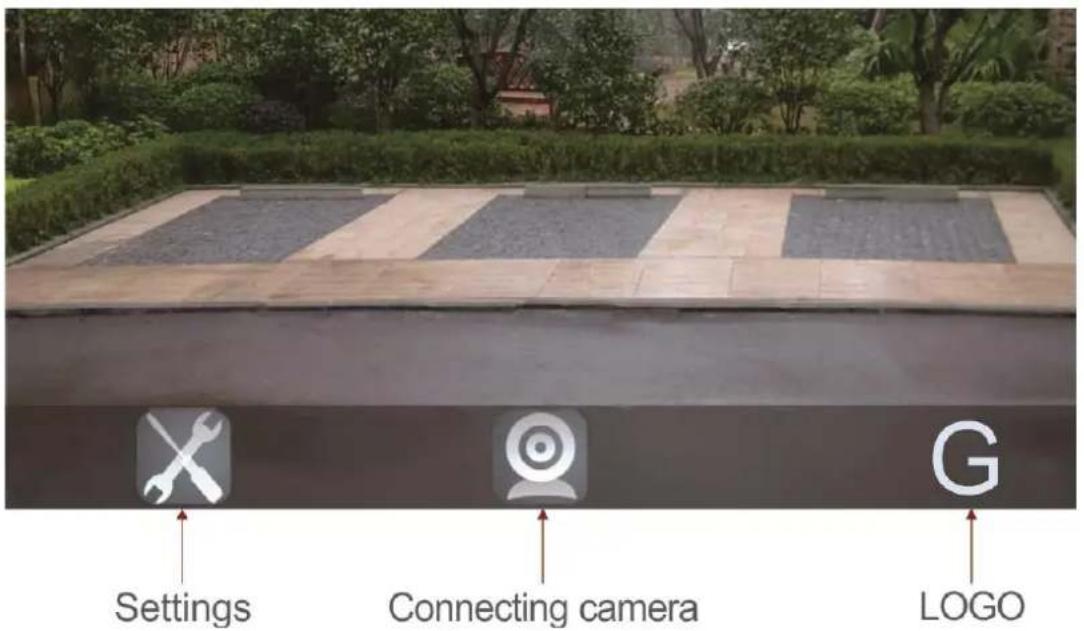
Open the APP, and if the connecn between the wi of the tool and the mobile device terminal is successful, the icon will be highlighted, and the images transmied from the wi camera tool can be seen in the APP, as shown in the gure.
In the real-me monitoring mode, the user can press the icon to reverse the image.
PLEASE NOTE:
If you connect to the mobile phone, please close the WIFI signal previously opened;
- The image display me is related to the CPU memory, sware version, working sware number of the mobile phone;
- Please note that there is a small delay between the actual situaon and the display of images;
- If the background is black or the image is sll, please exit the APP, and check whether the wi connecn is normal. Then open the APP again to enter the soware interface.
Sengs:
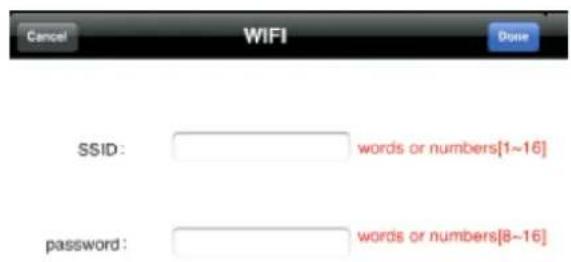
Press this icon to enter into the sengs menu. You can change the default factory SSID and password of the wi camera tool, and clicking will show whether the change is successful, and clicking to cancel the new SSID set.
3. Specicaons
| WIFI car rear view | |
| Power Supply | 12V DC |
| Consumpon Current | 120mA |
| Night Vision Range | >3m |
| Image Sensor | CMOS |
| Eecve Pixels | 720×480 pixels |
| Video Format | NTSC/PAL |
| Electronic Exposure Time | 1/60s-12ns(NTSC) sec 1/50s-12.5ns(PAL) sec |
| Minimum illuminaon | OLux (IR ON) |
| Horizontal View Angle | 80° |
| Operaon Temperature | -10~+50°C |
| Storage Temperature | -20~+60°C |
| Operaon Humidity | 15%~85%RH |
| Dimensions | 525 X 148 X 45MM |
| Weight | 102g |
| WIFI Zender box | |
| Operon Voltage | 12V DC |
| Operon Current | 150mA(MAX) |
| Operon Frequency | 2400-2483.5MHz |
| Wireless Protocol | IEEE 802.11b, IEEE 802.11g, IEEE 802.n (1T1R Modes) |
| Encrypon Mode | WPA2 |
| Modulaon Mode | 802.11b : DSSS (CCK, DQPSK, DBPSK) •802.11g/n : OFDM (BPSK, QPSK, 16QAM, 64QAM) |
| Transmission Distance With No Obstacle | ≥10m |
| Weight | 60±5g |
| Dimensions | 71 X 35.5 X 12.3MM |
| Operon Temperature | -10~+50°C |
| Storage Temperature | -20~+60°C |
| Operon Humidity | 20%~90%RH |
4. FCC INFORMATION
This device complies with part15 of the FCC Rules. Operaon is subject to the following two conditions:
(1) this device may not cause harmful interference,
(2) this device must accept any interference received, including interference that may cause undesired operaon.
Changes or modicaons not expressly approved by the party responsible for compliance could void the user's authority to operate the equipment.
5. Declaraon of conformity
Trebs hereby declares that this wi car back camera (99515) is in compliance with the essenal requirements and other relevant provisions of Direcve 1999/5/EC.
Service
If you have any further questions about the product aer reading this manual, please contact the Trebs customer service: info@trebs.nl
CE
Français
5. Declaraon of conformity



- 1.2 EIGENSCHAPPEN PRODUCT
- DECLARAON OF CONFORMITY
- PLEASE NOTE
- WARNING
- 1.2 PRODUCT FEATURES
- 1.3 TRANSPORT INSPECON
- 2 INSTALLAON
- 2.1 INSTALLAON OF THE EMIER
- 2.2 INSTALLAON INSTRUCONS FOR THE CAMERA
- 2.3 OPERAONS FOR ANDROID-APP
- CONNECN WIFI
- VIEW THE VIDEO
- SENGS
- 2.3.1 SPECIAL SENGS FOR ANDROID 4.3 USERS
- 2.4 OPERAONS FOR APPLE IOS-APP
- SPECICAONS
- FCC INFORMATION
- SERVICE
- FRANÇAIS
Brand : TREBS
Model : Comfortcam 99515
Category : Dashcam