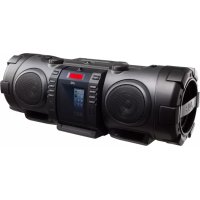
RVNB75 - Loudspeaker JVC - Free user manual and instructions
Find the device manual for free RVNB75 JVC in PDF.



| Brand | JVC |
| Model | RVNB75 |
| Product type | Audio system with speaker, CD player, FM tuner, Bluetooth, USB |
| Category | Speaker (portable audio system) |
| Weight | Approx. 7.1 kg (without batteries) |
| Power supply | AC: 230 V ~ 50 Hz; DC: 15 V (10 R20/SUM-1/D batteries) |
| Power consumption | 28 W in operation; < 0.5 W standby; < 3 W Bluetooth standby |
| Output power | 40 W |
| Speakers | 2 × 8 cm full-range speakers (impedance 16 Ω) + 2 × 13 cm super woofers (impedance 7 Ω) |
| FM tuner | Range 87.50 – 108.00 MHz, preset up to 30 stations |
| Bluetooth | Version 4.0+EDR, profiles A2DP and AVRCP, max. range 10 m |
| Supported audio formats (CD/USB) | MP3, WMA (CD-R/RW, USB device) |
| Connectivity | AUDIO IN jack (3.5 mm), PHONES jack (3.5 mm), USB port (5 V/1 A), dock for iPod/iPhone (Lightning connector) |
| Timer functions | Sleep timer (10 to 180 min) and daily timer |
| Sound modes | BEAT, POP, CLEAR, USER (treble/bass adjustment), FLAT; adjustable super woofer volume |
| Automatic power saving | Power off after 15 min of inactivity (adjustable) |
| Supplied accessories | Power cord, remote control RM-SRVNB75A, batteries (2×), shoulder strap, loops and stoppers |
| Maintenance | Clean with a soft dry cloth; for stains, use a damp cloth with neutral detergent; do not use solvents |
| Safety | Class 1 laser product; do not open the cabinet; ventilation: free space of 15 cm around the unit |
| Repairability | No user-serviceable parts inside; refer all servicing to qualified personnel |
Frequently Asked Questions - RVNB75 JVC
User questions about RVNB75 JVC
0 question about this device. Answer the ones you know or ask your own.
Ask a new question about this device
Download the instructions for your Loudspeaker in PDF format for free! Find your manual RVNB75 - JVC and take your electronic device back in hand. On this page are published all the documents necessary for the use of your device. RVNB75 by JVC.
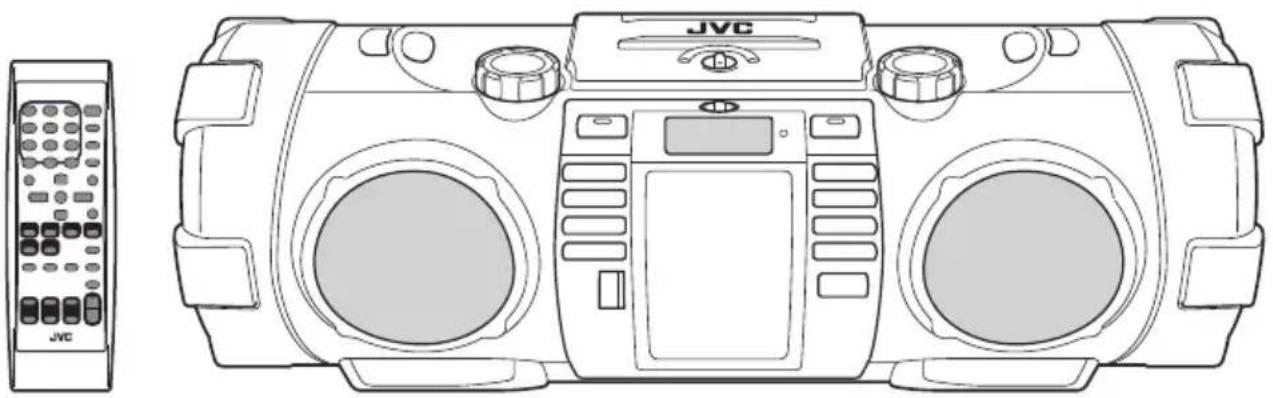
USER MANUAL RVNB75 JVC
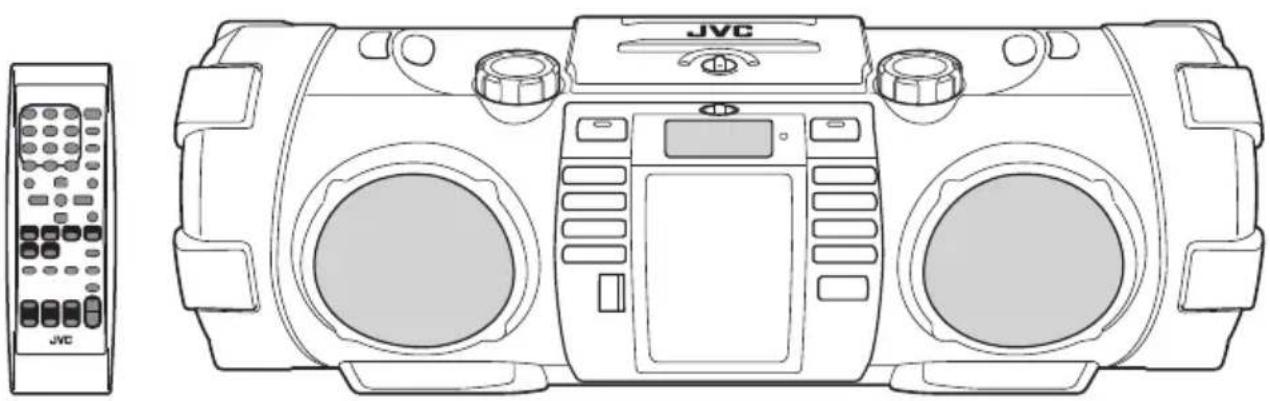
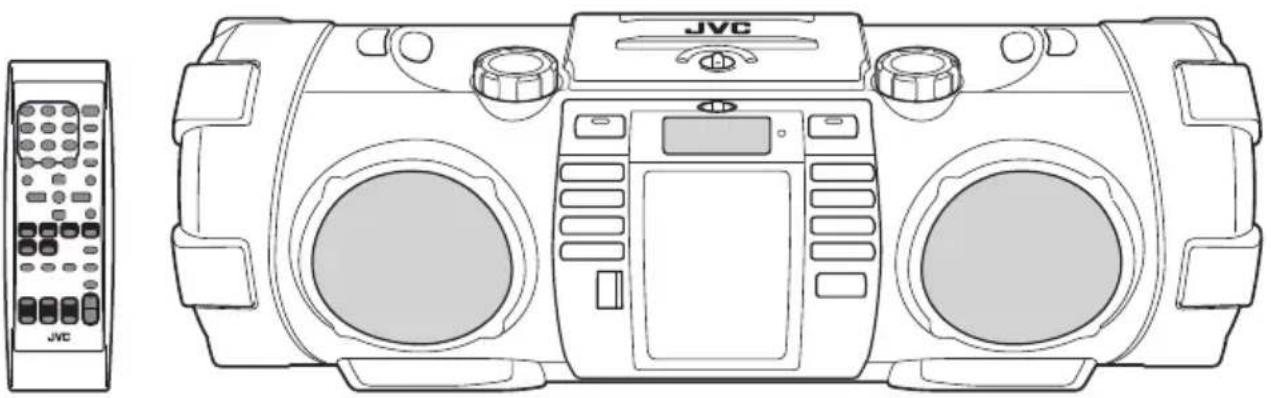
POWERED WOOFER CD SYSTEM
RV-NB75B
natural_image
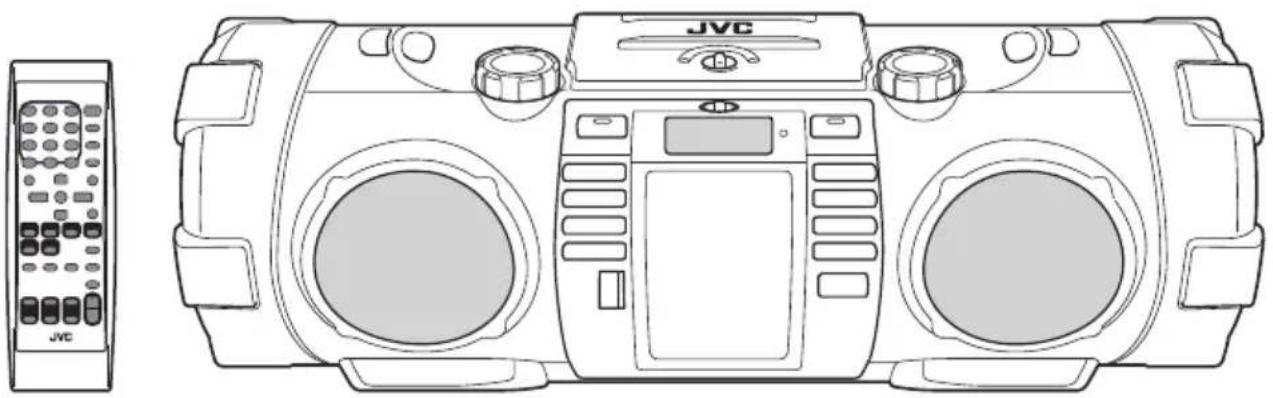
Line drawing of a JVC portable radio with control panel and buttons (no text or symbols)
MP3/WMA

INSTRUCTIONS
Introduction
Auto power save function
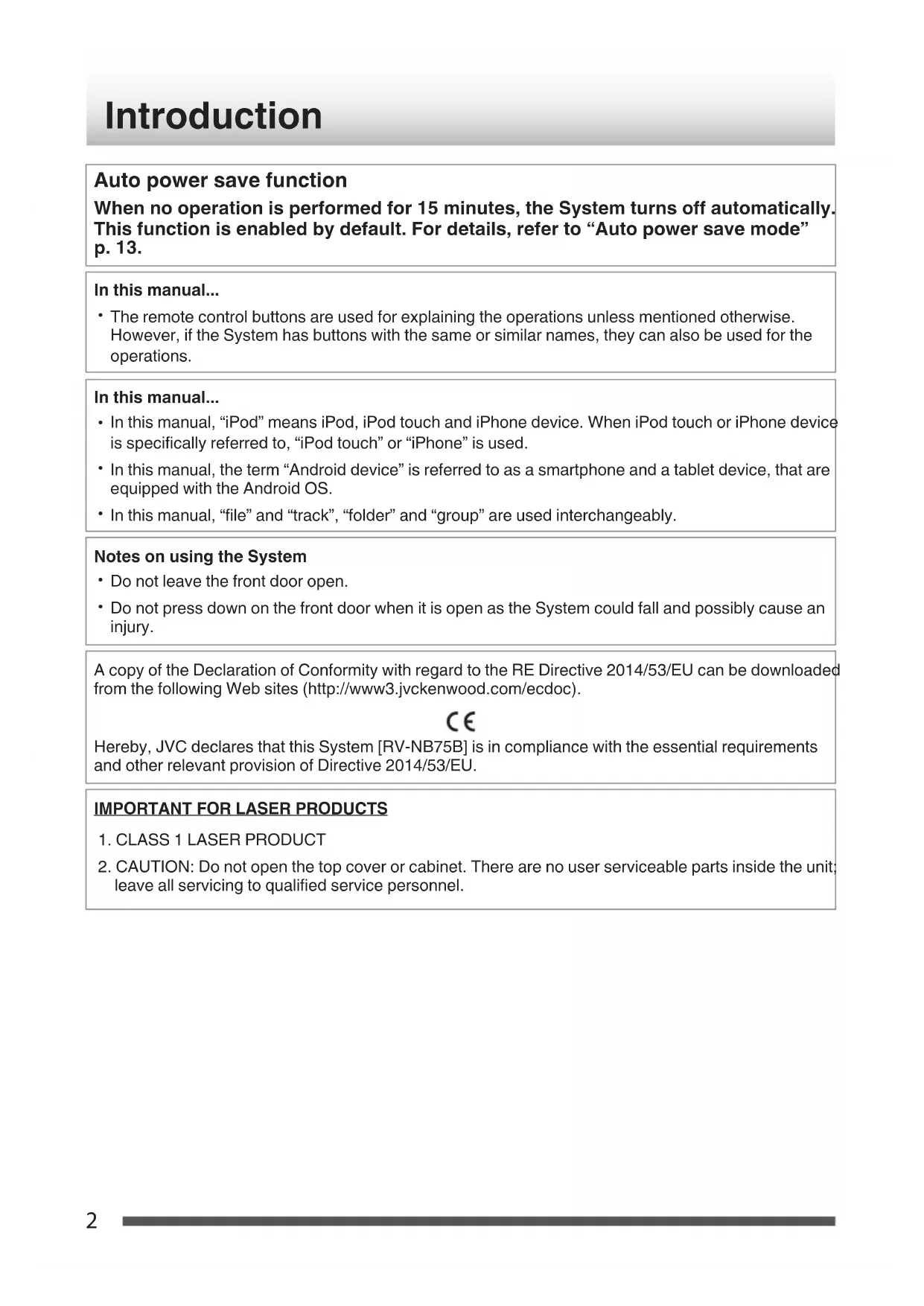
When no operation is performed for 15 minutes, the System turns off automatically. This function is enabled by default. For details, refer to “Auto power save mode” p. 13.
In this manual...
- The remote control buttons are used for explaining the operations unless mentioned otherwise. However, if the System has buttons with the same or similar names, they can also be used for the operations.
In this manual...
- In this manual, “iPod” means iPod, iPod touch and iPhone device. When iPod touch or iPhone device is specifically referred to, “iPod touch” or “iPhone” is used.
- In this manual, the term “Android device” is referred to as a smartphone and a tablet device, that are equipped with the Android OS.
- In this manual, "file" and "track", "folder" and "group" are used interchangeably.
Notes on using the System
- Do not leave the front door open.
- Do not press down on the front door when it is open as the System could fall and possibly cause an injury.
A copy of the Declaration of Conformity with regard to the RE Directive 2014/53/EU can be downloaded from the following Web sites (http://www3.jvckenwood.com/ecdoc).
CE
Hereby, JVC declares that this System [RV-NB75B] is in compliance with the essential requirements and other relevant provision of Directive 2014/53/EU.
IMPORTANT FOR LASER PRODUCTS
- CLASS 1 LASER PRODUCT
- CAUTION: Do not open the top cover or cabinet. There are no user serviceable parts inside the unit; leave all servicing to qualified service personnel.
Preparation
Caution: Proper Ventilation
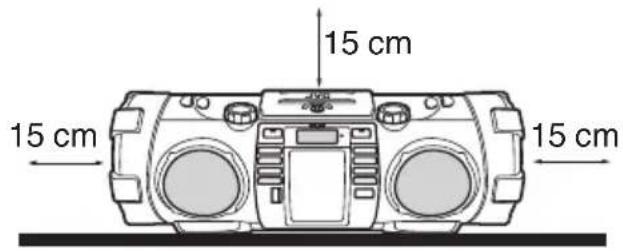
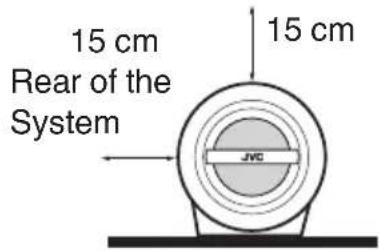
To avoid the risk of electric shock and fire, and to prevent damage, locate the apparatus as follows:
1 Front:
No obstructions and open spacing.
2 Sides/Top/Back:
No obstructions should be placed in the areas indicated by the dimensions in the illustration below.
3 Bottom: Place on a level surface.
Front view
Side view
Notes on installation
Select a place which is level, dry and neither too hot nor too cold — between 5 °C and 35 °C. Use the apparatus in moderate climate.
What you can do using the System
Play back files on your iPod or iPhone by operating the System
P.14
Play back files on your BLUETOOTH device by operating the System
P.17
natural_image
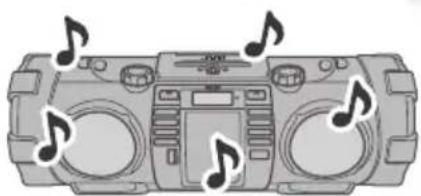
Illustration of a portable electronic device with two dials and musical notes (no text or symbols)Enjoy listening to music by adjusting the super woofer (bass sound) volume and the sound mode! (P.12, 13)
Play back MP3/WMA files on a music CD or USB device
P20
Play back an external device that does not support USB connection
P24
Receive FM broadcasts
P23
Contents
Introduction 2
Preparation 3
What you can do using the System .... 4
Preparation 6
Accessories 6
Inserting batteries 6
Carrying the System 7
Index of parts and controls ...... 8
Front of the System 8
Rear of the System 9
Display window 9
Remote control 10
Connections 11
Connecting the power cord 11
Connecting headphones 11
Basic operations ...... 12
Turning on/off the System 12
Setting the clock 12
Displaying the clock 12
Getting started 12
iPod 14
Connecting iPod 14
Playback 15
Shuffle playback 16
Repeat playback 16
iPod menu operation 16
Listening to a BLUETOOTH device ..... 17
Connecting a BLUETOOTH device for the first time ..... 17
Pairing (registering) other BLUETOOTH devices ..... 18
Setting the System to BLUETOOTH standby 19
Using a remote control application 19
Playing back a disc/USB device ..... 20
Preparation 20
Playback 20
Program playback 21
Random playback 22
Repeat playback 22
FM 23
Listening to FM stations 23
Presetting stations 23
External device 24
Listening to an external device 24
Using the timer 25
Setting the sleep timer 25
Setting the daily timer 25
About Discs/Files 27
Compatible iPod 27
Playable BLUETOOTH devices 27
playable discs/files 27
Important for USB mass storage class devices .... 28
Others 29
Maintenance 29
Trademarks 29
Troubleshooting 30
Specifications 32
Preparation
Accessories
Check that you have all the following items, which are supplied for the system.
- Power cord (1)
• Remote control RM-SRVNB75A (1)
• Batteries (for the Remote control) (2) - Shoulder strap (1)
- Buckle (2)
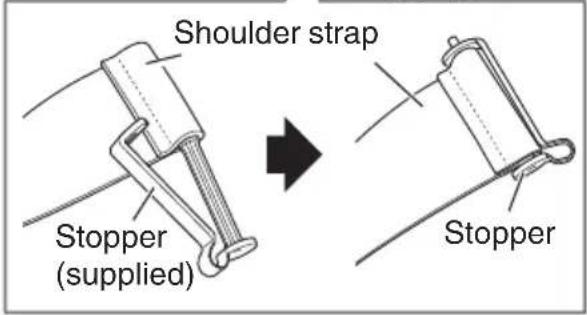
- Stopper (2)
If any of these items are missing, contact your dealer immediately.
Inserting batteries
Main unit
- Match the polarities (+ and -) of the batteries.
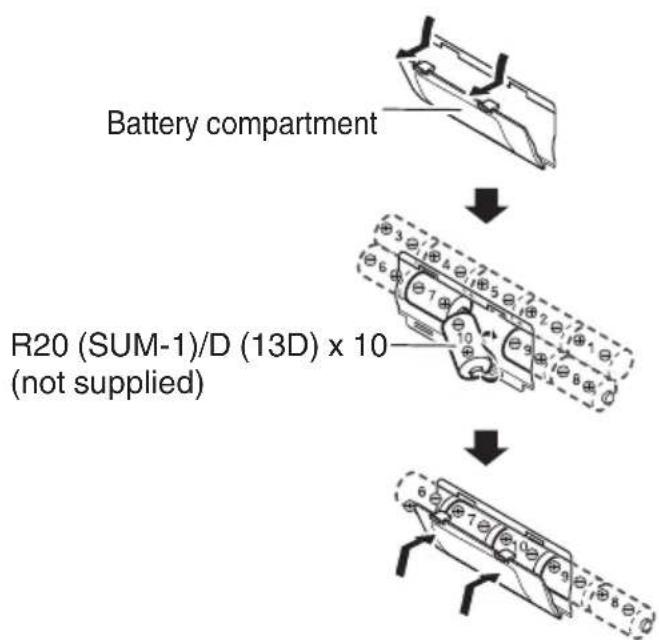
flowchart
graph TD
    A["Battery compartment"] --> B["R20 (SUM-1)/D (13D) x 10 (not supplied)"]
Remote control
- Match the polarities (+ and -) of the batteries.
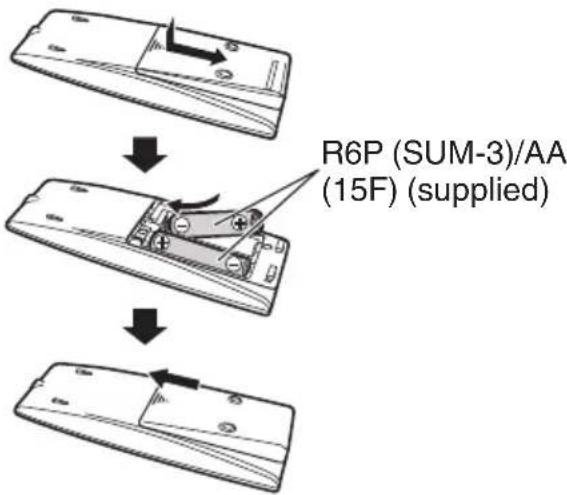
flowchart
graph TD
    A["Remote Control Device"] --> B["Internal Display"]
    B --> C["After Setup"]
    C --> D["Final Display"]
- If the range or effectiveness of the remote control decreases, replace the batteries.
NOTE
- Store the battery in a place where children cannot reach. If a child accidentally swallows the battery, consult a doctor immediately.
- The power will not be supplied through the batteries when the power is supplied through the AC outlet.
- The battery is consumed more quickly than usual when operating the System continuously or operating it in a cold place.
- When the power is supplied using the batteries, the display will be blank when the System is turned off (on standby) by pressing the ⏻/I button. And, the STANDBY indicator won't be turned on.
CAUTION
To avoid battery leakage or explosion, handle batteries properly.
- If you are not going to use this System for a month or more, remove the batteries from the battery compartment.
- Dispose of batteries in the proper manner, according to federal, state, and local regulations.
- Do not mix with batteries of different types or with new and old ones.
- Do not attempt to charge any batteries other than rechargeable ones.
- Discard leaky batteries immediately. Battery leakage can cause skin burns or other personal injuries.
- If chemicals leak onto the System, clean the System completely.
Carrying the System
Using the carrying handles
Be sure to hold both handles when you carry the System.
If you carry the System by only one handle, the other end may drag on the ground and be damaged.
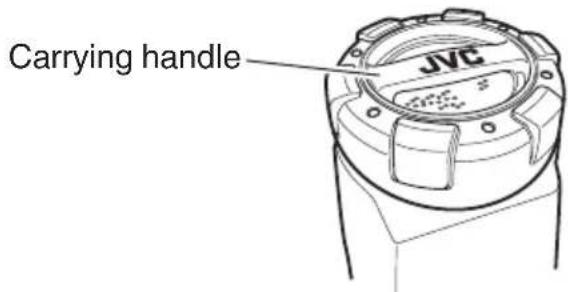
NOTE
- Remove a disc, USB device or iPod from the System.
- Disconnect all the cords from the System.
• The System is not waterproof or dust proof.
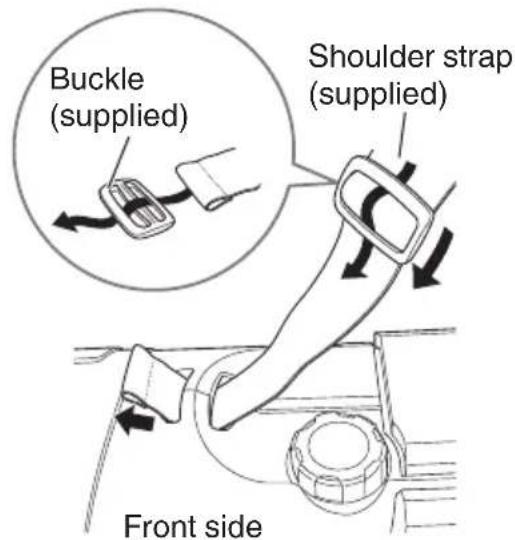
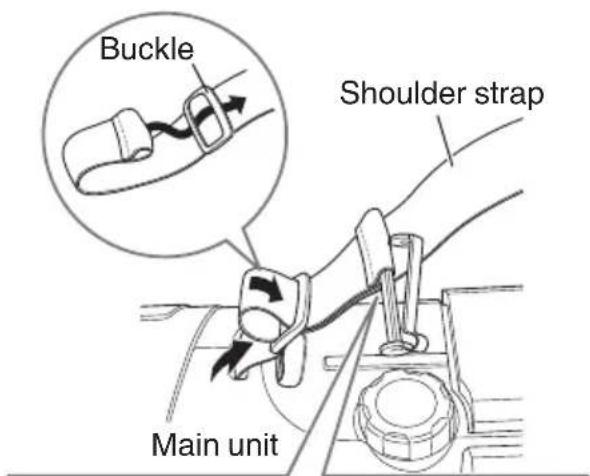
Using the shoulder strap
Attach the supplied shoulder strap (adjustable in length) to each end of the System as illustrated below.

Index of parts and controls
Front of the System
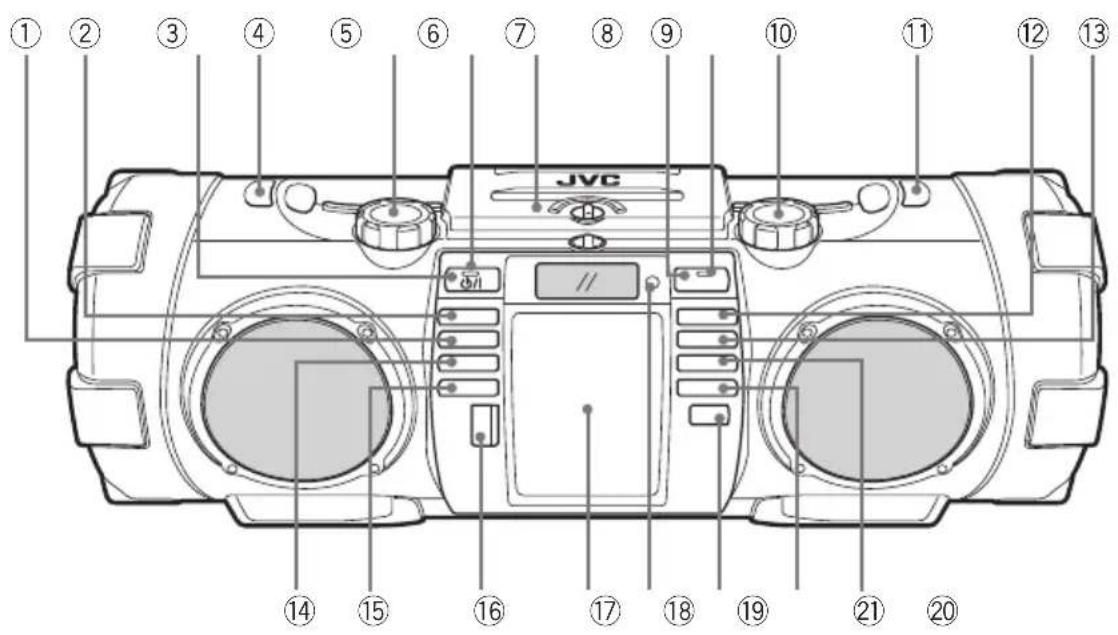
① CD ▶/|| button
② iPod ▶/|| button
③ STANDBY/ON ⏻/I button
④ Shoulder strap hook
⑤ SUPER WOOFER VOLUME +/-
⑥ STANDBY indicator
⑦ Disc compartment door
⑧ BLUETOOTH button
⑨ BLUETOOTH indicator
⑩ VOLUME +/-
⑪ Shoulder strap hook
⑫ ▶▶| button
⑬ ◀◀◀ button
⑭ USB/iPod ▶/|| button
⑮ AUDIO IN button
⑯ USB connector/cover
⑰ Connector for iPod/Front door
⑱ Remote control sensor
⑲ SOUND MODE button
⑳ TUNER button
⑳ button
Rear of the System
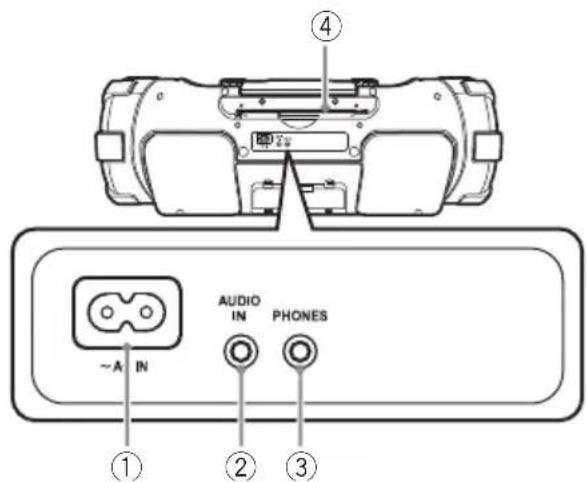
① AC IN jack
② AUDIO IN jack
③ PHONES jack
④ FM telescopic antenna
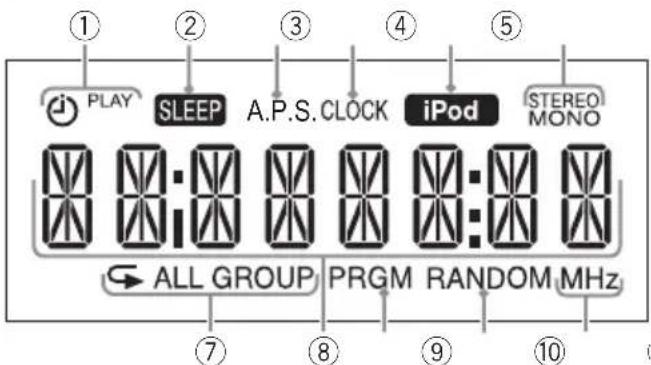
Display window
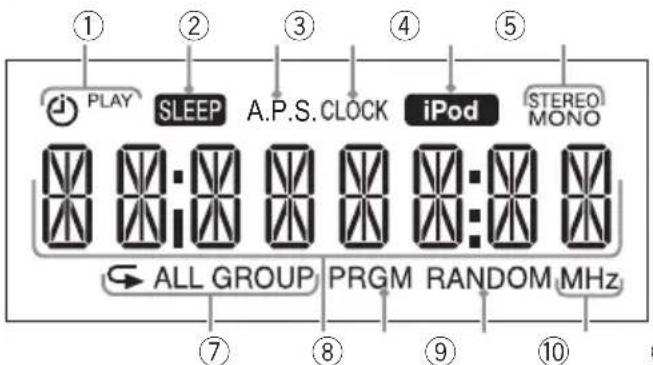
① Timer indicators ⏻ (timer), PLAY
② SLEEP indicator
③ A.P.S. (auto power save) indicator
④ CLOCK indicator
⑤ iPod indicator
⑥ FM mode indicators
STEREO, MONO
⑦ Repeat indicators
▶, ▶ALL,
▶GROUP
⑧ Main display
⑨ PRGM (program) indicator
⑩ RANDOM indicator
⑪ Frequency unit display
Remote control
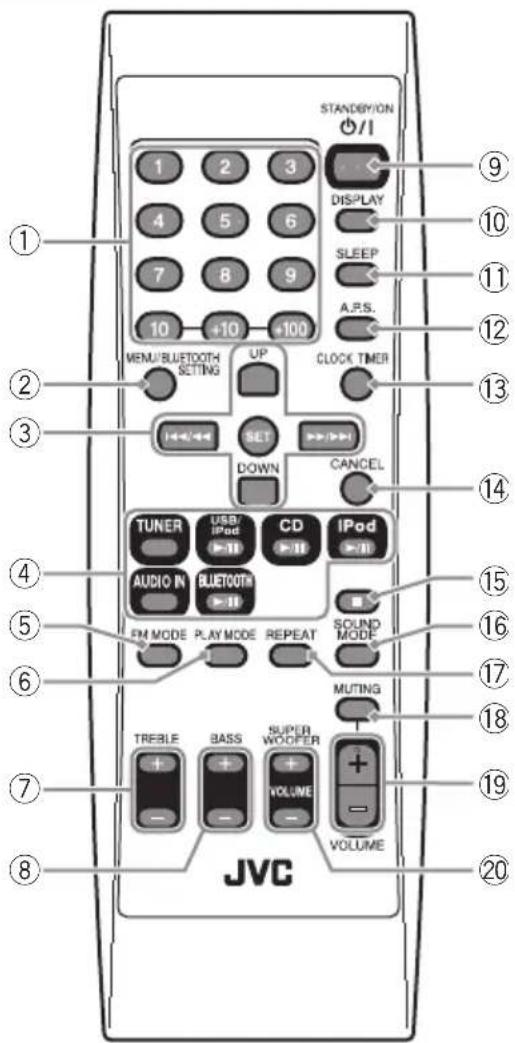
- The reference pages are mainly pages containing descriptions of the respective parts.
① Number buttons (p. 21)
② MENU/BLUETOOTH SETTING button (p. 16)
③ Multi control buttons (p. 15 - 23)
- UP, DOWN
• |◀◀/◀◀, SET, ▶▶/▶▶|
④ Source buttons (p. 15 - 24)
• TUNER, USB/iPod ▶/II, CD ▶/II,
iPod ▶/II, AUDIO IN,
BLUETOOTH ▶/II
⑤ FM MODE button (p. 23)
⑥ PLAY MODE button (p. 16, 22)
⑦ TREBLE+/- button (p. 13)
⑧ BASS+/- button (p. 13)
⑨ STANDBY/ON ⏻/l button (p. 12) (Power button)
⑩ DISPLAY button (p. 12, 13)
⑪ SLEEP button (p. 25)
⑫ A.P.S. (auto power save) button (p. 13)
⑬ CLOCK/TIMER button (p. 12, 25)
⑭ CANCEL button (p. 22, 26)
⑮ ■ button (p. 17, 20)
⑯ SOUND MODE button (p. 13)
⑰ REPEAT button (p. 16, 22)
⑱ MUTING button (p. 12)
⑲ VOLUME +/- button (p. 12)
⑳ SUPER WOOFER VOLUME +/- button (p. 12)
Connections
Connecting the power cord
Connect the power cord to a wall outlet only after all other connections have been made.
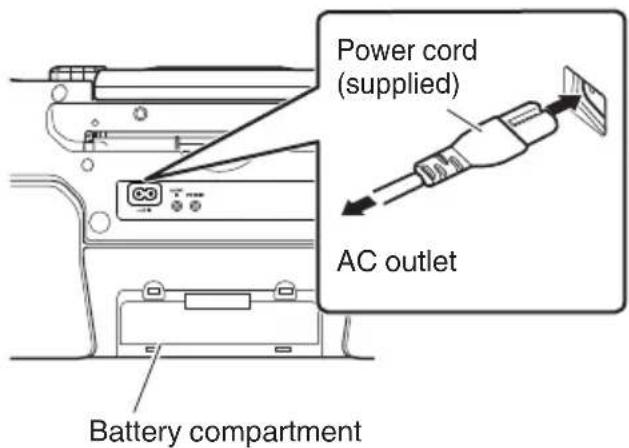
Unplug the AC power cord from the System to supply the power through the batteries in the battery compartment; otherwise, the System does not work.
NOTE
- The power can also be supplied through the batteries. (p. 6)
- When the System is turned off using the [STANDBY/ON ⏻/l] button, the standby mode is activated and the STANDBY indicator lights in red.
- A small amount of power is always consumed even while on standby.
CAUTION
- Only use JVC power cord provided for this System to avoid malfunction or damage to the System.
- Remove all the batteries when using the power cord.
- Be sure to unplug the power cord from the outlet when going out or when the System is not in use for an extended period of time.
Connecting headphones
Be sure to turn down the volume before connecting or putting on the headphones.
- Connecting the headphones deactivates the speakers.
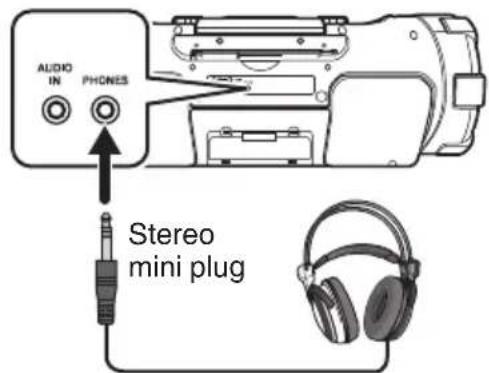
Headphones (not supplied)
Basic operations
Turning on/off the System
Press [STANDBY/ON ⏻/l].
![JVC RVNB75 - Press [STANDBY/ON ⏻/l]. - 1](/content/2026/02/382722/images/55b1ed336d6bb46fab3cdfffb6ce3956b5dc7c161633575c3027f4e2abd179b3.jpg)
The STANDBY indicator goes off.
Press the button again to turn off the System.
- You can also turn on the System by pressing the source buttons.
NOTE
When the power is supplied using the batteries, the System is turned on by pressing [⏻/l] or the source buttons on the main unit. You cannot turn on the System using the remote control.
Setting the clock
1 Press [CLOCK/TIMER] repeatedly to select the clock.
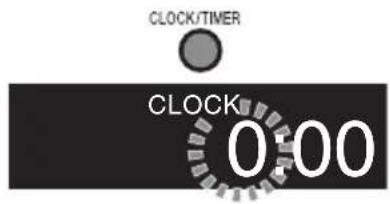
- When setting for the first time, press [CLOCK/TIMER] once.
2 Press [UP] or [DOWN] to adjust the hour.
- When you press and hold the button, the hour digit changes continuously.
3 Press [SET].
4 Repeat 2 and 3 to adjust the minute.
• To go back to the hour setting, press [CANCEL].
Displaying the clock
Press [DISPLAY].
![JVC RVNB75 - Press [DISPLAY]. - 1](/content/2026/02/382722/images/2f0c041dcbbf43786cbb9e0e46b144e9ff14db24ddf1f37f4556500cacb083ea.jpg)
• Each time you press the button, the clock and normal indicator changes alternately.
NOTE
- The clock setting will be reset about an hour after the AC power cord has been disconnected.
- When the power is supplied through the batteries, the clock does not appear on the display when the System is turned off.
Getting started
To select a source

To adjust the volume
Remote control
Main unit
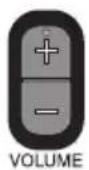
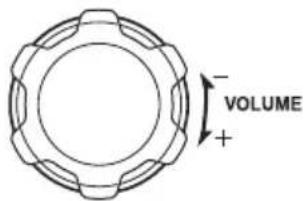
You can adjust the volume level between MIN 1 to 29, MAX.
To turn off the sound temporarily
Press [MUTING].
![JVC RVNB75 - Press [MUTING]. - 1](/content/2026/02/382722/images/630f1f62f0827840c027b9dce7a5c7e0743f14211017ff8381675d97f91d359c.jpg)
• To restore the sound, press [MUTING] again or adjust the volume.
To adjust the super woofer volume
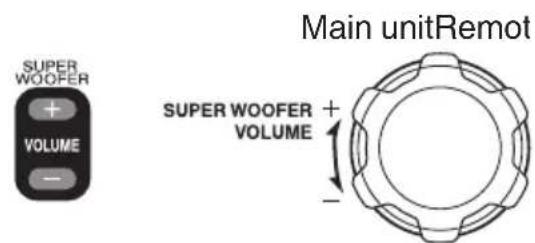
You can adjust the super woofer volume level between BASS 1 and BASS 6.
Sound mode
Sound modes can be selected to enhance the type of music being played.
Press [SOUND MODE] to select the sound mode.
![JVC RVNB75 - Press [SOUND MODE] to select the sound mode. - 1](/content/2026/02/382722/images/8f4755d166678b001e9a95bbf5ee898e4fc16c5d851611173e86aae0466bedf3.jpg)
Each time you press the button, the sound mode changes as follows:
"BEAT": Select this for music with a heavy beat, such as rock and dance music.
"POP": Select this for light music including popular and vocal music.
"CLEAR": Select this for crisp and clear sounding music.
"USER": Select this for music with the configured treble and bass settings. Refer to the following for the setting procedures.
"FLAT": Select this to cancel the sound mode.
NOTE
- The sound mode setting also affects the sound through the headphones.
To set your preferred sound quality
Press [TREBLE+/-] or [BASS+/-] repeatedly.
![JVC RVNB75 - Press [TREBLE+/-] or [BASS+/-] repeatedly. - 1](/content/2026/02/382722/images/ba78bdc3f41a29179d2f1f0606a5cd0fbb42e508119518704549a2787d3dac6a.jpg)
Each time you press the button, the bass/treble can be adjusted in the following ranges:
Treble : TREBLE -5 to TREBLE +5
Bass : BASS -5 to BASS +5
- The sound mode switches to "USER" and the sound quality is adjusted to the configured values when the [TREBLE+/-] or [BASS+/-] button is pressed.
Auto power save mode
This function turns off the System automatically if no operation is performed for 15 minutes.
Each time you press [A.P.S.], the auto power save function switches on and off.

A.P.S.
If no operation is performed for 15 minutes in the following situations, the System turns off automatically.
- The volume level is set to MIN or Muting is activated.
- "CD" or "USB" is selected as the source, and playback is stopped.
- "iPod", "BLUETOOTH" or "USB" is selected as the source, and no device is connected.
- "AUDIO IN" is selected as the source, and there is no sound input.
- Approximately 30 seconds before the power is turned off, "A.P.S." starts to blink.
- The 15-minute countdown restarts when you operate any buttons.
- This function operates even during daily timer and sleep timer operations.
This function is on at the initial setting.
Display information
Each time you press the button, the display information switches depending on the source.

- Tag information is shown on the display window while an MP3/WMA file is played back.
- If there is no tag information, "UNKNOWN" is displayed.
- "iPod" cannot show the track information.
iPod
You can operate iPod through the System.
See p. 27 for compatible iPod devices.
CAUTION
- JVC is not responsible for any loss of or damage to iPod that might result from the use of this System.
- Do not connect or disconnect iPod when the System is turned on.
- Do not carry the System with iPod connected. It might cause damage to the dock or you might drop iPod.
- You cannot send any data to iPod from the System.
NOTE
- iPod is charged through the dock when the System is turned on. (When the power is supplied through the batteries, iPod is charged only when “iPod” is selected as the source.)
Connecting iPod
To connect to the iPod dock
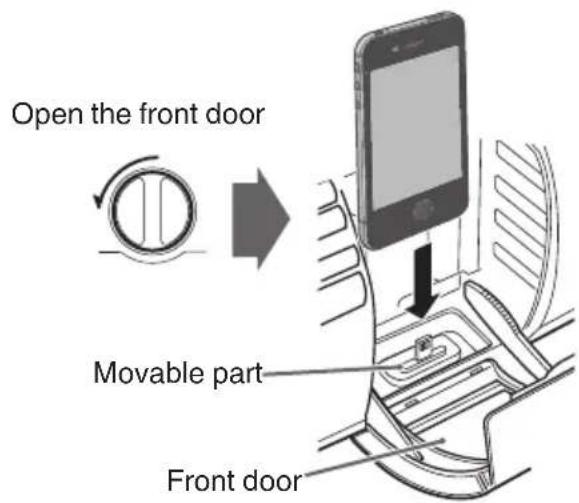
- A lightning connector is used for the iPod/iPhone dock of the System. Only iPod nano (7th generation), iPod touch (5th generation), and iPhone 5 support the Lightning connector. iPod/ iPhone other than the above mentioned need to be connected to the USB connector.
• Take the protect case of iPod off before connecting. - Connect iPod firmly.
- Keep iPod in a straight position while connecting/disconnecting it.
- Do not touch or hit the terminal pins of iPod or connector pins in the dock for iPod directly. Doing so might cause damage to the connector pins.
To connect to the USB connector
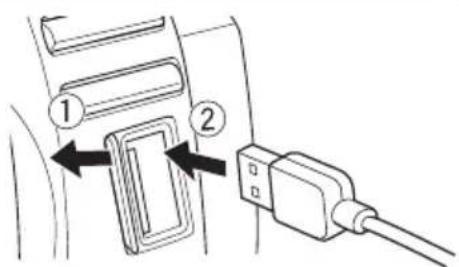
USB cable for iPod (not supplied)
Playback
Press [iPod ▶/■] or [USB/iPod ▶/■].
Each time you press the button, playback is started/paused.
- Press [USB/iPod ▶/■] when iPod is connected to the USB connector.
Display when connected to the iPod dock
Display when connected to the USB connector
To select a track
Press [|◀◀/◀◀] or [▶▶/▶▶].
- Press [▶▶/▶▶] once to skip to the beginning of the next track.
- Press [l◄◄/◄◄] to skip to the beginning of the track being played. Press [l◄◄/◄◄] twice quickly to skip to the beginning of the previous track.
To fast forward/reverse
Press and hold [◀◀/◀◀] or [▶▶/▶▶] during playback.
To put your iPod on sleep mode
Press and hold [iPod▶/■] or [USB/iPod▶/■].
(Press and hold)
NOTE
- Depending on the type of iPod, iPod may operate differently.
-
If you are using an iPhone or iPod touch, operate your iPhone or iPod touch in the following cases:
-
when pressing the home button.
- when selecting application icons on the home screen.
-
when dragging the slider.
-
Sound distortion may occur when playing back audio sources with high recording levels. If distortion occurs, it is recommended to turn off the equalizer of iPod.
- For information on operating iPod, see the instruction manual for iPod.
Shuffle playback
You can play the tracks on iPod in random order.
Press [PLAY MODE].
Each time you press the button, the shuffle mode turns on/off.
To exit from shuffle playback
Press [PLAY MODE] while shuffle playback is in progress.
Repeat playback
Press [REPEAT].
Each time you press the button, the repeat mode changes.
To exit from the repeat mode
Press [REPEAT] repeatedly until the repeat mode is canceled.
iPod menu operation
1 Press [MENU] to display the menu.
Each time you press the button, the previous menu is displayed.
![JVC RVNB75 - Press [MENU] to display the menu. - 1](/content/2026/02/382722/images/725c8c5e5dc41100e4cdeb5fc5806a6f2a29d5ee26613d09e445bc8d6146cf0c.jpg)
2 Press [UP] or [DOWN] to select an item.
3 Press [SET].
NOTE
- If iPod/iPhone is compatible with iOS 7.0.x, the above menu operations cannot be available on the System. Operate the menu on iPod/iPhone itself.
Listening to a BLUETOOTH device
You can listen to music from your BLUETOOTH device through the System.
When you connect your device for the first time, it is necessary to register (pair) your BLUETOOTH device and the System.
NOTE
- In order to use these functions, the BLUETOOTH device must support the AVRCP and A2DP profiles.
- Some BLUETOOTH devices may not be available to the System.
Connecting a BLUETOOTH device for the first time
1 Press the [BLUETOOTH▶/■] button.
BT READY
2 Perform the pairing operation on the target BLUETOOTH device.
On the target device, select "RV-NB75" (this System) from the available BLUETOOTH device list.
- When the target device requests for password during pairing, enter "0000".
- For information on operating the target BLUETOOTH device, see the instruction manual for the BLUETOOTH device.
Pairing is completed and the target BLUETOOTH device is connected to the System automatically. The BLUETOOTH indicator lights up.
B T
3 Start playback on the target BLUETOOTH device.
The sound from the BLUETOOTH device is emitted from the System. Playback may start automatically with some BLUETOOTH devices.
NOTE
- Up to five BLUETOOTH devices can be registered. When the sixth BLUETOOTH device is registered, registration of the device with the oldest connection history is deleted.
- By pressing [BLUETOOTH▶/■] while “BT READY” appears on the display window, you can reconnect the BLUETOOTH device that was last connected to the System.
- For the second and subsequent connections, the BLUETOOTH device that was last connected to the System will reconnect only when its BLUETOOTH function is turned on while “CONNECT” blinks on the display window. To reconnect another BLUETOOTH device, operate the BLUETOOTH device to connect while “BT READY” appears on the display window.
- While “CONNECT” is blinking, you cannot perform any operations except for turning the System off.
To control the BLUETOOTH device from the System
| operation button | |
| Play/Pause | Press the [BLUETOOTH ▶/■] button.Each time you press the button playback starts/pauses. |
| Stop Press [■]. | |
| Skip | Press [◀◀/◀◀] or [▶▶/▶▶]. |
| Fast Forward/Fast Rewind | Press and hold [◀◀/◀◀] or [▶▶/▶▶]. |
- Operation may differ depending on the type of BLUETOOTH device you are using.
To turn on/off the BLUETOOTH function of the System
While the System is turned on
Each time you press the button, this function is turned on/off.
"BT OFF": Turns off the BLUETOOTH function of the System.
"BT ON": Turns on the BLUETOOTH function of the System.
The BT indicator lights up in blue when the System is set to "BT ON", and the System is connected to a BLUETOOTH device.
Pairing (registering) other BLUETOOTH devices
1 When "BLUETOOTH" is selected as the source, press and hold [BLUETOOTH▶/■] for more than 2 seconds.
Canceling of connection starts.
DISCNNCT
"BT READY" appears when the connection has been canceled.
2 Perform the pairing operation on the target BLUETOOTH device.
On the target device, select "RV-NB75" (this System) from the available BLUETOOTH device list.
- When the target device requests for password during pairing, enter "0000".
- For information on operating the BLUETOOTH device, see the instruction manual for the BLUETOOTH device.
Pairing is completed and the BLUETOOTH device is connected automatically. The BLUETOOTH indicator lights up.
NOTE
The connection is canceled automatically in the following cases.
- Connection is canceled on the BLUETOOTH device, or BLUETOOTH function is set to "OFF".
- The System or the BLUETOOTH device is turned off (except for BLUETOOTH standby)
CAUTION
- The maximum distance for a possible BLUETOOTH connection is 10 m. The distance may be shorter depending on the usage environment.
- When the iPhone or smartphone is connected to the System via BLUETOOTH, ring alert of phone calls and mails can also be heard from the speakers of the System.
- This System is not equipped with a microphone feature. To make a call, cancel the connection with the System or use the microphone on the iPhone or smartphone.
- Some BLUETOOTH devices may not be available to the System.
Setting the System to BLUETOOTH standby
You can turn on the System using the remote control application on a BLUETOOTH-enabled Android device.
To turn on the System via the BLUETOOTH device, set the System to BLUETOOTH standby in advance.
Set the System to BLUETOOTH standby.
While the power is turned off...
BT STBY
- Press the button again to cancel BLUETOOTH standby. The "BT STBY" indicator goes off.
- To cancel BLUETOOTH standby, wait for about 10 seconds before performing the operation of canceling.
- When the System is set to BLUETOOTH standby, the BLUETOOTH device can be connected to the System when the connecting operation is made on the BLUETOOTH device.
- Pressing [BLUETOOTH ▶/■] during BLUETOOTH standby turns on the System and sets the source to "BLUETOOTH".
- When you use batteries to power the System, BLUETOOTH standby cannot be set.
To control the power of the System using remote control application
- You need to install the remote control application on your Android device.
1 Set "Bluetooth" to "ON" on the BLUETOOTH device.
- Select "Bluetooth" in "Settings" on your Android device,.
- Refer to the instruction manual of your device for further details.
2 Select "RV-NB75" from the device list.
3 Start the remote control application.
4 Control the power of the System using the "Settings" icon that is located on the bottom-right of the operation screen.
Using a remote control application
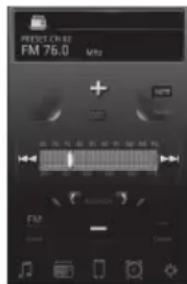
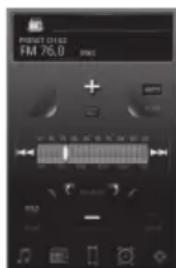
You can control the System remotely by using "JVC Audio Control BR1", a special remote control application on an Android device which is compatible with BLUETOOTH.
To use the remote control application, it is necessary to register (pair) your Android device and the System. (p. 17)
NOTE
- Search and download the application from Google Play (Play store).
- Screens and contents of the application are subject to change.
- To use the remote control application, your Android device must be Android OS 2.3 or later, and compatible with SPP (Serial Port Profile) of the BLUETOOTH profile.
- Some devices may not be recognized or may not work properly.
The following operations can be performed using the remote control application.
- Turning on/off the System
- Playing back music on a disc, USB device, or iPod
- Selecting radio stations
- Setting the timer
• Volume adjustment - Others
Refer to the help page of the remote control application for operation details.
*The followings are examples of operation screen of the remote control application.
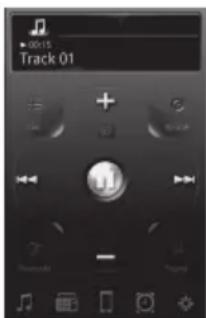
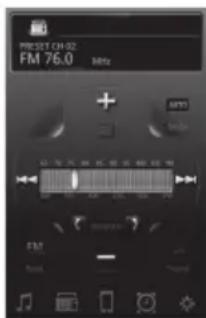
Left : Example of the CD operation screen Right : Example of the FM operation screen
CAUTION
- To turn on the System using the remote control application, set the System to "BLUETOOTH standby" in advance.
Playing back a disc/USB device
Preparation
Load a disc or connect a USB device.
Disc
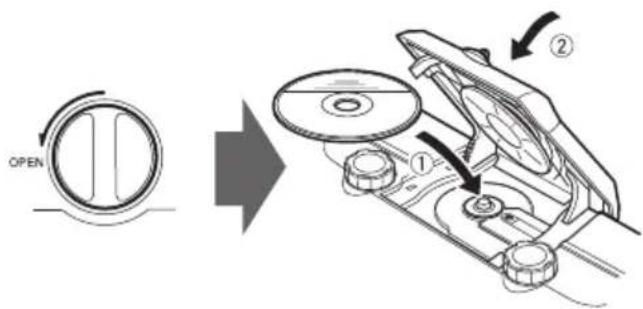
USB device
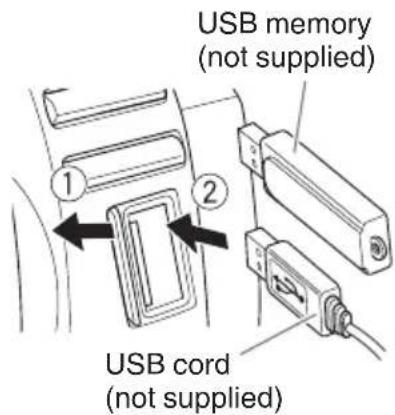
CAUTION
- The System is not equipped with USB recording function.
- Disconnect the USB device after playback stops. Disconnecting a USB device during playback may damage the file and the file system of USB device.
Playback
Press [CD ▶/■] or [USB/iPod ▶/■].

or

Display during playback
10
0:45
Current track number
Playback time
To stop playback
Press [■].

To pause
Press [CD ▶/■] or [USB/iPod ▶/■].
- To cancel pause, press the button again. Playback continues from the point where it was paused.
To select a track
Press [◀◀/◀◀] or [▶▶/▶▶].


- Press [▶▶/▶▶] once to skip to the beginning of the next track.
- Press [l◄◄/◄◄] to skip to the beginning of the track being played. Press [l◄◄/◄◄] twice quickly to skip to the beginning of the previous track.
To select a track using the remote control
Examples:
• To select number 5, press 5.
• To select number 15, press +10 then 5.
• To select number 20, press +10 then 10.
- To select number 125, press +100, +10, +10 then 5.
To fast forward/reverse
Press and hold [◀◀/◀◀] or [▶▶/▶▶] during playback.
To select a group (for MP3/WMA)
Press [UP] or [DOWN].
![JVC RVNB75 - Press [UP] or [DOWN]. - 1](/content/2026/02/382722/images/eb72a7c3ab854d19c764309e2a135429ff020bc07a3f4aefdb0d22a6404b9afa.jpg)
![JVC RVNB75 - Press [UP] or [DOWN]. - 2](/content/2026/02/382722/images/6c843c0e78ec94334f1ccf2a9fee94242fba6a842b59ddaf1a879d0545e0778e.jpg)
- Press [UP] to skip to the next group.
- Press [DOWN] to skip to the previous group.
NOTE
- When you have stopped playback of an MP3/WMA file by pressing [■], pressing [▶/■] will start playback from the beginning of the stopped file (Resume playback).
- To cancel the Resume playback, press [■] when playback is stopped.
- Resume playback is canceled in the following situations:
- during program playback
- during random playback
- when the disc compartment door is opened
- when another source is selected
Program playback
You can program up to 32 tracks from a disc or a USB device in any desired order including the same tracks.
1 Press [CD▶/■] or [USB/iPod▶/■].
2 Press [■] to stop playback.
3 Press [PLAY MODE].

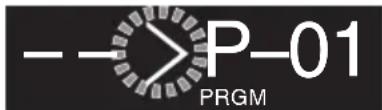
4 Press the number buttons to select the track to program.
- While making a program, you cannot specify a group number to select a track.
5 Press [SET].

6 Repeat step 4 and 5 to select other tracks for the program.
7 Press [CD▶/■] or [USB/iPod▶/■].
Program playback starts.
To confirm the programmed tracks
While program playback is stopped, press [UP] or [DOWN] repeatedly.
The tracks in the program will successively appear on the display in the programmed order.
To add tracks in the program
Press the number buttons while program playback is stopped, and then press [SET].
The track is added to the end of the program.
To delete tracks in the program
While program playback is stopped, press [CANCEL].
• Each time you press the button, the last track in the program is erased.
- All the programmed contents can be deleted by holding the button.
- The program is cleared in the following situations:
- when the power is turned off
- when the disc compartment door is opened
- when the USB device is disconnected
- when another source is selected
- when program mode is exited
To exit from the program playback
While stopped, press [PLAY MODE].
The "PRGM" indicator goes off.
- Programmed contents are also deleted.
Random playback
You can play all the tracks, on the disc or USB device in random order.
Press [PLAY MODE] to select "RANDOM" during playback.
10 0:45
RANDOM
- All tracks are played in random order instead of random playback within a group.
- During random playback, you cannot go back to the previous track even by pressing [◀◀/◀◀] repeatedly.
To exit from the random mode
Press [PLAY MODE] during random playback.
The "RANDOM" indicator goes off.
- Random playback is also canceled when you stop playback.
- Random playback is canceled in the following situations:
- when the power is turned off
- when the disc compartment door is opened
- when the USB device is disconnected
- when another source is selected
Repeat playback
You can repeat a track or tracks on the disc or USB device as many times as you like.
Press [REPEAT].
Each time you press the button, the play mode changes as follows:
“◀” → “◀GROUP” → “◀ALL” → goes off → (back to the beginning)
“→” : Repeats the current track.
“GROUP” : In normal play mode, repeats all the tracks in a group.
"▶ALL": Repeats all the tracks on the disc or USB device.
“◀” goes off : Cancels repeat playback
- “GROUP” can be selected only when playing back MP3/WMA files.
NOTE
- During program playback, only “▶” and “▶ALL” can be selected. Program playback is repeated.
- During random playback, only "▶ALL" can be selected. Random playback is repeated.
- Repeat playback is canceled in the following situations:
- when the power is turned off
- when the disc compartment door is opened
- when the USB device is disconnected
- when another source is selected
Listening to FM stations
1 Press [TUNER] once to select "FM".
Remote control
Main unit
![JVC RVNB75 - Press [TUNER] once to select "FM". - 1](/content/2026/02/382722/images/04a8e4e293638a979ea3e1e705c62e40a643a636dddcb870c18783eaa9293f43.jpg)
![JVC RVNB75 - Press [TUNER] once to select "FM". - 2](/content/2026/02/382722/images/eb1fb1d089ab7531488677ffbedac3e26d3944d4ee5ee9d33b70345969664f50.jpg)
FM8750. MHz
2 Select the station.
Press and hold [◀◀/◀◀] or [▶▶/▶▶] to change the frequency continuously until a station of sufficient signal strength is tuned in.
• To stop the search manually, press the buttons again.
- Pressing the button repeatedly changes the reception frequency in steps of 50 kHz.
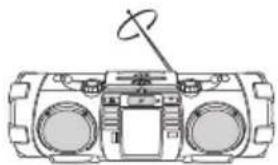
Adjusting the antenna
Adjust the length, angle and direction of the FM antenna until the best reception is obtained.
natural_image
Line drawing of a portable electronic device with two speakers and a antenna (no text or symbols)To improve the FM reception
When an FM stereo (FM) broadcast is hard to receive or noisy, select the monaural reception (MONO) mode.
Press [FM MODE].
![JVC RVNB75 - Press [FM MODE]. - 1](/content/2026/02/382722/images/10d80d8ed4224833f452a892a489289892c74731aea06169c8fcf62feaaaae70.jpg)
Each time you press the button, the setting changes.
"AUTO": Stereo auto reception
"MONO": Monaural reception
NOTE
- Monaural reception improves the reception but the stereo effect is lost.
Presetting stations
You can preset up to 30 FM stations manually.
1 Tune in to a station you want to preset.
2 Press [SET].

FMP-01
- Perform the following steps while the indication flashes.
3 Press [UP] or [DOWN] to select the preset number you want to store.
• To cancel the presetting, press [CANCEL].
4 Press [SET].
To tune in to a preset station
Each time you press the button, you can select a preset station.
- You can select the preset station directly using the number buttons.
Examples:
• To select number 5, press 5.
• To select number 15, press +10 then 5.
• To select number 20, press +10 then 10.
External device
Listening to an external device
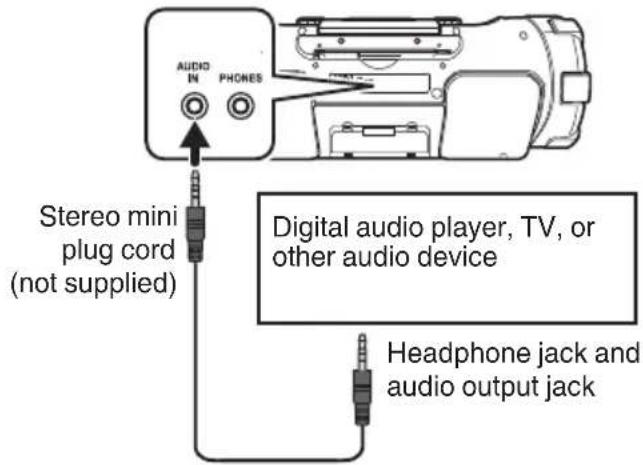
1 Set the volume level of the System to minimum.
2 Connect the external device.
Refer also to the instruction manual for the external device.
3 Press [AUDIO IN] to select "AUDIO IN".
Remote control

Main unit
4 Start playback of the external device.
5 Adjust the volume of the System and of the external device.
Adjusting the audio input level
Adjust the audio input level when there is a contrast between the volume of the external device connected to the AUDIO IN jack and that of other sources.
When "AUDIO IN" is selected as the source, press [SET].

Each time you press the button, the input level changes as follows:
"LEVEL1" → "LEVEL2" → "LEVEL3" → (back to the beginning)
"LEVEL1": Standard audio input level
"LEVEL2": Higher level than "LEVEL1"
"LEVEL3": Higher level than "LEVEL2"
The initial setting is "LEVEL3".
Using the timer
Setting the sleep timer
The power of the System automatically turns off after the shut-off time you set has elapsed.
Press [SLEEP] repeatedly.

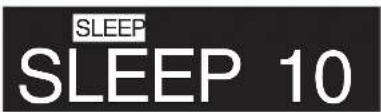
Each time you press the button, the shutoff time (in minute) changes as follows:
10 → 20 → 30 → 60 → 90 → 120 → 150 → 180
→ OFF → (back to the beginning)
- To cancel the sleep timer, press [SLEEP] repeatedly to select "OFF".
NOTE
- This APS function (p. 13) operates even while the sleep timer is on.
To check the remaining time until the System shuts off
Press the [SLEEP] button once.
The remaining time is displayed for 5 seconds.
Setting the daily timer
Using the daily timer (Playback timer), you can wake up with your favorite music.
By setting the daily timer, the System turns on automatically one minute before the daily timer starts.
NOTE
- Set the clock before setting the daily timer. (p. 12)
- Tune into a FM station, load a disc, or connect a USB device/iPod to the System, and make sure that the source works properly beforehand.
- Preset the desired FM station before setting the daily timer. (p. 23)
- Daily timer does not work when the power is supplied through the batteries. Supply the power through an AC outlet.
1 Press [CLOCK/TIMER].
2 Press [UP] or [DOWN] repeatedly until "PLAY TMR" appears.
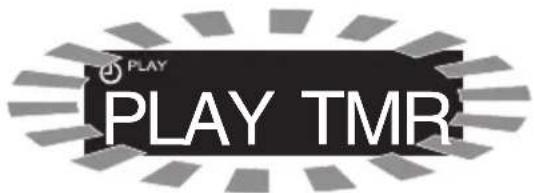
3 Press [SET].
4 Press [UP] or [DOWN] repeatedly until "PLAY SET" appears.
5 Press [SET].
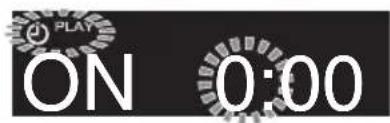
6 Press [UP] or [DOWN] to adjust the "hour" of the starting time.
- When you press and hold the button, the hour digit changes continuously.
7 Press [SET].
Continue on the next page
8 Press [UP] or [DOWN] to adjust the "minute" of the starting time, the "hour" and "minute" of the ending time, and select the source and the volume.
- Select "FM", "CD", "USB", "iPod" or "AUDIO IN" as the source.
- When "FM" is selected as the source, select a preset number using [UP] or [DOWN] and then press [SET].
- When "CD" or "USB" is selected as the source, select a track number using [UP] or [DOWN] and then press [SET].
9 Press [SET].
After setting up the volume, "PLAY SET" is displayed, followed by the settings in order.
10 Press [⏻/l] to turn off the System.
- The System turns on automatically one minute before the daily timer starts.
- The daily timer works only when the System is turned off.
- While the timer is set, the timer indicator [PLAY] lights up.
- While the timer is working, [PLAY] flashes.
- Once set, the daily timer works every day.
- You cannot set the same time for the starting time and finish time.
NOTE
- To go back to the previous step, press [CANCEL].
- Auto power save function (p. 13) remains active even while the daily timer is working.
- The [SLEEP] button is disabled while the daily timer is functioning.
To cancel the daily timer
After selecting “PLAY TMR” by performing step 1 to 3 in “Setting the daily timer”, select “PLAY OFF”, and then press [SET].

To set the daily timer with the same settings again after canceling
After selecting “PLAY TMR” by performing step 1 to 3 in “Setting the daily timer”, select “PLAY ON”, and then press [SET].
"TIMER ON" is displayed, followed by the settings.
About Discs/Files
Compatible iPod
| Made for Version* | |
| iPod nano (7th generation) 1.0.2 | |
| iPod nano (6th generation) 1.2 | |
| iPod nano (5th generation) 1.0.2 | |
| iPod nano (4th generation) 1.0.4 | |
| iPod nano (3rd generation) 1.1.3 | |
| iPod nano (2nd generation) 1.1.3 | |
| iPod touch (5th generation) 6.1.3 | |
| iPod touch (4th generation) 6.1.3 | |
| iPod touch (3rd generation) 5.1.1 | |
| iPod touch (2nd generation) 4.2.1 | |
| iPod touch 3.1.3 | |
| iPod classic 2.0.4 | |
| iPhone 5 6.1.4 | |
| iPhone 4s 6.1.3 | |
| iPhone 4 6.1.3 | |
| iPhone 3GS 6.1.3 | |
| iPhone 3G 4.2.1 |
* Software version at the time of operation confirmation
- A lightning connector is used for the iPod/iPhone dock of the System. Only iPod nano (7th generation), iPod touch (5th generation), and iPhone 5 support the Lightning connector. iPod/ iPhone other than the above mentioned need to be connected to the USB connector.
- Reset your iPod/iPhone if your iPod/iPhone is not playing back correctly. (Please visit Apple's homepage for information about resetting your iPod/iPhone.)
- For details on the iPod/iPhone, check Apple's web site. http://www.apple.com
- To check the latest supporting status of the iPod/iPhone, refer to the product information on our home page.
playable BLUETOOTH devices
- To connect the device to this System via BLUETOOTH, the device must be compatible with the BLUETOOTH 2.1+EDR and the A2DP and AVRCP profiles.
playable discs/files
| Discs | AUDIO CD | CD-R | CD-RW |
| Files MP3/WMA | |||
- Some MP3/WMA files may not be played back and will be skipped. This results from their recording processes and conditions.
- When making MP3/WMA discs, use ISO 9660 Level 1 for the disc format.
- This system can play back MP3/WMA recorded at the following sampling frequency and bitrate.
Bitrate:
MP3
32 kbps - 320 kbps
WMA
32 kbps - 320 kbps
Sampling frequency:
32/44.1/48 kHz
- This System cannot play "packet write" discs.
- The System can display ID3 TAG VERSION1,2 (song title, artist and album name), names of the files and folders (alphanumeric characters only, lowercase letters are displayed as uppercase letters).
- Up to 128 characters can be displayed.
- This System can recognize up to 99 folders and 999 files on a disc, and up to 300 folders and 999 files on a USB device.
Important for USB mass storage class devices
For connecting/disconnecting:
- Disconnect the USB device after playback stops. Disconnecting the USB device during playback may damage the file and the file system of USB device.
- When connecting with a USB cable, use a USB 2.0 cable less than 1 m in length.
- You cannot connect a computer to the USB MEMORY terminal of the System.
- Do not use a USB hub.
- When the power is supplied through the AC outlet and USB is selected as the source, the USB device is charged through the USB MEMORY terminal.
- Deactivate the security function of the USB device before connecting.
For playing back:
• The playing order of MP3/WMA files
- Groups are played in creation order. In a group, tracks are played in recording order.
- The playing order may change if you change a folder name or file name on the PC.
- You cannot play back a file larger than 2 Gigabytes.
- It is recommended to use USB mass storage class devices that are less than 32 GB.
- If your USB device is partitioned, only the first partition is recognized.
- Some USB devices may not be recognized or may not work properly.
• Copyrighted tracks (WMA-DRM tracks) cannot be played back on the System.
- Electrostatic shock at connecting a USB device may cause abnormal playback of the device. In this case, disconnect the USB device then reset this System and the USB device.
- JVC bears no responsibility for any loss of data on the USB mass storage class device while using this System.
Others
Maintenance
To get the best performance of the System, keep your discs and mechanism clean.
Handling discs
- Remove the disc from its case by holding it at the edge while pressing the center hole lightly.
- Do not touch the shiny surface of the disc, or bend the disc.
- Put the disc back in its case after use.
- Be careful not to scratch the surface of the disc when placing it back in its case.
- Avoid exposure to direct sunlight, temperature extremes, and moisture.
Cleaning discs
- Wipe the disc with a soft cloth in a straight line from center to edge.
Cleaning the System
• Stains should be wiped off with a soft cloth. If the System is heavily stained, wipe it with a cloth soaked in water-diluted neutral detergent and wrung well, then wipe clean with a dry cloth.
- Since the System may deteriorate in quality, become damaged or get its paint peeled off, be careful about the following:
- DO NOT wipe it hard.
- DO NOT wipe it with thinner or benzine.
- DO NOT apply any volatile substances such as insecticides to it.
- DO NOT allow any rubber or plastic to remain in contact for a long time.
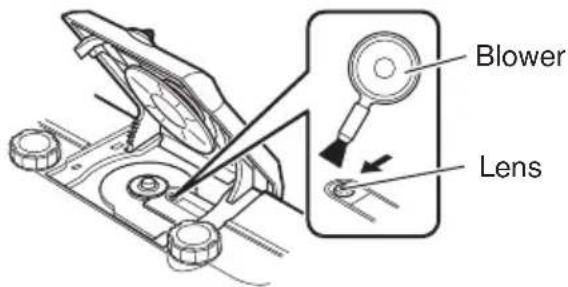
Cleaning the CD pickup lens
- Keep the CD pickup lens clean, or the sound may be degraded. Use a blower (available at a camera store, etc.) to blow dust off the lens.
Trademarks
- Microsoft and Windows Media are either registered trademarks or trademarks of Microsoft Corporation in the United States and/or other countries.
- "Made for iPod" and "Made for iPhone" mean that an electronic accessory has been designed to connect specifically to iPod or iPhone, respectively, and has been certified by the developer to meet Apple performance standards. Apple is not responsible for the operation of this device or its compliance with safety and regulatory standards. Please note that the use of this accessory with iPod or iPhone may affect wireless performance.
- iPhone, iPod, iPod classic, iPod nano and iPod touch are trademarks of Apple Inc., registered in the U.S. and other countries.
- The Bluetooth® word mark and logos are registered trademarks owned by Bluetooth SIG, Inc. and any use of such marks by JVC KENWOOD Corporation is under license.
• Android is a trademark of Google Inc..
Troubleshooting
If you are having a problem with your System, check this list for a possible solution before calling for service.
If the following measures do not resolve the problems:
The System works using a built-in microprocessor. If buttons are not operative, disconnect the AC power cord from the wall outlet, wait for a while, then connect the cord again.
General
Power does not come on.
→ No power is supplied. Check the power cord connection or change the batteries.
The System turns off automatically.
→ Auto power save function is functioning. (p. 13)
Adjustments or settings are suddenly canceled before you finish.
→ There is a time limit. Repeat the procedure.
While the power is supplied using the batteries, sound from the speakers is distorted or too quiet.
→ Batteries are exhausted. Change the batteries.
Unable to operate the System from the remote control.
→ The path between the remote control and the remote sensor on the System is blocked.
→ The batteries are exhausted.
No sound is heard.
→ Adjust the volume.
→ Headphones are connected.
iPod Operations
iPod does not play.
→ Connect the USB cable correctly.
→ Check the compatibility of your iPod. (p. 27)
→ The battery of iPod is low or exhausted.
Charge the battery of iPod.
→ Reset your iPod after disconnecting from the System, and unplug the power of the System and plug in again. (Please visit Apple's homepage for further information on resetting your iPod.)
BLUETOOTH Operations
Unable to pair.
→ Set the System in pairing standby, and perform pairing from the target device, such as a smartphone. (p. 17)
Unable to connect to BLUETOOTH device.
→ Check that the BLUETOOTH function of your BLUETOOTH device is set to ON.
→ Your device does not support A2DP. A2DP profile is necessary to stream music data. Refer to the instruction manual of the BLUETOOTH device.
Unable to operate BLUETOOTH device.
→ Your device does not support AVRCP. To operate the BLUETOOTH device from the System, AVRCP is required. Refer to the instruction manual of the BLUETOOTH device.
The sound is choppy. Noise is generated.
The System is out of the BLUETOOTH range limitation, or there may be an equipment interfering with the radio waves between the System and the BLUETOOTH device. Try placing the BLUETOOTH device nearer to the System, or change location.
Disc/USB Mass Storage Class Device Operations
The disc/USB device does not play.
→ The disc is placed upside down. Place the disc with the label side facing up.
→ The disc is scratched or dirty.
The disc is recorded with the “packet writing (UDF file unit)”. It cannot be played. Check the files you want to play back.
→ The USB device is not connected properly.
MP3/WMA groups and tracks are not played back as you expect.
→ The playback order is determined by the writing software used for recording the groups and tracks.
The disc sound is discontinuous.
→ The disc is scratched or dirty.
→ Play MP3/WMA files that are properly written.
Sounds from USB device are interrupted.
→ Noise and static electricity may stop the sound. In this case, disconnect and connect the USB device again after turning off the System.
Radio Operations
Hard to listen to broadcasts because of noise.
→ Extend and position the FM antenna properly.
Timer Operations
Unable to set the sleep timer
Daily timer is functioning. While the daily timer is functioning, sleep timer does not work.
Daily timer does not start working.
The clock needs to be set. Clock setting is canceled when the AC power cord is unplugged from the AC outlet, causing the daily timer to stop functioning.
→ The System is turned on when the on-time comes. Timer starts working only when the System is turned off.
Specifications
Disc player
CD capacity: 1CD
Signal-to-noise ratio: 85 dB
Dynamic range: 90 dB
Tuner
FM tuning range: 87.50 MHz – 108.00 MHz
Antenna: Telescopic antenna
BLUETOOTH
BLUETOOTH version: BLUETOOTH 4.0 + EDR certified
Output power: 2.5 mW (MAX), Power
Service area: max. 10 m (10.9 yd.)*
* Communication range may vary depending on the environmental conditions.
Frequency band: 2.402 GHz - 2.480 GHz
BLUETOOTH profile: A2DP (Advanced Audio Distribution Profile), AVRCP (Audio/Video Remote Control Profile)
General
Speakers:
• Full range: 8 cm cone × 2
Speaker impedance: 16 Ω
• Super woofer: 13 cm cone × 2
Speaker impedance: 7 Ω
Output power: 40 W
Input terminal
- USB MEMORY: Playable files:
MP3, WMA
- Compatible with USB 2.0 Full-Speed
- Compatible device: Mass storage class
- Compatible system: FAT16, FAT32
• Output power: DC 5 V —— 1A
- Dock for iPod:
• AUDIO IN: φ3.5
DC 5 V 1 A
Input Sensitivity /Impedance (1 kHz): • LEVEL 1: 500 mV /47 kΩ
• LEVEL 2: 250 mV /47 kΩ
• LEVEL 3: 125 mV /47 kΩ
Output terminal
- PHONES: φ 3.5
32 Ω - 1 kΩ
15 mW/ch output into 32 Ω
Power supply
• AC: AC 230 V ∼, 50 Hz
• DC: DC 15 V (R20(SUM-1)/D (13D)-size batteries x 10)
Power consumption: 28 W (when powered on)
3.0 W or less (during BLUETOOTH standby)
0.50 W or less (during standby)
Dimensions: 666 mm × 235 mm × 248 mm (W x H x D)
Mass: Approx. 7.1 kg (without batteries stored in the battery
compartment)
Design and specifications are subject to change without notice.
JVC
CD-SYSTEM MIT POWER WOOFER
RV-NB75B
natural_image
Line drawing of a JVC portable radio with control panel and buttons (no text or symbols)
MP3/WMA

BEDIENUNGSANLEITUNG
Einleitung
natural_image
Illustration of a portable electronic device with two dials and musical notes (no text or symbols)flowchart
graph TD
    A["Device with arrow"] --> B["Switch with switch"]
    B --> C["Device with switch"]
    C --> D["Battery with arrow"]
⑪ SLEEP-Taste (S. 25)
⑰ REPEAT-Taste (S. 16, 22)
⑱ MUTING-Taste (S. 12)
⑲ VOLUME +/- -Taste (S. 12)
⑳ SUPER WOOFER VOLUME +/- -Taste (S. 12)
Verbindungen
natural_image
Line drawing of a portable electronic device with two speakers and a antenna (no text or symbols)BLUETOOTH-Profil: A2DP (Advanced Audio Distribution Profile), AVRCP (Audio/
Video Remote Control Profile)
Allgemein
Lautsprecher:
CHAIN CD A WOOFER AMPLIFIE
RV-NB75B
natural_image
Line drawing of a JVC portable radio with control panel and keypad (no text or symbols)
MP3/WMA

MANUEL D'INSTRUCTIONS
Introduction
natural_image
Illustration of a portable electronic device with two dials and musical notes (no text or symbols)natural_image
Illustration of a CD and a USB flash drive (no text or symbols)flowchart
graph TD
    A["Remote Control Device"] --> B["Internal Display"]
    B --> C["After Adjustment"]
    C --> D["Final Remote Control Device"]
② Touche MENU/BLUETOOTH SETTING (p. 16)
③ Touches de commande multiple (p. 15 - 23)
- UP, DOWN
• |◀◀/◀◀, SET, ▶▶/▶▶|
natural_image
Circular mechanical component with symmetrical radial grooves and a central hole, no text or symbols present.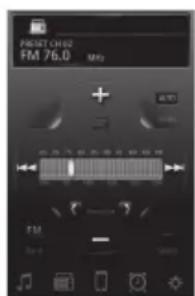
ATTENTION
natural_image
Line drawing of a portable electronic device with two circular ports and a antenna (no text or symbols)"LEVEL1" → "LEVEL2" → "LEVEL3" → (retour au début)
Dimensions: 666 mm × 235 mm × 248 mm (L x H x P)
natural_image
Line drawing of a JVC portable radio with control panel and buttons (no text or symbols)
MP3/WMA

GEBRUIKSAANWIJZING
Introductie
natural_image
Illustration of a portable electronic device with two dials and musical notes (no text or symbols)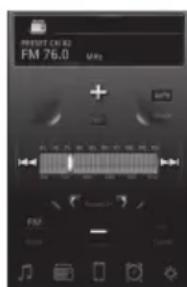
Druk op [CD ▶/II] of [USB/iPod ▶/III].

of

Druk op [CD ▶/II] of [USB/iPod ▶/III].
natural_image
Line drawing of a portable radio with two speakers and a antenna (no text or symbols)De basisinstelling is "LEVEL3".
- Microsoft en Windows Media zijn geregistreerde handelsmerken of handelsmerken van Microsoft Corporation in de Verenigde Staten en/of andere landen.
- “Made for iPod” and “Made for iPhone” mean that an electronic accessory has been designed to connect specifically to iPod or iPhone, respectively, and has been certified by the developer to meet Apple performance standards. Apple is not responsible for the operation of this device or its compliance with safety and regulatory standards. Please note that the use of this accessory with iPod or iPhone may affect wireless performance.
- iPhone, iPod, iPod classic, iPod nano and iPod touch are trademarks of Apple Inc., registered in the U.S. and other countries.
- De term Bluetooth en de bijbehorende markeringen en logo's zijn geregistreerde handelsmerken en eigendom van Bluetooth SIG, Inc. en JVC KENWOOD Corporation gebruikt deze onder licentie.
- Android is een handelsmerk van Google Inc..
SISTEMA POWERED WOOFER CD
RV-NB75B
natural_image
Line drawing of a JVC portable radio with control panel and buttons (no text or symbols)
MP3/WMA

ISTRUZIONI
Introduzione
natural_image
Illustration of a portable electronic device with two dials and musical notes (no text or symbols)natural_image
Illustration of a CD and an electronic device (no text or symbols)Pag. 20
① Presa AC IN
② Presa AUDIO IN
③ Presa PHONES
④ Antenna telescopica FM
Finestra del display
natural_image
Line drawing of a portable electronic device with two front panels and a central antenna (no text or symbols)- Microsoft e Windows Media sono marchi registrati o marchi di fabbrica Microsoft Corporation negli Stati Uniti e/o in altri Paesi.
- “Made for iPod” and “Made for iPhone” mean that an electronic accessory has been designed to connect specifically to iPod or iPhone, respectively, and has been certified by the developer to meet Apple performance standards. Apple is not responsible for the operation of this device or its compliance with safety and regulatory standards. Please note that the use of this accessory with iPod or iPhone may affect wireless performance.
- iPhone, iPod, iPod classic, iPod nano and iPod touch are trademarks of Apple Inc., registered in the U.S. and other countries.
- Il termine e i loghi Bluetooth® sono marchi di fabbrica registrati di Bluetooth SIG, Inc. e l'uso di tali marchi fatto da JVC KENWOOD Corporation è concesso in licenza.
- Android è un marchio di fabbrica di Google Inc..

- POWERED WOOFER CD SYSTEM
- RV-NB75B
- Introduction
- Auto power save function
- In this manual...
- Notes on using the System
- CE
- IMPORTANT FOR LASER PRODUCTS
- Preparation
- Caution: Proper Ventilation
- Notes on installation
- What you can do using the System
- Contents
- Introduction 2
- Preparation 6
- Index of parts and controls ...... 8
- Connections 11
- Basic operations ...... 12
- iPod 14
- Listening to a BLUETOOTH device ..... 17
- Playing back a disc/USB device ..... 20
- FM 23
- External device 24
- Using the timer 25
- About Discs/Files 27
- Others 29
- Troubleshooting 30
- Specifications 32
- Accessories
- Check that you have all the following items, which are supplied for the system.
- Inserting batteries
- Main unit
- Remote control
- NOTE
- CAUTION
- Carrying the System
- Using the carrying handles
- Using the shoulder strap
- Index of parts and controls
- Front of the System
- / I
- Connections
- Connecting the power cord
- Connecting headphones
- Basic operations
- Turning on/off the System
- Press [STANDBY/ON ⏻/l].
- Setting the clock
- Press [CLOCK/TIMER] repeatedly to select the clock.
- Press [UP] or [DOWN] to adjust the hour.
- Press [SET].
- Repeat 2 and 3 to adjust the minute.
- Displaying the clock
- Press [DISPLAY].
- Getting started
- To select a source
- To adjust the volume
- To turn off the sound temporarily
- Press [MUTING].
- To adjust the super woofer volume
- Sound mode
- Press [SOUND MODE] to select the sound mode.
- To set your preferred sound quality
- Press [TREBLE+/-] or [BASS+/-] repeatedly.
- Auto power save mode
- Display information
- iPod
- Connecting iPod
- Playback
- To select a track
- To fast forward/reverse
- To put your iPod on sleep mode
- Shuffle playback
- Press [PLAY MODE].
- To exit from shuffle playback
- Repeat playback
- Press [REPEAT].
- To exit from the repeat mode
- iPod menu operation
- Press [MENU] to display the menu.
- Press [UP] or [DOWN] to select an item.
- Listening to a BLUETOOTH device
- Connecting a BLUETOOTH device for the first time
- Press the [BLUETOOTH▶/■] button.
- BT READY
- Perform the pairing operation on the target BLUETOOTH device.
- B T
- Start playback on the target BLUETOOTH device.
- To turn on/off the BLUETOOTH function of the System
- While the System is turned on
- Pairing (registering) other BLUETOOTH devices
- When "BLUETOOTH" is selected as the source, press and hold [BLUETOOTH▶/■] for more than 2 seconds.
- DISCNNCT
- Setting the System to BLUETOOTH standby
- Set the System to BLUETOOTH standby.
- BT STBY
- To control the power of the System using remote control application
- Set "Bluetooth" to "ON" on the BLUETOOTH device.
- Select "RV-NB75" from the device list.
- Start the remote control application.
- Control the power of the System using the "Settings" icon that is located on the bottom-right of the operation screen.
- Using a remote control application
- Playing back a disc/USB device
- To stop playback
- To pause
- To select a track using the remote control
- Examples:
- To select a group (for MP3/WMA)
- Press [UP] or [DOWN].
- Program playback
- To confirm the programmed tracks
- To add tracks in the program
- To delete tracks in the program
- While program playback is stopped, press [CANCEL].
- To exit from the program playback
- While stopped, press [PLAY MODE].
- Random playback
- Press [PLAY MODE] to select "RANDOM" during playback.
- To exit from the random mode
- Press [PLAY MODE] during random playback.
- Listening to FM stations
- Press [TUNER] once to select "FM".
- Select the station.
- Adjusting the antenna
- To improve the FM reception
- Press [FM MODE].
- Presetting stations
- Press [UP] or [DOWN] to select the preset number you want to store.
- Press [SET].
- To tune in to a preset station
- External device
- Listening to an external device
- Adjusting the audio input level
- Using the timer
- Setting the sleep timer
- To check the remaining time until the System shuts off
- Setting the daily timer
- Press [UP] or [DOWN] to adjust the "minute" of the starting time, the "hour" and "minute" of the ending time, and select the source and the volume.
- Press [SET].
- Press [⏻/l] to turn off the System.
- To cancel the daily timer
- To set the daily timer with the same settings again after canceling
- About Discs/Files
- playable BLUETOOTH devices
- Important for USB mass storage class devices
- For connecting/disconnecting:
- For playing back:
- Others
- Maintenance
- Handling discs
- Cleaning discs
- Cleaning the System
- Cleaning the CD pickup lens
- Trademarks
- Troubleshooting
- If the following measures do not resolve the problems:
- General
- Power does not come on.
- The System turns off automatically.
- Adjustments or settings are suddenly canceled before you finish.
- While the power is supplied using the batteries, sound from the speakers is distorted or too quiet.
- Unable to operate the System from the remote control.
- No sound is heard.
- iPod Operations
- iPod does not play.
- BLUETOOTH Operations
- Unable to pair.
- Unable to connect to BLUETOOTH device.
- Unable to operate BLUETOOTH device.
- The sound is choppy. Noise is generated.
- Disc/USB Mass Storage Class Device Operations
- The disc/USB device does not play.
- MP3/WMA groups and tracks are not played back as you expect.
- The disc sound is discontinuous.
- Sounds from USB device are interrupted.
- Radio Operations
- Hard to listen to broadcasts because of noise.
- Timer Operations
- Unable to set the sleep timer
- Daily timer does not start working.
- Specifications
- JVC
- CD-SYSTEM MIT POWER WOOFER
- Einleitung
- Verbindungen
- CHAIN CD A WOOFER AMPLIFIE
- ATTENTION
- Introductie
- SISTEMA POWERED WOOFER CD
- Introduzione
Brand : JVC
Model : RVNB75
Category : Loudspeaker